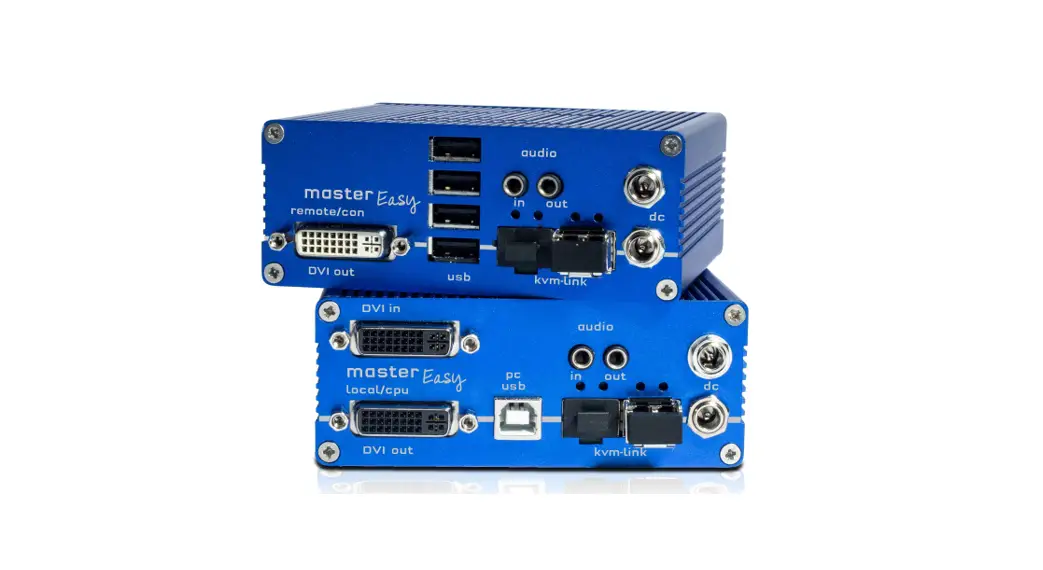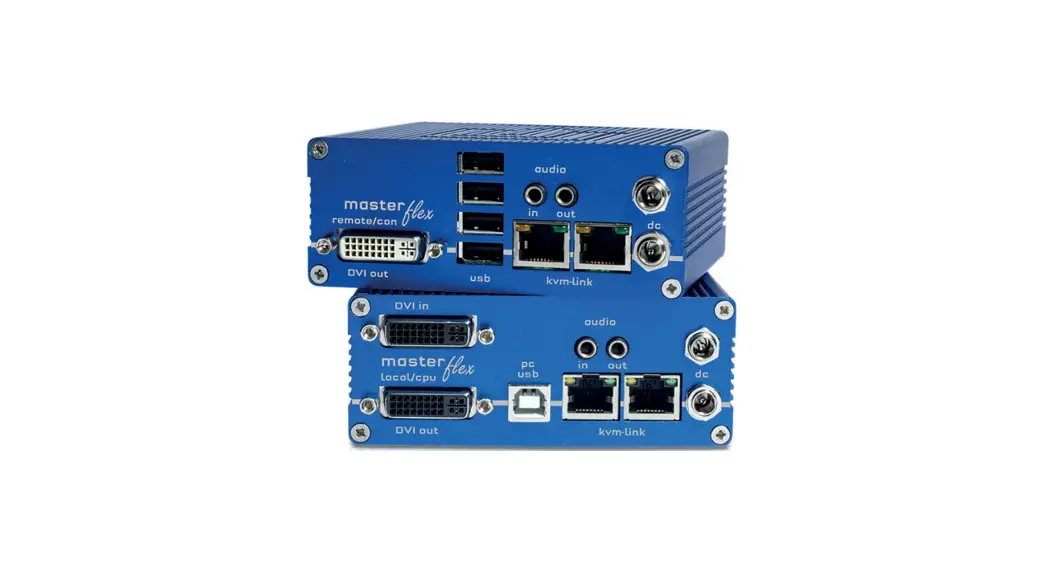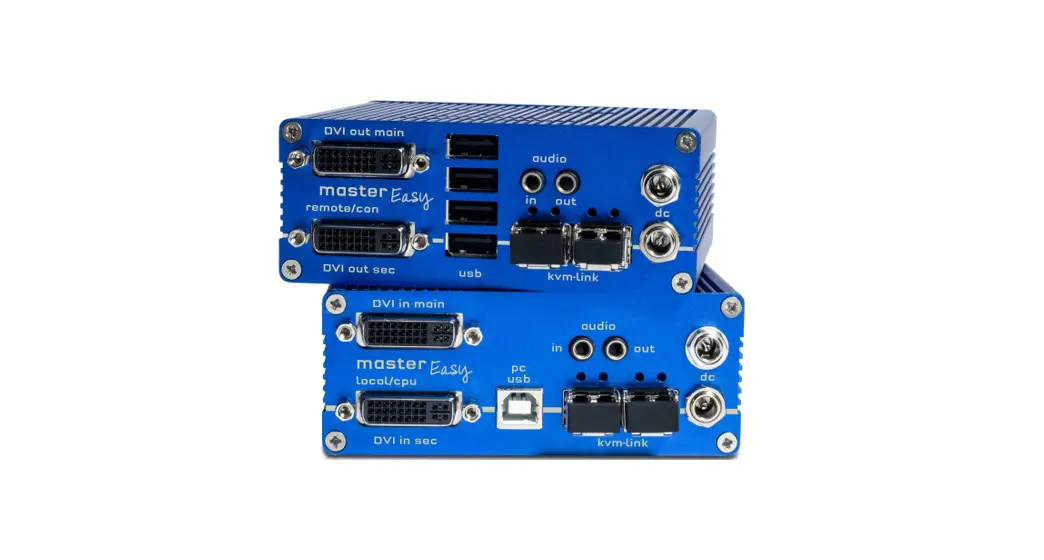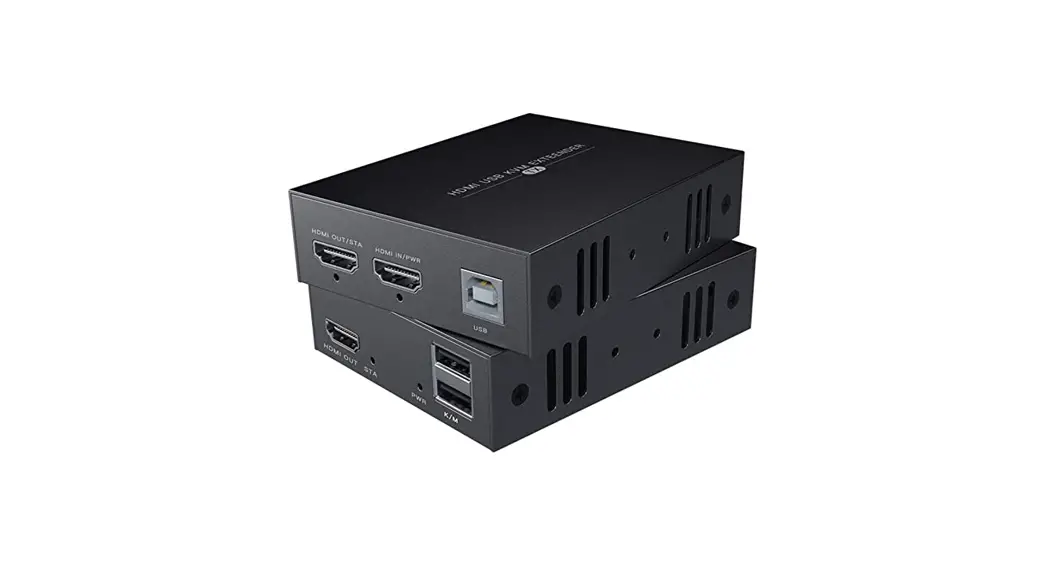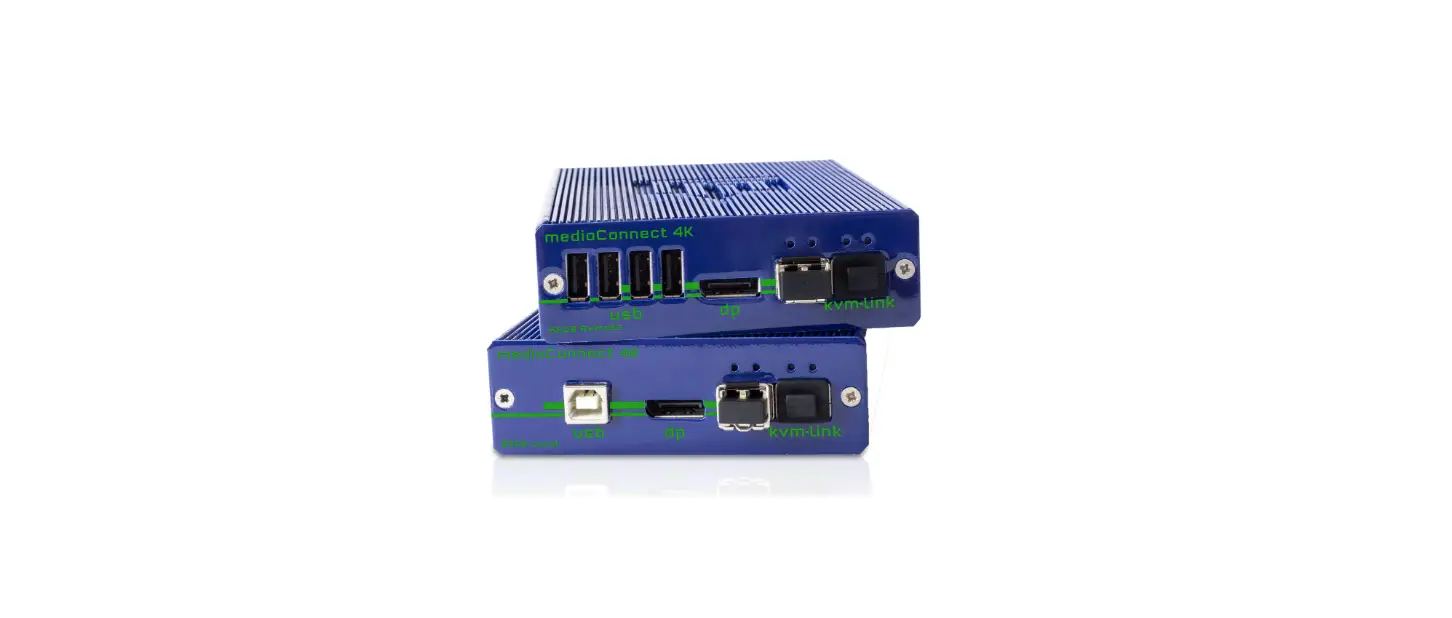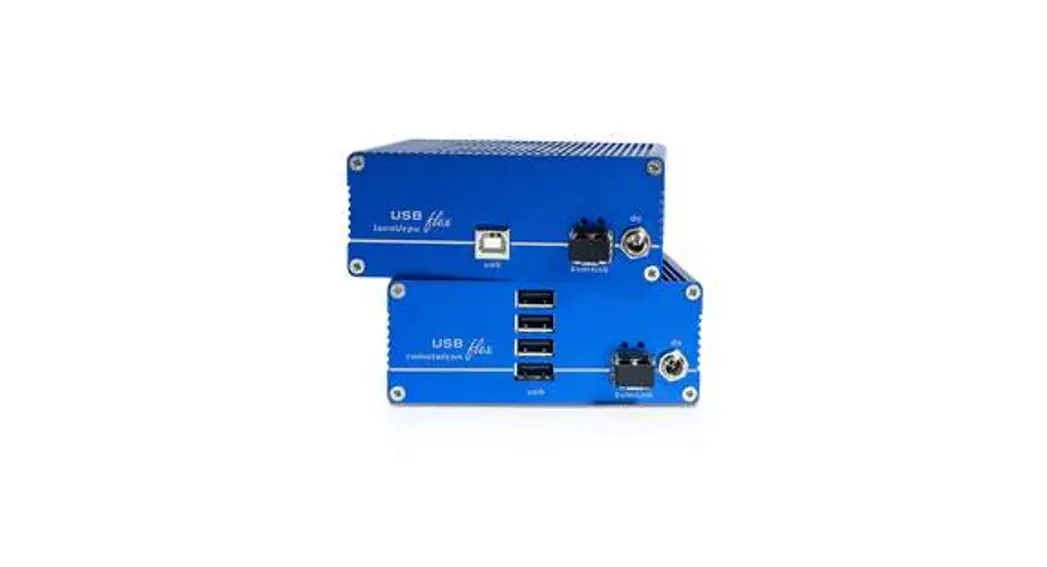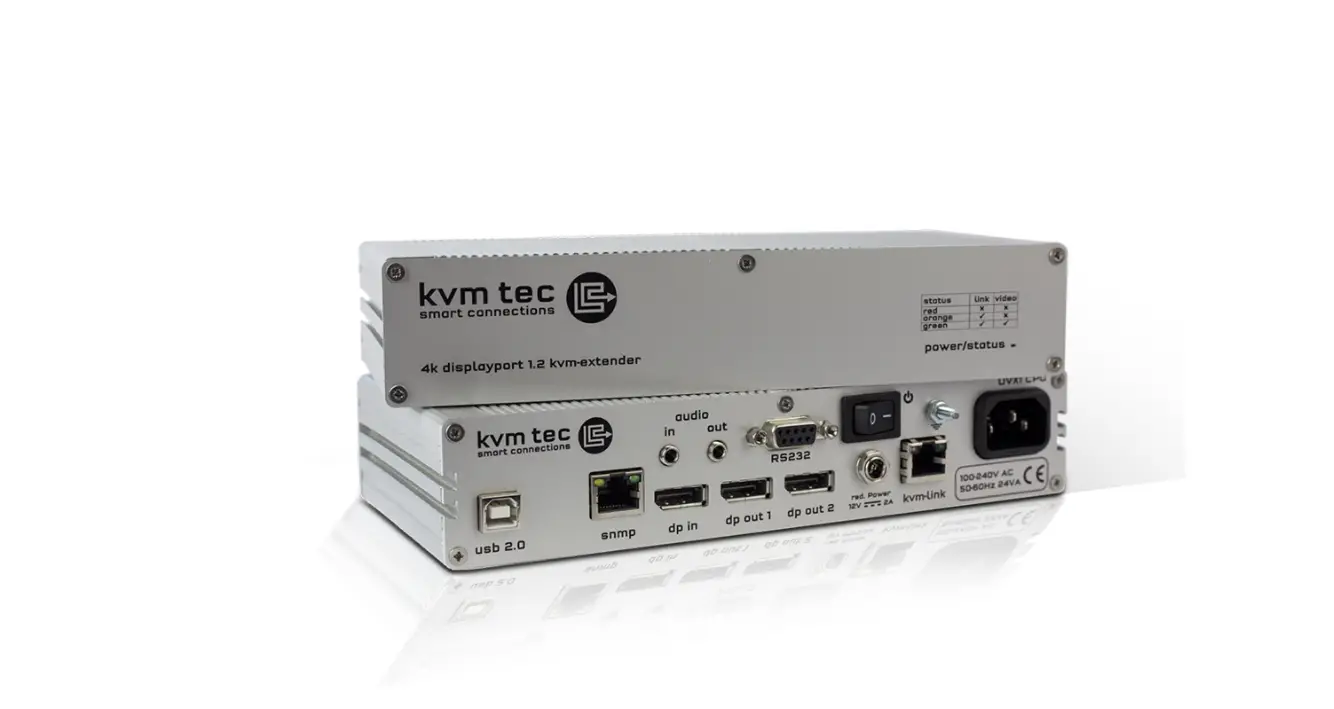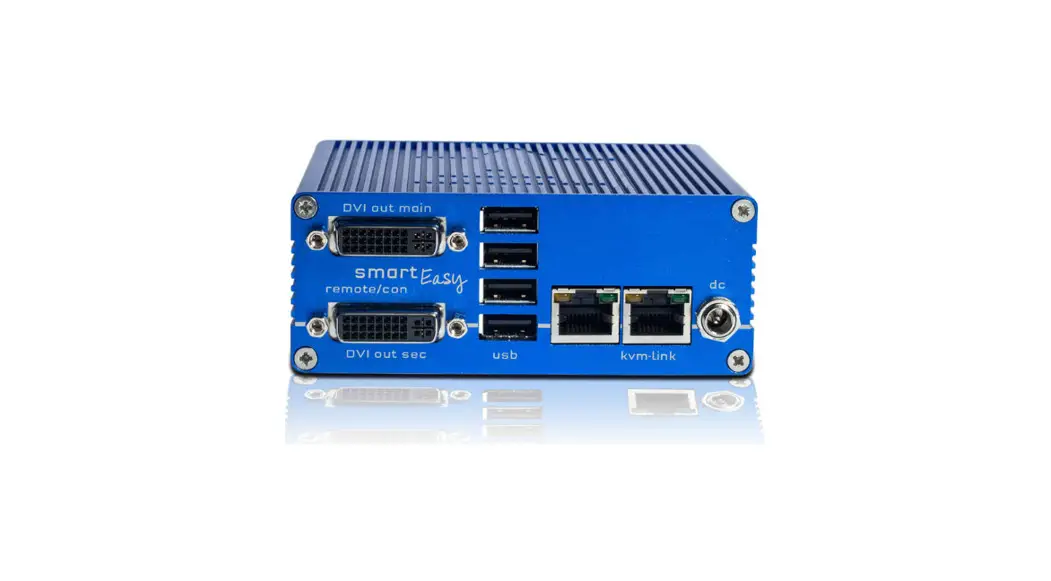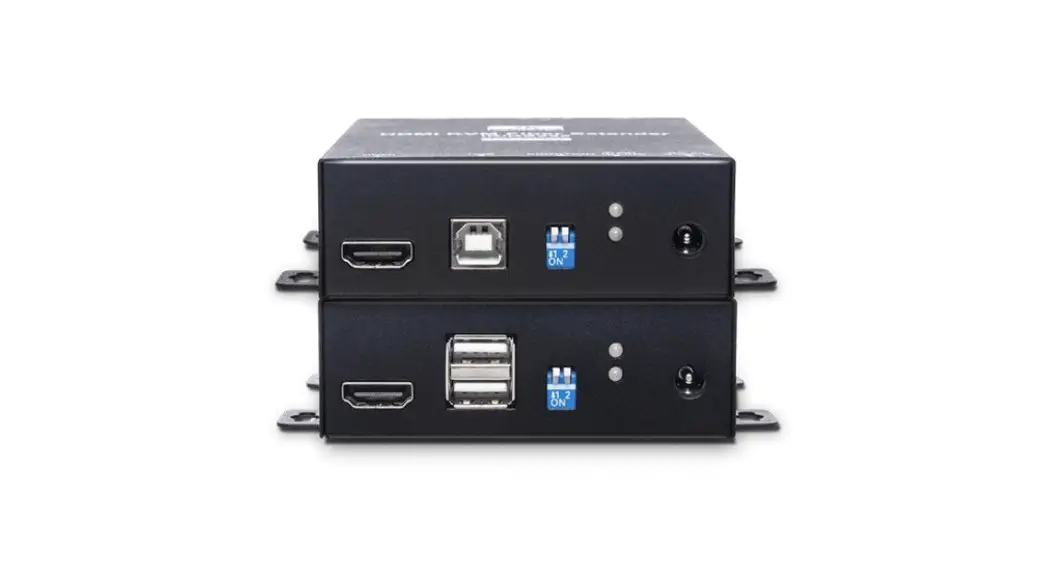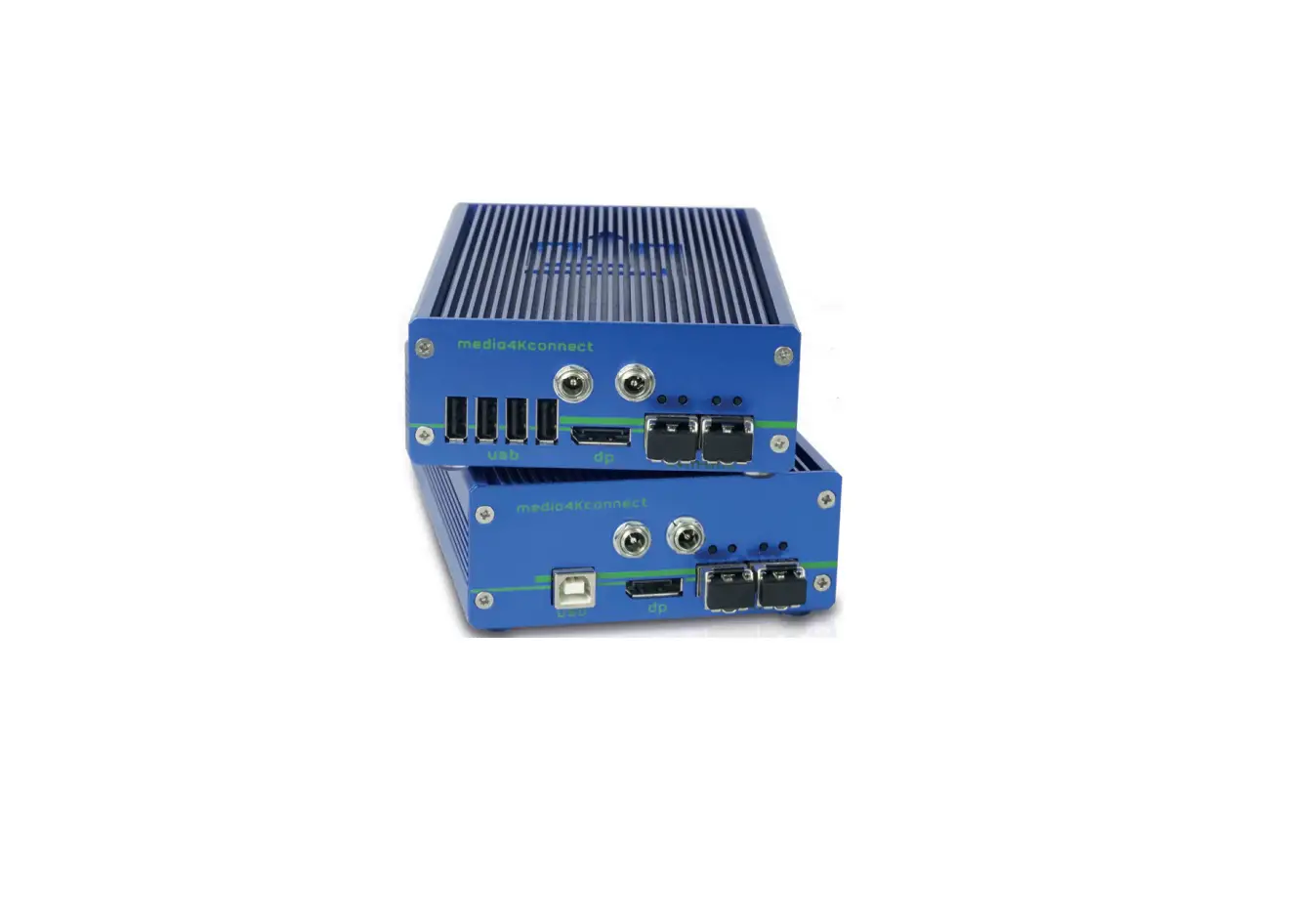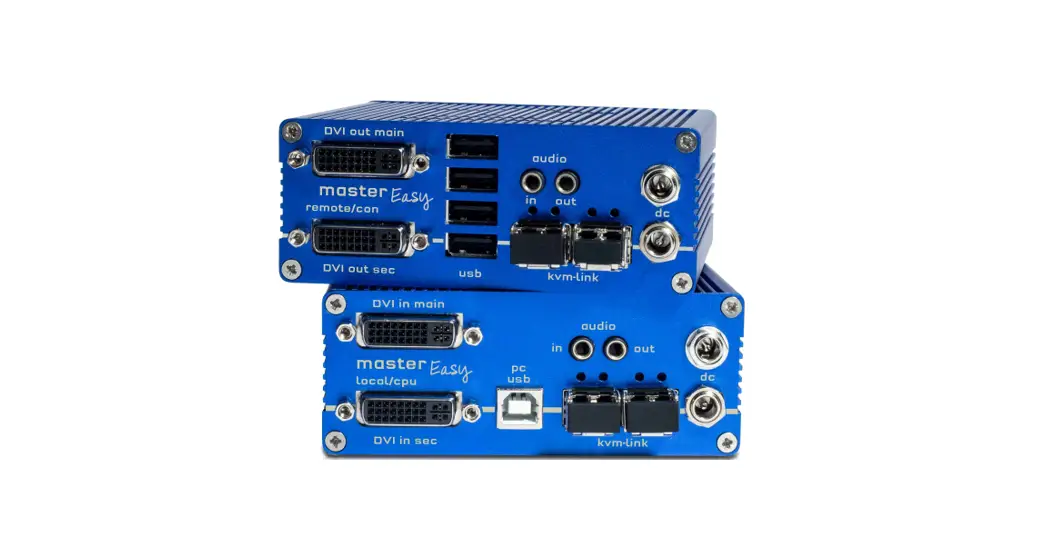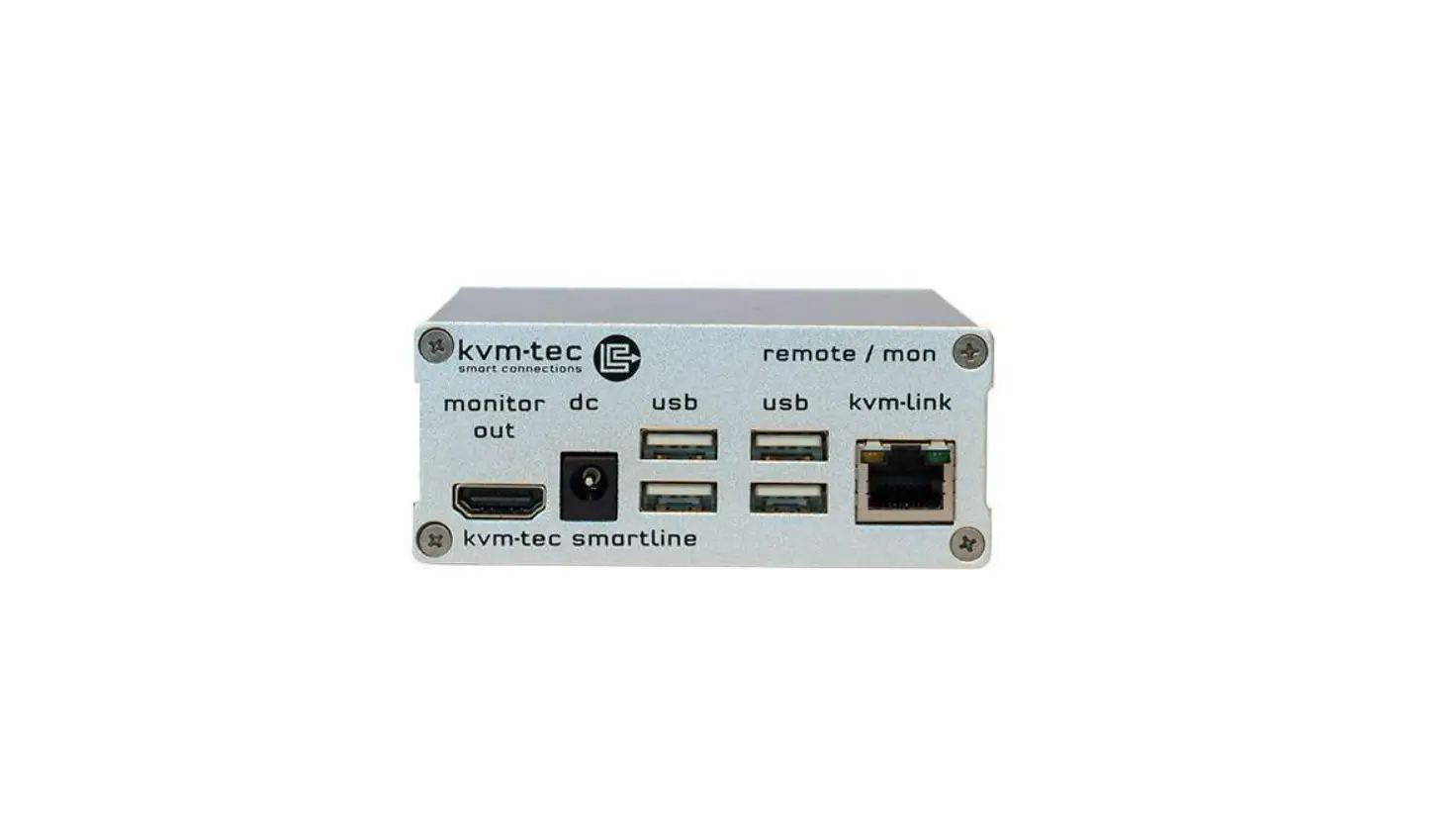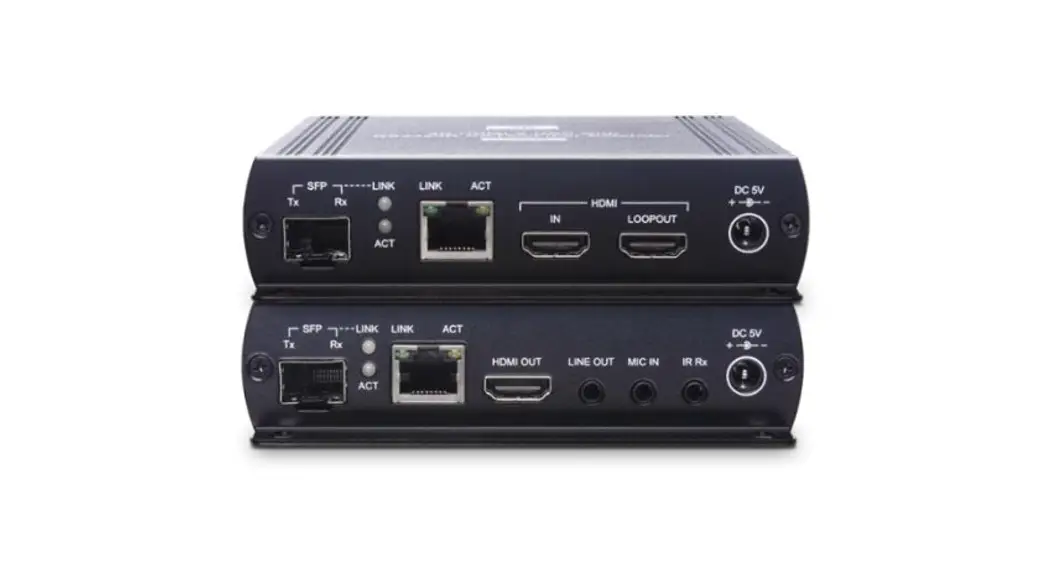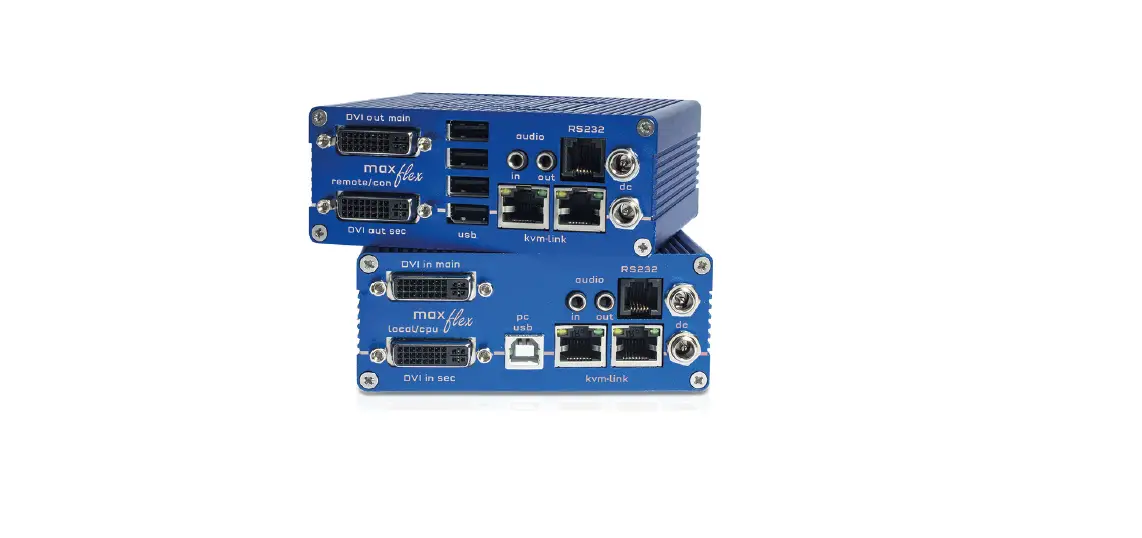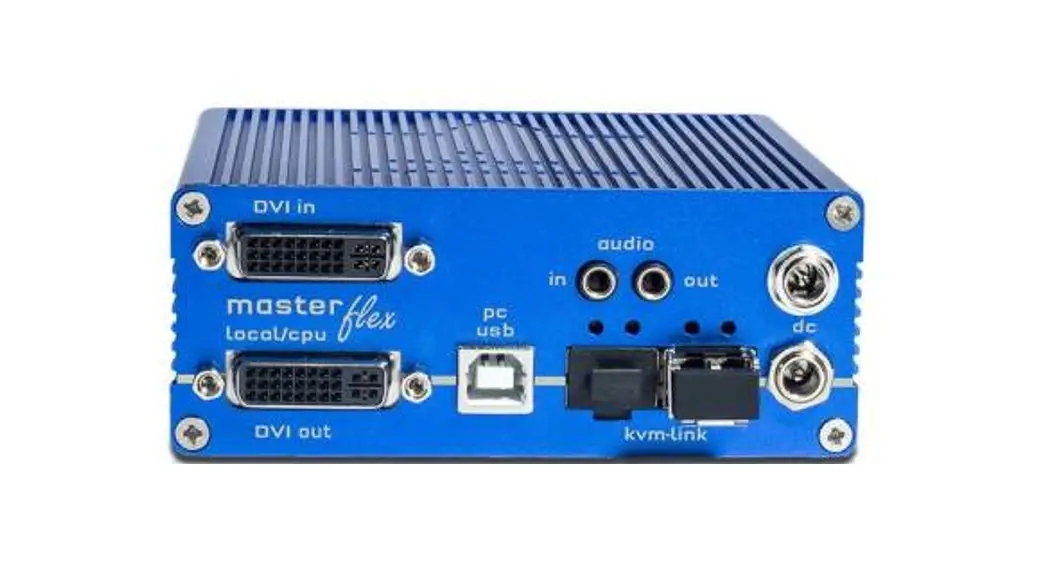
 6016iL CPU Single Fiber Redundant
Instruction Manual
INDUSTRYFLEXline
Single Fiber redundant
KT-6016iL CPU/LOCAL
KT-6016iR CON/REMOTE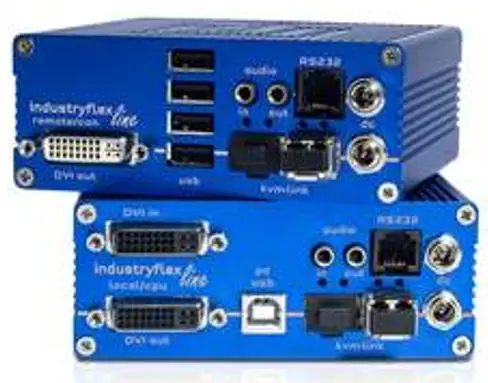
KT-6016iL CPU Single Fiber Redundant

Delivery Content
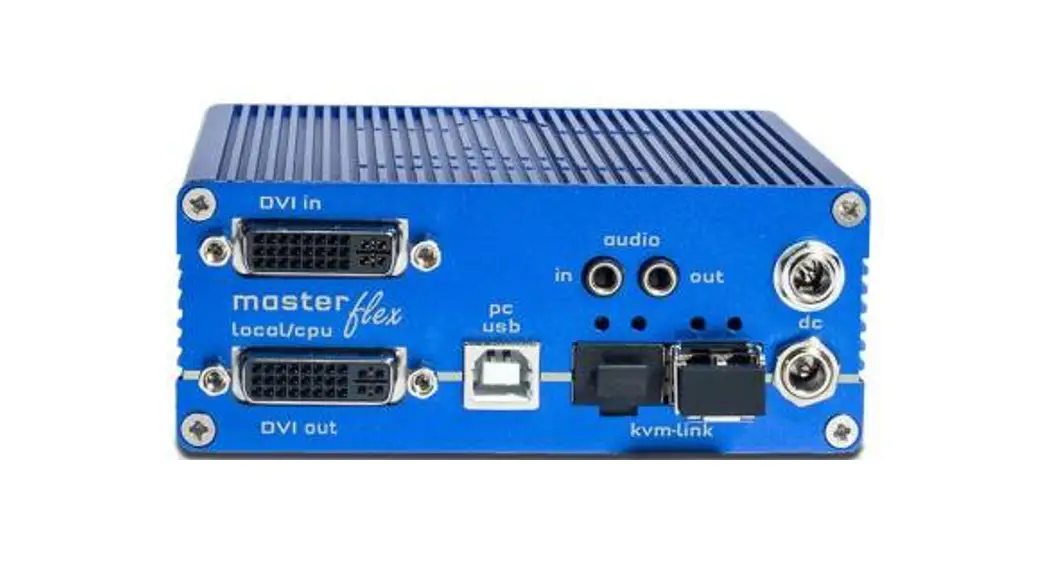
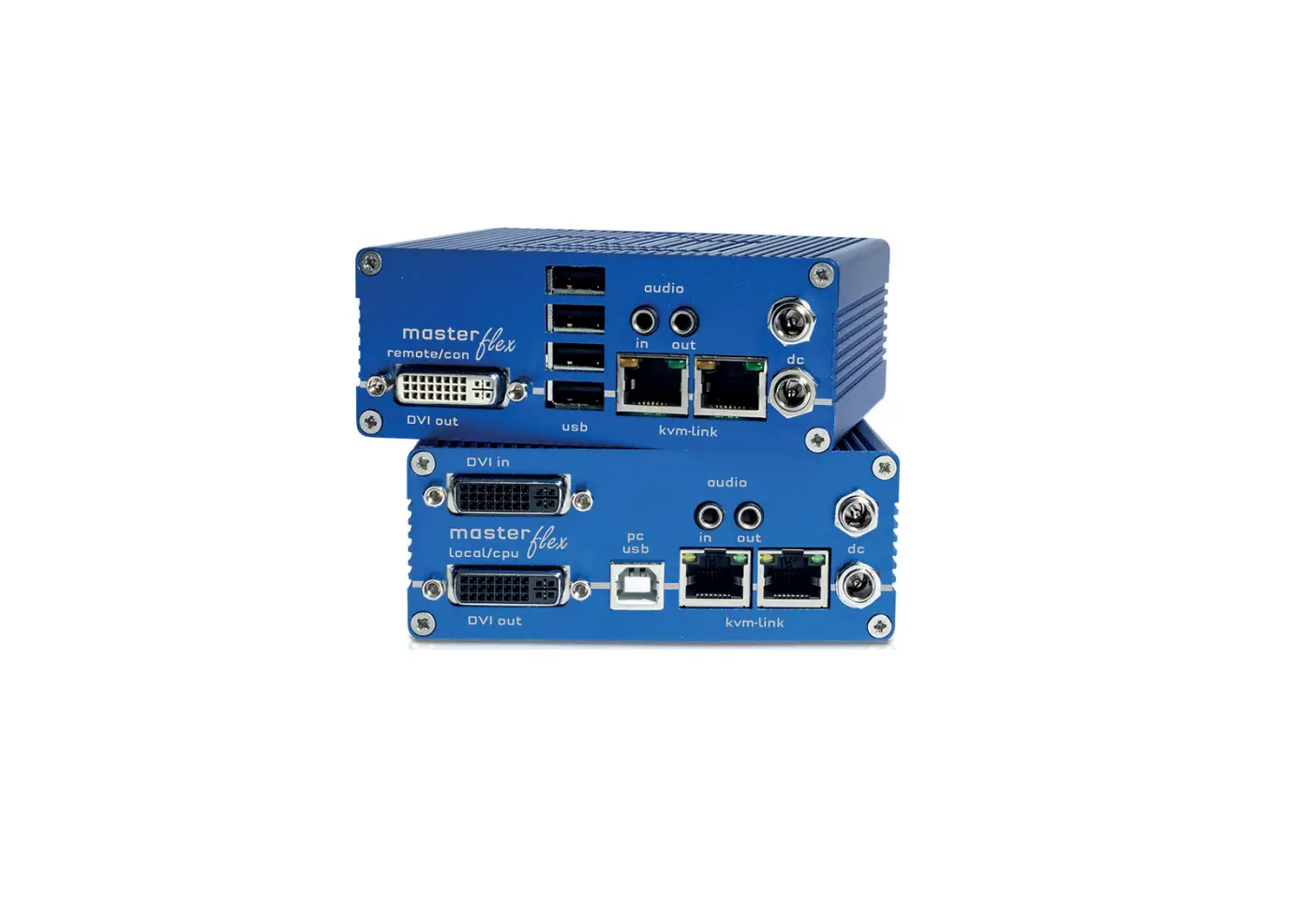
LOCAL/CPU Unit
1 x MA local (CPU) 1 x wall power supplyl 12V 1A (INT or EU-plug)
2 x DVI – DVI cable 118m/5.9ft
1 x USB cable 118m/5.9ft
2 x SFP Modul-Multimode bis 500m duplex LC
4 x rubber feet
REMOTE/CON Unit
1 x MA2 remote (CON)
1 x wall power supplyl 12V
1A (INT orEU-plug)
2 x SFP Modul-Multimode bis 500m duplex LC
4 x rubber feet
Open OSD menu
The OSD main menu is opened with the standard shortcut: 5 x
ALT Gr
(Attention: the first 20 seconds 5 x Scroll always works, in case the shortcut was forgotten.)
Switching list : CTRL+ALT+PRINT
Changing the shortcuts in the OSD menu
Go to the Remote Settings and then navigate to Keyboard Short-cut.
Quick Installation INDUSTRYFLEXline Single Fiber local / CPU – remote / CON
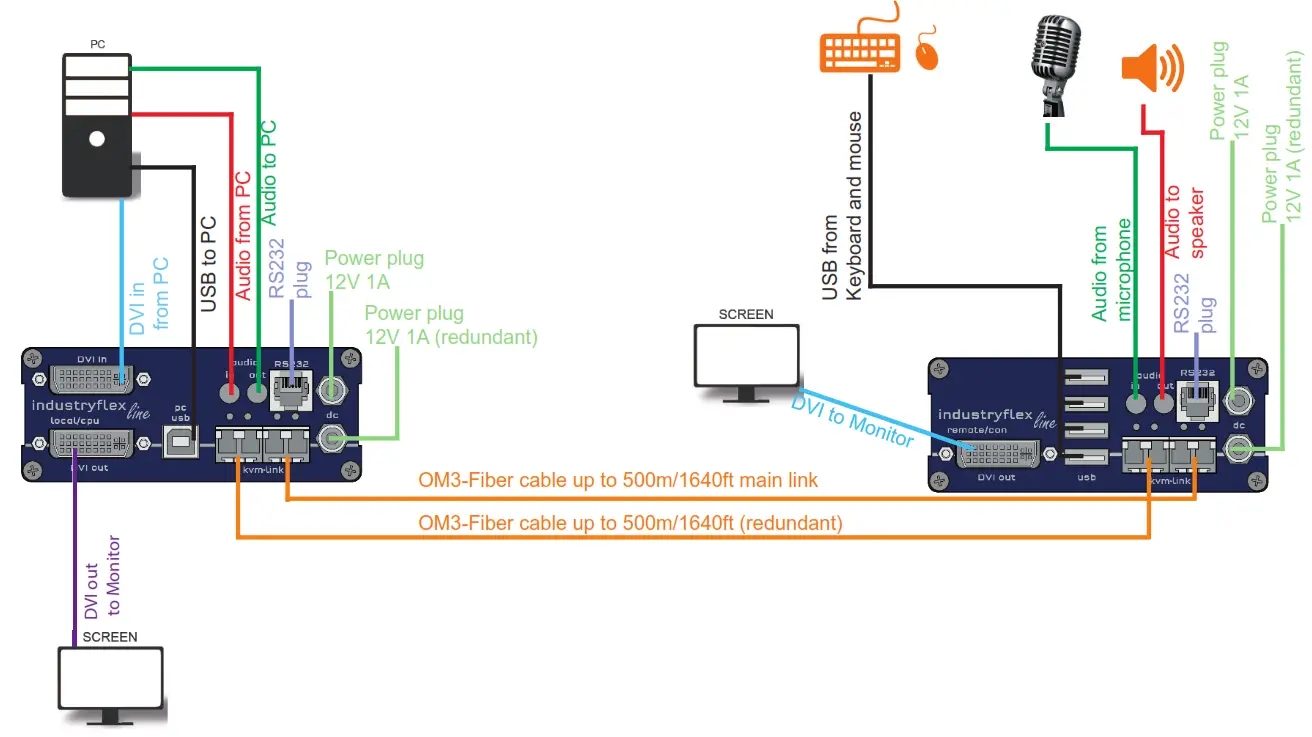
- Connect the CON / Remote and the CPU / Local Unit to the included 12V 1A power supply.
- Now connect the USB cable to a USB port on your PC and connect the other end of the USB cable to the CPU / Local Unit. Connect keyboard and mouse to the CON / Remote Unit.
- Connect the CPU / Local and the CON / Remote Unit with a network cable.
- Now connect the DVI cable to the DVI socket of the PC and the other end to the DVI socket of the CPU / Local Unit (PC-in).
- Connect PC audio/out with the audio cable to local audio/in. Connect audio/out via the audio cable.
- Almost done! Connect the audio cable local audio/out to the PC audio/in and remote audio/out with audio cable to the microphone
- Using a switch: Connect all endpoints to the switch. Ensure that all connections have a bandwith of 1 Gbit/sec. For video sharing the network has to support IGMP snooping.
HAVE FUN – your kvm-tec Extender is now in use for many years (MTBF approx 10 years)
Use the monitor and keyboard to use the main menu.
To access the main menu:
- Make sure the extenders, the monitors and the computer are switched on.
- Press the ALT+GR key on your keyboard quickly five times.
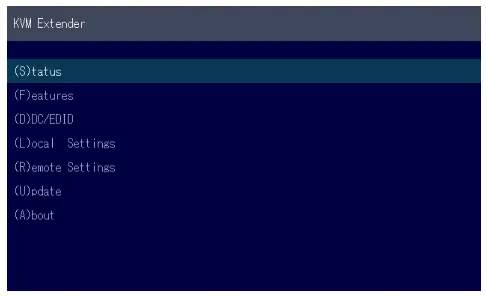
The main menu appears with an overview of the sub-menus. - To open a sub-menu press the applicable key.

Main Menu
| Main meu Short Cuts : | |
| S Status Overview | Menu Status /current status |
| U Update Flash FW | Firmware Updates |
| F Features Overview | Settings Features |
| D DDC Option | DDC Option Fix settings 1020 x 1080 |
| L Local Settings | Settings Local |
| R Remote Settings | Settings Remote |
| A About Overview | Overview Upgrades Upgrades |
| Q Exit | Exit |
SYSTEM STATUS
 Single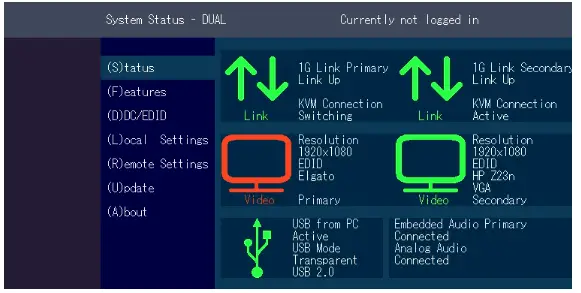
Dual
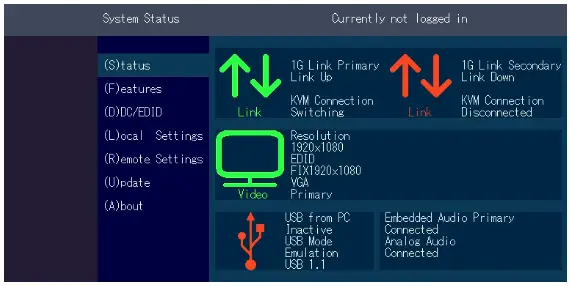
In the status overview menu the current status of the extender connection is displayed. It provides information on the connection itself as well as resolution of the video channel, and USBstatus.
The enabled options and the current firmware-version is displayed in the left top corner.
Link status shows whether there is a physical connection available. Connected indicates if kvm data is currently able to be transmitted.
Video and USB show if data is currently being transmitted.’
VIEWING THE FIRMWARE VERSION
Under „A“ – About the currently installed fi rmware version of the remote (CON) and local (CPU) Extender is displayed (e.g. ‚4267‘)
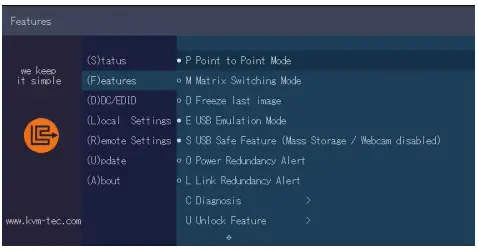
Features Menu
| P Point to Point Mode | Enabled/Disabled (Point to Point Point to Point excludes itself with Matrix mode |
| M Matrix Switching Mode | Disabled/Enabled |
| D Freeze last Image | (Disabled)Disabled/Enabled |
| E USB Emulation Mode | (Disabled ) Disabled/Enabled |
| S USB Save Feature | (mass storage usable) Disabled/Enabled |
| O Power Redundance Aler | Alert System |
| C Diagnosis | Diagnosis menu |
| U Unlock Features | Unlock Features |
| L Link redundancy | redundant Link for local Units |
| I IP Management | IP Management |
POINT TO POINT
You can switch the Point to Point mode on and off by pressing the „P“ key
ATTENTION – if the point to point mode is activated, the switching mode cannot be activated
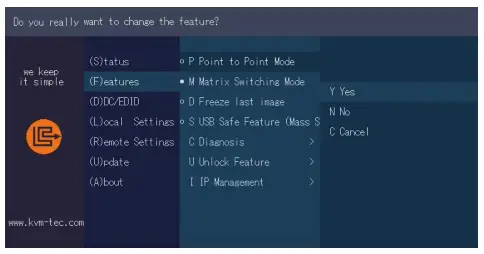
MATRIX SWITCHING MODE
By pressing the „M“ button you can switch the Matrix Switching Mode off and on
| KVM-TEC Gewerbepark Mitterfeld 1 A 2523 Tattendorf Austria www.kvm-tec.com | IHSE GmbH Benzstr.1 88094 Oberteuringen Germany www.ihse.com | IHSE USA LLC 1 Corp.Dr.Suite Cranburry NJ 08512 USA www.ihseusa.com | IHSE GMBH Asia 158Kallang Way,#07-13A 349245 Singapore www.ihse.com | IHSE China Co.,Ltd Room 814 Building 3, Kezhu Road Guangzhou PRC www.ihse.com.cn |
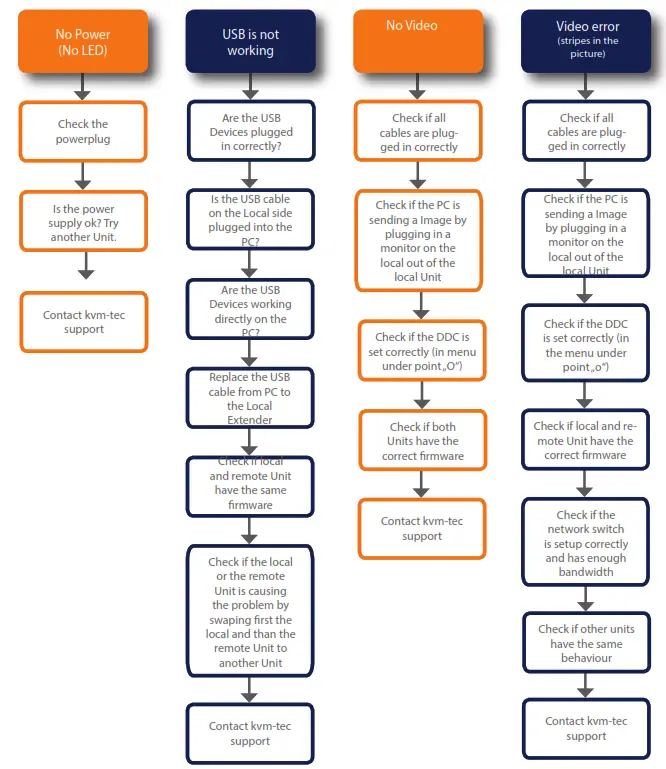
kvm-tec Support
[email protected]
Phone: +43 2253 81912 – 30
We are here for you to answer
your questions about installation?
Manual download www.kvm-tec.com
or
kvm-tec Installationchannel on our homepage
personally +43 2253 81912
 IHSE - KVM & Beyond
 IHSE中国-光纤矩阵KVM切换器-IP KVM集成-电子竞技KVM扩展器解决方案-IHSE思奕科技
 IHSE - KVM & Beyond
 Kvm-tec.com: KVM Extender over IP - Matrix Switching Systeme