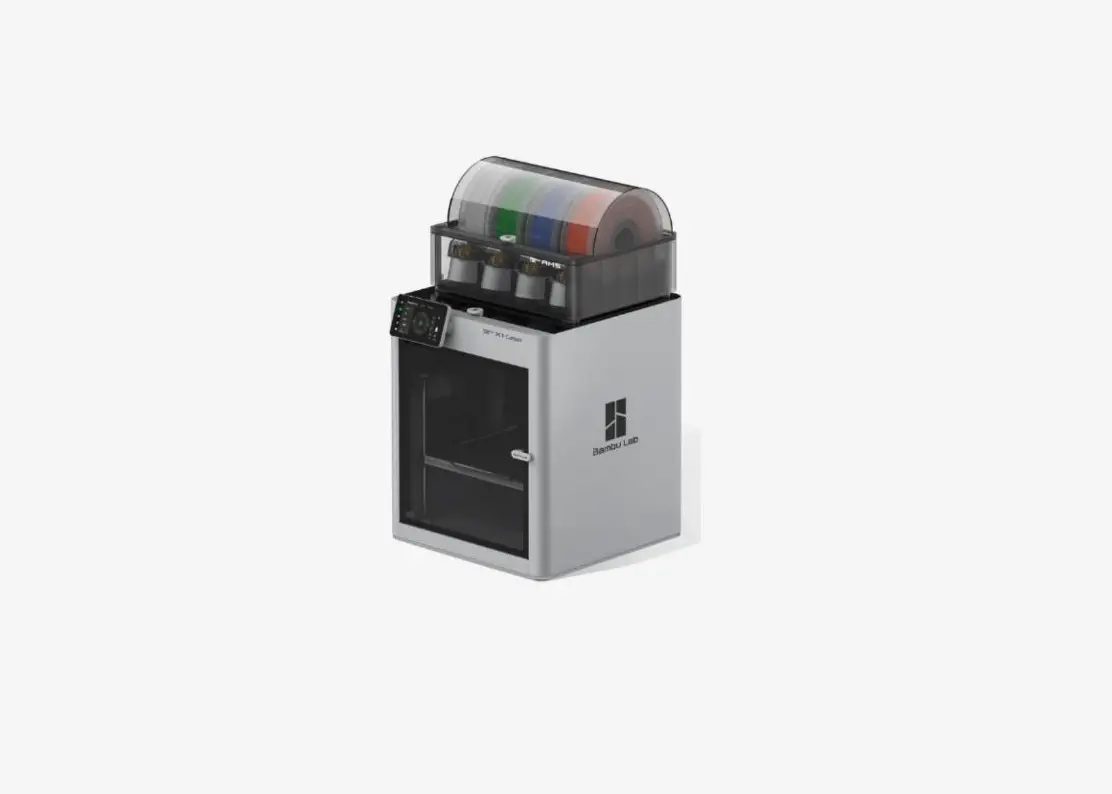
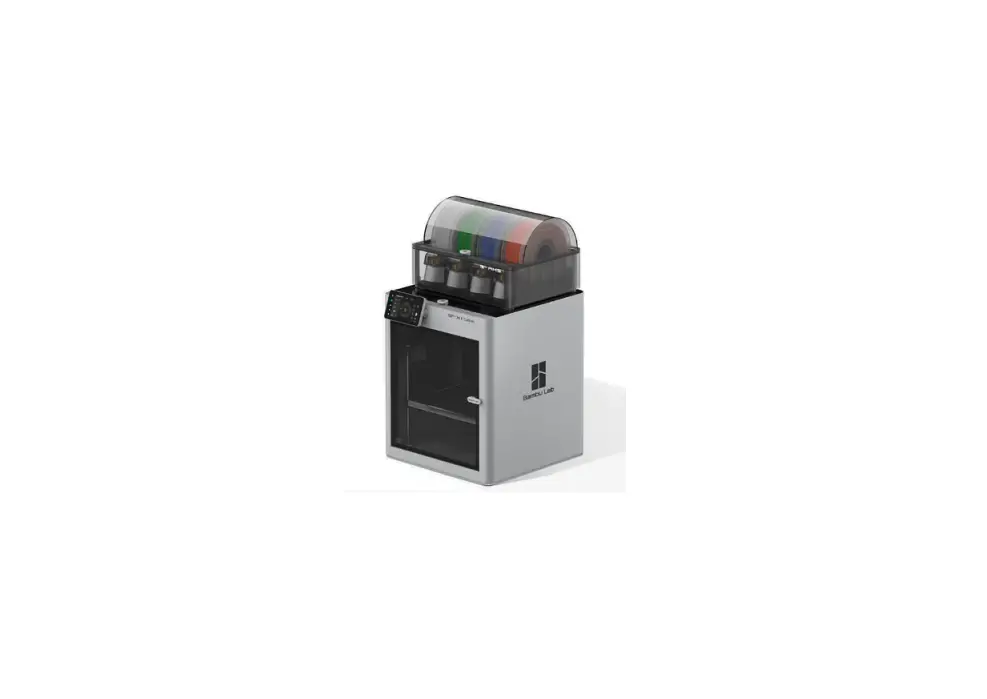
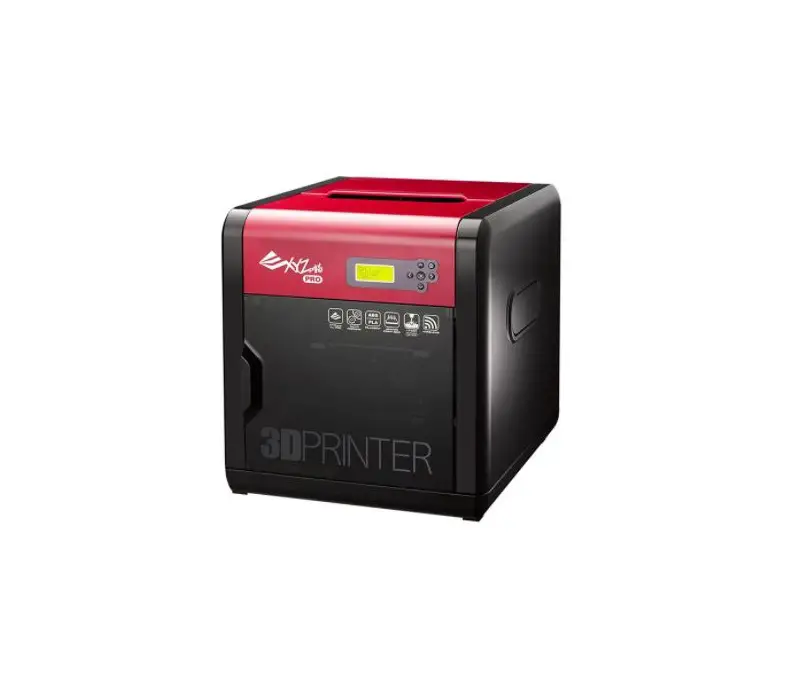
X1 Combo 3D Printer
Product Information: 3D Printer
The 3D printer comes with a touch screen, glass cover plate,
chamber camera (X1-Carbon only), build plate, auxiliary part
cooling fan (X1-Carbon only), air filter, Bambu micro lidar, pause
screen, sleep/wake, PTFE tube, belt tensioner, Bambu bus cable
4-pin, excess chute, power socket, Bambu bus cable 6-pin, interface
filament outlet, desiccant, buckle, filament inlet, and spool
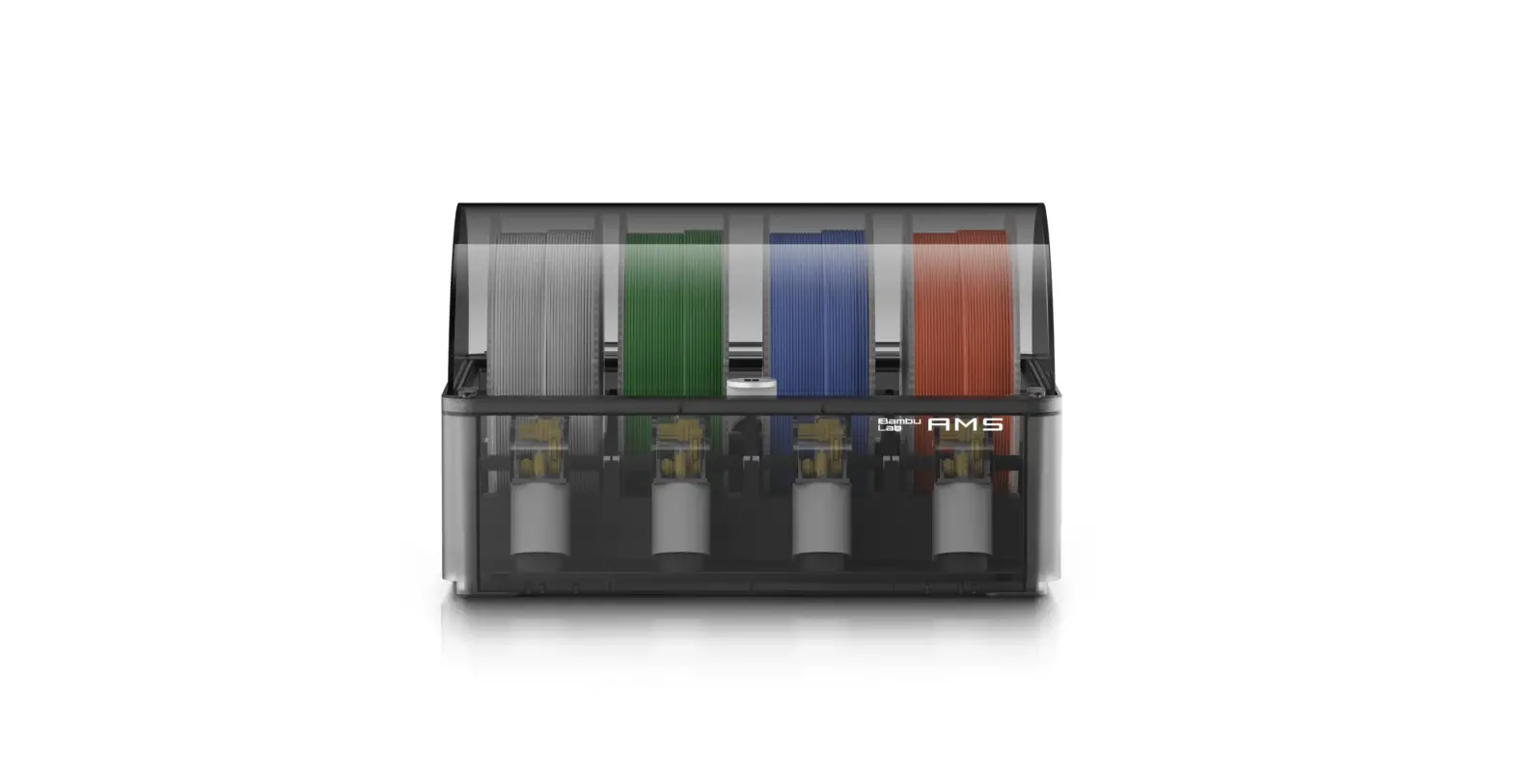
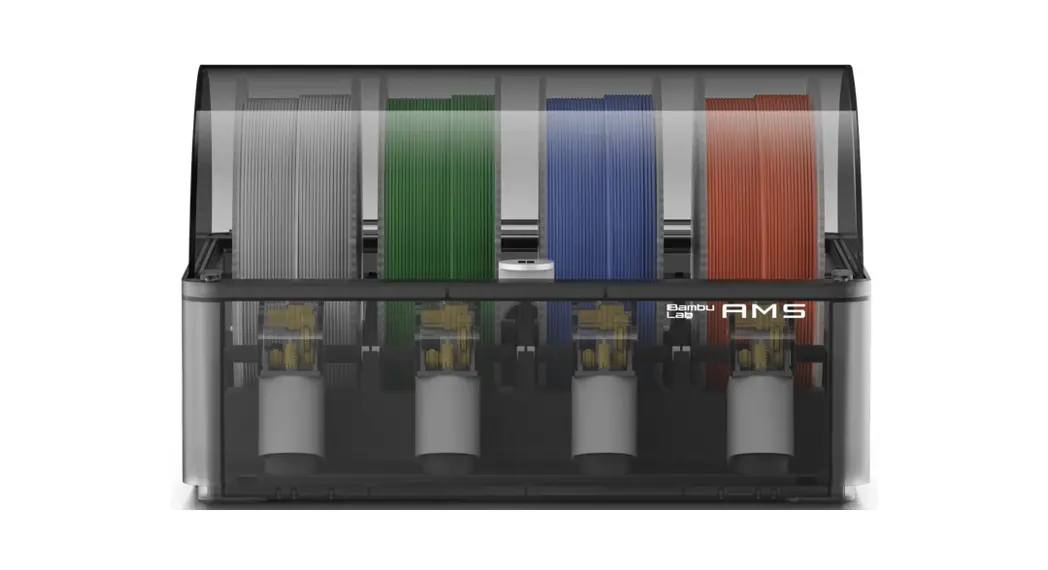
holder. The printer supports spools with a width of 50-68mm and is
recommended to be used with Bambu Filament. Soft materials like TPU
or damp PVA and cardboard spools should be avoided as they can get
stuck in the AMS.
Product Usage Instructions:
- Review the entire guide before operating the printer.
- Do not connect to power until assembly is complete.
- Take out the accessory box and use Allen Key H2 to remove the
screws to slide out the AMS from the top. - Remove the four screws as indicated by the arrows and take out
the AMS cushioning. - Remove the cardboard from the tool head and foam from the
excess chute. - Assemble the spool holder by removing the screw as pictured
with an Allen Key H2 and securing it with two screws from the
accessory box. - Install the touch screen by pulling the Flexible Printed
Circuit (FPC) out about 50mm and inserting it into the port by
pressing the terminal as pictured. Insert the screen back to the
slot on the printer and lock it by pushing it to the left. - Unlock the hot bed by removing the three screws with an Allen
Key H2. Connect the printer to power and follow the instructions on
the screen to complete the initial calibration. Do not remove the
protective foam from beneath the hot bed until after the initial
calibration is complete. - Apply a thin layer of glue on the build plate and place at
least one spool of Bambu Filament into the AMS. Turn on the power
to start the printer and the AMS. Insert the filament into the
filament inlet. The filament will be automatically pre-loaded when
detected. - Select a file to start the first print by pressing “internal”.
It is recommended to use one of the pre-loaded files and start with
a single-color model using Bambu PLA Basic.
3D Printer
Quick Start
Please review the entire guide before operating the printer.
Safety Notice: Do not connect to power until assembly is complete.
*Warning:
The AMS supports spools with a width of 50-68mm.
When operating the AMS, we recommend using Bambu Filament, which has been thoroughly tested to work with the AMS. Please make sure to avoid using soft materials like TPU or damp PVA, as they can get stuck in the AMS, and please avoid using cardboard spools as the spool may slip. If you run into any issues with specific filaments, please let us know so that we can provide better advice to our community.
TPU
Damp PVA
Cardboard Spool
Component Introduction
Tool Head Touch Screen
Glass Cover Plate Chamber Camera (X1-Carbon Only)
Build Plate Auxiliary Part Cooling Fan (X1-Carbon Only)
Air Filter Bambu Micro Lidar
Pause Screen Sleep/Wake
PTFE Tube Belt Tensioner
Bambu Bus Cable 4-Pin Excess Chute
Power Socket
Bambu Bus Cable 6-Pin Interface Filament Outlet
Desiccant
Buckle Filament Inlet
Accessory Specification
Touch Screen
Spool Holder
250g Filament (x3)
Spare Hot End
Nozzle Wiping Pad (x2)
H1.5 H2
Power Cord
Spare Filament Cutter (x2)
Bambu Bus Cable-6Pin
Allen Key H1.5 Allen Key H2
Unclogging Pin Tool
Spare Sheet for
Flexible Build Plate
Bambu Cool Plate (x2) (Pre-installed on
build plate)
Bambu Bus Cable-4Pin
Bambu Scraper
Glue Stick for Build Plate
AMS & Tool Head Unlock
1
2
Allen Key H2
Take out the accessory box. Use Allen Key H2 Take out the AMS by sliding it out through
to remove the screws as pictured.
the top.
*We recommend using the short end of the Allen Key to unlock the screws more easily.
3
4
Allen Key H2
Remove the four screws as the arrows indicate. Take out the AMS cushioning.
5
Remove the carboard from the tool head. Romove the foam from the excess chute.
AMS Assembly
550mm PTFE Tube Bambu Bus Cable-6Pin
*The cable-6pin can be plugged into either interface.
370mm PTFE Tube Bambu Bus Cable-4Pin
Spool Holder Assembly
*The spool holder is only necessary when printing with filaments that are not supported for use with the AMS.
1
2
Allen Key H2
Remove the screw as pictured with an Allen Key H2.
Secure the spool holder with two screws from the accessory box.
Screen Installation
1
2
Pull the Flexible Printed CircuitFPC) out about 50mm.
3
Insert the FPC into the port by pressing the terminal as pictured.
Insert the screen back to the slot on the printer, then lock it by pushing it to the left.
Hot Bed Unlock
Allen Key H2
Remove the three screws with an Allen Key H2 to unlock the hot bed. Connect the printer to power. Follow the instructions on the screen to complete the initial calibration. DO NOT remove the protective foam from beneath the hot bed until after the initial calibration is complete.
First Print
Apply a thin layer of glue on the build plate.
Place at least one spool of Bambu Filament into the AMS. Turn on the power to start the printer and the AMS. Insert the filament into the filament inlet. The filament will be automatically pre-loaded when detected.
*We recommend first printing a single-color model with the supplied Bambu PLA Basic.
Press ” ” – “internal”. Select a file to start the first print. *We recommend using one of the pre-loaded files as a
first test print.
Specification
Item
Body Tool Head
Hot bed Speed Cooling Supported Filament Sensors
Printing Technology Build Volume(W*D*H) Chassis Shell Hot End Extruder Gears Nozzle
Max Hot End Temperature Nozzle Diameter (Included) Nozzle Diameter (Optional)
Filament Cutter Filament Diameter
Build Plate Build Plate Surface(Included) Build Plate Surface (Optional) Max Build Plate Temperature
Max Speed of Tool Head Max Acceleration of Tool Head
Max Hot End Flow Part Cooling Fan
Hot End Fan Control Board Fan Chamber Temperature Regulator Fan Auxiliary Part Cooling Fan
Air Filter PLA, PETG, TPU,ABS,ASA,PVA,PET
PA, PC Carbon/Glass Fiber Reinforced Polymer
Bambu Micro Lidar Chamber Monitoring Camera
Door Sensor Filament Run Out Sensor
Filament Odometry Power Loss Recover
Specification
X1-Carbon
X1
Fused Deposition Modeling
256*256*256 mm
Steel Aluminum & Glass
Plastic & Glass
All-Metal
Hardened Steel
Steel
Hardened Steel
Stainless Steel
300
0.4 mm
0.2 mm, 0.6 mm, 0.8 mm
Yes
1.75 mm
Flexible Steel Plate
Bambu Cool Plate, Bambu Engineering Plate
Bambu High Temperature Plate
110@220V 120@110V
500 mm/s
20 m/s^2 32 mm^3/s @ABS
Closed Loop Control
Closed Loop Control
Closed Loop Control
Closed Loop Control
Closed Loop Control
Optional
Activated Carbon Filter
Optional
Yes
Ideal
Capable
Ideal
Not Recommended
Yes
1920*1080 Included
Optional
Yes
Yes
Optional with AMS
Yes
Physical Dimensions Electrical Requirements
Electronics
Software Wifi Laser
(Class 2)
Dimensions Net Weight Voltage Max Power Display Connectivity Storage Control Interface Motion Controller Application Processor Neural-Network Processing Unit
Slicer
Slicer Supported OS Frequency Range
Transmitter PowerEIRP)
Protocol Wavelength Maximum Output of Laser Radiation
389*389*457mm
14.13kg
13.18kg
100-240 VAC, 50/60 Hz
1000W@220V, 350W@110V
5-inch 1280*720 Touch Screen
Wi-Fi,Bambu Bus
4GB EMMC and Micro SD Card Reader
Touch Screen, APP, PC Application
Dual-Core Cortex M4
Quad ARM A7 1.2 GHz
2 Tops
Bambu Studio
Support third party slicers which export standard G-code such as Superslicer, Prusaslicer and Cura, but certain advanced features may not be supported.
MacOS, Windows
2400MHz-2483.5MHz 21.5dBm(FCC)
20 dBmCE/SRRC) 802.11b/g/n
405nm, 808nm
<1mW
Bambu Studio Bambu Handy
https://bambulab.com/download
Please visit Bambu Lab Wiki to learn more setup and maintetance tutorials. https://wiki.bambulab.com/en/home If you need support, please try either of the two approaches:
Approach 1: Creat a support ticket on Official Website
Approach 2: Create a support ticket on Bambu Handy App
Enjoy!
www.bambulab.com
 Bambu Lab | Unleash Your Creativity with Bambu Lab 3D Printers - Bambu Lab
 Software - Bambu Lab
 Home | Bambu Lab Wiki