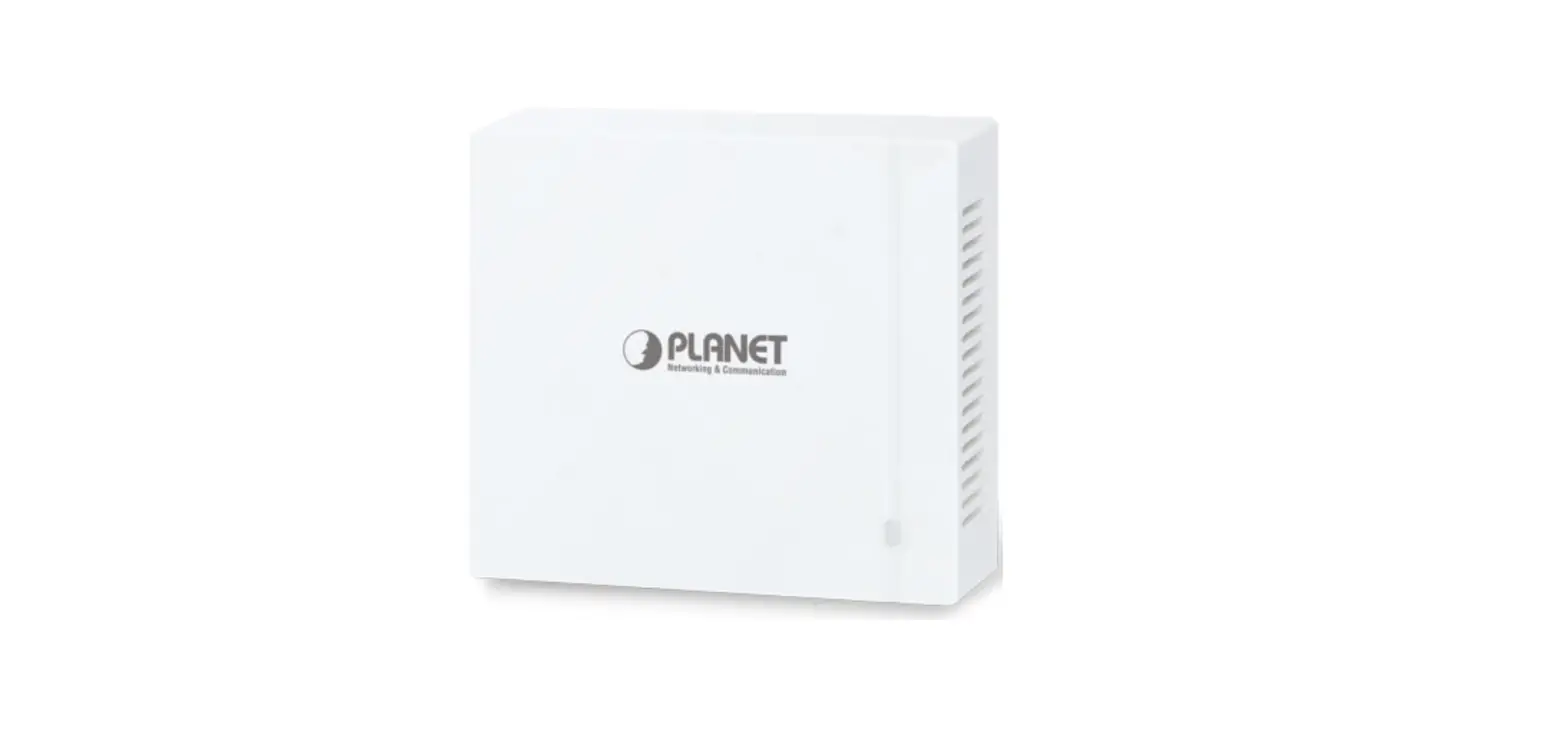
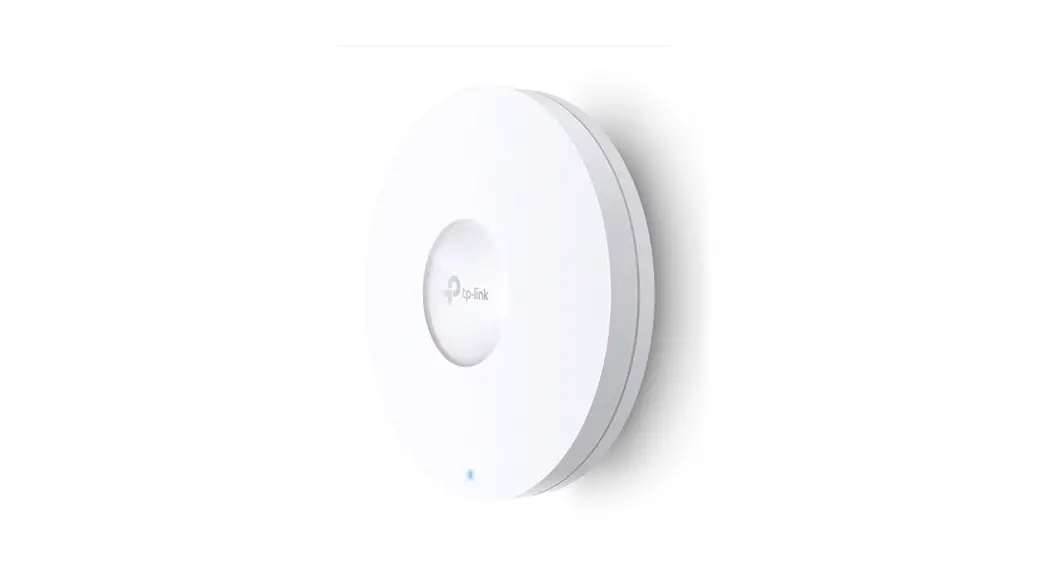
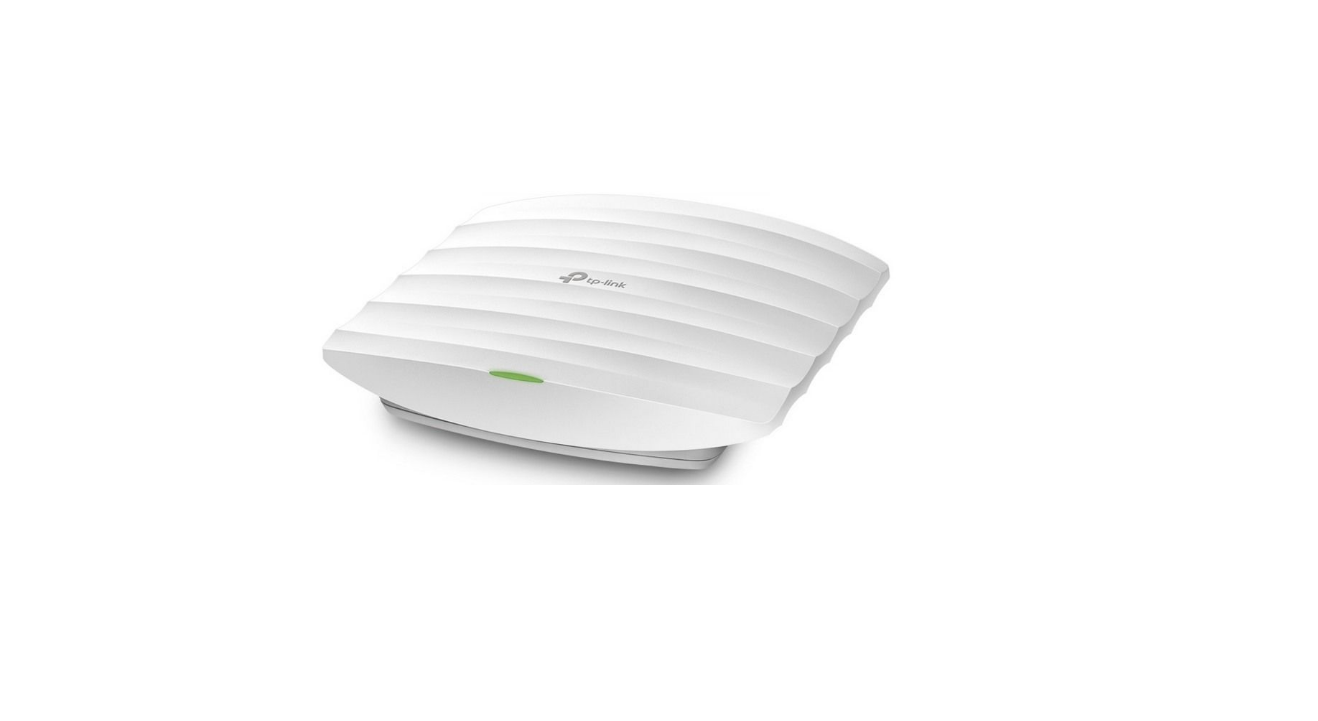
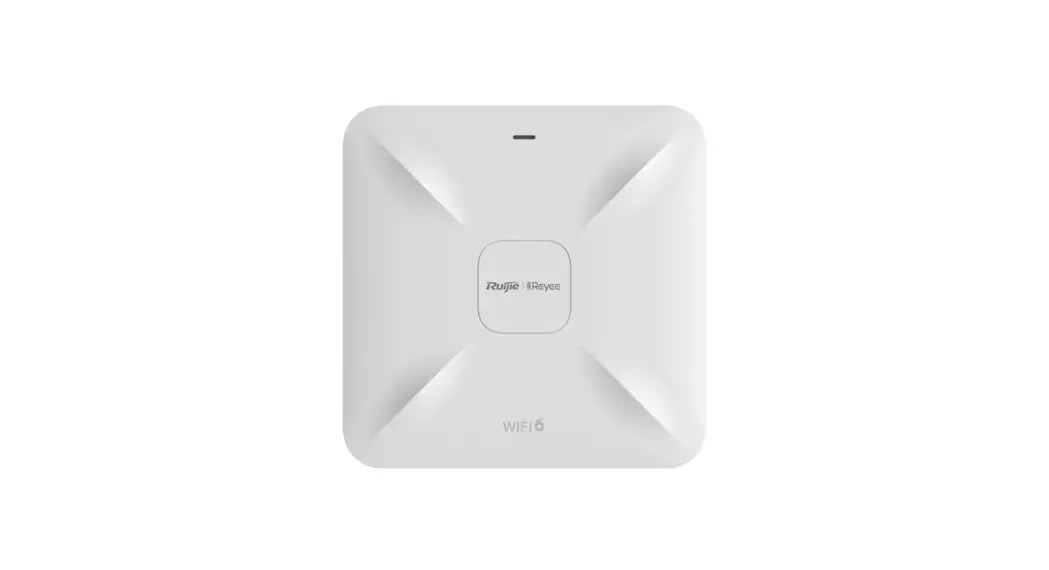
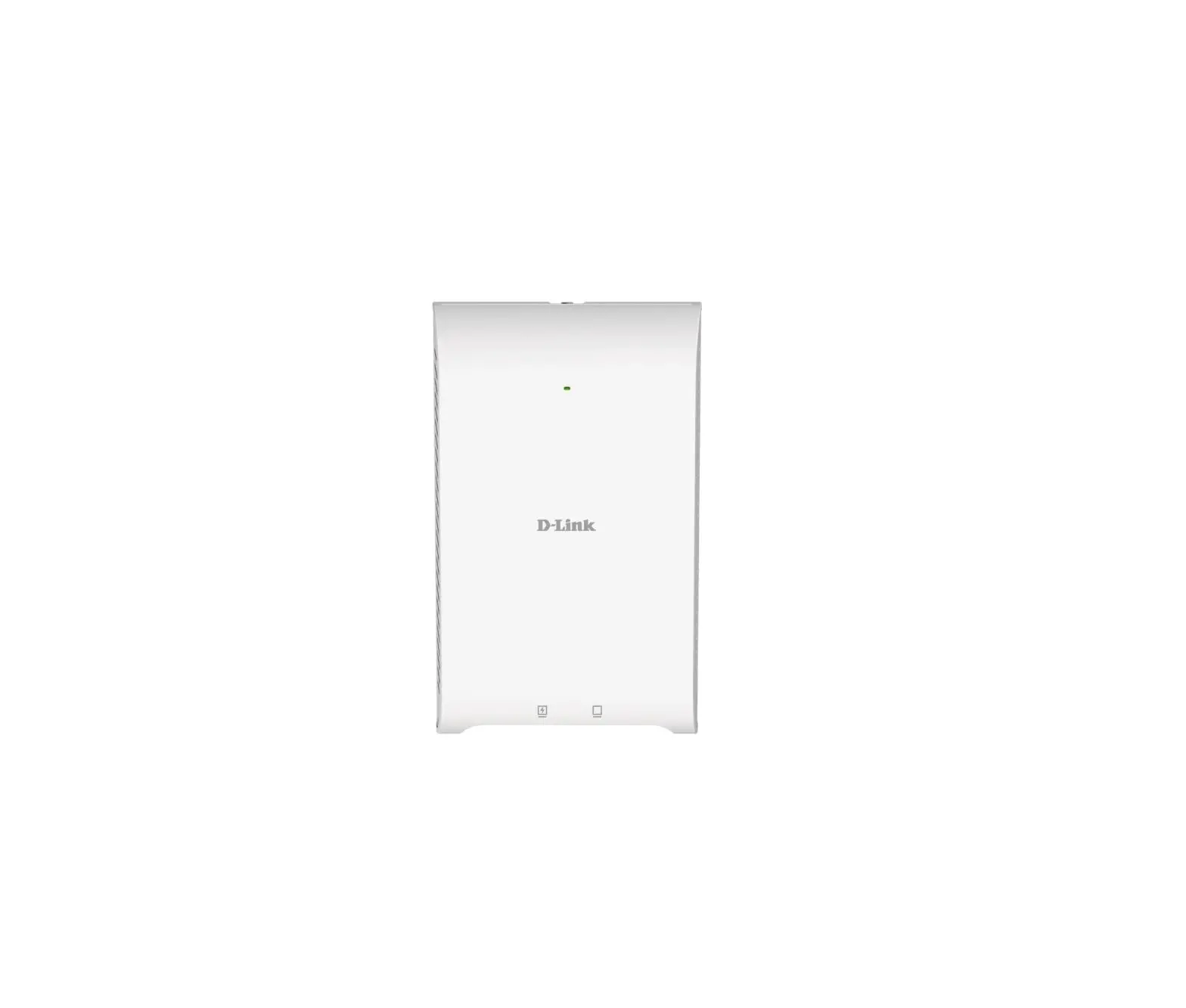
WDAP-C7210E 1200Mbps 802.11ac Wave 2 Dual Band Ceiling-Mount Wireless Access Point
Product Information: 1200Mbps 802.11ac Wave 2 Dual Band
Ceiling-mount Wireless Access Point
The PLANET WDAP-C7210E is a wireless access point that provides
high-speed internet connectivity. It has a maximum speed of
1200Mbps and supports 802.11ac Wave 2 dual-band frequency. It is
designed to be mounted on the ceiling and is suitable for use in
offices, hotels, and other public places.
Package Contents
The package of WDAP-C7210E contains the following items:
- WDAP-C7210E
- QR code sheet
- Ethernet Cable
- Mounting Kit
If any item is missing or damaged, please contact the seller
immediately.
Physical Introduction
The WDAP-C7210E has a front panel and a rear panel. The front
panel has a power indicator (red) and a system indicator
(blue/green). The rear panel has a WAN/PoE port LED, LAN port LED,
reset button, WAN/PoE IN port, and LAN port.
Hardware Installation
The installation process of the WDAP-C7210E involves the
following steps:
- Take the mounting bracket, put it on the target place by
aligning the holes and fix it with the supplied screws. - Load the device into the mounting bracket, and be sure the
device is mated with fixed screws. Then, lock the device in
position and plug the Ethernet cable into the WDAP-C7210E. - Plug the other end of the Ethernet cable into the PoE
switch.
Connecting the AP (for Windows OS)
To connect the WDAP-C7210E to a Windows OS, follow these
steps:
- Download and decompress Smart Discovery Lite from the PLANET
official website. - Launch the utility from your computer and select your adapter
to connect the AP. - Click the Refresh button to show the AP model and its IP
address. - Check whether the IP address of your adapter and the IP address
of the AP are the same. - If yes, click Connect to Devices for the AP setting.
- If no, go to the next page to set your wired or wireless
setting. - If there is no DHCP server in the local network, the IP will go
back to 192.168.1.253 by default after 60 seconds.
Wired Network Configuration (Windows 10 and Windows 11)
To configure the wired network of the WDAP-C7210E on Windows 10
and Windows 11, follow these steps:
- Click the Start button located at the lower-left corner of your
computer. - Click Control Panel and double-click the Network and Sharing
Center icon. - Click Change adapter settings and double-click Local Area
Connection. - Select Internet Protocol Version 4 (TCP/IPv4) and click
Properties. - Select Use the following IP address and then click the OK
button twice to save the configuration. For example, the default IP
address of the WDAP-C7210E is 192.168.1.253 and the router is
192.168.1.254. You may choose from 192.168.1.1 to
192.168.1.252.
Entering into the Web Management
To enter the web management of the WDAP-C7210E, follow these
steps:
- Launch the web browser and enter the default IP address
http://192.168.1.253. - When the login window pops up, enter the default username
(admin) and password (admin). Then click the Login button to
continue.
1200Mbps 802.11ac Wave 2 Dual Band Ceiling-mount Wireless Access Point
WDAP-C7210E Quick Installation Guide
Table of Contents
1. Package Contents……………………………………………………………………… 3 2. Physical Introduction …………………………………………………………………. 4 3. Hardware Installation…………………………………………………………………. 5 4. Connecting the AP (for Windows OS) …………………………………………….. 6 5. Wired Network Configuration (Windows 10 and Windows 11)………………. 7 6. Entering into the Web Management ………………………………………………. 8 7. Wireless Network Connection……………………………………………………….. 9 8. AP Discovery through PLANET NMS Controller (NMS-500/NMS-1000V) …. 10 9. PLANET CloudViewer App (Android & iOS) …………………………………….. 11 Further Information: …………………………………………………………………….. 13
1. Package Contents
Thank you for choosing PLANET WDAP-C7210E. Before installing the AP, please verify the contents inside the package box. The WDAP-C7210E should contain the following items in the package:
WDAP-C7210E
QR code sheet
Ethernet Cable
Mounting Kit
If there is any item missing or damaged, please contact the seller immediately.
3
2. Physical Introduction
Front Panel
Power (Red) SYS (Blue/Green)
Rear Panel
WAN/PoE Port LED LNK/ACK
12V DC IN (5.5 x 2.1mm) LAN Port LED LNK/ACK LAN
Reset Button WAN/PoE IN
4
3. Hardware Installation
Step 1: Take the mounting bracket, put it on the target place by aligning the holes and fix it with the supplied screws.
Step 2: Load the device into the mounting bracket, and be sure the device is mated with fixed screws. Then, lock the device in position and plug the Ethernet cable into the WDAP-C7210E.
Step 3: Plug the other end of the Ethernet cable into the PoE switch.
5
4. Connecting the AP (for Windows OS)
As the default setting of connection type of WDAP-C7210E(V2) is DHCP, your computer’s IP address has to be the same network segment as the wireless AP. To find the IP address of the AP, use the utility of “Smart Discovery Lite”, which can be found on PLANET official website. 1. Launch the utility from your computer after you have downloaded and
decompressed it. 2. Select your adapter to connect the AP. 3. Click the “Refresh” button. 4. The AP model and its IP address are shown. 5. Check whether the IP address of your adapter and the IP address of the AP
are the same. 6. If yes, click “Connect to Devices” for the AP setting. 7. If no, go to the next page to set your wired or wireless setting. 8. If there is no DHCP server in the local network, the IP will go back to
192.168.1.253 by default after 60 seconds.
6
5. Wired Network Configuration (Windows 10 and Windows 11)
A computer with wired Ethernet connection is required for the first-time configuration of the wireless AP. 1. Click the “Start” button located at the lower-left corner of your computer. 2. Click “Control Panel”. 3. Double-click the “Network and Sharing Center” icon. 4. Click “Change adapter settings”. 5. Double-click “Local Area Connection”. 6. Select “Internet Protocol Version 4 (TCP/IPv4)” and click “Proper-
ties”. 7. Select “Use the following IP address” and then click the “OK” button
twice to save the configuration. For example, the default IP address of the WDAP-C7210E is 192.168.1.253 and the router is 192.168.1.254. You may choose from 192.168.1.1 to 192.168.1.252.
7
6. Entering into the Web Management
Default IP Address: 192.168.1.253 (The default IP address will be 192.168.1.253 if there is no DHCP server in the local network.)
Default Username: admin Default Password: admin Default SSID (2.4GHz): PLANET_2.4G Default SSID (5GHz): PLANET_5G Step 1: The Web management allows you to access and manage the wireless
AP easily. Launch the Web browser and enter the default IP address http://192.168.1.253.
Step 2: When the login window pops up, please enter password. The default username and password are “admin”. Then click the Login button to continue.
For security reasons, it is recommended to change the password at the first login and memorize it. Step 3: After you enter into the Web User Interface, please follow up the
wizard to set your wireless AP.
8
7. Wireless Network Connection
Step 1: Right-click on the network icon displayed in the system tray.
Step 2: Highlight the wireless network (SSID) to connect and click the [Connect] button.
Step 3: Enter the encryption key of the WDAP-C7210E if necessary. You have already finished the configuration of the WDAP-C7210E. Now you can use your smart phone, tablet, laptop, or any other Wi-Fi device to connect with it wirelessly and start surfing the internet.
9
8. AP Discovery through PLANET NMS Controller (NMS-500/NMS-1000V)
The WDAP-C7210E is the Smart AP series which can be centrally managed by PLANET NMS Controller.
Follow the steps below to discover the managed AP through PLANET NMS controller (NMS-500/NMS-1000V). Please ensure each managed AP uses a different static IP in the same subnet before physically connecting to the managed network.
*** Please regularly check PLANET website for the latest compatible list of the controller/managed APs in each firmware version.
Step 1:
Launch the Web browser (Google Chrome is recommended.) and enter the default IP address https://192.168.1.100:8888 of the NMS controller. Then, enter the default username and password “admin” to log on to the system.
*The secure login with SSL (HTTPS) prefix is required.
Step 2:
Go to the “Domain” page to discover and add the managed AP to the device list. Then, you can go to the “AP Control-> AP Management” page to configure pre-defined profiles to the managed AP without logging on to the AP’s web page.
For information about further configuration of Managed AP by using PLANET Smart AP Control, refer to the configuration guide of the NMS controller (NMS500/NMS-1000V).
10
9. PLANET CloudViewer App (Android & iOS)
The WDAP-C7210E is the Smart AP series which can be monitored by PLANET CloudViewer App. Step 1: Download PLANET CloudViewer App
Get the PLANET CloudViewer app from the Apple App Store or Google play, or simply scan the QR code.
Step 2: Register Launch the PLANET CloudViewer app and log in with your PLANET CloudViewer ID. If you don’t have an account, register an account with an e-mail address first.
Register
11
Step 3: Bind Devices 1. Log in and go to the device NMS page 2. Select and enable the PLANET CloudViewer Server Internet function 3. Fill in PLANET CloudViewer account (e-mail address) and password.
If CloudViewer server is connected, the connection status will show success. If the server fails to connect, the connection status will show authentication failed. Step 4: Log in CloudViewer
After you get a Success indication from your device, you may now log in the app again to find your device in the list.
12
Further Information:
The above steps introduce the simple installations and configurations of the device. For further configurations, please refer to the user manual, which can be downloaded from the website. WDAP-C7210E https://www.planet.com.tw/en/support/download. php?&method=keyword&keyword=WDAP-C7210E&view=3#list
PLANET Network Management Solution (NMS): https://www.planet.com.tw/en/products/network-management
If you have further questions, please contact the local dealer or distributor where you purchased this product.
13