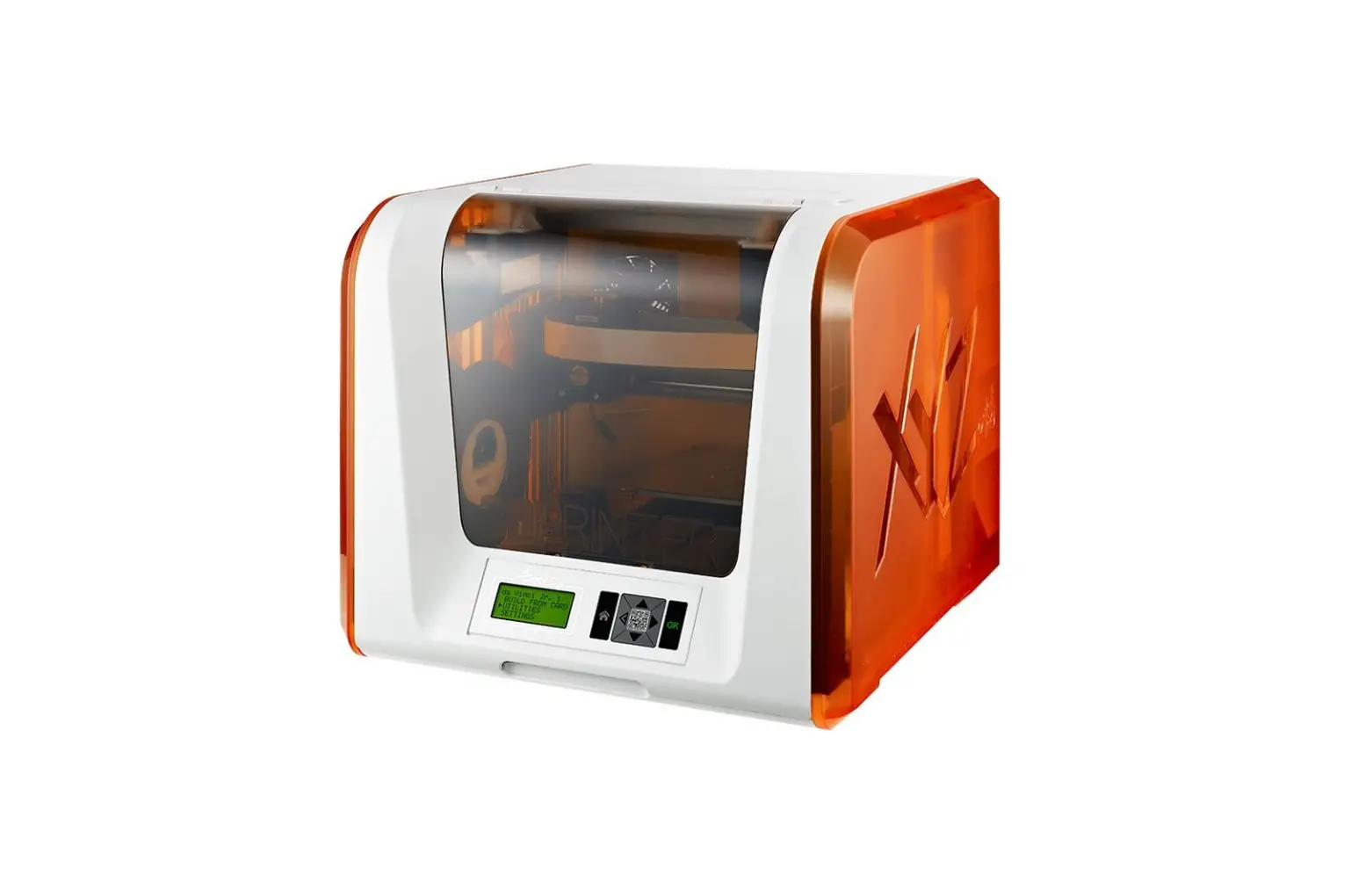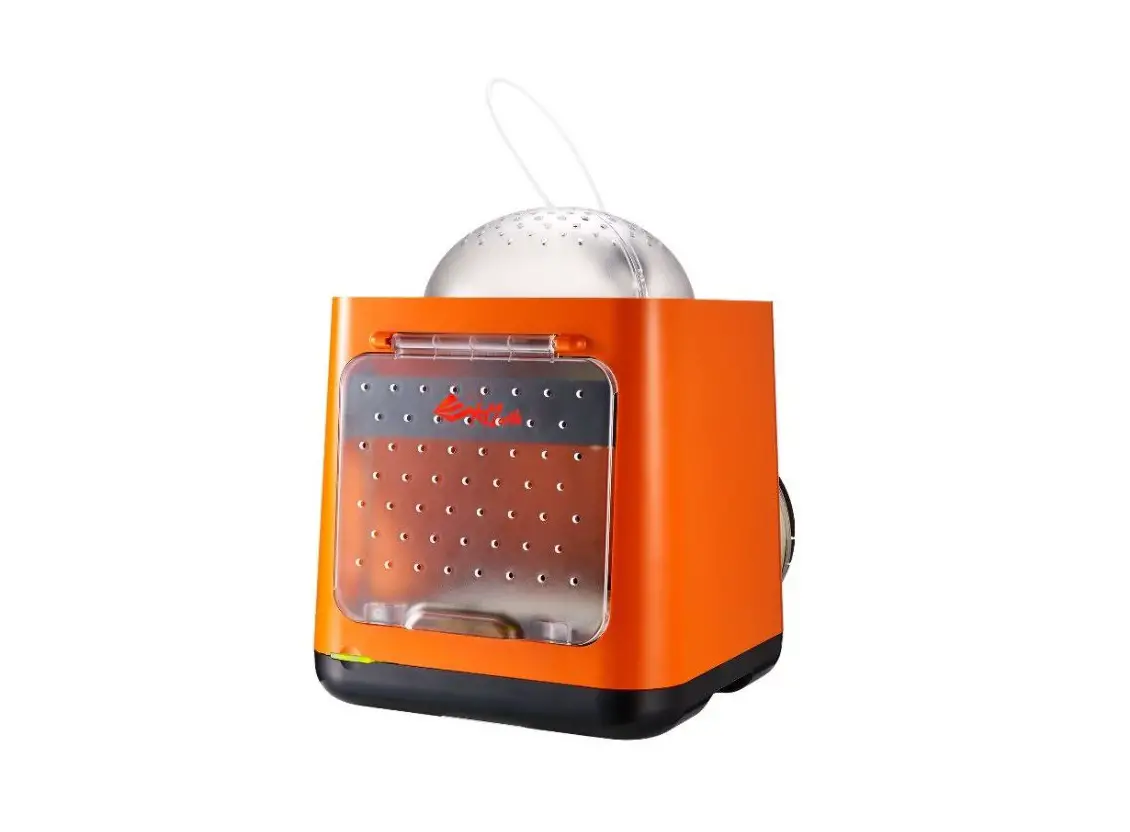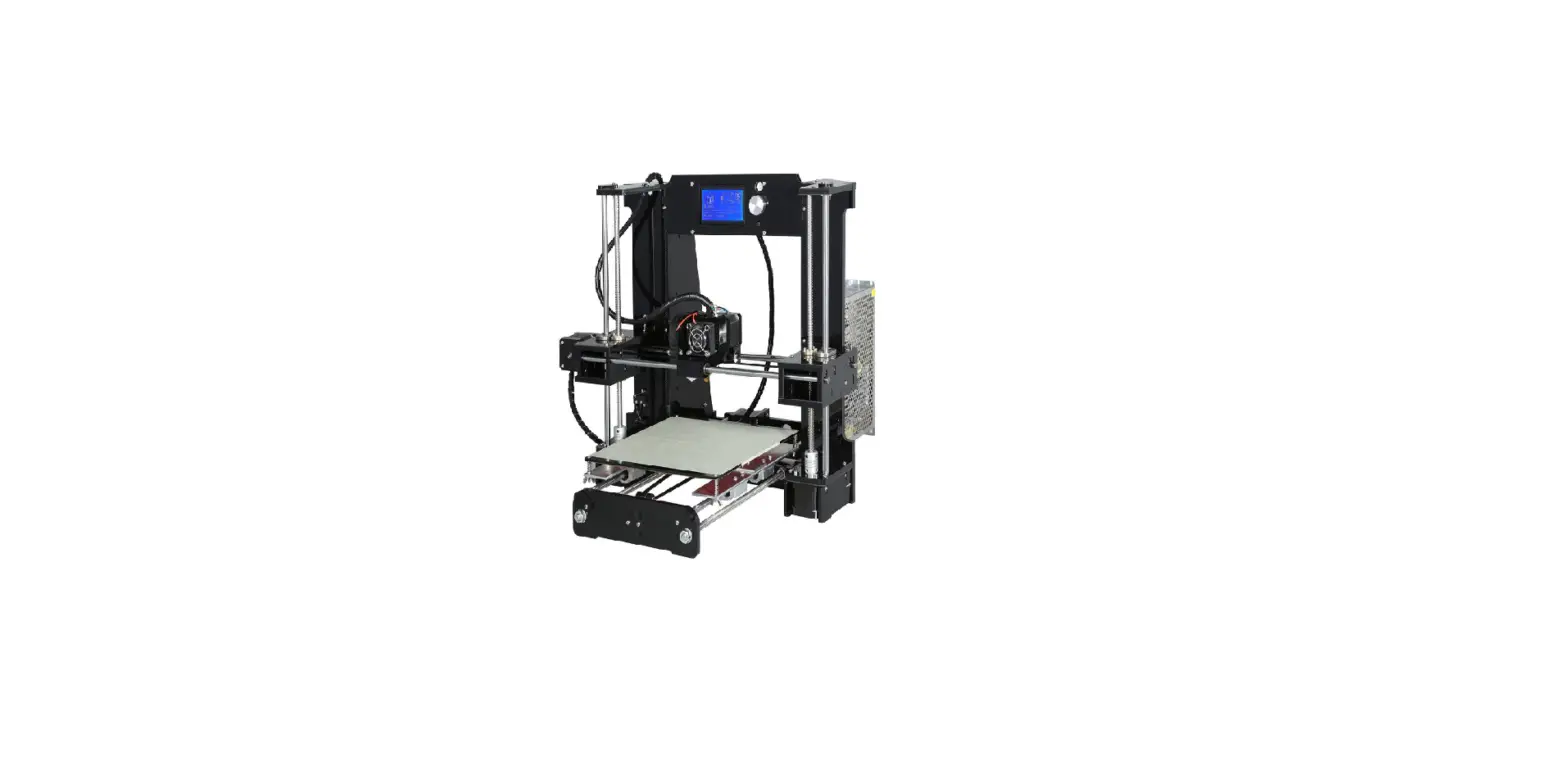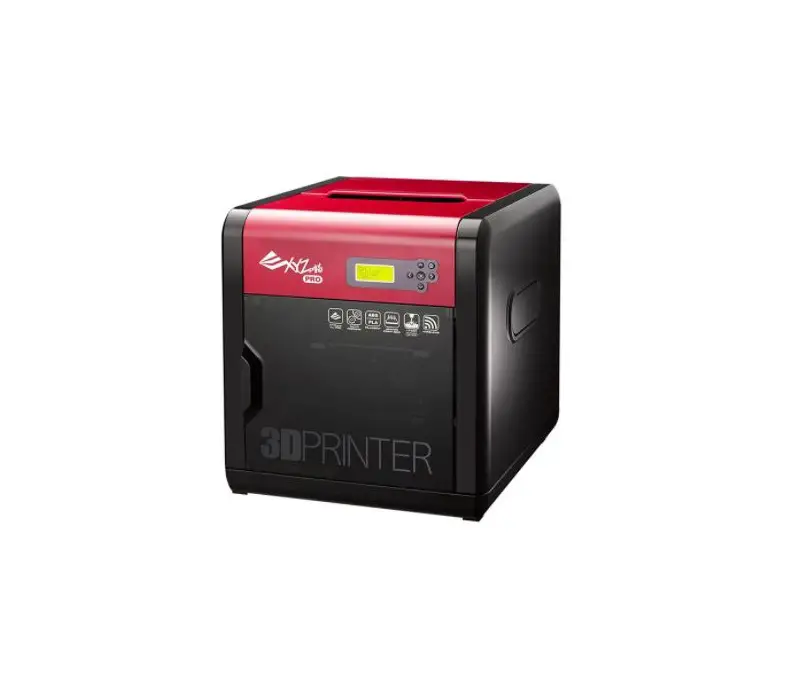
XYZPRINTING Vinci 1.0 Pro 3D Printer
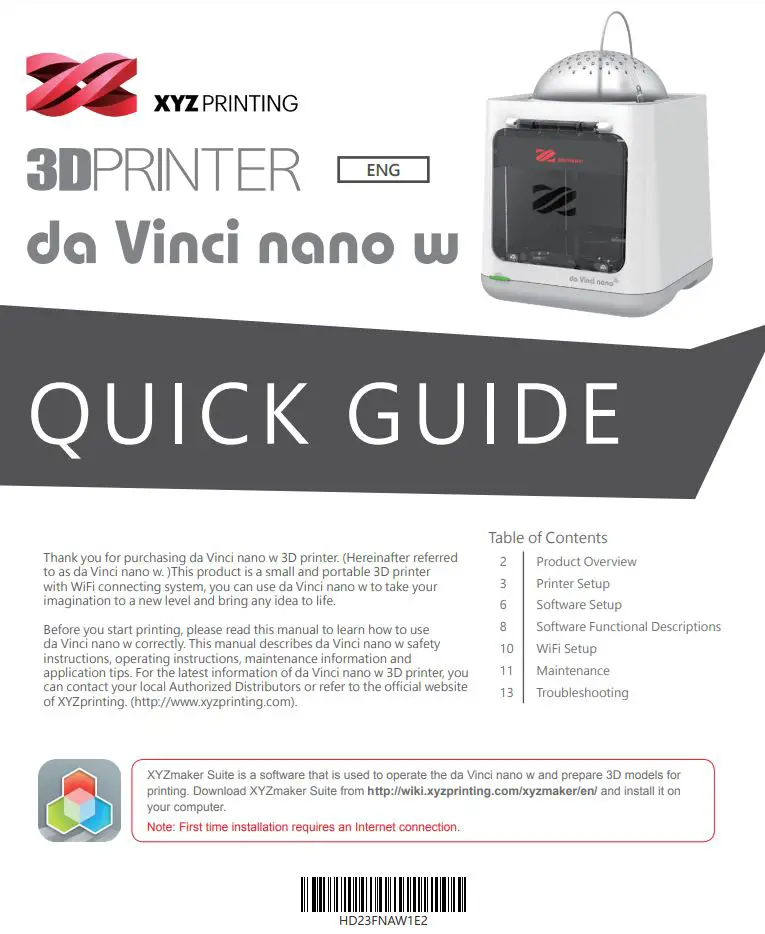
[
Product Overview
Product Details
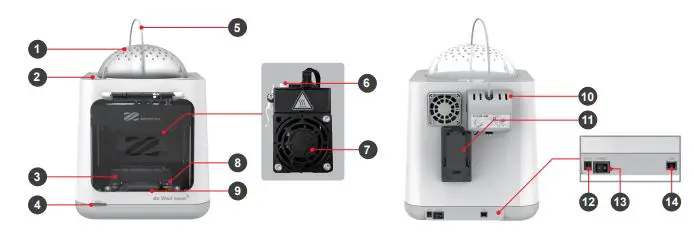
- Top cover
- Top cover latch
- Print bed
- Function button/Status indicator
- Guide tube
- Detection head triggers
- Extruder module
- Hold-open component
- Front cover handle
- Feed module
- Filament holder
- Power socket
- Power switch
- USB port
Specification
Print Technology —Fused Filament Fabrication (FFF)
Dimensions —378*280*355 mm
Print Resolution — 0.1-0.4 mm
Print Material —PLA, Tough PLA, PETG
Print Software — XYZprint
Operating System —Microsoft Windows 7 + Mac OSX 10.9 +
Weight —4.7kg
Print Dimension —120*120*120 mm
Nozzle Diameter —0.4 mm
Filament Diameter — 1.75 mm
File Format —.3w/ .stl/ .3mf
Connectivity — USB cord 2.0 WiFi 802.11 b/g/n
Button and Indicator light
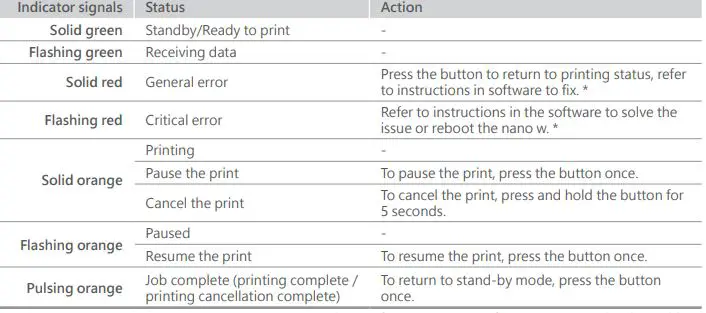 *Please refer to the “XYZprint” software screen to solve the problem.
Printer Setup
Accessory Checklist
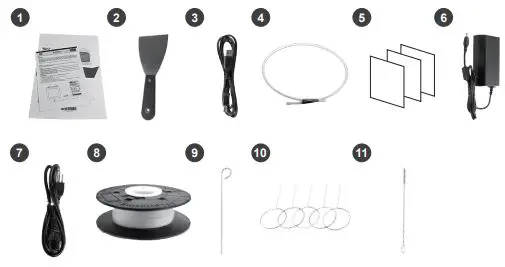
- Quick Guide & Warranty Card
Printing Accessories - Scraper
- USB Wire
- Guide Tube
- Bed Tape x 3
- Power Adapter
- Power Cord
- Bundled Filament
Maintaining Accessories - Feeding Path Cleaning Pin
- Nozzle Cleaning Wire x 5
- Cleaning Brush
Unpacking
 Keep original packaging materials in case you need to send your unit back for repair during the warranty period. Note If other packing materials are used instead, the printer may become damaged during transportation. In such a
the situation, XYZprinting reserves the right to charge a repair fee.
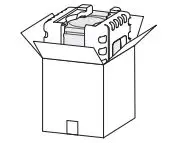 (01) Take out the accessories, top cover, and printer.
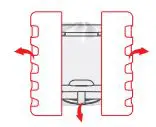 (02) Remove the styrofoam packing material on the sides and the plastic bag.
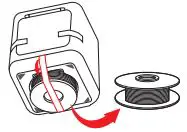 (03) Remove the fixed tape from the printer bottom and take out the filament.
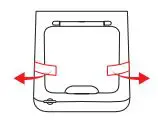 (04) Remove the fixed tape on the front cover sides.
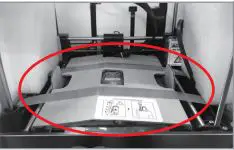 (05) Remove the fixed tape on the extruder module and print the bed packaging.
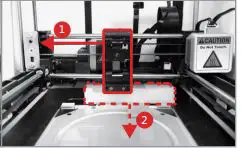 (06) Please remove all fixed materials before turning on the printer to prevent the machine from damage.
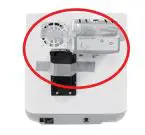 (07) Remove the fixed tape on the extruder module and print bed packaging.
 WARNING: Hazardous Moving Parts. Keep Fingers and Other Body Parts Away.
AVERTISSEMENT: Dangereux Les Parties Mobiles. Evitez tout contact avec les doigts et toute autre partie du corps.
Install the Guide Tube and Extruder Module
This equipment must be grounded. The power cord for the product should connect to a socket outlet with earthing connection.
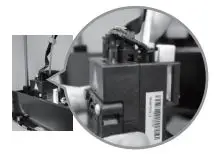 (01) Insert the guide tube into the extruder module port.
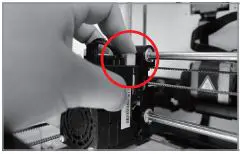 (02) Press the white button and align the extruder module with the bracket. Once aligned, release the white button to connect the extruder module with the bracket.
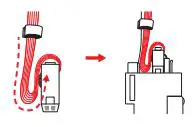 (03) Follow the illustration to bend the flat cable. NG Follow this method
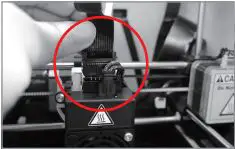 (04) Connect the flat cable to the extruder module. ( Be sure to insert the flat cable in the right direction. )
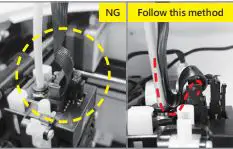 (05) The flat cable is bending for printing smoothly purposes, please do not adjust.
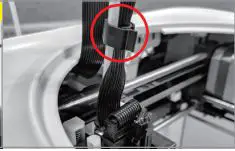 (06) Use the cramp ring to hold the filament guide tube and flat cable. (Place the cramp ring on the flat cable marker.)
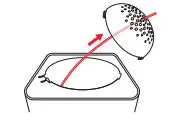 (07) Feed the guide tube through the top cover.
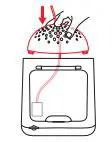 (08) Attach the top cover to the machine.
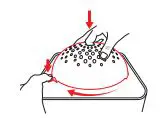 (09) Direct the bottom locking catches toward their slots then press the latch to rotate clockwise.
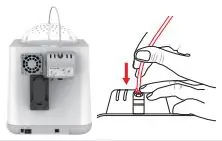 (10) Ensure that the guide tube has been tightly inserted into the feed module port.
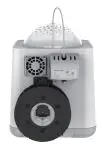 To load the filament, refer to the [Software Setup] section.
Installing the Filament

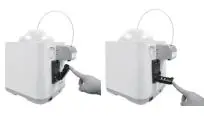
(01) Lower the filament spool holder on the backside of the printer until horizontal.
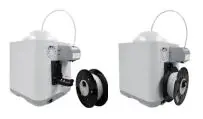 (02) Place the assembled filament spool (with the spool ring) on the spool holder.
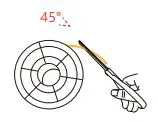 (03) The filament will load better when the tip of the filament is cut at a 45° angle.
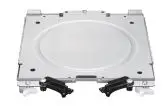 (04) Open the hold-open component and take out the print bed.
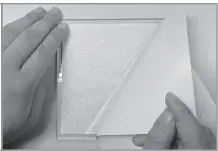 (05) Stick the bed tape onto the print bed. (align center)
Note: The bed tape is reusable, and only needs to be replaced when it is worn out.
- The filament will load better when the tip of the filament is cut at a 45° angle.
- When the printer is not in use, raise the filament spool.
- If the room temperature is below 25 / 77° F, apply some glue to the bed tape for better part adhesion.
Software Setup
Load Filament
 XYZmaker Suite is a software that is used to operate the da Vinci nano w and prepare 3D models for printing. Download XYZmaker Suite from http://wiki.xyzprinting.com/xyzmaker/en/ and install it on your computer. The first-time installation requires an Internet connection.
Please use USB or WiFi to connect your 3D printer and computer before Loading the filament process.
(01) Open up XYZmaker Suite and click XYZprint. This will display a print screen that lets you set print settings and prepare your printer.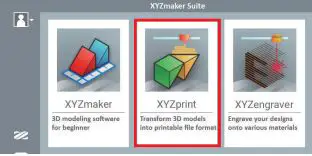
(02) Click [DASHBOARD] then click [Filament] > [Load Filament].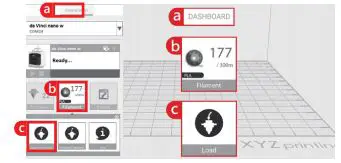
(03) Follow the on-screen instructions to install the filament.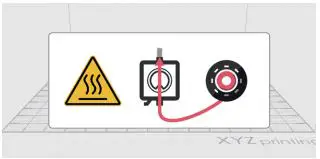
(04) Take the tip of the filament and insert it into the feeding hole. The printer will start to load the filament automatically.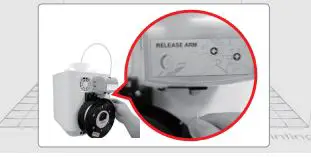
(05) When the print head extrudes filament, you can click [FINISH] to complete the step of loading filament.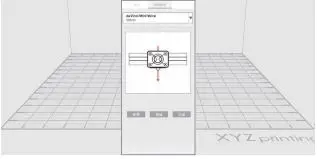
 Hot parts! Burned fingers when handling the parts. Do Not Touch.
Parties Chaudes! Brûler les doigts lorsque de la manipulation des composants. Ne pas toucher.
Printing
For better printing results, we recommend that you calibrate before printing.
Before printing, please use the USB cable or WiFi to connect the computer and your 3D printer to proceed with the loading filament function.
(01) Click [Import]. Import your favorite 3D files. Click on the object to adjust the size you need.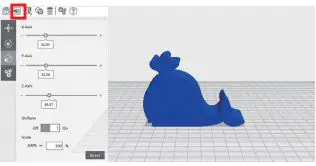
(02) When the object is adjusted, you can start printing.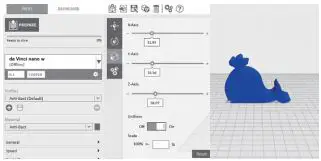
(03) When you’re done adjusting the print parameters you need, click [PREPARE].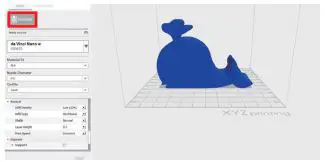
(04) After preparing, please check if the object is a complete model. After the confirmation, click [PRINT].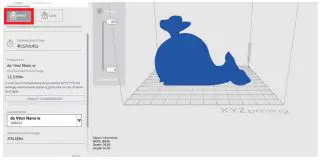
(05) When the print job begins, the printer will print a line on the print bed to ensure the filament is extruding properly.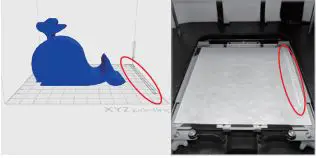
- When the printer starts printing, you can monitor the status by clicking [DASHBOARD].
- The recommended operating temperature is 15 ~ 32 (59 ~ 90 ). If the room temperature is above this, please open the front cover to maintain print quality.
- After the print is finished, the object may be removed with a scraper.
- When using different types of filament, we recommend changing the extruder module.
Software Functional Descriptions
Interface Introduction
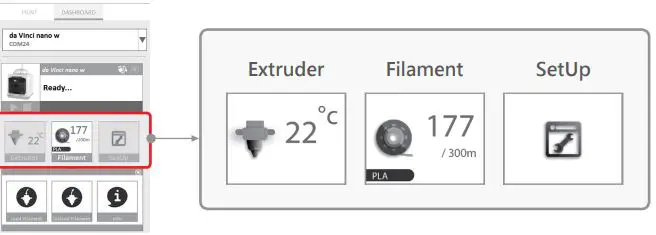
Extruder Once this function is selected, the nozzle will heat up automatically and move the nozzle to a proper location where you can easily clear away all residual plastic on the nozzle.
 The extruder module information, including Temperature, Nozzle Diameter, Total Print Time, and Serial Number.
Filament Please follow the on-screen instructions.
The extruder module will automatically move to the working position. The nozzle will then heat up and begin the filament loading process. After this is complete, verify that plastic has been extruded. If not, please repeat the filament loading process.
 Please follow the on-screen instructions.
The printing module will automatically move to the working position. The nozzle will then heat up and begin the filament unloading process.
Information related to filament use.
Interface Introduction
SetUp
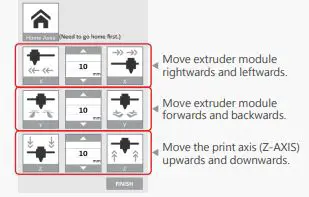
 Manually adjust the movement of X/Y/Z Axis for printer maintenance.
1. First click on Home Axes. The extruder module will be returned to the initial axis position.
2. You may manually enter the adjustment value: Range: 1 to 150; step: 1 mm
 Please follow the on-screen instructions.
Print bed calibration may be implemented before the printing process.
Move the extruder module to the lower-left corner of the printing area. Please refer to the calibrate instructions provided by the software.
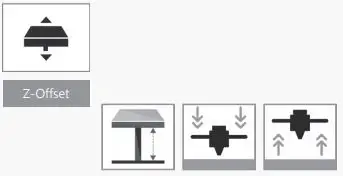 Z-Offset function will help you to adjust the printing distance between the print bed and extruder module.
Each adjustment has a step of 0.05 mm.
 Automatic horizontal calibration
Automatic horizontal calibration may either be ON or OFF. Default: ON.
The printer would automatically implement horizontal calibration and compensation accordingly.
Printing speed will be improved if the automatic horizontal calibration has been switched to OFF. However, this may affect printing quality.
Buzzer
The buzzer may either be ON or OFF. Default: ON.
When the buzzer is turned on, the printer will output an audible signal when a button is pressed, receiving data, the print job is finished, or the issue is detected.
Restore Default
Click Restore Default to reset to the default setting.
 Please upgrade the latest firmware version for the best printing quality of the printer.
Information related to printer setting.
WiFi Setup
Before setting up
- The network printing function is only available when the printer and the computer are both connected to the same wireless network.
- Before connecting the printer, your wireless network settings need to be adjusted. For more information, refer to the instruction manual of your wireless router.
- The wireless network’s channel width needs to be set to 20 MHz for the printer to connect to it wirelessly. Refer to the vendor instruction manual for more information.
- The nano w supports WEP, WPA, and WPA2 security encryption standards. Wireless pass word information will be requested when setting up the printer connection.
Setting up WiFi
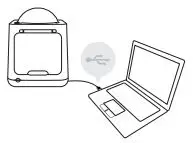 (01) Connect the printer to your computer with the USB cable, open “XYZprint” and turn on the printer.
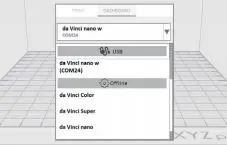 (02) Select the connected 3D Printer on the Dashboard page.
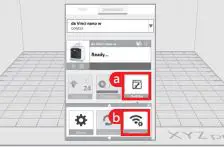 (03) Select the [SetUp] > [Wireless] to open the WiFi connection settings.
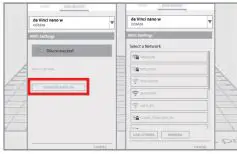 (04) In the [WiFi setting] window, please follow the onscreen instruction to key in the related information to complete the wireless connecting setup.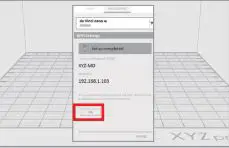
(05) Once the connection method has been changed from USB to WiFi, you can unplug the USB cable and continue with the printing process.
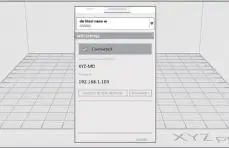 (06) If you need to stop or change the wireless setting, please click [Connect to new network /Disconnect].
Note:
- Name the printer and wireless network with the alphanumeric characters only.
- If no connection is detected within 90 seconds, the printer will time out. If this is the case, check that the configuration process is correct and try again.
- Confirm your wireless network’s security key on the router’s wireless settings page.
- The recommended wireless connection distance between your printer and the wireless networking device needs to be within 10
meters. The connection quality will depend on the power of your networking device, and the environment you are connecting the two devices in. For more information, please refer to your networking device’s instruction manual.
Maintenance
Z-offset
When the printing module has been moved, we recommend that you use a z-offset. This function will help you to adjust the printing distance between the print bed and the extruder module.
Step
1. Please unload the filament and clean the Step nozzle before using z-offset.
2. Click [DASHBOARD] > [SetUp] > [Z offset] to start z-offset adjustment.
3. Adjust Z up or Z down to find the proper distance.
• This product is factory tested and adjusted, we suggest you note the default value for z-offset before your adjustment.
• Suggested distance between nozzle and print bed(including bed tape) is 0.3mm.
Print bed calibration
Print bed level will affect the 3D printing quality, XYZprinting’s 3D Printer has been adjusted to the best condition before leaving the factory. After long periods of use, the print bed level may change. If you have print adhesion problems, you may need to re-level the print bed.
Step
1. Switch on the power and activate the Step Calibrate function in XYZprint.
2. Please follow the on-screen instructions.
Clean the filament feed module
After long periods of use, the automatic feed system may inconsistently extrude filament, due to a buildup of residual plastic in the feed module. The printer filament feed module should be cleaned if this happens or after cleaning the nozzle.
Step
1. Open the feed module cover. Step
2. Clean the gears by using a gear cleaning brush.
Tool
Cleaning Brush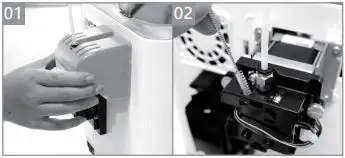 Please switch off the power before cleaning the filament feed module.
Clean the nozzle
In order to maintain a good printing quality, it is recommended that you clean the nozzle after every 25 hours of printing. Please use the Clean Nozzle function in the software.
- Switch on the power and click [DASHBOARD] Step > [Extruder] > [Clean Nozzle].
- Please clamp the nozzle cleaning wire with needle-nosed pliers to insert it into the
 head of the nozzle carefully for cleaning.
 - Lightly press the spring around the feed hole and remove the filament guide tube (don’t need to remove the heating cable at the side)
- Insert the Feeding Path Cleaning Pin into the feeding path all the way down and
 “floss” the inside of the nozzle to pull the residue out.
 - After cleaning the feeding path, reinstall the filament guide tube and extruder module.
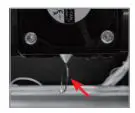 head of the nozzle carefully for cleaning.
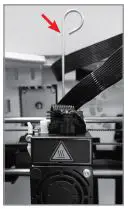 “floss” the inside of the nozzle to pull the residue out.
Tool Nozzle Cleaning Wire
Feeding Path Cleaning Pin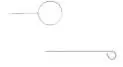
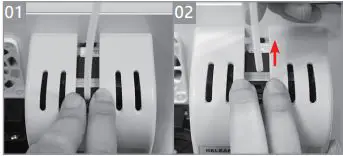
How to Remove the Guide Tube
Step
1. Use two fingers to press the Feeder on the Feed module.
2. Pull out the guide tube.
Replace the New Filament Spool
*If you have just unboxed the da Vinci nano w, the sensor chip should already be loaded.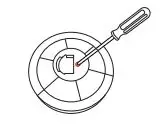
(01) Use a Phillips head screwdriver to loosen the securing screws of the filament spool ring.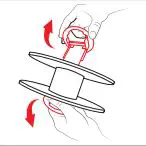
(02) Separate the spool ring from both sides of the spool.
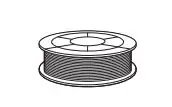 (03) Take out the filament spool and the sensor chip.
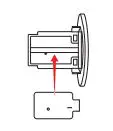 (04) Install the sensor chip. Note the orientation of the sensor chip on the spool ring.
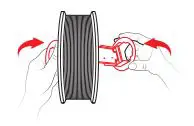 (05) Feed both parts of the spool ring through the center hole of the spool and assemble them together.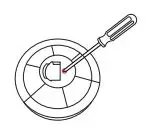
(06) Use a Phillips head screwdriver to tighten and secure the spool ring to complete the installation.
Troubleshooting
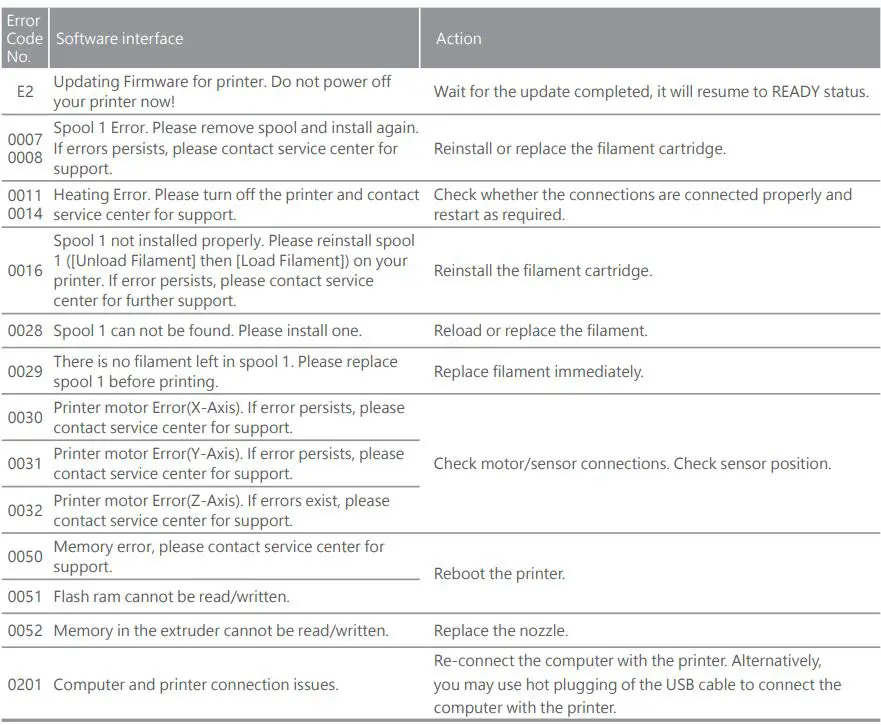
Application
XYZgallery 2.0


XYZgallery 2.0 is an app to let you share, manage, download and print 3D models.
Thousands of different models were uploaded by our active community of designers and makers. Use the app to select your model and send it to any XYZprinting printer which connected to your wireless network as easily as pie.
XYZmaker 3DKit



XYZmaker 3DKit comes with an intuitive user interface and a wide variety of professional 3D modeling tools. Even beginners will find it easy to use. New 3D tools let you explore more possibilities in 3D modeling whether you’re working on 3D pixel art, making edits, or building a model from scratch.
XYZmaker 3DKit supports XYZprinting 3D printers to print and monitor printer status to let you create and print in one app.
 XYZmaker
 xyzprinting.com