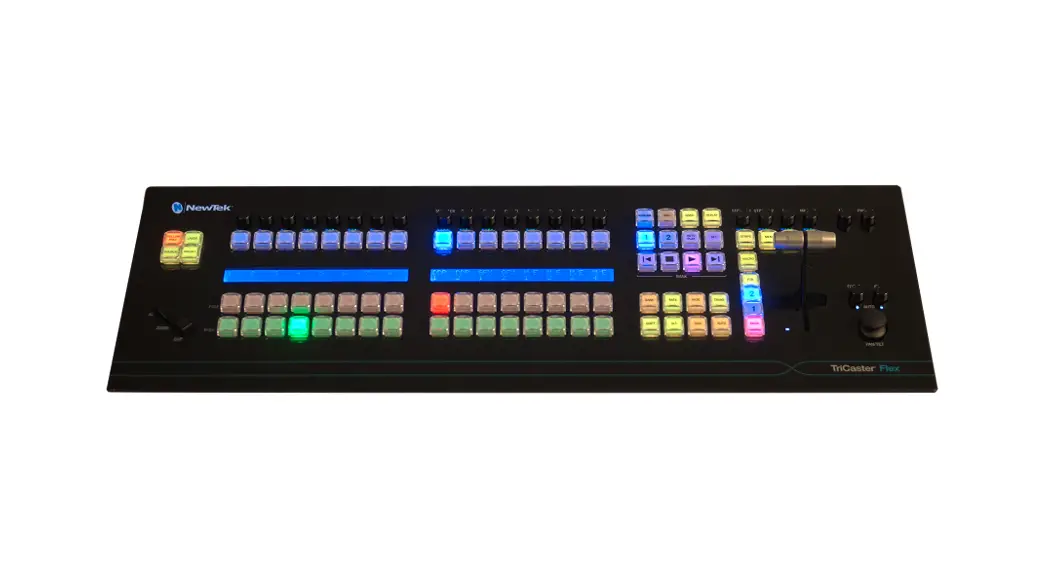
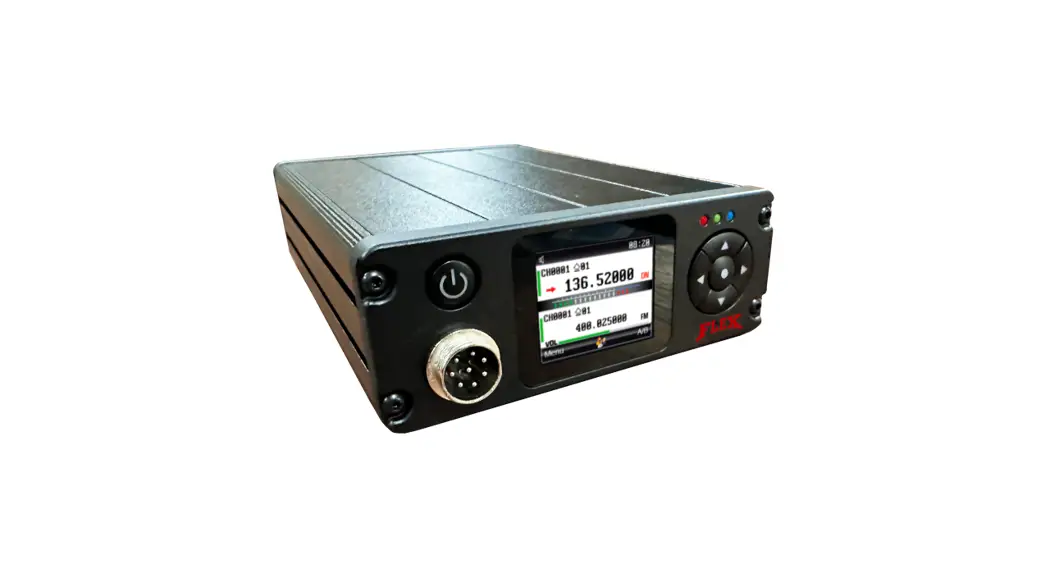
TriCaster Flex Control Panel
Product Information
The Flex Control Panel is a device that allows users to control
and connect to TriCaster systems build 8-0 or later. It comes with
a removable power cable, a 6ft Ethernet cable, and a Flex Control
Panel.
Product Usage Instructions
- Connect the Flex to your local network utilizing the rear RJ-45
ethernet connection. The Flex control panel will connect to your
LAN via DHCP. A static IP address can be set later, that
configuration is explained in the TriCaster user manual. - Connect AC power to the control panel. It will take Flex about
30 seconds to boot up. - After bootup, choose a target system to control and connect.
Note: The target system must be running TriCaster software build
8-0 or later. On the Flex panel, simultaneously press SHIFT, ALT,
and SET buttons and release. This will show the Flex utility menu
shown below:
- Press the white button directly above connect.
- The Previous and Next buttons in the media player will then be
illuminated in green and the Stop button will flash red as seen
below:The LCD display will also show information about devices that
can be connected. - Utilize the green Previous and Next buttons in the media player
to cycle through the available TriCaster systems on the network.
Once the correct target is displayed, push the red flashing stop
button in the media player to connect to that TriCaster system.
After a second or two, the Flex Control Panel will connect. - For Flex Control Surface Connections Set-Up, use the 2 x USB-2
ports inputs. Note that a complete user guide for Flex and all
other NewTek products can be found at NewTek Product Updates and
Downloads.

Quick Start Guide
Let’s get started…what’s in the box?
Flex Control Panel
Removable Power Cable
6ft Ethernet Cable
Flex Control Panel manual pages can be found in the latest versions of each of the TriCaster® user guides. Please refer to the dedicated web page to get the latest version of the user manual for your TriCaster. The following is a quick start to get your Flex Control Panel connected to your TriCaster. Please see the chapter titled Control Panel: TriCaster Flex in your TriCaster user guide for detailed description of connections and operation.
1. Connect the Flex to your local network utilizing the rear RJ-45 ethernet connection. The Flex control panel will connect to your LAN via DHCP. A static IP address can be set later, that configuration is explained in the TriCaster user manual.
2. Connect AC power to the control panel. It will take Flex about 30 seconds to boot up. 3. After bootup, choose a target system to control and connect. Note: The target system must
be running TriCaster software build 8-0 or later. On the Flex panel, simultaneously press SHIFT, ALT, and SET buttons and release. This will show the Flex utility menu shown below:
Press the white button directly above connect. 4. The Previous and Next buttons in the media player will then be illuminated in green and the
Stop button will flash red as seen below:
And the LCD display will show information about devices that can be connected.
5. Utilize the green Previous and Next buttons in the media player to cycle through the available TriCaster systems on the network. Once the correct target is displayed, push the red flashing stop button in the media player to connect to that TriCaster system. After a second or two, the Flex Control Panel will connect.
Flex Control Surface Connections Set-Up
USB: 2 x USB-2 ports
1 pair ¼” balanced Talkback and Mic
inputs
Audio in 2 pair ¼” balanced line level
inputs
RJ-45 1GbE for NDI
Phones ¼” Stereo headphone output
Audio out 2 pair ¼” balanced line level outputs
The Flex Control Panel is compatible with all current TriCaster® models. Please visit the dedicated web page for all NewTek Control Panels to see if your TriCaster model is supported.
Please ensure that your TriCaster® is running the latest software version by visiting NewTek Product Updates and Downloads. TriCaster software build 8-0 or
later is required for functionality with Flex.
Complete user guides for Flex and all other NewTek products can be found at NewTek Product Updates and Downloads
 NewTek Product Updates and Downloads