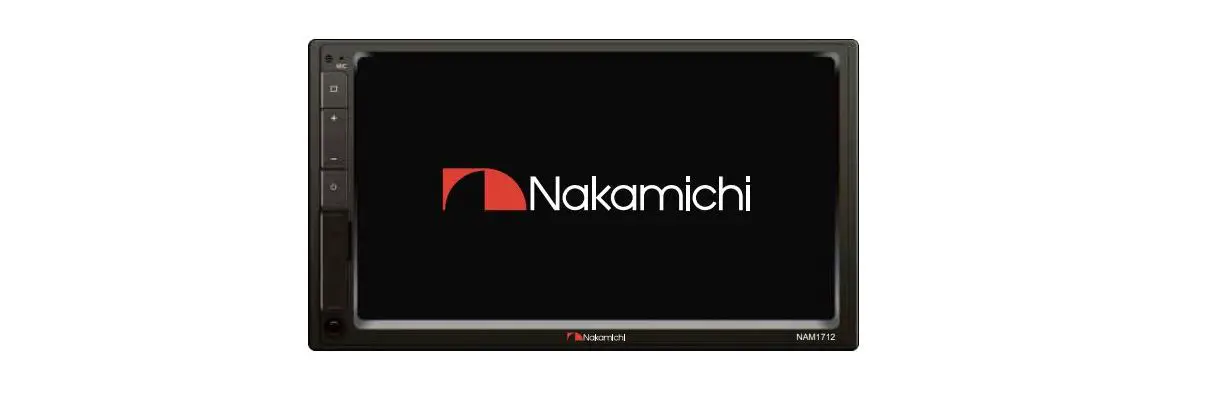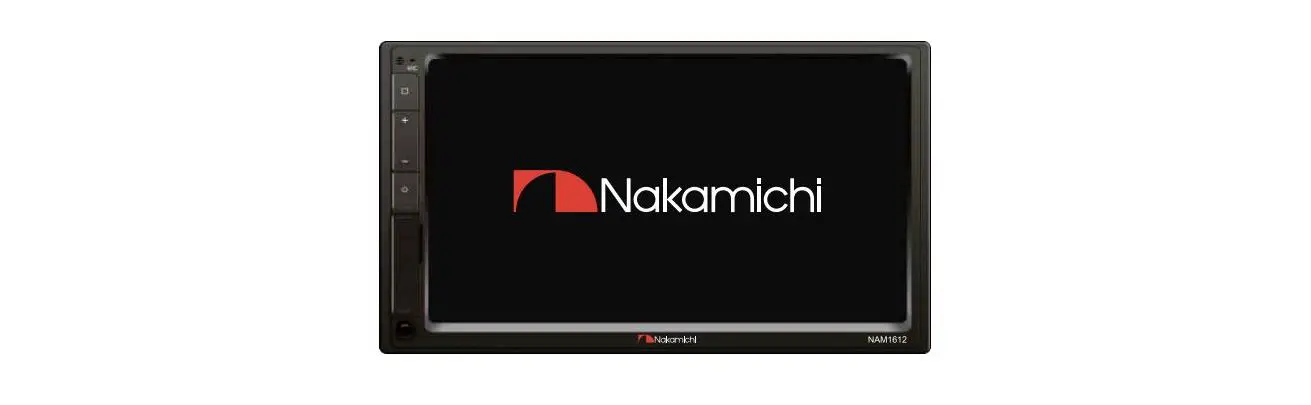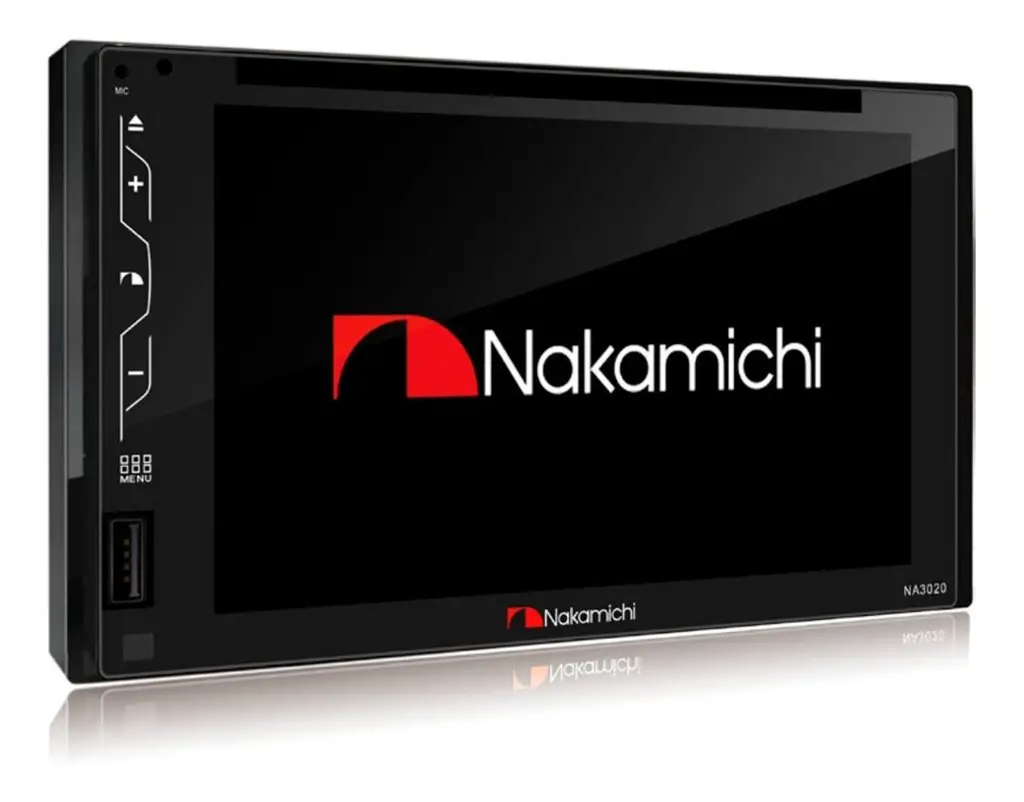

NAM1710
User Manual
7″ 2-DIN AV RECIEVER
 nakamichicaraudio.com nakamichicaraudio.com |  nakamichi.golbal nakamichi.golbal |  nakamichi.caraudio nakamichi.caraudio |
Warning & Precaution
To avoid risk of serious injury or possible violation of laws, please read the following thoroughly before installation or connecting.
 This symbol means important ban. Failure to heed them can result in serious injury or death. This symbol means important ban. Failure to heed them can result in serious injury or death. |  This symbol mean important instructions. Failure to heed them can result in injury or material property damage. This symbol mean important instructions. Failure to heed them can result in injury or material property damage. |
Having the wiring and installation done by expert. The wiring and installation of this unit requires special technical skill ‘and experience. To ensure the safety, always connect the dealer where you purchased this product to have the work done.
| Do not watch video or operate the unit while driving. | Be sure to use specified accessory parts and install them securely. |
| Do not install in location which may hide vehicle operation, such as steering wheel or gearshift or cover of airbag. | Be sure to check the installation of antenna regular. Antenna dropping may result in an accident while the vehicle is running. |
| Do not touch antenna or any plugs while in thunder storm to avoid electric shock. | Be sure to disconnect the cable from the negative battery terminal wile installation. |
| Do not damage wiring. Failure to do so may result in electric shock or fire due to electrical shorts. | Be sure to use the correct ampere rating when replace fuses. Failure to do so may result in fire of electric shorts. |
FEATURES
- 2-Dinreceiver with capacitive panel
- 7-inch high-brightness and wide angle screen
- Support USB DVR
- Support Dual USB
- Support AHD Camera
- Support iOS phone mirrorlink
- Support android phone mirrorlink
- Built-DSP, support HPF,LPF
- Support Virtual bass
- Support time alignment
- Built-in 16 band EQ,Preset 7 sound effects
- Support lossless music
- Support 1080P video playback
- Support MP3/WMA/AAC/FLAC audio playback
- Support H264/WMV/DIVX/FLV video playback
- Built-in Bluetooth
- Support Bluetooth music playback
- Built-in multi-color lights
- Support subwoofer output
- Support subwoofer volume control
- 2 Video output
- 2 Audio output
- 4V Pre-output
- 3V Subwoofer output
- 1 Video input,2 Audio input
- Builf-in PAC jack
- Maximum power: 4x50W
- Support extermal microphone
- High sensitivity FM/AM, support RDS
- Support steering wheel button learning
ACCESSORY LIST
| 1. Power cable —————–1 PC 2. Remote controller ———-1 PC 3. User manual —————–1 PC | 4. Metal Card hokder———– 1 PC 5. SCIOW:SXB ————22–2—BPCS 6.12P Expansion —————- 1 PC |
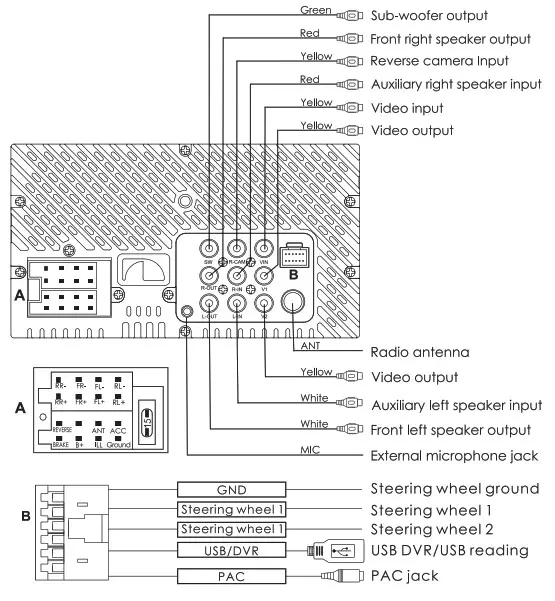
WIRING DIAGRAM
PANEL OPERATION
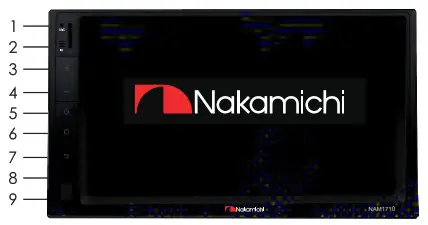
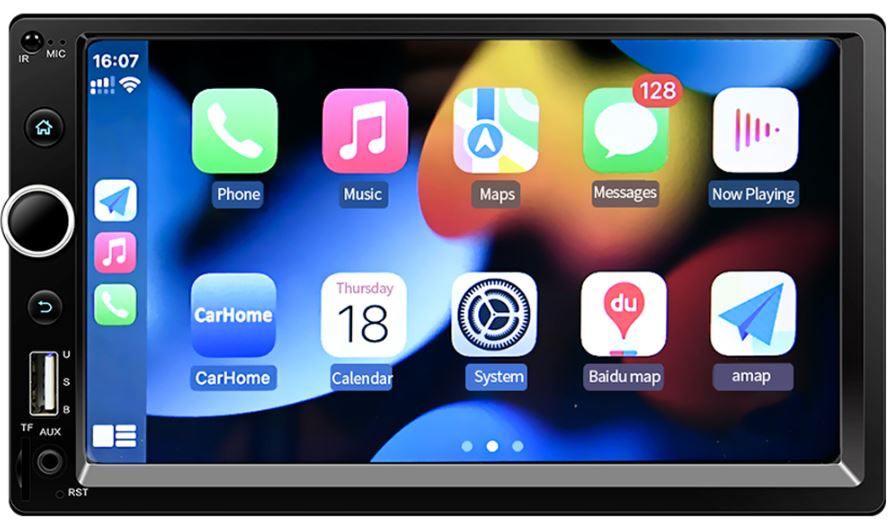
| 1. Microphone: Voice receiving position 2. Remote control windows 3. Volume up 4. Volume down 5. Power | 6. Home page 7. Back to previous 8. Reset Key 9. USB interface |
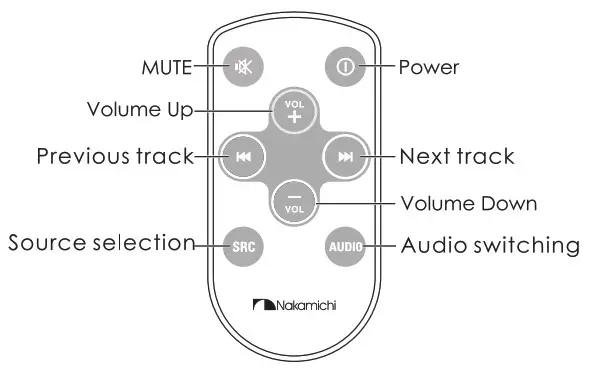
REMOTE CONTROL OPERATION
HOME PAGE OPERATION
Press  on the panel to enter the homepage, the homepage is displayed as follows:
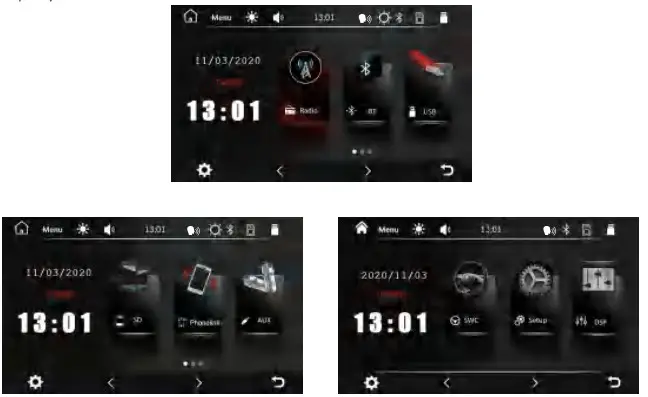
 LCD Brightness setting LCD Brightness setting |  Setting Setting |  Phone Mirrorlink Phone Mirrorlink |
 Current volume Current volume |  Page Page |  Aux input Aux input |
 Current time Current time |  Return Return |  DSP setting DSP setting |
 Voice operation Voice operation |  Radio Radio |  Setup Setup |
 Bluetooth connected Bluetooth connected |  Bluetooth Bluetooth |  Steering wheel learning Steering wheel learning |
 SD card inserted SD card inserted |  USB playback USB playback | |
 USB inserted USB inserted |  SD Card playback SD Card playback |
RADIO OPERATION
Radio Interface
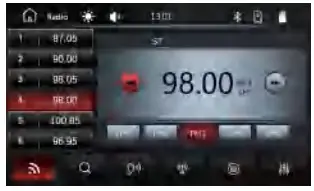
 Forward Forward Band selection Band selection Automatic search Automatic search Stereo switch Stereo switch |  Backward Backward DX/LOC switch DX/LOC switch Frequency input Frequency input DSP setting DSP setting |
Radio Area Selection
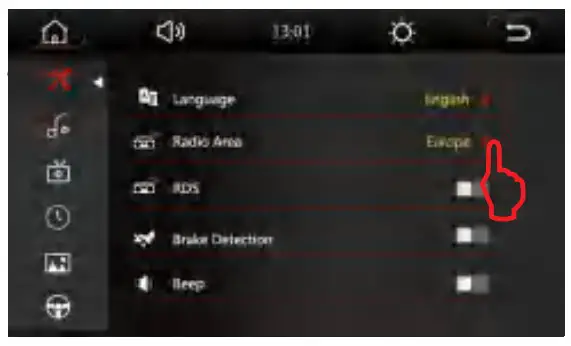
1. Press [ ] toenter the homepage. ] toenter the homepage.2. Click [  ] to enter setting interface. ] to enter setting interface. | 3. Click [ ] to select [ Radio Area J. ] to select [ Radio Area J.4. Select the corresponding radio area. |
Automatic Search
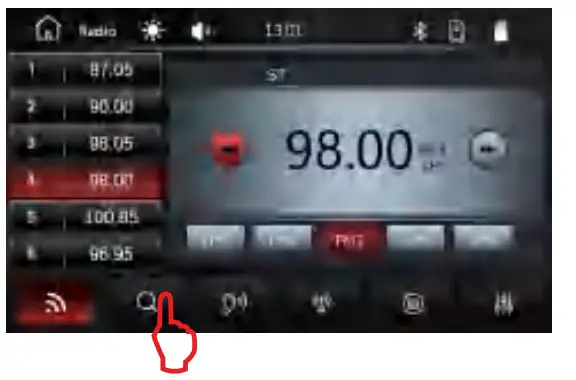
Press and hold the []for more than 2 seconds, the radio stations that have been searched will be automatically saved the number list below.
Rds Function
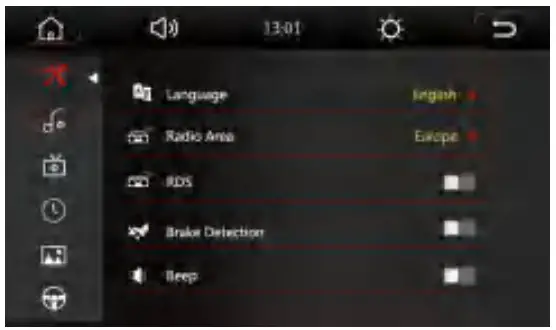
1. Press [] to enter the homepage.
2. Click [] to enter setting interface.
3. Click [] to select [RDS]open.
BLUETOOTH OPERATION
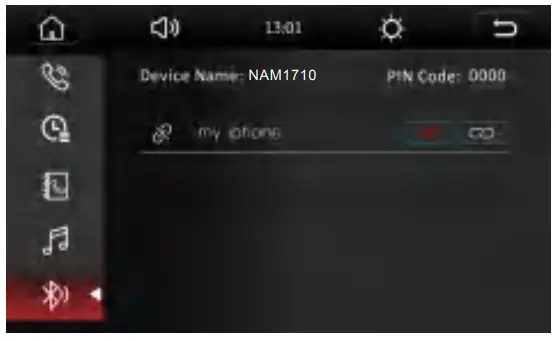
The first time pair mobile phone with AV receiver, please follow below steps:
| 1. Press [] to enter the homepage. 2. Click [BT] to enter the Bluetooth interface. | 3. Click [  ] fo enter the Bluetooth pairing. ] fo enter the Bluetooth pairing.4. Turn on the phone’s Bluetooth to search: Bluetooth device: NAM1710. |
Call Interface
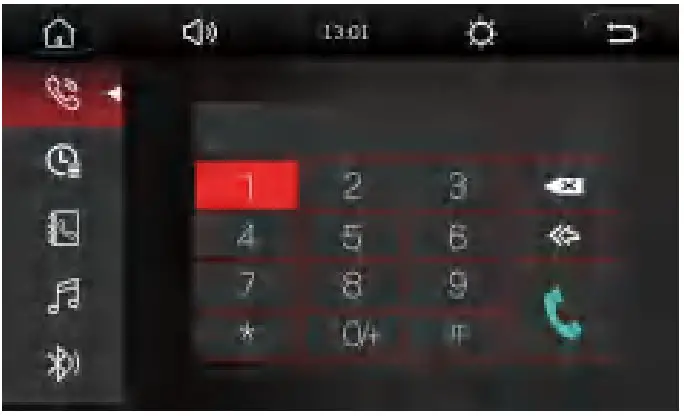
 Dialpad Dialpad History call record History call record Phone book Phone book Bluetooth Music Bluetooth Music | Bluetooth Pairing Backspace Backspace Delete Delete Answer Answer |
Call Record
Phone Book
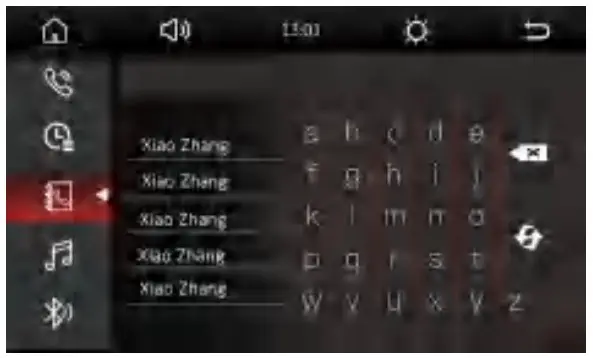
Bluetooth Music Playback
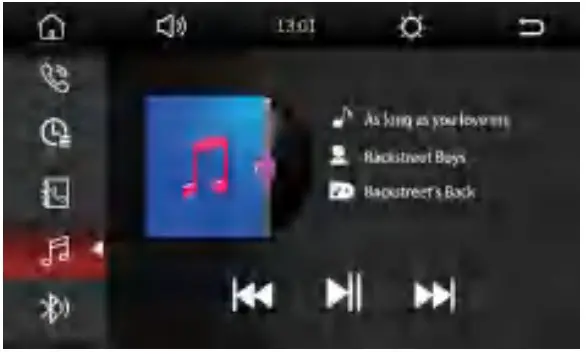
| 1|. Press [] to enter the homepage. 2. Click [BT] to enter the Bluetooth interface. 3. Click [ ] to enter the bluetooth music playback. |  Previous track at Previous track at Play/Pause Play/Pause Next track Next track |
PHONE MIRROR LINK OPERATION
Remarks:
- Before the mirrorlink operation, the Bluetooth must be paired and connected. When the Bluetooth is not connected, there will be no sound.
- Only the front USB supports miorrlink.
- Press [
 ] to enter the homepage .
 - Click [Autolink ] to enter the phone mirrorlink interface.
Mirrorlink Interface
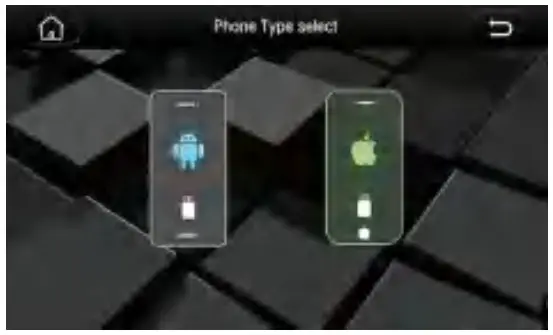
Android Phone Mirrorlink
 Click [
 ] to enter the android phone mirrorlink
- can QR code to download the Autolink APP(First connection}
- Please connect the phone to the headunit via USB cable.
- Please click trust on your phone.
Remork:
Some mobile phones need to turn on the USB debugging mode.
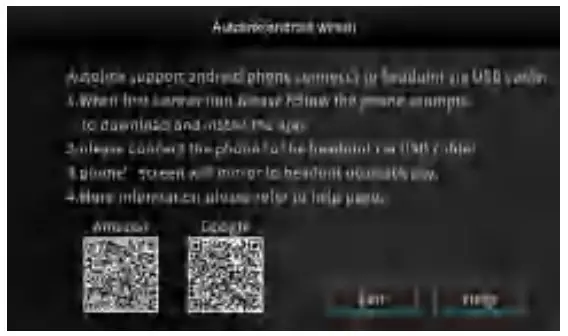 Click [
 ] to enter the android phone mirrorlink
los Phone Mirrorlink
 Click [
 ] to enter the iOS phone mirrorlink
- Please connect the phone to the head -unit via USB cable.
- Please click trust on your phone.
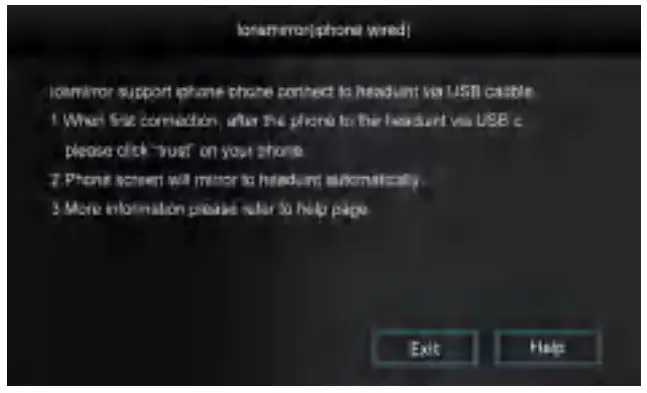 Click [
 ] to enter the iOS phone mirrorlink
MULTIMEDIA OPERATION
Music Playback
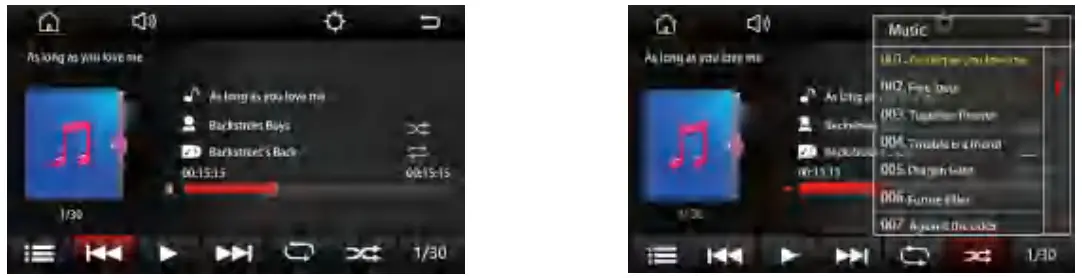
 Playlist Playlist Play/Pause Play/Pause Repeat Playback Repeat Playback Previous track Previous track |  Next track Next track Random Playback Random Playback Currently playing track/total track Currently playing track/total track |
Video Playback
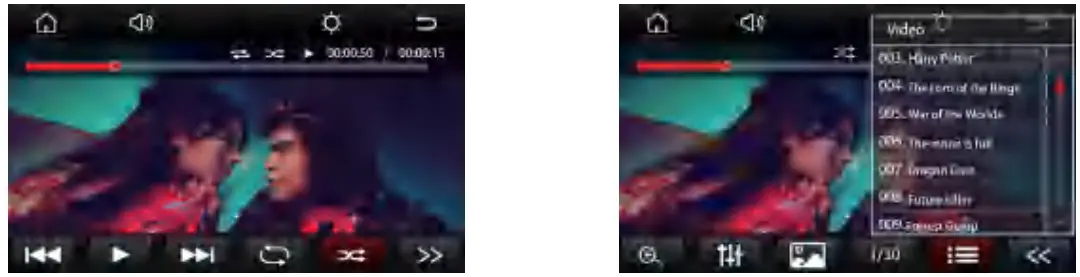
Previous Video Repeat playback DDP Settings Currently Playing video/total video DDP Settings Currently Playing video/total video | Play/Pause Random payback Brightness Settings Brightness Settings Page Page | Next Video Zoom in/zoom out Playlist Zoom in/zoom out Playlist |
Picture Playback
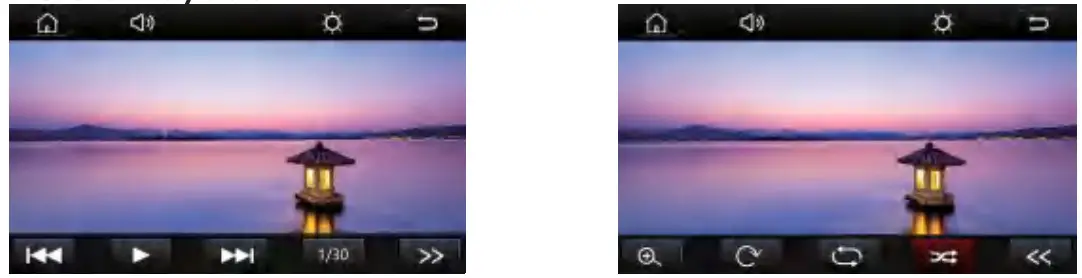
| Previous Picture Zoom in/zoom out Random payback | Play/Pause Rotate Page Rotate Page | Next Picture Repeat playback |
DSP SETTING
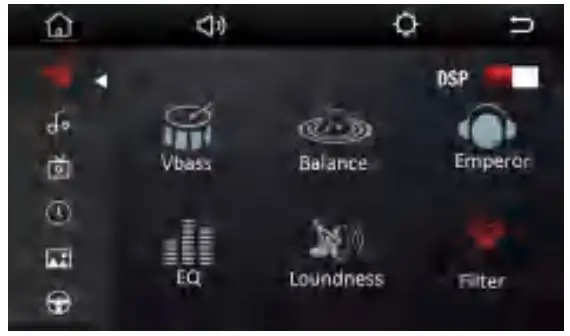
- Press [] to enter ihe homepage.
- Click [ DSP] to enter the DSP interface.

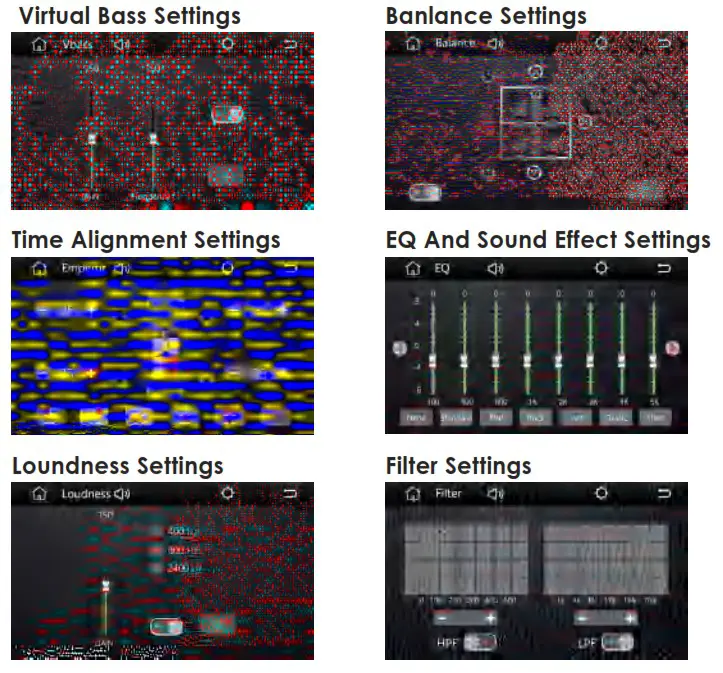
Vbass: virtual bass settings
Balance: Fader and banlance settings
Emperor: time alignment settingsEQ: EQ and Sound effect settings
Loundness: Loundness settings
Filter: HPF and LPF filter settings
SETTINGS
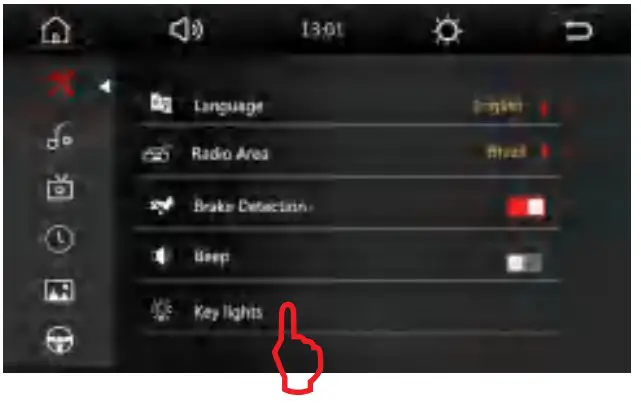
- Press [] to enter the homepage.
- Click
 to enter setting interface.
Key Lights Settings
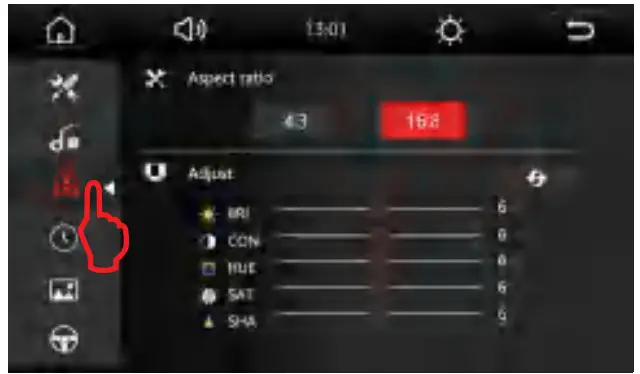
Display Settings
Steering Wheel Learning
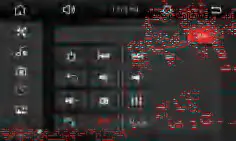
- Click [SWC] to enter the steering wheel learning interface.
- Click[ PAC ], Display [SWC]
- Press and hold the steering wheel control button for 3s.
- Click the button function on the screen. The learning success button turns gray
- Click[√] to enter the save.
USB DVR
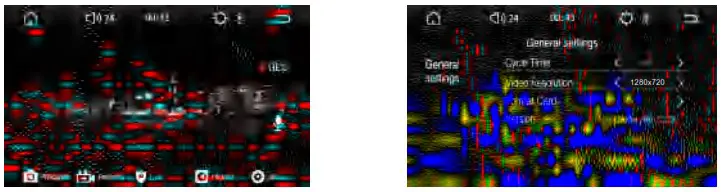
 Photograph Photograph Start the video Start the video Lock Video Files 9 Lock Video Files 9 Video recording Video recording Set up Set up |  HE Set recording time HE Set recording time Resolution settings Resolution settings Formatted SD card Formatted SD card |
Remarks:
NAM1710 only supports our specific DVR model.
TROUBLESHOOTING
| FAULT | REASON | SOLUTION |
| Unable to boot | Power supply fuse burned out | Replacement of the same type of fuse |
| Other factors cause microprocessors to work abnormally | Reboot the unit using the reset button. Press the reset button with a pointed object. | |
| When the ignition switch is turned off, all the information of setting is lost. | Replacement of batteries or fuses | Reset the information and restore if after replacing the fuse or batteries |
| The radio is ineffective | Weak radio signal | Try again in a different location |
| No image | Other factors cause microprocessors to work abnormally | Reboot the unit using the reset button. Press the reset button with a pointed object |
| Silent output | Small voice | Increase the volume |
| Output line incorrectly connected | Check Output Line Connection |
Do not connect the speaker leads of the power cord to the car battery; otherwise. the unit will be seriously damaged.
BEFORE connecting the speaker leads of the power cord to the speakers, check the speaker winng in your car.
SPECIFICATION
General
Operation Voltage: 14.4V(10.5-16¥V)
Product Size: 178 x 100 x 70mm
Panel Installation Size: 178 x 100mm 170 x 96mm
Operationg temperature: -10C- +60C
Storage Temperature: -20C- +70C
Net Weight: 800g
TFT Screen Item
Size: 7″
Display Resolution: 800 x 480
Contrast ratio: 400
Brightness:400nit
Bluetooth
Communication System:
BT4.0+EDR
Frequency Band: 2.4GHz
Max Range: 5m
Audio
Max Power: 4x50w
Front Output(V): 4V/10KQ
Pre-output impedance: <600Q
Speakers impedance: 4-8Q
Video
External Video Input System:
NTSC/PAL/SECAM
External Video Input: 1VP-P/75Ω
Video Format
H264/ MP4/ AVI/ MKV/ FLV
Audio Format
MP3/APE/AAC/FLAC
USB Interface
USB: Readable/ Chargeable
(5+0.25V/1A)
Radio
FM Frequency: 87.5-108.OMHZ
AM Frequency: 522-1620KHZ
 SCAN OUR QR CODE OR VISIT WWW.NAKAMICHICARAUDIO.COM
FOR COMPLETE AUDIO SETTINGS INSTRUCTIONS
| nakamichi.global | nakamichi.caraudio |
Made in china