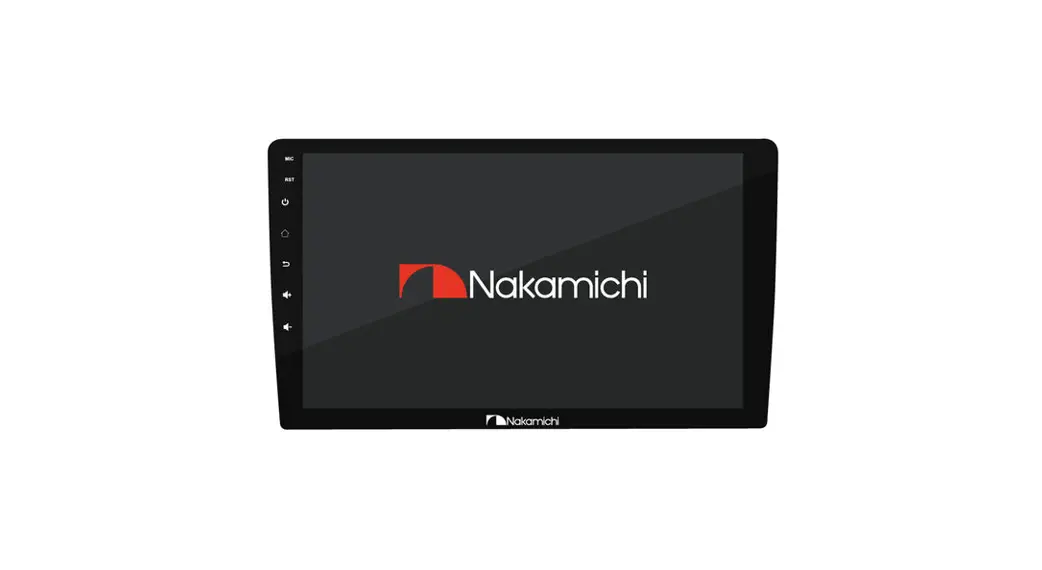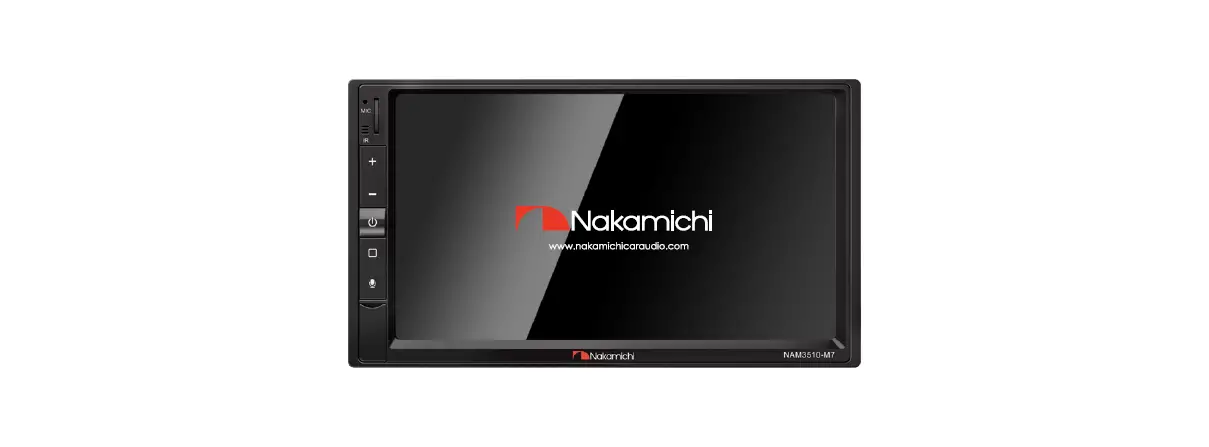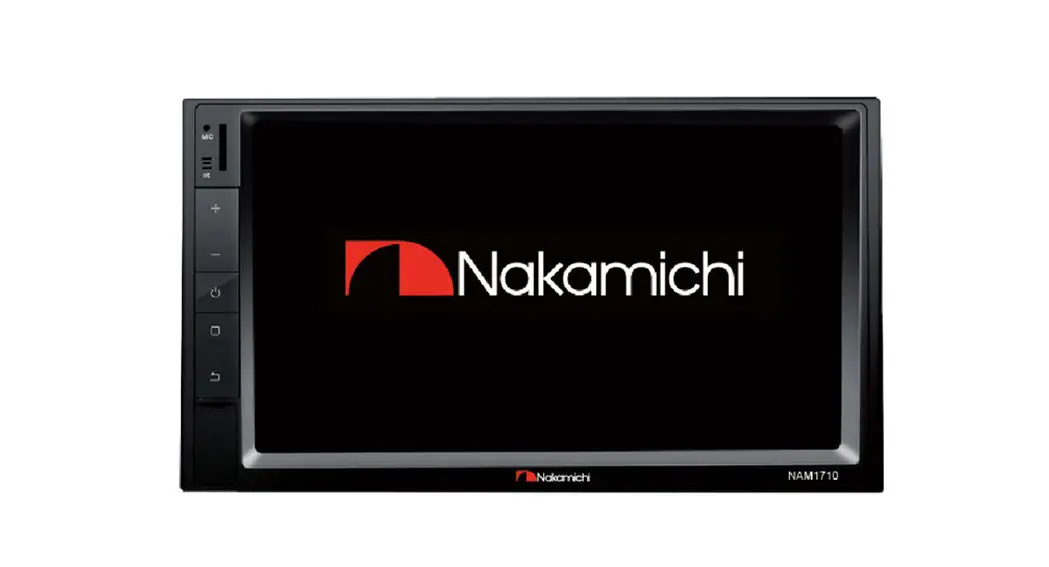

NAMS2110 User Manual
9″/10.1″ ANDROID RECEIVER
nakamichicaraudio.com nakamichi.global
 nakamichi.caraudio
WARNING & PRECAUTION
Nakamichi NAM5010 10 1 Inch Android Receiver
To avoid risk of serious injury or possible violation of laws, please read the following thoroughly before installation or connecting.
 This symbol means important instructions. Failure to heed them can result in injury or material property damage.
 this symbol means an import ban. Failure to heed them can result in serious injury or death. Having the wiring and installation done by an expert. The wiring and installation of this unit require special technical skills and experience. To ensure safety, always connect the dealer where you purchased this product to have the work done. do not watch the video or operate the unit while driving. do not install in locations that may hide vehicle operation, such as steering wheel or gearshift or cover of the airbag.Do not touch the antenna or any plugs while in a thunderstorm to avoid electric shock.Do not damage wiring. Failure to do so may result in electric shock or fire due to electrical shorts.Do not install in locations 0 within high moisture or dusty. Moisture or dusty that penetrates into this unit may result in product failure. Be sure to use specified accessory parts and install them securely. Be sure to use the correct ampere rating when replacing fuses. Failure to do so may result in a fire of electric shorts. Be sure to disconnect the cable from the negative battery terminal while installation. Failure to do so may result in electric shock or injury due to electrical shorts.Be sure to connect the ‘Parking Break’ lead so that the driver can not watch the video unless the vehicle is stopped. Failure to do so may result in a traffic accident or violation of laws. Be sure to check the installation of the antenna regularly. Antenna dropping may result in an accident while the vehicle is running.Be sure to use specified accessory parts and install them securely.Be sure to use the correct ampere rating when replacing fuses. Failure to do so may result in fire or electric shorts. Be sure to disconnect the cable from the negative battery terminal while installation. Failure to do so may result in electric shock or injury due to electrical shorts.Be sure to connect the ‘Parking Break’ lead so that the driver can not watch the video unless the vehicle is stopped. Failure to do so may result in a traffic accident or violation of laws. Be sure to check the installation of the antenna regularly. Antenna dropping may result in an accident while the vehicle is running.
PRODUCT FEATURES
- Android operating system
- 1280×720 HD screen
- 500 lumens LCD display
- 32G large storage space
- 2.5D G+G capacitive screen
- Support ios Phone Mirrorlink
- upport Android Phone Mirrorlink
- Support AHD camera reversing
- Support Surround sound effect
- Support reverberation sound effects
- Built-in Xbass: Slight, Moderate, Super
- Support APK download, install and uninstall
- Built-in Bluetooth, Support A2DP
- Support Bluetooth Music Playback
- Support 1080P Video Playback
- High sensitivity FM receiver
- Maximum power 4x50W
- Built-in 15 band EQ
- Built-in 9 sound effects
- Support USB Playback
- Support USB DVR
- Support WiFi
- Built-in GPS
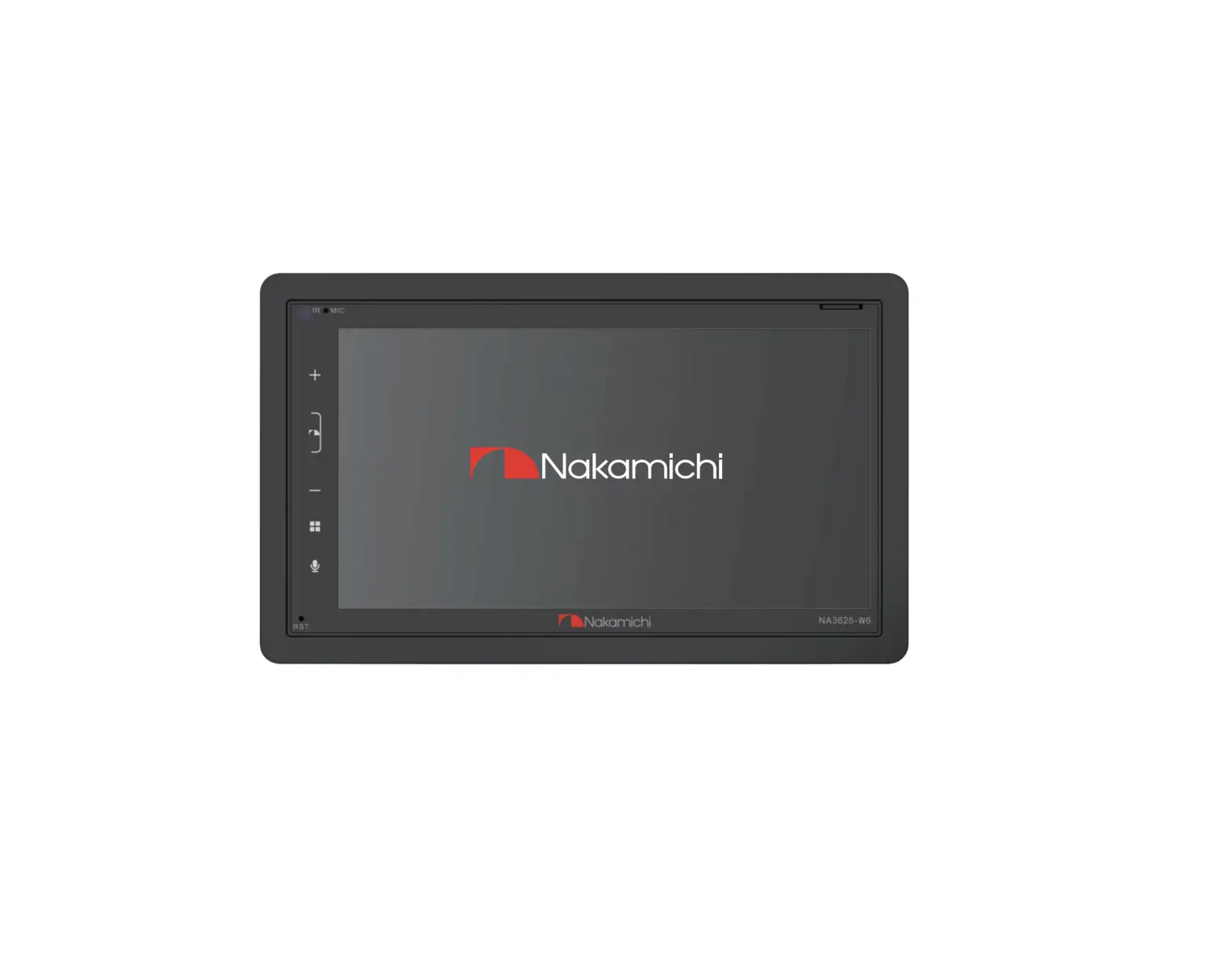
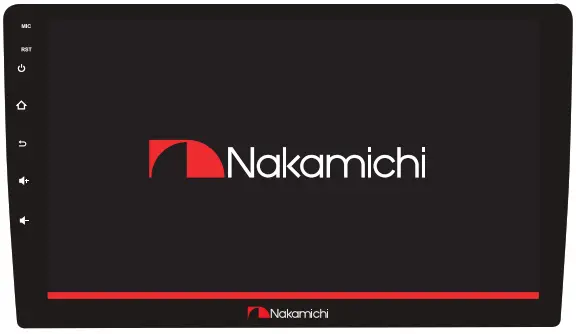
FRONT PANEL
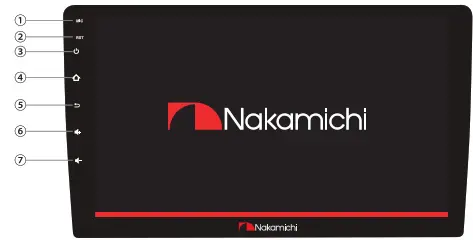
| Function | Operations & Controls |
| 1. MIC | Microphone: Voice receiving position |
| 2. RST | Press with a pointed object (such as a ballpoint) to reset the unit to its initial setting by the factory (default stage). |
| 3. Power | In the power-on state: Press to Mute. Press and hold for more than 5 seconds to turn off the screen. |
| 4. Home | Press to enter the main menu. |
| 5. Return | Press to back to previous. |
| 6. Volume + | Short press to increase volume. |
| 7. Volume – | Short press to decrease volume. |
WIRING CONNECTION
Interface
A: Radio Antenna
B: GPS Antenna
C: Camera Input
D: 6P USB E: 4P USB
F: Can Interface
G: RCA Cable
H: Power Supply 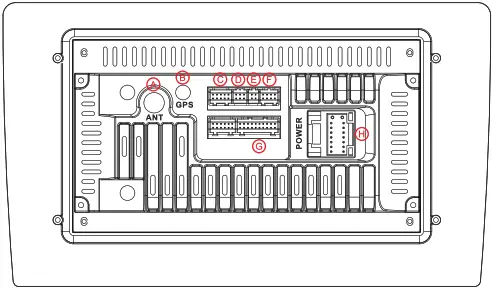
H-Power Supply: Name
Color: Ground Wire
Black: Battery Wire
Yellow: Lenition Wire
Red: Lamp Control Wire
Orange: Reverse Wire
Brown: Steering Wheel Control Wire 1
White: Steering Wheel Control Wire 2
Green/White: Automatic Antenna
Blue Gray/:Front Right Speaker
Black Gray:-Front Right Speaker
Green/Black;+ Rear Left Speaker-
13 Green:Rear Left Speake
White/Black:r+ Front Left Speaker-
White: Front Left Speaker+
Purple/Black: ear Right Speaker
Purple:-Rear Right Speaker+
G-RCA Cable
| Label Video In Audio Lin Audio Rin FR Out FL Out AMP | Color |Yellow Red White Orange | Name Video Input Audio Left Input Audio Right Input Audio Front Right Output Audio Front Left Output Amplifier Control |
| Label CAMERA IN BRAKE | Color Yellow | Name Reversing Camera Input |
Remark:
- 6P USB port supports USB reading and DVR.
- 4P USB port supports USB reading, not support USB DVR.
ACCESSORY LIST
- 16P to ISO Cable 1 pc
- GPS Antenna 1 pc
- Camera Cable 1 pc
- RCA Cable 1 pc
- 4P USB Cable 1 pc
- 6P USB Cable 1 pc
- User Manual 1 pc
FUNCTIONS APPLICATION
Home Page Operation Press ni on the panel to enter the homepage, the homepage is displayed as follows:
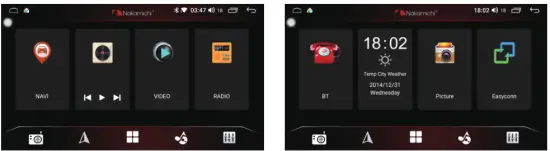
 | Click to home |
| Click to return | |
| Click to close applications | |
| Wifi connection information | |
| Bluetooth connection information |
 | Click to home |
| Click to return | |
| Click to close applications | |
| Wifi connection information | |
| Bluetooth connection information |
Secondary Interface
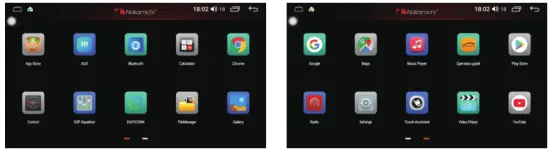
Language selection
 Press [
 ] to e epage
- Click [
 ] to enter the Secondary interface
 - Click
 ] to enter the setting interface.
 - Click [User] to select [Language And Input]
- Select the corresponding language.
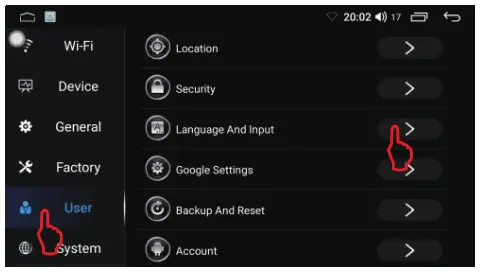 Press [
FUNCTIONS APPLICATION
Radio Interface
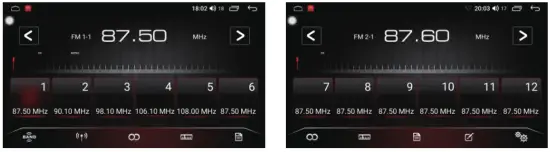
 | Short press to seek backward Long press to Search backward stations |
| Short press to seek forward Long press to Search forward stations | |
| FM1 /FM2/FM3 band switch | |
| DX/LOC Switch |
 | Stereo switch |
| Short press to preview station Long press to automatically search | |
| Radio storage | |
| Radiofrequency input and editing | |
| Radio settings |
Automatically Search I manual Search And Storage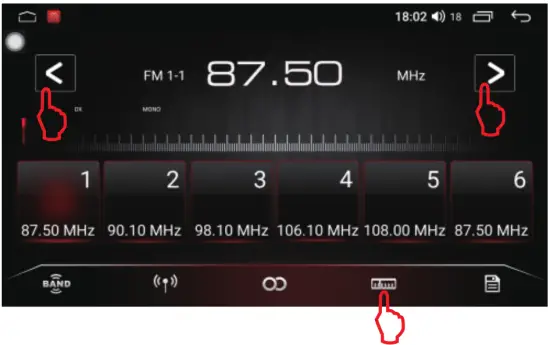
- Press [ to enter the homepage.
- Click to [ e ] to enter the radio interface.
Automatically search:
Long press [®] to the automatic search, the radio stations that have been searched will be automatically saved to the number list below.
Manual search and storage:
Long press [< ] or [> ] to the manual search, press and hold the number button below for more than 2 seconds to save.
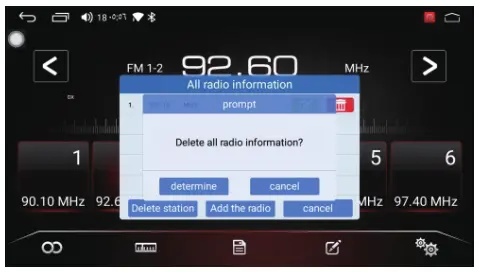
Radio Settings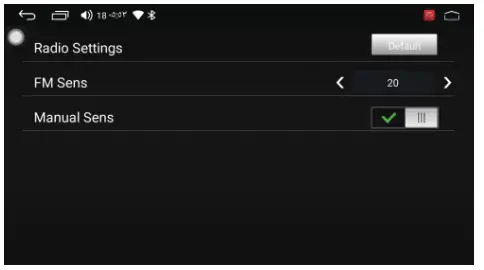 Frequency Input And Editing
FUNCTIONS APPLICATION
Bluetooth Pairing
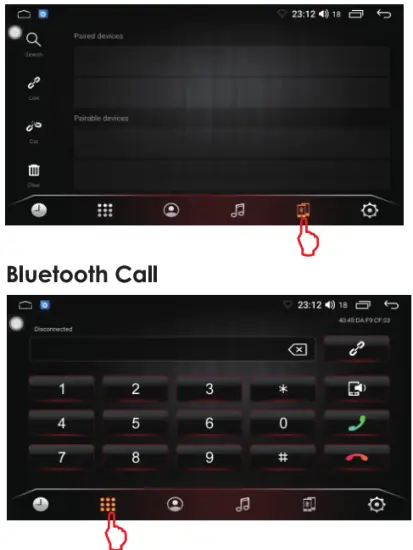
 The first time pair mobile phone with AV receiver, please follow below steps:
- Press [ a] to enter the homepage.
- Click [ BT ] to enter the Bluetooth interface.
- Click II to enter the Bluetooth pair interface.
- Turn on the phone’s Bluetooth to search: Bluetooth is device is: NAM5010 Pairing password is: 0000
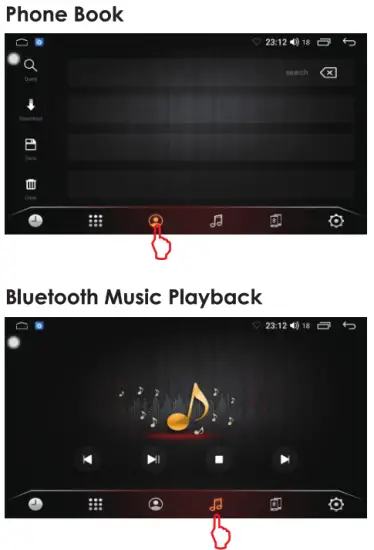
1. Press [ e] to enter the homepage.
2. Click [M] to enter the Bluetooth call interface.
 | Backspace |
| Disconnect/Pair | |
| Audio switching: host/mobile phone | |
| Answer | |
| Hang up |
History Call Recor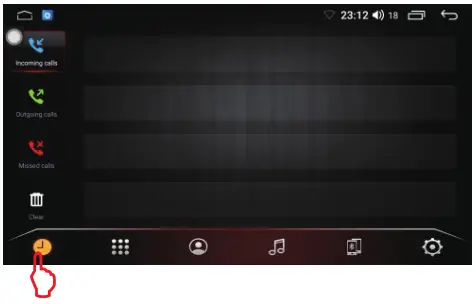
- Press] to enter the homepage
- Click [
BT] to enter the Bluetooth interface. - Click [E] to enter the Bluetooth music Playback.
 | Previous track |
| Play/Pause | |
| Stop Playback | |
| Next track |
FUNCTIONS APPLICATION
Music Playback
- Press [ ] to enter the homepage. Music Playback Interface
- Click to [n] to enter the music interface. Music Playback List
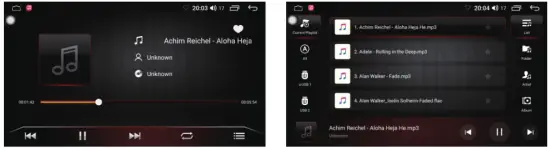
 | Previous track |
| Play/Pause | |
| Next track | |
| Repeat Playback |
 | Playlist |
| Current Playlist | |
| All music list | |
| Playback USB1 music |
 | Playback USB2 music |
| Show song list by folder | |
| Show song list by artist | |
| Show song list by album |
Video Playback
- Press [4] to enter the homepage. Video playback interface
- Click to [ VIDEO ] to enter the video interface. Video Playback list
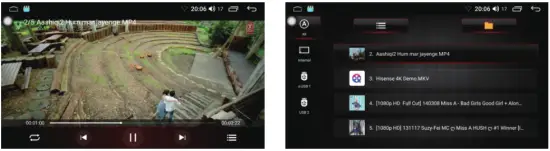
 | Repeat Playback |
| Previous Video | |
| Play/Pause |
 | Next video |
| Playlist | |
| Folder list |
 | Local video file |
| Playback USB1 video | | |
| Playback USB2 video |
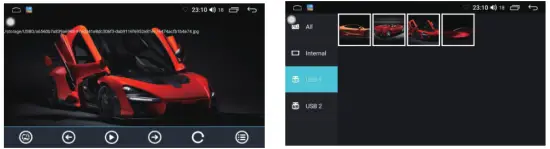
FUNCTIONS APPLICATION
EQ Adjustment
- Press [ ] to enter the homepage.
- Click [ ] to enter the EQ interface.
- Click [] to enter the DSP settings. 4. Click [ EQ ] to enter the EQ adjustment.
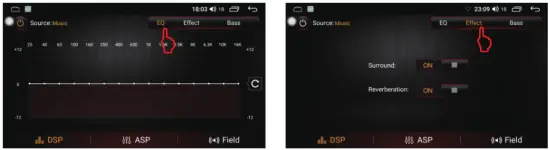
Surround&Reverberation Effect
- Press [ ] to enter the homepage.
- Click [ ] to enter the EQ interface
- Click [] to enter the DSP settings.
- Click [ Effect ] to enter the Effect settings.
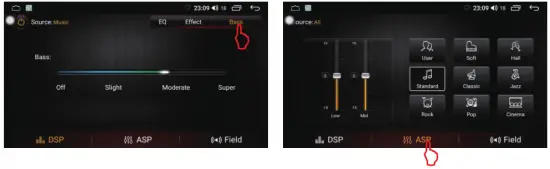
Bass Settings
- Press [ ] to enter the homepage.
- Click [ ] to enter the EQ interface.
- Click [] to enter the DSP settings.
- Click [ Bass ] to enter the Bass settings.
Sound effect settings
- Press [ ] to enter the homepage.
- Click [ ] to enter the EQ interface.
- Click [ ] to enter the ASP settings.
Fader and Balance Adjustment
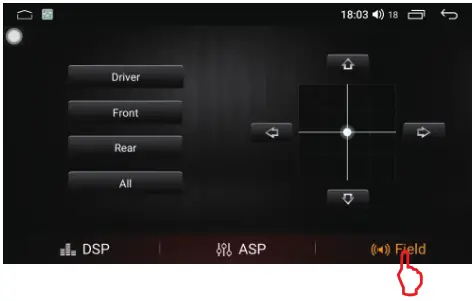
- Press [ ] to enter the homepage.
- Click [ ] to enter the EQ interface.
- Click [ ] to enter the fader and balance adjustment settings.
WIFI Connection
Steering Wheel Learning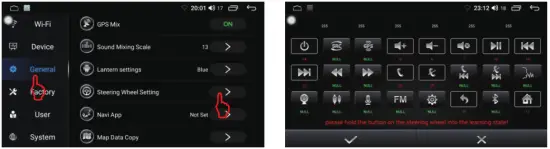
- Press [ ] to enter the homepage.
- Click [,] to enter the Secondary interface.
- Click ] to enter the setting interface.
- Click [ General ] to Select [Steering Wheel Setting]
- Select the desired network to connect.
- Enter the password. Remarks:
After the WiFi connection is successful, the [AP] will be displayed in the upper right corner
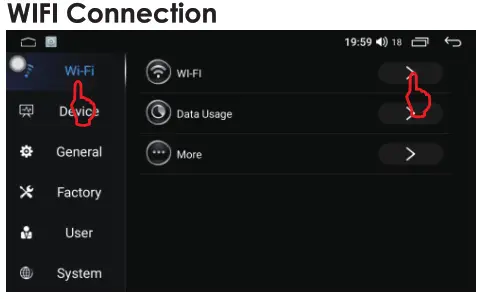
1. Press ] to enter the homepage.
2. Click [ ] to enter the Secondary interface.
3. Click [ ] to enter the setting interface.
4. Click [ Wi-Fi ] to Select WLAN. 5. Select the desired network to connect.
6. Enter the password. Remarks: After the WiFi connection is successful, the [s] will be displayed in the upper right corner
5. Press the button of the steering wheel that needs to be learned (press and hold)
6. Click the required button function on the screen.(After the key learning is successful, NULL will become a number).
7. After learning successfully, click litto save.
Brightness & wallpaper settings
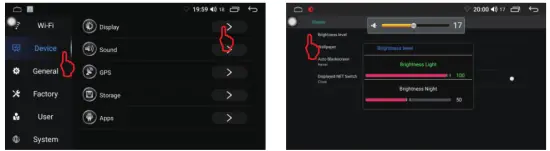
- Press [ ] to enter the homepage.
- Click [] to enter the Secondary interface.
- Click [ ] to enter setting interface
- Click [ Device ] select [ Display ] to enter display interface.
General Settings
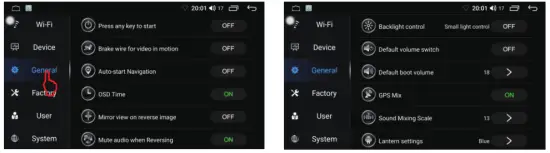
- Press [ ] to enter the homepage.
- Click ] to enter the Secondary interface.
- Click [] to enter the setting interface.
- Click [ General ] to enter general settings.
Canbus Settings
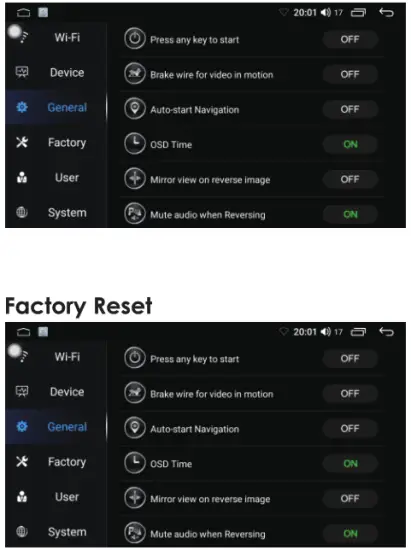
- Press ] to enter the homepage
- Click [] to enter the Secondary interface.
- Click [] to select [Factory]. Password is:1948
- Click [ Car Model ]to enter the car model selection
| Problem | Cause | Correct action |
| Can not power on | Check fuse | Change fuse same as the old one |
| Some factors cause MPU wrong operation | Press RET button on the panel by penpoint, then, power on | |
| Radio reception is not good | Weak signal | Move the car to another place, then research |
| GPS signal is weak | ||
| Can not watch image during driving | It’s not allowed to watch image during driving | Park the car in a safe place, put P the car stall in “P” position, pull up the hand brake, parking brake wire must be grounded. |
| Slow response | Not enough storage space | Uninstall APK or clear FLASH space |
| Open too many APP | Click [0] in the upper left corner to close some apps |
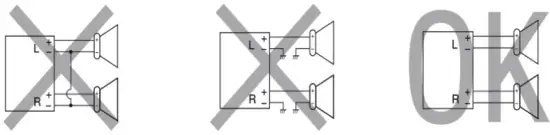
PRECAUTIONS ON POWER SUPPLY AND SPEAKER CONNECTIONS:
- Do not connect the speaker leads of the power cord to the car battery otherwise, the unit will be seriously damaged.
- BEFORE connecting the speaker leads of the powet cord to the speakers, check the speaker wiring in your car.
SPECIFICATION
General Operation Voltage: 14.4V(10.5-16V)
Installation Size: Thickness: 42mm
Operating Temperature: -10°C – +60°C
Storage Temperature: -20°C – +70°C
Net Weight: 9″, 708g / 10″, 801g
System
Operating system: Android Nk 9. 0
DDR : 1GB or 2GB
Flash : 16GB or 32GB
Radio
FM Frequency Range: 87.5-108.0MHZ MW
Frequency Range: 522-1620KHZ
Bluetooth
Communication System: BT4.0+EDR
Output: BT Standard Power 2 Class
Max Communication Range: 5m Frequency Band: 2.4GHz
USB interface
USB: Readable/ Chargeable (5±-0.25V/1A)
Audio
Max Power: 4X50W
Front Output(V): 4V/10K0
Pre-output impedance: 56000
Speakers impedance: 4-80
TFT Screen Item
Size: 9.0″ / 10.1″
Display Resolution: 1280×720
Contrast ratio: 500
Brightness:500nit
Video
External Video Input System: NTSC/PAL/SECAM
External Video Input: 1VP-P/750
Video Format
H264/ MP4/ AVI/ MKV/ FLV
Audio Format
MP3/APE/AAC/FLAC
Note: Specification and design; functions and features; unit illumination; color and display segment are subject to change without prior notice. Photos and drawings on the gift box or operation manual might be varied from the exact unit. Depending on the input devices operation might be varied from the operation manual described.

http://www.nakamichicaraudio.com
SCAN OUR OR CODE OR VISIT
WWW.NAKAMICHICARAUDIO.COM
FOR COMPLETE AUDIO SETTINGS INSTRUCTIONS RI Nakamichi.global ga Nakamichi.car audio
Made in China