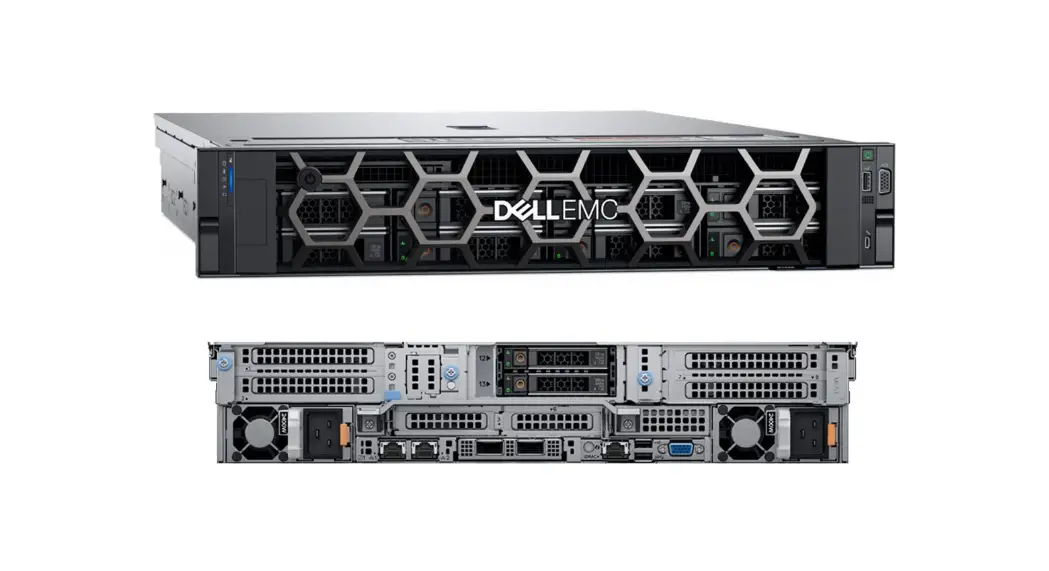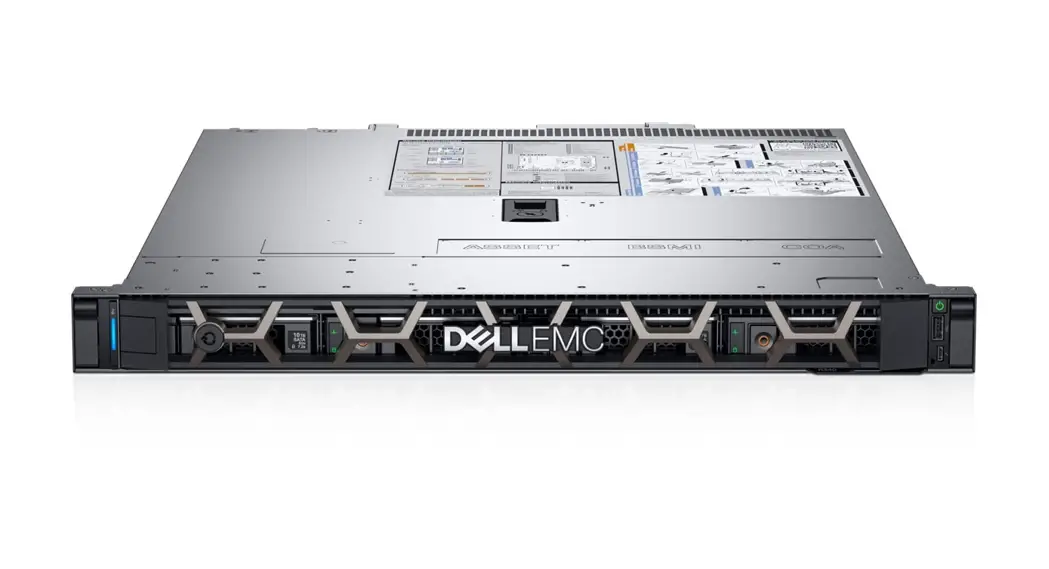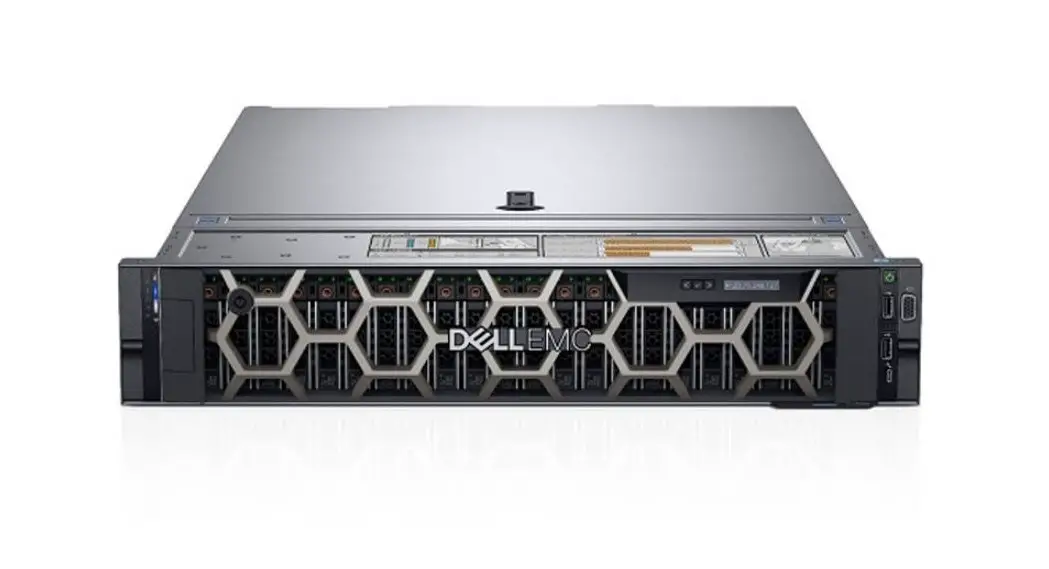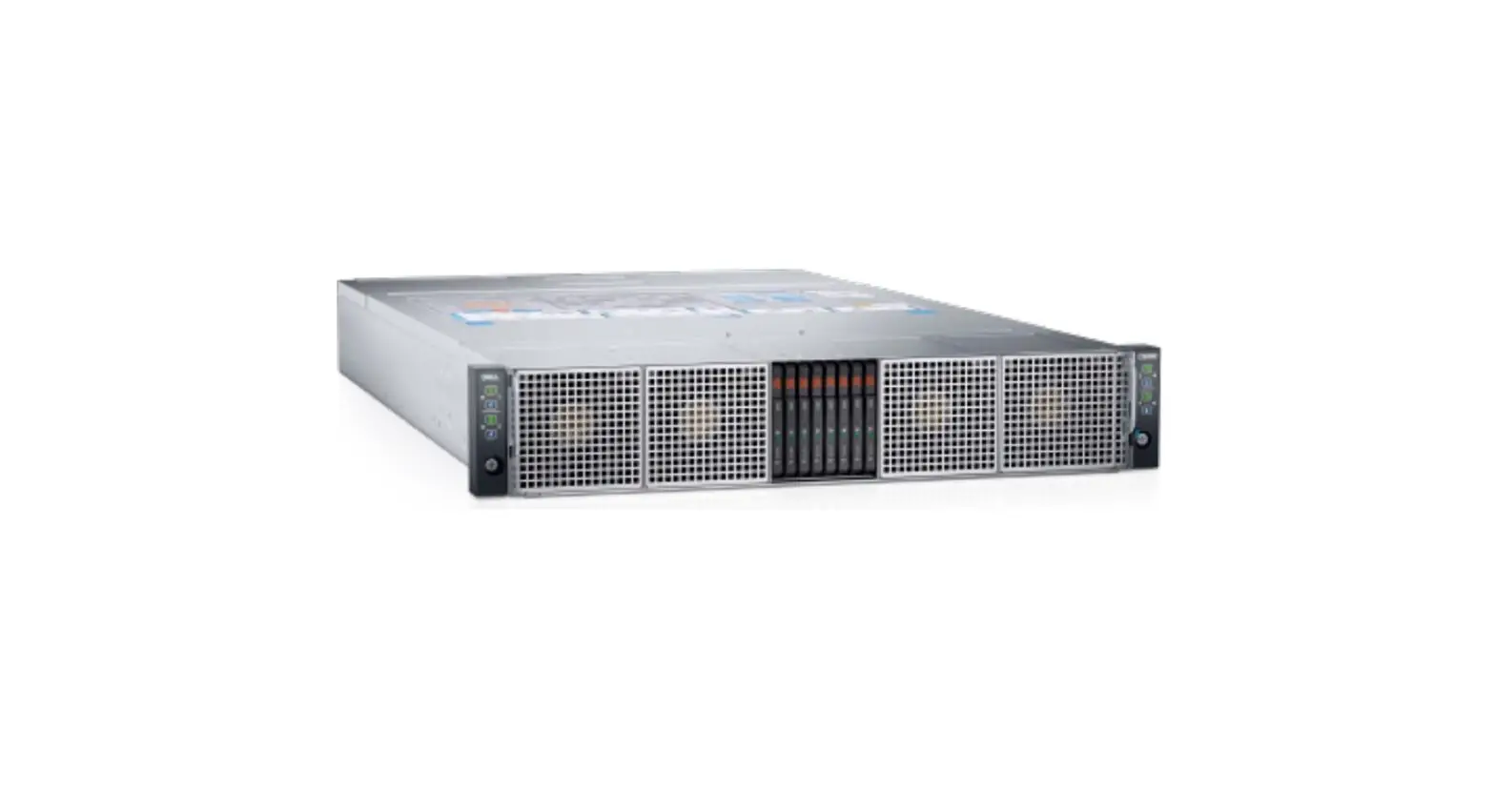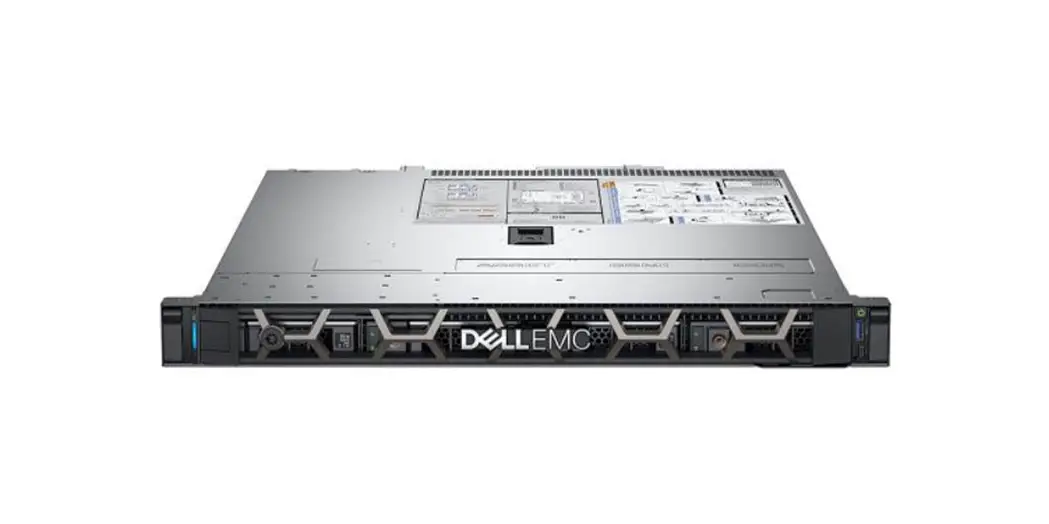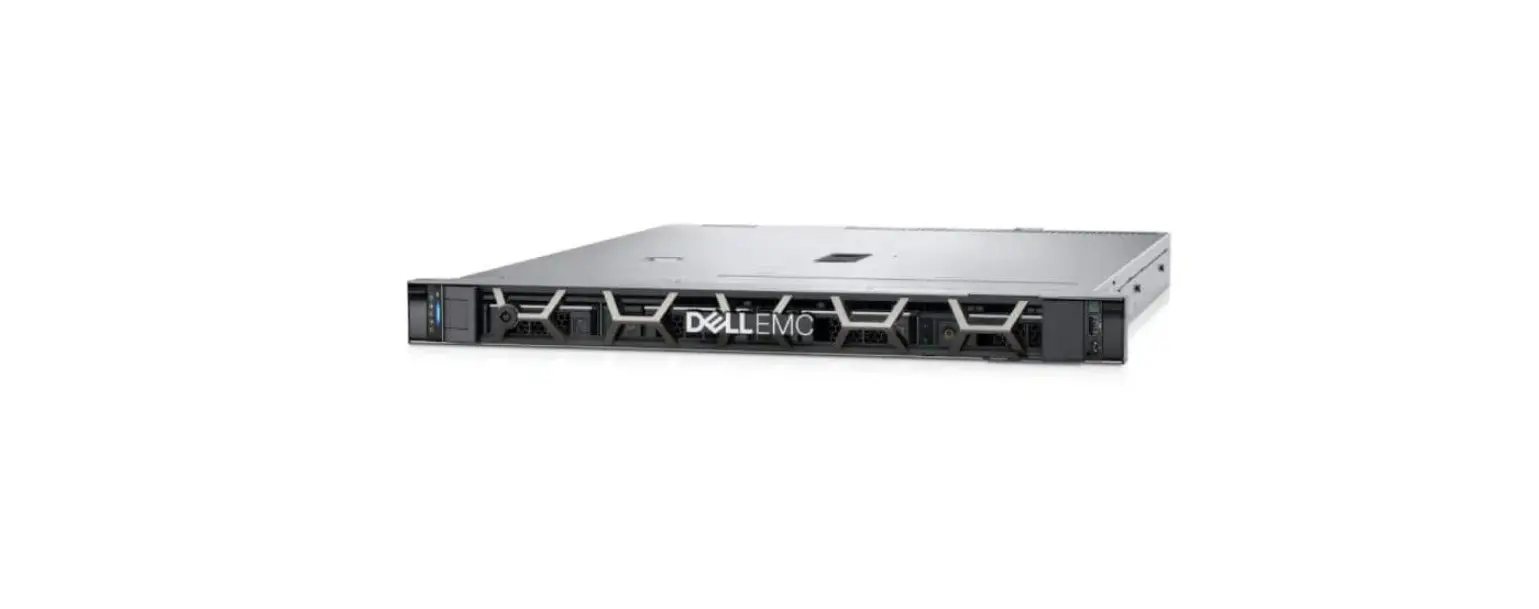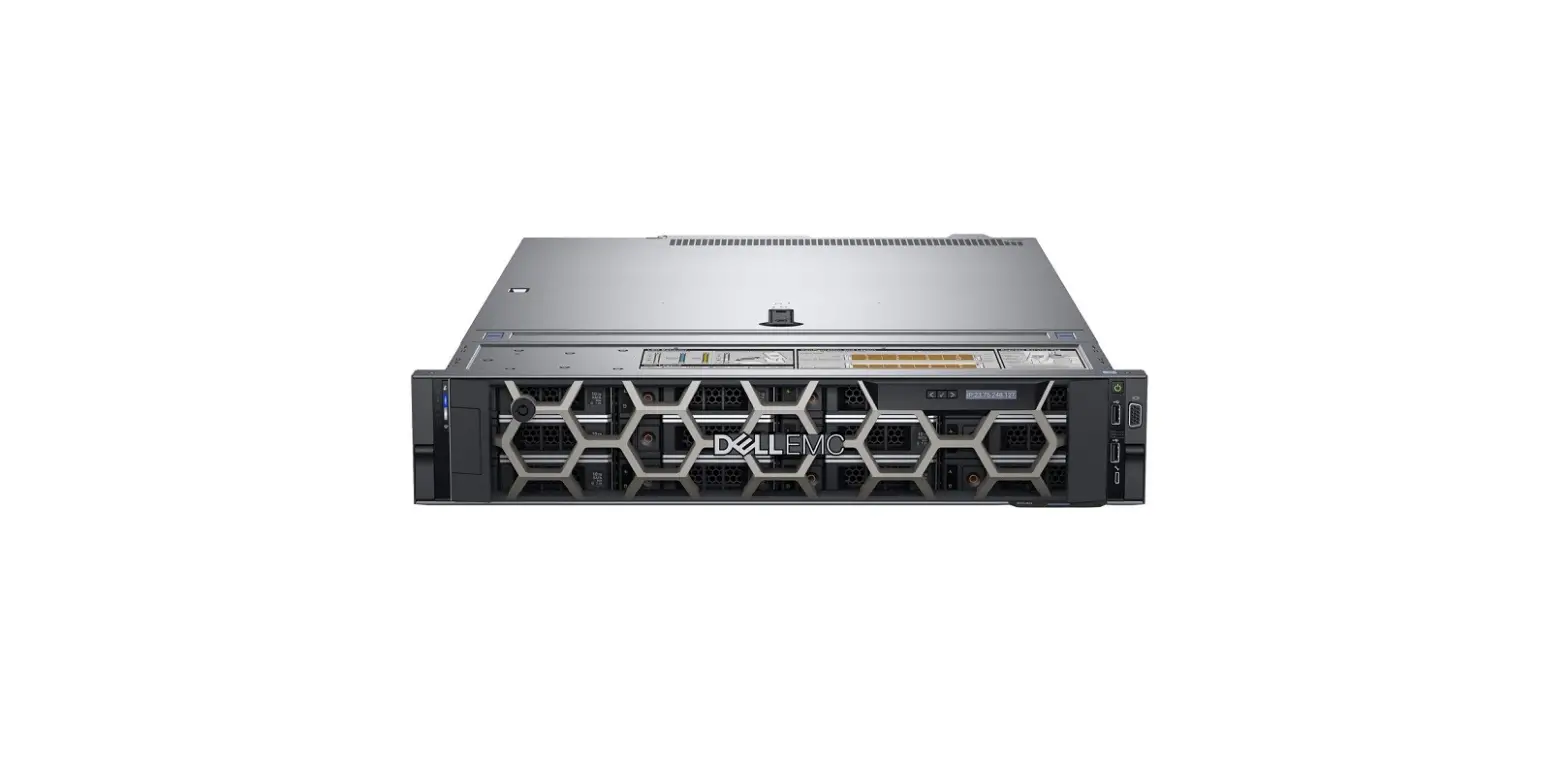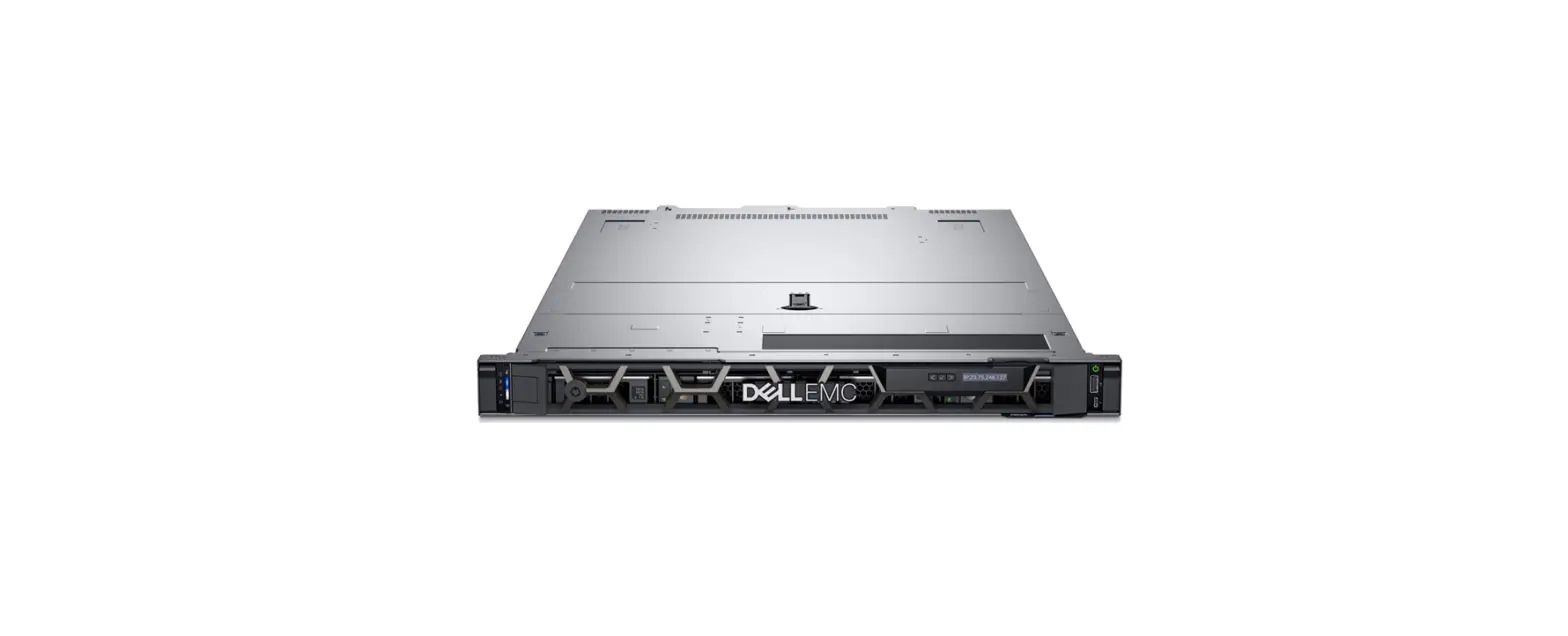

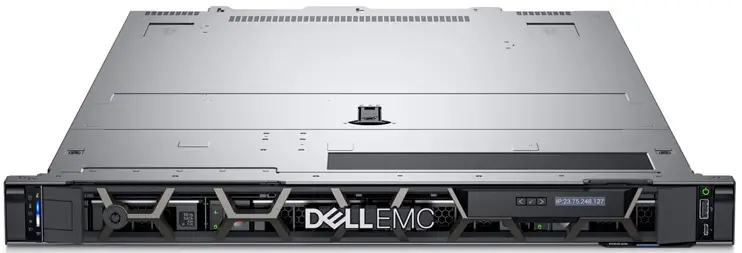
DELL R6525 PowerEdge Rack Server
Product Usage Instructions
To manage basic settings and features of a Dell EMC PowerEdge R6525 system without booting to the operating system, follow these steps:
- Access the pre-operating system applications by using any one of the following options:
- System Setup: To configure the BIOS settings, iDRAC settings, and device settings of the system, access System Setup by using either the Graphical User interface or the Text browser interface.
- Dell Lifecycle Controller
- Boot Manager
- Preboot Execution Environment (PXE)
- If using the Text browser interface, power on the system and press F2 to access the System Setup Main Menu.
- From the System Setup Main Menu, select the option you want to configure:
- System BIOS: To view or configure BIOS settings, select System BIOS from the System Setup Main Menu.
- iDRAC Settings: To view or configure iDRAC settings, select iDRAC Settings from the System Setup Main Menu. For more information about this utility, see Integrated Dell Remote Access Controller User’s Guide at www.dell.com/ power edge manuals.
- Device Settings: To configure device settings for devices such as storage controllers or network cards, select Device Settings from the System Setup Main Menu.
- Configure the settings for the selected option.
- Save and exit the System Setup menu.
Notes, cautions, and warnings
NOTE: A NOTE indicates important information that helps you make better use of your product.
CAUTION: A CAUTION indicates either potential damage to hardware or loss of data and tells you how to avoid the problem.
WARNING: A WARNING indicates a potential for property damage, personal injury, or death.
Pre-operating system management applications
You can manage basic settings and features of a system without booting to the operating system by using the system firmware.
Options to manage the pre-operating system applications
You can use any one of the following options to manage the pre-operating system applications
- System Setup
- Dell Lifecycle Controller
- Boot Manager
- Preboot Execution Environment (PXE)
Topics
- System Setup
- Dell Lifecycle Controller
- Boot Manager
- PXE boot
System Setup
Using the System Setup option, you can configure the BIOS settings, iDRAC settings, and device settings of the system. You can access system setup by using any one of the following interfaces:
- Graphical User interface — To access go to iDRAC Dashboard, click Configuration and click BIOS Settings.
- Text browser — The browser is enabled by using Console Redirection.
To view System Setup, power on the system, press F2, and click System Setup Main Menu.
NOTE: If the operating system begins to load before you press F2, wait for the system to finish booting, and then restart the system and try again.
The System Setup Main Menu screen details are described as follows:
Table 1. System Setup Main Menu
| Option | Description |
| System BIOS | Enables you to configure the BIOS settings. |
| iDRAC Settings | Enables you to configure the iDRAC settings. The iDRAC settings utility is an interface to set up and configure the iDRAC parameters by using UEFI (Unified Extensible Firmware Interface). You can enable or disable various iDRAC parameters by using the iDRAC settings utility. For more information about this utility, see Integrated Dell Remote Access Controller User’s Guide at www.dell.com/ poweredgemanuals. |
| Device Settings | Enabled you to configure device settings for devices such as storage controllers or network cards. |
System BIOS
To view the System BIOS screen, power on the system, press F2, and click System Setup Main Menu > System BIOS.
Table 2. System BIOS details
| Option | Description |
| System Information | Provides information about the system such as the system model name, BIOS version, and Service Tag. |
| Memory Settings | Specifies information and options related to the installed memory. |
| Processor Settings | Specifies information and options related to the processor such as speed and cache size. |
| SATA Settings | Specifies options to enable or disable the integrated SATA controller and ports. |
| NVMe Settings | Specifies options to change the NVMe settings. If the system contains the NVMe drives that you want to configure in a RAID array, you must set both this field and the Embedded SATA field on the SATA Settings menu to RAID mode. You might also need to change the Boot Mode setting to UEFI. Otherwise, you should set this field to Non-RAID mode. |
| Boot Settings | Specifies options to specify the Boot mode (BIOS or UEFI). Enables you to modify UEFI and BIOS boot settings. |
| Network Settings | Specifies options to manage the UEFI network settings and boot protocols. Legacy network settings are managed from the Device Settings menu.
NOTE: Network Settings are not supported in BIOS boot mode. |
| Integrated Devices | Specifies options to manage integrated device controllers and ports, specifies related features, and options. |
| Serial Communication | Specifies options to manage the serial ports, its related features, and options. |
| System Profile Settings | Specifies options to change the processor power management settings, memory frequency. |
| System Security | Specifies options to configure the system security settings, such as system password, setup password, Trusted Platform Module (TPM) security, and UEFI secure boot. It also manages the power button on the system |
| Redundant OS Control | Sets the redundant OS information for redundant OS control. |
| Miscellaneous Settings | Specifies options to change the system date and time. |
System Information
To view the System Information screen, power on the system, press F2, and click System Setup Main Menu > System BIOS > System Information.
Table 3. System Information details
| Option | Description |
| System Model Name | Specifies the system model name. |
| System BIOS Version | Specifies the BIOS version installed on the system. |
| System Service Tag | Specifies the system Service Tag. |
| System Manufacturer | Specifies the name of the system manufacturer. |
| System Manufacturer Contact Information | Specifies the contact information of the system manufacturer. |
| Option | Description |
| System CPLD Version | Specifies the current version of the system complex programmable logic device (CPLD) firmware. |
| UEFI Compliance Version | Specifies the UEFI compliance level of the system firmware. |
| AGESA Version | Specifies the AGESA reference code version. |
| SMU Version | Specifies the SMU firmware version. |
| DXIO Version | Specifies the DXIO firmware version. |
Memory Settings
To view the Memory Settings screen, power on the system, press F2, and click System Setup Main Menu > System BIOS > Memory Settings.
Table 4. Memory Settings details
| Option | Description |
| System Memory Size | Specifies the memory size in the system. |
| System Memory Type | Specifies the type of memory installed in the system. |
| System Memory Speed | Specifies the system memory speed. |
| System Memory Voltage | Specifies the system memory voltage. |
| Video Memory | Specifies the amount of video memory. |
| System Memory Testing | Specifies whether the system memory tests are run during system boot. The two options available are Enabled and Disabled. This option is set to Disabled by default. |
| DRAM Refresh Delay | By enabling the CPU memory controller to delay running the REFRESH commands, you can improve the performance for some workloads. By minimizing the delay time, it is ensured that the memory controller runs the REFRESH command at regular intervals. For Intel-based servers, this setting only affects systems configured with DIMMs which use 8 Gb density DRAMs. This option is set to Minimum by default. |
| Memory Operating Mode | Specifies the memory operating mode. The option is available and is set to Optimizer Mode, by default. |
| Current State of Memory Operating Mode | Specifies the current state of the memory operating mode. |
| Memory Interleaving | Enables or disables the memory interleaving option. The two options available are Auto and Disabled. This option is set to Auto by default. |
| Opportunistic Self-Refresh | Enables or disables the opportunistic self-refresh feature. This option is set to Disabled by default. |
| Correctable Error Logging | Enables or disables correctable error logging. This option is set to Enabled by default. |
Processor Settings
To view the Processor Settings screen, power on the system, press F2, and click System Setup Main Menu > System BIOS > Processor Settings.
Table 5. Processor Settings details
| Option | Description |
| Logical Processor | Each processor core supports up to two logical processors. If this option is set to Enabled, the BIOS displays all the logical processors. If this option is set to Disabled, the BIOS displays only one logical processor per core. This option is set to Enabled by default. |
| Virtualization Technology | Enables or disables the virtualization technology for the processor. This option is set to Enabled by default. |
| IOMMU Support | Enable or Disable IOMMU support. It is required to create IVRS ACPI table. This option is set to Enabled by default. |
| Kernel DMA Protection | When this option is set to Enabled, using IOMMU, BIOS, and the Operating System will enable direct memory access protection for DMA capable peripheral devices. Enable IOMMU Support to use this option. This option is set to Disabled by default. When set to Enabled by using Virtualization Technology, BIOS and Operating System will enable direct memory access protection for DMA capable peripheral devices. Enable Virtualization Technology to use this option. |
| L1 Stream HW Prefetcher | Enables or disables the L1 stream hardware prefetcher. This option is set to Enabled by default. |
| L2 Stream HW Prefetcher | Enables or disables the L2 stream hardware prefetcher. This option is set to Enabled by default. |
| L1 Stride Prefetcher | Enables or disables the L1 stride prefetcher. This option is set to Enabled by default, as it optimizes overall workload. |
| L1 Region Prefetcher | Enables or disables the L1 region prefetcher. This option is set to Enabled by default, as it optimizes overall workload. |
| L2 Up Down Prefetcher | Enables or disables the L2 up down prefetcher. This option is set to Enabled by default, as it optimizes overall workload. |
| MADT Core Enumeration | Specifies the MADT Core Enumeration. This option is set to Linear by default. |
| NUMA Nodes Per Socket | Specifies the number of NUMA nodes per socket. This option is set to 1 by default. |
| CCX as NUMA Domain | Enables or disables the CCX as NUMA Domain. This option is set to Disabled by default. |
| Secure Memory Encryption (SME) | Enables or disables the AMD secure encryption features such as SME and Secure Encrypted Virtualization (SEV). It also determines if other secure encryption features such as TSME and SEV-SNP can be enabled. This option is set to Disabled by default. |
| Minimum SEV non-ES ASID | Determines the number of Secure Encrypted Virtualization ES and non-ES available Address Space IDs. This option is set to 1 by default. |
| Secured Nested Paging (SNP) | Enables or disables SEV-SNP, a set of additional security protections. This option is set to Disabled by default. |
| SNP Memory Coverage | This option selects the operating mode of the Nested Paging (SNP) Memory and the reverse Map Table(RMP). The RMP is used to ensure a one-to-one mapping between system physical addresses and guest physical addresses. |
| Transparent Secure Memory Encryption (TSME) | Enables or disables the TSME. TSME is always-on memory encryption that does not require OS or hypervisor support. This option is set to Disabled by default. |
| Option | Description |
| ● If the OS supports SME, do not enable this field. ● If the hypervisor supports SEV, do not enable this field. Enabling TSME affects the system memory performance. | |
| Enhanced REP MOVSB/STOSB | Enables or disables Enhanced REP MOVSB/STOSB support. This setting can affect performance, depending on the application running on the server. This option is set to Disabled by default. NOTE: This option is only available for the AMD EPYC 7003 processor. |
| Fast Short REP MOVSB | Enables or disables Fast Short REP MOVSB support. This setting can affect performance, depending on the application running on the server. This option is set to Disabled by default. NOTE: This option is only available for the AMD EPYC 7003 processor. |
| REP-MOV/STOS Streaming | Enables or disables REP MOVISTOS Streaming support. This setting can affect performance, depending on the application running on the server. This option is set to Disabled by default. NOTE: This option is only available for the AMD EPYC 7003 processor. |
| Configurable TDP | Allows the reconfiguration of the processor Thermal Design Power (TDP) levels based on the power and thermal delivery capabilities of the system. TDP refers to the maximum amount of power the cooling system is required to dissipate. This option is set to Maximum by default. NOTE: This option is only available on certain SKUs of the processors, and the number of alternative levels varies as well. |
| x2APIC Mode | Enables or disables x2APIC mode. This option is set to Enabled by default. NOTE: For two CPU 64 cores configuration, x2APIC mode is not switchable if 256 threads are enabled (BIOS settings: All CCD, cores, and logical processors enabled). |
| Number of CCDs per Processor | Controls the number of enabled CCDs in each processor. This option is set to All by default. |
| Number of Cores per CCD | Specifies the number of cores per CCD. This option is set to All by default. |
| Processor Core Speed | Specifies the maximum core frequency of the processor. |
| Processor n | NOTE: Depending on the number of CPUs, there might be up to n processors listed. The following settings are displayed for each processor that is installed in the system: |
Table 6. Processor n details
| Option | Description |
| Family-Model-Stepping | Specifies the family, model, and stepping of the processor as defined by AMD. |
| Brand | Specifies the brand name. |
| Level 2 Cache | Specifies the total L2 cache. |
| Level 3 Cache | Specifies the total L3 cache. |
| Number of Cores | Specifies the number of cores per processor. |
| Microcode | Specifies the processor microcode version. |
SATA Settings
To view the SATA Settings screen, power on the system, press F2, and click System Setup Main Menu > System BIOS > SATA Settings.
Table 7. SATA Settings details
| Option | Description |
| Embedded SATA | Enables the embedded SATA option to be set to Off, AHCI mode , or RAID modes. This option is set to AHCI Mode by default. NOTE: 1. You might also need to change the Boot Mode setting to UEFI. Otherwise, you should set the field to Non-RAID mode. 2. No ESXi and Ubuntu OS support under RAID mode. |
| Security Freeze Lock | Sends Security Freeze Lock command to the embedded SATA drives during POST. This option is applicable only for AHCI Mode. This option is set to Enabled by default. |
| Write Cache | Enables or disables the command for the embedded SATA drives during POST. This option is set to Disabled by default. |
| Port n | Sets the drive type of the selected device. For AHCI Mode or RAID Mode, BIOS support is always enabled.
Table 8. Port n |
NVMe Settings
To view the NVMe Settings screen, power on the system, press F2, and click System Setup Main Menu > System BIOS > NVMe Settings
Table 9. NVMe Settings details
| Option | Description |
| NVMe Mode | This option sets the NVMe drive mode. If the system contains NVMe drives that you want to configure in a RAID array, you must set both this field and the Embedded SATA field on the SATA settings menu to RAID Mode. You may also need to change the Boot Mode setting to UEFI. The option is set to Non-RAID mode by default. |
| BIOS NVMe Driver | Dell Qualified NVMe drives always use the UEFINVMe driver built into the Dell EROS. When this option is set to ‘All Drives’, the BIOS driver will also be used with any NVMe drives in the system that has not been qualified by Dell. The option is set to Dell Qualified Drives by default. NOTE: When this option is set to ‘All Drives’ and non-Dell-qualified NVMe drives are present, you have a configuration that has not been validated which may lead to unexpected behavior. |
Boot Settings
You can use the Boot Settings screen to set the boot mode to either BIOS or UEFI. It also enables you to specify the boot order.
- UEFI: The Unified Extensible Firmware Interface (UEFI) is a new interface between operating systems and platform firmware. The interface consists of data tables with platform-related information, boot and runtime service calls that are available to the operating system and its loader. The following benefits are available when the Boot Mode is set to UEFI:
- Support for drive partitions larger than 2 TB.
- Enhanced security (e.g., UEFI Secure Boot).
- Faster boot time.
NOTE: You must use only the UEFI boot mode in order to boot from NVMe drives.
- BIOS: The BIOS Boot Mode is the legacy boot mode. It is maintained for backward compatibility. To view the Boot Settings screen, power on the system, press F2, and click System Setup Main Menu > System BIOS > Boot Settings
Table 10. Boot Settings details
| Option | Description |
| Boot Mode | Enables you to set the boot mode of the system. If the operating system supports UEFI, you can set this option to UEFI. Setting this field to BIOS allows compatibility with non-UEFI operating systems. This option is set to UEFI by default. CAUTION: Switching the boot mode may prevent the system from booting if the operating system is not installed in the same boot mode. NOTE: Setting this field to UEFI disables the BIOS Boot Settings menu. |
| Boot Sequence Retry | Enables or disables the Boot Sequence Retry feature. If this option is set to Enabled and the system fails to boot, the system re-attempts the boot sequence after 30 seconds. This option is set to Enabled by default. |
| Hard-disk Failover | Enables or disables the Hard-disk failover. This option is set to Disabled by default. |
| Generic USB Boot | Enables or disables the generic USB boot placeholder. This option is set to Disabled by default. |
| Hard-disk Drive Placeholder | Enables or disables the Hard-disk drive placeholder. This option is set to Disabled by default. |
| Clean all Sysprep order and variables | When set to None, BIOS will do nothing. When set to Yes, BIOS will delete variables of SysPrep #### and SysPrepOrder this option is a onetime option, will reset to none when deleting variables. This setting is only available in UEFI Boot Mode. This option is set to None by default. |
| UEFI Boot Settings | Specifies the UEFI boot sequence. Enables or disables UEFI Boot options. |
| Option | Description |
| NOTE: This option controls the UEFI boot order. The first option in the list will be attempted first. Table 11. UEFI Boot Settings |
Choosing system boot mode
System Setup enables you to specify one of the following boot modes for installing your operating system:
- UEFI boot mode (the default), is an enhanced 64-bit boot interface.
- If you have configured your system to boot to UEFI mode, it replaces the system BIOS.
- From the System Setup Main Menu, click Boot Settings, and select Boot Mode.
- Select the UEFI boot mode you want the system to boot into.
CAUTION: Switching the boot mode may prevent the system from booting if the operating system is not installed in the same boot mode. - After the system boots in the specified boot mode, proceed to install your operating system from that mode.
NOTE: Operating systems must be UEFI-compatible to be installed from the UEFI boot mode. DOS and 32-bit operating systems do not support UEFI and can only be installed from the BIOS boot mode.
NOTE: For the latest information about supported operating systems, go to www.dell.com/ossupport.
Changing boot order
About this task You may have to change the boot order if you want to boot from a USB key or an optical drive. The following instructions may vary if you have selected BIOS for Boot Mode.
NOTE: Changing the drive boot sequence is only supported in BIOS boot mode.
Steps
- On the System Setup Main Menu screen, click System BIOS > Boot Settings > UEFI Boot Settings > UEFI Boot Sequence.
- Use the arrow keys to select a boot device, and use the plus (+) and minus (-) sign keys to move the device down or up in the order.
- Click Exit, and then click Yes to save the settings on exit.
NOTE: You can also enable or disable boot order devices as needed.
Network Settings
To view the Network Settings screen, power on the system, press F2, and click System Setup Main Menu > System BIOS > Network Settings.
NOTE: For information about Linux network performance settings, see the Linux Network Tuning Guide for AMD EPYC Processor Based Servers at AMD.com.
NOTE: Network Settings are not supported in BIOS boot mode.
Table 12. Network Settings details
| Option | Description |
| UEFI PXE Settings | Enables you to control the configuration of the UEFI PXE device. |
| PXE Device n (n = 1 to 4) | Enables or disables the device. When enabled, a UEFI PXE boot option is created for the device. |
| PXE Device n Settings(n = 1 to 4) | Enables you to control the configuration of the PXE device. |
| UEFI HTTP Settings | Enables you to control the configuration of the UEFI HTTP device. |
| HTTP Device n (n = 1 to 4) | Enables or disables the device. When enabled, a UEFI HTTP boot option is created for the device. |
| HTTP Device n Settings (n = 1 to 4) | Enables you to control the configuration of the HTTP device. |
| UEFI iSCSI Settings | Enables you to control the configuration of the iSCSI device. |
Table 13. PXE Device n Settings details
| Option | Description |
| Interface | Specifies NIC interface used for the PXE device. |
| Protocol | Specifies Protocol used for PXE device. This option is set to IPv4 or IPv6. This option is set to IPv4 by default. |
| Vlan | Enables Vlan for PXE device. This option is set to Enable or Disable. This option is set to Disable by default. |
| Vlan ID | Shows the Vlan ID for the PXE device |
| Vlan Priority | Shows the Vlan Priority for the PXE device. |
Table 14. HTTP Device n Settings details
| Option | Description |
| Interface | Specifies NIC interface used for the HTTP device. |
| Protocol | Specifies Protocol used for HTTP device. This option is set to IPv4 or IPv6. This option is set to IPv4 by default. |
| Vlan | Enables Vlan for HTTP device. This option is set to Enable or Disable. This option is set to Disable by default. |
| Vlan ID | Shows the Vlan ID for the HTTP device |
| Vlan Priority | Shows the Vlan Priority for the HTTP device. |
| DHCP | Enables or disables DHCP for this HTTP device. This option is set to Enable by default. |
| IP Address | Specifies IP address for the HTTP device. |
| Subnet Mask | Specifies subnet mask for the HTTP device. |
| Gateway | Specifies gateway for the HTTP device. |
| DNS info via DHCP | Enables or disables DNS Information from DHCP. This option is set to Enable by default. |
| Primary DNS | Specifies the primary DNS server IP address for the HTTP Device. |
| Secondary DNS | Specifies the secondary DNS server IP address for the HTTP Device. |
| URI | Obtain URI from the DHCP server if not specified |
Table 15. UEFI iSCSI Settings screen details
| Option | Description |
| iSCSI Initiator Name | Specifies the name of the iSCSI initiator in IQN format. |
| iSCSI Device1 | Enables or disables the iSCSI device. When disabled, a UEFI boot option is created for the iSCSI device automatically. This is set to Disabled by default. |
| iSCSI Device1 Settings | Enables you to control the configuration of the iSCSI device. |
Table 16. ISCSI Device1 Settings screen details
| Option | Description |
| Connection 1 | Enables or disables the iSCSI connection. This option is set to Disable by default. |
| Connection 2 | Enables or disables the iSCSI connection. This option is set to Disable by default. |
| Connection 1 Settings | Enables you to control the configuration for the iSCSI connection. |
| Connection 2 Settings | Enables you to control the configuration for the iSCSI connection. |
| Connection Order | Enables you to control the order for which the iSCSI connections will be attempted. |
Integrated Devices
To view the Integrated Devices screen, power on the system, press F2, and click System Setup Main Menu > System BIOS > Integrated Devices.
Table 17. Integrated devises details
| Option | Description |
| User Accessible USB Ports | Configures the user-accessible USB ports. Selecting Only Back Ports On disables the front USB ports; selecting All Ports Off disables all front and back USB ports; selecting All Ports Off (Dynamic) disables all front and back USB ports during POST. This option is set to All Ports On by default. When user-accessible USB ports is set to All Ports Off (Dynamic) the Enable Front Ports Only option is enabled. ● Enable Front Ports Only: Enables or disables the front USB ports during the OS runtime. The USB keyboard and mouse still function in certain USB ports during the boot process, depending on the selection. After the boot process is complete, the USB ports will be enabled or disabled as per the setting. |
| Internal USB Port | Enables or disables the Internal USB Port. This option is set to On or Off. This option is set to On by default. |
| iDRAC Direct USB Port | The iDRAC Direct USB port is managed by iDRAC exclusively with no host visibility. This option is set to ON or OFF. When set to OFF, iDRAC does not detect any USB devices installed in this managed port. This option is set to On by default. |
| Integrated RAID Controller | Enables or disables the integrated RAID controller. This option is set to Enabled by default. |
| Embedded NIC1 and NIC2 | Enables or disables the Embedded NIC1 and NIC2 options. If set to Disabled (OS), the NIC may still be available for shared network access by the embedded management controller. Configure the Embedded NIC1 and NIC2 options by using the NIC management utilities of the system. |
| Embedded Video Controller | Enables or disables the use of an Embedded Video Controller as the primary display. When set to Enabled, the Embedded Video Controller will be the primary display even if add-in graphic cards are installed. When set to Disabled, an add-in graphics card will be used as the primary display. BIOS |
| Option | Description |
| will output displays to both the primary add-in video and the embedded video during POST and pre-boot environment. The embedded video will then be disabled right before the operating system boots. This option is set to Enabled by default. NOTE: When there are multiple add-in graphic cards installed in the system, the first card discovered during PCI enumeration is selected as the primary video. You might have to re-arrange the cards in the slots in order to control which card is the primary video. | |
| Current State of Embedded Video Controller | Displays the current state of the embedded video controller. The Current State of Embedded Video Controller option is a read-only field. If the Embedded Video Controller is the only display capability in the system (that is, no add-in graphics card is installed), then the Embedded Video Controller is automatically used as the primary display even if the Embedded Video Controller setting is set to Disabled. |
| Root Complex 0x00 LCLK Frequency | Sets the LCLK frequency for Bus address 0x00. |
| Root Complex 0x20 LCLK Frequency | Sets the LCLK frequency for Bus address 0x20. |
| Root Complex 0x40 LCLK Frequency | Sets the LCLK frequency for Bus address 0x40. |
| Root Complex 0x60 LCLK Frequency | Sets the LCLK frequency for Bus address 0x60. |
| Root Complex 0x80 LCLK Frequency | Sets the LCLK frequency for Bus address 0x80. |
| Root Complex 0xA0 LCLK Frequency | Sets the LCLK frequency for Bus address 0xA0. |
| Root Complex 0xC0 LCLK Frequency | Sets the LCLK frequency for Bus address 0xC0. |
| Root Complex 0xE0 LCLK Frequency | Sets the LCLK frequency for Bus address 0xE0. |
| PCIe Preferred IO Bus | When set to Enabled, you can provide the Bus address (in decimal) to choose end device for the preferred IO Bus. This option is set to Disabled by default. |
| Enhanced Preferred IO | When set to Enabled, the LCLK speed for the root complex where Preferred IO is enabled will automatically be set to 600 MHz (effective 593 MHz). |
| SR-IOV Global Enable | Enables or disables the BIOS configuration of Single Root I/O Virtualization (SR-IOV) devices. This option is set to Disabled by default. |
| Internal SD Card Port | Enables or disables the internal SD card port of the Internal Dual SD Module (IDSDM). This option is set to On by default. |
| Internal SD Card Redundancy | Configures the redundancy mode of the Internal Dual SD Module (IDSDM). When set to Mirror Mode, data is written on both SD cards. After the failure of either card and the replacement of the failed card, the data of the active card is copied to the offline card during the system boot. When Internal SD Card Redundancy is set to Disabled, only the primary SD card is visible to the OS. This option is set to Mirror by default. |
| Internal SD Primary Card | By default, the primary SD card is selected to be SD Card 1. If SD Card 1 is not present, then the controller selects SD Card 2 to be the primary SD card. This option is set to SD Card 1 by default. |
| OS Watchdog Timer | If your system stops responding, this watchdog timer aids in the recovery of your operating system. When this option is set to Enabled, the operating system initializes the timer. When this option is set to Disable (the default), the timer does not have any effect on the system. |
| Memory Mapped I/O Limit | Controls where MMIO is mapped. The 1 TB option is designed for the specific OS which cannot support MMIO over 1 TB. This option is set to 8 TB by default. The default option is the maximum address that the system supports and is recommended in most cases. |
| Option | Description |
| Slot Disablement | Enables or disables the available PCIe slots on your system. The slot disablement feature controls the configuration of the PCIe cards installed in the specified slot. Slots must be disabled only when the installed peripheral card prevents booting into the operating system or causes delays in system startup. If the slot is disabled, both the Option ROM and UEFI drivers are disabled. Only slots that are present on the system will be available for control. Slot n: Enables or disables or only the boot driver is disabled for the PCIe slot n. This option is set to Enabled by default. |
| Slot Bifurcation | Slot Discovery Bifurcation Settings allows Platform Default Bifurcation and Manual bifurcation Control. The default is set to Platform Default Bifurcation. The slot bifurcation field is accessible when set to Manual bifurcation Control and is grayed out when set to Platform Default Bifurcation. |
Serial Communication
To view the Serial Communication screen, power on the system, press F2, and click System Setup Main Menu > System BIOS > Serial Communication.
NOTE: The serial port is optional for the PowerEdge R6525 system. The Serial Communication option is applicable only if the serial COM port is installed in the system.
Table 18. Serial Communication details
| Option | Description |
| Serial Communication | Selects serial communication devices (Serial Device 1 and Serial Device 2) in BIOS. BIOS console redirection can also be enabled, and the port address can be specified. This option is set to Auto by default. |
| Serial Port Address | Enables you to set the port address for serial devices. This option is set to Serial Device 1=COM2, Serial Device 2=COM1 by default. NOTE: You can use only Serial Device 2 for the Serial Over LAN (SOL) feature. To use console redirection by SOL, configure the same port address for console redirection and the serial device. NOTE: Every time the system boots, the BIOS syncs the serial MUX setting that is saved in iDRAC. The serial MUX setting can independently be changed in iDRAC. Loading the BIOS default settings from within the BIOS setup utility may not always revert the serial MUX setting to the default setting of Serial Device 1. |
| External Serial Connector | Enables you to associate the External Serial Connector to Serial Device 1, Serial Device 2, or the Remote Access Device by using this option. This option is set to Serial Device 1 by default. NOTE: Only Serial Device 2 can be used for Serial Over LAN (SOL). To use console redirection by SOL, configure the same port address for console redirection and the serial device. NOTE: Every time the system boots, the BIOS syncs the serial MUX setting saved in iDRAC. The serial MUX setting can independently be changed in iDRAC. Loading the BIOS default settings from within the BIOS setup utility may not always revert this setting to the default setting of Serial Device 1. |
| Failsafe Baud Rate | Specifies the failsafe baud rate for console redirection. The BIOS attempts to determine the baud rate automatically. This failsafe baud rate is used only if |
| Option | Description |
| the attempt fails, and the value must not be changed. This option is set to 115200 by default. | |
| Remote Terminal Type | Sets the remote console terminal type. This option is set to VT100/VT220 by default. |
| Redirection After Boot | Enables or disables the BIOS console redirection when the operating system is loaded. This option is set to Enabled by default. |
System Profile Settings
To view the System Profile Settings screen, power on the system, press F2, and click System Setup Main Menu > System BIOS > System Profile Settings.
Table 19. System Profile Settings details
| Option | Description |
| System Profile | Sets the system profile. If you set the System Profile option to a mode other than Custom, the BIOS automatically sets the rest of the options. You can only change the rest of the options if the mode is set to Custom. This option is set to Performance Per Watt (OS) by default. Other options include Performance and Custom. NOTE: All the parameters on the system profile setting screen are available only when the System Profile option is set to Custom. |
| CPU Power Management | Sets the CPU power management. This option is set to OS DBPM by default. Other option includes Maximum Performance. |
| Memory Frequency | Sets the speed of the system memory. You can select Maximum Performance or a specific speed. This option is set to Maximum Performance by default. |
| Turbo Boost | Enables or disables the processor to operate in the turbo boost mode. This option is set to Enabled by default. |
| C States | Enables or disables the processor to operate in all available power states. C States allow the processor to enter lower power states when idle. When set to Enabled (OS controlled) or when set to Autonomous (if Hardware controlled is supported), the processor can operate in all available Power States to save power but may increase memory latency and frequency jitter. This option is set to Enabled by default. |
| Write Data CRC | When set to Enabled, DDR4 data bus issues are detected and corrected during ‘write’ operations. Two extra cycles are required for CRC bit generation which impacts the performance. Read-only unless System Profile is set to Custom. This option is set to Disabled by default. |
| Memory Patrol Scrub | Sets the memory patrol scrub mode. This option is set to Standard by default. |
| Memory Refresh Rate | Sets the memory refresh rate to either 1x or 2x. This option is set to 1x by default. |
| PCI ASPM L1 Link Power Management | Enables or disables the PCI ASPM L1 Link Power Management. This option is set to Enabled by default. |
| Determinism Slider | Set the system determinism by Power Determinism or Performance Determinism. This option is set to Power Determinism by default. |
| Efficiency Optimized Mode | Efficiency Optimized Mode maximizes Performance-per-Watt by opportunistically reducing frequency/power. Enables or disables the Efficiency Optimized Mode. |
| Algorithm Performance Boost Disable (ApbDis) | Enables or disables the Algorithm Performance Boost Disable (ApbDis). This option is set to Disabled by default. |
| XGMI Max Speed | This field specifies the processor’s maximum XGMI speed. |
| Dynamic Link Width Management (DLWM) | Reduces the xGMI link width between sockets from x16 to x8 (default), when no traffic is detected on the link. This option is set to Unforced by default. |
System Security
To view the System Security screen, power on the system, press F2, and click System Setup Main Menu > System BIOS > System Security.
Table 20. System Security details
| Option | Description |
| CPU AES-NI | Improves the speed of applications by performing encryption and decryption by using the Advanced Encryption Standard Instruction Set (AES-NI). This option is set to Enabled by default. |
| System Password | Sets the system password. This option is set to Enabled by default and is read-only if the password jumper is not installed in the system. |
| Setup Password | Sets the setup password. This option is read-only if the password jumper is not installed in the system. |
| Password Status | Locks the system password. This option is set to Unlock by default. |
Table 21. TPM 1.2 Security information
| Option | Description |
| TPM Security | NOTE: The TPM menu is available only when the TPM module is installed. Enables you to control the reporting mode of the TPM. The TPM Security option is set to Off by default. You can only modify the TPM Status, and TPM Activation if the TPM Status field is set to either On with Pre-boot Measurements or On without Pre-boot Measurements. When TPM 1.2 is installed, the TPM Security option is set to Off, On with Pre-boot Measurements, or On without Pre-boot Measurements. When TPM 2.0 is installed, the TPM Security option is set to On or Off. This option is set to Off by default. |
| TPM Information | Changes the operational state of the TPM. This option is set to No Change by default. |
| TPM Firmware | Indicates the firmware version of the TPM. |
| TPM Status | Specifies the TPM status. |
| TPM Command | Controls the Trusted Platform Module (TPM). When set to None, no command is sent to the TPM. When set to Activate, the TPM is enabled and activated. When set to Deactivate, the TPM is disabled and deactivated. When set to Clear, all the contents of the TPM are cleared. This option is set to None by default. |
Table 22. TPM 2.0 security information
| Option | Description |
| TPM Information | Changes the operational state of the TPM. This option is set to No Change by default. |
| TPM Firmware | Indicates the firmware version of the TPM. |
| TPM Hierarchy | Enables, disables, or clears the storage and endorsement hierarchies. When set to Enabled, the storage and endorsement hierarchies can be used. When set to Disabled, the storage and endorsement hierarchies cannot be used. When set to Clear, the storage and endorsement hierarchies are cleared of any values and then reset to Enabled. |
| TPM Advanced Settings | Specifies TPM Advanced Settings details. |
Table 23. System Security details
| Option | Description |
| AMD Dynamic Root of Trust Measurement (DRTM) | Enable/Disable AMD Dynamic Root of Trust Measurement (DRTM) To enable AMD DRTM, the below configurations must be enabled: 1. TPM2.0 must be enabled and the hash algorithm must be set to SHA256. 2. Transparent SME (TSME) must be enabled. 3. Direct Memory Access Protection must be enabled. |
| Power Button | Enables or disables the power button on the front of the system. This option is set to Enabled by default. |
| AC Power Recovery | Sets how the system behaves after AC power is restored to the system. This option is set to Last by default. |
| AC Power Recovery Delay | Sets the time delay for the system to power up after AC power is restored to the system. This option is set to Immediate by default. |
| User Defined Delay (60 s to 600 s) | Sets the User Defined Delay option when the User Defined option for AC Power Recovery Delay is selected. |
| UEFI Variable Access | Provides varying degrees of securing UEFI variables. When set to Standard (the default), UEFI variables are accessible in the operating system per the UEFI specification. When set to Controlled, selected UEFI variables are protected in the environment and new UEFI boot entries are forced to be at the end of the current boot order. |
| Secure Boot | Enables Secure Boot, where the BIOS authenticates each pre-boot image by using the certificates in the Secure Boot Policy. Secure Boot is set to Disabled by default. |
| Secure Boot Policy | When the Secure Boot policy is set to Standard, the BIOS uses the system manufacturer’s key and certificates to authenticate pre-boot images. When the Secure Boot policy is set to Custom, the BIOS uses the user-defined key and certificates. Secure Boot policy is set to Standard by default. |
| Secure Boot Mode | Configures how the BIOS uses the Secure Boot Policy Objects (PK, KEK, db, dbx). If the current mode is set to Deployed Mode, the available options are User Mode and Deployed Mode. If the current mode is set to User Mode, the available options are User Mode, Audit Mode, and Deployed Mode.
|
| Option | Description |
| Secure Boot Policy Summary | Specifies the list of certificates and hashes that secure Boot uses to authenticate images. |
| Secure Boot Custom Policy Settings | Configures the Secure Boot Custom Policy. To enable this option, set the Secure Boot Policy to the Custom option. |
Table 24. Secure Boot Mode
| Options | Descriptions |
| User Mode | In User Mode, PK must be installed, and BIOS performs signature verification on programmatic attempts to update policy objects. The BIOS allows unauthenticated programmatic transitions between modes. |
| Deployed Mode | Deployed Mode is the most secure mode. In Deployed Mode, PK must be installed and the BIOS performs signature verification on programmatic attempts to update policy objects. Deployed Mode restricts the programmatic mode transitions. |
| Audit Mode | In Audit mode, PK is not present. The BIOS does not authenticate programmatic updates to the policy objects and transitions between modes. The BIOS performs a signature verification on pre-boot images and logs the results in the image Execution Information Table, but executes the images whether they pass or fail verification. Audit Mode is useful for the programmatic determination of a working set of policy objects. |
Creating a system and set up a password
Prerequisites
Ensure that the password jumper is enabled. The password jumper enables or disables the system password and setup password features. For more information, see the System board jumper settings section.
NOTE: If the password jumper setting is disabled, the existing system password and setup password are deleted and you need not provide the system password to boot the system.
Steps
- To enter System Setup, press F2 immediately after turning on or rebooting your system.
- On the System Setup Main Menu screen, click System BIOS > System Security.
- On the System Security screen, verify that the Password Status is set to Unlock.
- In the System Password field, type your system password, and press Enter or Tab.
Use the following guidelines to assign the system password:- A password can have up to 32 characters.
- A message prompts you to reenter the system password.
- Reenter the system password, and click OK.
- In the Setup Password field, type your setup password and press Enter or Tab.
- A message prompts you to reenter the setup password.
- Reenter the setup password, and click OK.
- Press Esc to return to the System BIOS screen. Press Esc again.
- A message prompts you to save the changes.
NOTE: Password protection does not take effect until the system reboots.
Using your system password to secure your system
About this task If you have assigned a setup password, the system accepts your setup password as an alternate system password.
Steps
- Turn on or reboot your system.
- Type the system password and press Enter.
Next steps
When Password Status is set to Lock, type the system password and press Enter when prompted at reboot.
NOTE: If an incorrect system password is typed, the system displays a message and prompts you to reenter your password. You have three attempts to type the correct password. After the third unsuccessful attempt, the system displays an error message that the system has stopped functioning and must be turned off. Even after you turn off and restart the system, the error message is displayed until the correct password is entered.
Deleting or changing the system and setup a password
Prerequisites
NOTE: You cannot delete or change an existing system or set up a password if the Password Status is set to Lock.
Steps
- To enter System Setup, press F2 immediately after turning on or restarting your system.
- On the System Setup Main Menu screen, click System BIOS > System Security.
- On the System Security screen, ensure that the Password Status is set to Unlock.
- In the System Password field, alter or delete the existing system password, and then press Enter or Tab.
- In the Setup Password field, alter or delete the existing setup password, and then press Enter or Tab. If you change the system and set up the password, a message prompts you to reenter the new password. If you delete the system and set up the password, a message prompts you to confirm the deletion.
- Press Esc to return to the System BIOS screen. Press Esc again, and a message prompts you to save the changes.
- Select Setup Password, change, or delete the existing setup password and press Enter or Tab.
NOTE: If you change the system password or setup password, a message prompts you to reenter the new password. If you delete the system password or setup the password, a message prompts you to confirm the deletion.
Operating with setup password enabled
- If Setup Password is set to Enabled, type the correct setup password before modifying the system setup options.
- If you do not type the correct password in three attempts, the system displays the following message:
- Invalid Password! A number of unsuccessful password attempts: <x> System Halted! Must power down.
- Password Invalid. A number of unsuccessful password attempts: <x> Maximum number of password attempts exceeded. System halted.
- Even after you turn off and restart the system, the error message is displayed until the correct password is typed. The following options are exceptions:
- If System Password is not set to Enabled and is not locked through the Password Status option, you can assign a system password. For more information, see the System Security Settings screen section.
- You cannot disable or change an existing system password.
NOTE: You can use the password status option with the setup password option to protect the system password from unauthorized changes.
Redundant OS Control
To view the Redundant OS Control screen, power on the system, press F2, and click System Setup Main Menu > System BIOS > Redundant OS Control.
Table 25. Redundant OS Control details
| Option | Description |
| Redundant OS Location | Enables you to select a backup disk from the following devices: ● None ● IDSDM ● SATA Ports in AHCI mode ● BOSS PCIe Cards (Internal M.2 Drives) ● ● Internal USB |
| Option | Description |
| NOTE: RAID configurations and NVMe cards are not included, as BIOS does not have the ability to distinguish between individual drives in those configurations. | |
| Redundant OS State | NOTE: This option is disabled if Redundant OS Location is set to None. When set to Visible, the backup disk is visible to the boot list and OS. When set to Hidden, the backup disk is disabled and is not visible to the boot list and OS. This option is set to Visible by default. NOTE: BIOS disables the device in hardware, so it is not accessed by the OS. |
| Redundant OS Boot | NOTE: This option is disabled if Redundant OS Location is set to None or if The redundant OS State is set to Hidden. When set to Enabled, BIOS boots to the device specified in Redundant OS Location. When set to Disabled, BIOS preserves the current boot list settings. This option is set to Enabled by default. |
Miscellaneous Settings
To view the Miscellaneous Settings screen, power on the system, press F2, and click System Setup Main Menu > System BIOS > Miscellaneous Settings.
Table 26. Miscellaneous Settings details
| Option | Description |
| System Time | Enables you to set the time on the system. |
| System Date | Enables you to set the date on the system. |
| Asset Tag | Specifies the asset tag and enables you to modify it for security and tracking purposes. |
| Keyboard NumLock | Enables you to set whether the system boots with the NumLock enabled or disabled. This option is set to On by default. NOTE: This option does not apply to 84-key keyboards. |
| F1/F2 Prompt on Error | Enables or disables the F1/F2 prompt on error. This option is set to Enabled by default. The F1/F2 prompt also includes keyboard errors. |
| Load Legacy Video Option ROM | Enables or disables the Load Legacy Video Option ROM option. This option is set to Disabled by default. |
| Dell Wyse P25/P45 BIOS Access | Enables or disables the Dell Wyse P25/P45 BIOS Access. This option is set to Enabled by default. |
| Power Cycle Request | Enables or disables the Power Cycle Request. This option is set to None by default. |
iDRAC Settings utility
The iDRAC settings utility is an interface to set up and configure the iDRAC parameters by using UEFI. You can enable or disable various iDRAC parameters by using the iDRAC settings utility.
NOTE: Accessing some of the features on the iDRAC settings utility needs the iDRAC Enterprise License upgrade.
For more information about using iDRAC, see Dell Integrated Dell Remote Access Controller User’s Guide at https://www.dell.com/idracmanuals.
Device Settings
Device Settings enables you to configure device parameters such as storage controllers or network cards.
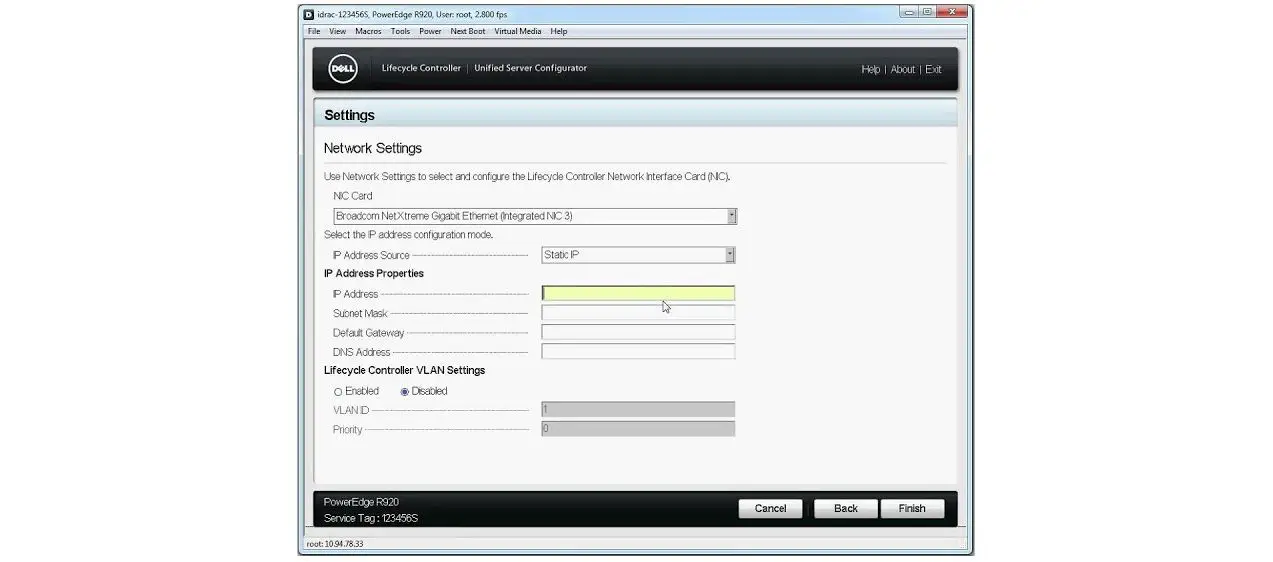
Dell Lifecycle Controller
Dell Lifecycle Controller (LC) provides advanced embedded systems management capabilities including system deployment, configuration, update, maintenance, and diagnosis. LC is delivered as part of the iDRAC out-of-band solution and Dell system-embedded Unified Extensible Firmware Interface (UEFI) applications.
Embedded system management
The Dell Lifecycle Controller provides advanced embedded system management throughout the lifecycle of the system. The Dell Lifecycle Controller is started during the boot sequence and functions independently of the operating system.
NOTE: Certain platform configurations may not support the full set of features provided by the Dell Lifecycle Controller. For more information about setting up the Dell Lifecycle Controller, configuring hardware and firmware, and deploying the operating system, see the Dell Lifecycle Controller documentation at https://www.dell.com/idracmanuals.
Boot Manager
- The Boot Manager option enables you to select boot options and diagnostic utilities.
- To enter Boot Manager, power on the system and press F11.
Table 27. Boot Manager details
| Option | Description |
| Continue Normal Boot | The system attempts to boot to devices starting with the first item in the boot order. If the boot attempt fails, the system continues with the next item in the boot order until the boot is successful or no more boot options are found. |
| One-shot Boot Menu | Enables you to access the boot menu, where you can select a one-time boot device to boot from. |
| Launch System Setup | Enables you to access System Setup. |
| Launch Lifecycle Controller | Exits the Boot Manager and invokes the Dell Lifecycle Controller program. |
| System Utilities | Enables you to launch the System utility menu such as Launch Diagnostics, BIOS update File Explorer, and Reboot System. |
PXE boot
- You can use the Preboot Execution Environment (PXE) option to boot and configure the networked systems remotely.
- To access the PXE boot option, boot the system and then press F12 during POST instead of using the standard Boot Sequence from BIOS Setup. It does not pull any menu or allow the managing of network devices.
© 2019 – 2020 Dell Inc. or its subsidiaries. All rights reserved. Dell, EMC, and other trademarks are trademarks of Dell Inc. or its subsidiaries. Other trademarks may be trademarks of their respective owners.