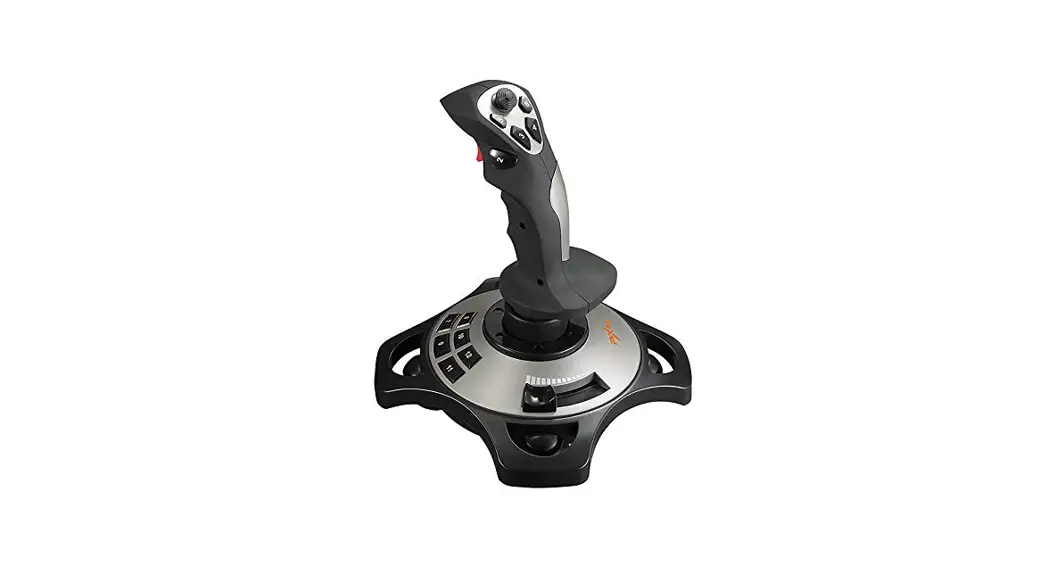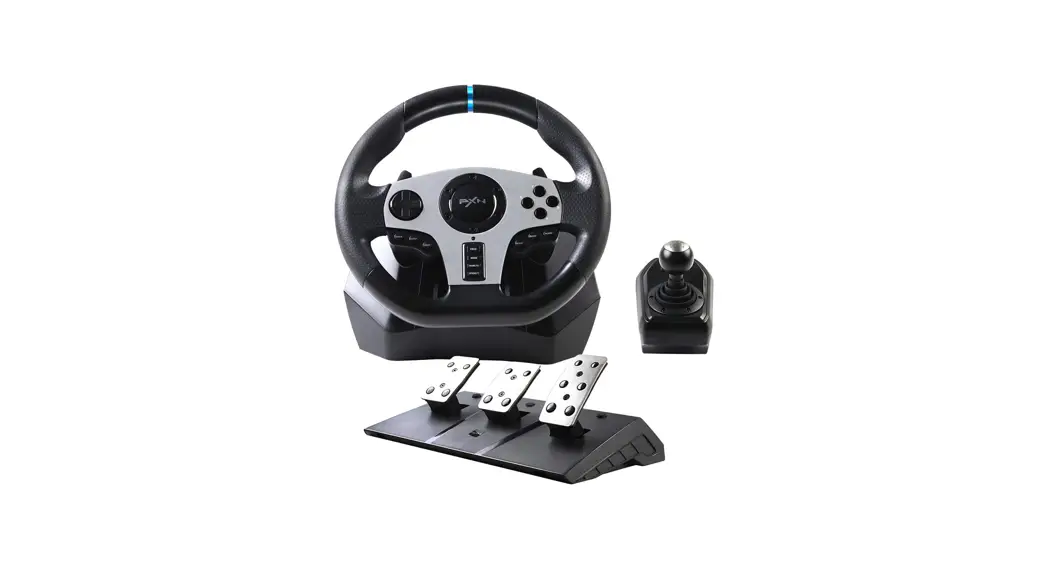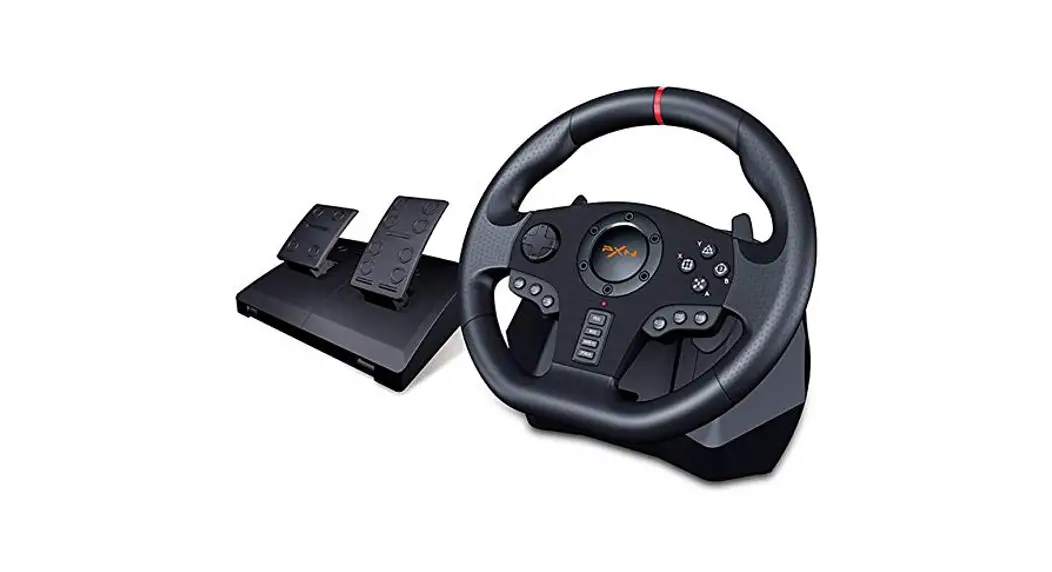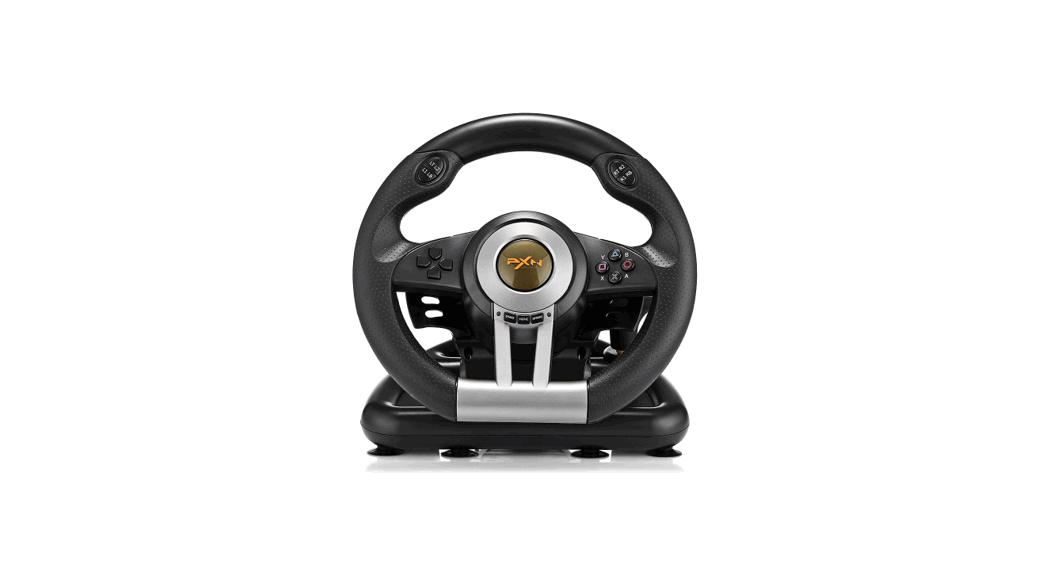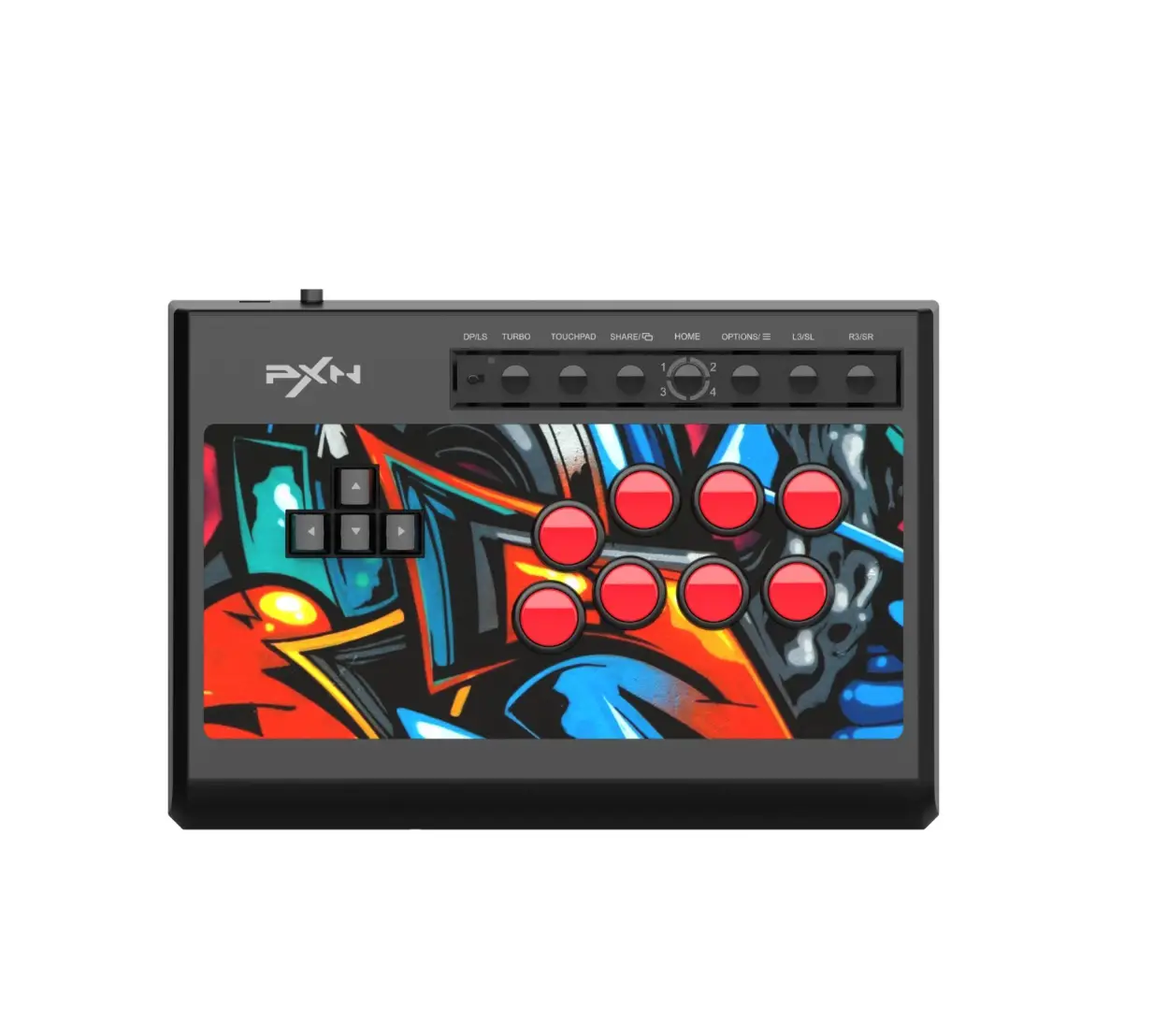
PXN-X8 Racing Wheel, Game Controller
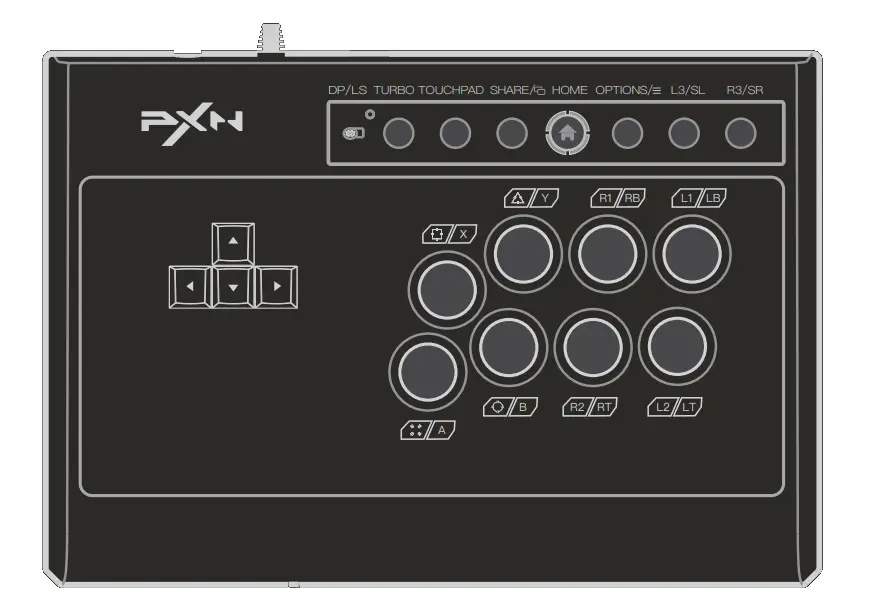
System Requirements
| Compatible Platforms | PC , Android , PS3 ,PS4 , Xbox One/Series , Switch |
| System Requirement on PC | Windows 7 / 8 / 10 |
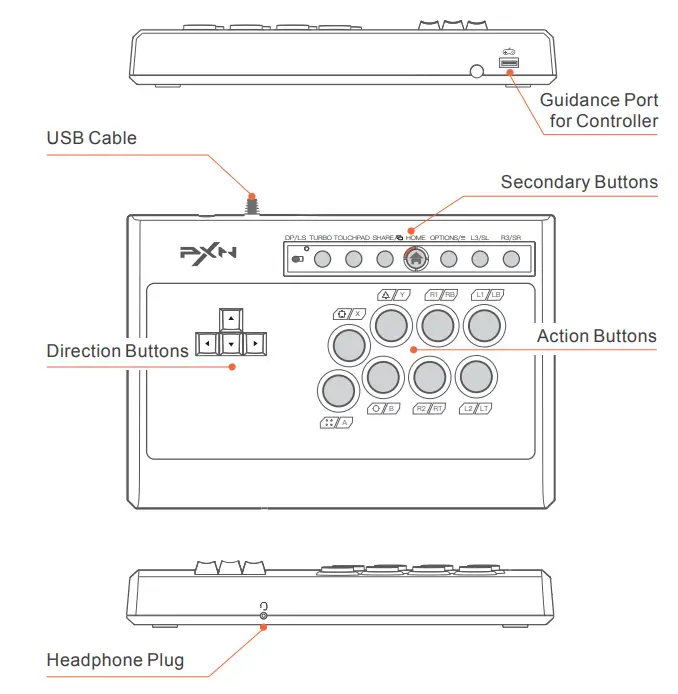
Product Overview
Instructions
Using on PC
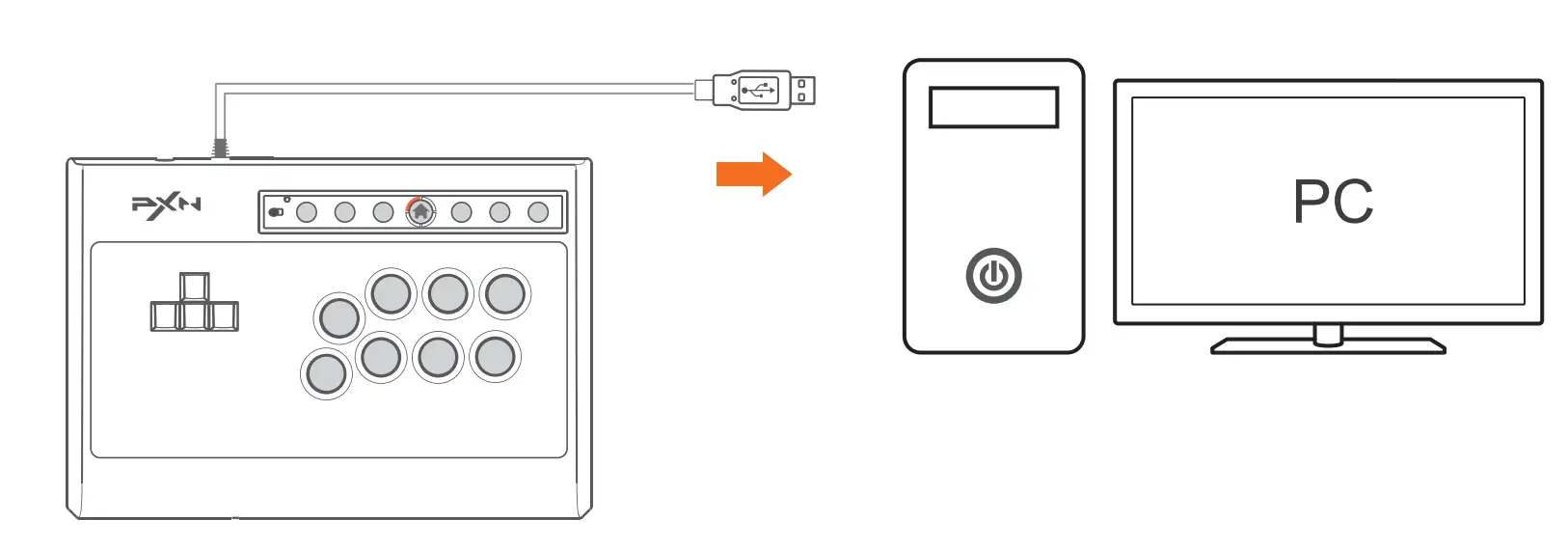
Step 1 Plug the USB cable of the Arcade Stick into the computer,  the indicator light will be on when connected successfully.
Step 2 When connecting to the computer for the first time, it will prompt to find new hardware and automatically complete the driver installation.
Function testing is available on computer. The specific steps show below: Win7 or above Systems: Open the Control Panel → Device and Printer → Right-click on the Game pad icon → Game Controller Setting, Click the Properties Testing.
Using on Android
Connect with mobile phone
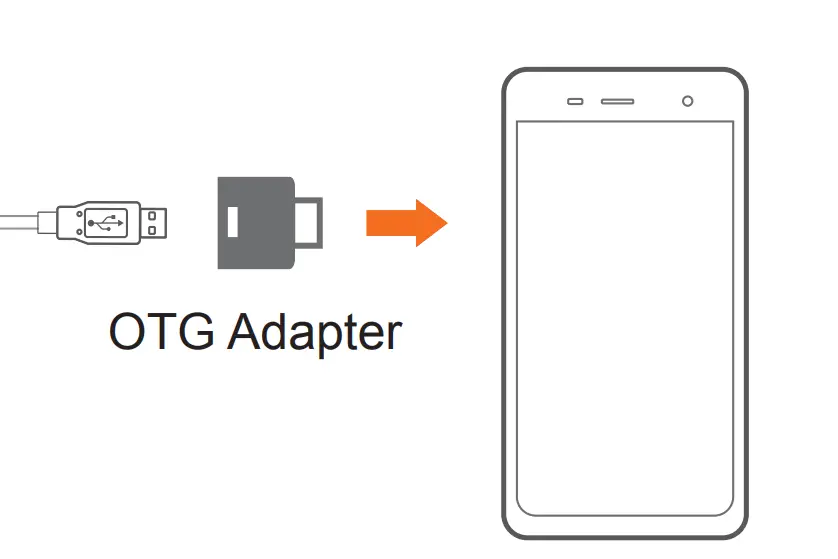
Connect the Arcade Stick to the Android mobile phone via OTG to control it.
(Note: Please open OTG function on phone before connection, Type-C OTG Adapter is not included)
Connect with Android TV
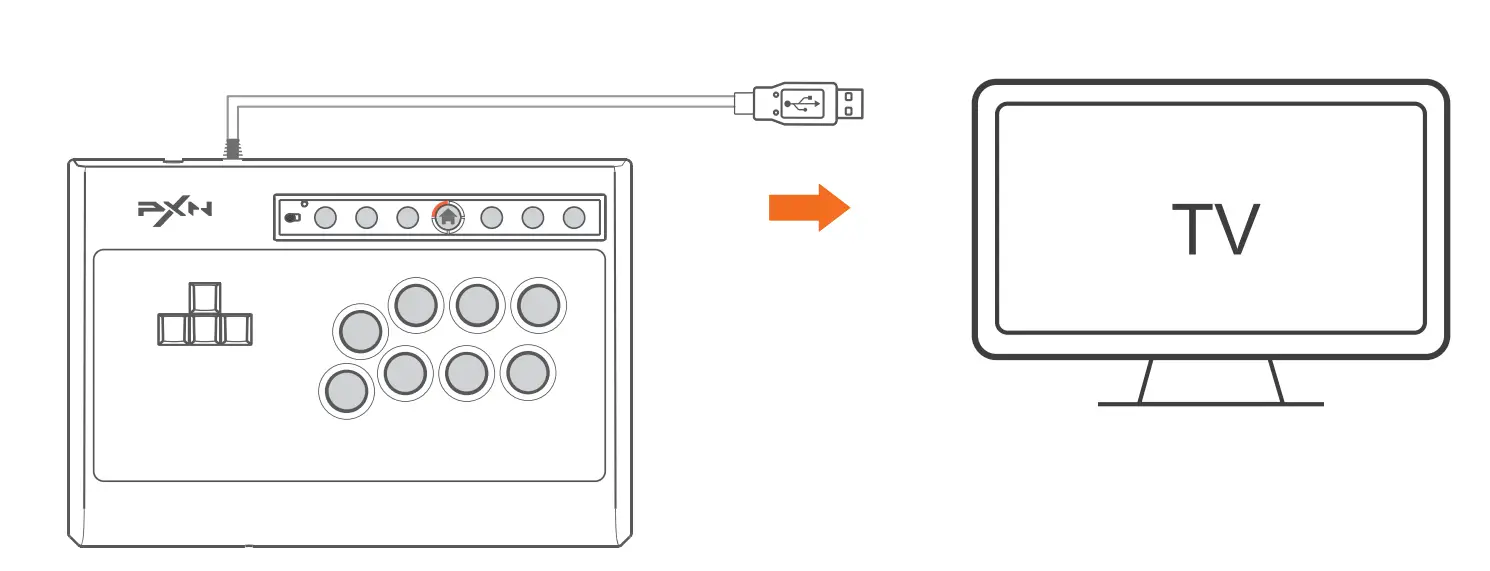
Plug the USB cable of the Arcade Stick into the Android TV to control it.
(Note: Due to the customization of the Android TV system, some Android system TVs do not support the insertion of peripheral devices)
Using on PS3
Step 1 Plug the USB cable of the Arcade Stick into the PS3, then turn on the power of the PS3.
Step 2 The PS3 will assign a channel to the Arcade Stick automatically when the connection is successful. Then the corresponding channel light will be on.
Using on PS4
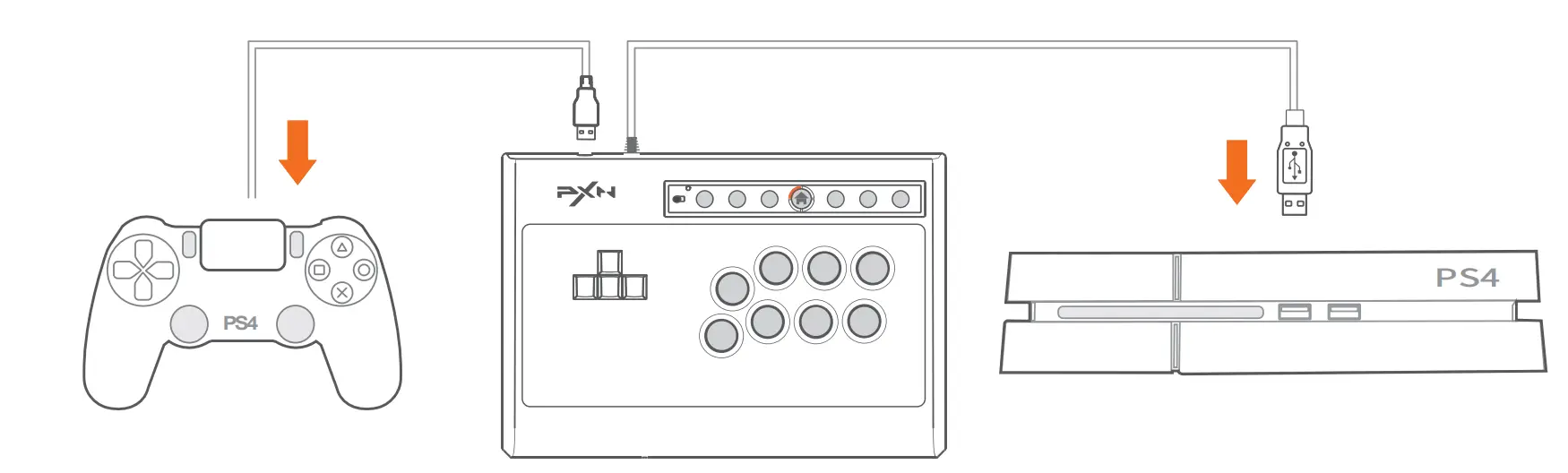
Step 1 Power OFF the original PS4 controller, then connect original PS4 controller with the Arcade Stick via USB cable.
Step 2 Plug the USB cable of the Arcade Stick into the PS4, then turn on the power of the PS4.
Step 3 Press the button  on the Arcade Stick once, then the will be on, and the connection is successful
Using on XBOX ONE/SERIES
Step 1 Power OFF the original Xbox One/Series controller, then connect original Xbox One/Series PS4 controller with the Arcade Stick via USB cable.
Step 2 Plug the USB cable of the Arcade Stick into the Xbox One/Series, then turn on the power of the Xbox One/Series.
Step 3 The indicator light on the Arcade Stick will be on when the connection is successful.
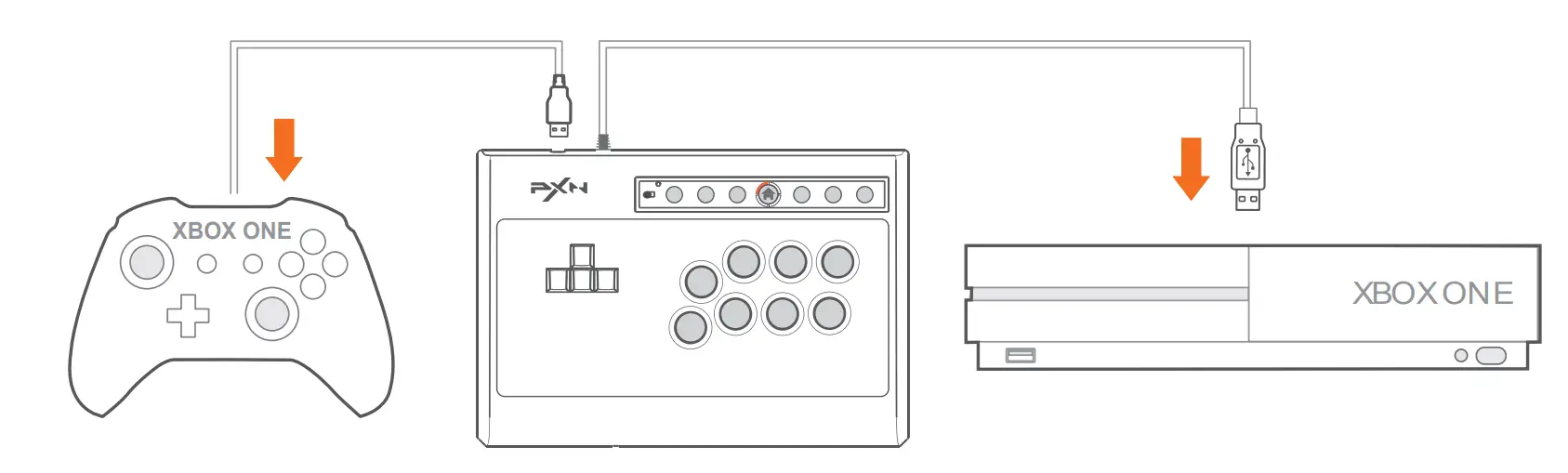
Diagram of XBOX ONE Connection
Using on SWITCH
• Using on SWITCH Enter Homepage of SWITCH, select Setting  → Controllers and Sensors→ select Pro Controller Wired connection, make sure that the option state is ON.
Connect with Switch
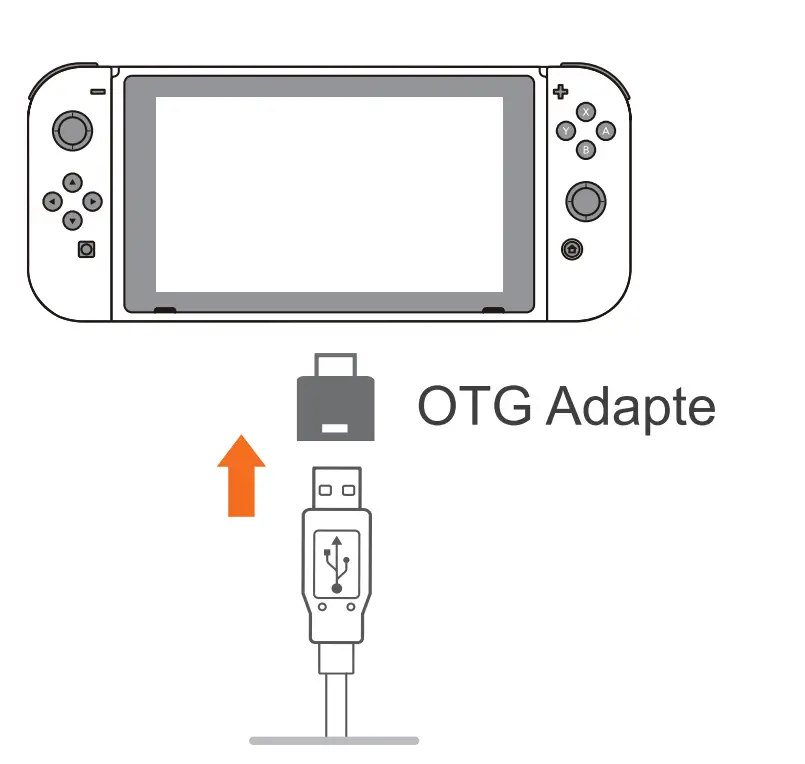
Step 1 The OTG Adapter is needed when connect with Switch Console. Connect the Type-C OTG Adapter with the Arcade Stick USB cable, plug the Type-C Adapter into SWITCH console port.
Step 2 The indicator light remains on when the connection is successful. (Note: Type-C OTG Adapter is not included)
Connect with Switch Dock
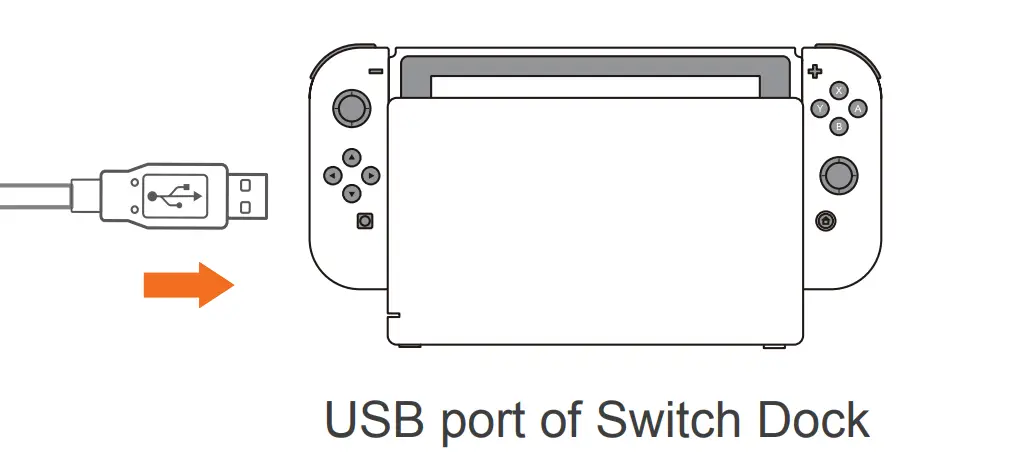
Step 1 Plug the USB cable of the Arcade Stick into the USB port of the Switch Dock, and turn on the power of the Switch.
Step 2 The Switch will be automatically assign a channel to the Arcade Stick when the connection is successful. Then the corresponding channel lightwill be on
TURBO function setting
- The buttons that can set the TURBO function are:A , B , X , Y , LB , RB , LT , RT.
- TURBO setting: Press and hold the TURBO button + the button that needs to set the TURBO at the same time, the LED flashes.
- TURBO deleting: Press and hold the TURBO button + the button that has been set to TURBO at the same time, the LED goes out.
Arcade Stick Mode switch
- When the stick switch is set to DP, the direction buttons work as D-pad.
- When the stick switch is set to LS, the direction buttons work as Left Joystick.
Audio Function
Interactive communication function is available on PS4 and Xbox one/Series platform.
Attention
- Avoid strong vibration, do not disassemble, modify or repair by yourself.
- Avoid storing in humid, high temperature, oily smoke and other places
- Avoid water or other liquids from entering the Stick, which may affect the function of the Stick.
- Children should be under adult’s supervision at all times when using this product.
Product Specifications
| Product Mode | PXN X8MIX |
| Connection Method | USB cable, the cable length is about 2 meters |
| Working current | Appr. 40mA |
| Packaging Size | Appr. 347 * 255 * 105 mm |
| Product Size | Appr. 335 * 230 * 48 mm |
| Product Weight | Appr. 1085 g |
| Usage Temperature | 10 – 40 ℃ |
| Usage Humidity | 20 ~ 80 % |