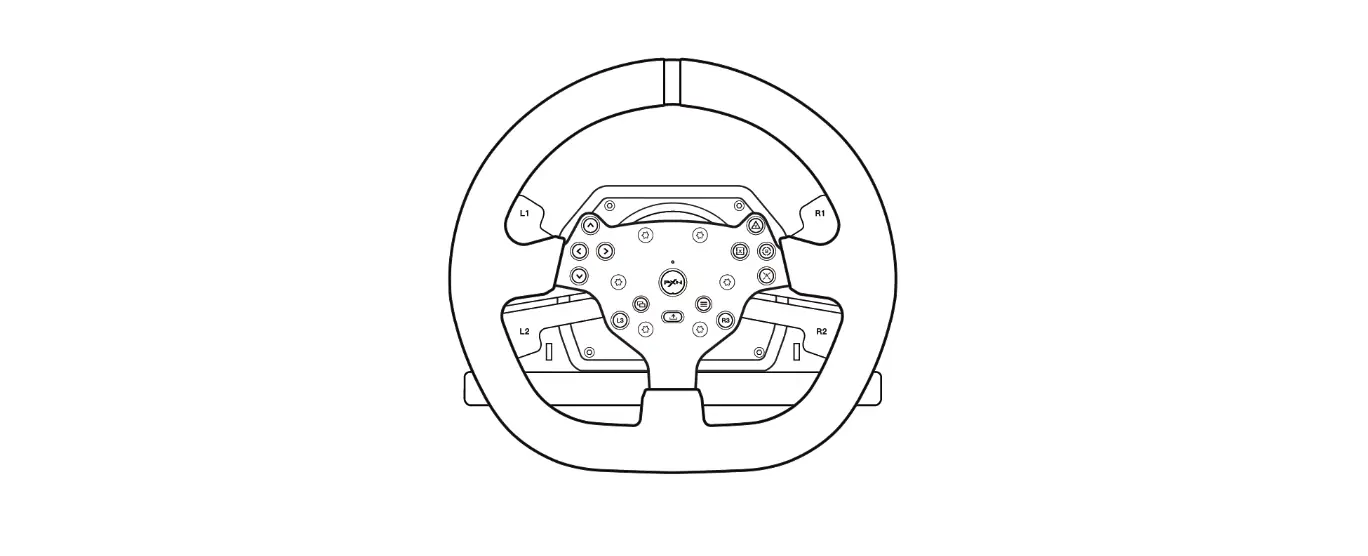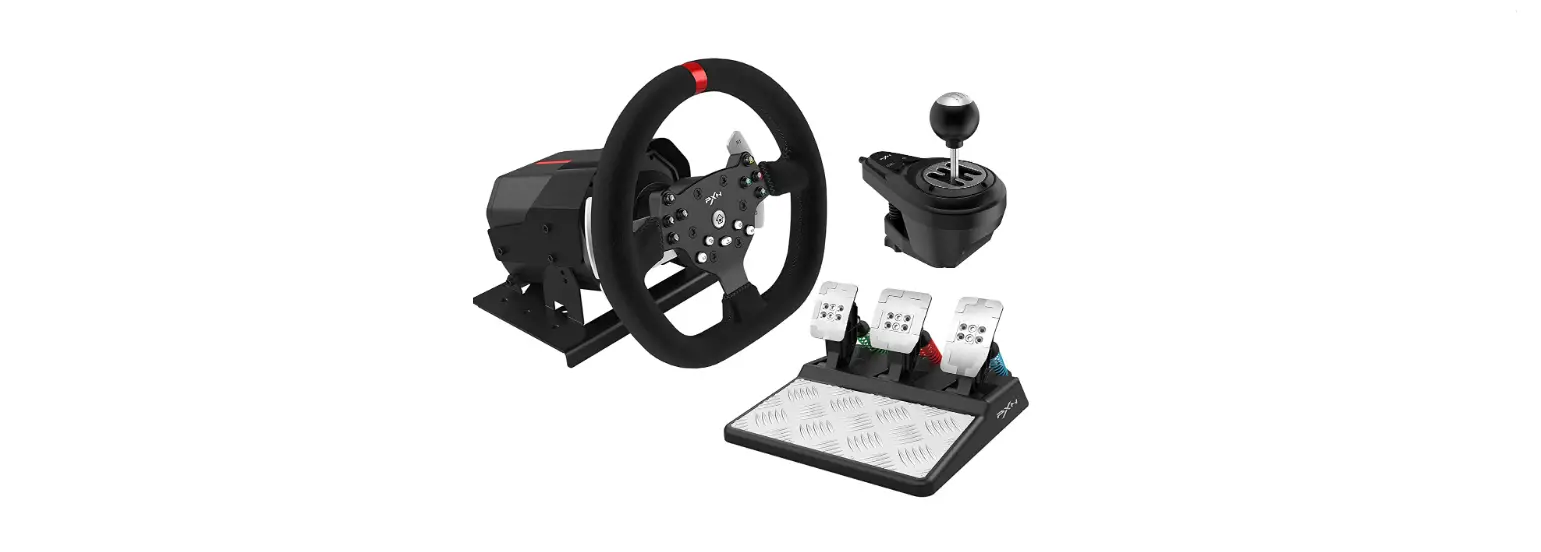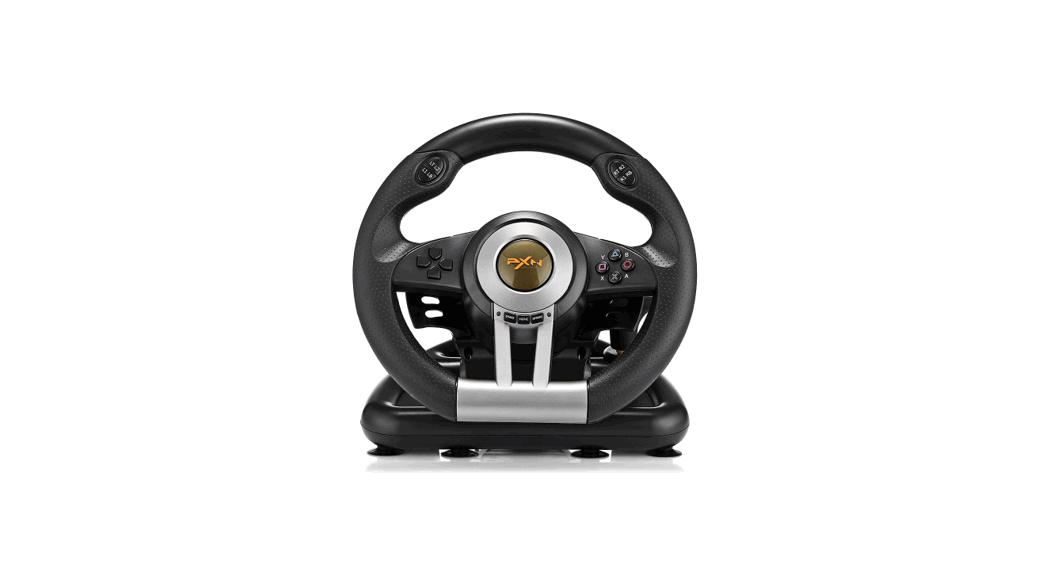
 Pro Gaming Wheel
User Manual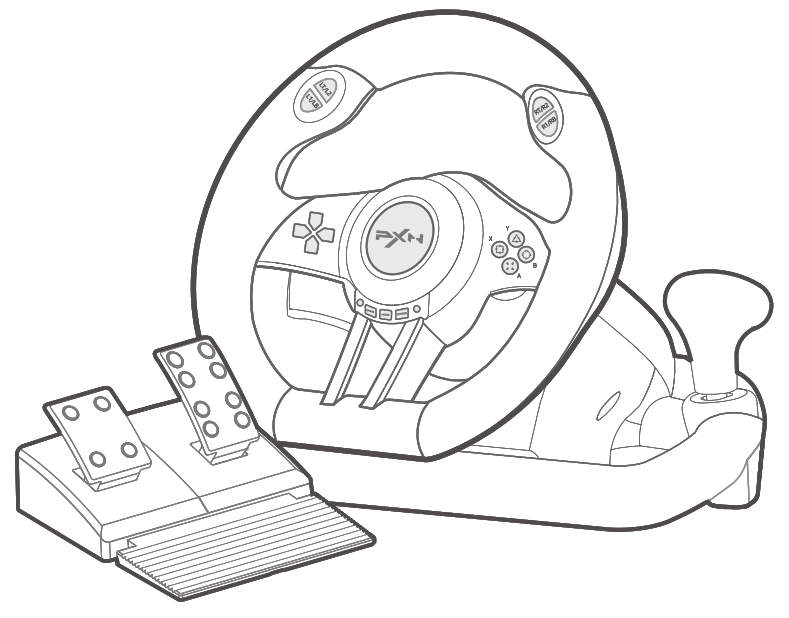
System Requirements
Compatible Platforms PC, PS3, PS4, XBOX ONE, XBOX SERIES X&S, SWITCH
System Requirement on PC windows 7 / 8 / 10 / 11
Product Overview
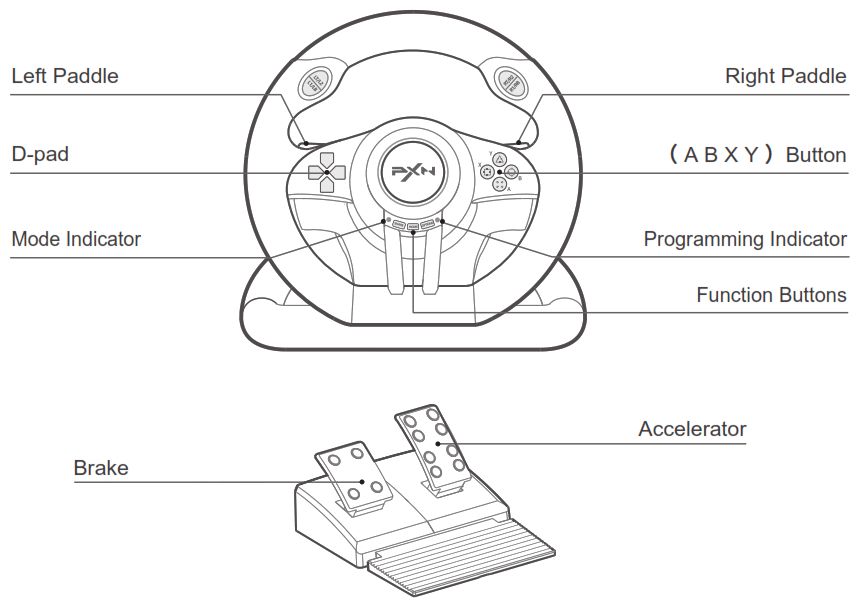
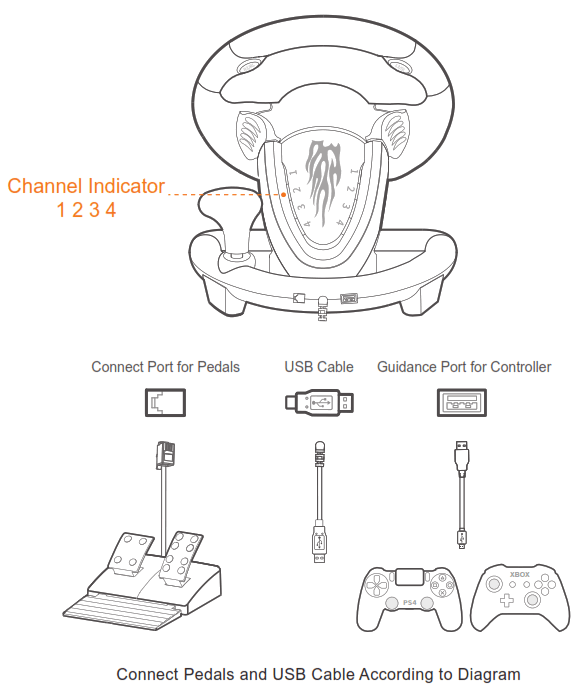
Clamp Installation
The steering wheel is equipped with a screw staff and U – type clamp, which can be directly installed on a desk.
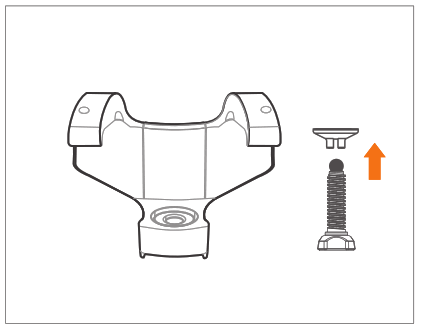
Step 1 Please take out the screw staff and U – type clamp.
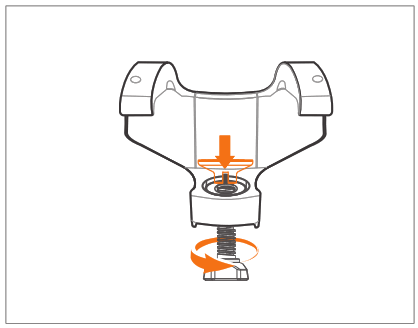
Step 2 Install screw staff into the U – type clamp.
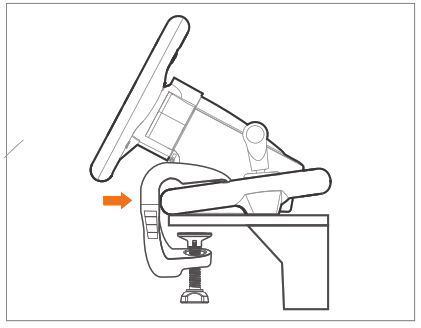
Step 3 Then clip the U – type clamp to the steering wheel, as shown above.
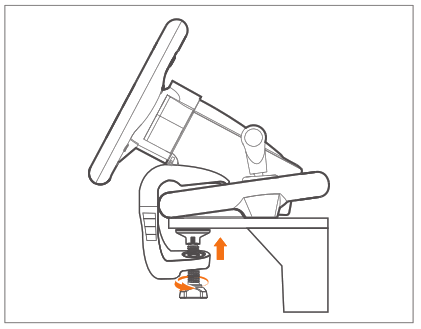
Step 4 Install the steering wheel to desk, then tighten the screw staff.
Using on PC
Step 1 Plug the USB interface of steering wheel into computer. Mode indicator will display ON when connected successfully.
Step 2 The steering wheel will default to X -input mode when connected. Hold and press the HOME button to shift working mode to D -input.
Step 3 Easily shift to corresponding working modes when playing different games.

X -input Mode
X -input working mode is suitable for XBOX 360 games on PC and plug and play.
Recommended games are Need for Speed 13 (or versions above ), Dirty 2/3 Ridge Racing etc.
D -input Mode
Suitable for early single-player racing games.
Recommended games are Need for Speed 1-12, Euro Truck Simulator 2 etc.
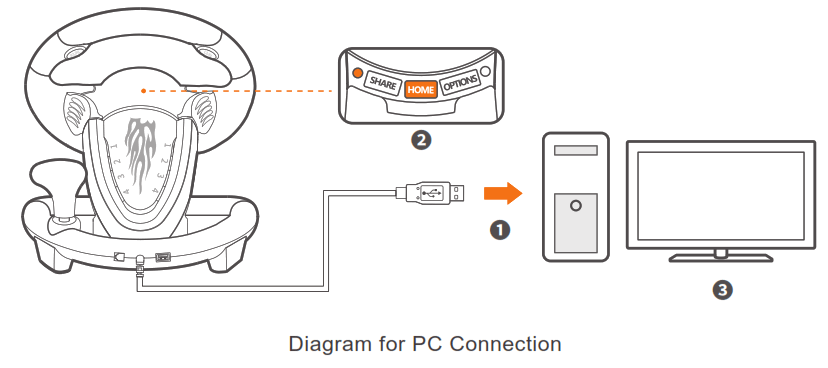
Function Testing on PC
Function inspection of steering wheel is available when connected to a PC, the specific steps shown below:
Open Control Panel Device and Printer Right mouse click game pad icon Game Controller Setting, click Properties Testing .
Using on PS3
Step 1 Plug the USB interface of steering wheel into PS3 and power on PS3 console.
Step 2 Corresponding channel indicator displays ON when steering wheel is connected successfully with console, then launch game to play or conduct some relevant setting on console .
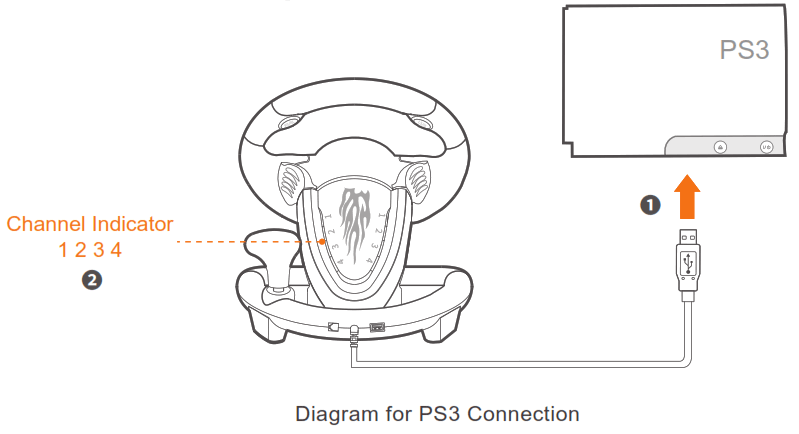
Using on PS4
Step 1 Power OFF the original PS4 controller.
Step 2 Use a Micro USB cable to connect PS4 original controller with guidance port of the steering wheel.
Step 3 Plug the USB interface of steering wheel into PS4.
Step 4 Press HOME button on steering wheel, red mode displays ON when connected successfully .
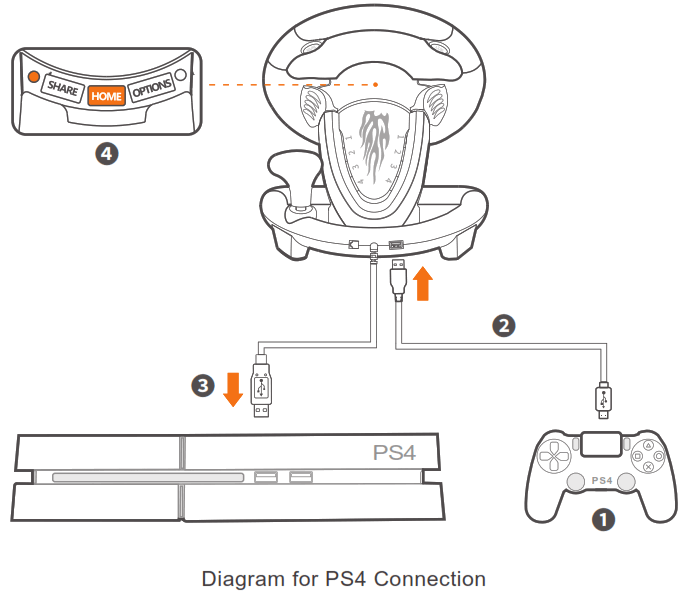
Using on XBOX ONE /XBOX SERIES X&S
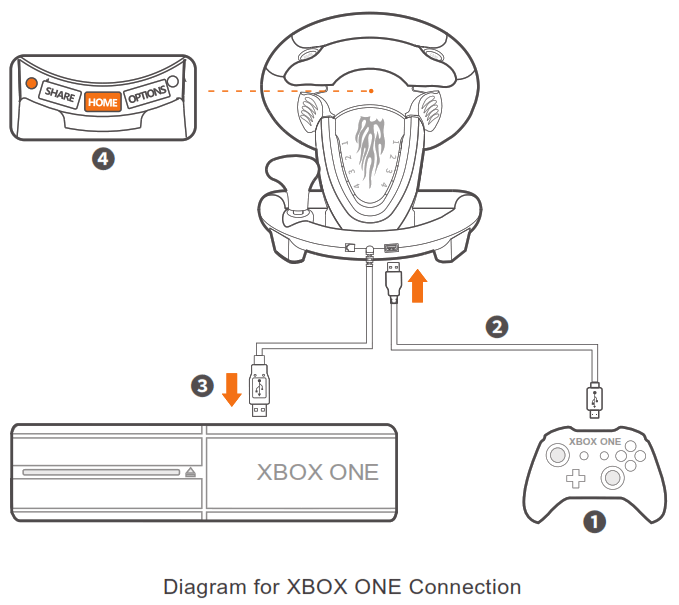
Step 1 Power OFF the original XBOX ONE/ XBOX SERIES X&S controller.
Step 2 Use a Micro USB cable to connect XBOX ONE / XBOX SERIES X&S original controller with guidance port of the steering wheel.
Step 3 Plug the USB interface of steering wheel into XBOX ONE /XBOX SERIES X&S.
Step 4 Press HOME button on steering wheel, red mode indicator remains ON when connected successfully.
Using on SWITCH
* Enter Homepage of SWITCH, Select Setting Controllers and Sensors select Pro Controller Wired Connection. Please make sure that the option state is ON.
Connect with SWITCH Console
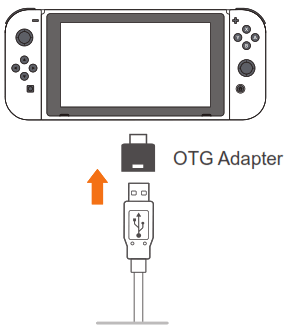
Step 1 Please connect the Type-C OTG with the USB interface of steering wheel.
Step 2 Then plug the Type-C interface to SWITCH console.
Step 3 Red mode indicator displays ON when connected successfully.
( Note : Type-C OTG Adapter is not included )
Connect with SWITCH Dock
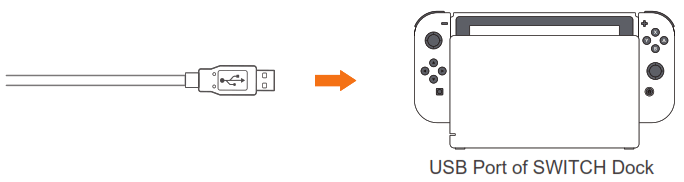
Step 1 Place the SWITCH dock and ensure successful connection.
Step 2 Plug the USB interface of steering wheel into SWITCH dock and power on SWITCH console.
Step 3 Red mode indicator displays ON when connected successfully.
Programming Settings
* Original button function will be replaced under programming setting
Programming Buttons : L-paddle, R-paddle, L-pedal, R-pedal, L3, R3, Shifter
Programming Available Buttons : A, B, X, Y, L1, L2, R1, R2
How to program?
Step 1 Press SHARE + OPTIONS simultaneously for 3 seconds, release buttons when green programming indicator displays ON.
Step 2 Press the programming button, programming indicator should flash green.
Step 3 Press programming available button, setting is complete when green programming indicator is OFF.
Clear Programming Setting
Step 1 Press SHARE + OPTIONS simultaneously for 3 seconds, release buttons when green programming indicator displays ON.
Step 2 Press programming button, programming indicator will flash green.
Step 3 Press programming button again, green programming indicator will turn OFF, function clearing complete.
Step 4 Replug and reconnect steering wheel, all settings will be cleared automatically.
How to set pedals as Y axis?
Step 1 Press SHARE + OPTIONS simultaneously for 3 seconds, green programming indicator displays ON.
Step 2 Press left button of D-pad, set successfully when green indicator is OFF.
Sensitivity Adjustment
3 Levels of Sensitivity Adjustments
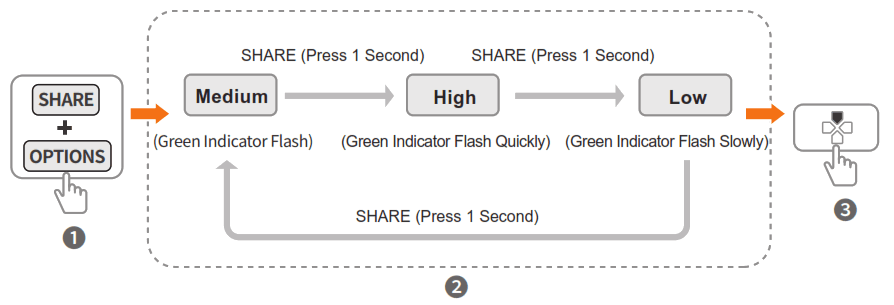
Step 1 Press SHARE + OPTIONS for 3 seconds, green programming indicator displays ON.
Step 2 Adjust Sensitivity : Press SHARE button to adjust sensitivity – Medium, High, Low for choices. ( Default sensitivity level is medium )
Step 3 Save Setting : Press D-pad [ ] button to save settings, programming indicator displays OFF.
Attention
- Avoid strong vibrations and do not disassemble, refit or repair on your own.
- Avoid water or other liquids on or in the steering wheel as it may affect the performance of the steering wheel.
- Do not store in humid and/or high temperature areas. Keep free of dust and soot.
- Please handle gently when connecting and removing the steering wheel.
- Children should be under adult ’ s supervision at all times when usingthis product .
Product Specifications
| Product Model | PXN – V3 PRO |
| Connect Type | USB Wired |
| Working Power | DC 5V |
| Working Current | 10mA – 170mA |
| Packaging Size | Appro. 350 * 325 * 270 mm |
| Product Size | Appro. 260 * 320 * 245 mm |
| Unit Weight | Appro. 1500 g |
| Usage Humidity | 10 – 40 ℃ |
| Usage Temperature | 20 ~ 80 % |