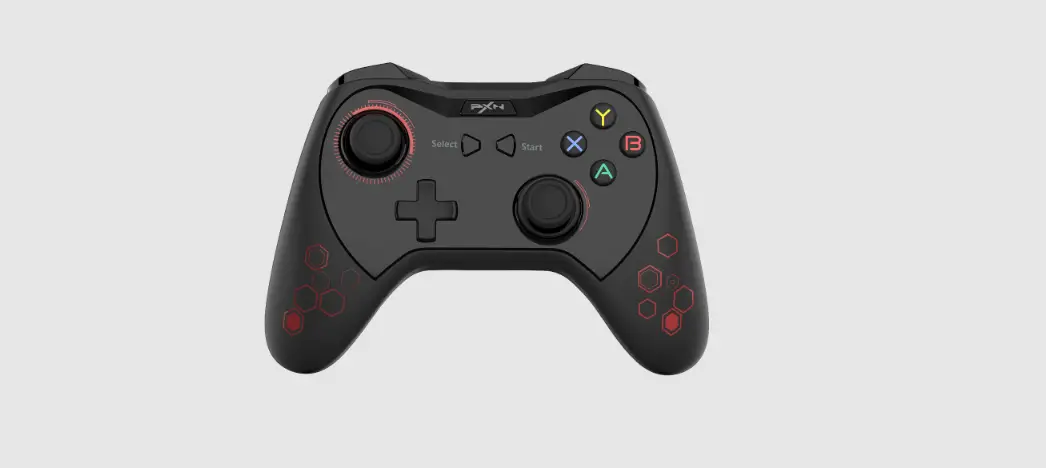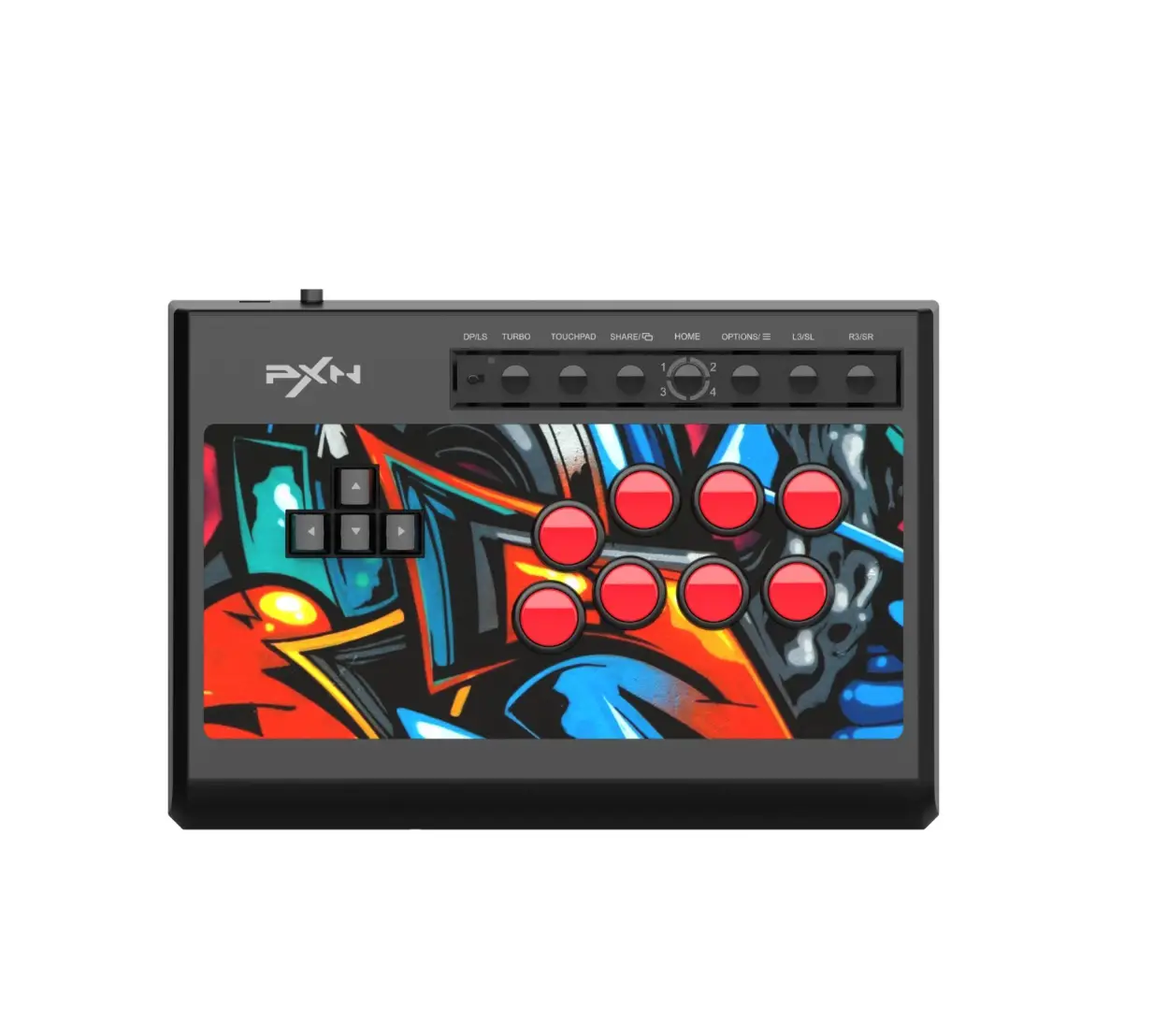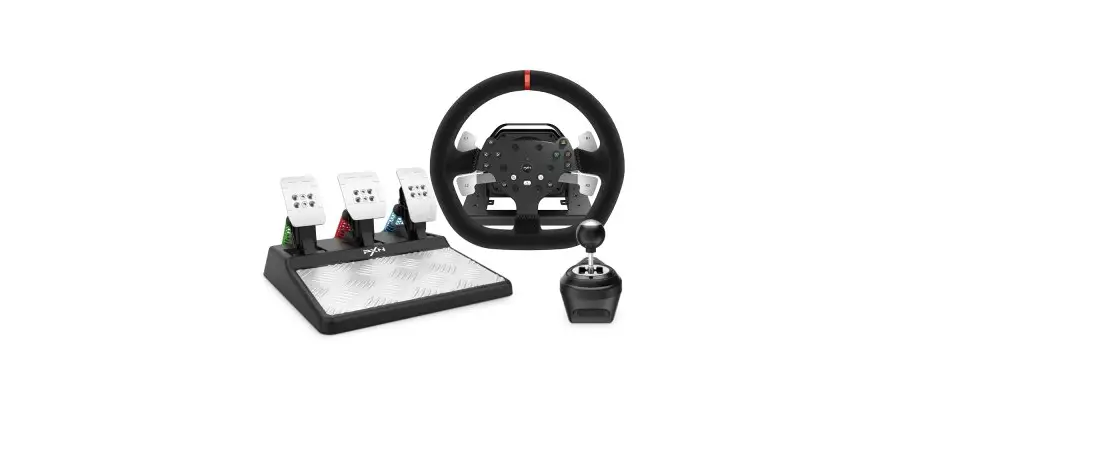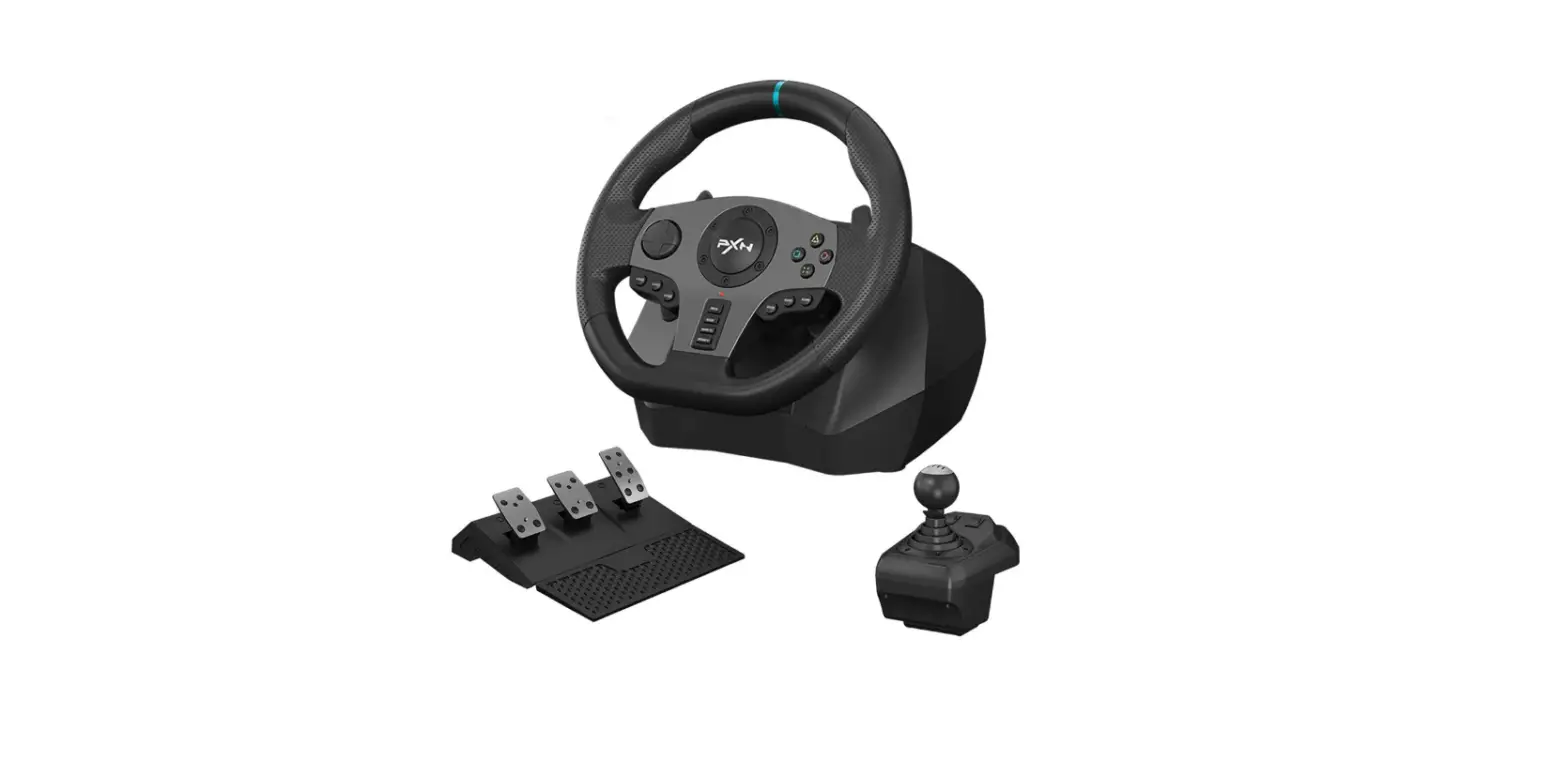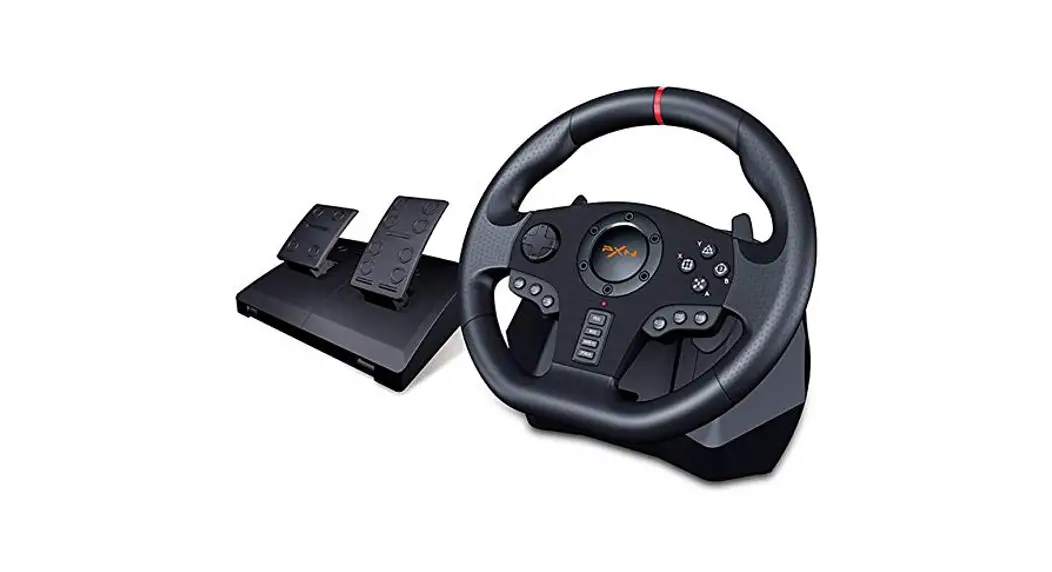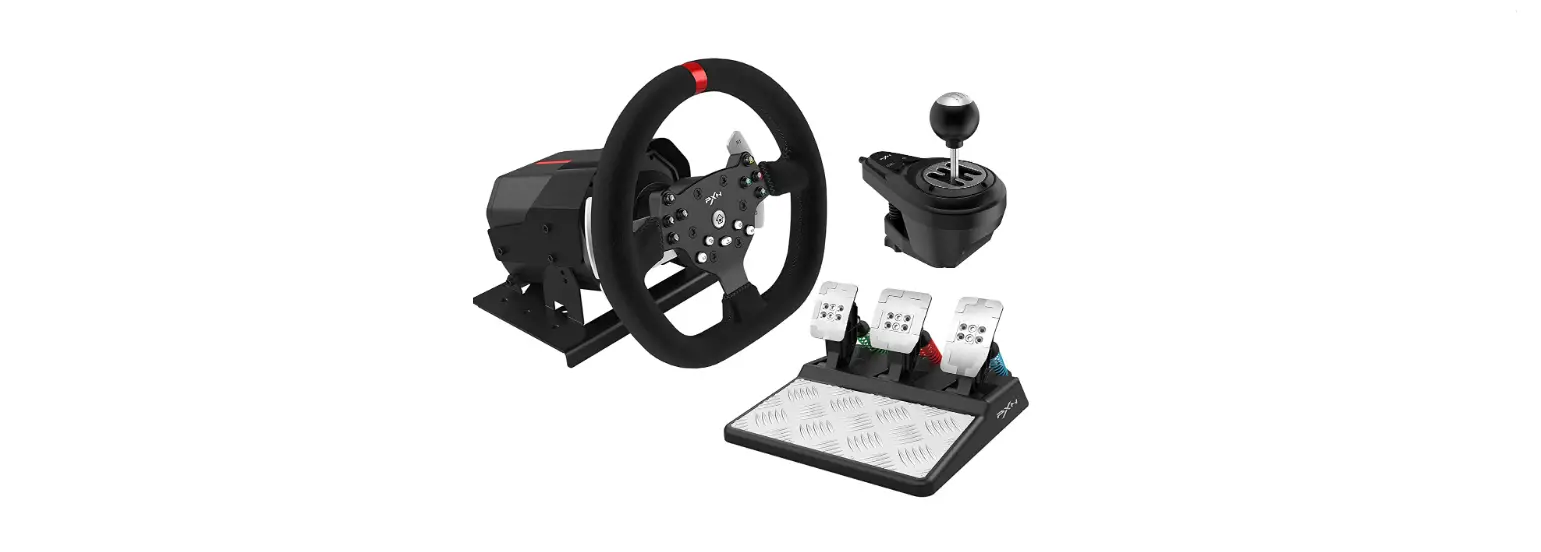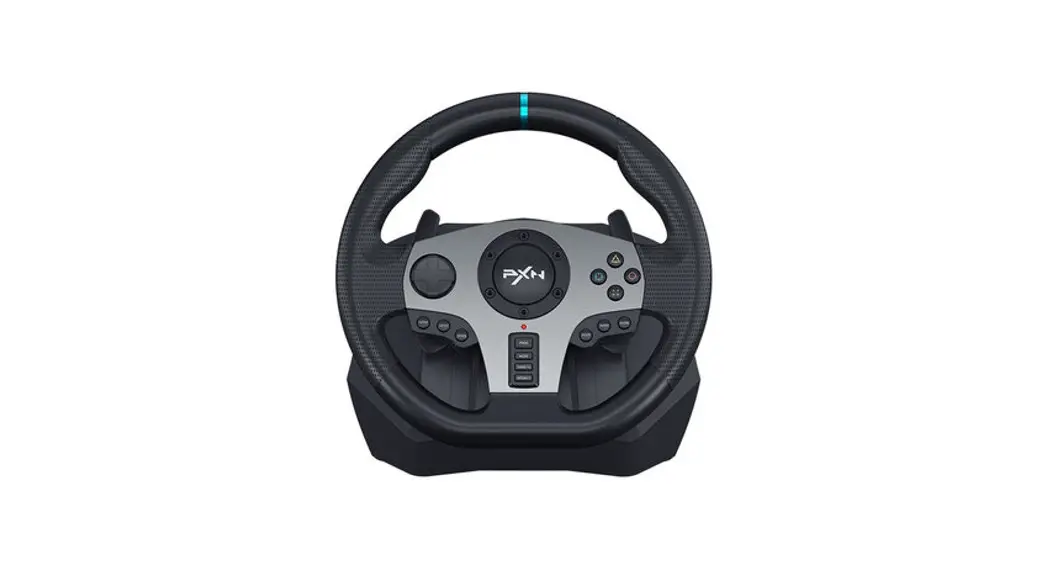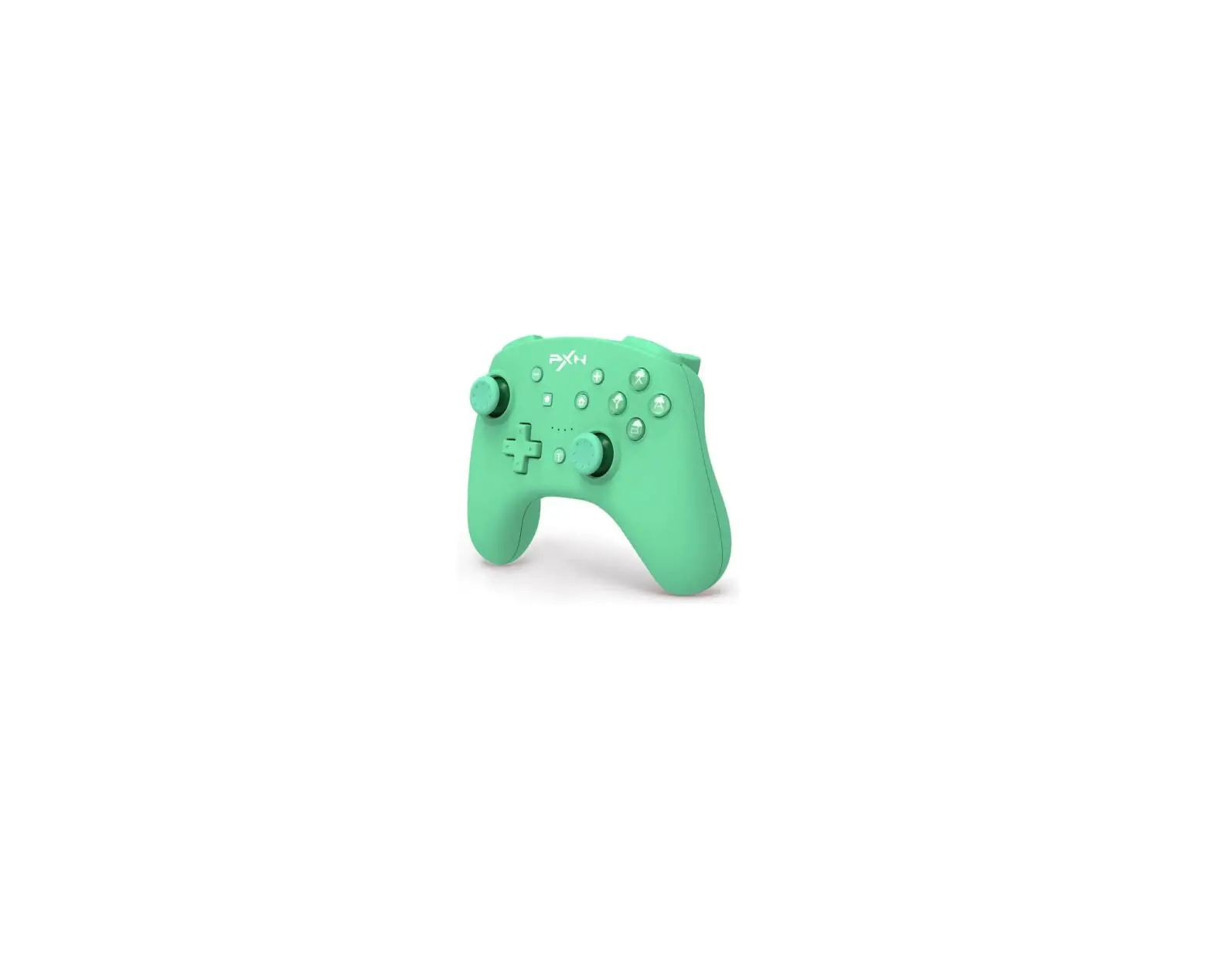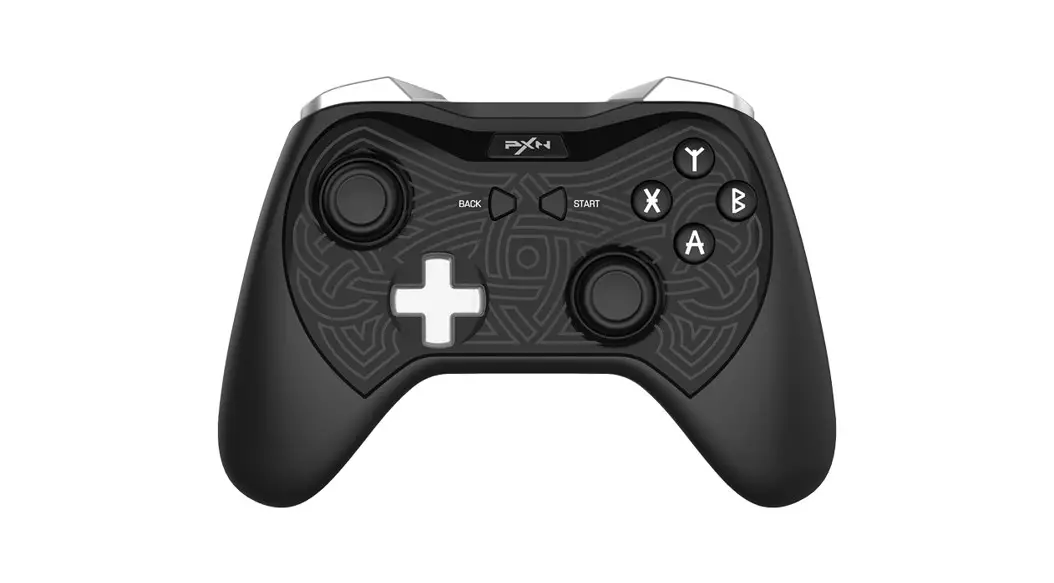

PXN 9607x Racing Wheel Game Controller
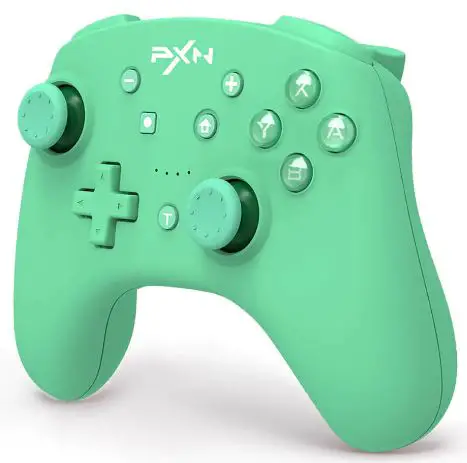
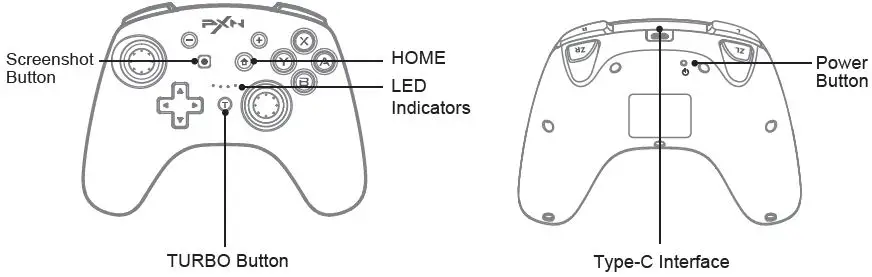
Product Overview
System Requirement
- Compatible Platforms: Switch Console/ PC
- Support System: Windows 7/ 8/ 10/ 11
Switch Console
Wireless Connection
- Click [
 ] Controller → Change Grip/Order on Switch screen.
- Press [
 ] Power button of Controller for 3 seconds showing left battery, 4 LED indicators flash orderly and enter to pairing state.
❸ Connect successfully when LED indicator keep ON, then press [ ] HOME button back to homepage.
 ] Controller → Change Grip/Order on Switch screen.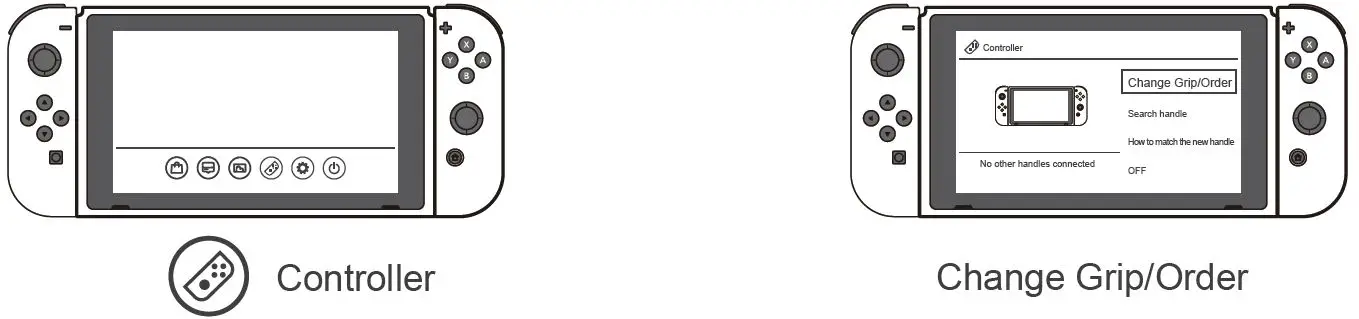
Wake-up Switch Console Function
After connect successfully, press [ ] Home button on Controller can wake up and reconnect the sleep Switch console.
Wired Connection
Click [ ] Setting on Switch homepage → Controllers and Sensors → then click Pro Controller Wired Connection. Please make sure this option state is ON.
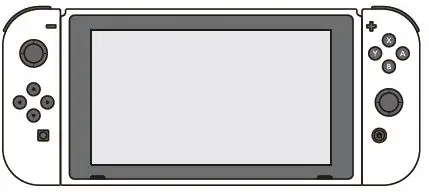
- Switch Console:

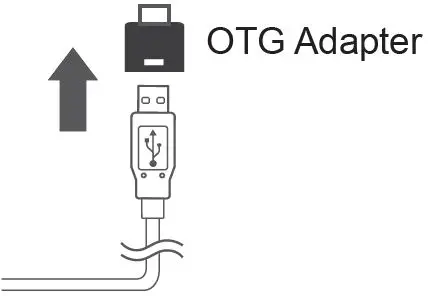
Before using the wired connection, please make sure the Controller is OFF or in sleeping state.- Connect the power-off Controller with Switch console by USB cable with Type-C OTG.
- Connect successfully when LED indicator flash.
( Note: The Type-C OTG is not included )
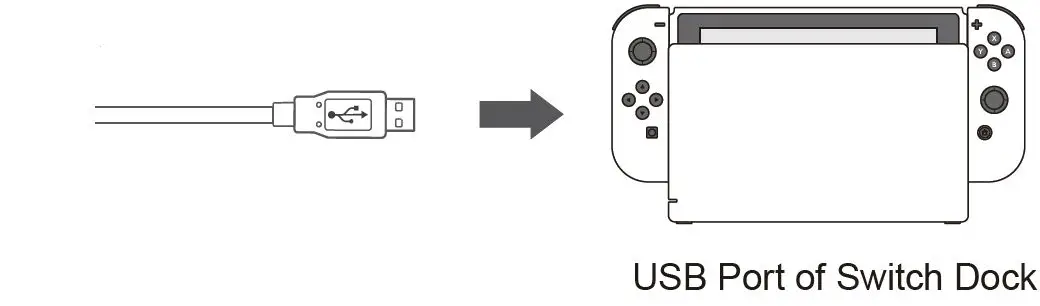
- Switch Dock:
Before using the wired connection, please make sure the Controller is OFF or in sleeping state.
- Connect the power-off Controller with Switch dock by USB cable.
- Connect successfully when LED indicator flash.
Power and Wake-up
| Camepad State | Button Operation | Function Instruction |
| Power ON | Press [ ] Power button for 3 seconds ] Power button for 3 seconds | Power on and enter pairing |
| Wake-up Controller | Short press [ A / B / X / Y / L / R / Cross button / – / + ] button on Controller | Can wake up sleep controller and reconnect |
| Wake-up Console | Short press [ ] HOME button on Controller | Can wake up sleep Switch console and reconnect |
| Power OFF | Short press [ ] Power button | Press shortly can power OFF the Controller and reset setting Can use wake-up controller/console function to reconnect under Controller oFF state |
Using on PC
Wired Connection
Before using the wired connection, please make sure the Controller is OFF or in sleeping state.
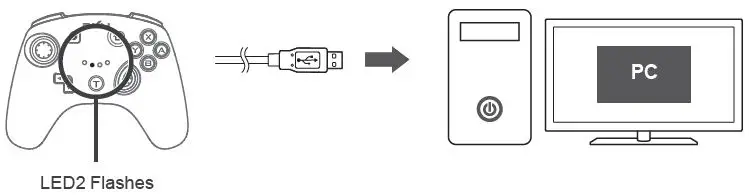
- Connect the Controller with PC by USB cable.
- The PC will prompt new hardware and install automatically, connect successfully when LED2 indicator flash.
Controller Inspection on PC
- Function inspection is available when connect with computer. The specific steps show below:
Open Control Panel → Devices and Printers → Right mouse click Controller icon → Game Controller Setting, click Properties Testing.
NFC Function
The Controller is built in NFC reader chip, support to read Amiibo (Note: Recommend to use genuine Amiibo)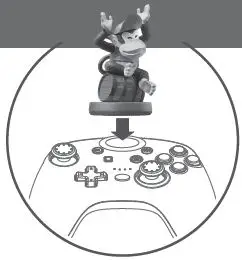
Using Instructions:
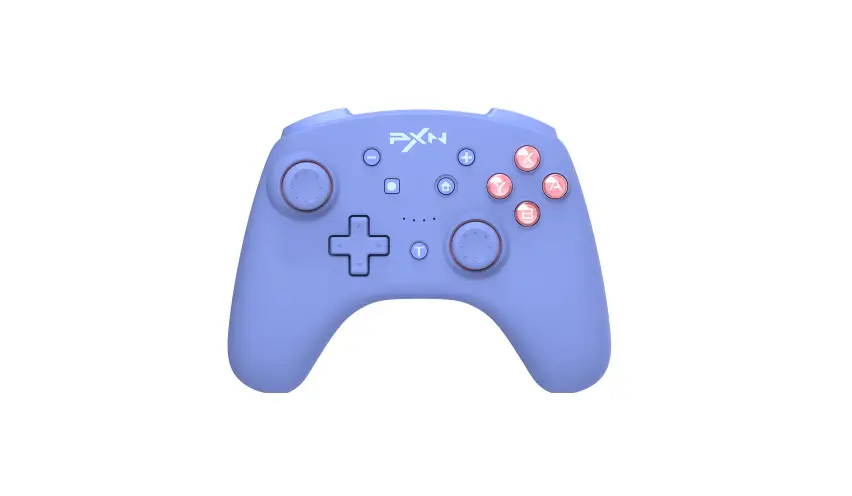
When the Controller connected with Switch console by Bluetooth, if the game support Amiibo function, place the Amiibo above the PXN logo can activate the tool.
TURBO Function
Setting buttons for TURBO function: A / B / X / Y / L / R / ZL / ZR
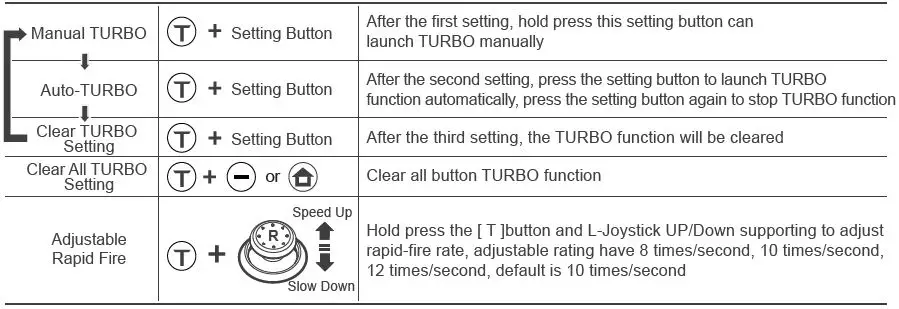
Under Manual TURBO: The LED indicator flash when hold press setting button.
Under Auto-TURBO: The LED indicator flash quickly.
Adjustable Vibration
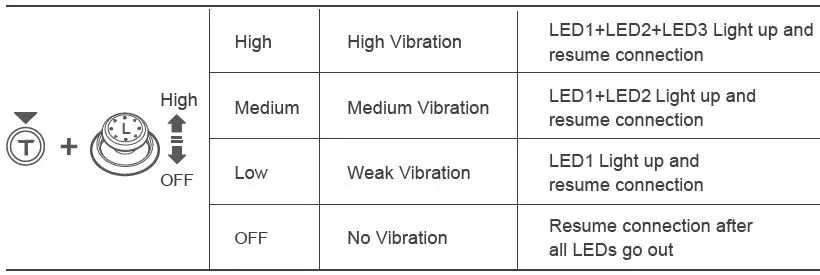
Hold press the [  ] button on Controller and operate the UP/Down of left joystick at same time to adjust vibration level, default vibration level is medium when connect.
Vibration adjustment has memory function.
Controller Calibration Function
When the Controller occurs disorder or joystick problem, can use calibration function to fix.
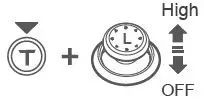
- Press [ L3+R ] enter calibration mode, 4 LED indicator on Controller flash alternately.

- Put the Controller on horizon desk, press [ ] button on Controller.
- Release button, the Controller will automatically calibrate in 3 seconds.
Charging Function
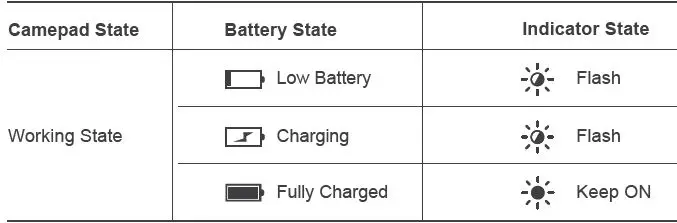

Using a standard USB 5V input, the controller will be fully charged time in 2-3 hours.
Sleeping Mode
| Camepad State | Camepad State | |
| Reconnect State | 30 seconds without connection | |
| The First Pairing State | 60 seconds without connection | |
| Working State | 5 mins without any opperations | |
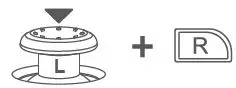 When the [ L3+L ] button is pressed in the power off state, the auto sleep time is adjusted with the [Cross button up/down] | Auto sleep after 5 minutes | The indicator is OFF when LED1 lights up |
| Auto sleep after 10 minutes | The indicator is OFF when LED1+LED2 lights up | |
| Auto sleep after 20 minutes | The indicator is OFF when LED1+LED2+LED3 lights up | |
| Turn off the sleep function | The indicator is OFF when LED1+LED2+LED3+ LED4 lights up | |
Reset Function
- When the handle has any functional disorder, halt or other abnormality, press and hold the power key for 8 seconds to restore the factory settings.
Attentions
- Avoid strong vibration, don’t disassemble, refit or repair on your own.
- Avoid water or other liquid in controller, it may affect the performance of the controller.
- Don’t keep in humid, high temperature or soot place.
- Keep away from fire, the built-in Lithium battery has danger of explosion.
- Please connect with after-sales service when you have suggestions or operation problem.
Product Specifications
| Produce Model | PXN-9607X |
| Connect Type | Wireless / Wired Connection |
| Working Power | Built-in 550mAh Lithium Battery |
| Working Current | 5V 20 mA |
| Packaging Size | Appr. 185*138*78 mm |
| Product Size | Appr. 153*111*42 mm |
| Unit Weight | Appr. 210 g |
| Usage Temperature | 10 – 40℃ |
| Usage Humidity | 20~80% |