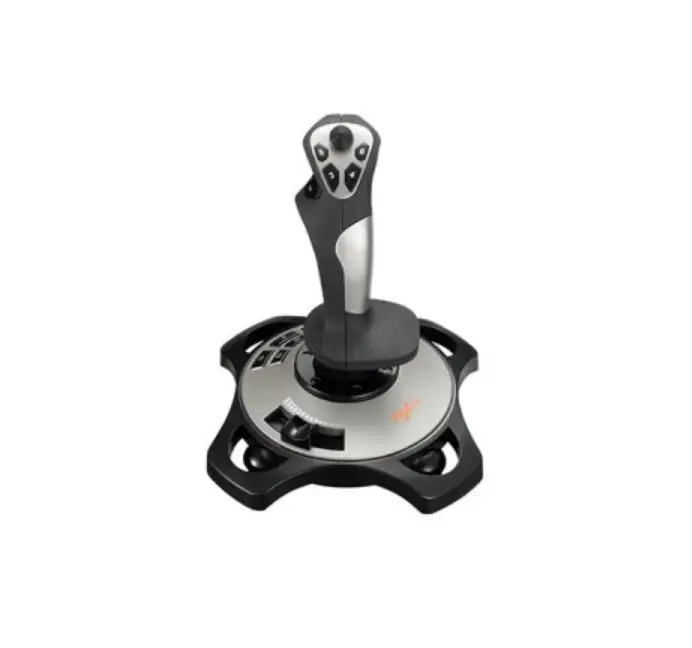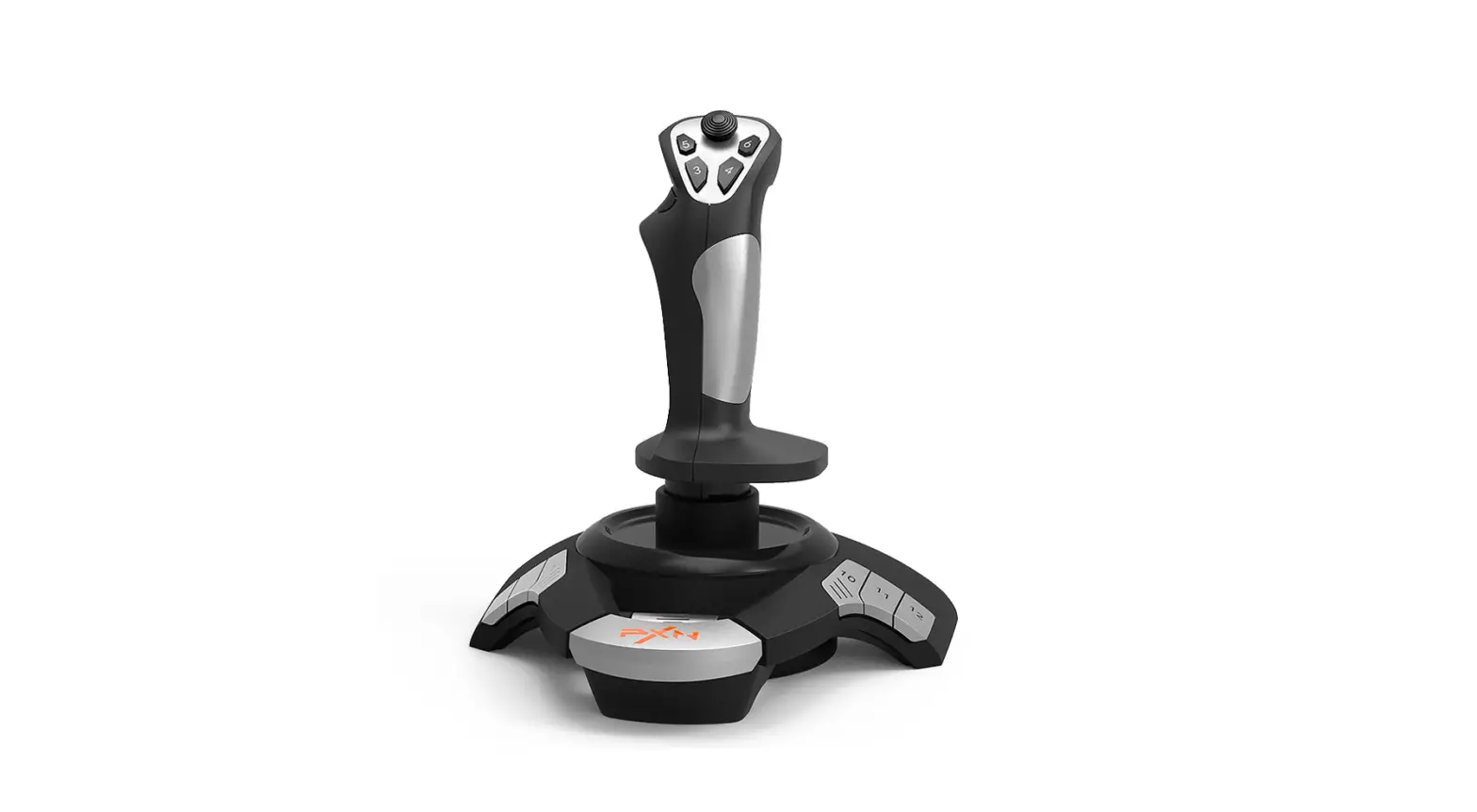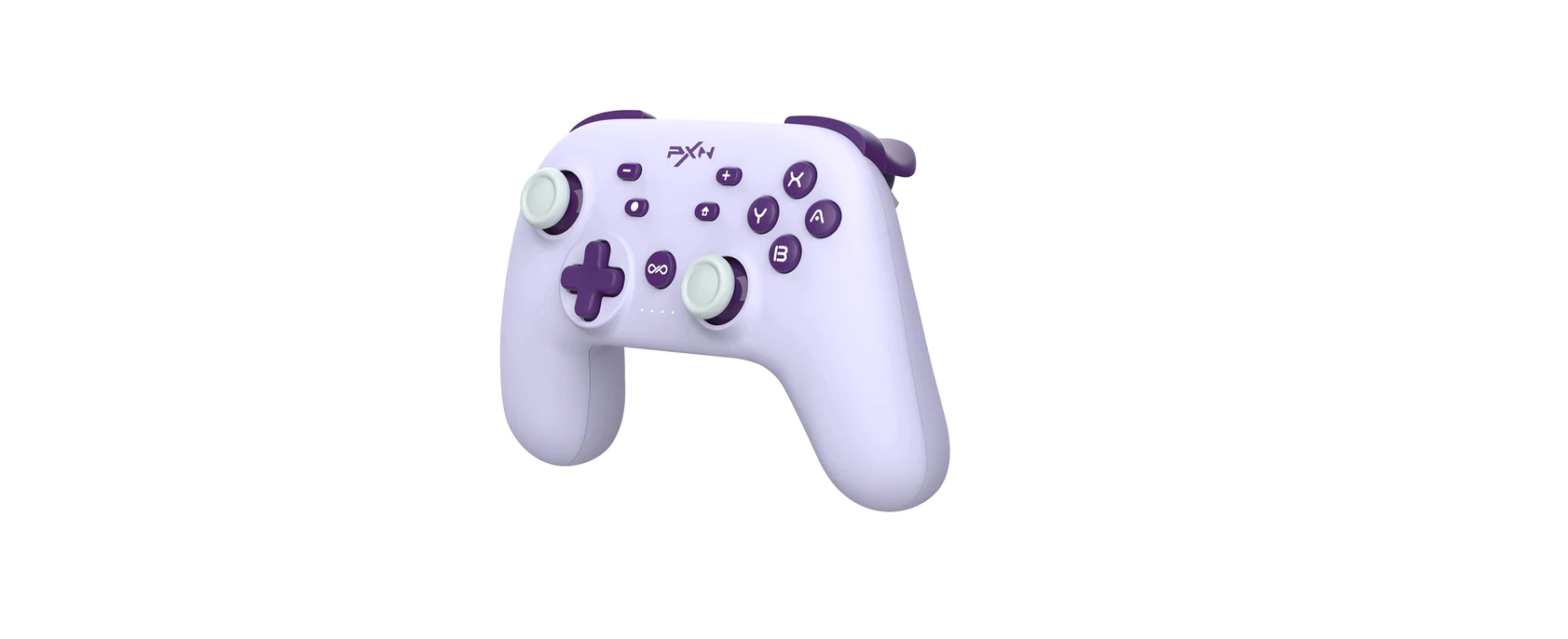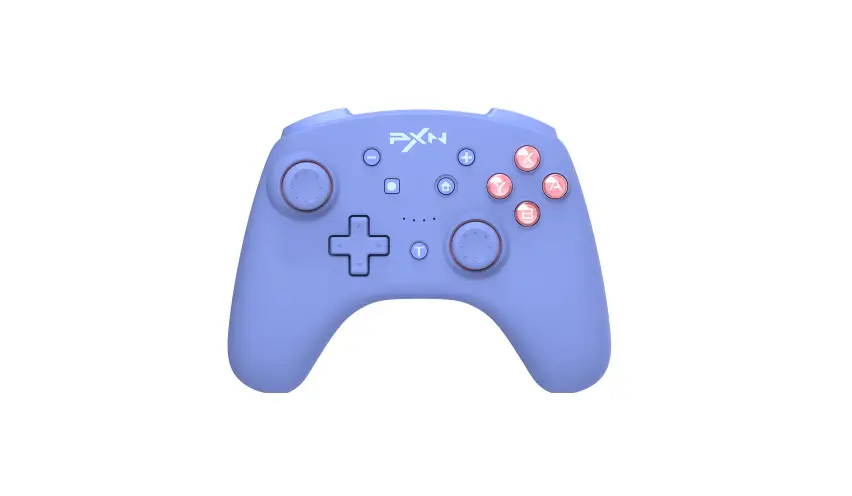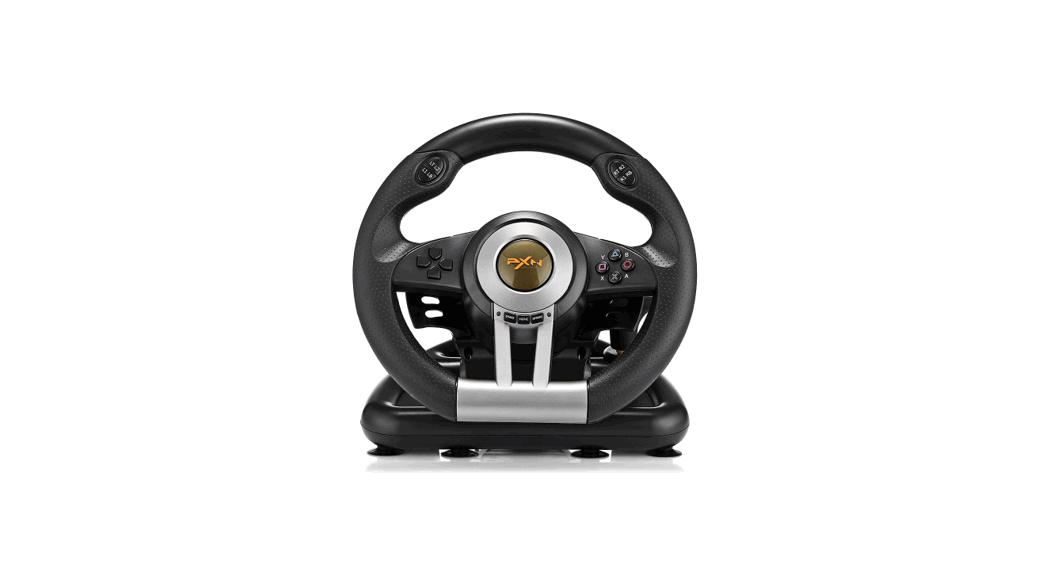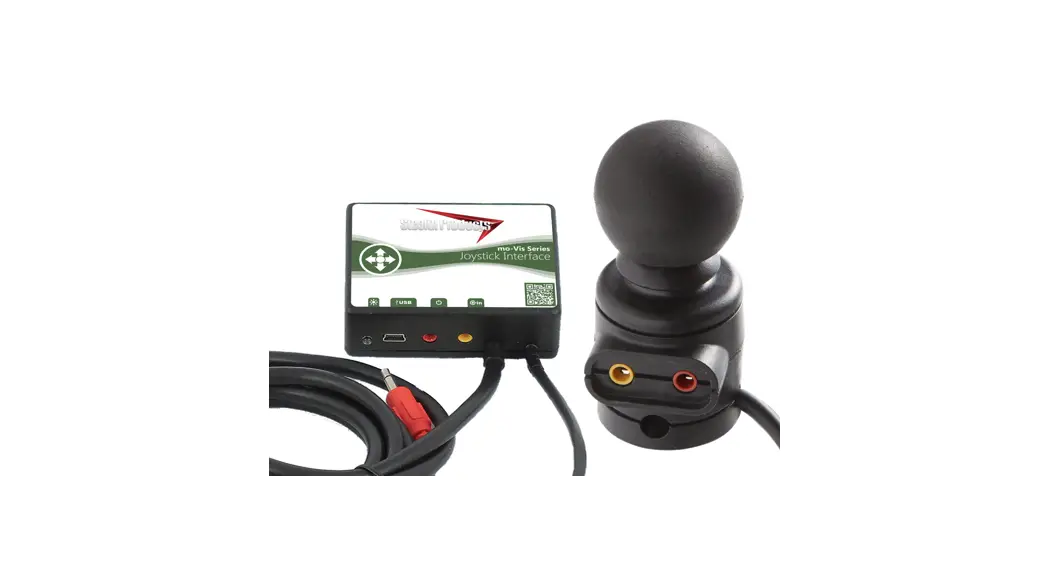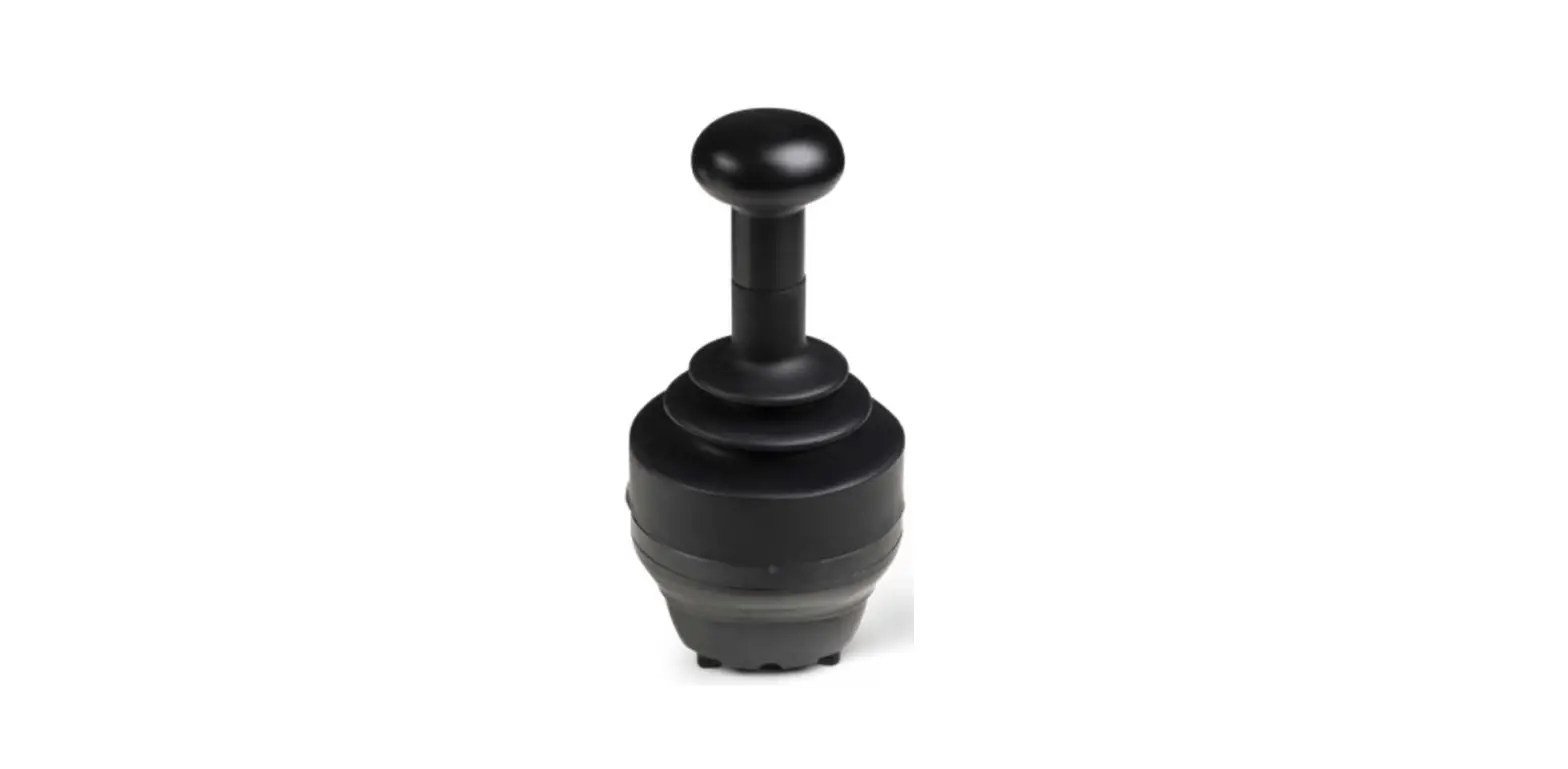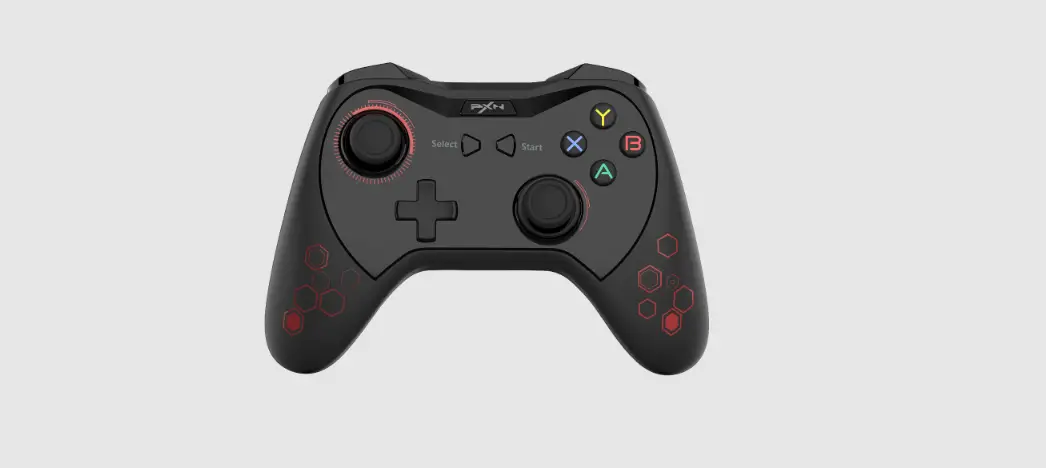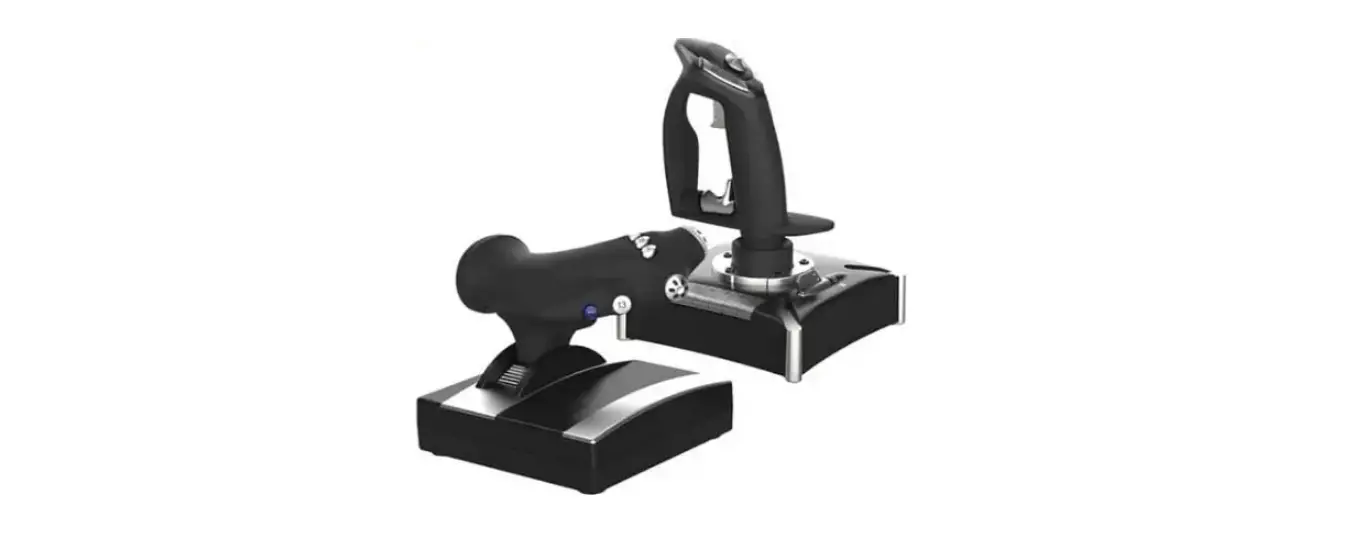

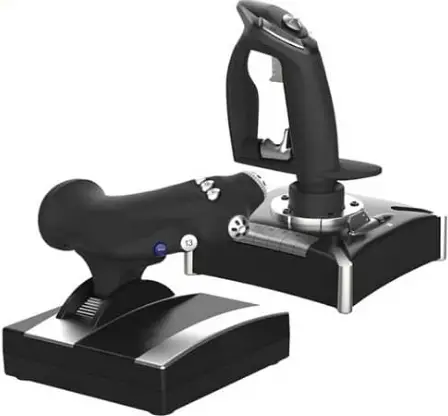
PXN 2119 Pro Gaming Joystick
System Requirements
Compatible Platforms: PC , PS4 , XBOX ONE
System Requirement on PC: Windows 7 / 8 / 10 / 11
Product Overview
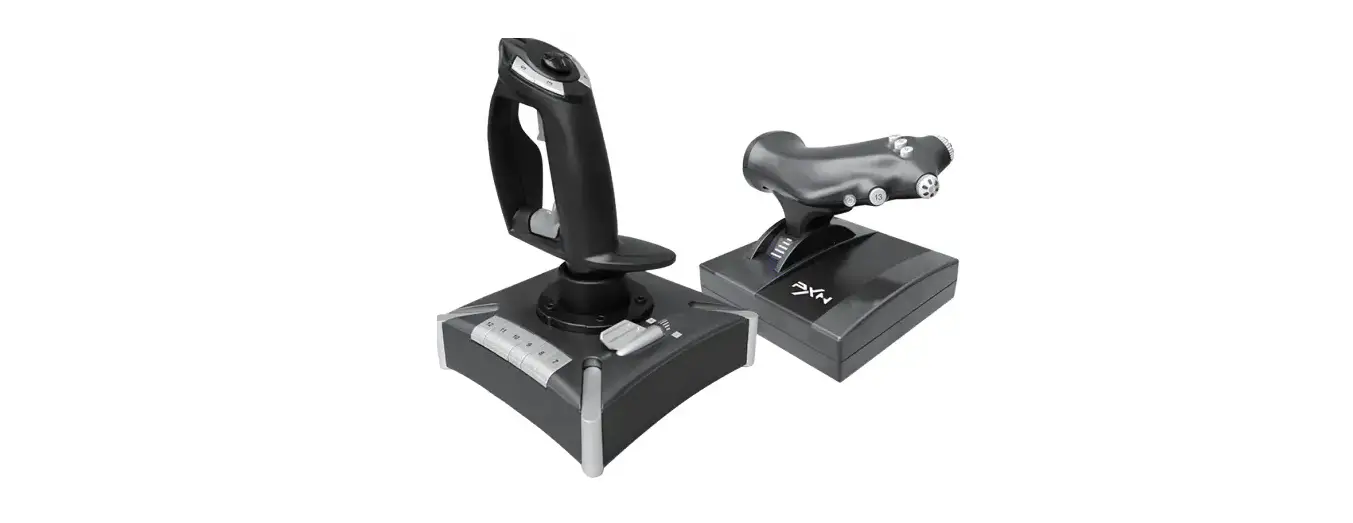
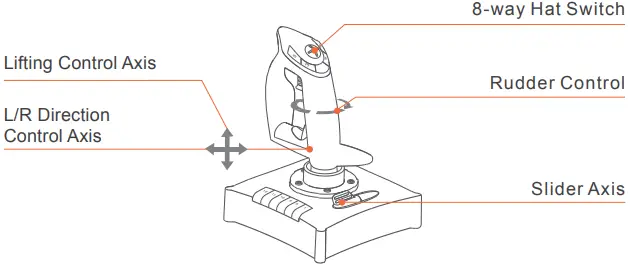
Joystick
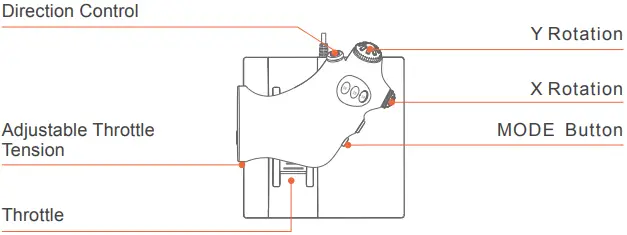
Accelerator Rudde
Instructions
Connect with PC
Step 1 Launch PXN official website (www.e-pxn.com) to download and install driver, details show below:
Home → Support → Tools → Find PXNJoysitck software to download. Step 2 Extract the downloaded driver, and install according to instruction. Step 3 Plug the PXN Flight Joystick into PC USB port, computer will prompt new hardware and install automatically.
Step 4 Then you can play game or conduct joystick settings in PXNJoystick.
PXNJoystick and Tutorial
Scan below QR code can download PXNJoystick and acquire operation tutorial.

QR Code For The Tutorial
The driver works on PC, please download and install on PC.
Connect with PS4
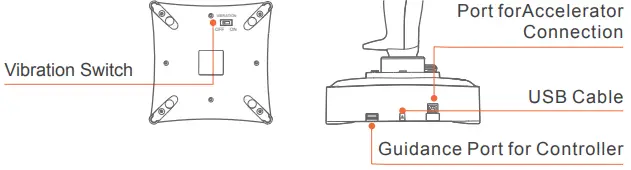
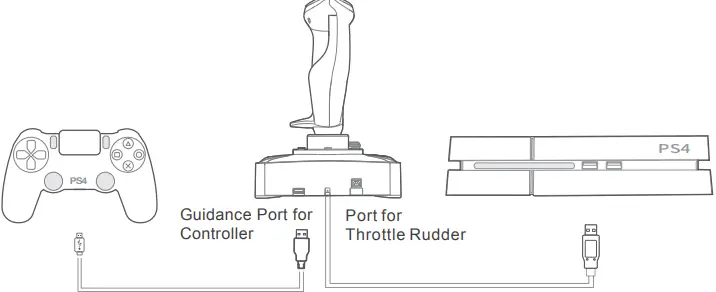
- Step 1 Plug the throttle into joystick, then plug the PS4 original controller into guidance port. (Original controller should be powered OFF)
- Step 2 Plug the joystick into PS4 console USB port.
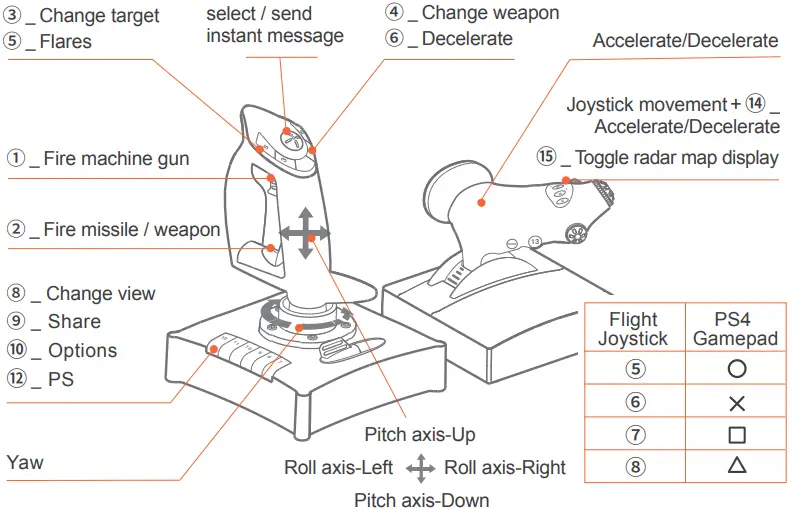
- Step 3 Press No. 12 button on joystick launching game to play.

Acecombat : Skies Unknown-PS4
Connect with XBOX ONE
Step 1 Plug the throttle into joystick, then plug the XBOX ONE original controller into guidance port. (Original controller should be powered OFF) Step 2 Plug the joystick into XBOX ONE console USB port.
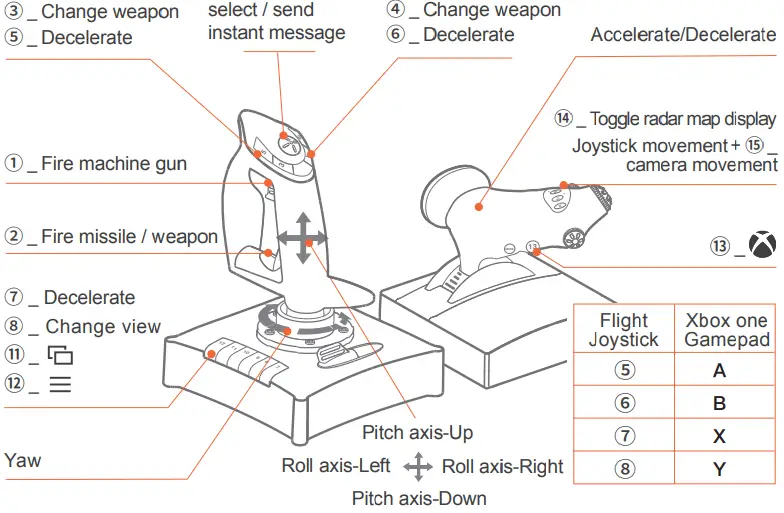
Step 3 Press No. 13 button on joystick launching game to play.
Acecombat : Skies Unknown-XBOX ONE
Function Testing Instruction
| Function | Specification |
| Key: 1~16 | Press function button on joystick Corresponding button on testing screen will be lighted. |
| POV1/POV2 | Pull POV toward different direction, corresponding arrow on testing screen will be lighted. POV 1 used to be defined as point of view POV 2 can be assigned different function |
|
MODE | Three modes are available by default, you can extend button to extra 16*3 functional button. MODE 0: Blue Indicator OFF MODE 1: Blue Indicator ON MODE 2: Blue Indicator Flash |
| X/Y Axis | For Joystick forward /Backward /Left /Right movement “+” Arrow move along under X/Y Axis movement |
| Twist | Move the joystick left or right Used for plane turning left or right movement in game |
| Slide | Slider Axis Used to control tilt or fuel mixture (requires game support) |
| Throttle | Push forward or backward Used to increase and decrease accelerator |
| Rotary X/Y | X/Y Rotation Used to control trim and pitch (requires game support) |
Attention
- Avoid strong vibration, do not disassemble, refit or repair on your own.
- Avoid water or other liquid In or around the steering wheel – it may affect the performance of the steering wheel.
- Keep out of humid, high temperature or soot place.
- If have any set-up or quality problem, please contact with seller or after-sales service.
 Shenzhen PXN Electronic Technology Co., Ltd | PXN Racing Wheel, Game Controller, Arcade Stick for Xbox One, PS4 Switch, PC