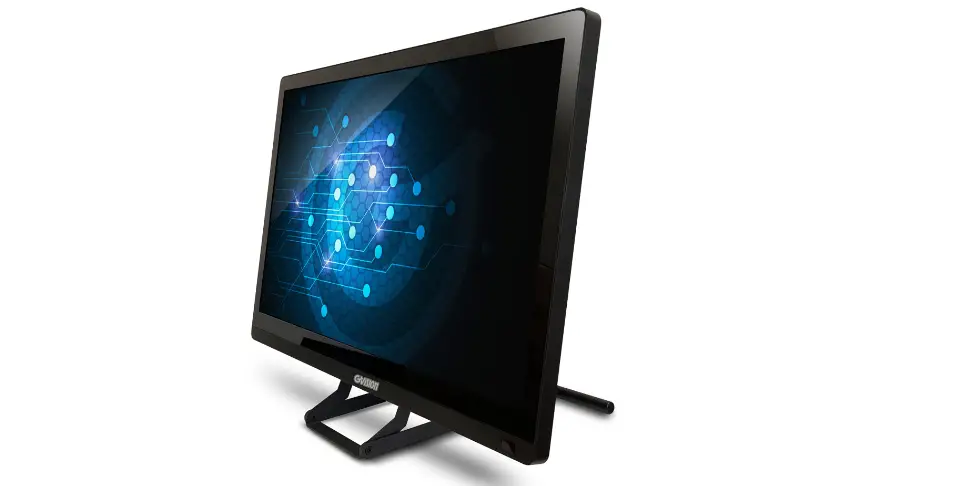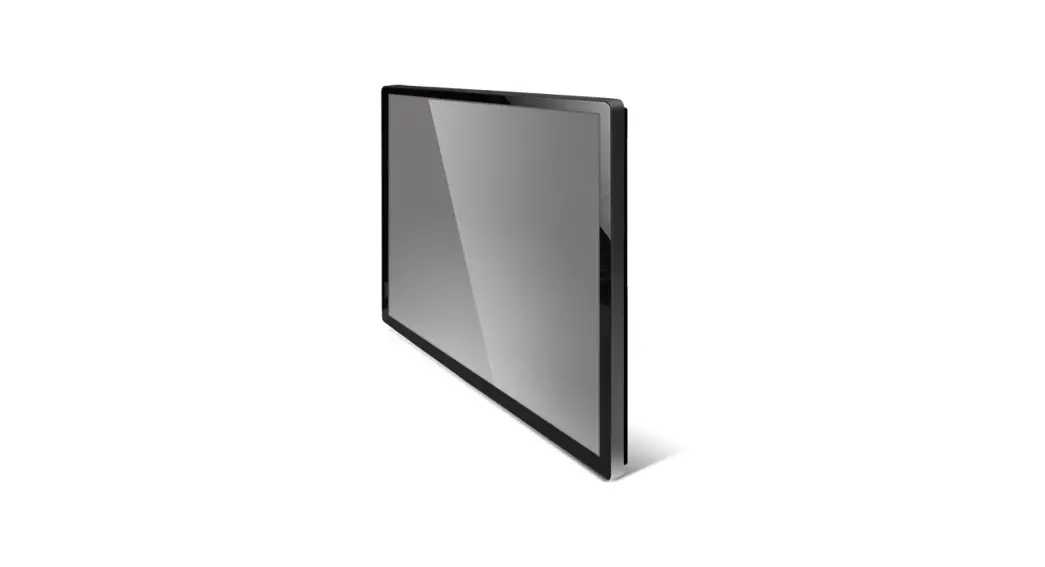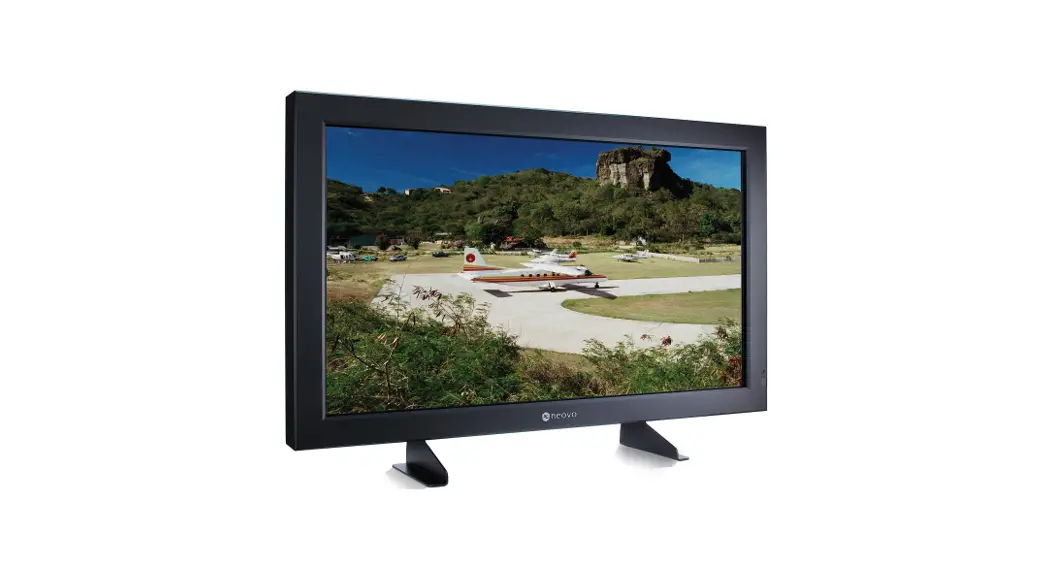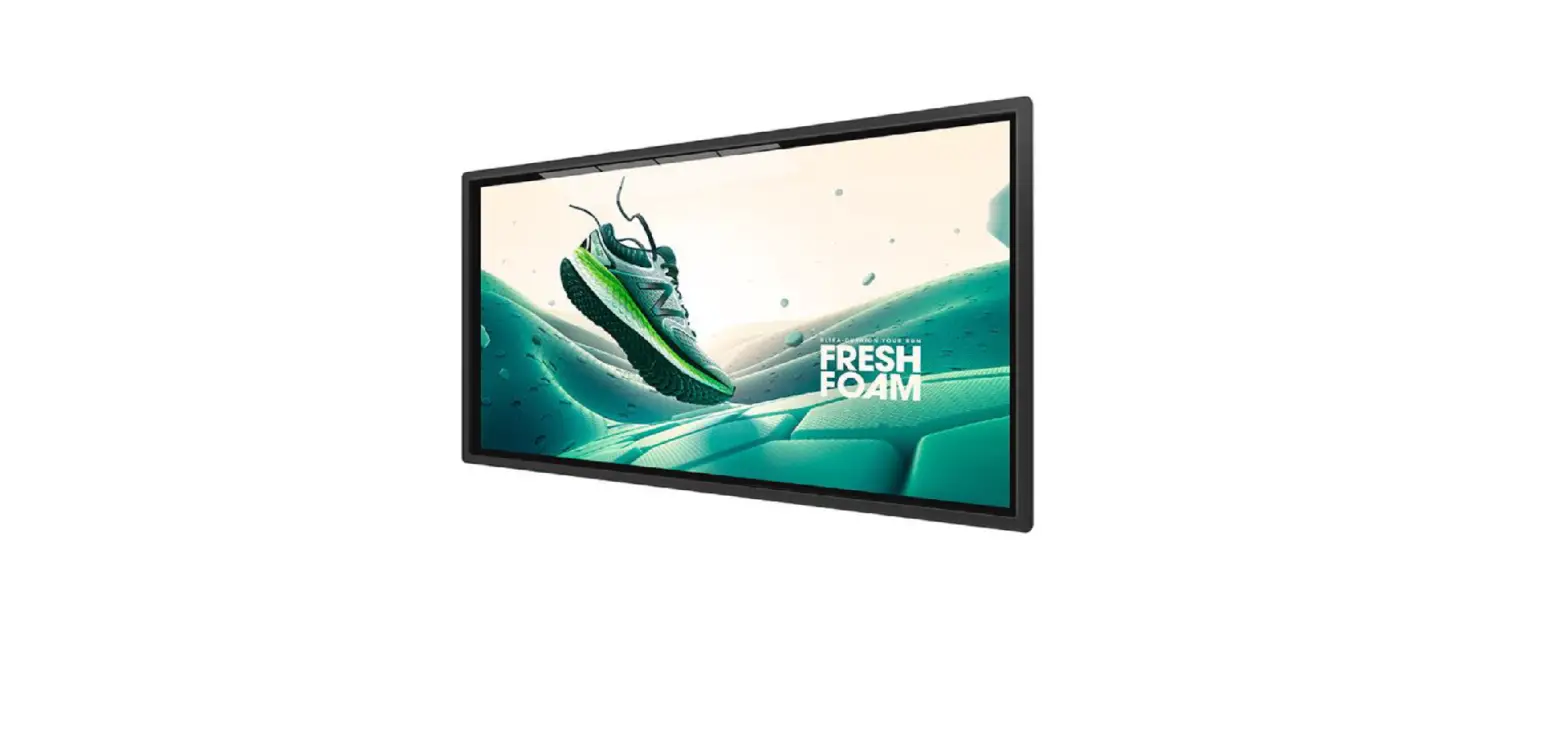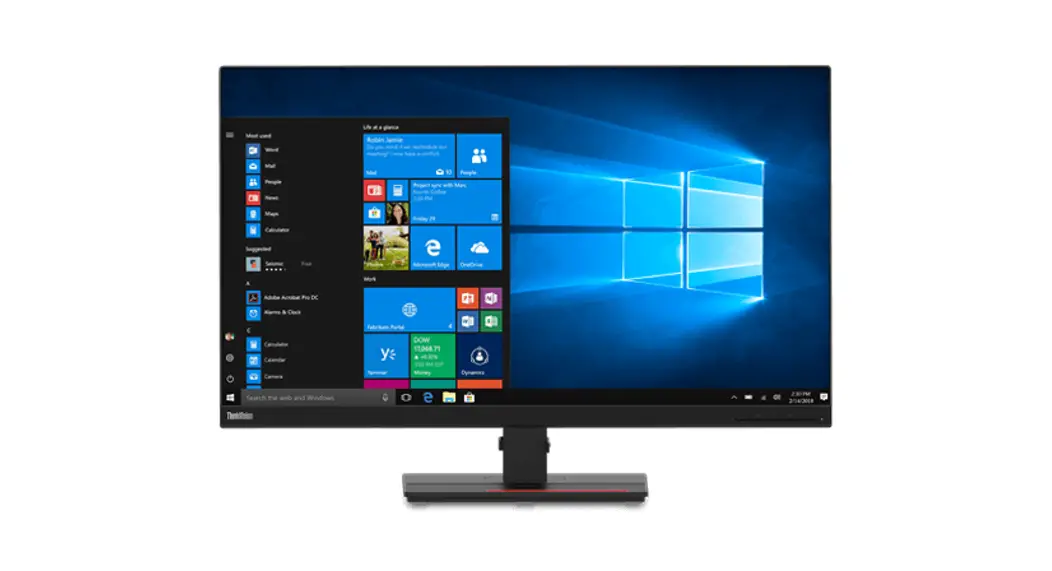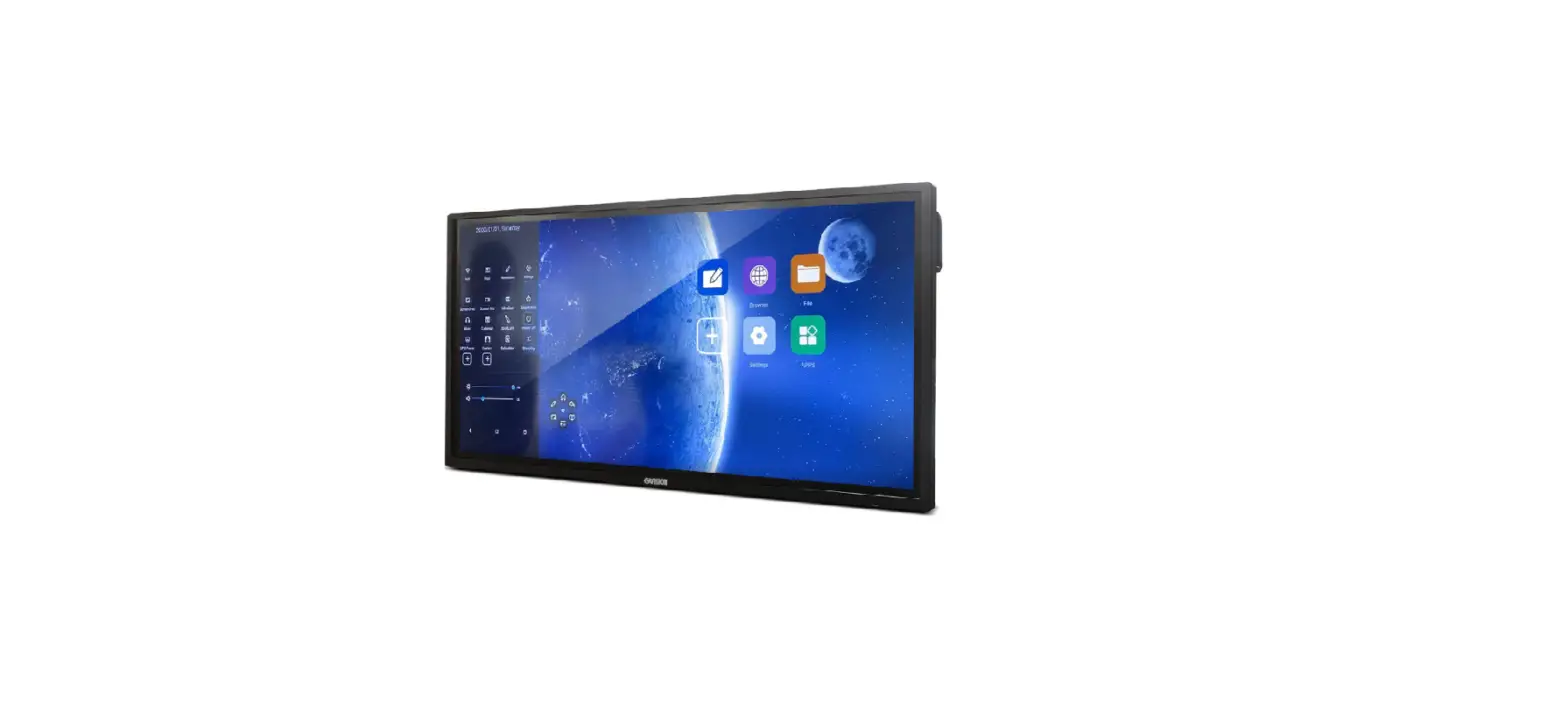

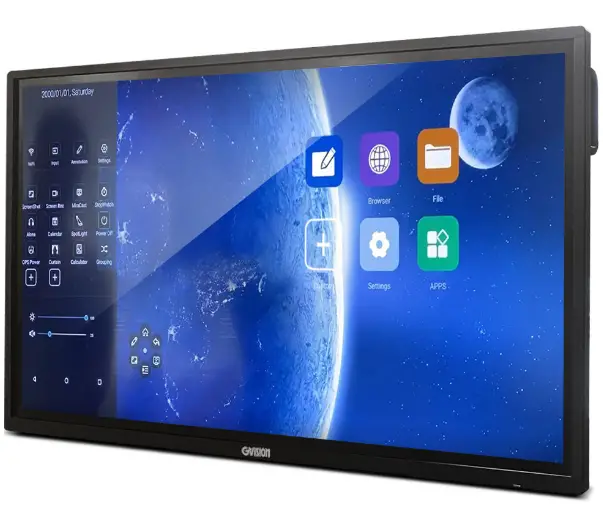
GViSiON I32ZI-OD-45P0 4K UHD Large Format Touch Monitor
Important Information
WARNING
- TO PREVENT FIRE OR SHOCK HAZARDS, DO NOT EXPOSE THIS UNIT TO RAIN OR MOISTURE. ALSO, DO NOT USE THIS UNIT’S POLARIZED PLUG WITH AN EXTENSION CORD RECEPTACLE OR OTHER OUTLETS UNLESS THE PRONGS CAN BE FULLY INSERTED.
- REFRAIN FROM OPENING THE CABINET AS THERE ARE HIGH VOLTAGE COMPONENTS INSIDE. REFER SERVICING TO QUALIFIED SERVICE PERSONNEL.
CAUTION: TO REDUCE THE RISK OF ELECTRIC SHOCK, MAKE SURE POWER CORD IS UNPLUGGED FROM WALL SOCKET. TO FULLY DISENGAGE THE POWER TO THE UNIT, PLEASE DISCONNECT THE POWER CORD FROM THE AC OUTLET. DO NOT REMOVE COVER (OR BACK). NO USER SERVICEABLE PARTS INSIDE. REFER SERVICING TO QUALIFIED SERVICE PERSONNEL.
- This symbol warns user that uninsulated voltage within the unit may have sufficient magnitude to cause electric shock. Therefore, it is dangerous to make any kind of contact with any part inside this unit.
- This symbol alerts the user that important literature concerning the operation and maintenance of this unit has been included. Therefore, it should be read carefully in order to avoid any problems.
CAUTION: Please use the power cord provided with this display in accordance with the table below. If a power cord is not supplied with this equipment, please contact GVISION. For all other cases, please use the power cord with the plug style that matches the power socket where the monitor is located. The compatible power cord corresponds to the AC voltage of the power outlet and has been approved by, and complies with, the safety standards in the country of purchase.
When operating this monitor with its AC 125-240V power supply, use a power supply cord that matches the power supply voltage of the AC power outlet being used.
Care and Cleaning
- Always unplug your monitor from the wall outlet before cleaning. Clean the LCD monitor surface with a lint-free, non-abrasive cloth. Avoid using any liquid, aerosol or glass cleaners.
- Slots and openings on the back or top of the cabinet are for ventilation. They must not be blocked or covered. Your monitor should never be placed near or over a radiator or heat source, or in a built in installation unless proper ventilation is provided.
- Never push objects or spill liquid of any kind into this product.
Safety Precautions / Maintenance
- Do not use this apparatus near water.
- Clean only with dry cloth.
- Do not block any ventilation openings. Install in accordance with the manufacturer’s instructions.
- Do not install near any heat sources such as radiators, heat registers, stoves, or other apparatus (including amplifiers) that produce heat.
- Do not defeat the safety purpose of the polarized or grounding-type plug. A polarized plug has two blades with one wider than the other. A grounding type plug has two blades and a third grounding prong. The wide blade or the third prong are provided for your safety. If the provided plug does not fit into your outlet, consult an electrician for replacement of the obsolete outlet.
- Protect the power cord from being walked on or pinched particularly at plugs, convenience receptacles, and the point where they exit from the apparatus.
- Only use attachments/accessories specified by the manufacturer.
- Use only with the cart, stand, tripod, bracket, or table specified by the manufacturer, or sold with the apparatus. When a cart is used, use caution when moving the monitor combination to avoid injury from tip-over.
- Unplug the monitor during lightning storms or when unused for long periods of time.
- Refer all servicing to qualified service personnel. Servicing is required when the apparatus has been damaged in any way, such as power-supply cord or plug is damaged, liquid has been spilled or objects have fallen into the apparatus, the monitor has been exposed to rain or moisture, does not operate normally, or has been dropped.
- Do not press strongly upon the panel with a hand or a sharp object such as a nail, pencil, or pen, or make a scratch on it.
- Do not stick metal objects or any other conductive material into the power cord. Do not touch the end of the power cord while it is plugged in.
- Keep the packing anti-moisture material or vinyl packing out of the reach of children. Anti-moisture material is harmful if swallowed. If swallowed, induce vomiting and go to the nearest hospital. Additionally, vinyl packing can cause suffocation. Keep it out of the reach of children.
- Concerning the Power Cord (Can differ by country): Check the specification page of this owner’s manual to be certain concerning current requirements. Do not connect too many devices to the same AC power outlet as this could result in fire or electric shock. Do not overload wall outlets. Overloaded wall outlets, loose or damaged wall outlets, extension cords, frayed power cords, or damaged or cracked wire insulation are dangerous. Any of these conditions could result in electric shock or fire. Periodically examine the cord of your device, and if its appearance indicates damage or deterioration, unplug it, discontinue use of the device, and have the cord replaced with an exact replacement part by an authorized servicer. Protect the power cord from physical or mechanical abuse, such as being twisted, kinked, pinched, closed in a door, or walked upon. Pay particular attention to plugs, wall outlets, and the point where the cord exits the device. Do not move the monitor with the power cord plugged in. Do not use a damaged or loose power cord. Be sure do grasp the plug when unplugging the power cord. Do not pull on the power cord to unplug the monitor.
- To reduce the risk of fire or electrical shock, do not expose this product to rain, moisture or other liquids. Do not touch the screen with wet hands. Do not install this product near flammable objects such as gasoline or candles, or expose the TV to direct air conditioning.
- Do not use high voltage electrical equipment near the TV (e.g., a bug zapper). This may result in product malfunction.
- Do not expose to dripping or splashing and do not place objects filled with liquids, such as vases, cups, etc. on or over the apparatus (e.g., on shelves above the unit).
- Do not attempt to modify this product in any way without written authorization from GVISION. Unauthorized modification could void the user’s authority to operate this product.
- Moving: Make sure the product is turned off, unplugged, and all cables have been removed. Do not press or put stress on the front panel of the monitor screen.
- If you smell smoke or other odors coming from the monitor screen, unplug the power cord and contact an authorized service center.
- If water or another substance enters the product (like an AC adapter, power cord, or display unit), disconnect the power cord and contact the service center immediately. Otherwise, this may result in fire or electric shock.
Controllers & Settings
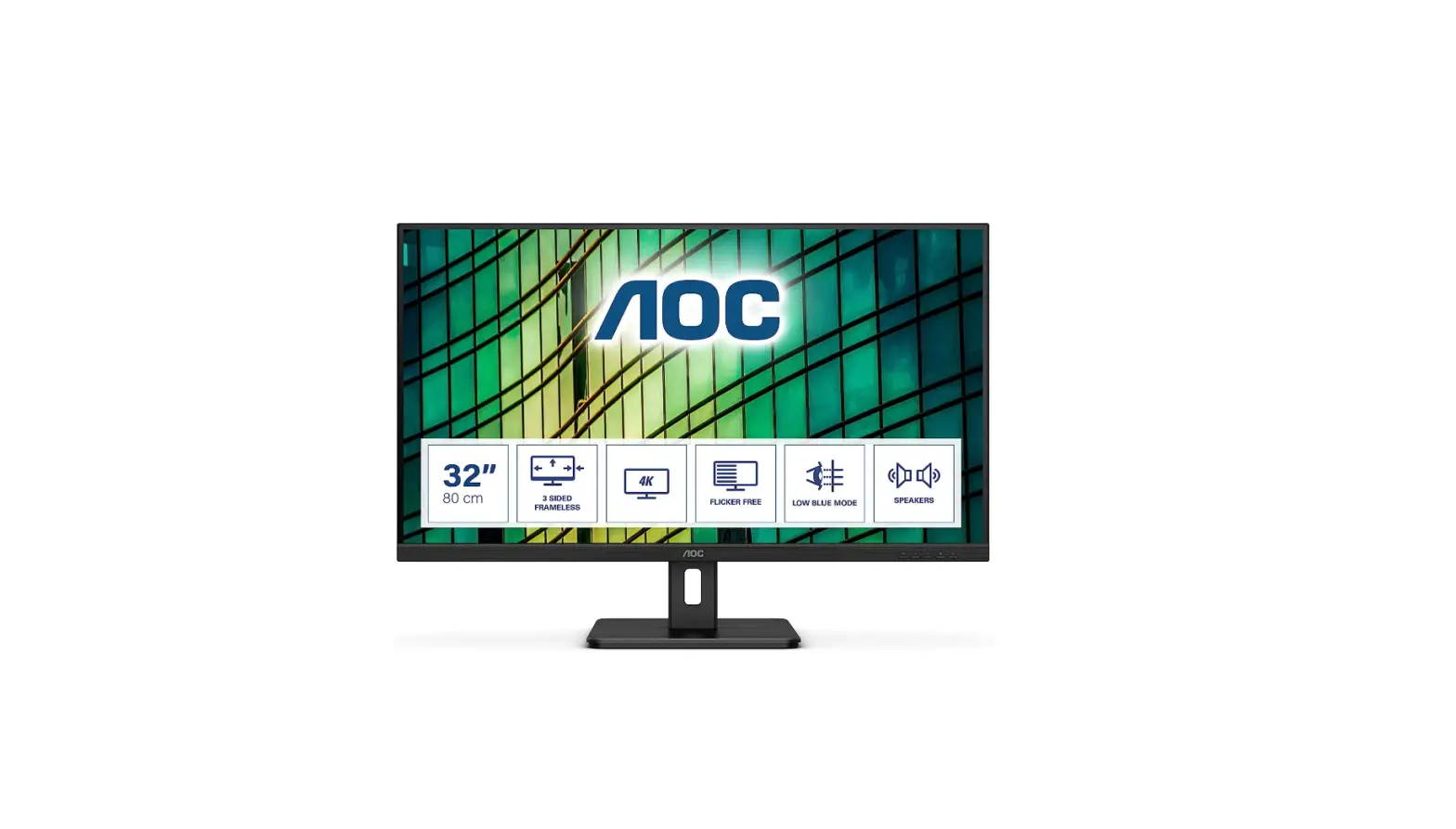
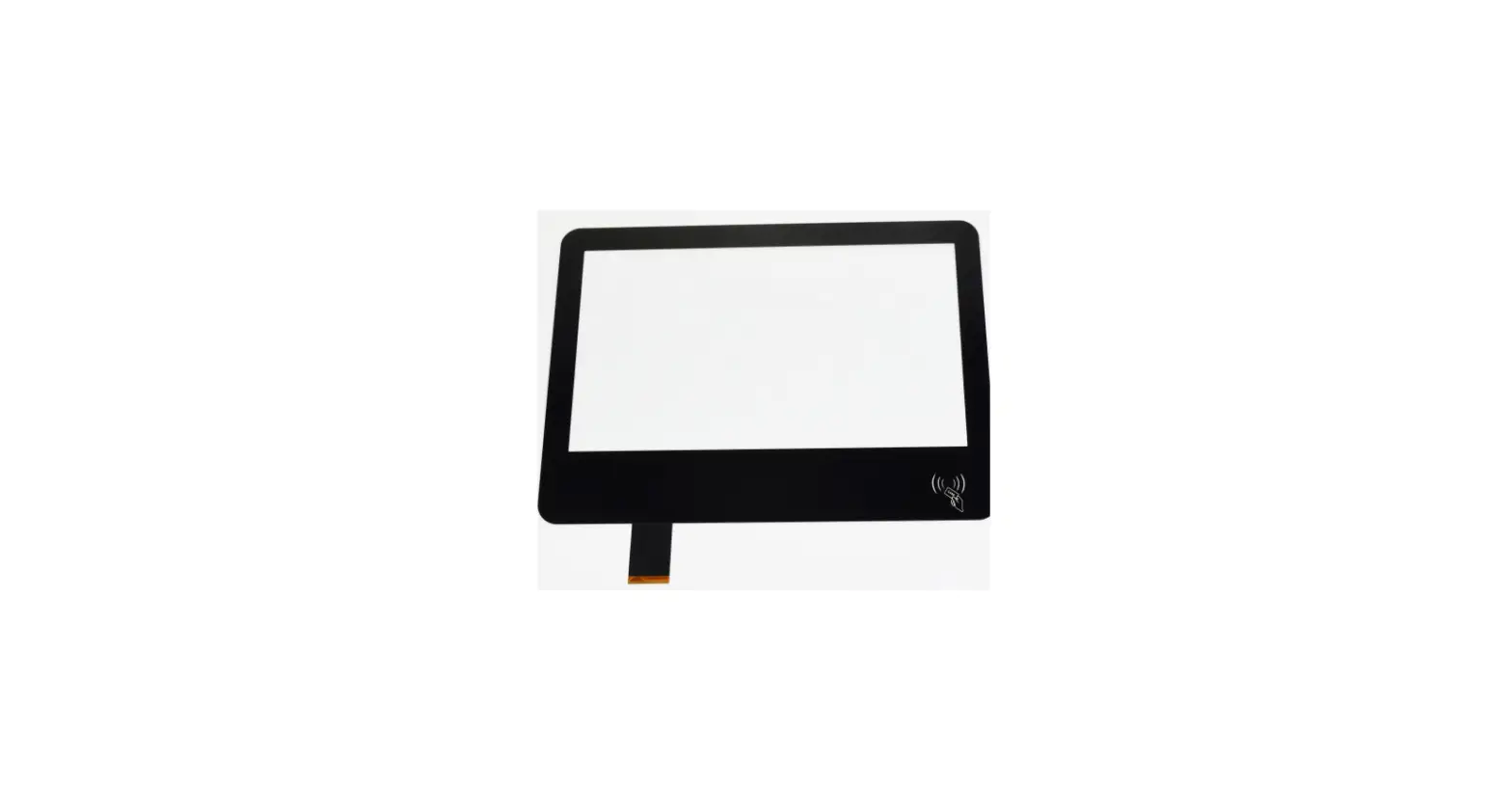
32″ 4K UHD large format touchscreen monitor performs 10-point PCAP touch technology, and designed to support digital HDMI, DisplayPort, and DVI Input ports.
Monitor Interface
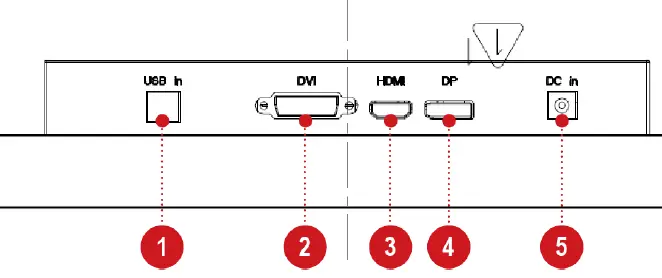
| INTERFACES INSTRUCTION | ||
| 1 | USB IN | Touch source of USB Type-B |
| 2 | DVI | DVI Input Source |
| 3 | HDMI | HDMI Input Source |
| 4 | DP | DisplayPort (DP) Input Source |
| 5 | DC IN | Main power input of monitor, DC12V |
Monitor Controller Button
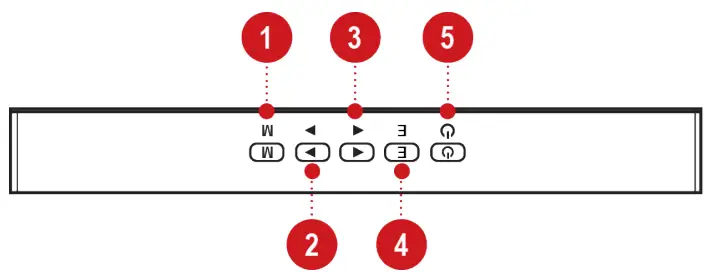
| 1 | MENU | Enter the menu, save the adjustment of sub menu and exit the OSD |
| 2 | LEFT | Change the value on selected menu |
| 3 | RIGHT | Change the value on selected menu |
| 4 | SOURCE | Select an input source |
| 5 | POWER | Monitor Power On / Off |
Select Input Source
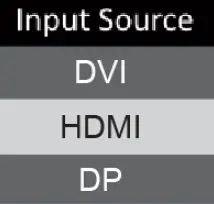
Press “SOURCE” button on monitor to change the input source of the monitor.
- Press “SOURCE” button to change input source and then press ► or ◄ button to select input source on monitor.
- Press “E” enter button select input source from the monitor.
Brightness
Select Brightness from the menu.
| Main Menu | Main Menu Icon | Submenu | Sub-submenu | Description |
|
BRIGHTNESS | 
| BRIGHTNESS | None | Adjusts display brightness |
| CONTRAST | None | Adjusts display contrast ratio | ||
|
ECO | STANDARD | Normal use mode | ||
| TEXT | Text application mode | |||
| GAME | Game application mode | |||
| MOVIE | Movie playing application mode | |||
| DCR | ON | Enables DCR | ||
| OFF | Disables DCR |
Image
Select Image from the menu.
| Main Menu | Main Menu Icon | Submenu | Sub-submenu | Description |
|
IMAGE | 
| H.POSITION | None | Adjusts the picture horizontal position |
| V.POSITION | None | Adjusts the picture vertical position | ||
| CLOCK | None | Adjusts the picture clock to reduce the vertical noise | ||
| PHASE | None | Adjusts the picture phase to reduce the horizontal noise | ||
|
ASPECT | AUTO | Auto checks and adjusts the image display aspect ratio | ||
| WIDE | Adjusts the image aspect ratio as wide- screen mode | |||
| 4:3 | Adjusts the image aspect ratio as 4:3 mode |
Color Temp
Select Color Temperature from the menu.
| Main Menu | Main Menu Icon | Submenu | Sub-submenu | Description |
|
COLOR TEMP. | 
|
COLOR TEMP. | WARM | Set as warm color temperature |
| COOL | Set as cold color temperature | |||
| USER | Set as user color temperature | |||
| RED | None | Finely tunes red color temperature | ||
| GREEN | None | Finely tunes green color temperature | ||
| BLUE | None | Finely tunes blue color temperature |
OSD Setting
Select OSD Setting from the menu.
| Main Menu | Main Menu Icon | Submenu | Sub-submenu | Description |
|
OSD SETTING | 
|
LANGUAGE |
None | Selects the language displayed by OSD menu (English, French, German, Simplified Chinese, Italian, Spanish, Portuguese, Turkish, Polish, Dutch, Russian, Korean) |
| OSD H.POS. | None | Adjusts OSD horizontal position | ||
| OSD V.POS. | None | Adjusts OSD vertical position | ||
| OSD TIMER | None | Adjusts OSD display time | ||
| TRANSPARENCY | None | Adjusts OSD transparency |
Reset
Select Reset from the menu.
| Main Menu | Main Menu Icon | Submenu | Sub-submenu | Description |
|
RESET |
| IMAGE AUTO ADJUST |
None | Auto adjusts the horizontal/vertical position, focus and clock of the image |
| RESET | None | Restore to factory setting | ||
| AUTO POWERDOWN [Disabled] | None | Select energy-saving, automatic shutdown in 1min. without any signal input. |

Misc
Select Misc. from the menu.
| Main Menu | Main Menu Icon | Submenu | Sub-submenu | Description |
|
MISC | 
|
HOTKEY TYPE |
ECODCR | Any selected item is Hotkey. The first two are available for all models; ASP+ECO is only available for wide-screen model; SOU +VOL is respectively used to switch input signal and adjust the volume |
|
SIGNAL SOURCE | DP | DP (digital) signal input | ||
| DVI | DVI (digital) signal input | |||
| HDMI | HDMI (digital) signal input |
Trouble Shooting
If experiencing trouble with the monitor, or it fails to operate correctly, please refer to the following instructions before calling for repairs.
| TROUBLE | SUGGESTIONS |
| The picture does not appear |
|
| The screen is not synchronized |
|
| The position of the screen is not in the center |
|
| The screen is too bright (too dark) |
|
|
The screen is shaking or waving |
|
If you are unable to correct the fault by using this chart, stop using your monitor and contact us via email [email protected] or call 949-586-3338 from RMA department.
Specifications
| MODEL | I32ZI-OD-45P0 |
| Resolution | 3840 x 2160 |
| Response Time | 9.5ms |
| Brightness (MAX) | 350cd/m² |
| Response Time (Typical) | 14ms |
| Aspect Ratio | 16:9 |
| Viewing Angle | 178°(H)/178°(V) |
| Display Color | 1.07B |
| Contrast Ratio | 3000:1 |
| INTERFACE | |
| HDMI | 1 |
| DVI | 1 |
| DisplayPort | 1 |
| TOUCH TECHNOLOGY | |
| Type | Projected Capacitive PCAP |
| Point | 10-Point |
| CABINET | |
| Color/Material | Black/Metal |
| POWER | |
| Electrical Rating | 12V DC / 3A (AC 100V ~ 240V, 50/60Hz) |
| TEMPERATURE | |
| Operating | 32~104°F |
| DIMENSION | |
| Inch | 29.5 x 17.8 x 2.2 |
| WEIGHT | |
| Weight | 30.8 Lbs |
| VESA™ | |
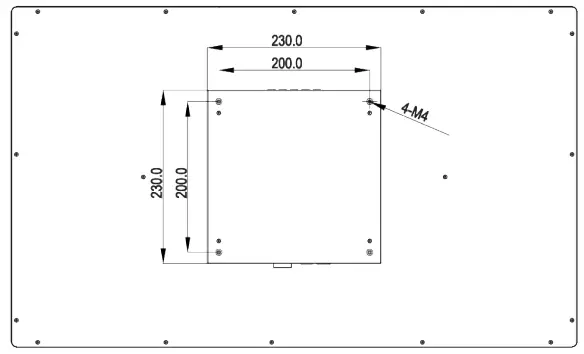
| Mount Size | 200x200mm |
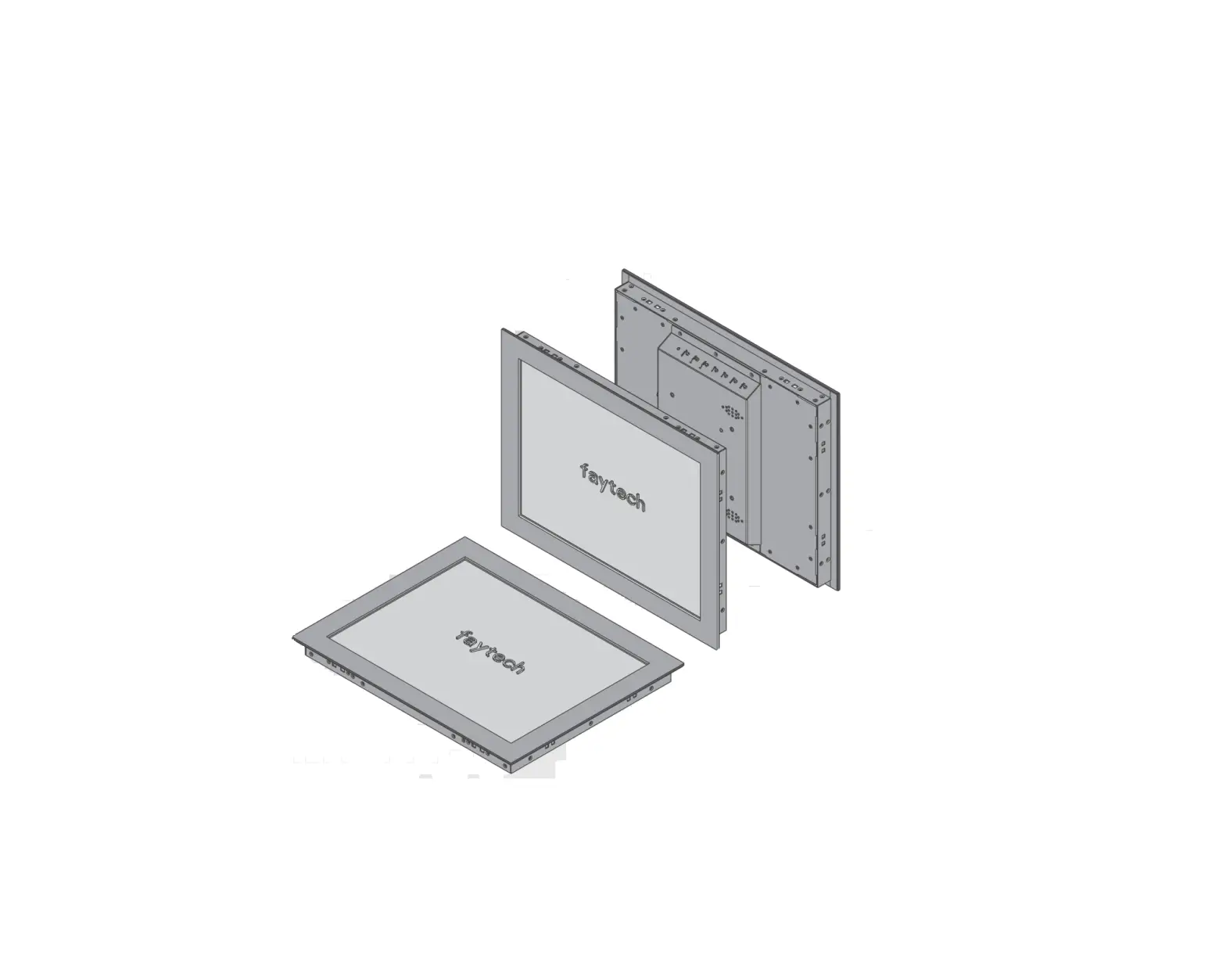
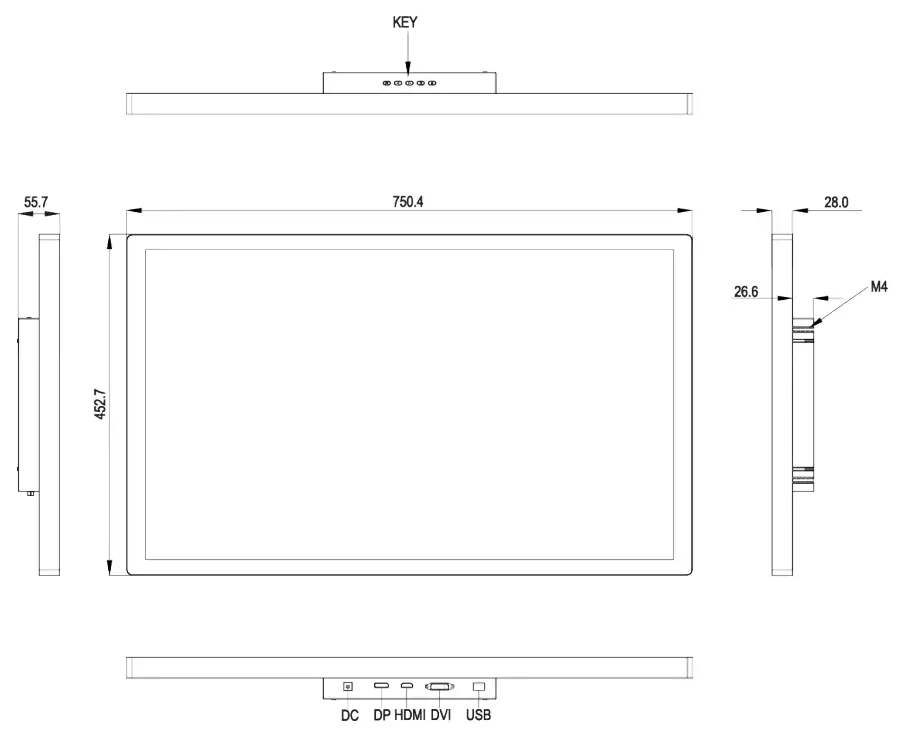
Dimensions
I32ZI-OD-45P0
CONTACT
- 30398 Esperanza Rancho Santa Margarita CA 92688
- Tel: 949-586-3338
- Fax: 949-272-4594
- Email: [email protected]
- WWW.GVISION-USA.COM