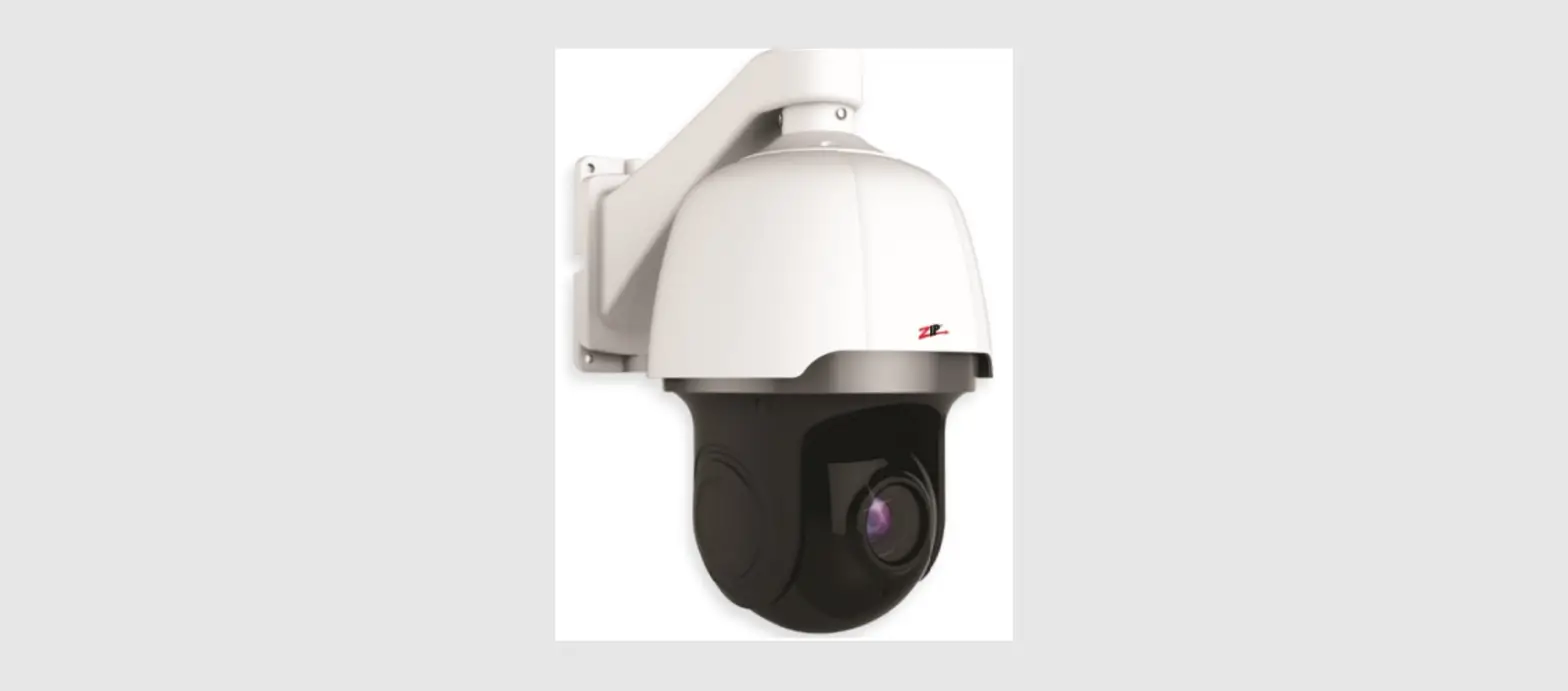
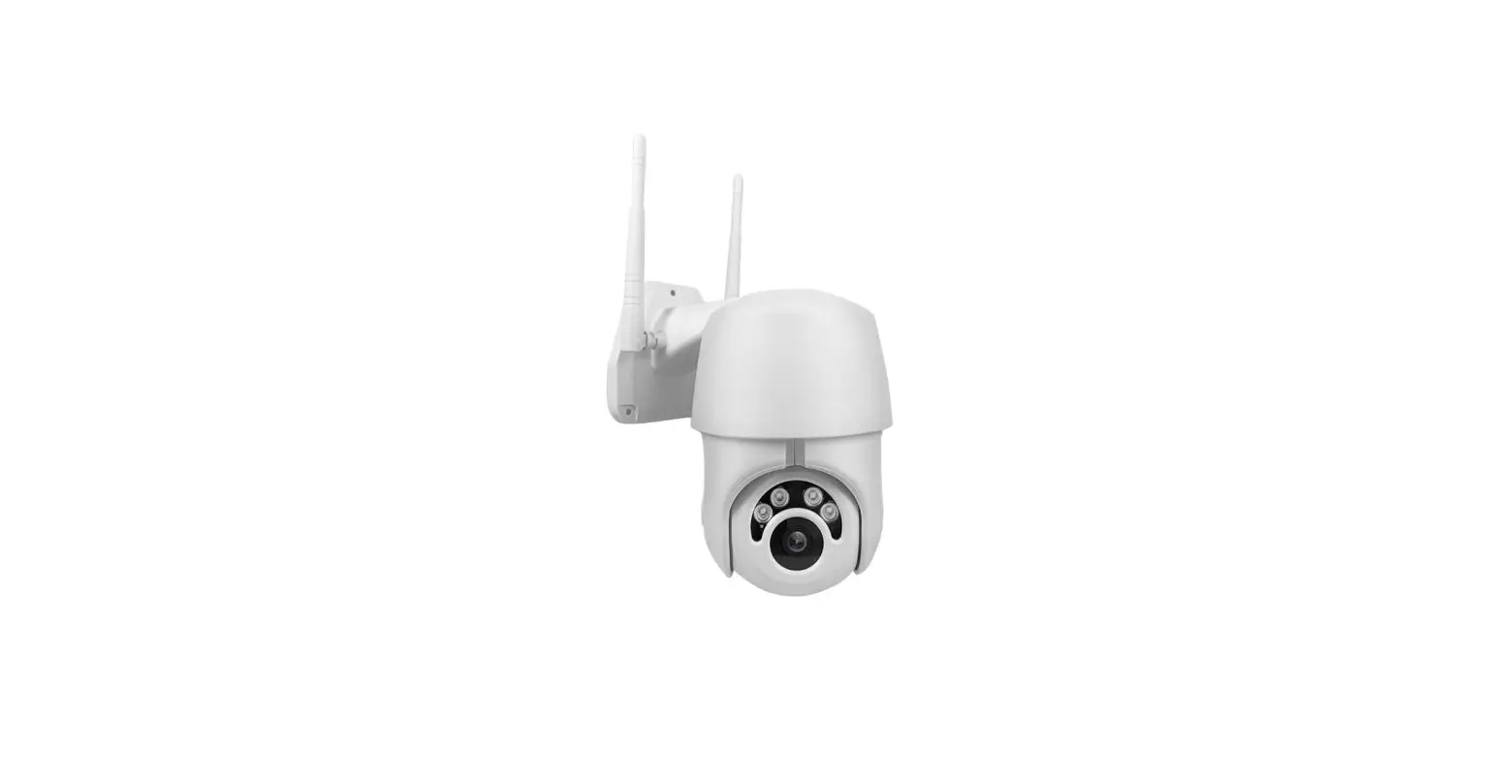
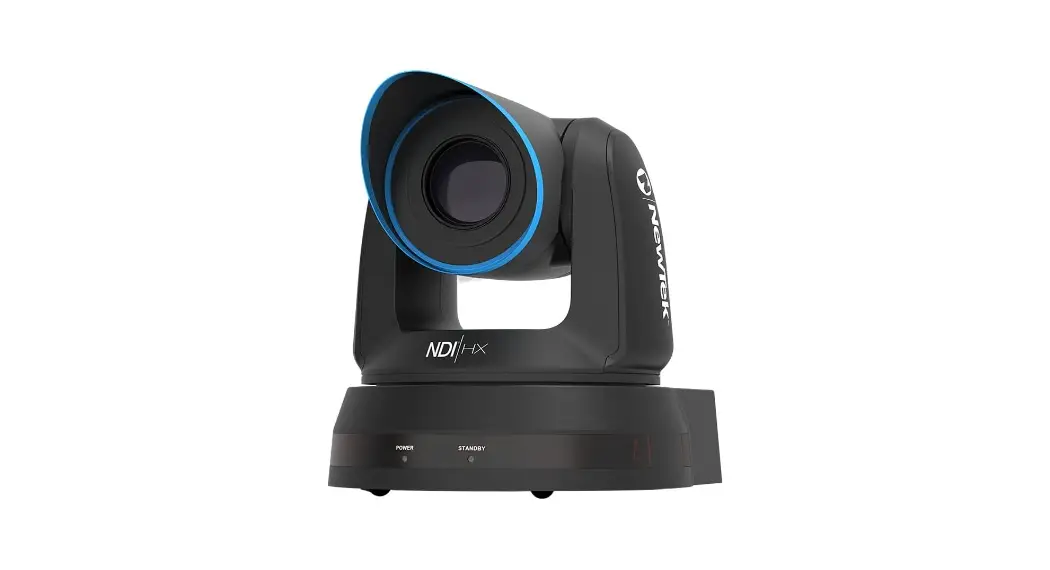
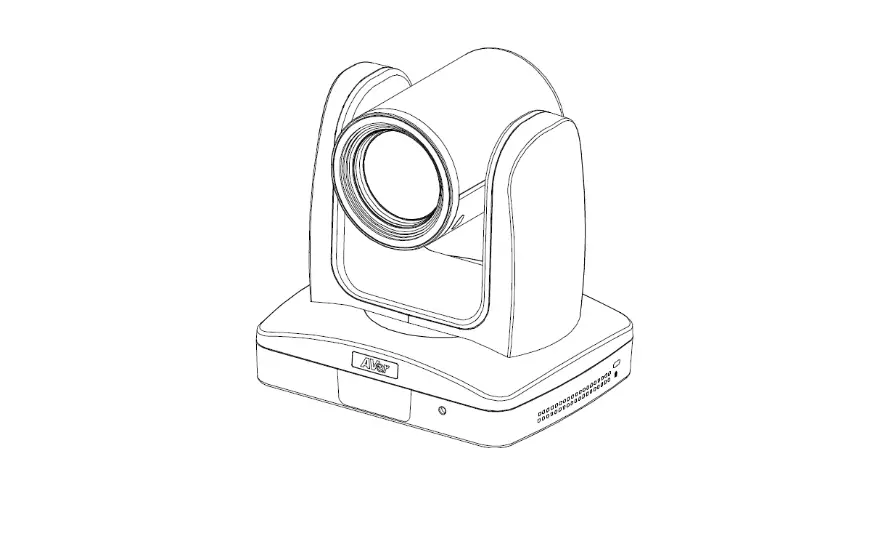
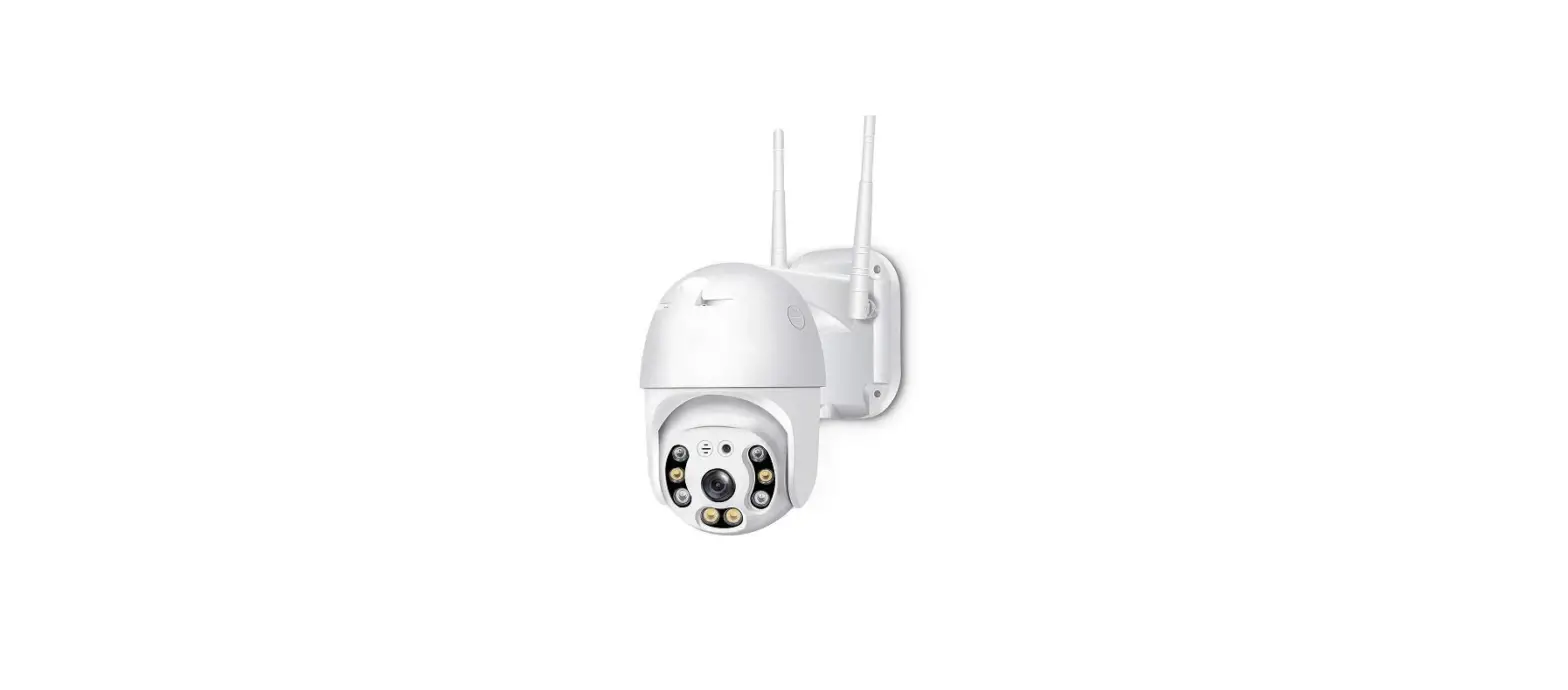
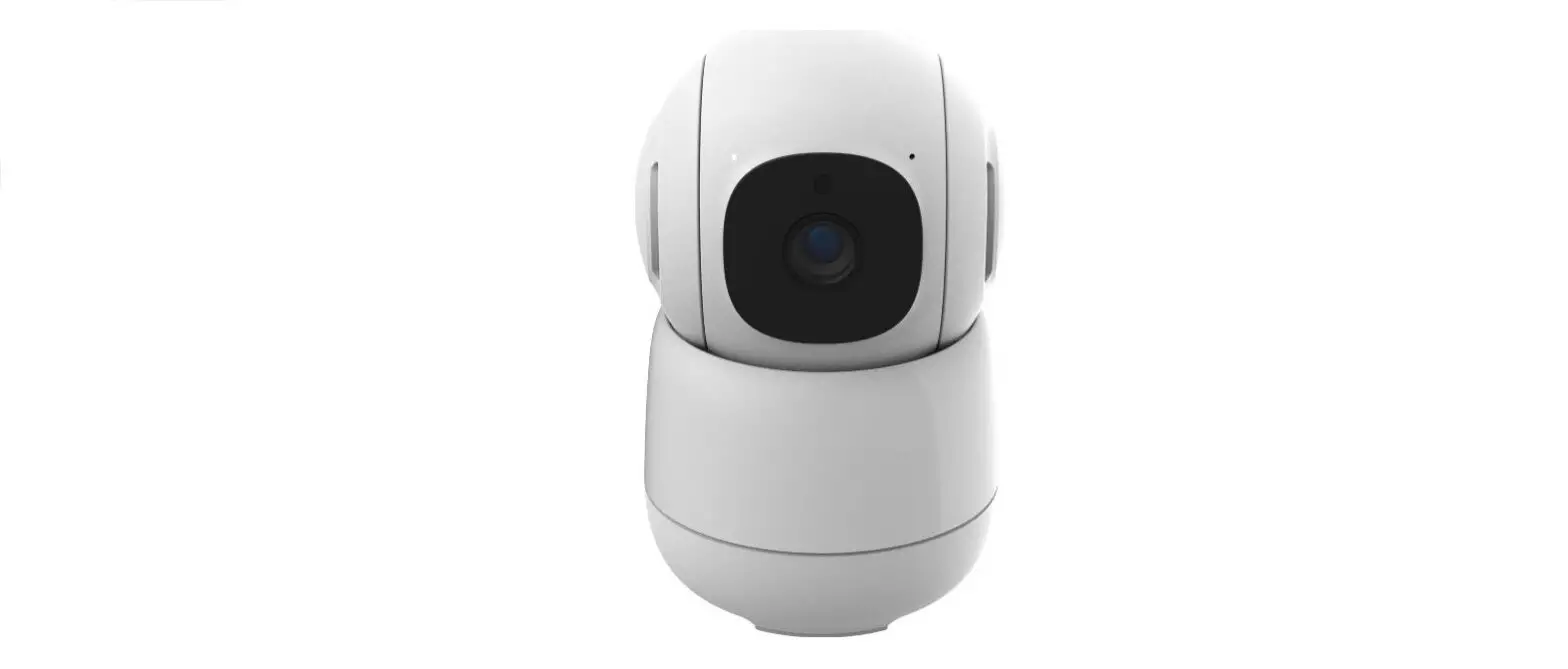
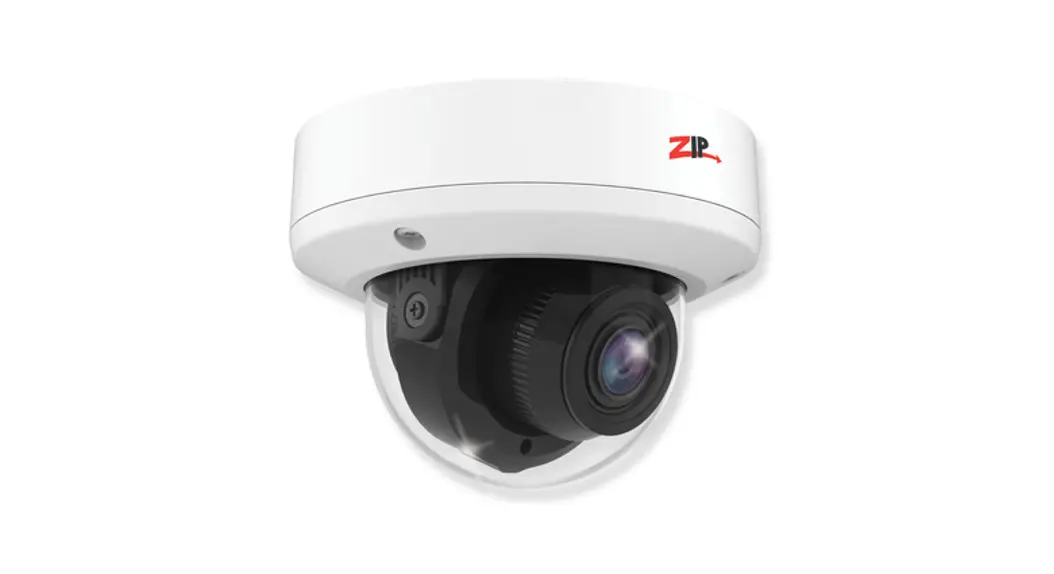
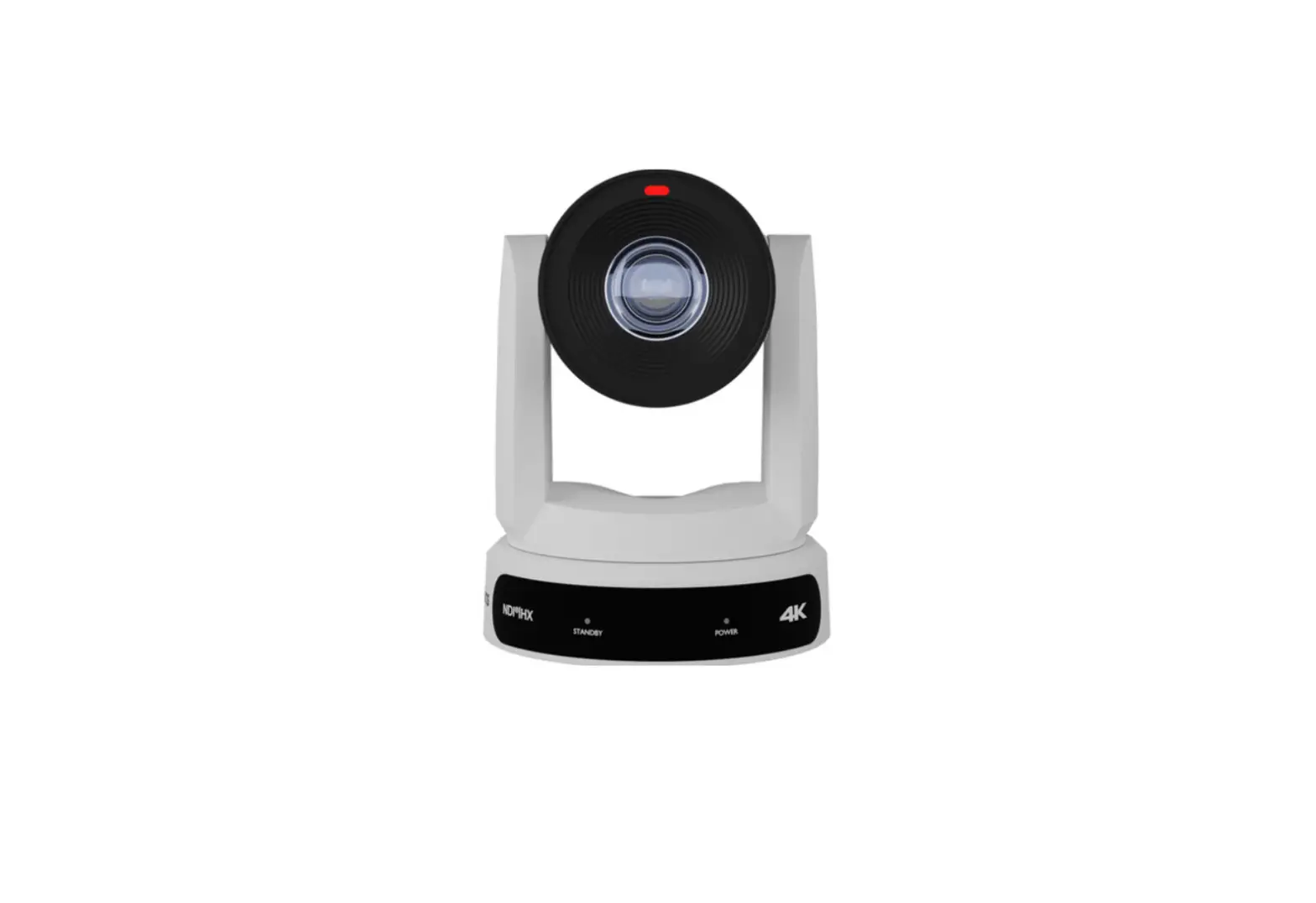
PTZM600 Mini PTZ Camera
PTZM600 Product Information
The PTZM600 is a pan-tilt-zoom telemetry control camera that can
be connected through either the RS485 cable or up the co-ax using
the coaxitron facility. It comes with a self-test function that
ensures all functions are working correctly. The PTZ can be powered
locally or through a composite video cable.
Table of Contents
Part 1 Introduction
Part 2 Tools & Handy Extras
Part 3 User Information
Part 4 Connections & Wiring
- Connections & Power
- Coaxitron
- RS485 Wiring
Part 5 Installation
Part 6 Configuration & Operation
Part 7 Extra Resources
- ZipNVR.com Website
- Adding IP Cameras
- ZIP Firmware
Part 8 Dimensions
Part 9 Specifications
Part 10 Conditions
Product Usage Instructions
Connections & Wiring
Before installing the PTZ in position, connect it to your
control equipment (DVR and/or keyboard) on a test bench setup. This
ensures that the PTZ is powering up correctly, the video, movement,
and control work correctly with your recorder or keyboard. This can
potentially save time on site during install in case of a wiring
issue or fault on site.
Connections & Power
If you have Zip SUPA and XTRA recorders, RS485 cables may not be
required depending on your installation. After turning on the PTZ,
it will automatically start to pan and tilt as it performs a
self-test. You can power the PTZ locally or use a composite video
cable to carry power and video signal back to a DVR. Do not use
RG59+2 for power if the run is longer than 25 meters. Either power
locally at a shorter distance or use a larger gauge cable. Ensure
the distance between camera and power supply is no greater than 25
meters. If the voltage of the PTZ drops below 10V D.C., it may fail
to initialize or produce intermittent video and/or telemetry
issues. If the distance is greater than those mentioned previously,
use a heavier power cable to avoid voltage drop.
Instruction Manual
PTZM600
© 2023 System Q Ltd
ZipNVR.com
PTZM600
Table of Contents
Part 1 Introduction
3
Part 2 Tools & Handy Extras
3
Part 3 User Information
4
Part 4 Connections & Wiring
5
1 Connections & Power ……………………………………………………………………………………….. 5 2 Coaxitron ………………………………………………………………………………………………………… 7 3 RS485 Wiring …………………………………………………………………………………………………… 7
Part 5 Installation
8
Part 6 Configuration & Operation
9
1 Address ID & Baud Rate …………………………………………………………………………………….. 9 2 4-in-1 Technology …………………………………………………………………………………………… 12 3 Control – Pan Tilt Zoom ……………………………………………………………………………………. 15 4 Presets ………………………………………………………………………………………………………….. 16 5 Patrols / Tours ………………………………………………………………………………………………… 18 6 Pattern ………………………………………………………………………………………………………….. 20 7 AB Auto Scan …………………………………………………………………………………………………. 22 8 Park Action (Default Postion) ……………………………………………………………………………. 25 9 Main PTZ OSD Menu ……………………………………………………………………………………….. 27 10 Preset Function Table ……………………………………………………………………………………… 29 11 PTZ Module Menu …………………………………………………………………………………………… 30
Part 7 Extra Resources
31
1 ZipNVR.com Website ………………………………………………………………………………………. 31 2 Adding IP Cameras …………………………………………………………………………………………. 31 3 ZIP Firmware …………………………………………………………………………………………………. 31
Part 8 Dimensions
32
Part 9 Specifications
33
Part 10 Conditions
34
Index
0
© 2023 System Q Ltd
2
ZipDVR.com
Index
Introduction
The 4-in-1 5MP PTZ Cameras incorporate a 4.7 – 84.6mm 5MP 18x zoom camera module. The camera also has multi format output modes including; TVI, AHD, CVI and CVBS. See 4-in-1 Technology 12 for information on how to adjust. With built-in automatic IR, meaning that as the PTZ is zoomed in, different infra-red LEDs are activated to allow for the correct angle and power depending on the zoom distance. The PTZM600 default video format is in TVI mode so using the (Zip Coaxitron) protocol in the ZIP SUPA or XTRA DVR allows up the coax control, alleviating the necessity for RS485 connections. It incorporates automatic protocol and baud rate diagnosis which means these are selected automatically for RS485 connectivity.
Tools & Handy Extras
· Screwdriver
· Drill
· 12V DC PSU
· Drill bits
· BNC Crimp Tool & BNCs
· RG59 Coax Cable
· Digital Multi-Meter
· LCD400K – CCTV Test monitor
· Setup and Configuration via a ZIP DVR.
Note: Many of the examples and setup instructions in this manual showsetup, confirguration and controls using a ZIP DVR (Supa or Xtra models ZIP DVRs)
© 2023 System Q Ltd
ZipDVR.com
3
PTZM600
User Information
· Please read the operation manual carefully before installing and operating the product.
· The camera must not be exposed to conditions above the IP66 rating.
· The PTZM600 requires a 12V DC 2A power supply as a minimum. (The cameras maximum draw is 1.7A). The correct 12V DC 2A rated power supply is provided with each PTZM600.
· Do not connect 24V AC to this camera under any circumstances
· Take care when transporting, storing and installing the PTZ. Avoid subjecting the PTZ to vibration or weight pressure, which can cause damage to the optical and electronic equipment inside the PTZ.
· Always use and stick to current electrical safety standards when installing. (BS EN 62676-1-1) (BS EN 62676-4) (BS8418)
· The RS-485 and video signal cables should be kept way from high voltage equipment such as mains cables or lighting circuits.
· Using an anti-surge protection device is recommended to prevent damage to the PTZ camera from lightning and mains surges. Electrical damage to units by lightning or mains voltage surges is not covered under the product warranty.
· There are no user serviceable parts in the camera and opening or attempting to repair the product will void the warranty.
· Do not touch the camera connections with wet hands.
· Do not operate in areas exceeding the stipulated limitations concerning temperature, humidity. The camera working temperature outdoor is -20°C ~ +60°C and humidity must be less than 90% (frostless).
· Do not aim the camera directly towards the sun or an extreme light source whether it is switched on or not. Do not let the camera focus on bright and stationary objects for a long time. Doing any of these, may damage the filter on the sensor that may cause colour loss.
· Do not use strong detergents to clean the main body of the camera as these may damage the PTZ paintwork. Wipe dirt away with a damp micro-fibrecloth. If needed a soapy water can be used.
· Do not install or use the camera if the cables, casing of the PTZ, or the power supply is damaged.
· When this unit is in use, avoid direct eye contact with the infrared lights.
· The unit’s outer IR transparent cover can heat up when in use and care should be taken to ensure that this PTZ is fitted where it cannot be easily touched. It must also not be fitted in close proximity to any flammable materials.
16/06/2023
4
ZipDVR.com
Index
Connections & Wiring
Connect the PTZ and your control equipment (DVR and/or keyboard) on a test bench setup first before installing the PTZ on site in position. This ensures the PTZ is powering up correctly, the video, movement and control works correctly with your recorder or keyboard. This can potentially save time on site during install in case of a wiring issue or fault on site. The PTZM600 has pan-tilt-zoom telemetry control through either the RS485 cable or up the co-ax using the coaxitron facility.
4.1 Connections & Power
· 2.1mm DC Socket – The camera has a 2.1mm socket. A 12V 2A Power supply is provided which each PTZ. If the PTZ is not being used with the provided power adaptor then ensure the power supply is regulated and rated above the current draw of the camera. The camera is polarity sensitive so connections must be correctly made.
· TVI, CVI, AHD & Analogue BNC Output – The camera has a standard BNC connector for video output, the output can be changed to AHD, CVI or CVBS if required, see 4-in-1 Technology 12 .
· Ground, RS485 +VE / -VE – When using a PTZ keyboard or if the install requires RS485 communication then use these wires. see RS485 Wiring 7 .
ZIP SUPA and XTRA recorders have “Coaxitron” so the RS485 cables may not be required (depending on your install).
After turning on the PTZ it will automatically start to pan and tilt as it preforms a selftest. The self-test will check all functions are working as they should be.
© 2023 System Q Ltd
ZipDVR.com
5
PTZM600
Powering
It is recommended to power locally, however another way to power the PTZs is using our COMPOSITE VIDEO cable (or shotgun as its also known) as this cable can carry the power to the PTZ and the video signal back to a DVR.
Do not use RG59+2 for power if run is longer than 25 metres. Either power locally at shorter distance or use a larger gauge cable. The following shows the voltage drop for the cameras using RG59+2, IRs full on and the PTZ camera moving;
· RG59+2 run at 15 metres – voltage 11.27v DC – current 920mA · RG59+2 run at 25 metres – voltage 10.0v DC – current 1.0A Maximum run
distance · RG59+2 run at 35 metres – voltage 9.52v DC – current 1.035A Video/telemetry
issues
You can either power each PTZ with its own PSU locally to it or have the PSU’s remotely situated perhaps near the keyboard or DVR.
If RG59 + 2 cable is being used ensure the distance is no greater than 25 metres between camera and power supply. If the voltage of the PTZ drops below 10V D.C it may fail to initialise or produce intermittent video and or telemetry issues.
If distance is greater than those mentioned previously, a heavier power cable must be used to avoid voltage drop.
As voltage drops the amperage through the power supply increases which may result in damage to the power supply. As problems may occur at night when the IRs switch on, covering the IR sensor to switch on IRs during a daytime installation is recommended to test the PTZ camera before leaving site.
Video
The PTZ has a short BNC lead attached to it, this is used to carry the video to a DVR, ensure good quality RG59 coax cable or similar is used.
Note that this is a HD-TVI PTZ camera and if using RG59 this should allow a run of up to 500 metres. If you are using CAT5 then you will need HD-TVI passive baluns at both camera end and DVR end but the maximum run must not be more than 200 metres.
TIP If there is no picture at the DVR end then use a TVI test monitor to the PTZ and check the picture quality on its own short BNC lead.
16/06/2023
6
ZipDVR.com
Index
4.2 Coaxitron
The benefit of using coaxitron is that there is no need for an RS485 connection, as PTZ control is provided by the DVR, up the coax. The ZIP DVRs have (COAX 1) selected for each channel, as default. Note: Other manufacturers may also use coaxitron communication, however this is not standardised across all CCTV DVRs, we cannot comment on the ability or inability to access or use the PTZ with any third party DVR.
Coaxitron may not work through baluns or other video transmission conversion products like MULE (Coaxial multiplexers) or devices which carry multiple videos signals down one cable. To access the PTZ Control:-
1. Click on the image in Live view 2. Click on the PTZ button at the bottom of the screen See Control – Pan Tilt Zoom 15 .
4.3 RS485 Wiring
See for Address ID & Baud Rate 9 setting the RS485 Address ID & Baud Rate using the cameras DIP switches.
© 2023 System Q Ltd
ZipDVR.com
7
PTZM600
Installation
1. Unscrew the transparent DIP switch cover using a PH1 screwdriver. Adjust the DIP switches if required (see Address ID & Baud Rate 9 for more information, on the following pages) Re-install the transparent cover once the DIP switches have been set.
2. Mark the hole positions using the mounting bracket or using the measurements on the diagram to the right. Drill the holes and install the wall plugs.
3. Feed the PTZ cable loom through the bracket, then secure using the short screws provided.
4. Connect cables for power, video (and RS485 if required) then fit the PTZ to the wall using the screws provided. Use silicon sealant around the base, where the cable enters the bracket and in the entry cut out which is not used. The connections for the camera need to be installed in a waterproof box or similar. 5. Remove protective film from PTZ.
8
ZipDVR.com
16/06/2023
Index
Configuration & Operation
6.1 Address ID & Baud Rate
Note: ZIP SUPA and XTRA recorders have “Coaxitron” so the RS485 cables and Address ID Setting may not be required (depending on your install).
IMPORTANT – Once the address settings have been set on the dip switches (as per below), remove power from the PTZ and then power the PTZ up (reboot the PTZ). This applies the ID and baud rate settings.
The cameras Baud Rate, ID and Terminal Resistor are all controlled using dip switches located on the underside of the dome, above the lens.
Unscrew the two screws and remove the clear plastic cover to gain access to the dip switches. See Installation 8 for location of dip switches.
There are two sets of dip switches. · SW1 is used to configure the camera’s ID. · SW2 is used to configure the camera’s baud rate and terminal resistor.
© 2023 System Q Ltd
ZipDVR.com
9
PTZM600
ID Setup
The camera’s ID (Address) is configured using the SW1 set of eight dip switches. SW1 uses a binary system where switch 1 represents the number 1, through to switch 8 representing the number 128. Each PTZ on a system must have its on unique ID. Examples of how to set the camera’s ID are shown below
PTZ address number 1
PTZ address number 2
PTZ address number 3
PTZ address number 4
PTZ address number 5
PTZ address number 6
PTZ address number 7
PTZ address number 8
PTZ address number 254
PTZ address number 255
Baud Rate Setup
Setting the Baud Rate is done using the SW2 set of four dip switches. The Baud Rate can be set to 2400bps, 4800bps, 9600bps or Auto as shown below.
.
2400bps
4800bps
9600bps
Auto
16/06/2023
10
ZipDVR.com
Index
Terminal Resistor Setup
The PTZM600 has an in-built 120 terminal resistor. When setting up multiple PTZs, certain PTZs must have their resistors enabled.
When setting up PTZs in a Daisy Chain formation the last PTZ must have its resistor enabled. If you decide on a Star formation the two furthest PTZs must have their resistors enabled.
Resistor Disabled
Daisy Chain Formation
Resistor Enabled
Star Formation
IMPORTANT – Once the address settings have been set on the dip switches (as per below), remove power from the PTZ and then power the PTZ up (reboot the PTZ). This applies the ID and baud rate settings.
© 2023 System Q Ltd
ZipDVR.com
11
PTZM600
6.2 4-in-1 Technology
The PTZM600 as default is set to HD-TVI (5MP), this is a widely used video format for modern 5MP or 4K (8MP) digital video recorders and is compatible out of the box with the ZIP SUPA & XTRA recorders.
Note: The PTZM600 cannot be used in (TVI / CVI or AHD) HD video format with a 2MP Recorder, as the camera cannot be downgraded in HD to 2MP, but it could be used in CVBS PAL / NTSC (this is a much lower resolution than 2MP).
If you require to set a different video format. The video formats available are TVI, CVI, AHD and CVBS (Analogue).
Once PTZ control and movement is working, then the video format can be set by using the PTZ control feature and calling a preset command and value.
HD-TVI – (2592 x 1944) at 20fp HD-CVI – (2560 x 1440) at 30fps AHD – (2592 X 1944) at 30fps PAL – (720 x 576) at 25fps
NTSC – (720 X 480) at 30fps Go back to previously set format
1. CALL/SHOT 96 1. CALL/SHOT 96 1. CALL/SHOT 96 1. CALL/SHOT 96 1. CALL/SHOT 96 1. CALL/SHOT 96
2. CALL/SHOT 1 2. CALL/SHOT 2 2. CALL/SHOT 3 2. CALL/SHOT 4 2. CALL/SHOT 5 2. CALL/SHOT 6
Note: Many of the examples and setup instructions in this manual showsetup, configuration and controls using a ZIP DVR (Supa or Xtra models ZIP DVRs), please see the belowfor howto set via a ZIP DVR.
1. Click on the camera image in Live view.
2. Click on the PTZ button at the bottom of the screen.
16/06/2023
12
ZipDVR.com
3. In the drop down select PRESET.
Index
4. Find preset “96” in the preset list then select the “Go To” Button.
5. Scroll back up to find the first 1-6 presets then use the table below to “Go To” the preset to set a different video format.
HD-TVI – (2592 x 1944) at 20fps
GO TO Preset – 1
HD-CVI – (2560 x 1440) at 30fps
GO TO Preset – 2
© 2023 System Q Ltd
ZipDVR.com
13
PTZM600
AHD – (2592 X 1944) at 30fps PAL – (720 x 576) at 25fps NTSC – (720 X 480) at 30fps Go back to previously set format
GO TO Preset – 3 GO TO Preset – 4 GO TO Preset – 5 GO TO Preset – 6
16/06/2023
14
ZipDVR.com
Index
6.3 Control – Pan Tilt Zoom
The PTZ Control screen allows for adjustment of the zoom, focus, PTZ movement and call presets or create new ones. 1. Click on the image in Live view 2. Click on the PTZ button The camera channel can be selected using the Camera option at the top left of the screen.
PTZ Controls Explained
Icon/Control
Function
Directions – Used to control the left/right and up/down movement of the PTZ camera.
Auto Cruise – Press to start 360° auto scan. The PTZ will rotate constantly until pressed again. This is a single speed auto scan,
speed cannot be adjusted.
Speed – Dictates how fast the camera moves around. Set the speed anywhere from 1 to 100 with 100 being the fastest.
Zoom – Press + to zoom the camera lens in and – to zoom the camera lens out.
Focus- As default the camera will use the built in auto-focus, however the camera can be manually focussed by pressing +/-.
Iris – As default the camera will automatically adjust its exposure with the built in iris, however Iris + and – allow you to manually open
or close the camera’s iris so you can control the amount of light hitting the image sensor.
© 2023 System Q Ltd
ZipDVR.com
15
PTZM600
6.4 Presets
The Preset screen is where you can create presets, call presets and manage cruises.
Aim the PTZ in the direction you want it to look, zoom in or out to get the correct position and viewing angle, let the camera auto focus. To save this position as a preset click the “Add” button. To test if the preset is stored correctly use the joystick to move the camera to a point in a new location. Now press “Go To”. TIP -You may wish to write down a list of presets that you have stored next to the keypad for the operator. See next page / below for controls explained.
16/06/2023
16
ZipDVR.com
Index
Preset Controls Explained
The buttons in the left hand panel are used to position the camera when saving preset locations, creating presets, calling presets, removing presets and starting/stopping cruises. The options available and functions may vary depending on the capabilities of the PTZ itself.
Icon/Control
Name Preset Number
Dwell Time
Add Preset
Function
Enter a preset number to assign a new preset position or to call an existing preset.
When creating a new preset position the Dwell Time determines how long the PTZ will stay in that
position during a cruise.
After positioning the camera, entering the preset number and dwell time press add to set a preset
in the Preset List.
Clear Preset
Press to delete the last saved preset
Go To
Press to call the preset currently showing in the Preset Number field.
The Start Cruise button will start to cycle through
Start Cruise the saved preset positions in the Preset List. The
/
PTZ will stay in each position for the defined
Stop Cruise Dwell Time then move on to the next position. The cruise will play once and not repeat.
Show Thumbnail
Select to display the customisable “Thumbnails” for the PTZ presets, which can be assigned to
each preset position.
Total
The Total number shows the total number of presets currently in Preset List.
© 2023 System Q Ltd
ZipDVR.com
17
PTZM600
6.5 Patrols / Tours
A patrol (tour) uses presets which are points which the PTZ will go to during a tour. The dome will move to a maximum of 32 preset positions using the dwell times as set in the Patrol Table.
The speed of dome movement between any two presets can be set from 000 ~ 063.
A patrol (tour) can run for an extensive length of time with a dwell time of a maximum of 240 seconds at each of the preset positions.
Up to eight different patrols (tours) can be stored each with different preset parameters. When a preset is added zoom and position is stored.
Each preset added (see Presets) 16 , will automatically be inputted into patrol 1. As default the speed which the PTZ moves to the preset is 50, time set to each position is set to 10 seconds.
To start patrol 1 call preset 35.
See Preset Function Table 29 for more patrol preset numbers.
Customising Patrols
To customize the patrol (tour) enter the Cameras Main PTZ OSD Menu. Follow the steps below.
1. Enter the PTZ controls.
2. Select the <GO TO/ Call preset > Preset 95 .
3. The Main Menu will then display on the screen. Note that the “&” character needs to be moved into editing mode by moving the right arrow and left to exit. Go down to System Setting > then press IRIS + / right.
16/06/2023
18
ZipDVR.com
4. Go down to Patrol Track > then press IRIS + / right.
Index
5. Go down to Edit > then press IRIS + / right.
6. Press the IRIS+ button again edit a field in the patrol table. Move in the table using the arrow buttons. Press the IRIS- button to exit the patrol table.
Note that the maximum number of presets that can be set is 220.
The Speed range is from 0 ~ 063, this the movement speed between presets.
Time parameter is the number of seconds that the PTZ will stay at the preset position and that can be from 0 ~ 240 seconds.
© 2023 System Q Ltd
ZipDVR.com
19
PTZM600
6.6 Pattern
A pattern allows the user to record a continuous sequence pan, tilt and zoom movements. The record pattern can be recorded using the DVR controls or a PTZ keyboard. A pattern reflects all the user movements made during the recording of the record pattern. Once pattern 1 has been recorded, to call preset 41 to call pattern 1. See Preset Function Table 29 for more pattern preset numbers.
Customising Patterns
To record a pattern enter the Cameras Main PTZ OSD Menu. Follow the steps below. 1. Enter the PTZ controls. 2. Position the camera at the start the record pattern sequence. 3. Select the <GO TO/ Call preset > Preset 95 .
4. The Main Menu will then display on the screen. Note that the “&” character needs to be moved into editing mode by moving the right arrow and left to exit. Go down to System Setting > then press IRIS + / right.
16/06/2023
20
ZipDVR.com
5. Go down to Pattern > then press IRIS + / right.
Index
6. Go down to Edit > then press IRIS + / right. > then press IRIS + / right.
7. Now move the joystick to record the pattern. Press the IRIS+ button to close the recording or until the record period expires. Select RUN to replay the pattern or go to Remove to remove it. Note that you need to press the IRIS+ button to access and exit these menus. Press the IRIS- to exit out of menu.
© 2023 System Q Ltd
ZipDVR.com
21
PTZM600
6.7 AB Auto Scan
The AB Auto Scan is set between two points, the PTZ can then be set to move between these two limit points at different speeds. The AB scan points are not presets as per the patrol (tour) facility but auto scan selection points. One auto scan can be set per camera.
Setting AB Scan points
Set with Presets 1. Enter the PTZ controls. 2. Move the PTZ to the start position and <GO TO/ Call preset > Preset 92
Alternatively enter <GO TO/ Call preset > Preset 221.
3. Now move to the end position of the Auto Scan and <GO TO/ Call preset > Preset 93 Alternatively you can enter <GO TO/ Call preset > Preset 222
Set in PTZ OSD Menu 1. Enter the PTZ controls. 2. Position the camera at the start the record pattern sequence. 3. Select the <GO TO/ Call preset > Preset 95 .
4. The Main Menu will then display on the screen. Note that the “&” character needs to be moved into editing mode by moving the right arrow and left to exit. Go down to System Setting > then press IRIS + / right.
16/06/2023
22
ZipDVR.com
5. Go to Movement Control menu and then press IRIS + / right.
Index
6. Move down to AB Scan Setting using the up and down direction keys on the keyboard.
7. Press IRIS + button to display “Set A Point First”.
© 2023 System Q Ltd
ZipDVR.com
23
PTZM600
8. Move to the start position and then press IRIS + button.”Then Set B Point” will display on the screen. Now move to the end position of scan and press IRIS + button again.
Calling AB Scan
AB Scan – High Speed AB Scan – Midde Speed AB Scan – Low Speed
<GO TO/ Call preset > Preset 223 <GO TO/ Call preset > Preset 224 <GO TO/ Call preset > Preset 225
For more AB Scan options and presets see Preset Function Table 29 .
16/06/2023
24
ZipDVR.com
Index
6.8 Park Action (Default Postion)
Park action (default position) will have the PTZ go back to a preset position, tour or pattern after no manual control after a specified time period has ended. Power action can also be configured to have the PTZ do the same when the PTZ boots up, after a power loss. Set in PTZ OSD Menu 1. Enter the PTZ controls. 2. Position the camera at the start the record pattern sequence. 3. Select the <GO TO/ Call preset > Preset 95 .
4. The Main Menu will then display on the screen. Note that the “&” character needs to be moved into editing mode by moving the right arrow and left to exit. Go down to System Setting > then press IRIS + / right.
5. Go to Movement Control menu and then press IRIS + / right.
© 2023 System Q Ltd
ZipDVR.com
25
PTZM600
6. Set the below; Park Act Time from NO to 1-255 Seconds. Park Act from NO to Preset 1-8 / Patrol 1-8 / Pattern 1-8 / Auto Scan / AB Scan. Power Act from NO to Preset 1-8 / Patrol 1-8 / Pattern 1-8 / Auto Scan / AB Scan.
7. Press the IRIS- to exit out of menu.
16/06/2023
26
ZipDVR.com
Index
6.9 Main PTZ OSD Menu
This menu system allows the user to alter the dome menu instruction options and settings using a DVR or PTZ keyboard. To enter the Cameras Main PTZ OSD Menu. Follow the steps below. 1. Enter the PTZ controls. 2. Select the <GO TO/ Call preset > Preset 95.
OSD Menu
System Information
System Setting
Protocol
Pelco-D (Set with Dip switches)
Baud Rate
2400 (Set with Dip switches)
Hard Addr
1 (Set with Dip switches)
Soft Addr
1 255
Soft Addr EN
Off / On
Version
14160101
Exit
Camera
Screen Tips
Off / On
Auto ICR
Off / On
Auto Focus
On/ Off
Focus Speed
Fast / Slow
Digital Zoom
Off (Not Supported)
Zoom Speed
Fast / Slow
Exit
Movement Control Auto Flip
On/ Off
Proportion
On/ Off
Park Action Time No / (1-255 Seconds)
Park Act
No / Preset 1-8 / Patrol 1-8 / Pattern 1-8 / Auto Scan / AB Scan
Power Act
No / Preset 1-8 / Patrol 1-8 / Pattern 1-8 / Auto Scan / AB Scan
Control Spd
High / Medium / Low
AB Scan Setting ENTER
AB Scan Path I-ARC / O-ARC
Open: Sel / Close: Esc
Preset
Number
1 (1 220)
Edit
ENTER
Remove
ENTER
Exit
Patrol Track
Number
1 (1 – 8)
Edit
ENTER
Run
ENTER
Remove
ENTER
Exit
© 2023 System Q Ltd
ZipDVR.com
27
PTZM600
IR LED Setting Reset Exit
Pattern
Privacy Alarm Exit Control Mode LED On Level LED Off Level Current Level Exit
Number Edit Run Remove Exit (Not Supported) (Not Supported)
1 (1 – 4) ENTER ENTER ENTER
Auto / On / Off 220 (0-250) 170 (0-250) 57
16/06/2023
28
ZipDVR.com
Index
6.10 Preset Function Table
The table below shows the presets available which can call / set different functions.
Preset No 35 36 37 38
Function Call Patrol 1 Call Patrol 2 Call Patrol 3 Call Patrol 4
41
Call Pattern 1
42
Call Pattern 2
43
Call Pattern 3
44
Call Pattern 4
91 + 80 92 93 95
Call Camera Module Menu Set AB Scan point A Set AB Scan point B Call PTZ Main OSD Menu
96 + 1 96 + 2 96 + 3 96 + 4 96 + 5 96 + 6
Switch to HD-TVI Switch to HD-CVI Switch to AHD Switch to NTSC Switch to PAL Switch to previously set format
98
Call AB Scan at High Speed
99
Call AB Scan at Low Speed
Preset No Function
221
Set AB Scan point A
222
Set AB Scan point B
223
Call AB Scan at High Speed
224
Call AB Scan at Medium
Speed
225
Call AB Scan at Low Speed
226
Set AB Scan to Outside the
Arc
227
Set AB Scan to Inside the Arc
231
Call Patrol 1
232
Call Patrol 2
233
Call Patrol 3
234
Call Patrol 4
235
Call Patrol 5
236
Call Patrol 6
237
Call Patrol 7
238
Call Patrol 8
241
Call Pattern 1
242
Call Pattern 2
243
Call Pattern 3
244
Call Pattern 4
251
Set Manual Control to High
Speed
252
Set Manual Control to
Medium Speed
253
Set Manual Control to Low
Speed
254
Motor Calibration
© 2023 System Q Ltd
ZipDVR.com
29
PTZM600
6.11 PTZ Module Menu
IMPORTANT NOTE – The camera module provides a separate menu that may help resolve specific issues.
Options generally set in the Main PTZ OSD Menu detailed previously, interface with the camera module. Therefore some options if changed, could result in a loss of communication between the main menu and the camera module. Some of these settings are locked and are not changeable.
If changes are made incorrectly can lead to an unusable system. Proceed at your own risk.
There is a further menu system in the PTZ camera module. This can be accessed using the steps below; 1. Select the <GO TO/ Call preset > Preset 91 2. Select the <GO TO/ Call preset > Preset 80
Controls
Zoom moves down the menu Zoom + moves up the menu Focus + enters menu settings moves left decreases settings Focus – exits submenu settings moves right increases value
16/06/2023
30
ZipDVR.com
Index
Extra Resources
7.1 ZipNVR.com Website
The Zip NVR has a range of information on the cameras and NVRs, manuals, software, tools and support:www.zipdvr.com
7.2 Adding IP Cameras
How to guide on Adding IP Cameras:www.zipdvr.com/howto/TIP459-How-To-Add-IP-Cameras.html
7.3 ZIP Firmware
Firmware for the ZIP products are available online:www.zipdvr.com/firmware.html Compare the firmware in the product against that available online.
© 2023 System Q Ltd
ZipDVR.com
31
PTZM600
Dimensions
16/06/2023
32
ZipDVR.com
Index
Specifications
Camera PTZ General
Image Sensor
1/ 2.8″ Progressive CMOS
Resolution
5MP 2592 (H) x 1944 (V)
Video Output
BNC TVI / AHD / CVI / CVBS
RS485 & Coaxitron RS485 via cable or Coaxitron UTC
Lens Type
4.7mm-84.6mm (Wide-Tele)
Viewing Angles
54.8°~ 3.4°(Wide – Tele)
Illumination
color: 0.05Lux/F2, B/W: 0.005Lux/F2, 0Lux( IR)
S/N
> 50dB( AGC OFF)
Digital Noise Reduction
2D DNR
BLC
On/ Off
Electronic shutter
1/25~ 1/10,000s
Day/Night
Mechanical (True Day-Night)
Gain Control
Auto/ Manual
Optical Zoom
18x Zoom
IR Range
60m
IR
Automatic
Pan Range
360º endless
Pan Speed
0.6°~ 180°/S
Tilt Speed
3.5°~ 30°/S
Tilt Range
0°~ 90°,auto flip 180°
Manual Speed
High/middle/low for adjustable
Proportional Zoom Supported
Number of Presets Maximum 220 and 32 per patrol tour
Number of Patrols / Maximum 8, each patrol can add 32
Tours
presets
Number of Patterns Maximum 4, total record time more than 10mins
Auto Scans
360 auto scan / AB auto scan
Park Action
Presets / patrols / patterns / AB scan
Power Supply
12V DC 2A Supplied
Power Consumption 1.7A Max (20W)
Temperature & Humidity
(frostless)
Electronic Protection TVS3000V
IP Rating
IP66
Dimensions
249 (H) x 137 (W) x 197 (D)
Packaging Dimensions 280 x 280 x 225mm
Weight
4.0KG
© 2023 System Q Ltd
ZipDVR.com
33
PTZM600
Conditions
All specifications are approximate. System Q Ltd reserves the right to change any product specifications or features without notice. Whilst every effort is made to ensure that these instructions are complete and accurate, System Q Ltd cannot be held responsible in any way for any losses, no matter how they arise, from errors or omissions in these instructions, or the performance or non-performance of the equipment that these instructions refer to.
This symbol on the products and/or accompanying documents means that used electronic equipment must not be mixed with general household waste. For treatment, recovery and recycling please return this unit to your trade supplier or local designated WEE/CG0783SS collection point as defined by your local council. © Copyright 2020 Zip is a registered trademark of System Q Ltd, Chesterfield. Derbyshire. S40 2WB
16/06/2023
34
ZipDVR.com
 ZipNVR: Home
 ZipNVR: Home