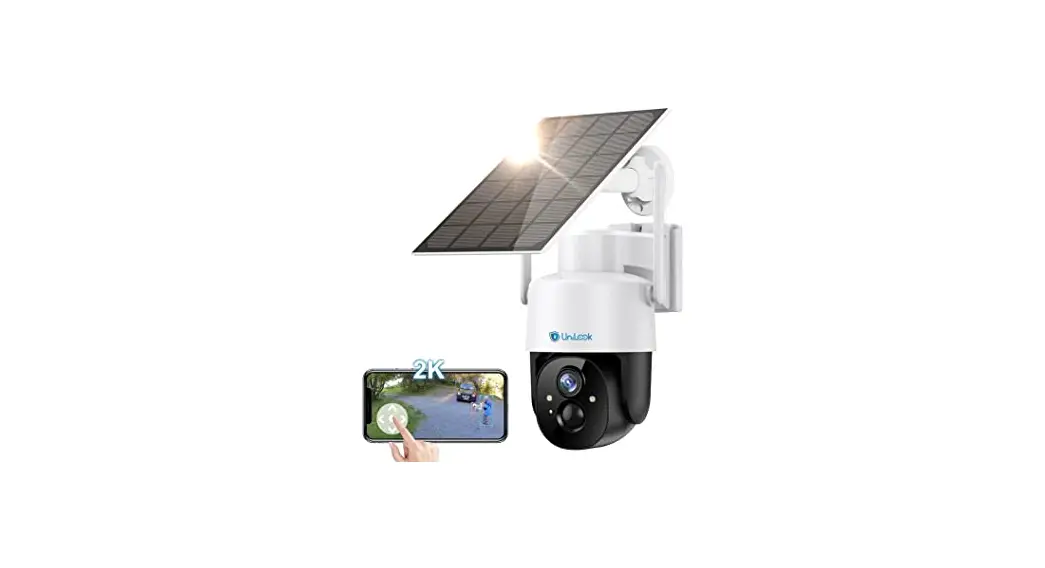
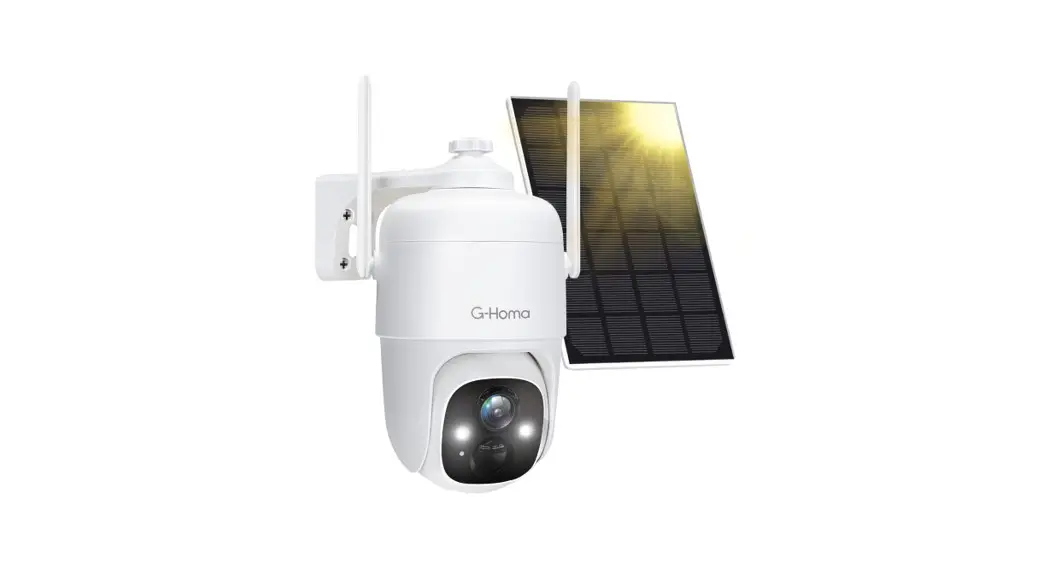
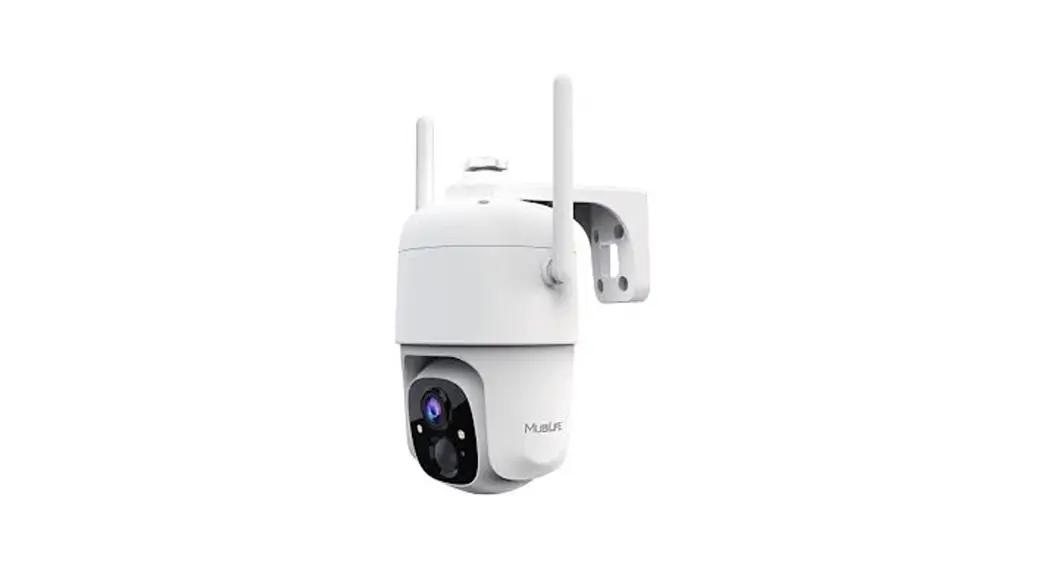
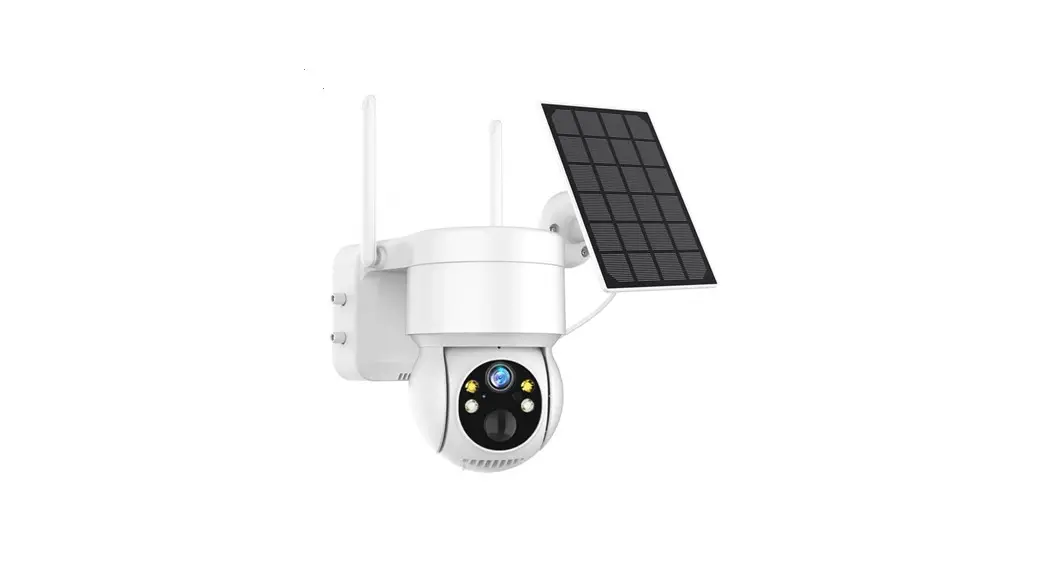
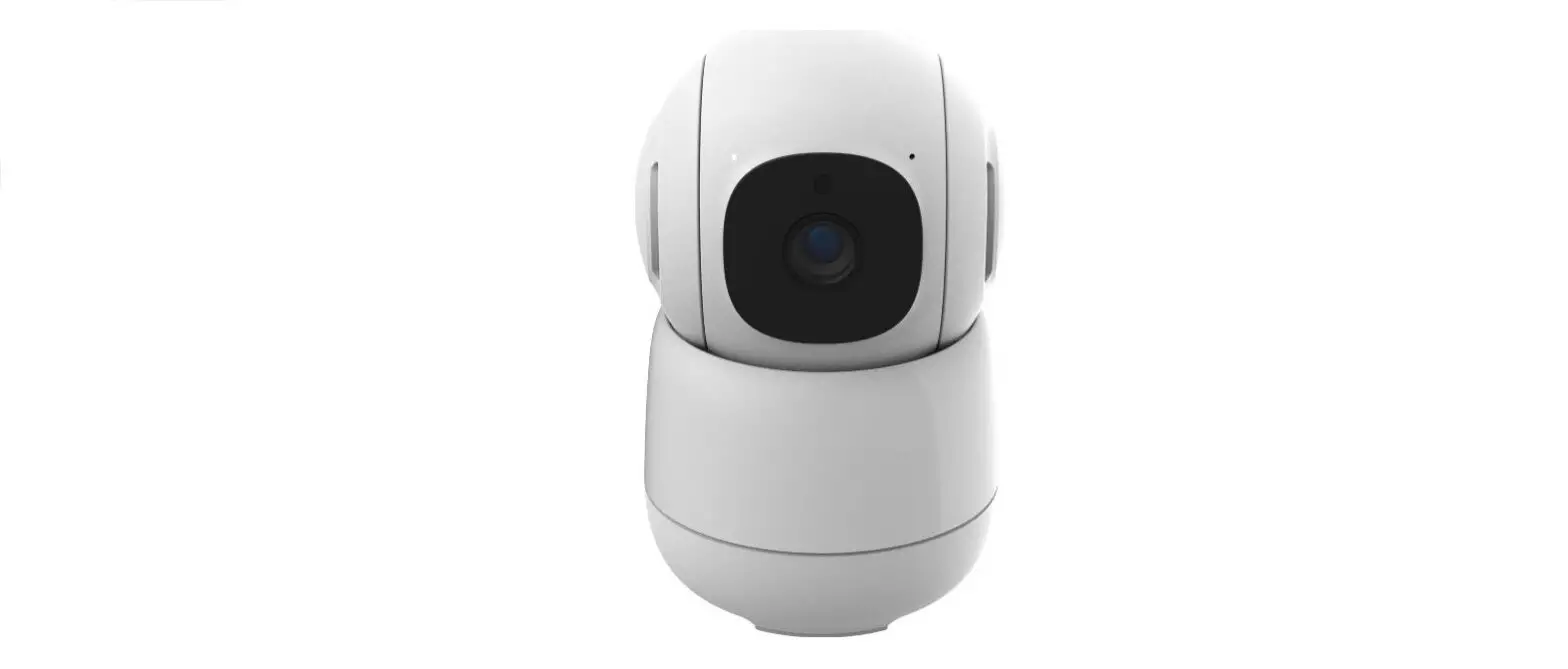
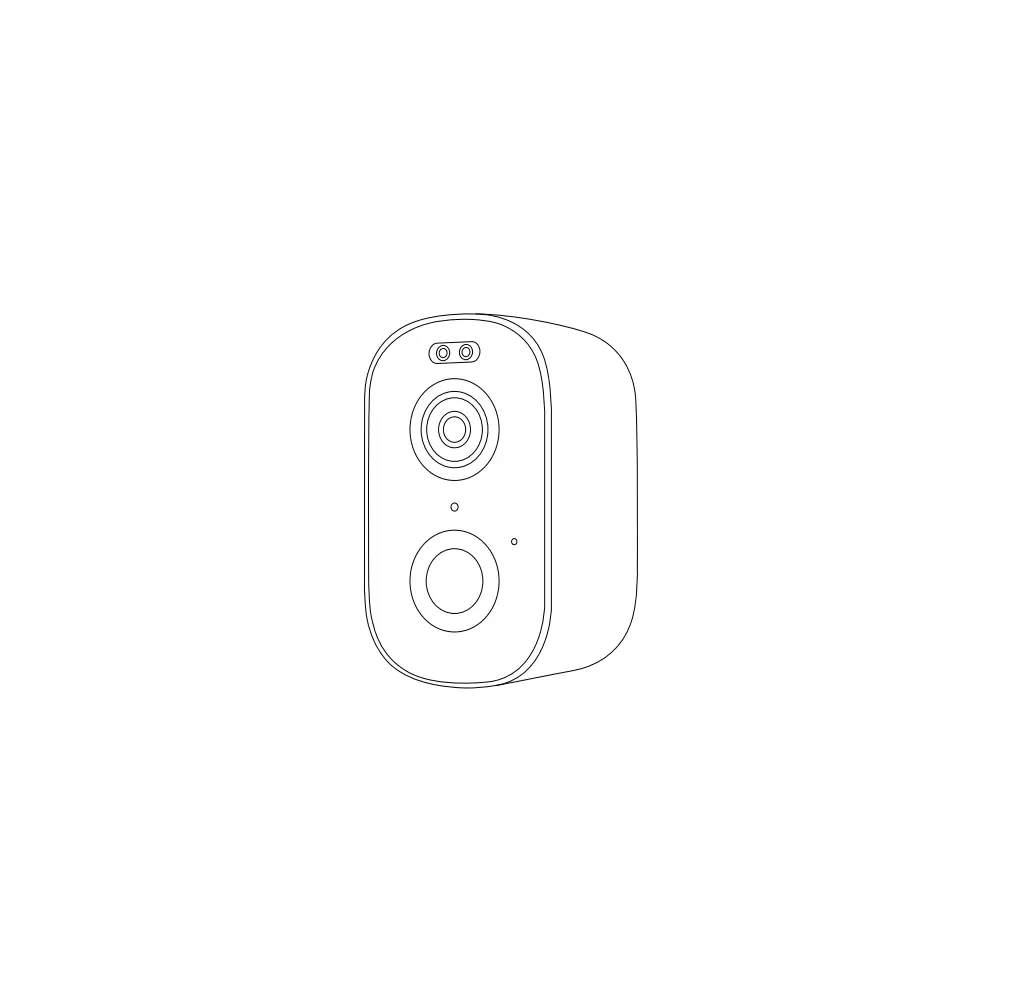
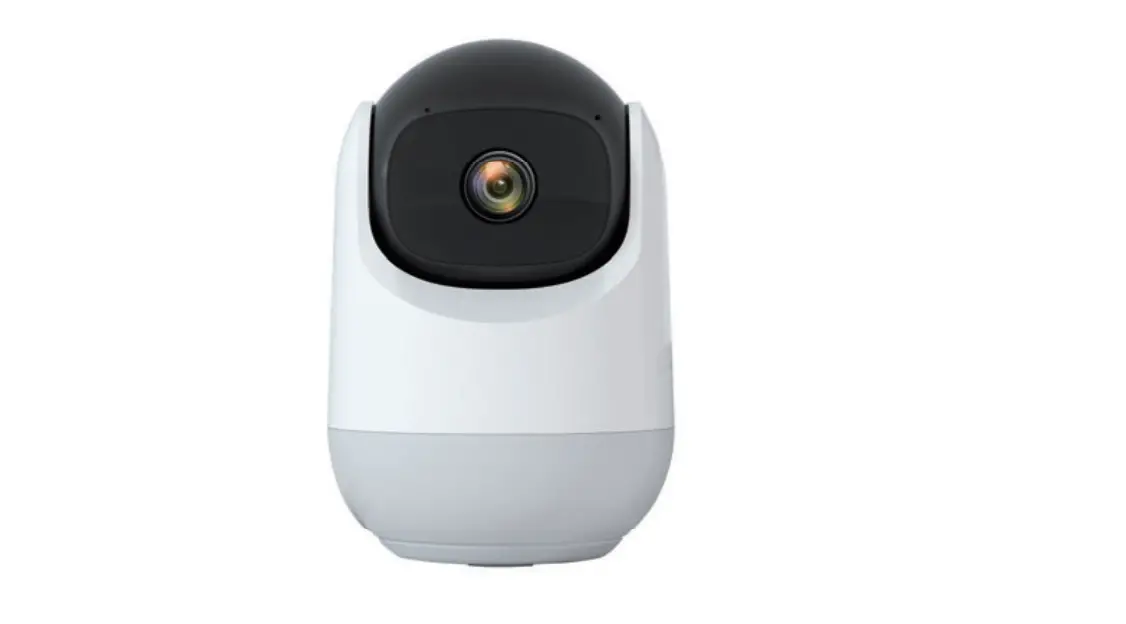
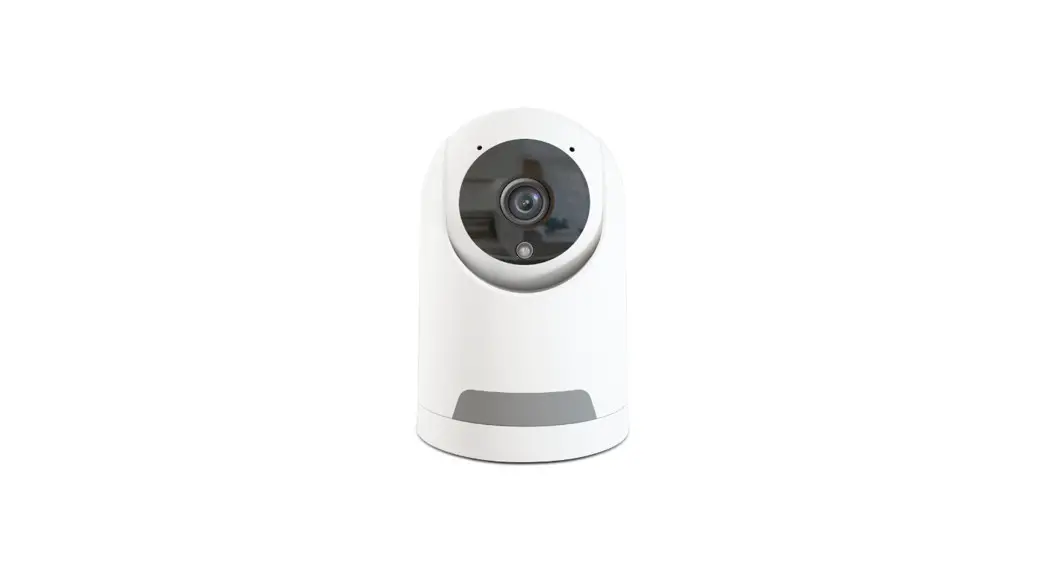
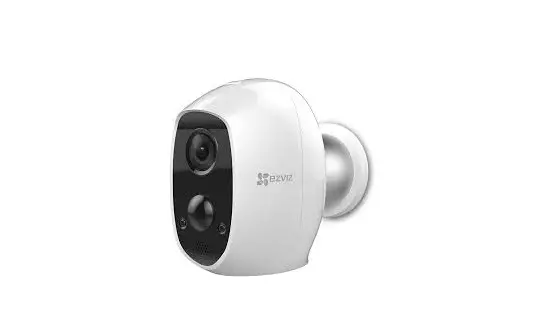
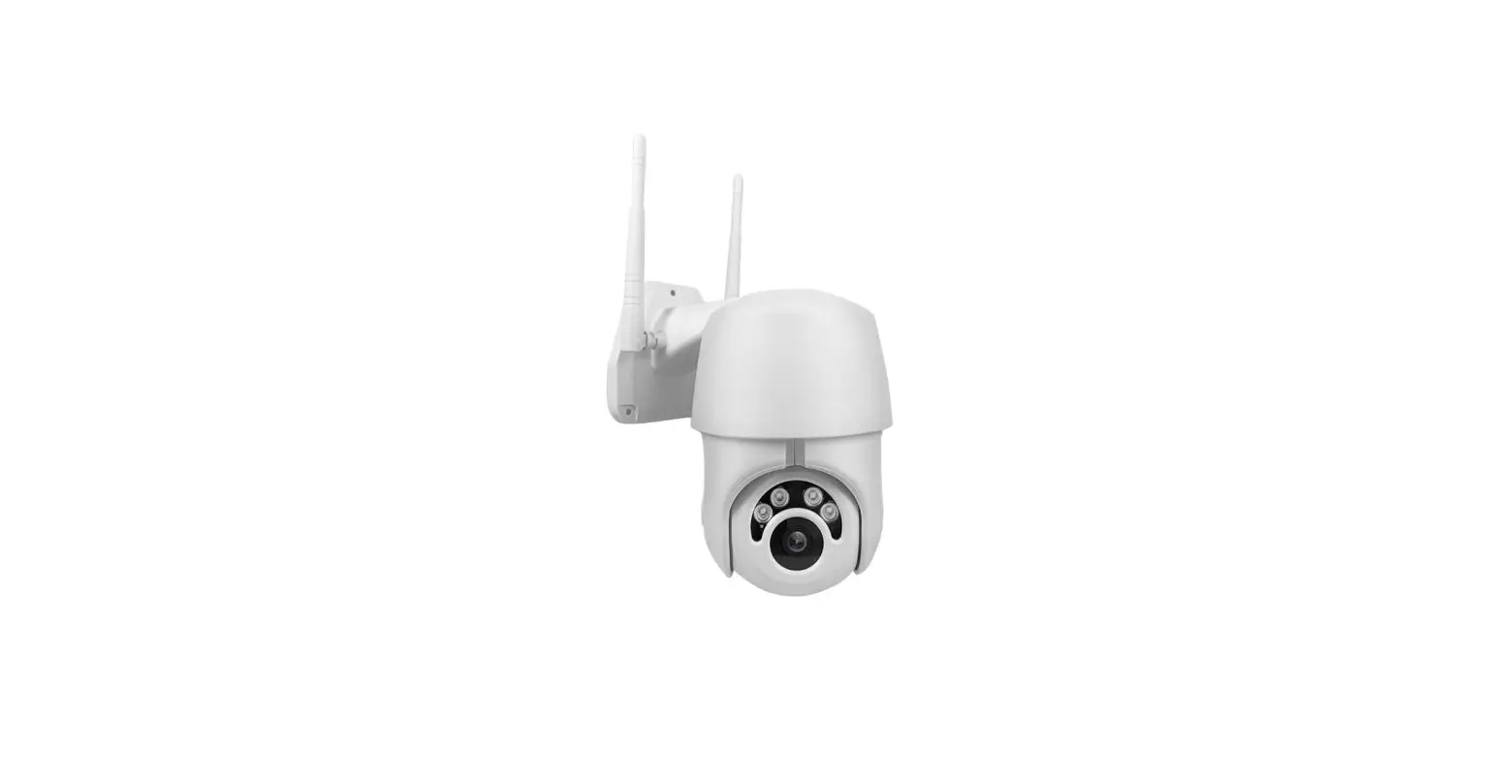
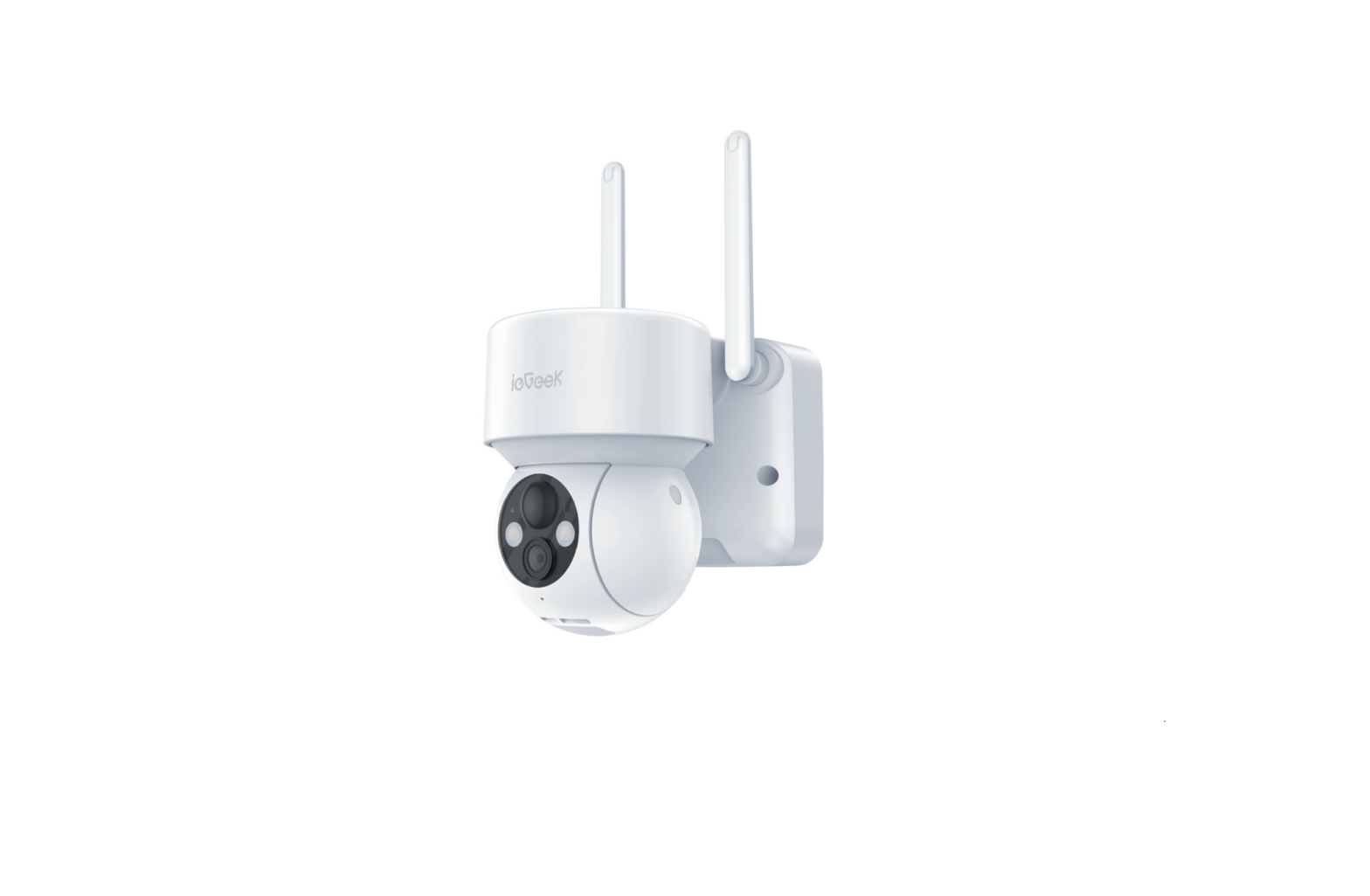
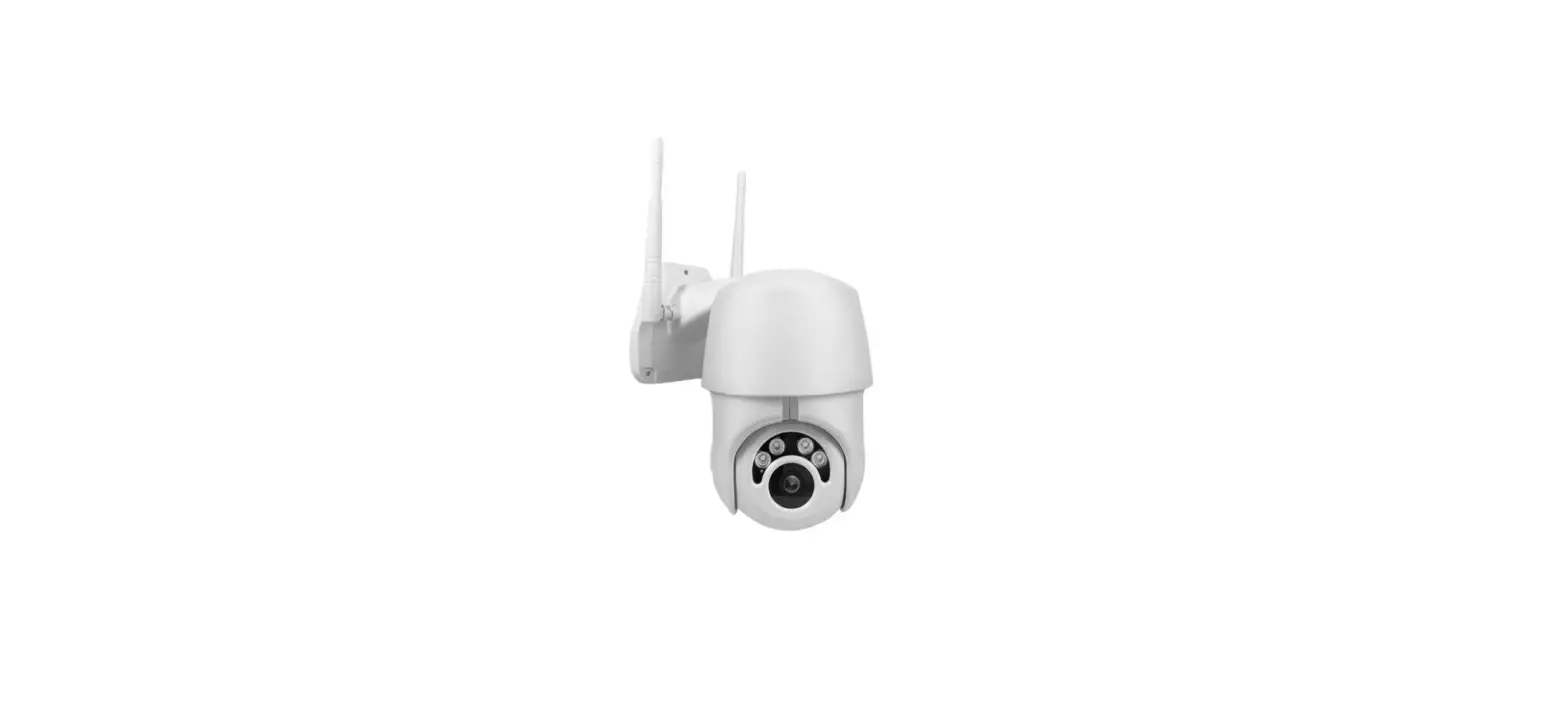
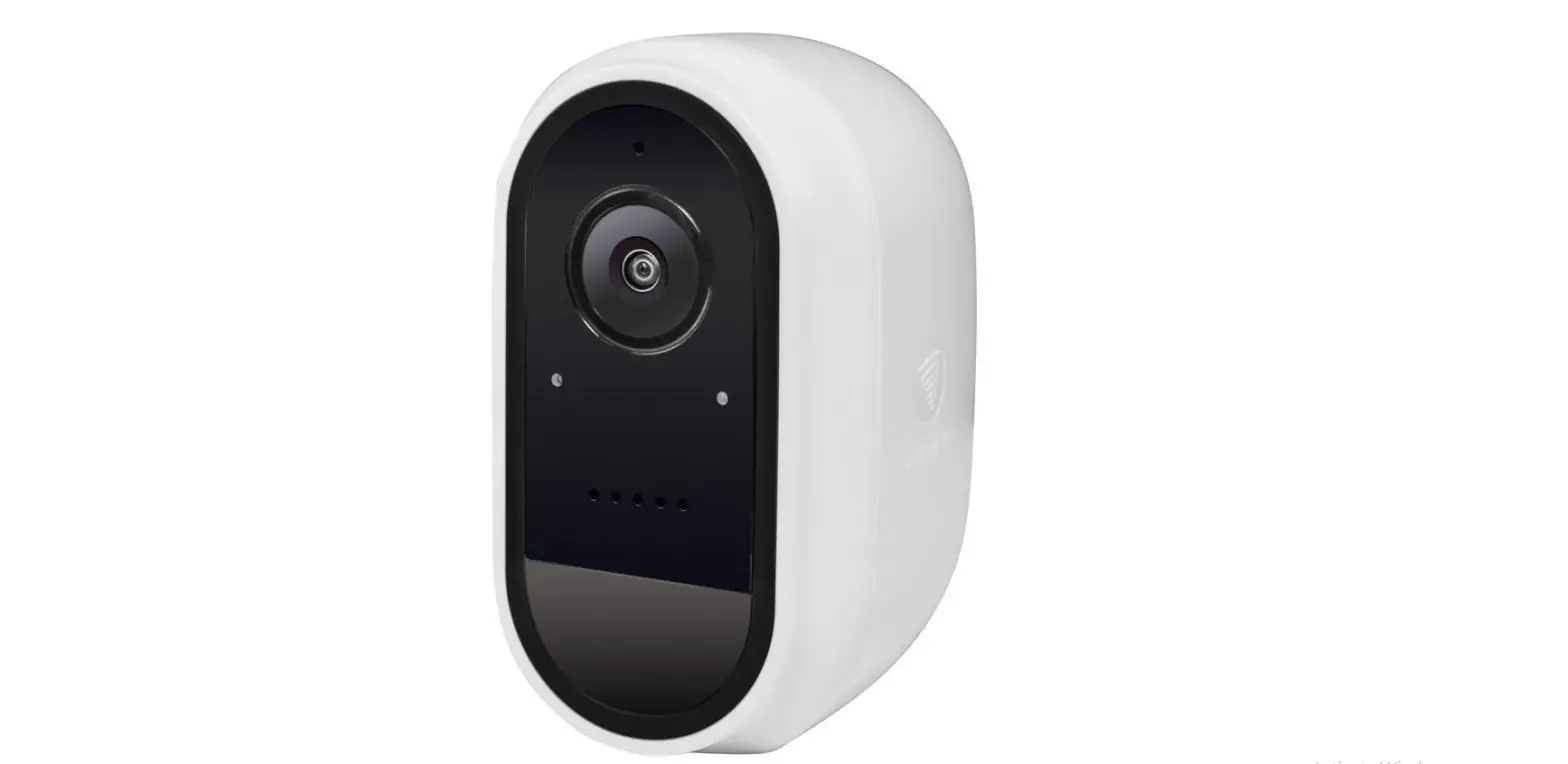
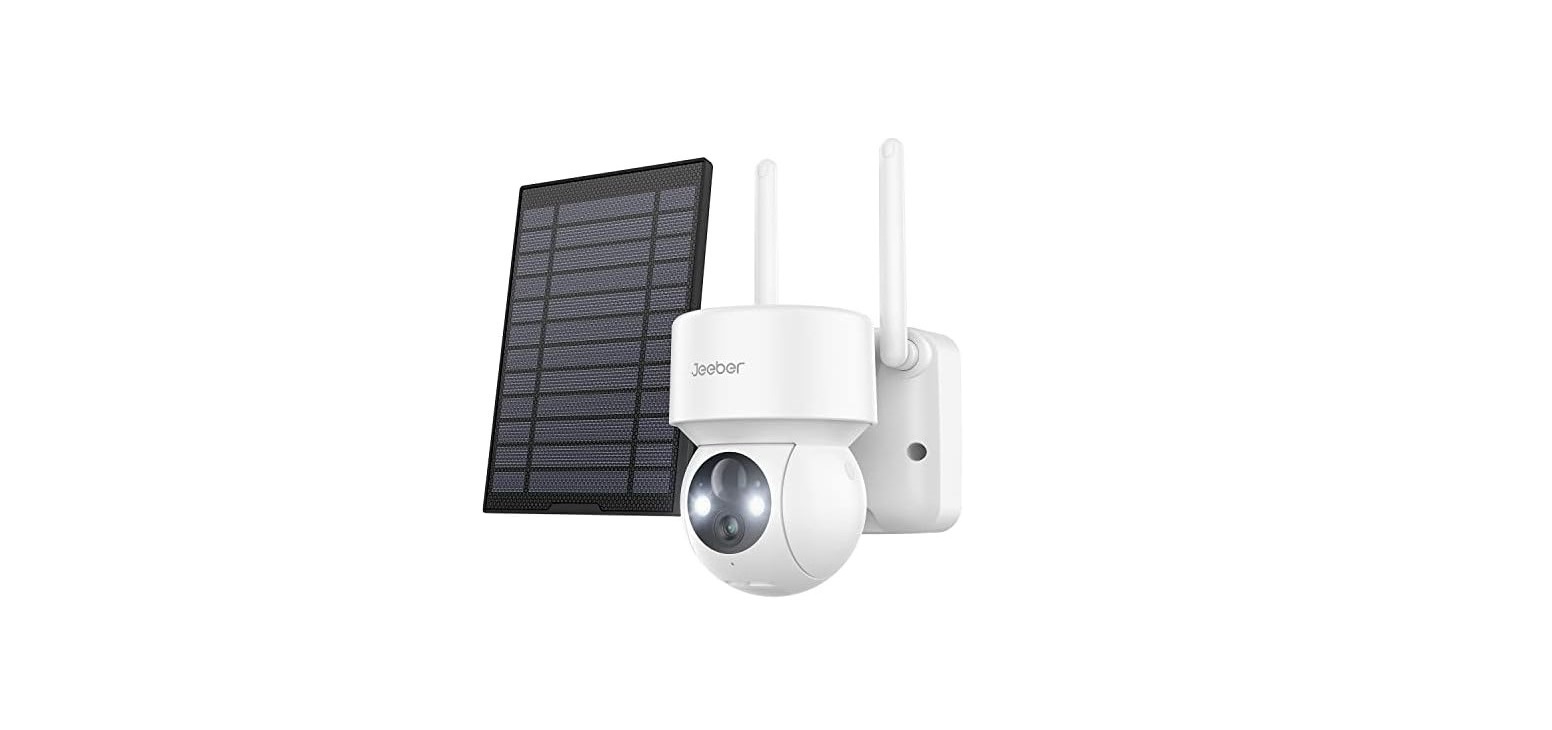
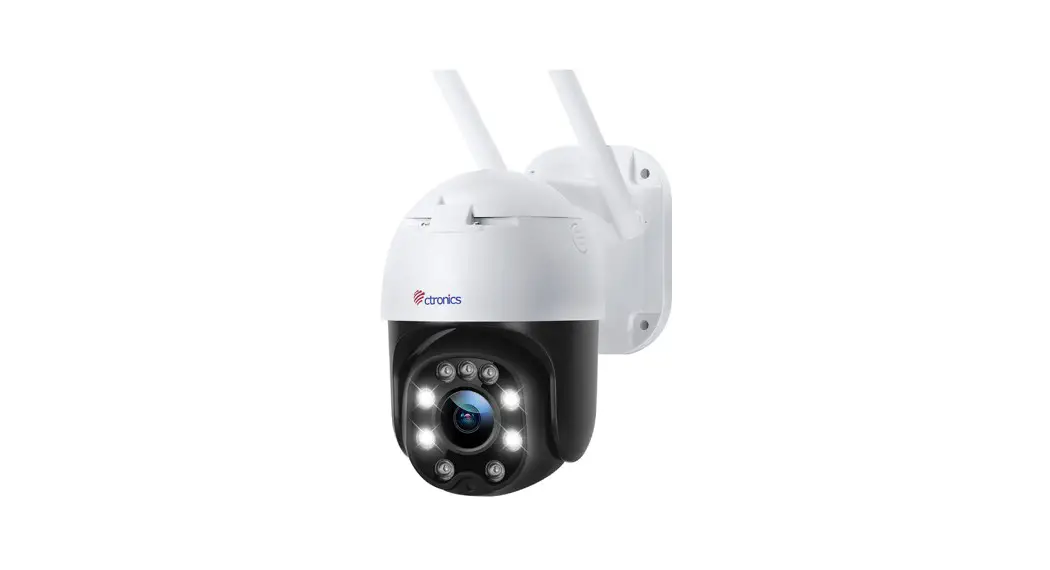
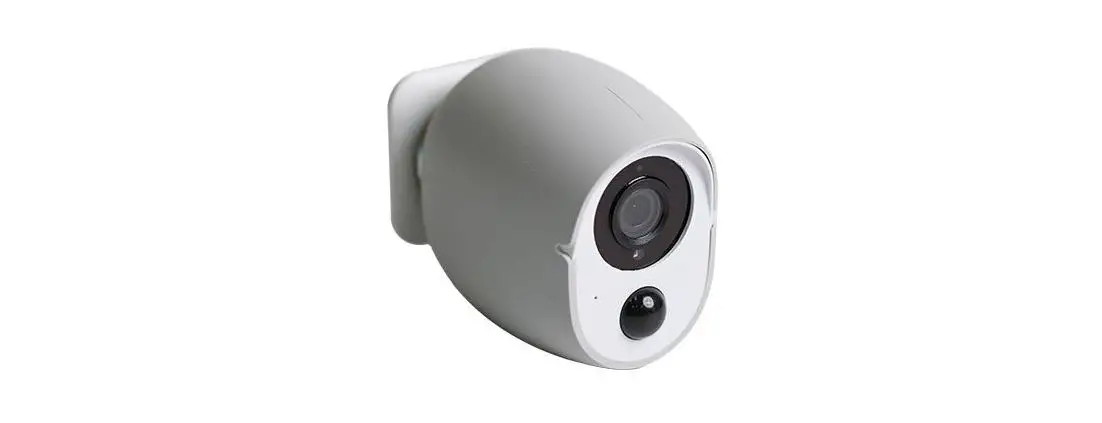
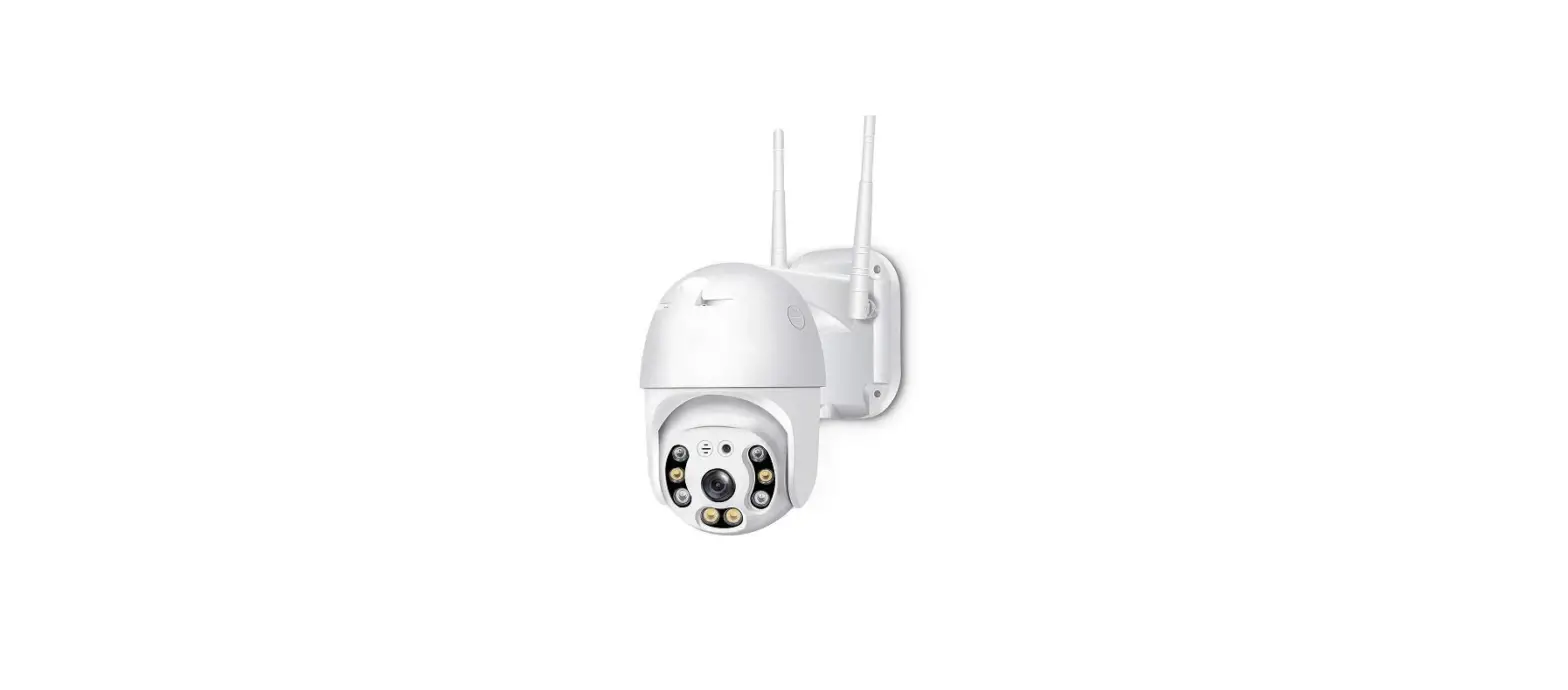
CQ1H Smart PTZ Battery Camera
Product Information:
The Smart PTZ Battery Camera is a wireless camera with a
high-definition lens and a 3MP adaptive camera lens. It features a
WiFi antenna, white light indicator light, microphone, speaker,
human body infrared sensor, and a micro-SD card slot. The camera
also includes a bracket for installation and a solar panel for
charging (3W). It has a micro-USB port for power and a reboot
button for resetting the camera to factory settings. The camera
requires a 5V/1.5A charging adapter for charging and supports the
VICOHOME app for operation.
Product Usage Instructions:
- Installing the Bracket:
- Connect the power cable (Micro-USB port) to the camera.
- Attach the bracket to the desired location.
- Powering On/Off the Camera:
- Long press the power button for 2 seconds to power on/off the
device.
- Long press the power button for 2 seconds to power on/off the
- Resetting the Camera:
- Double click the reset button to reset the camera to factory
settings. The camera will emit a beeping sound and the blue light
will flash. - After resetting, reconfigure the network for the camera via the
app.
- Double click the reset button to reset the camera to factory
- Charging the Camera:
- When the battery is low, the app will remind you to charge the
camera. - Use the provided Micro USB cable to connect the camera to a
5V/1.5A charging adapter. - During charging, the camera’s indicator light will be solid
yellow. - When the camera is fully charged, the indicator light will turn
solid green. - It takes approximately 10 hours to fully charge the
camera.
- When the battery is low, the app will remind you to charge the
- App Operation:
- Download and install the VICOHOME app from the provided link or
scan the QR code with your mobile phone. - Register and log in to the app.
- Add the camera to the app by following the on-screen
instructions. - Ensure that your Wi-Fi meets the requirements (2.4Ghz, stronger
wall penetration capability). - Select the battery camera in the app and connect it to your
Wi-Fi network. - Complete the connection process by scanning a QR code and
following the voice prompts.
- Download and install the VICOHOME app from the provided link or
- Camera Installation:
- Place the camera on a shelf or other surfaces, or install it on
a wall. - Prior to installation, ensure that the camera can detect the
wireless signal of your router by connecting it to the app.
- Place the camera on a shelf or other surfaces, or install it on
SCAN & FOLLOW US
Welcome to send email if any problem. Support email: [email protected] Official Website: http://www.tmezon.com
Smart PTZ Battery Camera Instruction Manual
Please read it carefully before using the product and keep this handy
Description Camera
WiFi Antenna
Lens White Light Indicator Light
Bracket
Micro-USB Port
Microphone
Human Body Infrared Sensor
Speaker
Micro-SD card slot Reboot button
Power/Reset button
EN-1 [email protected]
EN-2 [email protected]
Solar panel Solar Panel (3W)
How to install the bracket?
Power button: Long press the power button for 2s to power on/off the device.
Bracket
Power cable (Micro-USB port)
Reset button:
Double click the reset button to reset the camera to factory setting, it will emit a beeping sound immediately, Ding Dong Ding Dong…., the blue light will flash, at this time, you can reconfigure the network for the camera via the app.
Product description Item
Camera lens High definition
Video bit rate Storage media Rotation angle Battery capacity Adapter requirement Waterproof rating
Specification Field of view: 110°
3MP Adaptive
Micro SD card (Up to 128GB) 355° Pan, 90° Tilt 9000mAh 5V/1.5A Ip66
Indicator light status
Mode Working mode Configure network Sleep mode Charging mode Fully charged mode
Status Solid blue Flash blue
Off Yellow Solid green
Charge the camera
App will remind you to charge your camera when the battery is low. Please use the Micro USB cable to plug into the 5V/1.5A charging adapter to charge the camera. During charging, the camera’s indicator light is solid yellow, and when the camera is fully charged, the indicator light will turn into solid green. It will take 10 hours to fully charge the camera.
EN-3 [email protected]
EN-4 [email protected]
APP operation
The wireless smart battery camera operates on the built-in internal batteries and can also be powered using the included AC-Power supply or solar panel.
1. Download and install the App
The wireless smart battery camera supports Android and iOS App. The app is VICOHOME. For your best experience, please scan the QR code below with your mobile phone, install the app, and follow the instruction to complete the user registration.
Scan QR code or go to the link to download and install the App:
https://www.vicohome.io/download/
Android
Download
APP Store
Download
3. APP connection
Step 1: Login app, Click “Add camera now ”
2. WiFi connection
Note:To ensure a longer distance connection, the camera only supports the 2.4Ghz Wi-Fi with stronger wall penetration capability and does not support Wi-Fi for enterprise-level authentication currently. Please ensure that the entered Wi-Fi meets the requirements.
Scan QR code for tutorial video of the app connection
Step 2: Select “Battery camera “, click “Next step”
EN-5 [email protected]
EN-6 [email protected]
Step 3: Camera is emitting a beeping sound,click “Next step”
Step 4: Select WiFi for the camera, connect to 2.4G WiFi only
Step 5: Make your mobile phone connect to 2.4G WiFi
Step 6: Enter WiFi password
EN-7 [email protected]
EN-8 [email protected]
Step 7: Scan QR code to connect, keep a distance of 10-25cm until you hear the voice prompt.
Step 8: Complete connection
Install the camera
You can place the camera on a shelf or other surfaces to use, or you can install it on a wall to use. (Please connect the camera to the app first, make sure that the location of the camera can detect the wireless signal of your router.)
1. Select a good spot for your camera
Select a good spot for your camera, please install the camera in a position where its view is not blocked and ensure that it is within the coverage of the Wi-Fi network. The PIR infrared sensor is more sensitive to movements across the camera’s field of view than movements toward or away from the camera.
EN-9 [email protected]
The installation height and angle of the camera will affect the detection distance of PIR:The actual measurement is in the case of 2.2 meters high and -15 ° inclination: High sensitivity: 8~10 meters; Medium sensitivity: 6~8 meters; Low sensitivity: 4~6 meters.
EN-10 [email protected]
2. Install the bracket 1) Screw fixing Use the drilling tool to punch holes on the wall according to the hole distance of the base. It is recommended to mark the holes on the wall with a pencil before drilling. Screw the expansion nut into the holes on the wall, and then connect the bracket to the expansion nut with screws to complete the fixing.
2) Camera installation Insert the camera into the fixed bracket from top to bottom.
FAQ Questions
Camera permission management: How to invite family and friends to use the camera together?
Answers
Open the App and select your camera on the home page. Click the share button on the home page or the “Share” in the camera settings to enter the sharing page, and then click “Invite ” to generate a QR code. Your friends can now get some of the access rights by scanning the QR code in their phone.
What to do if the device is offline?
Delete the device from the app, double click the power button to reconfigure the network for the camera
Why doesn’t the Wi-Fi name appear when I connect to Wi-Fi?
On Apple devices with iOS13 and above, you need to turn on the “location permission” for the app in the system settings and change it to “allow when using.”
What are the requirements for Wi-Fi?
1. Make sure that the WiFi is in 2.4Ghz. The camera does not support 5Ghz WiFi.
2.Set the Wi-Fi authentication method to WPA2-PSK or other lower level of security method.
3.WiFi password should be less than 13 digits.
What is the maximum length of recording time?
If you set the duration as “Auto”, when someone occurs in the view of the camera, it will start recording a video for up to 3 minutes.
EN- 11 [email protected]
EN-12 [email protected]
Questions
Answers
How far should the camera be placed from the router?
After testing, the Wi-Fi connection distance can normally reach up to 150 meters in the open area. However, the actual situation depends on the strength of Wi-Fi and its surrounding environment (thick walls, electromagnetic devices, large metal objects will all cause interference to the Wi-Fi signals). If the camera connection signal is weak or unstable, please place the camera as close to the router as possible.
What should I do when the device is in malfunction?
Long press the power button for 3 seconds to restart it. If there is no response, you can remove the rubber plug at the button of the camera. Press the reboot hole with a pointed object to restart the camera.
Questions
Why I don’t receive the notification on my mobile phone?
Answers
1.Make sure that the motion detection is turned on.
2.Make sure that the notification setting is turned on.
How to do firmware update?
1.When you connect your camera through the App, it will prompt you if the latest firmware is available. You can also manually check the firmware upgrade in the settings of the App.
2.Please make sure that your camera is fully charged or connected to the power adapter before upgrading the firmware, please do not cut off the power supply during the upgrading.
Will the camera show red lights when night vision is activated?
The built-in infrared lamp beads make the camera only show some dim red lights when night vision is activated, but the image quality is still clear under no light environment.
The PIR detection distance is related to
the installation height, angle and
sensitivity.
Why does the motion
The actual measurement is in the case of
detection not work properly?
2.2 meters high and -15 ° inclination: High sensitivity: 8~10 meters;
Medium sensitivity: 6~8 meters;
Low sensitivity: 4~6 meters.
Why the video is not recorded?
1. Make sure that SD card is recognized by the camera. You can check it on the following interface on the app: Setting – SD card Management
2.If the SD card is not recognized by the camera, power off the camera, then power on the camera again, the camera will recognize the SD card.
(Note: Please insert the SD card into the camera before powering on.)
3. Make sure that the motion detection is within the detection range of the camera, please refer to ” Select a good spot for your camera”, otherwise, the camera will not record.
EN-13 [email protected]
EN-14 [email protected]
What should I do if the battery run out so fast?
If the trigger is too frequent, the recording time is too long or the network signal is not good, etc., it will lead to fast power consumption. You can try to solve it in the following ways.
1. Decrease motion detection sensitivity Go to the “Settings > Motion Detection” page and reduce the sensitivity.
2. Turn on the recording interval Once the Cool down time is on, no video will be recorded again within the set time interval, which can increase the camera’s battery life. Go to the “Settings > Motion Detection” page, and enable the record interval.
3. Adjust the monitoring angle of the camera to avoid frequent triggering of PIR If the camera is within the monitoring range, there will be frequent movements (such as entrances and exits, roads), which will cause the PIR to be triggered frequently, resulting in fast power consumption. Therefore, it is recommended to avoid scenes or monitoring angles that are frequently triggered by motion when installing cameras.
4. Adjust video resolution and video duration
It is recommended to set the recording resolution of the camera to SD and the recording time to 10s
5. Turn off “Alarm Bell” and “Alarm Flash”
Turn on the “alarm bell” or “alarm flash”, the camera will make a sound alarm or white light flashing alarm after triggering the PIR, which needs to consume more power. Therefore, you can turn off the “alarm bell” and “alarm flash” to save power.
6. Improve the network the camera is connected to
When the network connected to the camera is poor, and the WiFi signal is weak, the camera may be disconnected, and the uploading speed of the video may be slow, resulting in increased power consumption and faster power consumption. It is necessary to find a way to enhance the WiFi signal strength at the location of the camera, such as: moving the camera close to the router, adding a WiFi amplifier to enhance the WiFi signal strength at the location where the camera is located, etc.
Advanced Cloud AI Solutions
On-device AI
1.Medium / Low computing power AI chip
2.Very low frame rate single algorithm, low precision is almost unusable, unable to achieve multi-function simultaneous operation
Cloud AI
1.Proprietary local deployment of high computing power AI server
2. Multi-algorithms run uninterrupted at high frame rate, targeting fixed function groups
3.Shared ultra-high computing power AI server
4.High frame rate and multi-algorithm parallel computing, high-precision model, free choice of a variety of high-quality AI functions
EN-15 [email protected]
EN-16 [email protected]
The AI analysis result comes from encrypted AI algorithm analysis. Once you turn on the classification feature, the camera will analyze the video and you will be notified only when the camera recognizes a person, pet, vehicle, or package. The smart notifications depend on which classification(s) you select.
Share device
Step 1: Click “Setting” on the upper right corner
Step 2: Click “Share” to share the device
Compared with on-device AI, Cloud AI can provide more accurate analysis and reduce false alarms. Therefore, it requires cost and labor to maintain the best and advanced service, Cloud AI needs to charge monthly service fees. Newly registered users can enjoy a 30-day trial period of this feature.
EN-17 [email protected]
EN-18 [email protected]
Step 3: Click “Camera sharing”
Step 4: Get QR code, other
users should scan the QR
Step 5: Other users should
code to add the camera through create an account of
VicoHome APP.
VicoHome app first, login app,
(Note: other users should
Add Friend’s Camera
create an account of
VicoHome app before
scanning QR code)
Step 6: Scan QR code to connect
EN-19 [email protected]
EN-20 [email protected]
 video intercom doorbell system_wireless security system manufacturer_wireless home security system_secure closed circuit television camera-TMEZON
 vicohome.io/download/