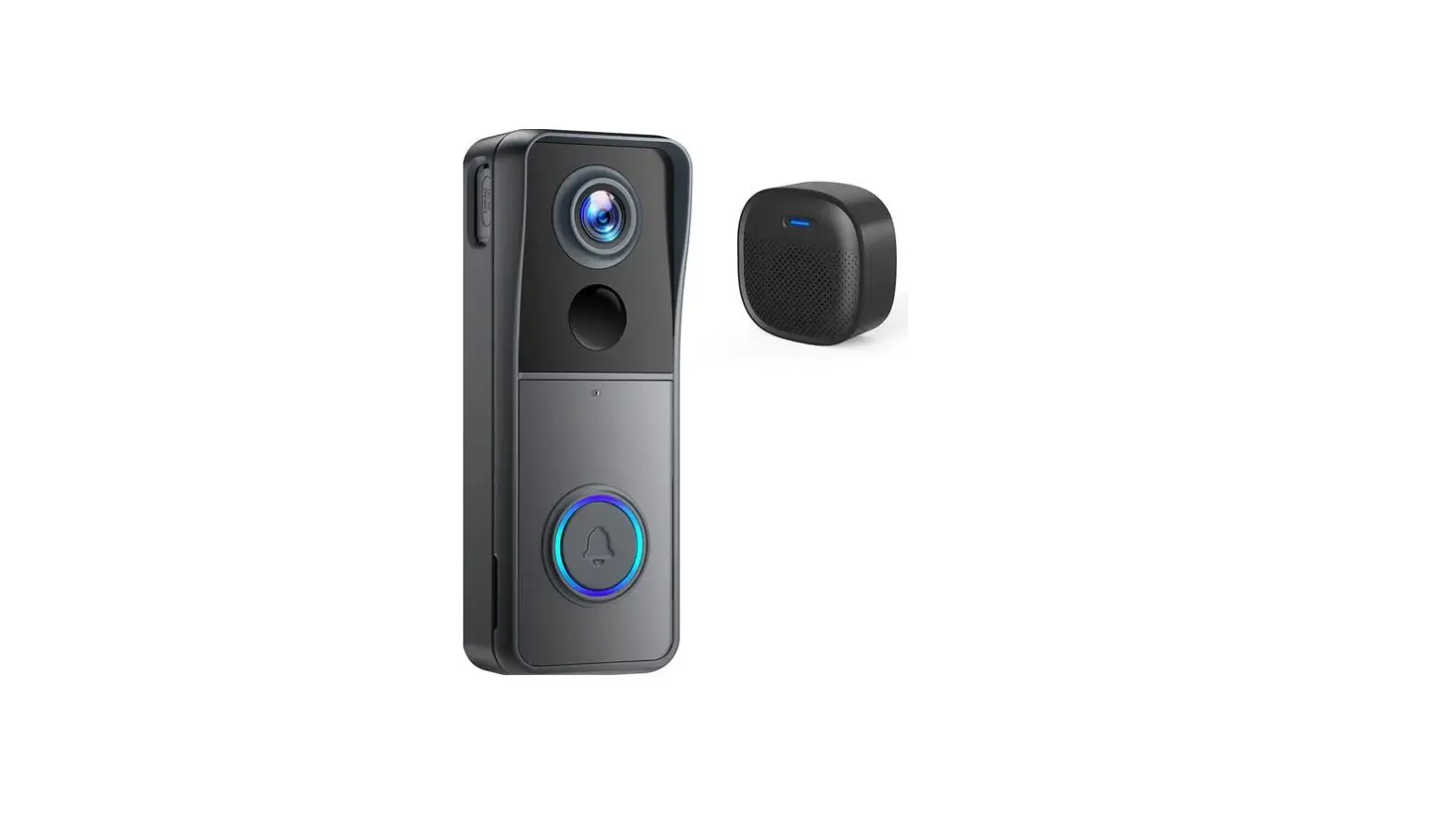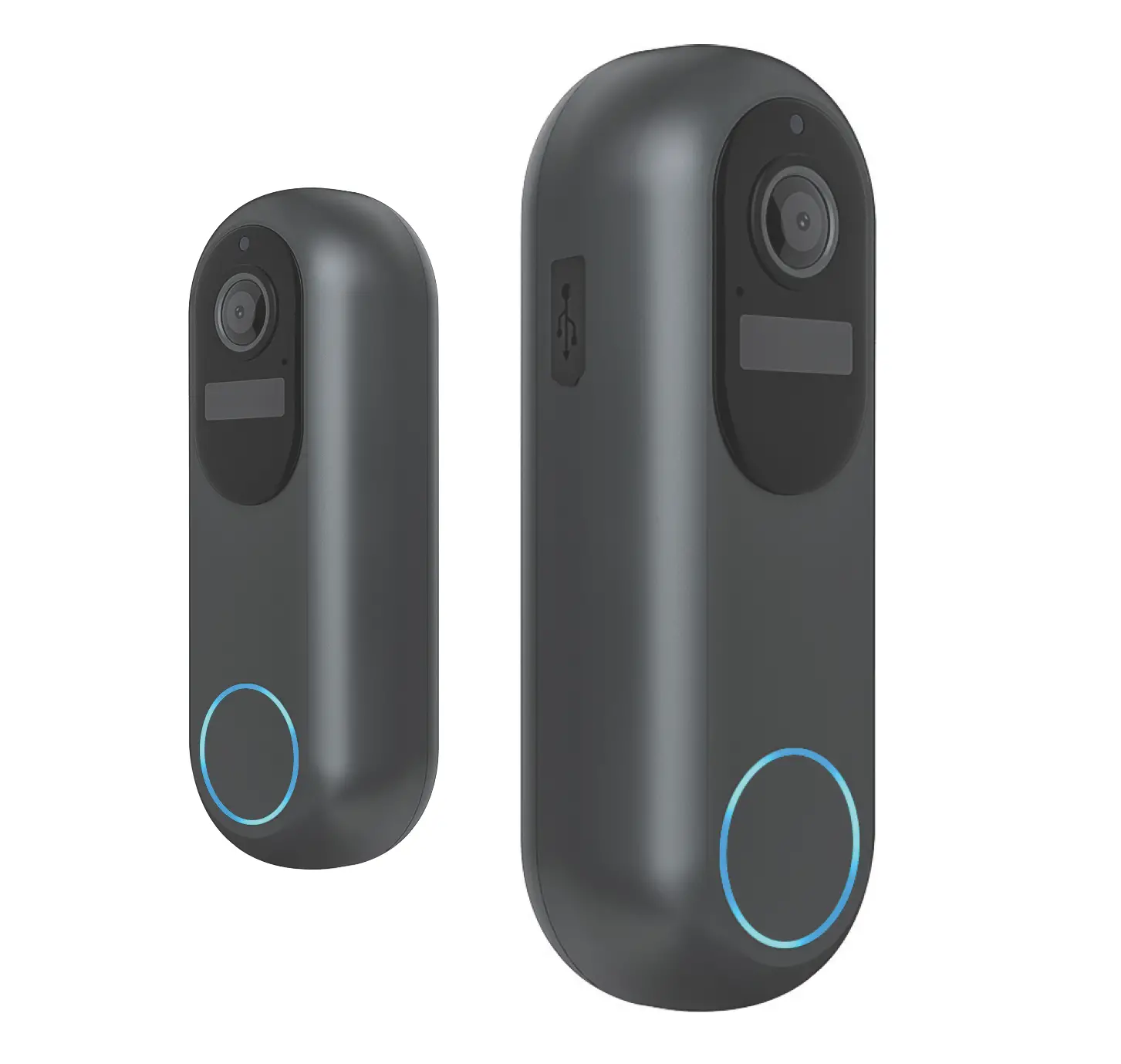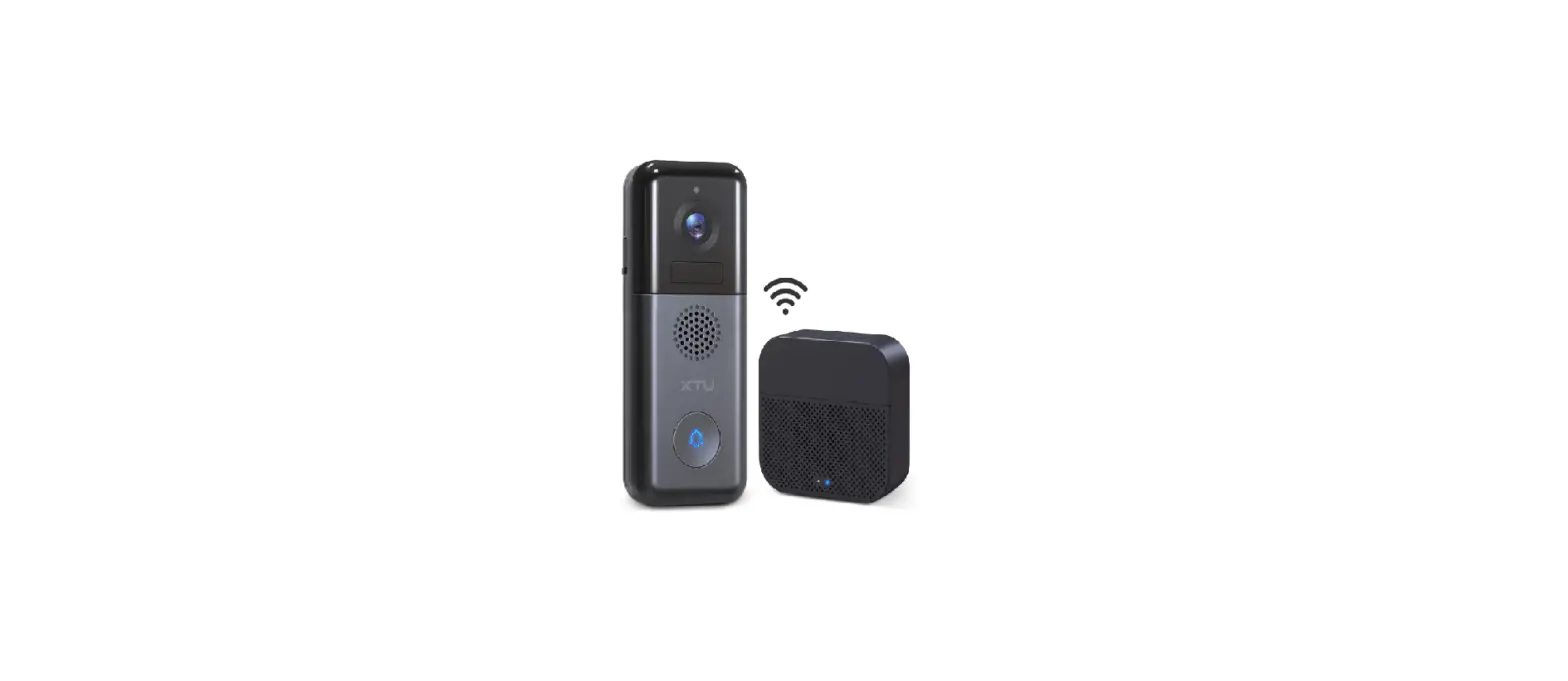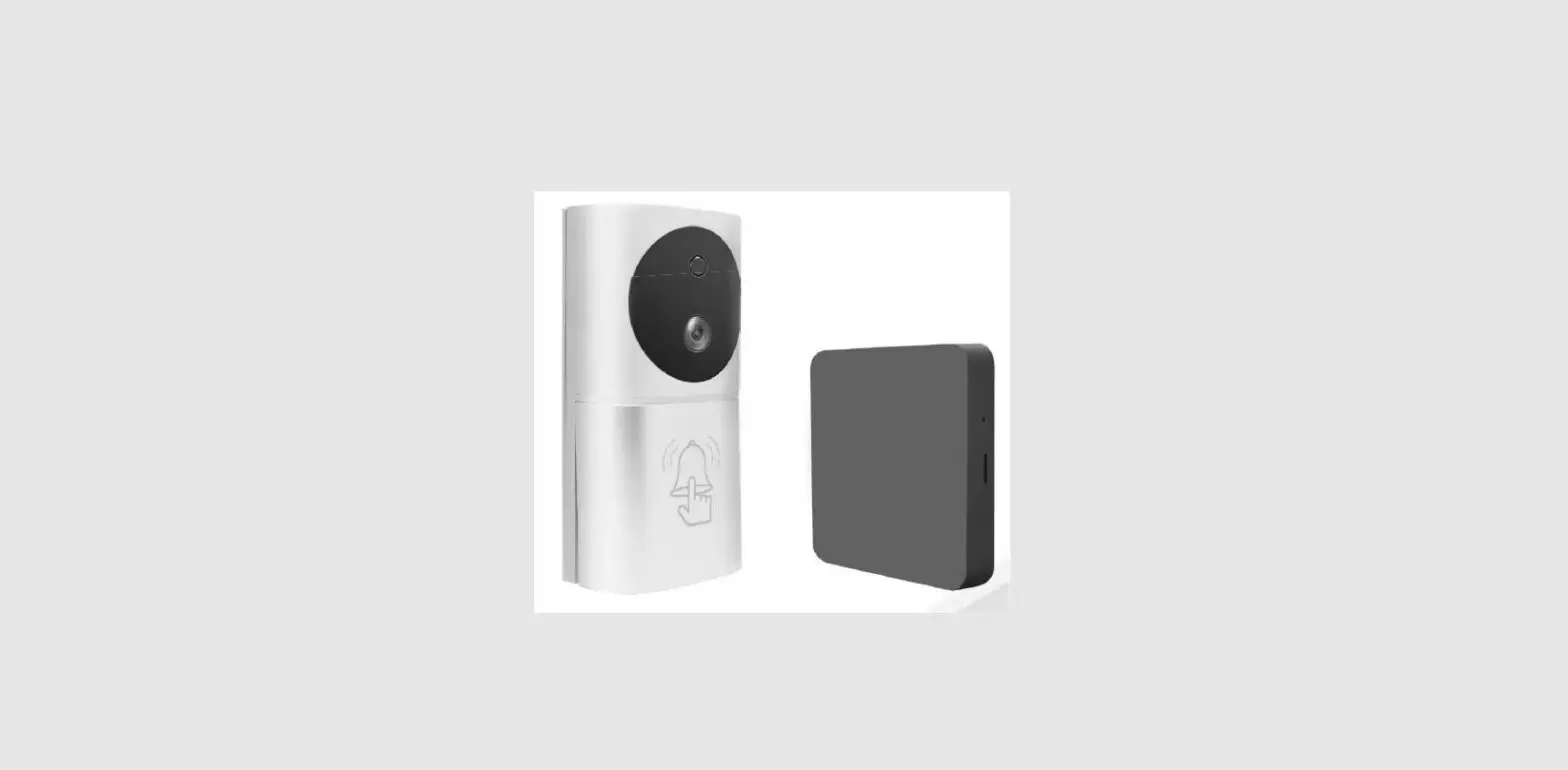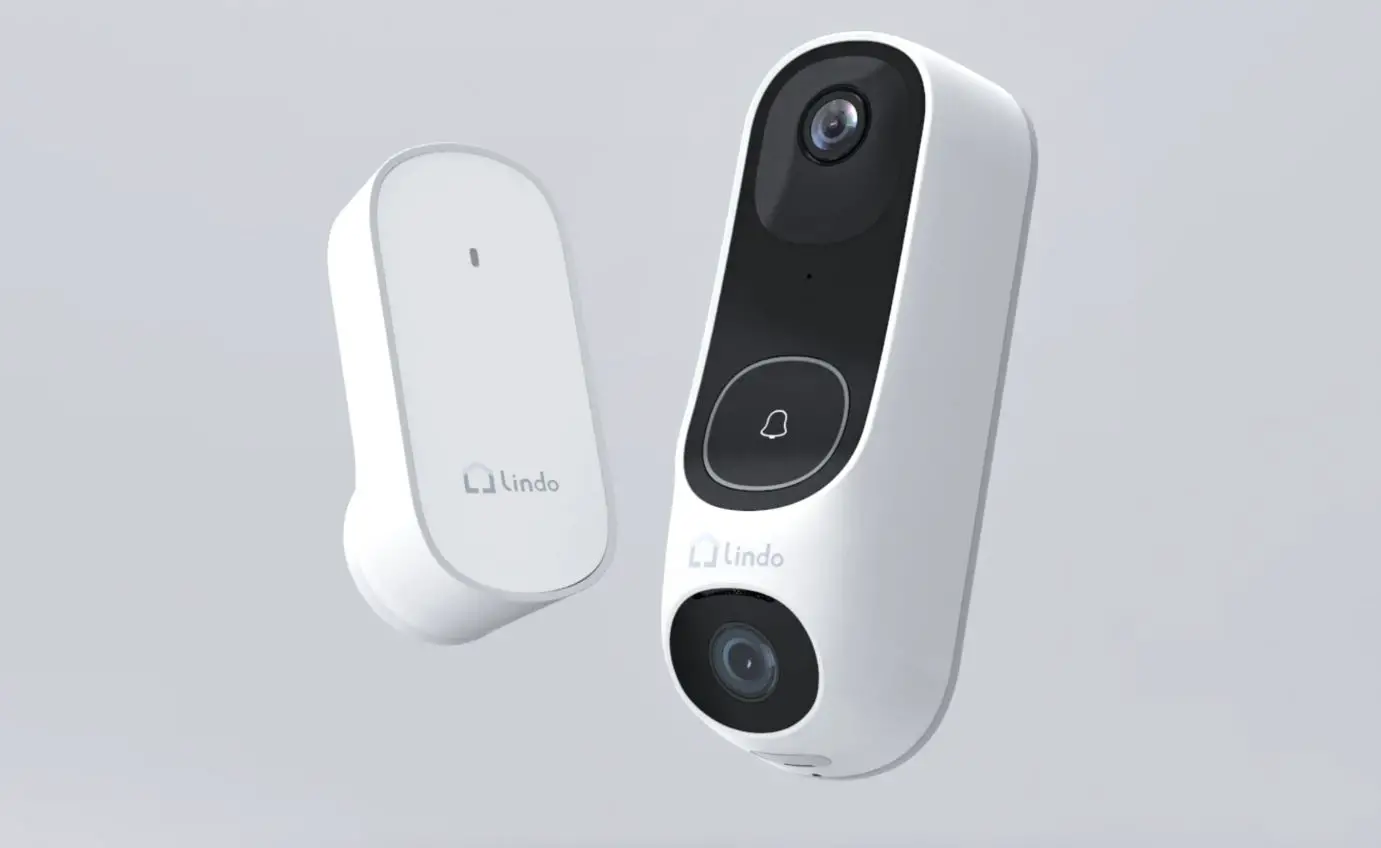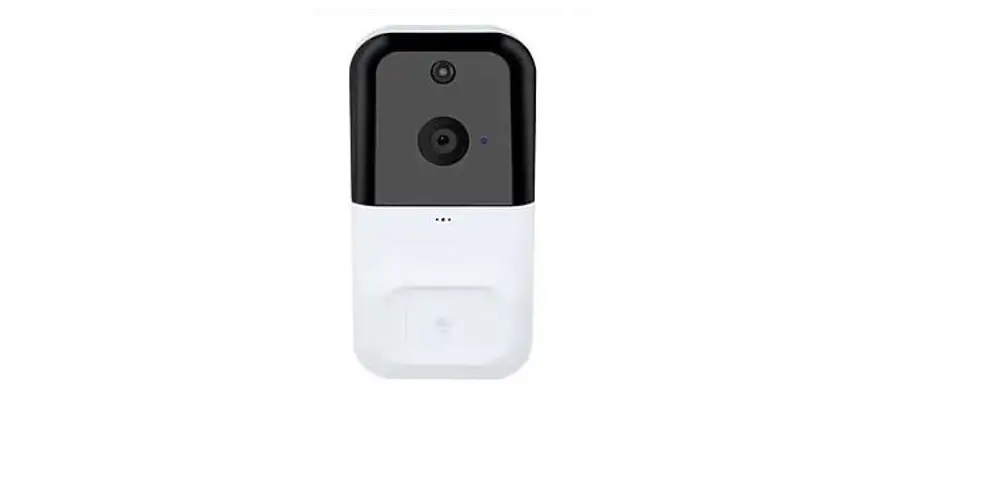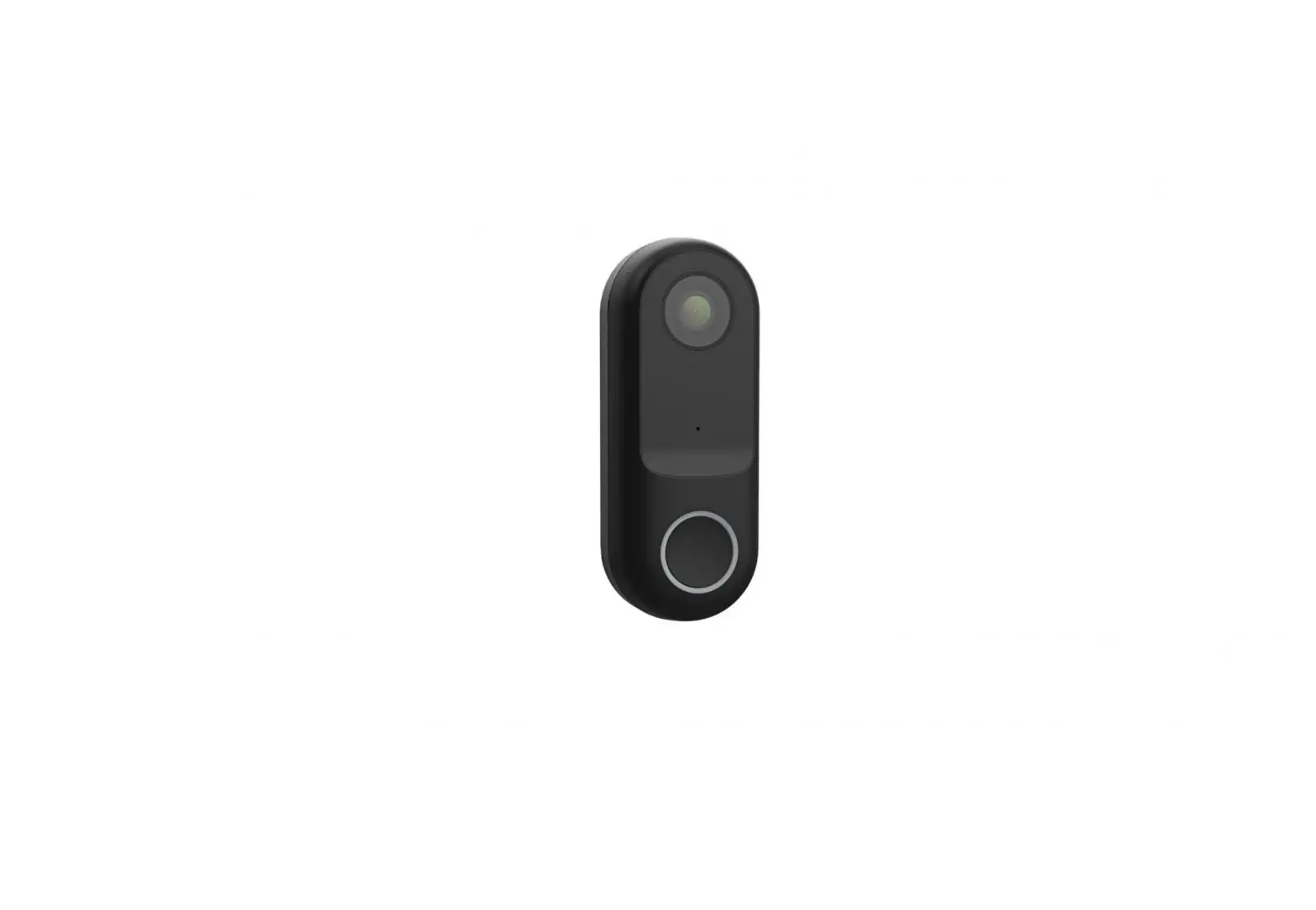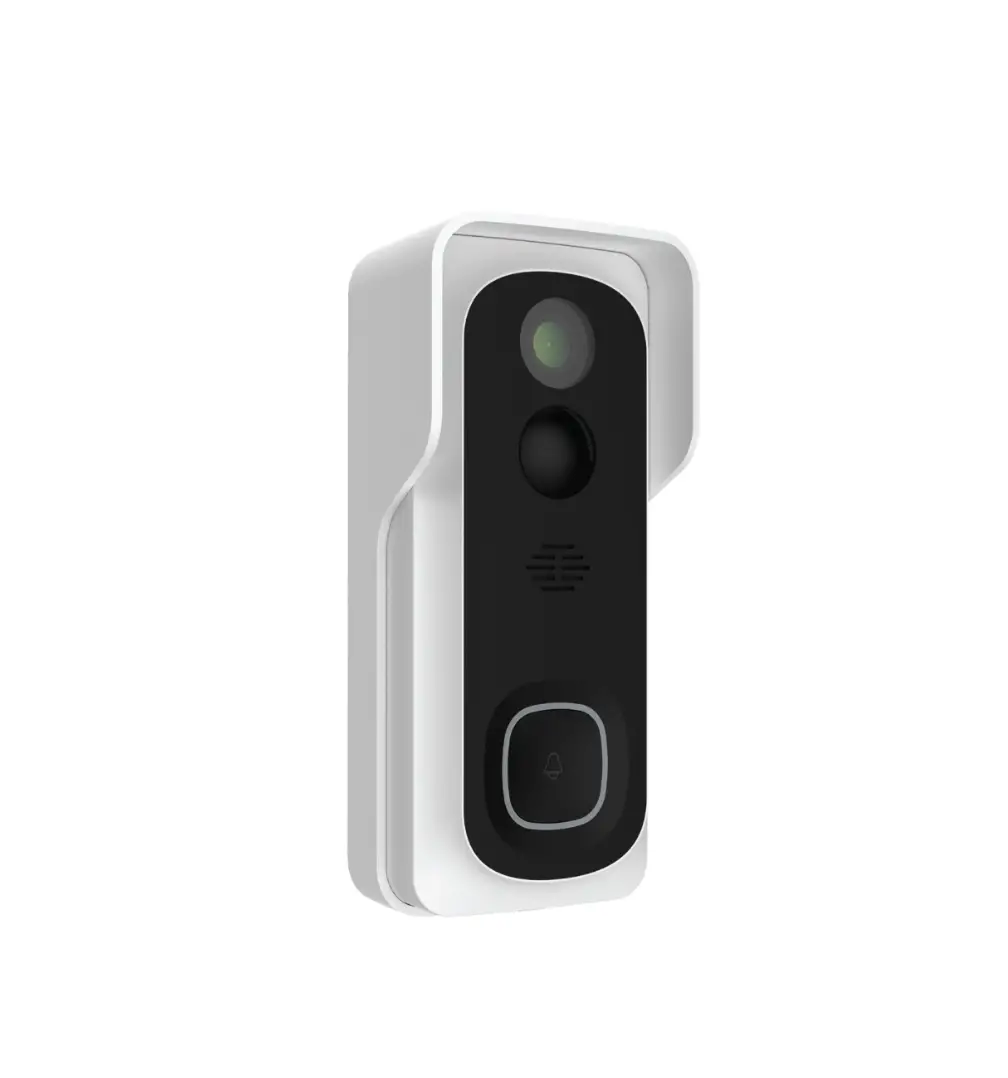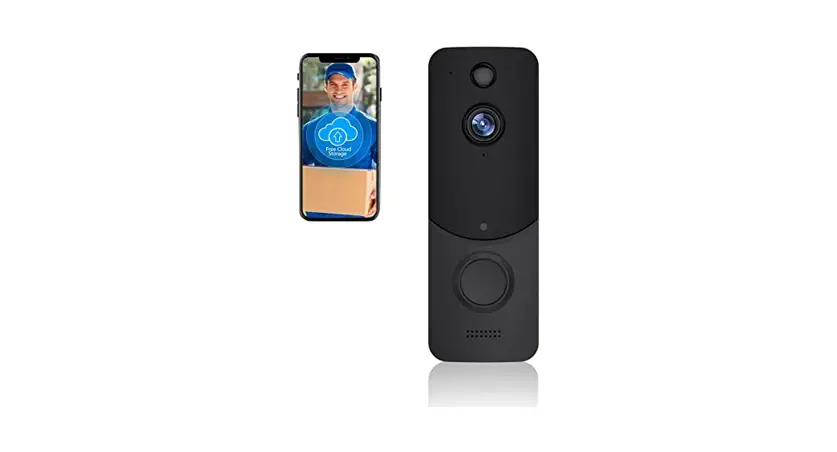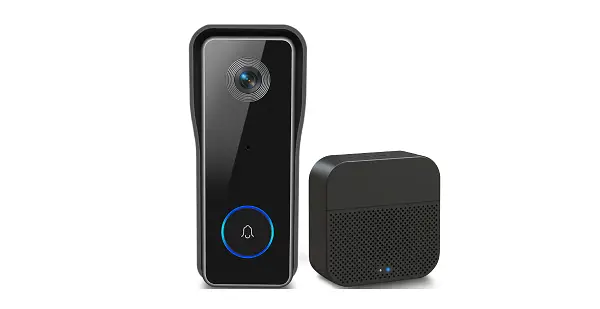

XTUCAM 2K Battery Powered Doorbell Camera
Technical support:
If your camera does not seem to be functioning properly, please check the Troubleshooting/FQA section. If you have any issues, please contact our support team: [email protected]. Receiving your message, we will provide a fast solution in 24 hours.
Customer support
[email protected]

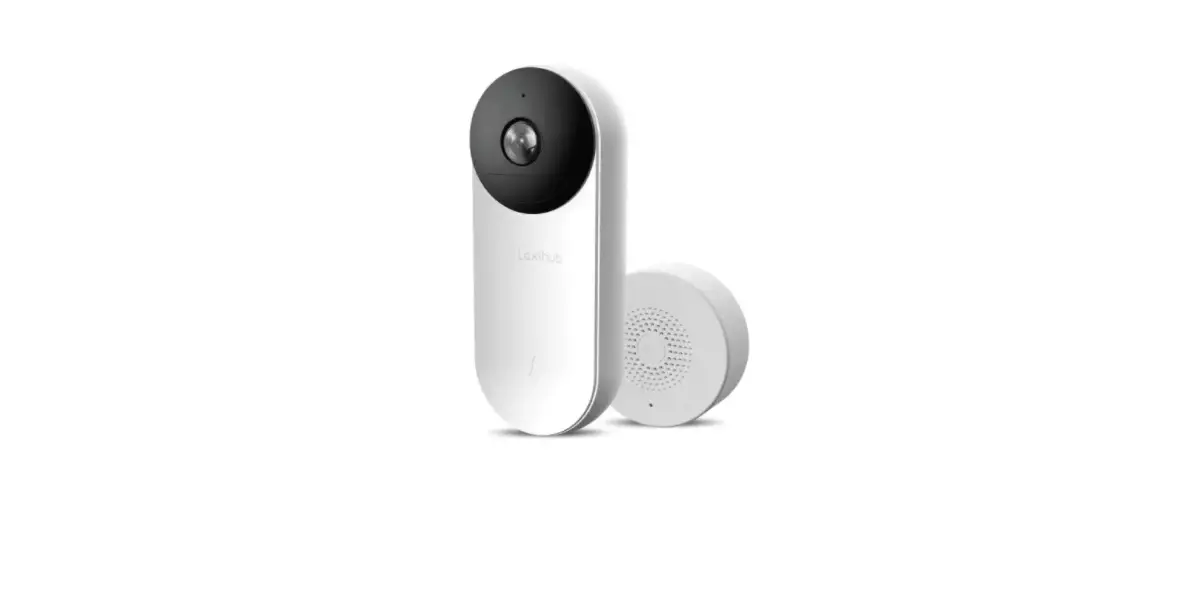
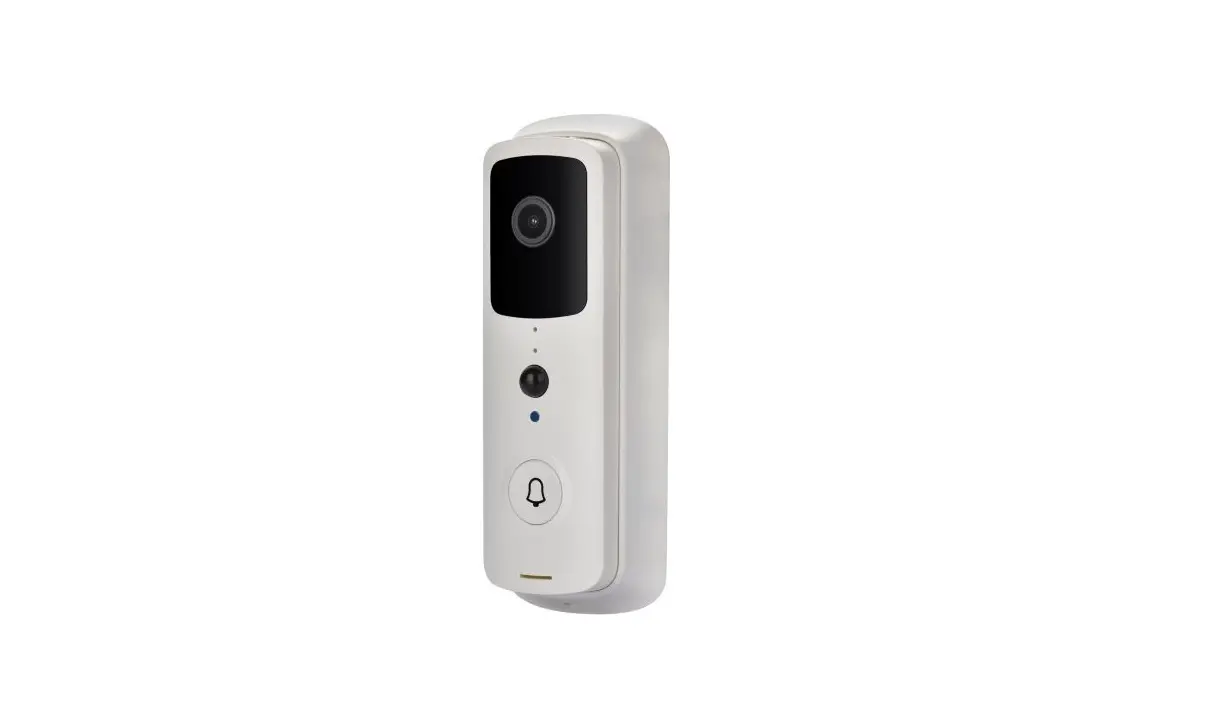
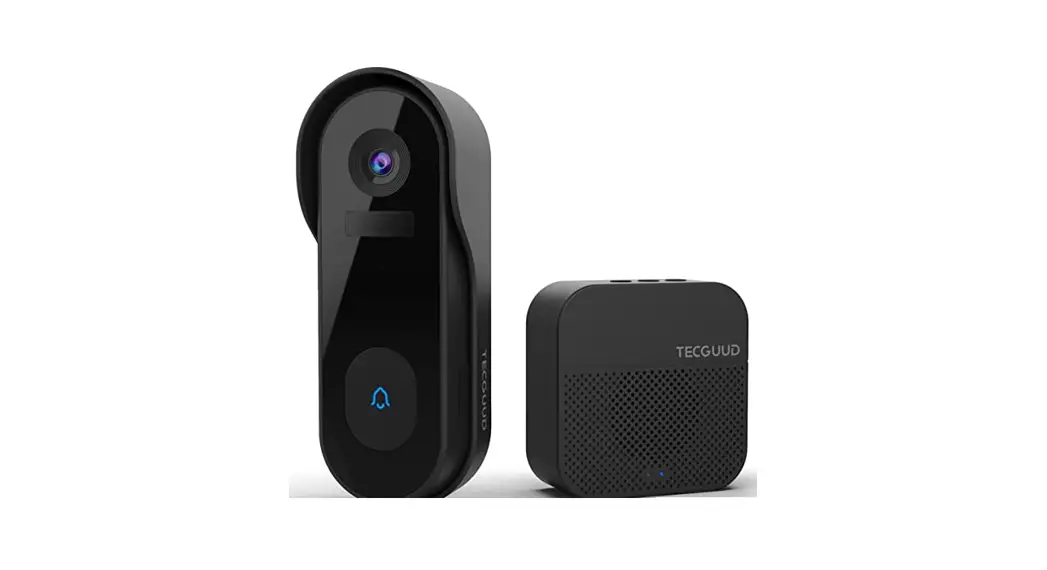
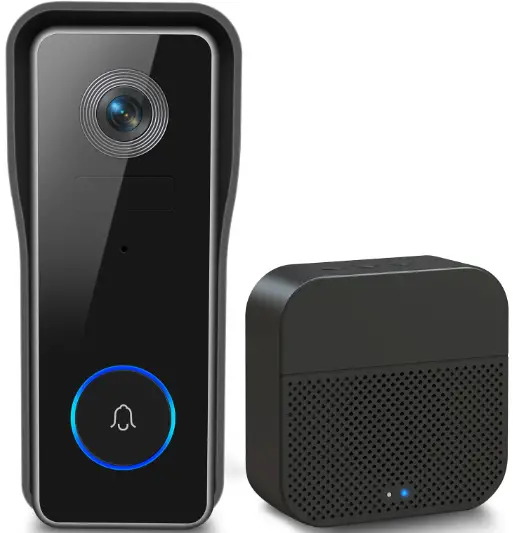
Introduction of doorbell
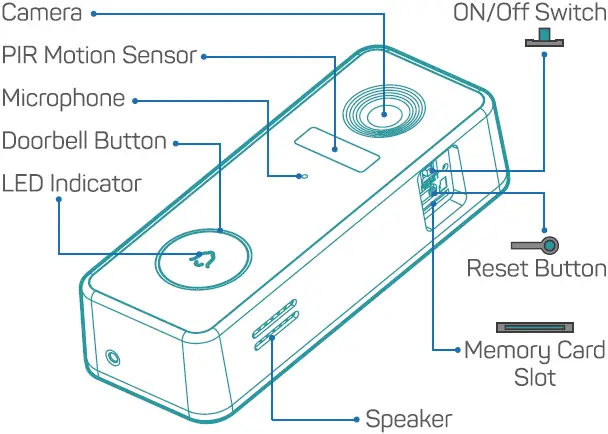
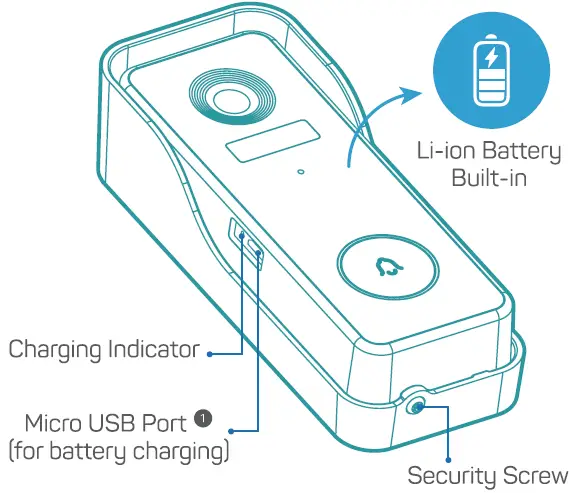
- Doorbell comes with a 4500mAh rechargeable Li-ion battery.
Introduction of chime
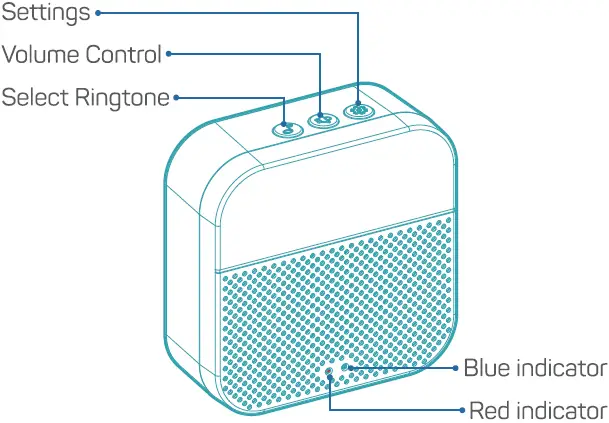
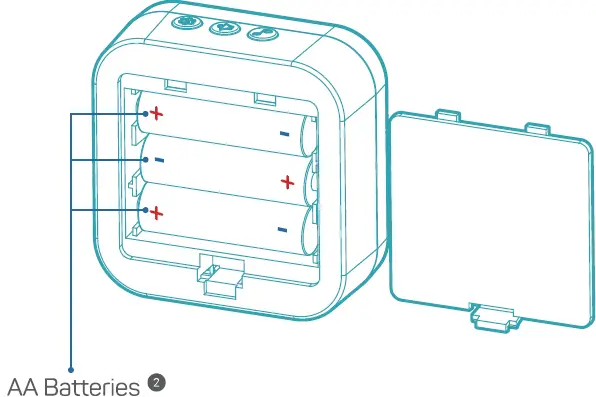
- Chime can be powered either by AA batteries or a Micro USB compatible phone charger
Charge your doorbell
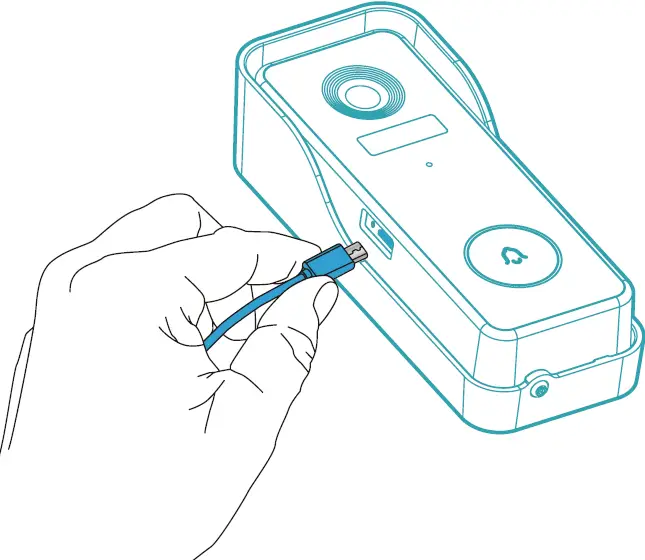
Prior to the doorbell installation, please charge up your doorbell for about 8-10 hours till the charging LED turns BLUE from RED.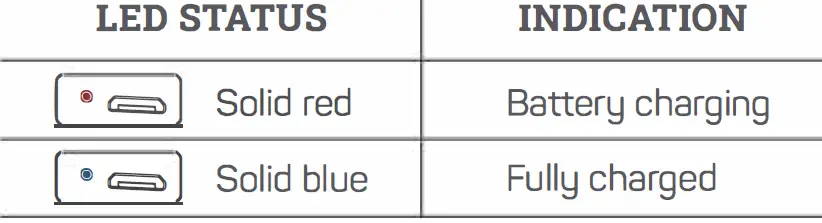
Compatible charger ( not provided ):
USB compatible mobile phone charger (DC 5V = 1A-2A).
Download “Cloud Edge” App
Search ‘Cloud Edge’ in the App stores or scan below QR codes to download the App.
Power on camera
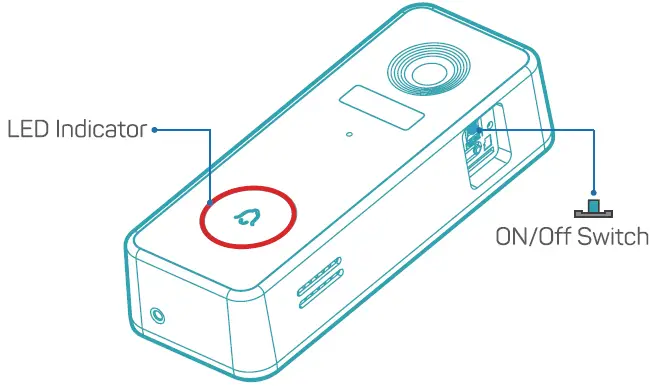
- Switch on power for your doorbell, and you will see the LED indicator flashes red (once per second). Start setting up your doorbell following the in-app instructions.

- Tips
- Please operate the setup near your Wi-Fi router.
- Make sure your phone is connecting to a 2.4GHz Wi-Fi.
- Make sure the doorbell is turned on, and its indicator LED is flashing red. If not, press and hold RESET for 5 seconds.
- Ensure the Wi-Fi signal is good, and the Wi-Fi password is correct.
| LED STATUS | INDICATION |
 Solid red Solid red | Device is abnormal. |
 Flash red [once/sec) Flash red [once/sec) | Read for Wi-Fi configuration. |
 Flash red [twice/sec) Flash red [twice/sec) | Connecting to Wi-Fi |
 Solid blue Solid blue | Device is online |
 Flash blue [once/sec) Flash blue [once/sec) | Live-viewing doorbell cam |
 Flash blue [twice/sec) Flash blue [twice/sec) | Firmware upgrading |
App Instructions
Start setting up your doorbell following the in-app instructions.  Scan me
Pair with your indoor chime
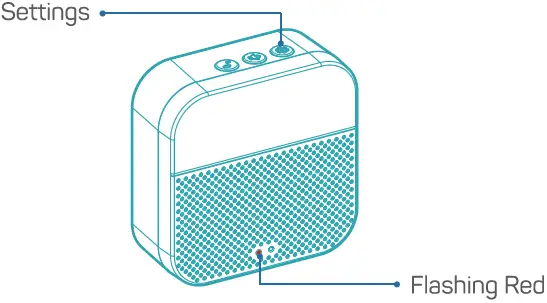
- Click the SETTING button on the chime, and the chime will be in pairing mode for 20 seconds, with its red LED flashing.

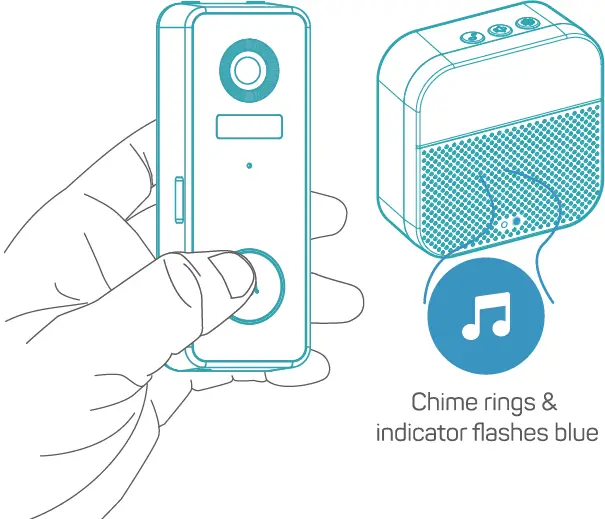
- Press the doorbell button to send a pairing signal, and your chime will sound to react together with its blue LED flashing. Chime pairing succeeds.

- Chime settings.
Ringtone selection.
Click to change ringtone (4 ringtones available).
Volume control button.
Click to control volume:
level 1: 110 dB; level 2: 100 dB
level 3: 90 dB; level 4: 80 dB
Settings
Click to enter/quit pairing mode;
Press & hold for 5 seconds to restore factory defaults.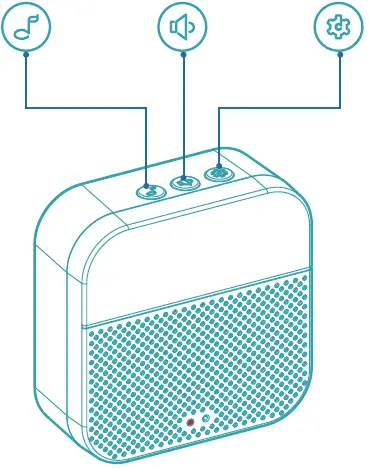
Install Your doorbell
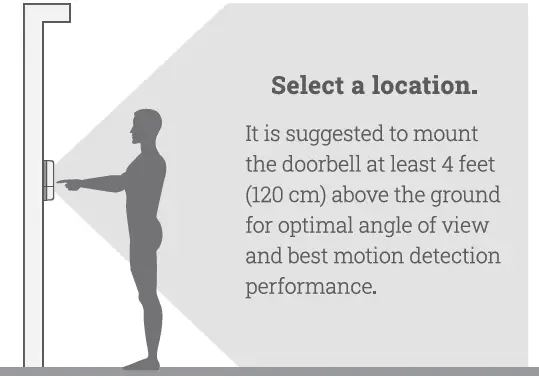
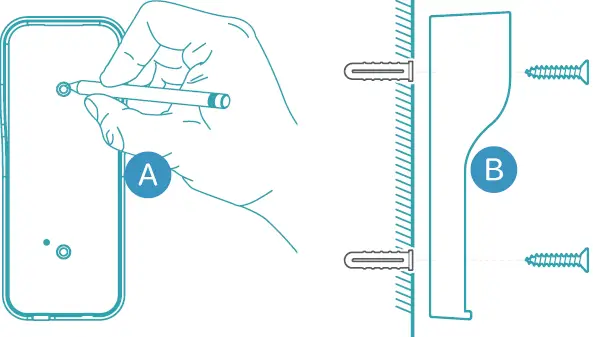
- Select location for your doorbell.

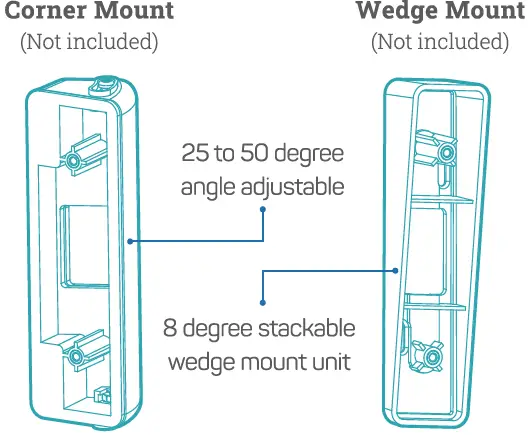
- (OPTIONAL) Install at an angle.
You can purchase the following angled brackets so as to point your doorbell to a specific view angle.
- Standard installation.


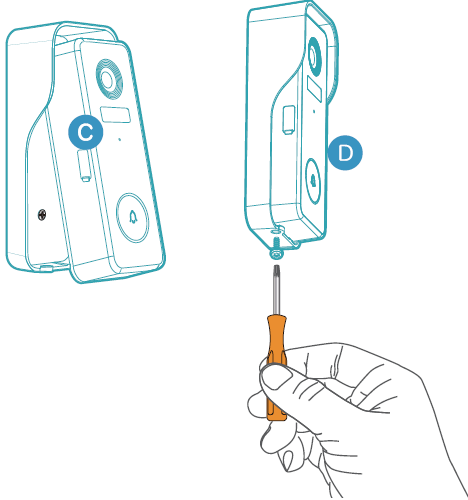
Tamper Alarm
Anti-theft Tamper Alarm.
You can also enable the anti-theft alarm in doorbell settings.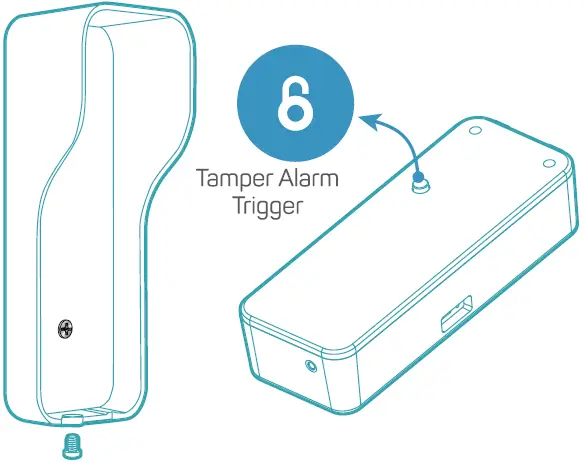 Tamper Alarm On
With tamper alarm on, your doorbell detects disassembly by the trigger on its back, and then a 30-second siren alarm will be triggered. Meantime, video recording get started, and alarm notification will be pushed to the owner’s APP account.
Tamper Alarm Off
You can disable the tamper alarm in doorbell settings, and detach the doorbell without any alarm for battery recharge or regular maintenance.
Trouble Shooting
Ql: Is the video doorbell powered by battery?
Al: Yes, there is a Li-ion battery built-in. Thanks to the low power consumption technology, a full charge lasts for more than 2-3 months in our lab test environment (Lab test condition: 10 events per day, 15 seconds video recording per event)
Q2: Does it support legacy hardwire power source?
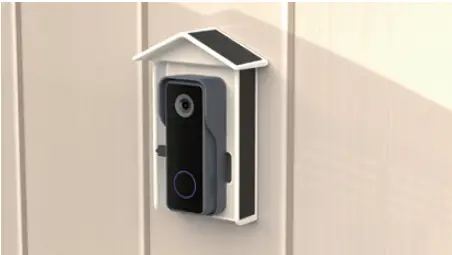
A2: No, it doesn’t. If you need longer battery endurance, suggest that adding a solar battery charger for your doorbell, if only there is sunshine in your doorbell location. You can contact our after-sale service to know where to buy.
 Q3: Does it work with existing mechanical chime?
A3: No. The doorbell comes with a battery powered wireless chime to notify people when your visitor presses the doorbell button. If you have an existing indoor chime, please use the provided jumper to bypass the existing chime, so as to provide sufficient power to the new video doorbell. And our wireless chime is 100% wireless, you can place it almost everywhere you like. The transmission distance in open space is more than 100 meters (328 feet).
Q4: How many wireless chimes can be added to the doorbell?
A4: You can add as many wireless chimes as your wish on one video doorbell.
Q5: Does it support customized Motion Detection zones.
AS: Yes it does. You can customize the detection zone in the doorbell settings.
Q6: Does the doorbell support cloud storage?
A6: Your doorbell support local video storage by TF card . And you can also activate the cloud storage service in the App. There is a 7-day-free cloud recording trial service.