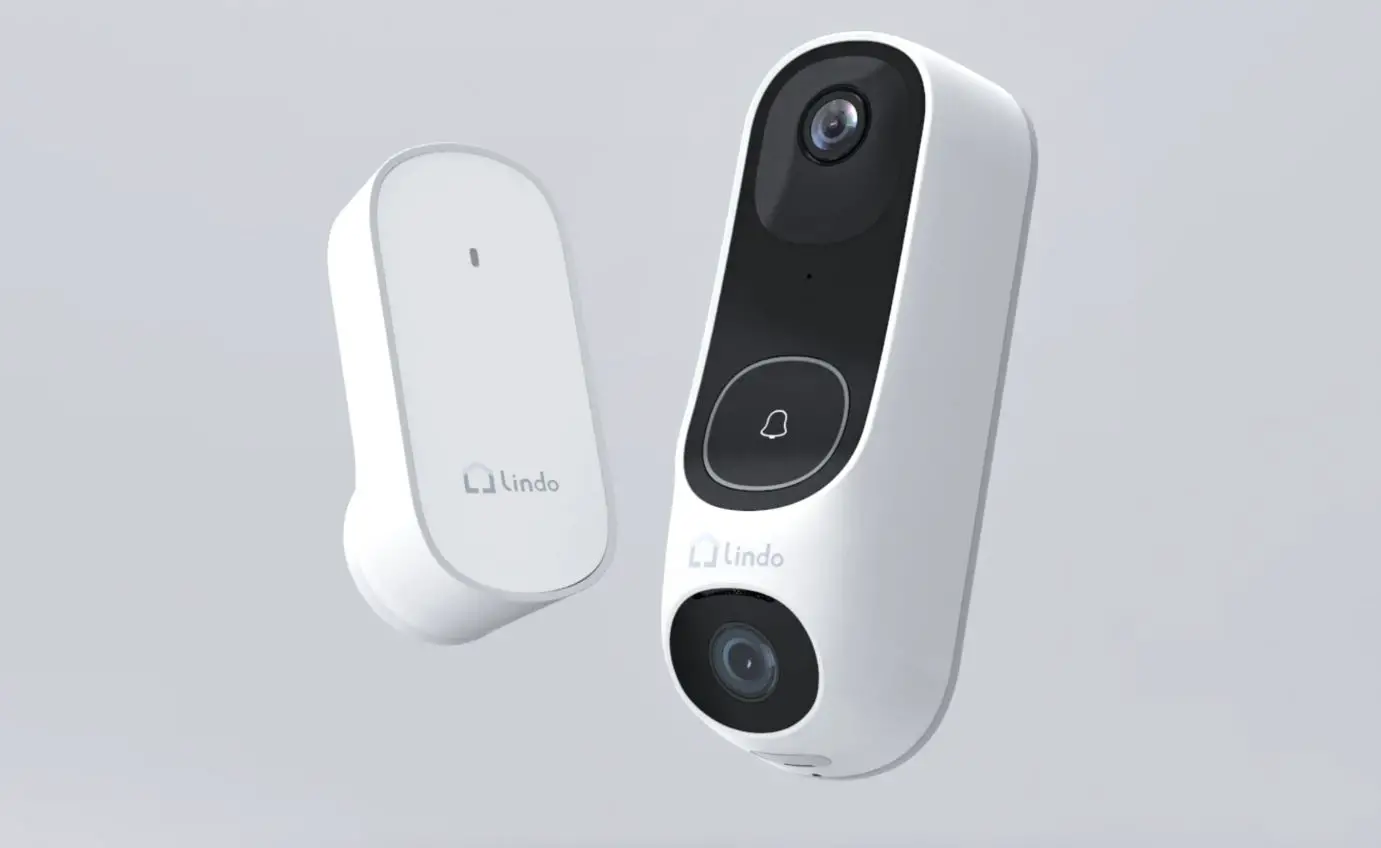
VD1 Smart Doorbell Security Camera
Product Information
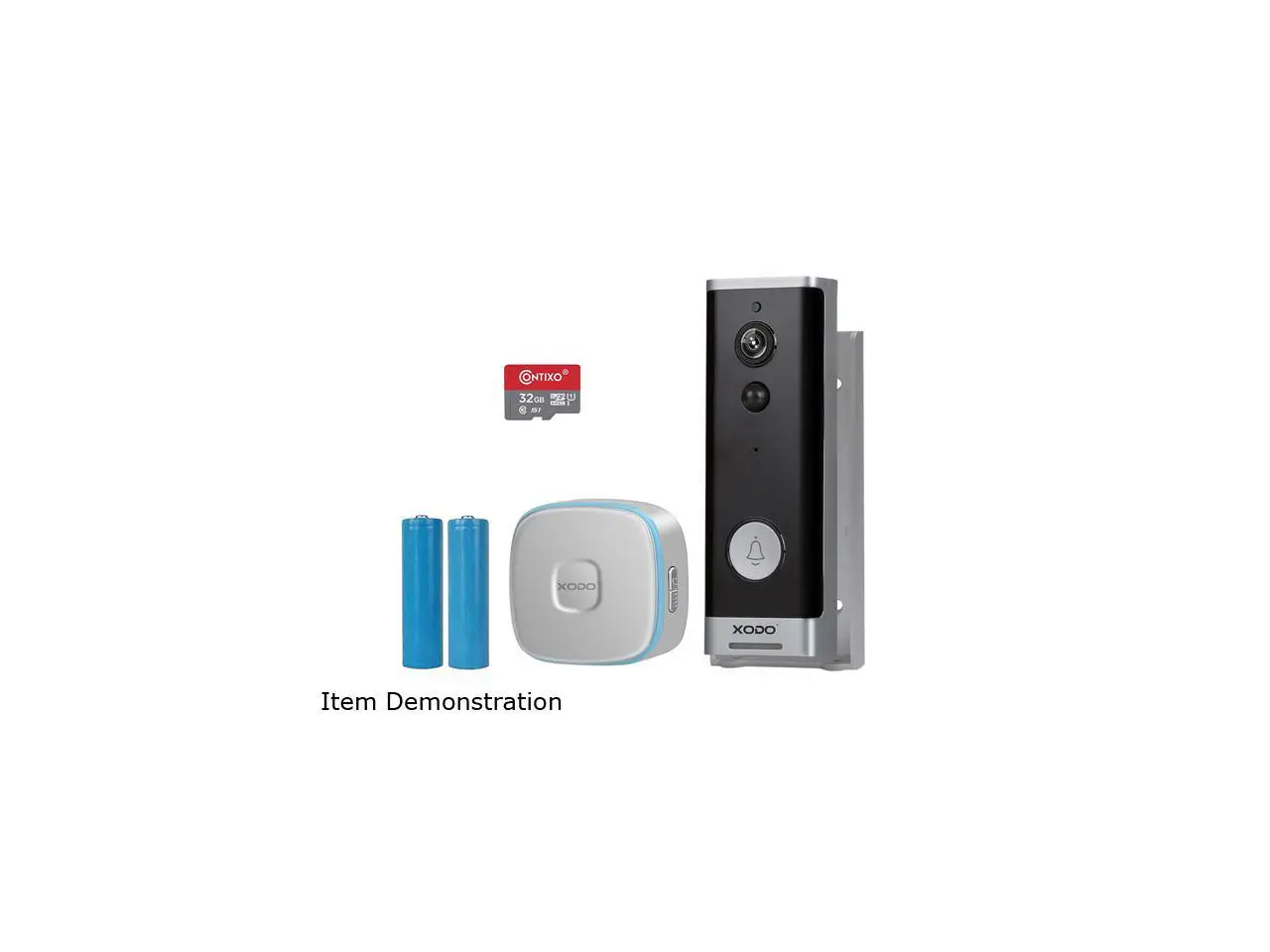
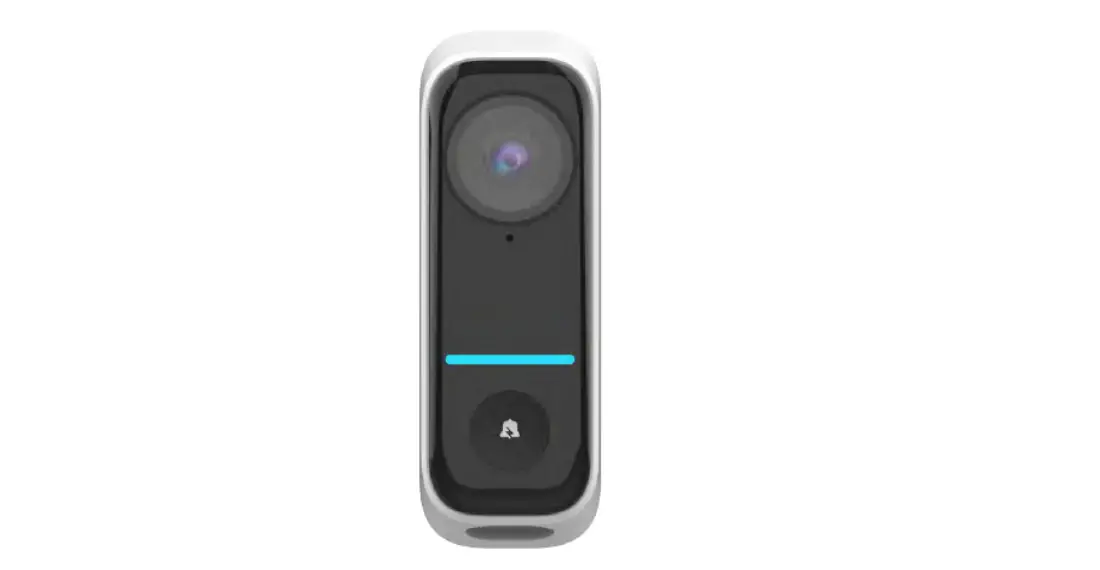
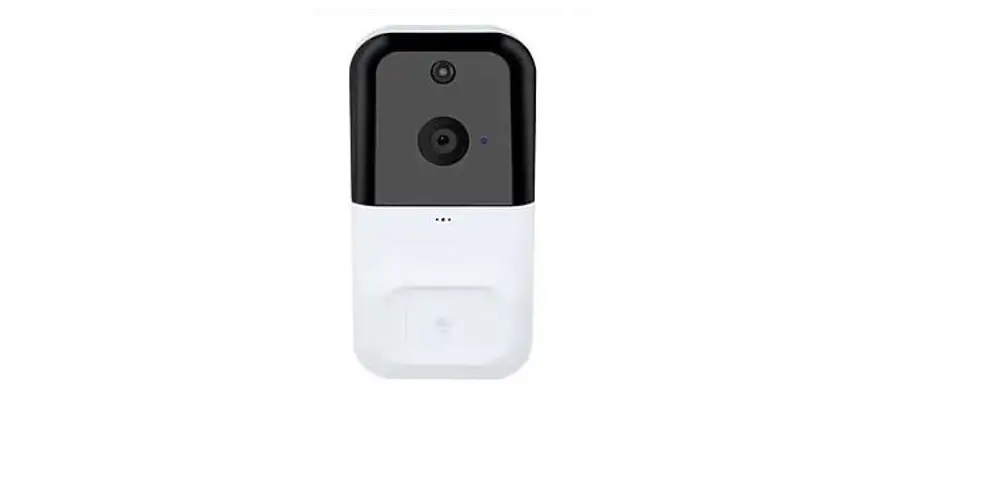
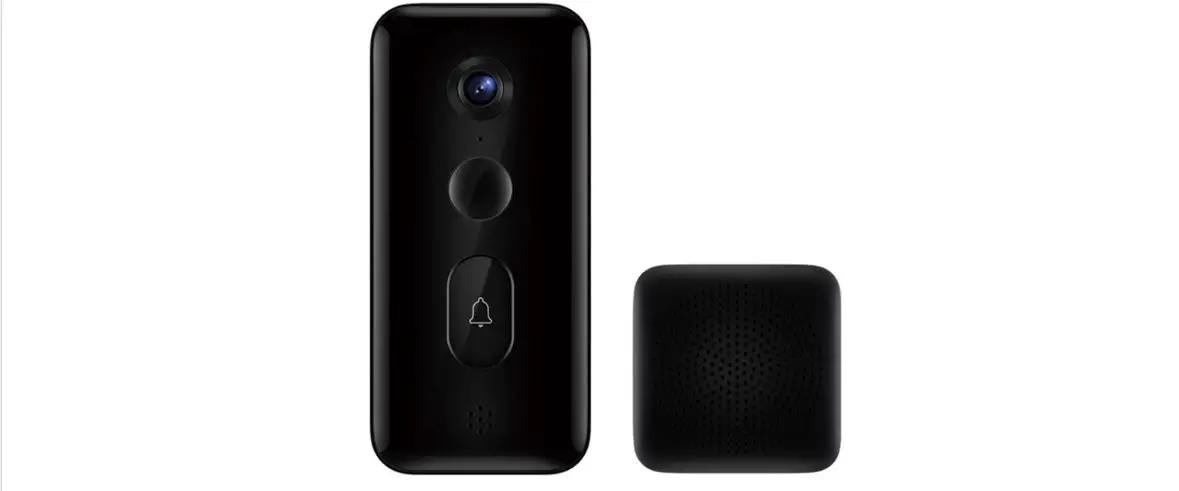
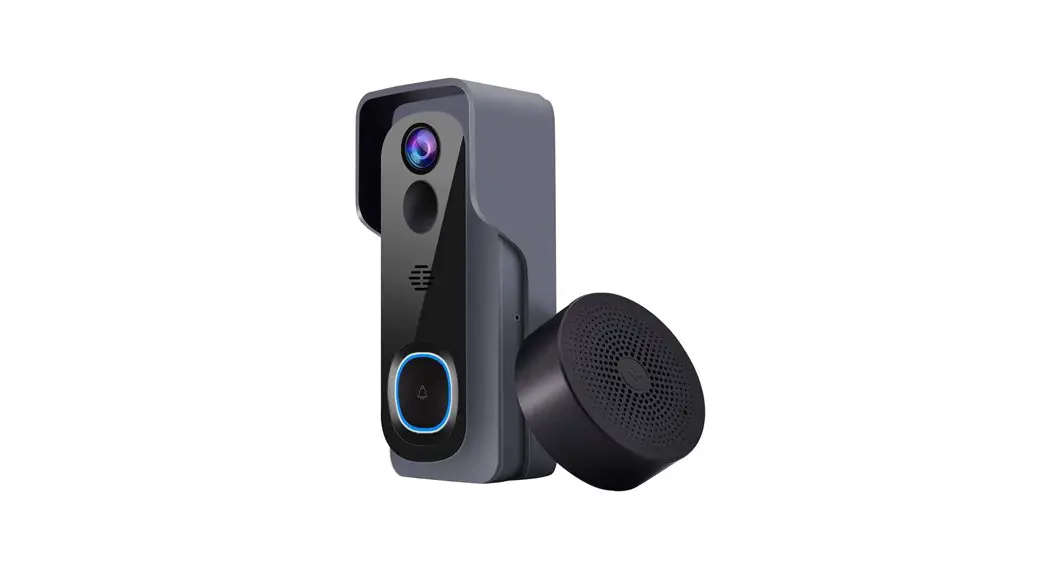
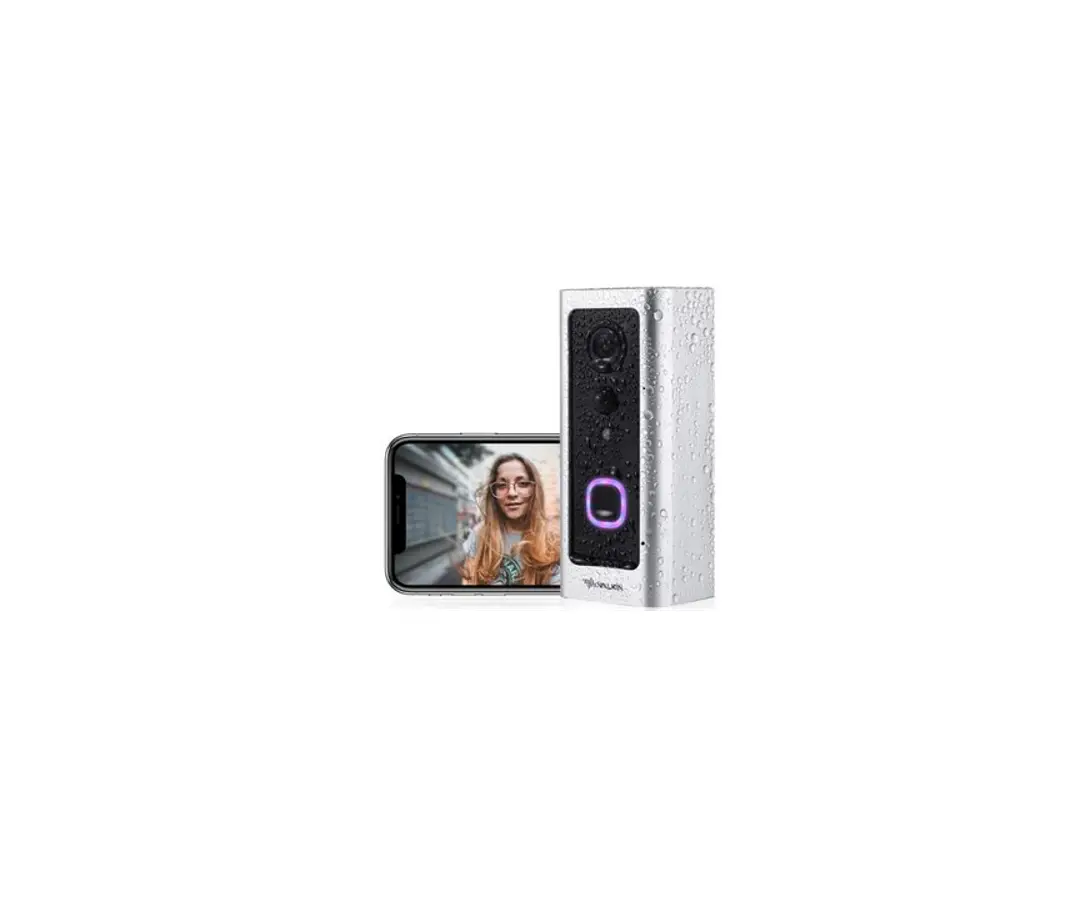
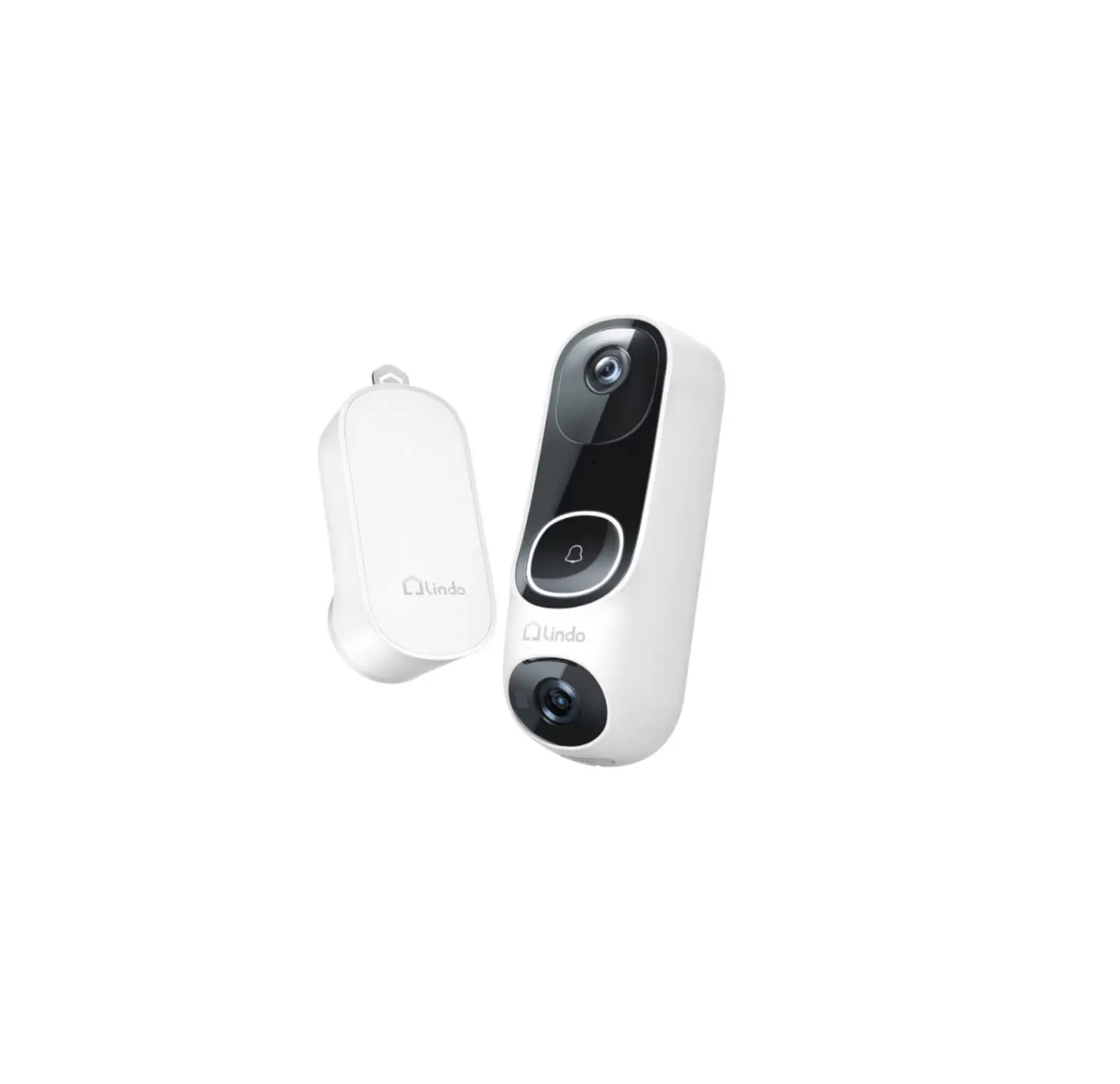
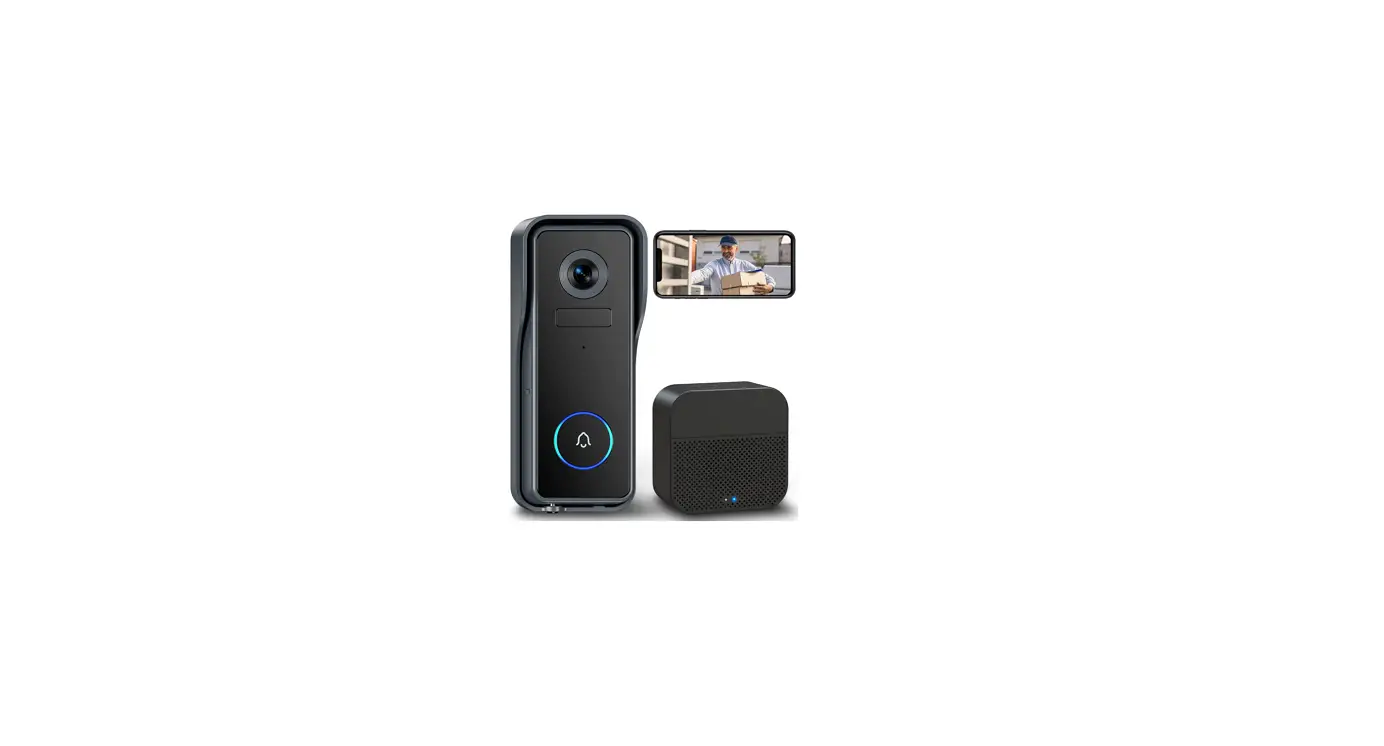
The Xodo Smart Doorbell Security Camera VD1 is a smart home
motion sensor battery doorbell that offers advanced security
features. It can monitor and record in low lighting conditions,
detect movement and audio, and be easily monitored from a
smartphone using the free Xodo Smart App. The doorbell is equipped
with a high-resolution video camera, two-way audio communication,
and a built-in memory card slot for storing recorded footage. It
supports both Android and iOS systems and can be powered by two
18650 batteries.
Package Contents
- USB Cable
- Smart Doorbell Security Camera
- Screw Package
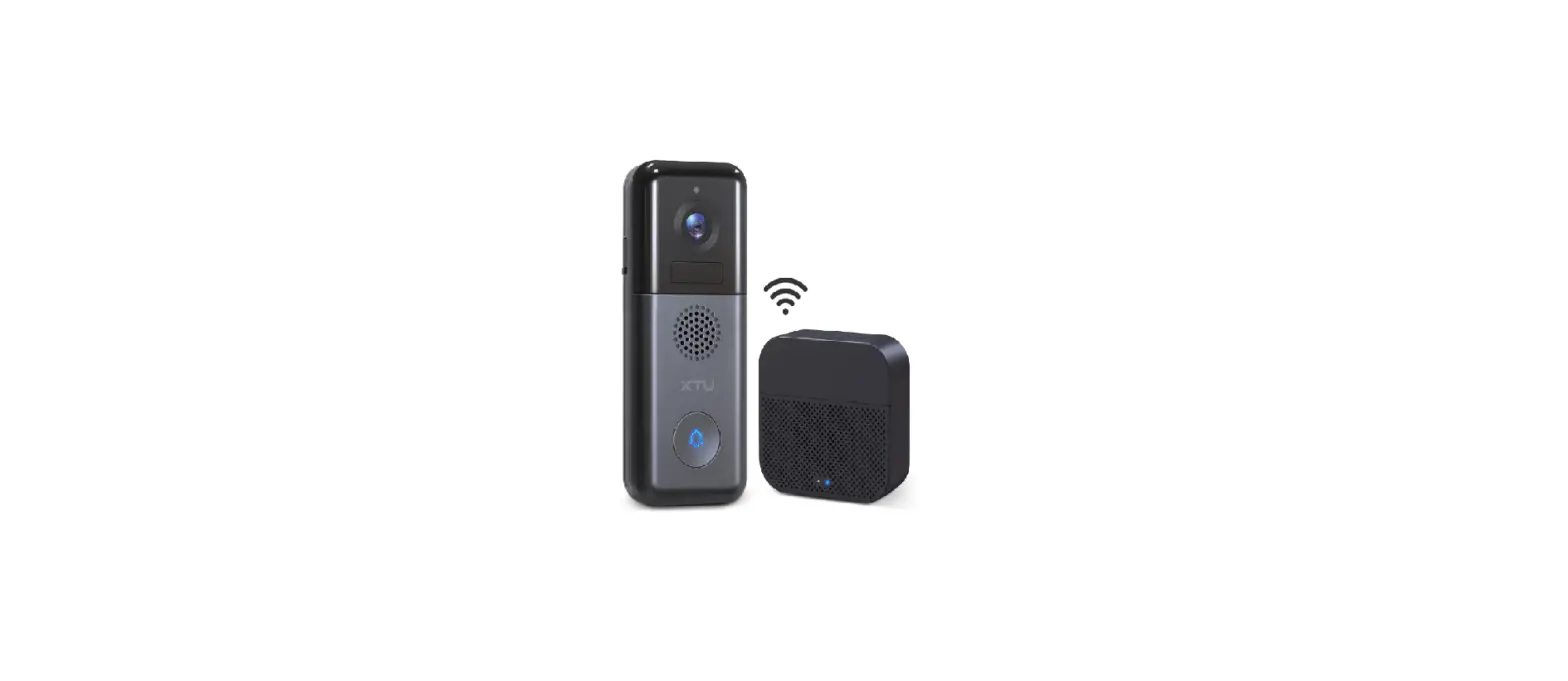
- External Ringer
- Quick Start Guidelines
Specifications
- Product Name: Xodo Wireless Doorbell
- Model: VD1
- Rated Voltage: 100V-240V AC 50Hz-60Hz
- Material: PC
- Support System: Android or iOS
- Resolution: 1920 x 1080
- Recording Angle: 166 degrees
- IR LED: 6 x 850mm
- WiFi: IEEE 802.11 b/g/n 2.4GHz
- Audio: Two-way talk, noise cancellation
- Memory Type: Micro SD Card
- Storage Support: 8 / 16 / 32 / 64 GB
- Battery: 2 x 18650 (5200 mAh total)
- Monitoring: Doorbell button, motion detection, remote wake
up - Power Consumption Standby: 20 uA; Working 170 mA
Smart Doorbell Introduction
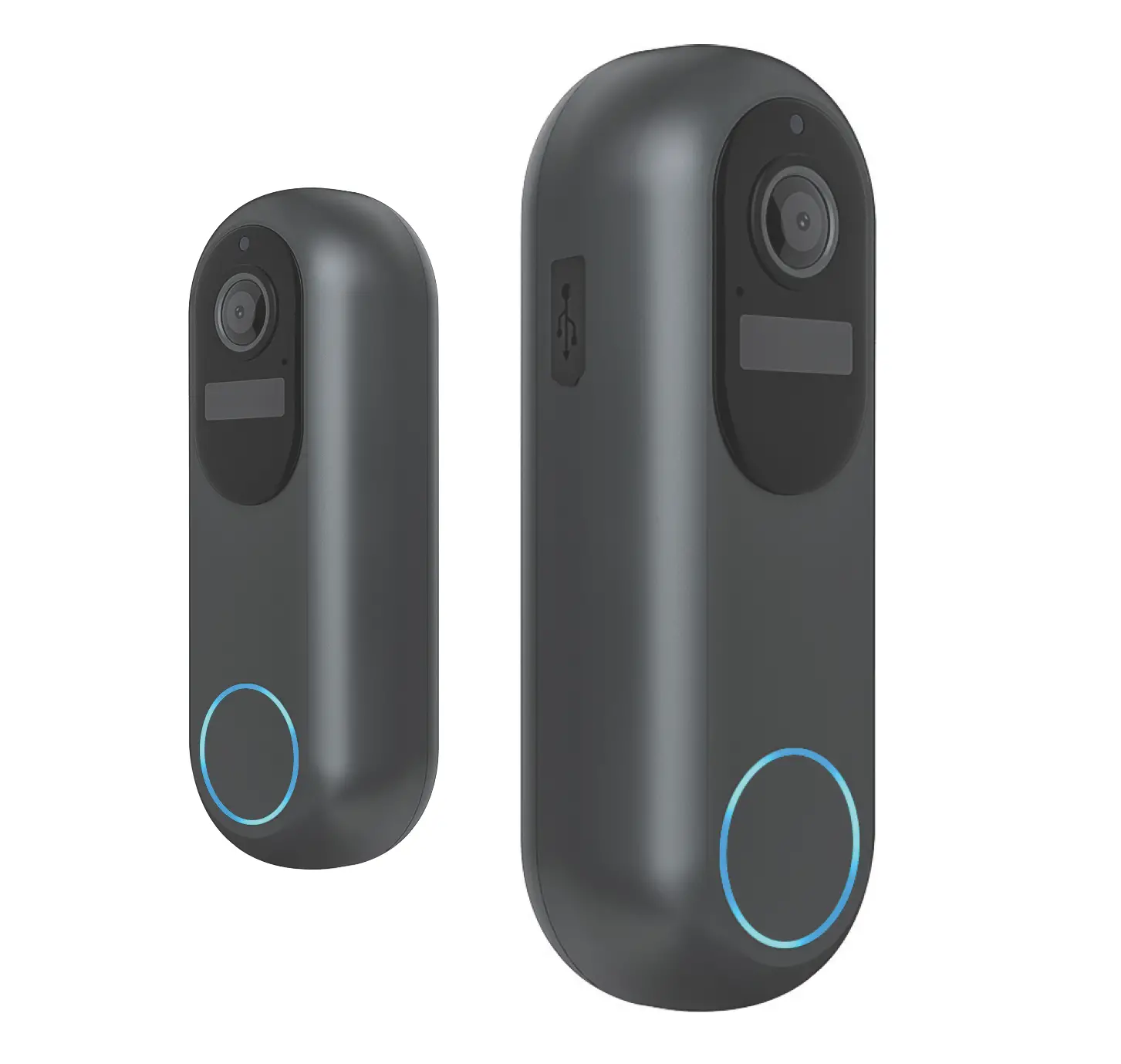
The Xodo Smart Doorbell is equipped with various components to
provide advanced security functionalities:
- IR LED – Measures ambient light to brighten playback
brightness. - Light Sensor – Determines when to turn on the IR sensor.
- MIC – Captures input audio.
- Button – Press to ring the doorbell.
- PIR – Motion sensor that sends alerts to smartphones.
- Lens – Captures video images.
- Reset Button – Used for setup and configuration.
- Micro USB Port – Power supply.
- SD Card Port – Memory storage for saved photo and video
clips.
Indicator Light
The indicator light on the Xodo Smart Doorbell has the following
indications:
- Blinking blue: Ready for configuration.
- Red light ON: Failed to connect to WiFi.
- Blue light ON: Successfully connected to the phone.
- Red and blue flash: Confirmation of WiFi connection.
Product Usage Instructions
Installation of Smart Doorbell
- Remove the mounting bracket (remove oblique upper).
- Mount the bracket to the wall.
- Install the doorbell to the bracket.
- Install the mounting screws under the bracket.
Download and Install the Xodo Smart App
To use the Xodo Smart Doorbell, you need to download and install
the Xodo Smart App:
- Download and install the app from the App Store (for iOS) or
Google Play Store (for Android). - Open the app.
- The welcome screen will appear. Login or register a profile by
entering your email address and setting up a profile or logging in
with an existing account.
Adding Devices
To add the Xodo Smart Doorbell to the app:
- Select “Doorbells VD1” to continue.
- Power on the device and confirm that you hear the prompt: “The
Xodo doorbell is now ready to pair” (Hold the reset button for 5
seconds). - Press the next step button and then click the Next button to
continue. - If you encounter any issues, you can press the Reset Devices
button for troubleshooting guidelines.
Smart Doorbell Security Camera VD1 User Manual
Welcome
Thank you for purchasing Xodo Smart home products!
We are commied to bringing you excellence with smart technology products that make life more comfortable, convenient, and provide a more dynamic healthy lifestyle.
Your new VD1 camera is a smart home moon sensor baery doorbell that can monitor and record in low lighng condions, detect movement and audio, and be monitored from a smart phone with the free app.
General Noce
Always make sure to follow safety instrucons. · Do not use products if they have become damaged. · Follow instrucons and only operate products in a safe environment. · Do not disassemble or alter the product. Doing so will void the warranty.
Table of Contents
Welcome
1
Package Contents
2
External Ringer Pairing
3
Specificaons
3
Smart Doorbell Introducon
4
Installaon of Smart Doorbell
5
Xodo Smart App
6
Configure The Doorbell Sengs
11
Customer Service and Tech Support
13
1
What’s included in the box
You will find the following contents included to help you get started:
USB Cable
Smart Doorbell Security Camera
Screw Package
External Ringer
Quick Start Guidelines
2
External Ringer Pairing
An external ringer has been provided and can be setup to hear the doorbell ring. This is useful in the event if no smartphone that has been configured is available, others can sll hear the doorbell sound when guests arrive at the door. Configure the external ringer by long pressing the volume buon for 3 seconds. Then press the buon of the doorbell to complete the pairing. For mulple connecons, please note only one (1) external ringer can be connected to a smart doorbell. But a smart doorbell can have mulple external ringers. Addional external ringers are sold separately.
Specificaons
Product Name: Xodo Wireless Doorbell Model: VD1 Rated Voltage: 100V-240V AC 50Hz-60Hz Material: PC Support System: Android or IOS Resoluon: 1920 x 1080 Recording Angle: 166 degrees IR LED: 6 x 850mm WiFi: IEEE 802.11 b/g/n 2.4GHz Audio: Two-way talk, noise cancellaon Memory Type: Micro SD Card Storage Support: 8 / 16 / 32 / 64 GB Baery: 2 X 18650 (5200 mAh total) Monitoring: Doorbell buon, moon detecon, remote wake up Power Consumpon Standby: 20 uA; Working 170 mA
3
Smart Doorbell Introducon
Light sensor Video Camera Lens
Microphone
Infra-Red LED
Reset buon PIR Moon Dectector
Main Buon
Micro USB Port SD Card Port
Smart Camera Components
IR LED — Measures ambient light to brighten playback brightness. Light Sensor — Determines when to turn on IR sensor. MIC — Capture input audio. Buon — Press to ring doorbell. PIR — Moon sensor will send alerts to smartphone. Lens — Capture video image. Reset Buon — Setup and configuraon buon. Micro USB Port — Power supply. SD Card Port — Memory storage of saved photo and video clips.
Indicator Light
Blinking blue: Ready for configuraon. Red light ON: Failed to connect to WiFi. Blue light ON: Connect to phone successfully. Red and blue flash: Confirmaon of Wifi connecon.
4
Installaon of Smart Doorbell
1. Remove the mounng bracket. (Remove oblique upper)
2. Mount the bracket to the wall.
3. Install the doorbell to the bracket.
4. Install the mounng screws under the bracket.
5
Download and Install the Xodo Smart APP
Download and install the APP. It can be also be found by searching “XODO Smart” by Conxo Inc. in the App Store (for IOS) or Google Play Store (for Android).
Xodo Smart
Open the APP
The welcome screen will appear and then you will be asked to login or register a profile. Register an account by entering your email address and seng up a profile or logging in with an exisng account.
6
Adding Devices
You will be able to manually add a device. Select Doorbells VD1 to connue.
Detecng Device
When detecng devices manually, power on the device and confirm you hear the prompt: The Conxo doorbell is now ready to pair. (Hold the reset buon for 5 seconds) Once you confirm the smart device is ready, press the “nest step” buon then click the “Next” buon. Connue on to the next step. Pressing the “Reseng Devices” buon will offer some troubleshoong guidelines to follow.
7
Connect to a WiFi network
Now you want to connect the smart device to a local WiFi network. If the proper network is not listed on this page, click the ” ” buon to see a list of available networks. Your router may broadcast both 2.4Ghz and 5.0Ghz broadband frequency. Make sure to select the 2.4Ghz Wifi. Enter your Internet Password and connect to the network. This step is creang the login credenals for your camera to find and access the local network, and will store the info in the QR code in the next step.
8
Scan with Camera Screens
The pairing process will ask for you to use the doorbell to scan a QR barcode on the screen. The QR barcode will appear on the screen. Hold doorbell camera in front of the QR barcode unl you hear a prompt. Press the “I Heard a Prompt” buon to connue. Pressing the “No Prompts” will provide some trouble shoong steps to help get doorbell to scan the QR barcode.
Connecng
Aer you hear the prompt and connue on, the “Connecng” screen will appear. It will usually register within by approximately 30 seconds. Aer connecng process completes it will connue on toward the next screen.
9
Confirmaon Screen
The smart device is added once they are communicang on the same network. You can rename the smart device by clicking on the pencil icon. You can specify the locaon. Press the “Done” buon at the boom of screen to connue to next step.
Home Screen Updated
Now that your device has been added, it will show on the home screen along with all other paired Xodo Smart Products. Now you are all set.
10
Doorbell Home Screen
The home screen will show the live camera feed along with doorbell controls.
Switch image quality Remaining baery Mute/listen to the doorbell Adjust the screen size Full-screen display Photograph Hold to speak Video Hide the menu bar Access stored video from the memory card Album Adjust the background color Adjust PIR sensivity Edit menu bar View alarm records View files in cloud storage (This feature requires an addional account) Smart automaon Funcon list
Configure The Doorbell Sengs
Different features can be adjusted from the menu buon on the upper right hand buon ” ” on the APP. 1. Device Name can be changed as desired. 2. Device informaon can check the informaon of the wifi doorbell. 3. Tap-to-Run and Automaon allows to check the Smart Automaon your device linked with. 4. Basic funcon sengs can set below funcons: Flip Screen: on/off; Time Watermark: on/off; Talk Mode: One-Way Talk/ Two-Way Talk. 5. PIR on/off switch control if the moon sensor is on. Having the moon sensor on will alert the smart device each me there is movement. 6.Power Management Sengs allows to check the power status of the doorbell. 7. Purchase VAS allows to purchase cloud storage. 8. Offline reminder allows remind you when the device is offline.
11
9. FAQ & Feedback allows users to report issues and get help. 10. Share Device allows share the device with others. 11. Add to Home Screen allows to add the wifi doorbell to the home screen of your smartphone. 12. Device Update allows to check soware or install updates to device. 12. Remove device will remove the wifi doorbell from the Xodo Smart app and remove pairing. This is necessary if pairing with a new device.
12
Customer Service and Tech Support
Your sasfacon is important to us. We are here to help! Contact us at [email protected] Include your order number and product descripon. See our website for more products www.conxo.com We enjoy your feedback! Xodo is a subdivision of the Conxo Inc. group., and the respecve logos are registered trademarks of Conxo Inc. and may not be used, reproduced, or altered without wrien Permission. All other trademarks are the property of their respecve owners and used with permission. To find the latest revision of this publicaon, visit our website at www.conxo.com
13
 XO Communications: Networking Services & Solutions | Verizon