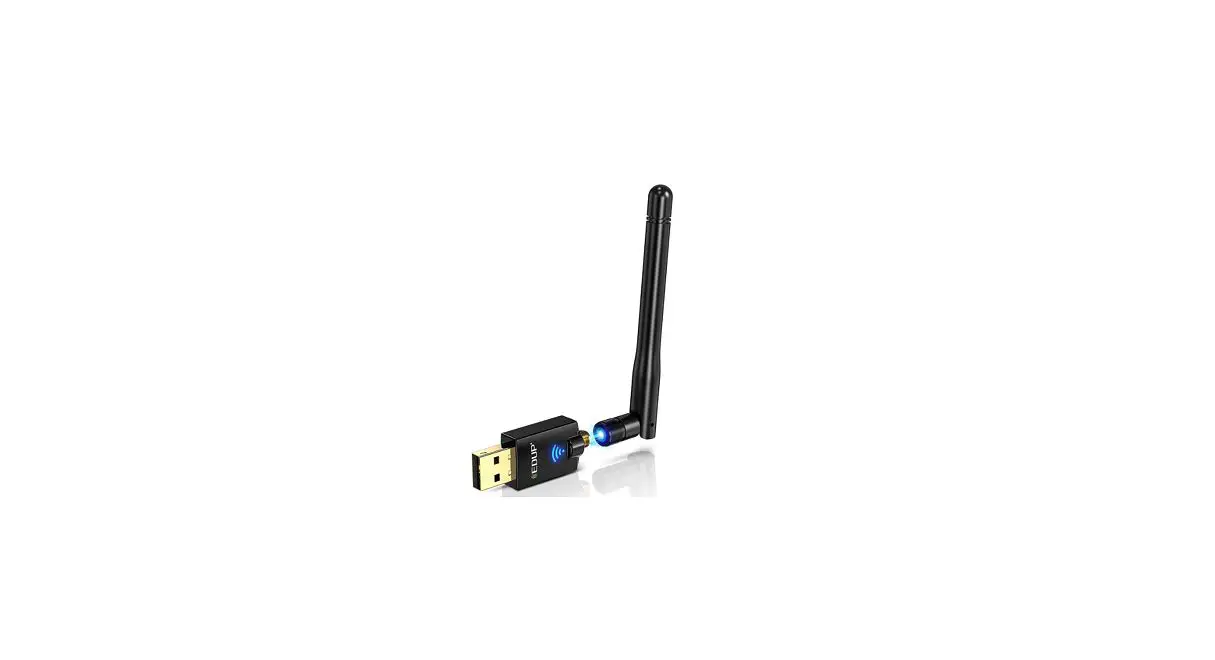
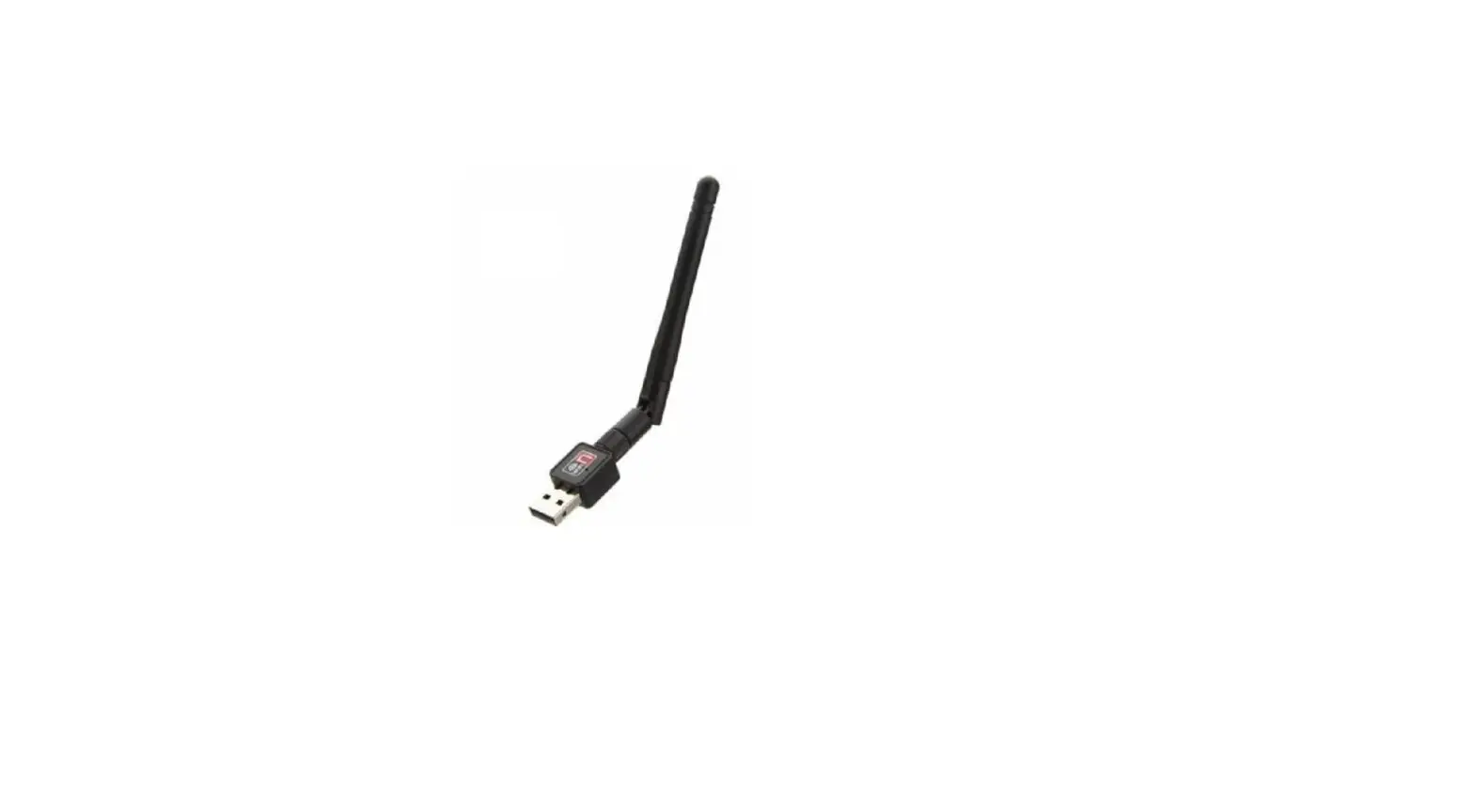
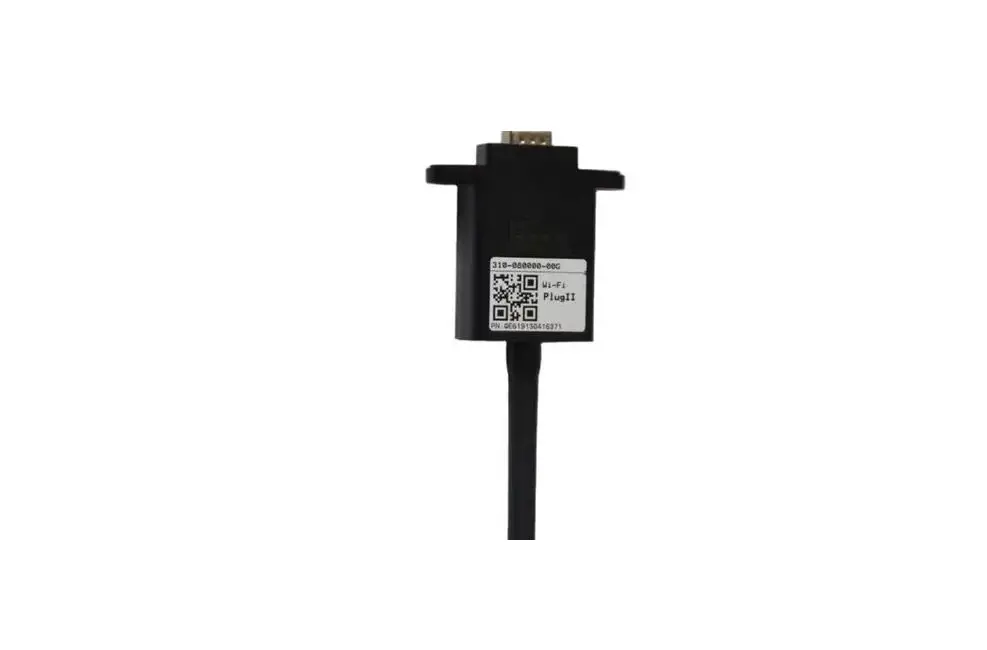
WiFi 2.G RJ45 D Adapter
EPEVER WiFi 2.4G RJ45 D Adapter User Manual
Product Information
The EPEVER WiFi 2.4G RJ45 D Adapter allows for real-time
transmission of operational data from EPEVER solar controllers,
inverters, or inverter/chargers to the EPEVER cloud server through
a local 2.4G WiFi network. Users can remotely monitor connected
devices and program parameters via the EPEVER server platform and
mobile app. The adapter is applicable to EPEVER controllers,
inverters, or inverter/chargers with an RJ45 port and is powered
directly by the communication port. It has a communication distance
of up to 20 meters and supports local monitoring and EPEVER cloud
working modes.
Features
- Applicable to EPEVER controllers, inverters, or
inverter/chargers with RJ45 port - Use immediately after connecting; easy and convenient
operation - Directly powered by the communication port
- Up to 20 meters of communication distance
- Support the Local monitoring and EPEVER Cloud working mode
Specifications
| Parameter | Value |
|---|---|
| Model | EPEVER WiFi 2.4G RJ45 D |
| Working voltage | 4.5V~5.5V |
| Power consumption | Peak emission: 150mA; Idle: 310uA |
| Enclosure | IP30 |
| Communication method | RS485 |
| Communication parameters | 115200Bps, 8N1 |
| Interface standard | EPEVER communication standard V1-1.0 |
| Work frequency | 2.4 ~ 2.4835GHz |
| Work temperature range | -40~ 85 |
| Dimension | 63mm x 19mm x 10mm |
| Net weight | 7.7g |
Note: The WiFi adapter working voltage is 4.5V~5.5V, and peak
emission is 150mA, which is only suitable for devices that meet
this requirement.
Product Usage Instructions
- Do not install the product in humid, salt spray, corrosion,
greasy, flammable, explosive, dust accumulative, or other severe
environments. - Connect the WiFi adapter to the RJ45 port of the EPEVER
device. - Add the WiFi adapter into the EPEVER cloud by the PC or mobile
app. WARNING: The WiFi adapter is not available to the LS-B series.
Suppose the WiFi adapter is installed in a metal-confined space. In
that case, the signal transmission will be influenced, depending on
the material and tightness of the metal-confined space. - Scenario 1: Local 2.4G WiFi Network
- Turn on the WiFi switch on the mobile phone and connect to the
local WiFi network (a 2.4G WiFi network is a must). - Login to the app and click the icon to add a new gateway.
- Select the gateway model.
- Input the gateway data (Gateway SN is the 22-digit number of
the gateway WiFi name), and click Next Step to enter the device
adding page. - After adding the device, click Next Step to enter the above
page. - Input the local WiFi password and click Next Step.
- Click Go to set up Wi-Fi to connect phone to the gateway WiFi
(HN_EPSN: xxxxxx, password: 12345678). Return to the app after
connection, and click Next Step. - After the gateway is successfully connected, connect the phone
to local WiFi or 4G that can access the Internet. Then you can
monitor the device through the app.
- Turn on the WiFi switch on the mobile phone and connect to the
HUIZHOU EPEVER TECHNOLOGY CO., LTD
Thanks for selecting the EPEVER WiFi 2.4G RJ45 D adapter; please read this manual carefully before using the product.
Do not install the product in humid, salt spray, corrosion, greasy, flammable, explosive, dust accumulative, or other severe environments.
1. Overview
WiFi Adapter
EPEVER WiFi 2.4G RJ45 D
Through a local 2.4G WiFi network, the EPEVER WiFi 2.4G RJ45 D can transmit all operational data from the EPEVER solar controller, inverter, or inverter/charger to the EPEVER cloud server in real time. Users can remotely monitor the connected devices and program parameters via the EPEVER server platform and mobile APP.
Features
Applicable to EPEVER controllers, inverters, or inverter/charger with RJ45 port Use immediately after connecting; easy and convenient operation Directly powered by the communication port Up to 20 meters of communication distance Support the Local monitoring and “EPEVER Cloud” working mode.
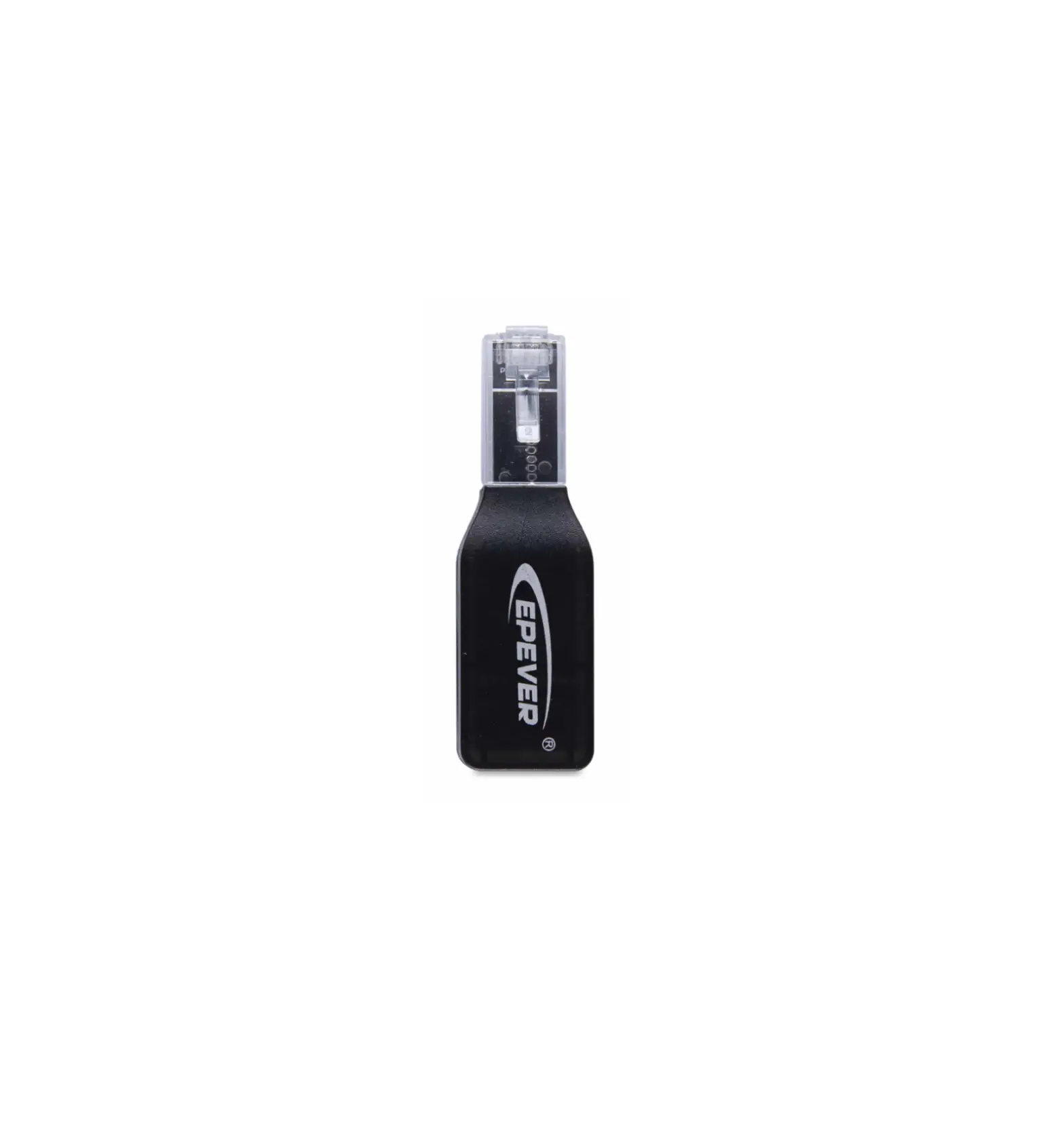
2. Appearance
TEL: +86-752-3889706
Website: www.epever.com
3. Specifications
Pin Definition Pin Definition
1
+5VDC
5
RS485-A
2
+5VDC
6
RS485-A
3
RS485-B
7
GND
4
RS485-B
8
GND
Parameter
Model
EPEVER WiFi 2.4G RJ45 D
Working voltage
5V± 0.5V(Powered by RS485 com. port)
Power consumption
Peak emission: 150mA; Idle: 310uA
Enclosure
IP30
Communication method
RS485
Communication parameters
115200Bps, 8N1
Interface standard
EPEVER communication standard V1-1.0
Work frequency
2.4 ~ 2.4835GHz
Work temperature range Dimension
-40~ 85 63mm x 19mm x 10mm
Net weight
7.7g
Note: The WiFi adapter working voltage is 4.5V~5.5V and peak emission is 150mA, which is only suitable for devices that meet this requirement.
4. Working processes
RJ45 connector: Connect to the RJ45 port of the controller, inverter, or inverter/charger. RJ45 Pin Definition
1
Connect the WiFi adapter to the RJ45 port of the EPEVER device. Add the WiFi adapter into the EPEVER cloud by the PC or mobile APP. WARNING: The WiFi adapter is not available to the LS-B series. Suppose the WiFi adapter is installed in a metal-confined space. In that case, the signal transmission will be influenced, depending on the material and tightness of the metal-confined space.
2
HUIZHOU EPEVER TECHNOLOGY CO., LTD
TEL: +86-752-3889706
Scenario 1: There is a local 2.4G WiFi network. The WiFi adapter can upload the collected data to the EPEVER cloud automatically.
Step1: Turn on the WiFi switch on the mobile phone, and connect to the local WiFi network (a 2.4G WiFi network is a must).
Website: www.epever.com
Step2: Login to the APP and click the icon to add a new gateway.
Step3: Select the gateway model.
Step4: Input the gateway data (“Gateway SN” is the 22-digit number of the gateway WiFi name), and click “Next Step” to enter the device adding page.
Step5: After adding the device, click “Next Step” to enter the above page.
Step6: Input the local WiFi password and click “Next Step.”
Step7: Click “Go to set up Wi-Fi” to connect phone to the gateway WiFi (HN_EPSN: xxxxxx, password: 12345678). Return to the APP after connection, and click “Next Step.”
Step8: After the gateway is successfully connected, connect the phone to local WiFi or 4G that can access the Internet. Then you can monitor the device through the APP.
Scenario 2: There is no local 2.4G WiFi network. The WiFi adapter cannot upload the collected data to the EPEVER cloud.
Step1: Login to the APP and click “My > Collect Data.” Select all products and click the “Synchronize data” to download data.
Step2: After all data is downloaded, return to the APP. Click the “Home > Offline.”
Step3: Select the module type (WIFI)
Step4: Turn on the phone WiFi switch and connect the phone to the gateway WiFi (HN_EPSN: xxxxxx, password: 12345678).
Step5: Return to the APP and
click
“Equipment>Add
equipment”(“Gateway SN” is
the 22-digit number of the
gateway WiFi name). Click
“Confirm” to add the device.
Step6: On the “Device
List” page, click the
gateway SN to enter the
device’s
real-time
monitoring page.
Any changes without prior notice! Version number: V1.1
3
4
 Home - EPEVER