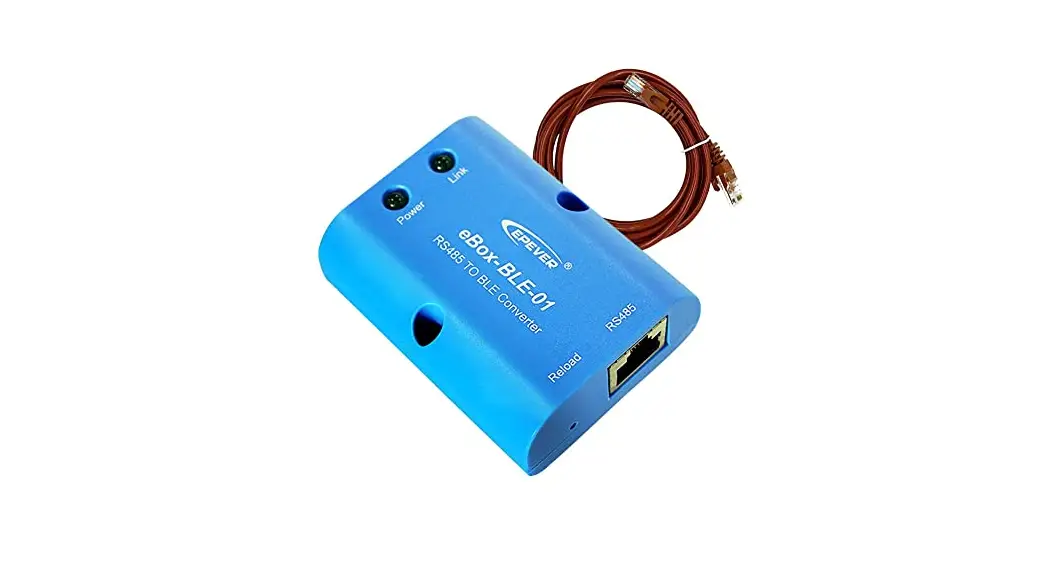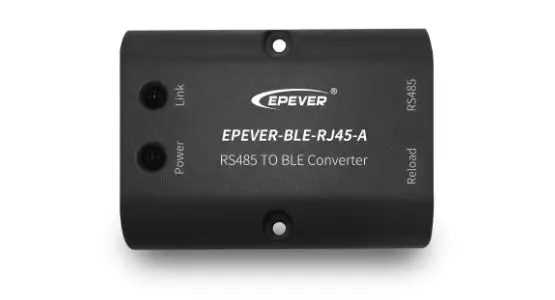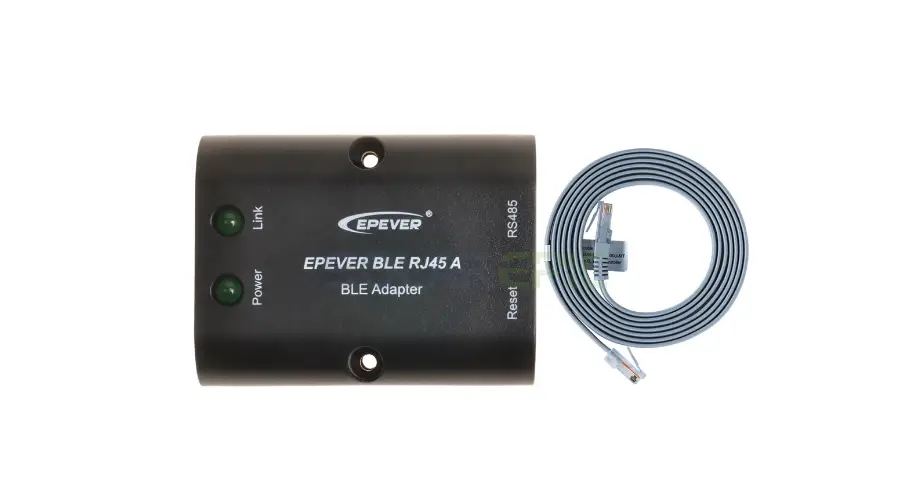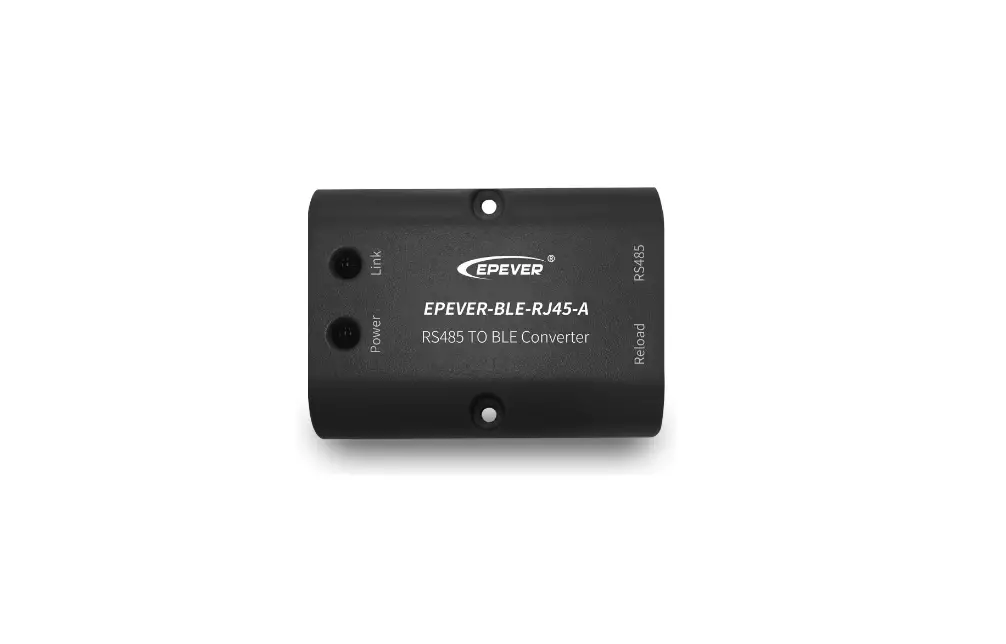

EPEVER BLE RJ45 A Bluetooth Adapter 
Thanks for selecting the EPEVER BLE RJ45 A Bluetooth module. Please read this manual carefully before using the product.
Please keep this manual for future reference.
Overview
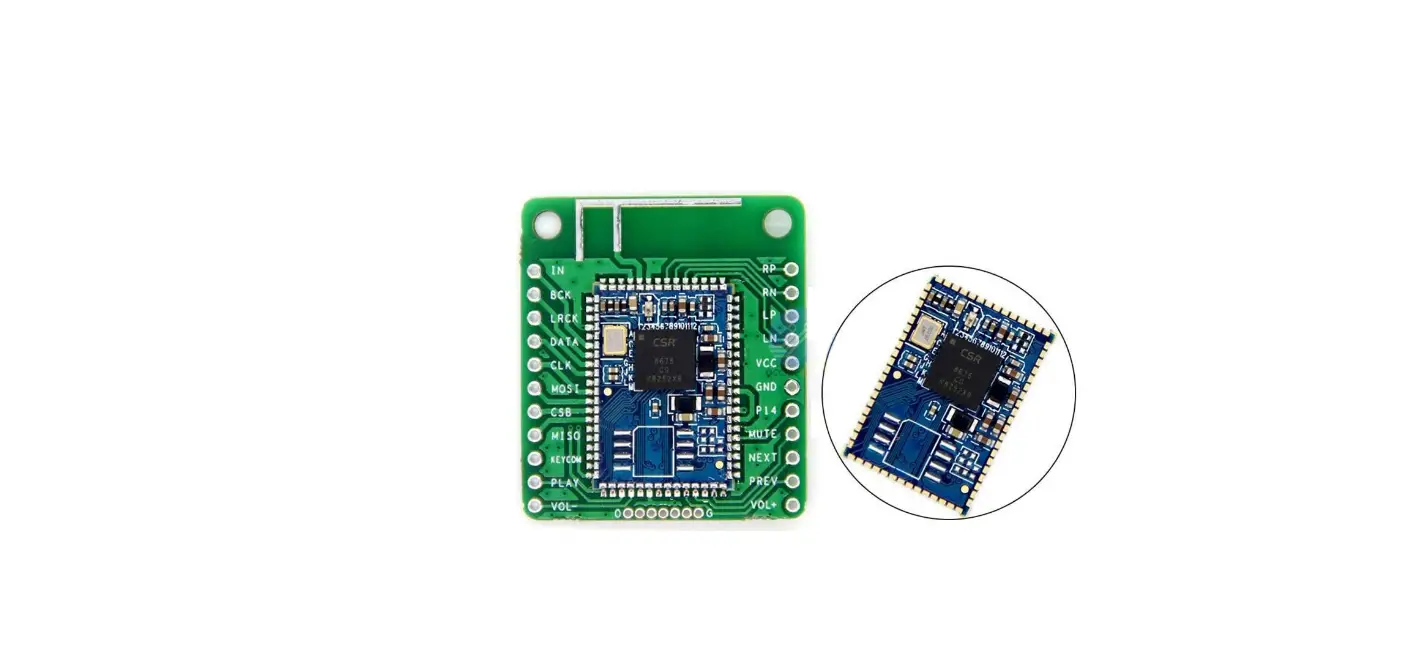
EPEVER BLE RJ45 A is a new Bluetooth adapter suitable for EPEVER solar controller, inverter, and inverter/charger. Adopting the Bluetooth 5.0 transmission and BLE (Bluetooth Low Energy) technology, EPEVER BLE RJ45 A enables data collection, communication, and wireless monitoring of connected devices.
Features
- Support communication by APP
- Support data encryption
- Use immediately after connecting, easy and convenient operation
- Feature fast communication and strong anti-interference ability
- Directly powered by the communication port
- Up to 10 meters communication distance
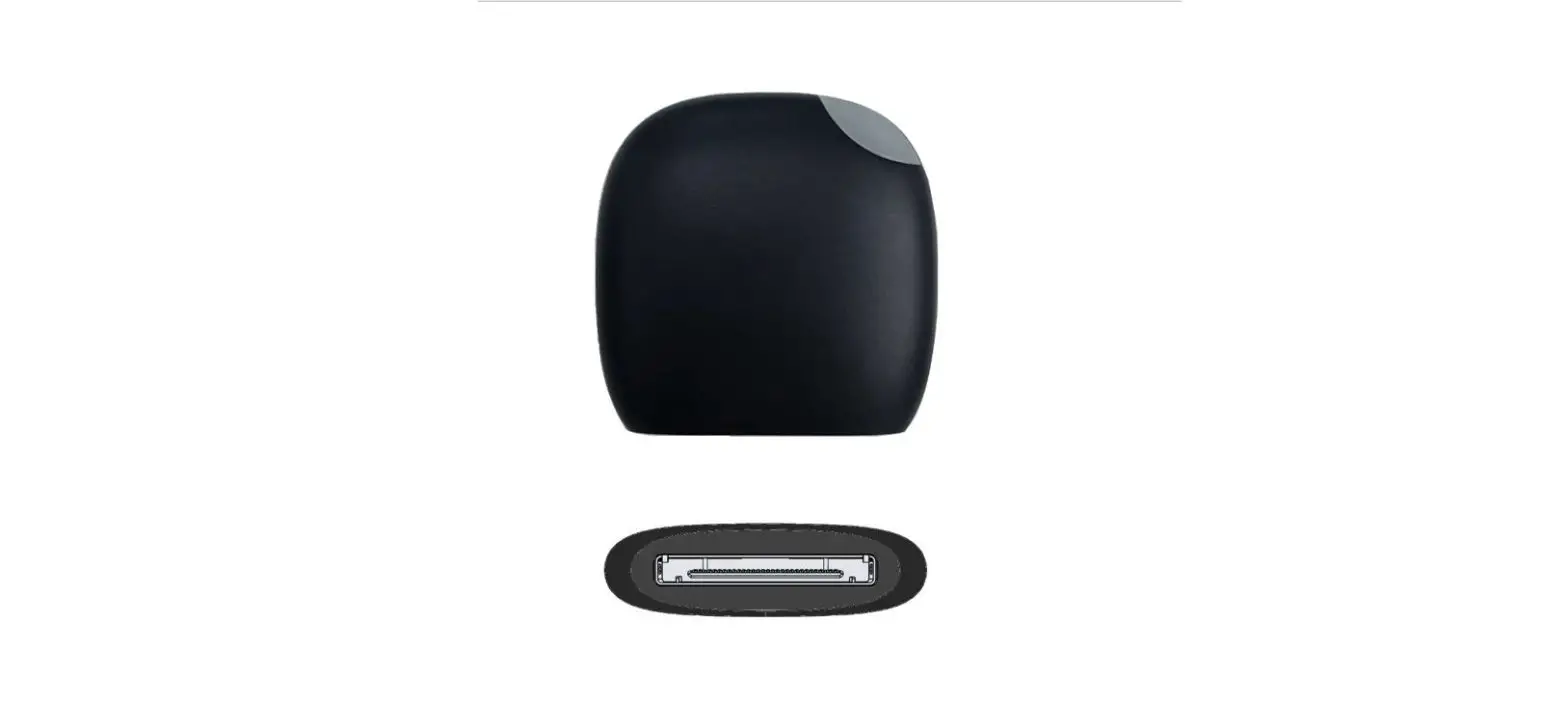
Appearance
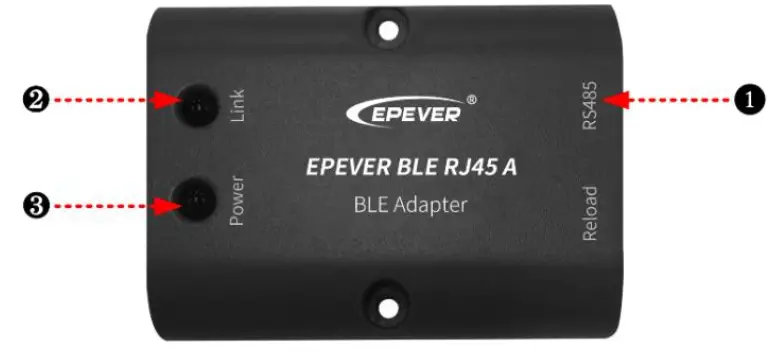
Ports Instruction
| No. | Name | Instruction |
| ❶ | RJ45 port | To connect the solar controller, inverter, and inverter/charger |
| ❷ | Link indicator | Display communication status |
| ❸ | Power indicator | Display power status |
Indicator
| Indicator | Status | Instruction |
| Link indicator | OFF | It remains OFF state no matter whether the Bluetooth is connected or not. |
| Power Indicator | ON solid in green | Normal power on |
| OFF | No power on |
Working processes
Step1: Connect the RJ45 port of the Bluetooth module to the EPEVER controller, inverter, or inverter/charger. 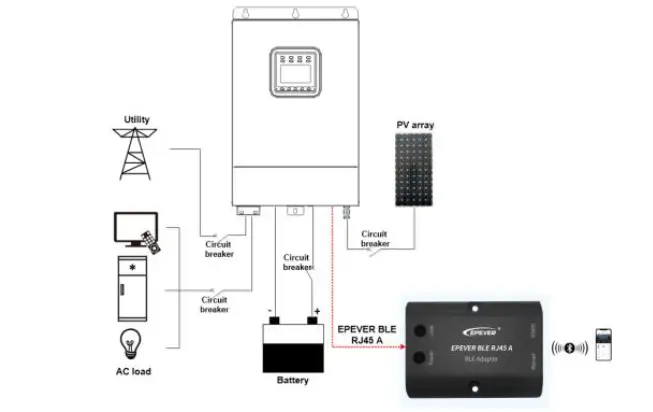 Note: The Bluetooth module only supports one-to-one communication (i.e., a Bluetooth module can only connect one controller, inverter, or inverter/charger). Connection cable: Standard Ethernet cable(CC-RS485-RS485-200U-MT).
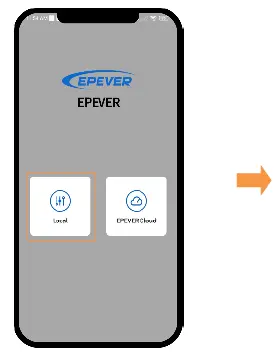 | 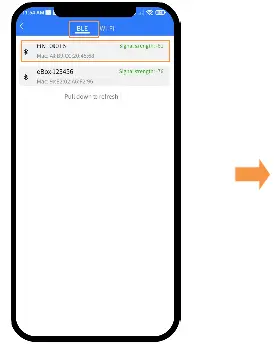 | 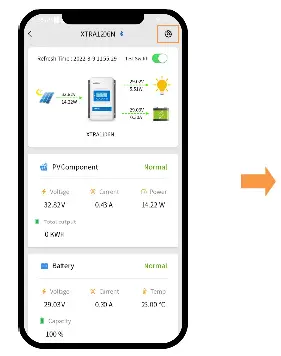 | | 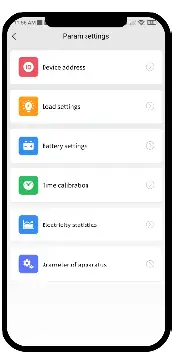 |
| Step 2: Open the APP and click the “Local” icon. | Step 3: Enter the “BLE” tab by default, and click the Bluetooth module. | Step 4: Auto identify the connected device, you can also select the device manually. | Step 5: After the device connection, the real-time interface shows. Click  on the top right corner. on the top right corner. | Step 6: Enter the parameter setting interface to read and write related parameters. |
Note: The phone and the Bluetooth module can’t be placed farther than 10 meters. The Bluetooth module only supports the “Local” function and does not support the Wifi on cloud.
Specifications
| Model Parameter | EPEVER BLE RJ45 A |
| Input voltage | 5V± 0.5V(Powered by RS485 com. port) |
| Power consumption | 5V@30mA |
| Communication distance | ≤ 10m |
| Serial port baud rate | 2400 ~ 115200bps (default 115200bps) |
| Communication method | RS485 to Bluetooth |
| Connection port | RJ45 port |
| Connection cable | Standard network cable (parallel line) |
| Bluetooth protocol | Bluetooth 5.0, compatible with Bluetooth 4.0 |
| Dimension | 51 x 67 x 24.5mm |
| Mounting dimension | 41.2, Φ3.2 |
| Working temperature | -20 ~ 70℃ |
| Enclosure | IP30 |
| Net Weight | 38.5g |
Disclaimers
The warranty does not apply to the following conditions:
- Damage caused by improper use or inappropriate environment.
- The parameter setting exceeds the Bluetooth module’s limit.
- Damage caused by working temperature exceeds the rated range.
- Unauthorized dismantling or attempted repairs.
- Damage caused by force majeure.
- Damage occurred during transportation or handling.
 Home - EPEVER