
Installation Guide
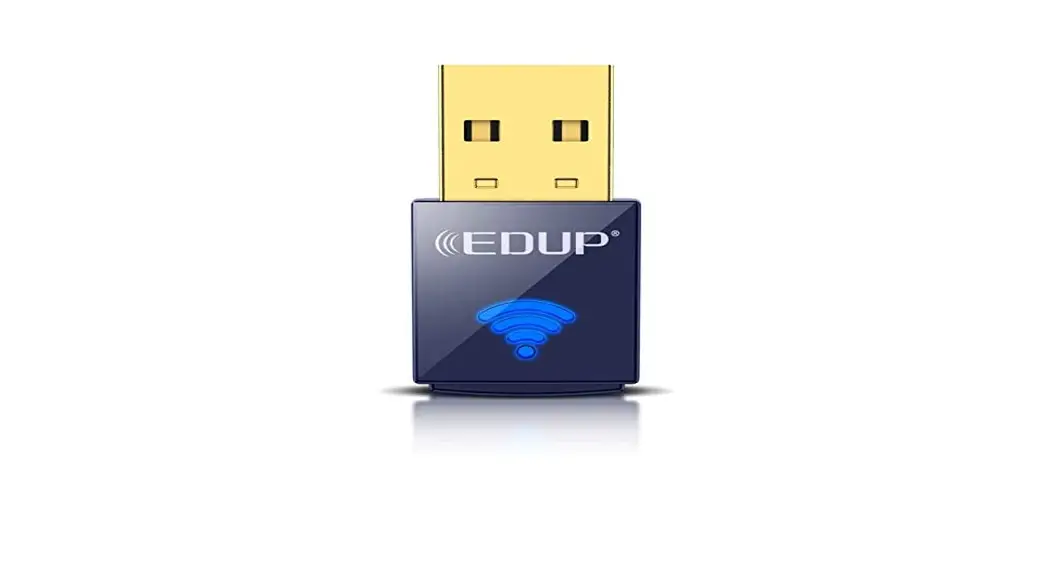
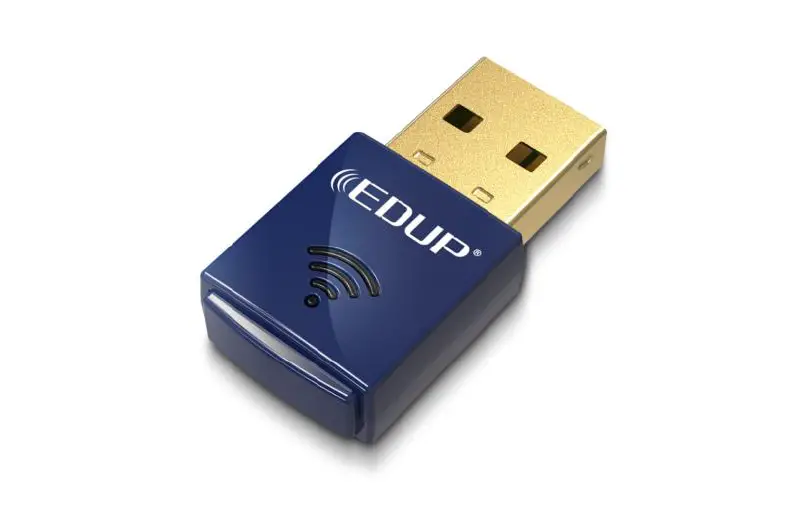
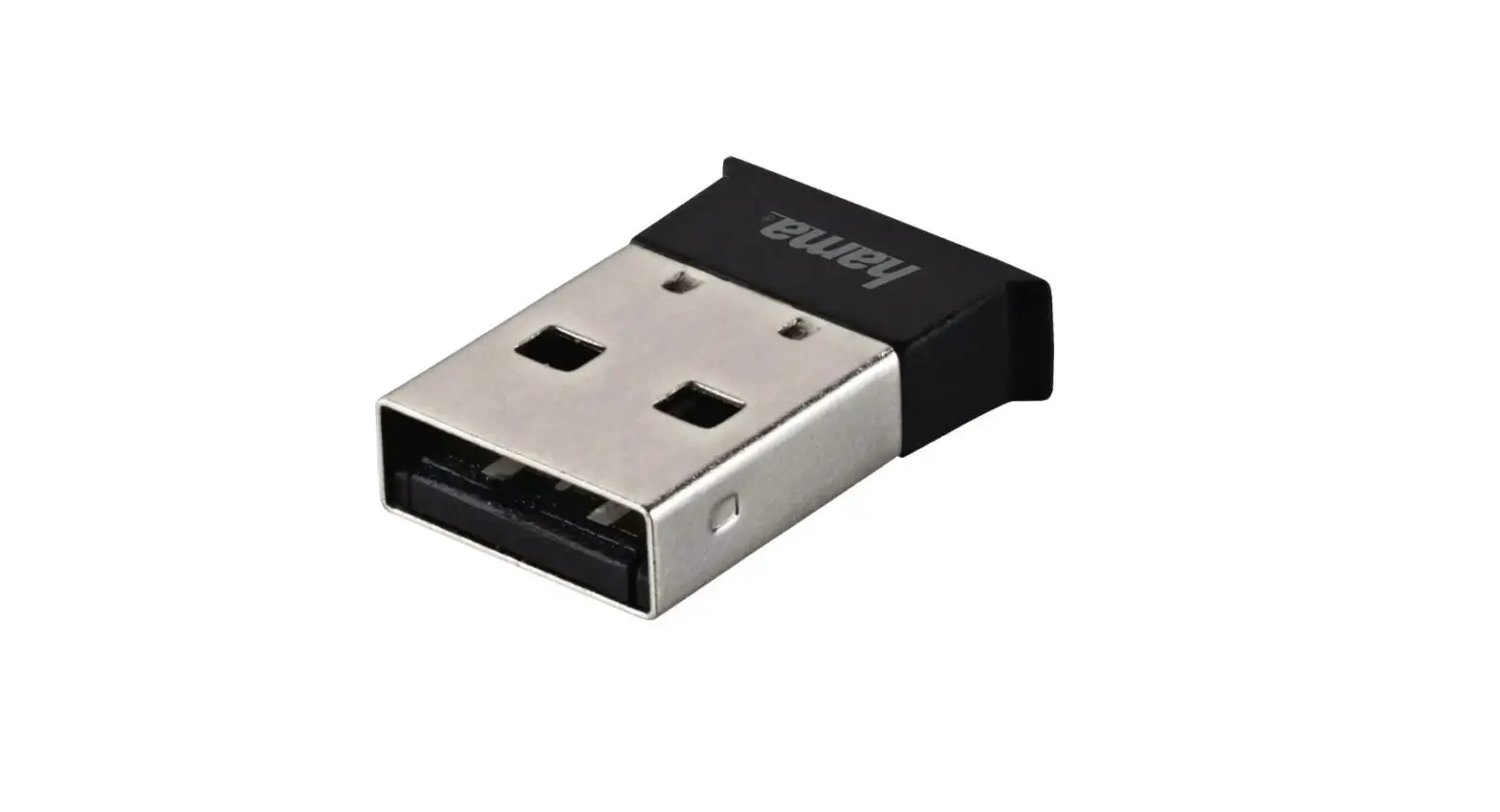
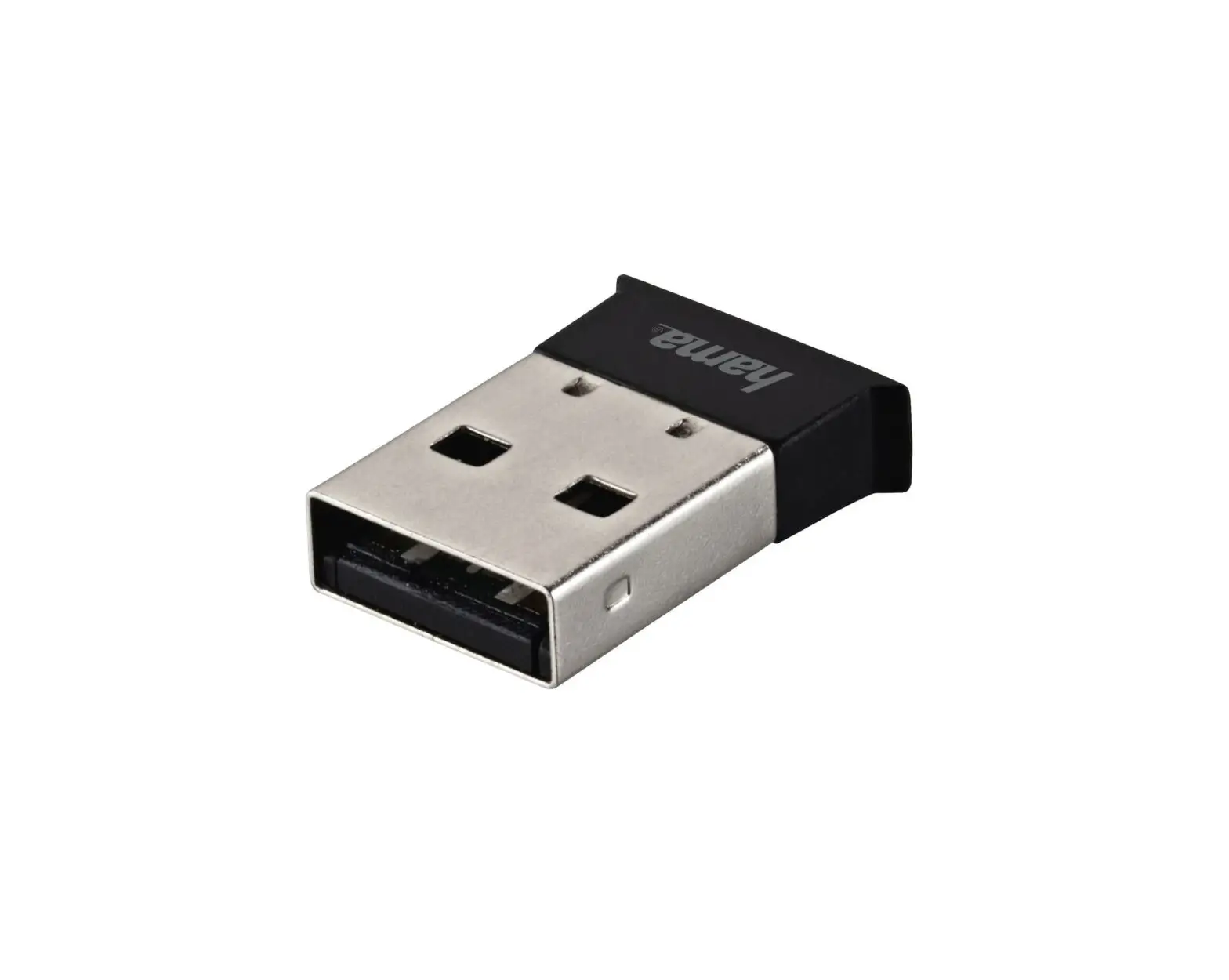
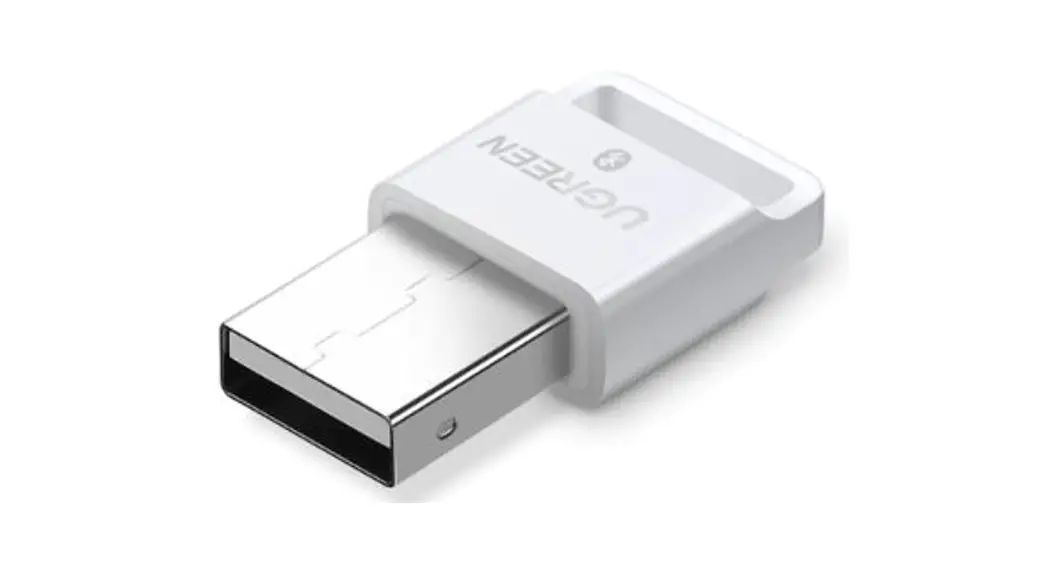
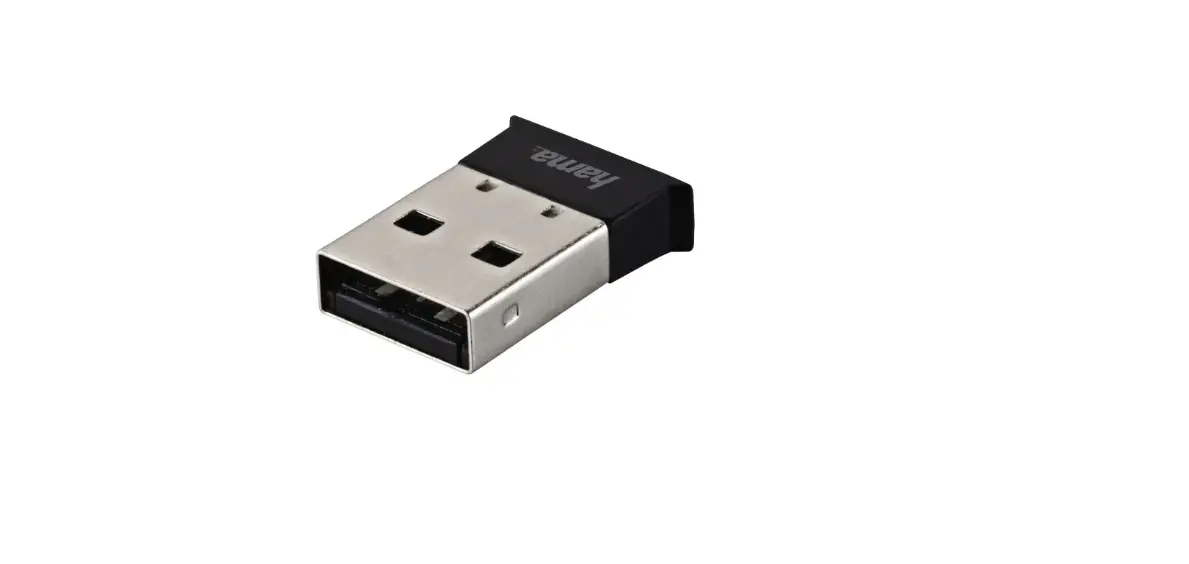
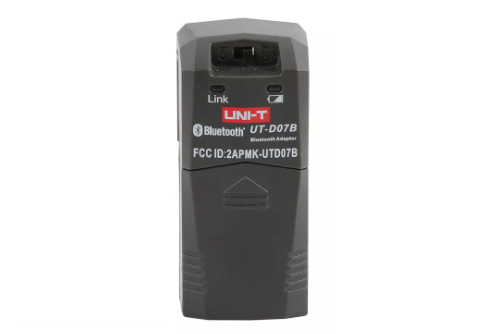
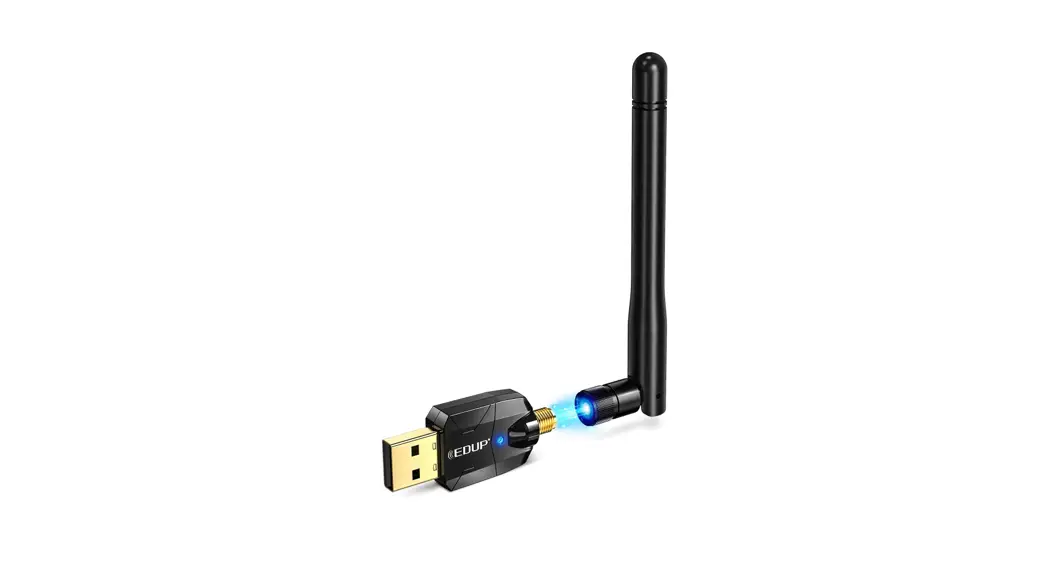
Bluetooth adapter
Note: Support Win7/8/8.1/10 system
Installation Guide
Part 1, Take Windows 10 as an Example
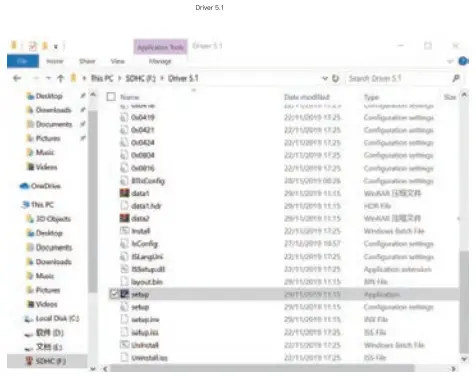
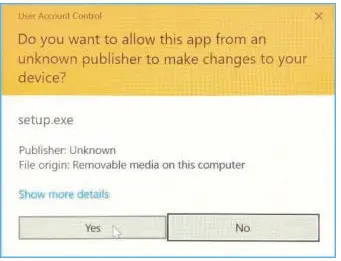
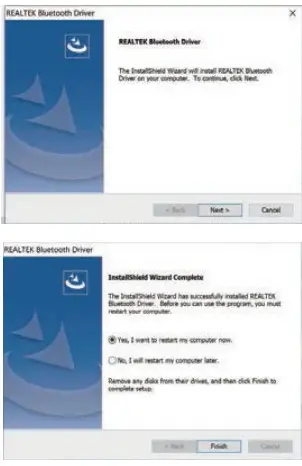
- Connect Bluetooth adapter to the computer, insert our disk which contains a driver file, and double click “Setup.exe” to start

- Select”Agree and Install the Bluetooth Driver to start installation After the progress bar indicates it is done,lt is done, please restart the computer.


Part 2, Pair with Your Device via Bluetooth
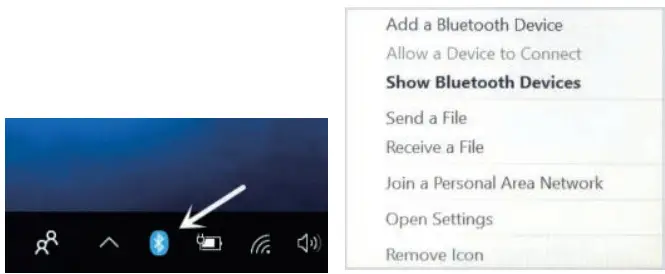
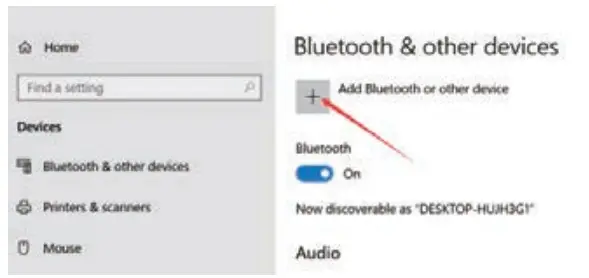
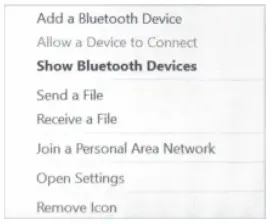
- Select the Bluetooth icon on the bottom right of our system’s toolbar, then right-click to pull out a man bar. Click“Add a Bluetooth Device”

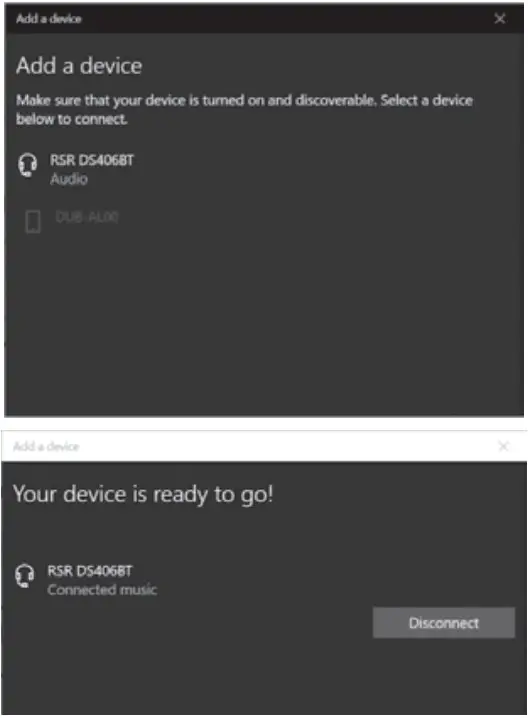
- Look through and select the Bluetooth device you want to pair with, Dual click the “Device”, the system will automatically start pairing, which means the pairing process is done, Fell free to personalize settings at Control Interface.


Part 3, Pair with a Cell Phone
- Click“Add a Bluetooth Devices”

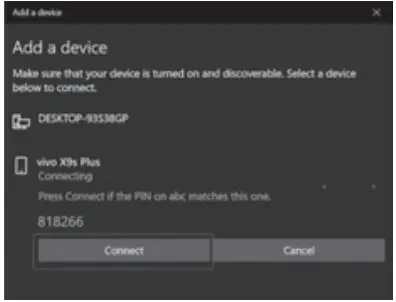
- Look through and select the cell phone you want to pair with, the system will start to pair by clicking”Next”.At the same time, a code will pump up on both the system and cell phone, this is a certificate whether they are the right pairs or not. Click “Start to Pair” on your phone and “Next” on the computer to activate the pairing process.


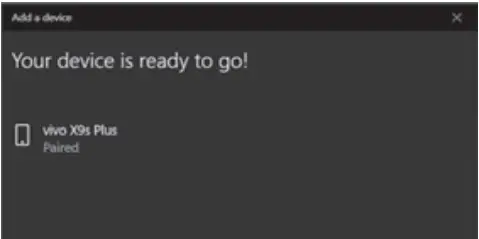
- When it pumps out a dialogue that says “Your device is ready to go”, which means the pairing process is done, click “Done”, Fell free to personalize the setting at Control Interface.
Part 4, Date Transfer
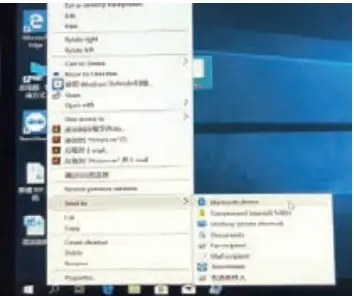
- Right-click the file which you want to transfer and select “Send to Bluetooth Device”.

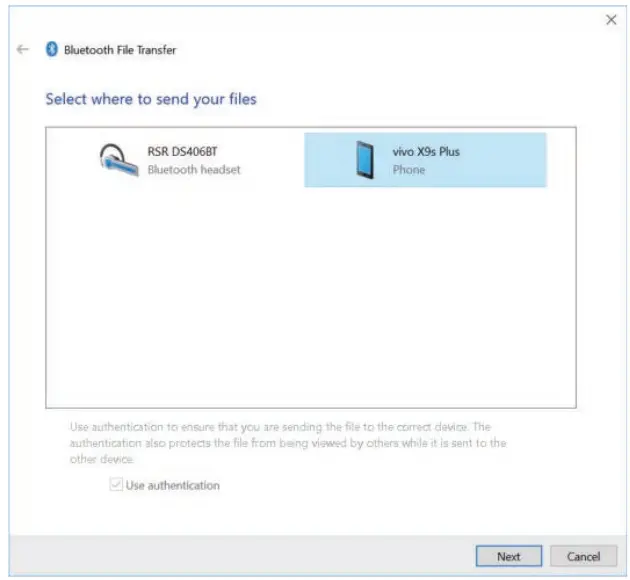
- Select a receiving device, support selecting multi-files simultaneously, here we take “Vivo X9s Plus” as an example, click “Next”.

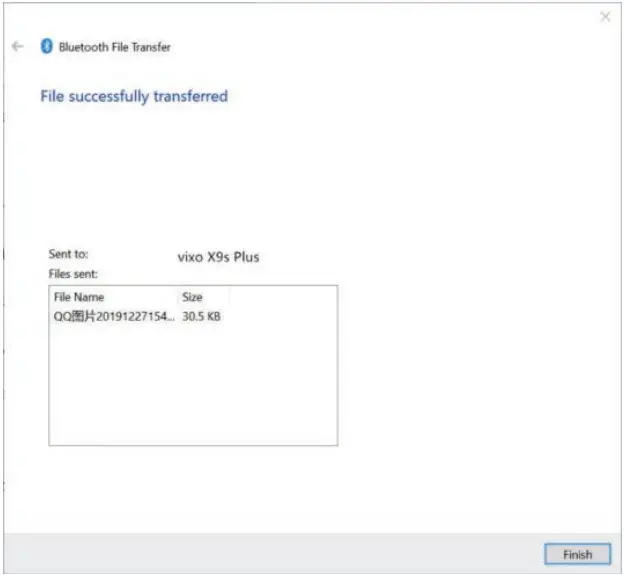
- On your phone end click “Accept” to start data transfer