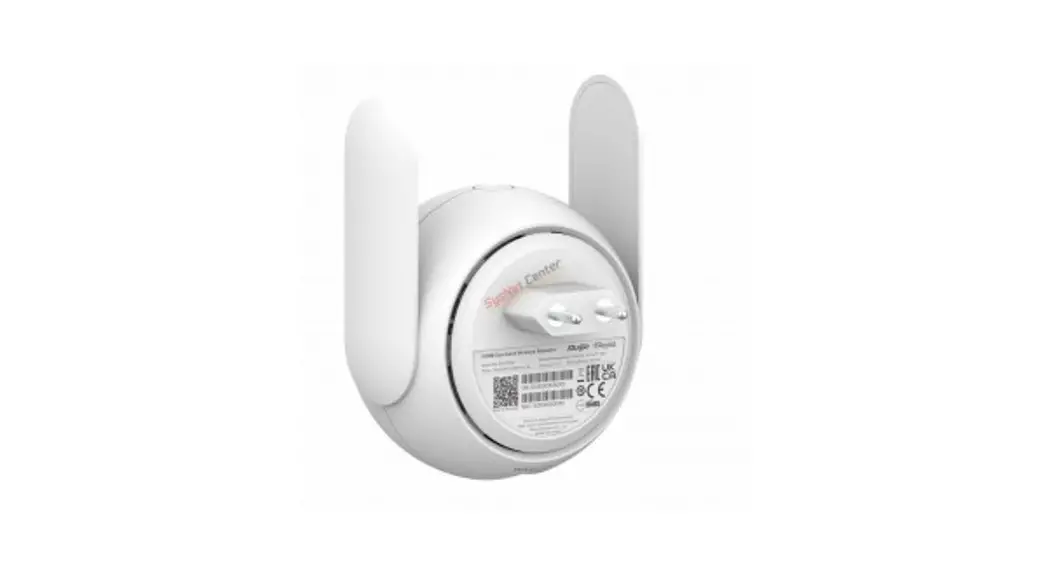
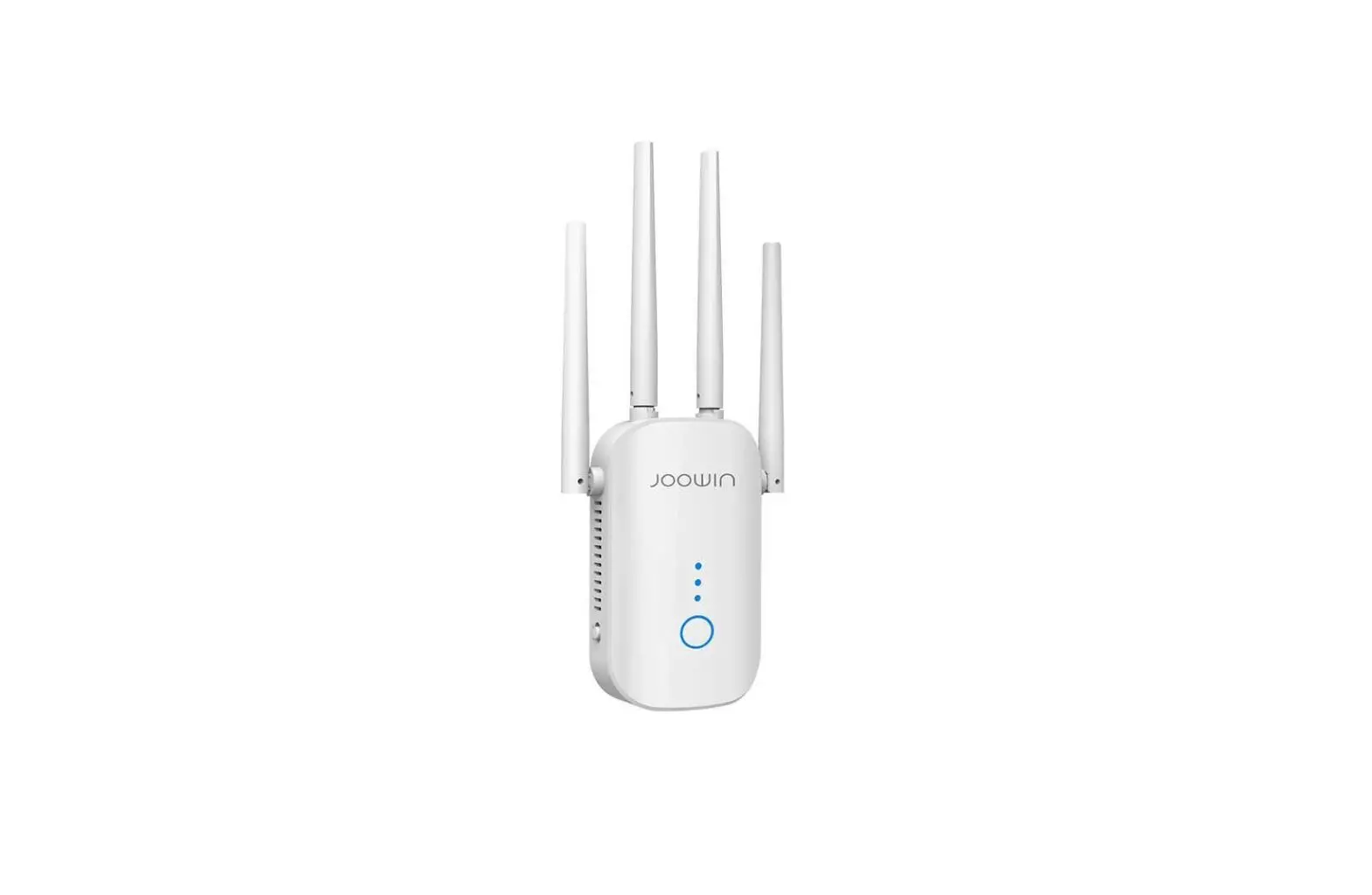
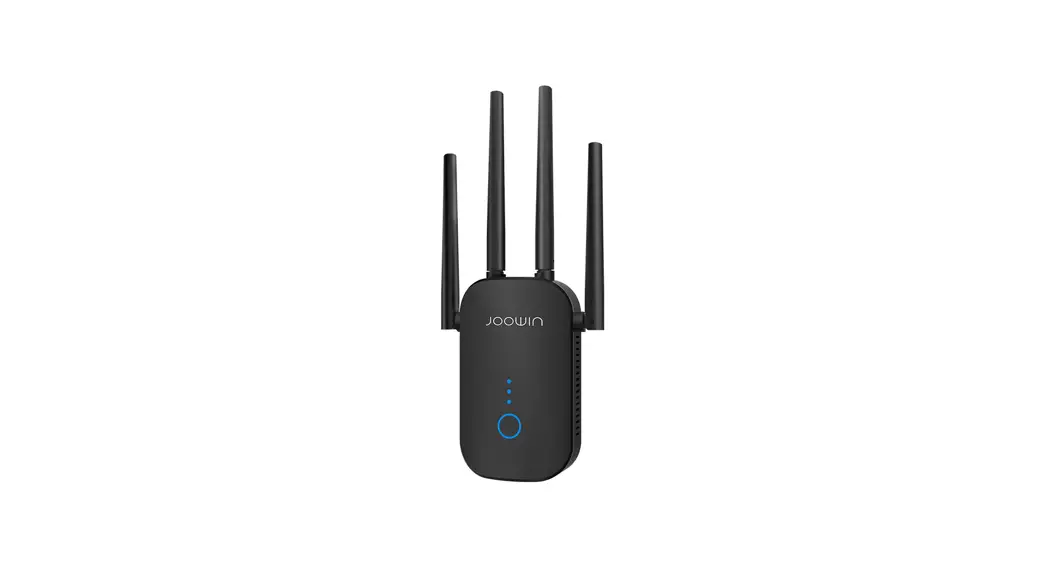
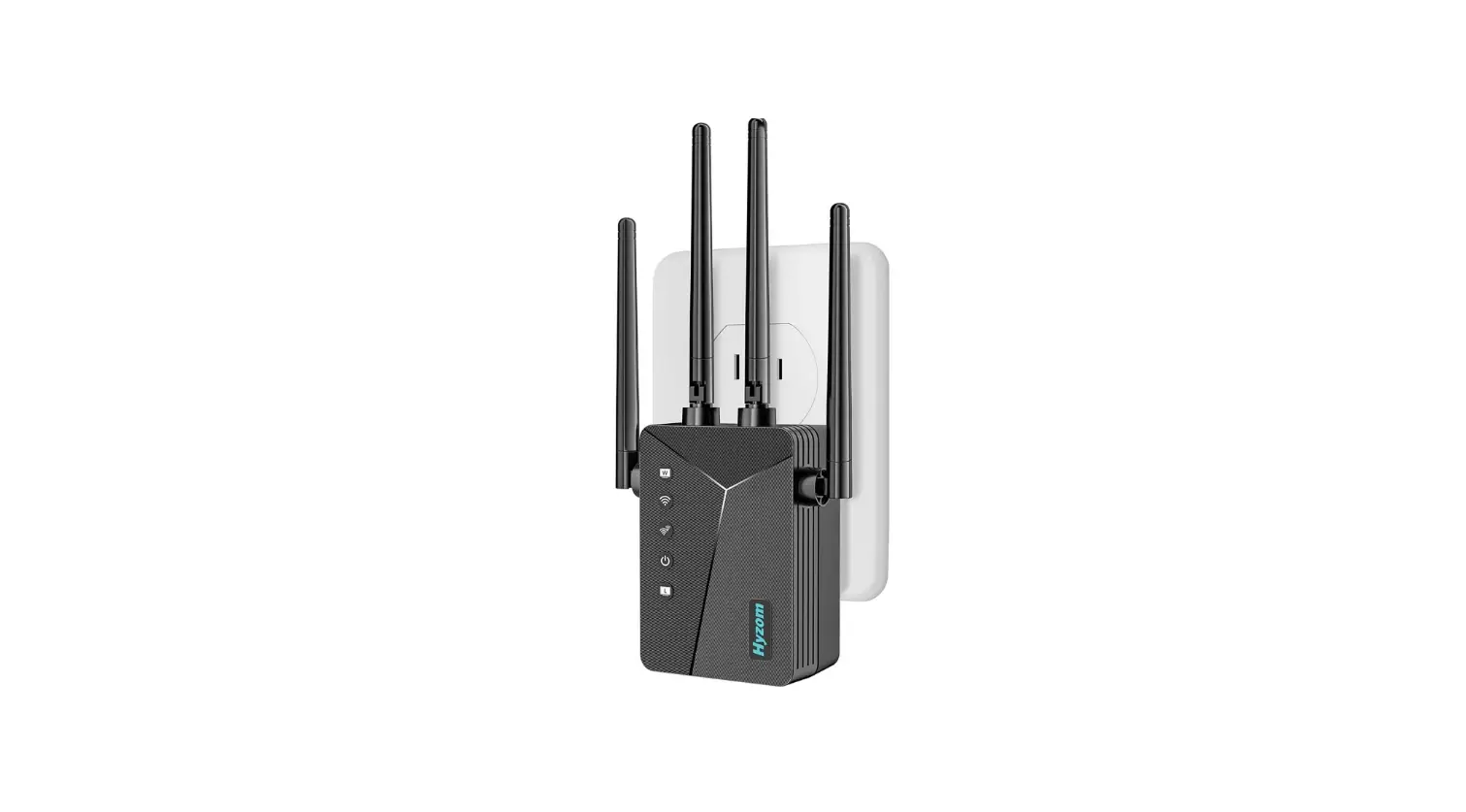
RG-EW300R Wi-Fi Extender
Product Information: RG-EW300R Wi-Fi Extender User Manual
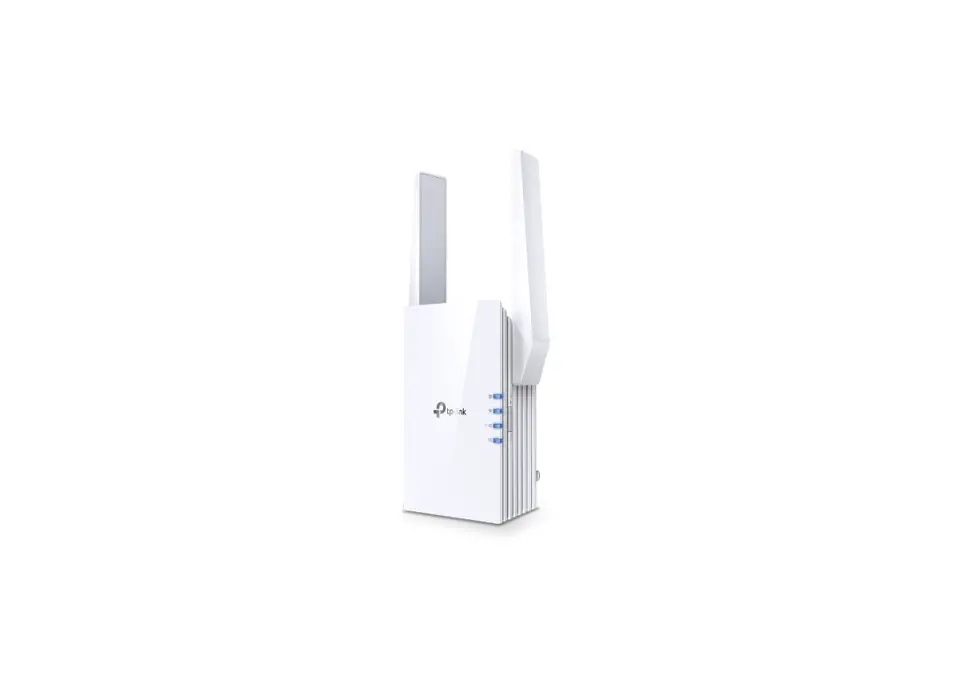
The RG-EW300R is a Wi-Fi extender that helps to extend the
coverage of your existing Wi-Fi network. It comes with an Ethernet
interface, LED/RESET button, Signal Status LED, and WPS button for
easy setup and configuration. The device is easy to install and
comes with a user manual and warranty card.
Product Appearance
The RG-EW300R has an Ethernet interface, LED/RESET button,
Signal Status LED, and WPS button. The Signal Status LED displays
the signal strength of the Wi-Fi network and the System Status LED
displays the status of the device. The WPS button is used to
establish a WPS network with other routers.
| LED/ Button | Action | Status | Description |
|---|---|---|---|
| LED/RESET Button | Long press for more than 5s / Short press for less than 2s | Blinking alternately / Three bars on White / Two bars on / One bar on / Off | The device restores factory settings. Turn on or off the signal status LED. |
| Signal Status LED | N/A | Blinking alternately / Three bars on White / Two bars on / One bar on / Off | The device is accessing the Wi-Fi network of the primary router. The signal strength is high / medium / low. The device is set to the router mode / fails to access the Wi-Fi network of the primary router. |
| System Status LED | N/A | Blue (Solid on / Blinking) / Red (Solid on) | The device is functioning properly / the port has made a successful link. The device is starting up / restoring factory settings. The network is unreachable. |
| WPS Button | Short press for less than 2s | N/A | Establish a WPS network with other routers. |
Package Contents
- Wi-Fi Extender *1
- User Manual *1
- Warranty Card *1
Product Usage Instructions
Scenario 1: Connect the Device to Other Router
- Plug in the device and wait for it to start up. The System
Status LED will blink blue during startup. - Connect to the SSID @Ruijie-sXXXX broadcast by the Wi-Fi
Extender and perform configuration. If the configuration page does
not pop up, visit 10.44.77.254 by browser. - If the device is still in factory status after configuration,
it indicates that the device is not properly installed. Move the
Wi-Fi extender closer to the primary router and try again. - The device will access the network successfully if installed
properly. The System Status LED will be solid blue and the Signal
Status LED will be solid white with more signal bars indicating a
stronger signal. The Wi-Fi extender and the primary router
broadcast the same Wi-Fi signal by default. You can also set
different Wi-Fis for the Wi-Fi extender and the primary
router. - If the device fails to connect to the primary router, place the
Wi-Fi extender closer to the primary router and try again. The
System Status LED will be solid red if the device connects to the
primary router but the network is unreachable. Check whether the
primary router accesses the Internet.
Scenario 2: Connect the Device to the Primary Router (WPS)
- Plug in the device and wait for it to start up. The System
Status LED will blink blue during startup. - Press the WPS button on the primary router and wait for 2
minutes. - Press the WPS button on the Wi-Fi extender within 2
minutes. - The device will access the network successfully if installed
properly. The System Status LED will be solid blue and the Signal
Status LED will be solid white with more signal bars indicating a
stronger signal. The Wi-Fi extender and the primary router
broadcast the same Wi-Fi signal by default. You can also set
different Wi-Fis for the Wi-Fi extender and the primary
router. - If the device fails to connect to the primary router, place the
Wi-Fi extender closer to the primary router and try again. The
System Status LED will be solid red if the device connects to the
primary router but the network is unreachable. Check whether the
primary router accesses the Internet.
RG-EW300R
1-6 7-12 13-18 19-24 25-30 31-36 37-42 43-48
RG-EW300R Wi-Fi Extender User Manual
To better use the Ruijie Reyee products, please read this manual before installation and save it for future reference.
Product Appearance
Ethernet Interface LED/RESET Button
Action Long press for more than 5s Short press for less than 2s Signal Status LED
Status Blinking alternately
Three bars on White Two bars on
One bar on
Off
Description The device restores factory settings. Turn on or off the signal status LED.
Description The device is accessing the Wi-Fi network of the primary router. The signal strength is high. The signal strength is medium. The signal strength is low. 1. The device is set to the router mode. 2. The device fails to access the Wi-Fi network of the primary router.
1
System Status LED Status
Blue
Solid on Blinking
Red Solid on
Description
The device is functioning properly. / The port has made a successful link. The device is starting up. / The device is restoring factory settings.
The network is unreachable.
WPS Button Action
Short press for less than 2s
Description Establish a WPS network with other routers.
Package Contents
Wi-Fi Extender *1 User Manual *1 Warranty Card *1
Installing the Wi-Fi Extender
Scenario 1: Connect the Device to Other Router
1.
2.
3.
The device is starting
Startup is
up after power-on.
complete.
The system status LED
The system status LED
is blinking blue.
is solid blue.
Please wait for 1 to 2 minutes.
Connect to the SSID @Ruijie-sXXXX broadcast by the Wi-Fi Extender and perform configuration. Please visit 10.44.77.254 by browser if the configuration page does not pop up.
2
Operating Status
LED Status
Description
Factory status
The system status LED is solid blue. The signal status LED is off.
If the device is still in the factory status after the configuration of the Wi-Fi Extender is complete, it indicates that the device is not properly installed. Please move the Wi-Fi extender closer to the primary router. Connect to the SSID @Ruijie-sXXXX and try again.
The device accesses the network successfully.
The system status LED is solid blue. The signal status LED is solid white.The more signal bars in solid white indicates the stronger signal.
The network is reachable. The Wi-Fi extender and the primary router broadcast the same Wi-Fi signal by default. You can also set different Wi-Fis for the Wi-Fi extender and the primary router.
The device fails to connect to the primary router.
The system status LED is solid red. The signal status LED is off.
Please place the Wi-Fi extendercloser to the primary router.
The device connects The system status LED
to the primary
is solid red. The signal
router,while the
status LED is solid
network is
white.
unreachable.
Please check whether the primary router accesses the Internet.
Note: 1. You can download the Reyee Router App to get more management functions of the extender, such as turning off the signal status LED and modifying the Wi-Fi name and password. 2. If only one signal bar is on, place the Wi-Fi extender closer to the primary router. 3. You can create a wired network with an Ethernet cable over the 100 Mbps Ethernet port. 4. The connected Wi-Fi extender can access the Wi-Fi network automatically upon the next power-on. 5. You can short press the LED/RESET button to turn off the LED.
3
Scenario 2: Connect the Device to the Primary Router (WPS)
1. The device is starting up after power-on.
2. Startup is complete.
The system status LED The system status
is blinking blue.
LED is solid blue.
Please wait for 1 to 2 minutes.
3. Press the WPS button on the primary router.
4. Press the WPS button on the Wi-Fi extender in 2 minutes.
The system status LED is solid blue.Three signal bars are blinking alternately.
Power supply faceplate
Primary router
Place the Wi-Fi extender close to the primary router.
Operating Status
LED Status
Description
Factory status
The system status LED is solid blue. The signal status LED is off.
If the device is still in the factory status after the configuration of the
Wi-Fi extender is complete, it indicates that the device is not properly installed. Please place the Wi-Fi
extender closer to the primary router and try again as instructed in the figure.
The device accesses the network successfully.
The system status LED is The network is reachable. The solid blue. The signal status Wi-Fi extender and the primary LED is solid white.The router broadcast the same Wi-Fi more signal bars in solid signal. white indicates the stronger
signal.
The device fails to The system status LED connect to the is solid red. The signal primary router. status LED is off.
Please place the Wi-Fi extender closer to the primary router.
4
The device connects to the primary router, while the network is unreachable.
The system status LED Please check whether the primary
is solid red. The signal
router accesses the Internet.
status LED is solid white.
Note: 1. The device already in the WPS networking status will not be paired again if you press the WPS button. 2. You can short press the LED/RESET button to turn off the LED.
Scenario 3: Connect the Device to the Modem Directly
1. The device is starting up after power-on.
2. Startup is complete.
3. Connect to the modem with an
Ethernet cable.
The system status
The system status
The system status LED is solid blue.
LED is blinking blue. LED is solid blue.
Please wait for 1 to 2 minutes.
4. Connect to the SSID @Ruijie-sXXXX broad-
casted by the Wi-Fi extender and perform
configuration. Please visit 10.44.77.254 by
Power supply faceplate
browser to perform configuration if the configuration page does not pop up.
ISP modem
Operating Status
LED Status
The device connects The system status LED
to the network.
is solid blue.
Description
Please connect to the configured Wi-Fi.
5
The device fails to connect to the network.
The system status LED is solid red.
Please check cable connection and network status.
Note: 1. You can download the Reyee Router App to get more management functions of the Wi-Fi extender, such as turning off the signal status LED and editing the Wi-Fi name and password. 2. The Ethernet interface of the Wi-Fi extender is a 100 Mbps interface.
Router Management
1.App management: You are advised to perform router management on the Reyee Router App. 2.Webpage management: Visit 10.44.77.254 by browser to perform router management.
Troubleshooting
1. Poor signal strength If only one signal bar of the signal status LED is on after the Wi-Fi extender is installed, you are advised to place the Wi-Fi extender much closer to the primary router. Remark: Please do not install the Wi-Fi extender where the signal strength is the lowest. Instead, place the Wi-Fi extender between the primary router and the location with the poorest signal strength level.
2. Factory setting restoration Press the LED/RESET button for more than 5 seconds. If the system status LED is blinking blue, the device is restoring factory settings. Please wait for 1 to 2 minutes. If the LED is solid blue, the device has restored factory settings. Perform the installation and configuration again after the device restores factory settings. The default SSID is @Ruijie-sXXXX.
3. Password loss You are advised to enter the Wi-Fi password. If the password is still incorrect, please restore the device to factory settings (Press the LED/RESET button for more than 5 seconds).
6
RG-EW300R Wi-Fi
LED/RESET
>5 <2
1 2
7
WPS
2
/ /
WPS
*1 *1 *1
1.
2.
3. Wi-Fi @Ruijie-sXXXX, 10.44.77.254
1-2
8
Wi-Fi @Ruijie-sXXXX
Wi-Fi Wi-Fi
1. Reyee Router App Wi-Fi 2. 3. 4. 5. LED/RESET
9
WPS
1.
2.
3. WPS
1-2
4. 2 WPS
Wi-Fi
1.WPS 2.LED/RESET
10
1.
2.
3.
1-2
4. Wi-Fi @Ruijie-sXXXX ; 10.44.77.254.
Wi-Fi
1. Reyee Router App Wi-Fi 2.
11
1Reyee Router App 210.44.77.254
1. 2. LED/RESET5 1~2 Wi-Fi @Ruijie-sXXXX 3. Wi-FiLED/RESET 5
12
B kích sóng RG-EW300R Hng dn s dng
s dng tt hn các sn phm Ruijie Reyee, vui lòng c hng dn này trc khi cài t và lu li tham kho sau này.
Ngoi quan sn phm
Giao din Ethernet
NútLED/RESET
Hành ng Nhn gi trên 5 giây Nhn nhanh di 2 giây
Mô t Thit b khôi phc cài t gc. Bt hoc tt èn LED trng thái tín hiu.
èn LED trng thái tín hiu
Trng thái Nhp nháy luân phiên
Sáng ba vch Trng Sáng hai vch
Sáng mt vch
Tt
Mô t Thit b ang truy cp mng Wi-Fi ca b nh tuyn chính. Cng tín hiu cao. Cng tín hiu trung bình. Cng tín hiu thp.
1. Thit b c cài t ch b nh tuyn. 2. Thit b không truy cp c mng Wi-Fi ca b nh tuyn chính.
13
èn LED trng thái h thng
Trng thái
Mô t
Xanh Sáng n nh dng
Nhp nháy
Sáng n nh
Thit b ang hot ng bình thng. / Cng ã kt ni thành công. Thit b ang khi ng. / Thit b ang khôi phc cài t gc.
Mng không truy cp c.
NútWPS Hành ng
Nhn nhanh di 2 giây
Mô t Thit lp mng WPS vi các b nh tuyn khác.
Thành phn gói sn phm
B kích sóng Wi-Fi *1 Hng dn s dng *1 Phiu bo hành *1
Cài t B kích sóng Wi-Fi
Kch bn 1: Kt ni Thit b vi B nh tuyn khác.
1. Thit b ang khi ng sau khi bt ngun.
èn LED trng thái h thng nhp nháy màu xanh dng. Vui lòng i t 1 n 2 phút.
2.
3.
Khi ng
ã hoàn tt.
èn LED trng thái h thng sáng n nh màu xanh dng.
Kt ni vi SSID @Ruijie-sXXXX phát sóng bng b kích sóng Wi-Fi và thc hin cu hình. Vui lòng truy cp 10.44.77.254 bng trình duyt nu trang cu hình không bt lên.
14
Trng thái vn hành
Trng thái ban u
Trng thái LED
èn LED trng thái h thng sáng n nh màu xanh dng. èn LED trng thái tín hiu tt.
Mô t
Nu thit b vn trng thái xut xng sau khi hoàn tt cu hình ca b kích sóng Wi-Fi, iu ó cho thy thit b cha c cài t úng cách. Vui lòng di chuyn b kích sóng Wi-Fi gn hn b nh tuyn chính. Kt ni vi SSID @Ruijie-sXXXX và th li.
Thit b truy cp mng thành công.
èn LED trng thái h thng sáng n nh màu xanh dng. èn LED trng thái tín hiu sáng n nh màu trng. S lng vch tín hiu sáng n nh màu trng nhiu hn có ngha là tín hiu mnh hn.
Mng có th truy cp c. B kích sóng Wi-Fi và b nh tuyn chính phát cùng mt tín hiu Wi-Fi theo mc nh. Bn cng có th cài t Wi-Fi khác nhau cho b kích sóng Wi-Fi và b nh tuyn chính.
Thit b không kt ni c vi b nh tuyn chính.
èn LED trng thái h thng sáng n nh màu . èn LED trng thái tín hiu tt.
Vui lòng t b kích sóng Wi-Fi gn hn b nh tuyn chính.
Thit b kt ni vi b nh tuyn chính trong khi mng không truy cp c.
èn LED trng thái h thng sáng n nh màu . èn LED trng thái tín hiu sáng n nh màu trng.
Vui lòng kim tra xem b nh tuyn chính có truy cp c Internet hay không.
Lu ý: 1. Bn có th ti xung ng dng Reyee Router có thêm các chc nng qun lý ca b kích sóng chng hn nh tt èn LED trng thái tín hiu và sa i tên và mt khu Wi-Fi. 2. Nu ch mt vch tín hiu sáng, hãy t kích sóng Wi-Fi gn b nh tuyn chính hn. 3. Bn có th thit lp mt mng có dây bng cáp Ethernet qua cng Ethernet 100 Mbps.
4. B kích sóng Wi-Fi ã kt ni có th t ng truy cp vào mng Wi-Fi trong ln bt ngun tip theo. 5. Bn có th nhn nhanh nút LED/RESET tt LED.
15
Kch bn 2: Kt ni Thit b vi B nh tuyn Chính (WPS)
1. Thit b ang khi ng sau khi bt ngun.
èn LED trng thái h thng nhp nháy màu xanh dng. Vui lòng i t 1 n 2 phút.
2. Khi ng
3.
ã hoàn tt.
èn LED trng thái
h thng sáng n
4.
nh màu xanh dng.
Nhn nút WPS trên b nh tuyn chính.
Nhn nút WPS trên b kích sóng Wi-Fi trong vòng 2 phút.
èn LED trng thái h thng sáng n nh màu xanh dng. Ba vch tín hiu ang nhp nháy luân phiên.
Mt cm ngun
B nh tuyn chính
t b kích sóng Wi-Fi gn b nh tuyn chính.
Trng thái vn hành
Trng thái LED
èn LED trng thái h
Trng thái ban u thng sáng n nh màu xanh dng. èn LED
trng thái tín hiu tt.
Mô t
Nu thit b vn trng thái xut xng sau khi hoàn tt cu hình ca b kích sóng Wi-Fi, iu ó cho thy thit b cha c cài t úng cách. Vui lòng t b kích sóng Wi-Fi gn b nh tuyn chính hn và th li theo hng dn trong hình.
Thit b truy cp mng thành công.
Thit b không kt ni c vi b nh tuyn chính.
èn LED trng thái h
Vui lòng t b kích sóng Wi-Fi
thng sáng n nh màu gn hn b nh tuyn chính.
xanh dng. èn LED
trng thái tín hiu sáng
n nh màu trng. S
lng vch tín hiu sáng n
nh màu trng nhiu hn
có ngha là tín hiu mnh
hn.
èn LED trng thái h thng sáng n nh màu . èn LED trng thái tín hiu tt.
Vui lòng kim tra xem b nh tuyn chính có truy cp c Internet hay không.
16
Thit b kt ni vi b nh tuyn chính trong khi mng không truy cp c.
èn LED trng thái h thng sáng n nh màu . èn LED trng thái tín hiu sáng n nh màu trng.
Vui lòng kim tra xem b nh tuyn chính có truy cp c Internet hay không.
Lu ý: 1. Thit b ã trng thái kt ni mng WPS s không c kt ni li nu bn nhn nút WPS. 2. Bn có th nhn nhanh nút LED/RESET tt èn LED.
Kch bn 3: Kt ni trc tip thit b vi Modem
1. Thit b ang khi ng sau khi bt ngun.
2. Khi ng ã hoàn tt.
3. Kt ni vi modem bng cáp Ethernet.
èn LED trng thái èn LED trng thái h èn LED trng thái h thng sáng
h thng nhp nháy thng sáng n nh màu n nh màu xanh dng.
màu xanh dng.
xanh dng.
Vui lòng i t 1 n 2 phút.
4. Kt ni vi SSID @Ruijie-sXXXX phát
sóng bng b kích sóng Wi-Fi và thc hin
cu hình. Vui lòng truy cp 10.44.77.254
Mt cm ngun
bng trình duyt thc hin cu hình nu trang cu hình không bt lên.
Modem ISP
Trng thái vn hành Thit b kt ni vi
mng.
Trng thái LED
èn LED trng thái h thng sáng n nh màu xanh dng.
Mô t
Vui lòng kt ni vi Wi-Fi ã nh cu hình.
17
Thit b không kt èn LED trng thái h ni c vi mng. thng sáng n nh
màu .
Vui lòng kim tra kt ni cáp và trng thái mng.
Lu ý: 1. Bn có th ti xung ng dng Reyee Router có thêm các chc nng qun lý ca b kích sóng Wi-Fi chng hn nh tt èn LED trng thái tín hiu và sa i tên và mt khu Wi-Fi. 2. Giao din Ethernet ca b kích sóng Wi-Fi là giao din 100 Mbps.
Qun lý b nh tuyn
1.Qun lý ng dng: Bn cn thc hin qun lý b nh tuyn trên ng dng Reyee Router.
2.Qun lý trang web: Truy cp 10.44.77.254 bng trình duyt thc hin qun lý b nh tuyn.
X lý s c
1. Cng tín hiu kém
Nu èn LED trng thái tín hiu ch có mt vch tín hiu sáng sau khi lp t b kích sóng Wi-Fi, bn cn t b kích sóng Wi-Fi gn hn vi b nh tuyn chính. Lu ý: Vui lòng không lp t b kích sóng Wi-Fi ni có cng tín hiu thp nht. Thay vào ó, t b kích sóng Wi-Fi gia b nh tuyn chính và v trí có mc cng tín hiu kém nht.
2. Khôi phc cài t gc Nhn nút LED/RESET trong hn 5 giây. Nu èn LED trng thái h thng nhp nháy màu xanh dng, thit b ang khôi phc cài t gc. Vui lòng i t 1 n 2 phút. Nu èn LED sáng n nh màu xanh dng, thit b ã khôi phc cài t gc. Thc hin cài t và cu hình li sau khi thit b khôi phc cài t gc. SSID mc nh là @Ruijie-sXXXX.
3. Quên mt khu Bn cn nhp mt khu Wi-Fi. Nu mt khu vn không chính xác (Nhn nút LED/RESET trong hn 5 giây).
18
Extender Wi-Fi RG-EW300R Buku Panduan
Untuk penggunaan produk Ruijie Reyee yang lebih baik, harap baca buku panduan ini sebelum instalasi dan simpan untuk keperluan kedepannya.
Penampilan Produk
Port Ethernet Tombol LED/RESET
Tindakan Tekan dan tahan selama lebih dari 5dtk
Tekan kurang dari 2dtk
LED status sinyal
Status Berkedip bergantian
Putih
Menyala tiga bar Menyala dua bar Menyala satu bar
Mati
Deskripsi Pengaturan perangkat kembali ke setelan pabrik.
Mematikan atau menyalakan LED status sinyal.
Deskripsi Perangkat mengakses jaringan Wi-Fi router utama. Kekuatan sinyal tinggi. Kekuatan sinyal menengah. Kekuatan sinyal rendah. 1. Perangkat diatur ke mode router. 2. Perangkat gagal mengakses jaringan Wi-Fi router utama.
19
LED status sistem Status
Menyala Biru
Berkedip
Merah Menyala
Deskripsi
Perangkat berfungsi dengan baik. / Port berhasil membuat link. Perangkat baru menyala. / Perangkat mengembalikan pengaturan ke setelan pabrik. Jaringan tidak dapat diakses.
Tombol WPS Tindakan
Tekan kurang dari 2dtk
Deskripsi Menghubungkan jaringan WPS dengan router lain.
Isi Paket
Extender Wi-Fi *1 Buku Panduan *1 Kartu Garansi *1
Memasang Extender Wi-Fi
Skenario 1: Hubungkan Perangkat ke Router Lain
1. Perangkat baru menyala
LED status sistem berkedip biru. Harap tunggu selama 1 hingga 2 menit.
2.
3.
Berhasil
menyala.
LED status sistem menyala biru.
Hubungkan ke SSID @Ruijie-sXXXX yang dipancarkan oleh extender Wi-Fi kemudian lakukan konfigurasi. Kunjungi 10.44.77.254 menggunakan peramban jika halaman konfigurasi tidak muncul.
20
Status Kerja Status Bawaan
Status LED
LED status sistem menyala biru. LED status sinyal mati.
Deskripsi
Jika perangkat masih dalam status bawaan setelah konfigurasi extender Wi-Fi selesai, itu berarti perangkat tidak terpasang dengan baik. Harap pindahkan extender Wi-Fi lebih dekat dengan router utama. Hubungkan ke SSID @Ruijie-sXXXX kemudian coba lagi.
Perangkat berhasil mengakses jaringan.
LED status sistem menyala biru. LED status sinyal menyala putih. Lebih banyak bar sinyal menyala putih, berarti sinyalnya semakin kuat.
Jaringan dapat diakses. Secara bawaan, extender Wi-Fi dan router utama memancarkan sinyal Wi-Fi yang sama. Anda juga dapat mengatur Wi-Fi berbeda untuk extender Wi-Fi dan router utama.
Perangkat gagal terhubung ke router utama.
LED status sistem menyala merah. LED status sinyal mati.
Harap letakkan extender Wi-Fi lebih dekat dengan router utama.
Perangkat terhubung LED status sistem
ke router utama,
menyala merah.
namun jaringan
LED status sinyal
tidak dapat diakses. menyala putih.
Harap periksa apakah router utama dapat mengakses internet.
Catatan: 1. Anda dapat mengunduh App Reyee Router untuk mendapatkan fungsi pengelolaan extender yang lebih banyak, seperti mematikan lampu LED status sinyal dan mengubah nama dan kata sandi Wi-Fi. 2. Jika hanya satu bar sinyal menyala, letakkan extender Wi-Fi lebih dekat dengan router utama. 3. Anda dapat membuat jaringan kabel dengan kabel Ethernet melalui port Ethernet 100Mbps. 4. Extender Wi-Fi yang terhubung dapat mengakses jaringan Wi-Fi secara otomatis saat dinyalakan. 5. Anda dapat menekan sebentar tombol LED/RESET untuk mematikan LED.
21
Skenario 2: Hubungkan Perangkat dengan Router Utama (WPS)
1. Perangkat mulai menyala setelah dinyalakan.
2. Berhasil menyala.
LED status sistem berkedip biru. Harap tunggu selama 1 hingga 2 menit.
LED status sistem menyala biru
3. Tekan tombol WPS pada router utama.
4. Tekan tombol WPS pada extender Wi-Fi dalam 2 menit.
LED status sistem menyala biru. Tiga bar sinyal berkedip bergantian
Stop kontak suplai daya
Router utama
Letakkan extender Wi-Fi lebih dekat dengan router utama.
Status kerja Status Bawaan
Status LED
Deskripsi
LED status sistem menyala biru. LED status sinyal mati.
Jika perangkat masih dalam status bawaan setelah konfigurasi extender Wi-Fi selesai, itu berarti perangkat tidak terpasang dengan baik. Harap pindahkan extender Wi-Fi lebih dekat dengan router utama kemudian coba kembali seperti yang ditunjukkan pada gambar.
Perangkat berhasil mengakses jaringan.
LED status sistem menyala biru. LED status sinyal menyala putih. Lebih banyak bar sinyal menyala putih, berarti sinyalnya semakin kuat.
Harap letakkan extender Wi-Fi lebih dekat dengan router utama.
Perangkat gagal terhubung ke router utama.
LED status sistem menyala merah. LED status sinyal mati.
Vui lòng kim tra xem b nh tuyn chính có truy cp c Internet hay không.
22
Perangkat terhubung ke router utama, namun jaringan tidak dapat diakses.
LED status sistem menyala merah. LED status sinyal menyala putih.
Harap periksa apakah router utama dapat mengakses internet.
Catatan: 1. Perangkat yang sudah terhubung dalam status jaringan WPS tidak akan di-pair ulang jika anda menekan tombol WPS. 2. Anda dapat menekan sebentar tombol LED/RESET untuk mematikan LED.
Skenario 3: Hubungkan Perangkat Langsung ke Modem
1. Perangkat mulai menyala
2. Berhasil
3. Hubungkan ke modem
setelah
menyala.
menggunakan kabel Ethernet.
dinyalakan.
LED status sistem
LED status sistem
LED status sistem menyala biru.
berkedip biru. Harap menyala biru.
tunggu selama 1 hingga 2 menit.
4. Hubungkan ke SSID @Ruijie-sXXXX yang dipan-
carkan oleh extender Wi-Fi kemudian lakukan
konfigurasi. Silahkan kunjungi 10.44.77.254
Stop kontak suplai daya
menggunakan peramban untuk melakukan konfigurasi jika halaman konfigurasi tidak muncul
Modem ISP
Status Kerja
Status LED
Perangkat terhubung LED status sistem
ke jaringan.
menyala biru.
Deskripsi
Harap hubungkan ke Wi-Fi yang telah dikonfigurasi.
23
Perangkat gagal terhubung ke jaringan.
LED status sistem menyala merah.
Harap periksa koneksi kabel dan status jaringan.
Catatan: 1. Anda dapat mengunduh App Reyee Router untuk mendapatkan fungsi pengelolaan extender yang lebih banyak, seperti mematikan lampu LED status sinyal dan mengubah nama dan kata sandi Wi-Fi. 2. Port Ethernet extender Wi-Fi adalah port 100 Mbps.
Manajemen Router
1.Manajemen App: Anda disarankan untuk melakukan manajemen router pada App Reyee Router. 2.Manajemen halaman situs: Kunjungi 10.44.77.254 menggunakan peramban untuk melakukan manajemen router.
Pemecahan Masalah
1. Kekuatan sinyal lemah
Jika hanya satu sinyal bar dari LED status sinyal yang menyala setelah extender Wi-Fi dipasang, anda disarankan untuk memindahkan extender Wi-Fi lebih dekat ke router utama. Catatan: Harap jangan pasang extender Wi-Fi di tempat di mana kekuatan sinyalnya paling rendah. Letakkan extender Wi-Fi di antara router utama dan lokasi dengan kekuatan sinyal yang paling rendah.
2. Pengembalian ke setelan pabrik Tekan tombol LED/RESET selama lebih dari 5 detik. Jika LED status sistem berkedip biru, perangkat mengembalikan pengaturan ke setelan pabrik. Harap tunggu selama 1 hingga 2 menit. Jika LED menyala biru, perangkat telah kembali ke setelan pabrik. Lakukan instalasi dan konfigurasi kembali setelah perangkat kembali ke setelan pabrik. SSID bawaannya adalah @Ruijie-sXXXX.
3. Lupa kata sandi Anda disarankan untuk memasukkan kata sandi Wi-Fi. Jika kata sandi tetap salah, silahkan kembalikan pengaturan ke setelan pabrik (Tekan tombol LED/RESET selama lebih dari 5 detik).
24
Wi-Fi- RG-EW300R
Ruijie Reyee, , .
Ethernet
/ (RESET)
.
5 .
2 .
.
Wi-Fi .
.
.
.
1. . 2. Wi-Fi .
25
. / . . / .
.
WPS
2 .
WPS- .
Wi-Fi- *1 *1 *1
Wi-Fi-
1:
1. .
2. .
3. SSID @Ruijie-sXXXX,
Wi-Fi-
.
,
., 10.44.77.254
1-2 . .
.
26
. .
Wi-Fi- , , . , Wi-Fi- . SSID @Ruijie-sXXXX .
.
.
.
,
.
. Wi-Fi- Wi-Fi. Wi-Fi Wi-Fi- .
,
Wi-Fi-
.
.
.
.
, .
. .
, .
: 1. Reyee Router , Wi-Fi. 2. , Wi-Fi- . 3. Ethernet-, Ethernet 100 /. 4. Wi-Fi- Wi-Fi . 5. LED/RESET , .
27
2: (WPS)
1.
.
. , 1-2 .
2.
3.
.
4.
.
WPS .
2 WPS Wi-Fi-.
. .
Wi-Fi- .
Wi-Fi-
.
, ,
.
.
,
Wi-Fi-
,
.
.
.
Wi-Fi-
.
Wi-Fi.
.
, .
,
Wi-Fi-
.
.
.
.
28
,
.
.
,
.
.
:
1. WPS ,
WPS.
2. LED/RESET ,
.
3:
1.
. . , 1-2 .
2.
.
3.
Ethernet-.
.
.
4. SSID @Ruijie-sXXXX,
Wi-Fi- . , 10.44.77.254 , .
–
.
.
, Wi-Fi.
29
.
.
.
: 1. Reyee Router Wi-Fi-, Wi-Fi. 2. Ethernet Wi-Fi- 100 /.
1. : Reyee Router. 2. -: 10.44.77.254.
1. Wi-Fi-
, . : , Wi-Fi- . .
2.
LED/RESET 5 . , .
, 1-2 . , , . , . SSID – @Ruijie-sXXXX.
3. Wi-Fi. – , ( LED/RESET
5 ).
30
RG-EW300R
Reyee .Ruijie
( / ) LED/RESET
.
/.
.
. . . . 1 .2 .
5
c2
31
/ . .
/ . .
.
( ) WPS .
WPS
(2)
1* 1* 1*
1
SSID Ruijie-sXXXX@
.
10.44.77.254 .
.3
.2
.
.1
.
.
. (2) (1)
32
.
SSID .
. Ruijie-sXXXX@
.
.
. .
.
.
. .
.
.
.
.
.
.
.
.
.
Reyee . .1
( . .2
/ .100 ( ) .3 . .4
) () )( / ) LED/RESET .5
.
33
.3 WPS
.
(WPS) :2
.2 .
.1
.
WPS
.4
.
. (2) (1)
(2)
. .
()
.
.
.
.
.
. .
.
.
.
.
.
.
.
.
34
.
.
.
.
( ) WPS .1 WPS.
() ( / ) LED/RESET .2
() .
:3
.
.3
.2 .
.1 .
.
.
SSID
.4
Ruijie-sXXXX@
10.44.77.254 .
.
.
.(2) (1)
()
ISP
.
.
.
35
.
.
.
Reyee .1 . ()
/.100 .2
.Reyee : .1 10.44.77.254 : .2
.1
. . :
.
.2 . 5 ( / ) LED/RESET . c2 c 1 .
. SSID .
Ruijie-sXXXX@
.3 .
.( ( / )LED/RESET )
36
Repetidor Wi-Fi RG-EW300R Manual de usuario
Para utilizar mejor los productos Ruijie Reyee, lea este manual antes de la instalación y guárdela para futuras referencias.
Aspecto del producto
Interfaz Ethernet
Botón LED/RESET
Acción
Pulsación larga durante más de 5 s
Pulsación corta durante menos de 2 s
Descripción El dispositivo restaura la configuración de fábrica. Encienda o apague el LED de estado de la señal.
LED de estado de la señal
Estado Parpadeo alternado
Descripción
El dispositivo está accediendo a la red Wi-Fi del router principal.
Tres barras encendidas La intensidad de la señal es alta.
Blanco Dos barras encendidas Una barra encendida
Apagado
La intensidad de la señal es media.
La intensidad de la señal es baja.
1. El dispositivo está configurado en el modo router. 2. El dispositivo no puede acceder a la red Wi-Fi del router principal.
37
LED de estado del sistema
Estado
Descripción
Azul Rojo
Luz encendida continua Parpadeante Luz encendida continua
El dispositivo funciona correctamente. / El puerto ha establecido un enlace correcto. El dispositivo se está iniciando. / El dispositivo está restaurando la configuración de fábrica. la red es inaccesible.
Botón WPS
Acción Pulsación corta durante menos de 2 s
Descripción Establezca una red WPS con otros routers.
Contenido del paquete
Repetidor Wi-Fi *1 Manual de usuario *1 Tarjeta de garantía *1
Instalación del repetidor Wi-Fi
Situación 1: Conecte el dispositivo a otro router
1. El dispositivo se está iniciando después del encendido.
El LED de estado del sistema parpadea en azul. Espere de 1 a 2 minutos.
2.
3. Conéctese a la transmisión
El inicio ha
SSID @Ruijie-sXXXX medi-
finalizado.
ante el repetidor Wi-Fi y
realice la configuración.
El LED de estado del sistema es de color azul continuo.
Visite 10.44.77.254 a través del navegador si la página de configuración no aparece.
38
Estado operativo Estado del LED
Descripción
Estado de fábrica
El LED de estado del sistema es de color azul continuo. El LED de estado de la señal está apagado.
Si el dispositivo todavía está en el estado de fábrica después de que se complete la configuración del repetidor Wi-Fi, indica que el dispositivo no está instalado correctamente. Mueva el repetidor Wi-Fi más cerca del router principal. Conéctese al SSID @Ruijie-sXXXX e inténtelo de nuevo.
El dispositivo accede El LED de estado del sistema La red no es accesible. El repetidor
a la red
es de color azul continuo. Wi-Fi y el router principal transmit-
correctamente.
El LED de estado de la señal en la misma señal Wi-Fi de forma
es de color blanco contin- predeterminada. También puede
uo. La cantidad de barras de configurar diferentes conexiones
señal en blanco sólido encen- Wi-Fi para el repetidor Wi-Fi y el
didas indica cuán fuerte es la router principal.
señal.
El dispositivo no se puede conectar al router principal.
El LED de estado del sistema es de color rojo continuo. El LED de estado de la señal está apagado.
Coloque el repetidor Wi-Fi más cerca del router principal.
El dispositivo se conecta al router principal, mientras que la red no es accesible.
El LED de estado del sistema es de color rojo continuo. El LED de estado de la señal es de color blanco continuo.
Compruebe si el router principal accede a Internet.
Nota:
1. Puede descargar la aplicación Reyee Router para obtener más funciones de gestión del repetidor, como apagar el LED de estado de la señal y modificar el nombre y la contraseña
del Wi-Fi.
2. Si solo hay una barra de señal encendida, coloque el repetidor Wi-Fi más cerca del router principal.
3. Puede crear una red cableada con un cable Ethernet a través del puerto Ethernet de 100 Mbps.
4. El repetidor Wi-Fi conectado puede acceder a la Wi-Fi Wi-Fi automáticamente en el próximo encendido. 5. Puede pulsar brevemente el botón LED/RESET para apagar el LED.
39
Situación 2: Conecte el dispositivo a un router principal (WPS)
1. El dispositivo se está
iniciando después del encendido.
2. El inicio ha finalizado.
El LED de estado del sistema parpadea en azul. Espere de 1 a 2 minutos.
El LED de estado del sistema es de color azul continuo.
3.
Pulse el botón WPS en el router principal.
4. Pulse el botón WPS en el
repetidor Wi-Fi en 2 minutos.
El LED de estado del sistema es de color azul continuo. Tres barras de señal parpadean alternativamente.
Placa frontal de la fuente de alimentación
Router principal
Coloque el repetidor Wi-Fi cerca del router principal.
Estado operativo
Estado del LED
Descripción
El LED de estado del sistema es de color azul continuo. El LED de estado de la señal está apagado.
Si el dispositivo todavía está en el estado de fábrica después de que se complete la configuración del repetidor Wi-Fi, indica que el dispositivo no está instalado correctamente. Coloque el repetidor Wi-Fi más cerca del router principal e inténtelo de nuevo como se indica en la figura.
El dispositivo accede El LED de estado del sistema
a la red
es de color azul continuo.
correctamente.
El LED de estado de la señal
es de color blanco contin-
uo. La cantidad de barras de
señal en blanco sólido
encendidas indica cuán
fuerte es la señal.
La red no es accesible. El repetidor Wi-Fi y el router principal emiten la misma señal Wi-Fi.
El dispositivo no se puede conectar al router principal.
El LED de estado del sistema es de color rojo continuo. El LED de estado de la señal está apagado.
Coloque el repetidor Wi-Fi más cerca del router principal.
40
El dispositivo se conecta al router principal, mientras que la red no es accesible.
El LED de estado del sistema es de color rojo continuo. El LED de estado de la señal es de color blanco continuo.
Compruebe si el router principal accede a Internet.
Nota:
1. El dispositivo que ya está en el estado de red WPS no se volverá a emparejar si pulsa el botón WPS . 2. Puede pulsar brevemente el botón LED/RESET para apagar el LED.
Situación 3: Conecte el dispositivo al módem directamente
1. El dispositivo se está
iniciando después del encendido.
El LED de estado del sistema parpadea en azul. Espere de 1 a 2
2.
3.
.
El LED de estado del sistema es de color azul continuo.
Conéctese al módem con un cable Ethernet.
El LED de estado del sistema es de color azul continuo.
minutos.
Placa frontal de la fuente de alimentación
4. Conéctese a la transmisión SSID @Rui-
jie-sXXXX mediante el repetidor Wi-Fi y realice
la configuración. Visite 10.44.77.254 a través del navegador para realizar la configuración si la página de configuración no aparece.
Módem ISP
Estado operativo
El dispositivo se conecta a la red.
Estado del LED
El LED de estado del sistema es de color azul continuo.
Descripción Conéctese a la red Wi-Fi configurada.
41
El dispositivo no se puede conectar a la red.
El LED de estado del sistema Verifique la conexión del cable es de color rojo continuo. y el estado de la red.
Nota: 1. Puede descargar la aplicación Reyee Router para obtener más funciones de gestión del repetidor Wi-Fi, como apagar el LED de estado de la señal y editar el nombre y la contraseña del Wi-Fi. 2. La interfaz Ethernet del repetidor Wi-Fi es una interfaz de 100 Mbps.
Gestión de routers
1.Gestión de aplicaciones Se recomienda realizar la gestión del router en la aplicación Reyee Router.
2.Gestión de páginas web: Visite 10.44.77.254 a través del navegador para realizar la gestión del router.
Solución de problemas
1. Intensidad de señal deficiente
Si solo hay una barra de señal de la LED de estado de la señal encendida después de instalar el repetidor Wi-Fi, se recomienda colocar el repetidor Wi-Fi mucho más cerca del router principal. Comentario: No instale el repetidor Wi-Fi donde la intensidad de la señal sea la más baja. En su lugar, coloque el repetidor Wi-Fi entre el router principal y la ubicación con el nivel de intensidad de señal más deficiente.
2. Restablecimiento de la configuración de fábrica
Pulse el botón LED/RESET durante más de 5 segundos. Si el LED de estado del sistema
parpadea en azul, el dispositivo está restaurando la configuración de fábrica. Espere de 1 a 2 minutos. Si el LED está en color azul continuo, significa que el dispositivo se ha restablecido a la configuración de fábrica. Realice la instalación y la configuración nuevamente después de que el dispositivo restablezca la configuración de fábrica. El SSID predeterminado es @Ruijie-sXXXX.
3. Pérdida de contraseña Se recomienda introducir la contraseña de la conexión Wi-Fi. Si la contraseña sigue siendo
incorrecta, restablezca el dispositivo a la configuración de fábrica (pulse el botón LED/RESET
durante más 5 segundos).
42
RG-EW300R Wi-Fi Yineleyici (Extender) Kullanici El Kitabi
Reyee ürünlerini daha iyi kullanabilmek amaciyla lütfen kurulum öncesinde bu el kitabini okuyun ve ileride tekrar bavurabilmek için saklayin.
Ürün Görünümü
Ethernet Arayüzü
LED/SIFIRLA Dümesi
Eylem 5 saniyeden daha uzun süreyle basin 2 saniyeden daha kisa süreyle basin
Sinyal Durum LED’i
Durum Dönüümlü olarak yanip sönüyor
Üç çubuk yaniyor Beyaz ki çubuk yaniyor
Bir çubuk yaniyor
Kapali/Sönük
Açiklama Cihaz fabrika ayarlarina döner.
Sinyal durum LED’i açilir veya kapatilir.
Açiklama Cihaz ana yönlendiricinin Wi-Fi aina eriim saliyor. Sinyal gücü yüksek. Sinyal gücü orta seviye. Sinyal gücü düük. 1. Cihaz, yönlendirici moduna ayarlandi. 2. Cihaz ana yönlendiricinin Wi-Fi aina eriim salayamadi.
43
Sistem Durum LED’i Durum
Mavi
Sürekli/sabit yaniyor Yanip Sönüyor
Kirmizi Sürekli/sabit yaniyor
Açiklama
Cihaz düzgün biçimde çaliiyor. / Port baarili bir link oluturmutur. Cihaz balatiliyor. / cihaz fabrika ayarlarina dönüyor. Aa ulailamiyor.
WPS Dümesi
Eylem 2 saniyeden daha kisa süreyle basin
Açiklama Dier yönlendiriciler ile bir WPS ai kurulur.
Paket çerii
Wi-Fi Yineleyici (Extender) *1 Kullanici El Kitabi *1 Garanti Belgesi *1
Wi-Fi Yineleyicinin Kurulumu
Senaryo 1: Cihazin Baka bir Yönlendiriciye Balanmasi
1. Güç açildiktan sonra cihaz balatilir.
Sistem durum LED’i mavi renkte yanip sönüyor. Lütfen 1 ila 2 dakika süreyle bekleyin.
2.
3.
Kurulum
tamamlandi.
Sistem durum LED’i mavi renkte sabit/sürekli yaniyor.
Wi-Fi yineleyici üzerinden
SSID @Ruijie-sXXXX yayinina balanin ve yapilandirmayi gerçekletirin. Eer yapilandirma sayfasi açilmiyorsa, lütfen tarayici yoluyla 10.44.77.254 adresini
ziyaret edin.
44
Çalima Durumu
LED Durumu
Açiklama
Fabrika durumu
Sistem durum LED’i mavi renkte sabit/sürekli yaniyor. Sistem durum LED’i kapali.
Eer Wi-Fi yineleyicinin yapilandirmasi tamamlandiktan sonra cihaz hala fabrika ayarlarinda ise bu durum cihazin düzgün biçimde kurulmadiini belirtir. Lütfen Wi-Fi yineleyiciyi, ana yönlendiriciye yaklatirin. SSID @Ruijie-sXXXX ‘ye balanin ve tekrar deneyin.
Cihaz, aa baariyla eriim saladi.
Sistem durum LED’i mavi renkte sabit/sürekli yaniyor. Sistem durum LED’i beyaz renkte sürekli/sabit yaniyor. Beyaz renkte sürekli/sabit
yanan daha fazla sinyal çubuu olmasi sinyalin daha güçlü olduunu belirtir.
Aa ulailamiyor. Wi-Fi yineleyici ve ana yönlendirici varsayilan olarak ayni Wi-Fi sinyalini yayinlar. Wi-Fi yineleyici ve ana yönlendirici için farkli Wi-Fi’lar da ayarlayabilirsiniz.
Cihaz ana yönlendiriciye balanamadi.
Sistem durum LED’i kirmizi renkte sürekli/sabit yaniyor. Sistem durum LED’i kapali.
Lütfen Wi-Fi yineleyiciyi, ana yönlendiricinin yakinina yerletirin.
Aa ulailamiyorken cihaz ana
yönlendiriciye balaniyor.
Sistem durum LED’i kirmizi renkte sürekli/sabit yaniyor. Sistem durum LED’i beyaz renkte sürekli/sabit yaniyor.
Lütfen ana yönlendiricinin nternete eriip eriemediini kontrol edin.
Not:
1. Yineleyiciye (extender) yönelik olarak sinyal durum LED’inin kapatilmasi ve Wi-Fi adi ve parolasinin deitirilmesi gibi daha fazla yönetim ilevi salamak için Reyee Router (Yönlendirici) Uygulamasini indirebilirsiniz. 2. Eer sadece bir sinyal çubuu yaniyorsa, Wi-Fi yineleyiciyi (extender) ana yönlendiricinin daha yakinina yerletirin. 3. 100 Mbps Ethernet portu üzerinden bir Ethernet kablosu ile kablolu bir a oluturabilirsiniz.
4. Bali olan Wi-Fi yineleyici, bir sonraki güç verme ileminin ardindan otomatik olarak Wi-Fi aina eriebilir. 5. LED’i kapatmak için LED/SIFIRLA dümesine kisa süreyle basabilirsiniz.
45
Senaryo 2: Cihazin bir Ana Yönlendiriciye (WPS) Balanmasi
1. Güç açildiktan sonra
cihaz balatilir.
2. Kurulum
tamamlandi.
Sistem durum LED’i mavi renkte yanip sönüyor. Lütfen 1 ila 2 dakika süreyle bekleyin.
Sistem durum LED’i mavi renkte sabit/sürekli yaniyor.
3. Ana yönlendirici
üzerindeki WPS dümesine basin.
4. 2 dakika içerisinde Wi-Fi
yineleyici üzerindeki WPS dümesine basin.
Sistem durum LED’i mavi renkte
sabit/sürekli yaniyor. Üç sinyal çubuu dönüümlü olarak yanip söner.
Güç kaynai ön yüzü
Ana yönlendirici
Wi-Fi yineleyiciyi, ana yönlendiricinin yakinina yerletirin.
Çalima Durumu
Fabrika durumu
LED Durumu
Açiklama
Sistem durum LED’i mavi renkte sabit/sürekli yaniyor. Sistem durum LED’i kapali.
Eer Wi-Fi yineleyicinin yapilandirmasi tamamlandiktan sonra cihaz hala fabrika ayarlarinda ise bu durum cihazin düzgün biçimde kurulmadiini belirtir. Lütfen Wi-Fi yineleyiciyi ana yönlendiriciye yakin bir yere yerletirin ve ekilde gösterildii gibi tekrar deneyin .
Cihaz, aa baariyla Sistem durum LED’i mavi
eriim saladi.
renkte sabit/sürekli yaniyor.
Sistem durum LED’i beyaz
renkte sürekli/sabit yaniyor.
Beyaz renkte sürekli/sabit
yanan daha fazla sinyal
çubuu olmasi sinyalin daha
güçlü olduunu belirtir.
Aa ulailamiyor. Wi-Fi yineleyici ve ana yönlendirici ayni Wi-Fi sinyalini yayinlar.
Cihaz ana yönlendiriciye balanamadi.
Sistem durum LED’i kirmizi renkte sürekli/sabit yaniyor. Sistem durum LED’i kapali.
Lütfen Wi-Fi yineleyiciyi, ana yönlendiricinin yakinina yerletirin.
46
Aa ulailamiyorken cihaz ana yönlendiriciye balaniyor.
Sistem durum LED’i kirmizi renkte sürekli/sabit yaniyor. Sistem durum LED’i beyaz renkte sürekli/sabit yaniyor.
Lütfen ana yönlendiricinin nternete eriip eriemediini kontrol edin.
Not:
1. Halihazirda WPS a oluturma durumunda olan cihaz, WPS dümesine basarsaniz dahi tekrar eletirilmeyecektir. 2. LED’i kapatmak için LED/SIFIRLA dümesine kisa süreyle basabilirsiniz.
Senaryo 3: Cihazin, Modeme Dorudan Balanmasi
1. Güç açildiktan sonra
2. Kurulum tamam-
3.
cihaz balatilir.
landi.
Bir Ethernet kablosu ile modeme balanin.
Sistem durum LED’i mavi renkte yanip sönüyor. Lütfen 1 ila 2 dakika süreyle bekleyin.
Sistem durum LED’i mavi renkte sabit/sürekli yaniyor.
Sistem durum LED’i mavi renkte sabit/sürekli yaniyor.
Güç kaynai ön yüzü
4. Wi-Fi yineleyici üzerinden SSID @Ruijie-sXXXX
yayinina balanin ve yapilandirmayi gerçekletirin. Eer yapilandirma sayfasi açilmiyorsa, lütfen yapilandirmayi gerçekletirmek için tarayici yoluyla 10.44.77.254 adresini ziyaret edin.
ISS (nternet Servis Salayicisi) modemi
Çalima Durumu
LED Durumu
Cihaz, aa balaniyor. Sistem durum LED’i mavi renkte sabit/sürekli yaniyor.
Açiklama
Lütfen yapilandirilmi olan Wi-Fi’ya balanin.
47
Cihaz aa balanamadi.
Sistem durum LED’i kirmizi renkte sürekli/sabit yaniyor.
Lütfen kablo balantisini ve a durumunu kontrol edin.
Not:
1. Sinyal durum LED’inin kapatilmasi ve Wi-Fi adi ve parolasinin düzenlenmesi gibi yineleyicinin (extender) yönetim ilevlerini daha fazla kullanabilmek için Reyee Router (Yönlendirici) Uygulamasini indirebilirsiniz. 2. Wi-Fi yineleyicinin Ethernet arayüzü, bir 100 Mbps arayüzüdür.
Yönlendirici Yönetimi
11.Uygulama yönetimi: Yönlendirici yönetimini, Reyee Router (Yönlendirici) Uygulamasi üzerinden gerçekletirmeniz tavsiye edilir. 2.Web sayfasi yönetimi: Yönlendirici yönetimini gerçekletirmek için tarayici yoluyla 10.44.77.254 adresini ziyaret edin.
Sorun Giderme (Troubleshooting)
1. Zayif sinyal gücü Eer Wi-Fi yineleyici kurulduktan sonra sinyal durum LED’inin sadece bir sinyal çubuu yaniyorsa, Wi-Fi yineleyiciyi ana yönlendiricinin çok daha yakinina yerletirmeniz tavsiye edilir. Not: Lütfen Wi-Fi yineleyiciyi sinyal gücünün en düük olduu yere kurmayin. Bunun yerine, Wi-Fi yineleyiciyi, sinyal gücü seviyesinin en zayif olduu lokasyon ile ana yönlendirici arasina yerletirin.
2. Fabrika ayarlarina dönmek
LED/SIFIRLA dümesine 5 saniyeden daha uzun süreyle basin. Eer sistem durum LED’i
mavi renkte yanip sönüyorsa cihaz fabrika ayarlarina dönmektedir. Lütfen 1 ila 2 dakika süreyle bekleyin. Eer LED mavi renkte sürekli/sabit yaniyorsa, cihaz fabrika ayarlarina dönmütür. Cihaz fabrika ayarlarina döndükten sonra kurulum ve yapilandirmayi gerçekletirin. Varsayilan SSID, @Ruijie-sXXXX ‘dir.
3. Parolayi kaybetme
Wi-Fi parolasini girmeniz tavsiye edilir. Eer parola hala yanlisa, lütfen cihazi fabrika ayarlarina
döndürün (5 saniyeden daha uzun bir süre boyunca LED/SIFIRLA dümesine basin).
48