
QUICK GUIDE
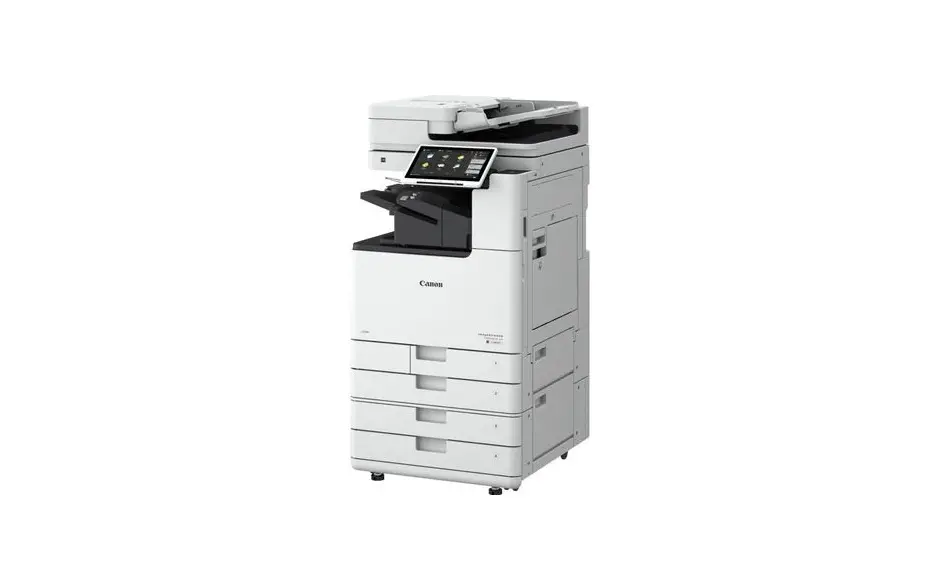
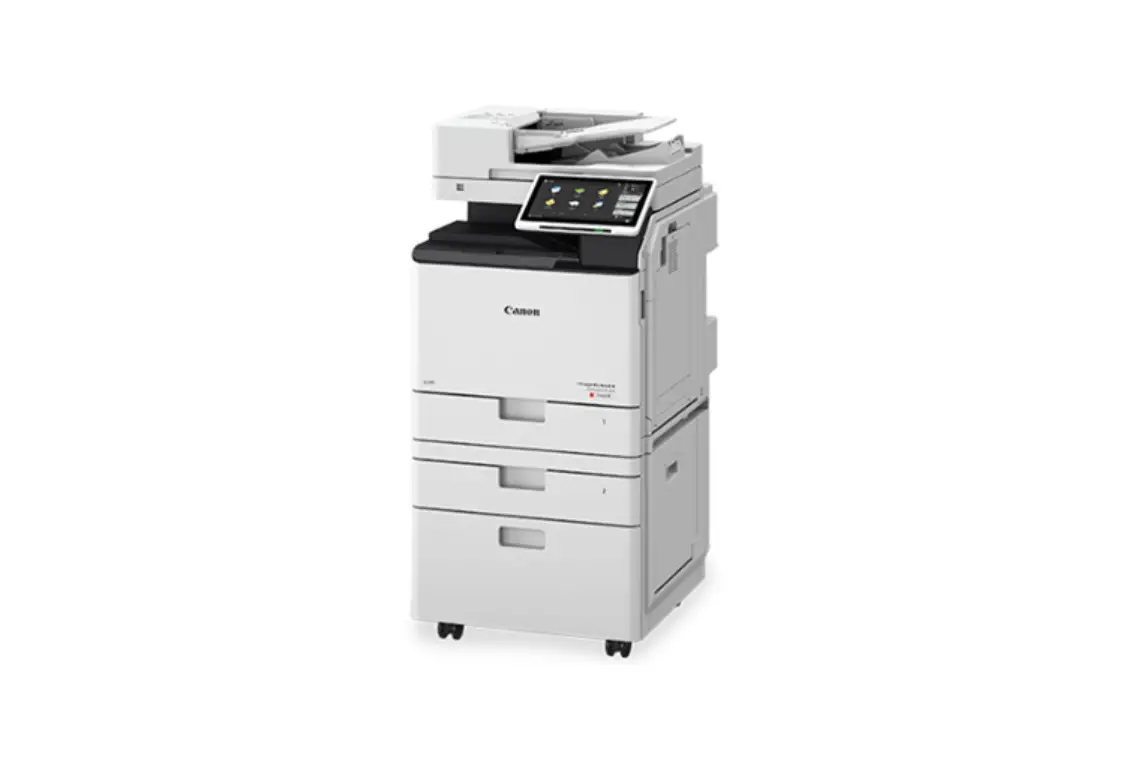
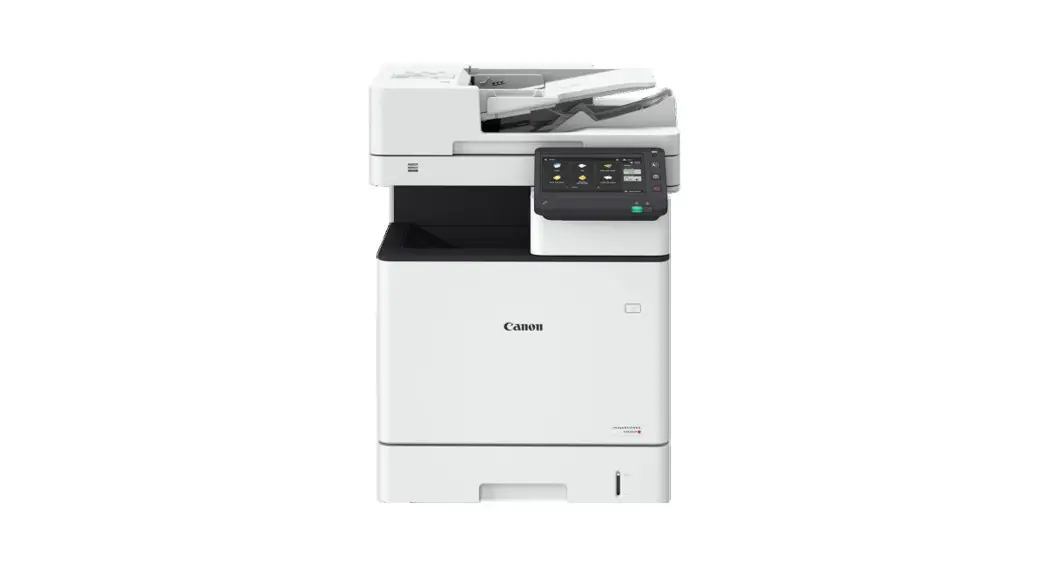
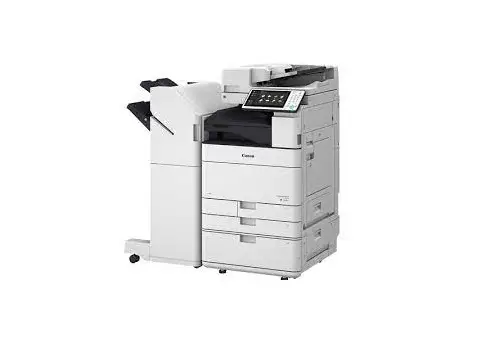
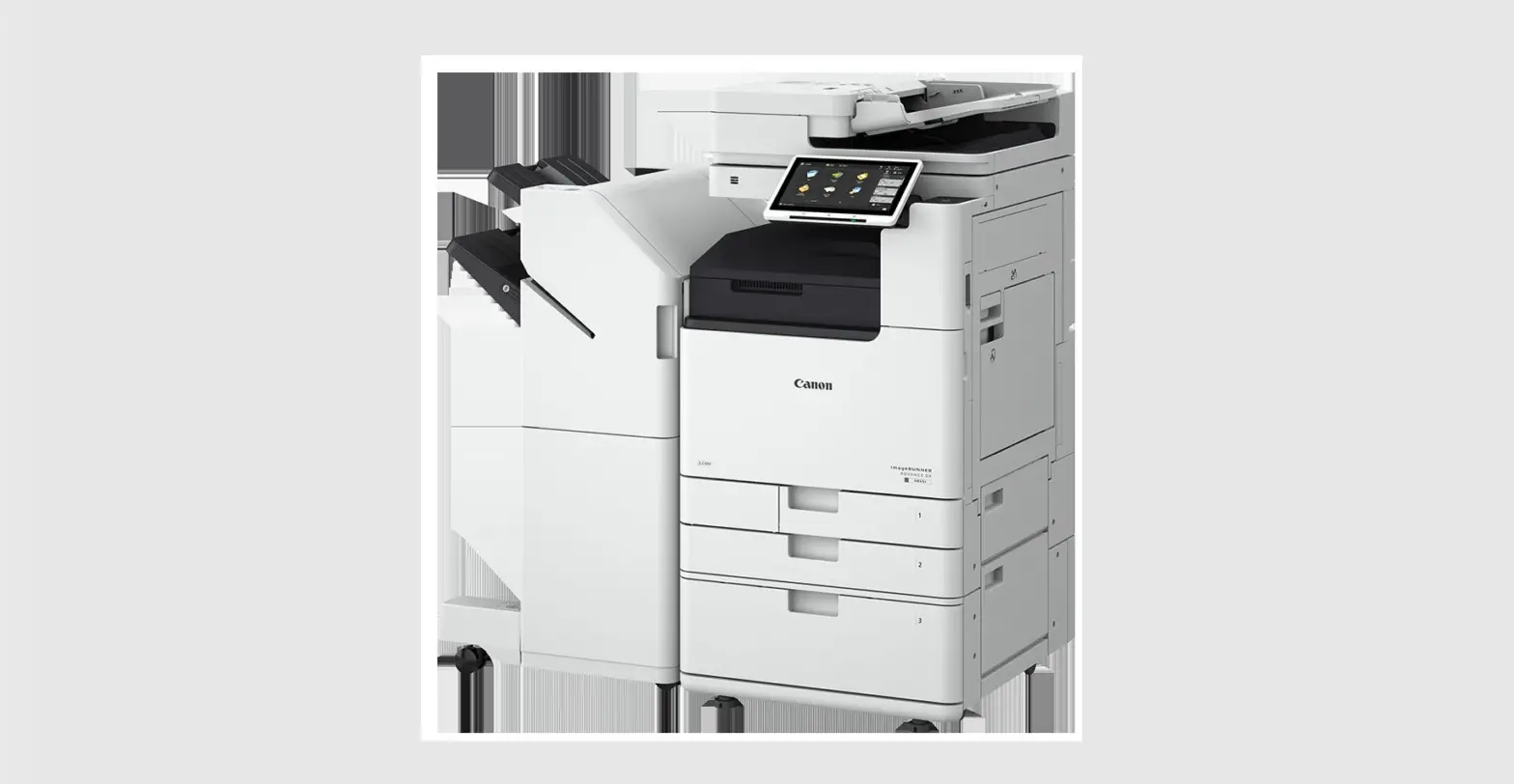
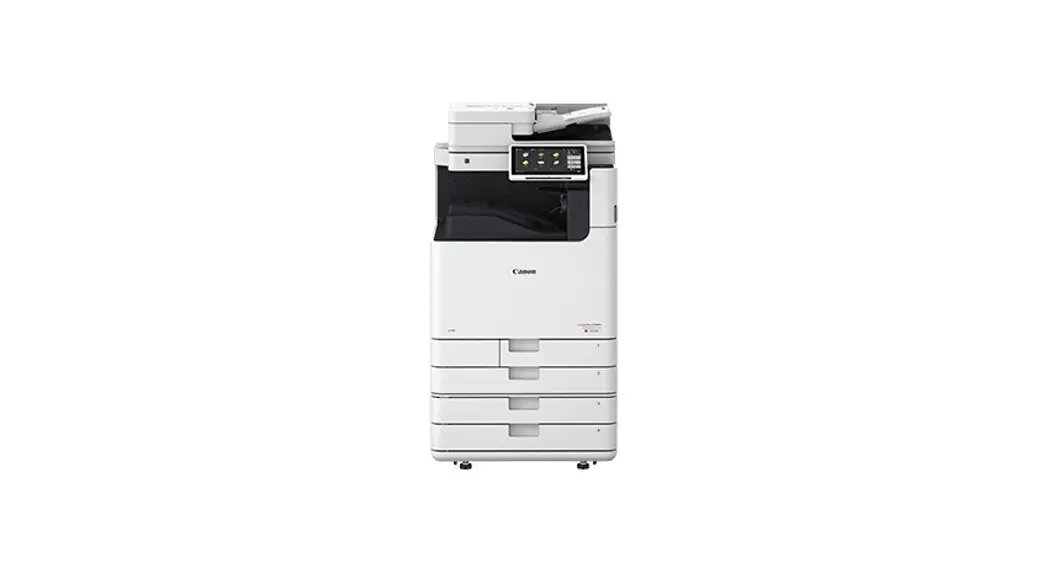
Canon ImageRUNNER Advance DX: Copying
Canon ImageRUNNER Advance DX Copying
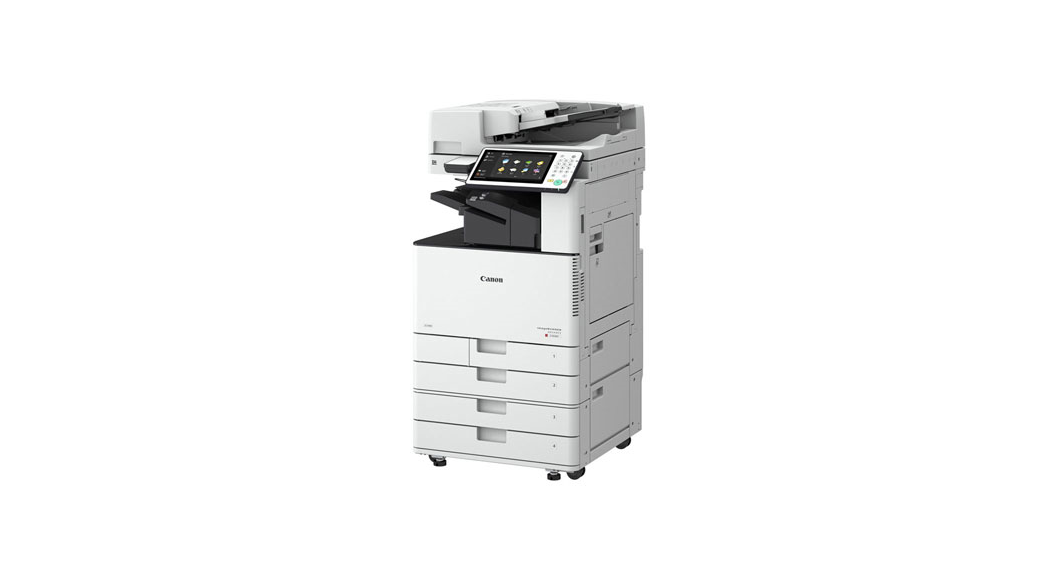
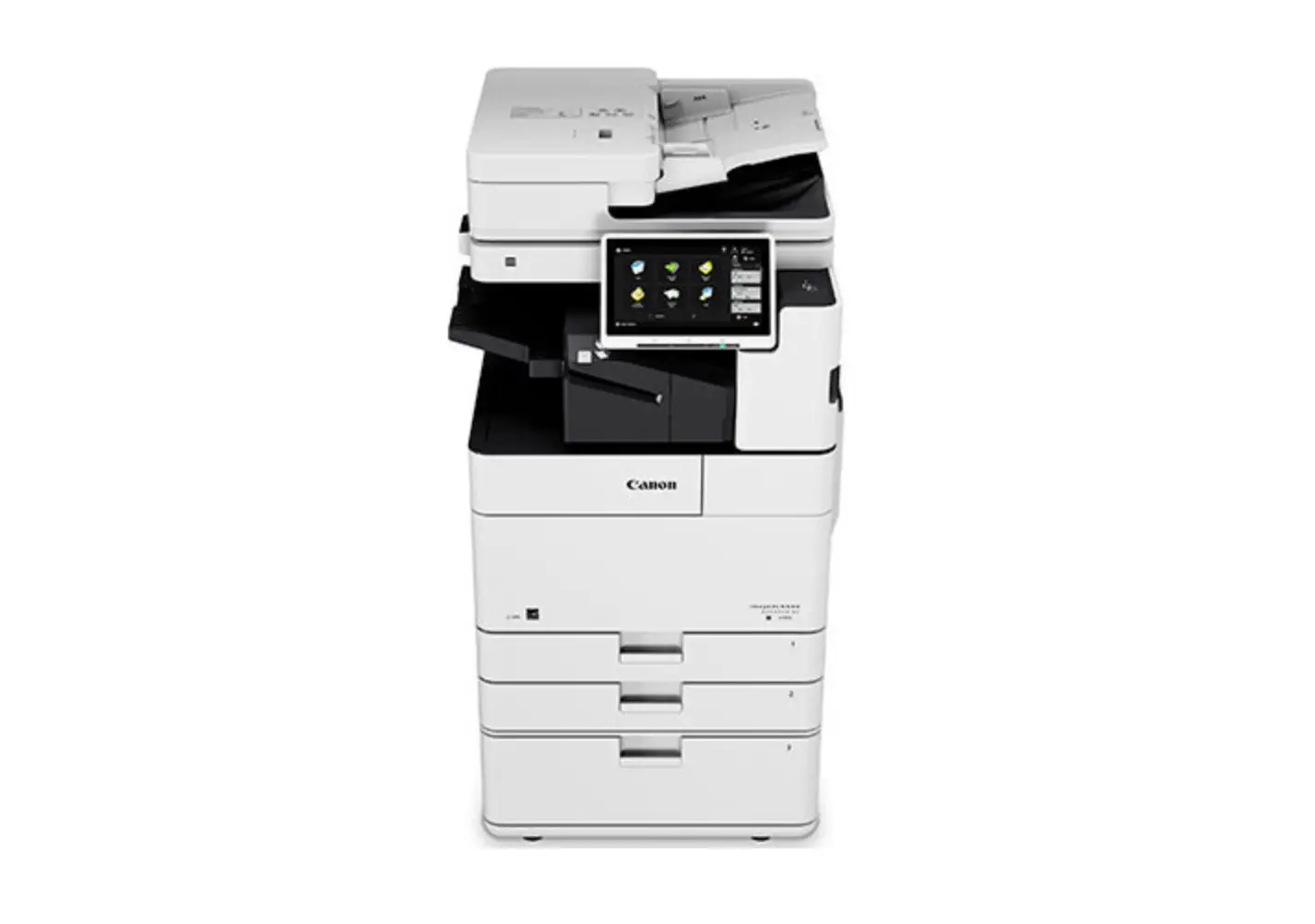
Using the COPY feature on the Canon ImageRUNNER Advance DX model.
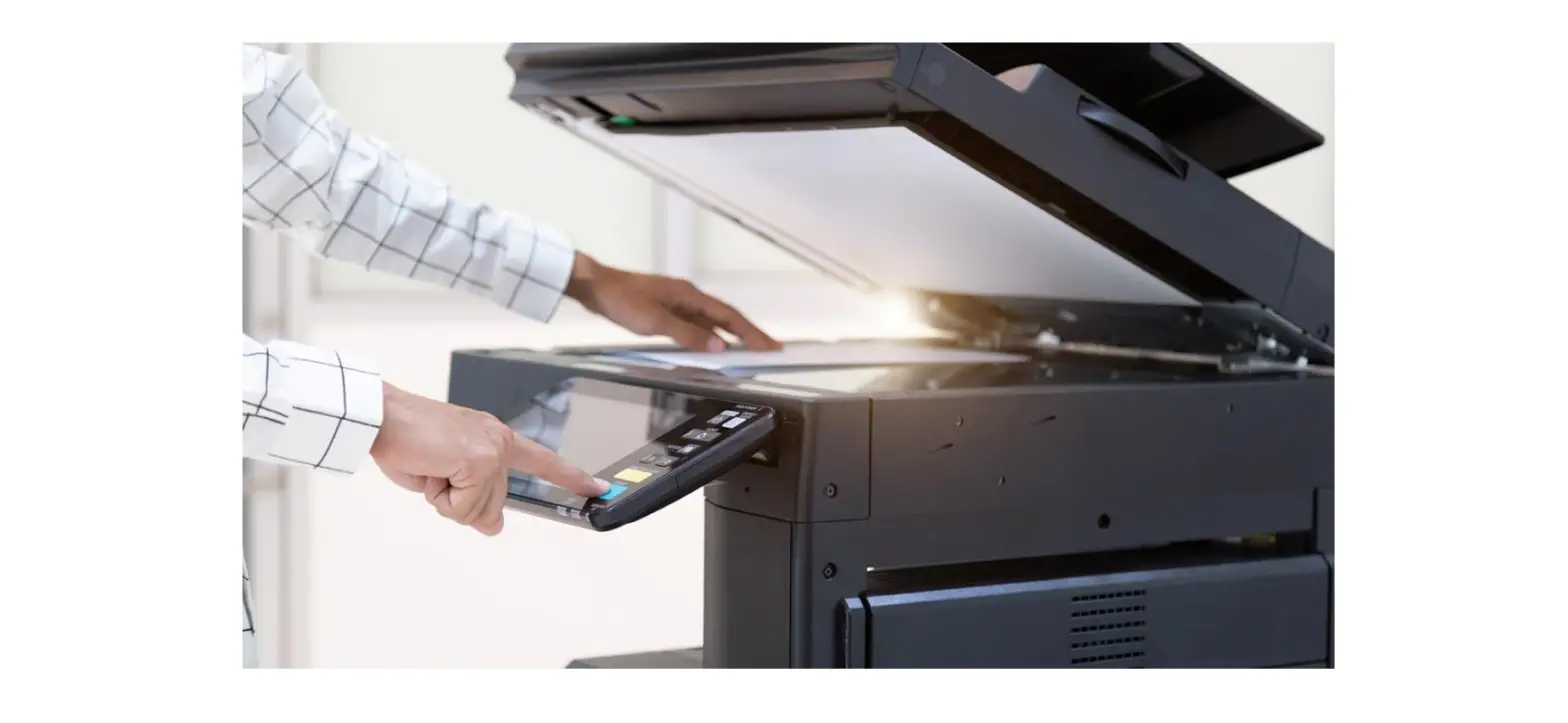
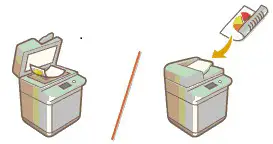
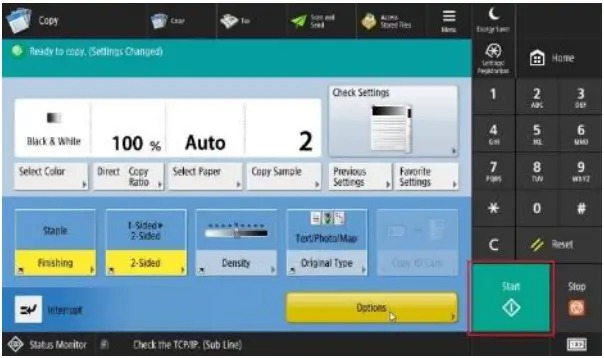
- Place document face up in document feeder or face down on the glass platen.

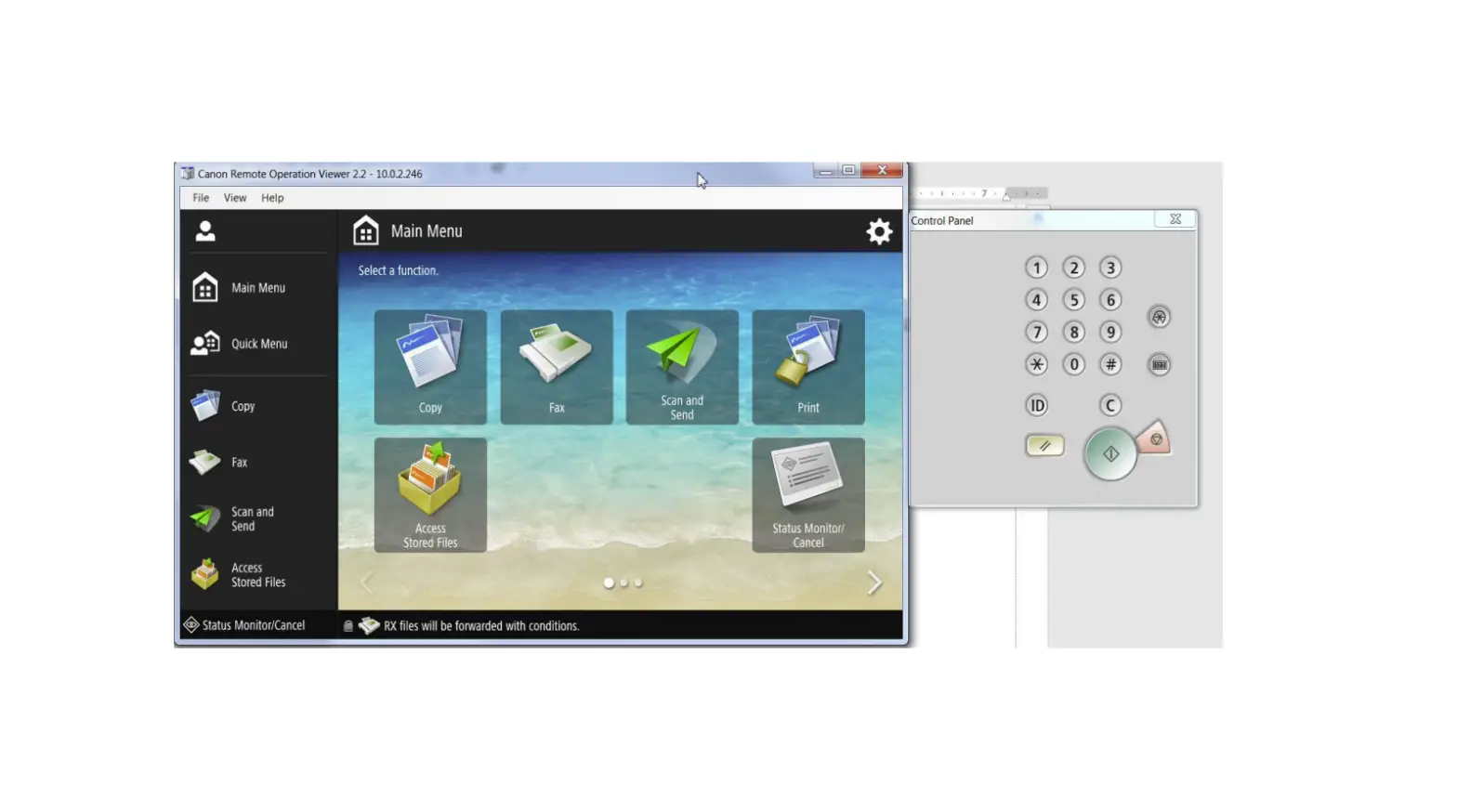
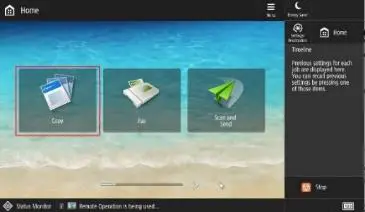
- Select the Copy icon from the Main Menu screen.

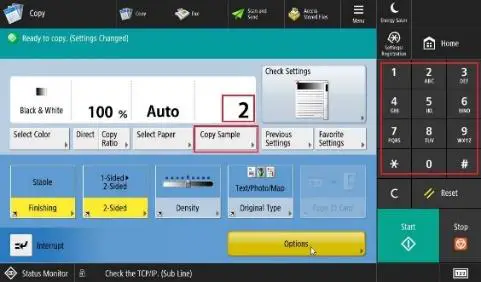
- Use the 10-key pad to change the quantity of copies.
Note: If making more than one copy, select Copy Sample to print one copy for inspection before printing out total number of copies requested.
- Select features for coping, such as stapling under the Finishing icon, duplexing under the 2-Sided icon

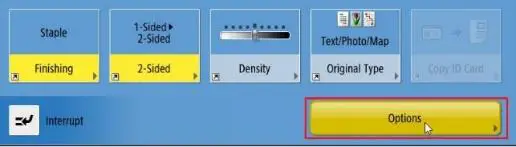
- Select Options if necessary to add special features such as making booklets, adding covers, page numbering or job build.
- Press the green START button to begin copying.

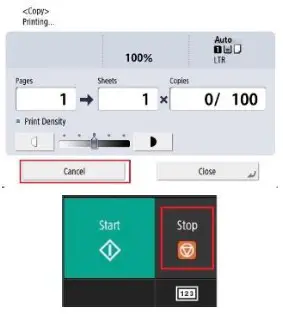
- To stop the job running, either press the Cancel button or if the status window is closed, press the Stop button.

©2019 Loffler Companies
MN: Bloomington; Duluth; Mankato; Rochester; St Cloud; Willmar; Grand Rapids | WI: Eau Claire; Hudson; La Crosse; Green Bay
IA: Sioux City; Spencer | NE: Norfolk | ND: Fargo; Grand Forks | SD: Aberdeen; Sioux Falls