LOFFLER Canon Remote Operation Software User Guide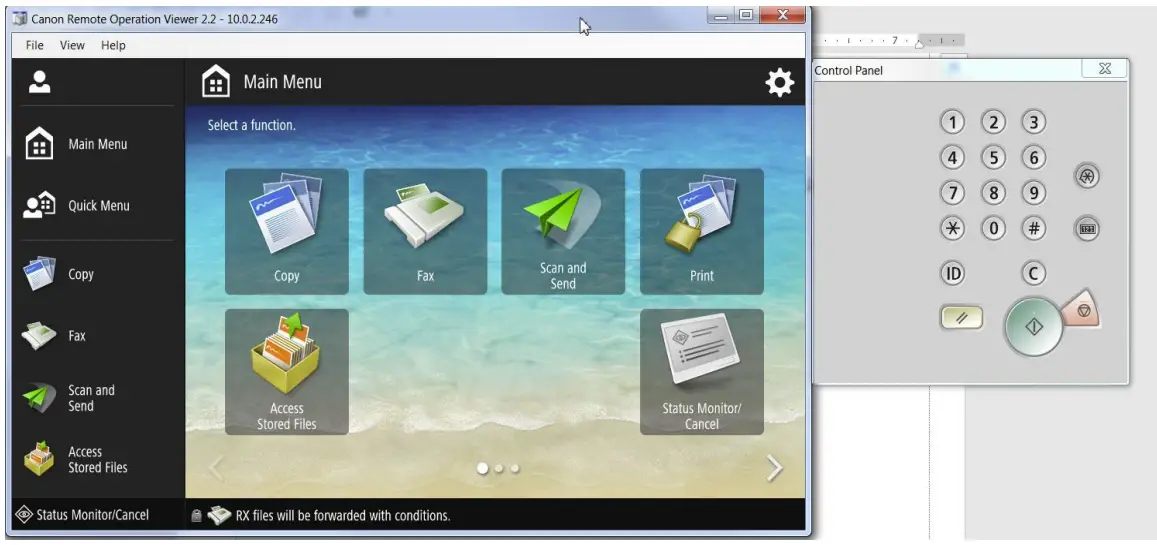
Remote Operation Software
Download the Remote Operation Software to allow operation of the copier from a computer.
- Open a web browser and copy and paste the following link in the address bar.
https://www.usa.canon.com/internet/portal/us/home/support/details/copiers-mfps-faxmachines/multifunction-copiers/imagerunner-advance-dx-c5740?subtab=downloadssoftware
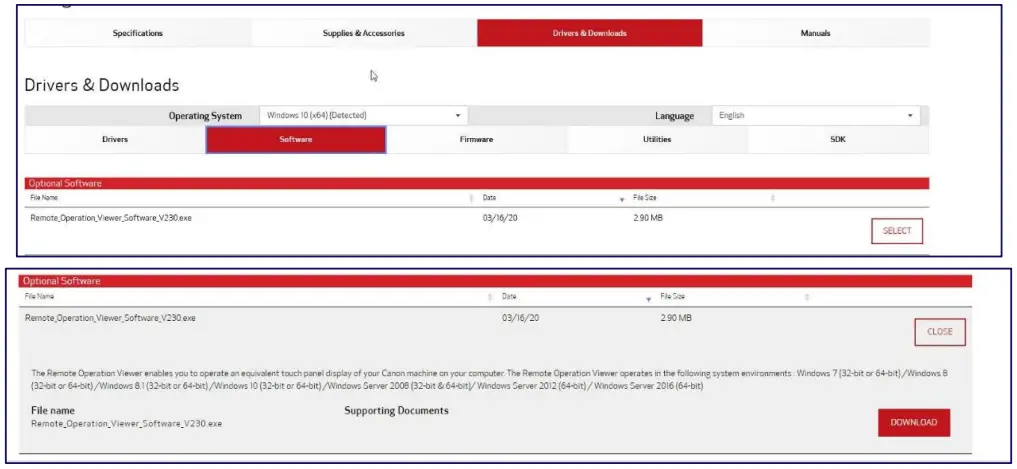
This link will take you to Canon’s Website where you can download the Remote Operation Viewer Software. All models take the same software, so it does not matter which model you download under. - Notice the Canon website captures your Operating System.
- Confirm Software is selected.
- Scroll to and select Remote Operation Viewer Software V2XX.exe. (May show another version depending on model)
- Select the Select button, then the Download button to download the zipped fie to your computer.

- Select Run or Save to download the file to your computer.

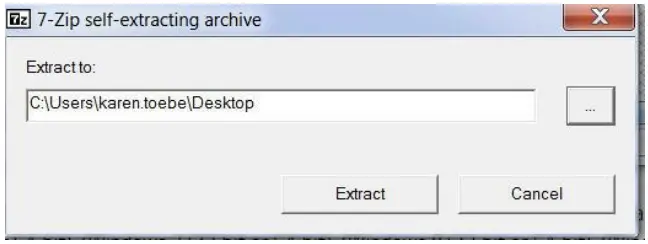
- Extract the zipped file.
Note: If necessary, you may use the ellipse (…) to designate where you want to save the file.
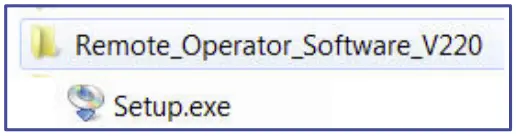
- Locate the folder where the download was extracted and double click the Setup.exe.

- Follow the instructions in the wizard to install the software.
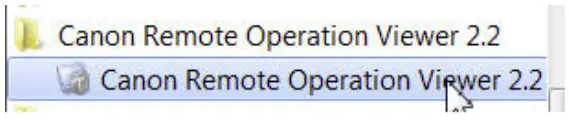
- To open the remote Operator Viewer Software, click on the Canon Remote Operation View 2.2 folder, then select the Canon Remote Operation Viewer 2.2 program.

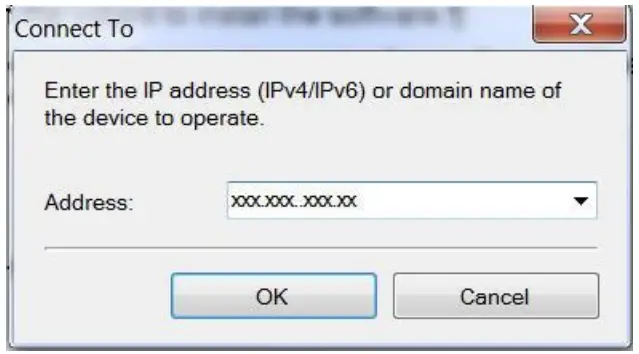
- Enter the IP address or domain name of the device to operate.

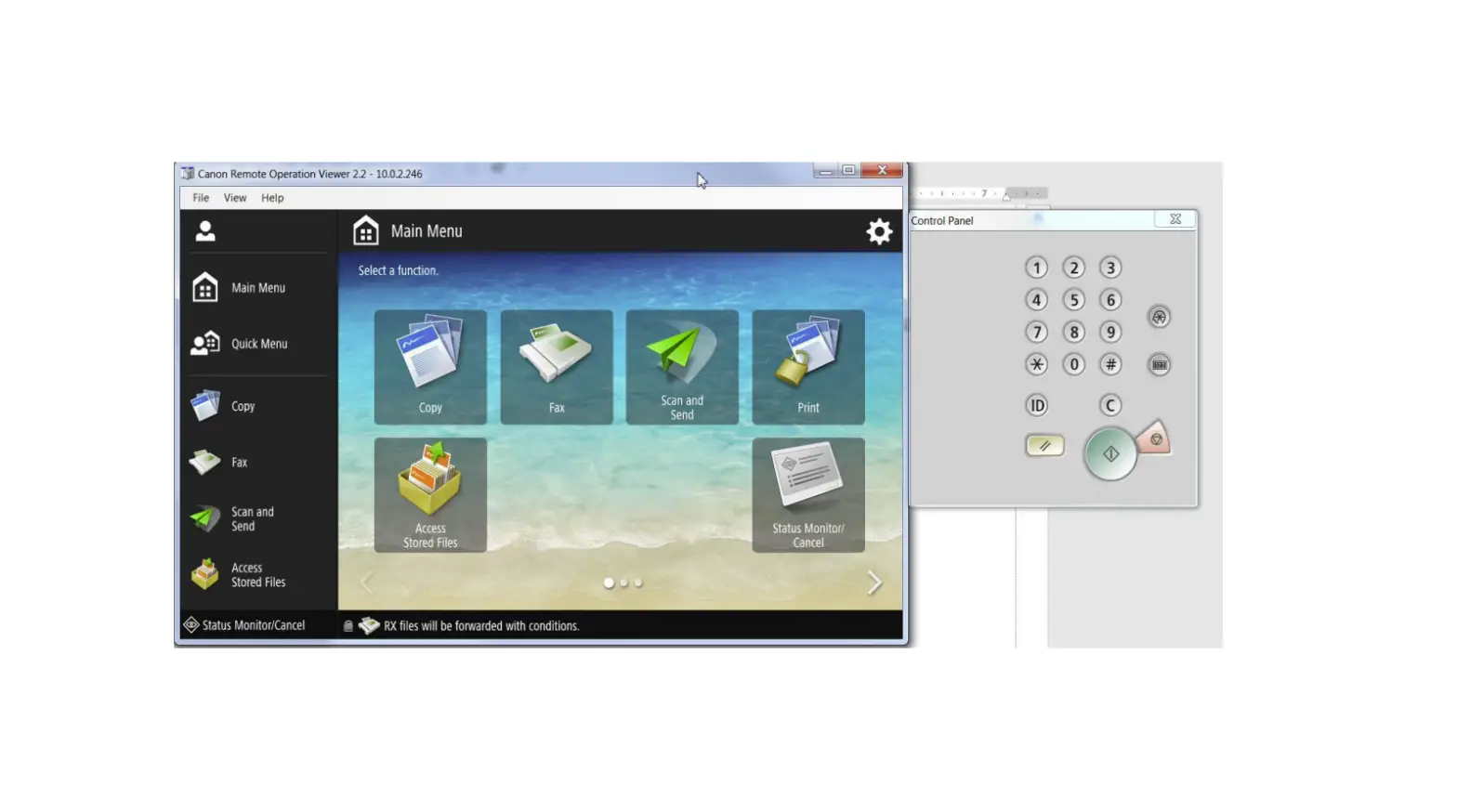
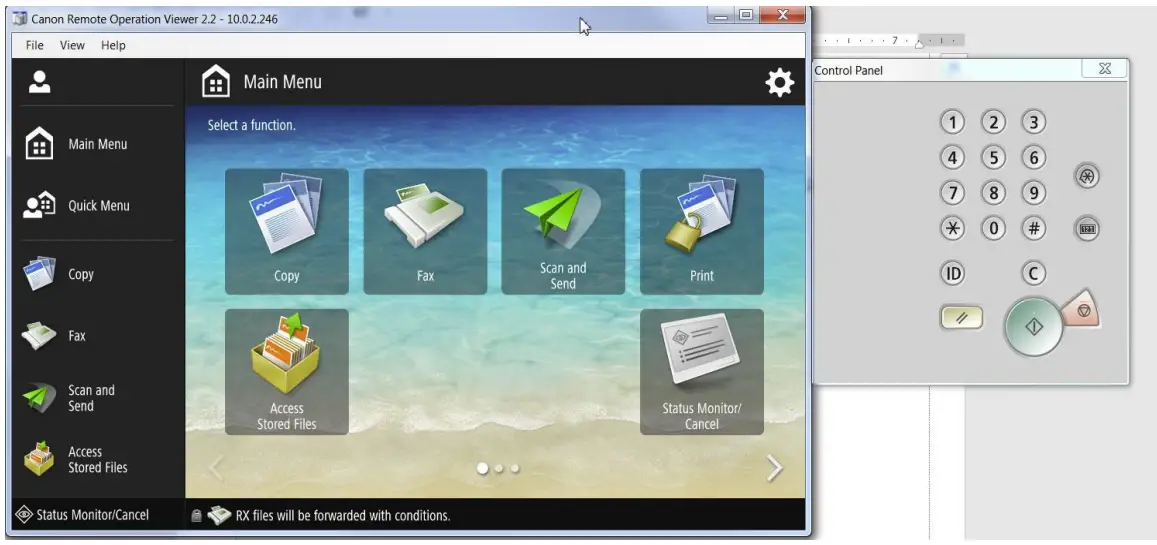
- The remote software displays the copier’s front panel on the screen.


Troubleshooting
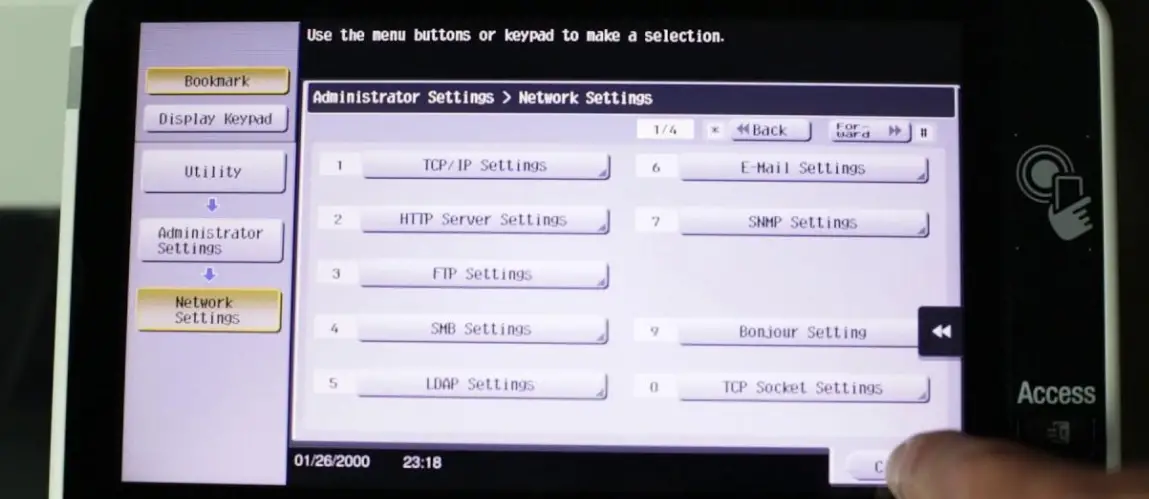
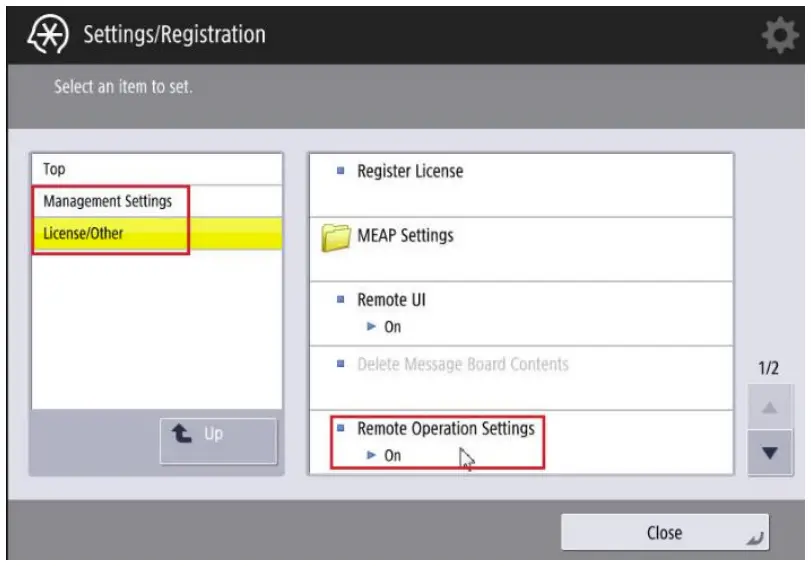
If you cannot connect to the copier, make sure the Remote Operation Setting is set to ON in Settings and Registration window.
- Open the Settings and Registration on the copier

- Log in if necessary
- Navigate to the Remote Operator option.
- Management Settings
- License/Other
- Remote Operation Settings

- Management Settings
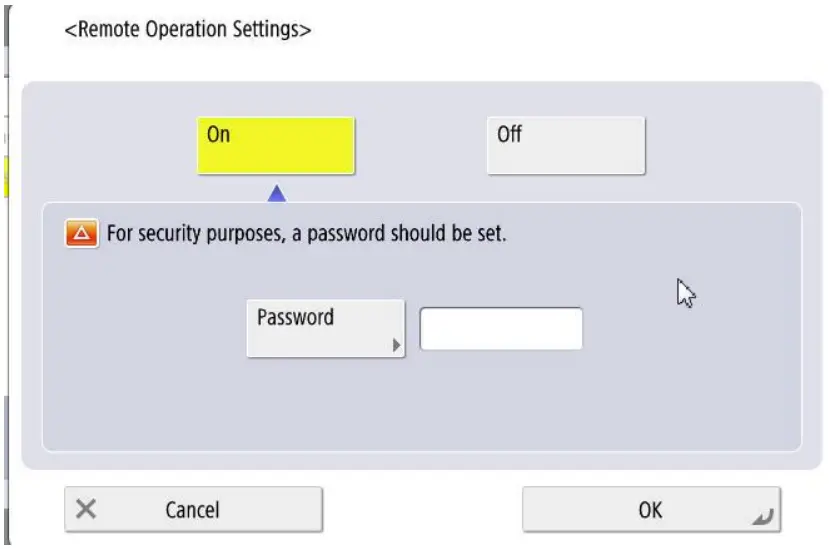
- Select ON and then OK to close the window.
Note: A warning message may pop up if you have not set a passcode for the system.
 Canon Support for | Canon U.S.A., Inc.