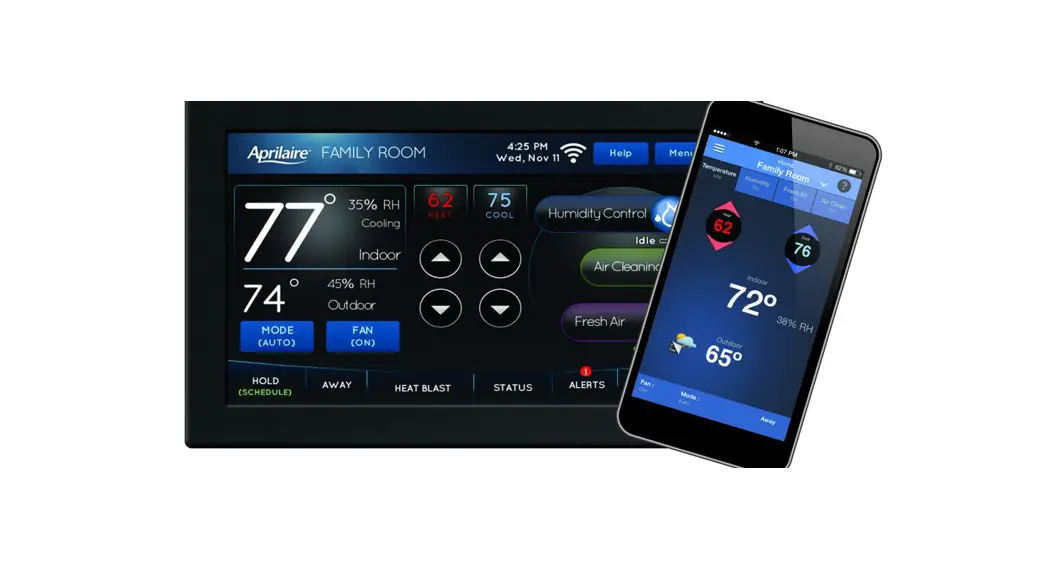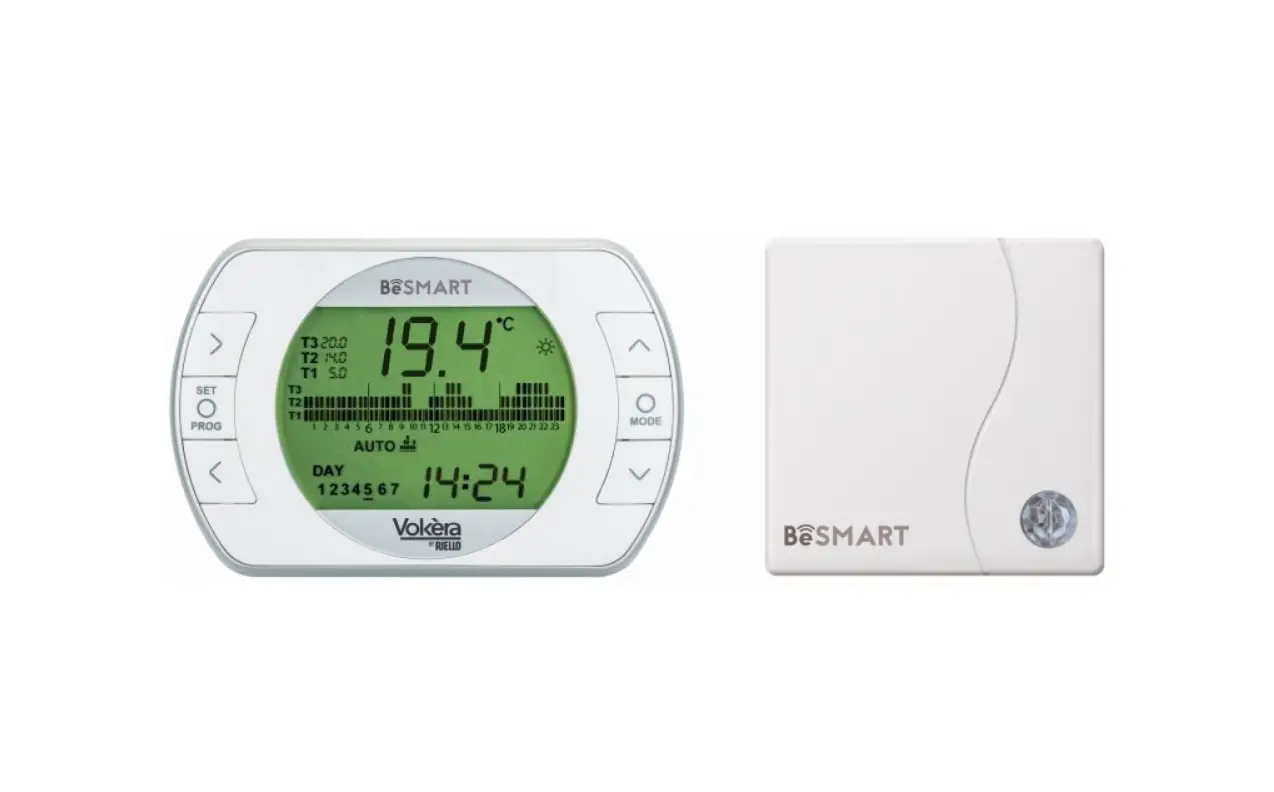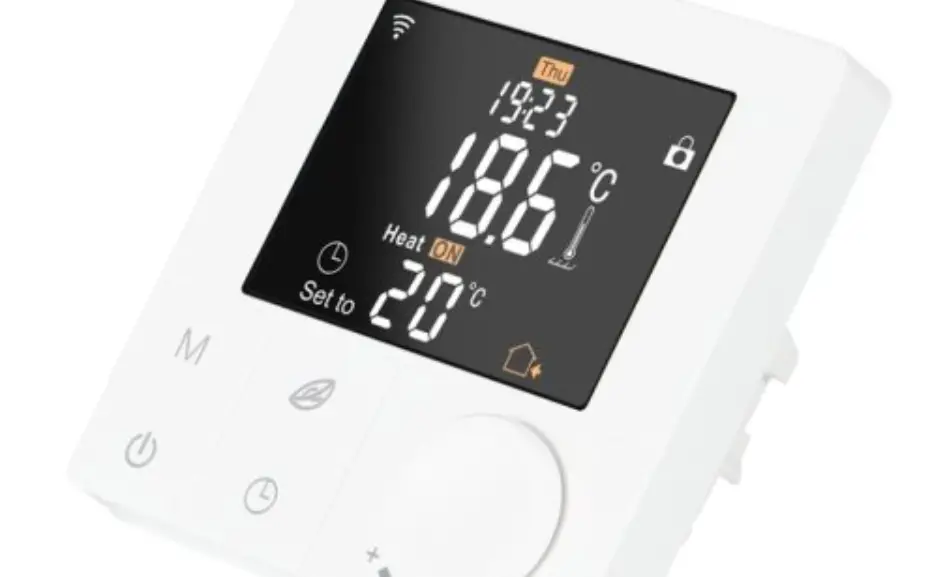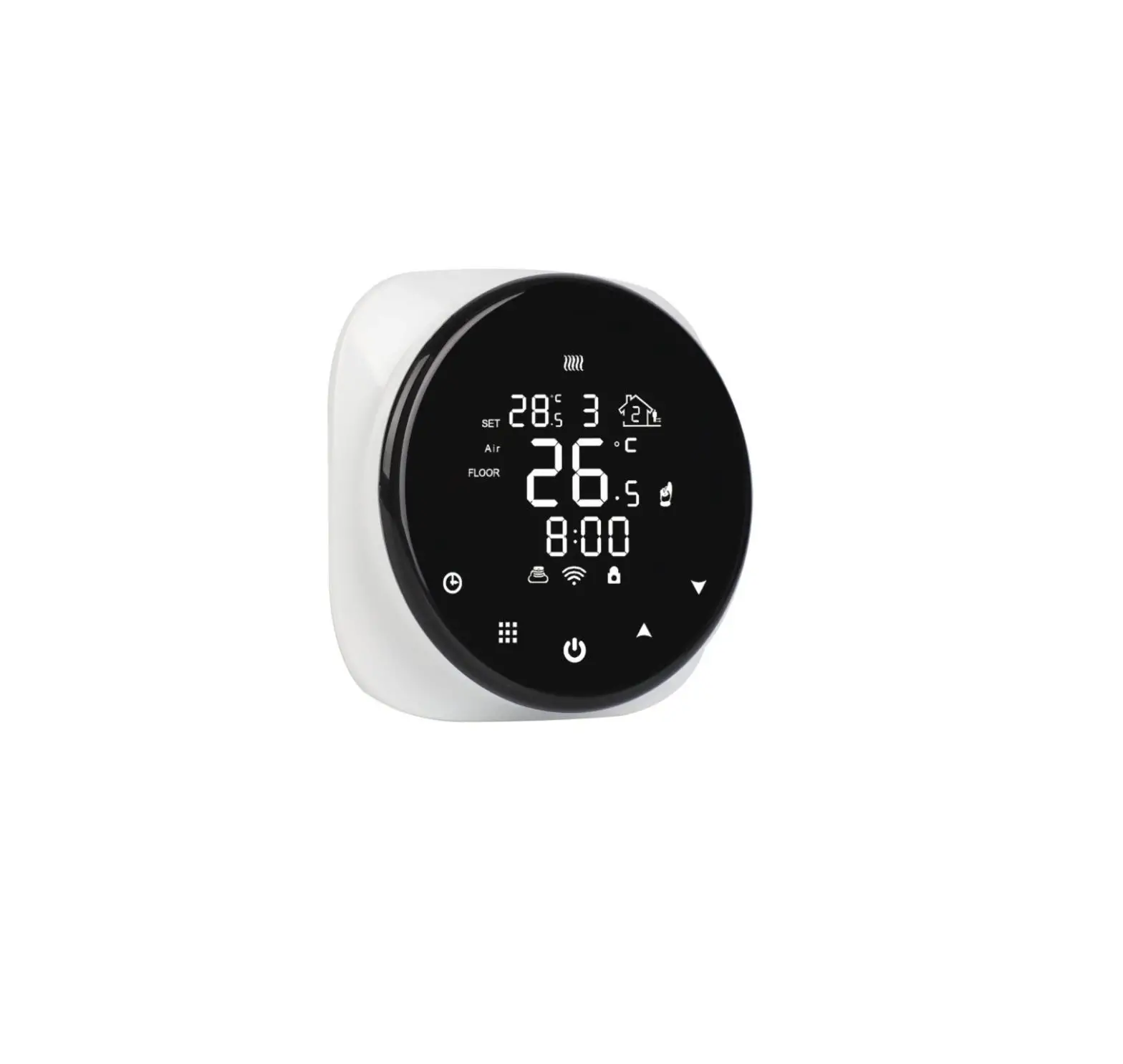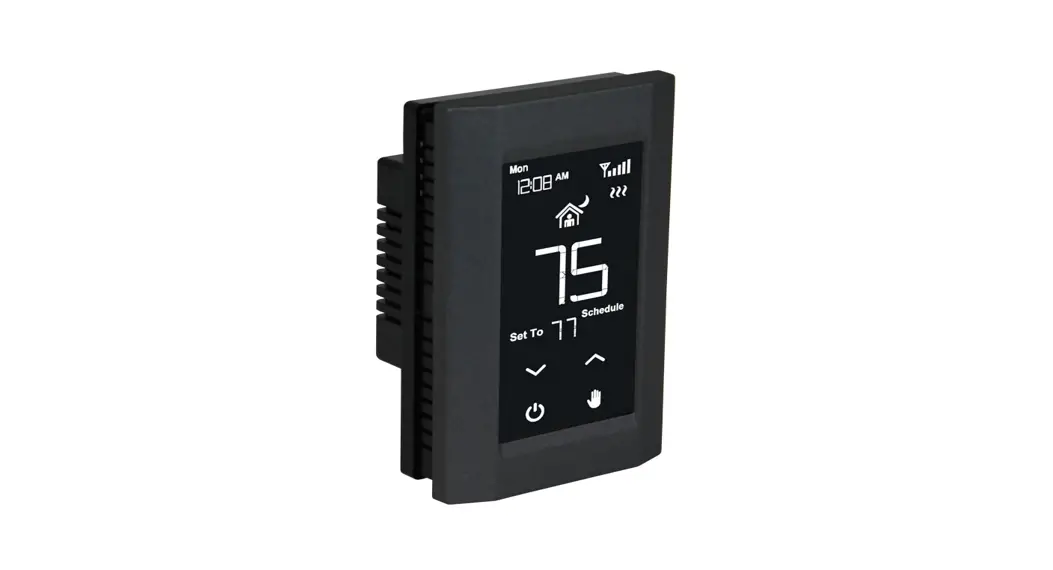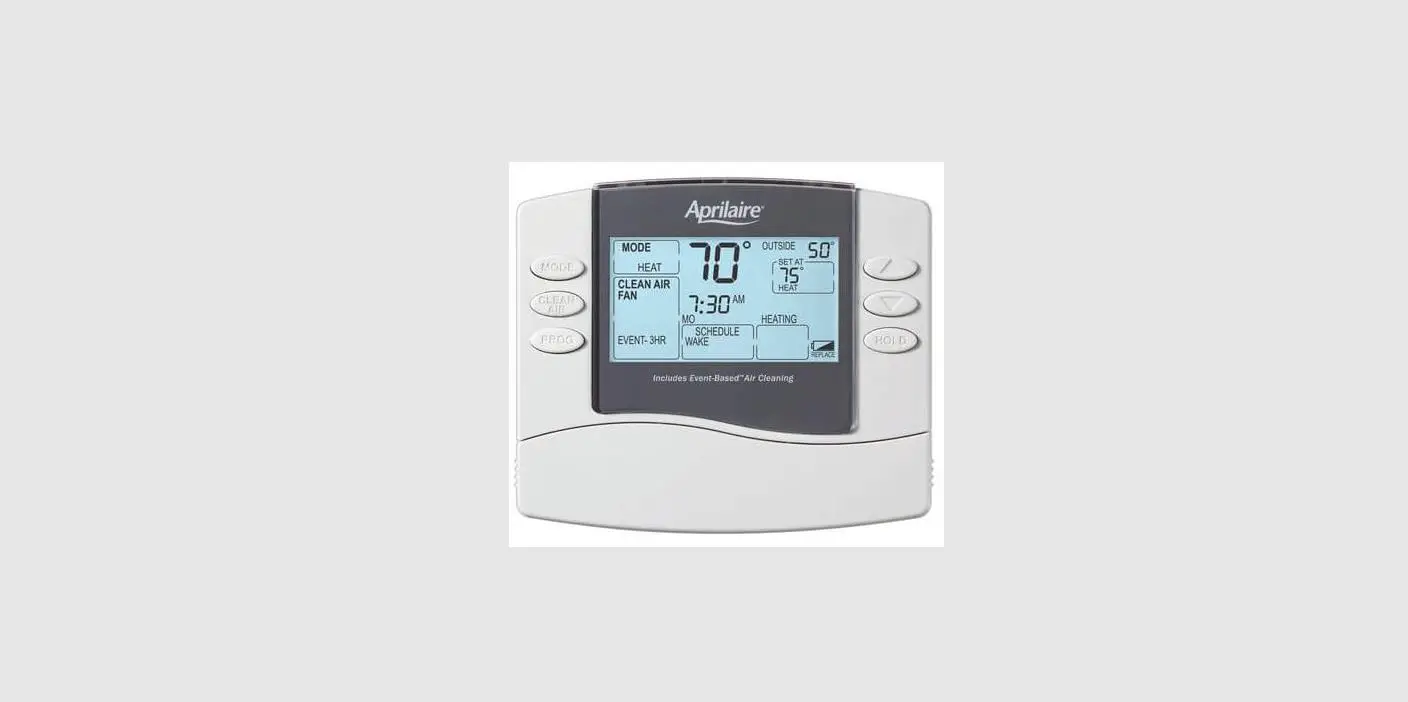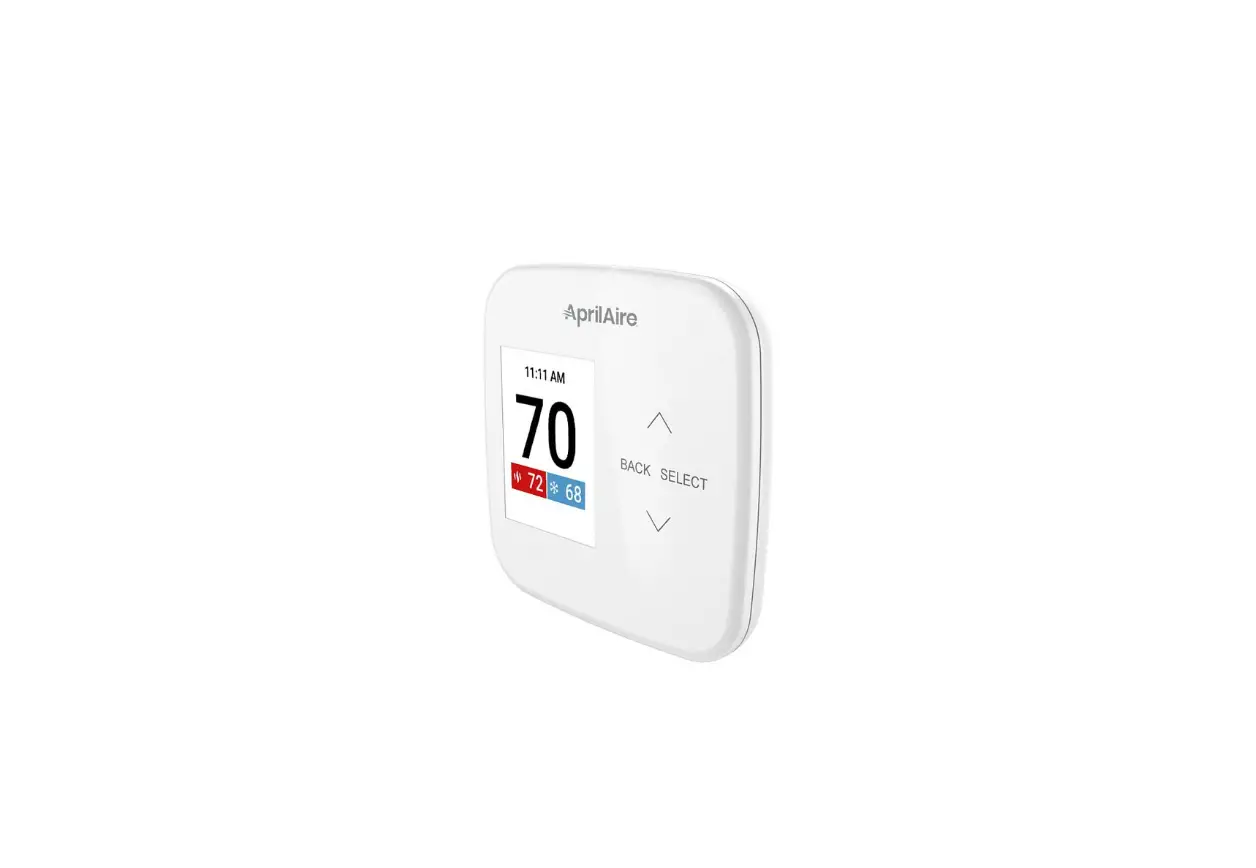

AprilAire S86W MUPR WiFi Thermostat
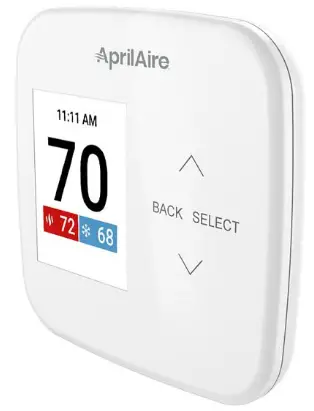
iOS For Android instructions, see reverse side.
DOWNLOAD THE APP
- Search and install the AprilAire Wi-Fi Thermostat App from the App Store.

- Open the app on your device.
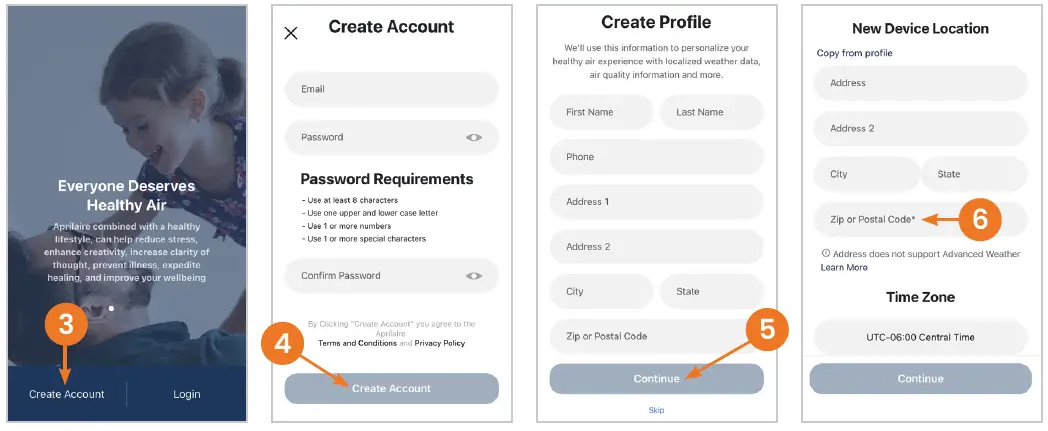
- Tap Create Account.
- Enter a valid email address and choose a password for your AprilAire User Account tap Create Account.
- Fill in your personal information and tap Continue.
- Enter your ZIP or postal code for your new thermostat’s location and select a world time zone. This will ensure you have access to local weather data and that the time on your thermostat is correct.

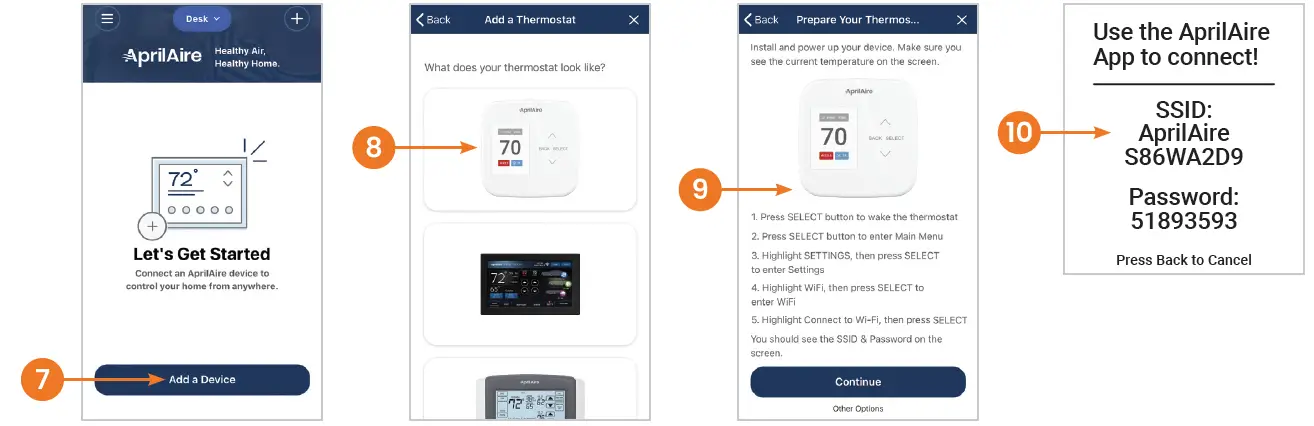
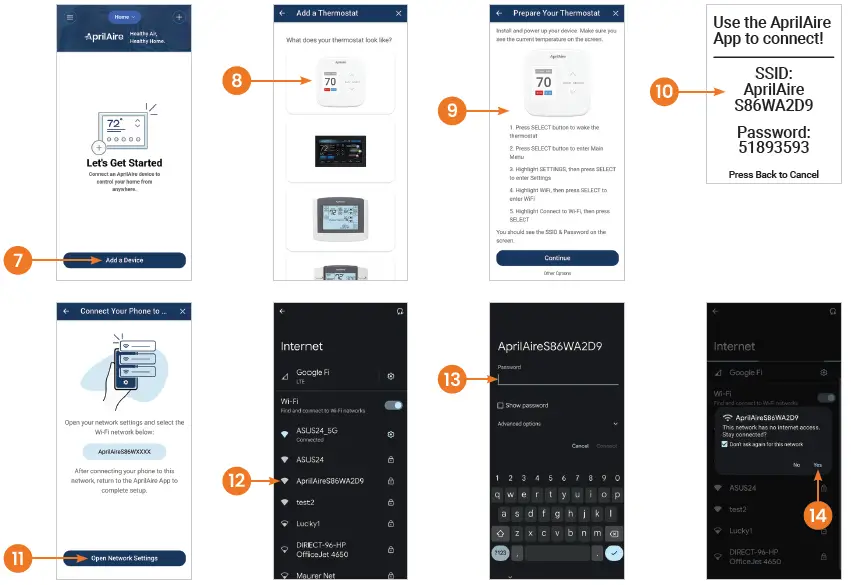
- Select Add a Device.

- Select the thermostat model.
- Follow the directions on the app to prepare the thermostat.
- You should see this screen on the thermostat.
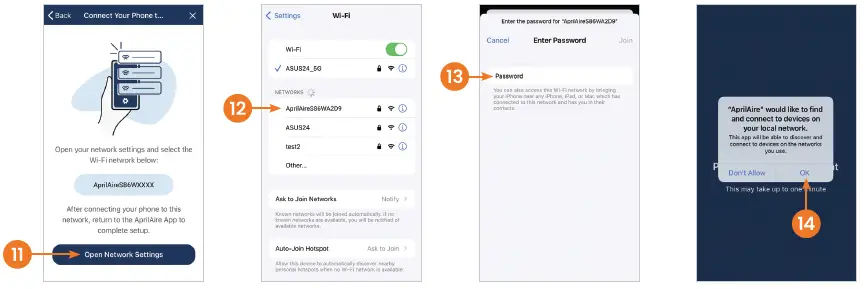
- Select Open Network Settings to open your AprilAire settings screen.

- A Wi-Fi network including “AprilAire” in the title should appear in your list of network options. Tap that network (thermostat) to proceed.
- Enter the 8 digit password from the thermostat screen.
- Important, select OK to continue.
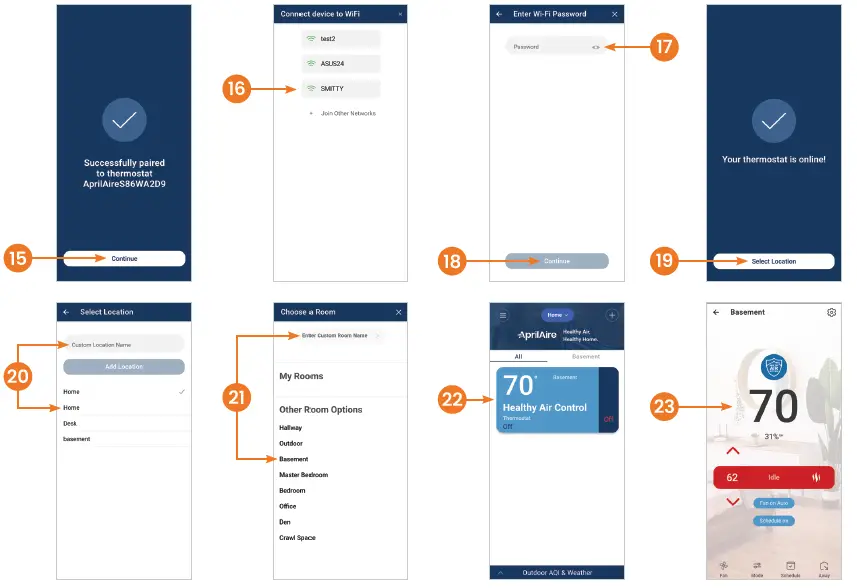
- Return to the AprilAire app. NOTE: This step may take up to one minute to complete.

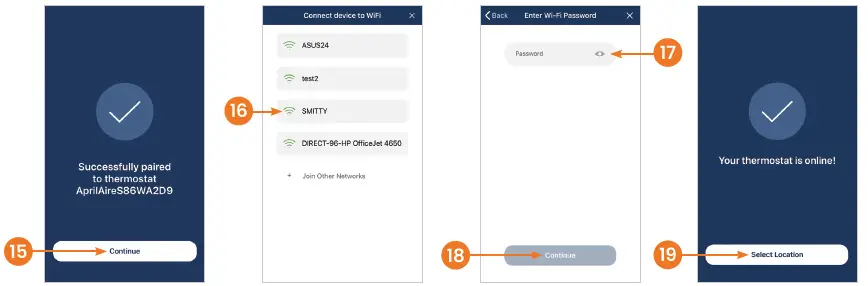
SELECT YOUR HOME NETWORK - Select your home network from the list.
CONNECTING TO YOUR HOME NETWORK - We recommend that you select (show password). Enter the password to your home Wi-Fi network.
- Tap Continue.
- Tap Select Location.
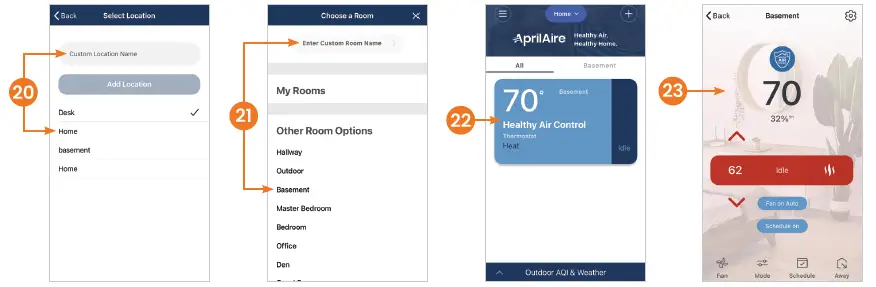
- Select Home as the default location or enter a custom location name.

- Assign your new device to a room, or enter a custom room name.
- Congratulations! You have successfully registered your thermostat. Tap on the tile to open the thermostat control screen.
- You can now access and control your thermostat from your mobile device.

ADDITIONAL RESOURCES
Visit aprilaire.com/app for additional app instructions.
Android For iOS instructions, see reverse side.
Model S86W MUPR
Wi-Fi Thermostat
DOWNLOAD THE APP
- Search and install the AprilAire Wi-Fi Thermostat App from Google Play.
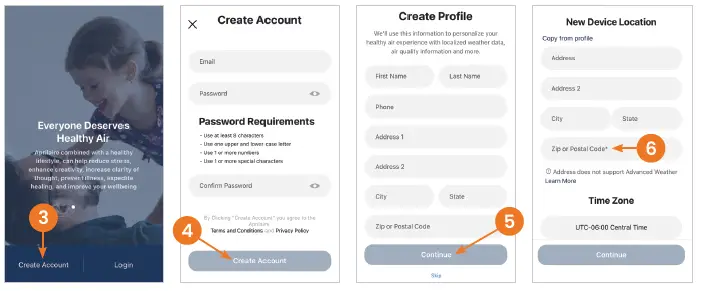
CREATE A NEW APRILAIRE ACCOUNT - Open the app on your device.
- Tap Create Account.
- Enter a valid email address and choose a password for your AprilAire User Account and tap Create Account.
- Fill in your personal information and tap Continue.
- Enter your ZIP or postal code for your new thermostat’s location and select a world time zone. This will ensure you have access to local weather data and that the time on your thermostat is correct.

- Select Add a Device.
- Select the thermostat model.

- Follow the directions on the app to prepare the thermostat.
- You should see this screen on the thermostat.
- Select Open Network Settings to open your AprilAire settings screen.
- A Wi-Fi network including “AprilAire” in the title should appear in your list of network options.* Tap that network (thermostat) to proceed.
- Enter the 8 digit password from the thermostat screen.
- If you receive a notification about staying connected to this network, select Yes.
- Return to the AprilAire app.
NOTE: This step may take up to one minute to complete.
SELECT YOUR HOME NETWORK - Select your home network from the list.
CONNECTING TO YOUR HOME NETWORK - We recommend that you select
(show password). Enter the password to your home Wi-Fi network. - Tap Continue.
- Tap Select Location.
- Select Home as the default location or enter a custom location name.
- Assign your new device to a room, or enter a custom room name.
- Congratulations! You have successfully registered your thermostat. Tap on the tile to open the thermostat control screen.
- You can now access and control your thermostat from your mobile device.
ADDITIONAL RESOURCES
Visit aprilaire.com/app
for additional app instructions.
Representative Android screen. Your networking screen may vary depending on manufacturer.
B2208827A • 61001879 • 1.22
© 2022 AprilAire | aprilaire.com | 800.545.2219
U.S. Patent Numbers 8,146,376, 8,596,078, 9,874,366 and other patents pending AprilAire reserves the right to change specifications without notice.
Apple and the Apple logo are trademarks of Apple Inc., registered in the U.S. and other countries.
App Store is a service mark of Apple Inc. Google Play and the Google Play logo are trademarks of Google LLC.
 AprilAire is Healthy Air