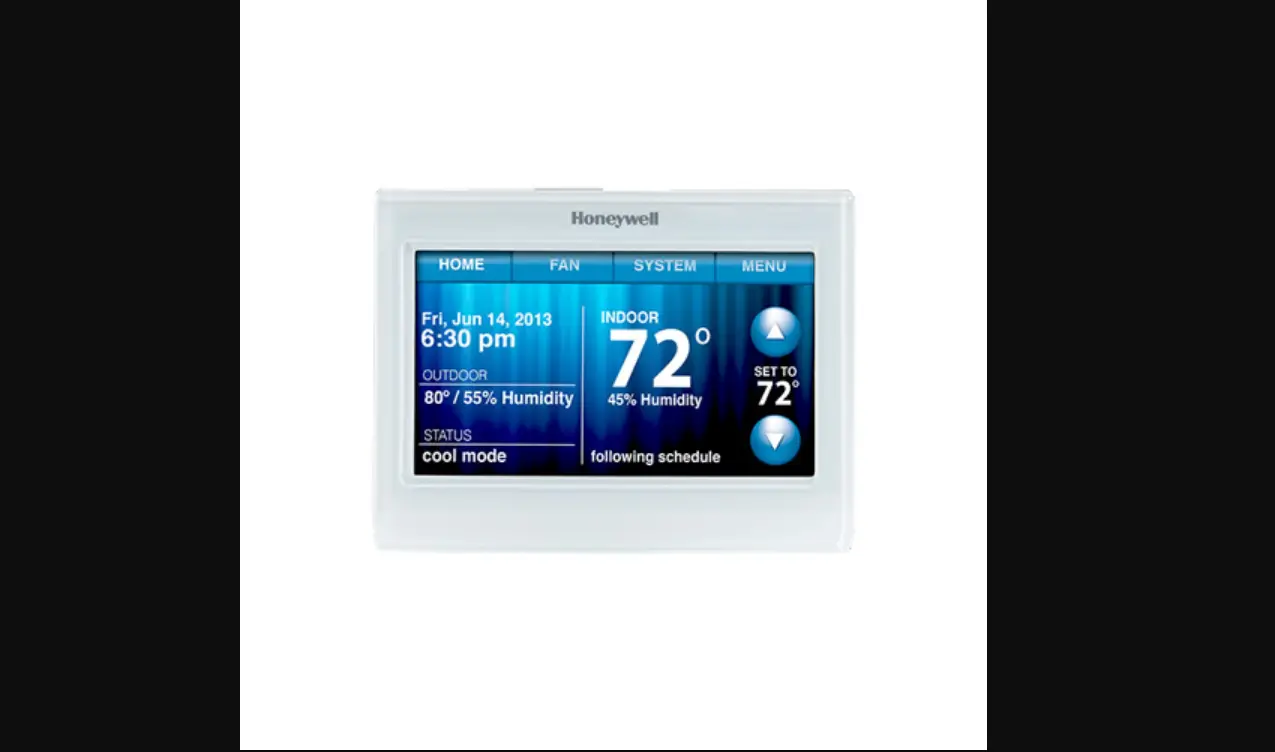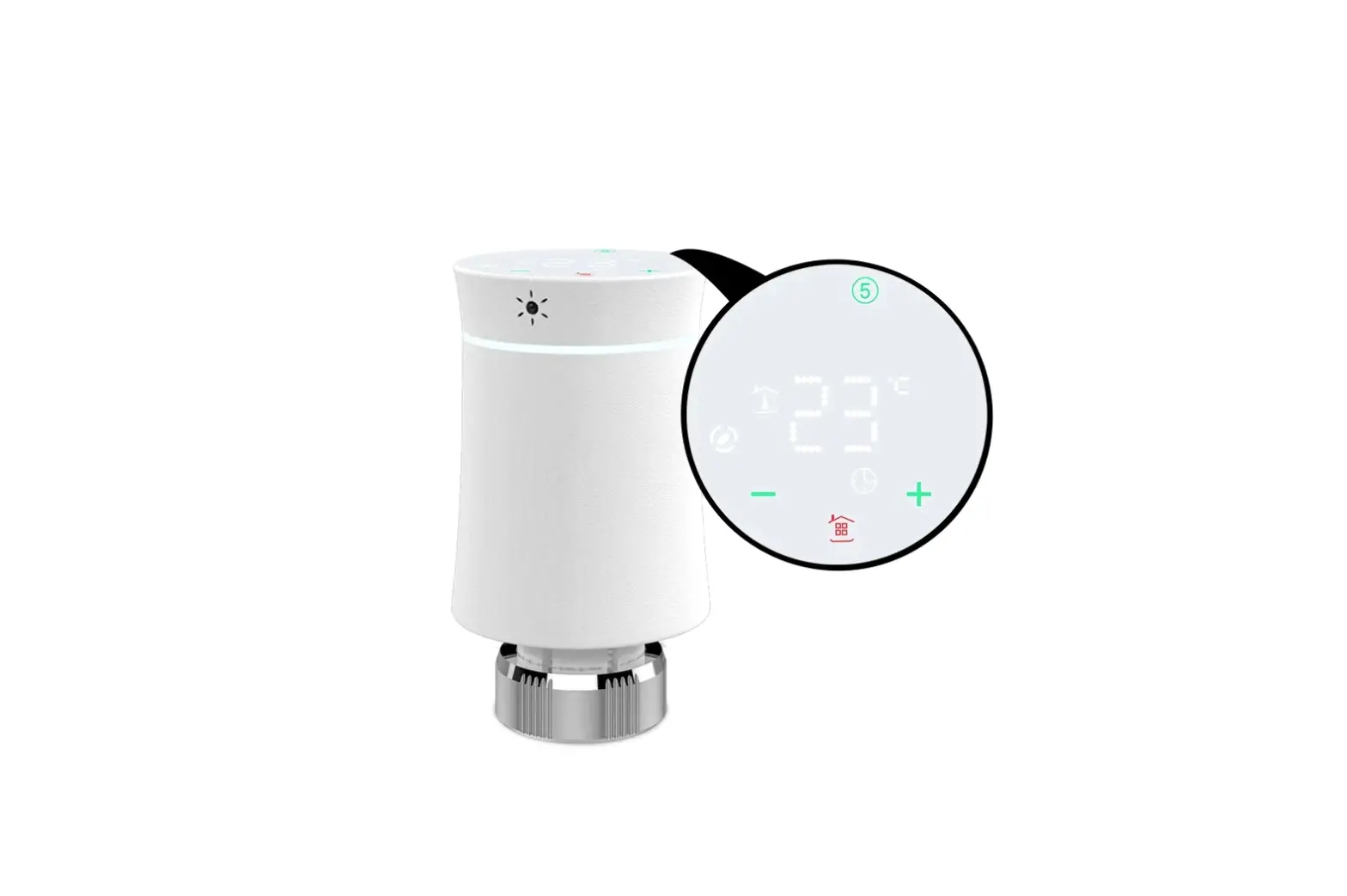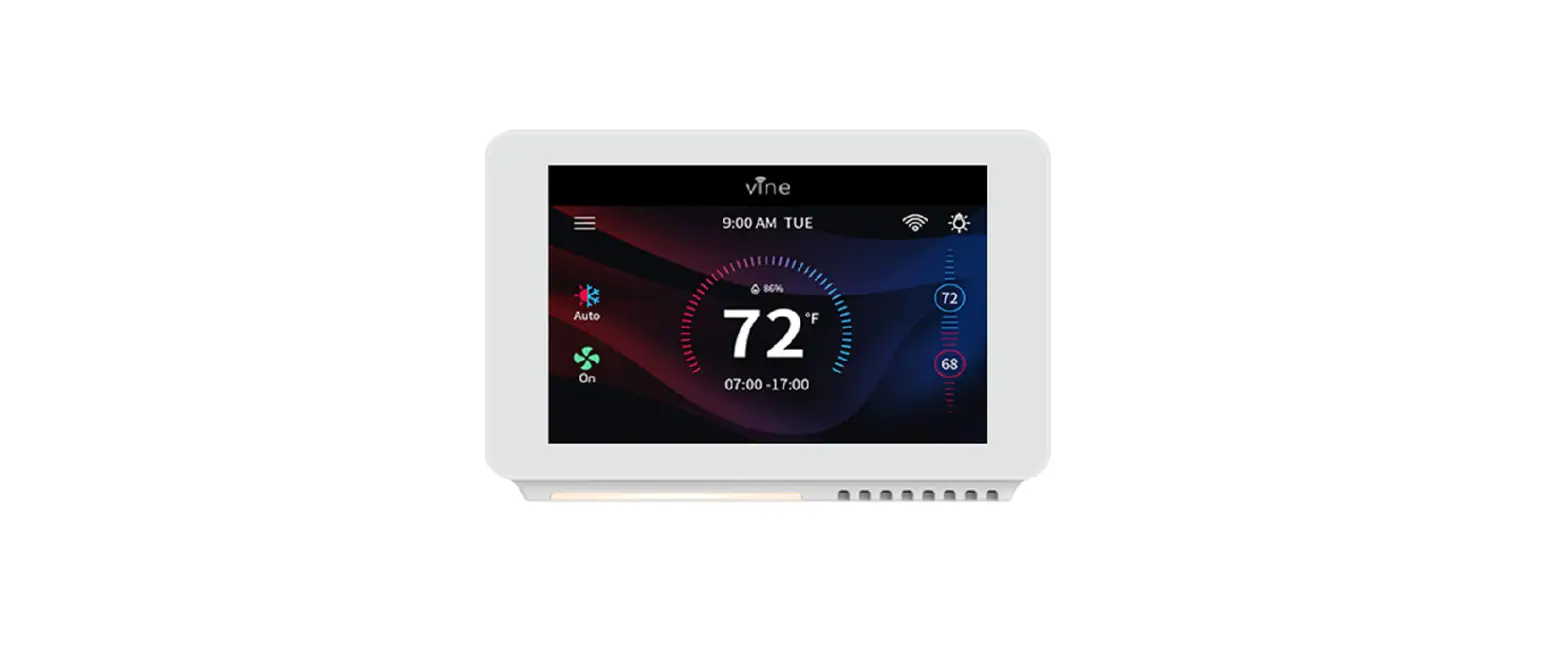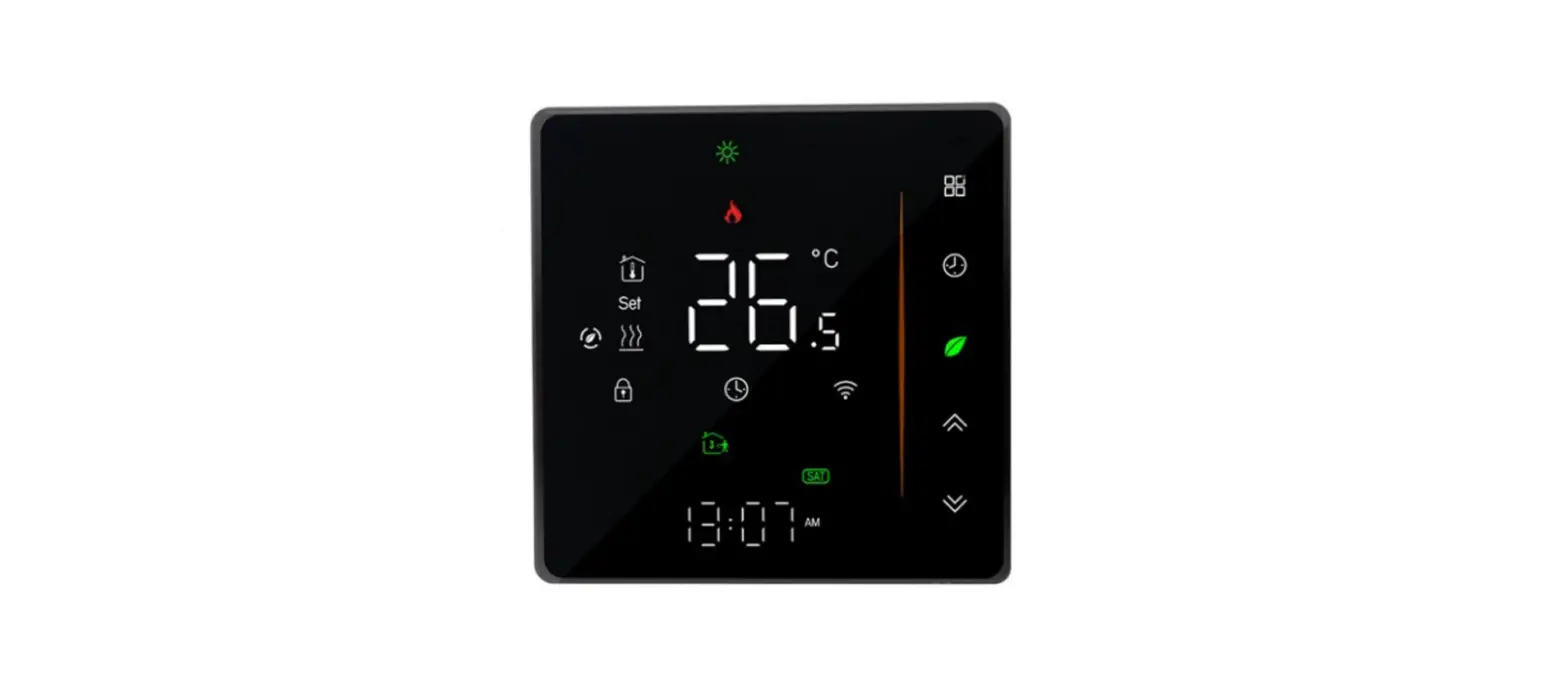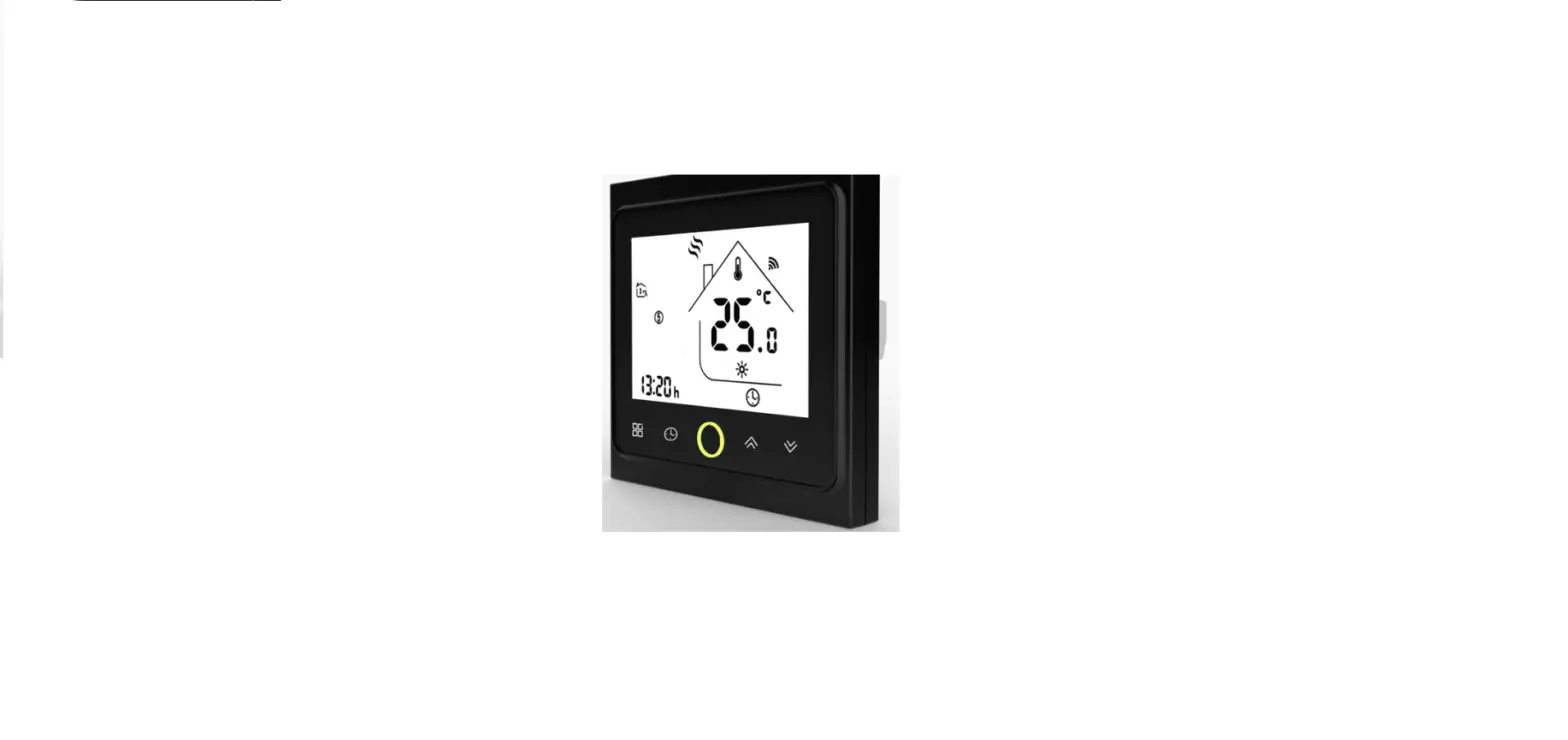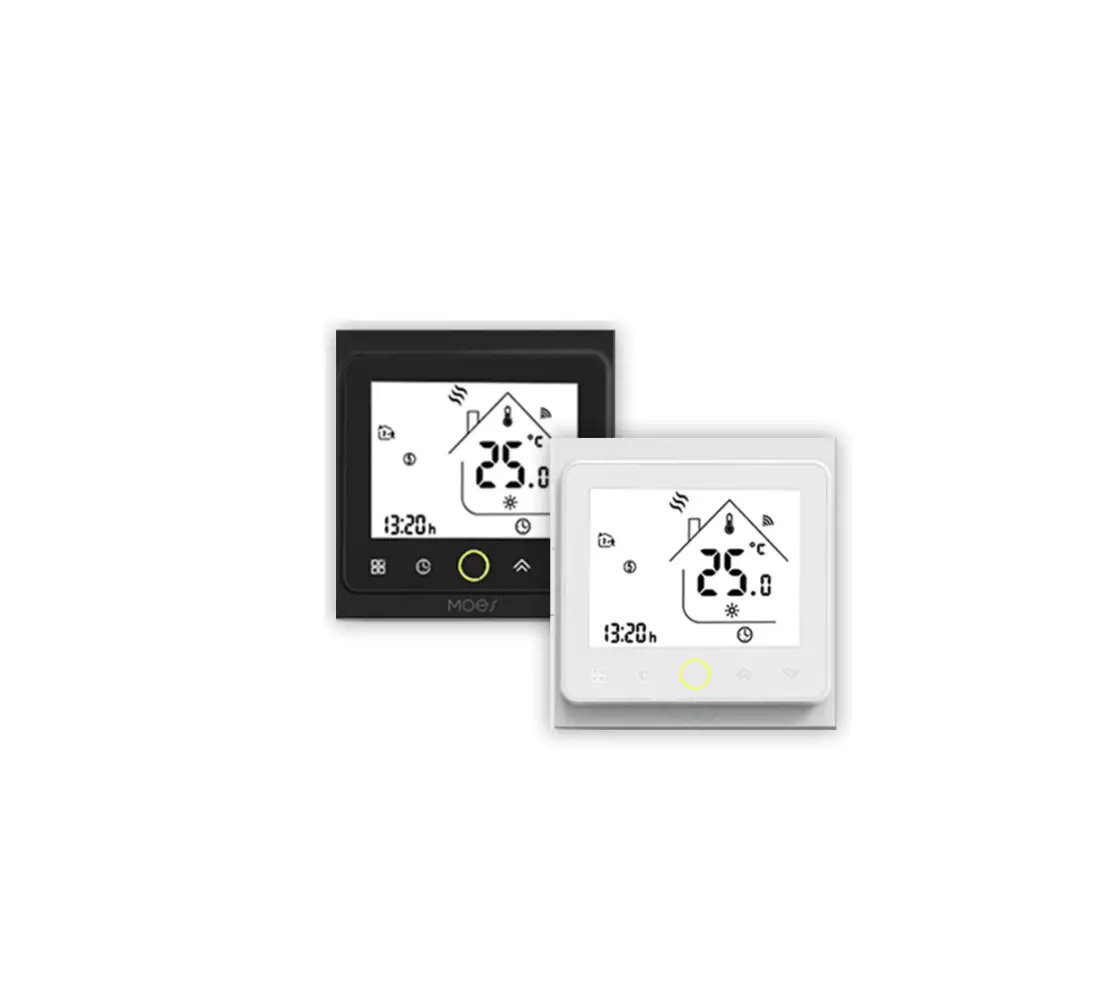
Moes 002 Series Wifi Thermostat
Welcome
Thank you for your purchase.
Your new thermostat will provide uniform and comfortable temperature control throughout every room in your property
We combine the technology, craftsmanship and the highest quality materials together to provide you a safe, reliable product with sleek and contemporary design.
Please read this installation/ programming manual for comprehensive instructions on installing and operating your thermostat. Please also ensure a suitably qualified person to install your thermostat and comply with all local regulations.
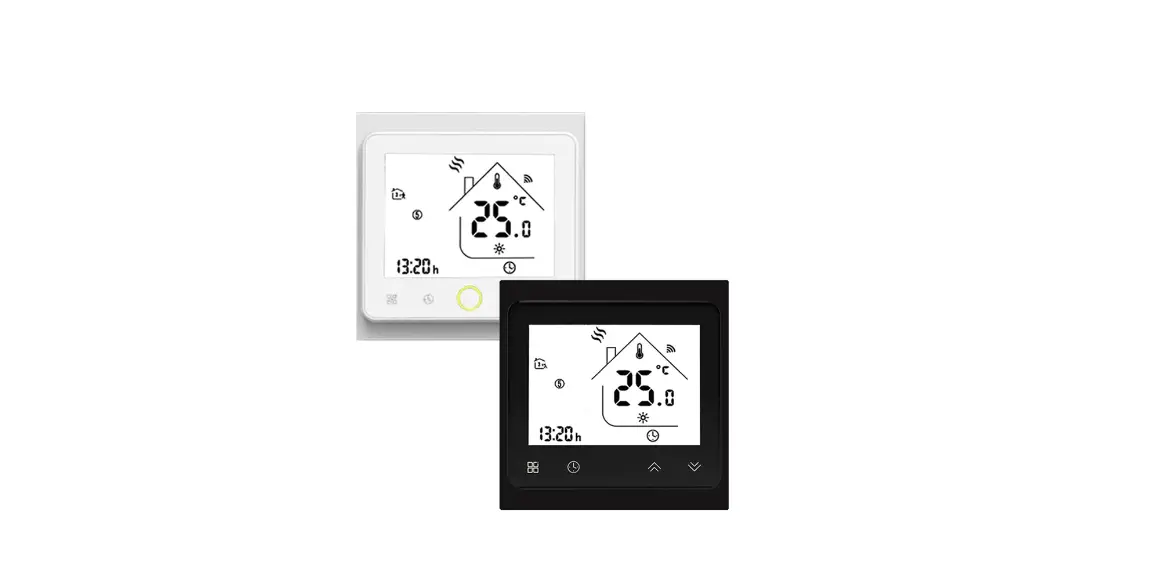
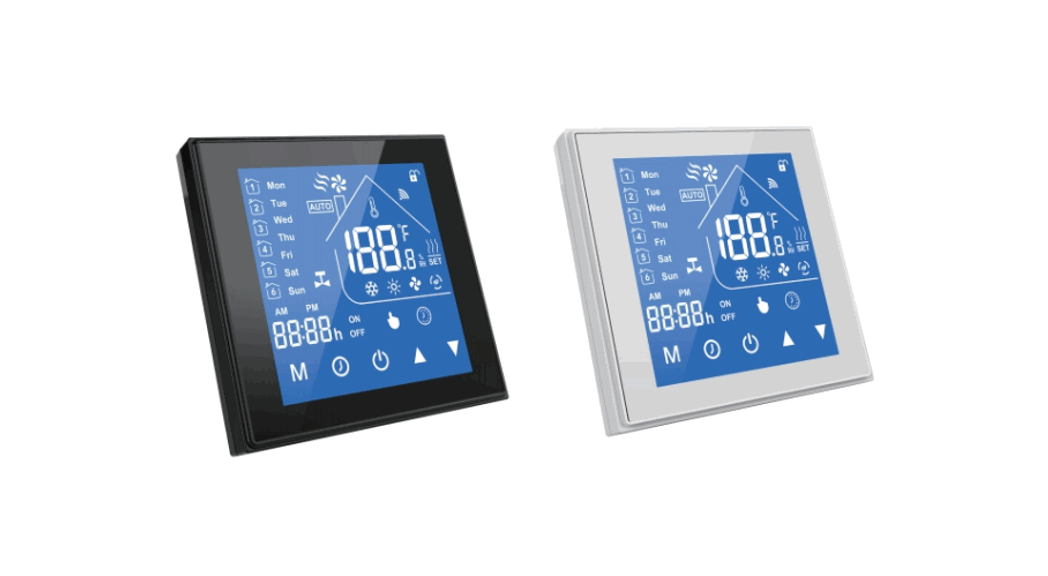
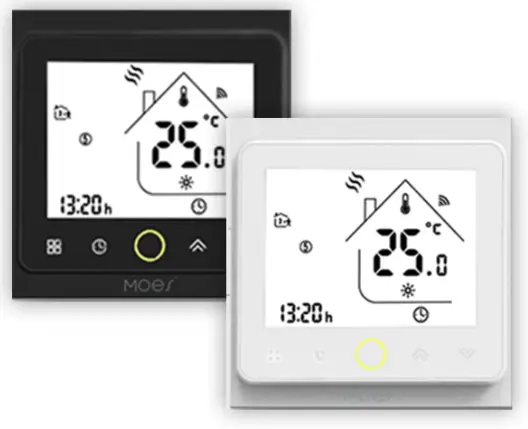
Thermostat Colors:
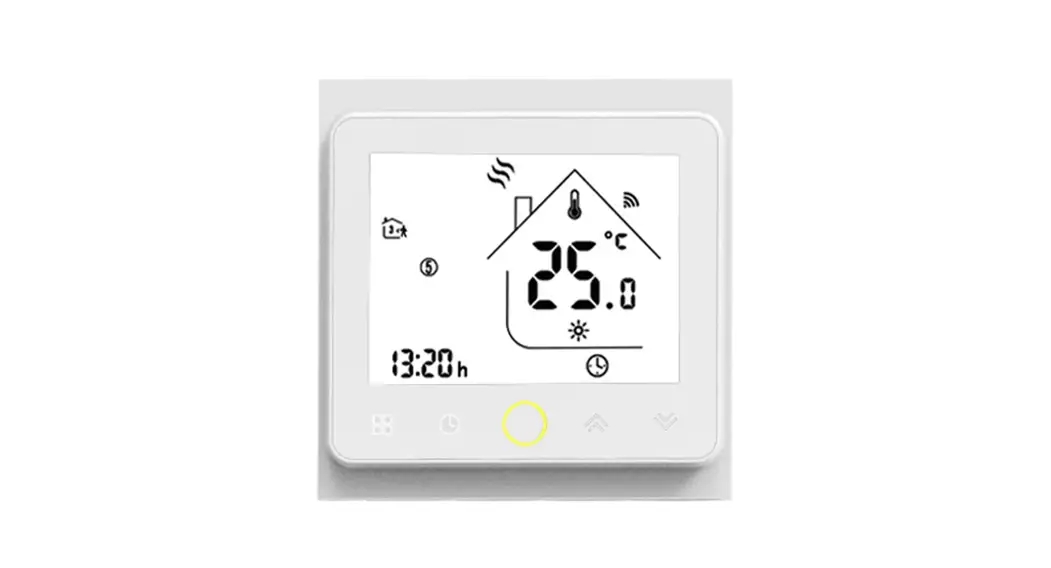
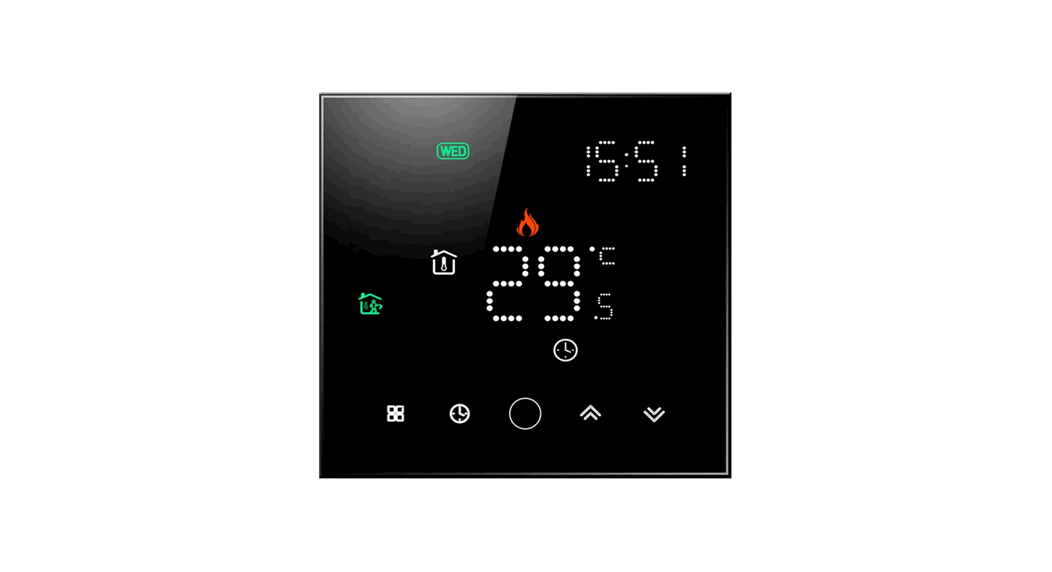
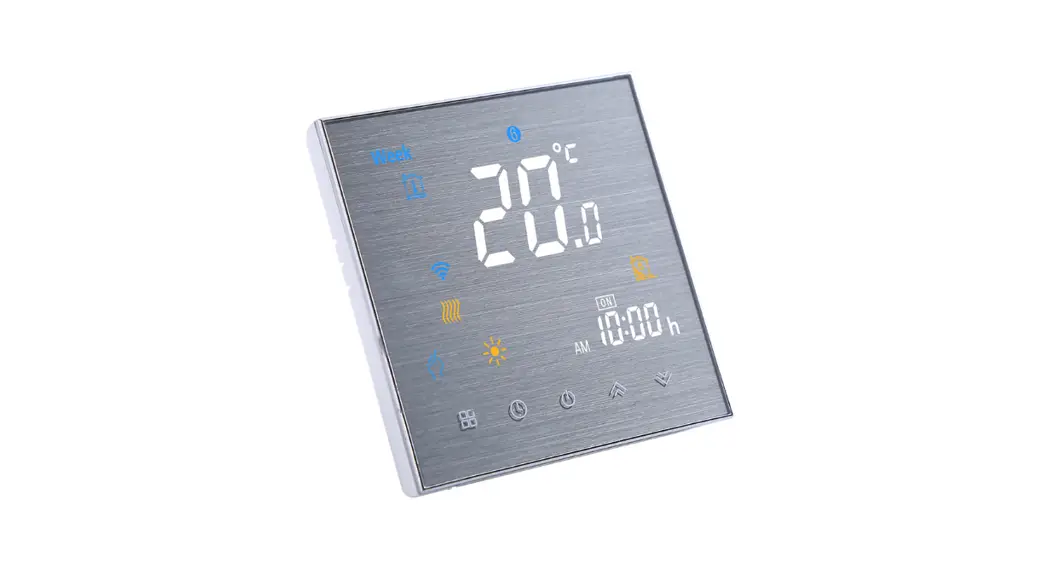
- 002FB: full black
- 002FW: full white
- 002BW: black and white
- 002WB: white and black
In the box you will find
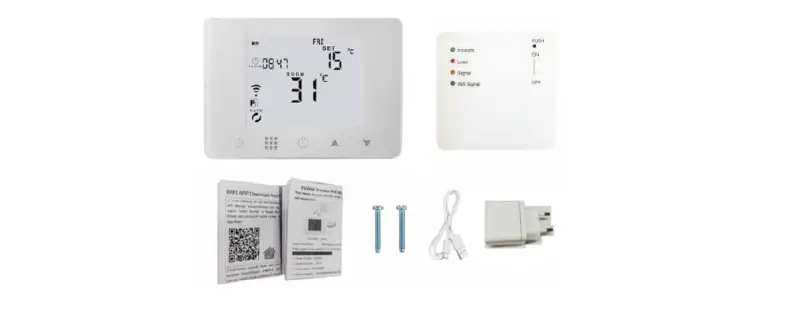
Thermostat 1pc
User Guide 1pc
QC Passed 1pc
Screws 2pc
Floor Sensor (2.Sm) 1pc
This accessory is suitable for GB, not included in the package and needs to be purchased separately)
ABOUT YOUR THERMOSTATS
The 002 series range has been developed to control electric underfloor, water heating or water/gas boiler systems. These units are designed for use in commercial, industrial, civil and domestic properties.
MODEL DEFINITION
GA: Water heating, SA GC: Water/Gas Boiler, SA
GB: Electric floor heating, 16A
L: Backlight
P: Weekly Programmable
W: WIFI
N: Mod bus Communication
S2: Both internal sensor and floor external sensor For example: 002 GCLP
FEATURES
On Appearance
- Convenient operation creates convenient life.
- Options of black and white housing.
- Fashion design blends in with any decor.
- Touch Screen display with backlight is easy to read, even in the dark.
- Bright buttons always remind you the world truly exist.
- Easy UI interface could be used even by child
On Functionality
- 0.5°C Accuracy keeps temperature within the level you set.
- Powerful functions are available such as Modbus/WIFI etc.
- Data memory when power is off.
- 5+1 +1 six periods programmable maximize comfort and economy.
- Create thermostat group to Centralized control ·
- Integrated with Amazon Echo, Google Home, Tmall Genie.
- All setting languages synchronize your time zone, address and language.
- No limit to add rooms and support Smart Scene.
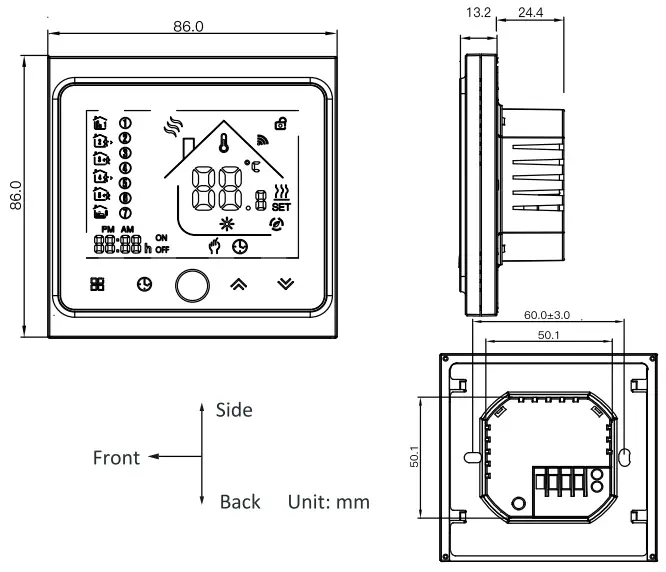
DIMENSION
TECHNICAL DATA
- Power Supply: 95 – 240 VAC, 50 – 60HZ
- Current Load: SA (water heating/water boiler/gas boiler) 16A (electric heating)
- Sensor: NTC3950, 10K
Accuracy: ±0.5°C - Set Temp. Range: 5 -35’C
- Display Temp. Range: 5 – 99’C
- Ambient Temp.: 0- 45 ‘C
- Ambient Humidity: 5 – 95 % RH (Non Condensing)
- Storage Temp.: -5-45 ‘C
- Power Consumption: < 1.SW
- Timing Error: < 1 %
- Shell Material: PC +ABS ( flame retardant)
- Installation Box: 86 * 86mm Square or European 60mm Round Box
- Wire Terminals: Wire 2 x 1.5 mm’ or 1 x 2.5 mm’
- Protection Class: IP 20
- Buttons: Capacitive Touch Buttons
BEFORE WIRING AND INSTALLING .
 CAUTION
Electrical Shock or Equipment Damage Hazard. can shock individuals or short equipment circuitry. Disconnect power supply before installation.
WIRING
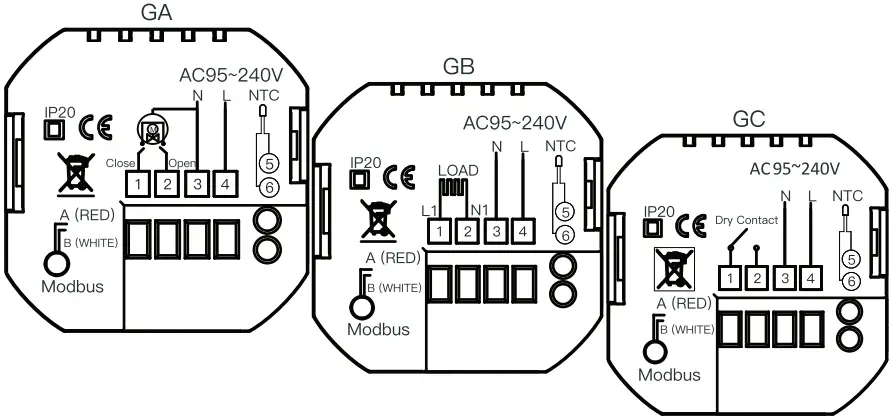 Note:
Note:
GA is for water heating;
GC is for water/gas boiler;
GB is for electric heating;
NTC and Modbus is optional
INSTALLATION
Your thermostat is suitable for installation within a standard 86mm pattress box or European 60mm pattress box.
Step 1. Keep power off. See Fig 1.
Step 2. Slide the LCD assembly down to remove the mounting plate.
See Fig 2.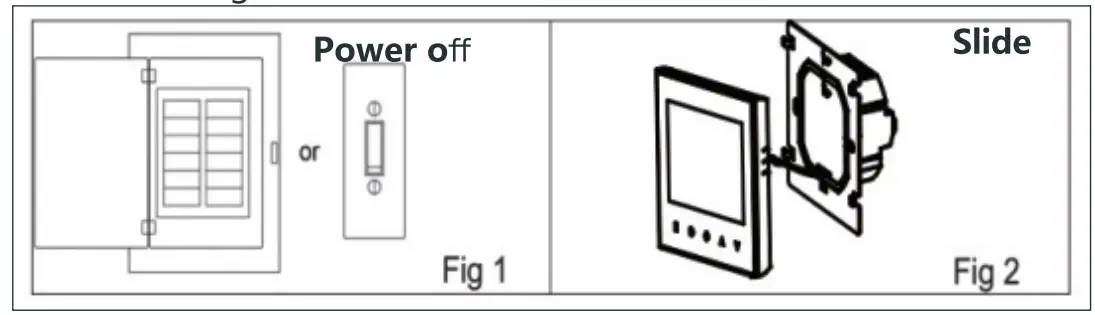
Step 3. Connect power supply, load into the appropriate termina (see “Wiring your thermostat” for details and Fig 3).
Step 4. Fix the mounting plate into the wall with screws in the box.
See Fig 4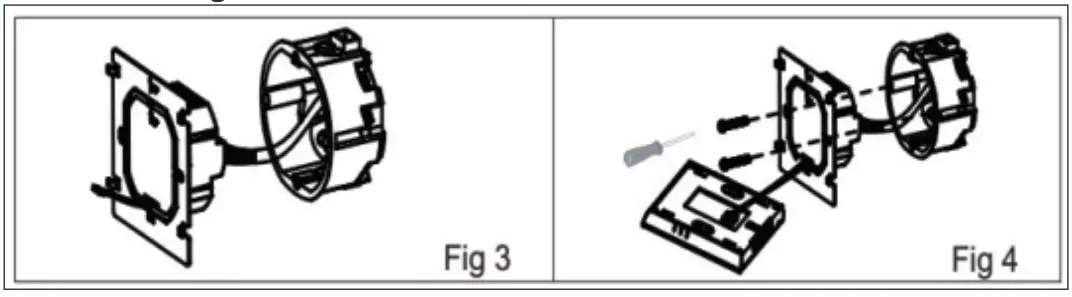
Step 5. Fasten body of thermostat and the mounting plate through rotating. See Fig 5.
Step 6. Installation complete. See Fig 6.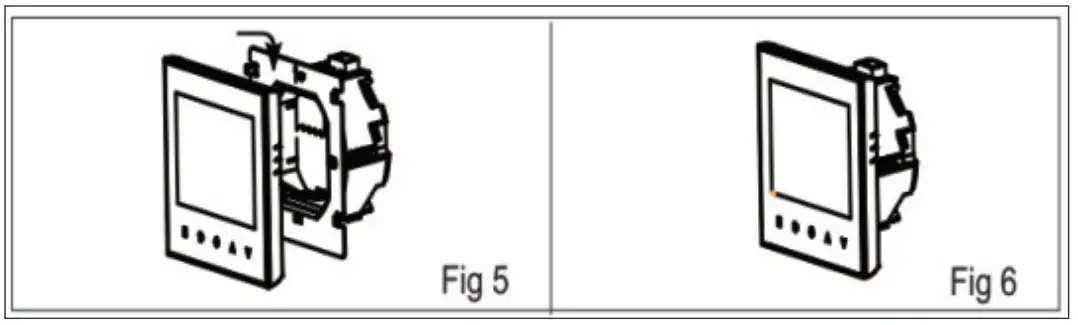
HOME SCREEN QUICK REFERENCE
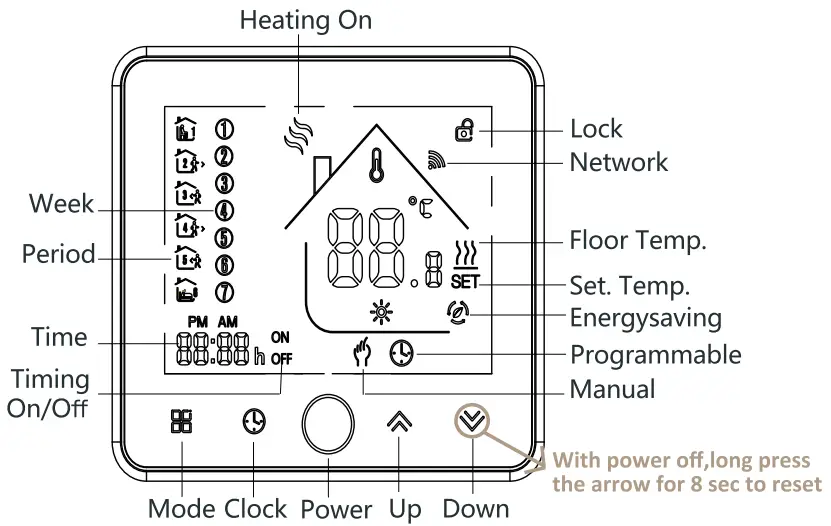
OPERATION
During Power On
- Power On/off: Press
 to turn the thermostat on/off.
 - Manual & Programmable
Touch ( ) to change between manual mode and programmable mode. In manual mode,
  will show in the bottom left of the screen In programmable mode, the period icon
  will show in the right side.
 - Setting Temperature
In the programmable mode ,time and set-point could not be adjusted.
If the user want to change, please go to manual mode or programmable setting.
In the mode of manual, press to set the desired temperature.
 - Adjusting/Setting the Clock
Touch the icon to set minute, hour and weekday (1 = Monday, 2 = Tuesday etc.) by using the arrows. Press once more to confirm and exit.
 - Locking your Thermostat
Press and hold the for 5 seconds to lock/unlock your thermostat In item 3 of high sensor options, you can select full lock or half lock. - Adjusting/Setting the Program Schedules
When Wi-Fi connection is made, your thermostat will automatically accept the program schedule made via the APP on your device (see below for detailed instructions).If you want to set the program schedules through your thermostat, simply follow the instructions as below:
Please note: Setting the program schedule through your thermostat can only be carried out when there is no WiFi connection between your thermostat and smartphone/tablet.
Touch to change between manual mode and programme mode.
In the manual mode, (will display in the bottom of the screen In programable mode, touch and hold the icon until the weekday schedule setting appear(12345will show along the left of the screen).
Use the and
and  arrows to adjust the on time.
Press the icon and use the and arrows to set the time (1st period).
Pressagain and use and arrows to set the temp.
Press the icon and uses the and arrows to set the time and temp. (2nd period).Repeat this process for periods 3 4 and 5 6.
Press the icon once more to enter the Saturday schedule settings (6 will show along the left of the screen).
Repeat the above process to set the period , temp. and Sunday schedule.
Press once more to confirm and exit.
Default setings for program scheduleTime display WEEDAY (MONDAY- FRIDAY)(12345 shows on screen) WEEKEND (SATURDAY)
(6 shows on screen)WEEKEND (SUNDAY)
(7 shows on screenTIME TEMPERATURE TIME TEMPERATURE TIME TEMPERATURE Period 1 06:00 20 ºC 06:00 20 ºC 06:00 20 ºC Period 2 08:00 15 ºC 08:00 20 ºC 08:00 20 ºC Period 3 11:30 15 ºC 11:30 20 ºC 11:30 20 ºC Period 4 13:30 15 ºC 13:30 20 ºC 13:30 20 ºC Period 5 17:00 22 ºC 17:00 20 ºC 17:00 20 ºC Period 6 22:00 15 ºC 22:00 15 ºC 22:00 15 ºC A separate schedule may be set for weekdays (Mon – Fri) and for weekends (Sat or Sun).
- Checking the Temperature of Floor Sensor
Press and hold the y arrow for 5 seconds to display the temp. of floor sensor.
Setting the Functions and Options
In order to reach ~stem function, turn the thermostat off.
Press and holdand at the same time for 5 secs. Then press to scroll through the available functions. Use the and arrows to change the available options. All settings are confirmed automatically.
 to turn the thermostat on/off.
 ) to change between manual mode and programmable mode. In manual mode,
  will show in the bottom left of the screen In programmable mode, the period icon
  will show in the right side.
 to set the desired temperature.
 to set minute, hour and weekday (1 = Monday, 2 = Tuesday etc.) by using the
  and
and  arrows to adjust the on time.
| Code | Function | Settina and ootions | Default |
| 1 | Temperature compensation | -9 to+ 9 °( (for internal sensor) | -3 |
| 2 | Deadzone Temperature | 1 ~S°C | 1 |
| 3 | Button Locking | 00: All buttons are locked except power button. | 01 |
| 4 | Sensor Types | In: Internal Sensor (to control the temp.) | AL |
| 5 | Min. Set Temp. | 5~15°( | 05 |
| 6 | Max. Set Temo. | 15~45°( | 35 |
| 7 | Display Mode | 00: Display both settemp. and room temp., | 00 |
| 8 | Low Temperature Protection Petting | 0~10°( | 00 |
| 9 | High TemperaturE Protection Petting | 25~70°( | 45 |
| A | Economy Mode | 00: Non-energy saving Mode | 0 |
| B | Economy Temp. | 0~30°( | 20 |
ABOUTWIFI
WI-Fl CONNECTION
When first time using Wi-Fi thermostat. you must configure the Wi-Fi signal and settings on your smartphone or tablet. This will allow communication of your connected devices.
Step 1. Download MOES App on App store or scan the QR code
MOES App is upgraded as much more compatibility than Toya Smart/Smart Life App, functional well for scene controlled by Siri, widget and scene recommendations as the fully new customized service. (Note: Toya Smart/Smart Life App still works, but MOES App is highly recommended)
Step 2. Registration or Log in.
- Download “MOES” Application.
- Enter the Register/Login interface; tap “Register” to create an account by entering your phone number to get verification code and “Set password”. Choose “Log in” if you already have a MOES account.
Step 3. Connect the thermostat
Check the tutorial below to complete the connection and setup.
Method 1: Scan the QR code to configure the network guide (Fig 2.1-Fig 2.3)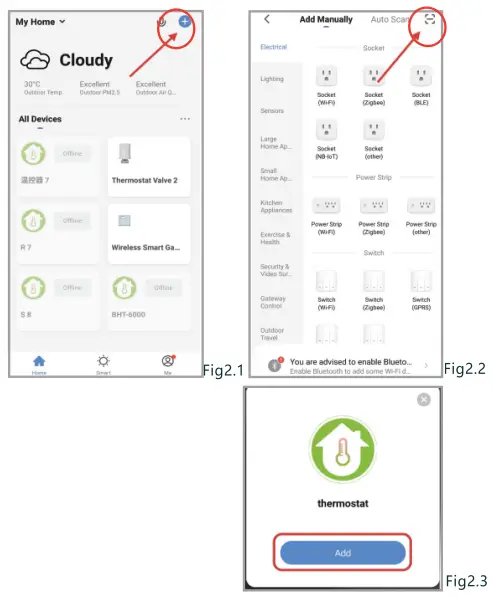

Scan this QR code
Method 2: Ordinary distribution network guidance (Fig. 2. 1&Fig. 2.3.1)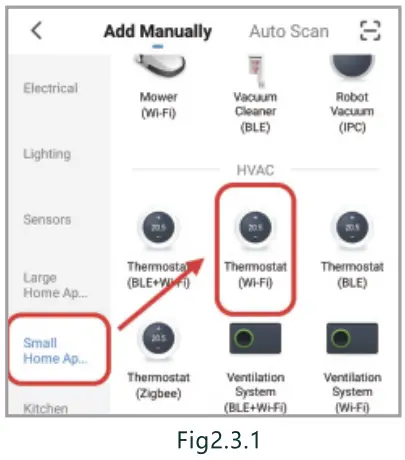
Network distribution mode:
- EZ Mode
When the thermostat is off, press and hold the ” ” until the thermostat screen flashes quickly and displays the “
 ” icon, and then operate according to the following figure (Fig 2.4-Fig 2.7).
- AP Mode
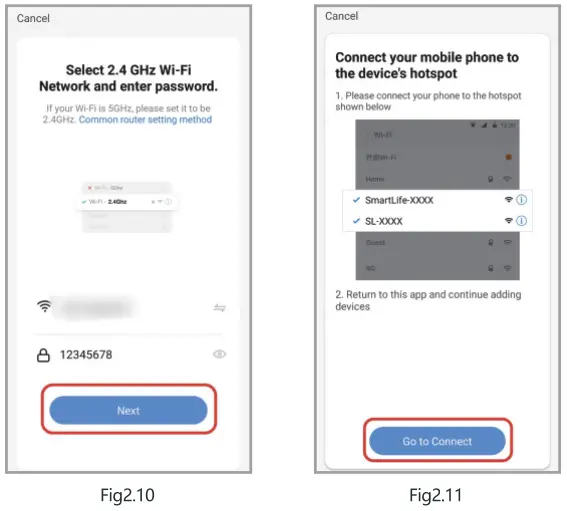
When the thermostat is off, press and hold the ” ” until the thermostat screen flashes slowly and the “ ” icon appears.(if the” ” icon appears, continue to press the” ” until the thermostat screen Flashes slowly and displays the ” ” icon), and then operate according to the following figure (Fig 2.8-Fig 2.14)

 ” until the thermostat screen flashes quickly and displays the “
 ” icon, and then operate according to the following figure (Fig 2.4-Fig 2.7).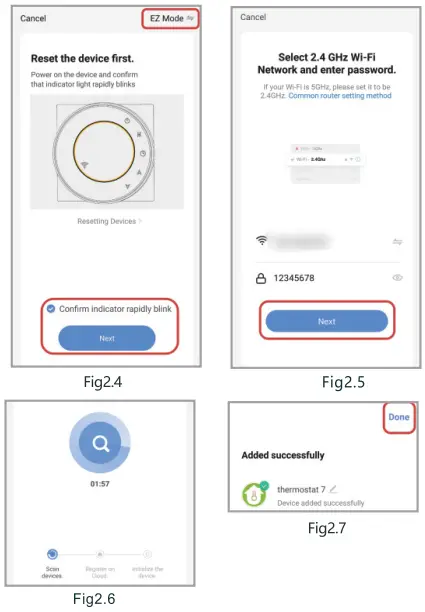
 ” icon appears.(if the”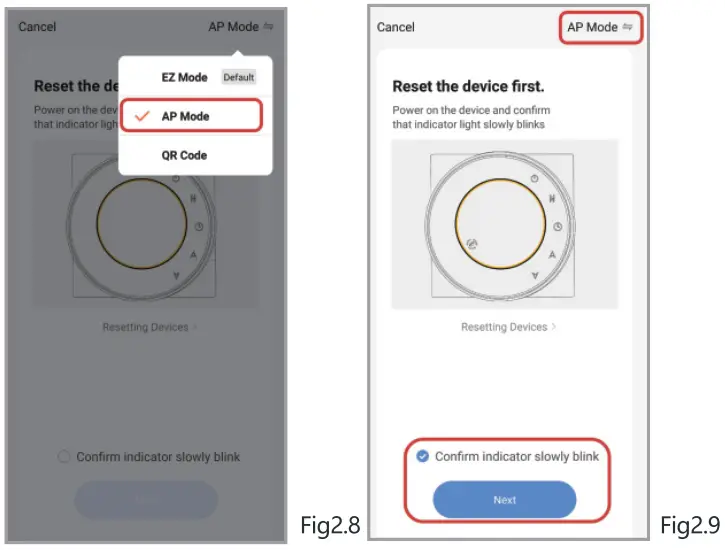
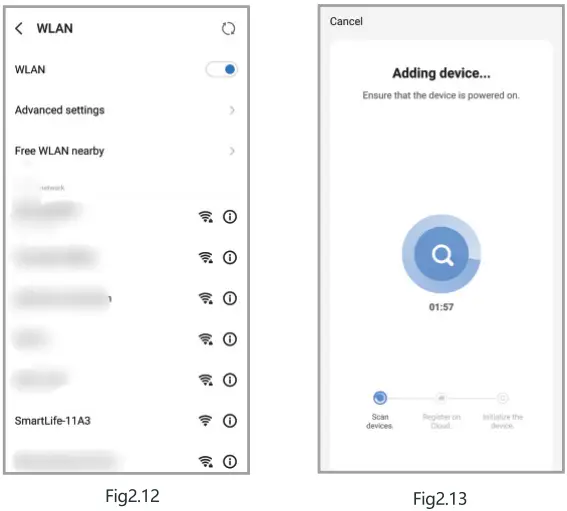
After connecting to this hotspot, return to the “smarties” APP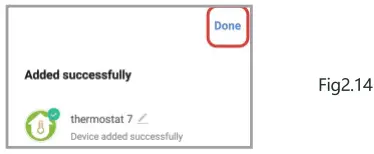
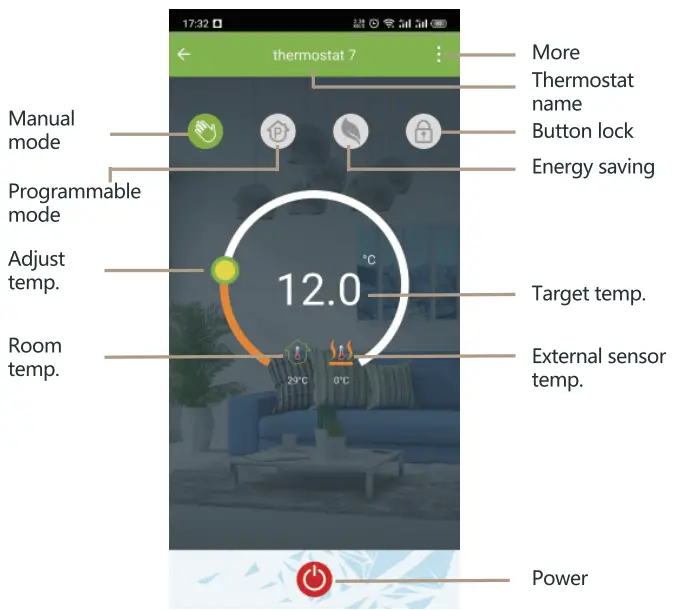
APP OPERATION INTERFACE DESCRIPTION (HEATING THERMOSTAT)
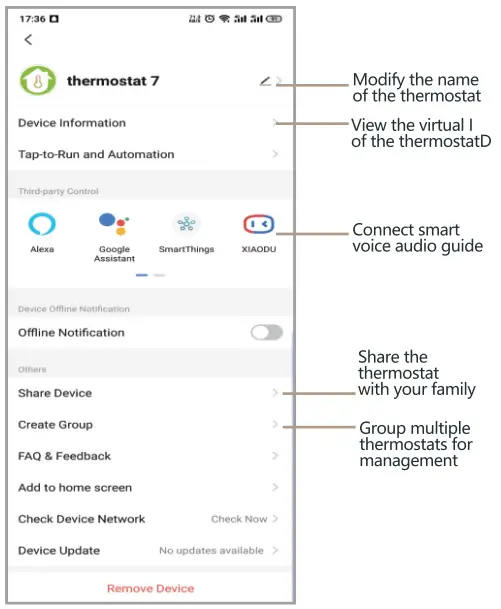
MORE SETTINGS
SIMPLE EXCEPTION HANDLING
No | Phenomenons | Handling |
1 | Power is on but watthour display. | * Check if the terminals between LCD panel and Power Un)t Box is loosen. |
2 | With up output but display works. | * Use a new LCD panel or new Pow Unit Box to replace the old one. |
3 | Room temp is different from the real temp | * Please follow Item 1 of high senior option to do temperature calibration. |
SERVICE
24-months warranty since date of purchase Service beyond the warranty period may need charge. More details, please contact us.
Thank you for your support and purchase at we MOs, we are always here for your complete satisfaction, just feel free to share your great shopping experience with us.
If you have any other need, please do not hesitate to contact us first, we will try to meet your demand.
 MOES. Official
  @moessmart
  @moes_smart
 @moes_smart
  @moes_smart
  www.moes.net
 EVATOST CONSULTING LTD
Address: Suite 11, First Floor, Moy Road Business Centre,
Tiffs Well, Cardiff, Wales, CF15 7QR
Tel: +44-292-1680945
Email: [email protected] AMZLAB GmbH
Laubenhof 23, 45326 Essen Made In China Manufacturer:
WENZHOU NOVA NEW ENERGY CO.,LTD
Address: Power Science and Technology Innovation
Center, NO.238, Wei 11 Road, Yueqing Economic
Development Zone, Yueqing, Zhejiang, China
Tel: +86-577-57186815
After-sale Service: [email protected]

 MOES Smart WiFi ZigBee Smart 2/3 Way Switch Socket Thermostat Sensor