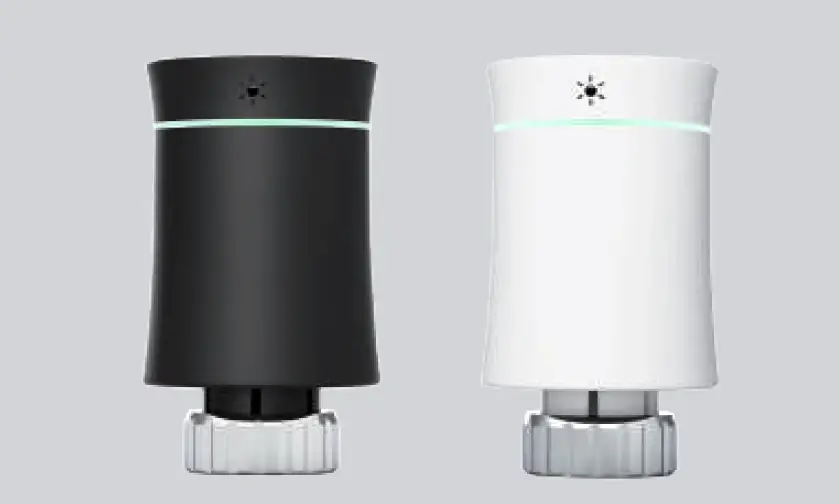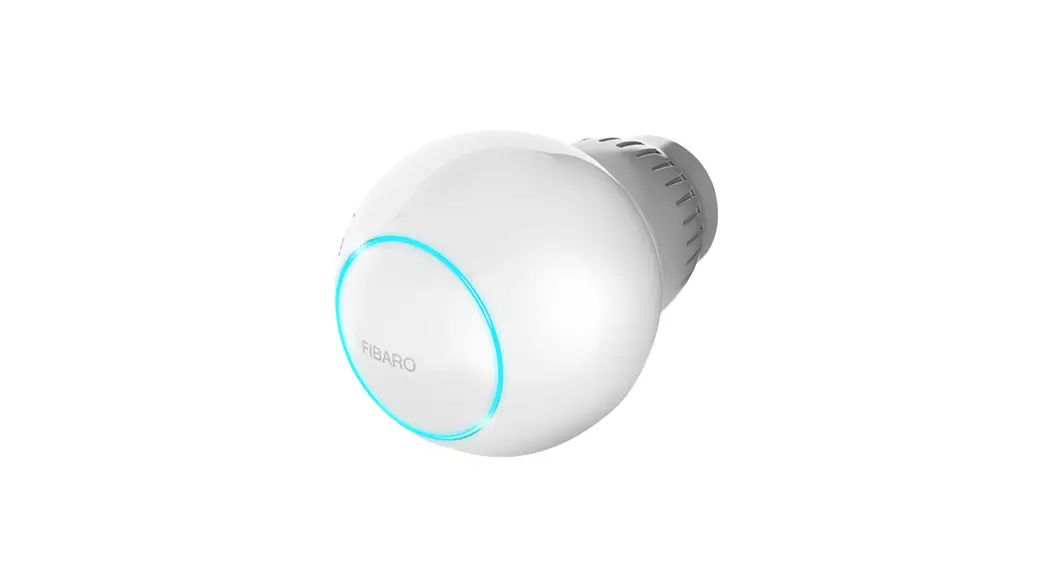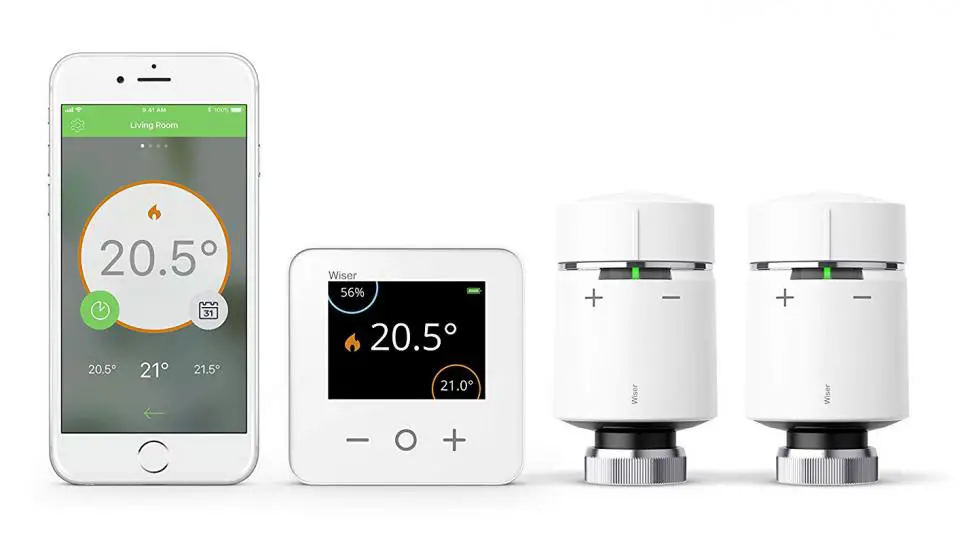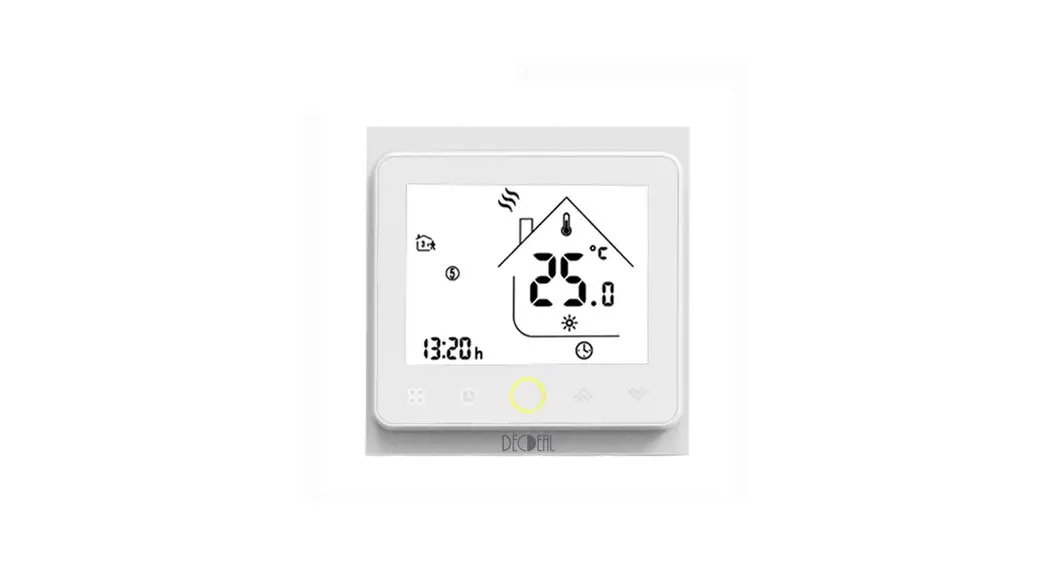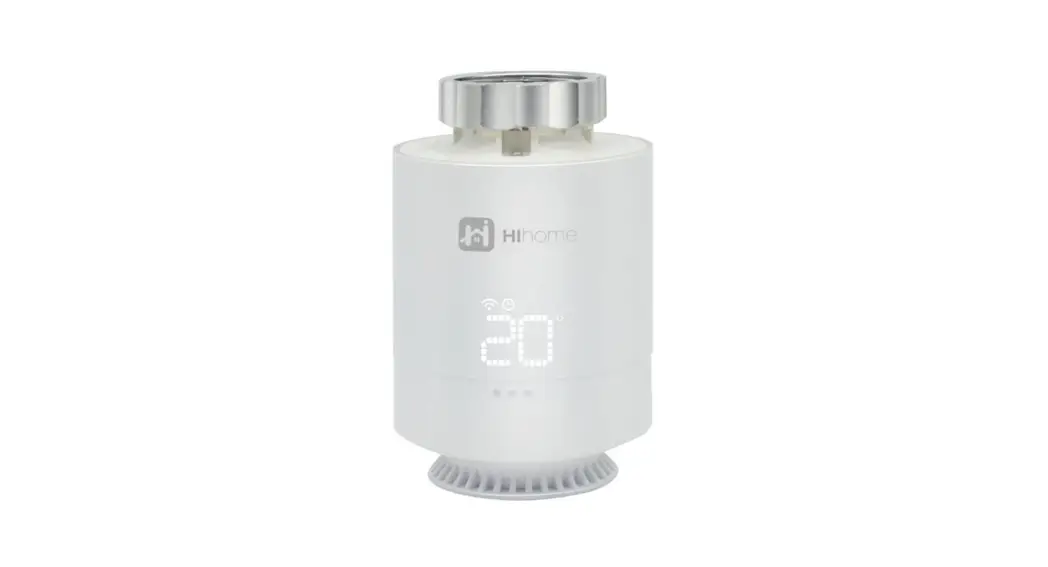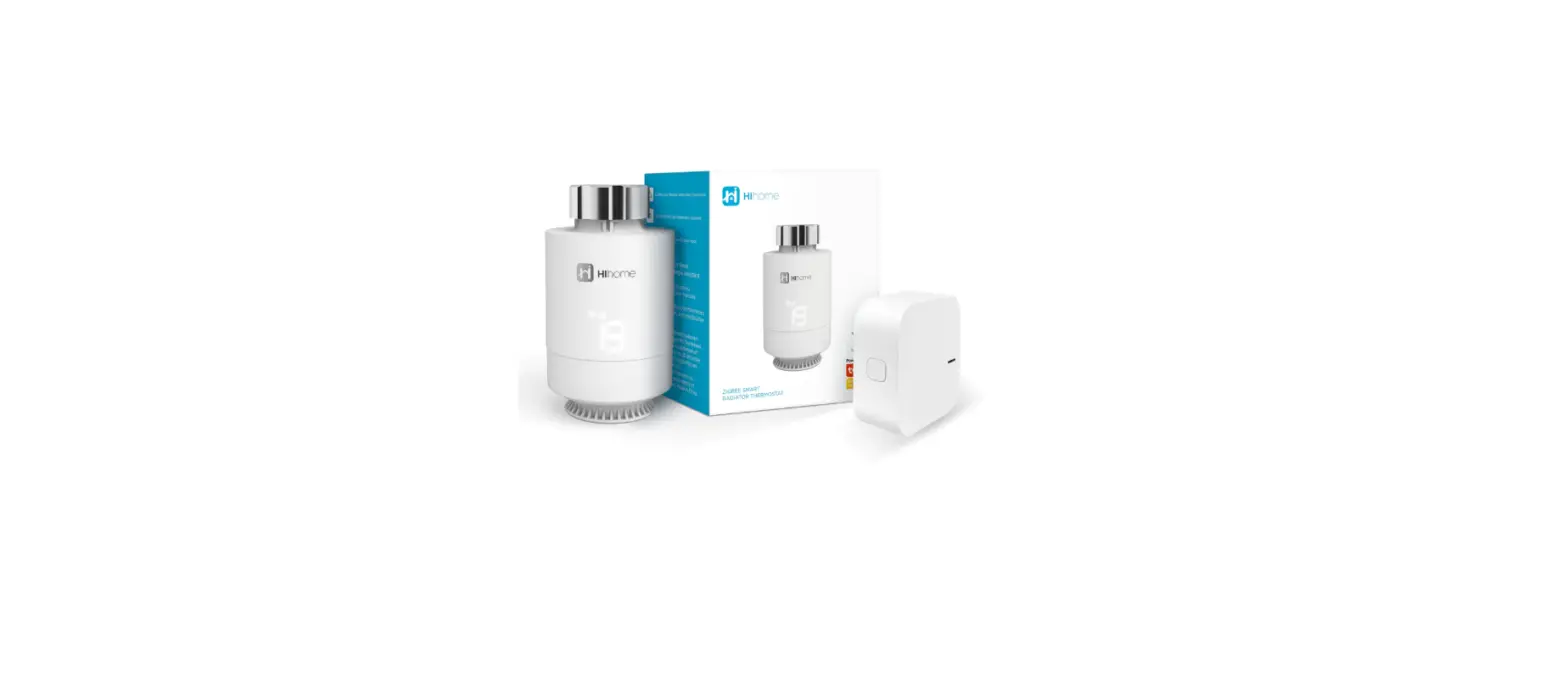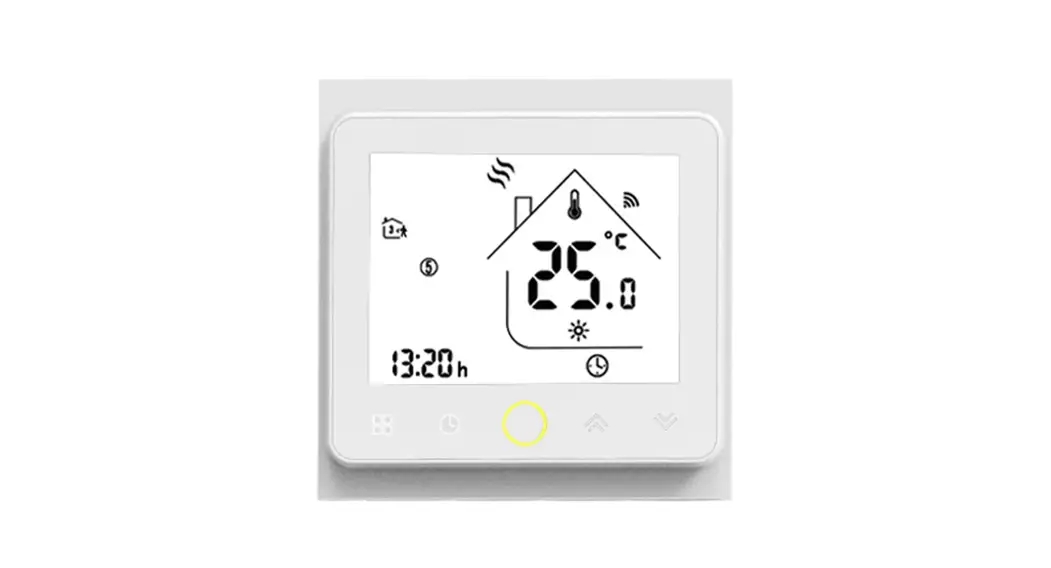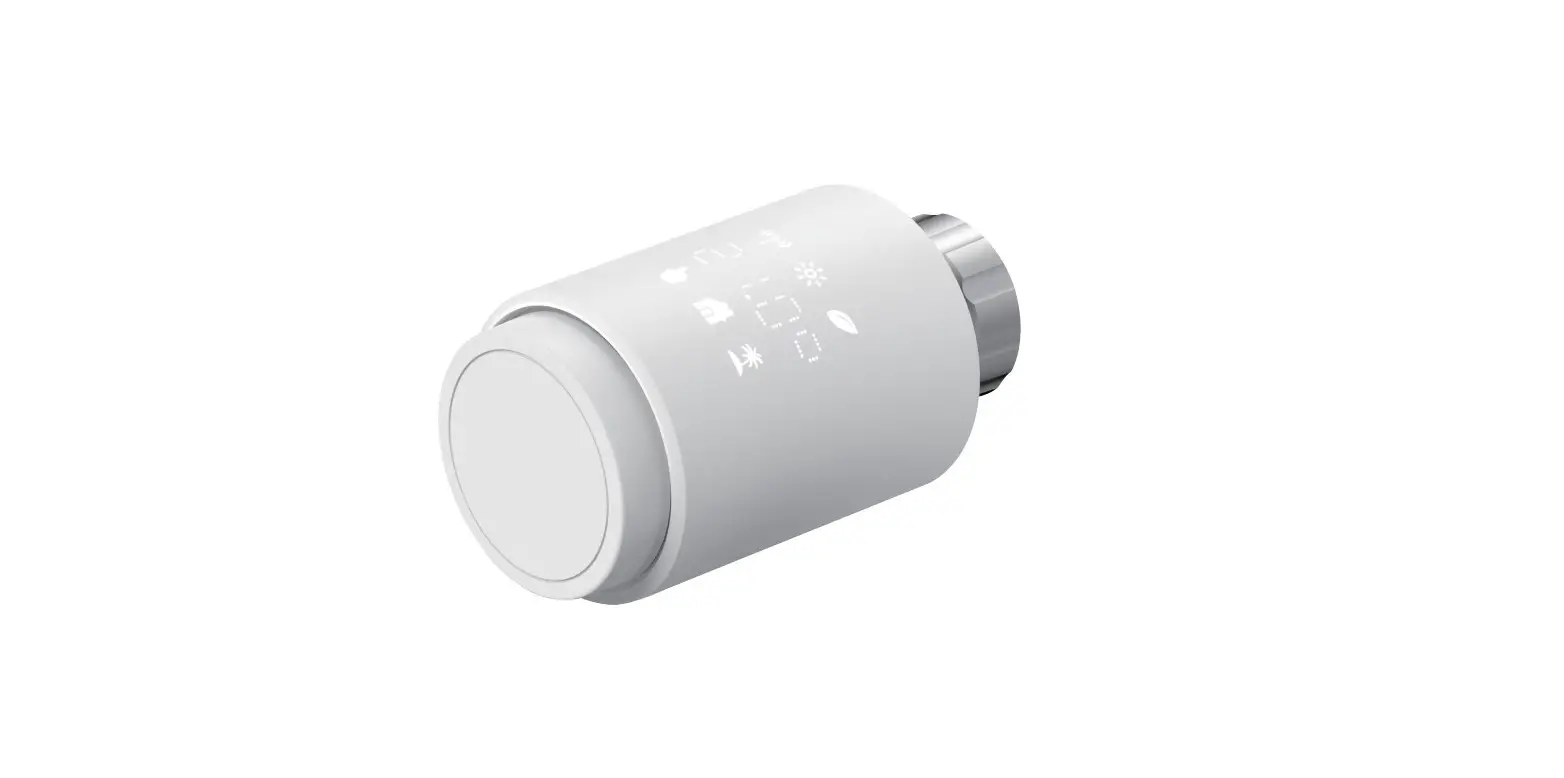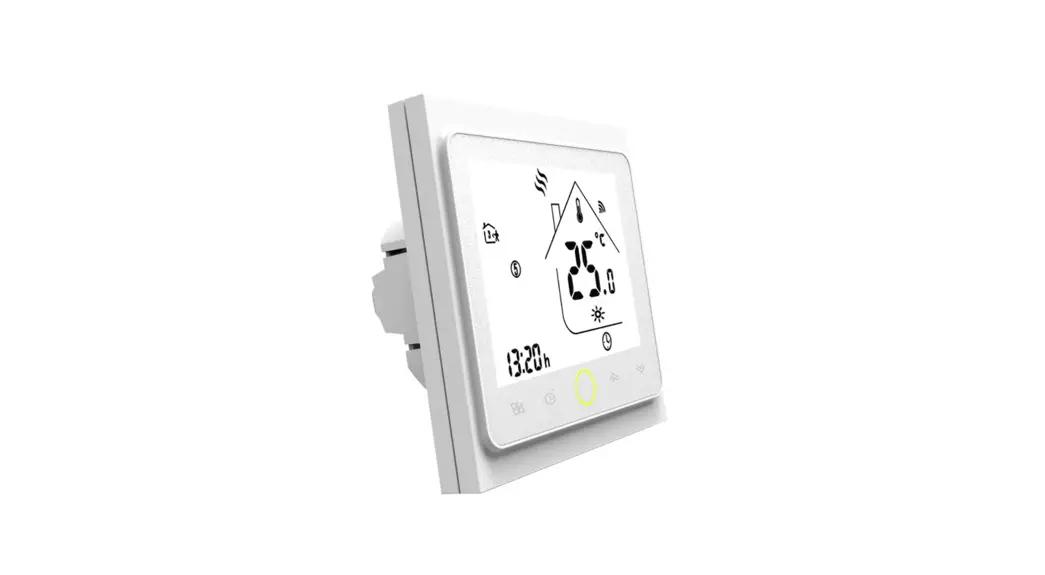

MOES BRT-100 Radiator Thermostat
Welcome
Thank you for your purchase. MOES always made high-quality products with our high-end technology, high-quality craftsmanship, safe and reliable materials .The new radiator thermostat will bring you a more comfortable smart life .
Please read this installation/ programming manual for installing and operating. Please also make sure someone qualified to install the radiator .
Comply with all local regulations.
FEATURES
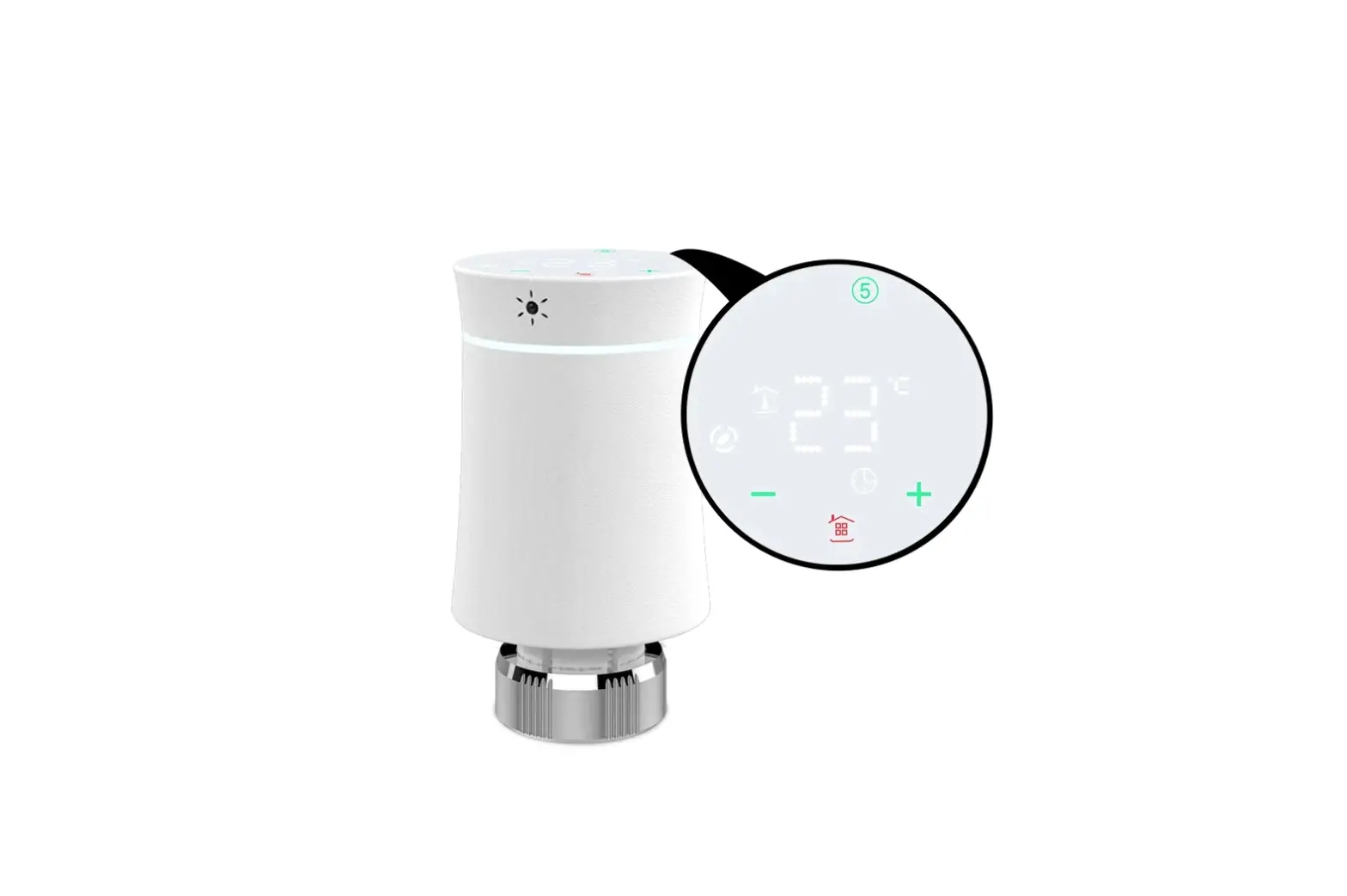
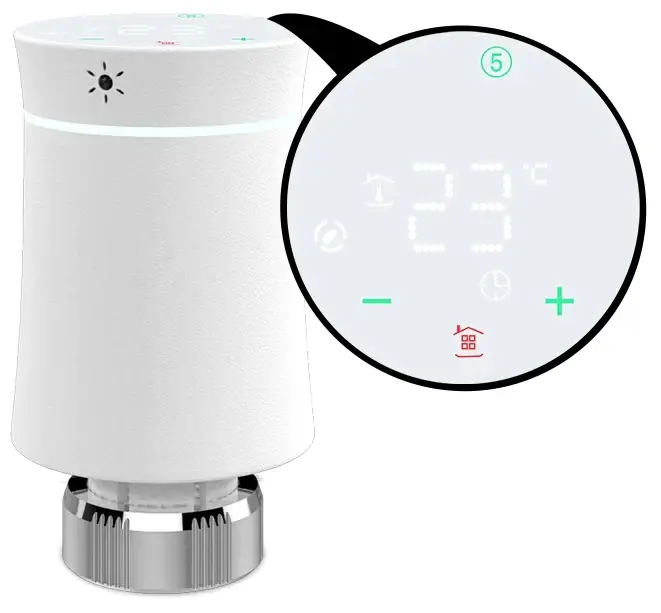
- LED display, no window, wider perspective
- Colorful display
- Graceful arc waist shape
- Rubber stretch paint, feel like baby skin
- Night Halo colors your home
- Low power consumption,battery can last 1 year for normal use and standby for 2 years.
- Low battery tip
- Diagram of temperature curve added in APP
- Vary colors are available like white, Black, gray etc.
In the box you will find
- Raditor Thermostat 1pc
- User Guide 1pc
- RA Adapter 1pc
- RAV Adapter 1pc
- RAVL Adapter 1pc
- Comap Adapter 1pc
- T+A Herz Adapter 1set
- Herz Adapter 1pc
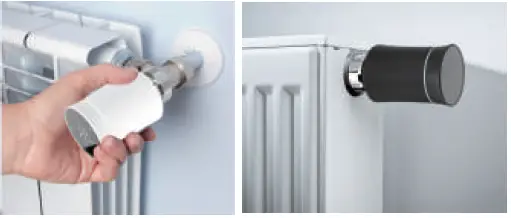
APPLICATION
DIMENSION
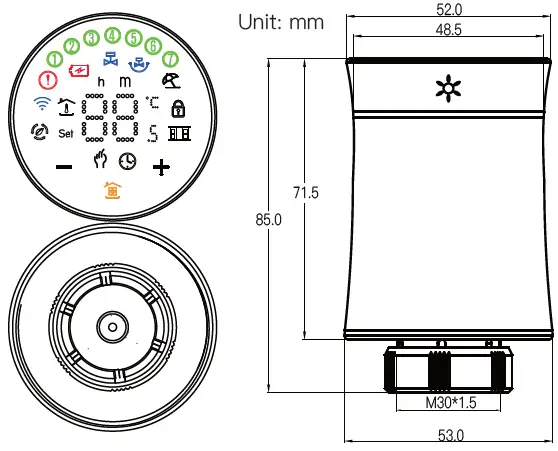
HOME SCREEN QUICK REFERENCE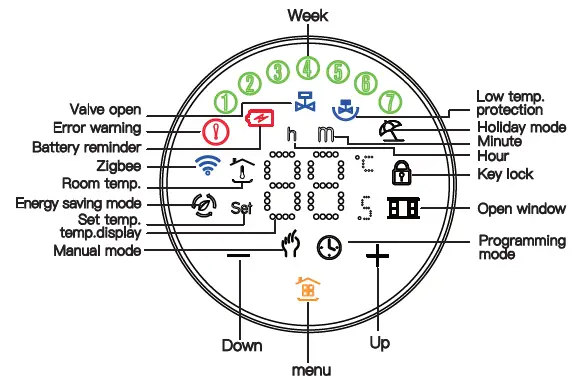
TECHNICAL DATA
- Power Supply: 3 V,2xAA Batteries, Packaging not have battery.
- Maximum stroke: 4.5mm
- Accuracy: ± 0.5°C
- Set Temp. Range: 5~45 °C
- Display temp. Range: 0~70°C
- Ambient Temp.: 0 ~ 45 °C
- Ambient Humidity: 5 ~ 95 % RH (Non Condensing)
- Storage Temp.: -5~ 45 °C
- Timing Error: < 1%
- Protection Class: IP 20
- Buttons: Capacitive Touch Buttons
Before installing
To avoid damages to the product during installation, please read the manual carefully before installing TRV
INSTALLATION
Step 1: Select the adapter.TRV is usually connected with M30*1.5mm valve. If you have different valves, please determine your valve type according to the picture below, and choose the correct adapter from the package. If you do not find the valve that matches your use in the picture below, please buy it carefully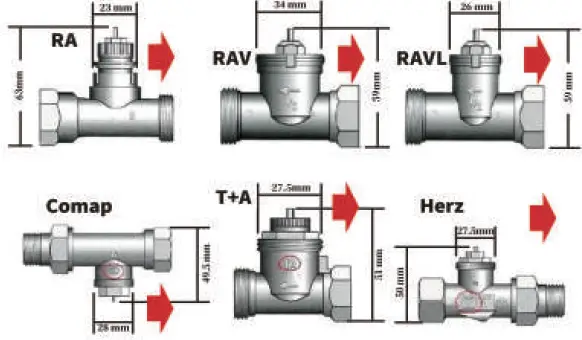
Step 2: Install the adapter.Install the adapter on your valve as the picture below. If you don’t need an adapter, please ignore this step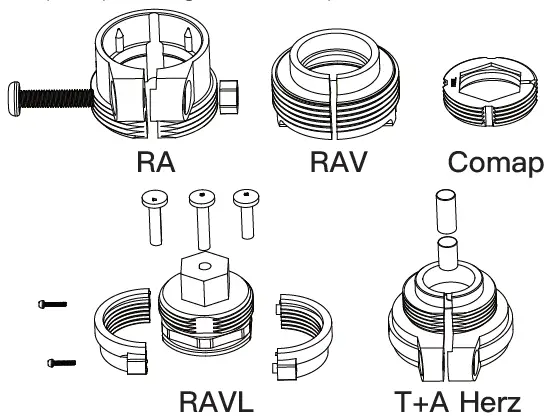
Step 3: Install the thermostat mounting plate. Remove the mounting plate of the thermostat (Part 1 in the picture below) counterclockwise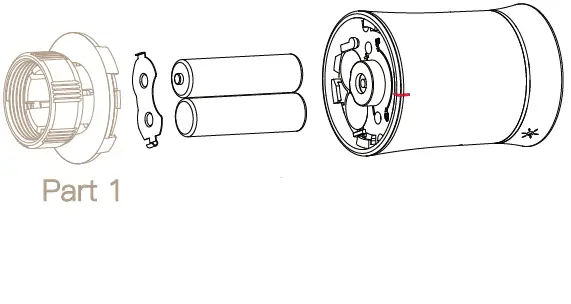
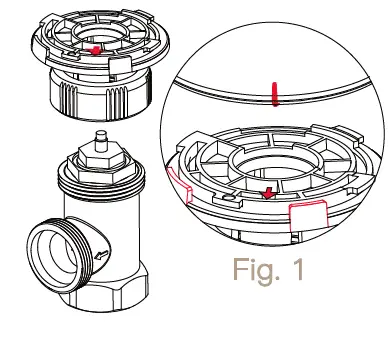
Follow the instructions in the figure below to install the mounting plate on the valve. Pay attention to the red label in the picture
Step 4: Install battery Follow the picture below to install the battery in the correct direction. After the battery is installed correctly, the thermostat will be turned on. At this time, click the (only once),the thermostat will display and flash “F1”, when the “F1” stops flashing, the thermostat motor It will all shrink to facilitate the connection of the thermostat and the mounting plate.
Step 5: Connect the thermostat and the mounting board When “F1” stops flashing, find the “mark point” of the thermostat, shown Fig. 1.Turn clockwise to complete the connection between the thermostat and the mounting plate. After clicking the (only once), the thermostat will display “F2”. When “F2 ”disappears, while the screen remains on, turn the thermostat clockwise to adjust the screen to your liking direction
Installation finished
OPERATION
Power: After installing the battery, it will automatically turn on. It can’t be turned off till the battery is removed.
When the TRV is turned on, it will enter the self-check program, and all icons will be displayed firstly.
Press , the screen flashes “F1”, indicating that the temperature control valve is shrinking; when “F1” stops flashing, press again, The screen displays “F2”,Indicates that the temperature control valve is measuring.; when the screen displays the room temperature, it indicates that the temperature control valve has completed the stroke measurement, and you can start using the temperature control valve normally.
Mode selection
Press to switch between manual, programming, vacation modes.
Manual mode – In this mode, the device executes manual temperature setting. When the set temperature is lower than the”minimum temperature”, the valve is closed (forced closed); Programming mode -In this mode, the device executes a preset week programming temperature time and temperature; Holiday mode – In this mode, for example, the vacation mode is set for 10 days and the temperature is set to 15 degrees Celsius. After 10 days, the device will automatically switch to programming mode; Temporary manual mode – In this mode, icon will flash.At this time, the device executes the manually set temperature and returns to the weekly programming mode in the next time period
Set the temperature
Press “+”/”-” key to adjust the temperature.
Set the clock
Press and hold for 3 seconds, the screen will display “h” and numbers, indicating that the hour is being set, set the hour by press “+” / “-” keys; press again, the screen will display “m”, indicating that the minute is being set, press “+” /”-” keys to set the minutes; press again, the screen will display “number”, indicating that the day of the week is being set, and the day of the week can be set by “+” /”-“; press again, the screen will flash “number, h, m”, indicating that the number of days in the vacation mode is set, which can be set by the “+” and “-” keys;
Lock your Radiator
Press the +” and”-” keys together for 3 seconds to lock or unlock the keys.
Low voltage reminder
When the voltage is lower than 1.8V, the screen will display  .
.
Boost heating
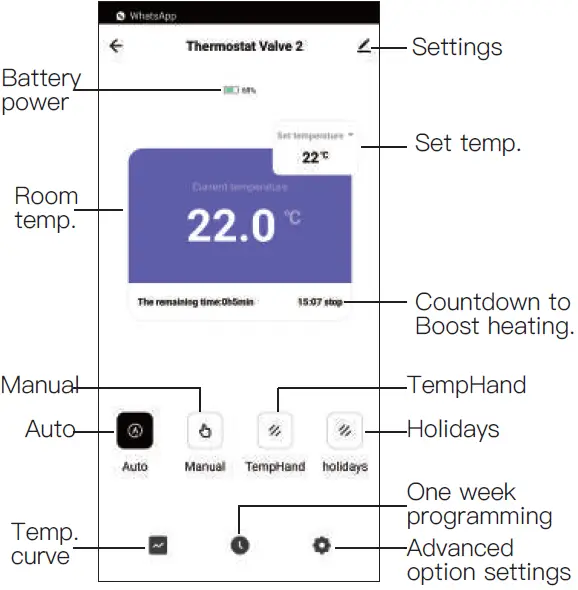
Press and hold “+” for 3 seconds, the device will enter the boost heating mode, and the will flash.The countdown will be displayed in the APP
Adjusting/Setting the Programmable Schedules Method one;
Manually set a week of programming settings, specific operations are as follows:
Method Two;
Use APP for one week of programming settings, please refer to the second page “Programming your Radiator”
Manual editing:
Press and hold for 3 seconds. When you see the flashing numbers on the screen, press 4 times to skip the clock setting. When the screen displays “①②③④⑤” (means Monday to Friday), flashing numbers and “h”, you can set the hour with “+” and “-“; press again, flashing numbers and “m”, you can use ” +” “-” Set the minutes; press again, the screen displays “Set”, and the temperature can be set by “+” “-“. This completes the setting of the programmed temperature for one week in the morning from Monday to Friday.
By analogy, refer to the one-week programming temperature default table to complete one-week programming settings.
Programming setting
| Time display | MON.-FRI. (①②③④⑤ shows on scteen) | SAT. (⑥ shows on scteen) | SUN. (⑦ shows on scteen) | |||
| TIME | TEMP. | TIME | TEMP. | TIME | TEMP. | |
| Period 1 | 6:00~11:30 | 20 | 6:00~12:00 | 24 | 6:00~12:30 | 19 |
| Period 2 | 11:30~13:30 | 21 | 12:00~14:30 | 23 | 12:30~14:30 | 20 |
| Period 3 | 13:30~17:30 | 22 | 14:30~17:30 | 22 | 14:30~18:30 | 21 |
| Period 4 | 17:30~6:00 | 23 | 17:30~6:00 | 21 | 18:30~6:00 | 20 |
Setting the Functions and Options
Press and hold the “-” and 3 seconds together , entering into the advanced option settings. The screen displays “A1” (function), after 2 seconds, the number (settings and options) will display, and the options can be set by the “+”/”-” key.
| Code | Function | Setting and options | Default |
| A1 | Temperature compensation | -9℃ ~ 9℃ | -2 |
|
A2 | Open window detection (After the valve is opened, the room temperature is 5- N°C, every 5 minutes, check whether the room temperature is lower than the previous detection by ≥3°C) |
00:close 01:open |
00 |
| A3 | When A2 is set to “01”, the device detects whether the room temperature has dropped by N°C compared with the previous time | N:5-25℃ | 5 |
| A4 | When A2 is set to “01”, close the valve time | 5-60min | 15 |
| A5 | Min.temp. | 5-15℃ | 5 |
| A6 | Max.temp. | 15-35℃ | 35 |
| A7 | Forced heating countdown | 100-900s | 300 (screen display 30) |
| A8 | Detection valve head opening | Open: ON Closed: OF | Can only show |
| A9 | Dead zone tempe. | 0.5-5℃ | 1 |
| AA | Energy saving mode | 00:close 01:open | 00 |
| AB | Energy saving mode temperature | 5-35℃ | 20 |
| AC | Low temp. protection | 0-10℃ | 5 |
| AD | Standby screen brightness | 0-9 | 00 |
| AE | Factory reset | 00: do not reset 01: reset | 00 |
| AF | version number | U1 |
Command priority
Priority judgment: In manual mode, Set to force close> Start low-temperature protection to force opening > Test window-opening to force closing > Boost heatin
CE standard
EMC, LVD,RF,ROHS
Common Abnormity and Processing Method
| Error reminder | Failure description | Solution |
| icon+screen display E1 | The temperature sensor is disconnected orshort-circuited | Contact seller for replacement |
| “Exclamation mark” icon + screen flashing E2 | The thermostat cannot detect the stroke | Reinstall the battery to release |
| icon | Battery voltage is lower than 1.8V | Replacement battery |
About Zigbee Step 1 Downlosd your APP (Fig. 2)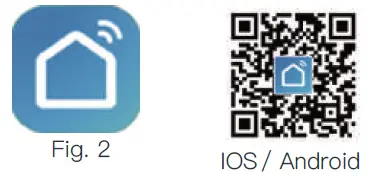
Search for “Smartlife” in the Apple Store or Google Play or scan the QR code above and follow the instructions of the APP to complete the installation
Connect the temperature control valve
Check the tutorial below to complete the connection and setup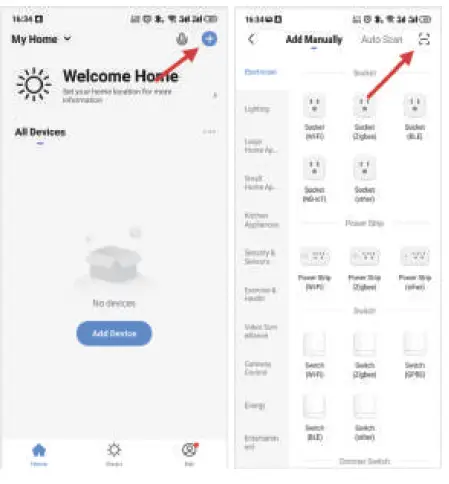
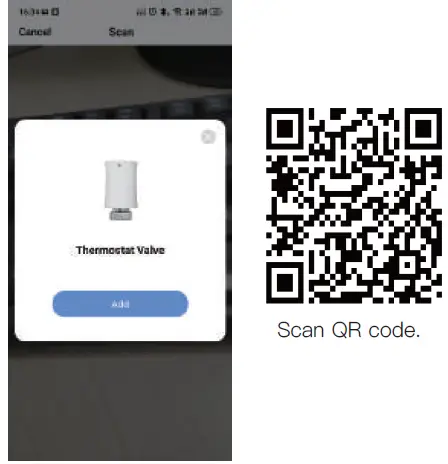
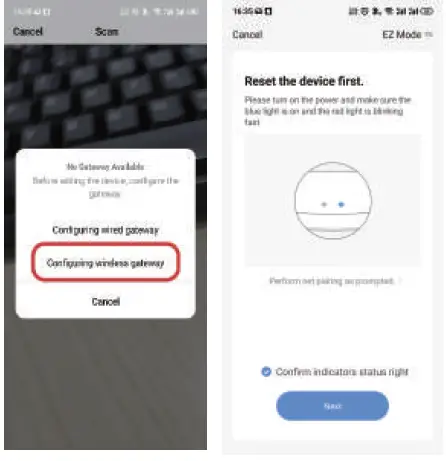
Note: Tuya zigbee wireless gateway is used by default. If you use a wired gateway, please check your gateway connection tutorial
Long press “-” for 3s, as shown in the figure below (Fig. 3), the “Zigbee” icon will flash on the screen (Fig. 4).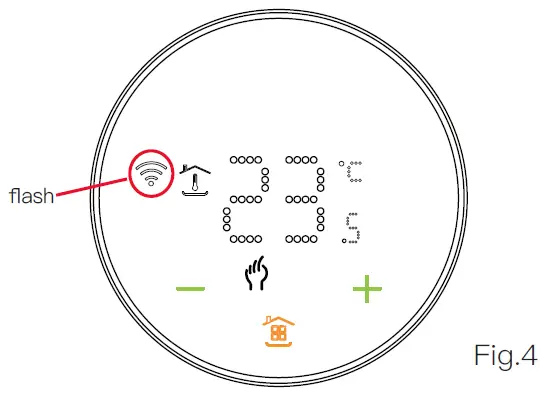
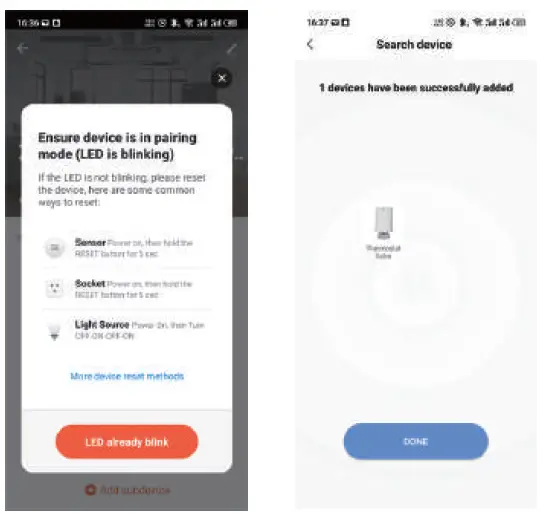
APP interface description
Temperature graph
According to the temperature graph, you can understand the temperature change in the past time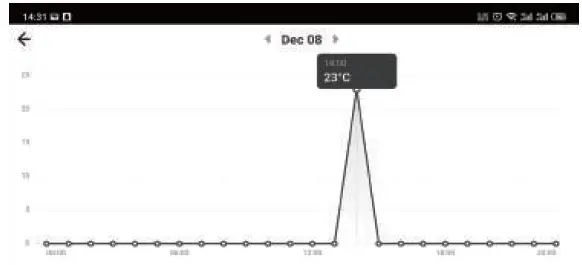
After-sales service in warranty period
Your thermostat is guaranteed for 24 months since the date of purchase. Service beyond the warranty period would need extra charges. For more details, please contact us directly.
Thank you for your support and purchase at we Moes,we are always here for your complete satisfaction,just feel free to share your great shopping experience with us
If you have any other need,please do not hesitate to contact us first,we will try to meet your demand
WENZHOU NOVA NEW ENERGY CO.,LTD
Address: Power Science and Technology Innovation
Center, NO.238, Wei 11 Road, Yueqing Economic
Development Zone, Yueqing, Zhejiang, China
Tel:+86-577-57186815
Email: [email protected]
 MOES Smart WiFi ZigBee Smart 2/3 Way Switch Socket Thermostat Sensor