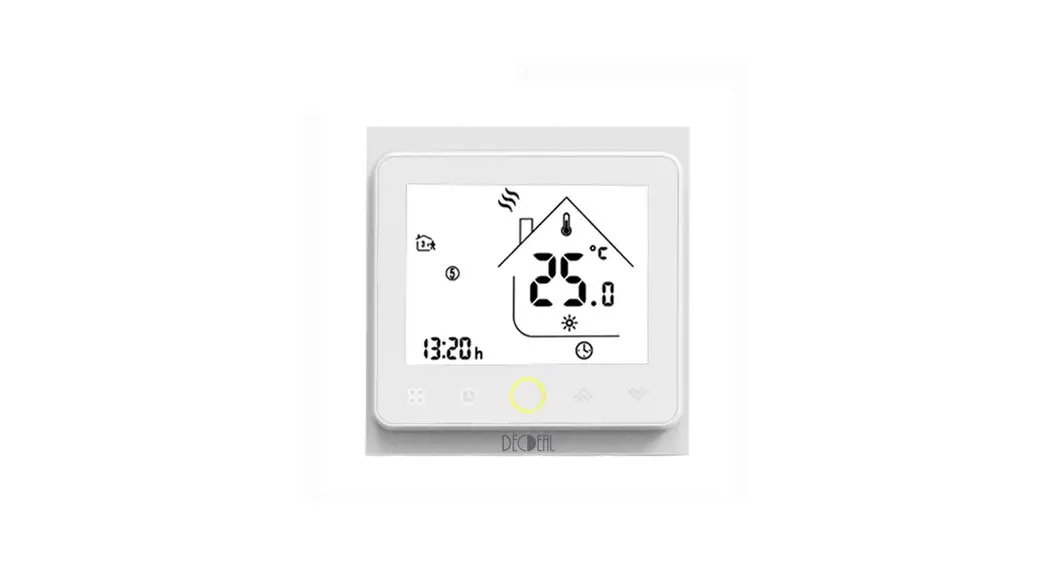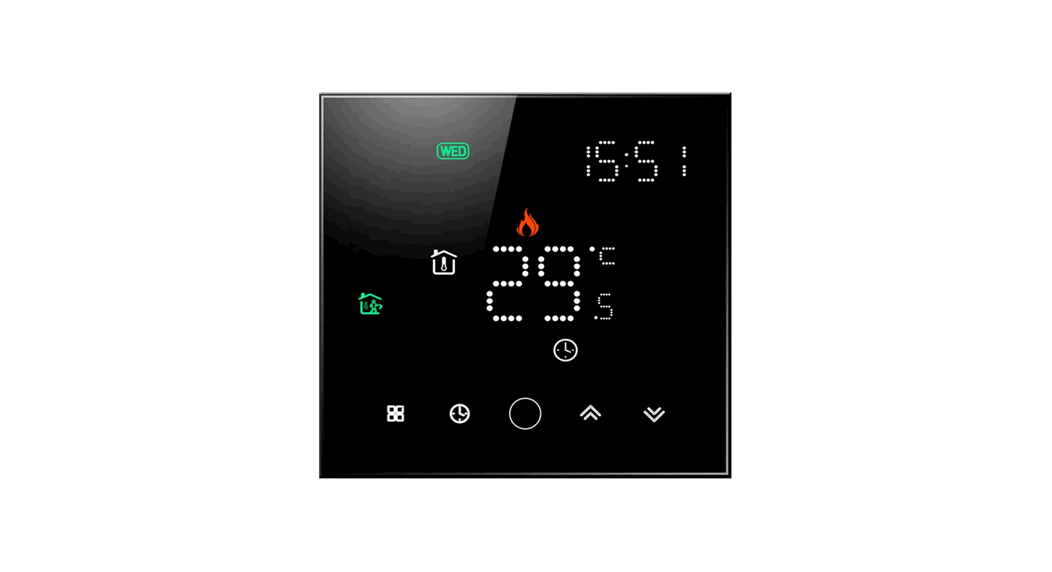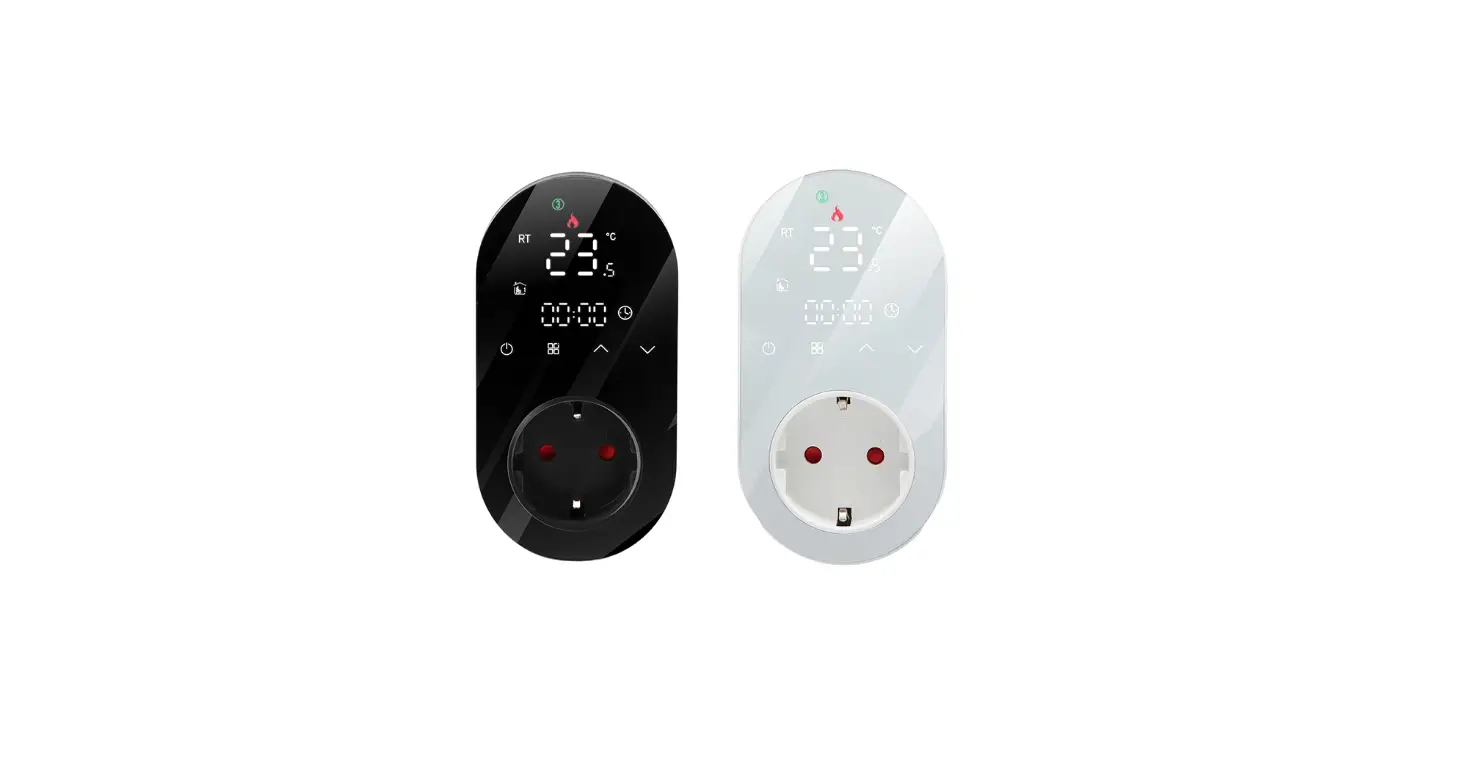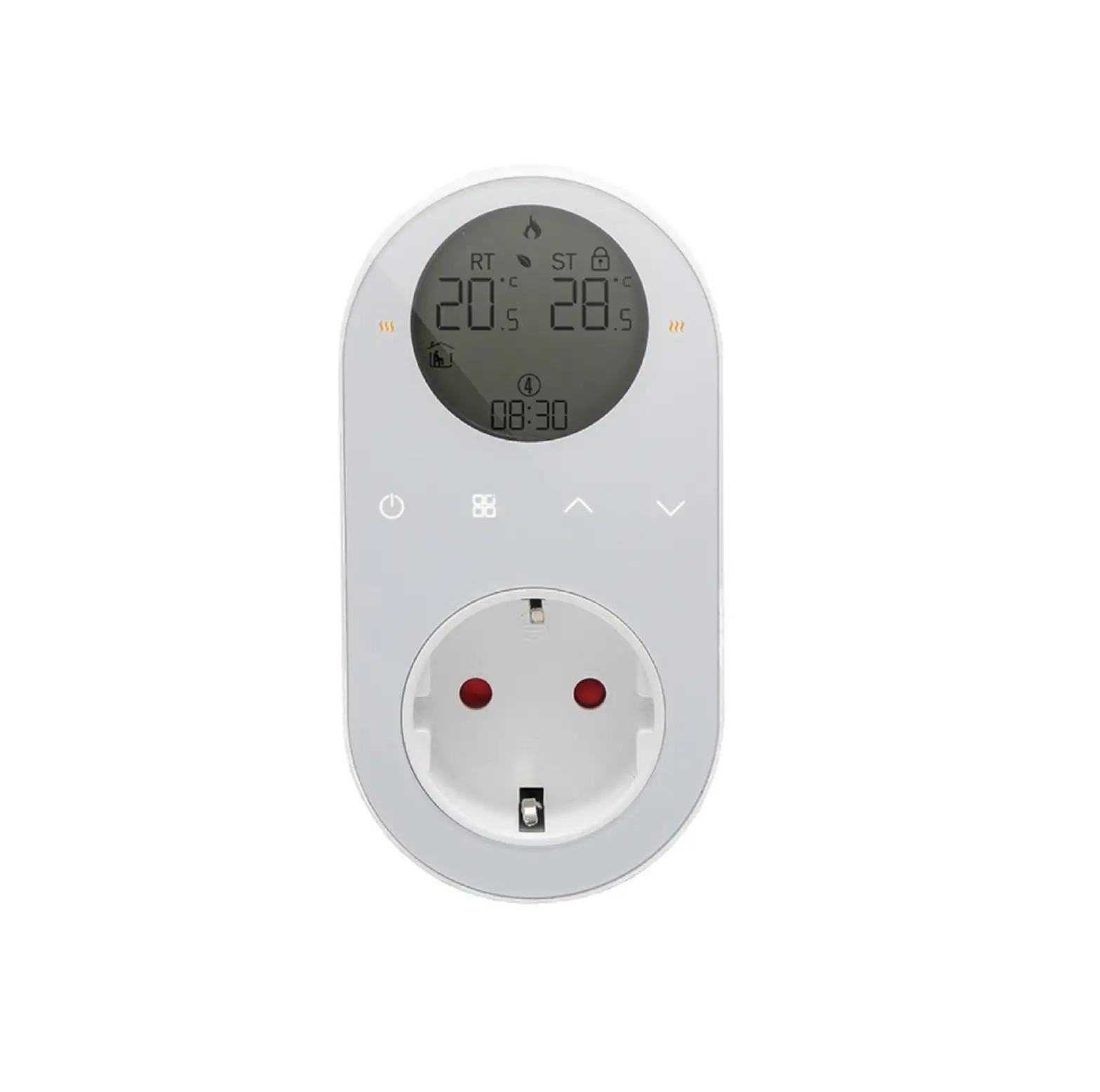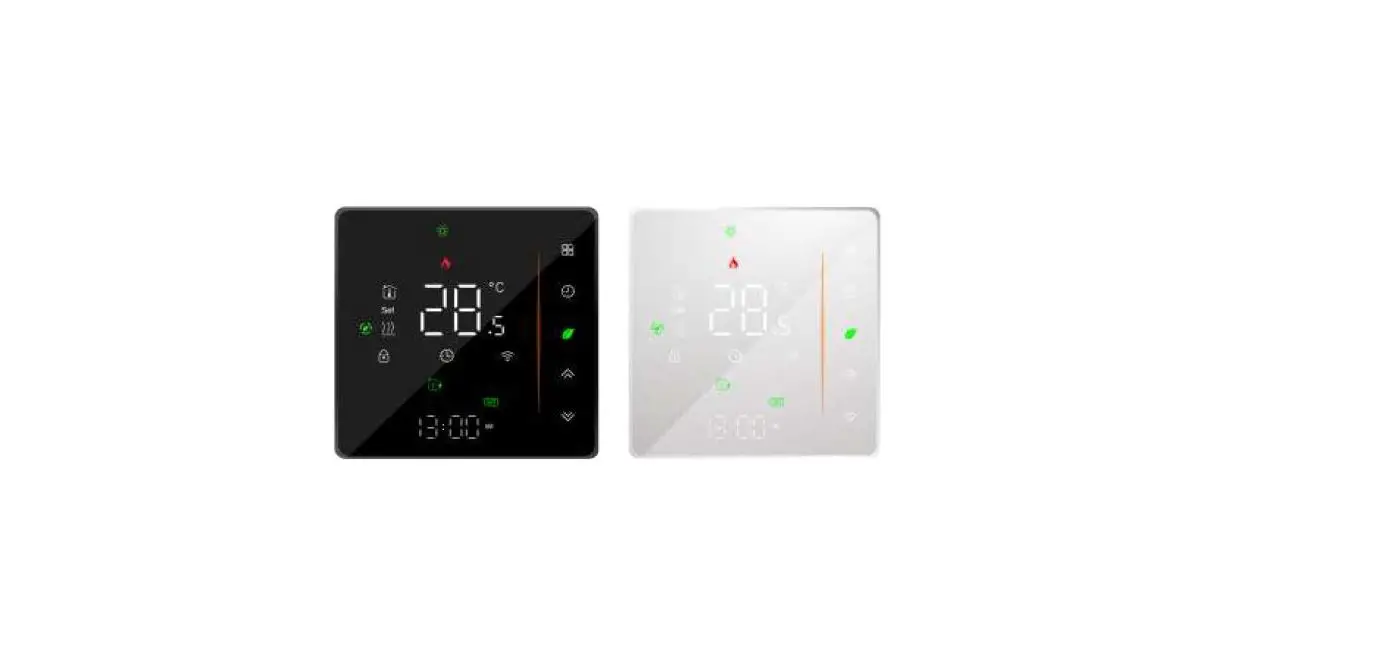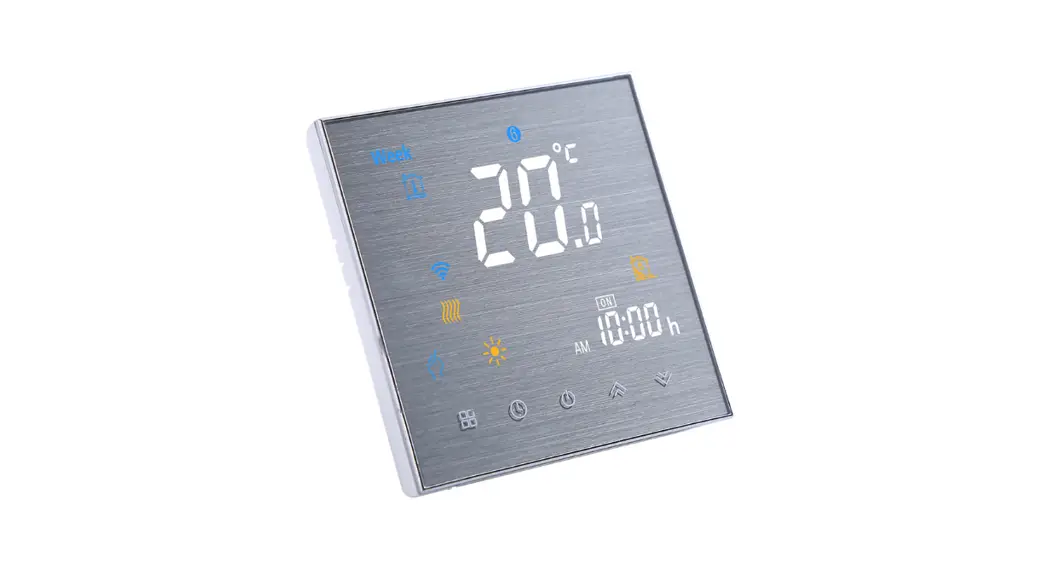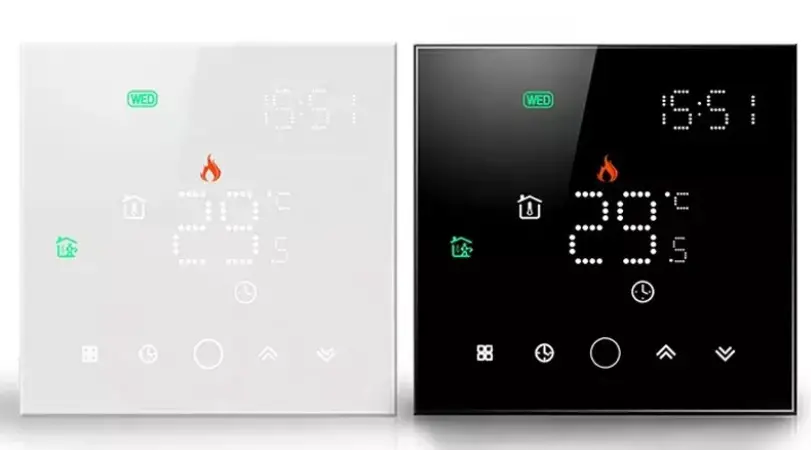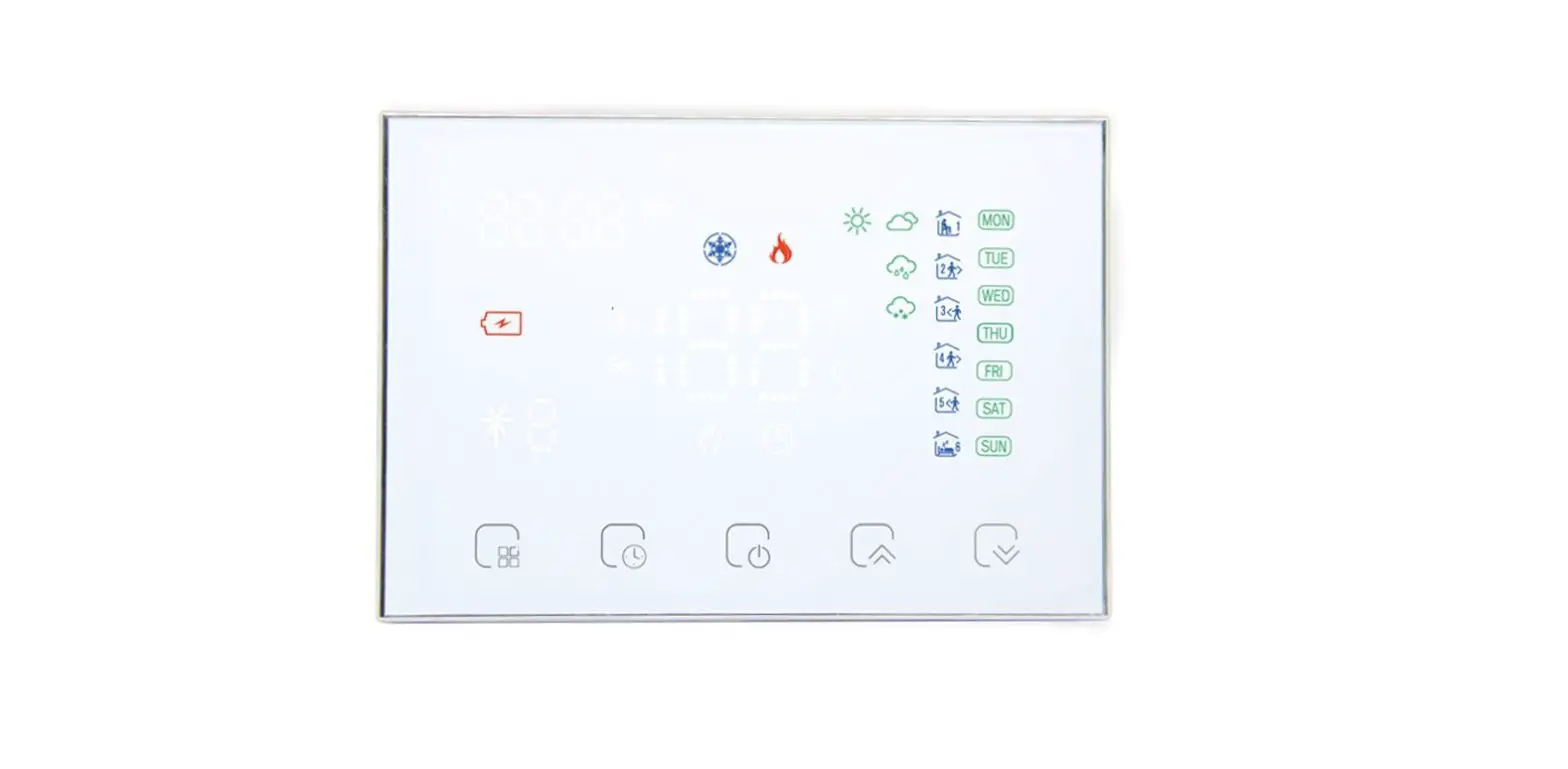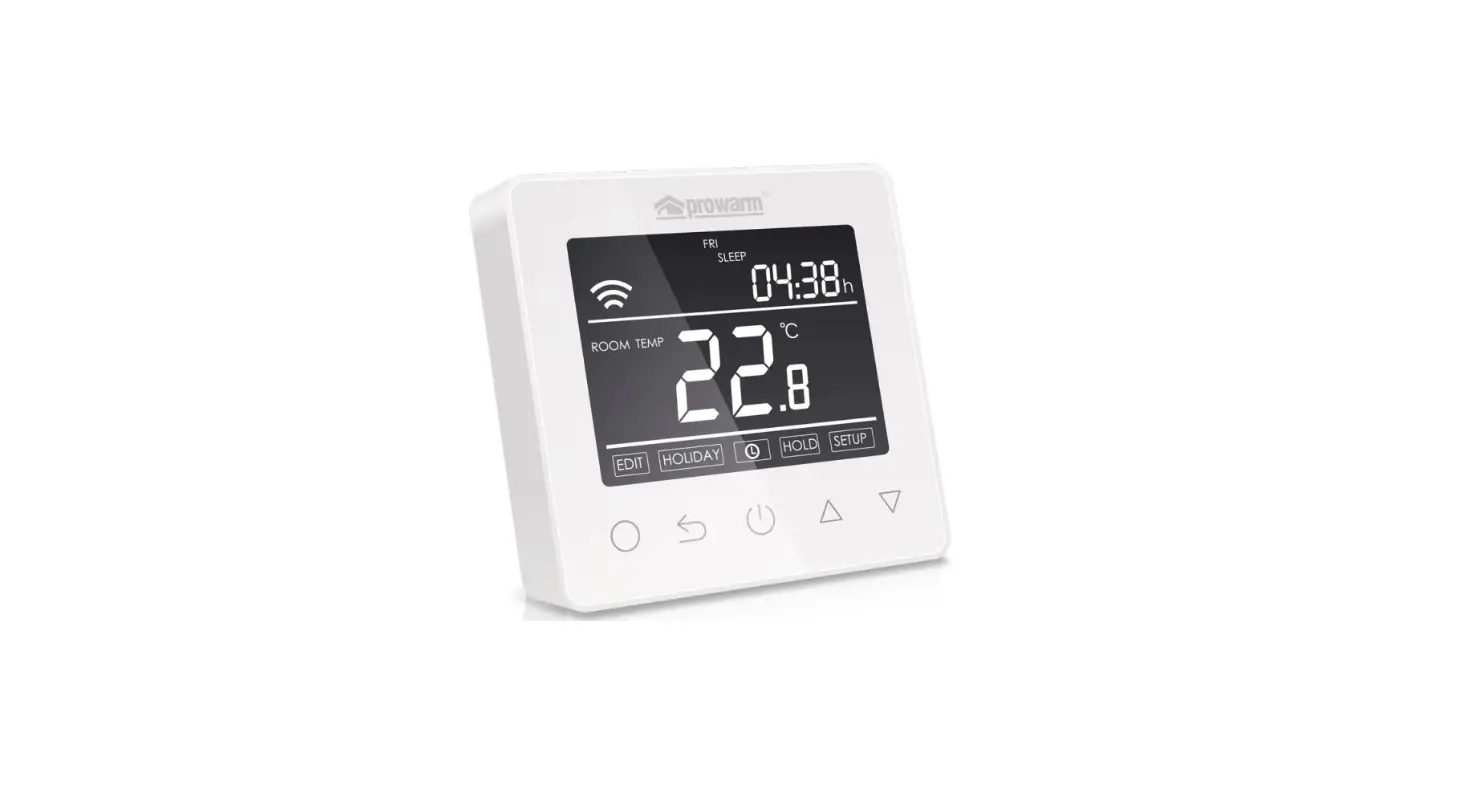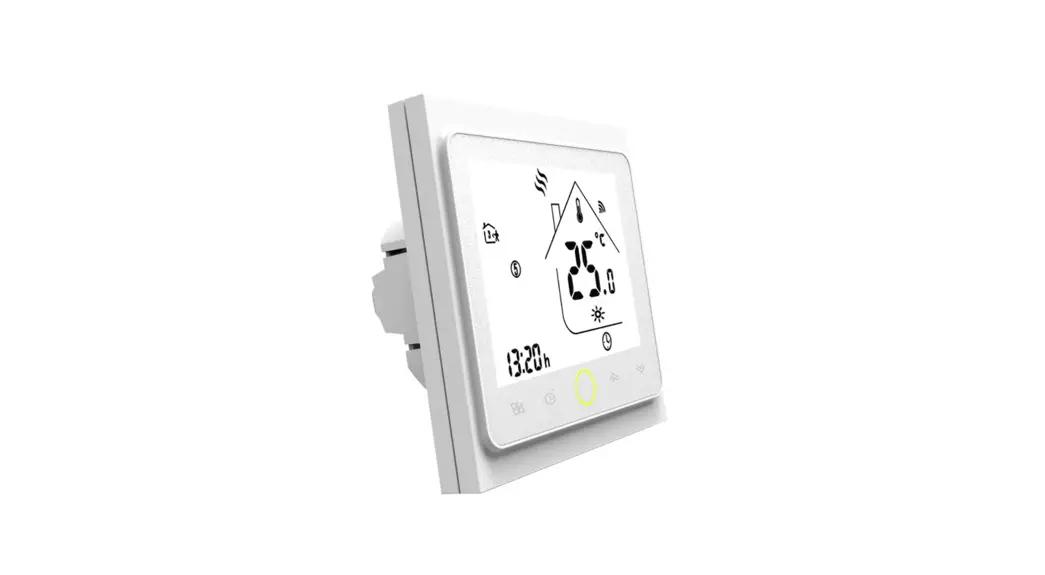
 EU BHT-12 Smart Thermostat
Instruction Manual
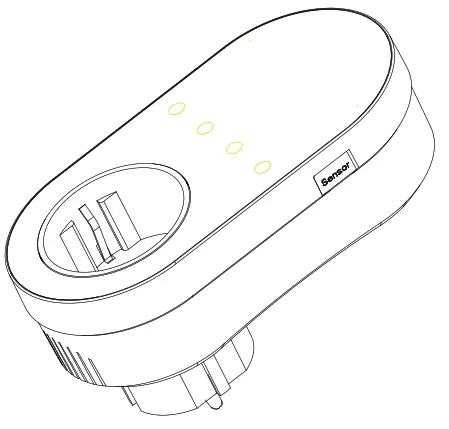
WTP BY EU BHT 12 Smart Thermostat
 Bitte scannen Sie den QR-Code, um das deutsche Handbuch,
 https://drive.google.com/drive/folders/1ATuvkRhOBksKlS4y60Ttefh2gggtHrBh?usp=sharing
Transportation
The products shall be free from severe vibration, impact, exposure to rain, dumping and other problems during transportation, and shall comply with the provisions of the marks on the packing boxes.
Safety Information
- Do not disassemble, reassemble, modify, or attempt to repair the product by yourself.
- This product has no waterproof and dustproof function.
Thank you for purchasing
Thank you for choosing our thermostat. We are committed to bringing together high-end technology, high-quality production technology, safe and reliable materials to produce high-quality and low-cost products.
Please read this manual for comprehensive product information. Also make sure a professional installs the thermostat and follows all your local regulations.
Packing List
Thermostat*1 User Manual*1 QC certificate*1
External Sensor 2.5m ( optional)*1
About Your Thermostat
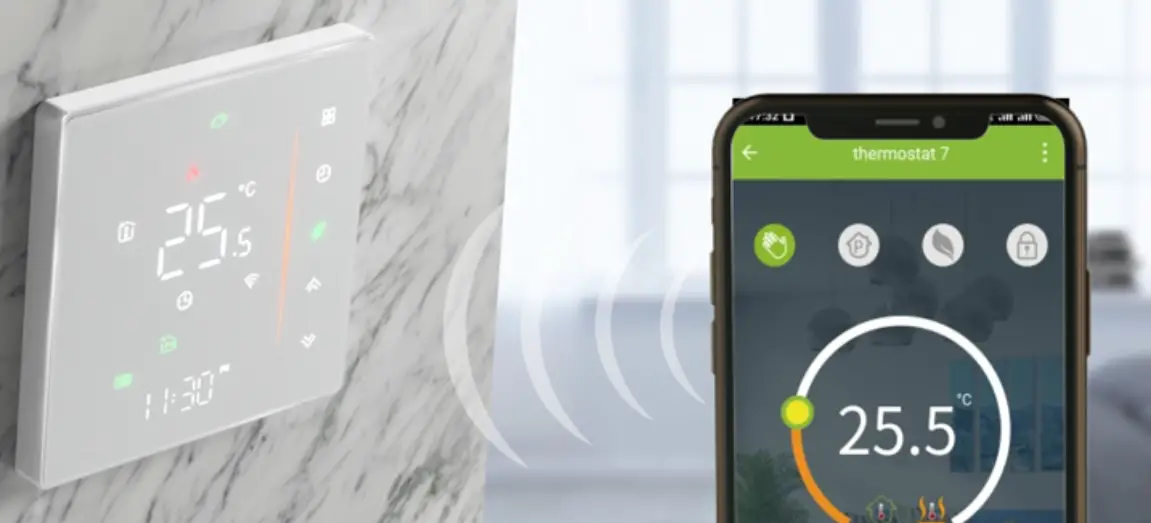
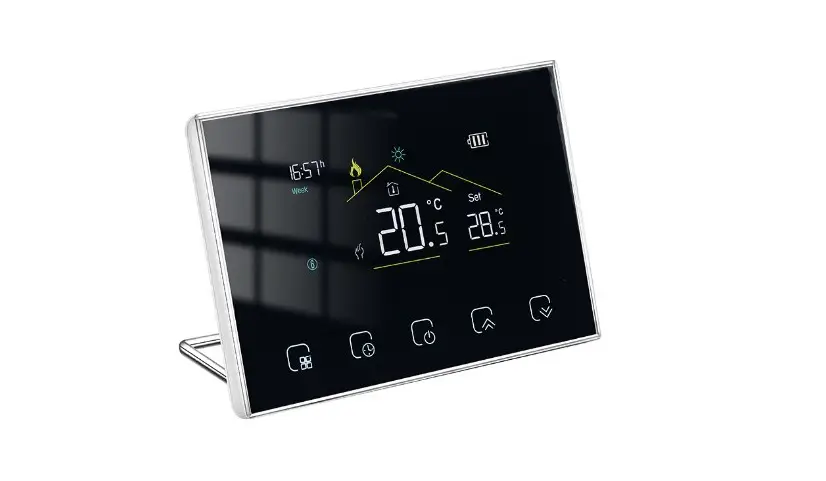
BHT-12 is suitable for electric heating radiator, electric cooling and temperature control system.It can be used in smart homes, shopping malls, and industrial places.
Before use, please confirm that this product is compatible with your temperature control equipment.
Appearance Features
- Small size: small and flexible, can be installed without a large space;
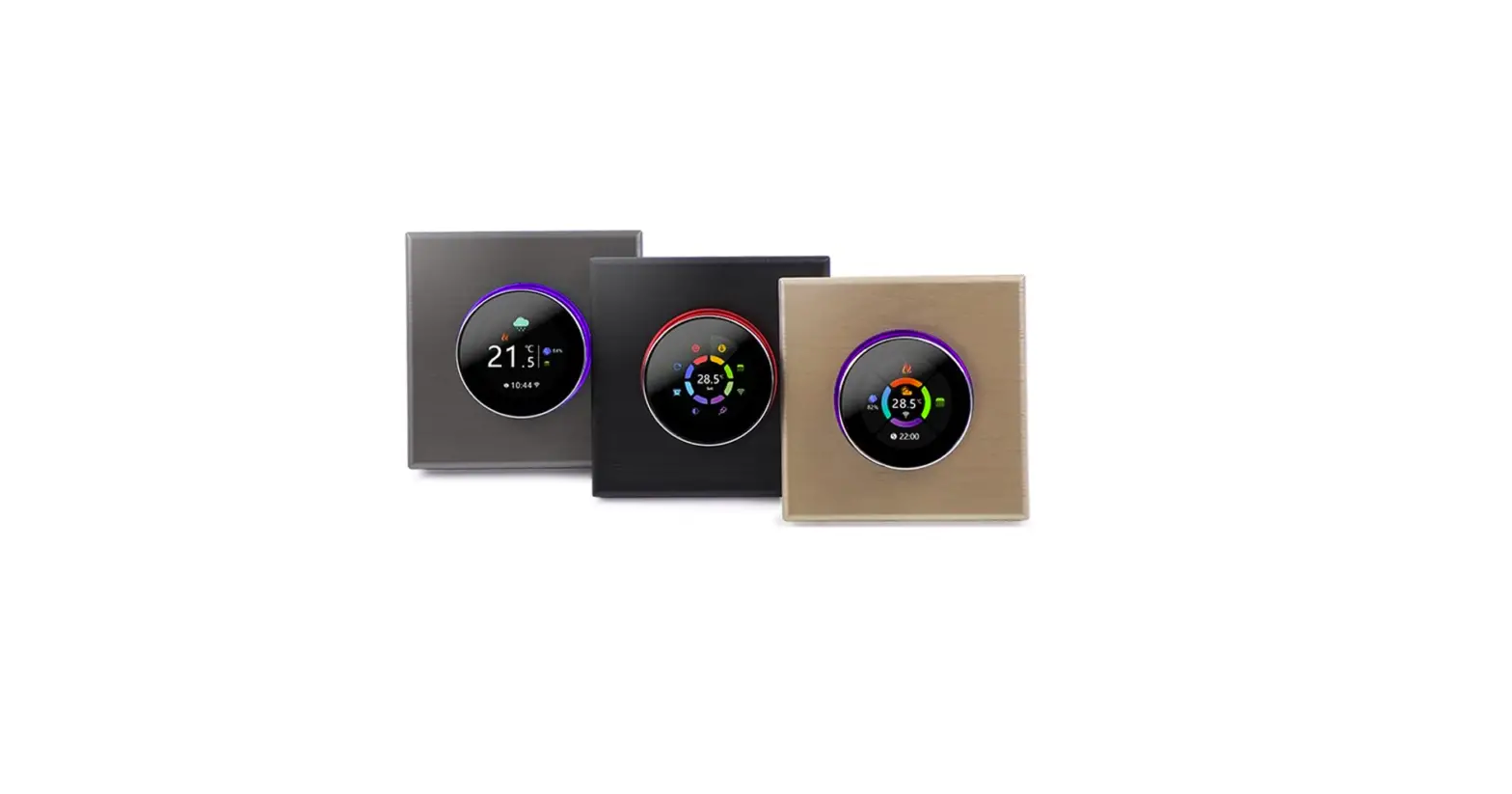
- Classic color matching: pearl white, midnight black, into a variety of decoration styles;
- Warm hand feel: curved body, chamfer transition, no hand cutting;
Function Features
- Touch buttons: no need to worry about the buttons being stuck and not rebounding;
- Heat and cool dual mode: heating and cooling, one device, two control modes;
- Internal and external dual seniors; default built-in sensor, optional external sensor;
- Heating indication: two working indicator lights on the left and right, know its working status without coming close;
- Dual temperature systems: support Celsius-℃ and Fahrenheit-℉switching;
- Various plugs: optional plugs of various specifications, British standard, European standard, American standard, Australian standard, and national standard are optional;
- Convenient control: The advanced options of the thermostat can be set in the APP, which is more convenient.
- Intelligent voice: connected to Tmall Genie, Alexa, Google Assistant, Xiaodu, Yandex, voice control, which frees hands;
- APP control: The APP supports ios/android system, and the temperature is updated in real time; automatically obtains the temperature and humidity, PM2.5 of the local area, and creates intelligent scenes. It has supported all regions and languages at home and abroad, and the service is more comprehensive.
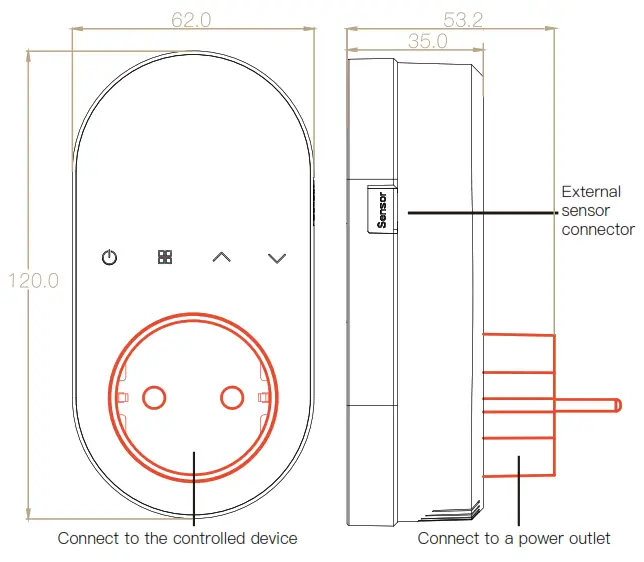
Dimensions and installation instructions
Dimensions: millimeters (mm)
Precautions Before Installation
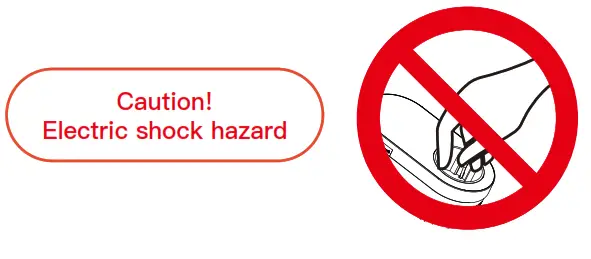
- Before installation, please confirm that the plug type of this product is suitable for your local standard and heating equipment;
- Please contact the after-sales service for equipment failure, please do not try to repair it by yourself;
- After the installation, please refer to this manual to check again to ensure normal safety
Product Parameters
Voltage: 95~220V, 50~60Hz
Maximum load: 16A
Temperature sensing element: NTC10K
Temperature control accuracy: ±0.5℃
Temperature control range: 5 – 90°C, can be changed in advanced options
Shell material: PC+ABS (flame retardant)
Working environment: 0 – 45℃, 5 -95%RH (no condensation)
Storage temperature: -5 – 55℃
Protection class: IP20
Display temperature range: 5~99℃
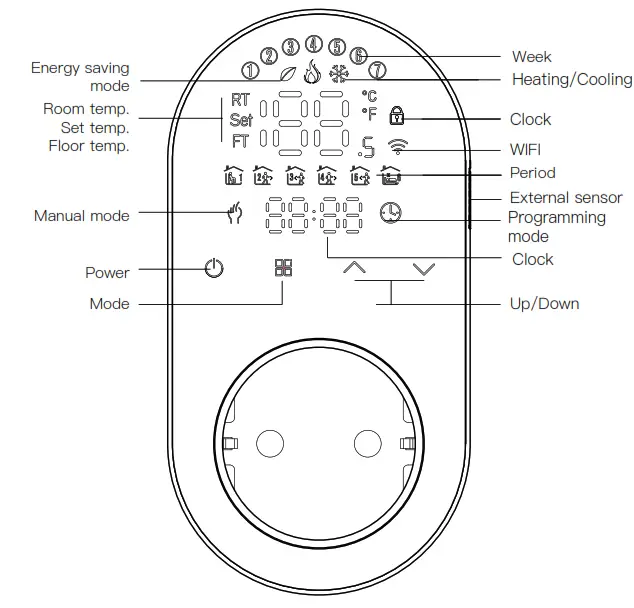
Product UI
Manipulation Instructions
- Power:
 Press to turn the thermostat on/off.
 - Cooling / Heating mode: This thermostat supports cooling or heating mode, which can be selected and switched in the APP, or refer to “Advanced Options Settings”.
- Manual/Programming/Temporary Manual/Holiday Mode: Press
 in the APP or on the control panel of the thermostat to switch between Manual/Programming/Holiday mode. Depending on the mode,the corresponding icon will be displayed at the top of the screen.
Manual Mode : In this mode, the thermostat controls the device according to the manually set temperature.
Programming Mode: In this mode, the screen displays the current programming cycle the thermostat is in, and the thermostat controls
the device according to the weekly programming schedule. Please refer to point 7 for timetable setting.
Temporary manual mode: In the programming mode, manually adjust the temperature and enter the temporary manual mode. At this time, the screen display icon “ ” will flash, and the thermostat will execute the current set temperature at this time, and the temperature will restore during next weekly programming cycle.
Holiday Mod: In this mode, the screen will display the icons ” ” and “ “, and the thermostat will maintain a fixed temperature until the holiday is over. Lasting days of holiday Mode can be set in the APP or Or long press ”  ” to enter the clock setting, then press ” ” 4 times to enter the holiday mode day setting, the test screen “RT” will flash.
 - Temperature setting: Press “” to set the target temperature.
- Time setting: The Wifi version will automatically synchronize the time after connecting to the network. Or long press ” ” to enter the time setting, and press ” ” to adjust the value, respectively set up for minutes, hours, and days of the week (“①” at the top of the screen means Monday, “②” means Tuesday, and so on) . After the adjustment is completed, press “ ” to exit the time setting.
- Child lock : Press and hold at the same time for 5 seconds, the thermostat will enter the child lock mode. You can also set full lock and half lock in advanced options, please refer to the description of advanced options below.
- 5+1+1 programming mode setting: wifi version can be set in APP. In the non-wifi version, long press ” ” to enter the clock setting, and then press ” ” 4 times to enter the programming mode setting. At this time, the screen displays (①②③④⑤), the minute of the time flashes, and the cycle is 1 ” “. Then press ” ” to select and set the hour, temperature and cycle. Press to adjust the corresponding value. After completing the setting, you need to shut down once to store the data in the thermostat.
Default settings for program scheduleTime display MON. -FRI. (②③④⑤) shows on screen) SAT.(⑥shows on screen) 8:0011:30 SUN. (⑦Show’s on screen) TIME TEMP. ON TIME TEMP. ON TIME TEMP. Period 1 6:00-8:00 20 6:00-8:00 20 6:00-8:00 20 Period 2 8:00-11:30 15 8:00-11:30 20 8:00-11:30 20 Period 3 11:30 1 3:00 15 11:3013:00 20 11:3013:00 20 Period 4 13:3017:00 15 13:30-17:00 20 13:3017:00 20 Period 5 17:00-22:00 22 17:00-22:00 20 17:00-22:00 20 Period 6 22:00-6:00 15 22:00-6:00 15 22:00-6:00 15 - External sensor data query: long press “ ” for 5 seconds, the screen will display the temperature of the sensor data. If no external sensor is connected, “err” will be displayed
Advanced Options Settings
In the power-off state, long press “ ” for 5 seconds to enter the advanced options settings. Press “ ” to select a function, and press “ ” to adjust the corresponding code. All advanced options settings will take effect automatically after restarting the thermostat.
 Press to turn the thermostat on/off.
 in the APP or on the control panel of the thermostat to switch between Manual/Programming/Holiday mode. Depending on the mode,the corresponding icon will be displayed at the top of the screen.
 : In this mode, the thermostat controls the device according to the manually set temperature.
 In this mode, the screen displays the current programming cycle the thermostat is in, and the thermostat controls
 ” to enter the clock setting, then press ”
 | Code | Function | Setting and options | Default |
| 1 | Temperature compensation | -9 to 9 C | -3 |
| 2 | Deadzone Temp. | I St | 1 |
| 3 | Sutton Locking | 01:All buttons are locked except power button. 01:All buttons are locked. | 01 |
| 4 | Sensor type | In: Internal Sensor(to control the temp.) Ou: External Sensor (to control the temp.) AL: Internal External Sensor (Internal sensor to control the temp., external sensor to limit the terra) | |
| 5 | Min.Set Temp. | 5-15t | |
| 6 | Max.Set Terra | 15-45t | |
| 7 | Temperature display | 00: Display the room temperature and the set temperature. press the up and down keys to display the set temperature 01: Only display the set temperature | S |
| a | Low temp. protection setting. | 0-1 ot | 0 |
| 9 | High temp. protection setting. | 25-70t | 50 |
| 10 | Energy saving Mode | 00:CFF 01:0N | 00 |
| 11 | Cool Energy saving Temp. | 10-50t | 20 |
| 12 | Heat Energy saying Temp. | 10-60t | |
| 13 | Cool/Heat | 0: Cool Mode 0 1: Heat Mode | |
| 14 | t/’F | 0: Degree Celsius t 1: Fahrenheit *F | 03 |
| 15 | Screen brightness when no operation | 0-8, when set to 0, after 10 seconds of no operation, the screen will turn off, press the up and down keys to wake up | 1 |
| 16 | Reset | 00: No factory reset; 01: Factory reset | 00 |
| 17 | Version number | U1 |
Preparation for use
- Download MOES App on App store or scan the QR code.
 https://drive.google.com/drive/folders/1ATuvkRhOBksKlS4y60Ttefh2gggtHrBh?usp=sharing
 - Registration or Log in.
 • Download “MOES” Application.
• Enter the Register/Login interface; tap “Register” to create an account by entering your phone number to get verification code and “Set password”. Choose “Log in” if you already have a MOES account.

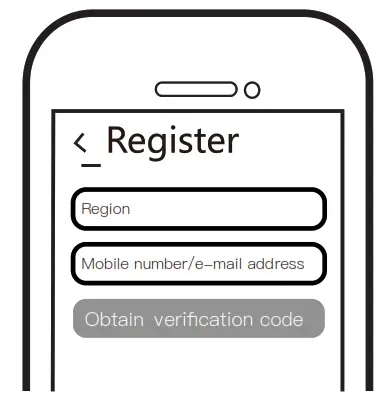 • Download “MOES” Application.
Steps for connecting the APP to the device
Method One:
- Make sure your phone is connected to Wi-Fi and Bluetooth.

- Scan the QR code to configure the network guide.

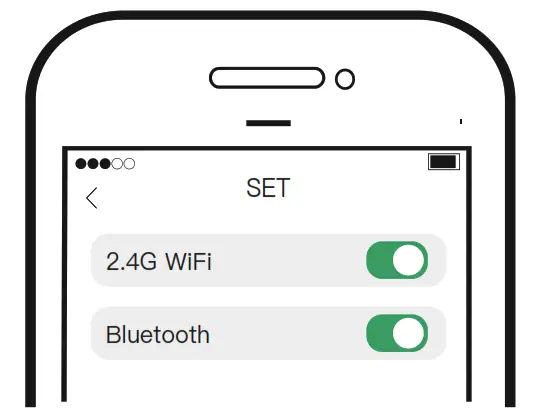
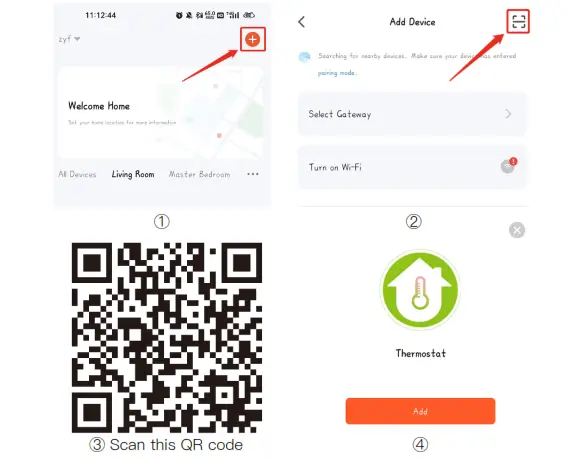
Steps for connecting the APP to the device
Method Two:
- Make sure your phone is connected to Wi-Fi and Bluetooth.

- Reset: When the thermostat is off, press and hold the “
 “until the thermostat screen flashes quickly and displays the ” ” icon.
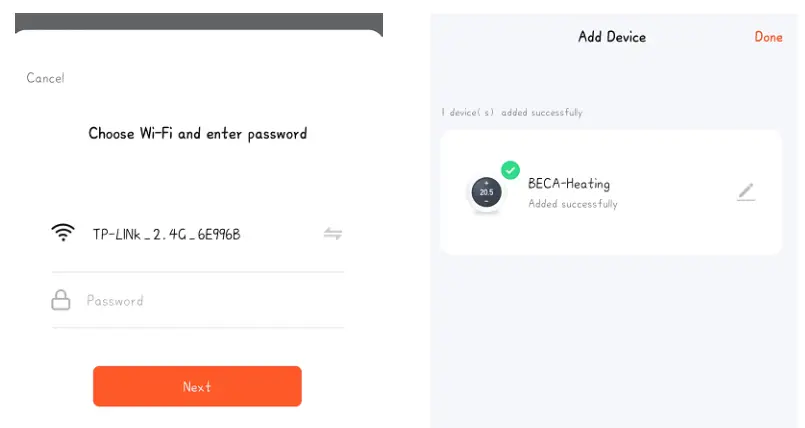
 - Open MOES App,then the prompt page will automatically show on the screen. Click “Add”, Select the device you want to add and click “+”.

- Enter Wi-Fi Password and click “Next”, waiting for completing the connection. Add the device successfully, you can edit the name of the device to enter the device page by click “Done” .

- enjoy your smart life with home automation.
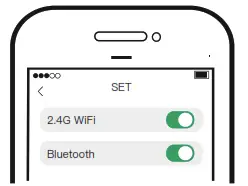
 “until the thermostat screen flashes quickly and displays the ”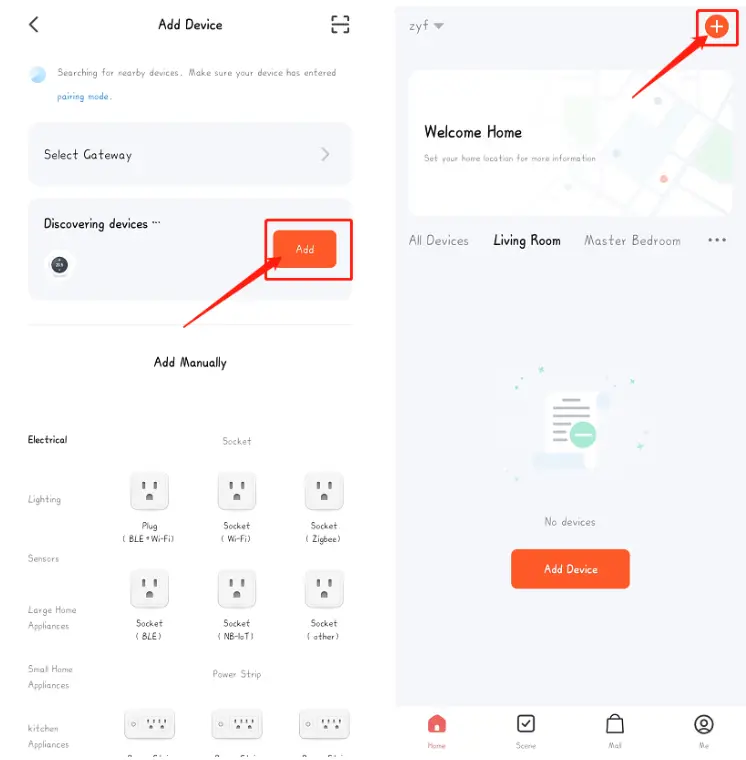
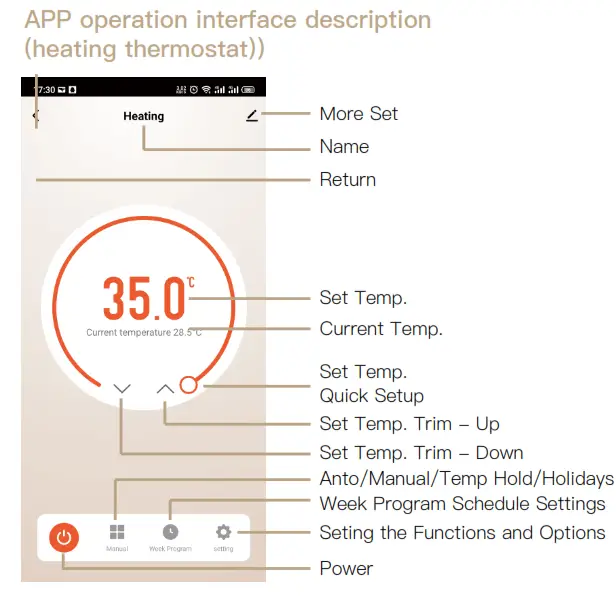
APP operation interface description
(heating thermostat))
Simplement Exception Handling
| No. | Phenomenons | Handling |
| 1 | Power is on but without display. | * Check if the terminals between LCD panel and Power Unit Box is loosen. |
| 2 | Without output but display works. | * Use a new LCD panel or new Power Unit Box to replace the old one. |
| 3 | Room Temp. Is a little different from the actua | *Do temperature calibration in item 1 of high senior options |
SERVICE
- During the free warranty period, if the product breaks down during normal use, we will offer free maintenance for the product.
- Natural disasters/man-made equipment failures, disassembly and repair without the permission of our company, no warranty card, products beyond the free warranty period, etc., are not within the scope of free warranty.
- Any commitment (oral or written) made by the third party (including the dealer/service provider) to the user beyond the warranty scope shall be executed by the third party.
- Please keep this warranty card to ensure your rights.
- Our company may update or change the products without notice. Please refer to the official website for the updates.
RECYCLING INFORMATION All products marked with the symbol for separate collection of waste electrical and electronic equipment (WEEE Directive 2012/19 / EU) must be disposed of separately from unsorted municipal waste. To protect your health and the environment, this equipment must be disposed of at designated collection points for electrical and electronic equipment designated by the government or local authorities. Correct disposal and recycling will help prevent potential negative consequences for the environment and human health. To find out where these collection points are and how they work, contact the installer or your local authority.
WARRANTY CARD
Product Information
Product Name________________________________________
Product Type_________________________________________
Purchase Date________________________________________
Warranty Period______________________________________
Dealer Information____________________________________
Customer’s Name____________________________________
Customer Phone____________________________________
Customer Address___________________________________
Maintenance Records
| Failure date | Cause Of Issue | Fault Content | Principal |
Thank you for your support and purchase at we Moes, we are always here for your complete satisfaction, just feel free to share your great shopping experience with us.

If you have any other need, please do not hesitate to contact us first, we will try to meet your demand.
Follow US
 | @moessmart |  | @moes_smart |  | MOES.Official |
 | @moes_smart |  | @moes_smart |  | www.moes.net |
WENZHOU NOVA NEW ENERGY CO.,LTD
Address: Power Science and Technology Innovation
Center, NO.238, Wei 11 Road, Yueqing Economic
Development Zone, Yueqing, Zhejiang, China
Tel: +86-577-57186815
Email: [email protected]
 EVATOST CONSULTING LTD
Address: Suite 11, First Floor, Moy Road Business
Centre, Taffs Well, Cardiff, Wales, CF15 7QR
Tel: +44-292-1680945
Email: [email protected] AMZLAB GmbH
Laubenhof 23, 45326 Essen
Made In China
 MOES Smart WiFi ZigBee Smart 2/3 Way Switch Socket Thermostat Sensor