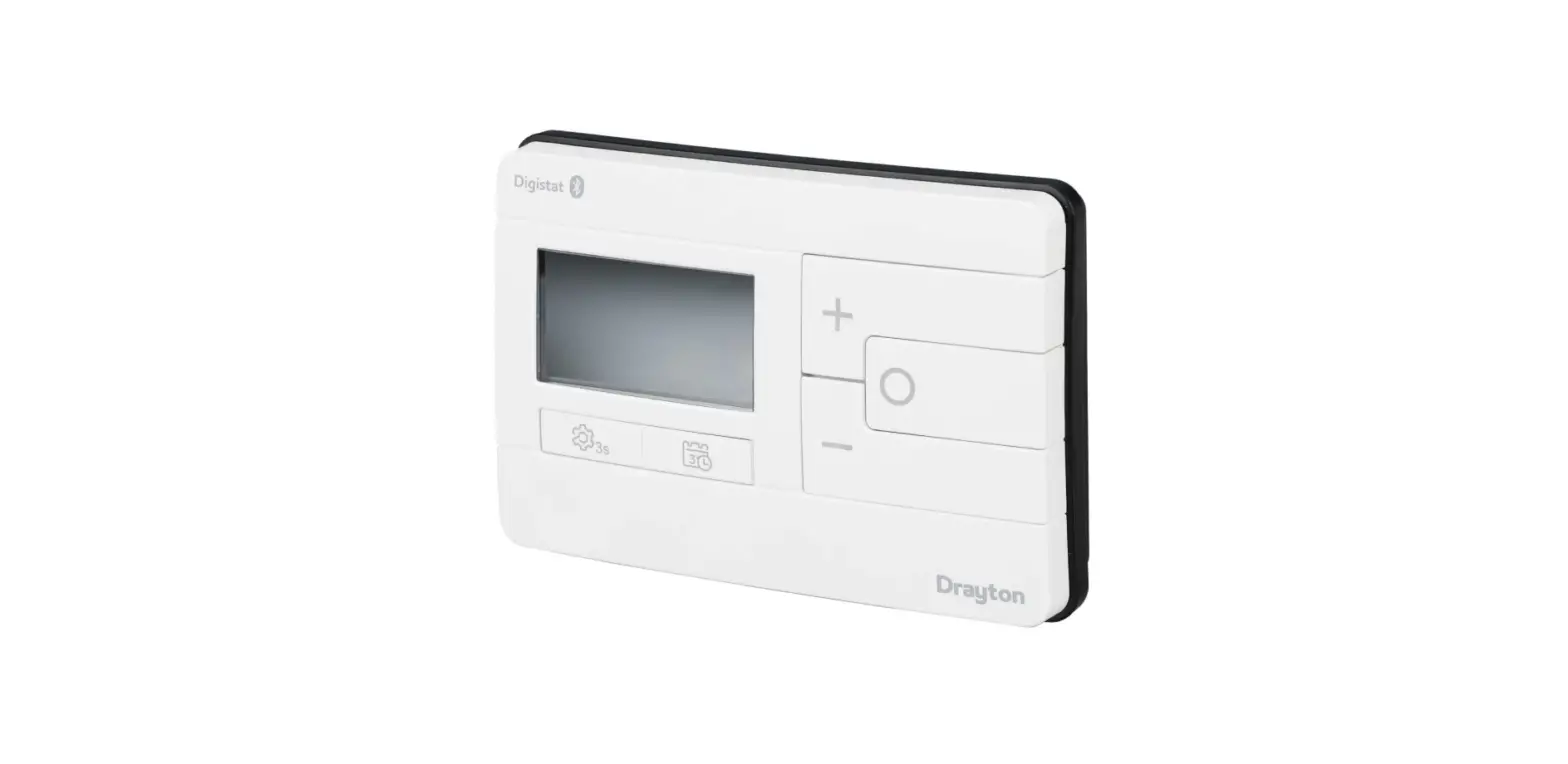
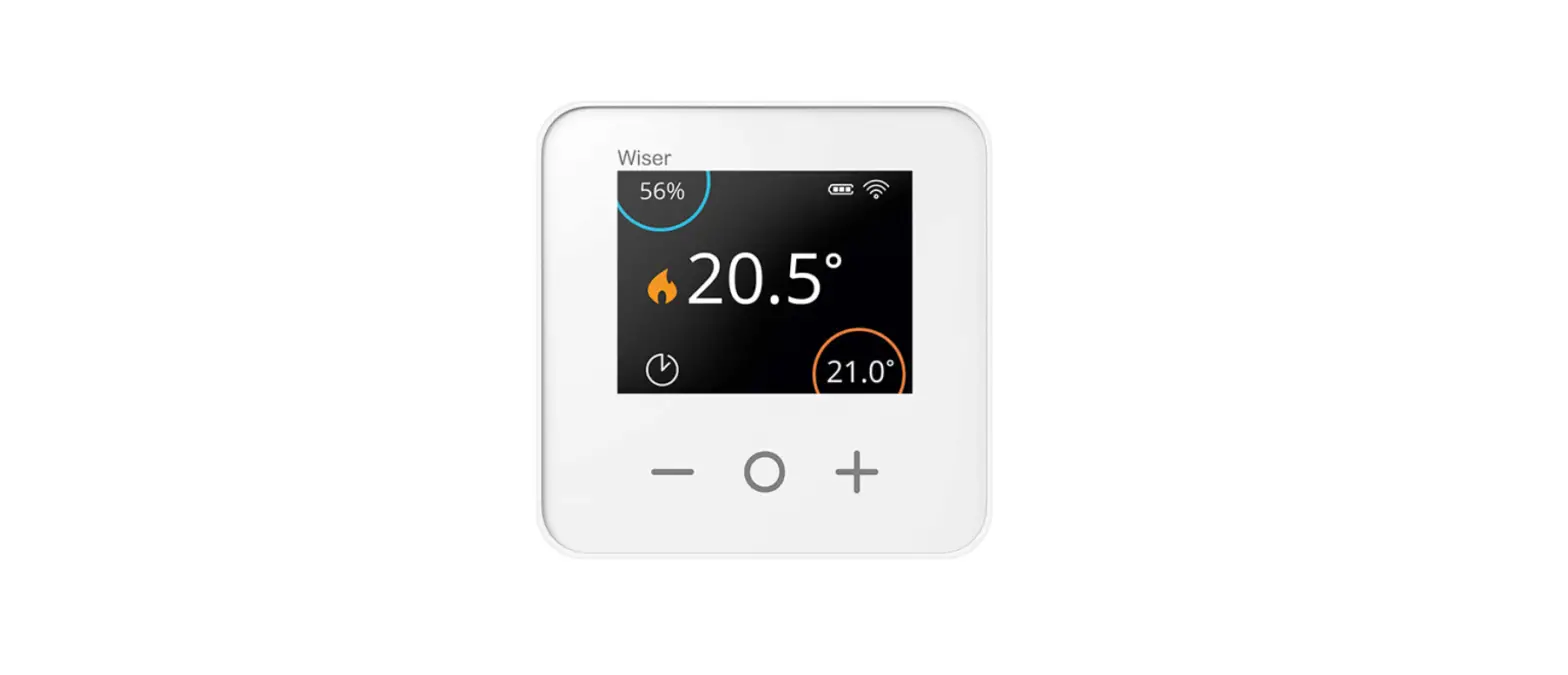
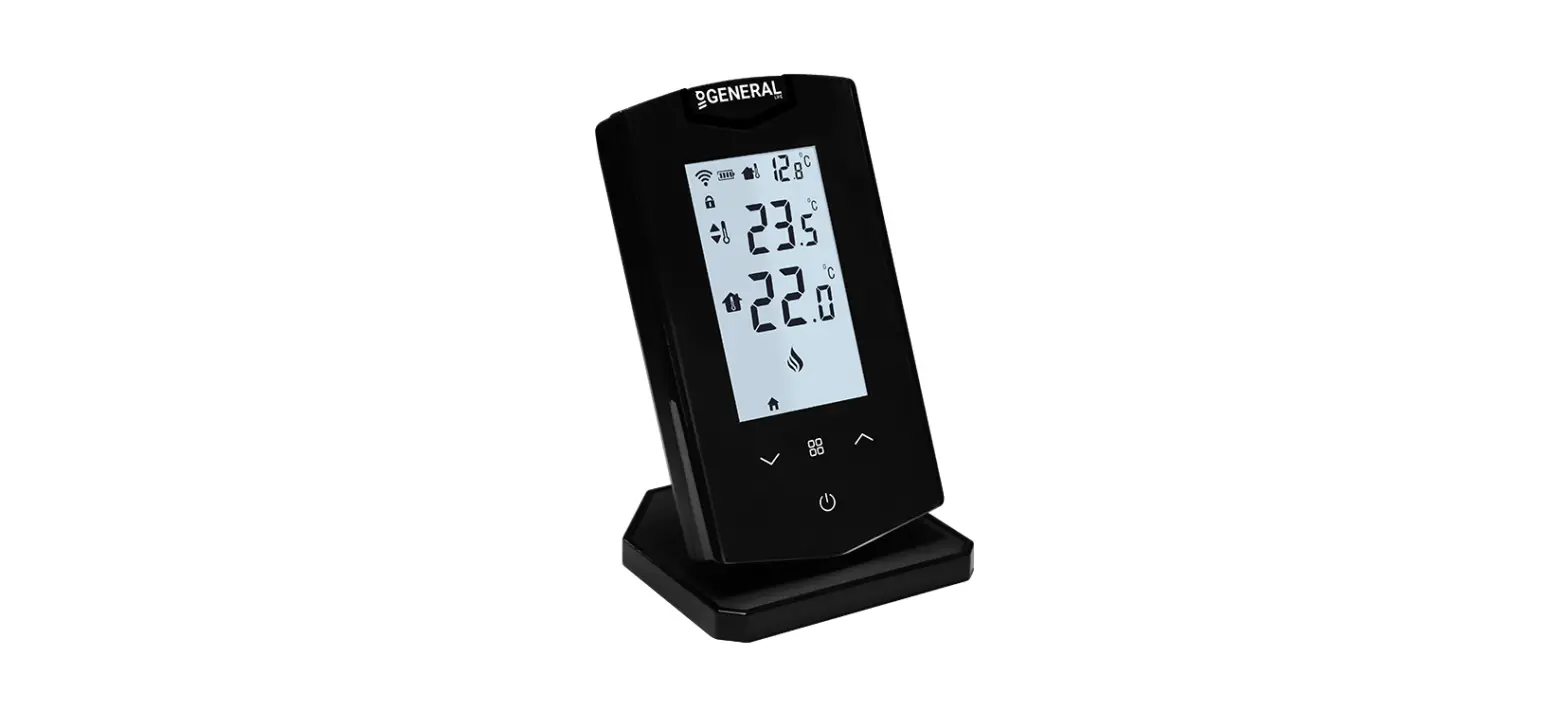
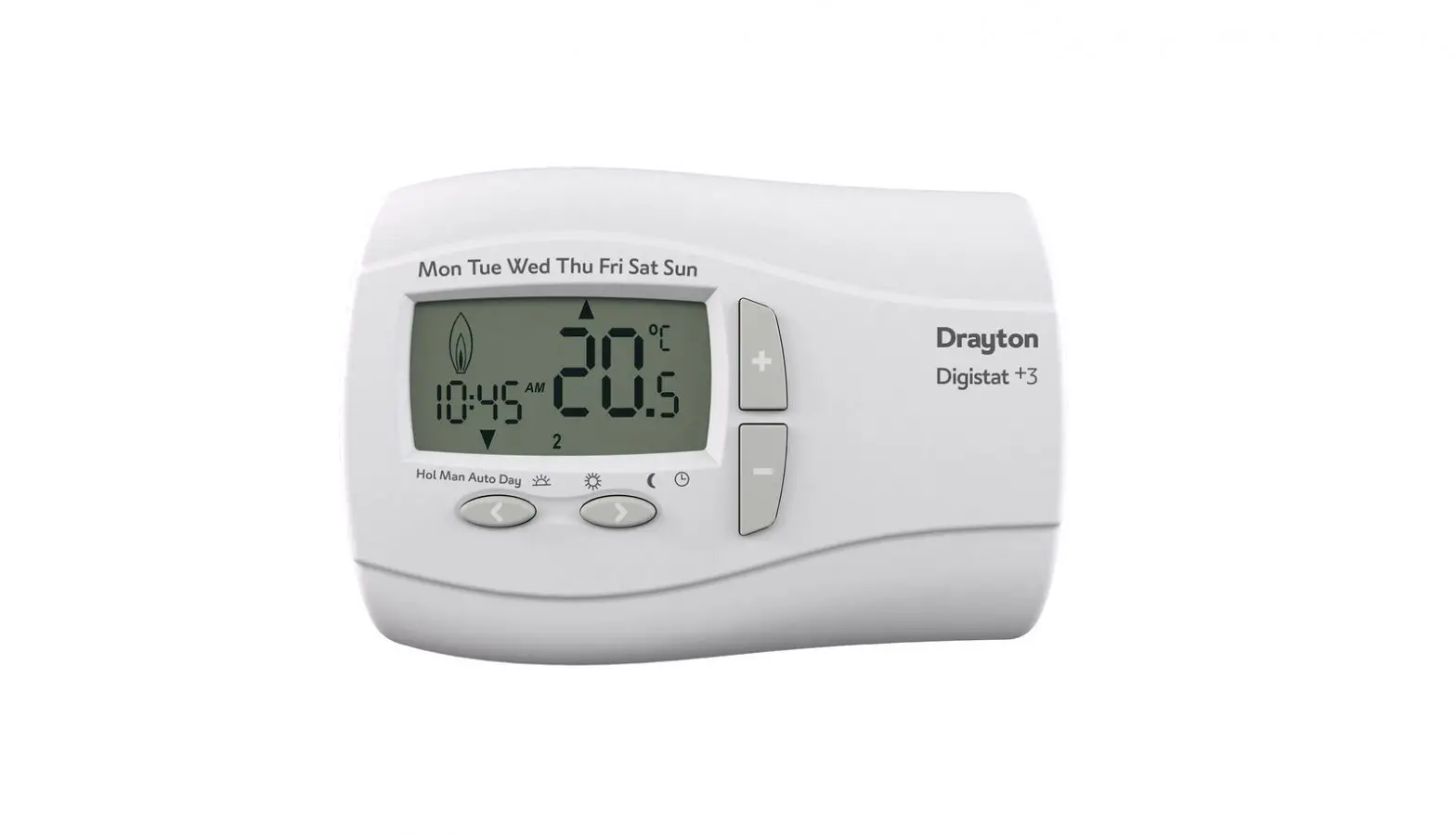
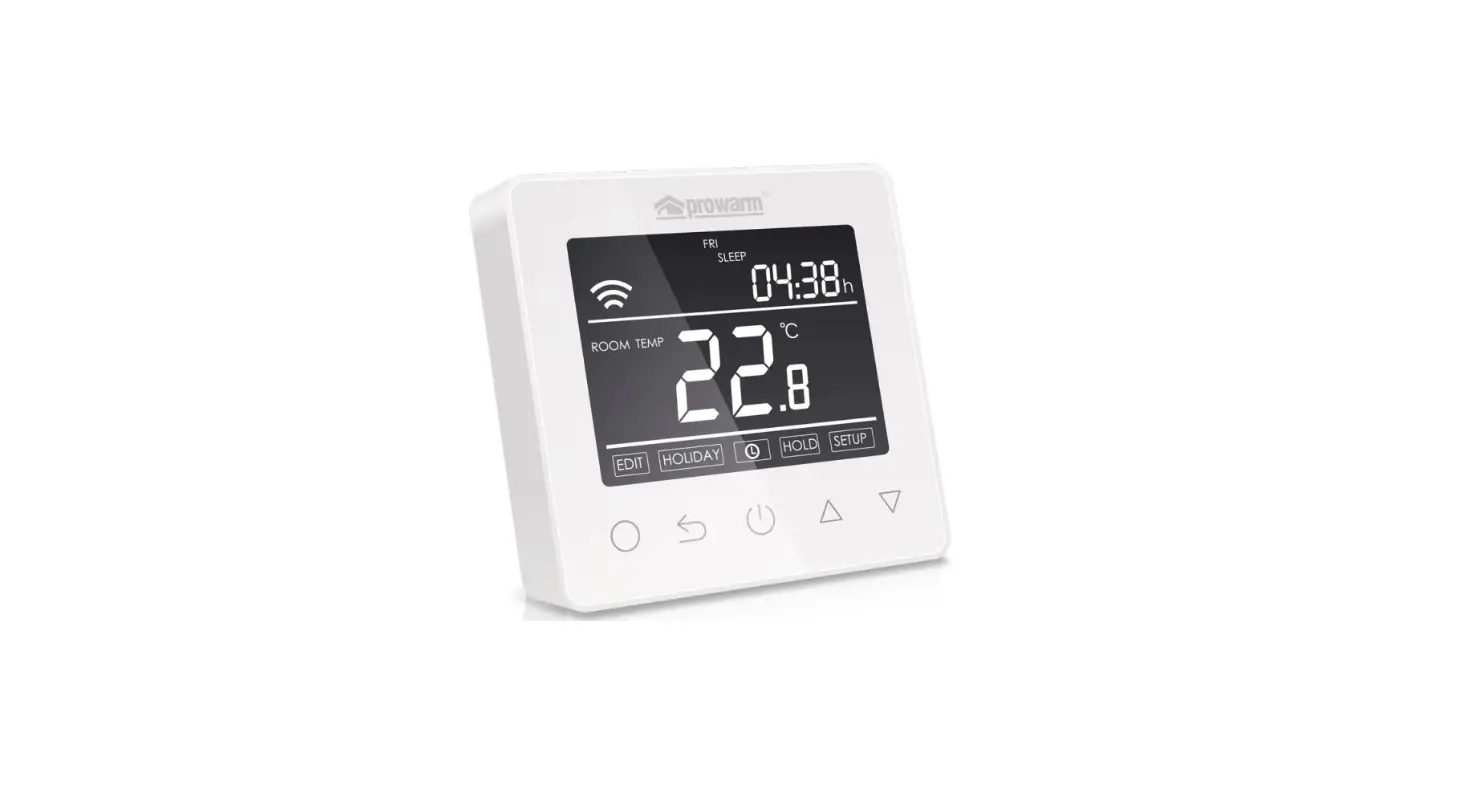
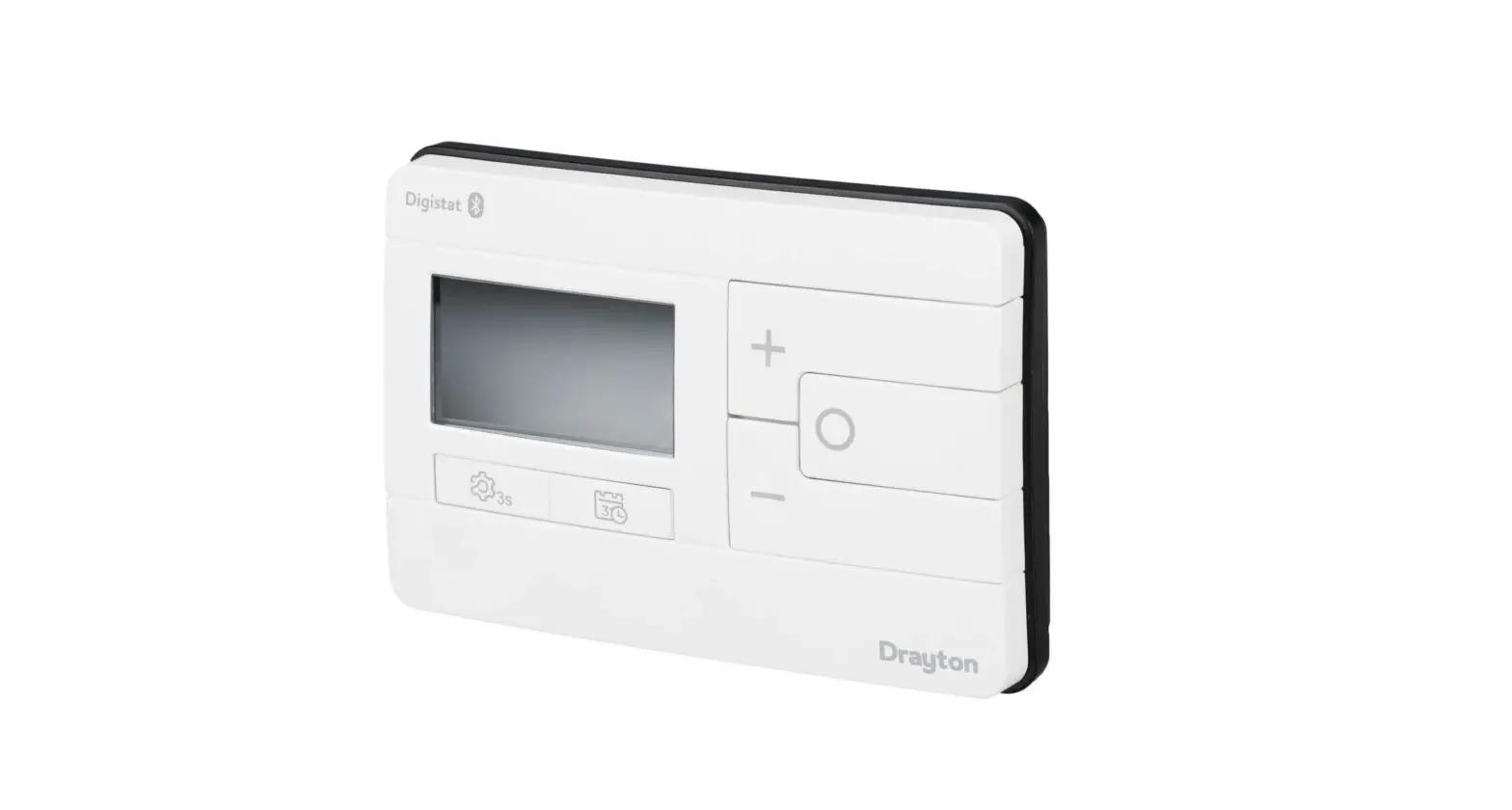
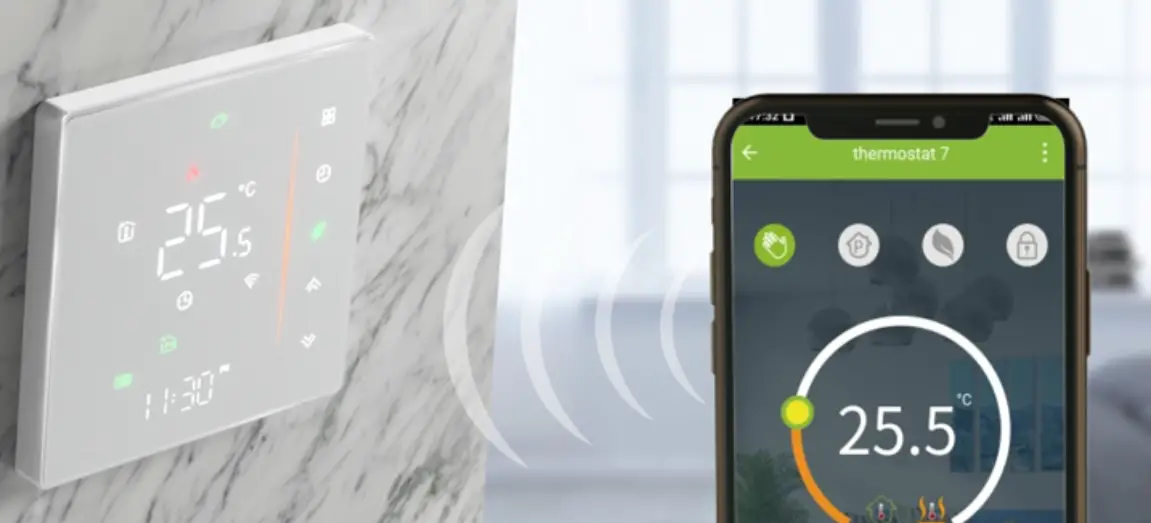
Wiser Smart Room Thermostat
Product Information: Wiser Multi-Zone Heating System
The Wiser Multi-Zone Heating System from Drayton is a
beautifully simple and efficient heating system that allows you to
control the temperature in multiple zones of your home. With the
Wiser app, you can easily manage your heating system and create
schedules for each room fitted with a Wiser device. The system also
provides insights on energy saving, system activity, and heat
report. It offers automation features such as one-time actions,
boost all, cancel all overrides, and access to schedules and away
mode. The Wiser system is designed for optimum efficiency and can
be controlled remotely through the app.
Product Usage Instructions
- Download and open the Wiser Home app from your app store.
- Follow the onscreen instructions in the app to set up your
system. - Connect your phone to the Wiser Hub by following these steps:
- You may see a message saying “No network connection” or
“Network unstable.” This is normal, so proceed with the setup. - Ensure the green light on your Hub is steady, which may take up
to 5 minutes. If it continues to flash or show any other color,
contact Tech Support at 0333 6000622. - Make sure your phone is connected to the same Wi-Fi network
that your Hub is connected to.
- You may see a message saying “No network connection” or
- Create your account in the app.
- Follow the onscreen instructions to complete the setup
process. - You are now successfully connected to the internet and can
start exploring your Wiser system. - To set schedules for each room:
- Select the day you want to set a schedule for.
- Edit the event by tapping on it. You only need to define the
start time; the end time will automatically populate based on the
start of the next event. - Add a new event and define the start time and required
temperature. - You can copy the schedule for a specific day to other selected
days and rooms. - Up to 8 events can be scheduled per day.
- Use the features available in the Wiser app:
- Current room temperature display.
- Insights section provides detailed information on energy
saving, system activity, and heat report. - Automation section offers one-time actions, boost all, cancel
all overrides, and access to schedules and away mode. - Visit wiser.draytoncontrols.co.uk for additional support.
- Rooms & Devices section allows you to view the list of
rooms and devices in your home. - Away Mode enables reduced set points when you’re away from
home. - Smart Modes activate your smart modes for optimum
efficiency.
Introducing Wiser, the beautifully simple multi-zone heating system from Drayton.
Download and open the app by searching Wiser Home then follow the onscreen instructions to help guide you through this set up.
Skip
1. Connect your phone to the Wiser HubR
· Select Get started
· Select the HubR and press Setup on the HubR once
· Navigate to the Wi-Fi settings and select the network called Wiser
(You will see no network connection or network unstable this it perfectly normal and expected)
· Return to the app and your connection is confirmed
2. Connect your Wiser HubR to your Wi-Fi
· Connect to your home Wi-Fi press NEXT
· Select your home Wi-Fi and enter your password then you’re connected
Once connected you will see an “Add Devices” screen. As your devices have already been set up by installer it’s very important to tap SKIP here
!
Before you go any further…
Ensure the green light on your Hub is a steady green which can take up to 5 minutes. After this time, if it continues to flash or show any other colour, please call Tech Support on 0333 6000622
Also ensure your phone is connected to the same Wi-Fi network you just connected your Hub to
3. Create your account
Finally, follow the on-screen instructions:
· Add your name, email address and create a password
· Verify the account from the email you receive
· Return to the app and add your home details
You’re now successfully connected to the internet and you can start to explore your Wiser system.
Schedules
Each room fitted with a Wiser device has its own independent schedule. If your daily routine is similar throughout the week, you can set the schedule for the whole day then use the copy function to replicate across days and rooms. Alternatively a different schedule can be defined for each day, for each room or group of rooms. Up to 8 events can be scheduled per day.
Select the day
Tap here to edit this event. You define the start time only, the end time automatically populates based on the start of the next event.
Add a new event, define the start time and required temperature
Copy this day’s schedule to any selected days and rooms
Feature Overview
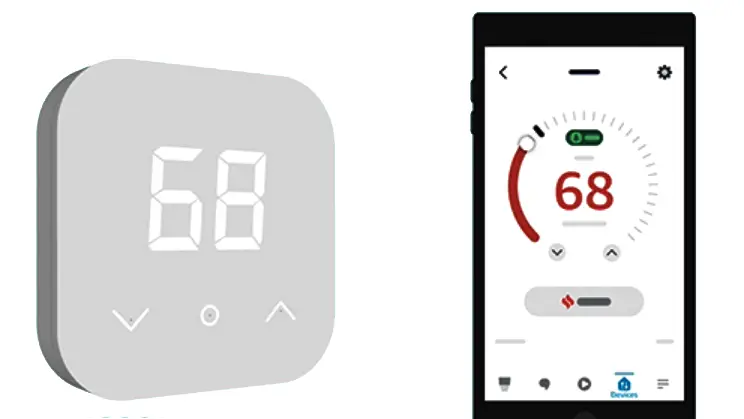
Current room temperature
Boost enables you to temporarily increase the room temperature by 2°C. Choose between 30 mins, 1hr, 2hrs or 3hrs. Boost can be stopped at any time by tapping the boost icon again
Insights shows the detail about energy saving, system activity and Heat Report
Automation shows one-time actions, Boost all, Cancel all overrides plus access to schedules and Away Mode
wiser.draytoncontrols.co.uk
Technical Support 0333 6000 622
Rooms & Devices to view room list and devices around the house
Away Mode enables reduced set points when you’re away from home
Smart Modes activate your smart modes for optimum efficiency
 Smart Heating Controls, Systems & Thermostats | Wiser