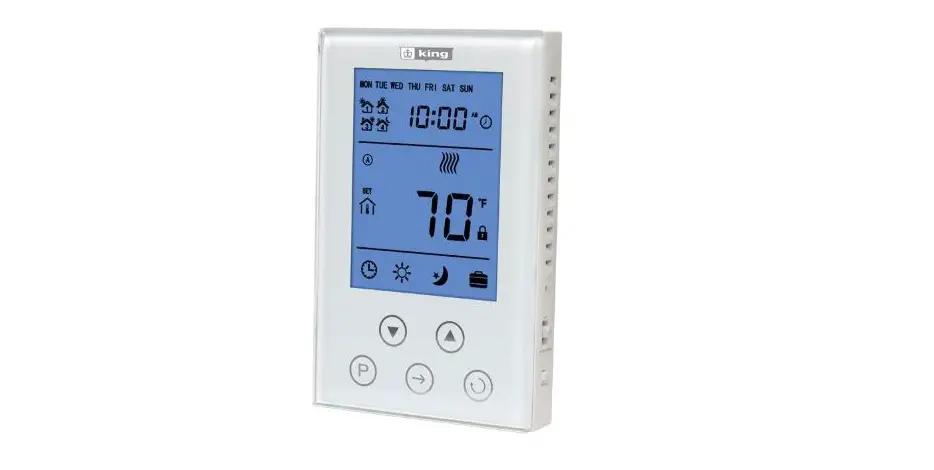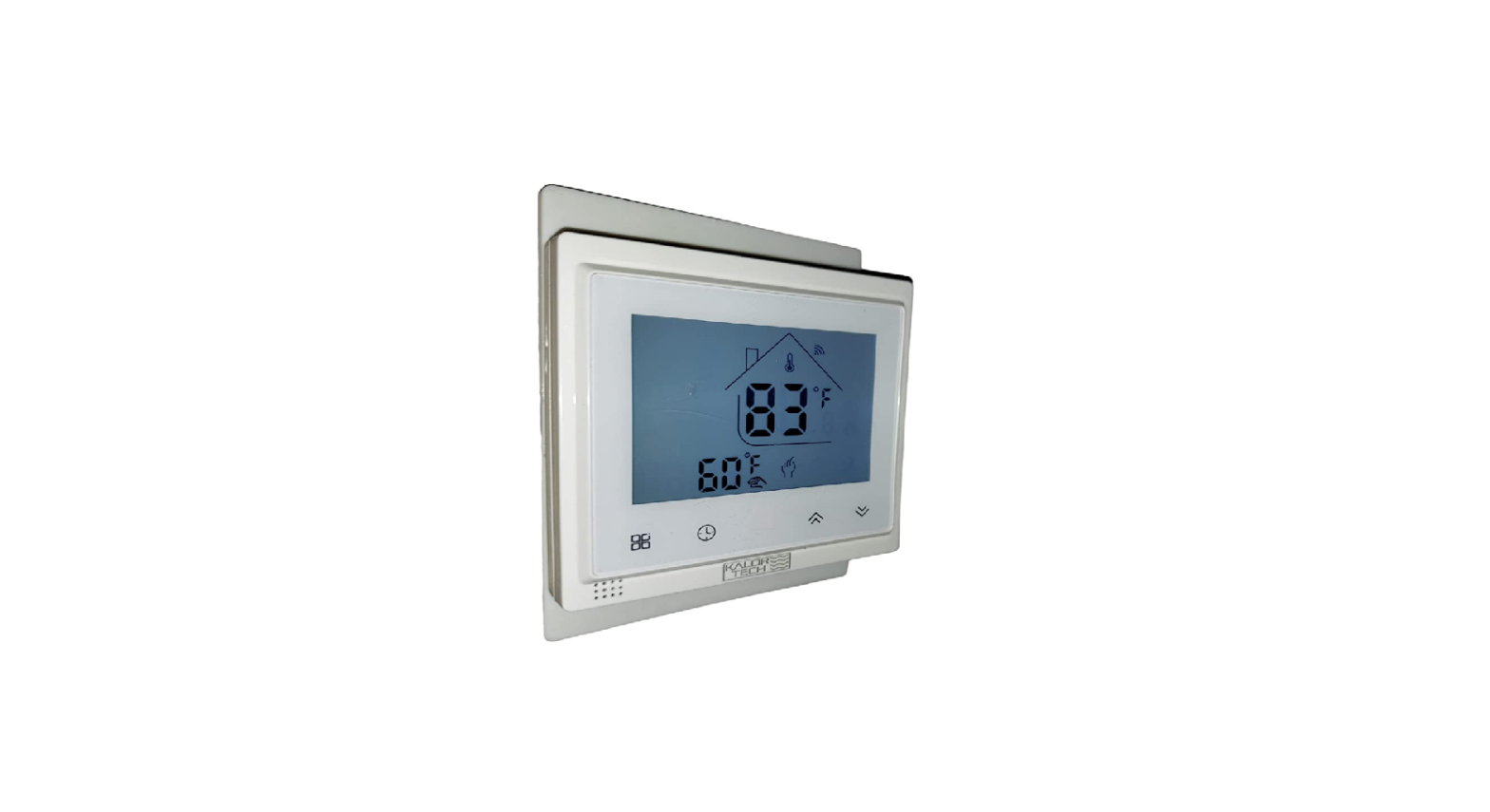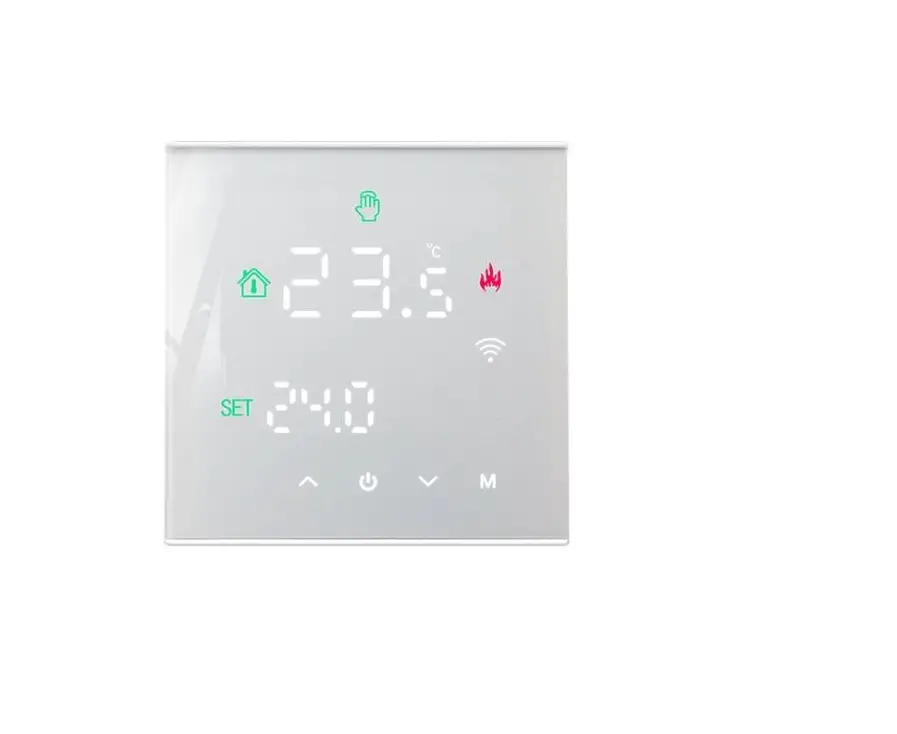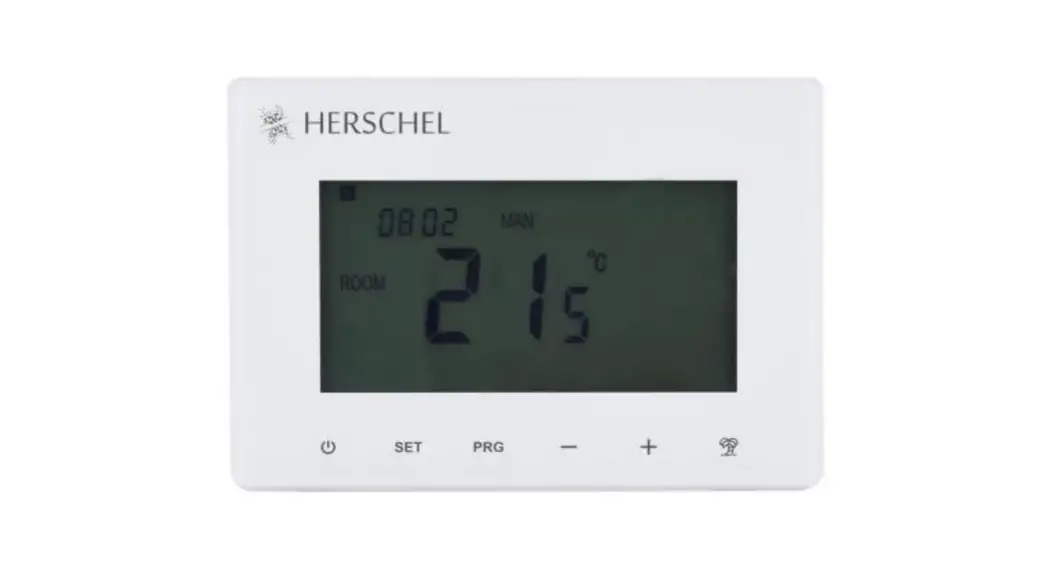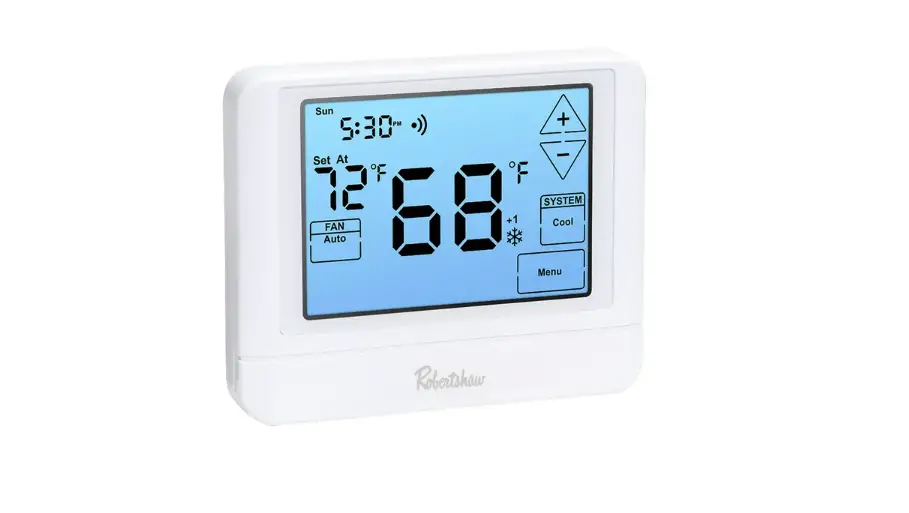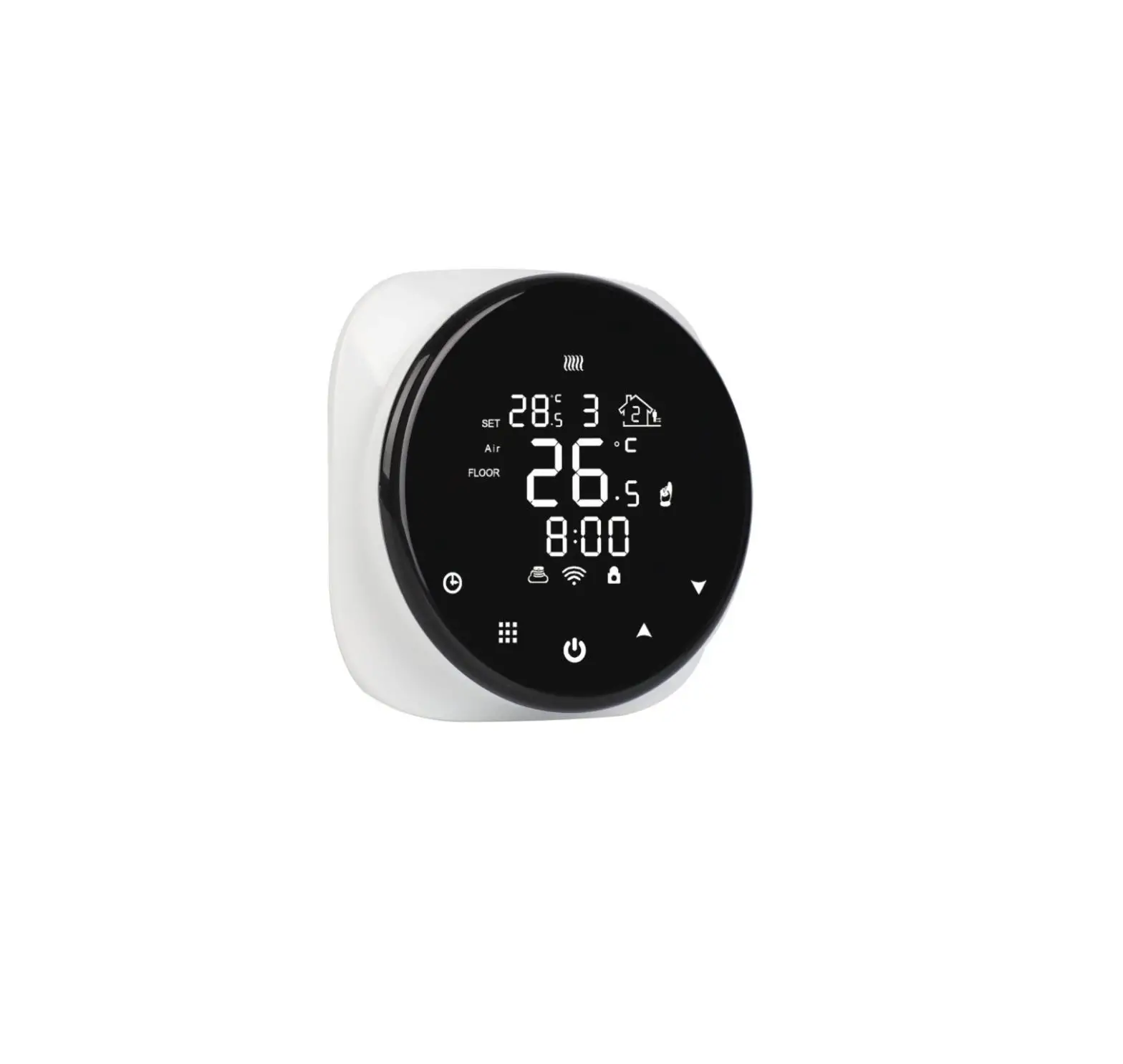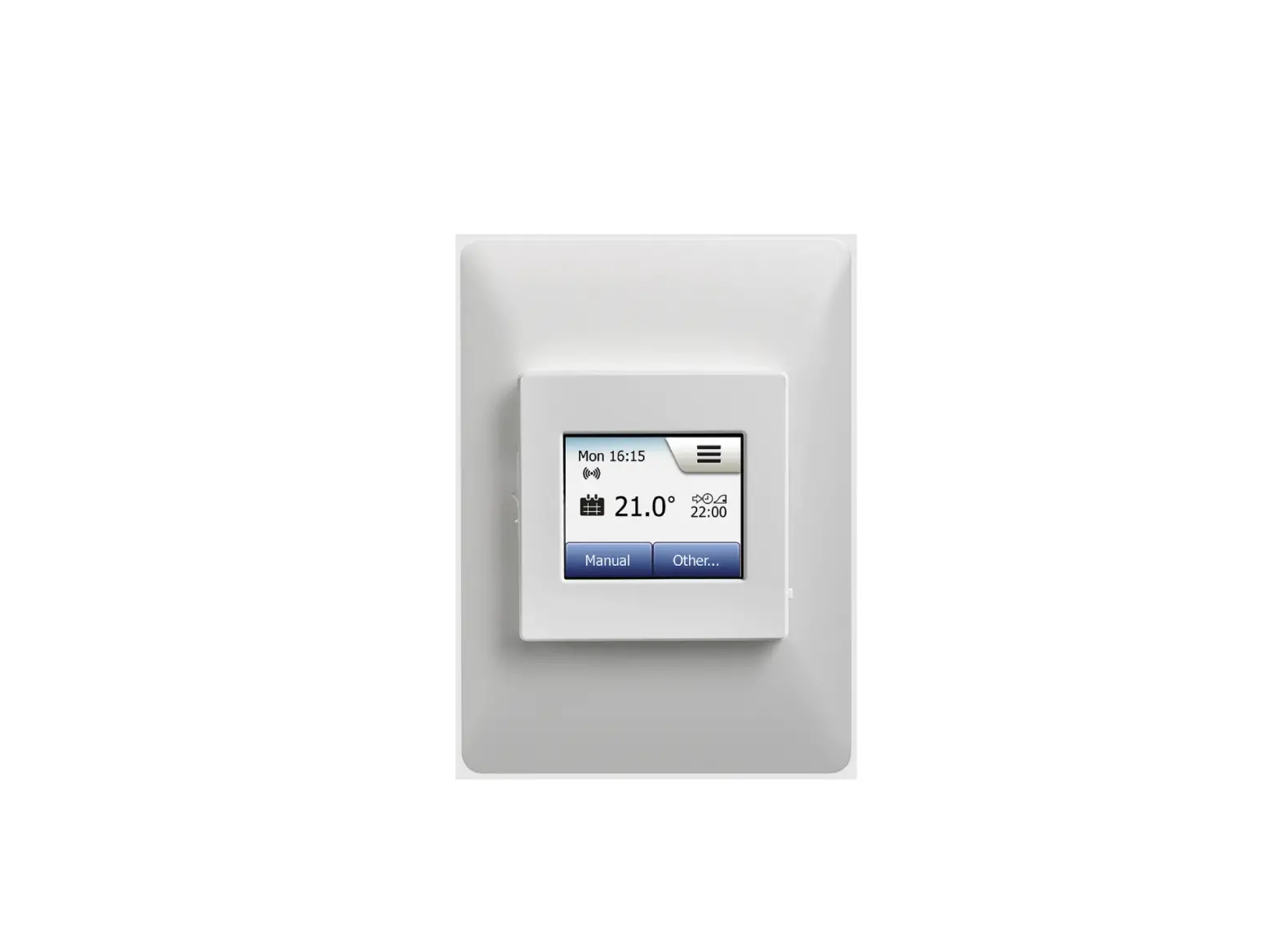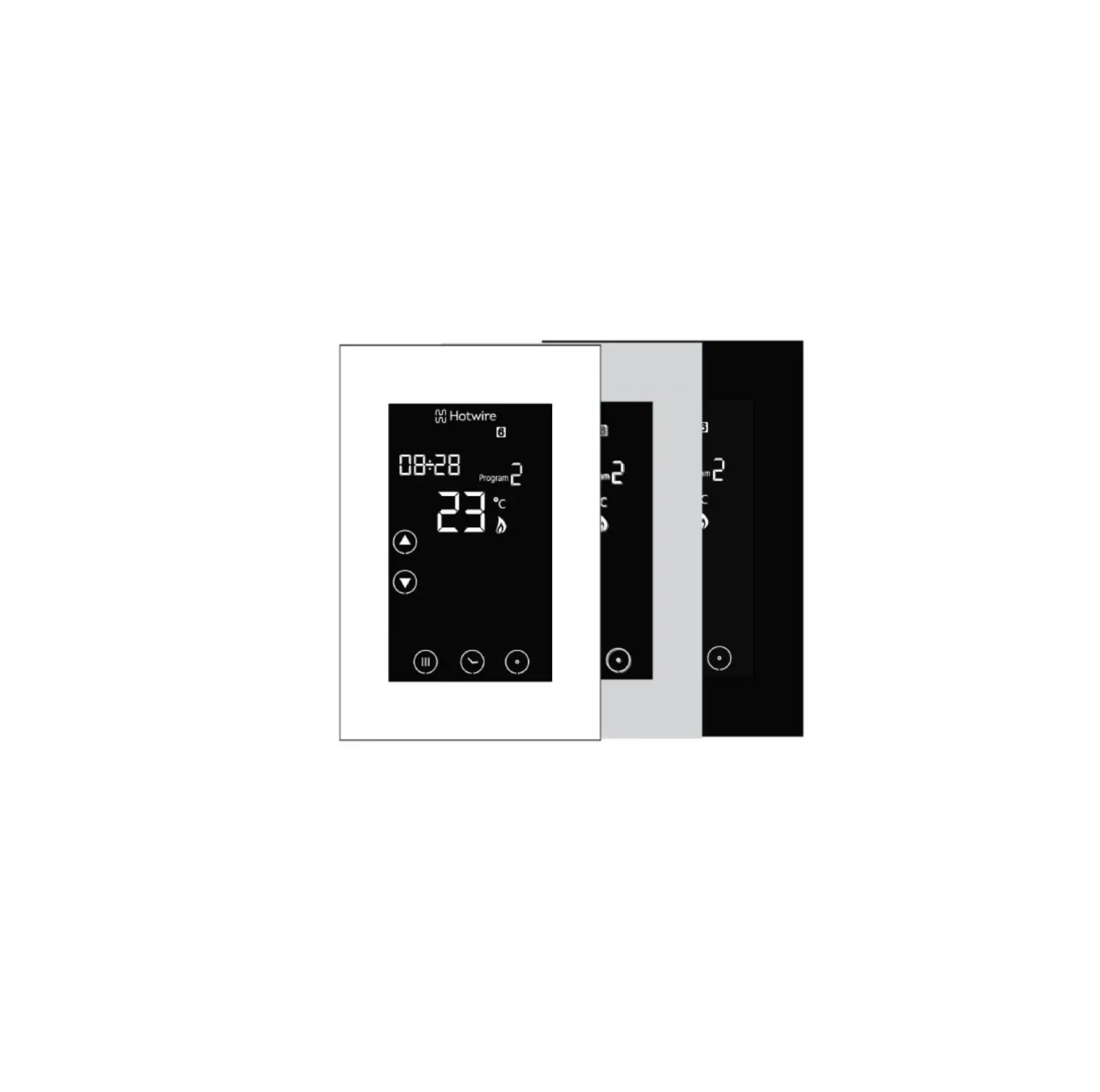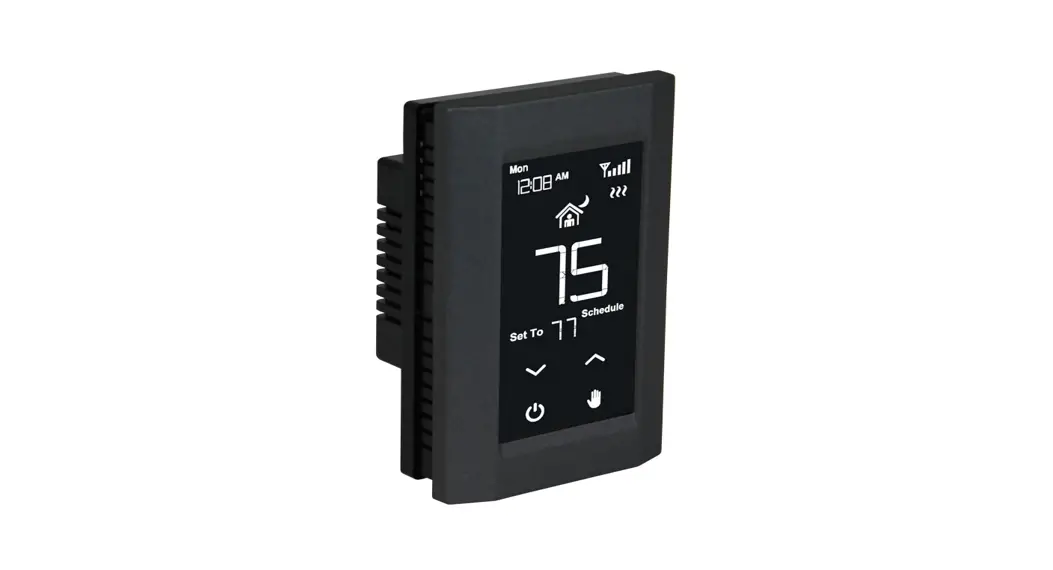


Wifi Programmable Thermostat
Instruction Manual
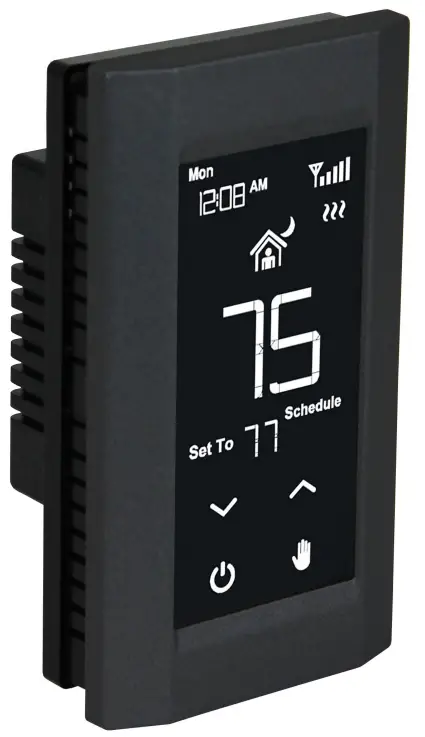
Models
K901-B /K901-W
K902-B / K902-W
SAVE THESE INSTRUCTIONS
INSTALLATION AND MAINTENANCE
 DANGER
ELECTRIC SHOCK OR FIRE HAZARD
READ ALL WIRE SIZING, VOLTAGE REQUIREMENTS AND SAFETY DATA
TO AVOID PROPERTY DAMAGE AND PERSONAL INJURY
Specifications:
Thermostat is suitable for electric heating systems.
Power Supply: K901-B / K901-W: 120/208/240 VAC
K902-B / K902-W: 120/208/240 VAC
Maximum Power: 1920W @ 120VAC (16A)
3328W @ 208VAC (16A)
3840W @ 240VAC (16A)
Power Consumption: 7VA
Temperature Display Range: 14°F-122°F
Temperature Display Resolution: 1°F
Temperature Control Range: 40°F-95°F
Temperature Adjustment Scale: 1°F
Selectable Switching Differential: 1°F~4°F (Default 1°F)
Anti-Freeze Protection: 40°F
Temperature Sensor: NTC 10K Ohm @ 77°F
Listing: c ETL us
WARNING
READ CAREFULLY – These instructions will help prevent difficulties that might arise during thermostat installation. Studying the instructions first may save considerable time and money later. Observing the following procedures will keep installation time to a minimum. Save these instructions for future use.
A. eriod Indicator
B. tandby Indicator
C. Key Lock Indicator
D. Vacation Indicator
E. Temperature Indicator
F. Heating ON Indicator
G. Programming & Time Indicator
H. Boost Indicator
I. WIFI signal Strength Indicator
J. Hold Indicator
K. Override
L. Time Display
M. Set Temperature
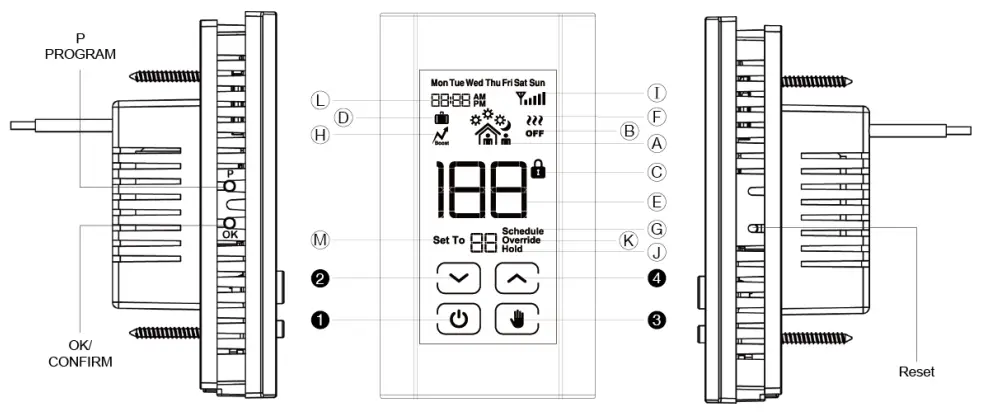
- Standby Button
- Down Button
- Hold Button
- Up Button
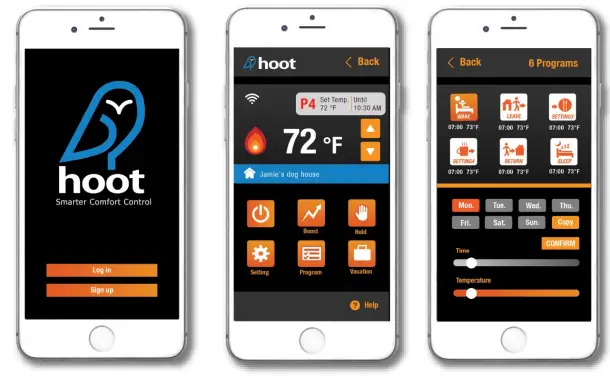
Hoot WIFI App
WIRING INSTRUCTIONS
DANGER
ELECTRIC SHOCK OR FIRE HAZARD
READ ALL WIRE SIZING, VOLTAGE REQUIREMENTS AND SAFETY DATA
TO AVOID PROPERTY DAMAGE AND PERSONAL INJURY
The installation of the thermostat must comply with the applicable local and/or national electrical code and utility requirements. This installation should be performed by a qualified electrician where required by law. Ensure that all wiring connections to the thermostat are correct and tight to prevent electrical shorts. Use the appropriate wire to meet local and national electrical codes for rated power consumption.
INSTALLATION AND WIRING INSTRUCTIONS
Warning: Turn OFF the power at the circuit breaker before Installing. Installation should be performed by a qualified electrician.
Refer to thermostat and heater load specifications before installation of the thermostat to see if it can handle the amp load. The maximum this thermostat can run is 3840 Watts at 240 Volts, 3328 Watts at 208 Volts, or 1920 Watts at 120Volts.
WIRING INSTRUCTIONS
Caution: Turn off power at the circuit breaker before performing any work on the electrical connections. None of the electrical connections must be live until the installation has been completed and the housing is closed. Only a qualified electrician or authorized technician are permitted to open the terminal box.
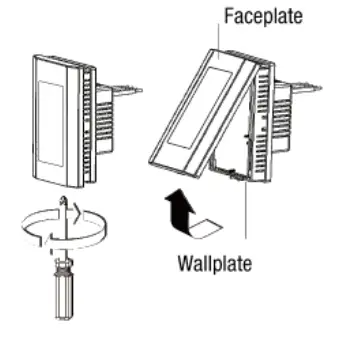
Wiring requires a Phillips screwdriver
- Disconnect power supply to prevent electrical shock or damage to the product.
- Run line voltage wiring to the location of thermostat.
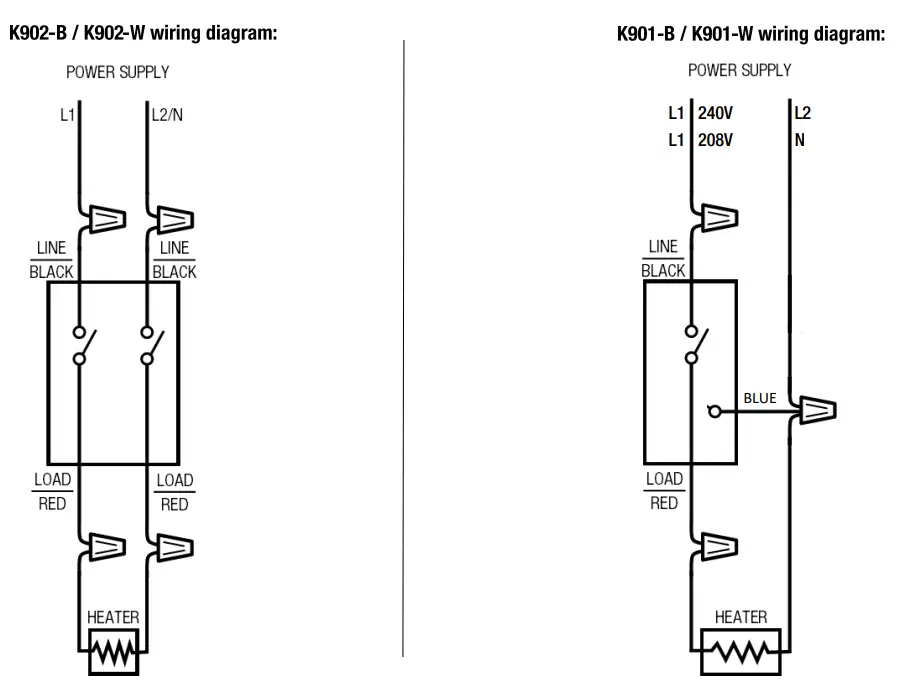
- Connect output terminals to heating system in accordance with instructions from the heating system.
- Make sure your HOOT thermostat is COMPLETELY RECEDED into the metal junction box in the wall and NO WIRES SHOULD BE EXPOSED outside the metal or plastic junction box.


DOWNLOAD APP
Smartphone App Installation
Downloading Hoot WIFI App for iPhone and iPad
In order for Hoot WIFI to work with your iOS device, download and install the APP from the App Store:
Search for “Hoot WIFI” by King.
Downloading Hoot WIFI App for Android Devices
In order for Hoot WIFI to work with an Android device, download and install the APP from the Google Play Store:
Search for “Hoot WIFI” by King.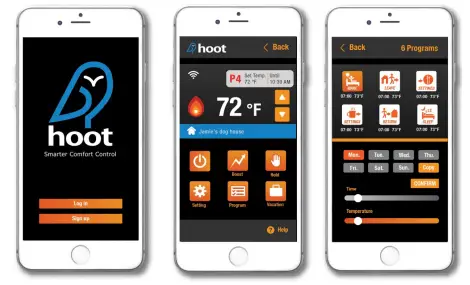
NEED HELP?
We are here for you.
Visit www.king-electric.com/hoot-wifi-support for tech support and user information.
REGISTRATION & INITIAL SETUP
Launch WiFi Application
- Find the “Hoot WIFI” on your i0S/Android device.
- Launch the app.
Registration Process
A. If you have already registered, click “Log in” and enter the username and password.
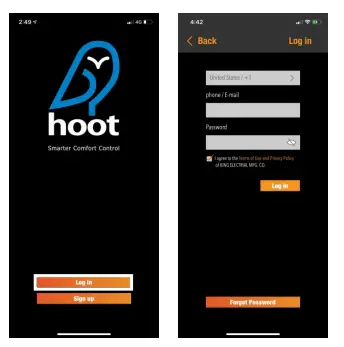
B. If accessing the first time, click “Sign up” to start the process. Enter either a valid email address or cell phone number to create the account.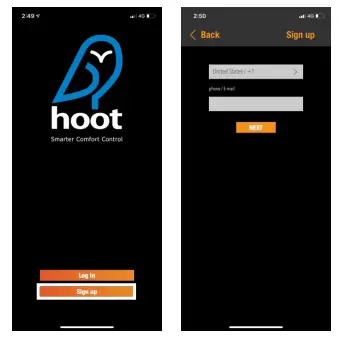
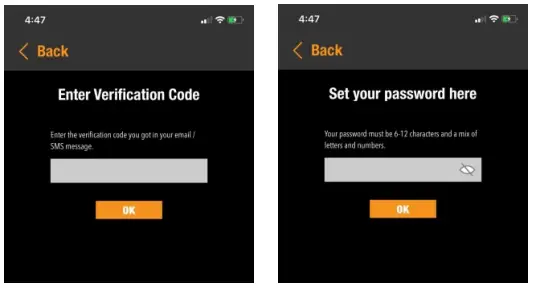
C. You will receive either a Email or SMS Message with a verification code. Enter that code in the app and set your password.
D. Click Add Device
- Make sure the device has been already installed and powered up.

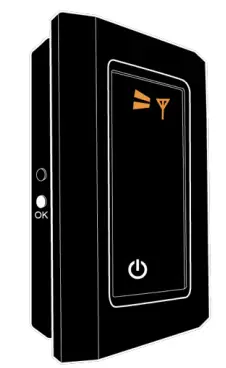
- Enter Pairing Mode: Signal icon must be flashing QUICKLY to pair device. Press and hold POWER and OK buttons for 10 seconds to start pairing process.
- Select a 2.4GHz WIFI network (5GHz WIFI is not supported)
- Enter the WIFI password to finalize pairing.
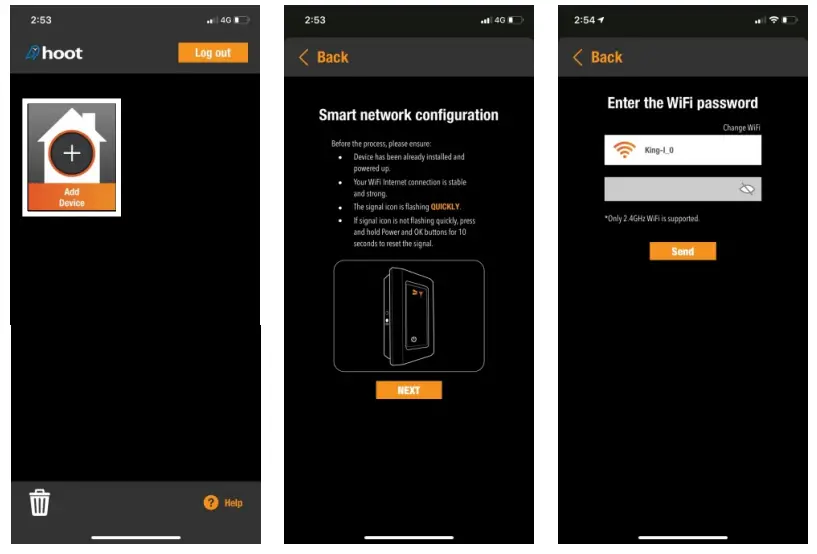
E. The Hoot device will be appeared after pairing.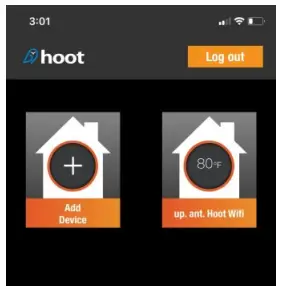 F. If there is an Error during the pairing process, refer to the below Troubleshooting guide to resolve or visit https://king-electric.com/hoot-wifi-support or Help
- Check WiFi Signal is strong and stable and other devices in your home are communicating to the internet via the WiFi network.
- Check WiFi Password is correct and try again
- This thermostat may be bound to another user’s ac-count. If this is a shared device, to gain access contact the master user and request the device be shared with your user account.
APP PROGRAMMING HEATING SCHEDULE
Launch Application
- Open the “Hoot WIFI” Mobile app on your iOS or Android device.
- Select the thermostat you would like to program.
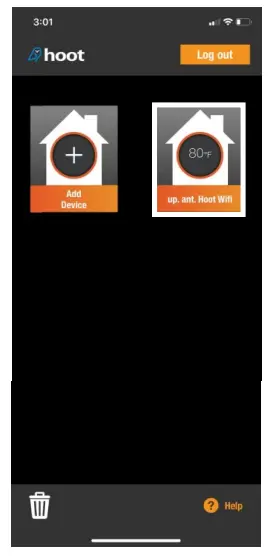
Programming the Thermostat
Select the Program icon to begin the program configuration
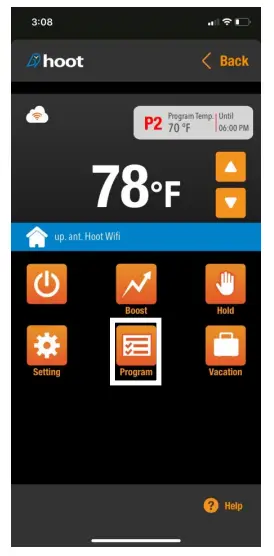
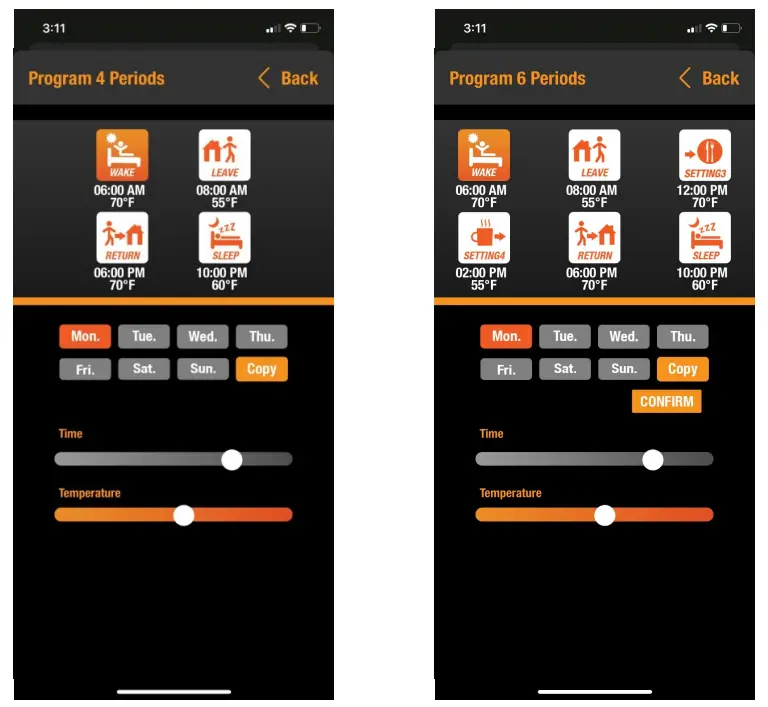
You can choose to program either 4 or 6 periods per day.
Select whichever option works better with your daily schedule.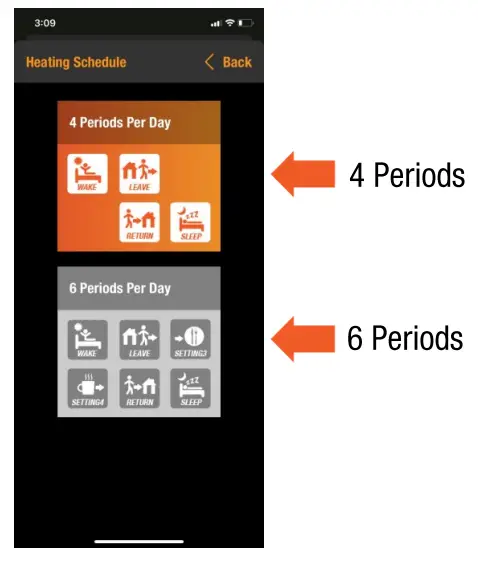
4 Periods Per Day (Default)
6 Periods Per Day
Copying Program Feature is a feature of the Hoot WIFI app to allow users to easily copy and paste settings between the days. The Copy command in the lower right-hand corner.
Select the period to configure
Step 1: Select the day of the week that you wish to copy the setting from: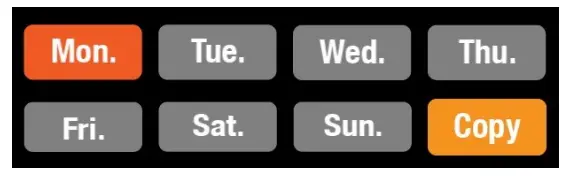
Step 2: Press the  icon
icon
Step 3: Select the days of the week you wish to copy the settings to: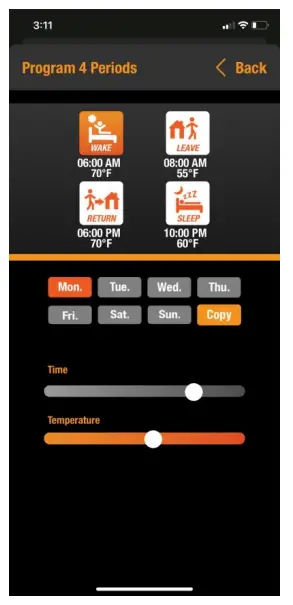
Step 4: Select  to save changes to thermostat or Press
  to exit.
APP PROGRAMMING HEATING SCHEDULE
Programming your weekly schedule
Option 1
4 Periods Per Day Configuration
- Wake
- Leave
- Return
- Sleep
Select the period to configure
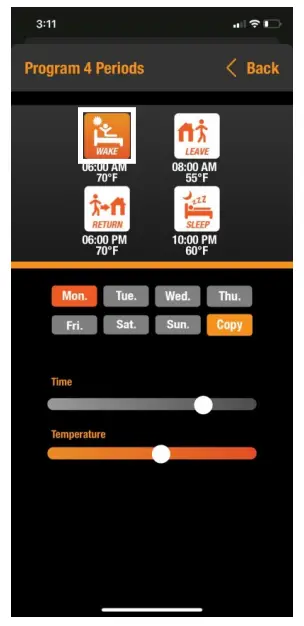
Step 1: Select the day of the week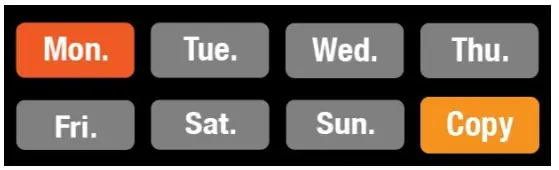 Step 2: Select the start time for the period by moving the slider
 Step 3: Select the temperature of the period by moving the slider
- Press
 to save the changes to the thermostat, or press cancel to abort.
 - Press
 to exit
Option 2
6 Periods Pear Day Configuration
- Wake
- Leave
- Lunch
- AfternoonTea =
- Return
- Sleep
Select the period to configure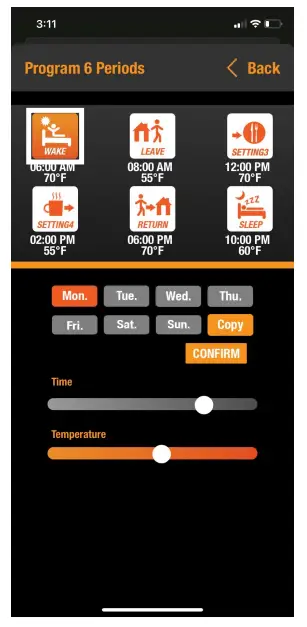
Step 1: Select the day of the weekStep 2: Select the start time of the period by moving the slider
Step 3: Select the temperature of the period by moving the slider
- Press to save the changes to the thermostat, or press cancel to abort.
- Press to exit
APP SETUP AND SETTINGS
Vacation Mode
This thermostat offers a vacation setting where you can schedule in advance, days you are out of the house. Hoot can be set to turn off during this period or run in anti-freeze mode.
Step 1: Select the Vacation Mode icon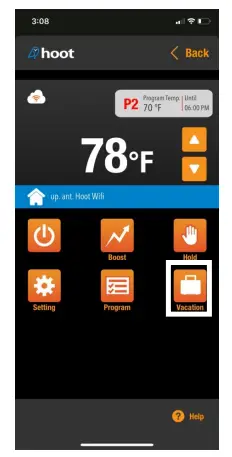
Step 2: Select if you wish to run anti-freeze  or Power OFF
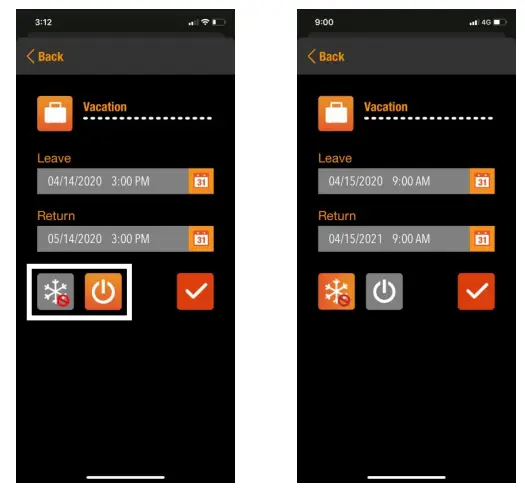 Note:
Note:
- Anti-freeze mode
 offers below 40°F freeze protection . This means the system is still on and when the room temperature drops below 40°F, the heater will turn on to provide freeze protection heating.
 - Power Off mode offers complete system shutdown.
Step 3: Select the calendar icon to set vacation start/end time & date.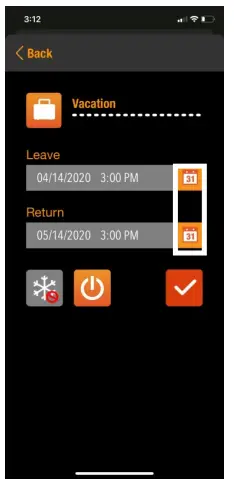 Note: End date must be later than the start date.
Step 4: Select  to save changes to thermostat or press to exit.
 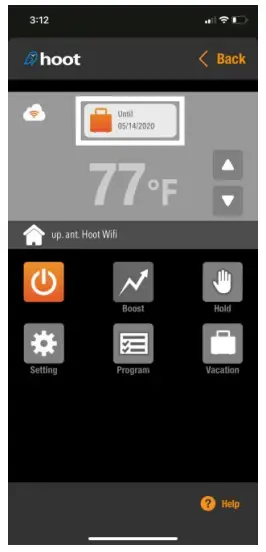 Step 5: Pressing the top Vacation icon will cancel the Vacation function and return to programmed schedules.
Settings Mode
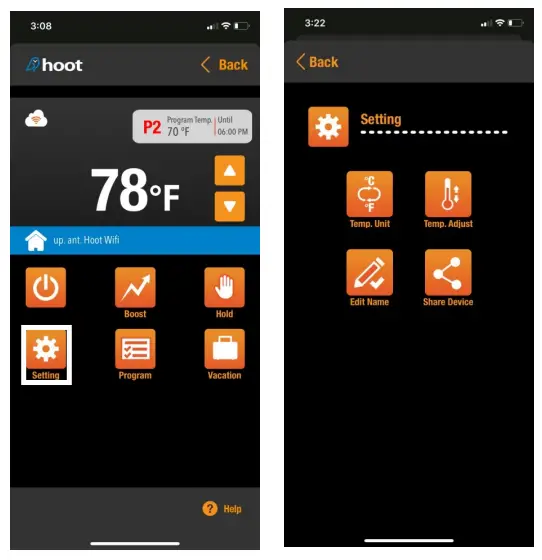
Settings Mode allows you to change the following:
- Change the name of the thermostat
- Temperature scale change
- Adjusting Temperature Compensation
- Share Device
APP PRODUCT SETUP AND SETTINGS
Name Your Thermostat
- Select (Edit Name) icon

- Rename the thermostat with the name you prefer.
- Enter the new name for the thermostat in the text box.

- Select
 to save changes to thermostat or press to exit.
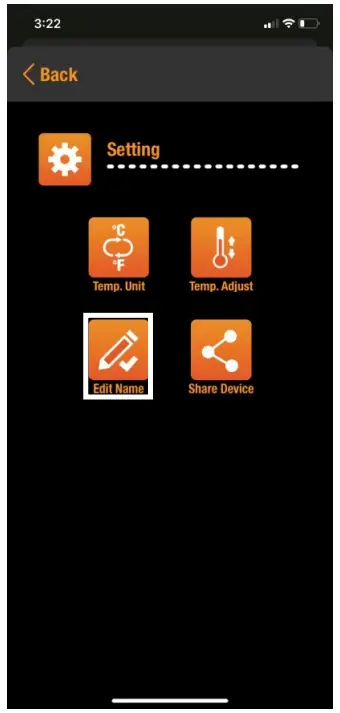
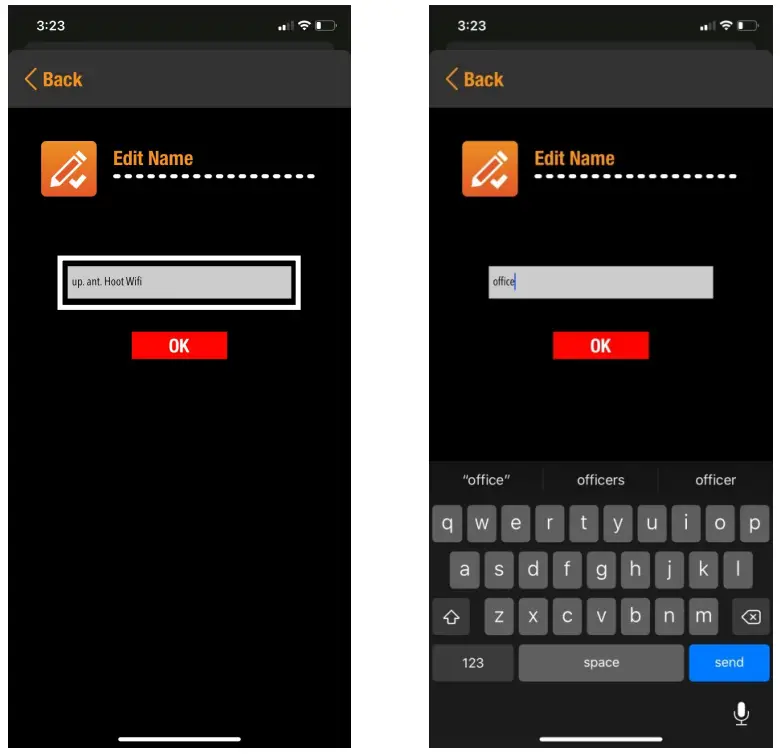
 to save changes to thermostat or press
 Temperature Compensation of the Thermostat
If the temperature reading is higher or lower than you prefer, you can adjust the ambient temperature reading of your Thermostat. The Offset value that you set will be added or subtracted from the Hoot’s ambient temperature reading.
- Select (Temp. Adjust) icon below.
- Select how many degrees you wish to compensate against by Sliding the white slider in the following screen.

- Select
 to save changes to thermostat or press to exit.
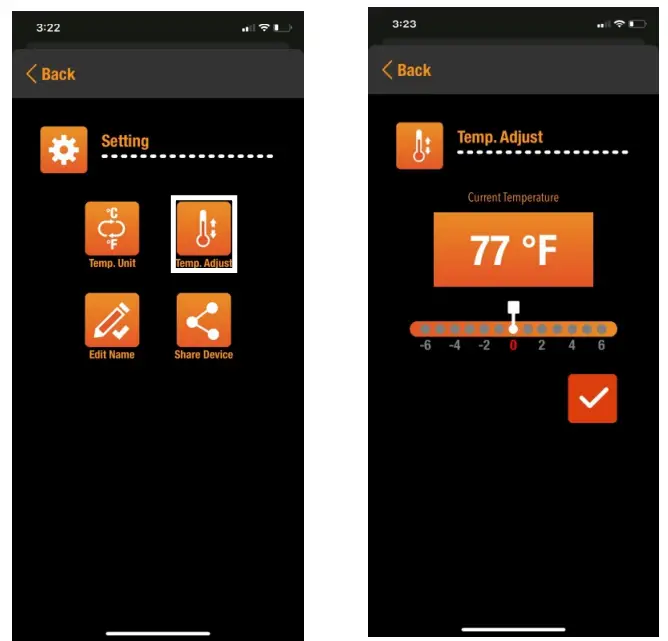
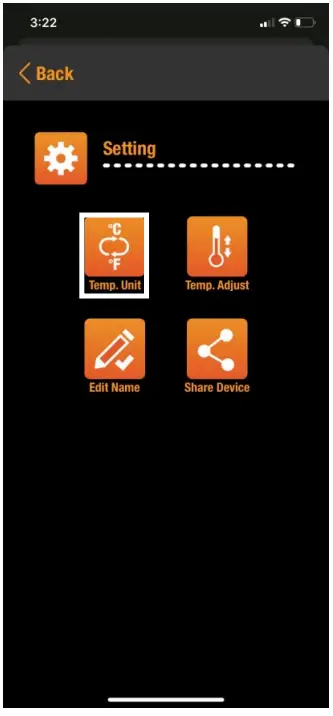
Temperature Scale (°F /°C ) of the Thermostat
- Select (Temp. Unit) icon

- Tap °F to change to Fahrenheit or tap °C to change to Celsius

- Select to save changes to thermostat or press to exit.
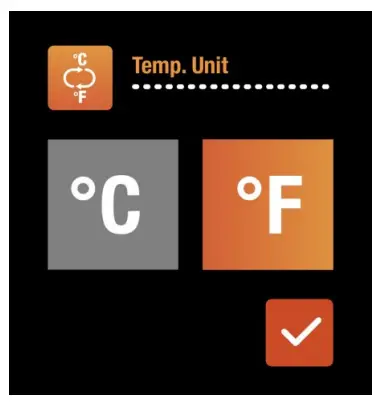
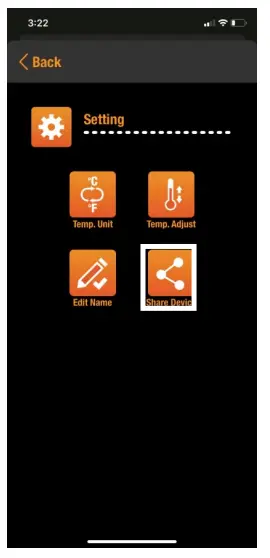
Share Thermostat
- Select the Share Device icon below to grant access to others.

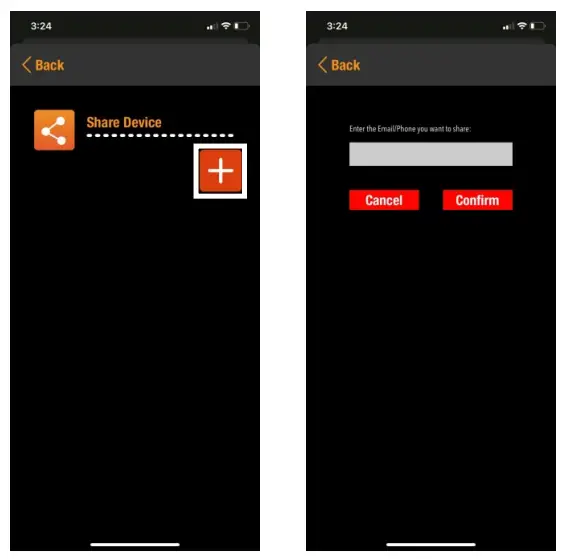
- Click the [+ icon] to add other account
- To create share thermostat, enter the Hoot account holder’s email address you would like to share with.
Note: The user must first create a Hoot WIFI account.
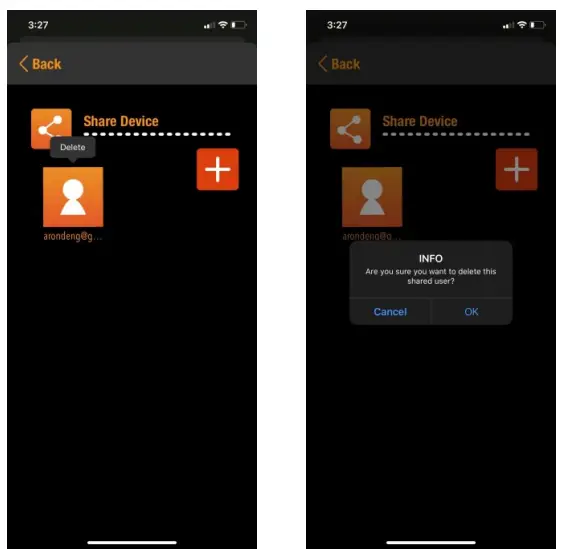
- To delete user, press and hold for 2 seconds and the below message appears. Press OK to delete.

Boost Mode
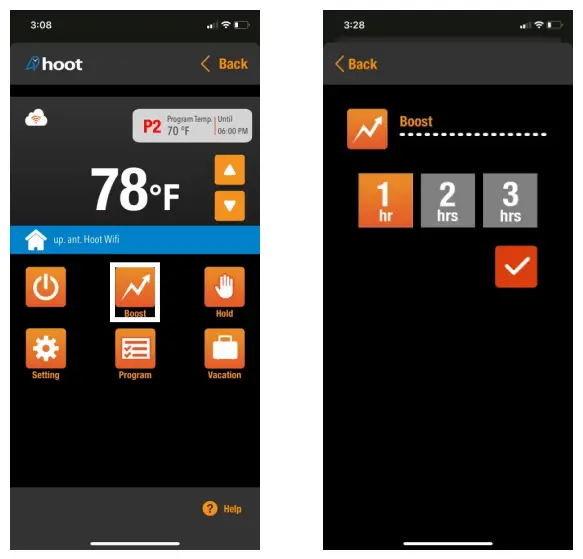
Boost mode allows user to maintain the current setting and bypass the scheduled program for us to 3 hours. The thermostat will return to its regular schedule programming after the boost time has expired.
- Select the Boost icon below
- Select how many hours you wish to boost

- Select to save changes to thermostat or press to exit.
- Verify Boost Mode is now active, showing the following icon.
Temporary Override
Override mode allows you to temporarily adjust the set point to a desired temperature, until the next scheduled time period begins.
- Press
 key to set the desired temperature
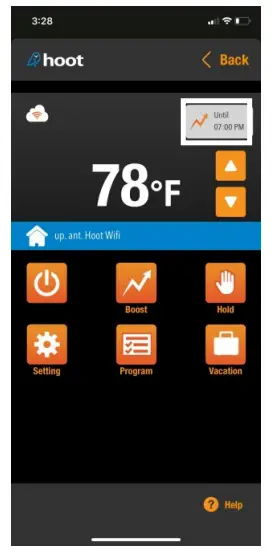
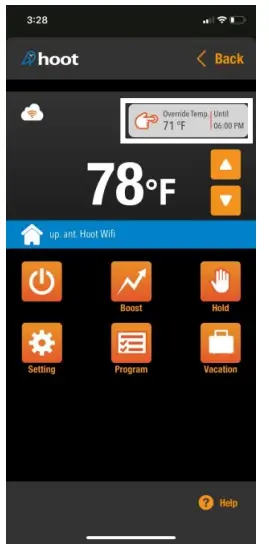
- Override Mode is active when showing the following icon.
- Press on the top Override icon, to cancel the Override function and return to programmed schedule.

 key to set the desired temperature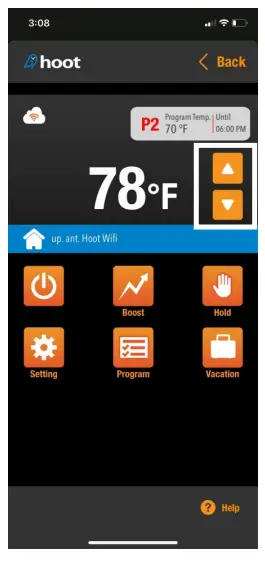
Rebooting Hoot WIFI
- In case Hoot WIFI is not functioning correctly, you can reboot the unit to see if this improves the problem.
- Locate the Reset button on the right side of the unit
- Lightly press button with a paper clip or similar blunt object until the unit powers off and powers back on the reset.
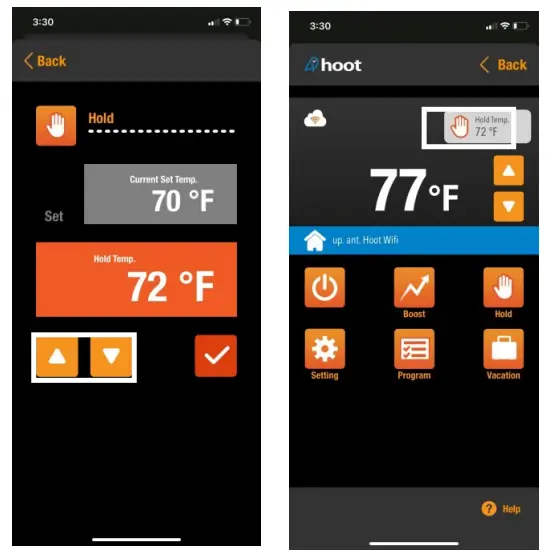
Permanent Hold Mode
Holds thermostat a desired set point permanently until canceled.
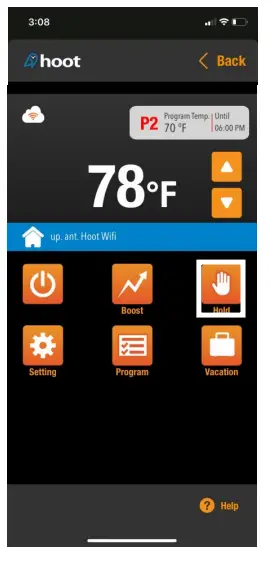
- Selecting the Hold icon will show the following screen. Tapping the button adjusts temperature set point.
- Select to save changes or press to exit.
- Hold Mode is active when the following icon is displayed. Press on the top Hold icon, to cancel the Hold function and return to programmed schedule.
Factory Resetting Hoot WIFI
To Reset Hoot back to factory default settings & erase all user data and remove from an account, r . )
- Press & Hold the
 button for 5 seconds until rSt (RST) flashes on the upper left corner of the display.
 - Unit has been unbound from an account and reset to default.
 button for 5 seconds until rSt (RST) flashes on the upper left corner of the display.
SETTINGS ON THERMOSTAT
A. Period Indicator
B. Standby Indicator
C. Key Lock Indicator
D. Vacation Indicator
E. Temperature Indicator
F. Heating ON Indicator
G. Programming & Time Indicator
H. Boost Indicator
I. WIFI signal Strength Indicator
F. Hold Indicator
K. Override
L. Time Display
M. Set Temperature
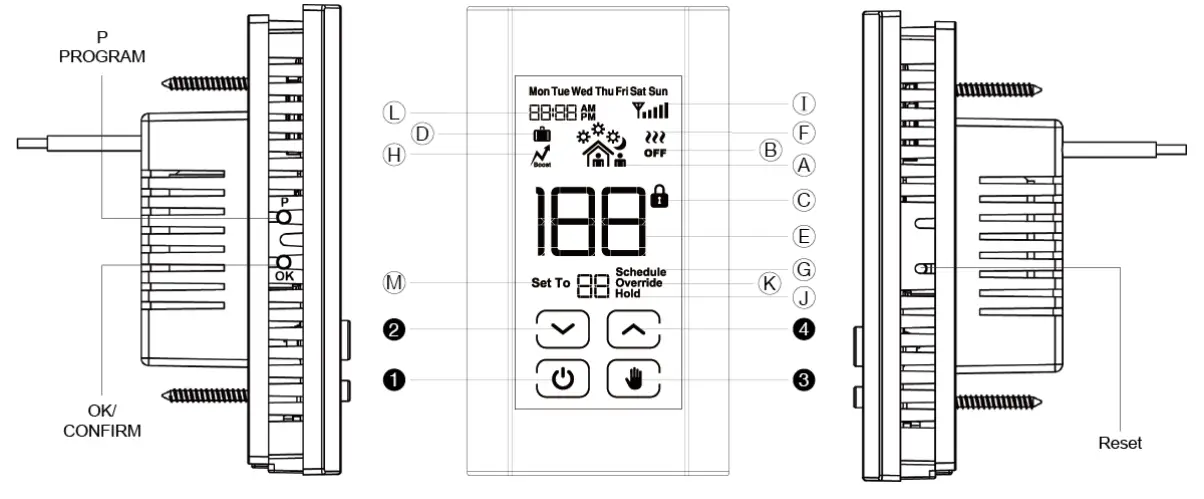
- Standby Button
- Down Button
- Hold Button
- Up Button
HOLD MODE
Press  button to enter Hold mode
Press  to select temperature (40~95°F) as desired Hold temperature.
Press OK to complete the setting
To turn off the Hold mold, please press button.
KEY LOCK MODE
Press  buttons simultaneously for 5 seconds to Enter or Exit Key Lock Mode.
STANDBY FUNCTION
Press  button to Enter or Exit Standby Mode.
Pressing the Standby button the hoot thermostat disables the relay output but activates Anti-Freeze Mode Standby indicator shows up on the screen.
- Anti-Freeze Mode offers below 40°F freeze protection . This means the system is still on and when the room temperature drops below 40°F, the heater will turn on to provide freeze protection heating.
MAX TEMPERATURE LIMIT SETTING
Press to enter Off mode
Press and hold simultaneously the P + OK buttons for 5 seconds to enter max temperature setting mode
Press to adjust the max temperature (40-95 °F)
Press OK to complete the setting
MANUAL TEMPORARY OVERRIDE
Press  to select 40°F-95°F temperature as the desired temporary override temperature.
A. Period Indicator ,
B. Standby Indicator
C. Key Lock Indicator
D. Vacation Indicator
E. Temperature Indicator
F. Heating ON Indicator
G. Programming & Time Indicator
H. Boost Indicator
I. WIFI signal Strength Indicator
J. Hold Indicator
K. Override
L. Time Display
M. Set Temperature
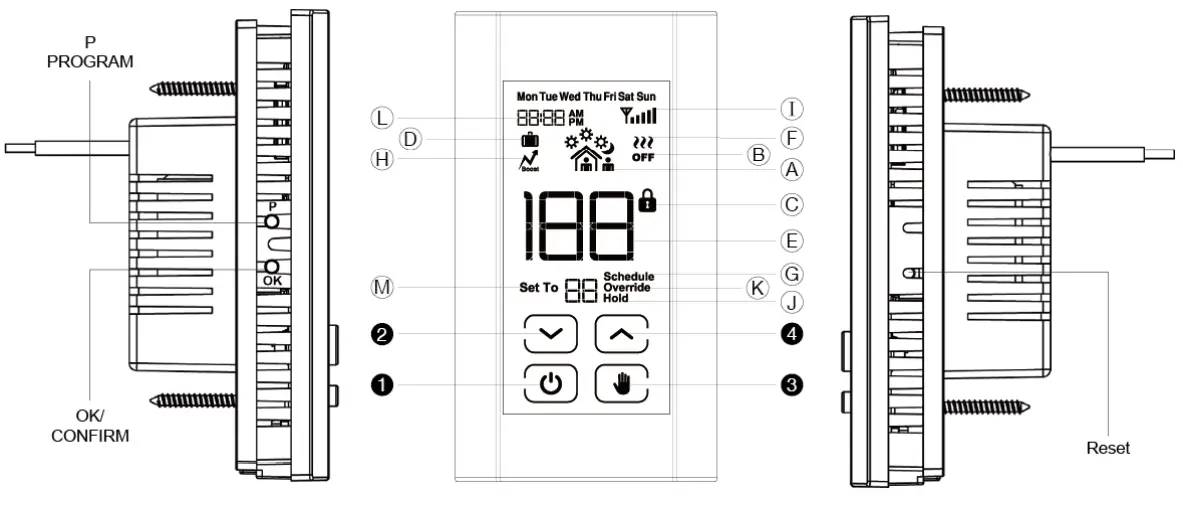
- Standby Button
- Down Button
- Hold Button
- Up Button
Manual Setup: When setting up the Hoot thermostat without using the smartphone App, follow the below steps to set default preferences prior to programming your heating schedule.
INITIAL SETUP:
Press and hold buttons simultaneously for 5 seconds to enter SETTINGS MODE:
Setting #1: Set °C or °F
Press and to select °C or °F (Default °F }
Press OK to save setting and move to next step.
Setting #2: Set Clock
Press and OK key to adjust Day —> Hour— Minute.
Press OK to save setting and move to next step.
Setting #3: Set Temperature Differential:
The Offset value that you set will be added or subtracted from the Hoot’s ambient temperature reading.
Press to adjust the temperature differential.
Press OK to save setting and move to next step.
When set to °F: Select either 1°F / 2°F / 3°F or 4°F
(Default = 1°F)
Setting #4 Period selection: P4 or P6
Press to select P4 (4 Periods Per Day) or P6 (6 Periods Per Day)
Press OK to save and move to next step.
Setting #5 Brightness
Press to select the contrast is from 1 (dim) to 7 (bright).
Press OK to save setting and move to next step
Setting #6 Beep on/ off
Press to choose Beep on or Beep off.
Press OK to save setting.
MANUALLY PROGRAMMING THE HEATING SCHEDULE
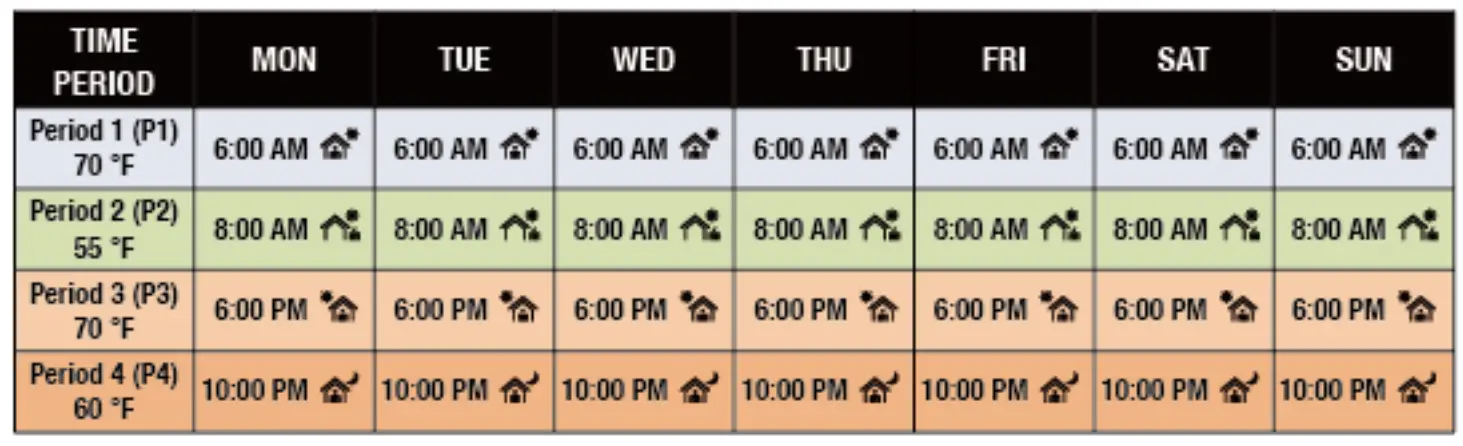
When programming the heating schedule through the buttons on the thermostat, you will have the option of scheduling 4 time periods per day or 6 time periods per day. The below charts show the default times and temperatures for each of the 4 or 6 daily time periods. These can be customized as desired, as shown on the following page.
DEFAULT SCHEDULE FOR 4 PEIODS PER DAY (P4)
DEFAULT SCHEDULE FOR 6 PEIODS PER DAY (P6)
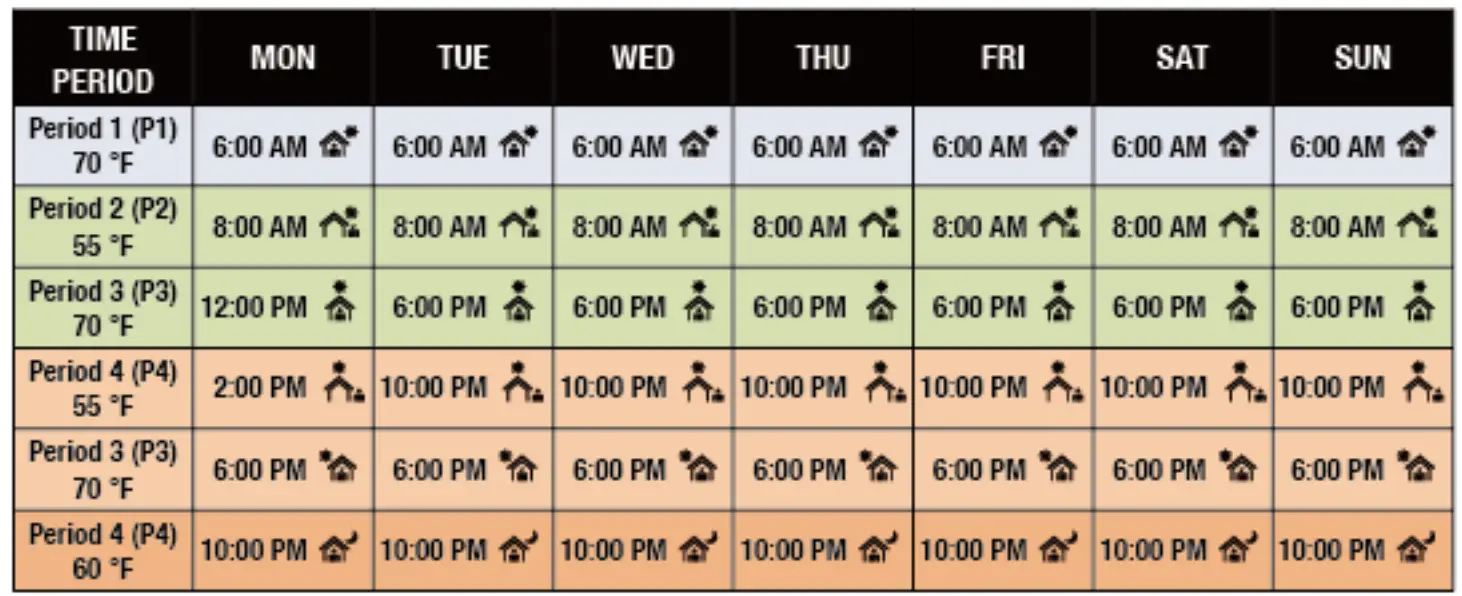
Program Heating Schedule—4 Periods Per Day/6 Periods Per Day
When programming the heat schedule through the buttons on the thermostat, you have 4 time or 6 time periods per day that need to be programmed.
- Wake
- Leave
- Return
- Sleep
Press  button to enter/exit Program Setting mode
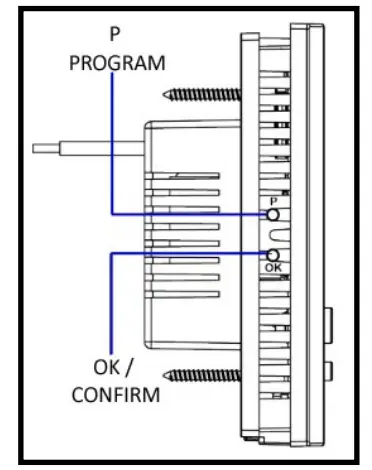
Step1: Select Day of the Week to be Programmed.
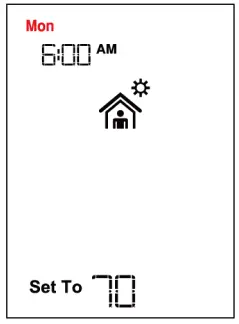
Press buttons to select day to be programmed (Mon to Sun)
The programming starts by default with programing of Period 1 (P1)
To schedule a different time period press button to scroll through the available periods (P1, P2, P3, P4, PS and P6)
Press OK to save the setting and move to next step.
Step2: Select the START time for the Time Period
Press buttons to change the Period Start Time Press OK to save the setting and move to next step.
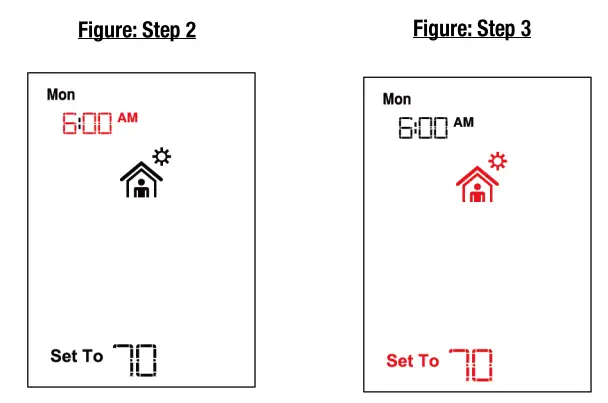
Step3: Select the desired Temperature Setting for the Time Period.
Press buttons to scroll through 40-95°F.
Press OK to continue to next step or Press P to EXIT Programming Mode.
Sequence of Programming setting for P1, P2, P3, P4, P5 and P6.
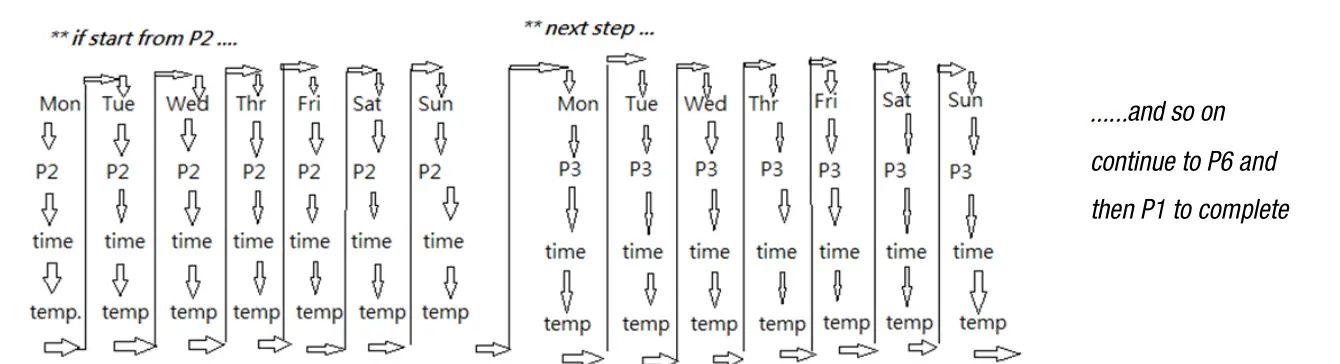
Starting from P1, the sequence is P2, P3, P4, P5 and P6 a cycle, the same logic start from P3, P4, P5, P6, P1, P2 a cycle or from P4, P5, P6, P1, P2, P3 a cycle.
KING ELECTRIC MFG CO
• 9131 10TH AVENUE SOUTH
• SEATTLE. WA 98108
• PH:206 762 0400
• FAX: 206 763 7738
• www.king-electric.com
Rev. 2.1.23
 King Electric - Hoot WIFI Support - Error message when pairing my device, now what?