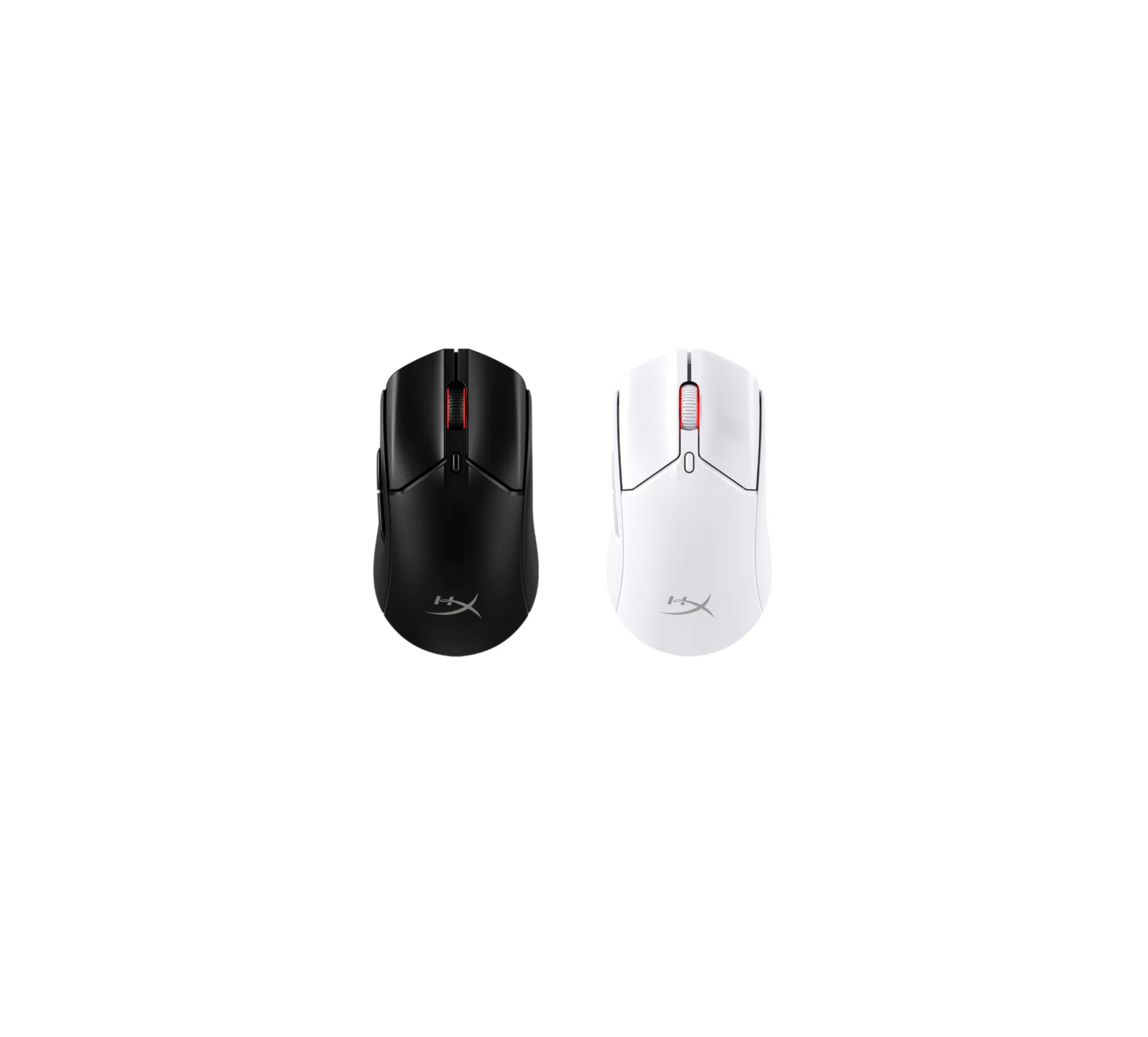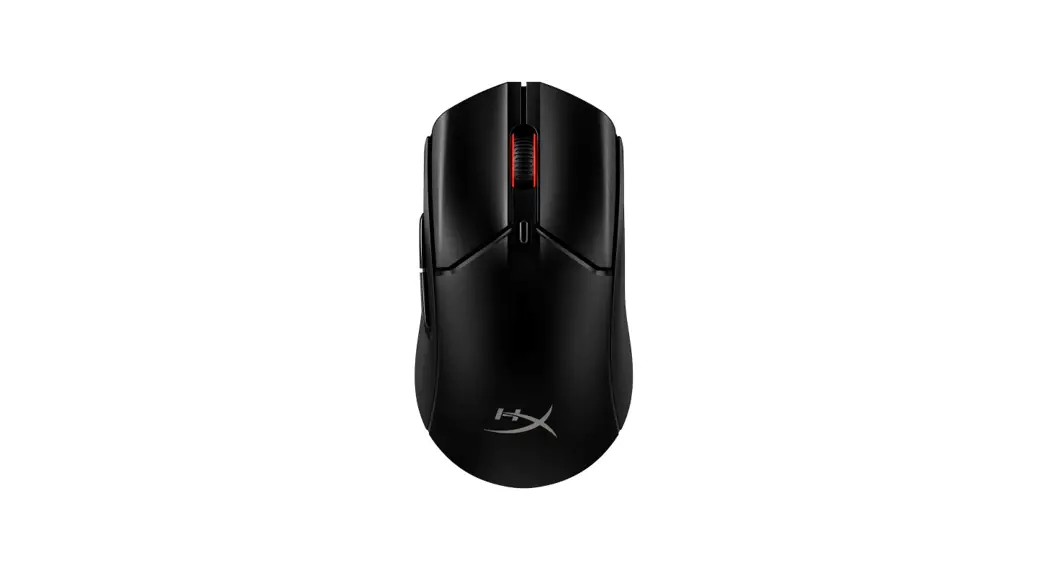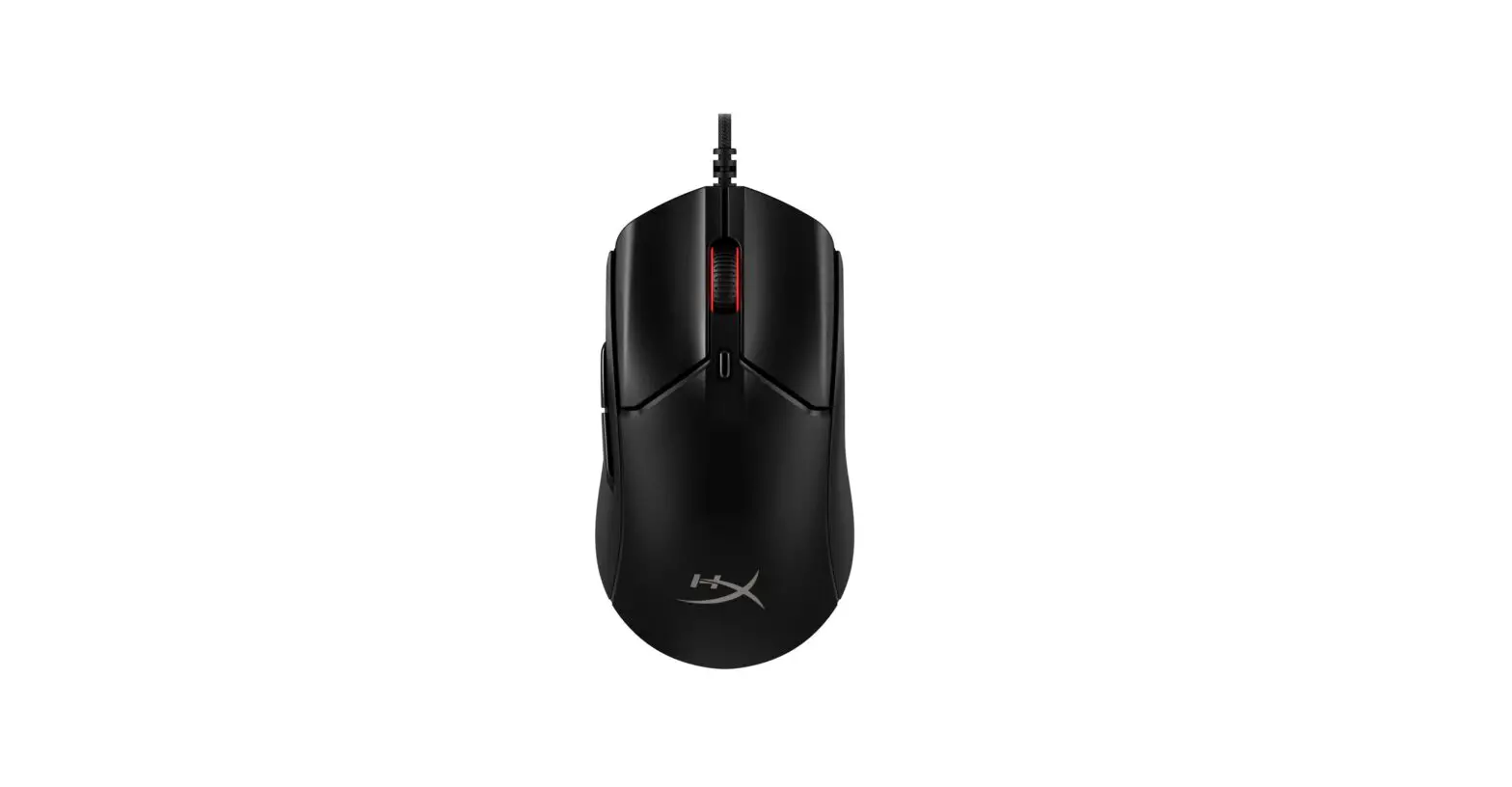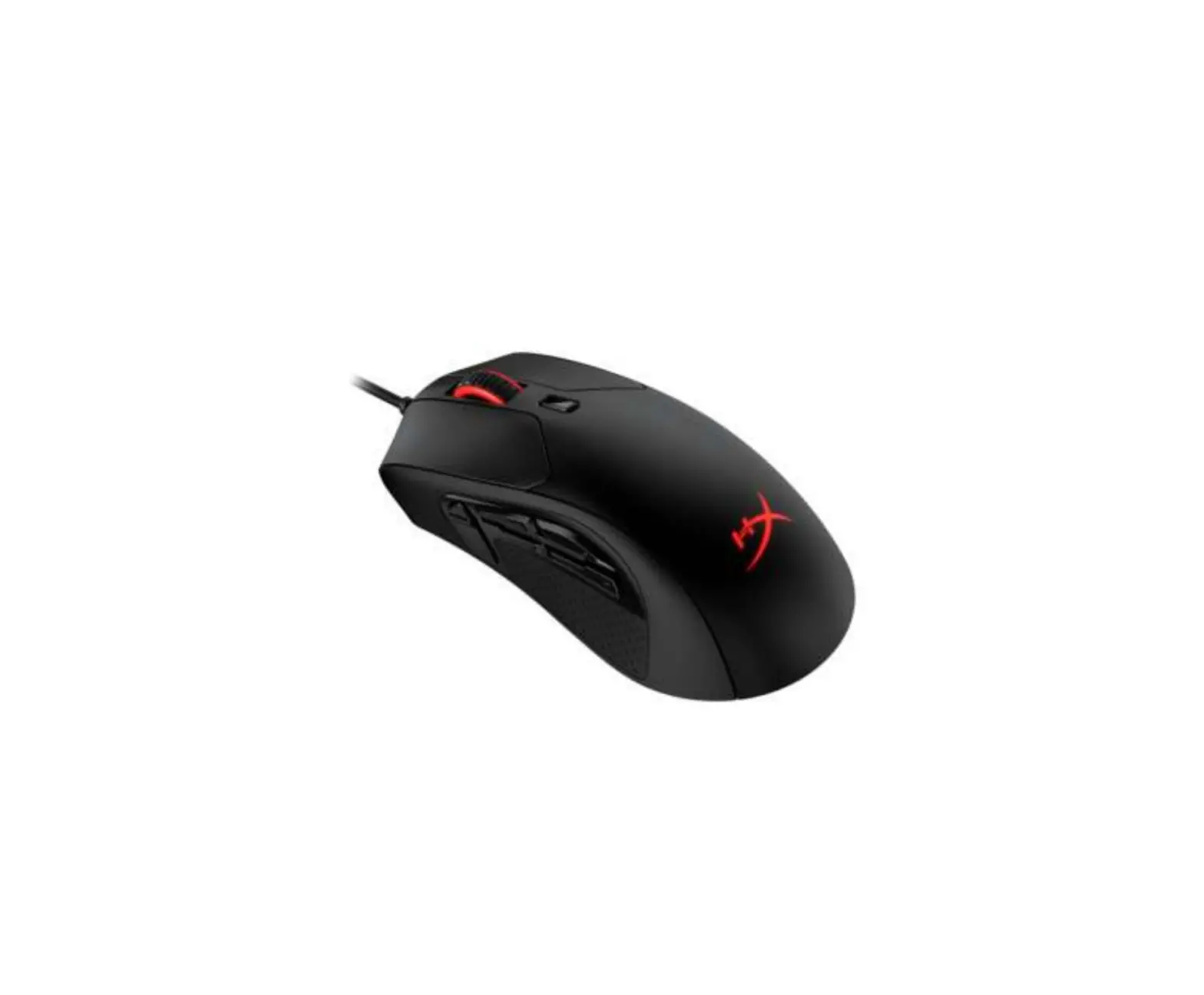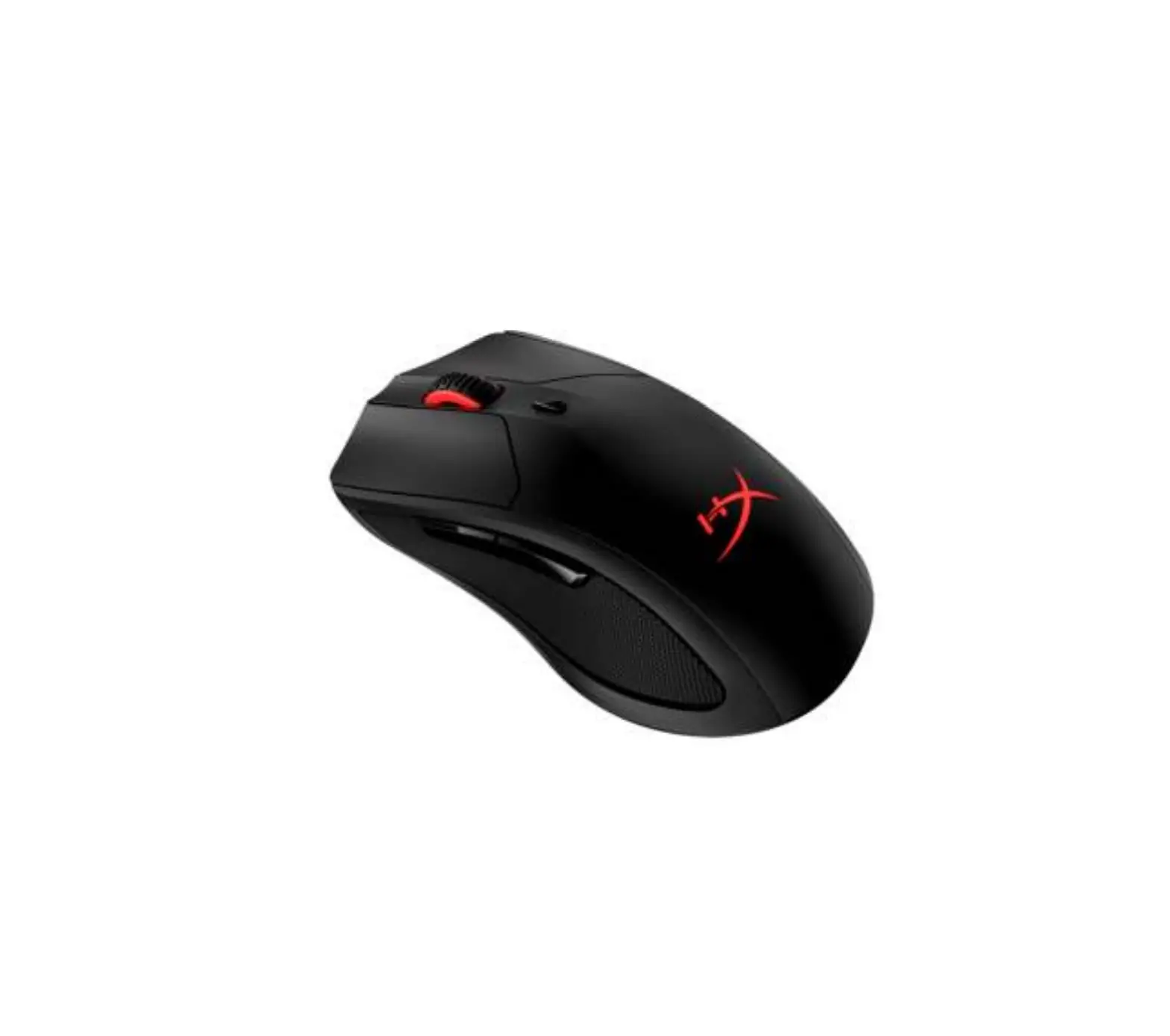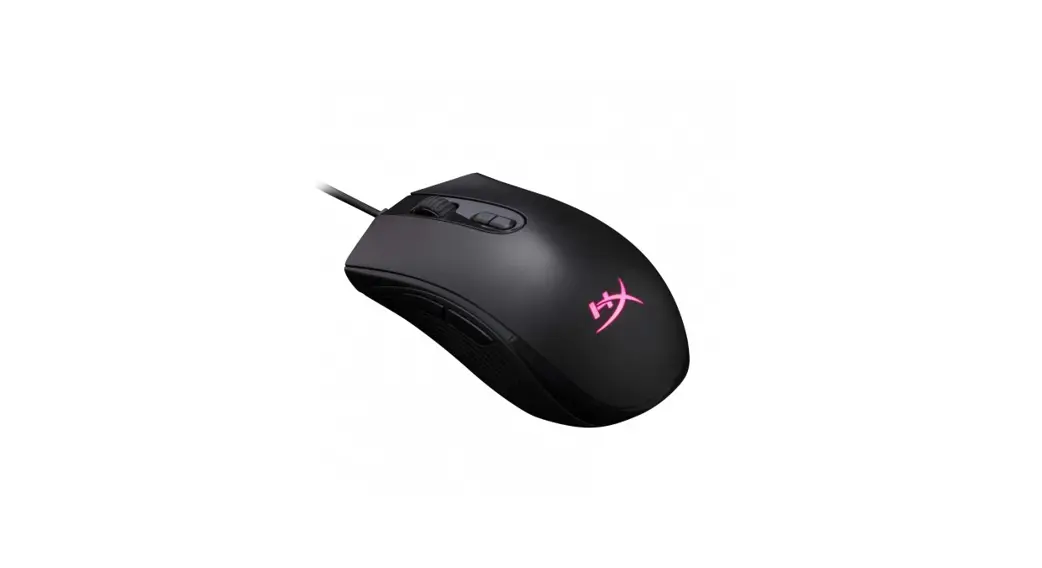
 Pulse ire Core RGB Gaming Mouse
Instructions
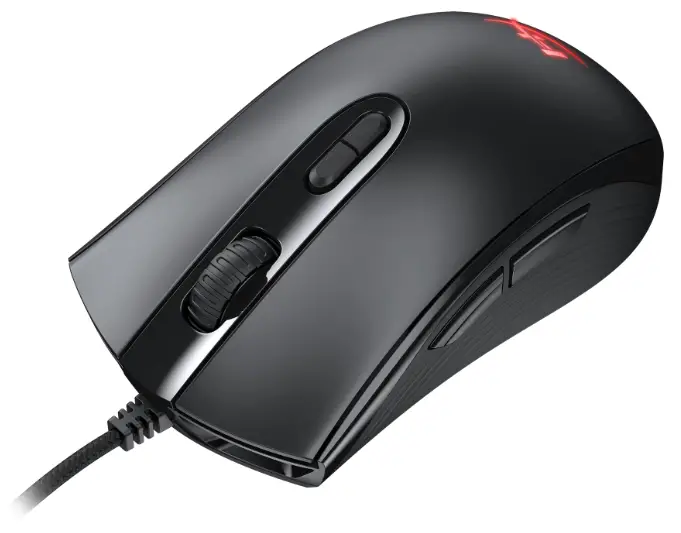
Pulse ire Core RGB Gaming Mouse
HyperX Pulse ire Core™ RGB Gaming Mouse
Find the language and latest documentation for your HyperX Pulse ire Core™ RGB Gaming Mouse here. HyperX Pulse ire Core™ RGB Gaming Mouse Installation Guide
Part numbers: HX-MC004B
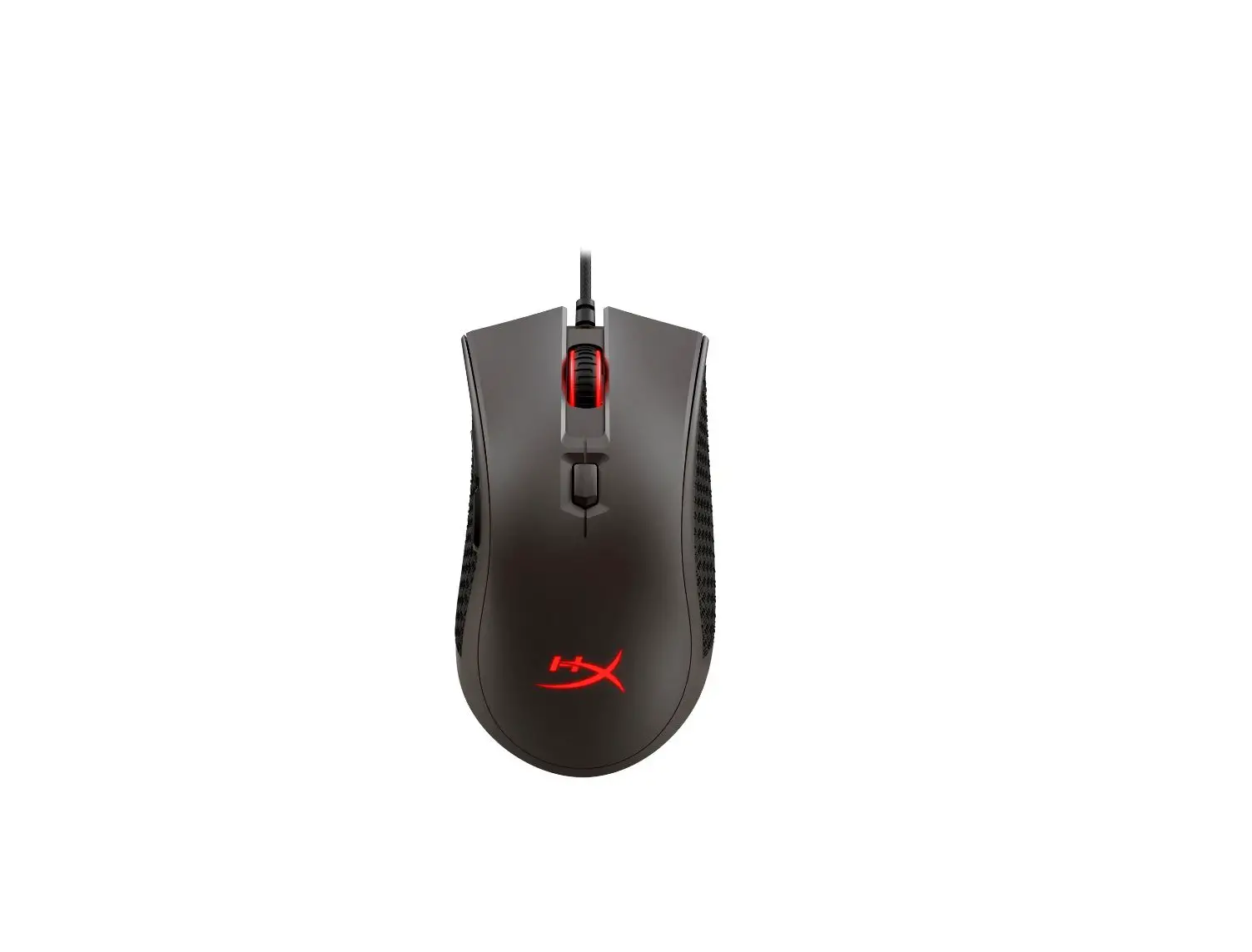
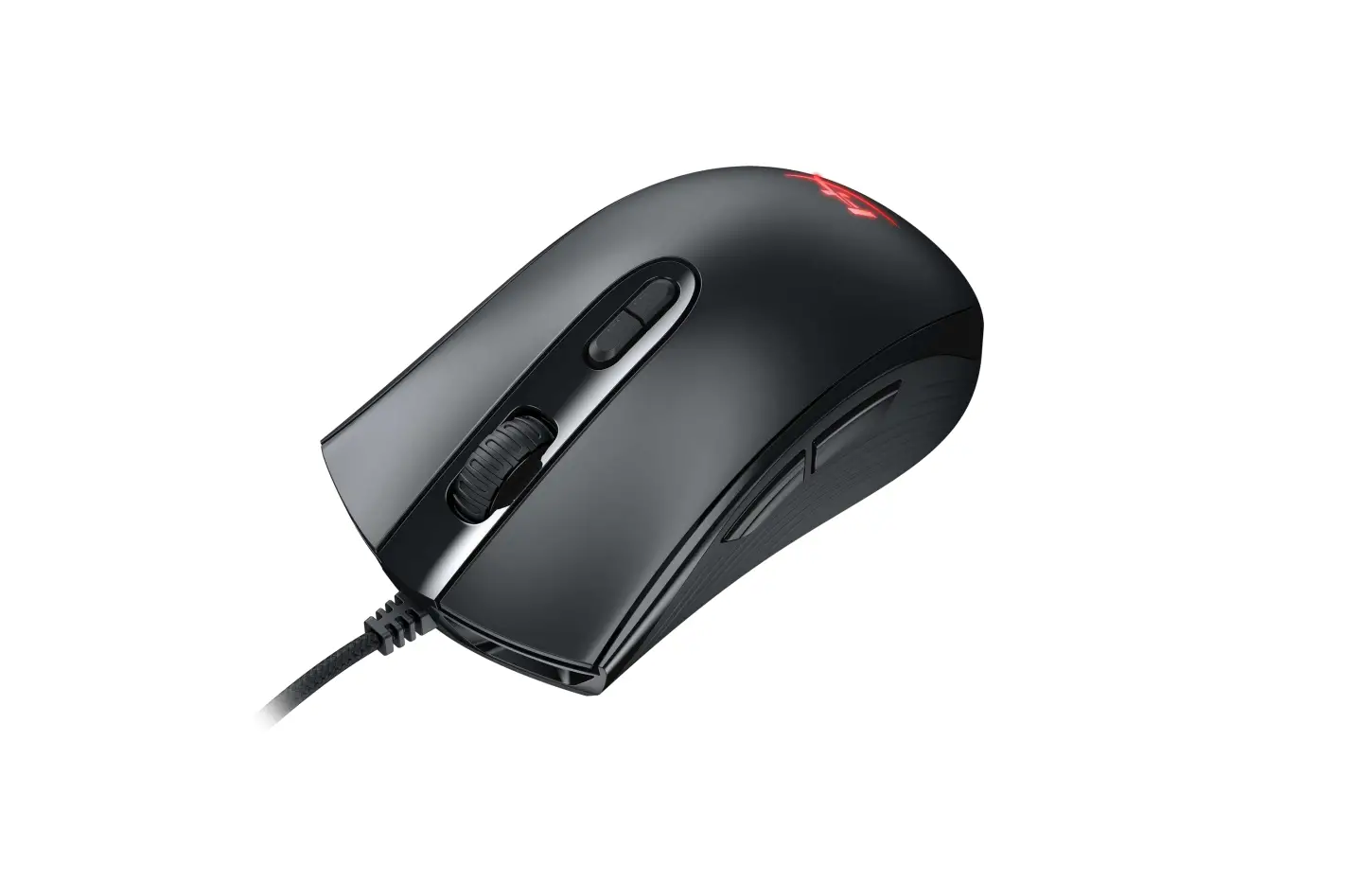
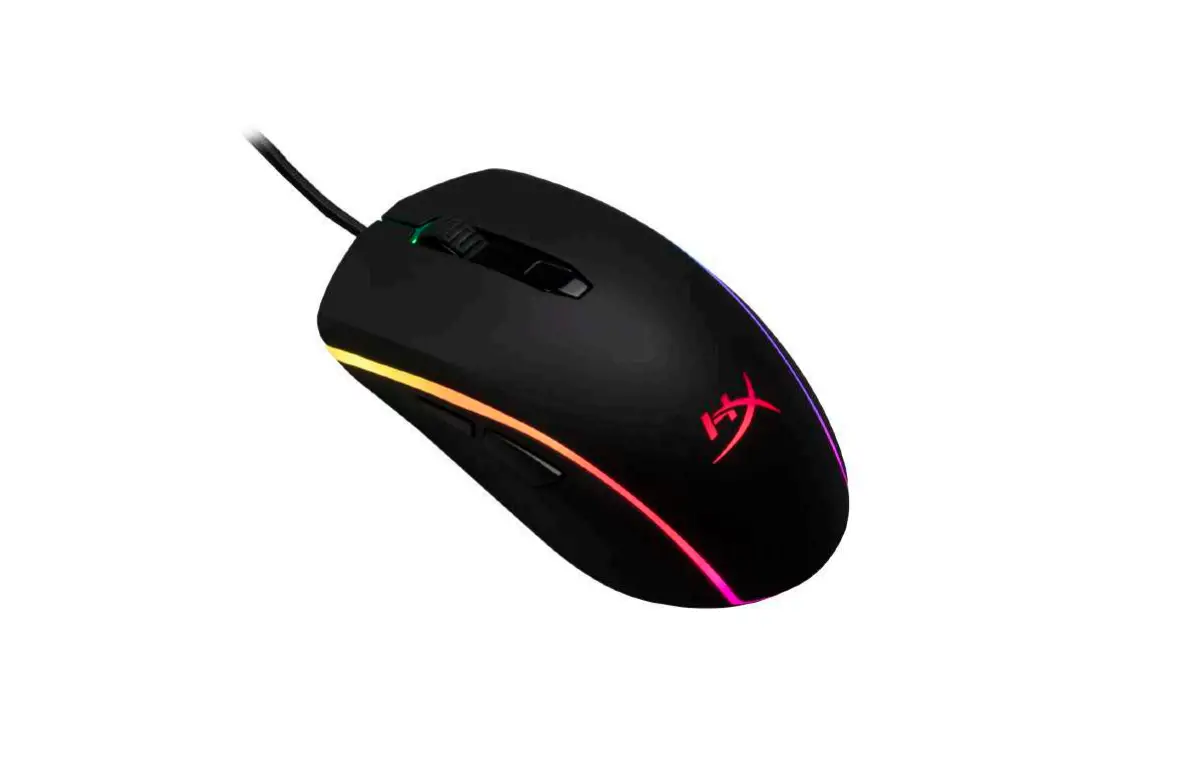
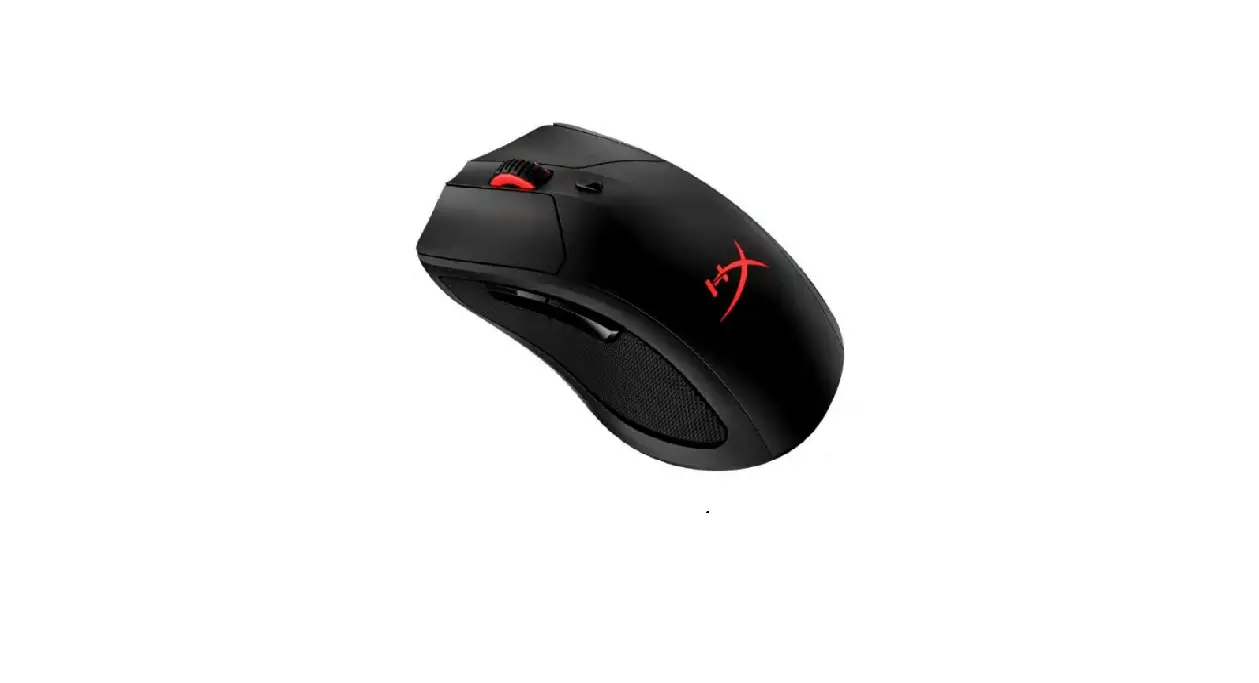
The HyperX Pulse ire Core TM delivers the essentials for gamers looking for a solid, comfortable, wired RGB gaming mouse. The Pixar 3327 optical sensor gives players precise, smooth tracking with no hardware acceleration, and has native DPI settings of up to 6200 DPI. The ergonomically designed Pulse ire Core has textured side grips for a comfortable, non-slip grip and its symmetrical shape is suitable for both palm and claw grips. It features high-quality switches with crisp tactile feedback rated for up to 20 million clicks. Customize lighting, DPI settings and macros for 7 programmable buttons with HyperX Ingenuity software and set your mouse up just the way you want it. The large skates on Pulse ire Core help deliver accurate aiming by giving you a smooth, controlled glide as you move the mouse.
What’s included: HyperX Pulse ire Core Mouse
Specifications
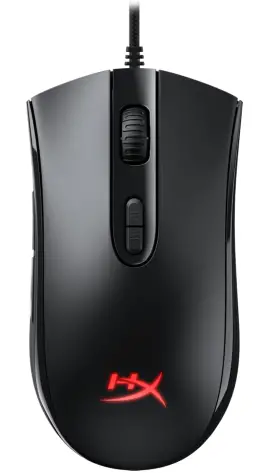
| Mouse: Ergonomic: Symmetrical Sensor: Pixar 3327 Resolution: Up to 6,200 DPI DPI presets*: (4) total 800/1600/2400/3200 DPI Speed: 220 IPS Acceleration: 30G Buttons: 7 Left/right button switches: Omron Left/right button durability: 20 million clicks Backlight: RGB (16,777,216 colors) | Light effects: 1 lighting zone – 4 brightness levels On-board memory: 1 profile Connection type: USB 2.0 Polling rate: 1000Hz Cable type: Braided Dimensions: Length: 119.30mm Height: 41.30mm Width: 63.90mm Cable length: 1.8m Weight (without cable): 100g Weight (with cable): 120g |
* Per zone RGB lighting is customizable with HyperX Ingenuity sift
** Tested on HyperX FURY S Pro Gaming Mouse Pad.
Mouse overview
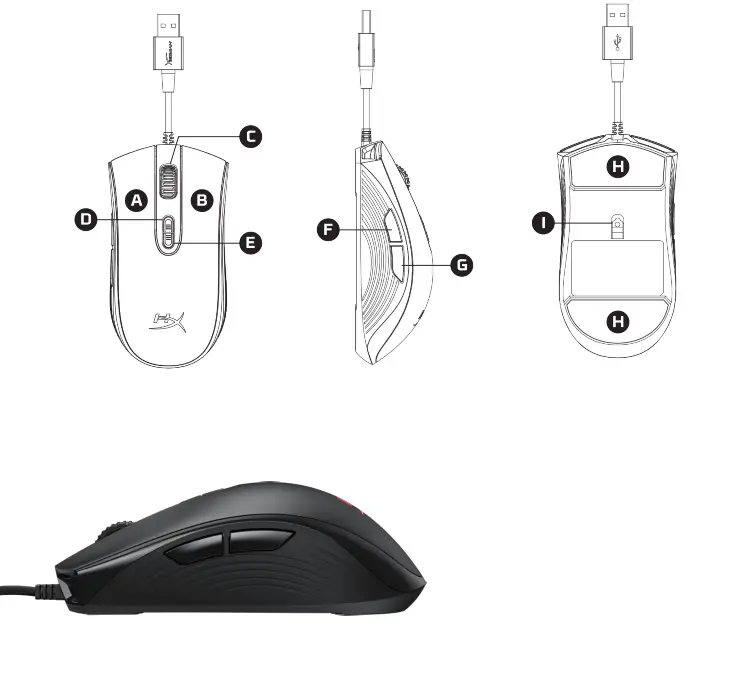
A. Left-click button
B. Right-click button
C. Mouse wheel
D. DPI increase button
DPI decrease button
E. Forward-click button
F. Back-click button
G. Mouse skates
H. Optical gaming sensor
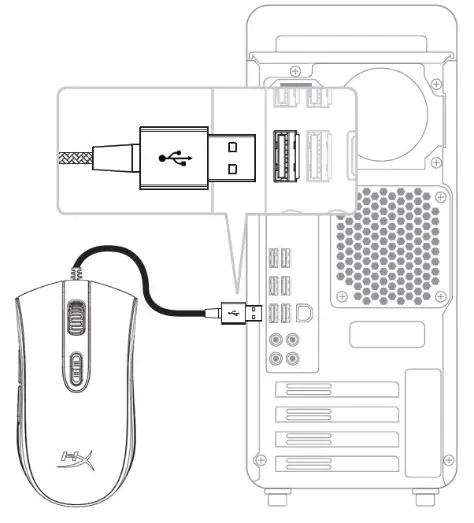
Mouse installation:
Connect the USB connector to the computer USB port.
DPI presets:
| Preset 1 | Preset 2 | Preset 3 | Preset 4 | |
| DPI value | 800 (default | 1600 | 2400 | 3200 |
| DPI colour | Red | Green | Blue | Yellow |
Mouse functions:
| Function keys | Secondary feature |
| DPI up/down button | Change between DPI presets. Default values are: – 800 DPI (red then fade away). – 1600 DPI (green then fade away). – 2400 DPI (blue then fade away). – 3200 DPI (yellow then fade away). |
| DPI button + B5 button | Decrease LED brightness. There are 4 brightness levels: off, low, medium and high. |
| DPI button + B4 button | Increase LED brightness. There are 4 brightness levels: off, low, medium and high. |
Factory reset
DPI button + mouse wheel click for 5 seconds: Factory reset of the mouse and all on-board memory settings.
HyperX NGenuity software:
To customize the lighting and macro settings, download the HyperX Ingenuity software here: hyperxgaming.com/en/ngenuity
Refer to the HyperX Ingenuity gaming software manual for more information on the functions.
480HX-MC004B.A01
HyperX Pulse ire Core™
 NGENUITY – HyperX ROW
 HyperX | High Quality Gaming Gear