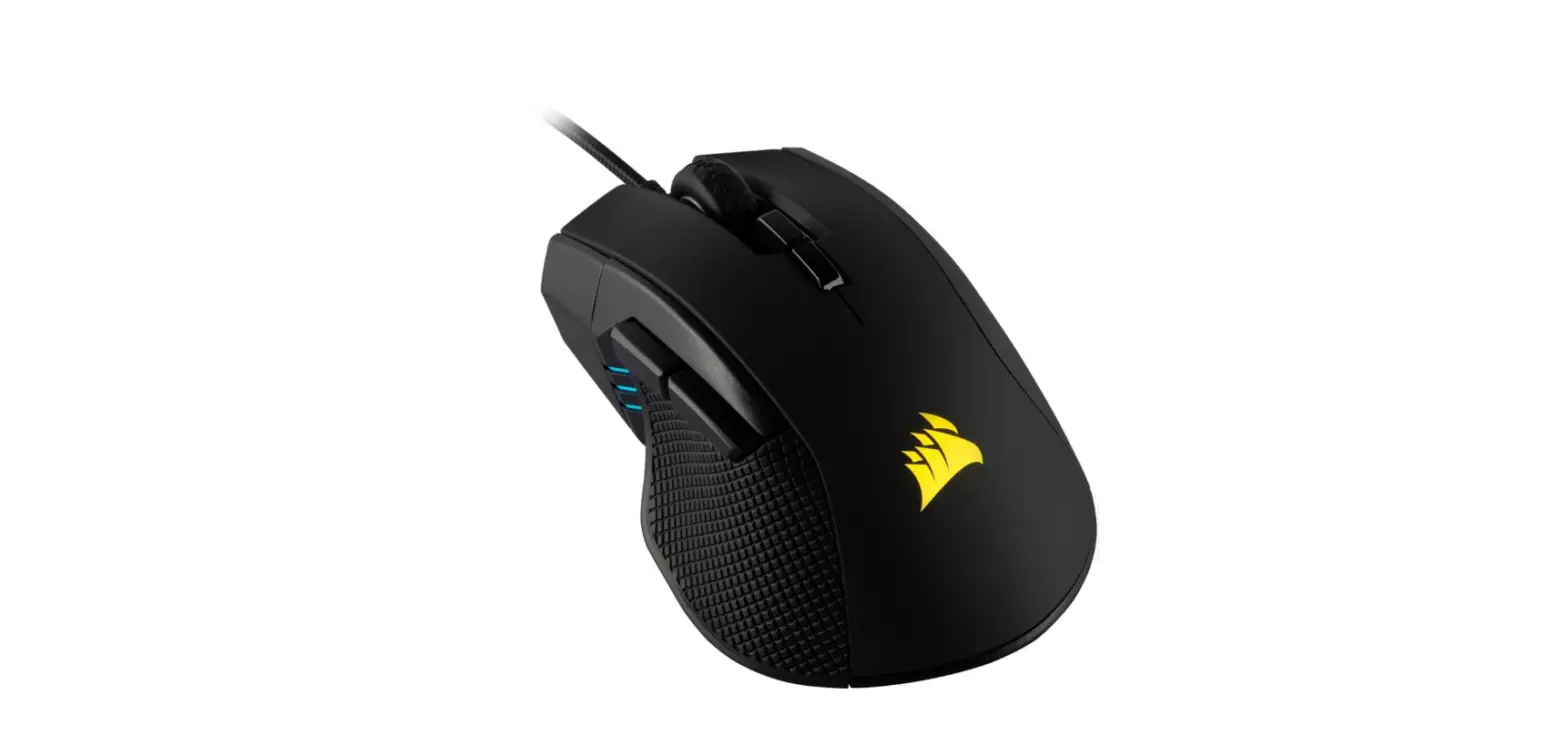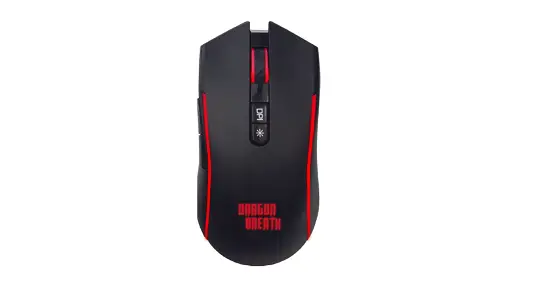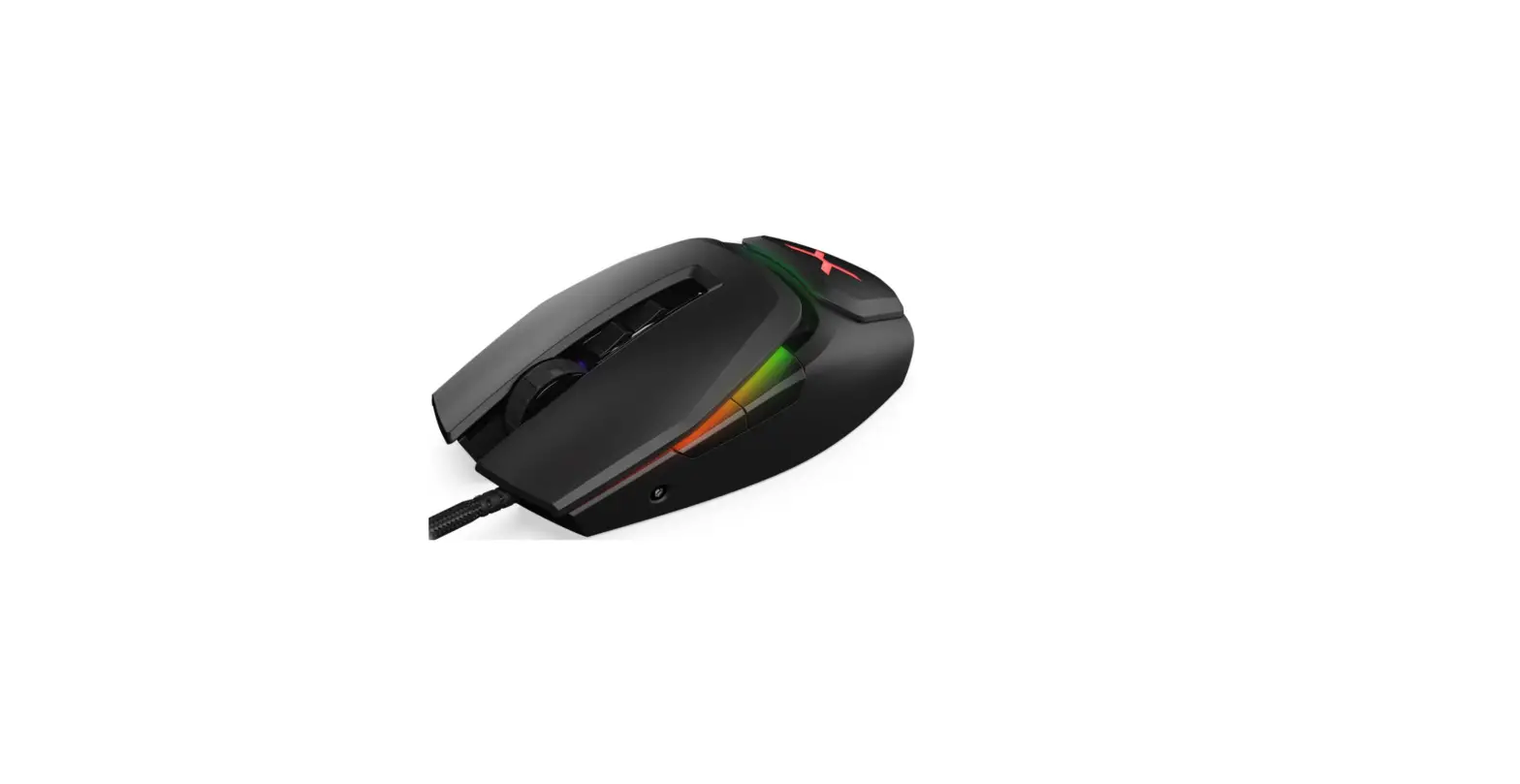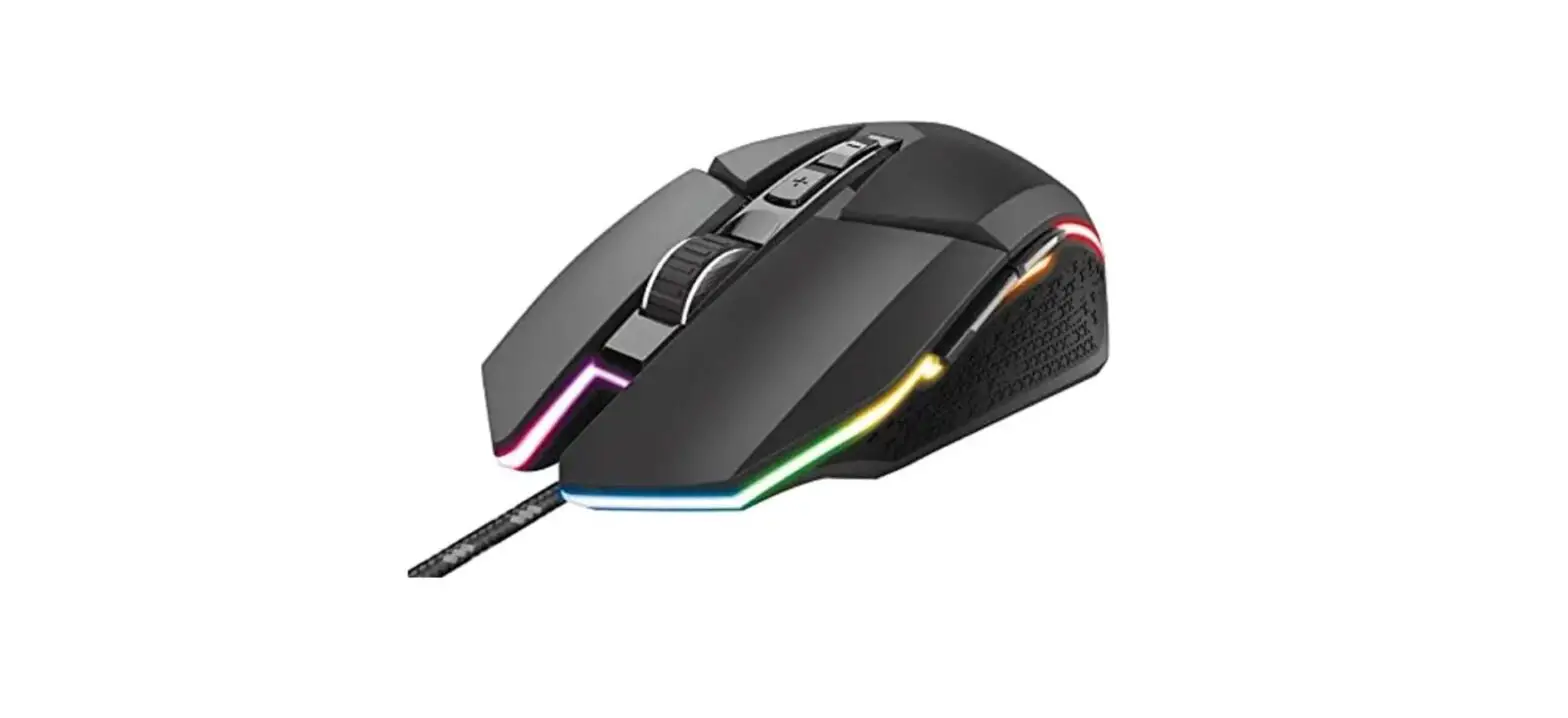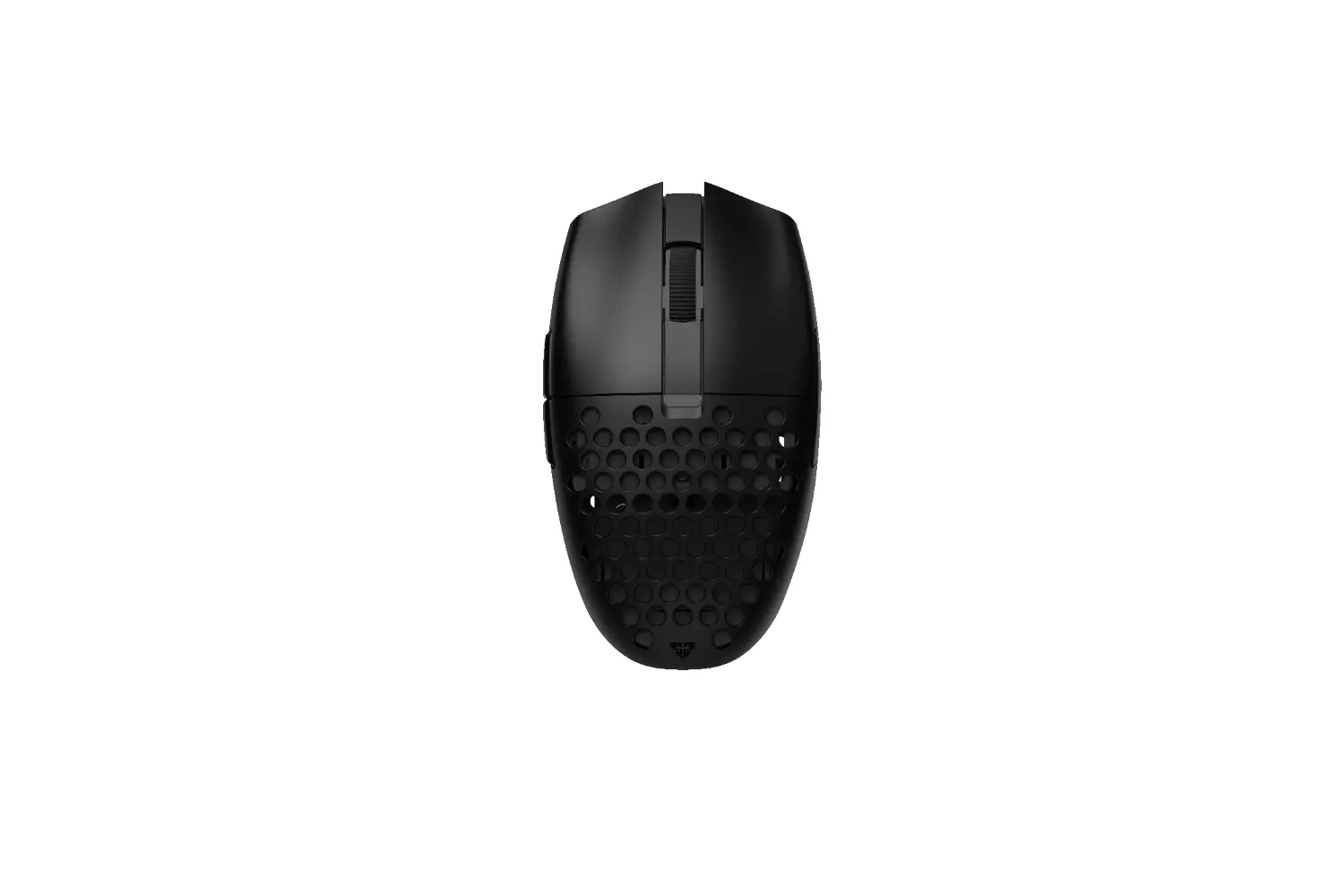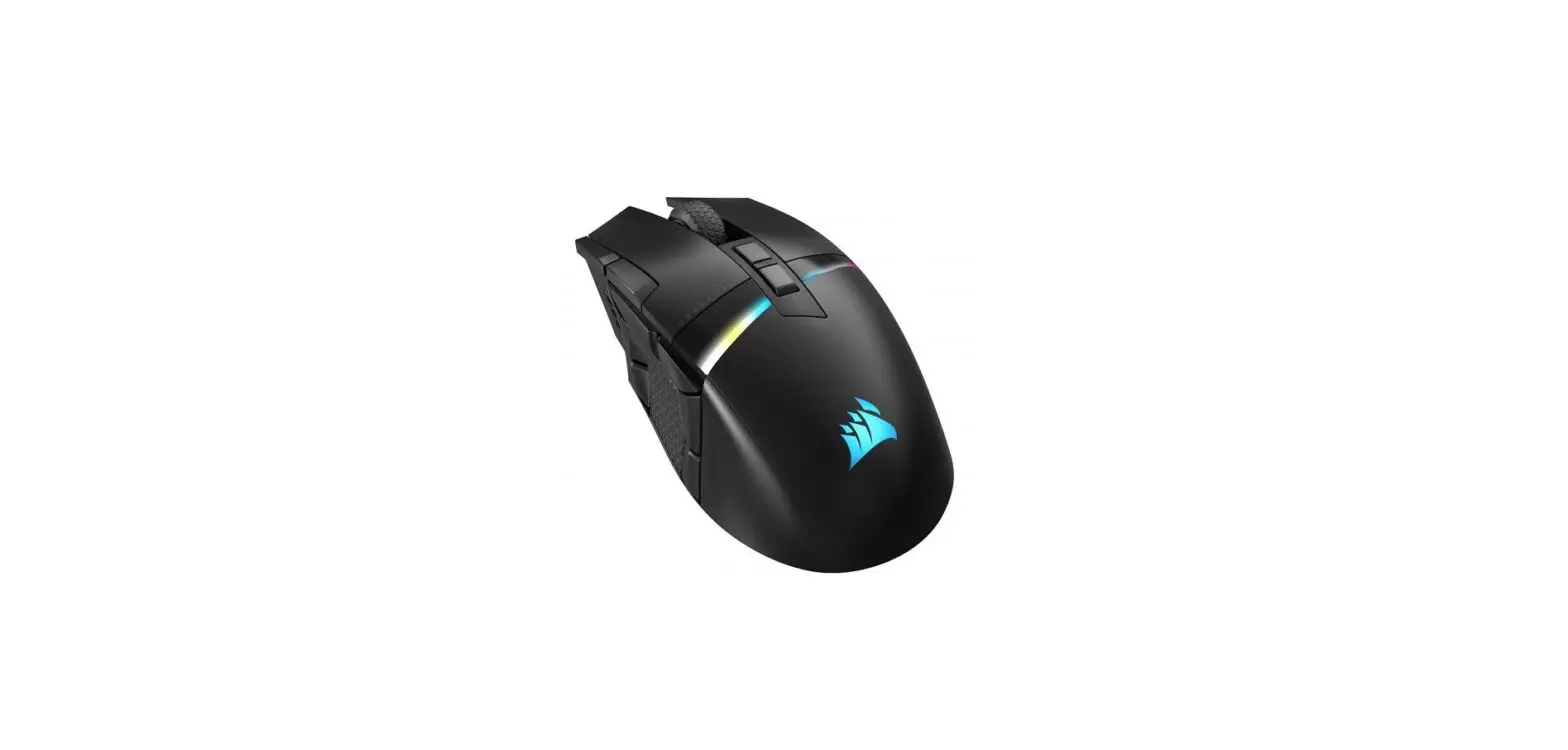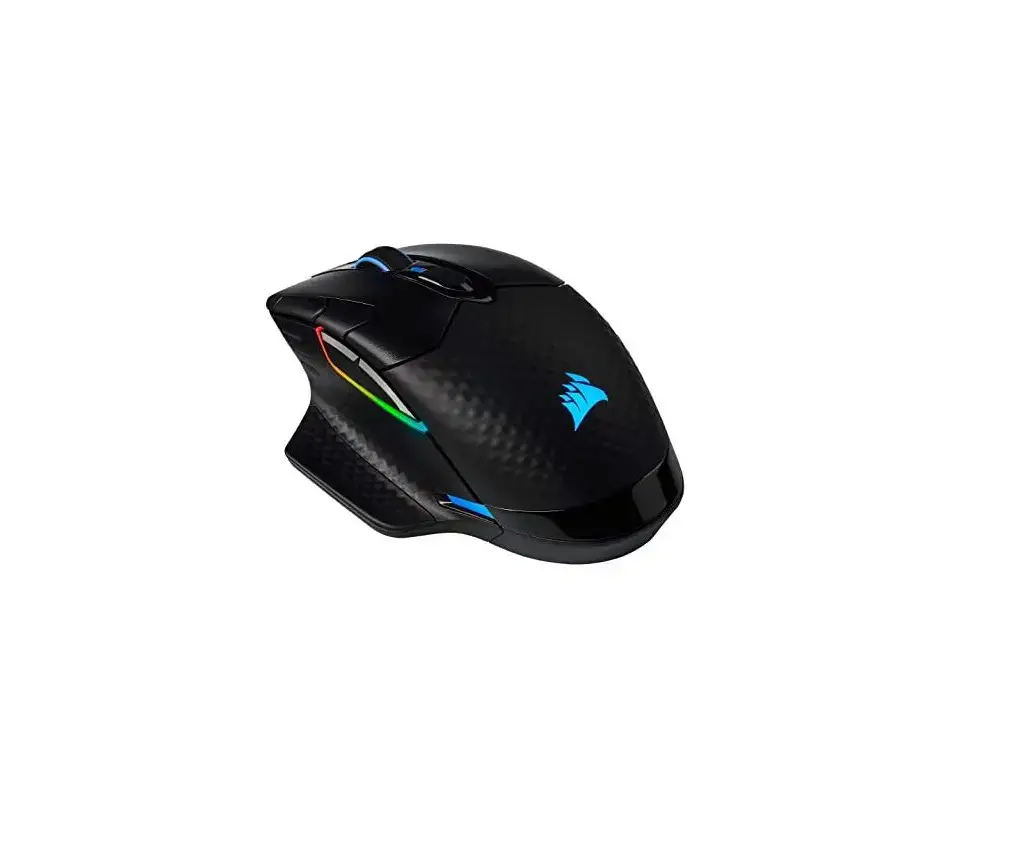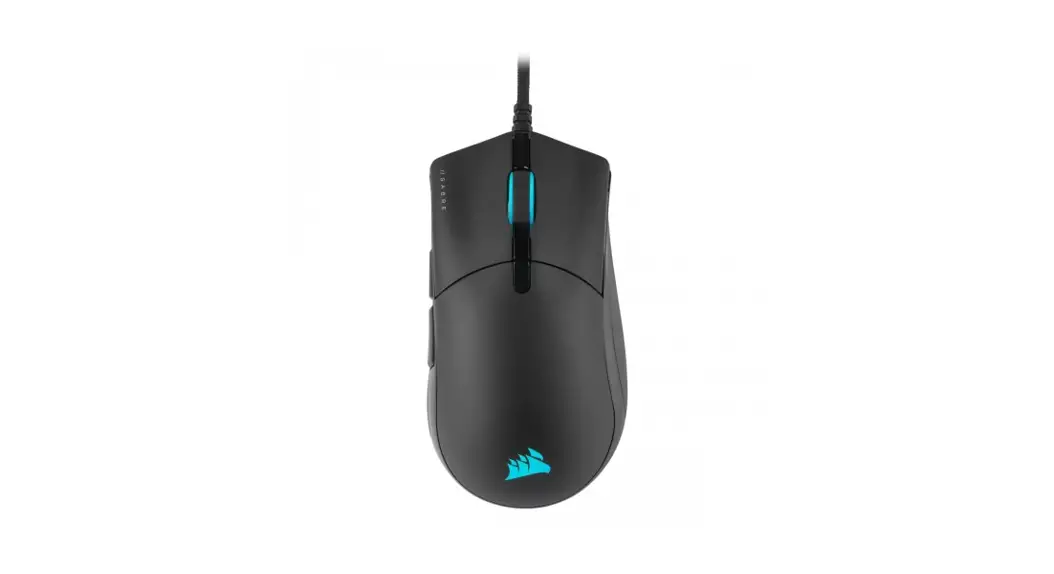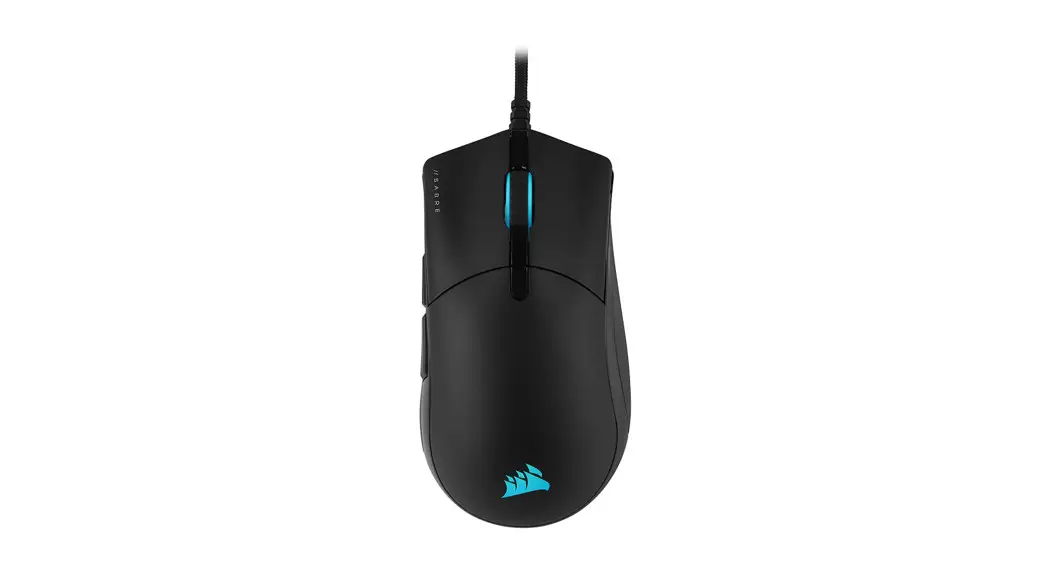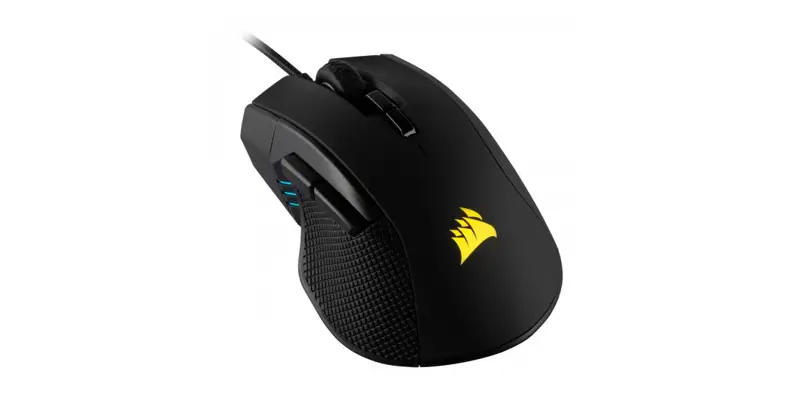


IRON CLAW RGB
FPS/MOBA Gaming Mouse
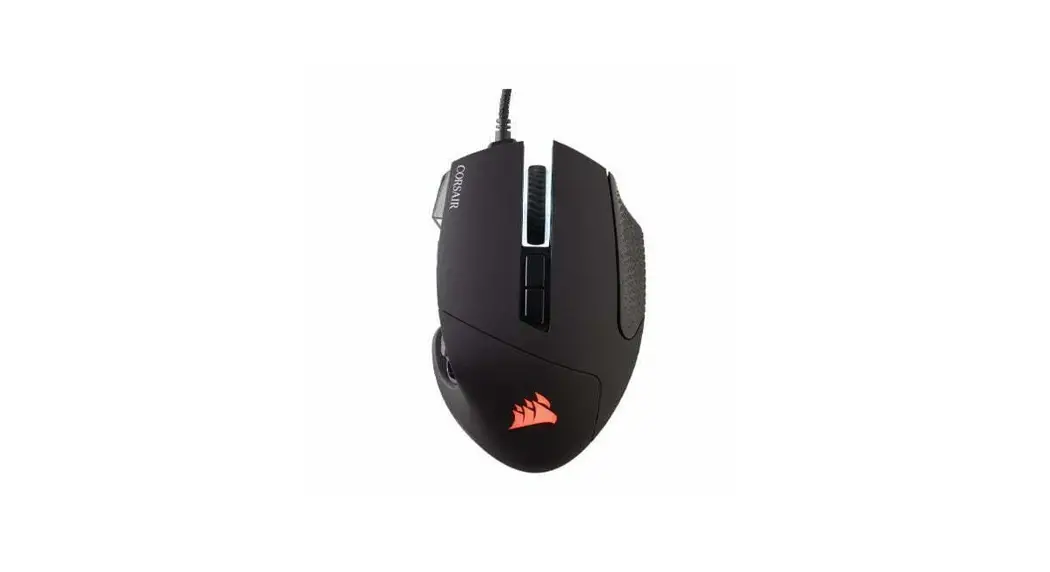
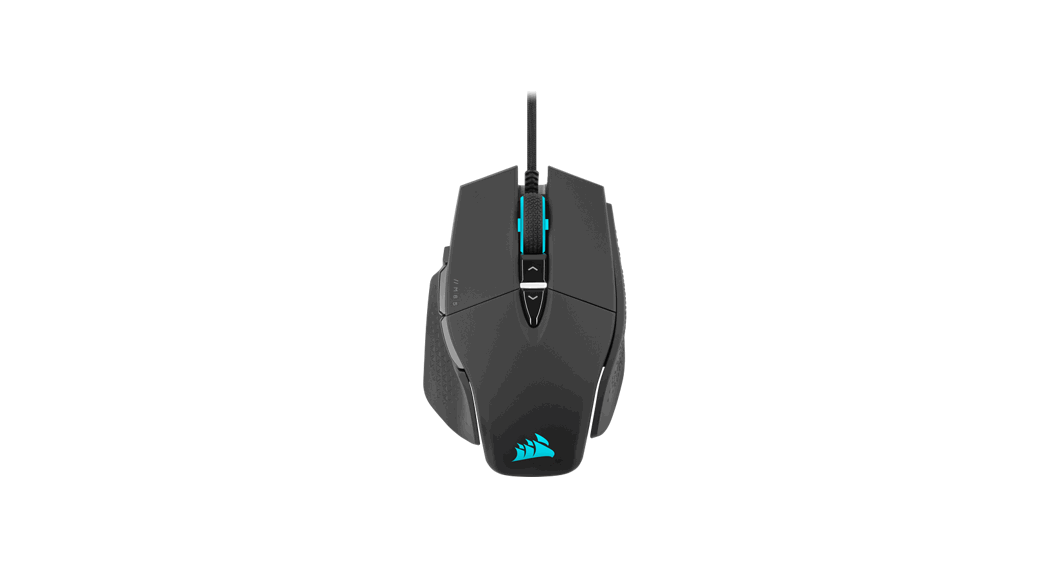
GETTING TO KNOW YOUR MOUSE

A — LEFT CLICK BUTTON
B — RIGHT CLICK BUTTON
C — MIDDLE CLICK BUTTON
D — PROFILE CYCLE BUTTON
E — DPI CYCLE BUTTON
F — FORWARD BUTTON
G — BACKWARD BUTTON
H — MULTI-PURPOSE LED INDICATOR
I — PTFE GLIDE PADS
J — OPTICAL GAMING SENSOR
K — USB CONNECTION CABLE
SETTING UP YOUR MOUSE
> Turn on your computer.
> Connect the mouse to available USB 2.0 or USB 3.0 port on your computer.
> Download the iCUE software from www.corsair.com/downloads.
> Run the installer program.
> Follow instructions for installation.
MULTI-PURPOSE LED INDICATOR
Various aspects of mouse operation are communicated through a multi-purpose LED indicator located on the left side of the mouse.
| ONBOARD PROFILE STATU | MULTI-PURPOSE LED INDICATOR | ||
| LED #1 | LED #2 | LED #3 | |
| PROFILE #1 | RED | OFF | OFF |
| PROFILE #2 | OFF | GREEN | OFF |
| PROFILE #3 | OFF | OFF | BLUE |
| DPI STAGE STATUS | |||
| STAGE #1 | CYAN | OFF | OFF |
| STAGE #2 | CYAN | CYAN | OFF |
| STAGE #3 | CYAN | CYAN | CYAN |
IRONCLAW RGB
WEB: corsair.com
PHONE: (888) 222-4346
SUPPORT: support.corsair.com
BLOG: corsair.com/blog
FORUM: forum.corsair.com
YOUTUBE: youtube.com/corsairhowto
© 2018-2021 CORSAIR MEMORY, Inc. All rights reserved. CORSAIR and the sails logo are registered trademarks in the United States and/or other countries.
All other trademarks are the property of their respective owners. Product may vary slightly from those pictured. 49-002247 AA

 PC Components | Gaming Gear | CORSAIR
 Home - Corsair Community
 CORSAIR Downloads | CORSAIR iCUE Software