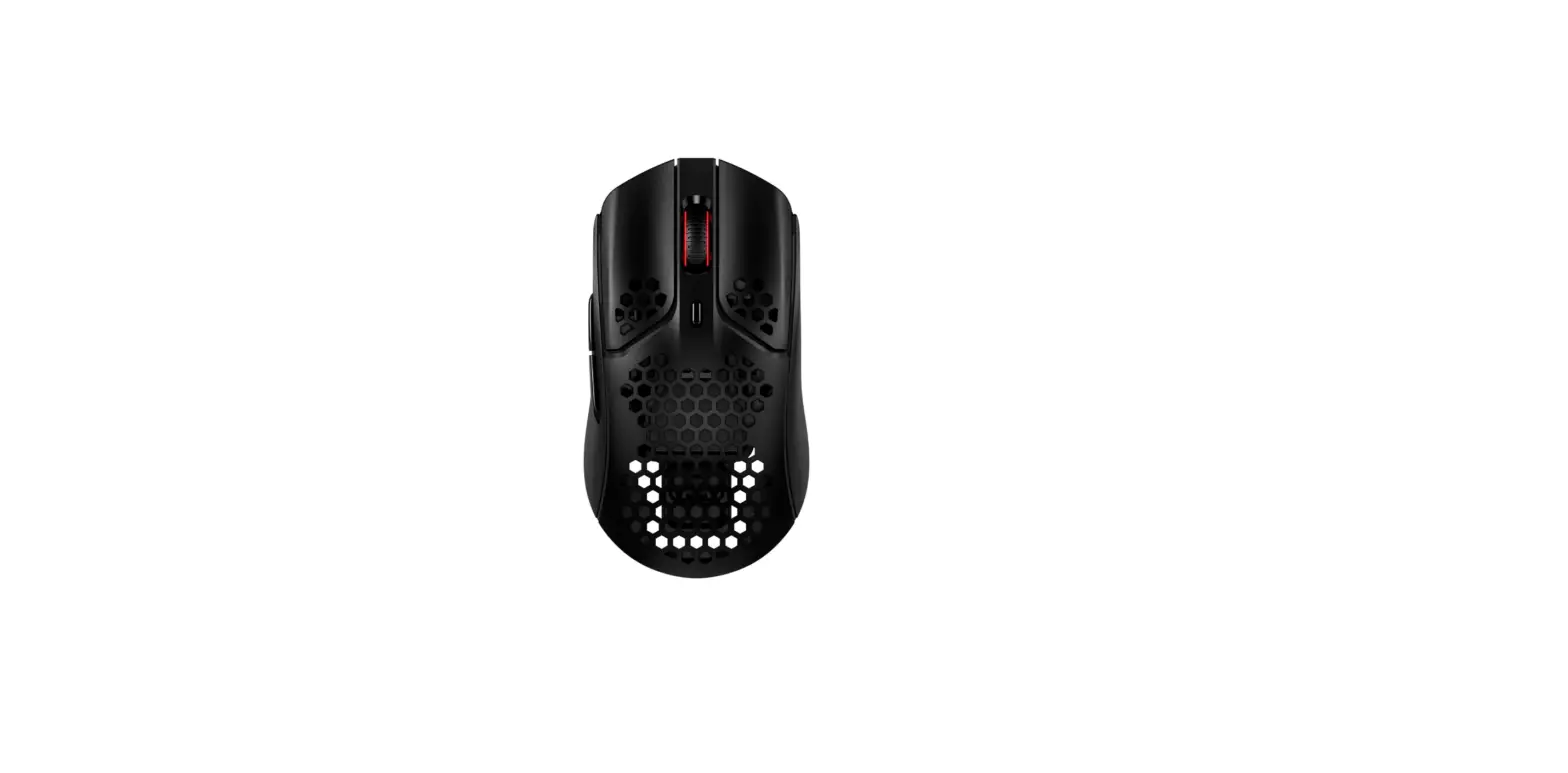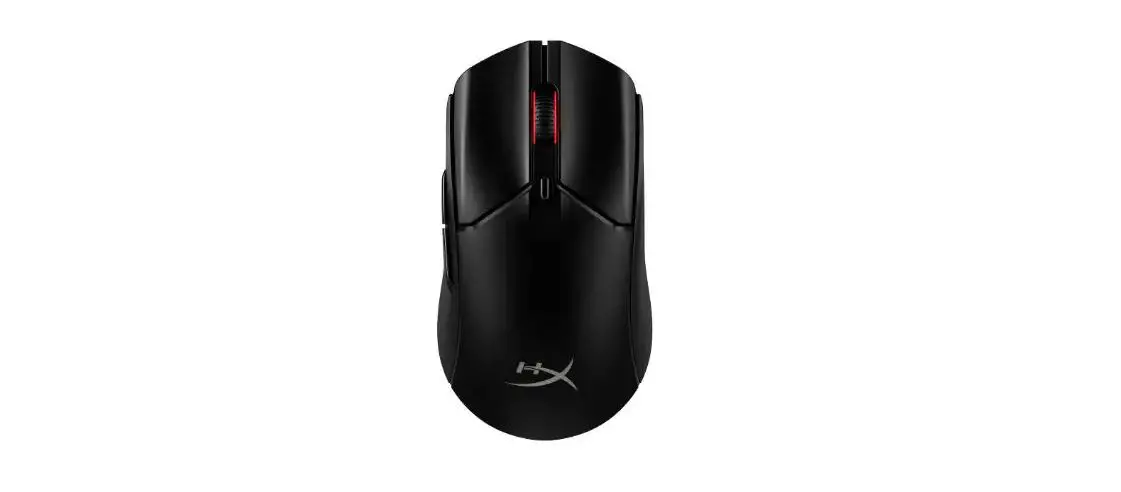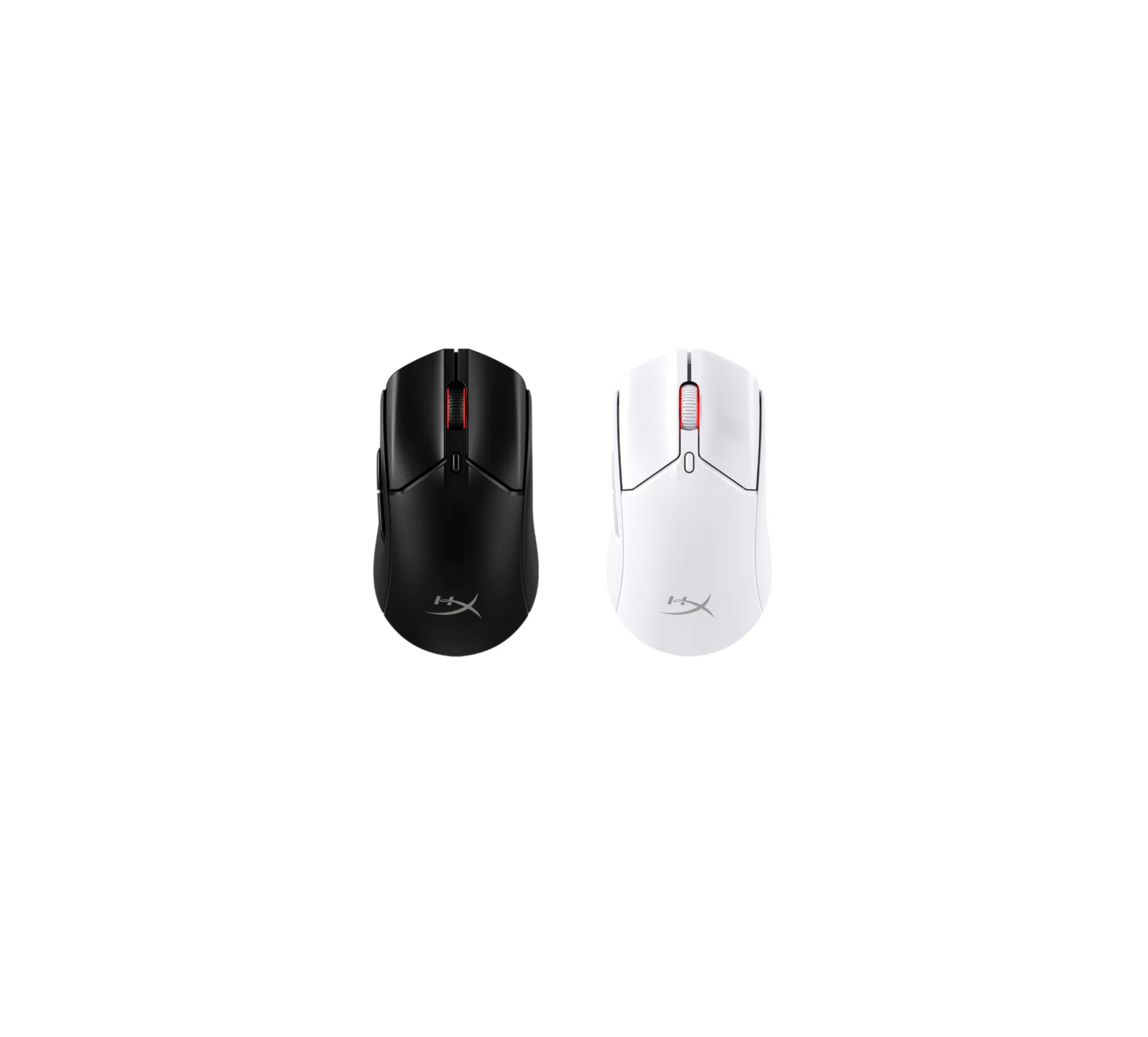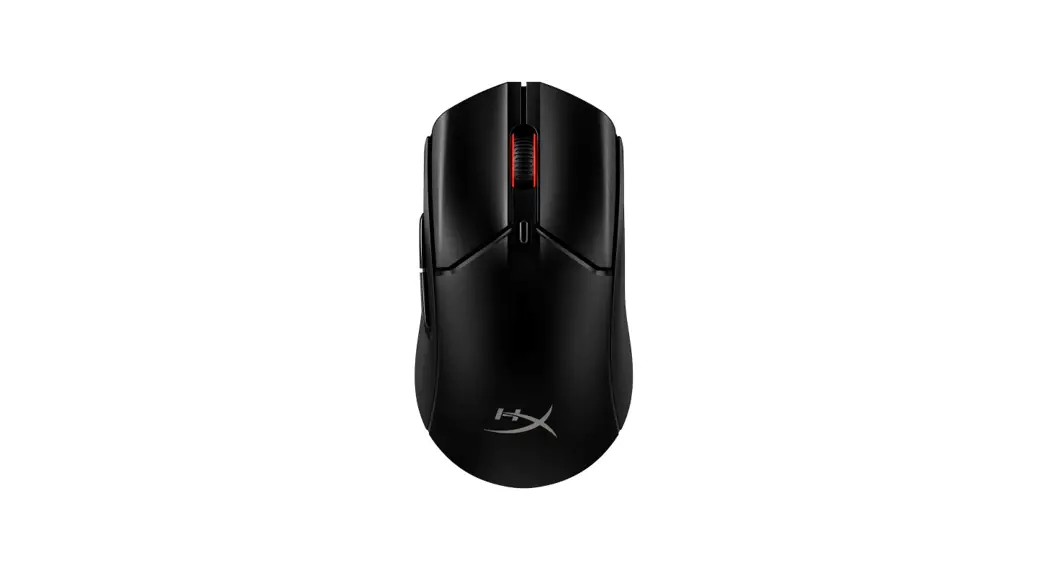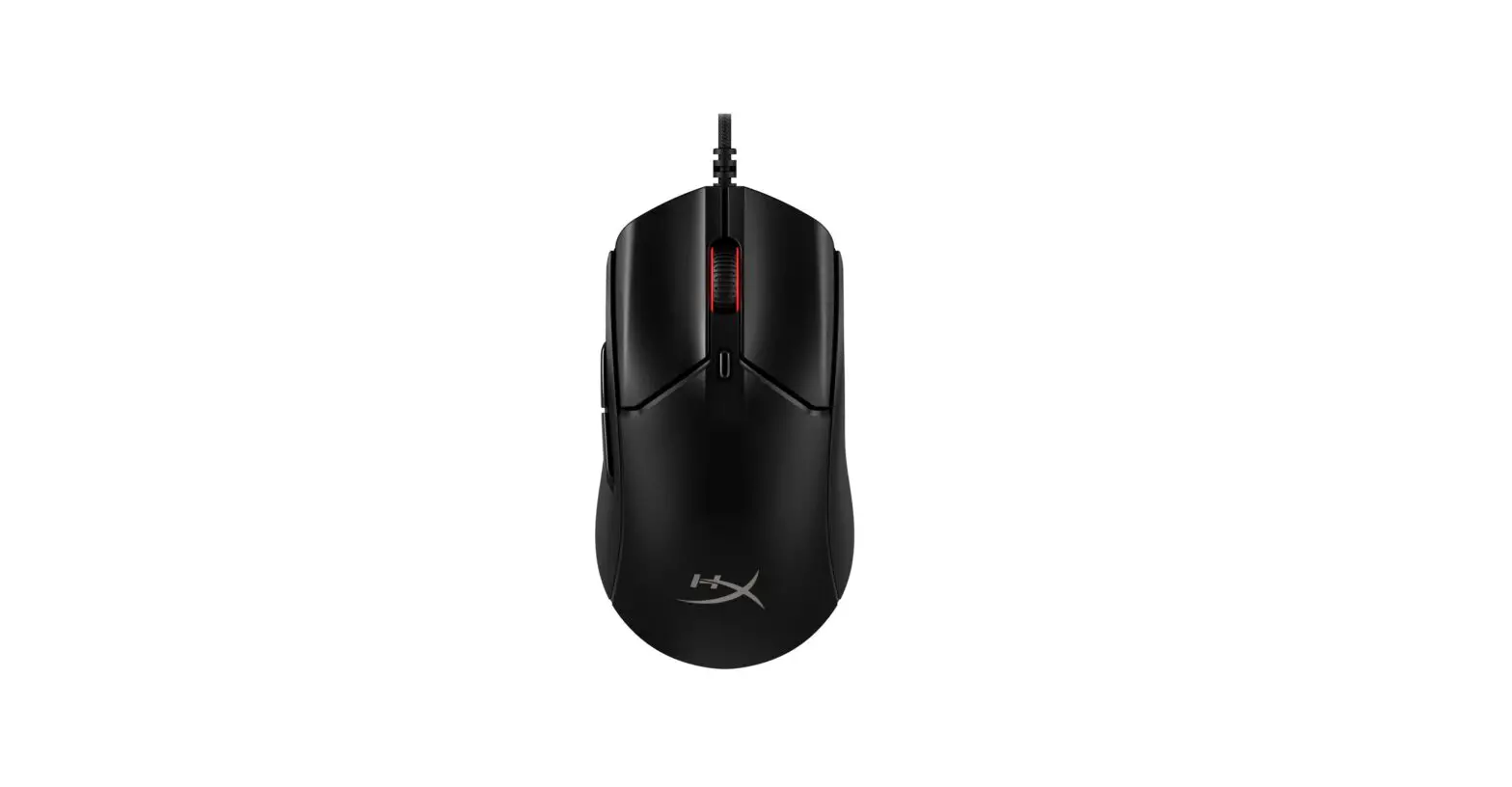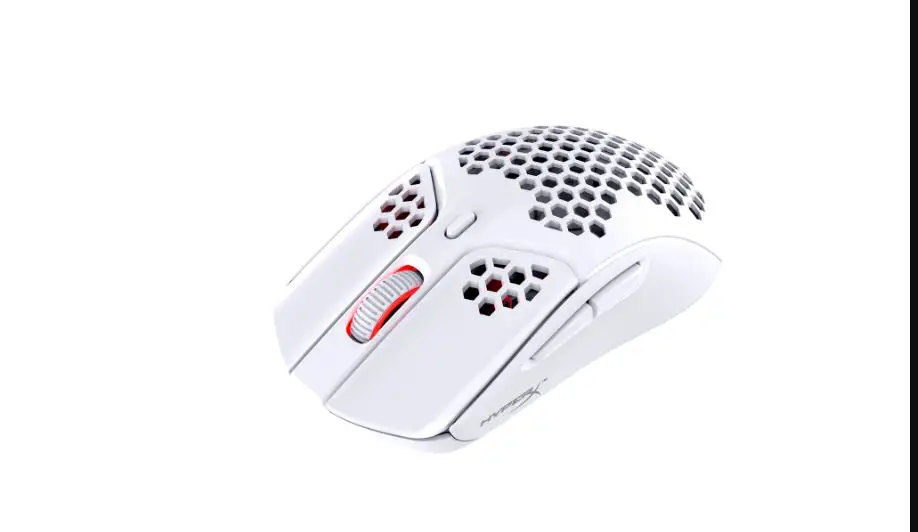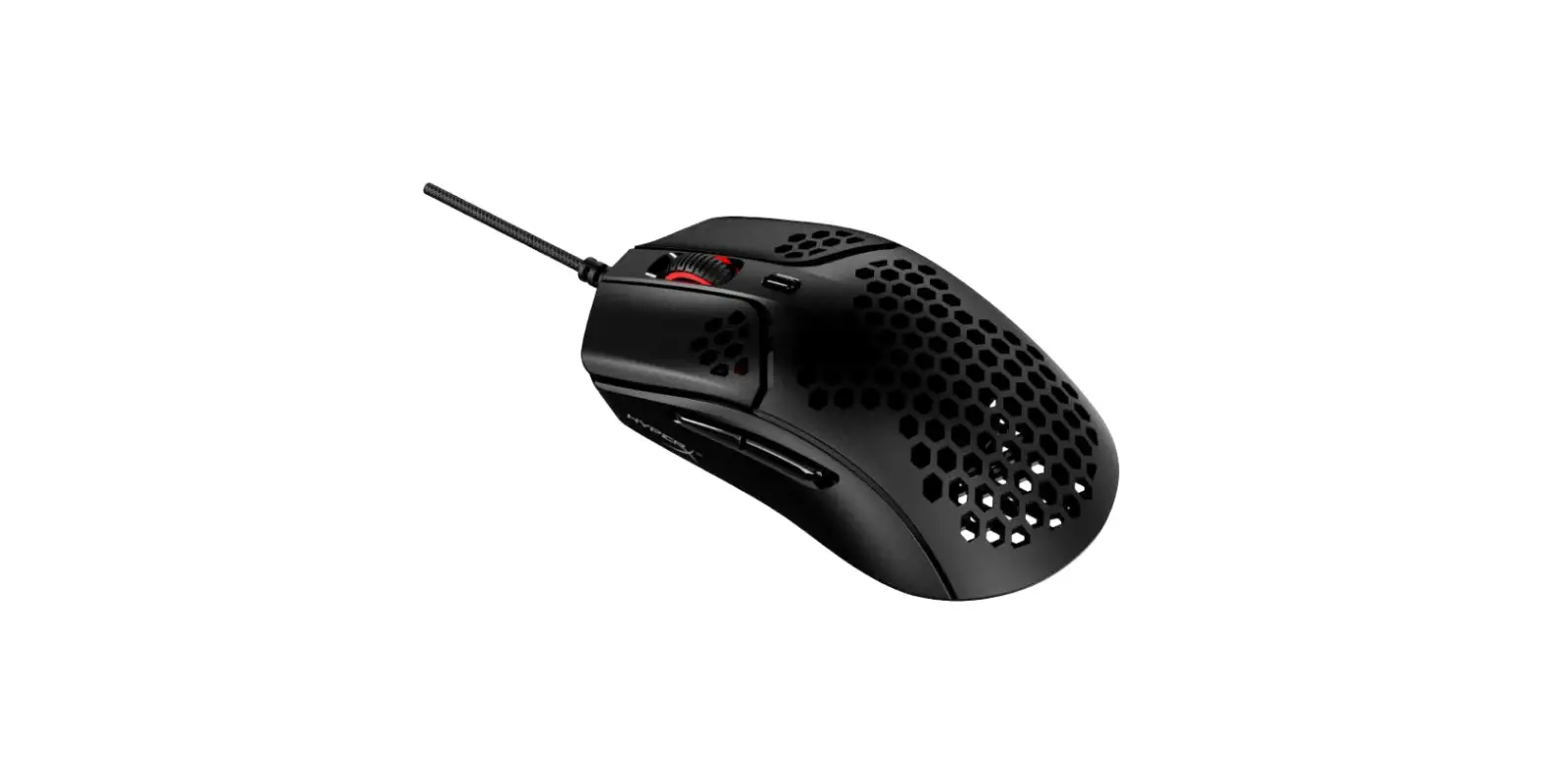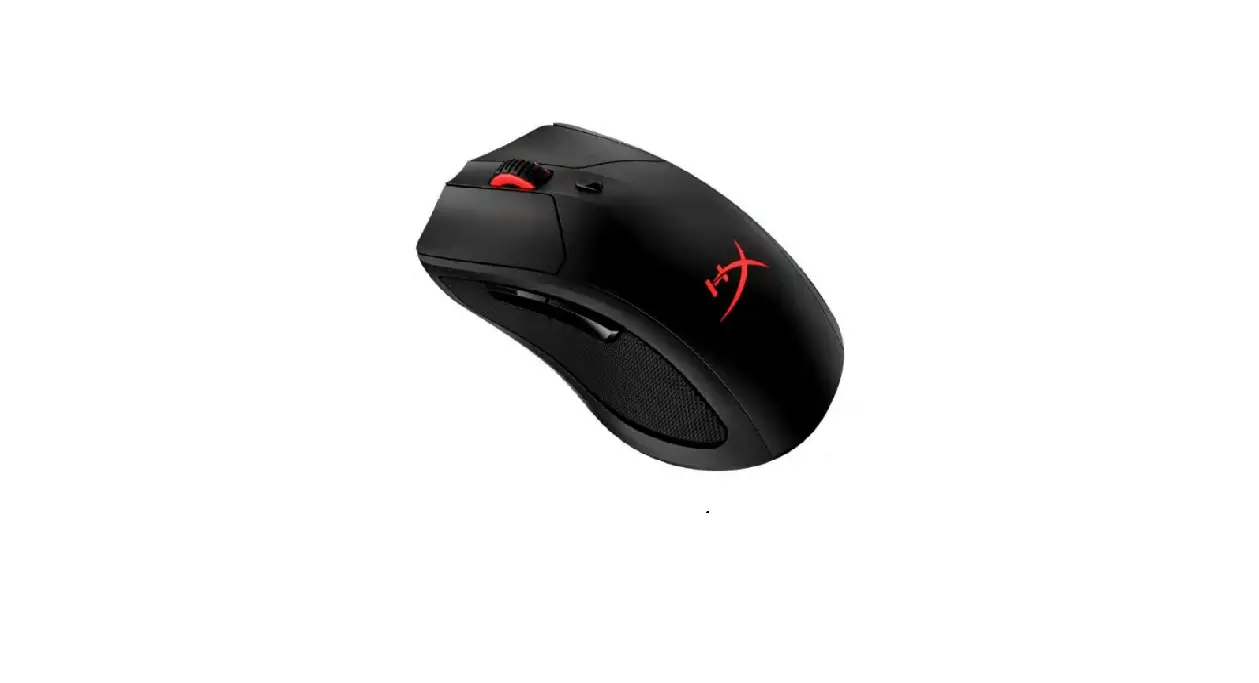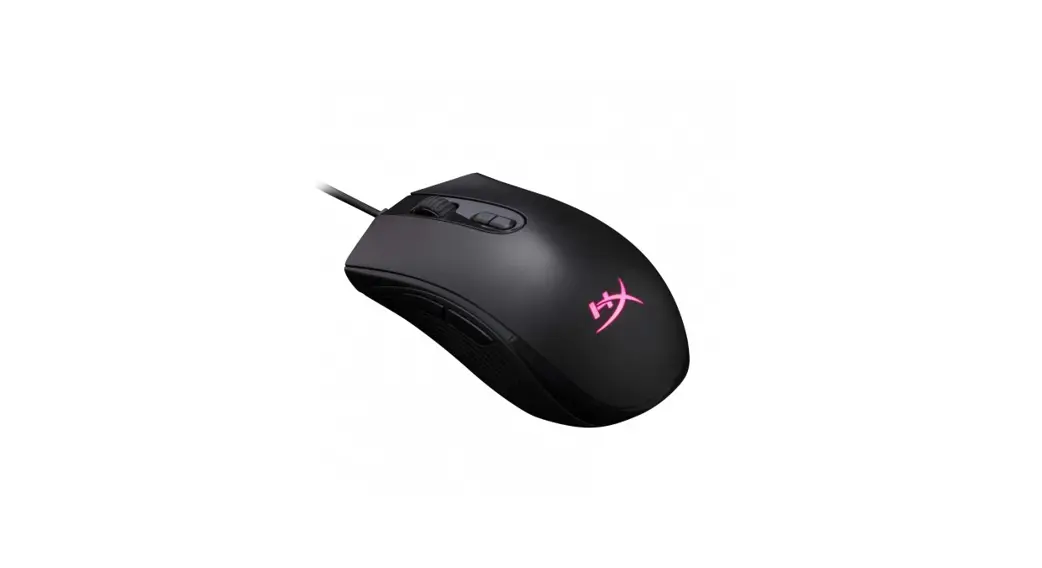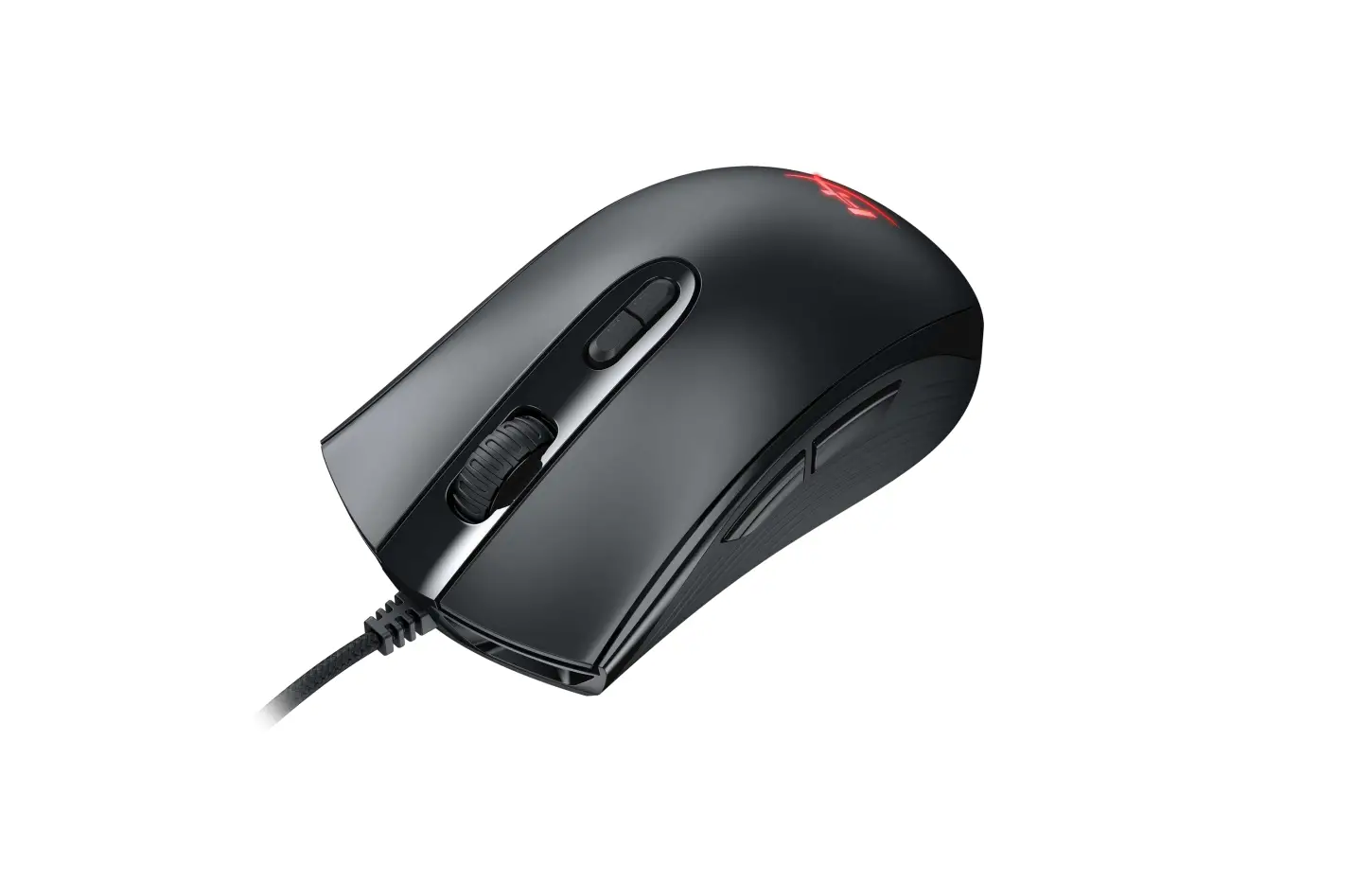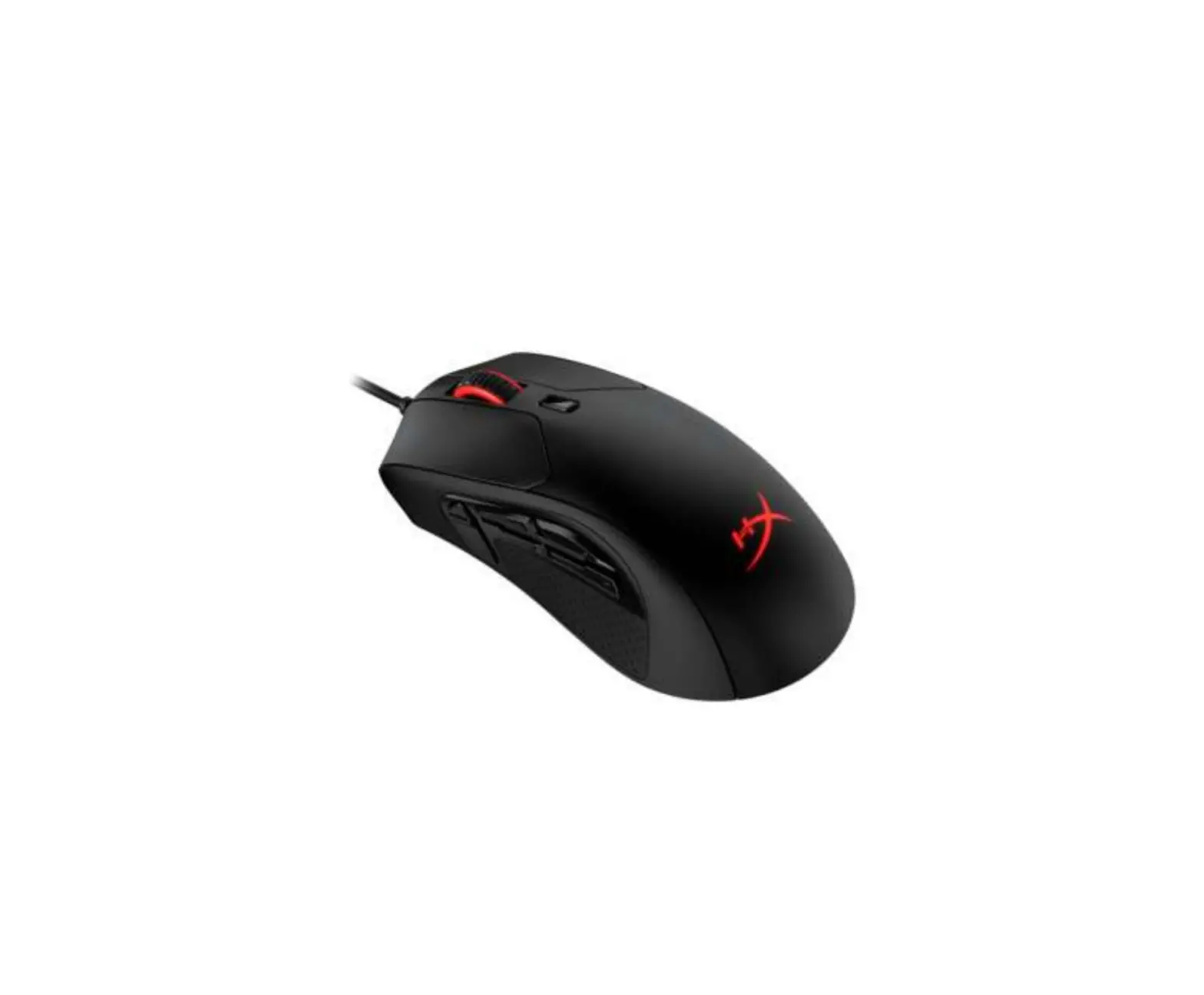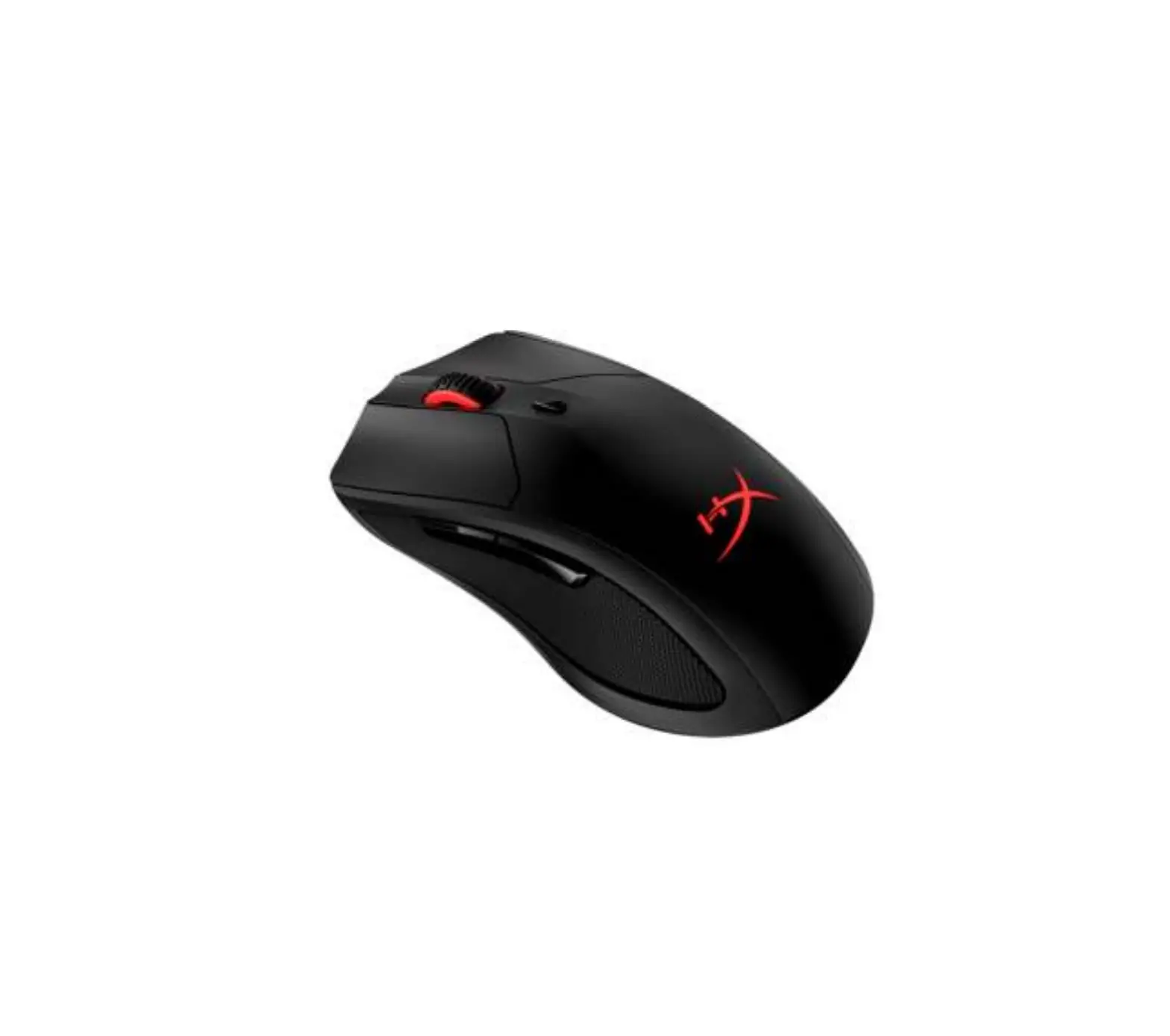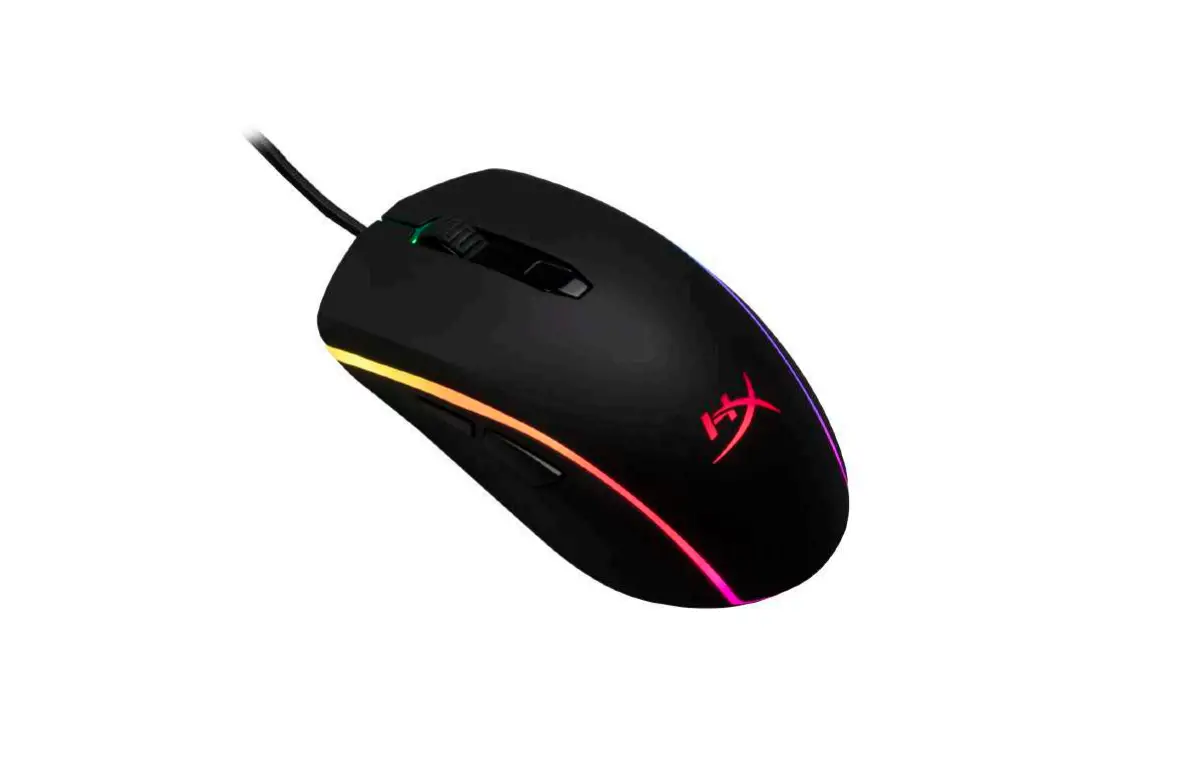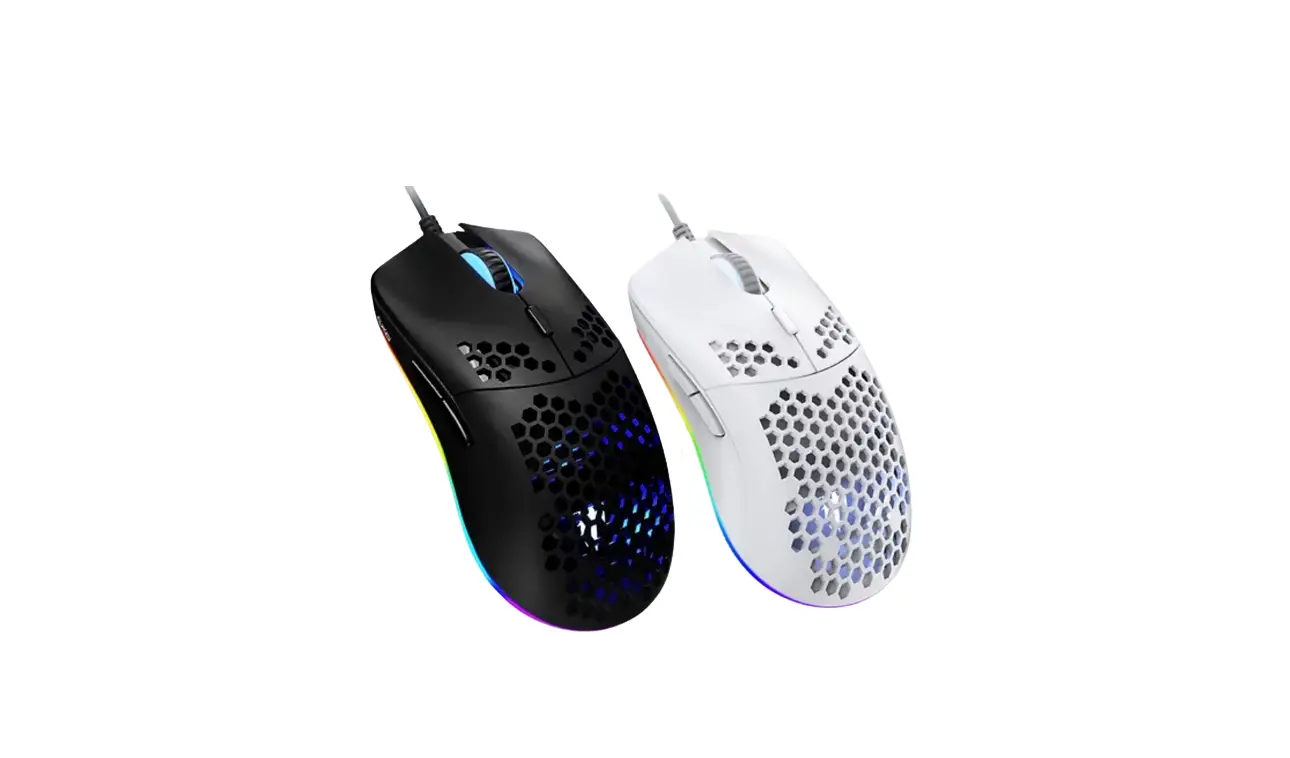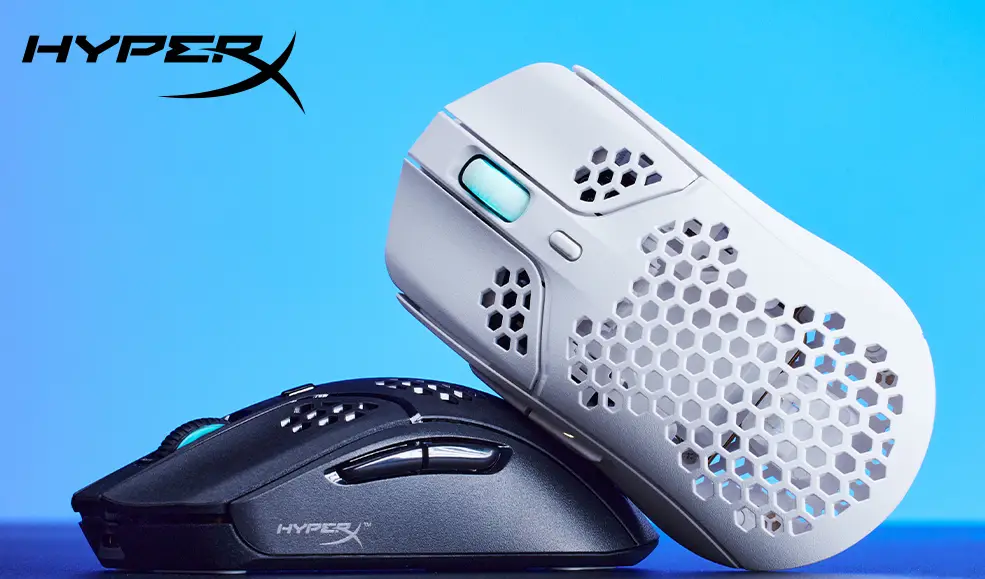

HyperX 4P5D8AA Pulsefire Haste Wireless Gaming Mouse
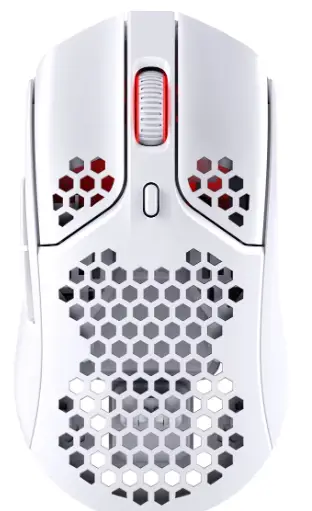
Overview
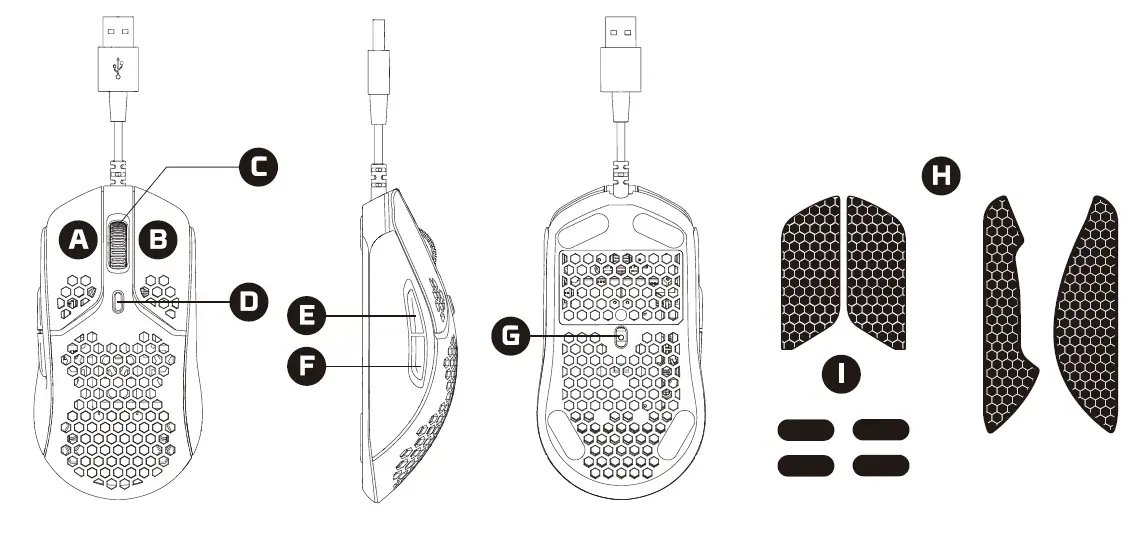
Instruction
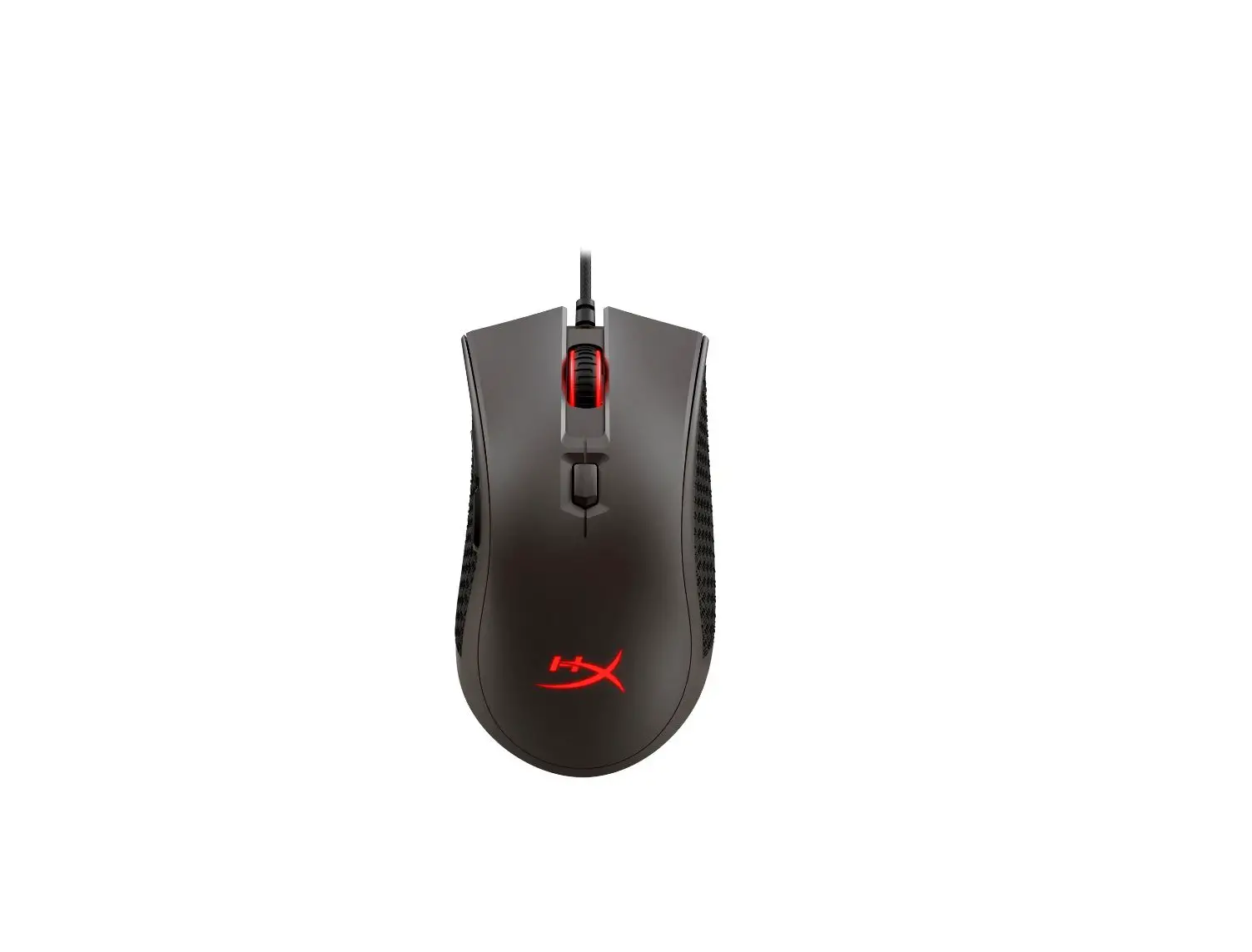
- A Left click button
- B Right click button
- C Mouse wheel
- D DPI button
- E Forward click button
- F Backward click button
- G Optical gaming sensor
- H Grip tape
- I Mouse skates
Installation
Connect the USB connector to the computer.
DPI Presets
There are 4 default DPI presets: 400 DPI (red) | 800 DPI (blue) | 1600 DPI (yellow) | 3200 DPI (green)
HyperX NGENUITY Software
To customize lighting, DPI, and macro settings, download the HyperX NGENUITY software here: hyperxgaming.com/ngenuity
Questions or Setup Issues
Contact the HyperX support team or see user manual at: hyperxgaming.com/support/mice
HyperX is a division of Kingston.
THIS DOCUMENT SUBJECT TO CHANGE WITHOUT NOTICE
©2020 Kingston Technology Corporation, 17600 Newhope Street, Fountain Valley, CA 92708 USA.
All rights reserved. All registered trademarks and trademarks are the property of their respective owners.