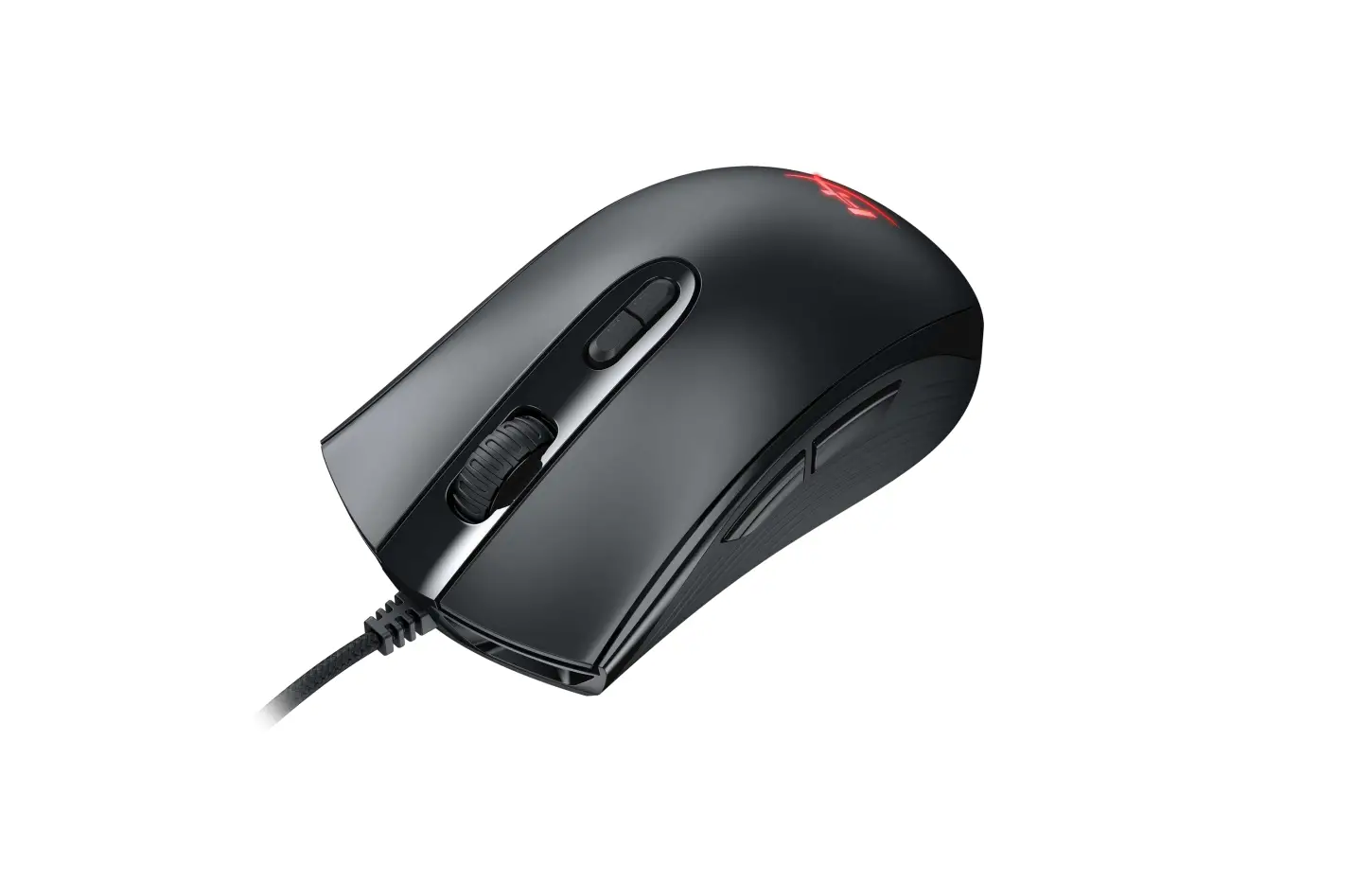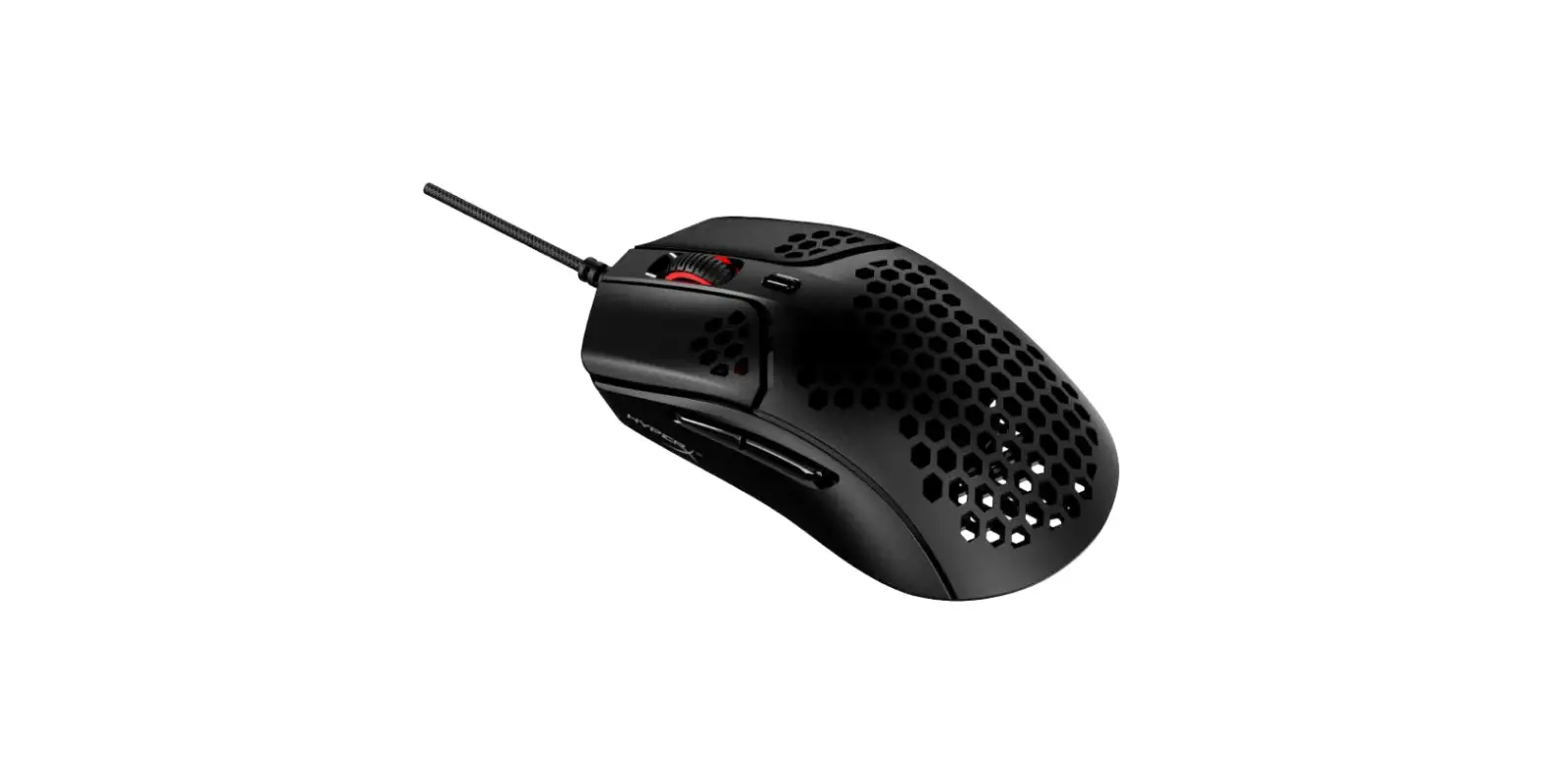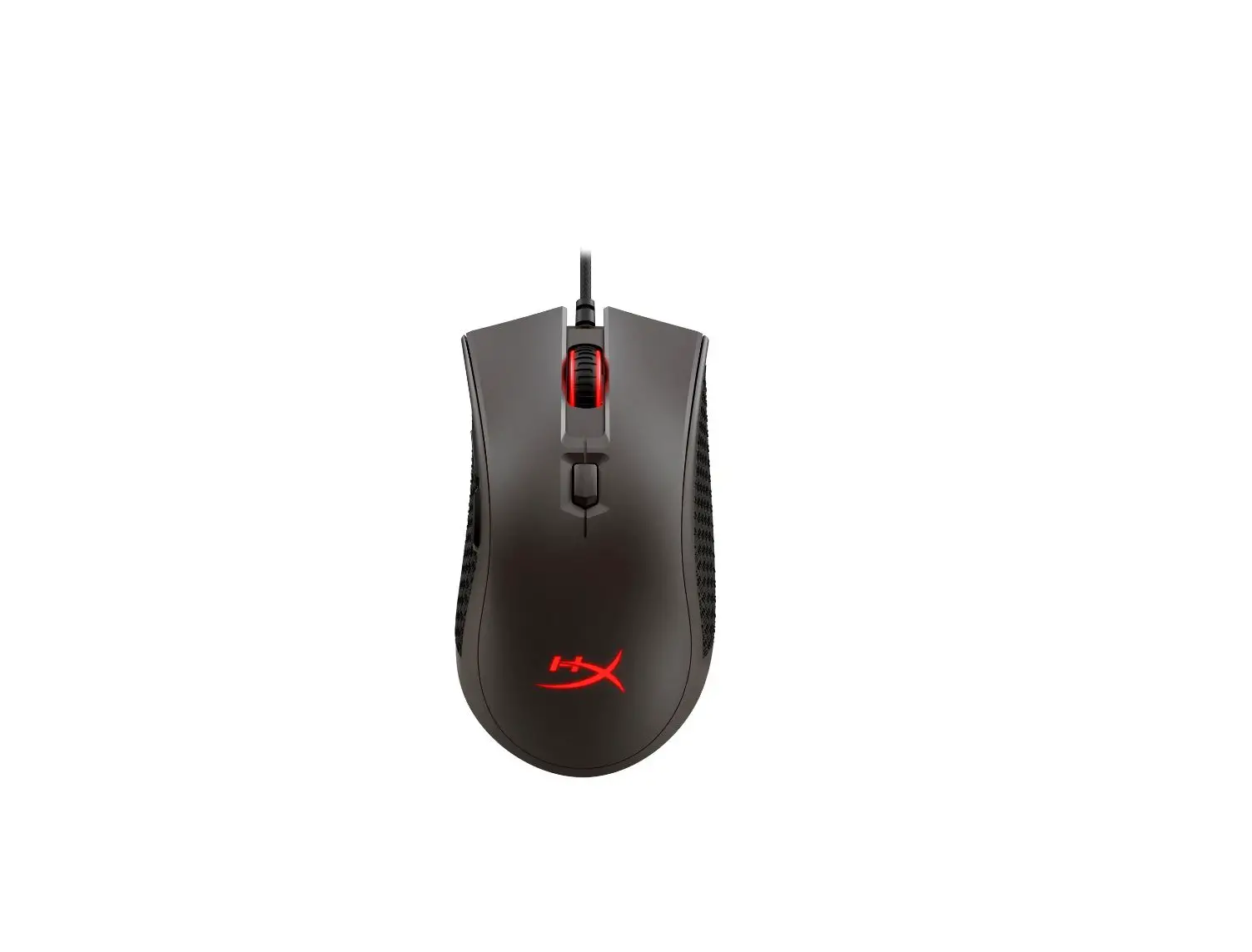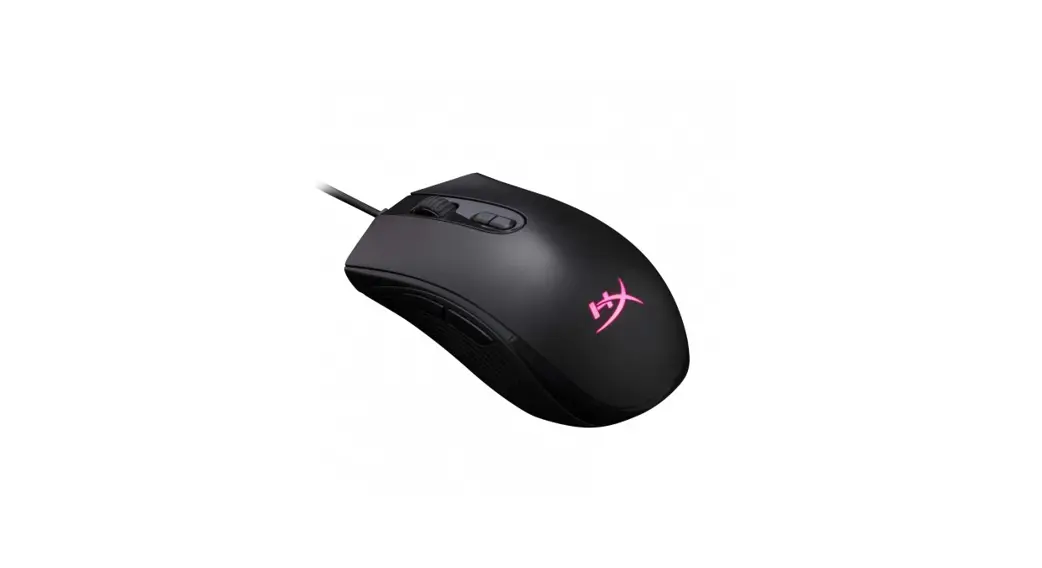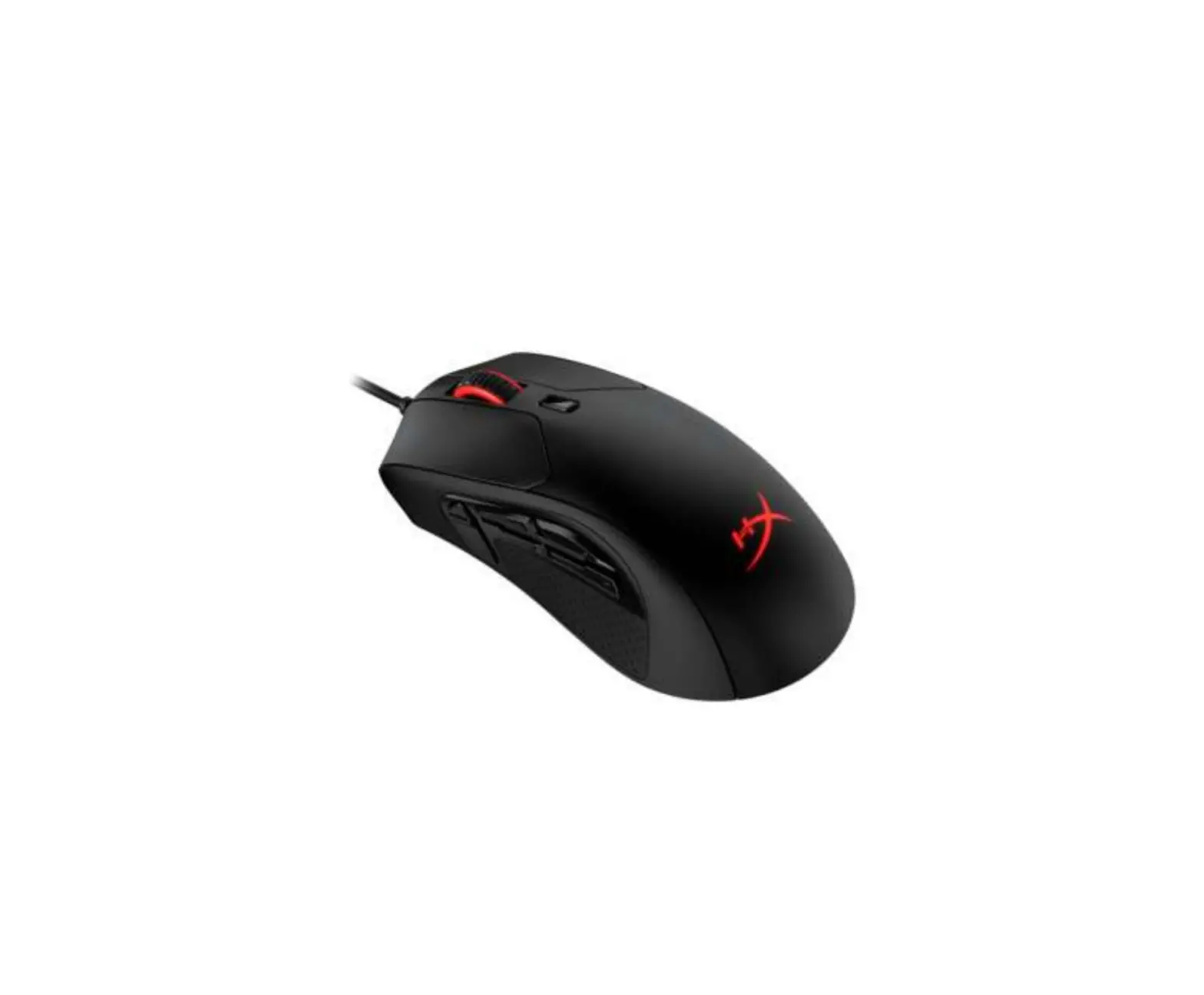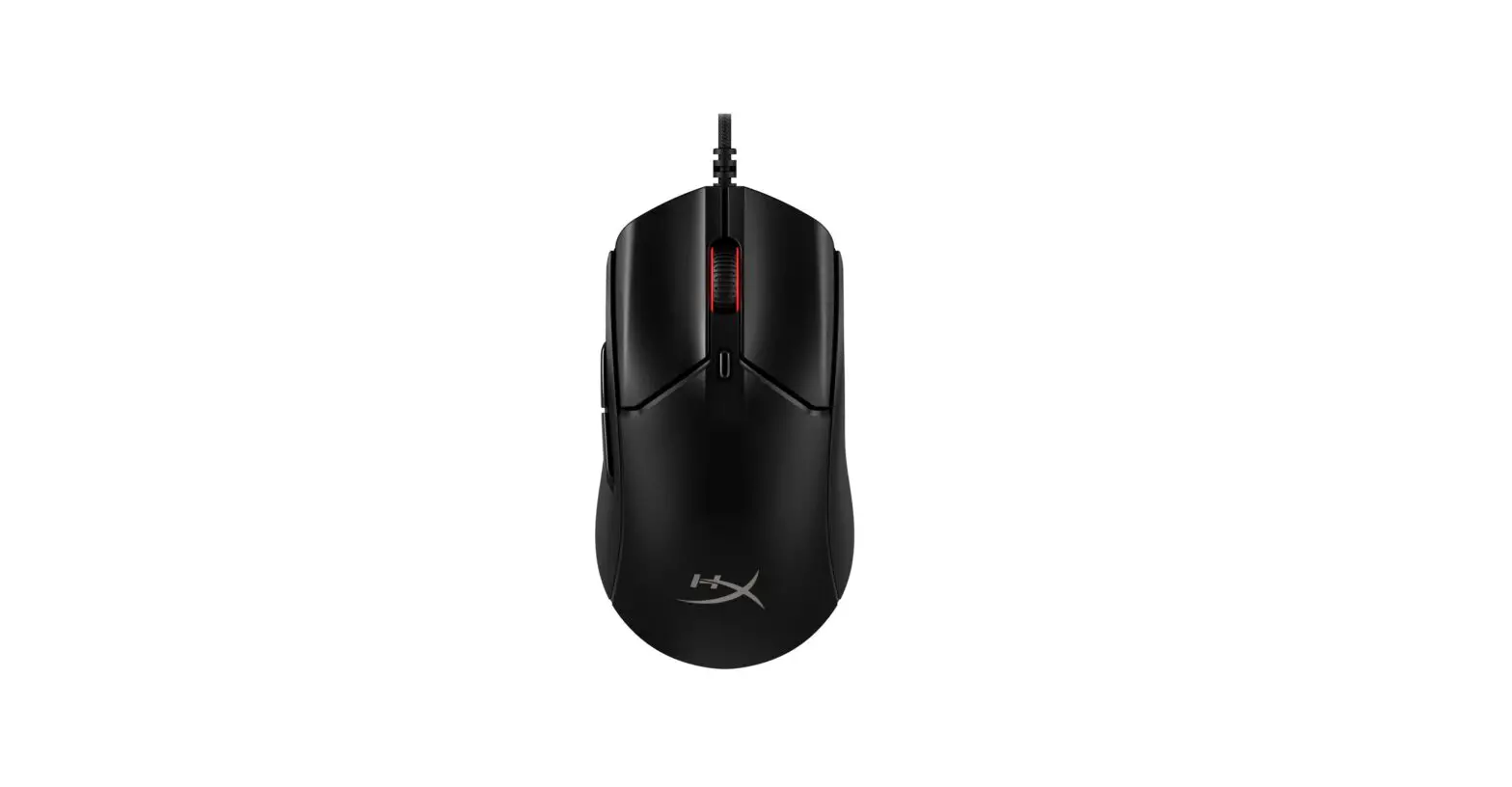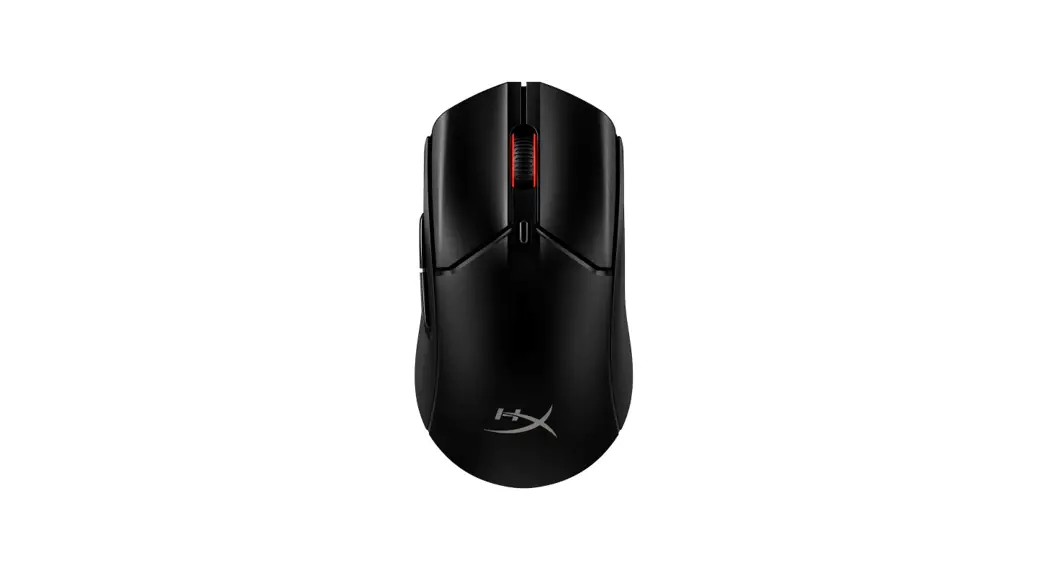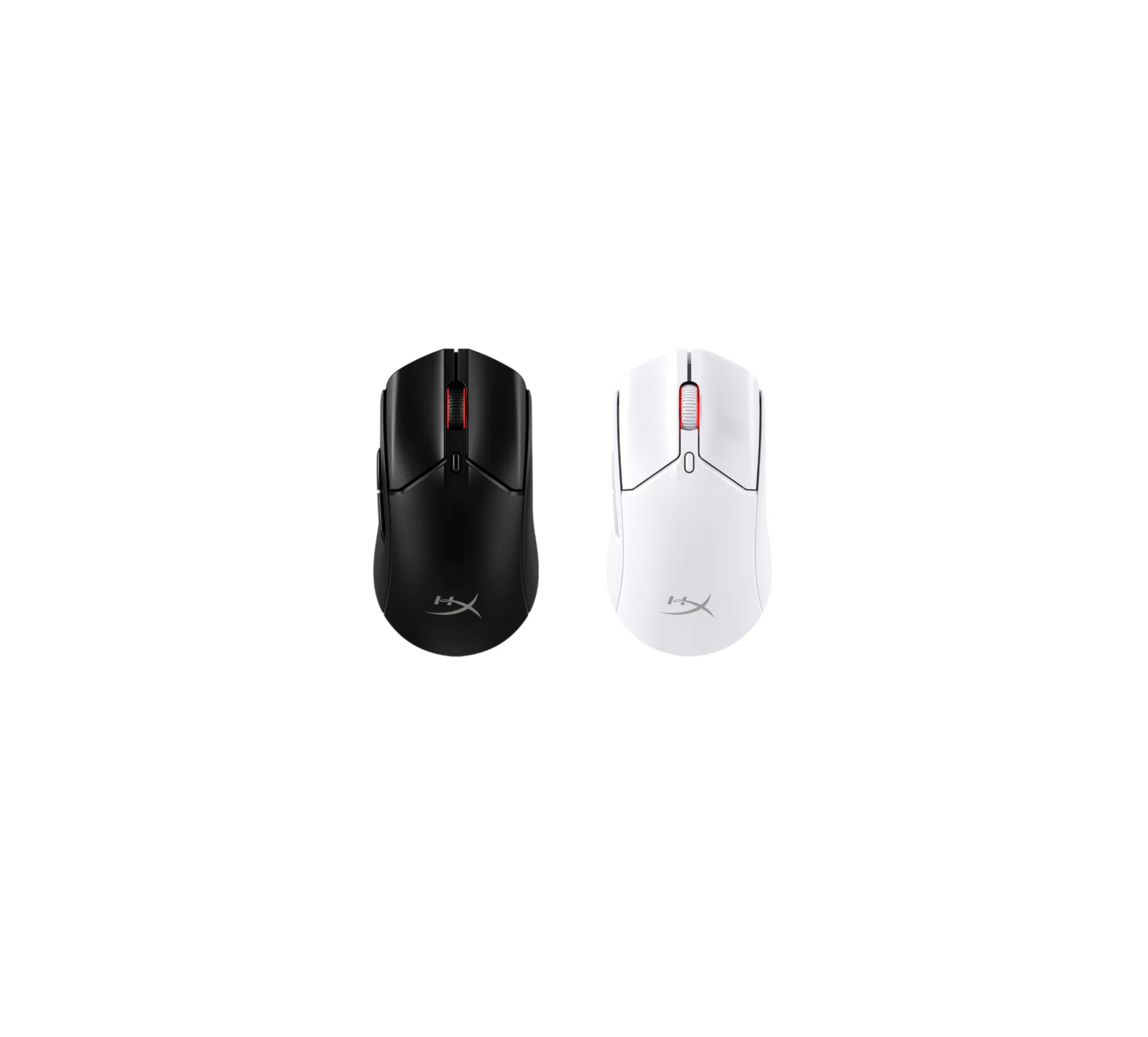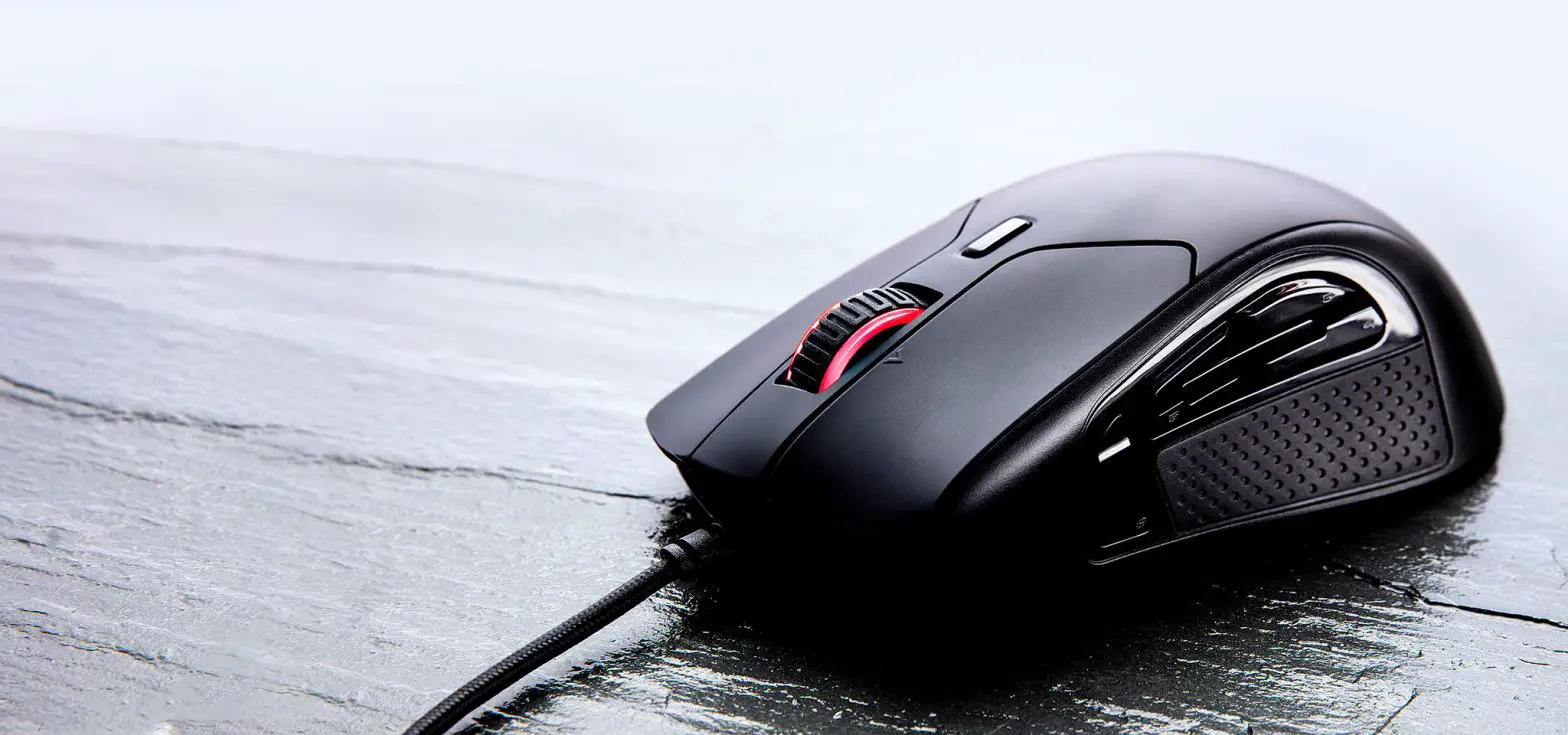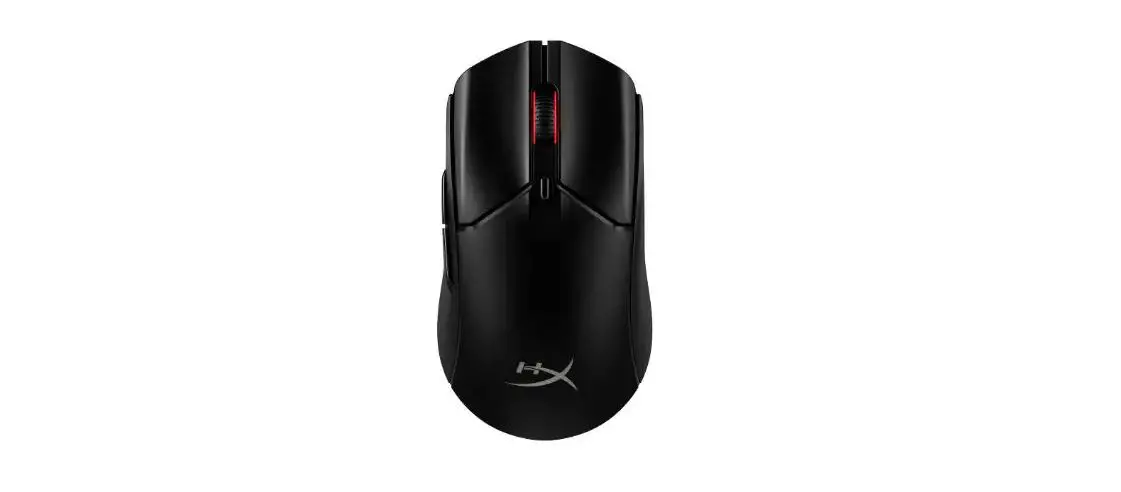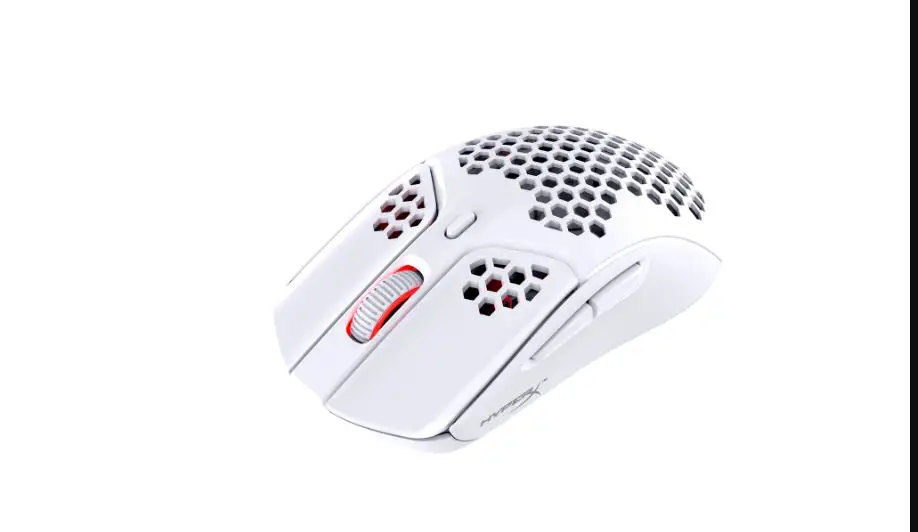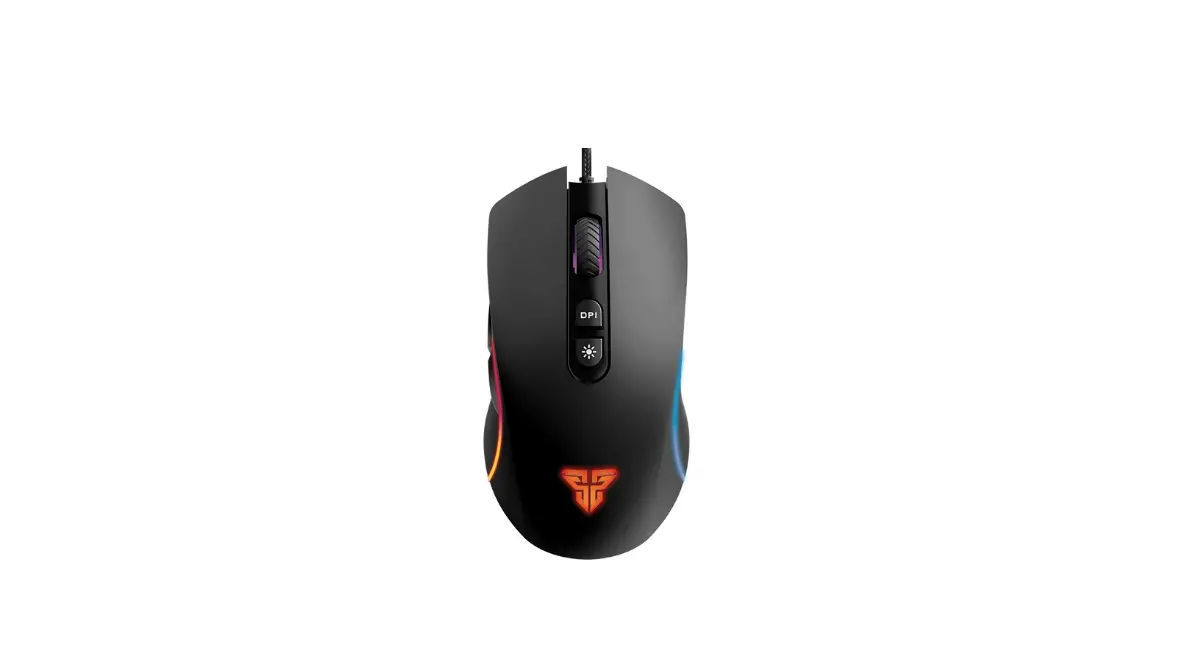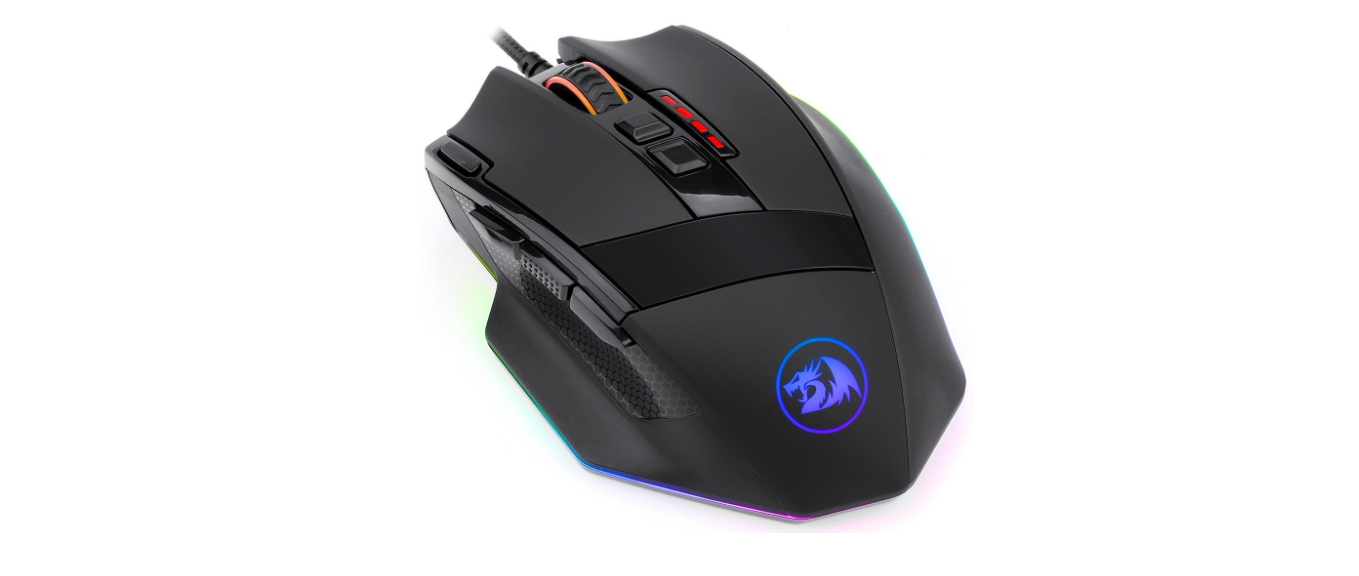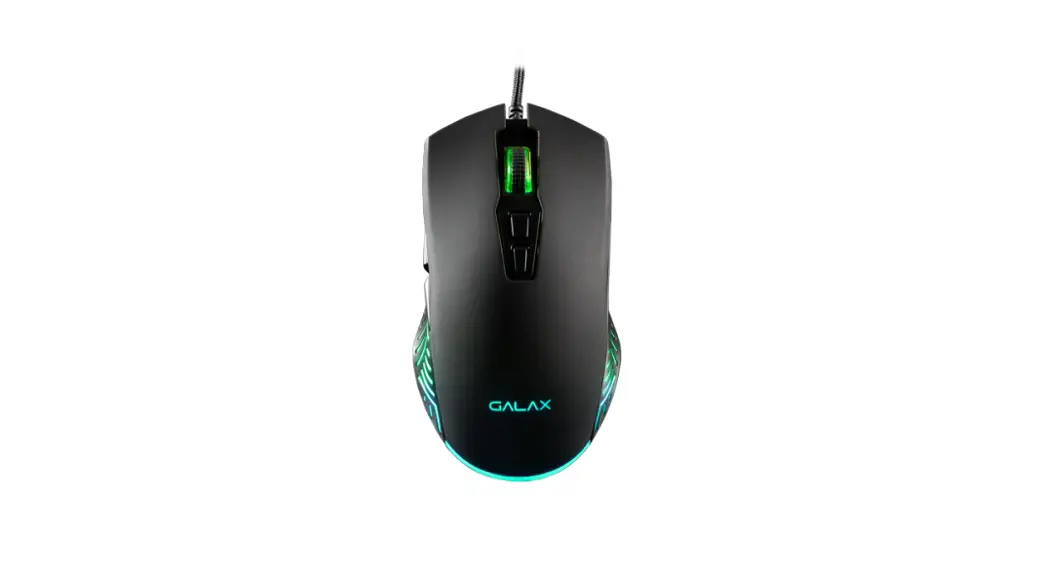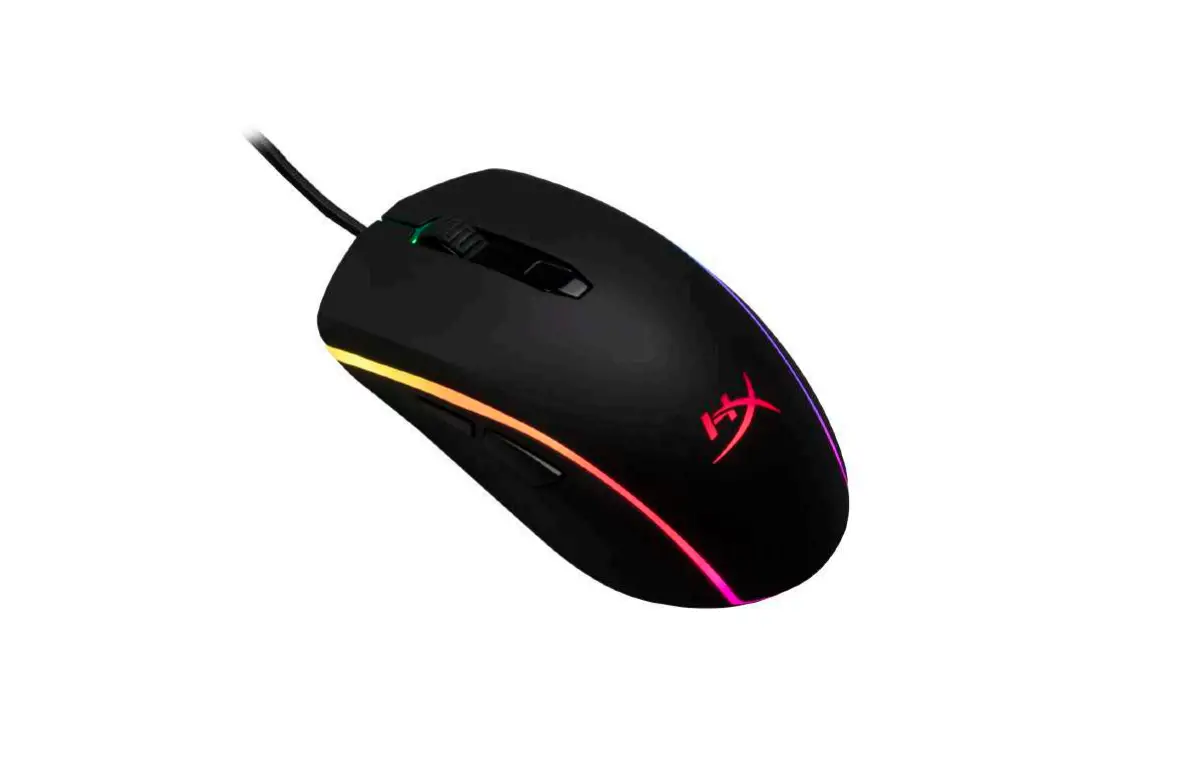
HyperX HX-MC002B Pulsefire Surge RGB Gaming Mouse User Manual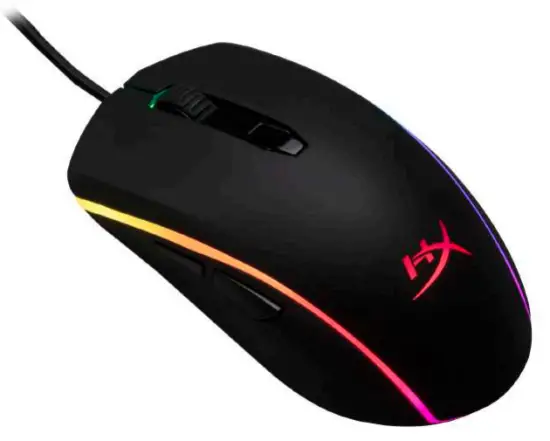
What’s included
- HyperX Pulse fire Surge™ RGB Gaming Mouse

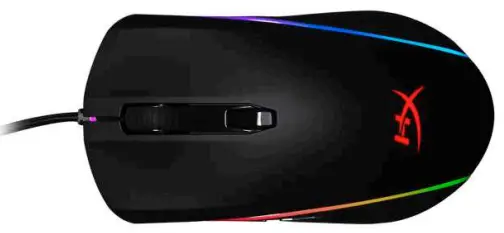
Mouse Overview
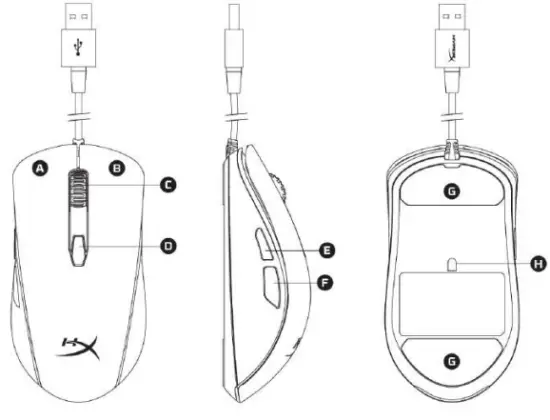
- A- Left click button.
- B- Right click button.
- C- Mouse wheel.
- D- DPI button.
- E- Forward click button.
- F- Back click button.
- G- Mouse skates.
- H- Optical gaming sensor.
Installation
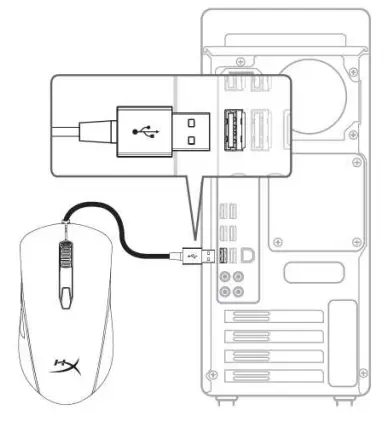
- Connect the USB connector to the computer.
Function Keys
| Function Keys | Secondary Feature |
| DPI button | Change between DPI presets. Default values are:
|
| DPI button + Mouse wheel click | Switch between the default on board memory profiles:
|
| DPI button + Back click button | Decrease LED brightness. There are 4 brightness levels: off, low, medium and high. |
| DPI button + Forward click button | Increase LED brightness. There are 4 brightness levels: off, low, medium and high. |
HyperX NGenuity Software
To customize lighting, DPI presets and macro settings, download the HyperX NGenuity software here: hyperxgaming.com/ngenuity.
Refer to the HyperX NGenuity Gaming Software manual for more information on functionalities.
Mouse factory reset:
If you are experiencing any issue with the mouse you can perform a factory reset. You will lose your custom LED profile and DPI presets by doing this.
| Function Keys | Secondary Feature |
| DPI button + Mouse wheel click for 10 seconds | Factory reset of the mouse and all on board memory settings. |
 HyperX | High Quality Gaming Gear
 HyperX | High Quality Gaming Gear