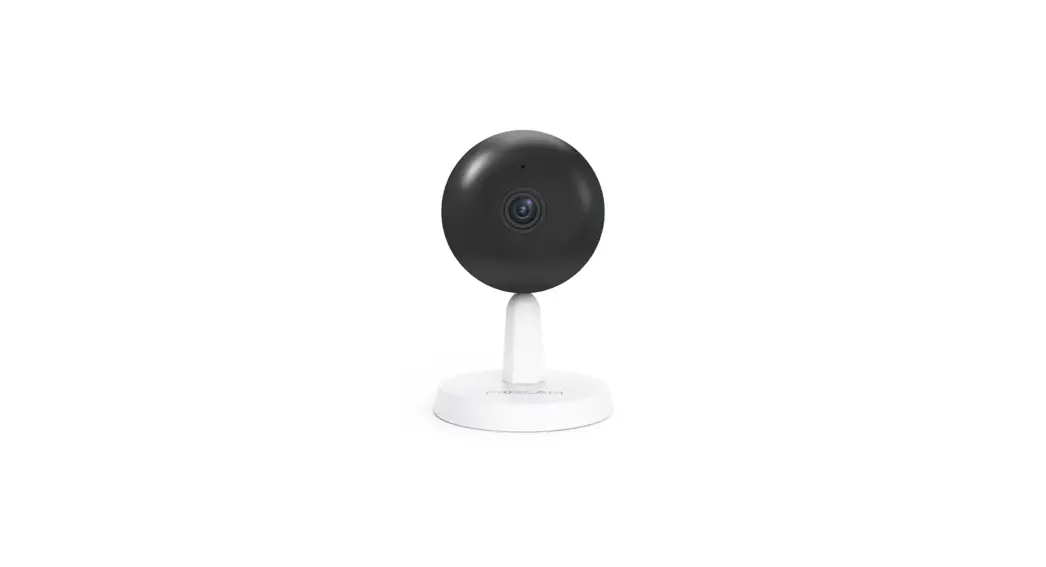
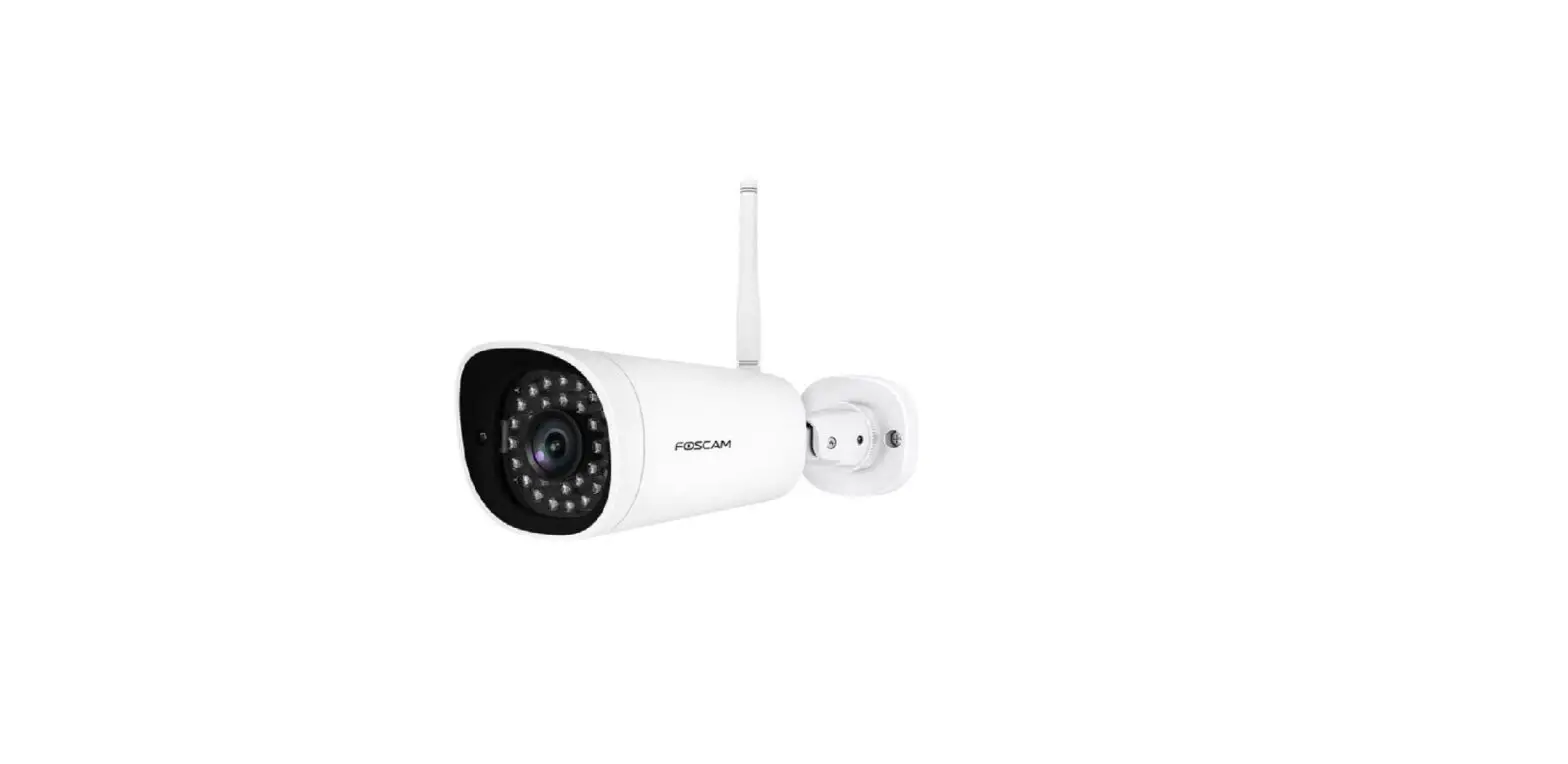
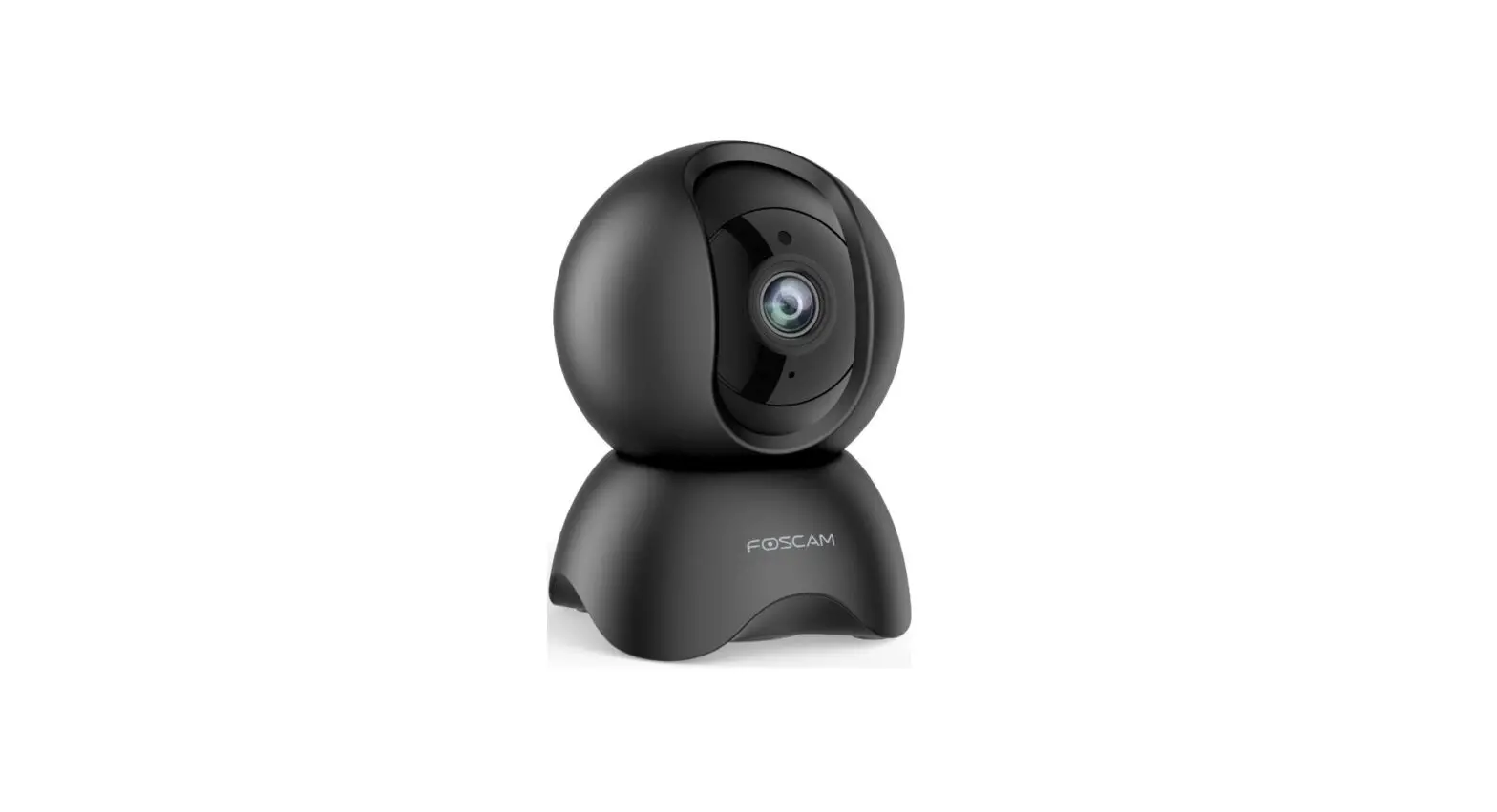
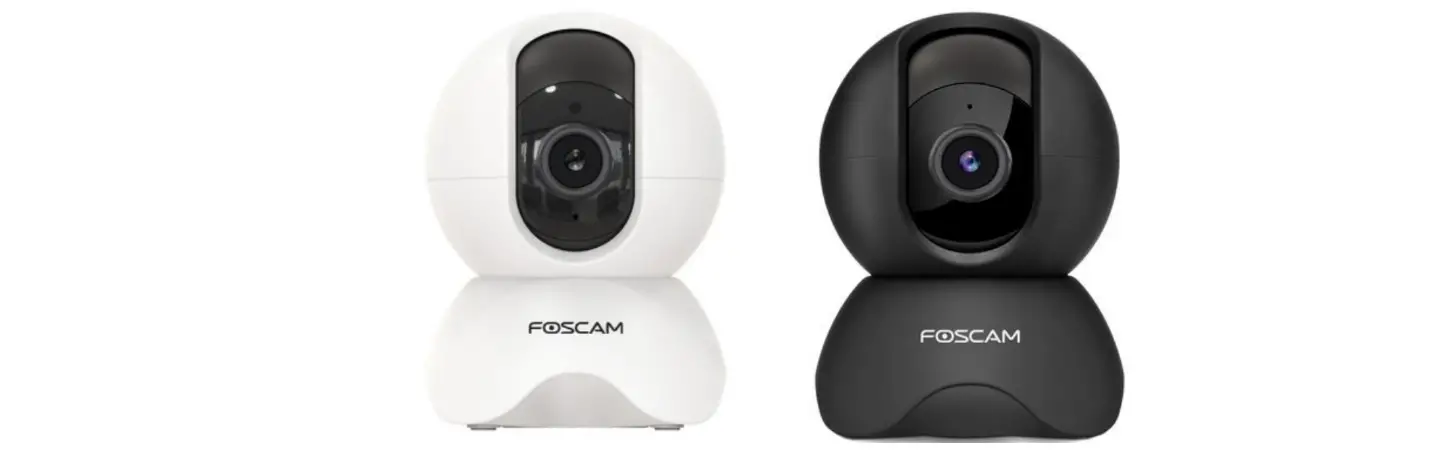
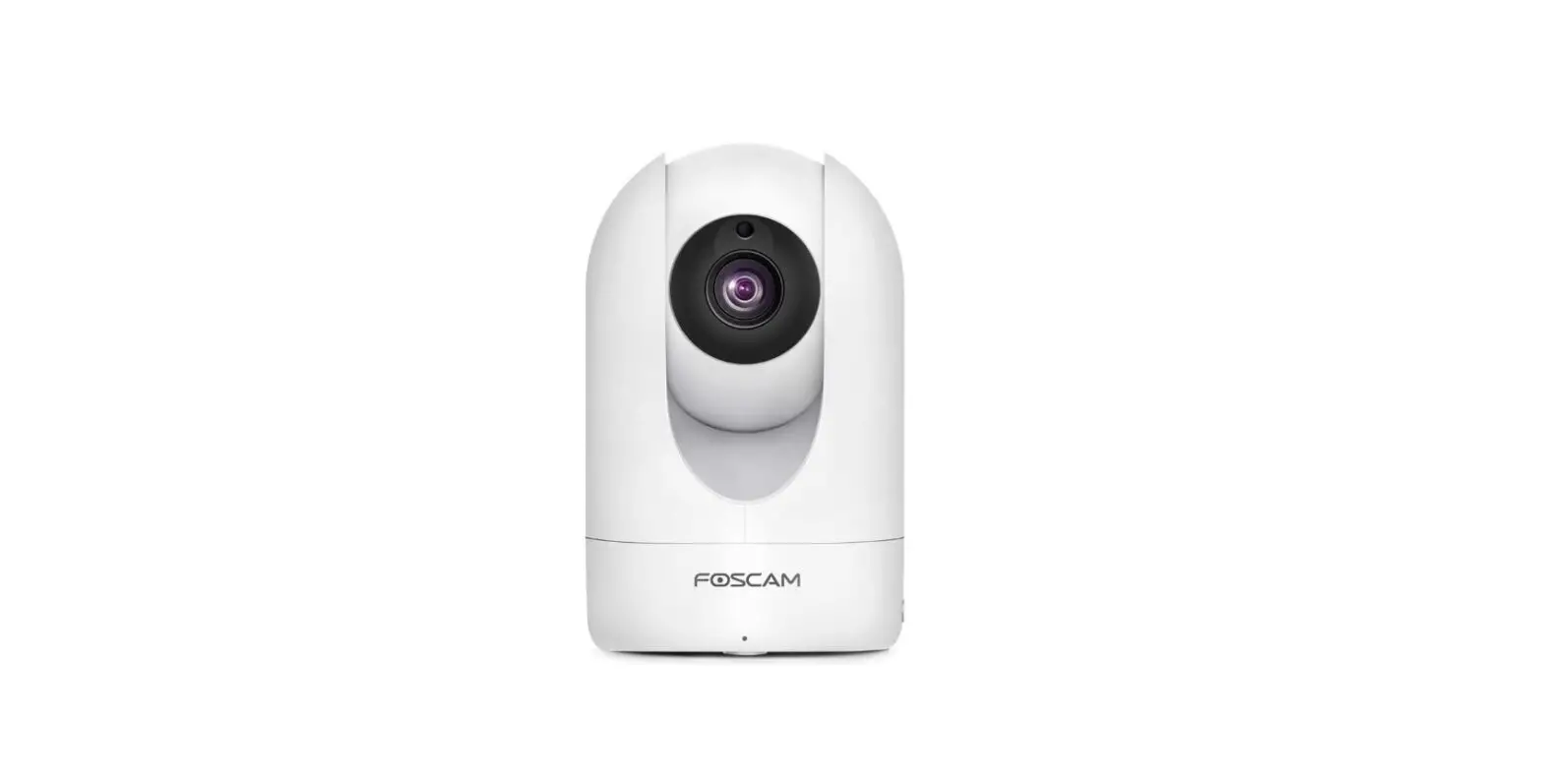
G4C IP Camera
Product Information
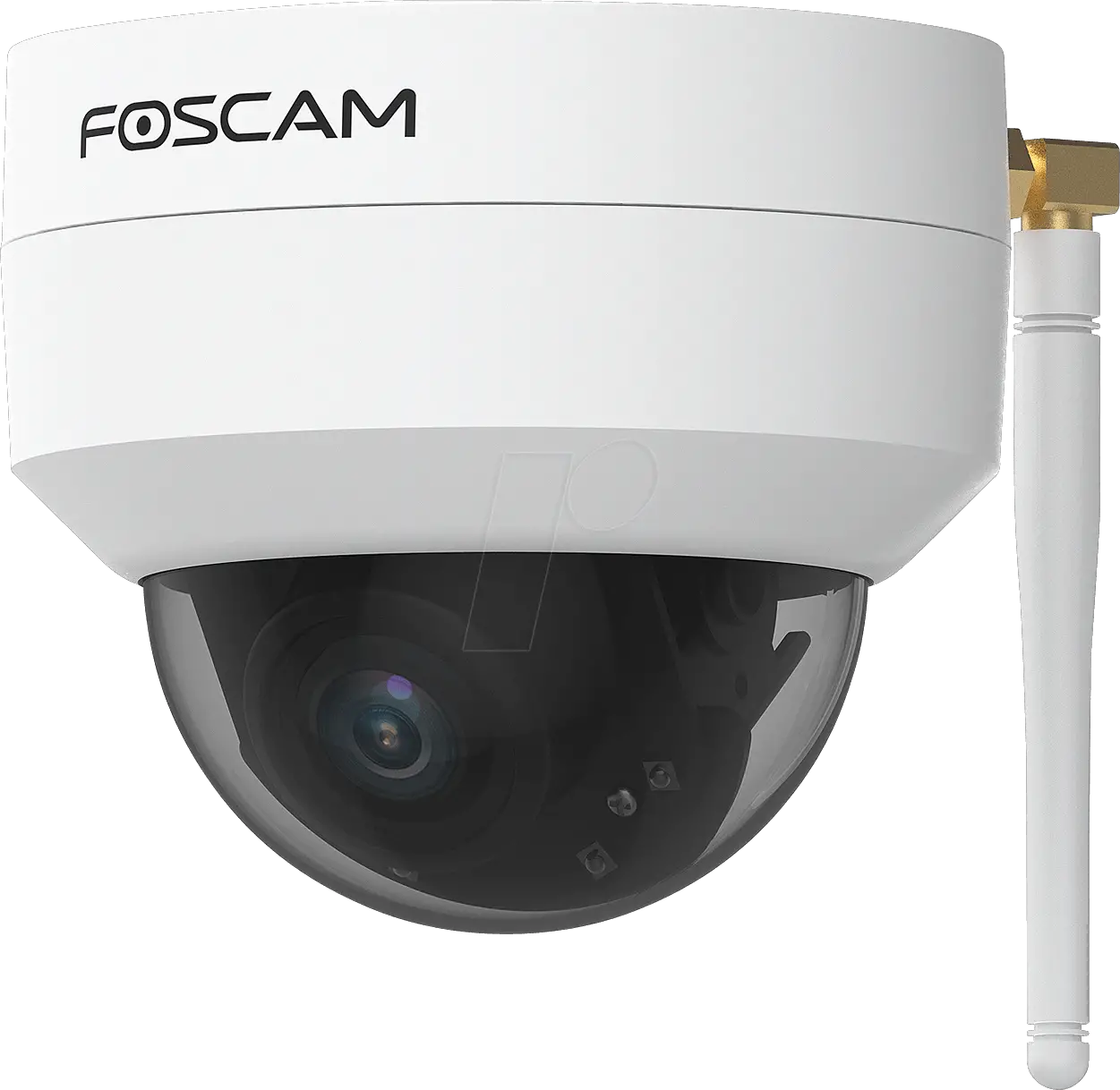
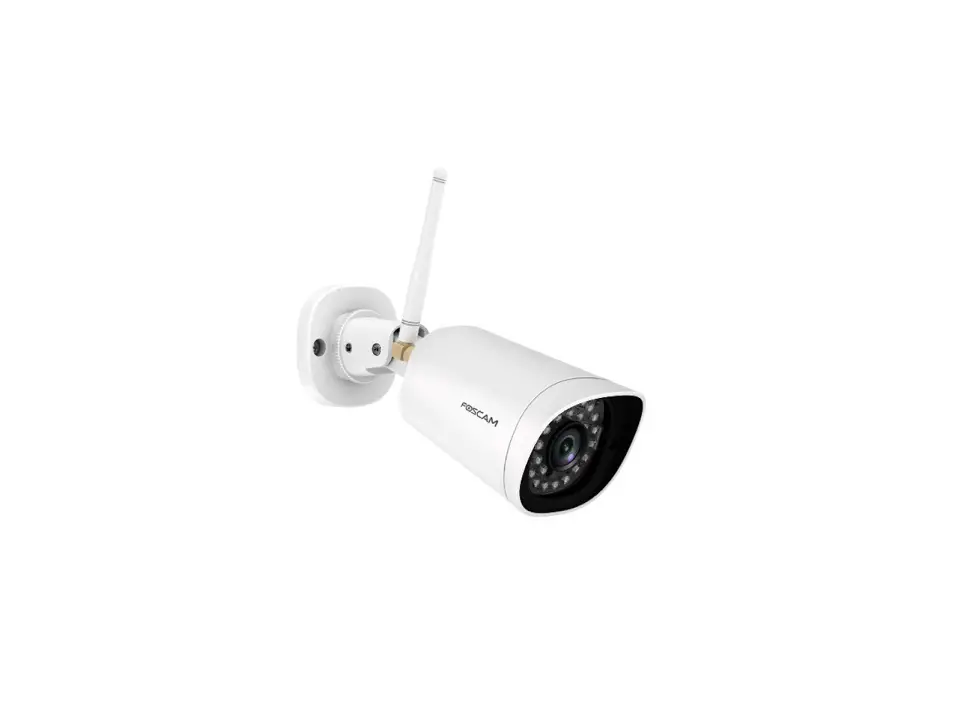
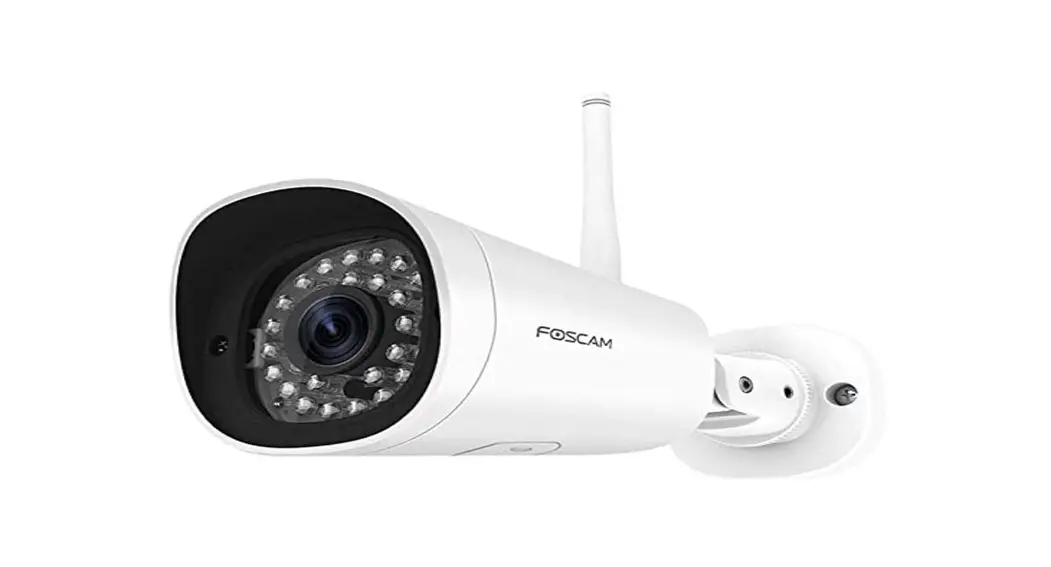
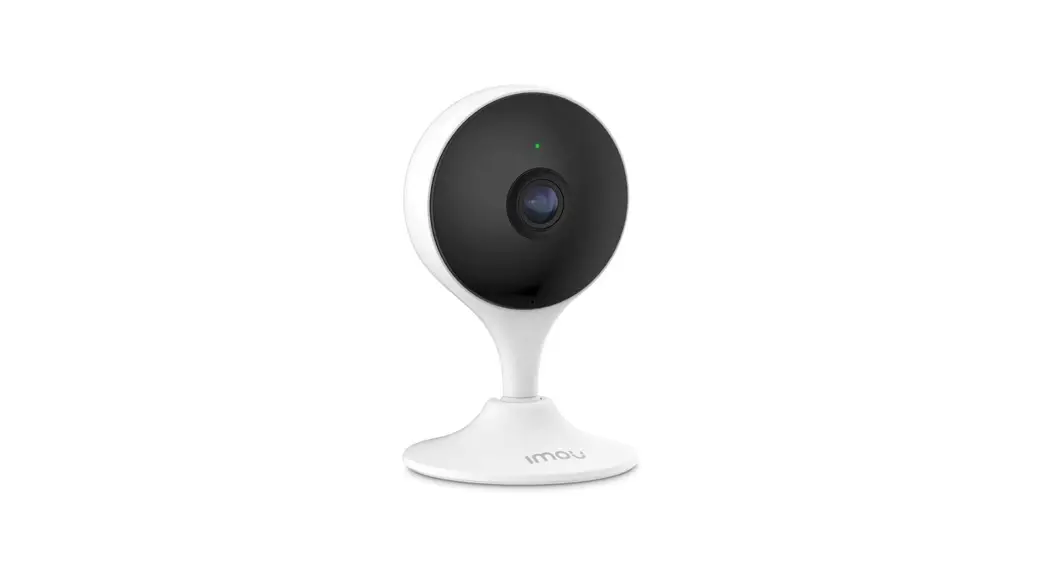
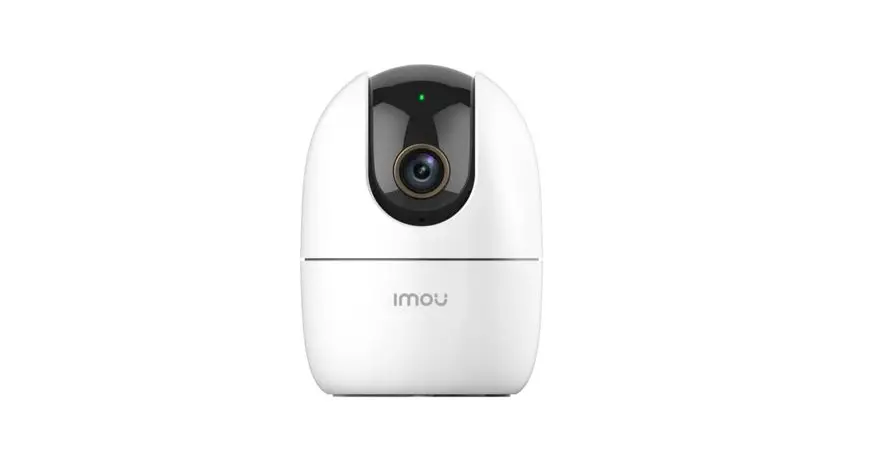
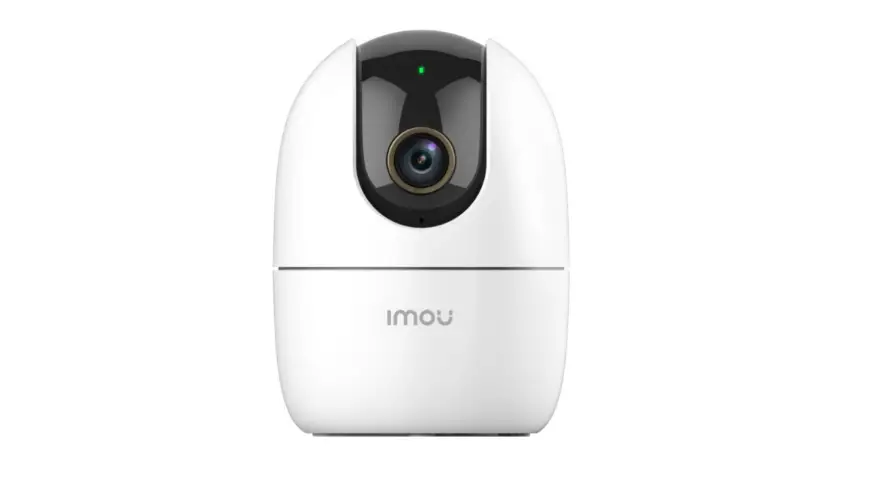
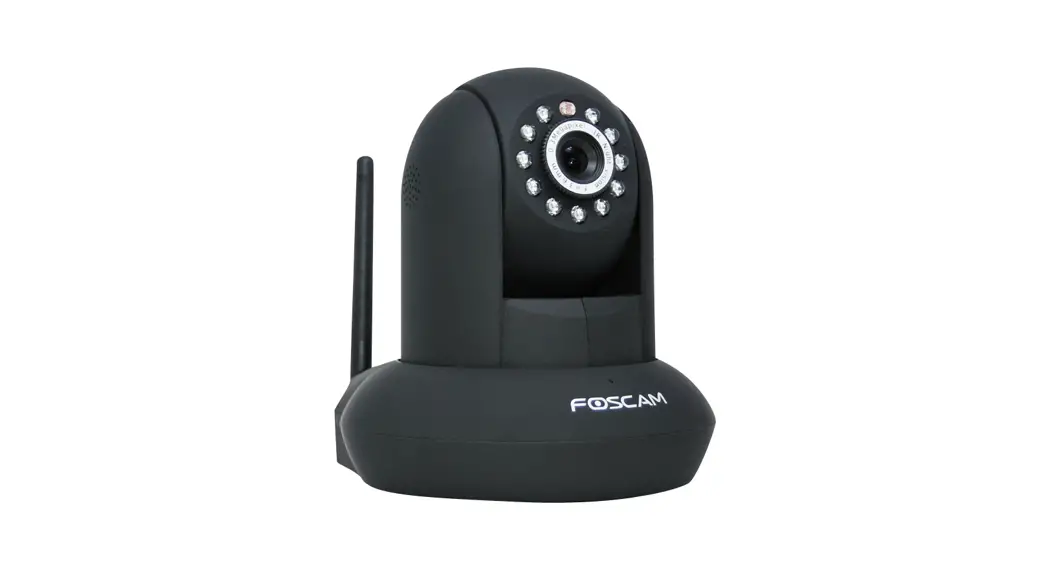
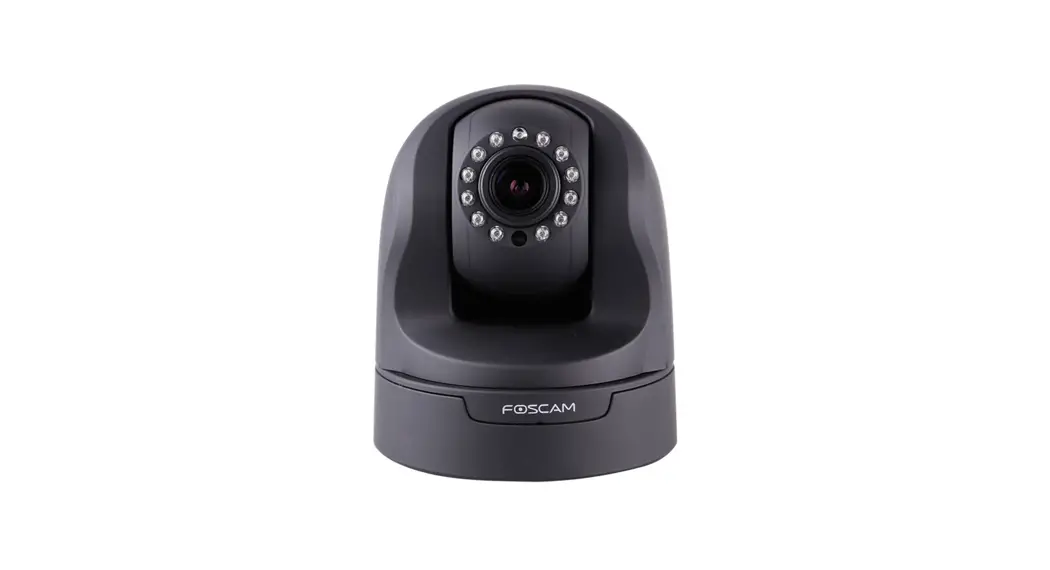
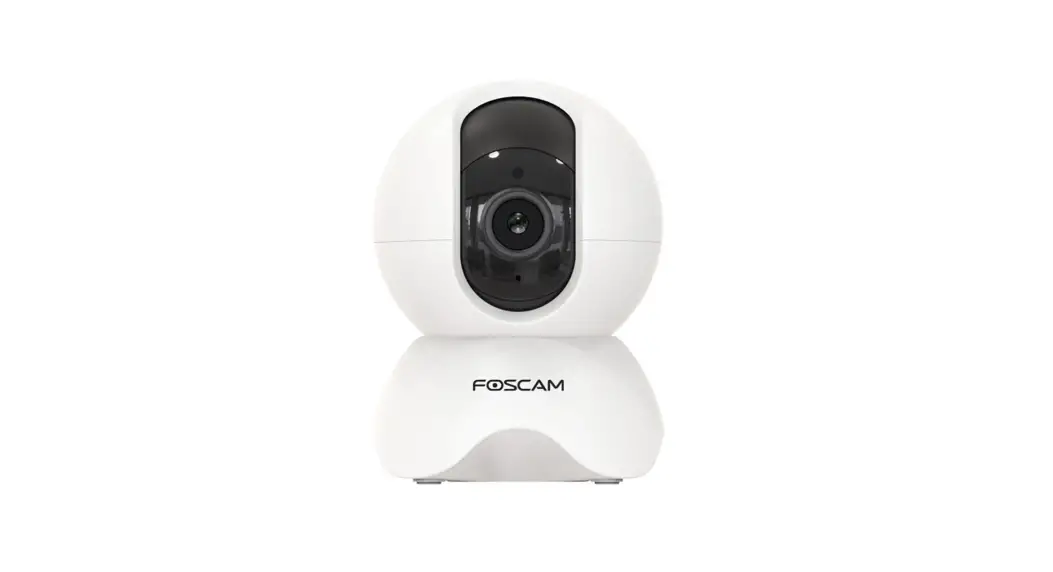
The Foscam Security Camera is an IP camera designed for indoor
use. It comes with a power adapter, Ethernet cable, Wi-Fi antenna
and a quick setup guide. The camera has infrared LED lights, an
audio in/out port, a reset button and a micro SD card slot. It
supports dual-band 2.4GHz and 5GHz Wi-Fi networks and can be
controlled using the Foscam app on iOS or Android devices.
For security purposes, it is recommended to change the camera’s
password regularly using a combination of numbers, letters and
special characters. It is also recommended to update the camera’s
software and firmware regularly for optimal performance.
Product Usage Instructions
Wired Connection via Foscam App
- Tighten the antenna clockwise and ensure it is in a vertical
position. - Connect the camera to your router with an Ethernet cable.
- Plug the power adapter into the camera and wait for about 1
minute. - Ensure your smartphone is connected to the same Wi-Fi network
as the camera. - Open the Foscam app and register or sign in to your Foscam
account. - Scan the QR code located on your device using the app.
- Choose the setup method (Wi-Fi or wired connection).
- Follow the on-screen instructions to complete the setup
process.
Note: For optimal performance, ensure your smartphone meets the
following specifications:
- iOS: version 8.1 or higher
- Android: 4.1 or higher, using a device with a Graphics
Processing
For child safety, keep the cords out of the reach of children.
It is also recommended to update the Foscam app to the latest
version for the best experience.
Quick Setup Guide
To view this guide in other languages (e.g. Nederlands, Deutsch, Français, Español), and for detailed manuals, tools, etc., please visit foscam.com/downloads.
V1.0 305503000795
Setting Up Your Foscam Security Camera
1 Getting Started
Package Contents
IP Camera
Power Adapter Ethernet Cable
Quick Setup Guide
Quick Setup Guide Wi-Fi Antenna
Security Tips
Please change the camera’s password regularly, using a combination of numbers, letters and special characters.
We recommend that you regularly update your camera with the latest available software and firmware to ensure the best experience with your camera.
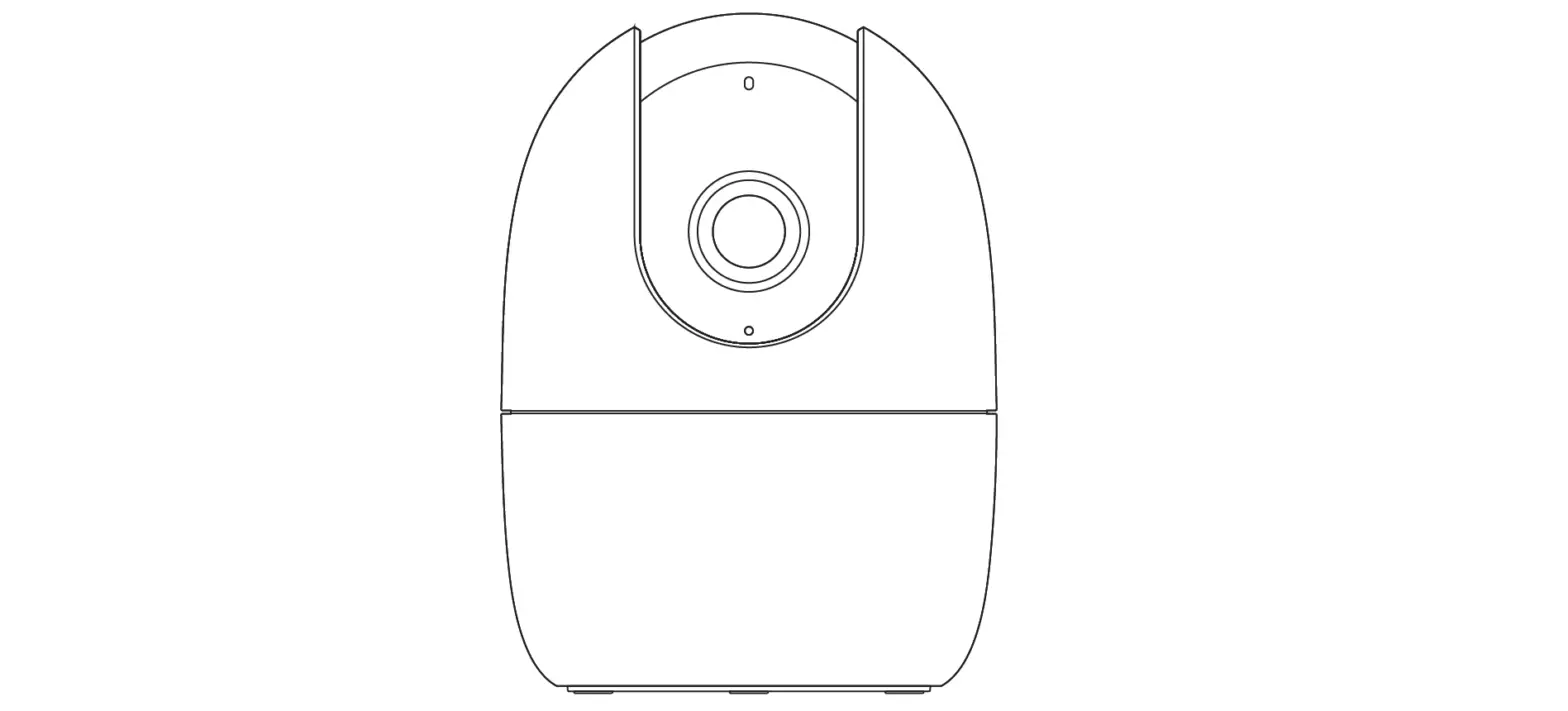
2 Physical Description
Infrared LED
Antenna
3 Setting Up Your Camera:
Wired Connection via the Foscam App (Recommended)
Before You Get Started
Scan the QR code below to download and install the Foscam APP.
Lens Micro SD Card Slot
LAN
Audio in/out Power Reset Button
To ensure a smoother video experience on your smart phone, it is recommended that your smart phone meet the following specifications:
iOS: version 8.1 or higher.
Android: 4.1 or higher, using a device with a Graphics Processing
The cords on this product are a potential strangulation hazard. For child safety, please keep these cords out of the reach of children.
Note: For the best experience, please update the APP to the latest version!
Wired Connection
1. Please tighten the antenna clockwise and make sure it is in a vertical position.
Tighten clockwise
2. Connect the camera to your router with an Ethernet cable. 3. Plug the power adapter into the camera, and then wait for about 1
minute. 4. Make sure your smart phone is connected to the same WiFi network as
the camera.
Settings WLAN WLAN
MY NETWORKS
xxxxx_2.4G xxxxx_5G
Router
4 WPS
Settings WLAN WLAN
MY NETWORKS
xxxxx_2.4G xxxxx_5G
2.4 GHz Wi-Fi or 5 GHz Wi-Fi
Tips: The camera supports dual-band 2.4GHz and 5GHz WiFi networks, so you can choose the channel with the stronger signal to use. For example, choose your SSID: XXXXX_2.4G or XXXXX_5G.
5. Open the foscam APP and please register a Foscam account, or sign in if you have one already.
Email address Password
Forgot Password
Sign In Sign Up
6. Follow the steps below:
1
My Device
Tap to add a device
2
Add Device
< Scan the QR code
Search in LAN
Manually add
3
Scan QR Code
Model: XXX FHD Wireless IP Camera
FCC ID:XXXXX IC:12558A-XX
S/N:FIAI1403000001
UID:XXXXXXXXXXX
Please scan the QR code located on your device
Scan QR Code
FMIFCHC:1CDo2IWd5D5:ieX8reXAll:X-eXXXsXsXXIPXCamera
S/N:FIAI1403000001
UID:XXXXXXXXXXX
Please scaonnthyeouQrRdecvoidceelocated
Model: XXX FHD Wireless IP Camera
FCC ID:XXXXX IC:12558A-XX
S/N:FIAI1403000001
UID:XXXXXXXXXXX
4
Choose setup Method WiFi connection
Wired connection
5
Add Device
Please power on the device
6
Wired Connection
Please connect the camera to the router with network cablle
making sure that the phone and the camera are connected to the same router.
Powered On
The network cable is connected to the device
Next
10
Set name
<
11
My Device
Device added successfully Please set the device name:
Garden Living Room Doorway Corridor Garage Balcony Bed Room Kitchen Garden
Save
Foscam_camera
13
Garden
Foscam_camera
12
Camera Login
New camera username New camera password Re-enter new camera password
Submit
7
Add Camera
<
Device Landing.. 20% Please do not exit this app or turn off the device during this process(requires approximately 2 minutes to complete)
8
Configure WiFi
Configure WiFi
9
WiFi Settings Skip
N<o WiFi Configuration Select WiFi Network…
WiFi_1 WiFi_2 WiFi_3 WiFi_4
Note: If the adding process fails, please reset your camera and try adding again according to the above method.
Configure WiFi
If you selected “Skip” in 9 , click play to enter the camera credentials interface > Tap the ” ” buttontap “WiFi Settings” select your WiFi network and enter your WiFi’s password. After setting up successfully, you can view live video without the Ethernet cable.
1
Garden
Foscam_camera
2
Settings
My Plan
Alarm SD Card Firmware
Camera Info
Share Camera
OFF
WiFi Settings
Sleep Mode
Advanced Settings Sync Time, IR LED Settings, etc
3
WiFi Settings
N<o WiFi Configuration Select WiFi Network…
WiFi_1 WiFi_2 WiFi_3 WiFi_4
Reboot Camera Delete Camera
Add the IP Camera 1. Run Foscam VMS, then create a local administrator account and login. 2. Tap the “+” icon on the Foscam VMS and follow the setup wizard to add your camera. Please visit foscam.com/downloads to view the user manual and for additional detailed steps.
6 Important Notice
Camera Username & Password The camera username & password are used to access and manage your camera. Having a strong password can significantly improve the security of your camera. If you have forgotten either of them, please press the “Reset” button.
Press the “Reset” button and hold it for more than 3~5 seconds
4 PC Access Your Camera
Foscam VMS
Foscam VMS is a new tool for PCs. It does not require plug-ins and is compatible with Windows & Mac, supporting all Foscam HD cameras and up to 36 cameras at the same time. If you would like to manage multiple cameras, we suggest you install Foscam VMS. You can download the “Foscam VMS ” Windows version from foscam.com/vms, and can download the “Foscam VMS” Mac version from the APP store: https://apps.apple.com/cn/app/foscamvms/id1521202507?mt=12
Note: For the best experience, please update Foscam VMS to the latest version!
5 Hardware Installation
0~360°
0~90°
0~360°
0~360°
0~90°
0~360°
Point the camera at the desired location and use the screws provided to mount it.
Please Note: Ensure that rain or water will not reach the connector ports at the end of the pig tail wiring. These connectors are not weather-resistant.
Storage Media
Your camera supports cloud, NVR (Network Video Recorder), and Micro SD card (supports FAT32 and exFAT format) storage formats.
cloud Storage
NVR
Micro SD card
Support up to 128G
(FAT32 & exFAT)
How to format Micro SD card, please follow the steps below:
1
2
3
4 Scan the QR code below
to download the “FoscamFormat ” Tool
. .226644
5 Open the
“FoscamFormat ” Tool
FoscamFormat
foscam.com/downloads/app_software.html
6 Foscam Format
×
Choose the SD card: F:
1 Accept Terms of use
2 Terms of use
Format 3
2019 (c) Euport BV 3
7
Warning ALL data on disk: I: will be erased, are you sure?
Confirm Cancel
8
×
Foscam Format
Format ready
OK
10
11
9
Computer
Safety Tips
Prohibit use at high temperature
Prohibit use at low temperature
Keep away from fire
Keep away from children
Not a children’s toy
Use the correct power supply
Keep dry
Caution Electricity
7 Product Performance
Use the supplied screw pack
WLAN frequency range
Maximum transmission power
2412MHz – 2472MHz and 5725MHz – 5850MHz
< 19dBm
Wireless Standard
IEEE802.11b/g/n (2.4GHz) IEEE802.11a/n/ac (5GHz)
Power Supply
DC 12V 1.0A 12W
8 Troubleshooting
IP cameras is not powering on If you find your camera is not powering on, please the following: 1. Please check whether the outlet is working properly or not. Try
to plug the camera into a different outlet and see whether it will work. 2. Please check whether the DC adapter is working or not. If you have another 12V/1A power adapter which is working, please try with another power adapter and see whether it will work. 3. If it still won’t work, please contact Foscam support.
How to re-configure the WiFi connection for Foscam cameras after router changed? 1. Please connect the camera to your router with an ethernet cable. If you can see the camera live video on the Foscam app, please go to camera settings–>WiFi settings to choose the new WiFi name and input WiFi password to set up. After the WiFi settings is completed, please disconnect the ethernet cable from the camera and wait for some seconds to connect to the camera. 2. There is a need to reset the camera first. Please refer to https://www.foscam.com/faqs/view.html?id=13 to see the reset steps. Then please open the Foscam app to scan the QR-code of your camera to set up the wireless connection for the camera. Please make sure your cellphone is connected to that new WiFi.
[email protected]
CE Certificate statement Website: https://www.foscam.com/company/ce-certificate.html
Exporter and Importer Information Opened to Public: https://www.foscam.com/company/open-information.html
FAQS
Foscam APP
Manufacturer: Shenzhen Foscam Intelligent Technology
Co., Ltd Addr: Room 901
Unit B, Building 7, Xingke 1st Street Vanke Cloud City Phase 1, Nanshan Dist., Shenzhen,
518055, China
www.foscam.com
Due to product upgrades and other reasons, this guide may be slow to update, resulting in slight inconsistencies with the official website information. Please take the official website (www.foscam.com) information as the current standard.
References
 Foscam Support - FAQs
-
Foscam Official Website - Security Cameras, NVRs, Baby Monitors, IP Cameras, NVR Kits, Security Kit, Pet Monitors, Cloud Storage Service
-
Foscam Support - FAQs
-
Foscam Official Website - Security Cameras, NVRs, Baby Monitors, IP Cameras, NVR Kits, Security Kit, Pet Monitors, Cloud Storage Service
-
Foscam Declaration of Conformity System
-
Foscam Open-Information System
-
How to reset Foscam cameras?-Foscam Support - FAQs
 Foscam Support - FAQs
 Foscam Official Website - Security Cameras, NVRs, Baby Monitors, IP Cameras, NVR Kits, Security Kit, Pet Monitors, Cloud Storage Service