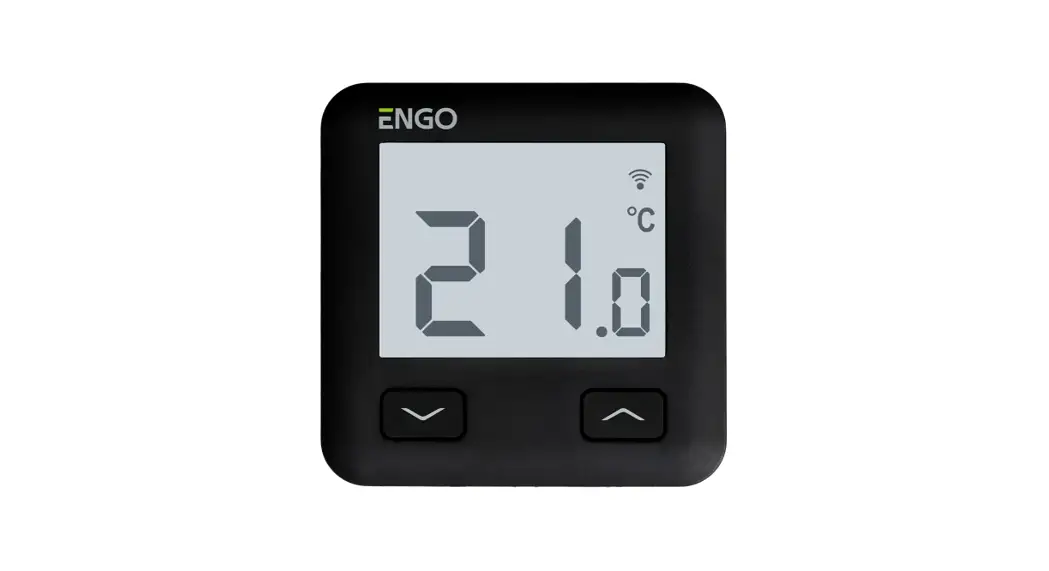
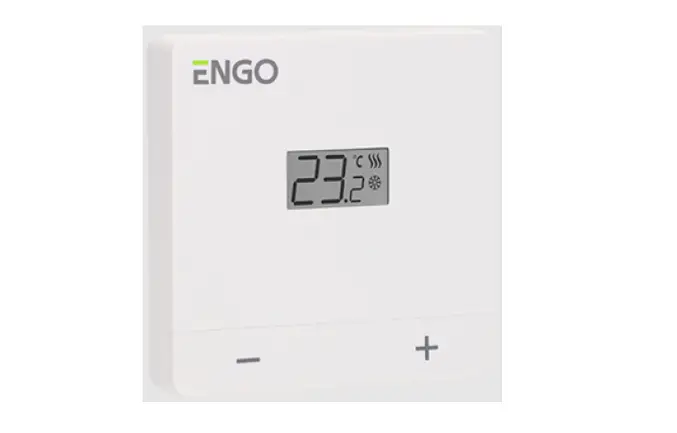
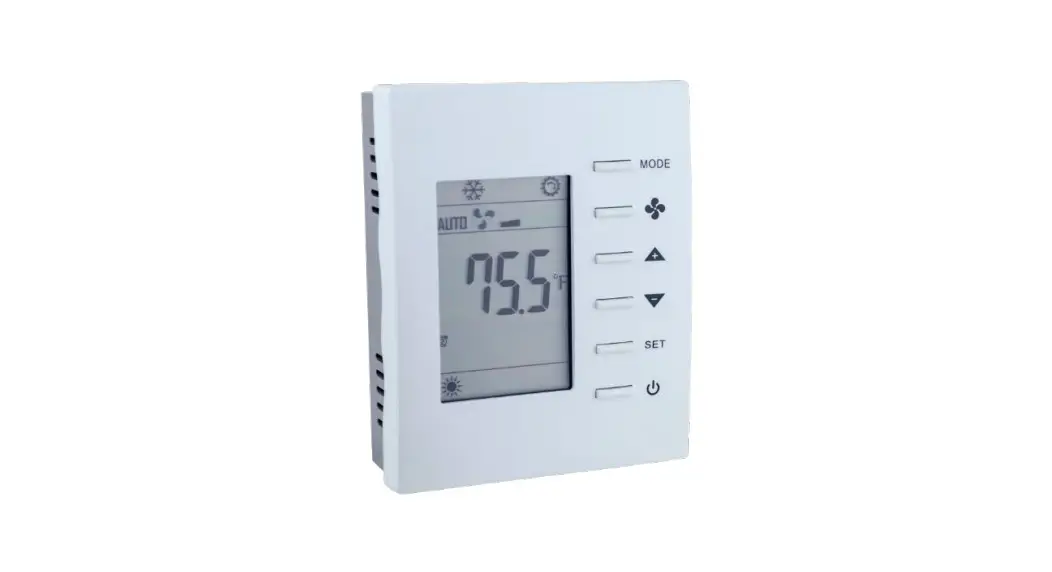
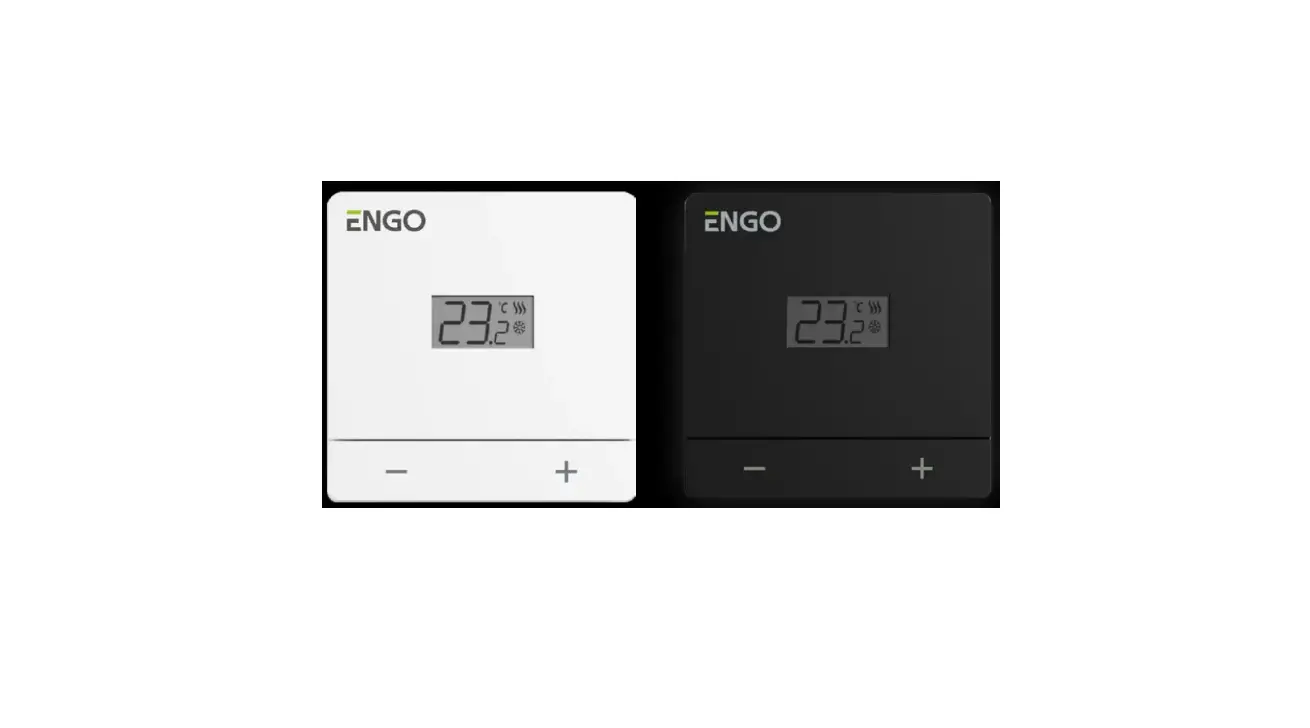
EONEBATW Internet Controlled Thermostat
Product Information
- Product Name: Internet controlled thermostat, ZigBee
- Model Number: EONEBATW EONEBATB
- Version: 1
- Release Date: II 2023
- Compliance: EU Directives – 2014/30/EU, 2014/35/EU, 2014/53/
EU, 2011/65/EU - Safety Information: Use in accordance with national and EU
regulations. Use the device only as intended, keeping it in a dry
condition. The product is for indoor use only. - Product Advantages:
- Built-in Li-Ion 3,7V Battery
- Communication in the ZigBee 3.0 standard
- A multitude of functions available from ENGO Smart / Tuya Smart
application - S1-S2 Input for additional sensor
- NTC
- ENGO ENGO binding function (devices connection BINDING in
Online and Offline mode)
- Manufacturer: QL CONTROLS Sp z o.o. Sp. k.
- Distributor: QL CONTROLS Sp z o.o. Sp. k. 43-262 Kobielice 4
Rolna St. Poland - Website: www.engocontrols.com
Product Usage Instructions
Safety Precautions:
- Read the entire manual before installation or use.
- Use in accordance with national and EU regulations.
- Use the device only as intended, keeping it in a dry
condition. - The product is for indoor use only.
Installation:
- This product must be used with a ZigBee EGATEZB gateway
(purchased separately). - Thermostat programming is done by ENGO Smart app.
- Connect EONEBATW/B S1 to the temperature sensor.
- Connect EONEBATW/B S2 to an external sensor or floor sensor or
occupancy sensor.
Functionality:
- Download the ENGO Smart app from Google Play or Apple App Store
and install it on your smartphone. - Make sure your router is within range of your smartphone and
you are connected to the internet. This will reduce the pairing
time of the device.
ENGO Smart App Registration:
- Open the ENGO Smart app on your smartphone.
- Create a new account by following the instructions provided in
the app.
ENGO Smart App Usage:
- Use the ENGO Smart app to set and control temperature, program
schedules, and change thermostat settings. - The app provides a multitude of functions available for the
thermostat such as temporary override mode, holiday mode, button
lock, and external/floor or occupancy sensors.
Thermostat Usage:
- Use the Up and Down buttons to change the parameter value.
- Press the OK button to enter the manual/schedule mode in Online
mode. - Hold the button for 3 seconds to enter the installer
parameters. - Hold the button for 5 seconds to turn OFF/ON the thermostat or
enter pairing mode. - Hold the button for 10 seconds to enter binding mode.
- Hold the button for 15 seconds to perform a thermostat factory
reset. - Hold the button for 3 seconds to lock/unlock the thermostat
keys or change heating/cooling mode.
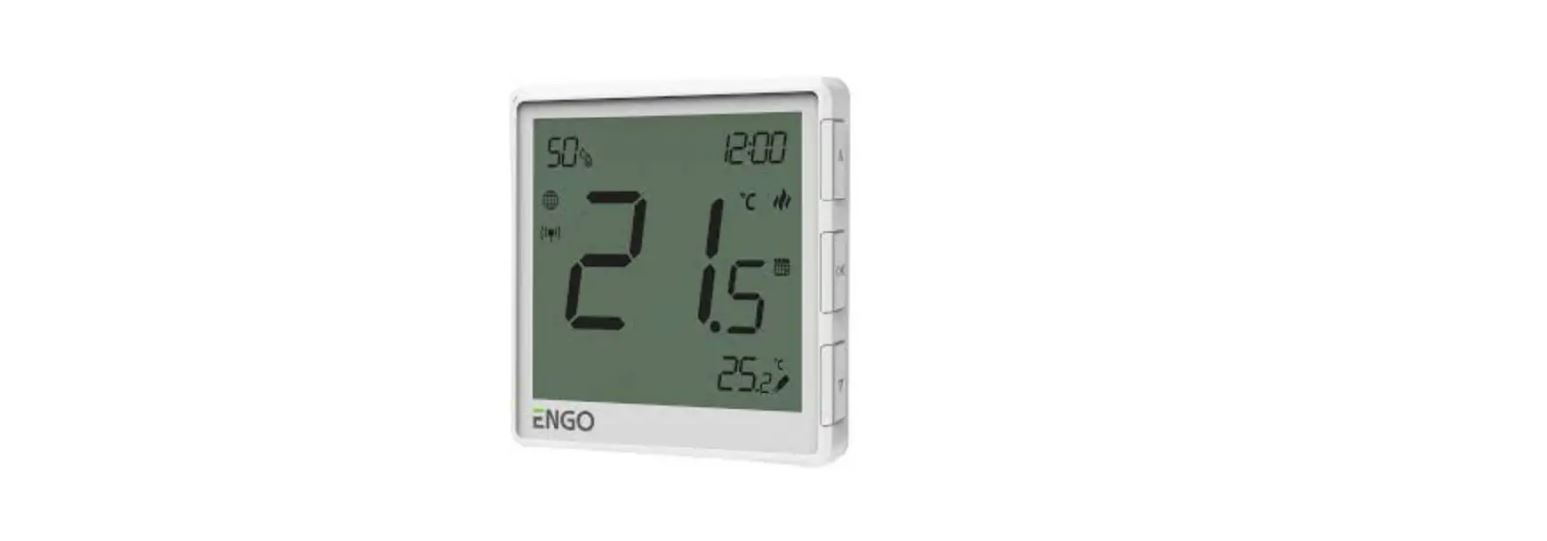
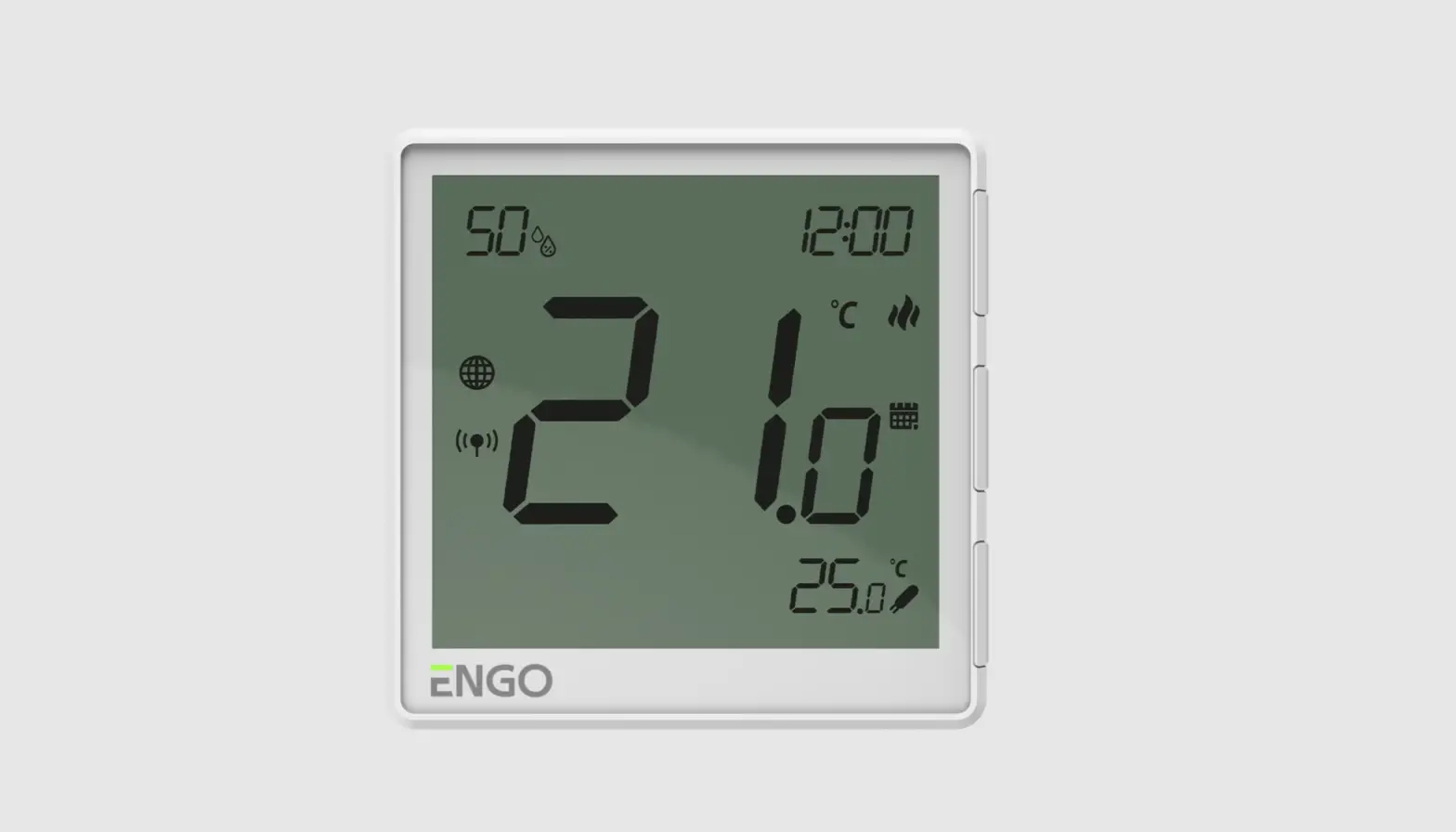
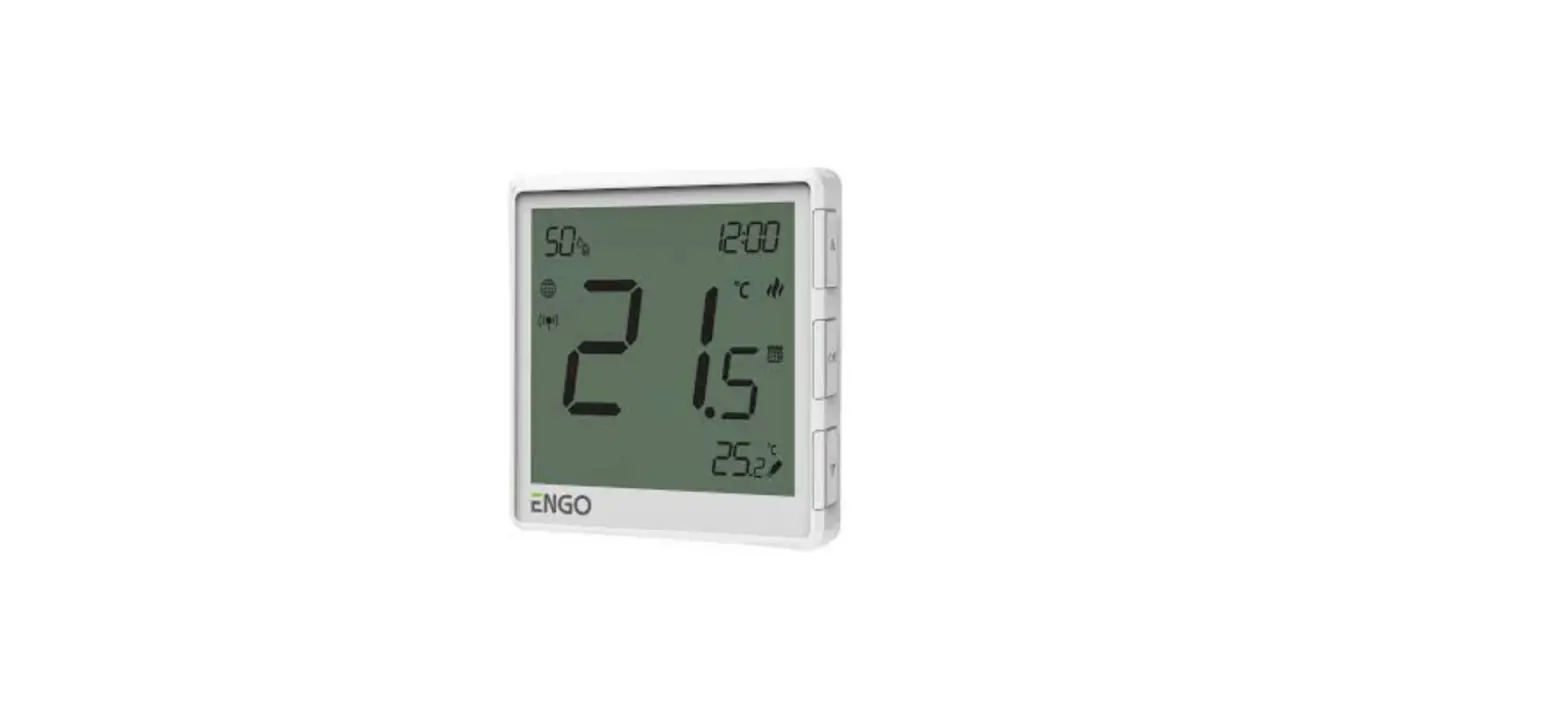
LCD Icon Description:
- Current humidity reading
- Current/Setpoint temperature
- Clock
- Temperature unit
- Heating indicator (icon is animating when there is heating
demand) - Cooling indicator (icon is animating when there is cooling
demand) - Schedule mode icon
- Temporary override mode
- External/Floor or Occupancy sensor
- Button lock
- Holiday mode
- Settings icon
- Battery indicator
- Receiver pairing indicator
- ZigBee network connection indicator
- Settings icon / temperature settings
ONE
Internet controlled thermostat, ZigBee
EONEBATW EONEBATB Quick Guide
Ver. 1 Release date: II 2023
Product Compliance
This product complies with the following EU Directives: 2014/30/EU, 2014/35/EU, 2014/53/ EU, 2011/65/EU
SAFETY INFORMATION:
Use in accordance with national and EU regulations. Use the device only as intended, keeping it in a dry condition. The product is for indoor use only. Please read the entire manual, before installation or use.
WARNING:
This product must be used with a ZigBee EGATEZB gateway (purchased separately). Thermostat programming is done by ENGO Smart app.
Producer: Engo Controls S.C. 43-200 Pszczyna 3E Górnolska St. Poland
Distributor: QL CONTROLS Sp z o.o. Sp. k. 43-262 Kobielice 4 Rolna St. Poland
www.engocontrols.com
Product advantages:
Built-in Li-Ion 3,7V Battery
Communication in the ZigBee 3.0 standard
A multitude of functions available from ENGO Smart / Tuya Smart application
S1-S2 Input for additional sensor
NTC
ENGO ENGO binding function (devices connection BINDING in Online and Offline mode)
Wireless communication diagram
ZigBee 3.0
EONEBATW/B
WI-FI 2.4GHz
Gateway EGATEZB
ZigBee 3.0
ECB62ZB Control box
Connection description
EONEBATW/B S1
ZigBee 3.0
Li-lon
3.7V S2
Products sold separately
or
or
EMODZB Module
EREL1ZB12A Relay
Legend:
Temperature sensor S1, S2 Thermostat input for ext. temperature sensor
Connection with ZigBee 3.0 network Connection with WiFi 2.4GHz network
INTRODUCTION:
ONEBAT is a surface-mounted room thermostat which works over ZigBee technology. It has a built-in humidity sensor and a minimum/maximum setpoint temperature limiting function. The ONEBAT has the ability to work in heating or cooling modes. The unique feature of this thermostat is the possibility of wireless control over ENGO binding function. In order to have the ability to controll wirelessly, ONEBAT needs to be used with ENGO Smart / TUYA Smart mobile application and EGATEZB internet gateway (sold separately). ,,ENGO binding” function provides wireless and direct connection to the receivers (e.g. ECB62ZB control box, EMODZB module or EREL1ZB12A relay) over the EGATEZB gateway. After adding to the mobile app, thermostat offer more functions, e.g. push notifications or possibility of programming time schedules.
Technical Informations
Power supply Charging connector Temperature range Display temperature accuracy Control algorithm
Communication S1/S2 multifunctional input
IP protection class Dimension [mm]
Built-in Li-Ion 3,7V Battery USB type C, 5V DC 5,0°C – 45,0°C 0,5°C
TPI or Histeresis (from ±0,1°C to ±2°C) ZigBee 3.0 2,4GHz
Floor temp sensor, external air sensor, occupancy sensor IP30
90 x 90 x 14 mm
LCD Icon Description + Button Description
1
2
3
4
1
16 SET
5
15
6
14
2
7
8 3
9
12 10 13 11
1. “Up” Button 2. “OK” Button 3. “Down”Button
Button description
1. Current humidity reading 2. Current/Setpoint temperature 3. Clock 4. Temperature unit 5. Heating indicator (icon is animating when
there is heating demand) 6. Cooling indicator (icon is animating when
there is cooling demand) 7. Schedule mode icon 8. Temporary override mode 9. External/Floor or Occupancy sensor 10. Button lock 11. Holiday mode 12. Settings icon 13. Battery indicator 14. Receiver pairing indicator 15. ZigBee network connection indicator 16. Settings icon / temperature settings
Change the parameter value up
Change the parameter value down
Manual/Schedule mode – short button press (Online mode)
Enther the installer parameters- hold 3 seconds
Turn OFF/ON thermostat – hold 5 seconds
Enter the pairing mode – hold 5 seconds
+
Enter binding mode – hold 10 seconds
Thermostat factory reset – hold 15 seconds
+
Lock/Unlock thermostat keys – hold 3 seconds
+
Heating/Cooling mode change – hold 3seconds
Installation thermostat in the app
Make sure your router is within range of your smartphone. Make sure you are connected to the Internet. This will reduce the pairing time of the device.
STEP 1 – DOWNLOAD ENGO SMART APP
Download the ENGO Smart app from Google Play or Apple App Store and install it on your smartphone.
STEP 2 – REGISTER THE NEW ACCOUNT
To register a new account, please follow the steps below:
1
2
3
4
Click ,,Register” to create new account.
Enter your e-mail address to which the verification code will
be sent.
Enter the verification code received in the email.
Remember that you only have 60 seconds to enter
the code!!
Then set the login password.
STEP 3 – CONNECT THE THERMOSTAT TO ZigBee
5 sek.
5 sek.
Make sure ZigBee gateway has been added to the Engo Smart app.
1
Press and hold the and buttons on the thermostat for approx. 5 seconds until the display shows,,PA”. Then release the keys. The pairing mode will be started up and counts the time back (180s).
2
3
In the app, click on upper right corner.
Select: ,,Add Device”.
When the ZigBee gateway finds thermostat click the
,,Add” button.
4
5
6
Name the device and click,,Done”.
The thermostat has been installed and displays the
main interface.
3
On the controller screen globe icon appeared stating that he has been he added to the ZigBee network.
Binding thermostat with the module/relay
Make sure that the module/relay and thermostat are in the same ZigBee network (they are added to the same gateway EGATEZB).
1
2
5x
10 sek.
or
5x
To properly link thermostat with the module/relay first click the button on the device 5 times.
The LED diode will start flashing slowly on red, which means the device is in binding mode.
3
10 sek.
On the EONE thermostat, hold and buttons until the “bind” message appears.
4
Release the keys, binding function process of linking thermostat with control box
is active.
5
The “binding” process takes up to 300 seconds.
6
3
After successfull binding operation ,,End” message will be displayed. LED on the module will stop flashing.
ATTENTION:
Both devices have been successfully linked. Thermostat displays the main screen, icon ” ” appeared on the screen indicating connection with the receiver (module/relay in this case).
If the binding process fails, it must be repeated taking into account the distances between devices, obstacles and local radio signal interferences.
Remember:
Radio range can be increased by Engo ZigBee repeaters.
Binding thermostat with the ECB62ZB wireless control box
Make sure that the ECB62ZB control box and thermostat are in the same ZigBee network (they are added to the same gateway EGATEZB) and the POWER LED lights up blue.
1
2
1
2
In order to correctly link thermostat with the control box, first select the zone in the control box with the SELECT button (1) (zone which you want to link with thermostat). The LED (2) will flash 3 times for the selected zone. Confirm your selection by clicking PAIR button (2). The LED (2) will flash green with the previously selected zone – binding process has started, it is active for 10 minutes and during this time you can link thermostat with the selected zone.
2
3
4
10 sek.
10 sek.
On the EONE thermostat, hold and buttons until the “bind”message appears.
Release the keys, binding functionprocess of linking thermostat with control box
is active.
The “binding” process takes up to 300 seconds.
5
6
ATTENTION:
After successfull binding operation ,,End” message
will be displayed.
If the binding process fails,
it must be repeated taking into
account the distances between
3 devices, obstacles and local radio signal interferences.
Remember:
Both devices have been successfully linked. Thermostat displays the main screen, icon ” ” appeared on the screen indicating connection with
Radio range can be increased by Engo ZigBee repeaters.
the receiver (ECB62ZB in this case).
Installer settings
To enter installer parameters press and hold button for 3 seconds.
1
2
5 sek.
Use or . button to move between parameters. Enter the parameter by . Edit the parameter using or . Confirm the new parameter value with the button.
Installer parameters
Pxx
Function
P01
Clock format
P02
Heating/Cooling Selection
P03
Control algorithm
P04
Offset temperature
P05
“Minimum setpoint”
P06
“Maximum setpoint”
P07
S1/S2 Input
Value 12h 24h
TPI UFH TPI RAD TPI ELE HIS 0.2 HIS 0.4 HIS 0.6 HIS 0.8 HIS 1.0 HIS 2.0 HIS 3.0 HIS 4.0
-3.5°C do +3.5°C
5°C – 45°C 5°C – 45°C
1 2 3 4
Desription
12 hour 24 hour Heating
Cooling TPI for Underfloor Heating
TPI for Radiators TPI for Electrical Heating
SPAN +/-0,1°C SPAN +/-0,2°C SPAN +/-0,3°C SPAN +/-0,4°C SPAN +/-0,5°C SPAN +/-1,0°C SPAN +/-1,5°C SPAN +/-2,0°C If the thermostat indicates wrong temperature, you can correct it by max ± 3.5°C” Minimum heating / cooling temperature that can be set
Maximum heating / cooling temperature that can be set Disable
External sensor as a floor sensor External sensor as an air sensor Occupnacy sensor (ON/OFF volt free input)
Default value 24h
TPI UFH for heating HIS 1.0 for
cooling
0°C 5°C 35°C 1
P08
Maximum floor temperature for heating (function active when P07=2)
5°C – 45°C
In order to protect the floor, the heating will be turned off, when the temperature of the floor sensor rises above the maximum value.
35°C
P09
Minimum floor temperature for heating (function active when P07=2)
5°C – 45°C
In order to protect the floor, the heating will be switched on, when the temperature of the floor sensor drops below the minimum value.
10°C
P10
Maximum floor temperature for cooling (function active when P07=2)
5°C – 45°C
In order to protect the floor, cooling will be switched on, when the temperature of the floor sensor exceeds the maximum value.
15°C
P11
Minimum floor temperature for cooling (function active when P07=2)
5°C – 45°C
In order to protect the floor, cooling will be turned off, when the temperature of the floor sensor drops below the minimum value
7°C
P12
Comfort warm floor
OFF
Level1=7min Thisfunctionhelpstokeepthefloorwarm, evenifthereisnoheating
Level 2 = 11min
demand from the room thermostat. This feature is available only for Heating Mode. User can select 5 levels of warm floor feature. Note that
Level3=15min comfortwarmfloorfunctionwillactivateheatingforspecifiedamount
OFF
Level4=19min oftime(inrelationtoLevelsettingchoosenbyuser).Heatingwillbe
Level 5 = 23min
activated only if in the past 1 hour heating was OFF.
ON
P13
Valve protection
OFF
Function disabled OFF
Function enabled
P14
Backlight brightness
10% – 100%
Adjustable in the range from 10 to 100%
50%
P15
PIN Code for settings access
NO
PIN
P16
Require a PIN to unlock the keys every time (function active when P15=PIN)
NO YES
NO
CLR
Clear settings factory reset
YES
Function disabled
NO
Function enabled
Function disabled NO
Function enabled
No action NO
Factory Reset
Factory reset
To RESET thermostat to factory settings, hold the and buttons for approx. 15 seconds. FA will be displayed. Then release the keys. Thermostat will restart, restore default (factory) settings and displays the home screen. The device will be removed from the ZigBee network you will need to add/pair it again.
1
2
3
10sek.
SET
10sek.
 ENGO Controls - Sterowanie ogrzewaniem