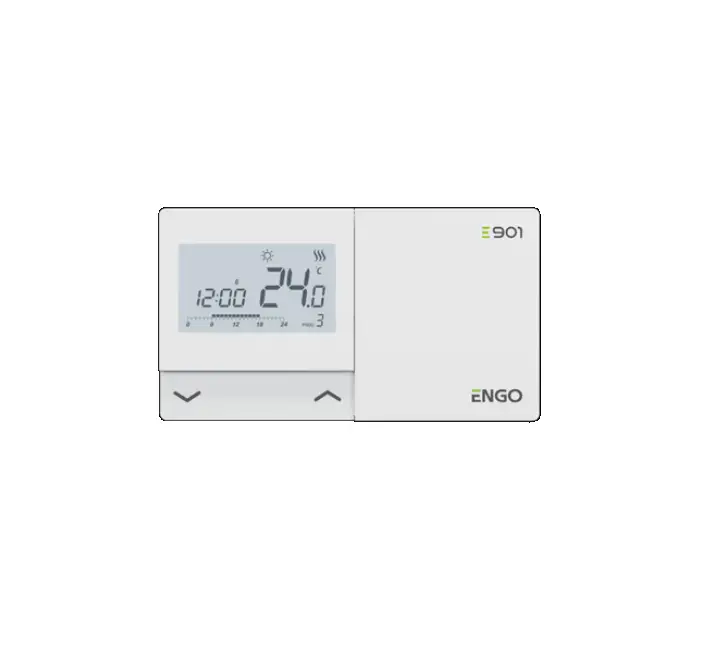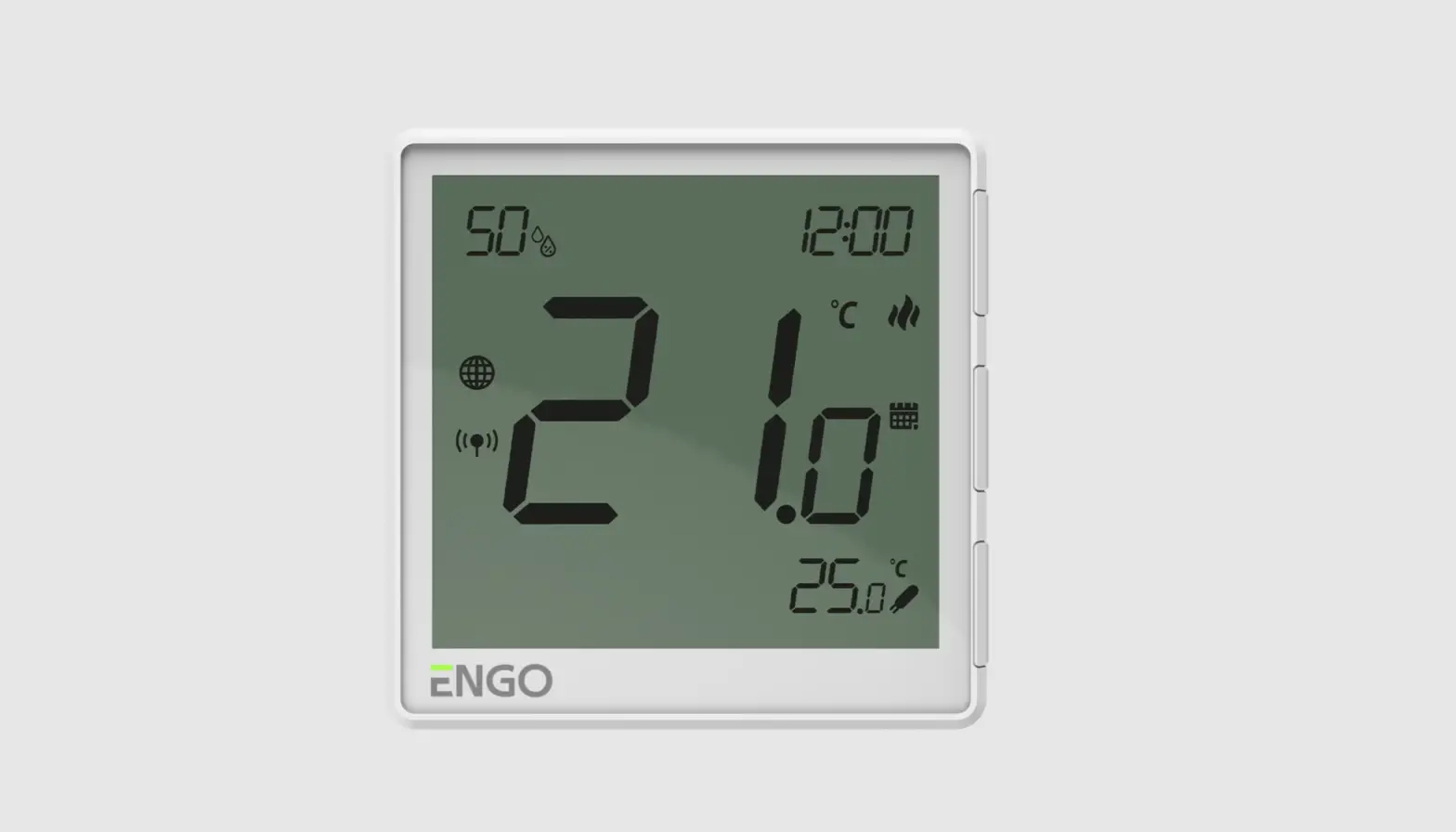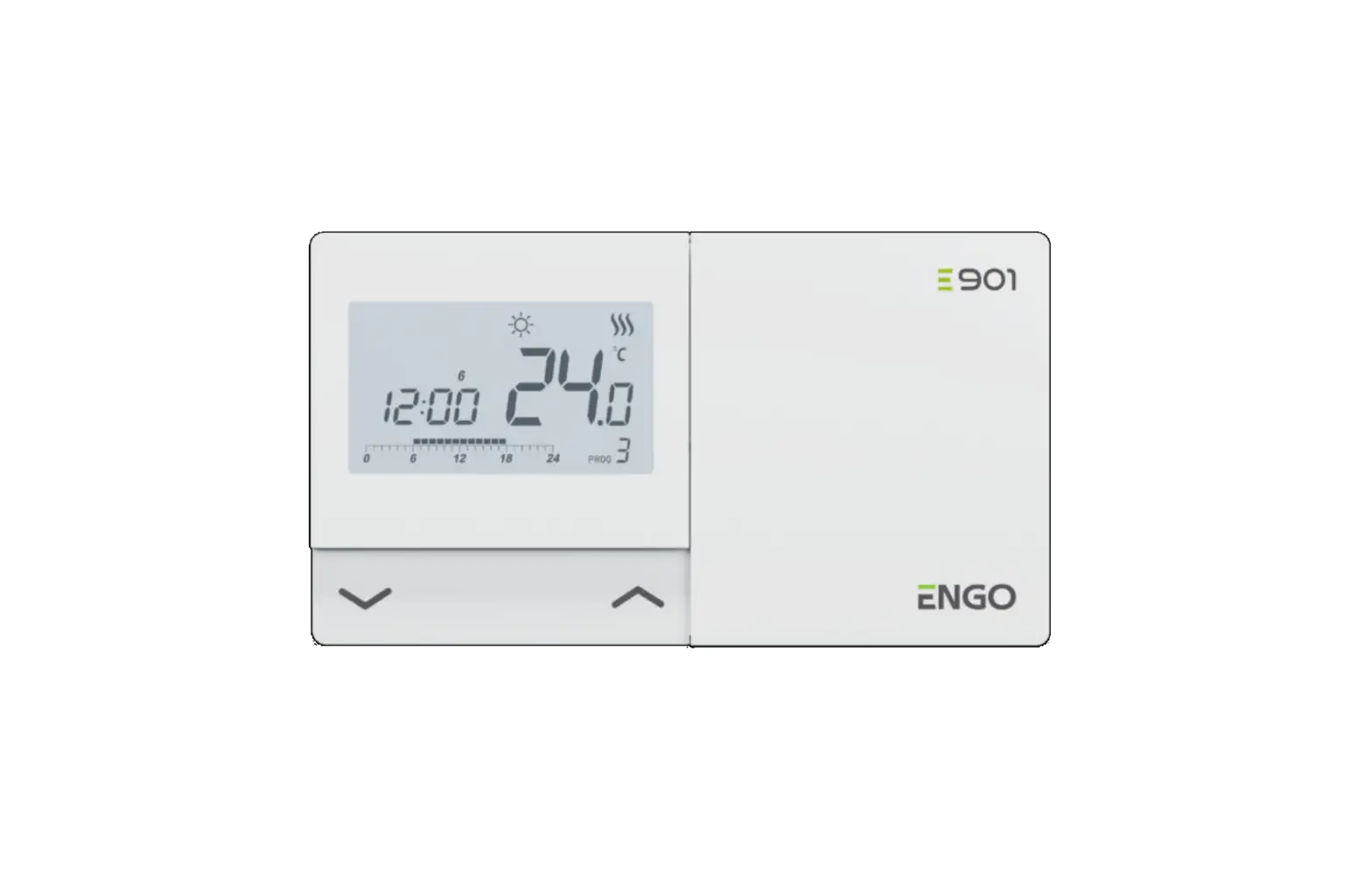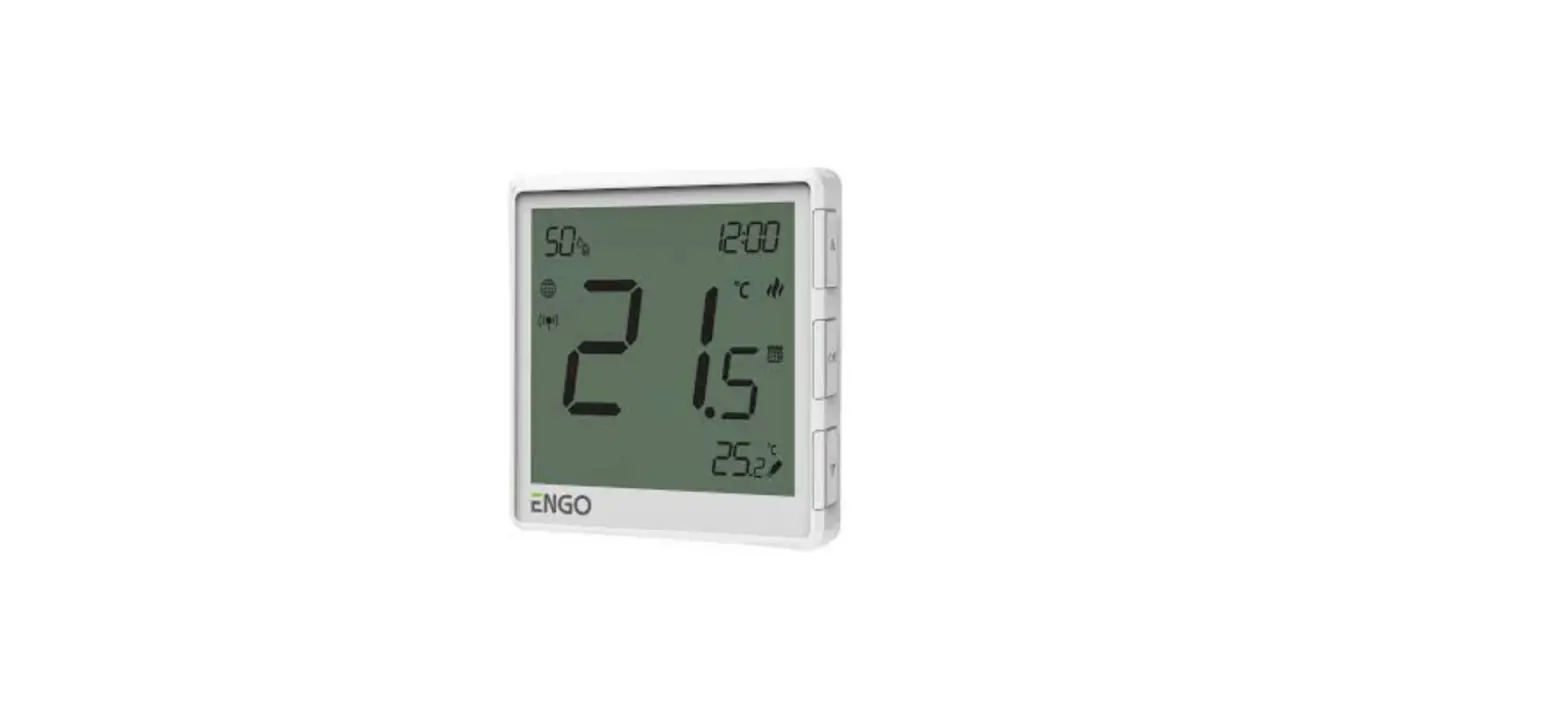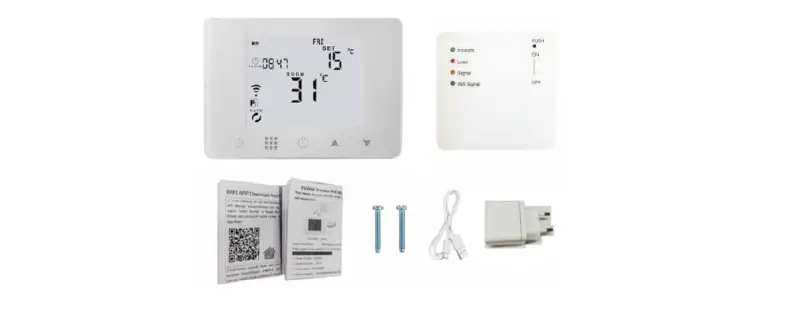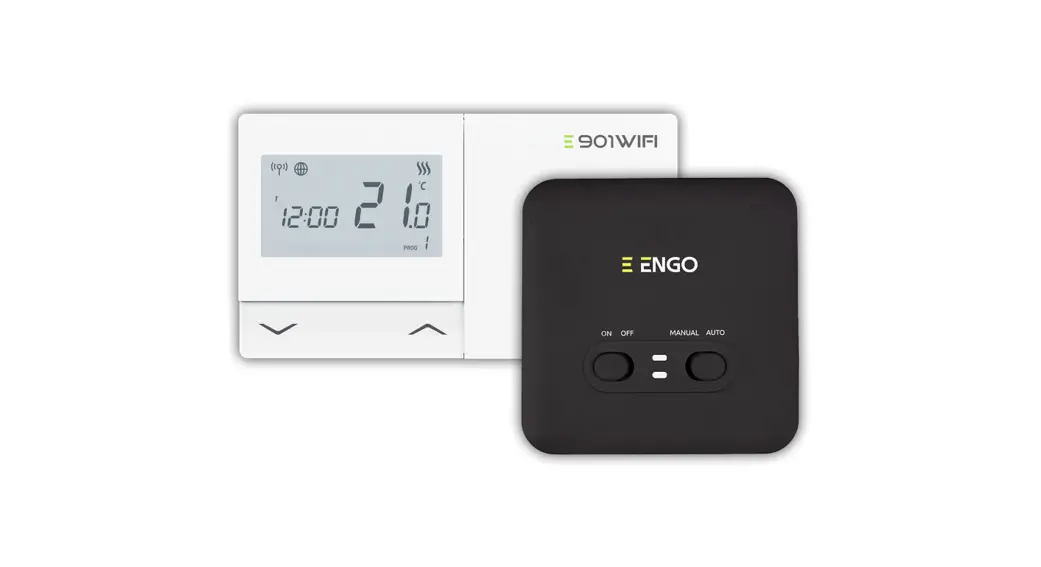
 E901WIFI | Wireless, Internet Thermostat, Wi-Fi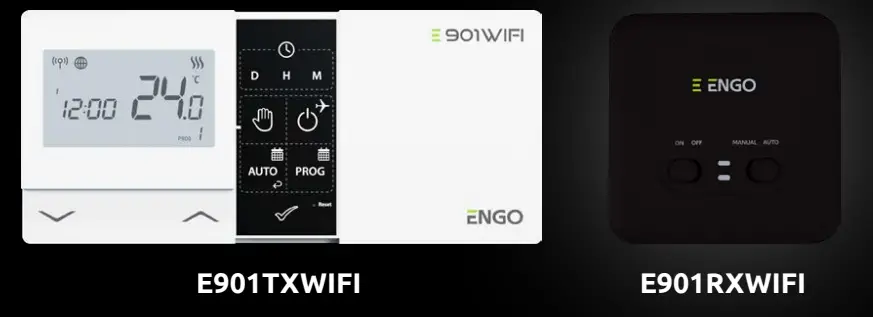
Ver. 1
Release date: IX 2022
Quick Guide
Wall mounting
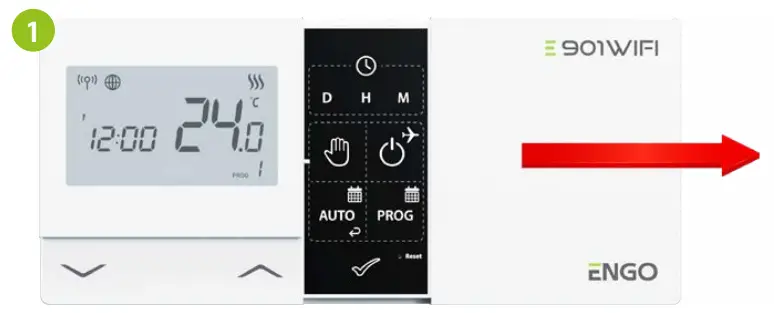
Remove the thermostat cover as shown in the picture.
If there are batteries inside, remove them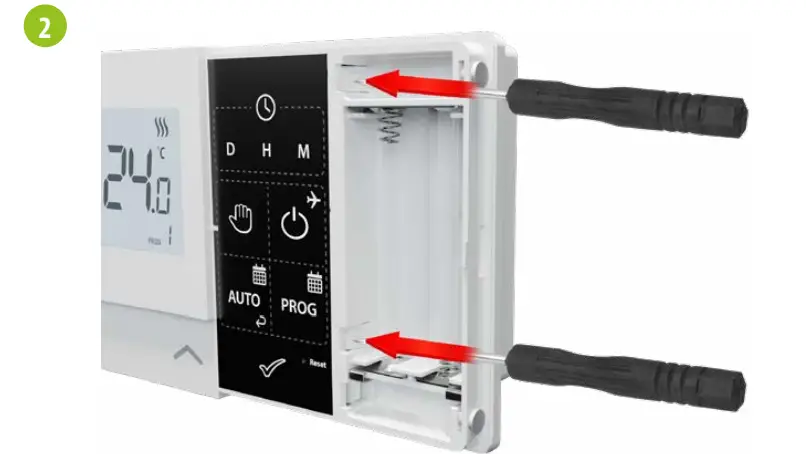
Use a screwdriver to push the plastic tabs in as shown in the figure until you eel resistance, and tilt the front part of the housing.
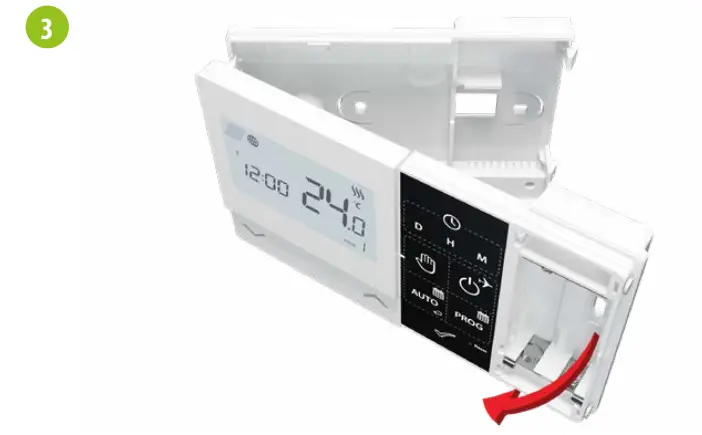
Separate the front part from the back part in the direction shown above
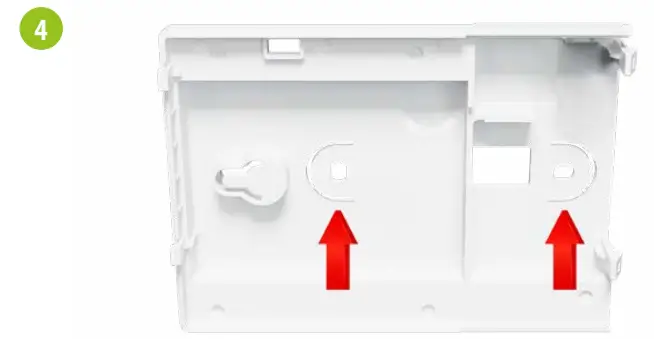
Use the supplied mounting screws and mount the back cover to the wall (use holes as shown arrows)
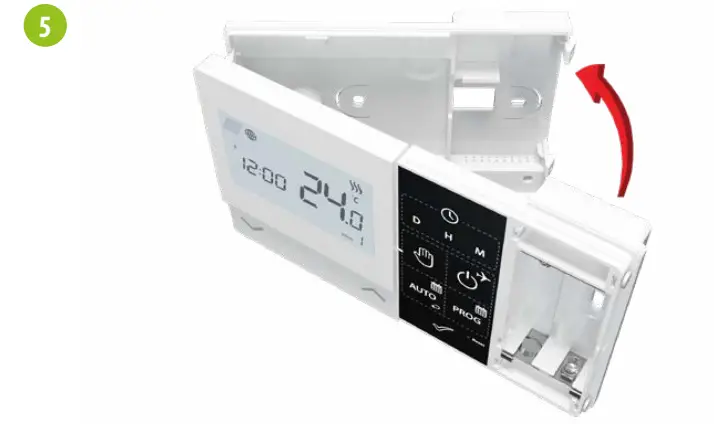
Using the hinges on the left, fold the front and back covers together as shown in the picture above until they click into place.
Wiring Diagrams
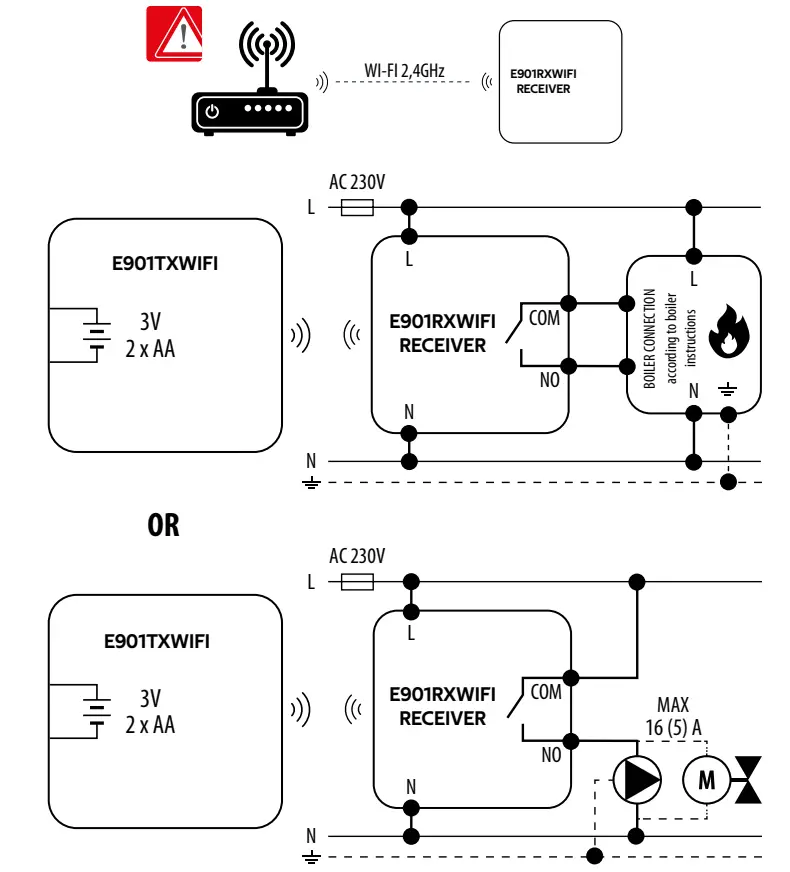
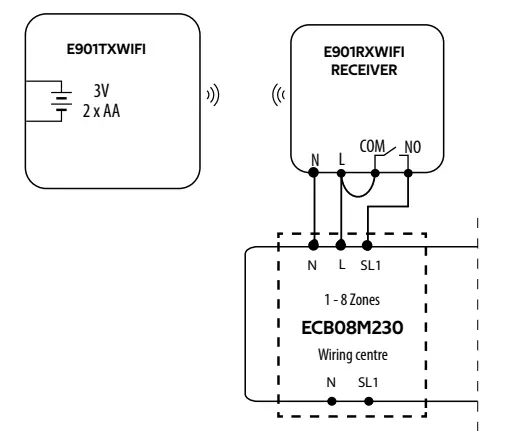
E901RXWIFI receiver
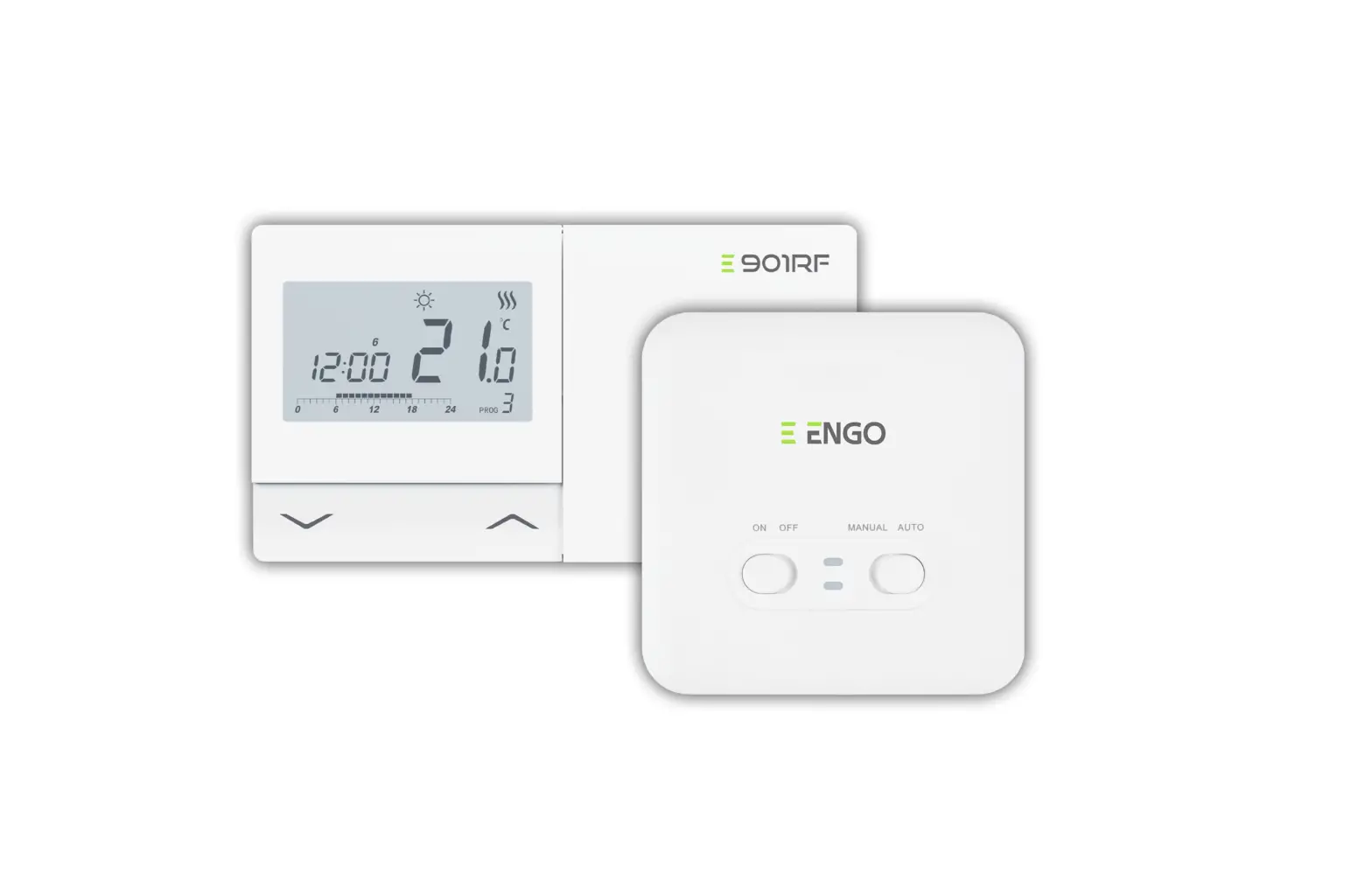
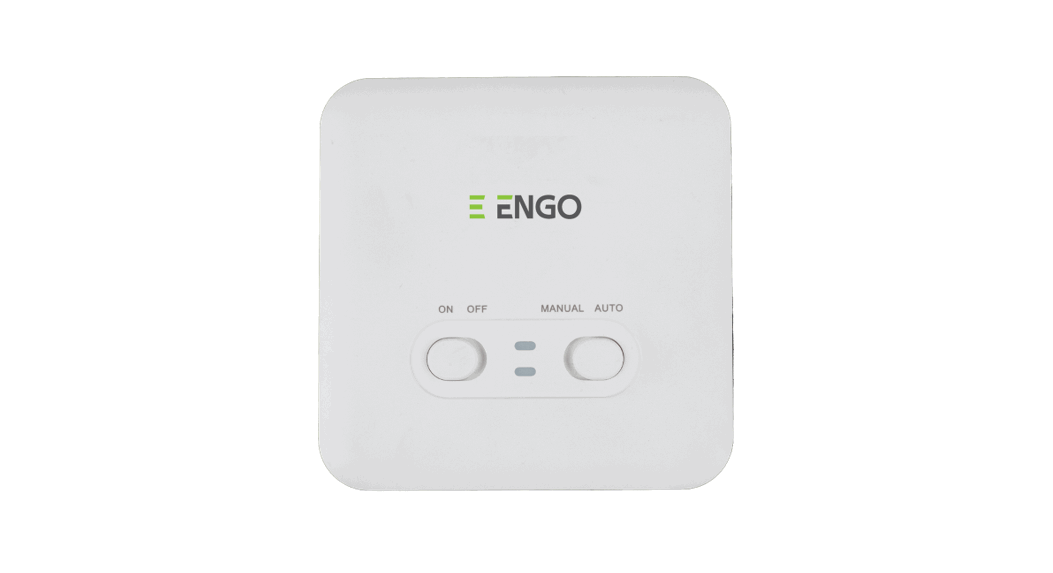
Receiver’s switches description: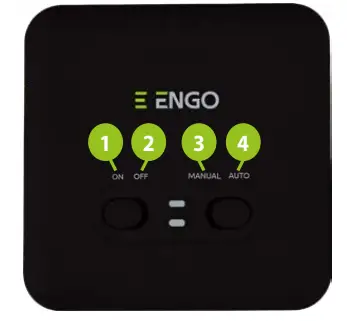
| 1. | LEFT SWITCH |
| ON – Manual mode- receiver ON | |
| 2. | OFF – Manual mode- receiver OFF |
| RIGHT SWITCH | |
| 3. | MANUAL – Receiver works in manual mode according to the left switch) |
| 4. | AUTO – Receiver works in AUTO mode (according to the thermostat’s command) |
LED indications in the receiver
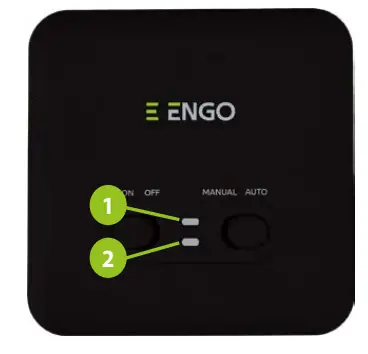
The status of the receiver is indicated by two LEDs. These are LEDs with the following colors:
- red (upper one),
- green (upper one),
- blue (upper one), 1
- orange (lower one). 2
A detailed explanation of the meaning of the LEDs can be found in the table below:
| DESCRIPTION | |
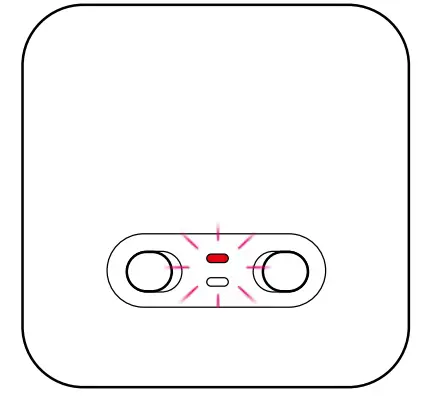
| The red LED flashes | TThe red LED diode flashes – Receiver and thermostat are prepared for installation in the app. LED always flashes red: – immediately after connecting the receiver to the power supply, if the thermostat is not added to the app – after running the parameter “APP “-> YES (installer parameters) – after removing thermostat from the app (device automatically entered pairing mode) |
| The red LED steady | The red LED diode is steady – E901 WIFI has not been installed in the app and it is working in Offline mode. It means also app pairing mode timed out (pairing with app must be done within 10 minute after enabling pairing mode). |
| The green LED is solid | The receiver is connected to a router but there is no connection to Internet (router is offline) |
| The iireen LED flashes | The receiver lost connection with a router (router is off) |
| The LED is solid | The receiver is connected to a router that has Internet access (router is online) |
| The LED flashes | The receiver was paired but lost communication with the thermostat due to out of range or low battery in the thermostat. When receiver lost communication with thermostat it starts flashing after 15 minutes. |
| The orange LED is solid | In automatic mode, the receiver received a heating / cooling signal from the thermostat or the receiver was started in manual mode (left switch ON, right switch MANUAL) |
| Theta UI.J44 – LED flashes | The receiver is in the pairing mode and is looking for a signal from the thermostat (then you must activate the “SYNC parameter in the thermostat). The receiver was paired but lost communication with the thermostat due to out of range or low battery in the thermostat. Orange diode starts flashing 15 minutes after lost communication from the thermostat. |
| The range LED is off | The receiver does not send a heating /cooling signal. |
| The pink LED is on | Update process started. To increase the chance of success of the update – immediately after the pink diode appears, dick any thermostats button to turn on backlight |
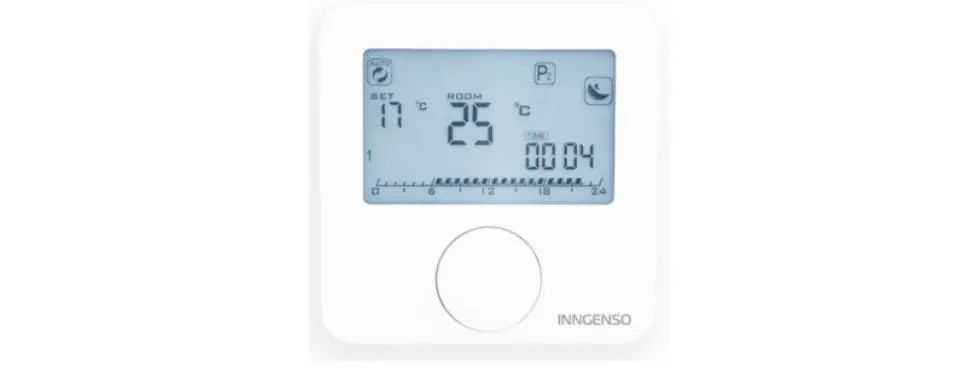
LCD icon description
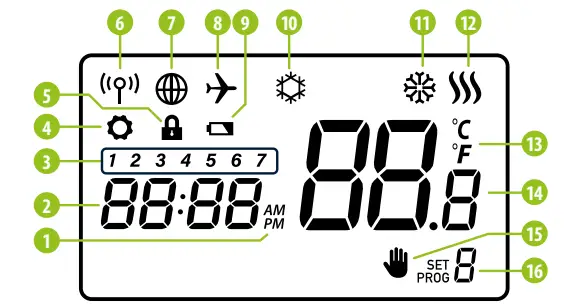
| 1. AM/PM | 9. Low battery indicator |
| 2. Clock | 10. Antifrost Mode |
| 3. Day of the week indicator | 11. Cooling mode |
| 4. Settings icon | 12. Heating mode |
| 5. Key lock function | 13. Temperature unit |
| 6. Send a signal (pairing) | 14. Room / setpoint temperature |
| 7. Internet connection | 15. Manual mode/ Temporary override mode |
| 8. Holiday Mode | 16. Program number |
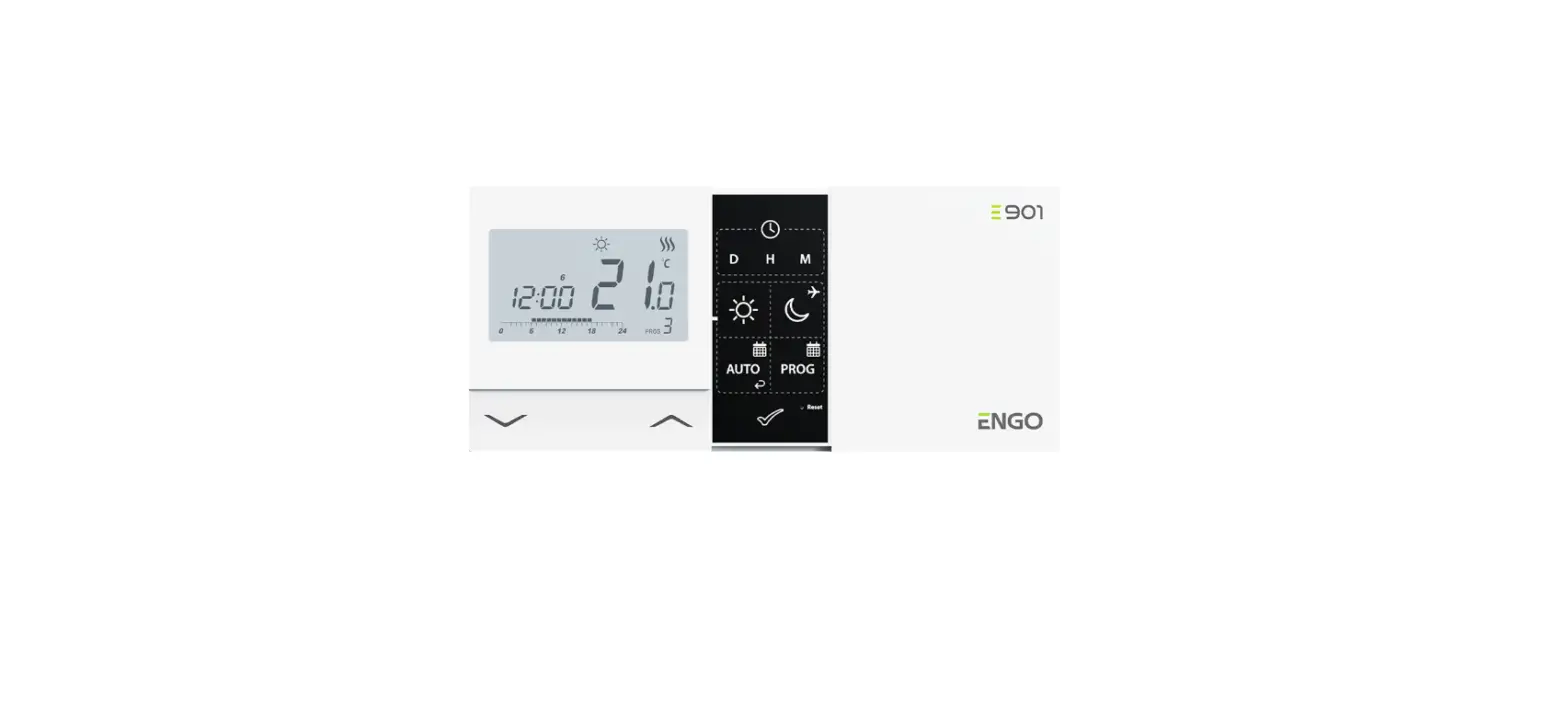
Button description
| Button | Function |
 | Change the parameter value down |
 | Change the parameter value up |
| D | Set the day of the week |
| H | Set the hour |
| M | Set the minutes |
 | Manual mode |
 | OFF mode / Holiday mode |
 | AUTO mode / Back button |
 | Programming / Program selection |
 | Confirm function |
 | Thermostat reboot, time reset |
Setting Time / Setting Date
In the online mode – the thermostat reads the current time from the application.
In the offline mode – D/H/M buttons are active and day/time can be set manually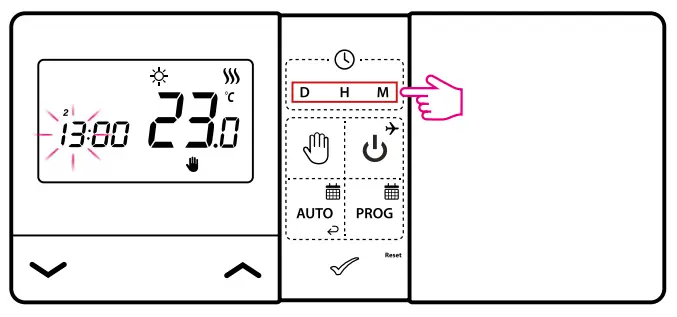
D– Press D button to set the day
H– Press H button to set the hour.
M– Press M button to set the minutes.
Manual mode – temperature settings
In manual mode, the thermostat maintains a constant setpoint temperature as long as the user will not change it again or will not switch to another operating mode (e.g. schedule mode).
Setting setpoint temperature in manual mode
 Press any button to highlight the screen, then follow the steps below:
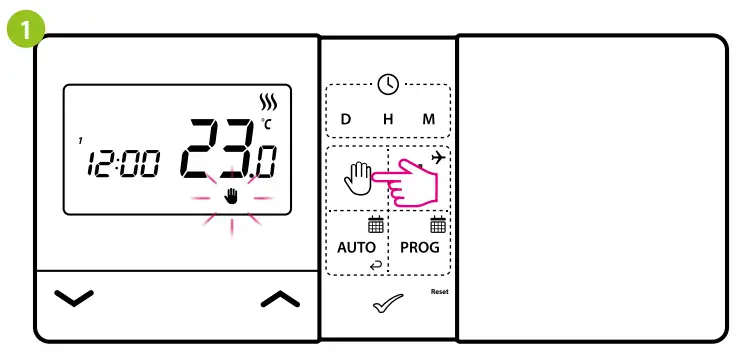
Press, button to enter manual mode.
The hand icon should be visible on the display.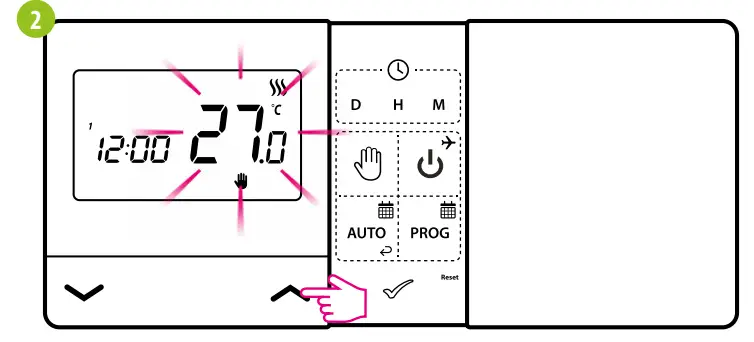
Using or button set new comfort temperature value. 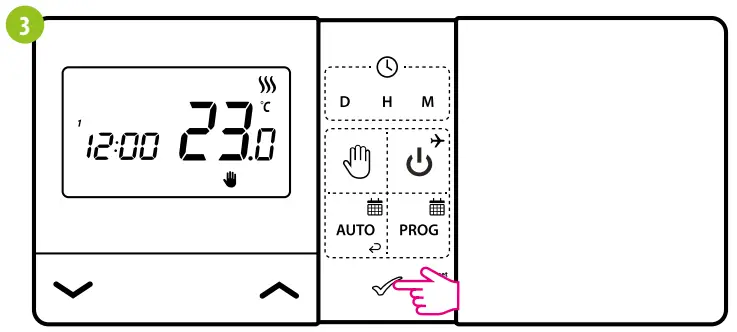
Confirm by button or wait until the thermostat will approve your choice itself and display the main screen.
OFF modePress any button to highlight the screen, then follow the steps below:
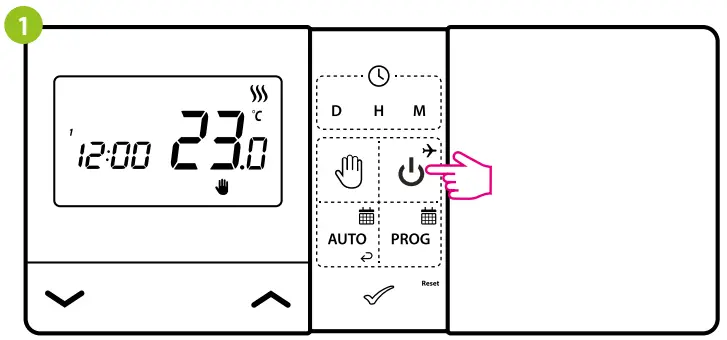
Press, button to enter OFF mode.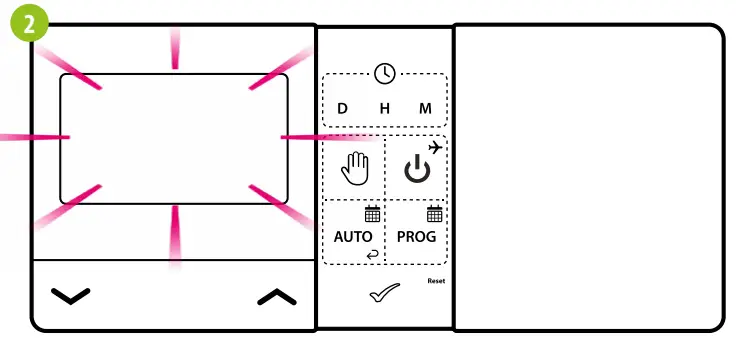
LCD is turned OFF, Thermostat is not sending signal for heating/cooling to the receiver.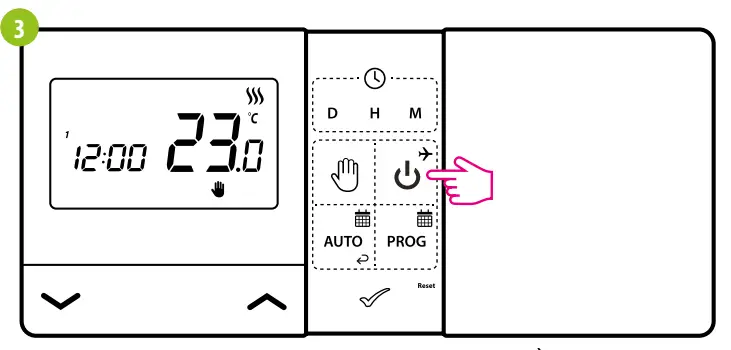
To exit the OFF mode press again the button.
The thermostat will return to the previous mode.
Installation of the E901WIFI thermostat in the app
Make sure your router is within range of your smartphone. Make sure you are connected to the Internet. This will reduce the pairing time of the device.
Use only Wi-Fi 2,4GHz network
STEP 1 – DOWNLOAD ENGO SMART APP
Download the ENGO Smart app from Google Play or Apple App Store and install it on your smartphone.
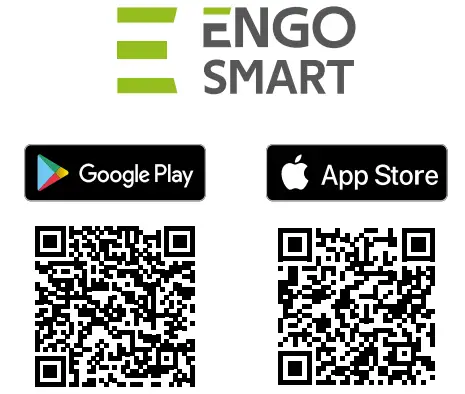
https://play.google.com/store/apps/details?id=com.engo.smartlife
https://apps.apple.com/us/app/engo-smart/id1606693444
STEP 2 – REGISTER THE NEW ACCOUNT
To register a new account, please follow the steps below:
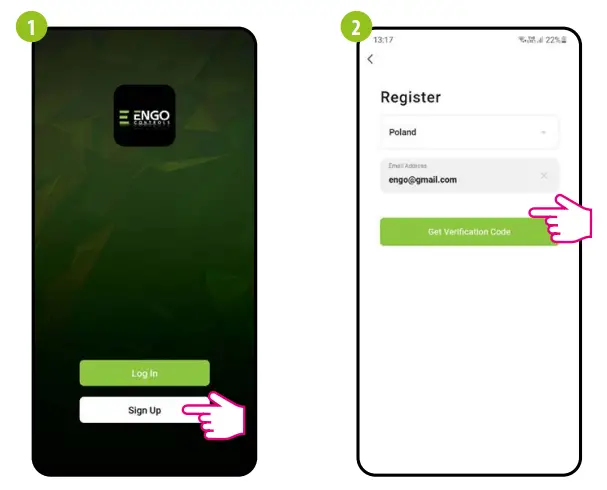 | |
| Click „Register” to create new account. | Enter your e-mail address to which the verification code will be sent. |
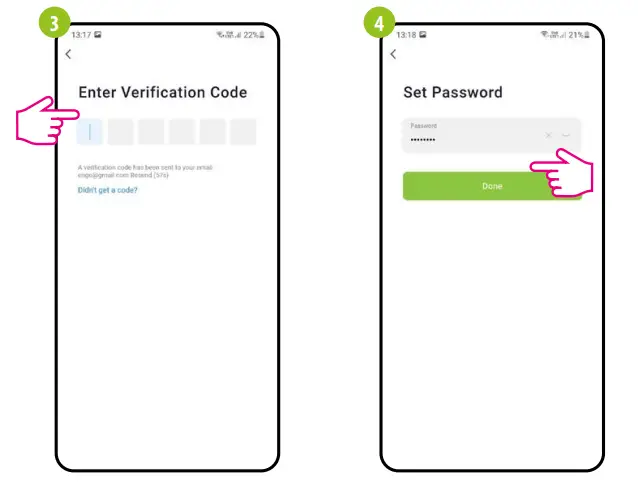 | |
| Enter the verification code received in the email. Remember that you only have 60 seconds to enter the code! | Then set the login password. |
STEP 3 – CONNECT THE THERMOSTAT TO WI-FI
- After installing the app and creating an account:

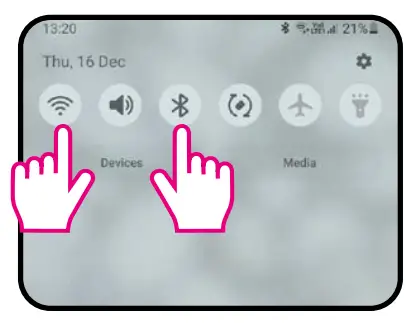
- Turn on Wi-Fi and Bluetooth on your smartphone. Connect mobile phone to the Wi-Fi network to which you want to assign the thermostat.

- Connect the receiver to the power supply.
When first powered up, the red led will start flashing, which means that devices are ready to be added to the application.
Go to step 7 (adding devices in the app).
If the red LED on the receiver is not flashing, proceed with the next steps.
- Press and hold
 button for 5 seconds.
- Use
 or
or , button to choose APP – add to application parameter.
- Confirm with button.

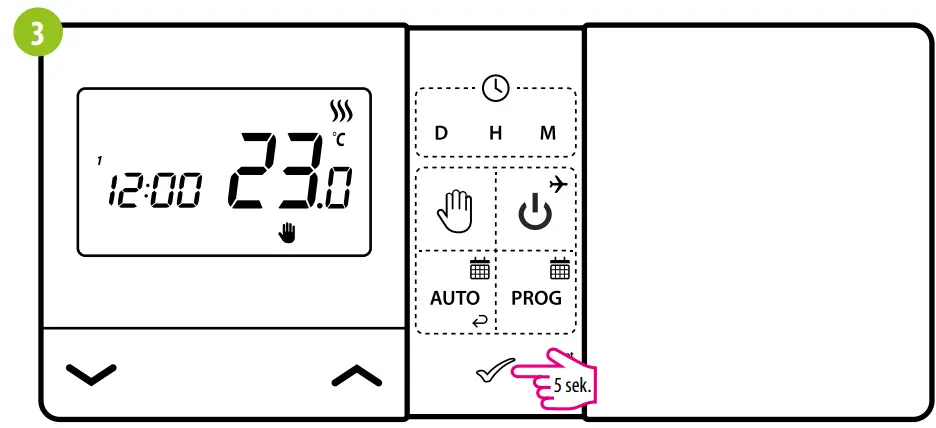
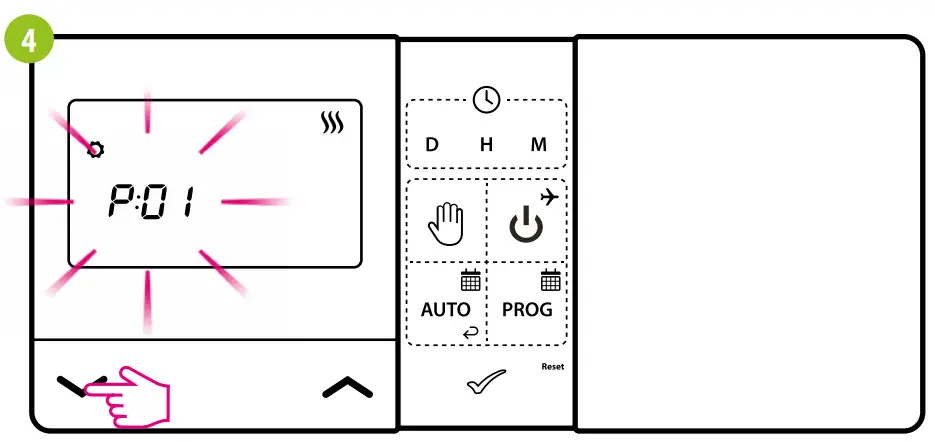
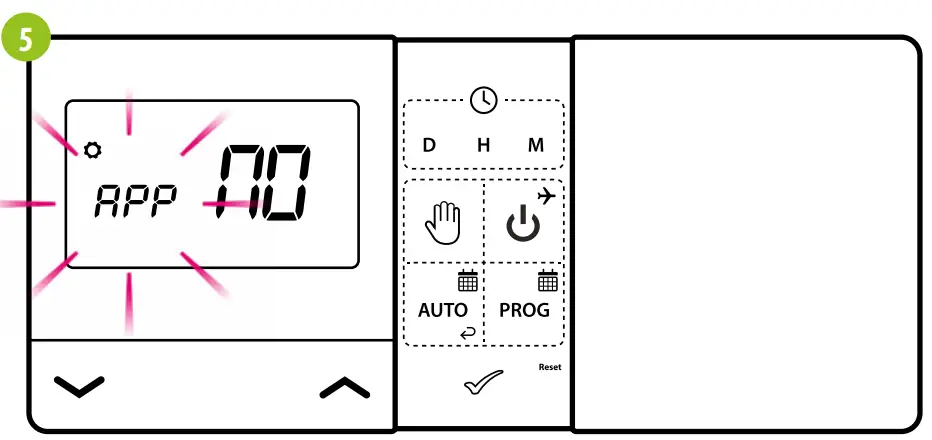
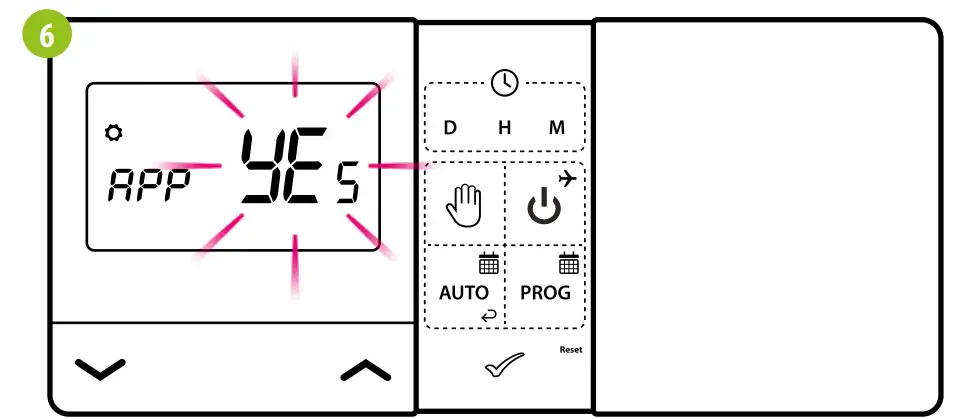
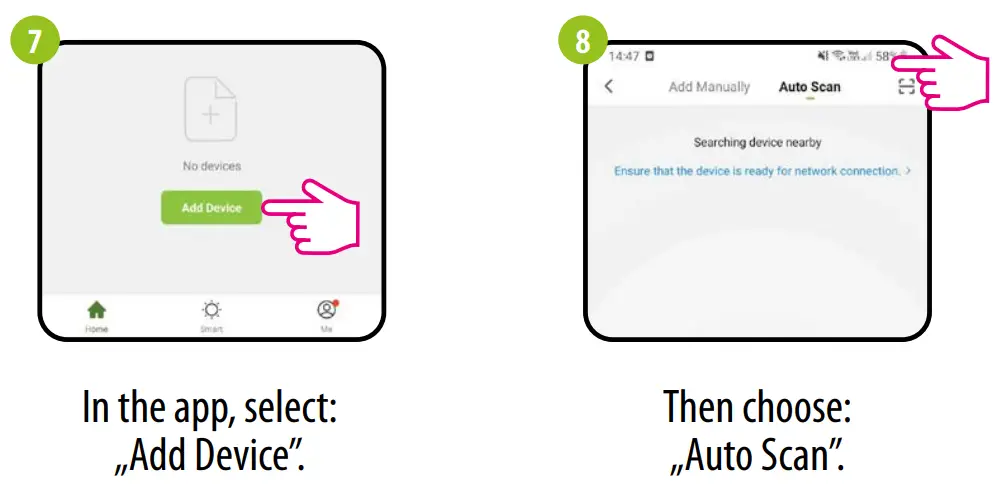
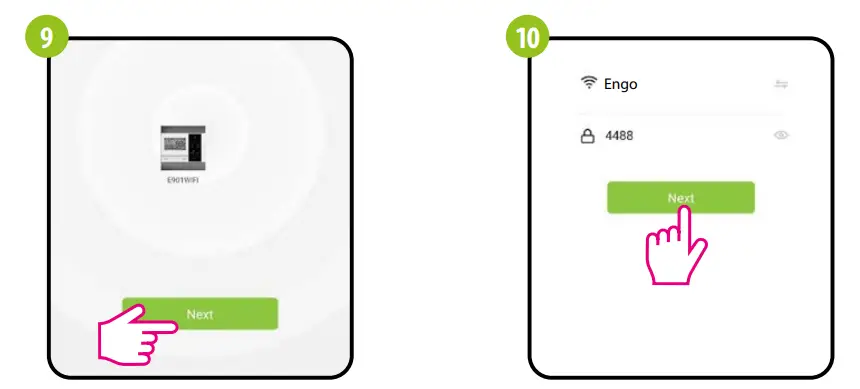 | |
| After finding the thermostat, go „Next”. | Select the Wi-Fi network which thermostat should connect and put it’s password. |
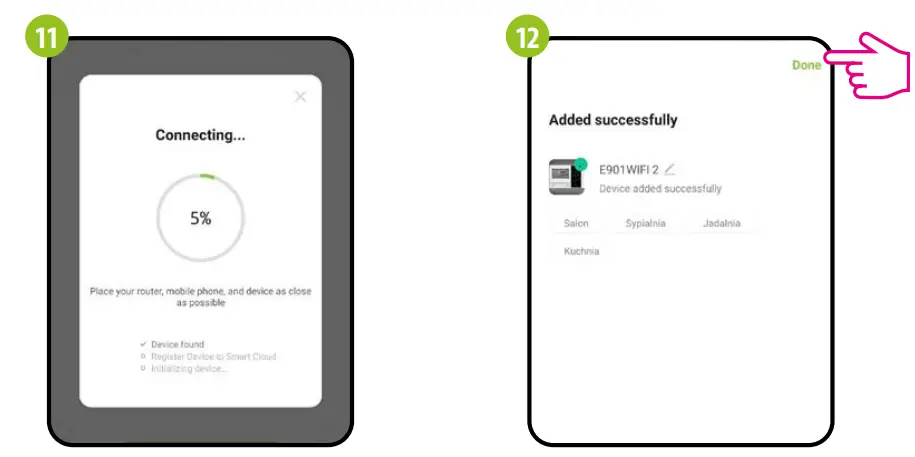 | |
| Wait for the app to configure thermostat. | Name the device and click „Done”. |
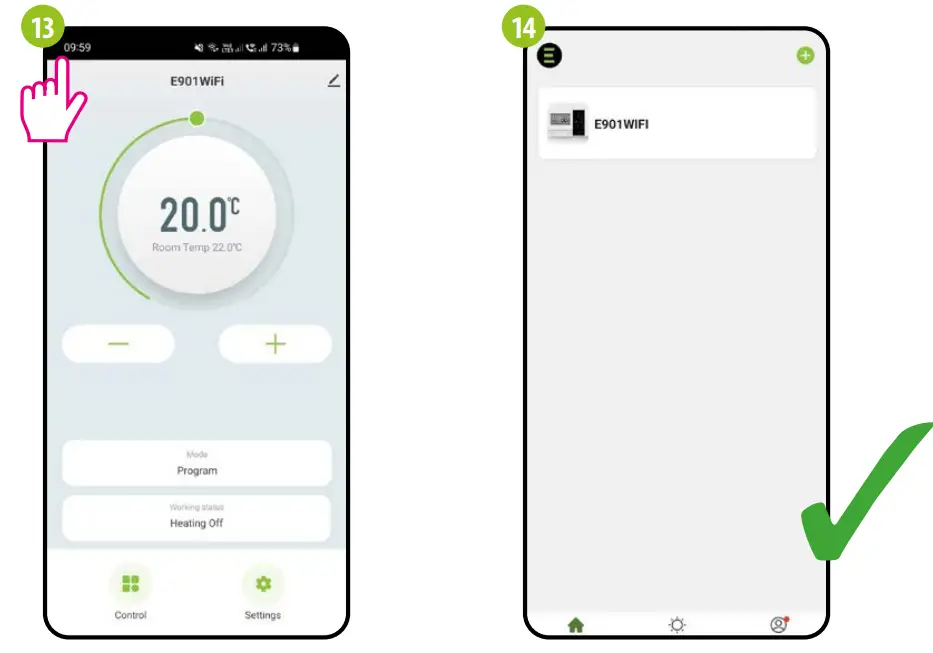 | |
| Thermostat has been installed and displays the main interface. | …and it shows on the main app window. |
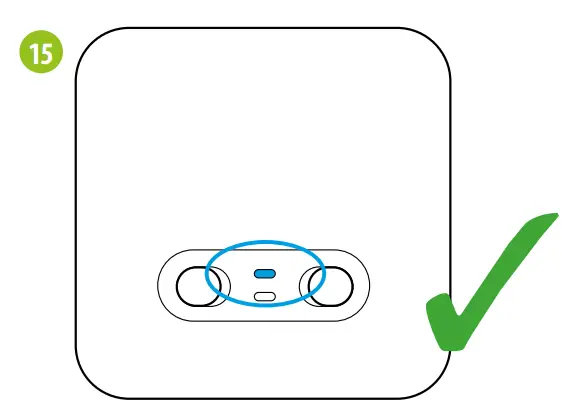
When the blue LED on the receiver will light up, it means the device has been correctly added to the application and is now connected to the Internet.
E901WIFI pairing process with the receiver PLEASE NOTE!
E901WIFI THERMOSTAT IS ALREADY PAIRED WITH THE RECEIVER!
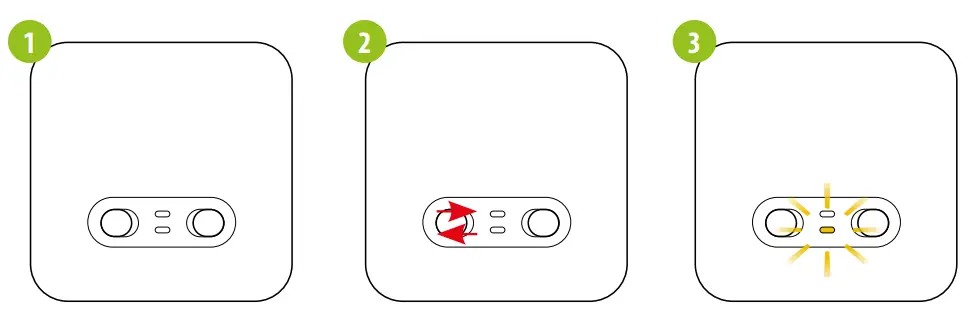
If you want to re-pair the receiver and thermostat with each other and then add it to the application, make sure that the receiver is disconnected from the power supply, and the switches on it are in the ON and AUTO positions. Then connect the receiver to the power supply and wait a few seconds. Next, move the left switch to the OFF position and back to the ON position with a quick motion. The orange LED will start blinking, which will confirm that the receiver has entered the pairing mode.
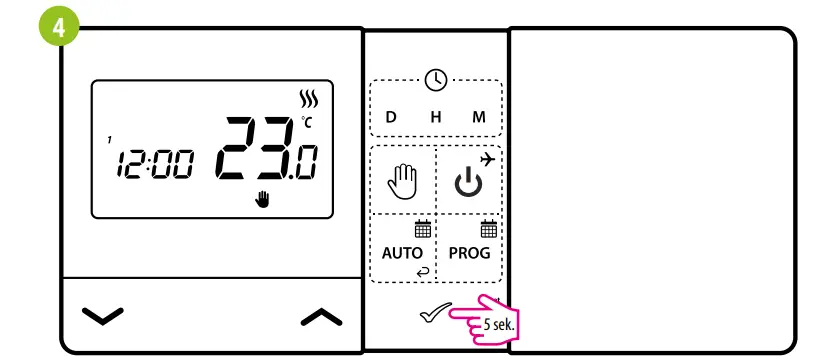
Press and hold the button for 5 seconds.
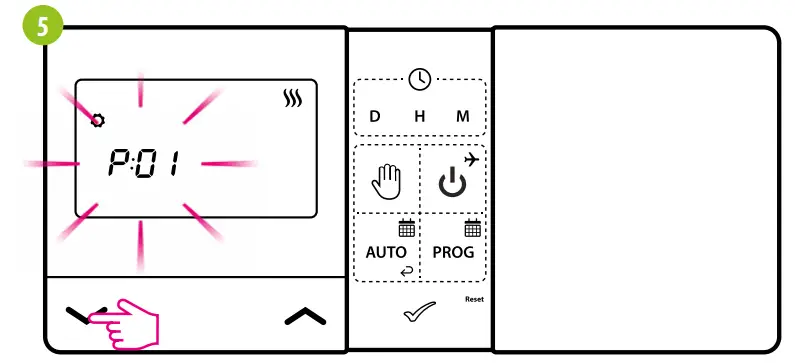
Use or, button to select SYNC parameter.
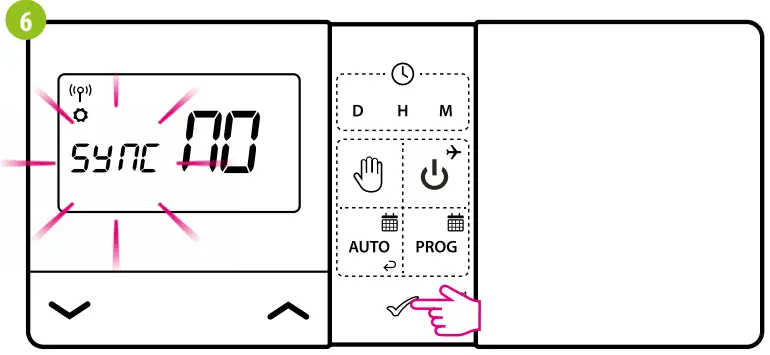
Confirm with button.
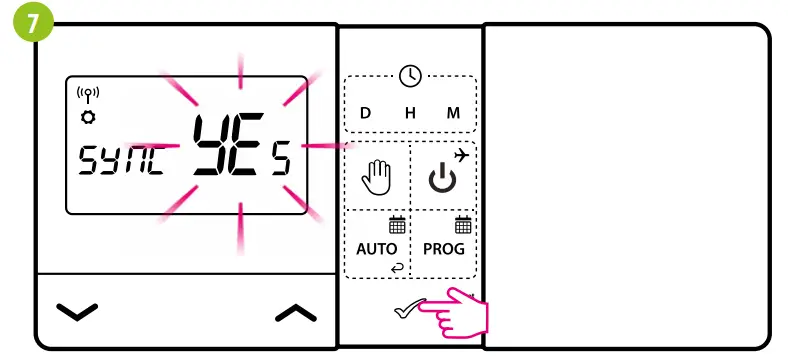
Using or buttons choose YES and start the pairing process on a new frequency by pressing the button.
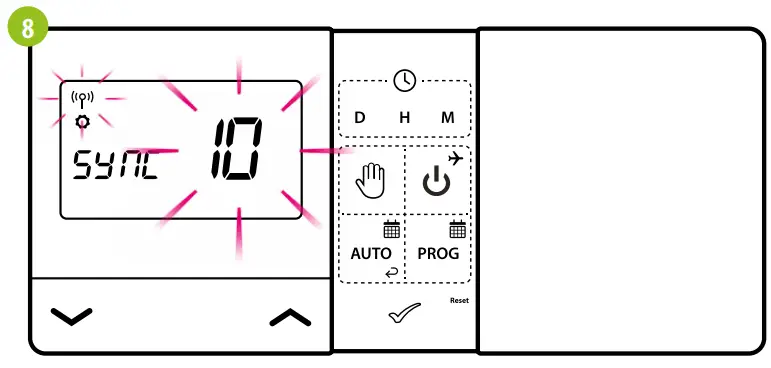
The thermostat started to send a signal to find the receiver (the symbol of the blinking antenna) and started the countdown with the number 10 (min). The pairing process may take up to 10 minutes.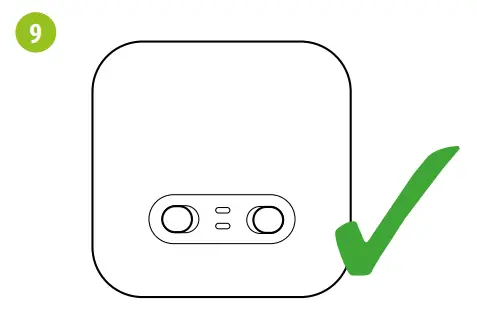
When the orange LED stops blinking, the devices have been paired on a new frequency.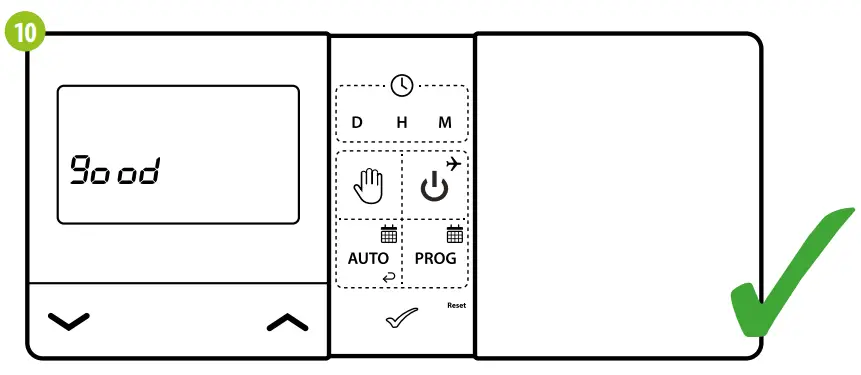
The thermostat will display the message „good”, which means that the devices are successfully paired with each other. Thermostat will return to the next APP parameter in the service menu (adding to application).
You can skip this step and return to the main menu by clicking (OK) button a few timesWARNING! If the orange LED on the receiver has not stopped blinking after 10 minutes, repeat the pairing process taking into account the distance between devices, obstacles and interference.
Installer settings
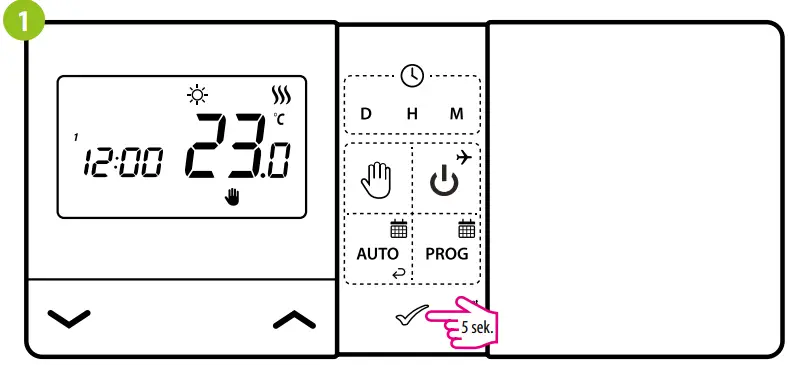
To enter installer parameters press and hold button for 5 seconds.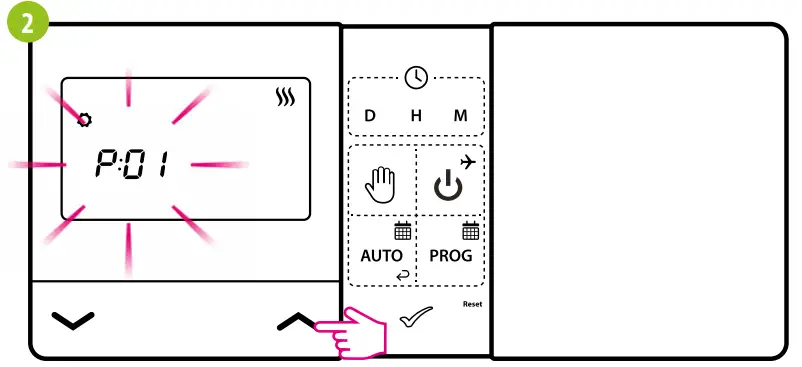
Useor. button to move between parameters. Enter the parameter by. Edit the parameter using or. Confirm the new parameter value with the button.
Installer parameters
| Pxx | Function | Value | Description | Default value |
| P01 | Heating/Cooling Selection |  | Cooling | |
 | Heating | |||
| P02 | Control algorithm | 1 | SPAN ±0,25°C | 1 |
| 2 | SPAN ±0,5°C | |||
| 3 | TPI for Underfloor Heating | |||
| 4 | TPI for Radiators | |||
| 5 | TPI for Electrical Heating | |||
| P03 | Offset temperature | -3.5 ° to + 3.5°C C | If the thermostat indicates wrong temperature, you can correct it by ± 3.5°C | 0°C |
| PO4 | Relay type | NO | Normally Open type of relay | NO |
| NC | Normally Closed type of relay | |||
| P05 | Clock format | 24h | 24 hour | 24h |
| 12h | 12 hour | |||
| P06 | Minimum setpoint | 5°C – 20°C | Minimum heating / cooling temperature that can be set | 5°C |
| P07 | Maximum setpoint | 20°C – 35°C | Maximum heating / cooling temperature that can be set | 35°C |
| P08 | Key sound | NO | Key sound Off | YES |
| YES | Key sound On | |||
| P09 | PIN Code | NO | Disabled | NO |
| PIN | Enabled | |||
| P10 | Require a PIN to unlock the keys every time | NO | Function disabled | YES |
| YES | Function enabled | |||
| SYNC | Pairing with receiver function | NO | Function disabled | NO |
| YES | Function enabled | |||
| APP | Pairing with application function | NO | Function disabled | NO |
| YES | Function enabled | |||
| CLR | Clear settings factory reset | NO | No action | NO |
| YES | Factory Reset |
Technical specification
| Thermostat supply | 2 x AA batteries |
| Receiver supply | 230 V AC 50 Hz |
| Receiver rating max | 16 (5) A |
| Receiver outputs | Voltage-free NO/COM relay |
| Temperature range | 5 – 35°C |
| Control algorithm | TPI or Histeresis (±0.25°C or ±0.5°C) |
| Communication | Wireless, 868 Mhz + WIFI 2,4 GHz |
| Dimensions [mm] | thermostat: 150 x 84 x 22 receiver: 96 x 96 x 27 |
 Distributor:
QL CONTROLS Sp z o.o. Sp. k.
43-262 Kobielice
4 Rolna St.
Poland
 ENGO Controls - Sterowanie ogrzewaniem