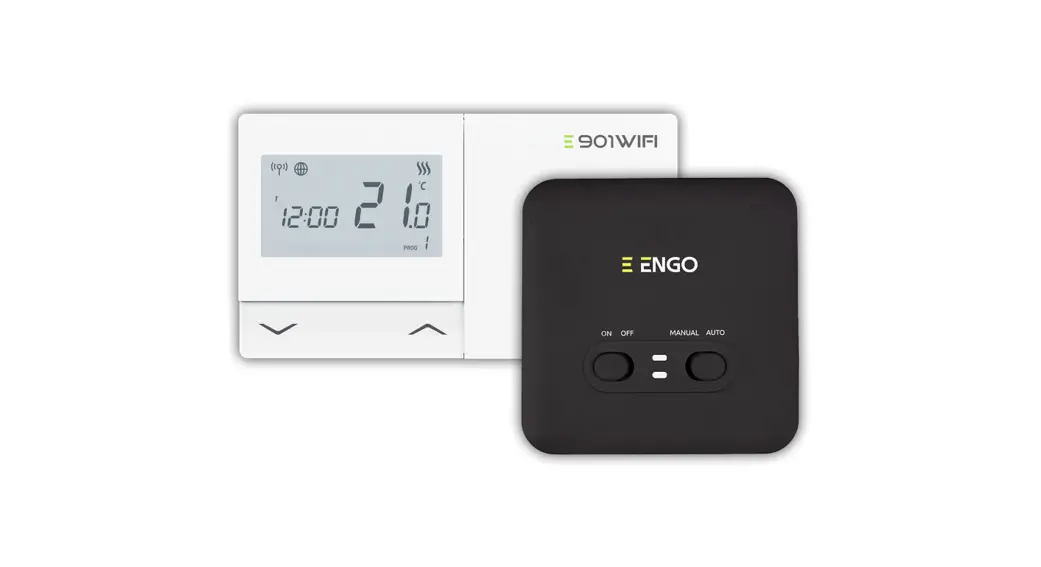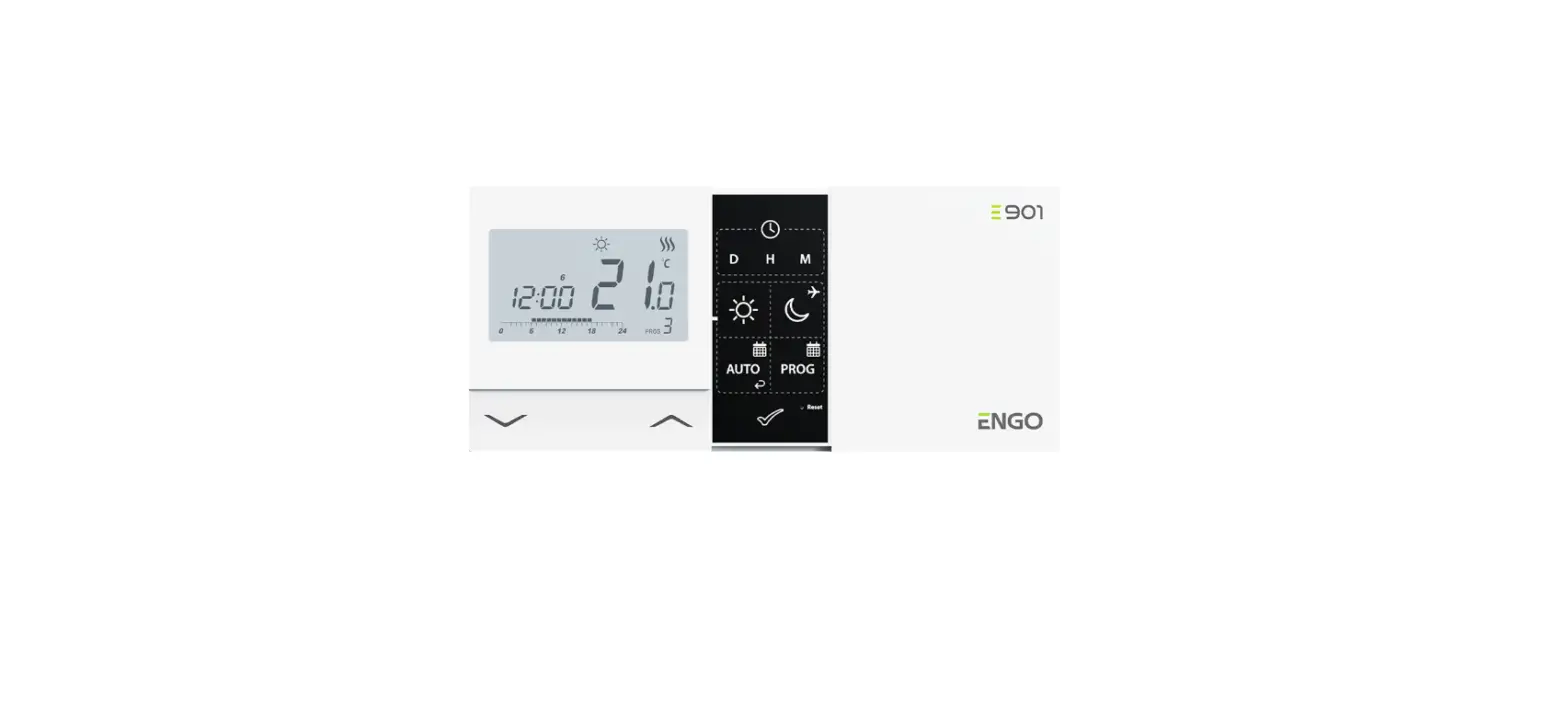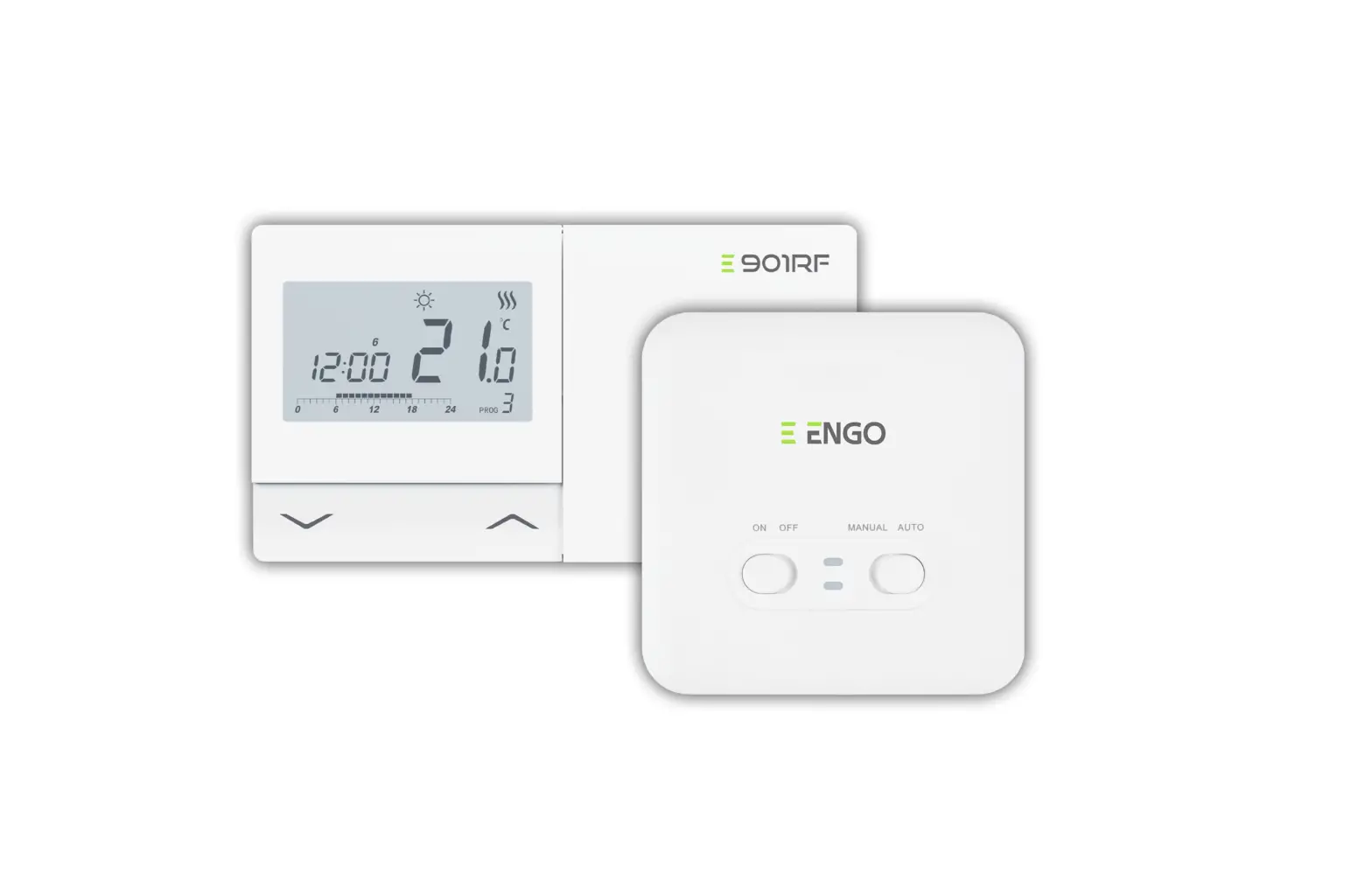
 Wi-Fi Thermostat
Quick Guide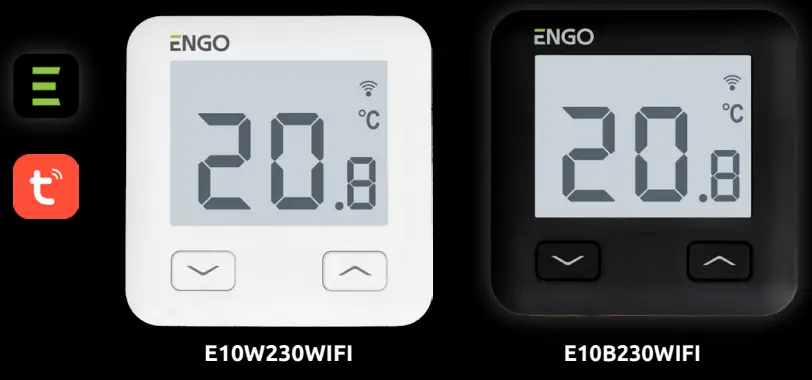
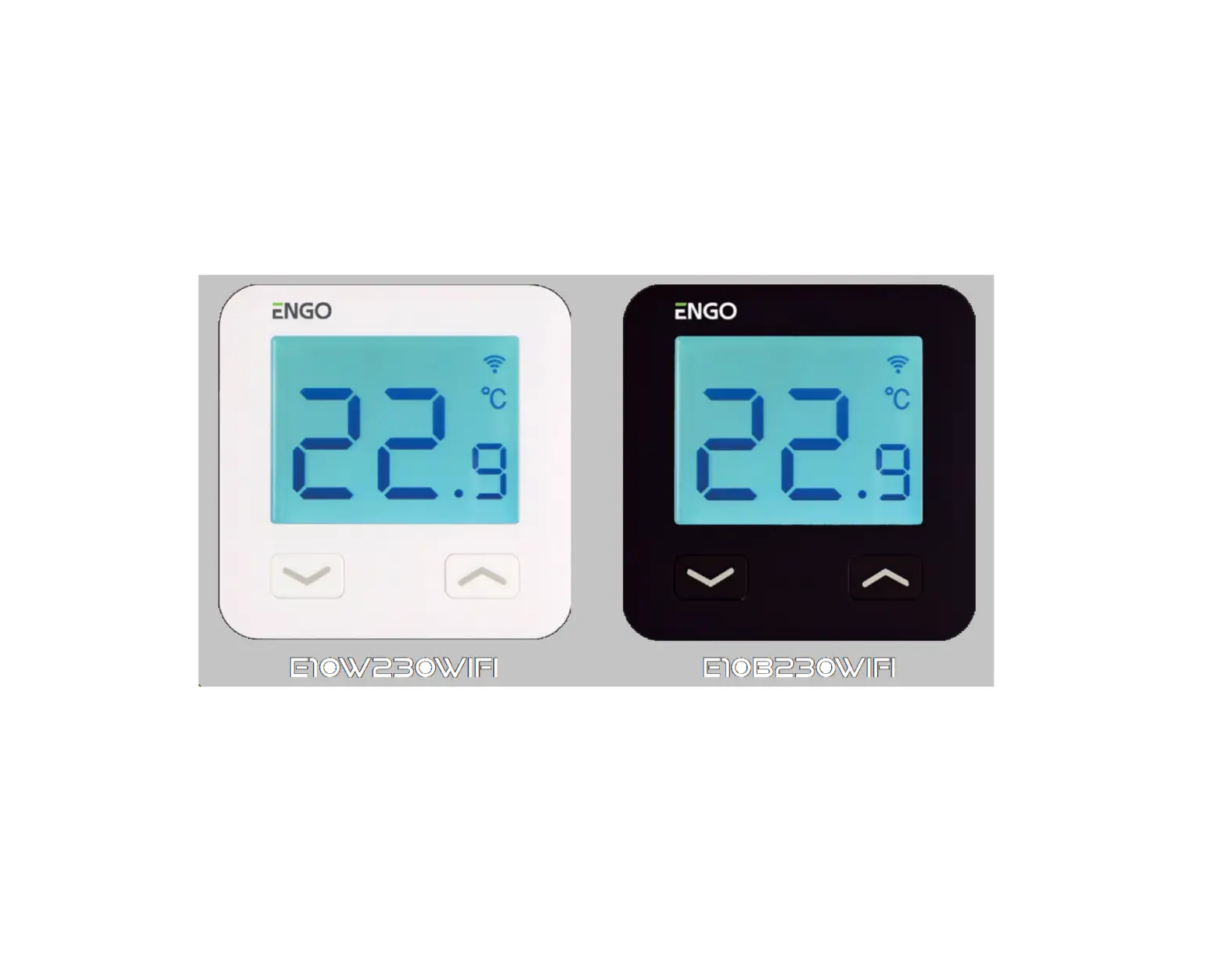
E10W230WIFI Internet Thermostat with Wi-Fi
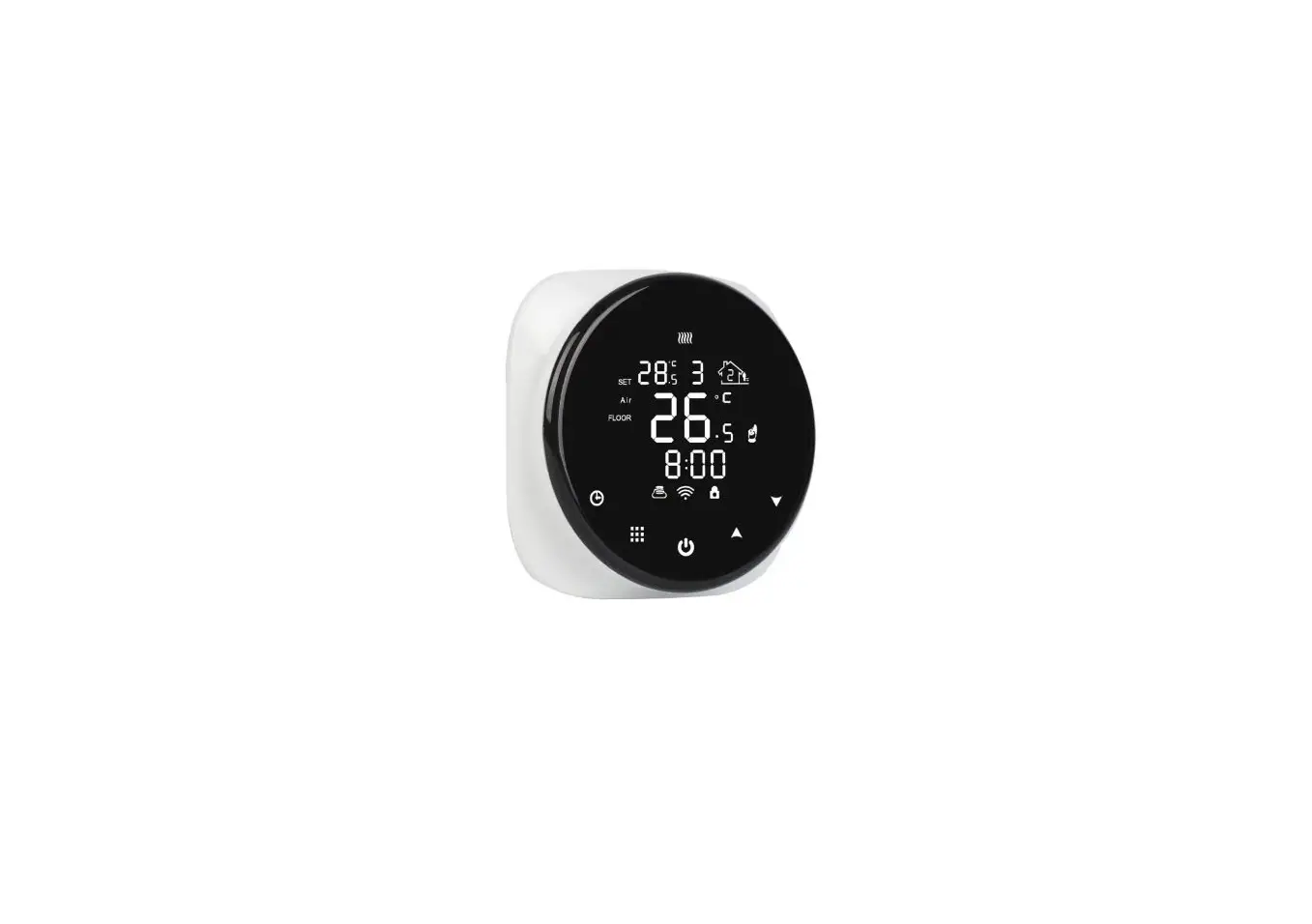
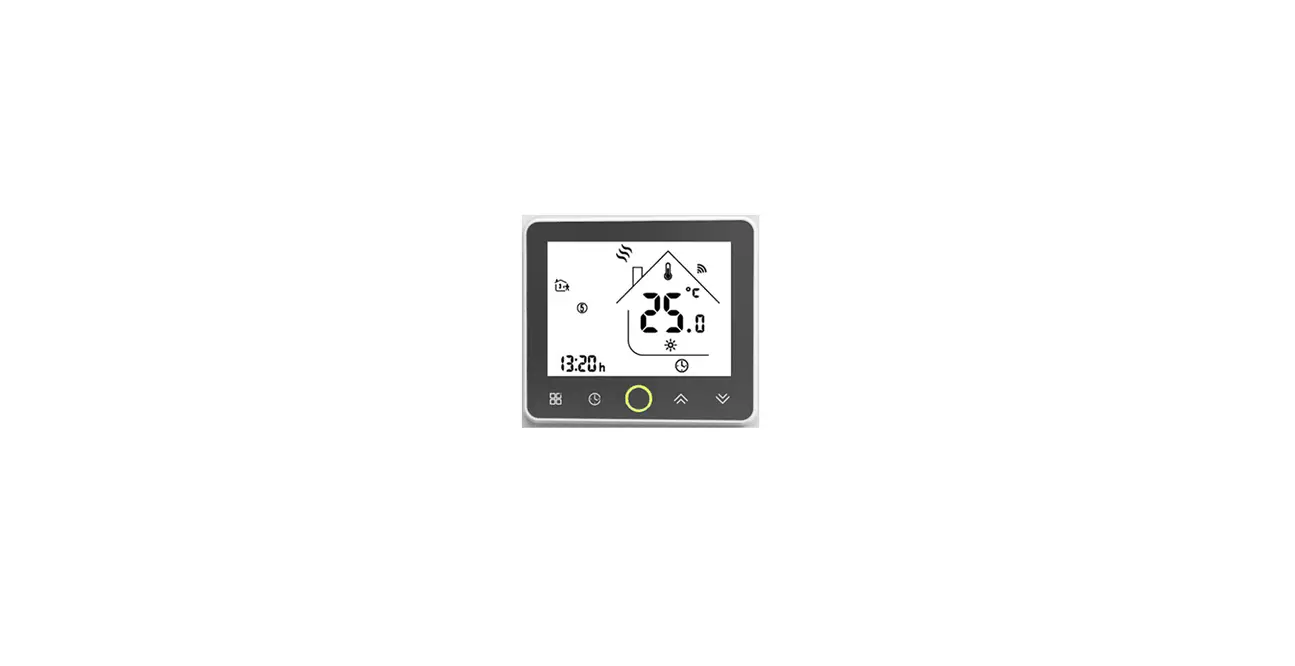
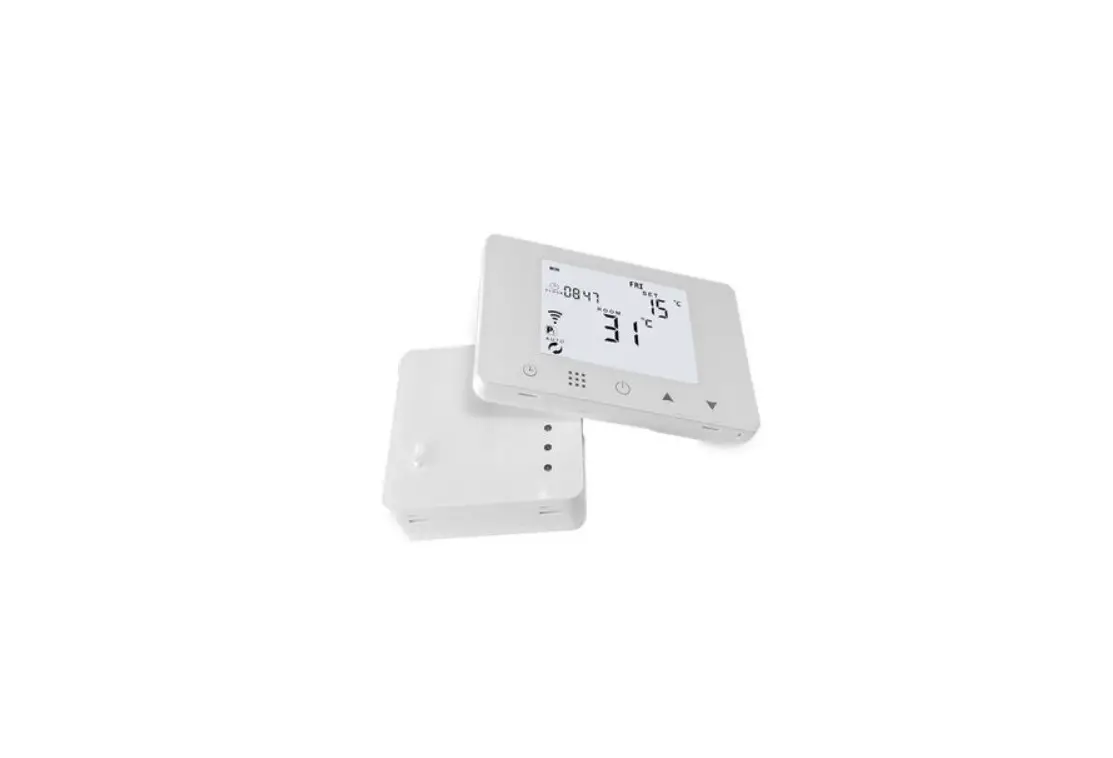
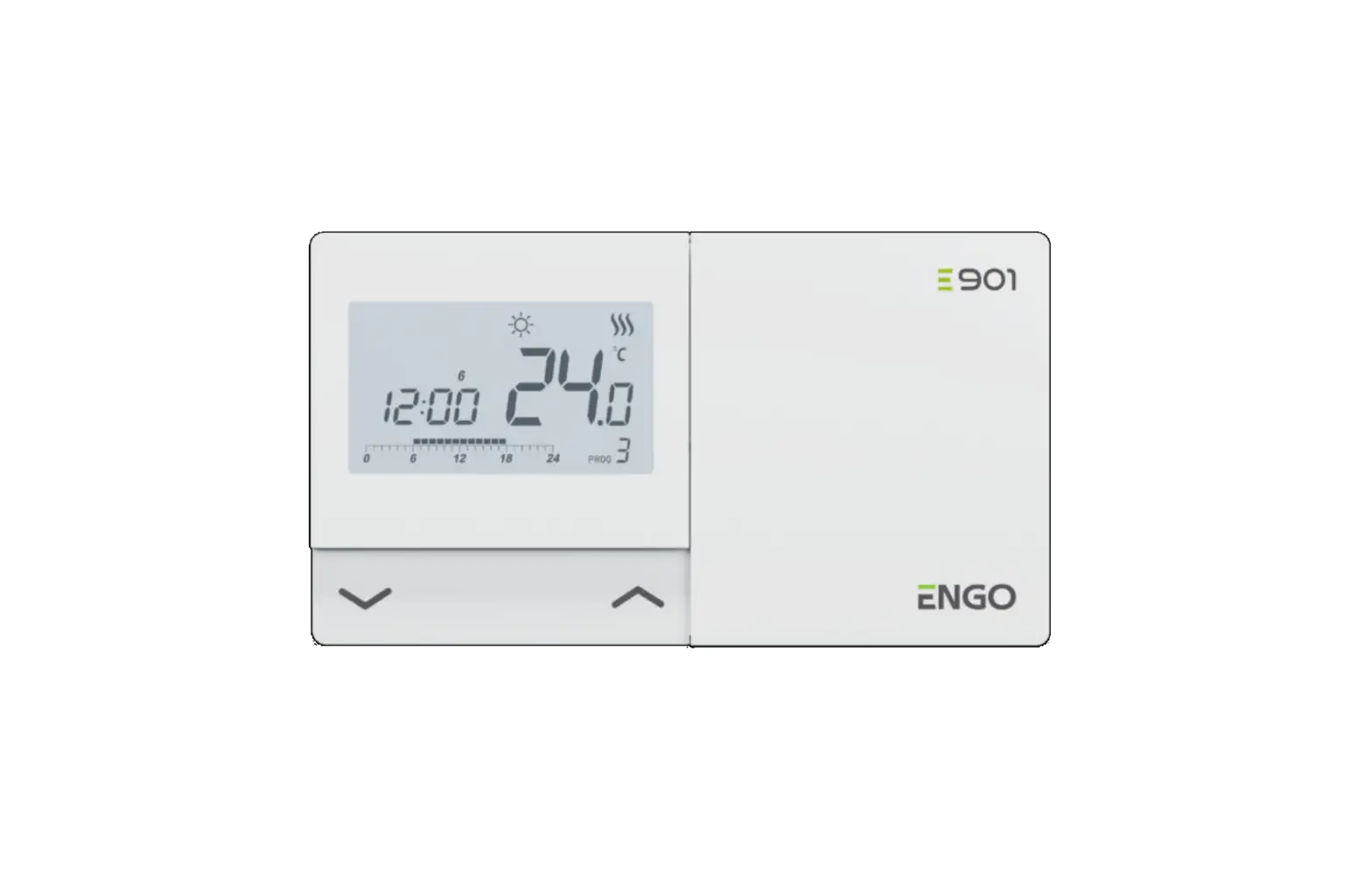
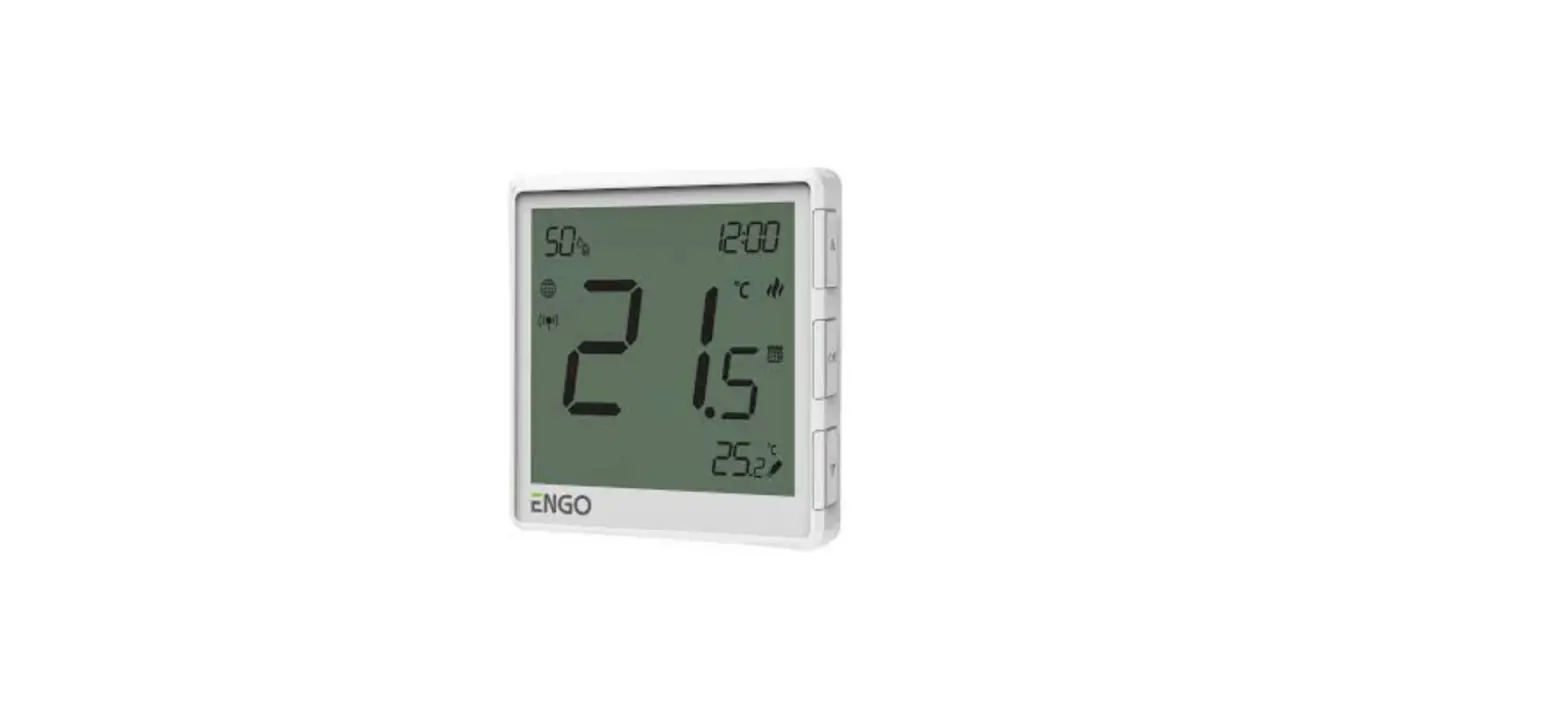
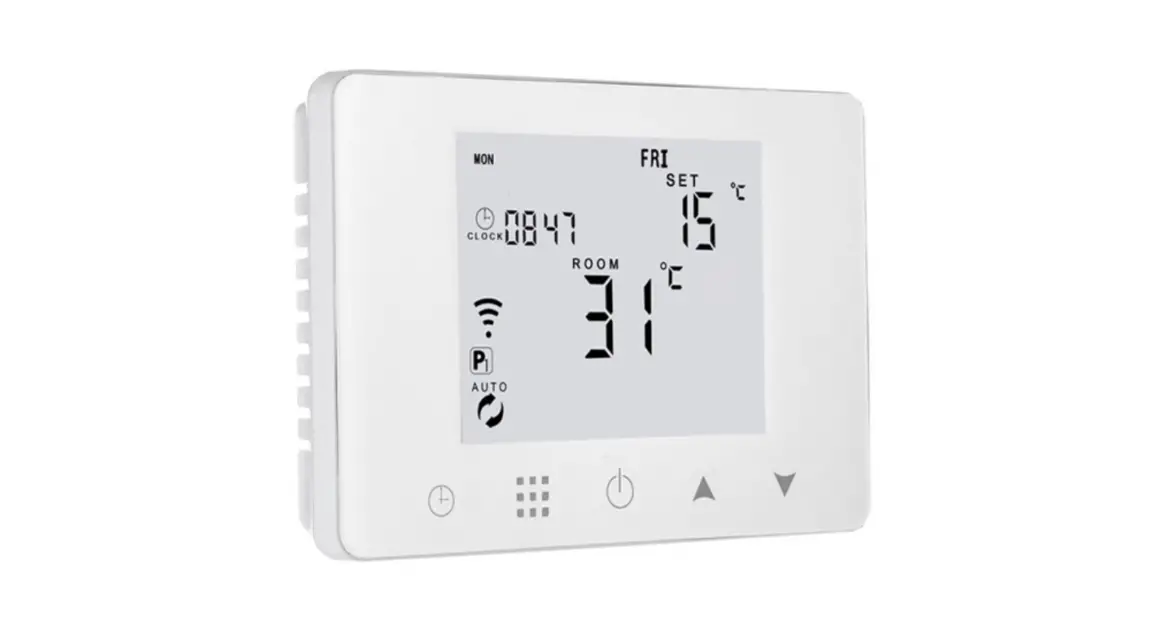
E10 is a wired temperature thermostat with a WiFi and Bluetooth module. It enables economic and ecological control of any type of heating. Provides remote control of the heating system using the ENGO Controls / Tuya Smart application.
It is characterized by a clear menu and a multitude of useful functions.
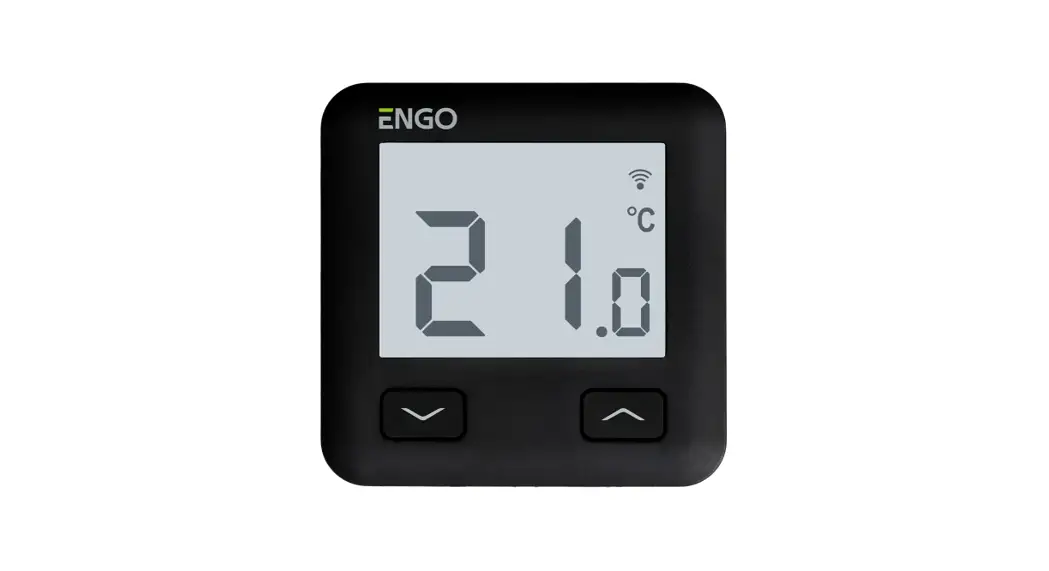
Programming the E10 is very simple and allows you to adjust the heating cycle to the user’s daily rhythm. The model is available in white and black.
Product Compliance
This product complies with the following EU Directives: 2014/53/EU, 2011/65/EU
Technical Informations
| Power supply | 230V AC 50 Hz |
| Max current | 3(1)A |
| Temperature range | 5,0°C to 45,0°C |
| Display temperature accuracy | 0,1°C |
| Control algorithm | TPI or Hysteresis (±0,1°C – ±0,5°C) |
| Communication | WiFi 2,4 GHz |
| Si – S2 input | Floor temperature or air temperature sensor |
| Output control | COM / NO (voltage-free) |
| IP protection class | IP30 |
| Dimension [mm] | 86 x 86 x 39 mm (14 mm after in box mounting Φ 60) |
Connection description
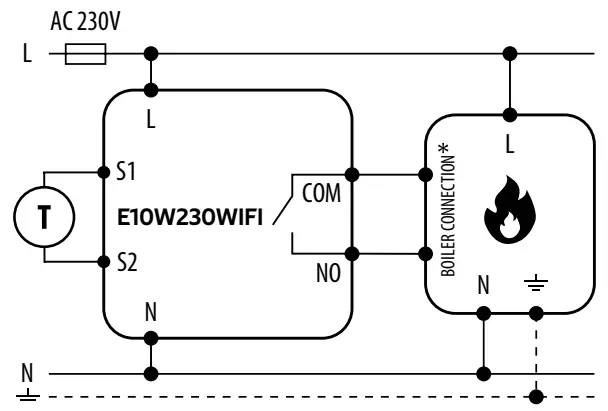
a) Connection diagram for gas boiler
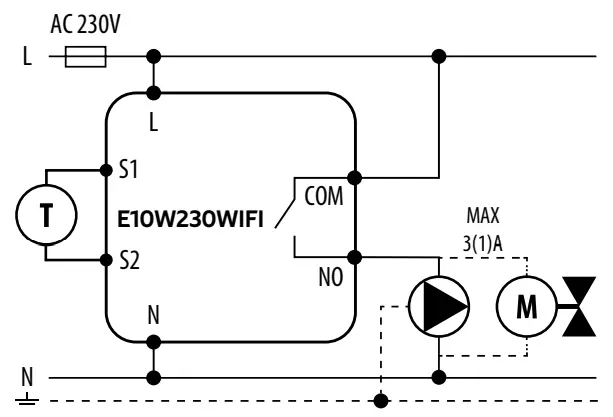
b) Connection diagram to pump / actuator
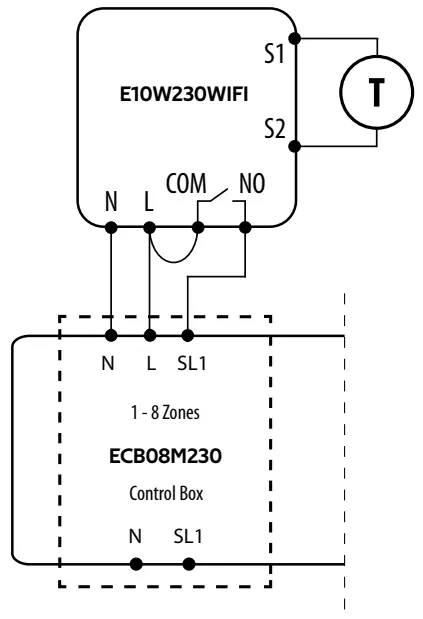
c) Connection diagram to the control box
Legend:
 | Boiler – Boiler connection* – Boiler’s contacts for ON/OFF thermostat (according to the boiler’s instructions) |
 | Pump |
 | Valve |
 | Temperature sensor |
Symbols explanation:
| L, N | power supply |
| COM, NO | voltage-free output |
| S1, S2 | output for temperature sensor |
| SL1 | 230V control input in the control box |
 | fuse |
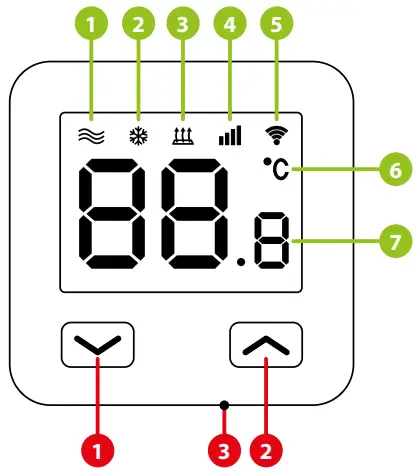
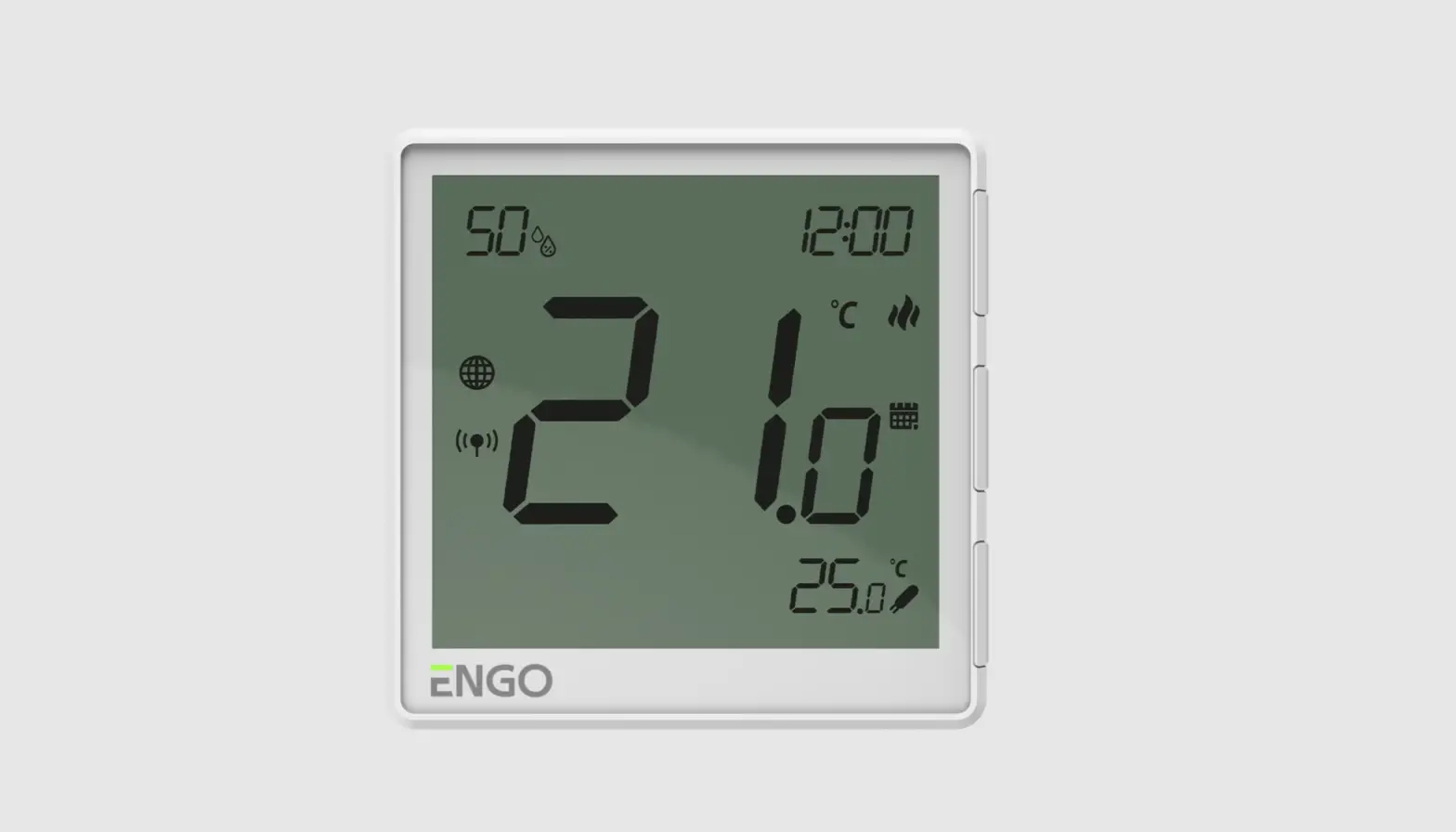
| 1. Heating icon 2. Frost protection mode 3. Excessive floor temperature 4. Internet 5. Connection with Wi-Fi 6. Current room temperature 7. Current / setpoint room temperature | 1. “DOWN” button 2. “UP” button 3. “RESTART” button |
Installation of the Wi-Fi thermostat in the app
STEP 1 – DOWNLOAD ENGO SMART APP
Make sure your router is within range of your smartphone. Make sure you are connected to the Internet. This will reduce the pairing time of the device.
Download the ENGO Smart app from Google Play or Apple App Store and install it on your smartphone.
 |  |
| https://play.google.com/store/apps/details?id=com.engo.smartlife | https://apps.apple.com/us/app/engo-smart/id1606693444 |
STEP 2 – REGISTER THE NEW ACCOUNT
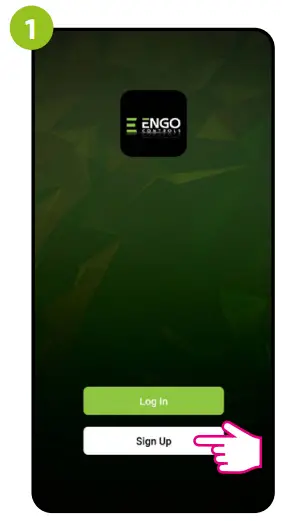
To register a new account, please follow the steps below:
| Click „Register” to create new account. | Enter your e-mail address to which the verification code will be sent. |
 | 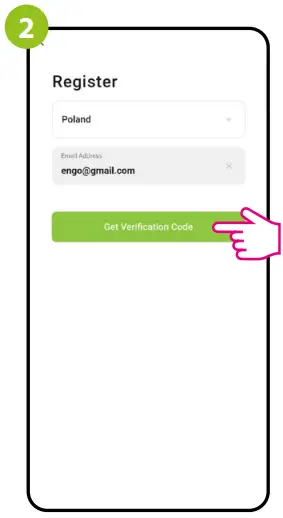 |
| Enter the verification code received in the email. Remember that you only have 60 seconds to enter the code! | Then set the login password. |
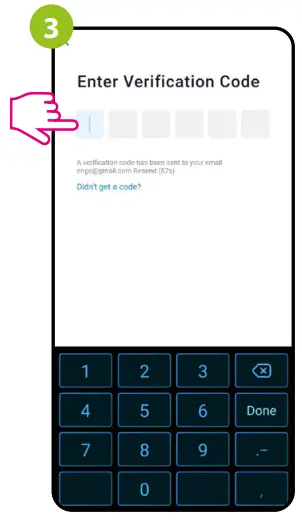 | 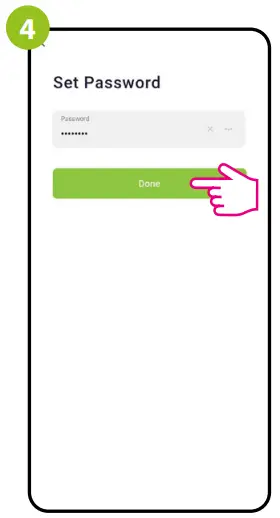 |
STEP 3 – CONNECT THE THERMOSTAT TO WI-FI
After installing the app and creating an account:
| Turn on Wi-Fi and Bluetooth on your smartphone. It’s best to connect mobile to the Wi-Fi network to which you want to assign the thermostat. | Make sure the thermostat is powered on. Then press and hold the buttons on the thermostat for approx. 3 seconds until the display shows „PA”. Then release the keys. The pairing mode will be started up. |
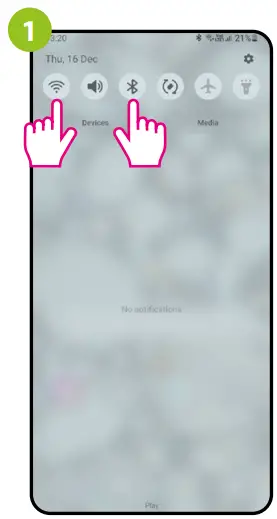 |  |
| In the app, select: „Add Device”. | Then choose: „Auto Scan”. |
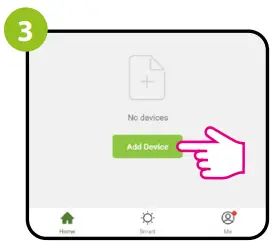 | 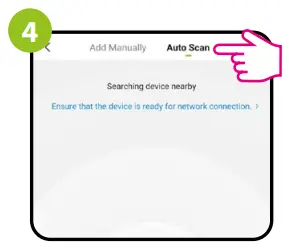 |
| After finding the thermostat, go „Next”. | Select the Wi-Fi network in which the thermostat will operate and enter the password of this network. |
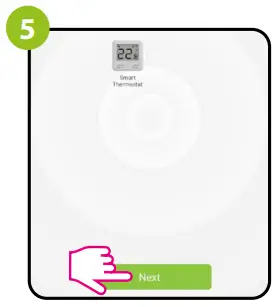 | 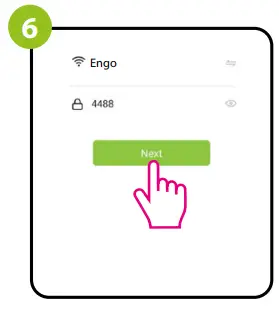 |
| Wait for the app to configure the thermostat with the selected Wi-Fi network. | Go „NEXT”. |
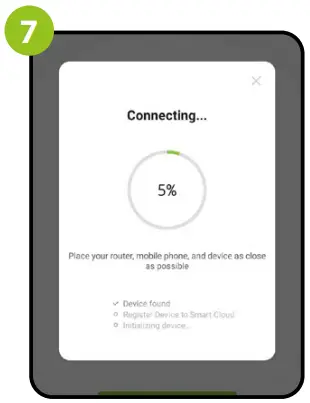 | 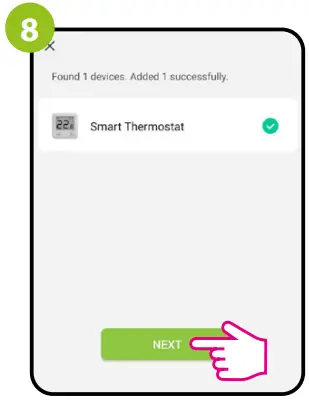 |
| Name the device and click „Done”. | The thermostat has been installed and displays the main interface. |
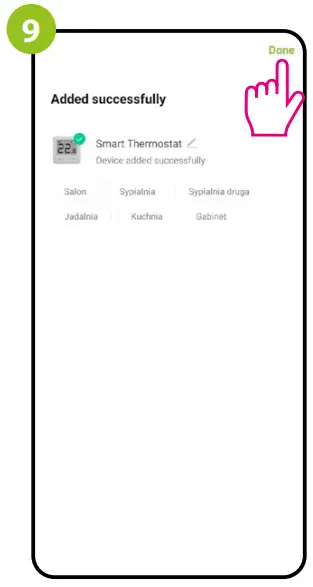 | 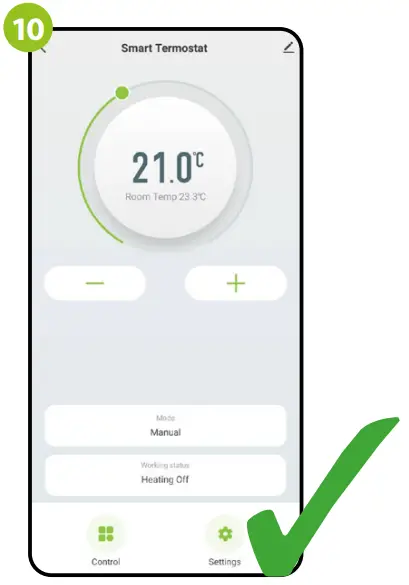 |
How to fix the problem?
| DESCRIPTION | TROUBLESHOOTING |
| The internet connection icon is not displayed on the thermostat. | The thermostat is not connected to the Internet. Check the connection between thermostat and Internet. In this case, it is possible to control the thermostat locally using a mobile device. The mobile device and the thermostat must be on the same Wi-Fi network. |
| The Wi-Fi connection icon is flashing on the thermostat. | 1. The Wi-Fi network in which the thermostat was installed is turned off. Check the router and Wi-Fi connection. In this case, it is possible to control the thermostat locally via Bluetooth. The mobile device must have access to the Internet (via Wi-Fi or mobile data) and be near the thermostat. 2. The thermostat is in pairing mode. Reinstall the thermostat. |
| Thermostat displays error E2. | Check or connect the external temperature sensor. |
| The thermostat has the display off. | Check if you connected the wires correctly or if the thermostat is not turned off in the app. |
Restore default settings
To restore the default settings of the thermostat, hold down the  buttons for approx. 8 seconds. „FA” monit will be displayed. After all, the thermostat will go through a default reset sequence and display the main screen.
Distributor:
QL CONTROLS Sp z o.o. Sp. k.
43-262 Kobielice
4 Rolna St.
Poland Ver. 1
Release date: X 2022
www.engocontrols.com
 ENGO Controls - Sterowanie ogrzewaniem