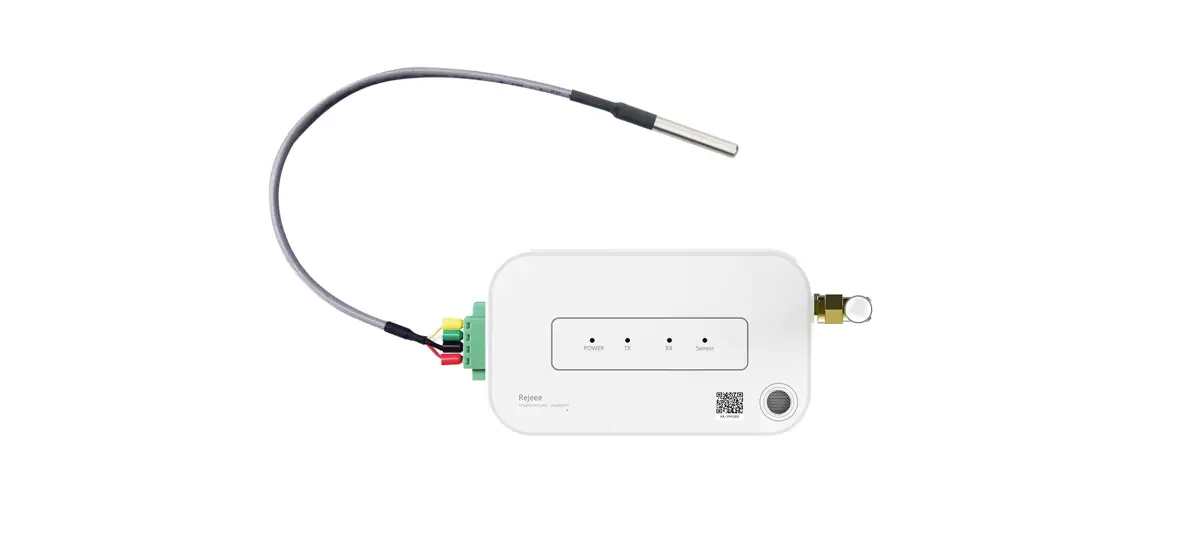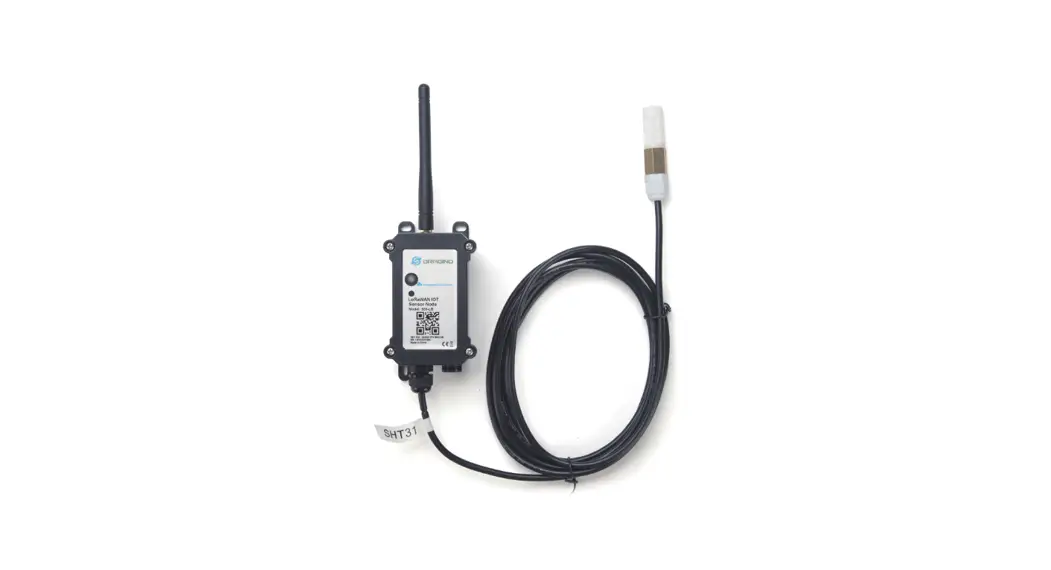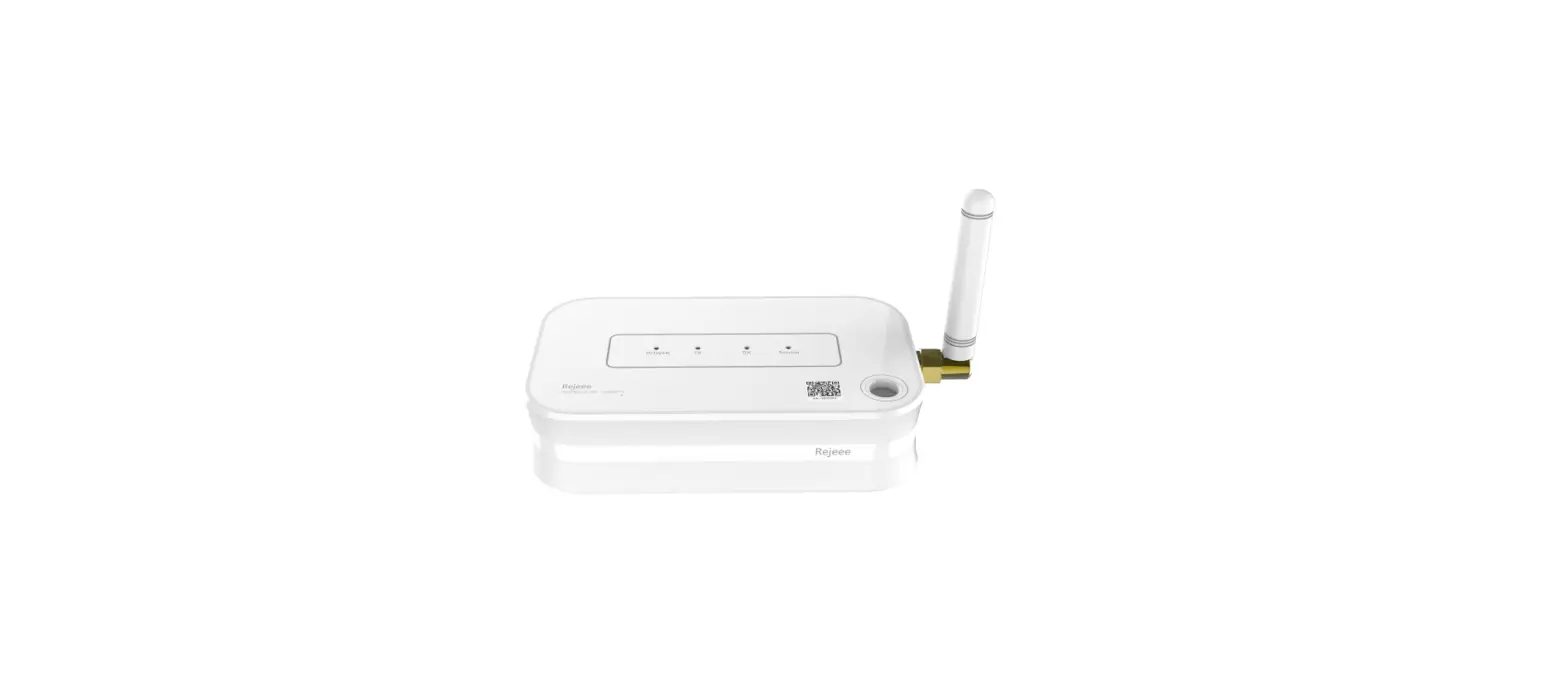
CHOOVIO SL100 LoRaWAN Temperature and Humidity Sensor User Manual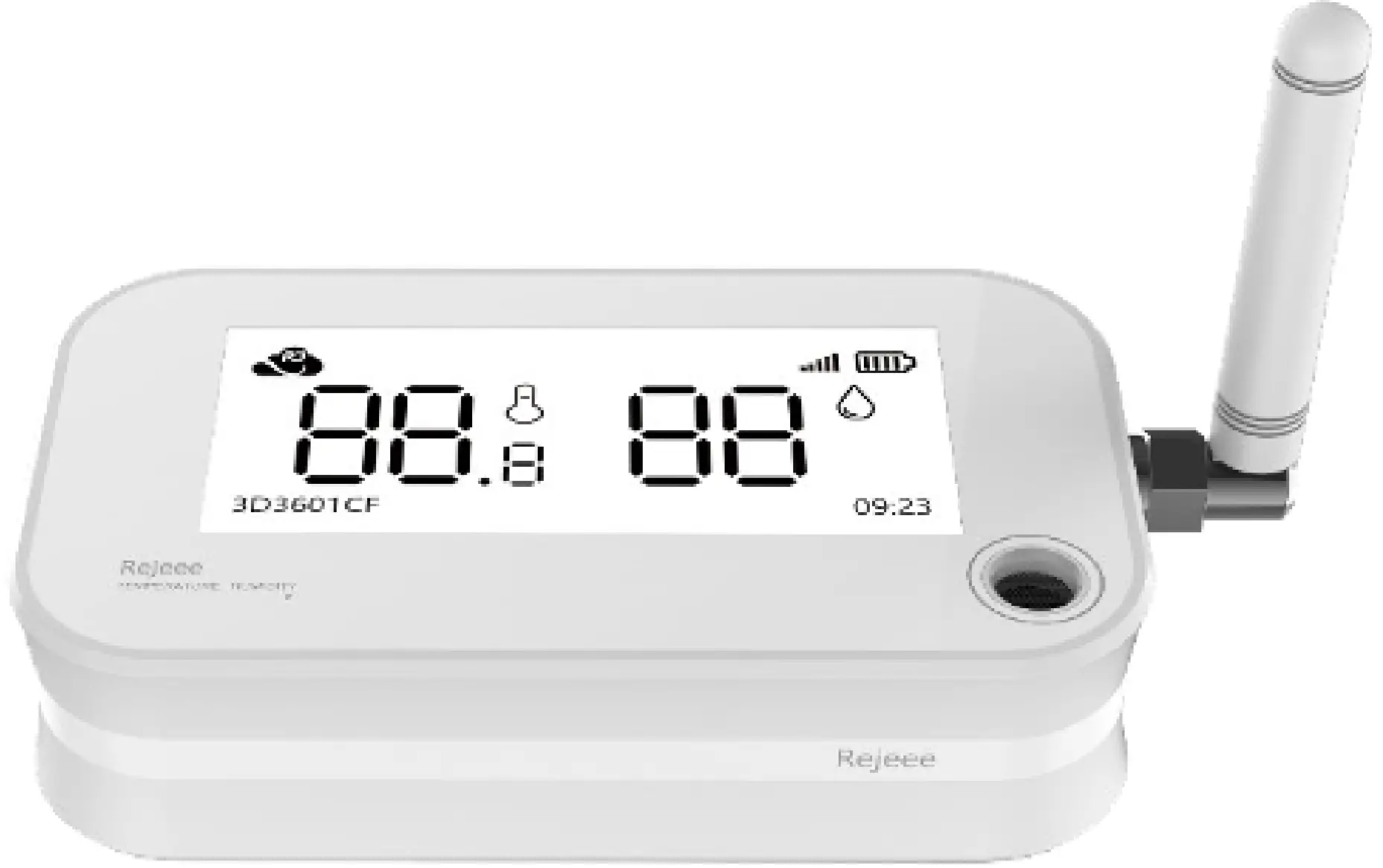
General Information
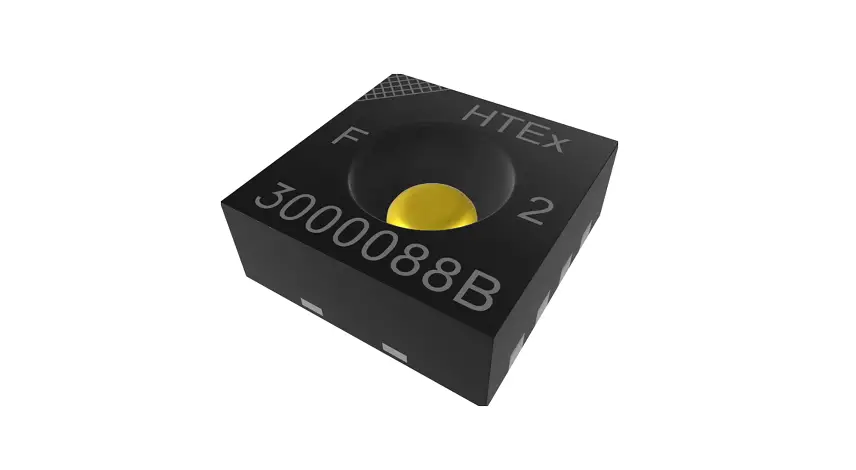
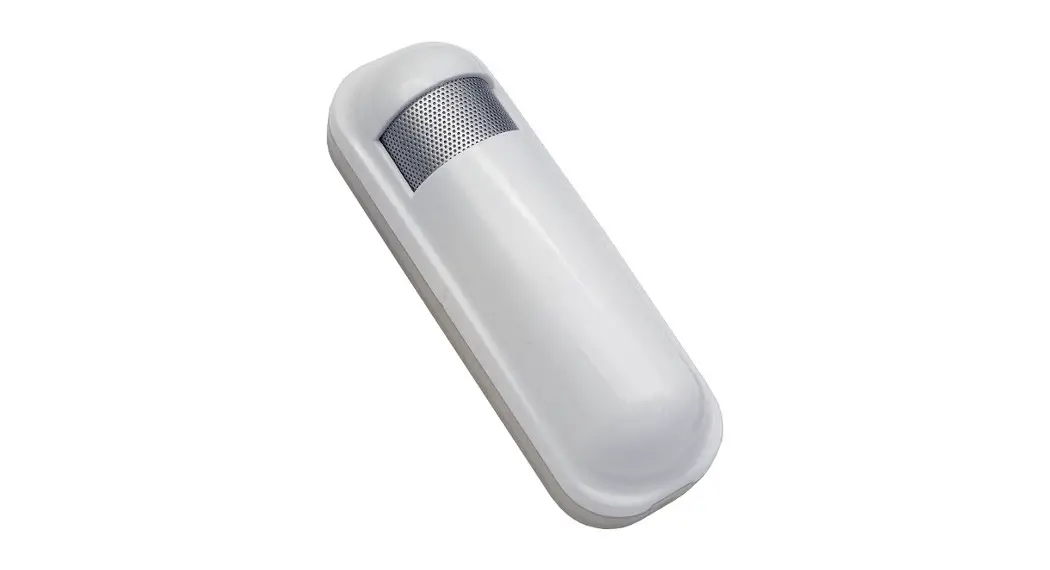
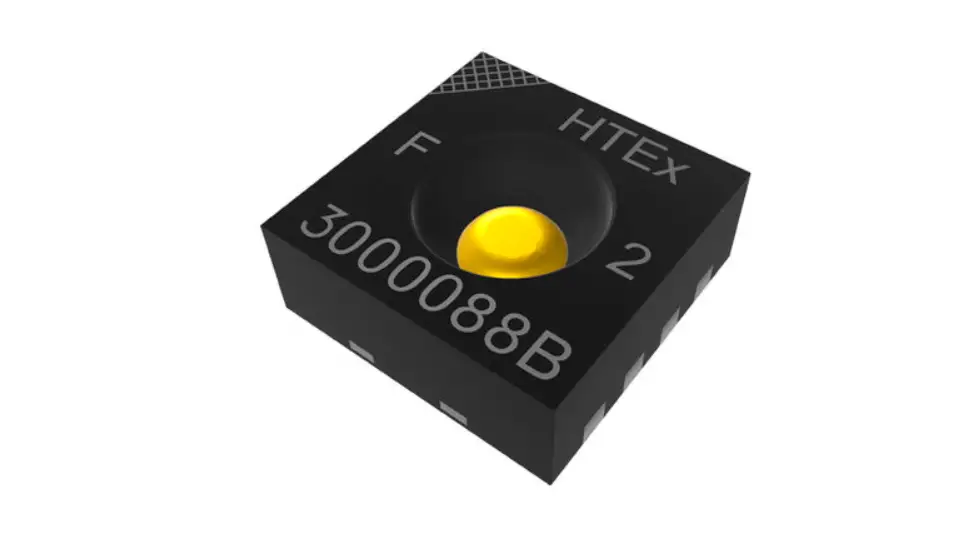
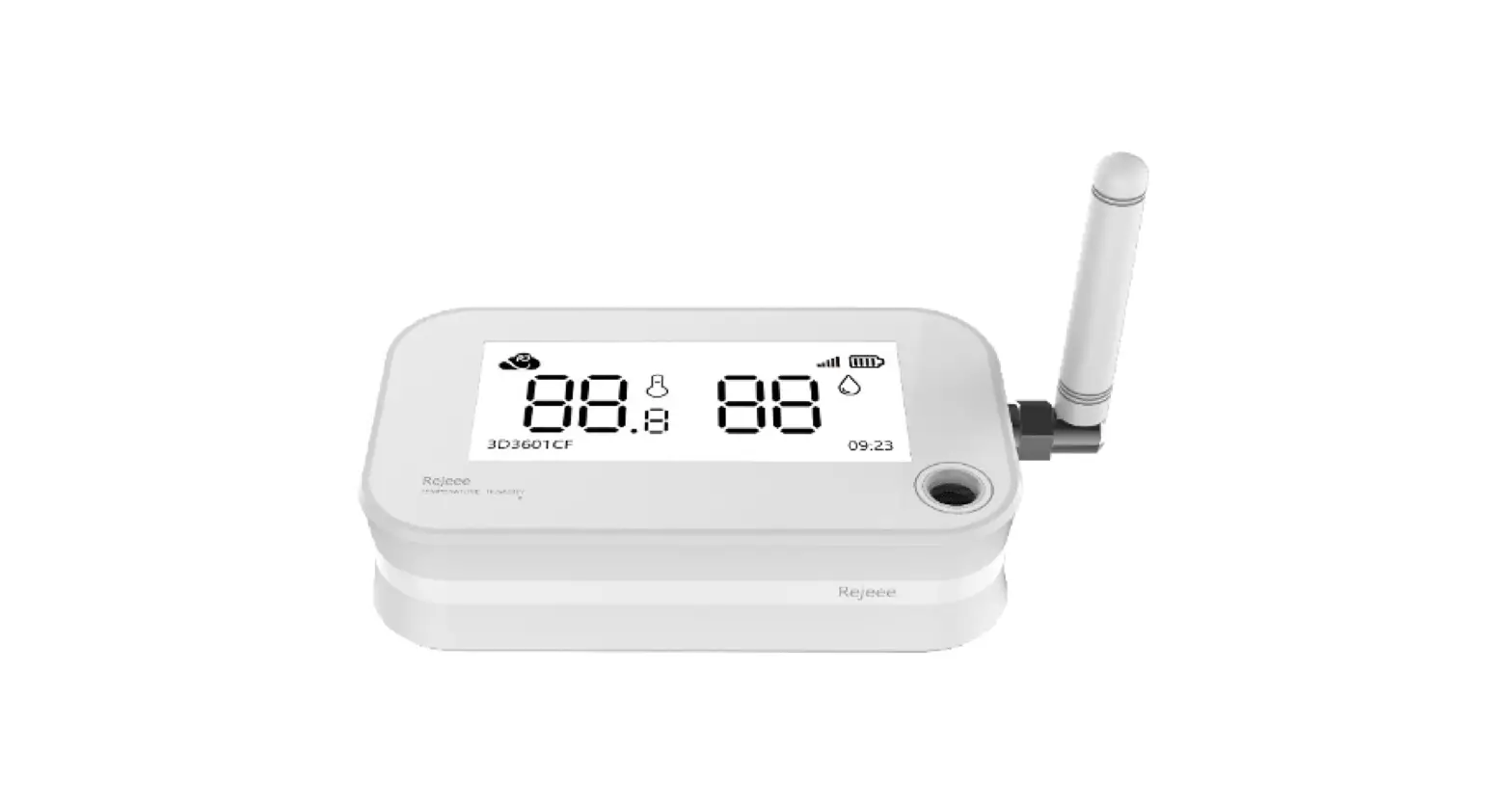
SL101 is long range low power temperature and humidity sensor based on Semtech SX1262/SX1268.
| Sensor Type | Product Number |
| Built-in SHT30,2.9-inch E-Paper | SL101CN, SL101EU,SL101US,SL101AS |
Main features
- Sensirion High Sensitivity Sensor
- 2.9-inch Screen Local Display
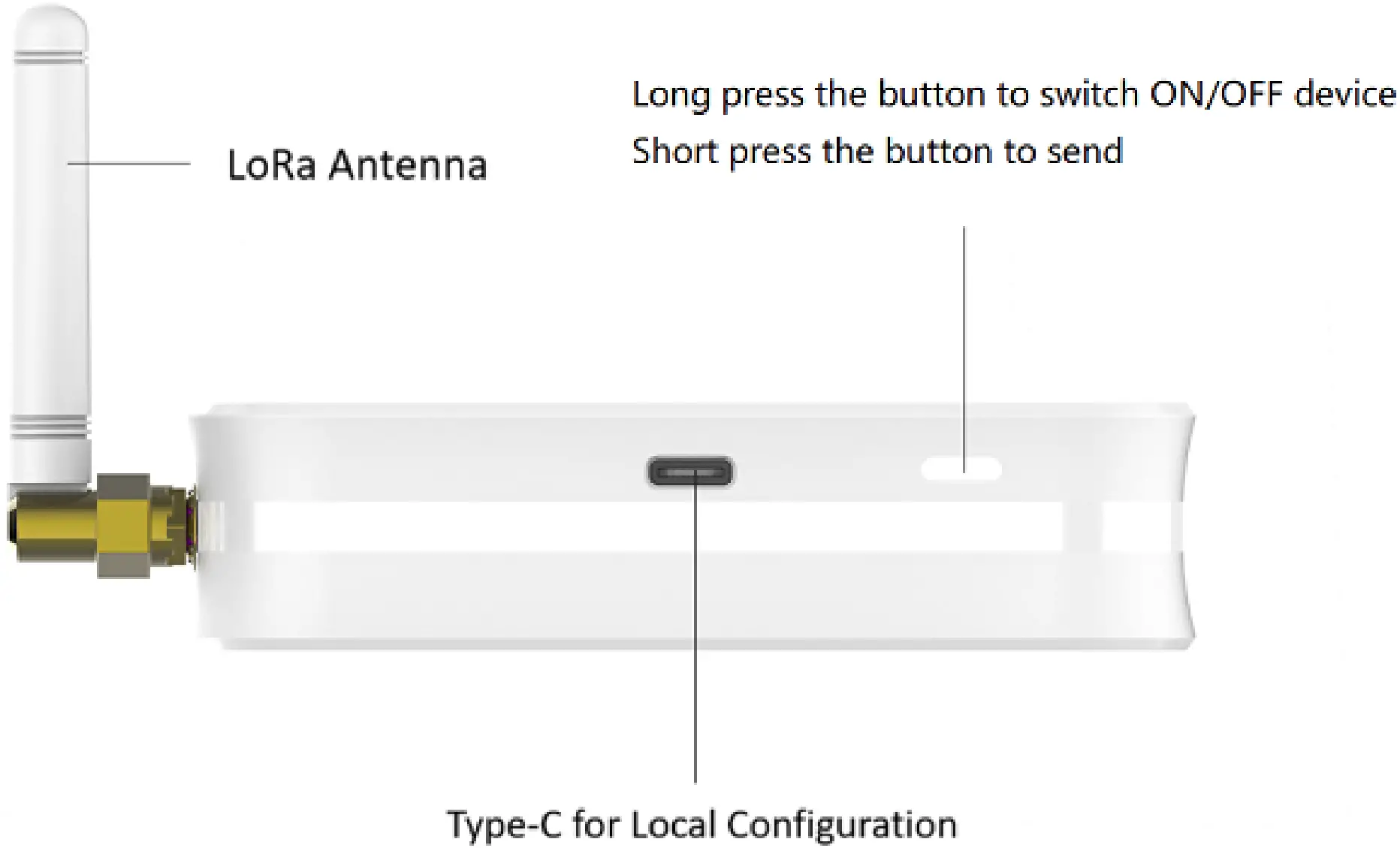
- Type-C for Local Configuration
- Internal Battery Up to 5 Years
- LoRa SX1262/SX1268, Long Range Low Power
Details
| Parameters | Feature |
| CPU | STM32L151 |
| Wireless | LoRaWAN(SX1262/SX1268) |
| Encryption | AES128 |
| Battery | Built-in Li-battery (Changeable, and No Recharge) |
| Battery Capacity | 5400mAh |
| E-Paper Temperature | 0℃~+ 50℃ |
| Sensor Temperature | -45℃~+ 85℃ |
| Sensor Humidity | 0 ~100 %RH |
| Communication | Half duplex |
| Accuracy | Temperature : ±0.3℃ Humidity:±3%RH |
| Lifespan | 5 Years(Every 30 Minutes for data uploading) |
| Data Speed | 300bps-62.5k bps |
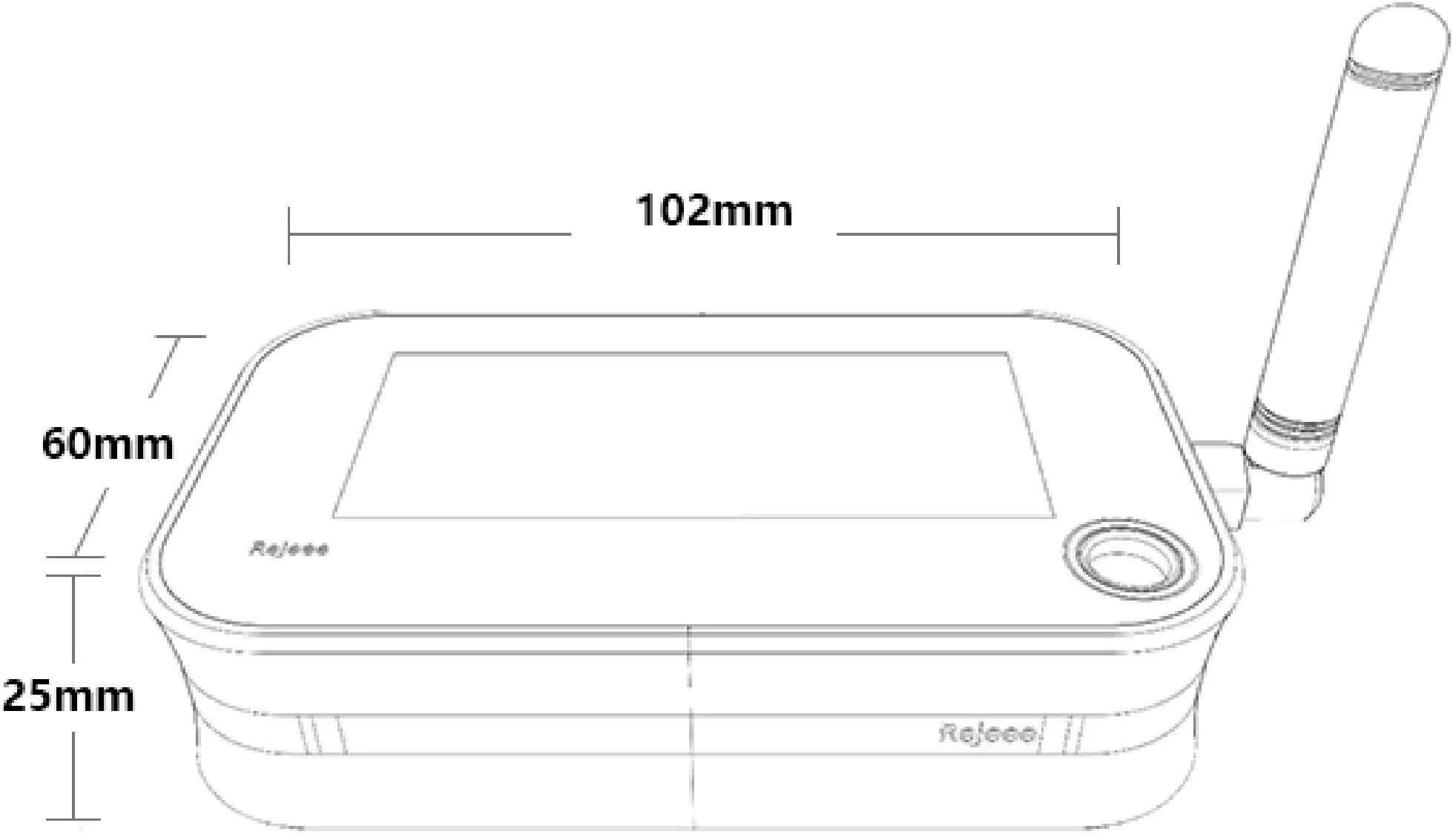
| Size | 102mm*60mm*25mm |
| TX Power | 22dBm Max |
| RX Sensitivity | -140 dBm |
| Frequency | SX1268: CN470 SX1262: EU868 / US915 / AS923 |
Dimensions
Size: 102mm*60mm*25mm
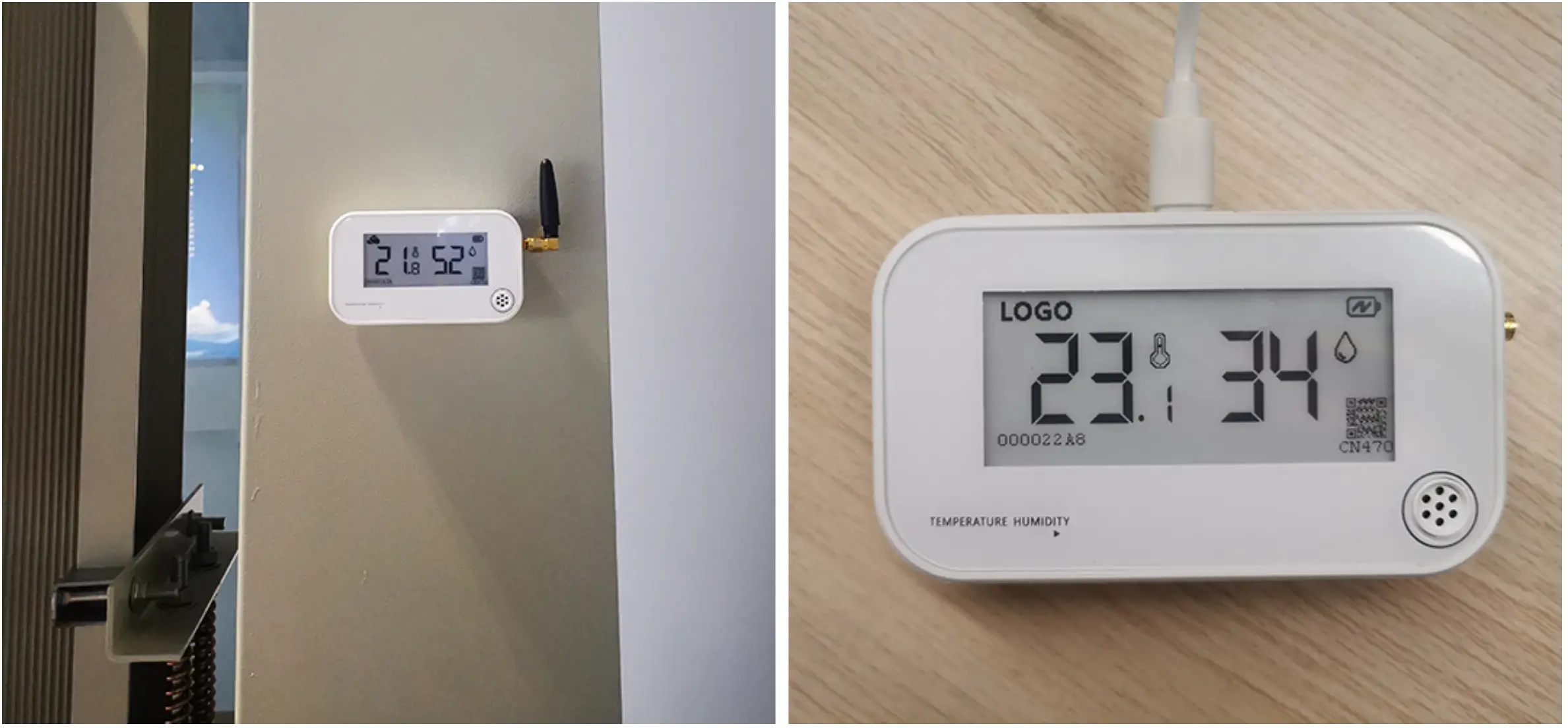
Installation
User Guide
Make sure antenna is installed before turn on the device.
Turn on/off the device
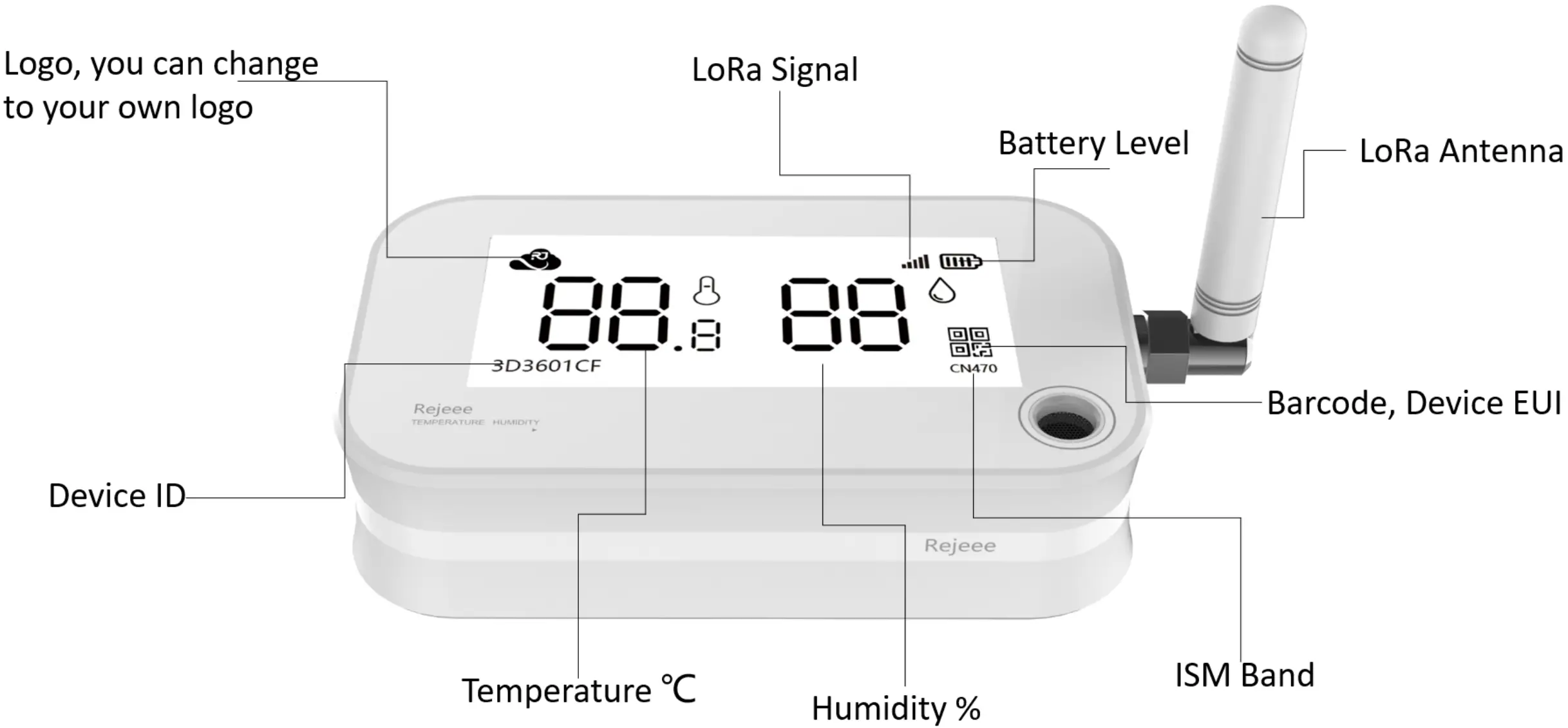
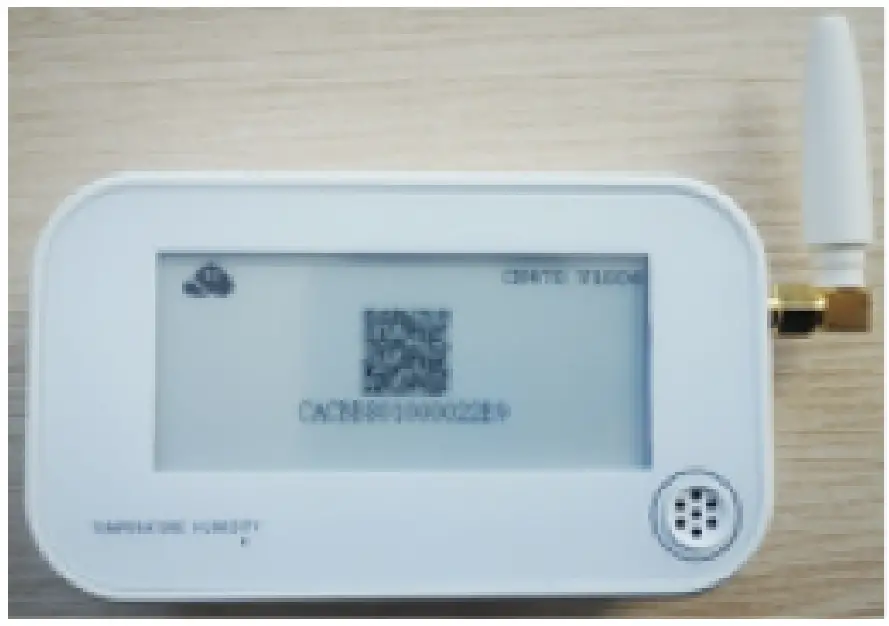
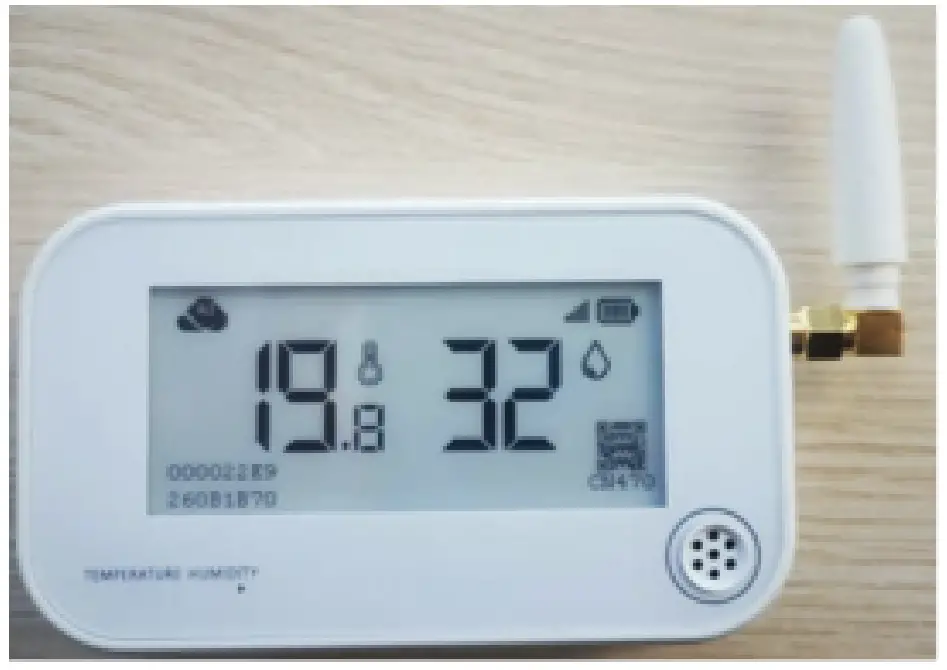
When you get the device, it is off, and on the screen, you can find the device EUI as below, the QR on the screen is Rejeee website. Just press the button for more than 3 seconds, then you can turn on the device. If you want to turn off the device, just press the button 3 seconds. You can change the QR code on the screen to your own website QR code: SensorTool Manual.
Information display on screen
The device screen is 2.9-inch low power e-paper, when turn on the device, you can find information displaying on the screen as below, you can change the logo as you like. SensorTool Manual.
USB-C Configuration
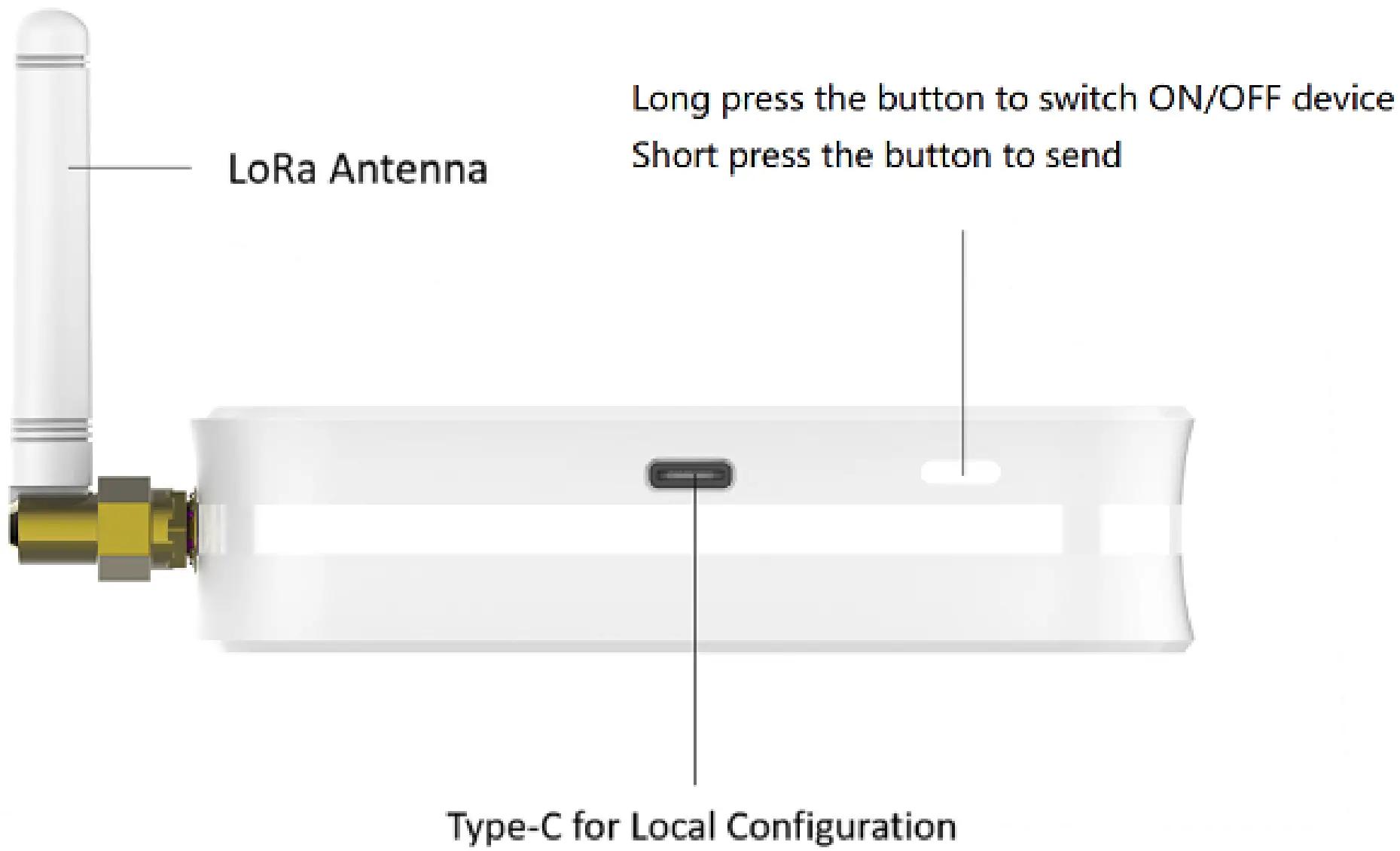
There is one USB-C port as below, which is for power on and config, connect device to laptop with a USB-C cable,
and you can config the device, make sure to install CH34x USB driver and here is the link for driver: USB-to-Serial Driver.
Data Uploading
When turn on the device, it will send data immediately, also you can press the button a short time(0.1 seconds), then the device will also send data. Normally when you get the device from factory, the reset time for data sending is every 30 mins, and if you want to change the time, you can connect the device to computer for config, here there is instruction about the time configuration. SensorTool Manual.
Connect to LoRaWAN Network
LoRaWAN Network Structure
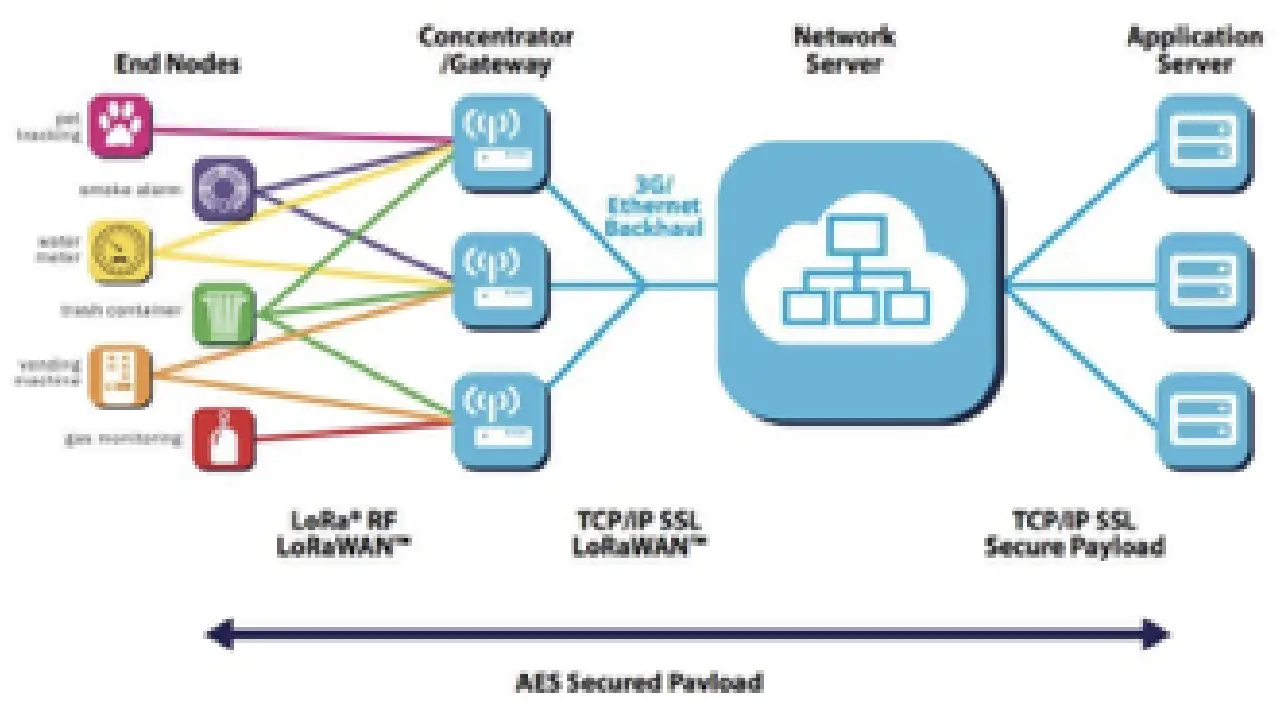
SL101 temperature and humidity sensor is based on standard LoRaWAN Class A, so you can connect to any LoRaWAN network as below through OTAA: On the back of device, you can find information as below, with this information, you can connect to any LoRaWAN server.
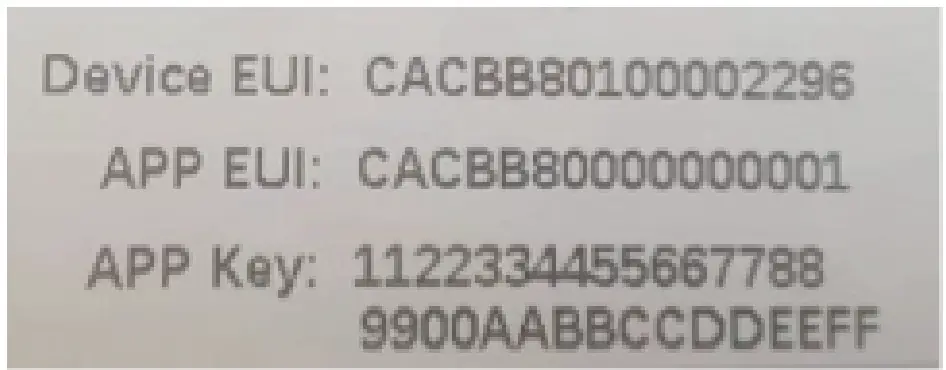
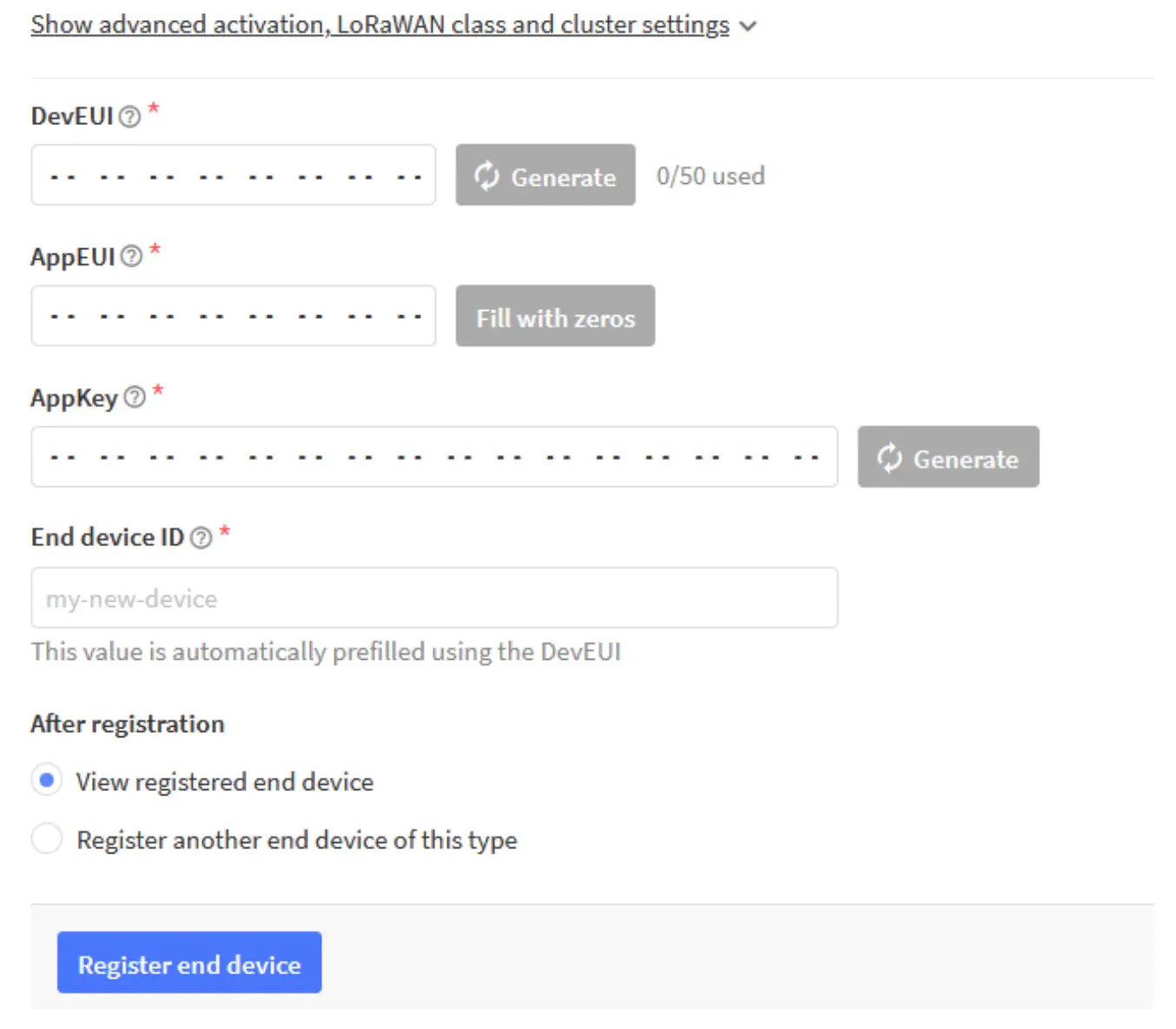
Connecting to The Things Network, please make sure choose manually connect and OTAA as below:
Sensor | LoRaWAN |
| SL100CN | 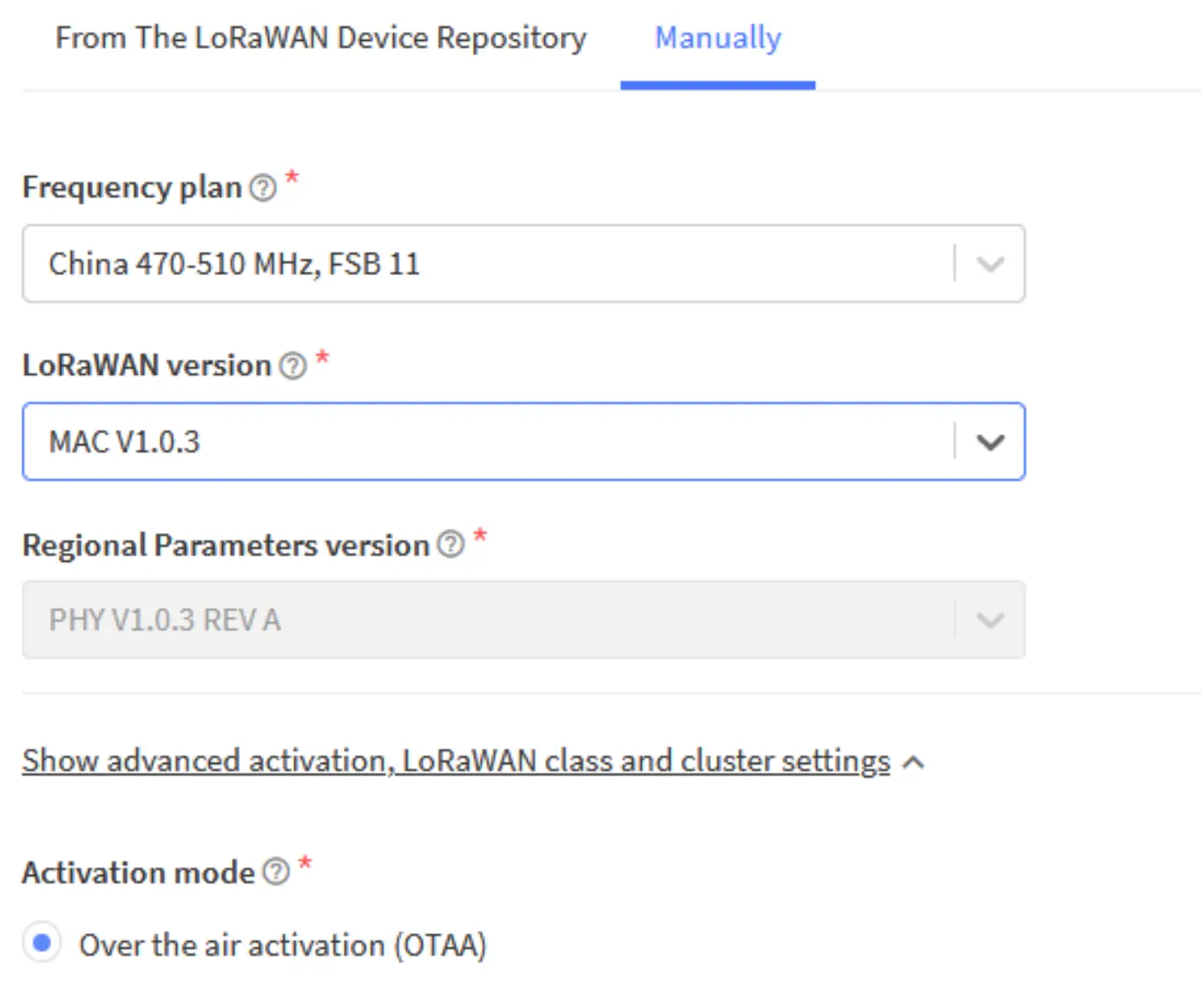 |
| SL100EU | 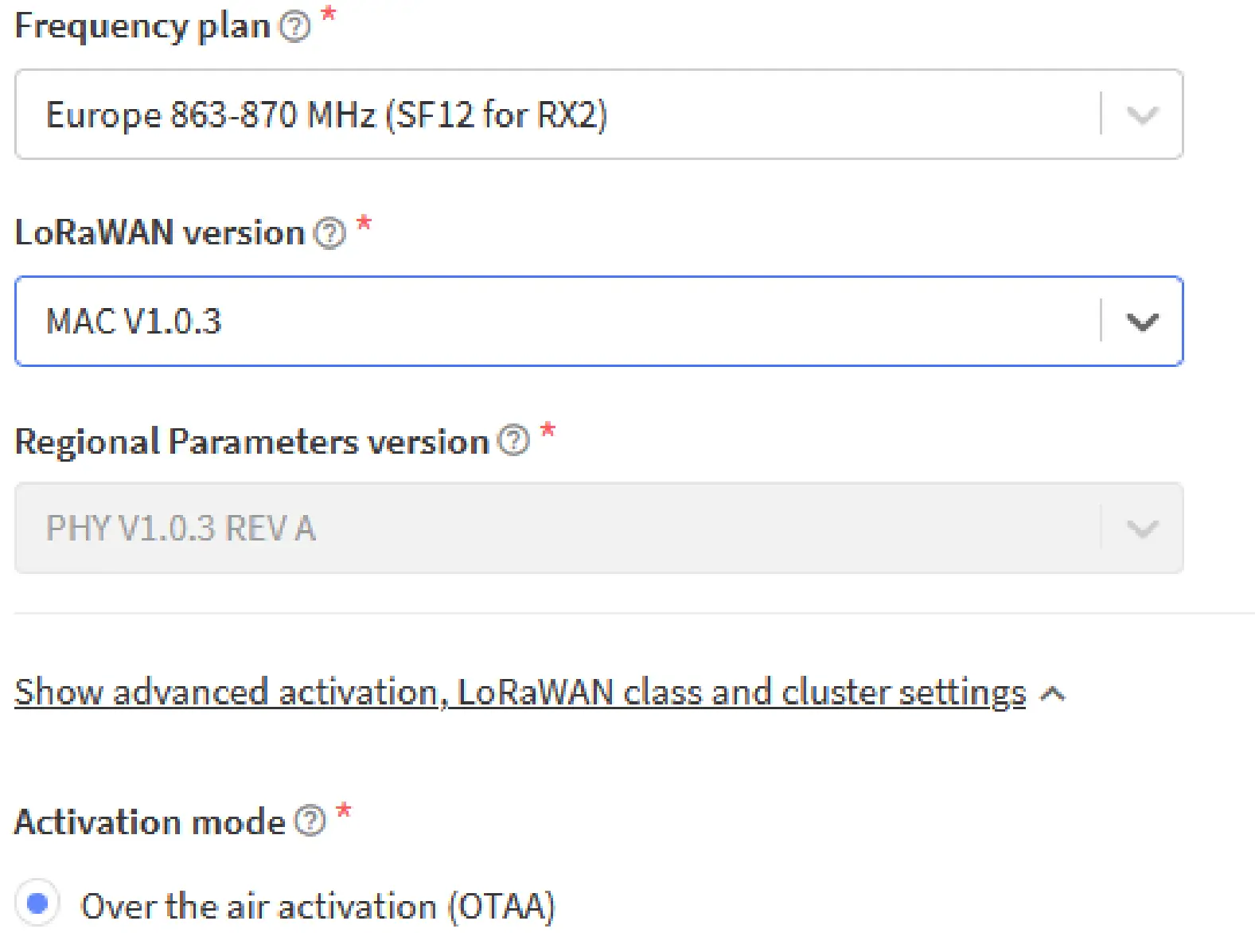 |
| SL100US | 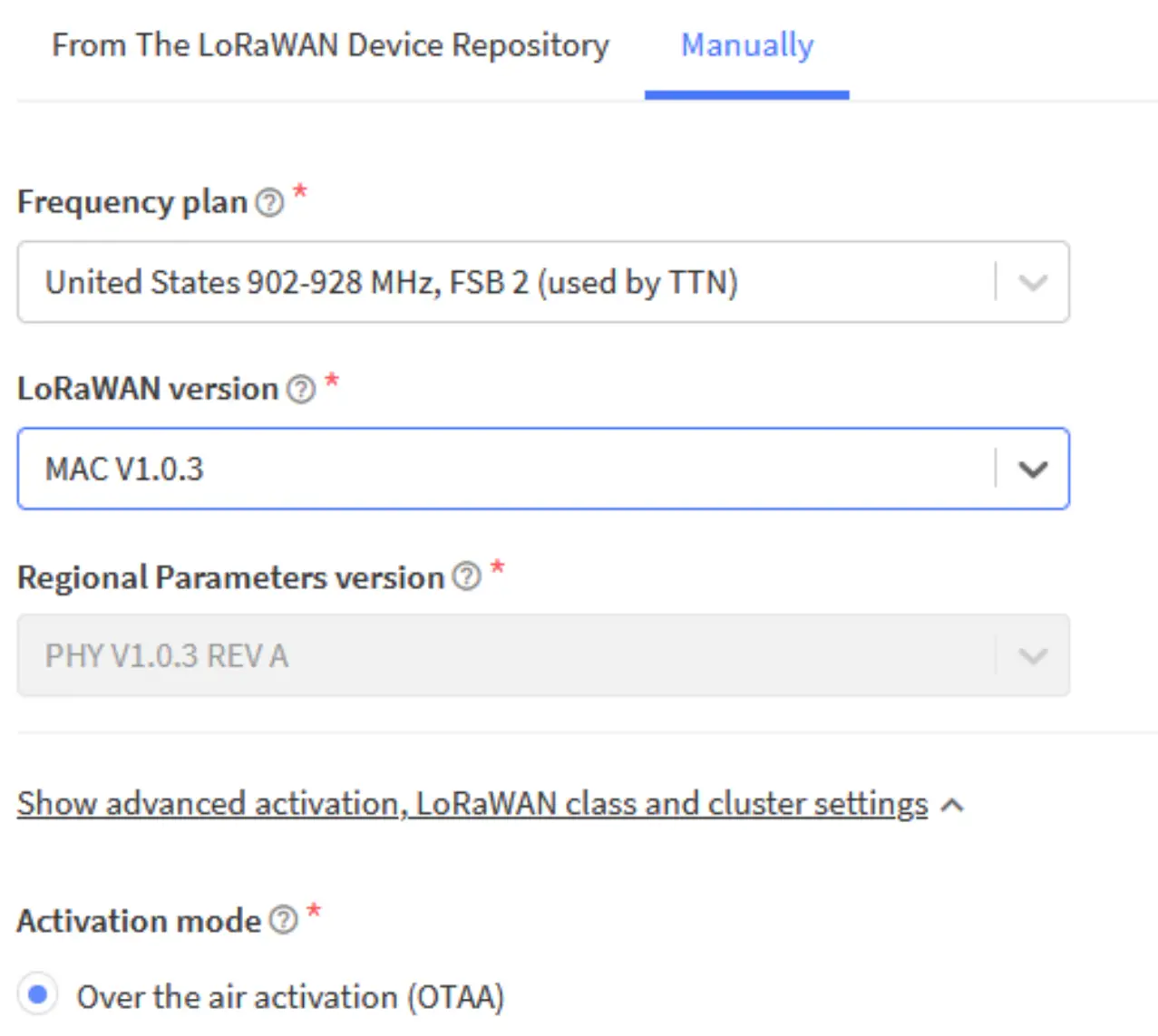 |
| SL100AS | 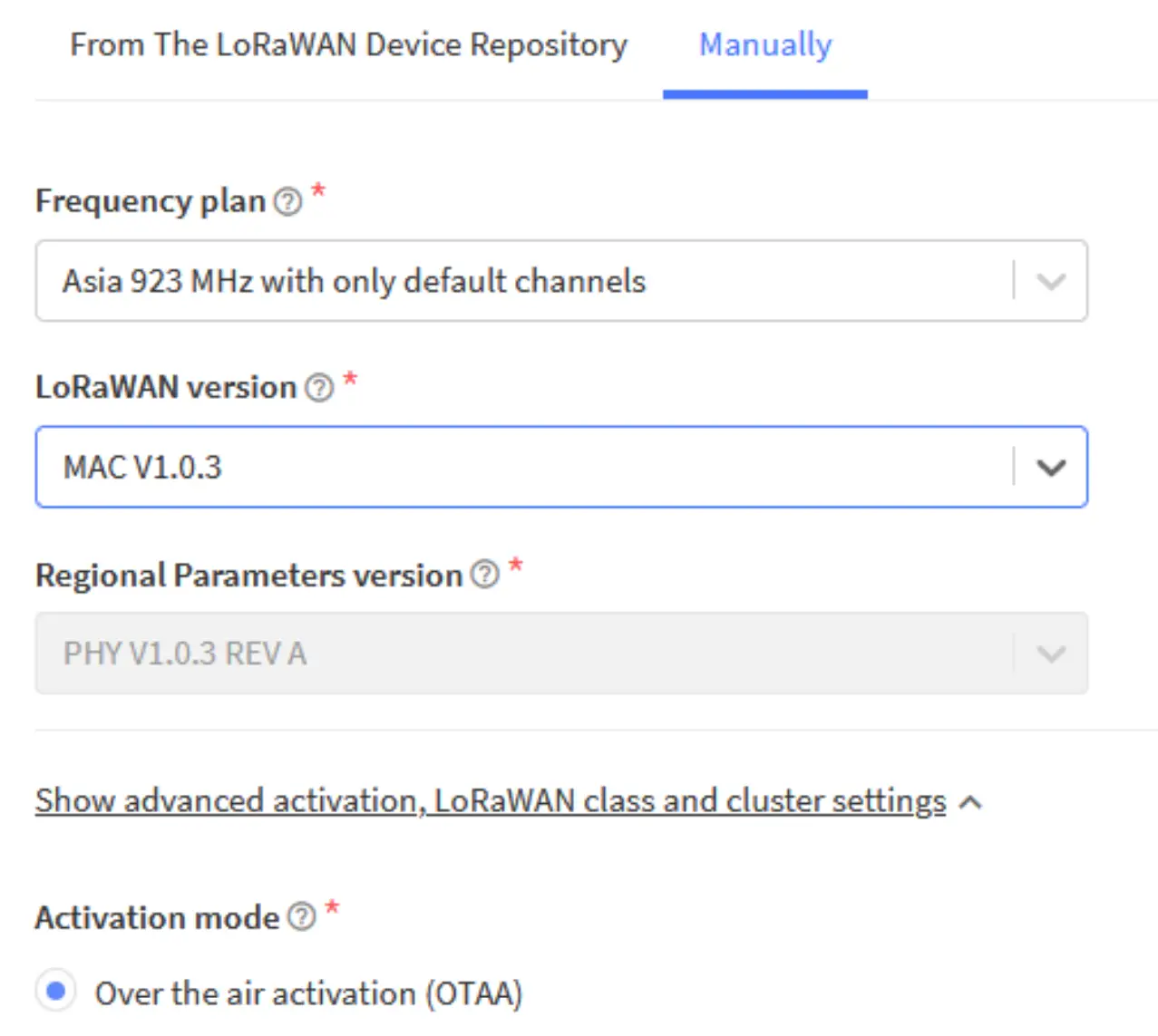 |
Set ID and Key
Data analysis example for JavaScript:
function decodeUplink(input) {
var obj = {};
var warnings = [];
obj.battery = (input.bytes[1]&0x1F);
obj.vol = (input.bytes[2]);
obj.temperature = (((input.bytes[4] & 0x80 ? input.bytes[4] – 0x100 : input.bytes[4]) << 8)
+
input.bytes[5]) / 10;
obj.humidity = input.bytes[7];
if (obj.temperature < -10) {
warnings.push(“it’s cold”);
}
return {
data: obj,
warnings: warnings
};
}
Wireless LoraWAN Sensor Data Format
LoRaWAN Format:
Picture as below, FRMPayload is sensor data.
PHYPayload:
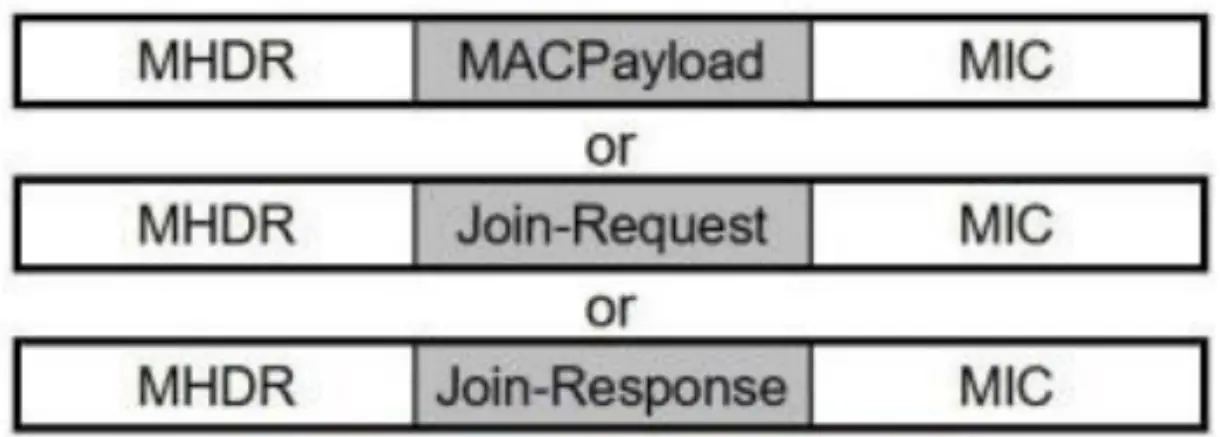
Figure 6: PHY Payload structure
MACPayload:

Figure 7: MAC Payload structure
| MHDR | FHDR | FPort | FRMPayload=Sensor Data(Message) | MIC 4 Bytes | ||
| FPort | Data 1 | … | Data N | |||
| FPort | Type+Data N Bytes | Type+Data N Bytes | Type+Data N Bytes | |||
Sensor Data Definition
Device Information(0x00)
| Type | Value | Value | Value |
| 1 Byte | 3 bit | 5bit | 1 Byte |
| 0x00 | Version | Battery Level | Reserve |
Temperature(0x04)
| Type 1 Byte | Value 2 Bytes | Comments |
| 0x04 | Temperature | 2-byte signed integer with negative value below zero The default unit is 0.1 degrees, that is 201 means 20.1 degrees |
Humidity(0x05)
| Type 1 Byte | Value 1 Byte | Comments |
| 0x05 | Humidity | Unsigned integer of 1 byte. The default unit is 1%RH, that is 10 means 10%RH |
FRMPayload Example: 00 3F 24 04 01 1C 05 3E
00 3F24 Device Information, Version is 0x01, level is 0x1F = 31
04 011C Temperature is 0x011C = 284 = 28.4 ℃
05 3E Humidity is 0x3E = 62 = 62 %RH
Local Configuration
Note: Factory reset data uploading is every 30 mins, customers can change data uploading frequency as below:
Connect sensor with a USB-C cable to computer for local configuration, through local configuration, you can change the packet frequency. Refer SensorTool Manual.
Contact Us
Jiangsu Rejeee Intelligent Technology Co., Ltd
Address: No. 20,Xinghuo Road, Jiangbei District, Nanjing, China
Email: [email protected]
Tel: 0086 158 6180 7793
Web: http://www.rejeee.com
 芮捷智能文档平台
 芮捷智能文档平台
 江苏芮捷智能科技有限公司