 INSTALL GUIDE
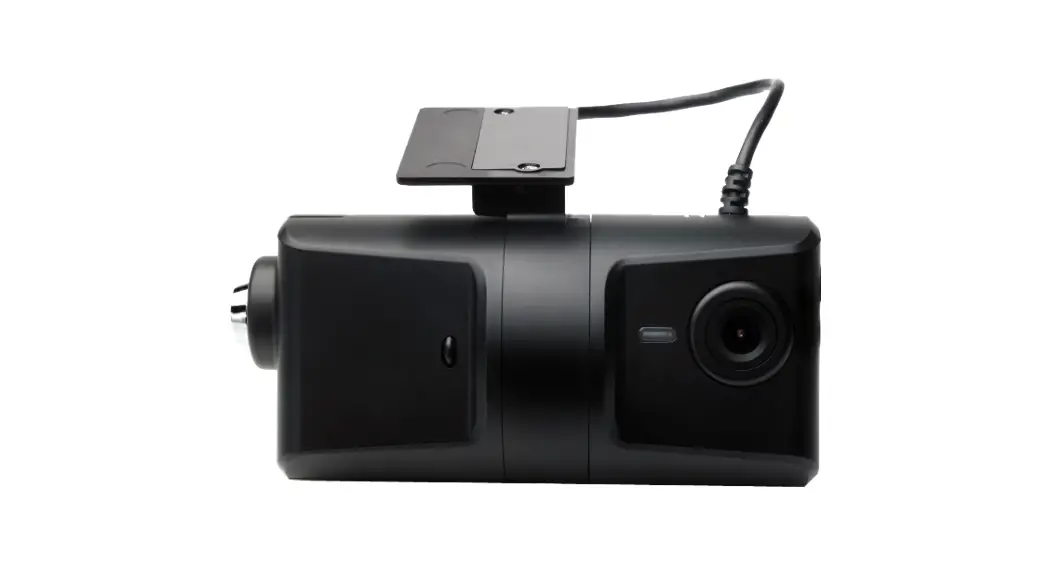
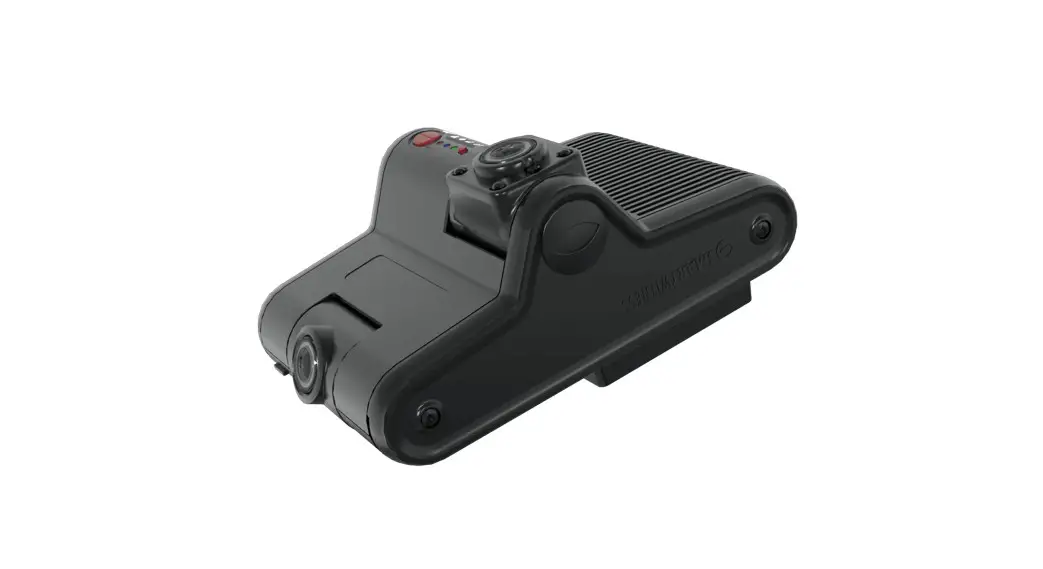
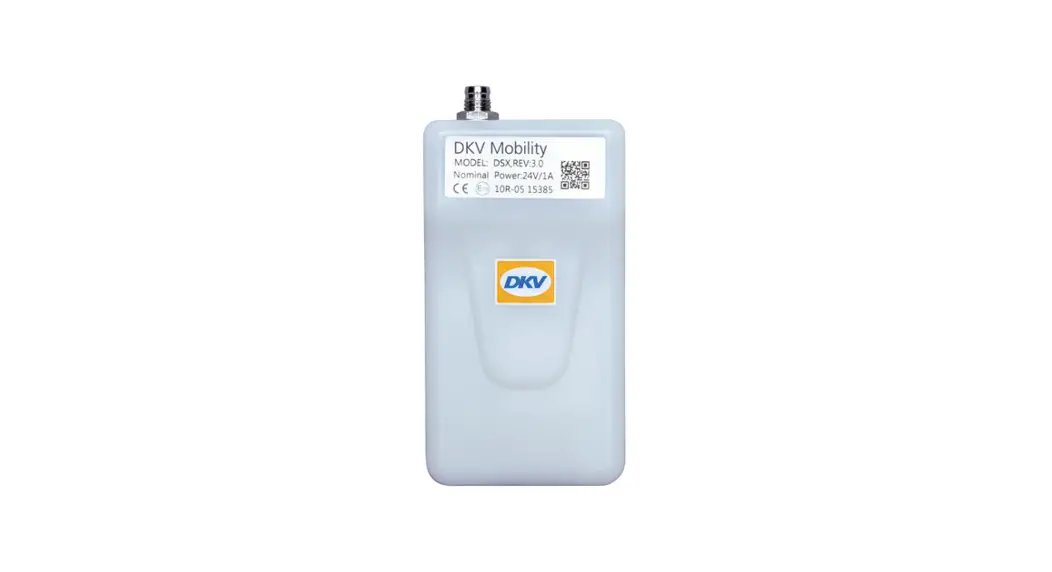
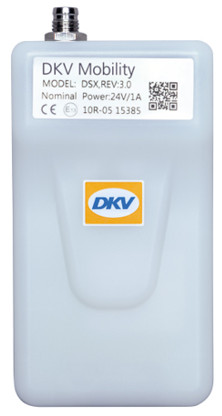
DKV LIVE BOX
TECHNICAL REQUIREMENTS
VEHICLE TYPE AND MANUFACTURER
Depending on the vehicle type and manufacturer, the installation of the DKV LIVE Box requires different cable types and prerequisites.
Tractor unit
// FMS
// CAN Click
// Cigarette Lighter
// 12/24V Connection
// OBD2
Trailer
// EBS

Van, Bus, Car
// Cigarette Lighter
// 12/24V Connection
// OBD2
NOTE:
The following description may deviate in individual cases. For this reason, the installation must be carried out professionally (e.g. by a recognized specialist workshop). If you need help with installation, you are welcome to contact one of our partner workshops. You can find an overview of all workshops under the following link: https://bit.ly/37vFL6o If you have any questions for support, please have the box number ready. It appears when scanning the QR code on the box.
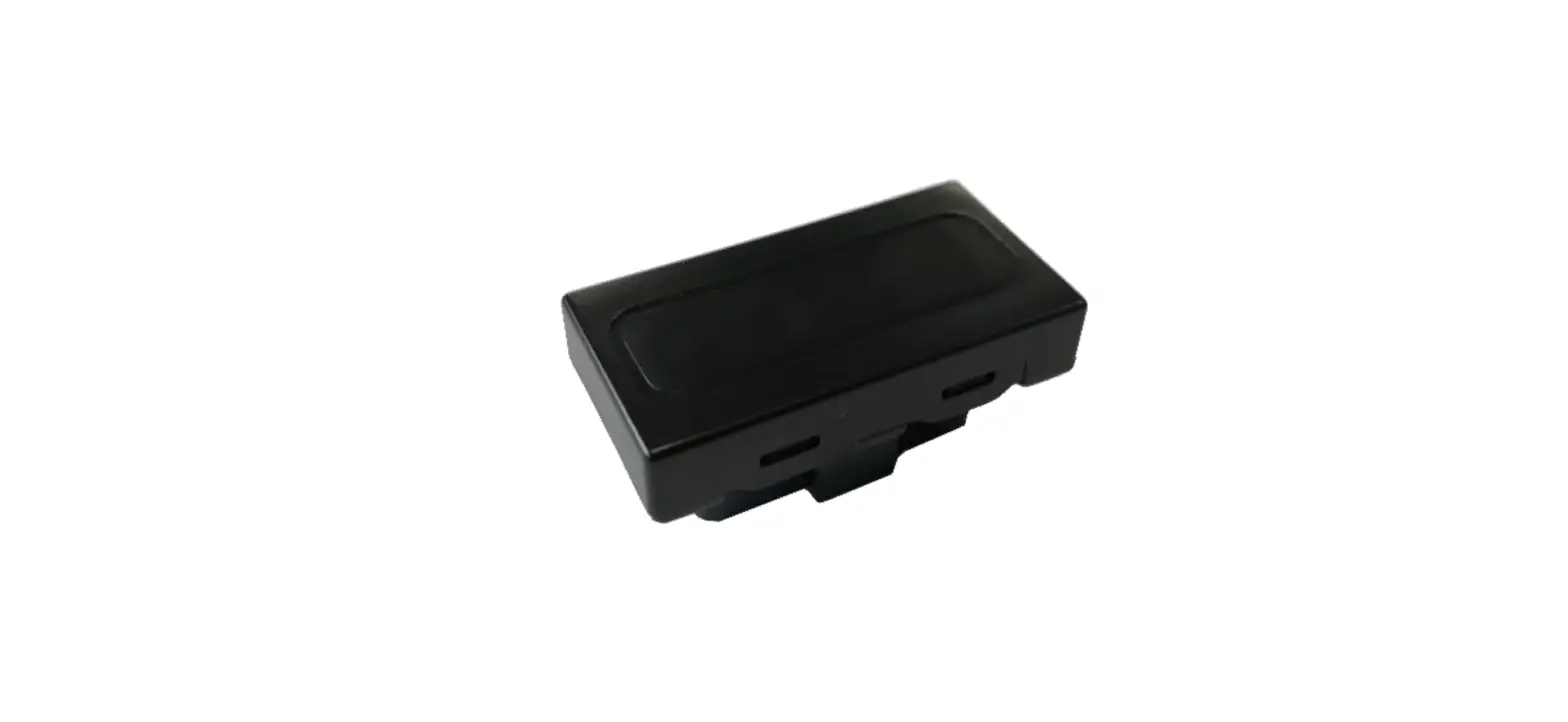
DKV LIVE BOX
The DKV LIVE Box can be operated with 12/24V. The DKV LIVE Box does not have an integrated battery and terminating resistor. The power consumption is 20-30 mA in standby and 30-50 mA under load.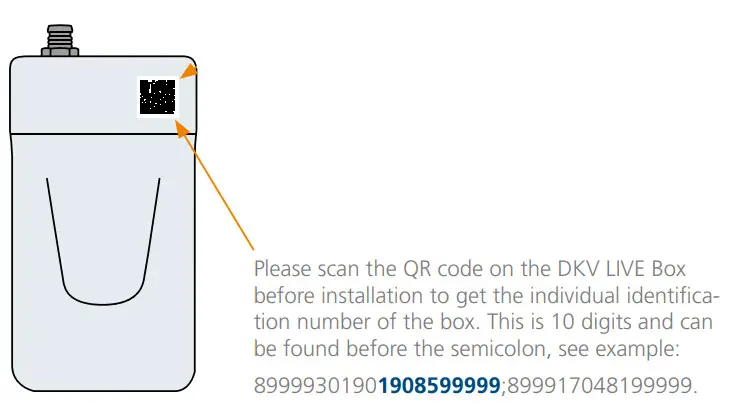 CONNECTION
// FMS
// CAN Click
// EBS
// Cigarette Lighter
// 12/24V Connection
// OBD2
BOX ALIGNMENT
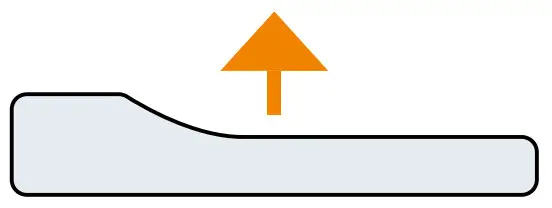
The DKV LIVE Box should always be attached with the sticker facing upwards.
There should not be any metallic surfaces above the DKV LIVE Box, as these can impair the GPS / GSM connection.
INSTALLATION OF DKV LIVE BOX
FMS
SCOPE OF DELIVERY
// DKV LIVE Box
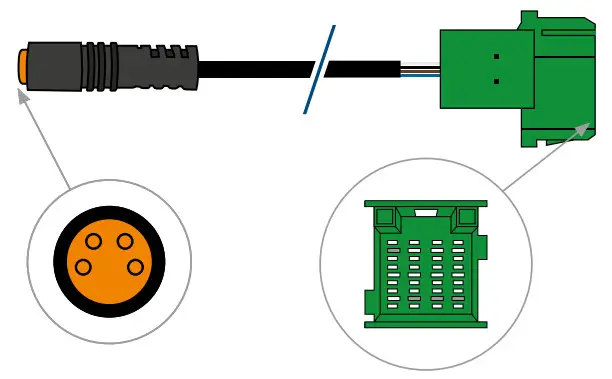
// FMS Cable
GENERAL NOTES
// You need an original FMS interface with RDL prepara- tion, as well as downloadable and unlocked tachograph.
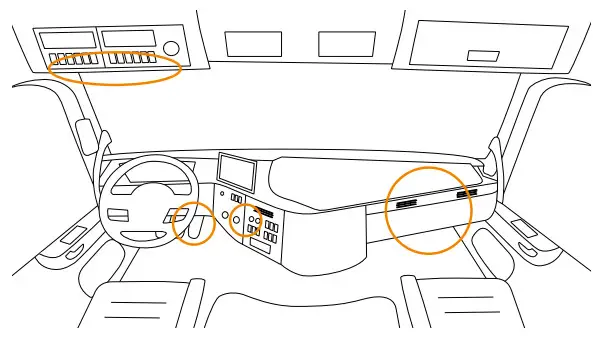
POSSIBLE POSITIONS
The position of the connection point varies according to manufacturer & vehicle type.
INSTALLATION NOTES
// If there is a terminating resistor on the FMS present, this must be reinserted in the course of the installation.
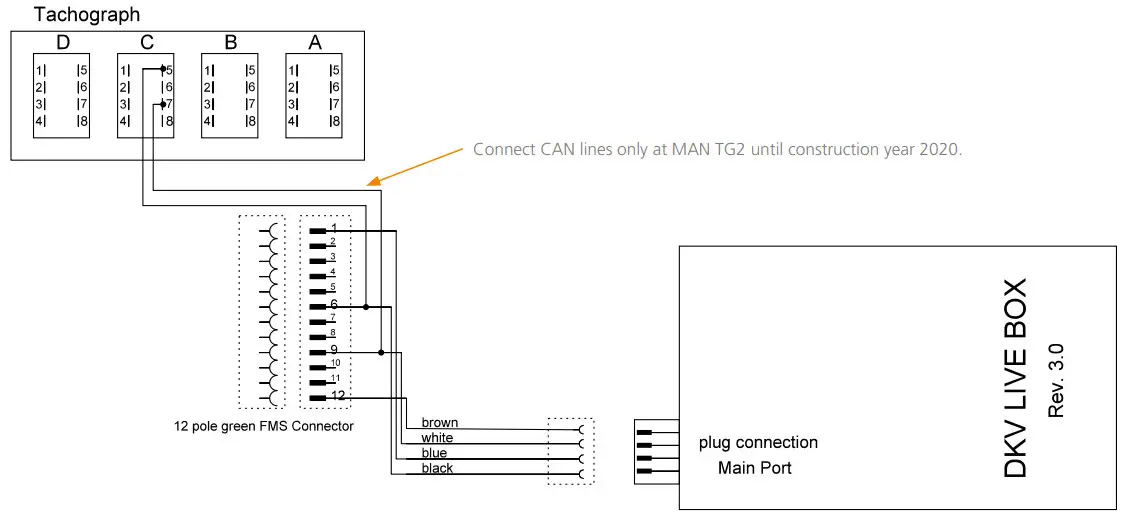
VEHICLE SPECIFIC NOTES MAN TG2
Construction year 2014 – 2020
// For the KSM module, the function parameter (FUP) RDL must be deactivated
// The original red C connector must be removed from the tachograph.
VEHICLE SPECIFIC NOTES MAN TG3
Construction year from mid 2020
// In the EIO1 module the function parameter 81.2589-1766 must be parameterized for the RDL to function.
CAN CLICK
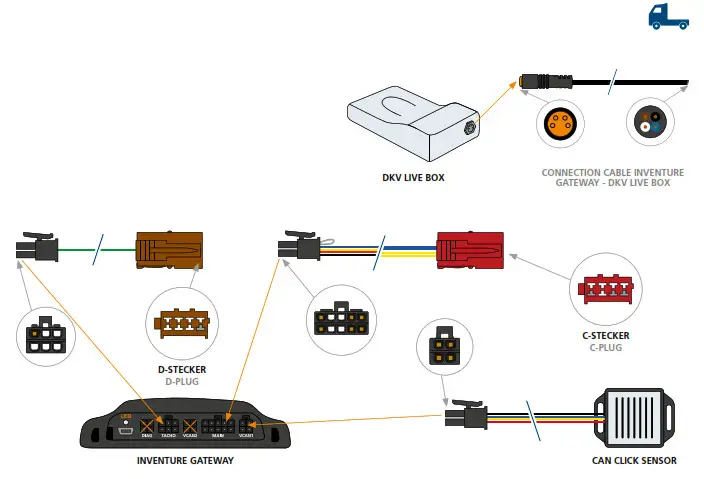
SCOPE OF DELIVERY
// DKV LIVE Box
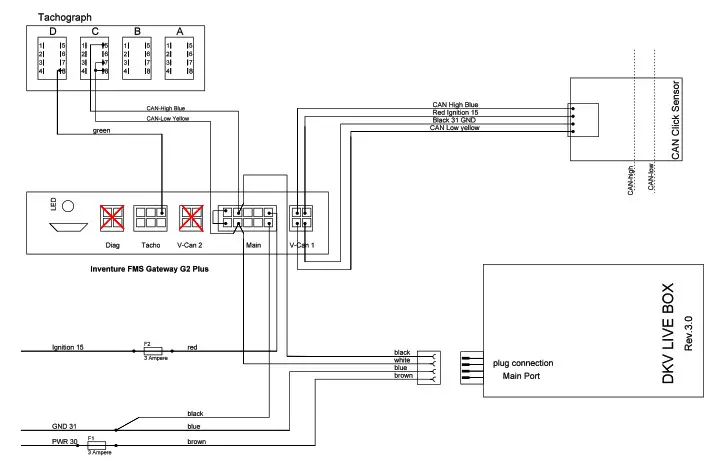
// CAN Click Set
// Inventure Gateway
// CAN Click Sensor
// Connection Cable
// C-plug (red)
// D-plug (brown)
CAN CLICK
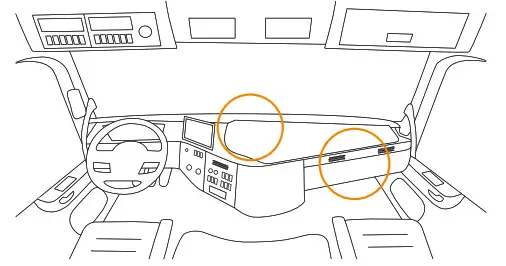
POSSIBLE POSITIONS
The position of the connection point varies according to manufacturer & vehicle type.
VEHICLE SPECIFIC NOTES
// CAN Click is not available for MAN TG3, please use the FMS interface.
REVIEW
// by LED status on the Indenture Gateway
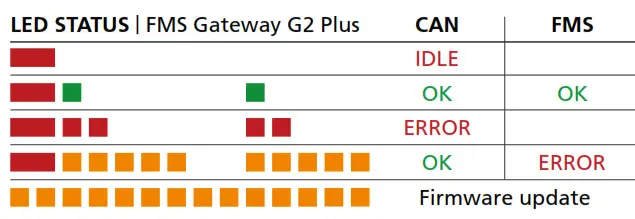
 Standby
No data / power Communication
Error
NOTES FOR REVIEW
// Please check with the ignition on.
// If you encounter any errors, please contact support directly.
OBD2INSTALLATION OF DKV LIVE BOX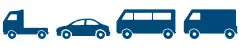
SCOPE OF DELIVERY
// DKV LIVE Box
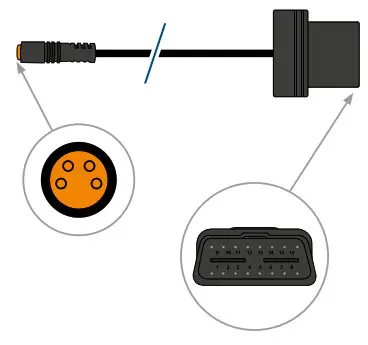
// OBD2 cable
POSSIBLE POSITIONS
The position of the connection point varies according to manufacturer & vehicle type. Refer to the vehicle manual for connector position information.
INSTALLATION NOTES
Just plug the OBD2 connector into the port in the vehicle.
INSTALLATION NOTES
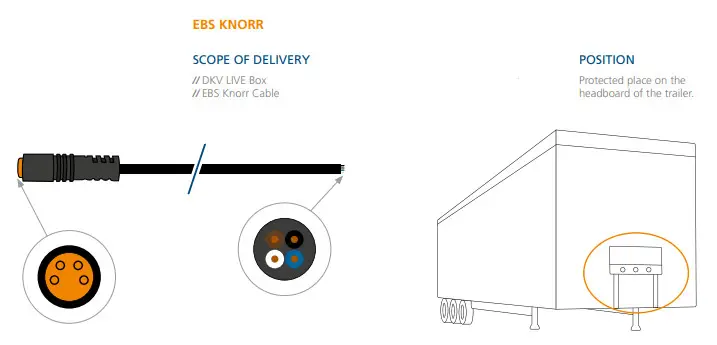
// Installation should only be carried out by an authorized Knorr workshop since an activation of the modulator must take place.
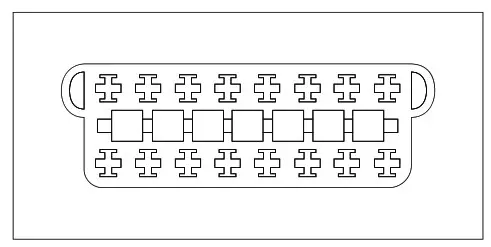
// Connect cable with modulator (brown: Continuous current | blue: Ground | black: CAN -High | white: CAN-Low)
INSTALLATION NOTES
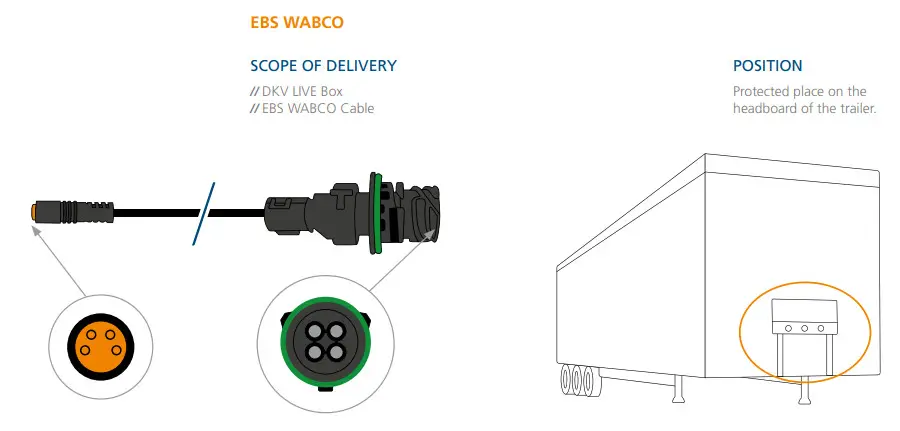
// Installation should only be carried out by an authorized WABCO workshop since an activation of the modulator must take place.
// Additional original adapter cable from WABCO is necessary (not part of delivery)
INSTALLATION NOTES
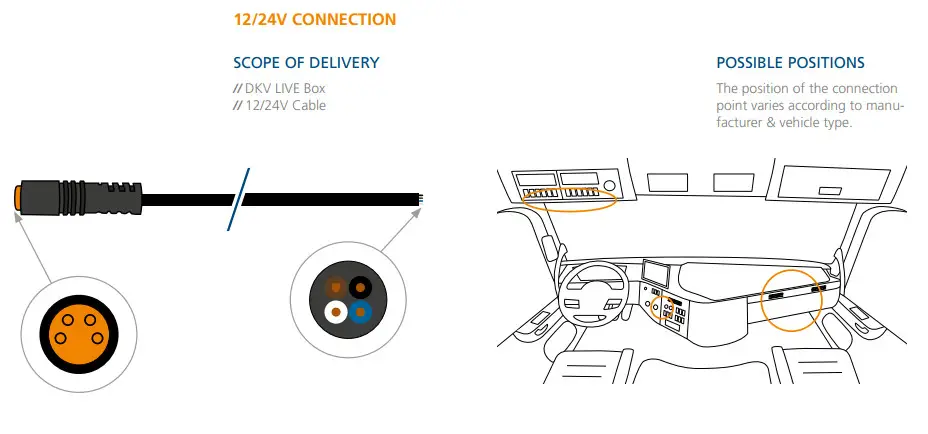
// CAN-High (black) & CAN-Low (white), do not integrate in CAN bus system since it can cause error messages.
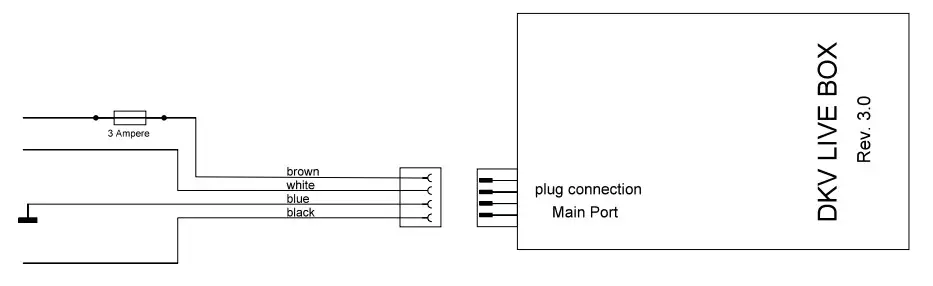
// Recommendation: Connect to fused line with 3A.
| Port / colour | function |
| Main Port / brown | Continuous current |
| Main Port / white | n.c. |
| Main Port / blue | Ground |
| Main Port / black | n.c. |
CIGARETTE LIGHTER
SCOPE OF DELIVERY
// DKV LIVE Box
// Cigarette lighter cable
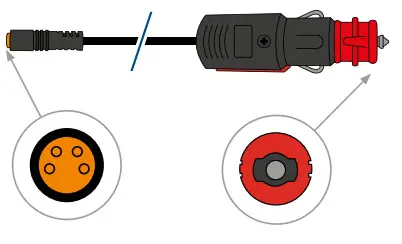
POSSIBLE POSITIONS
The position of the connection point varies according to manufacturer & vehicle type.
INSTALLATION NOTES
Simply insert the plug into the built-in cigarette lighter in the vehicle.
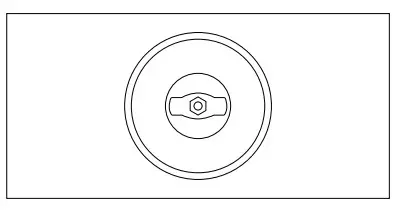
Note: The cigarette lighter socket may be different from vehicle to vehicle.
CHECKING THE INSTALLATION
MEANING OF LED COLORS
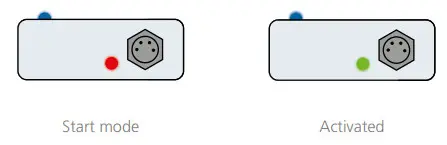
DETAILED OPERATING INSTRUCTIONS https://dkvlive.atlassian.net/wiki/spaces/STYL/overview
Other languages available.
SUPPORT
YOU HAVE QUESTIONS ABOUT INSTALLATION?
CONTACT US AT:
// Company name
// DKV customer number (optional)
// Phone number in international format
// Email address
// Brief description of your request
// Specification of the box number
(You will receive the no. when scanning the QR code on the box.)
Send the email to: [email protected]
or call us at: +43 5372 90830
FREQUENTLY ASKED QUESTIONS
- LEDs on DKV LIVE Box do not light up.
Check connection to vehicle electrical system. (see also LED status of DKV LIVE Box) - DKV LIVE Box is only visible when driving.
Check whether DKV LIVE Box is connected to ignition plus instead of continuous plus. - No or irregular GPS position.
First check LED status of DKV LIVE Box. Then check the installation position (see box alignment). If the vehicle is parked in a hall, this can also affect the GPS reception. - DKV LIVE Box is not visible (for all users) in the portal.
Check in the portal whether the user has the rights for the vehicle, see manual in chapter „User administration“. - FMS data is not displayed.
Check whether an original FMS interface is available. A green 12-pin connector does not necessarily mean that the FMS interface is also enabled. Possibly the resistance at the FMS CAN bus is not correct | target= 60 Ohm with ignition off. - DTCO data are not displayed.
If FMS data appears but no DTCO data, please contact support as the firmware needs to be updated (Stoneridge speedometer). - Remote download does not work.
Check whether the contractor card is available to DKV, see RDL notes and in the DKV LIVE portal under the menu item „RDL“ -> „Contractor cards“. Then check the activation of the C-CAN or RDL mode or if another telematics system is connected to the C- or FMS-connector. Possibly the resistance at the FMS CAN bus is not correct | target = 60 Ohm with ignition off. - Remote Download works, but no FMS data.
Check the position of the CAN-High and CAN-Low cables on the CAN Click Sensor and swap them if necessary. - No DTCO data in the portal and remote download does not work.
If the connection is made by CAN Click, check LED status on Inventure gateway. Alternatively, check if C-CAN and RDL mode are switched on and if the tachograph is capable of remote download.
 https://dkvlive.atlassian.net/wiki/spaces/STYL/overview
Multilingual detailed operating instructions
You drive, We Care.
DKV Mobility LIVE GmbH
Endcap 33, 6330 Kirstein, Austria
 DKV Mobility - You drive, we care. The partner for your fleet
 DKV LIVE - Installation Partner – Google My Maps