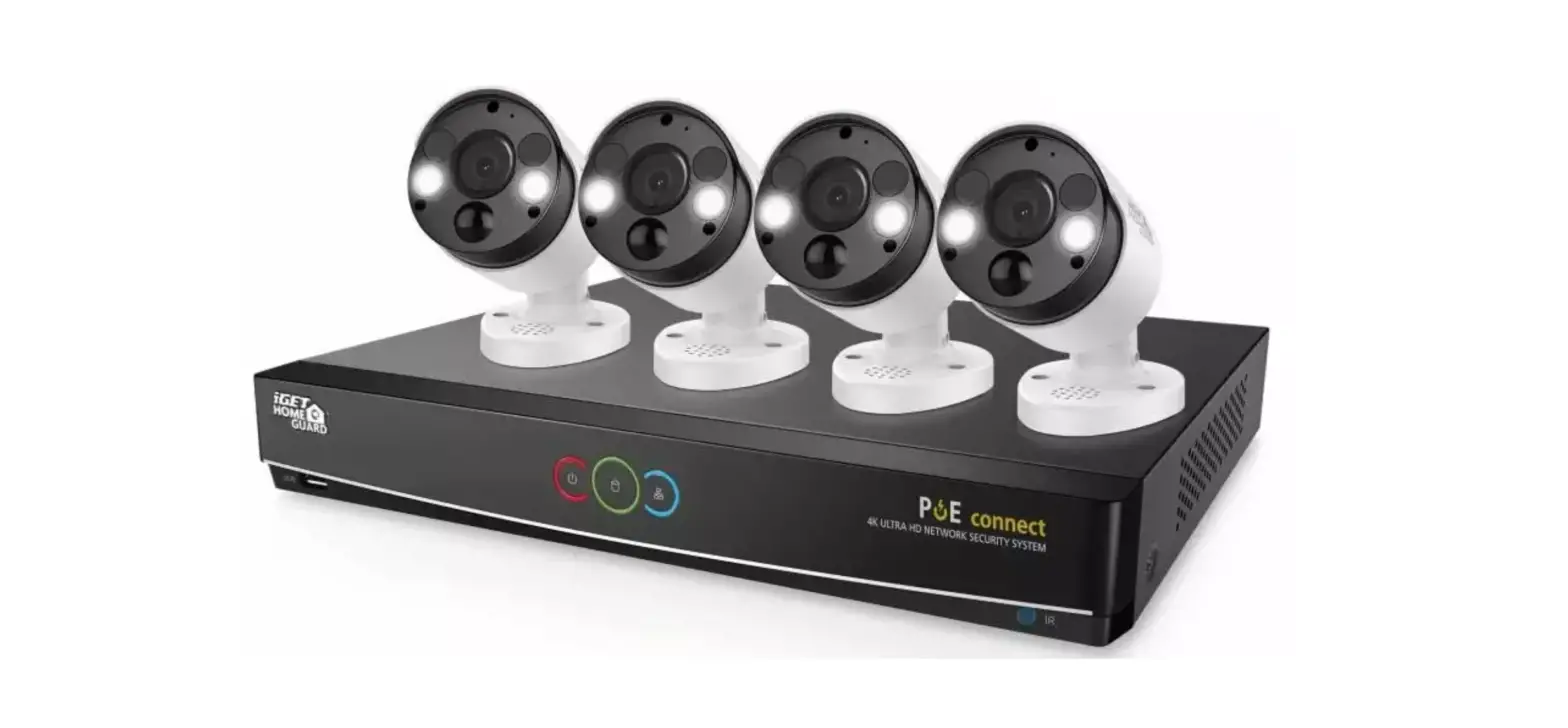
HGNVK5300 Professional HD Security Kit
Product Information:
The product is a SMART DETECTION MOTION & HEAT TRIGGER
ACCURATE ALERTS Professional HD Security Kit. It is made in China
and is designed to provide high-definition security monitoring. The
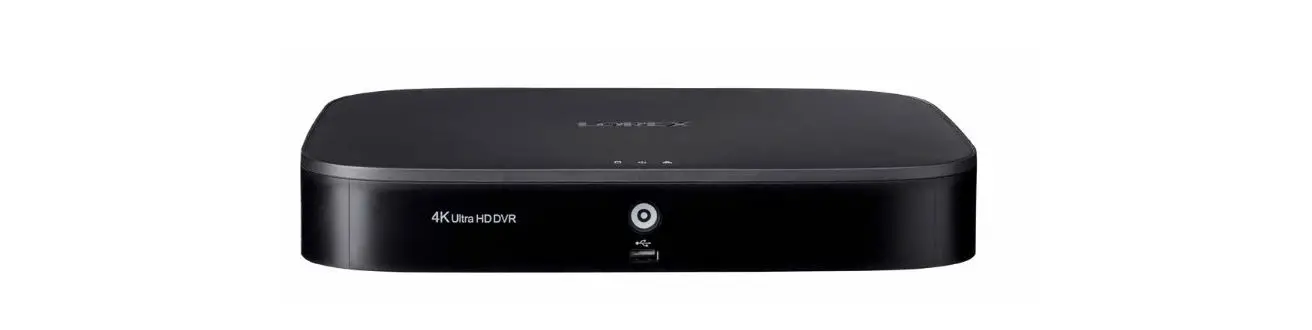
kit includes an NVR (Network Video Recorder) and other components
for connecting and configuring the system.
The product complies with the European law of the Restriction of
Hazardous Substances (RoHS) directive, which means it is lead-free
and does not contain hazardous substances. It also includes a
wheeled bin mark symbol, indicating that it should be collected
separately at the end of its life for recycling.
The user manual may be subject to revisions or removal of
content without notice, and the company does not warrant or assume
any legal liability or responsibility for the accuracy,
completeness, or usefulness of the manual.
Product Usage Instructions:
Connecting Your System:
- Introduction
- Package Contents
- NVR Layout
- HDD Installation (Optional)
- Connecting the NVR
- Using the Mouse
Basic Operation:
- Start-up Wizard
- Main Interface
- PIR Setup
- Record
- Playback
Connecting Smart Device:
- Before Start
- Get the App
- User Interface
- For iPhone
- For iPad
- For Android Phone
Connecting to PC & Mac:
- Homeguardsafe Software for PC & Mac
- Remote Access via Web Client
- Cloud Access
Technical Support:
For further assistance, you can visit the helpdesk/technical
support websites:
You can also find additional information, product manuals, FAQs,
troubleshooting guides, and support services at the support
website: homeguardworld.com/support.
Helpdesk / Technical Support
www.iget.eu/cs/helpdesk-centrum-cs https://helpdesk.intelek.cz/
Made in China
SMART
DETECTION
MOTION & HEAT TRIGGER ACCURATE ALERTS
Professional HD Security Kit
Quick Start Guide – EN
For the latest, up-to-date manual, please visit www.iget.eu
CAUTION
RISK OF ELECTRIC SHOCK DO NOT OPEN
TO REDUCE THE RISK OF ELECTRIC SHOCK, DO NOT REMOVE THE COVER.
NO USER SERVICABLE PARTS INSIDE.
REFER SERVICING TO QUALIFIED PERSONNEL.
The lightning flash with arrowhead symbol, within an equilateral triangle, is intended to alert the user to the presence of non-insulated “dangerous voltage” within the product’s enclosure that may be of sufficient magnitude to constitute a risk of electric shock.
The exclamation point within an equilateral triangle is intended to alert the user to the presence of important operating and maintenance (servicing) instructions in the literature accompanying the appliance.
WARNING:
TO PREVENT FIRE OR SHOCK HAZARD, DO NOT EXPOSE THIS UNIT TO RAIN OR MOISTURE
CAUTION:
TO PREVENT ELECTRIC SHOCK, ENSURE THE PLUG IS FULLY INSERTED INTO A MAINS SOCKET
1
IMPORTANT SAFEGUARD
RoHS
conform
All lead-free products offered by the company comply with the requirements of the European law of the Restriction of Hazardous Substances (RoHS) directive, which means our manufacturing processes and products are strictly “lead-free” and without the hazardous substances cited in the directive.
The crossed-out wheeled bin mark symbolizes that within the European Union the product must be collected separately at the product’s end-of-life. This applies to your product and any peripherals marked with this symbol. Do not dispose of these products as unsorted municipal waste. Contact your local dealer for procedures for recycling this equipment.
DISCLAIMER
We reserve the right to revise or remove any content in this manual at any time. We do not warrant or assume any legal liability or responsibility for the accuracy, completeness, or usefulness of this manual. The content of this manual is subject to change without notice.
RECOMMENDATIONS
· AVOID DUSTY LOCATIONS: · INSTALL IN VENTILATED SPACE: · DO NOT EXPOSE TO MOISTURE: · DO NOT DROP: · DO NOT OPEN CHASSIS:
Excessive build-up of dust may cause the unit to fail. Ensure adequate airflow around the NVR to prevent overheating. Exposing the unit to water poses high risk of electric shock. Doing so could damage internal components. No user-serviceable parts inside.
TRADEMARKACKNOWLEDGEMENTS
· Internet ExplorerTM, MicrosoftTM&WindowsTM are registered trademarks of Microsoft Corporation. · AppleTM, iPhoneTM, iPadTM and iTunesTM are registered trademarks of Apple Computer, Inc. · AndroidTM and Google PlayTM are registered trademarks of Google Inc
WARRANTY AND TECHNICAL SUPPORT
To help you make the most of this product you’ll find a host of information including full product manuals, FAQ, troubleshooting guides and a support service if you have specific questions, available at our support website : homeguardworld.com/support.
2
CONTENTS
CONNECTING YOUR SYSTEM
4
5 Introduction 6 Package Contents 7 NVR Layout 9 HDD Installation (Optional) 10 Connecting the NVR
12 Using the Mouse
BASIC OPERATION
13
14 Start-up Wizard 17 Main Interface 19 PIR Setup 20 Record 21 Playback
CONNECTING SMART DEVICE
22
23 Before Start 23 Get the App 24 User Interface 25 For iPhone 26 For iPad 27 For Android Phone
CONNECTING TO PC&MAC
28
29 Homeguardsafe Software for PC & Mac 32 Remote Access via Web Client 35 Cloud Access
TECHNICAL SUPPORT
36
37 Technical Specifications 38 Technical Q&A 39 Warranty & Support 40 Camera Installation Template
3
1 CONNECTING
YOUR SYSTEM
4
1.1 Introduction
Congratulations on your purchase of this Homeguard PoE NVR. Homeguard offers a complete CCTV solution for home or office security, featuring high quality cameras, easy setup and configuration, motion detection and network connectivity. This system features: · H.265 Video compression · Support 4CH/8CH PoE IPC · Power, video and audio run through a single Ethernet cable per camera with Power over Ethernet cabling, PoE,
making installation a lot simpler · Provides a convenient User Interface · Supports 8MP, 5MP, 3MP, 2MP(1080P), 1.3MP(960P), 1.0MP(720P) recording resolution · With the network specific codec, network transfer enabled regardless of the recording conditions · Hard Disk overwrite function · Mass storage hard disk backup through high-speed USB 2.0 · Simultaneous Record and Playback of 4-channel video data · Various Search Modes (Search by Time, Event, PIR detection and Motion Detection) · Various Recording Modes (Manual, Scheduled Recording) · Remote Monitoring function by Network Viewer and Mobile Viewer
5
1.2 Package Contents
Please unwrap the product, and place the product on a flat place or in the place to be installed. Please check the following contents are included in addition to the main unit.
· The appearance of the components may differ from the image shown. · Accessory category and quantity may differ depending on sales region.
Check the contents of your NVR package against this checklist. If anything is missing or damaged, please do not use the system, and inform your supplier as soon as possible.
HDD
NET
PWR
USB
PoE NVR
Power Adapter
Mouse
HDD Fixing Screw
User Manual / Software
Ethernet Cable
Quick Start Guide
Warranty Card
NOTE
This manual covers both 4 channel and 8 channel versions of the Homeguard NVR kits model: HGNVK-45302 / 45304 / 85302 / 85304 / 85308.
6
1.3 NVR Layout
Rear Panel
4CH NVR
Model: HGNVK-45302 / 45304
CAUTION
RISK OF ELECTRIC SHOCK DO NOT OPEN
CAUTION : TO REDUCE THE RISK OF ELECTRICAL SHOCK DO NOT OPEN COVERS. NO USER SERVICEABLE PARTS INSIDE. REFER SERVICING TO QUALIFIED SERVICE PERSONNEL.
WARNING : TO PREVENT FIRE OR SHOCK HAZARD. DO NOT EXPOSE UNITS NOT SPECIFICALLY DESIGNED FOR OUTDOOR USE TO RAIN OR MOISTURE.
48V
AUDIO OUT
VGA
HDMI
LAN3
LAN1
WAN
LAN4
LAN2
8
7
6
5
43
2
1
8CH NVR
Model: HGNVK-85302 / 85304 / 85308
CAUTION
RISK OF ELECTRIC SHOCK DO NOT OPEN
CAUTION : TO REDUCE THE RISK OF ELECTRICAL SHOCK DO NOT OPEN COVERS. NO USER SERVICEABLE PARTS INSIDE. REFER SERVICING TO QUALIFIED SERVICE PERSONNEL.
WARNING : TO PREVENT FIRE OR SHOCK HAZARD. DO NOT EXPOSE UNITS NOT SPECIFICALLY DESIGNED FOR OUTDOOR USE TO RAIN OR MOISTURE.
48V
AUDIO OUT
VGA
HDMI
LAN7
LAN5
LAN3
LAN3
WAN
LAN8
LAN6
LAN4
LAN2
8
7
6
5
43
2
1
Front Panel
7
9 10 11
HDD
NET
PWR
USB
12 13
Items
1 2 3 4 5 6 7 8 9 10 11 13
Part Names LAN Port WAN Port USB Port HDMI Output VGA Output Audio Output Power Switch Power Port HDD LED Network LED Power LED USB Ports
Functions LAN network interface, support PoE, can supply power to the camera Network input interface of the router For USB mouse and external storage For most modern TVs Connect to VGA monitor, such as PC monitor Audio signal output, RCA interface Startup and shutdown Connect the attached power supply Flashes when the HDD is in use Flashes when the internet is connected Indicates the NVR is turned ON when lit For USB mouse and external storage
8
1.4 HDD Installation (Optional)
The system may not include hard disk depending on the kit you selected. The NVR works with most 3.5″ or 2.5″ SATA HDD. CAUTION: DO NOT install or remove the hard disk drive while the device power is turned ON.
1 When power supply is disconnected, remove the screws at both sides with screwdriver, then remove the screws on the rear board, and then remove top cover of NVR.
HDD Data & Power Ports
2 Connect data and power ports of hard drive to motherboard.
3 Holding the hard drive and the NVR, gently turn it over and line up the holes on the hard drive with the holes on the NVR. Using a screwdriver, screw the provided screws into the holes. Two groups of screw mounting holes are provided in the base frame of the NVR, respectively for installation of 3.5″ hard drive and 2.5″ hard drive. User should make selection based on their hard drive size. After complete HDD installation, assemble the cover.
9
1.5 Connecting the NVR
1
2
CAUTION
RISK OF ELECTRIC SHOCK DO NOT OPEN
CAUTION : TO REDUCE THE RISK OF ELECTRICAL SHOCK DO NOT OPEN COVERS. NO USER SERVICEABLE PARTS INSIDE. REFER SERVICING TO QUALIFIED SERVICE PERSONNEL.
WARNING : TO PREVENT FIRE OR SHOCK HAZARD. DO NOT EXPOSE UNITS NOT SPECIFICALLY DESIGNED FOR OUTDOOR USE TO RAIN OR MOISTURE.
48V
AUDIO OUT
VGA
HDMI
5
LAN7
LAN5
LAN3
LAN3
WAN
LAN8
LAN6
LAN4
LAN2
4
3
1 Depending on the monitor port, connect the HDMI or VGA cable from your monitor to the HDMI or VGA Port on the rear panel.
2 Connect one end of the Ethernet cable into your router’s LAN port, and the other end of the cable to the Ethernet port on the rear panel.
3 Connect cameras to the recorder using the included 60ft/18.3m Ethernet cables.
4 Connect the mouse to the USB Port on the front or back panel of the NVR.
5 Use the included power adapter to connect the recorder to a nearby outlet. Turn the recorder on using the power switch on the back panel.
TIP
Each Homeguard camera is supplied with a mounting kit for attaching it to a wall. Before you affix the camera in position, please ensure the cable is of adequate length to reach the NVR.
10
11
1.7 Using the Mouse
3
1
2
1 Left Button:
· Click to select menu options. · During live viewing in split-screen view, double-click on a channel to view it in full-screen. Double-click the
channel again to return to split-screen viewing. · Click upon a channel on Live Viewing screen to open Camera Quick Tool bar. · Click and hold to drag sliders and scales on menu mode
2 Right Button:
· Click once to open the Task bar on the Live Viewing screen. · In menus, click to go back / close menus.
3 Scroll Wheel:
· In menus, scroll to move up / down through the menu content. · While hovering over the volume control wheel, scroll to turn system volume up / down.
12
2 BASIC OPERATION 13
2.1 Start-up wizard
1 Create a Password
Please create a user name and password for your device. Password MUST be 8 characters long.
Use the on-screen keyboard to input text, numbers and characters. Click to change from lower-case to upper-case
2 Start Wizard
After NVR startup is completed, the start-up wizard will be displayed. Click “Start Wizard”.
3 Network
In DHCP mode the router will automatically assign an IP address to NVR.
If the NVR fails to obtain an IP address, refer to the NVR Router Guide. If the problem still cannot be resolved, contact technical support.
CAUTION
Don’t forget to write down your password: ___ ___ ___ ___ ___ ___ ___ ___.
14
4 Date / Time
Set the date, time, NTP, DST.
5 IP Camera
This menu allows you to add IP cameras to the NVR.
6 Disk
New hard drive(s) connected must be formatted before use. Upon connection, it will indicate to format new hard drive. Click on “Select” to select the unformatted hard drive. Click on “Format HDD” to pop up the user login window and enter the password to log in. A notice window will indicate “Entire Data Will Be Erased. do You Want To Continue?”. Click “OK” to format the disk. When the progress bar is complete, the formatting process is completed.
15
7 Resolution
Select the resolution for the VGA output or HDMI output of your monitor.
8 Mobile
If you scan a QR code using Homeguardsafe, the device ID displayed in the NVR will be automatically reflected in the Mobile Viewer ID, and you can use the Mobile Viewer immediately by entering the ID / password of the NVR.
9 Summary
Shows system and network status of NVR. Click on “Finish” to finish setting of startup wizard. You can click on “Don’t show this window next time” if you do not wish to have the wizard setting to appear next time.
16
2.2 Main Interface
1
23
4 5 6 7 8 9 10
22 23 24 25 26
11 12 13 14 15 16 17
21 18 19 20
Items
Part Names
1
Channel Name
2
PIR
3
Motion Detection
4
Manual Recording
5
Manual Capture
6
Instant Playback
7
Zoom
8
Color Settings
9
Stream Switch
10
Add Customized Tag
Functions Display channel name This icon appears when the camera has PIR detection This icon appears when the camera has detected motion Enable or disable manual recording Make a snapshot of current video Playback of the last five minutes of the video Hold and drag mouse cursor to select a frame of current video to zoom in Set hue, brightness, contrast and saturation of current channel Click to switch the channel between main stream and sub stream Click it to add the name for the recording
17
Items
11
12
13 14 15 16 17 18 19 20 21 22 23 24 25 26
Part Names Main Menu 4-Channel Layout More Layout Auto SEQ Play Audio Stream Switch Preview Policy Connection State Manual Mode System Video Loss Admin Search Setup Lock Screen Shutdown
Functions Access the main menu Display four channels of video Click to choose more layouts for live view Press this button to switch the screen mode in sequence Replay video recorded Click to adjust audio volume Click to switch all IP channels between main stream and sub stream Click to switch among real-time, balanced, or smooth view Display the network connection status Set manual recording mode System Information Camera is off-line To switch user Search & Playback Click to access NVR System Setup menu Lock & unlock screen Shutdown, reboot & logout the system
18
2.3 PIR Setup
PIR is advanced motion detection that senses body heat and reduces false alarms. The PIR Technology takes your motion detection to the next level by greatly reducing inaccuracies and false motion alerts. Homeguard camera’s PIR sensor can detect changes in heat produced by humans, animals and vehicles. This new technology requires both changes in motion and heat be detected simultaneously. Not only does this innovative technology significantly reduce the number of false alerts you receive, it also conserves hard drive space. It is true and smart detection!
1 Access Main menu Setup Channel PIR.
2 Click Setup button field.
to set the PIR detect
2 click “Select all” to set all of the field. Right click and exit, then click “Apply” to save the setting.
19
2.4 Record
1 Access Main menu Setup Record Record
2 Record
Record Switch: Check to enable the recording in this channel. Stream Mode: Choose the recording quality. If you choose Dualstream, the system will record in both Mainstream & Substream. PreRecord: If this option is enabled, the NVR starts recording a few seconds before an alarm event occurs. Use this option if your primary recording type is motion or I/O alarm based.
3 Record Schedule
This menu allows you to specify when the NVR records video and defines the recording mode for each channel. The recording schedule lets you set up a schedule like, daily and hourly by normal (continuous) recording, motion recording, PIR recording. To set the recording mode, click first on the mode radio button (Normal, Motion, PIR), then drag the cursor to mark the slots.
20
2.5 Playback
Click Search button in the Main Menu to enter search / playback section.
1
2
8
3
4
5 6
7
Items
1 2 3 4 5 6
Part Names
Search Options Search Date Search Type Stream Type Channel Selection Video Playback Controls
7
Timeline
8
Playback Status
Functions The system provides various search & playback methods: General, Events, Sub-periods, Smart, Tag, External File & Pictures
Search by a date to playback.
The system provides different search types to narrow your search.
To choose the stream type you want to search & play.
To choose the channels you want to search & play.
To control the video playback.
Continuous recordings are shown with colored bars to represent different types of recording (legend shown in the bottom-right corner of the display). Use the timeframe options.
Display the video play status.
21
3 CONNECTING
SMART DEVICE
22
3.1 Before Start
· Make sure you have a router and high-speed Internet access (not included). · Connect your NVR to your router using an Ethernet cable (see the Quick Connection
Guide for details). · Upgrade your NVR firmware and client software or mobile app to the latest versions. · Please note that an upload speed of 1Mbps is required for remote video streaming. · Up to 3 devices may connect to the system at the same time.
3.2 Get the App
For the best experience, download the Homeguardsafe app for your smartphone by scanning the QR code below or searching for ” Homeguardsafe ” in the App Store or Google play.
iOS – iPhone & iPad
23
Android – Phone & Pad
3.3 User Interface
1 2 3
1
Live View Displays real-time footage of
your system.
2
Playback Play video that has been recorded on your NVR.
3 Smart Detection Access the Smart Detection notification list and to enable push notifications.
24
3.4 For iPhone
1 Install the free Homeguardsafe app from the App Store. Tap the Homeguardsafe icon to open the app.
2 After start app, tap to open the menu, tap to open device list page
3 Tap “+” to scan QR code, then enter the password of NVR.
HDD
NET
PWR
USB
4 Tap “Save” to add NVR. The app opens in Live View and streams video from all connected cameras. 25
3.5 For iPad
1 Install the free Homeguardsafe app from the App Store. Tap the Homeguardsafe icon to open the app.
2 After start app, tap to open the menu, tap to open device list page
3 Tap “+” to scan QR code, then enter the password of NVR.
HDD
NET
PWR
USB
4 Tap “Save” to add NVR. The app opens in Live View and streams video from all connected cameras. 26
3.6 For Android
1 Install the free Homeguardsafe app from the Google Play. Tap the Homeguardsafe icon to open the app.
2 After start app, tap to open the menu, tap to open device list page
3 Tap “+” to scan QR code, then enter the password of NVR.
HDD
NET
PWR
USB
4 Tap “Save” to add NVR. The app opens in Live View and streams video from all connected cameras. 27
4 CONNECTING
TO PC&MAC
28
4.1 Homeguardsafe Software for PC & Mac
1 Find the setup file of digital surveillance central management software named “Homeguardsafe” from CD, and install it.
2 Double left click the icon to pop up [ LOGIN ] interface, Input your user name & password you like, and click “Login” to enter the system.
3 Run Homeguardsafe and Add Device Wizard will be opened. Click Next. Note: If Add Device Wizard is not opened, please single click Help to manually open it.
4 Click Add Online Device and the client software will scan all the online network NVRs in LAN.
29
5 Click a NVR in the list and the added devices, IP address, port and channel number will be displayed. Click Add Selected Device to add. Note: If your NVR is not available in the list, click Exit and then click add Device to manually input the IP address of NVR.
6 Input the name of the selected NVR, e.g. home, office, etc. Input the NVR user name and password. Click Add.
7 Click Import All to import all NVRs to the default group. Click Next and then click Finish to complete the wizard.
30
8 Click Control Panel option. Then Click Main View.
9 Click and drag the default group to the display window to access real-time footage of your system.
31
4.2 Remote Access via Web Client
For IE/Chrome/Firefox
1 Launch the explorer on your PC and enter the NVR IP address or DDNS domain name (Host Name) you have set on NVR in the URL box.
2 For the first time you run the web client, system will require to install the web client plugin. Click download to download the plugin and install to your computer.
3 After installing the plug-in, close & launch again your browser and repeat step 1 to open the login page. Input your user name and password to login the web client.
32
For Mac Safari
1 Launch the Safari in your Mac, and enter the NVR IP address or DDNS domain name (Host Name) you have set on NVR in the URL box.
2 Download the plug-in “SurveillanceClient.dmg”, locate the downloaded file and double click it.
3 Click on “Continue” “Install”. Enter user name and password for Mac computer, Click on “Install Software” “Close” to finish installation.
4 Close Safari and open again to repeat step 1 to open the Web Client login page.
33
Live Interface
2
1 9
3 6
7
10
45 8
11
Items
Functions
1
Channel List
2
Live Video Stream Options
3
Main Menus
4
Information: Hover over to see system details
5
Exit
6
Color Controls: Click to display or hide the color controls
7
PTZ Controls: Click to display or hide the PTZ controls for using PTZ cameras
8
PTZ Controls: PTZ control menu
9
Live View Control Buttons
10
Navigation: Shows current page number for the channels shown on screen. Use the arrow keys to switch between pages
11
Page View: Click to select how many channels appear on screen at a time
34
4.3 Homeguard Cloud Access
1 Open your browser, go to www.homeguardsafe.com Please sign up and login.
2 Click Device Manager, input the device information and click save to add NVR.
3 Click Live, Click to Displays real-time footage of your system.
4 Click Playback, you can play video that has been recorded on your NVR.
35
5 TECHNICAL SUPPORT 36
5.1 Technical Specifications
Homeguard PoE NVR
Compression Operating System Smart Device Support Dual Stream Image Quality Frame Rate Recording
Image Playback Quality
Video Mode Backup Capability
User Control Recording resolution Video Input
Video Output Audio Output Network Interface USB Port Alarm Input / Output Interface Power Operating Temperature NVR Size
H.265 Standard Compression Linux Apple iOS(iPhone/iPad) and Android Phones and Tablets Yes, Set by Channel 1024 × 768, 1920 × 1080, 2560 × 1440, 3840 × 2160 2Channel: 8MP @ 30fps total; 3 Channel: 5MP @ 45fps total 4Channel: 2MP @ 120fps total 2 Channel 8MP: 15fps (Max 2CH playback) 3 Channel 5MP: 15fps (Max 3CH playback) 4Channel 2MP: 30fps (Max 4CH playback) Manual, Automatic & Motion Detection USB Devices (Hard Disk, Flash Drive, DVD/RW etc.), Webpage, CMS, Mobile Client Mouse or Remote Control (Both Included) 8MP, 5MP, 3MP, 2MP (1080P), 1.3MP (960P), 1.0MP (720P) 4 Channel: 4 × PoE 8 Channel: 8 × PoE 1 × HDMI (up to 4K), 1 × VGA 1 × RCA, 1 × HDMI RJ-45 port (100/1000M) 2 × USB 2.0 No Alarm Input or Output, Not Supported 1 × SATA HDD, Maximum Support to 8TB 48V/1.5A -10°C ~ 55°C 300 × 227 × 53mm
37
5.2 Technical Q&A
1. Q: What can I do if the system does not detect the HDD? A: Check if the power supply system is properly connected and data & power ports of HDD are securely connected to motherboard, and if something wrong with the HDD interface. Or you may check if your HDD is supported by referring to the specifications or descriptions.
2. Q: I have changed the password but forget the new password, how can I access the system? A: If you forget system password, please consult with our technical personnel. We strongly suggest user to set password easy to be remembered and relatively safe. If you have safety requirement, please do not set very simply password, such as 000000.
3. Q: We see abnormal video signal or even no video signal by connecting the NVR and camera together. Power supply for both devices is OK. What is wrong?
A: Check network cable at NVR side to see if the cable is firmly connected and if it is worn out and needs to be replaced, or to check if NTSC or PAL is selected consistently.
4. Q: How to prevent NVR from being influenced by heat? A: The NVR needs to dissipate heat while it is running. Please place the NVR in a place with good air circulation and away from heat sources to ensure stability and life of the NVR.
5. Q: The remote controller of NVR doesn’t work while the monitor screen is OK and panel keys are functional. Why?
A: Operate again by aiming the remote controller at the IR receiver on front panel. If it still doesn’t work, please check if the batteries in the remote controller are dying. If not, check if the remote controller is broken.
6. Q: I want to take out HDD from my PC and install it in NVR. Can it work? A: All HDDs supported by the system can be used. But remember, once NVR runs, the data on your HDD will be lost.
7. Q: Can I playback while recording? A: Yes. The system supports the function of playing while recording.
8. Q: Can I clear some records on HDD of NVR? A: In consideration of the file security, you may not clear part of records. If you want to remove all the records, you can format HDD.
9. Q: Why can’t I log in NVR client? A: Please check if the network connection settings are correct and RJ-45 port is with good contact. And check if your account and password are correctly input.
10. Q: Why can’t I find any records during playback? A: Please check if the data port connection for HDD is OK and system time is properly adjusted. Try a few times and restart. If it still doesn’t work, check if the HDD is broken.
11. Q: Why doesn’t dynamic detection work? A: Please check if the motion detection time and motion detection regional setting are correct and if the sensitivity is set too low.
12. Q: Why does buzzer keep alarming? A: Please check the alarm setting, check if motion detection function is enabled and object motion is detected all the time. Besides, refer to corresponding HDD alarm setting.
13. Q: Why can’t I stop recording by pressing “STOP” button or click “Stop Recording” in context menu? A: Pressing Stop or Stop Recording can only stop manual record. If you want to stop Scheduled recording in certain time quantum, please change the setting to No Record. To stop Startup recording, please change record mode to scheduled recording or manual recording. Then you may stop recording by the prescribed methods. And another way of stopping recording is to set channel as off status in record setting.
38
5.3 Warranty & Support
All the products sold are covered by 24 months warranty from the date of invoice.
Warranty instructions: 1. Please contact us when the product is caused by its own fault within 2 year warranty. 2. Please mail us your written warranty card as soon as possible after purchasing our products so that we can repair
or replace this product to its original operation condition. Or the company will not deal with it. 3. Please write the truth on the warranty card. 4. Paid for repairing as follows:
A. Equipment failure caused by human operation B. Equipment failure caused by not conforming to the using environment C. No warranty card D. Warranty expired
Product model: Product serial number: Purchase date: User name: Contact person: Telephone:
24
Note: Please keep the warranty card for the better service. For technical support, please contact us [email protected]
39
5.4 Camera Installation Template
To make camera installation easier, you can tear off this page and adhere it to the place you would like to install your cameras.
TEMPLATE
This template is used to install the camera on the wall
CAMERA FRONT
40
 Live
Live iGET chytré zabezpečení a spotřební elektronika
 System Dashboard - INTELEK Systém podpory zákazníků