staniot H502 Smart Security Panel Kit
General Description
Product Example
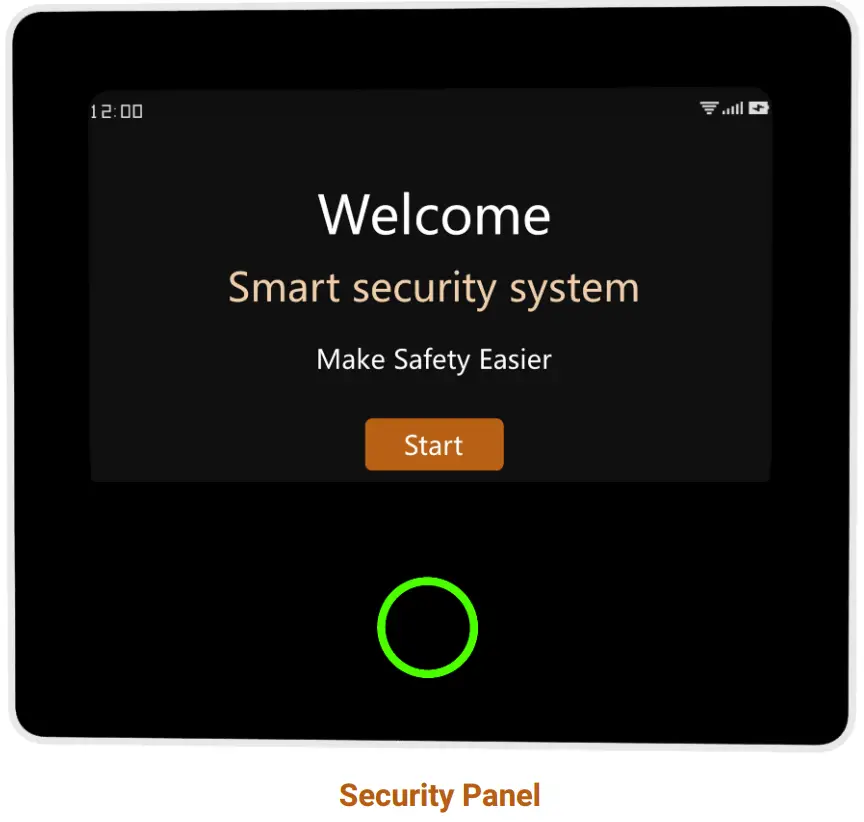
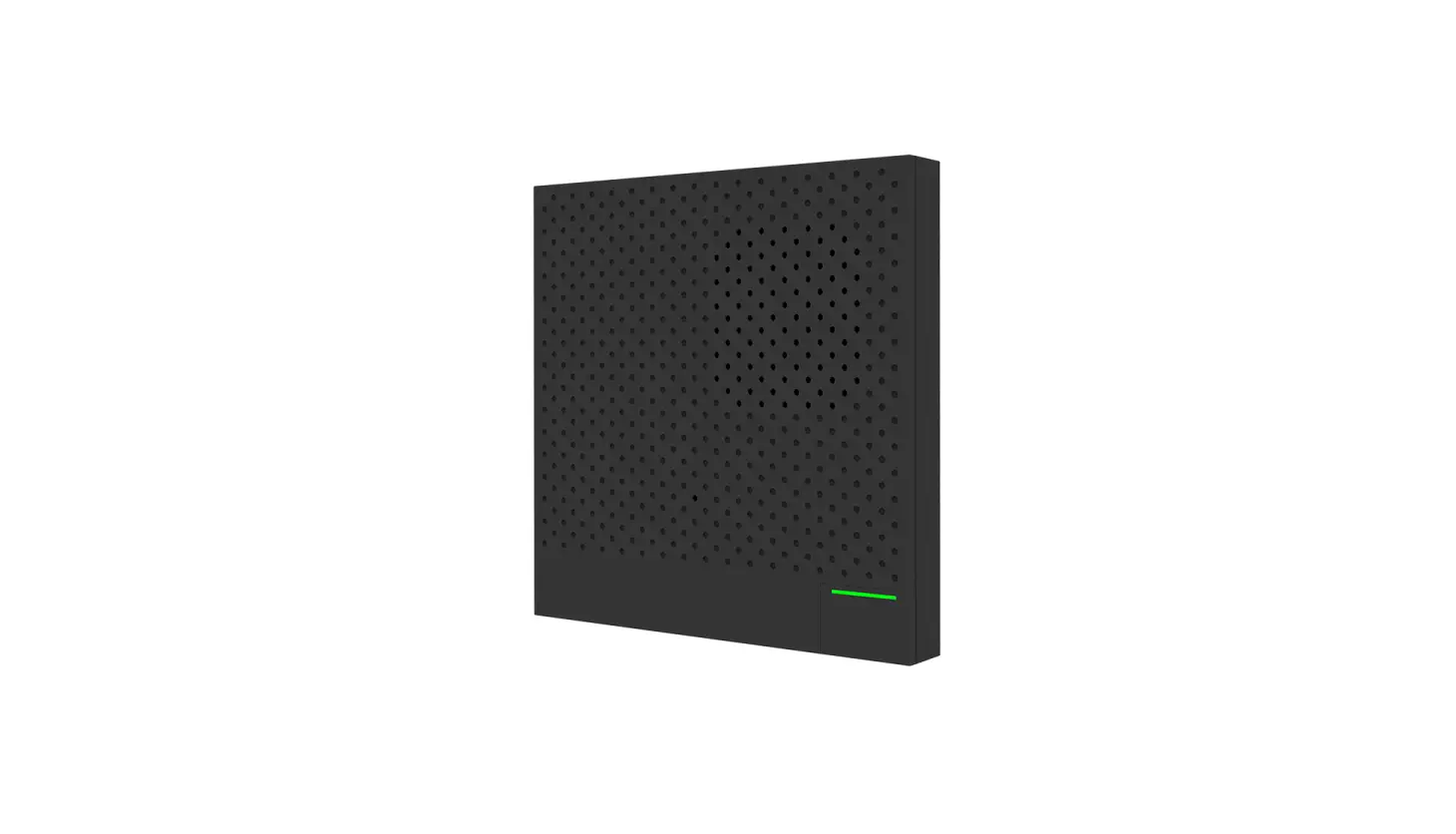
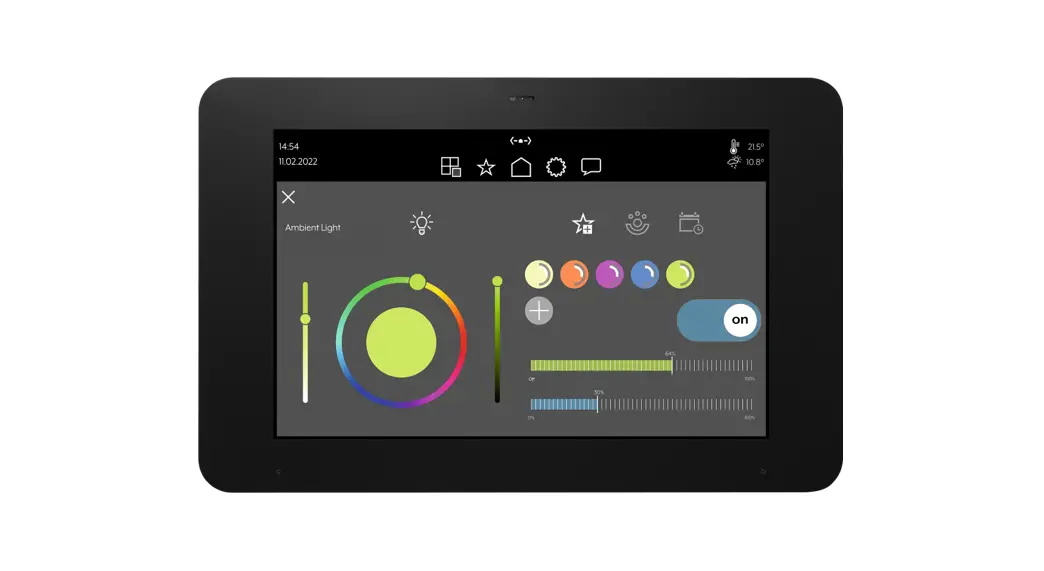
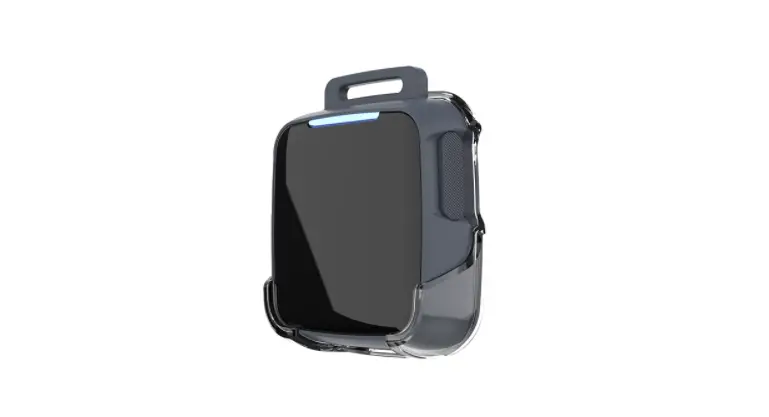
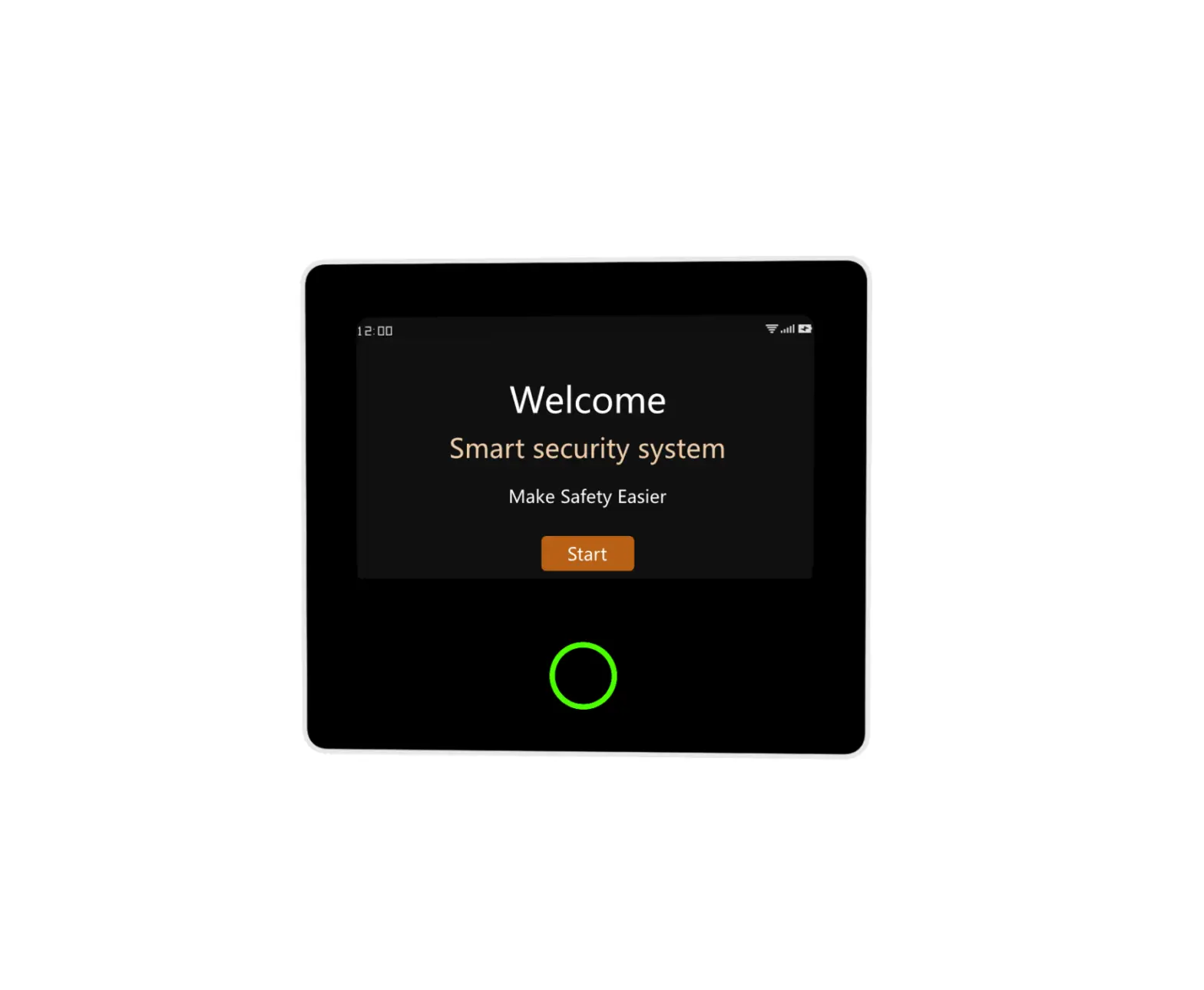
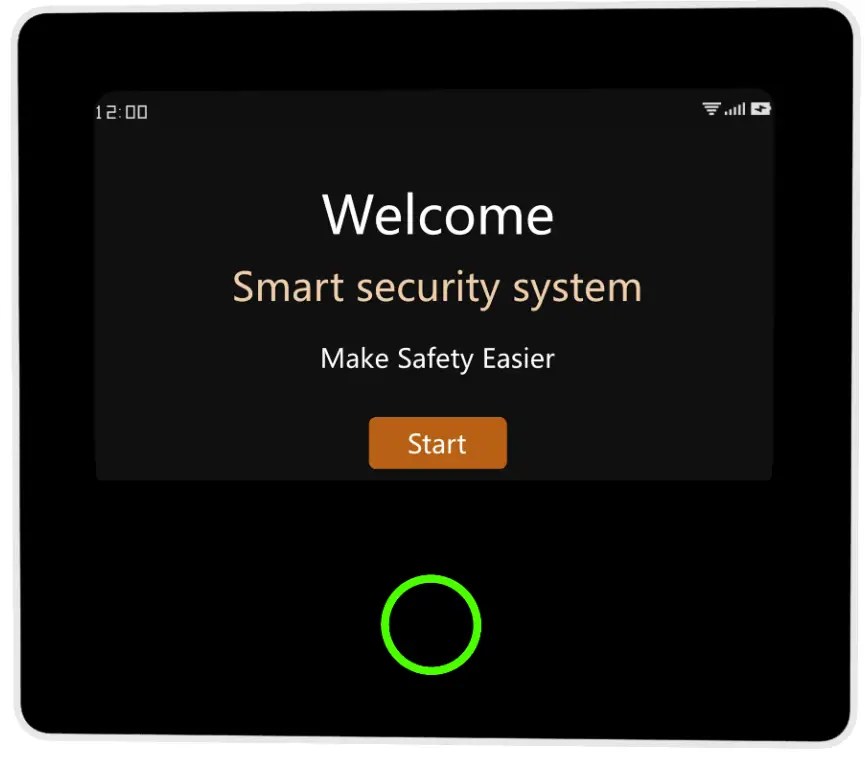
The central hub of the security system. Using 4.3-inch IPS capacitive touch screen, built-in highperformance low-power intelligent microprocessor. With a variety of installation methods: wallmounted, desktop placement. Added built-in siren, up to 110dB. It connects all of your accessories to the APP, so you can stay in control of your home from anywhere.
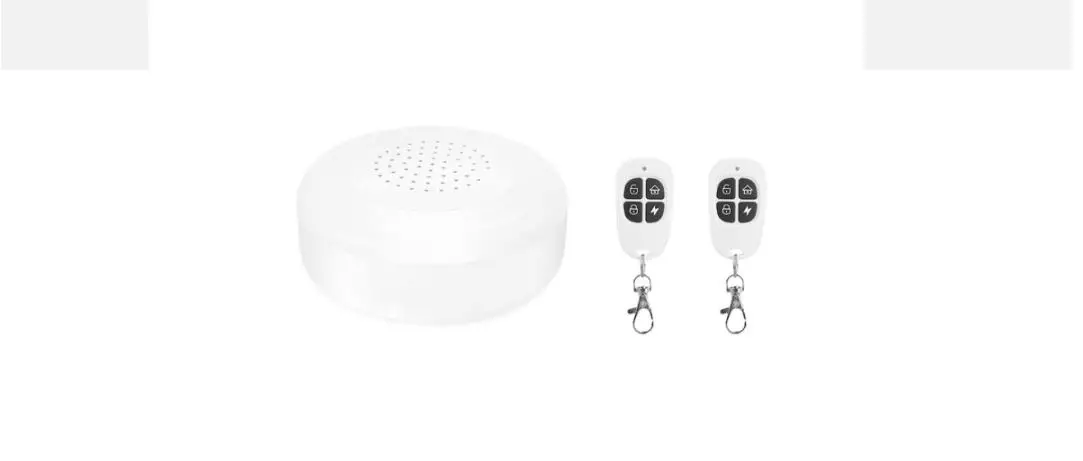
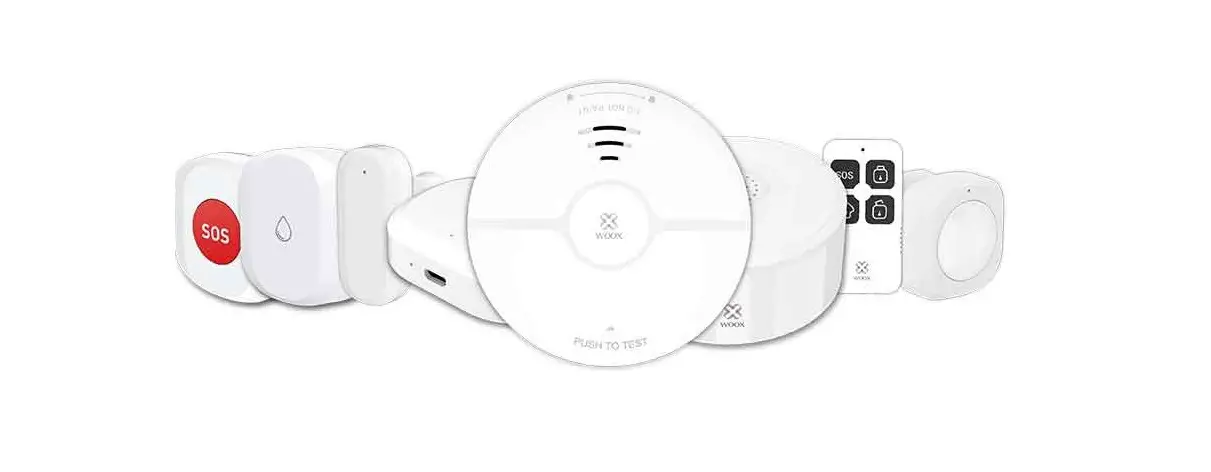
Accessories list: (Subject to actual packaging)
|
|
|
|
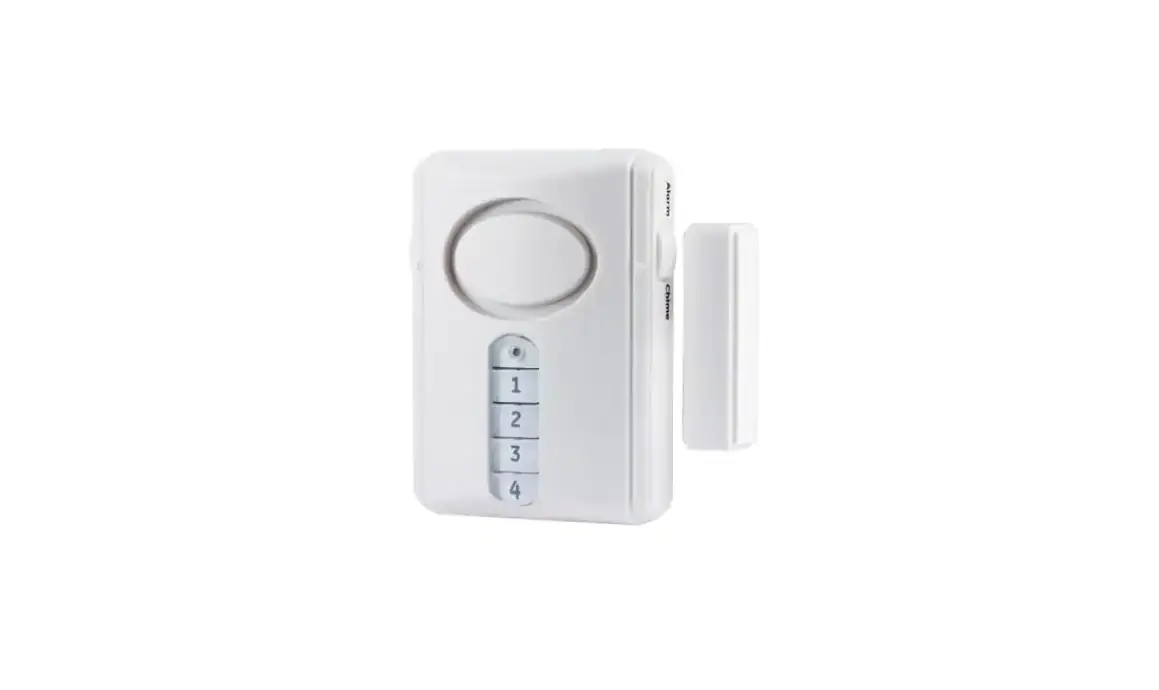
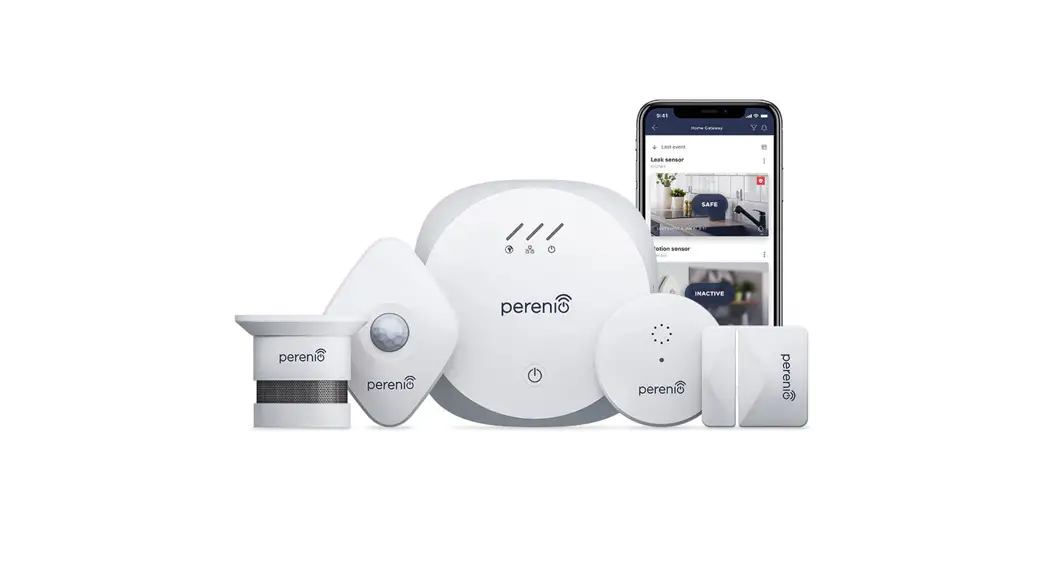
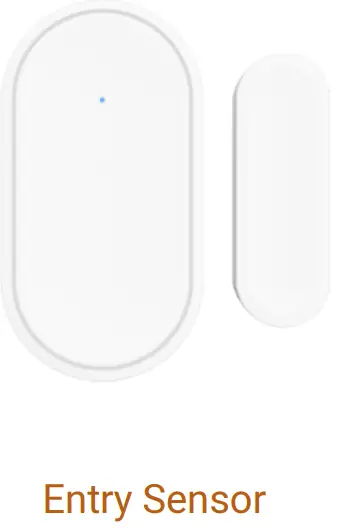 Send the alarm signal to the panel when the door or window are opened, it is recommended to install at important entrances.
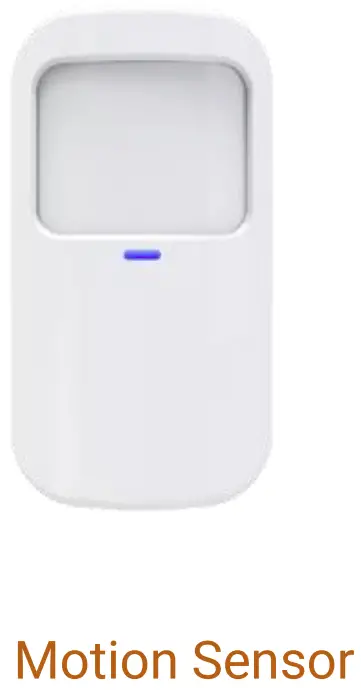 Send the alarm signal to the panel when the movement is detected
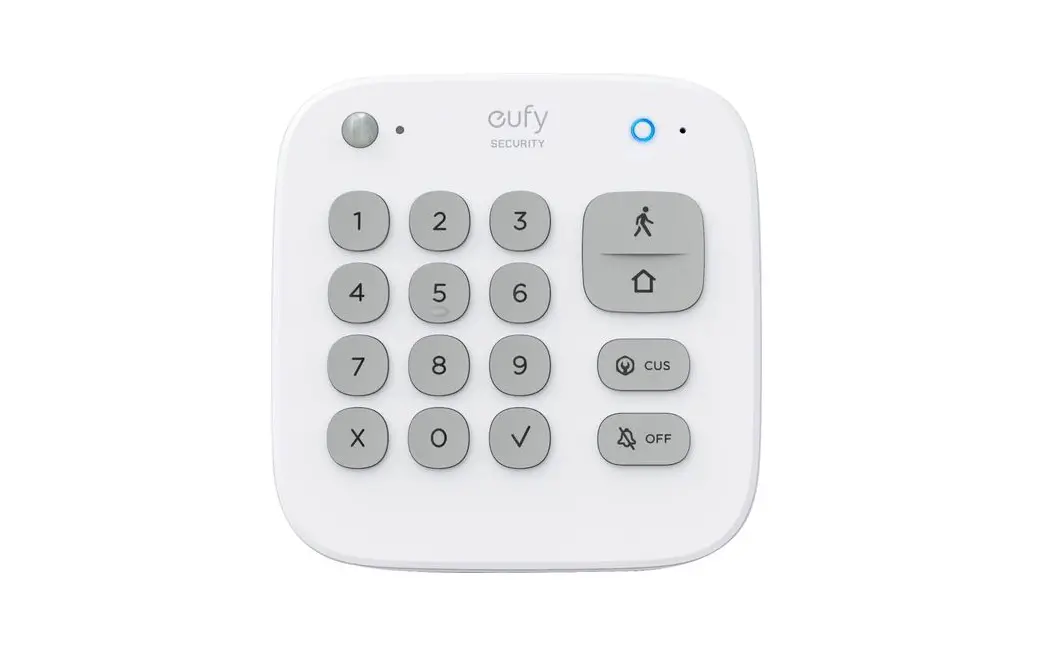
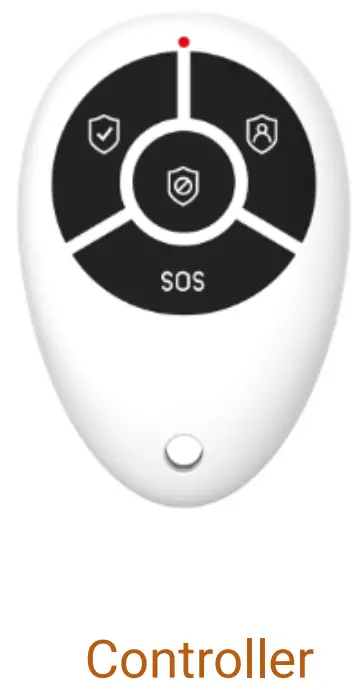 After pairing with the security panel, quickly “Away”, “Home”, and “Disarm” the security system, and trigger the emergency alarm.
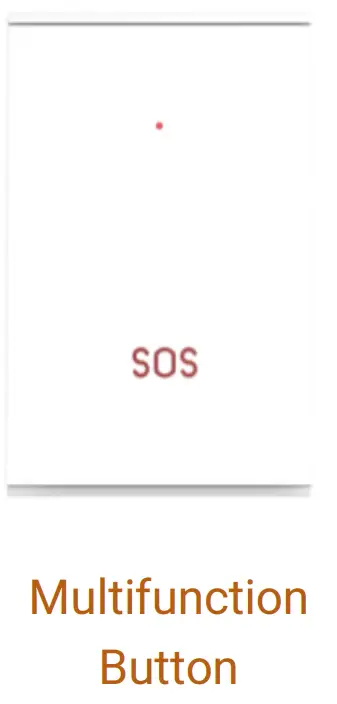 Doorbell button or SOS button.
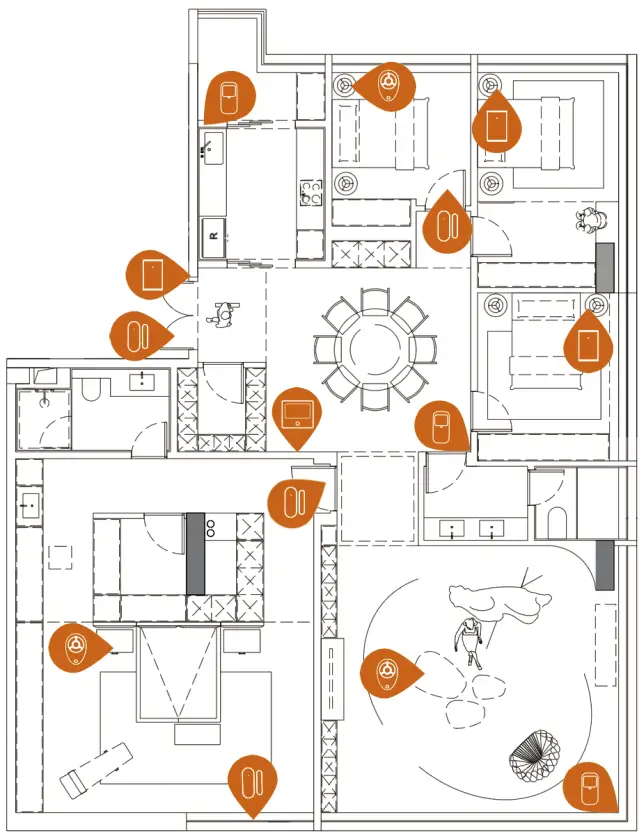
Home Installation Diagram
 Security Panel Security Panel | 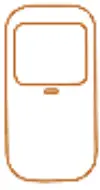 Motion Sensor Motion Sensor |
|  Controller Controller |  Doorbell Button Doorbell Button | SOS Button |

Set up Smart Life APP
Download APP – Smart Life
| Note: Turn on the panel, choose a language, and scan the QR code on the panel to download; Users can also search “Smart Life” in major global APP stores or scan the QR code below to download |
 |  |
- iOS users, please scan the Apple APP QR code.
- Android users, please scan the QR code of Google Play to download.
- After downloading the APP, please enable all usage permissions for the APP in the phone settings.
- Sign up or Log in to
Connect Panel to Smart Life APP
Note:
|
Steps:
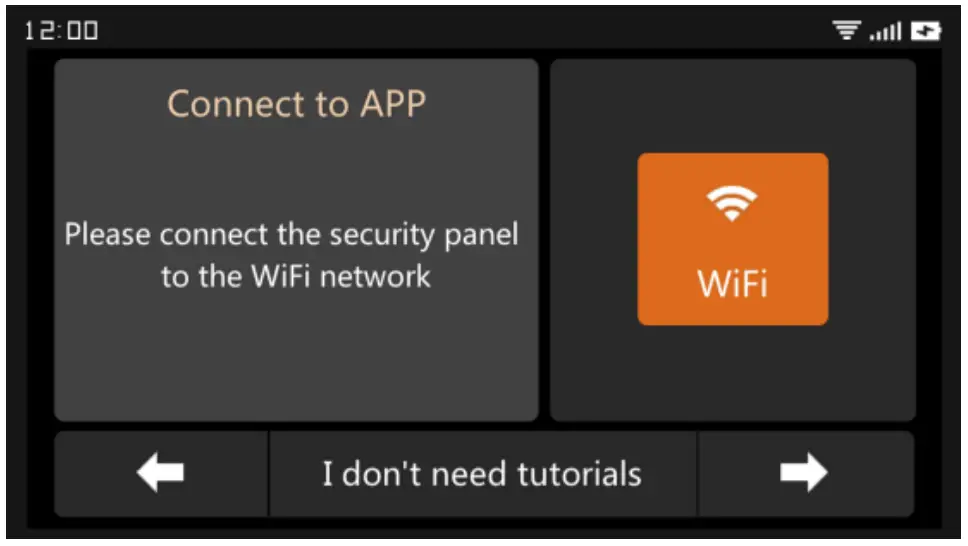
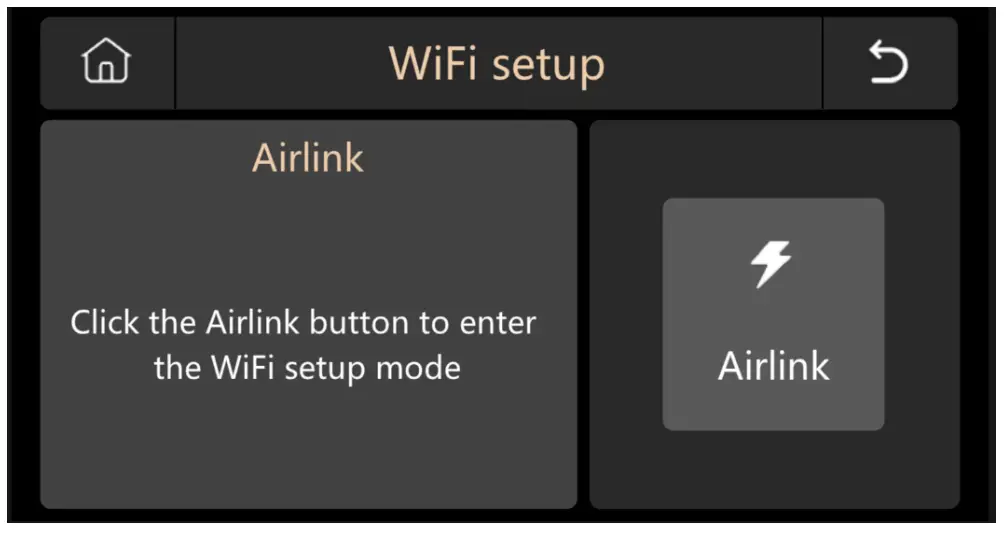
- For first-time use, please connect the security panel to the power supply, and turn the backup battery switch on the back of the panel to the “ON” position, then enter the operation guide interface. If you have entered the main interface or want to reset the WiFi, please click “Menu”—“Settings”–“WiFi”, and enter the default user code: 1234.

Operation Guide Interface — Press WiFi Icon - Press “Airlink” to enter the WiFi pairing mode.

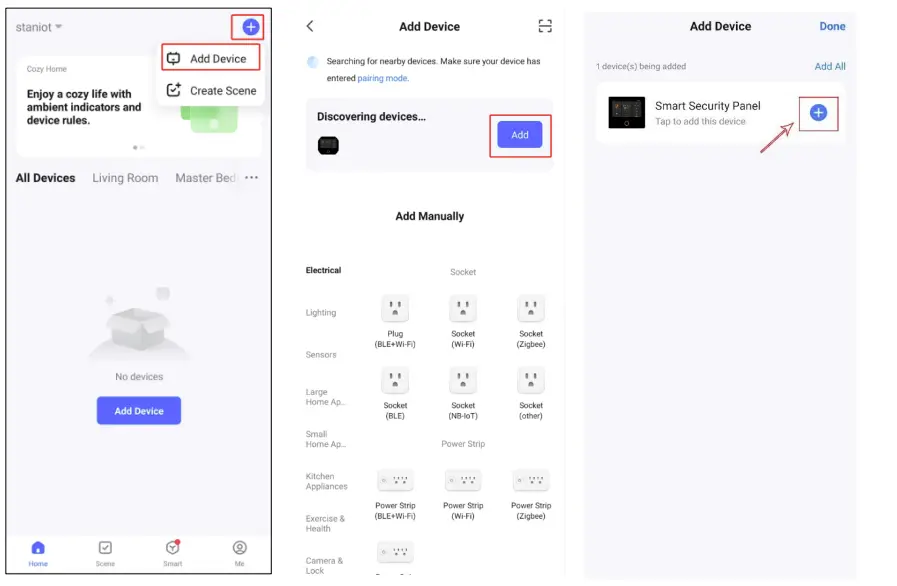
- (On the APP: Open the “Smart Life” APP and enter the “Home” interface. A. Click the “+” on the upper right corner of the interface and select “Add Device”.
B. Press “Add” on the discovering device’s area.
C. Press the “+” Smart Security Panel.
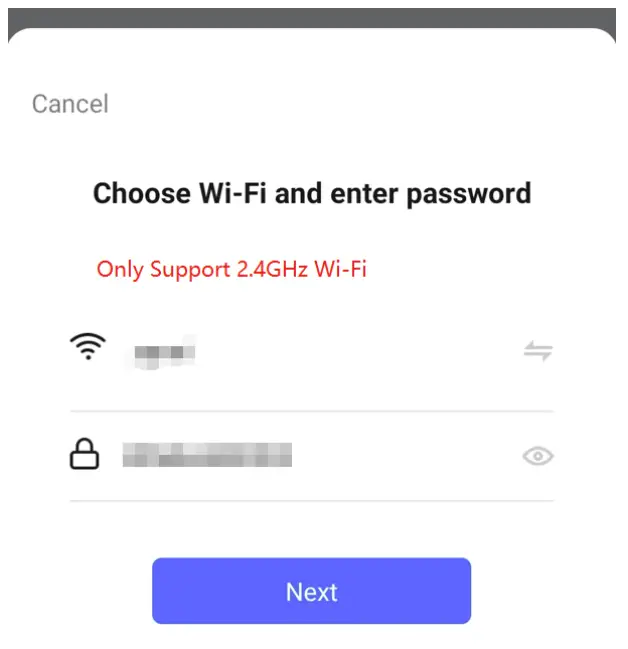
D. Input the 2.4Ghz WiFi name and password, and click “Next”.
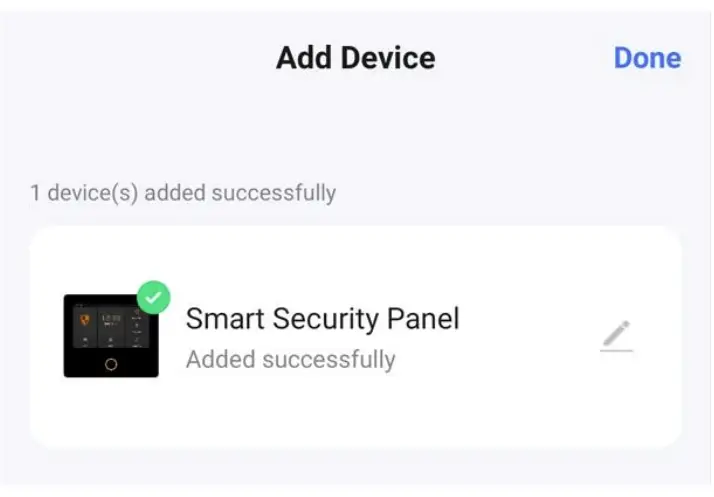
E. Paired successfully
(4) When the device is successfully connected to the APP, the device will give a voice prompt of “Setup successful”. The APP will also show that the device has been added successfully.
Settings on APP
Add Device
Click Accessories, press ” + “, and then trigger the accessory to complete the pairing.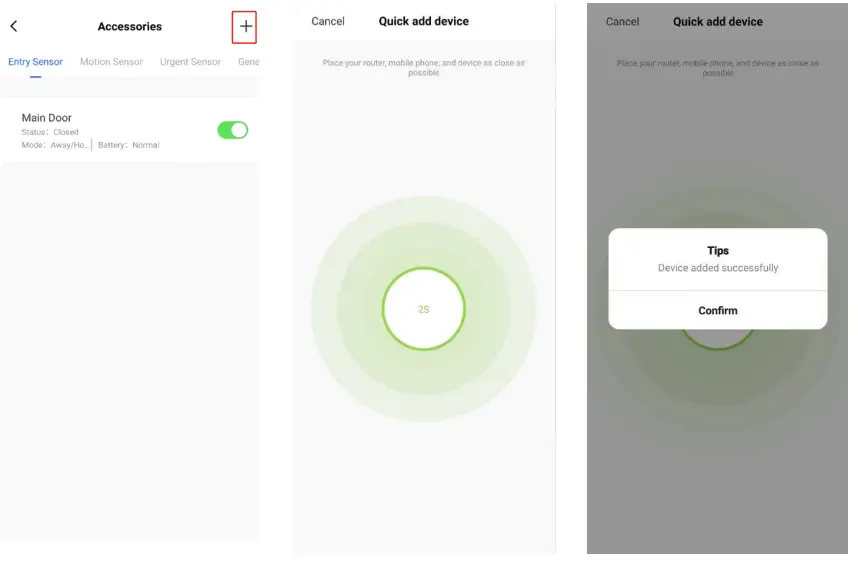
Rename Device
Accessory names can only be renamed on the APP, just press “Sub device name” to edit the name.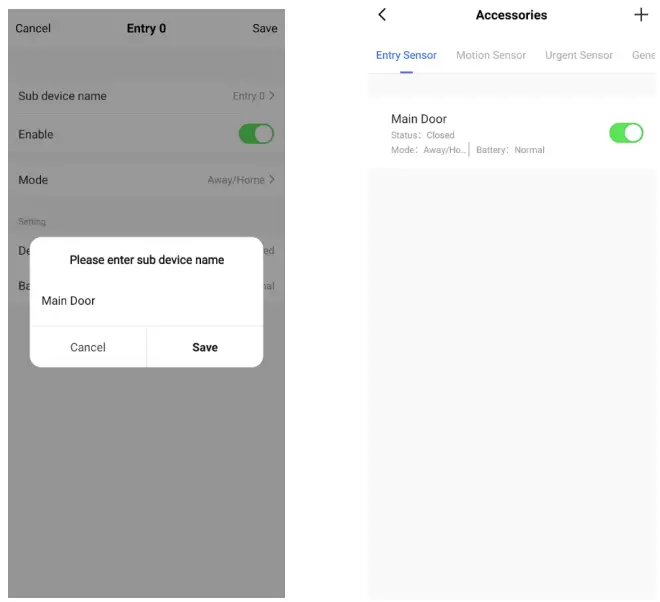
Share Device
A security panel can only be paired with one APP account, but you can share it with multiple family members to manage together.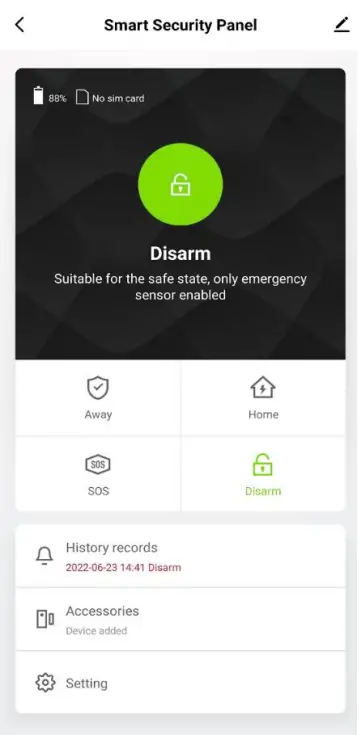
2.3.4 Other Settings
Press Setting, and can directly modify the settings in the security panel on the APP. Through the APP, you can remotely control the security panel. You can also set the arm and disarm time, which is simple and convenient.
Set up the Security Devices
Security Panel
Installation Diagram
(1) Wall Mount
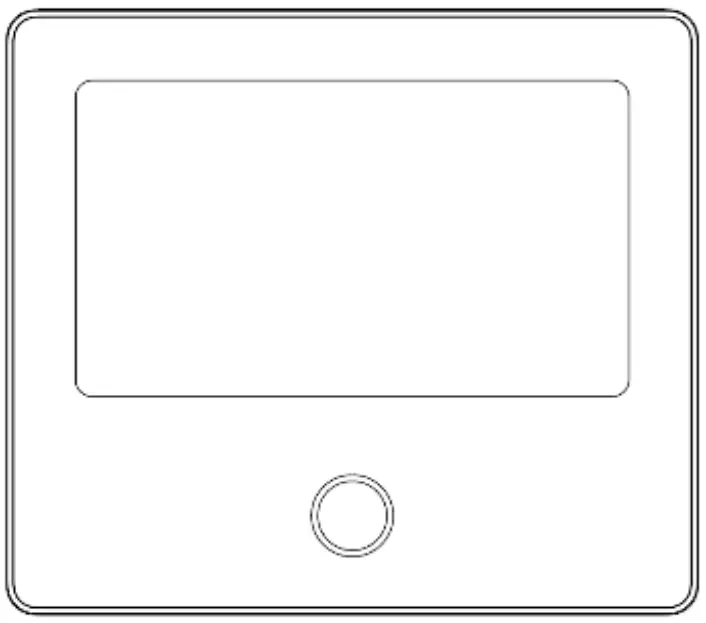 Security Panel×1
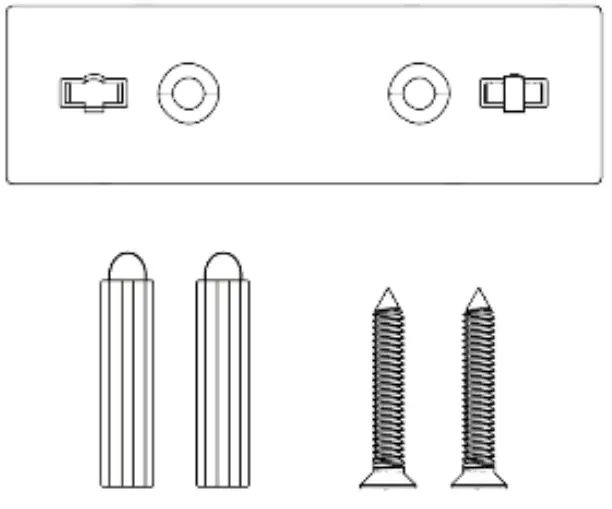 Wall Hanging Plate×1 Screws×2
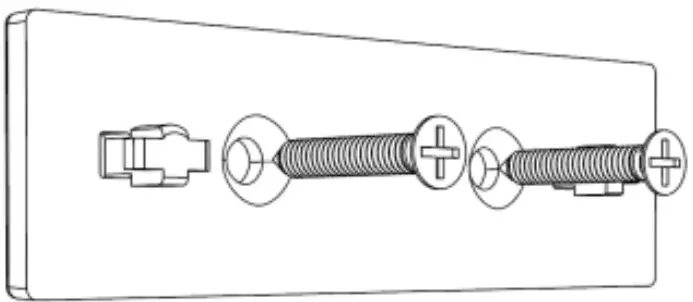
- Install the hanging plate on the wall with screws.
Note: The screws must be all nailed to the wall, and the hanging board must be parallel.
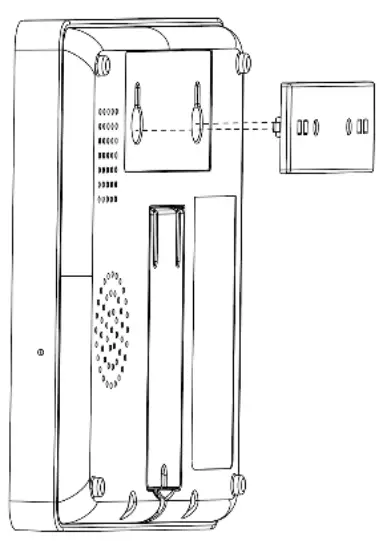
- Align the hole on the back of the panel with the hanging plate and install it.
Note: For concealed wire installation, please remove the bracket and cable clip.
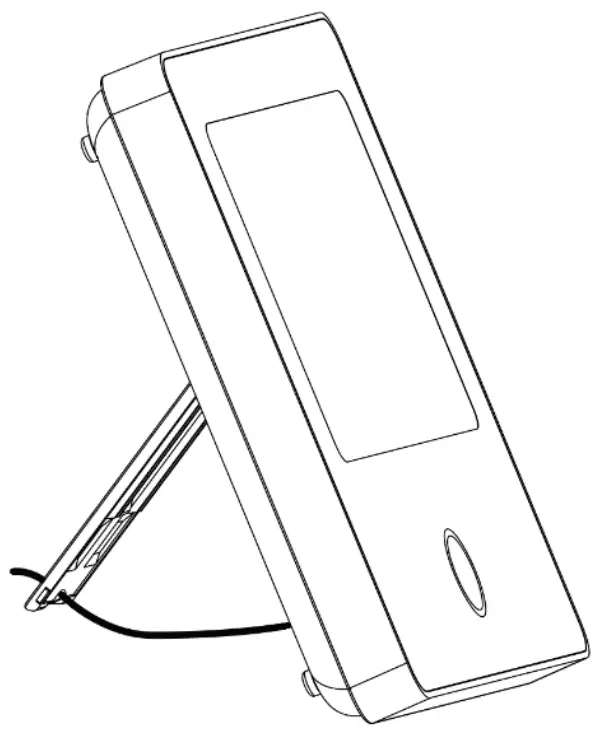
(2) Placed on the DesktopComes with a Stand on the Back
It can be directly placed on the desktop, free from the installation of holes on the wall, and can be placed anywhere in the home
Note:
1) Installed in the center of the home to facilitate signal reception and transmission.
2) Install it closer to the WiFi router.
3) Avoid installing all devices on metal surfaces, as well as on load-bearing walls.
Appearance Design
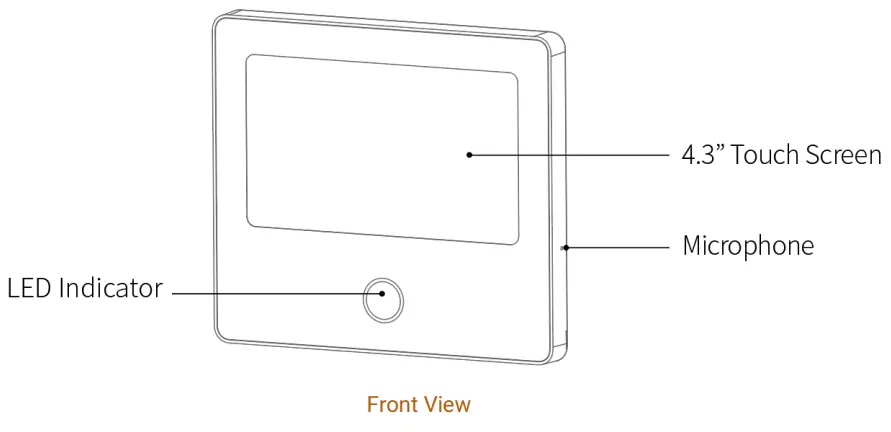
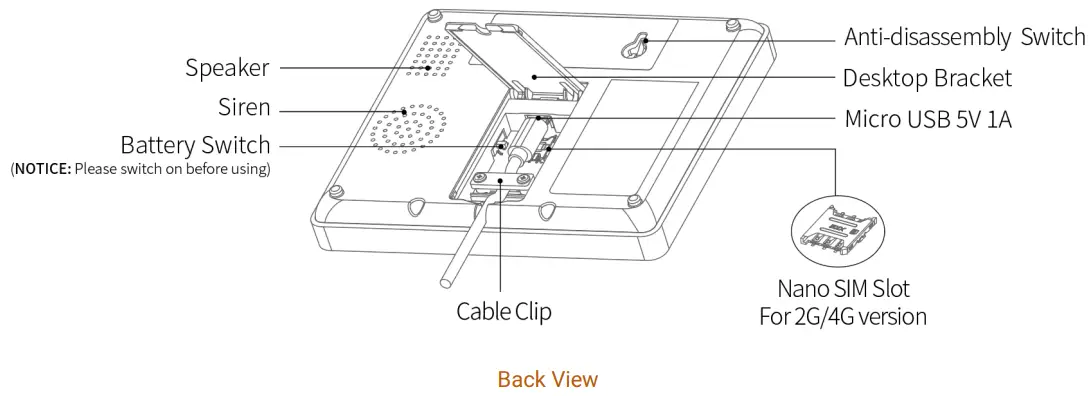
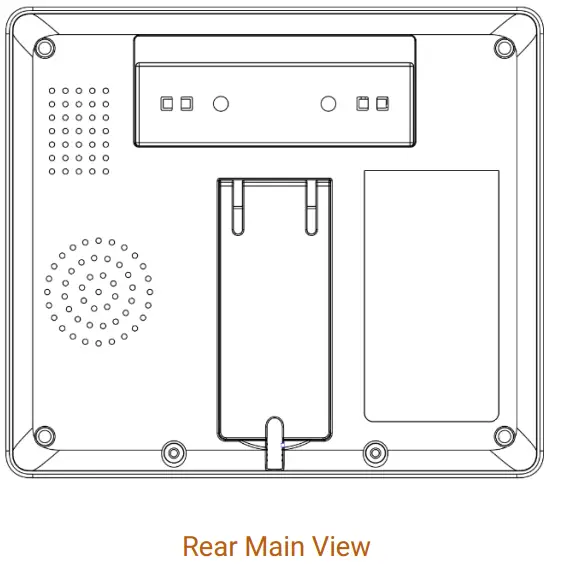
Indicator:
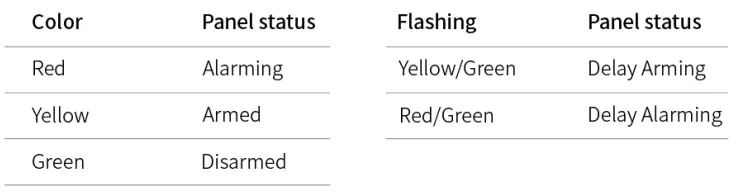
Alarm Modes
A. Security Panel Alarm Modes
a. Away: The security panel is in a monitoring state, when the accessories are triggered, the security panel will alarm.
b. Home: When the user is at home, in this mode, some areas can be monitored and alarms.
c. Disarm: The security panel cancels the monitoring state, and only the SOS button or the accessories set to “Always” mode can trigger the alarm.
B. Accessories Modes
a. Away/Home: When the security panel is in the “Away” or “Home” state, the panel will alarm after the sensor is triggered. It is recommended that the outdoor sensor can be set to this mode.
b. Away :When the security panel is in the “Away” state, the panel will alarm after the sensor is triggered. It is recommended that the outdoor detector can be set to this mode.
c. Always :Regardless of the state of the security panel, any time the sensor is triggered, the panel will alarm. It is recommended to set this mode for gas leaks or smoke detectors, etc.
d. Disabled :The security panel will not respond to the alarm request of the sensor set in this mode.
| Note: You can choose which sensors are armed in Home and Away mode, or both, or always active. For example, if you want to avoid triggering the alarm when you are at home, you can set the specific sensor in Away mode. Then when you set the panel in “Home” state, the alarm will not be triggered, only in “Away” state, the alarm will be triggered. |
Entry Sensor
Configure
On the Security Panel:
A. Go to Menu—Accessories—Enter User Code (Default: 1234).
B. Press Sensor—“+” —-Entry, then set the Mode, Delay, and Advanced settings.
C. Press “+ Pair”, then trigger the Entry sensor (Just separate the two parts).
D. Paired successfully, rename the sensors on the APP.
Installation
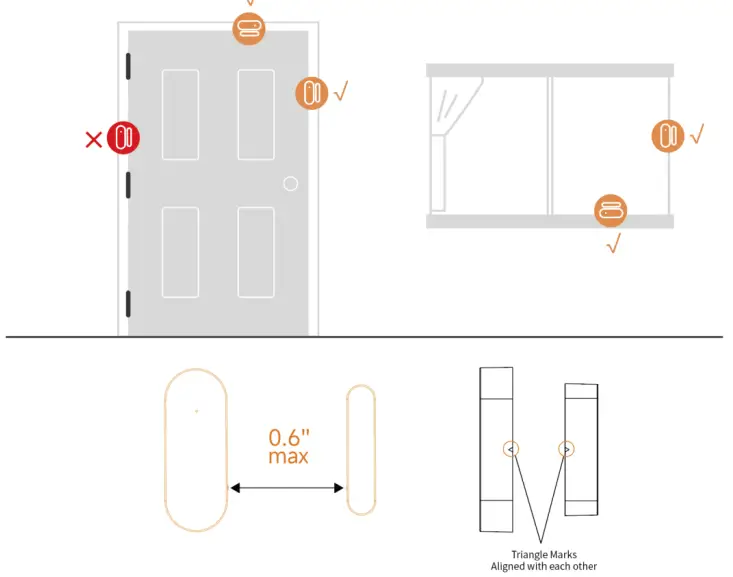
The entry sensor should be installed on the door or window (see image).
A. First, wipe the area on the door or window clean and apply double-sided tape to the bottom.
B. The door sensor transmitter (large) and the door sensor magnet (small) should be installed separately. The triangle marks on the transmitter and the magnet should be facing each other, and the distance between the two is less than 0.6”.
C. When the door or window is opened after installation, the indicator light will be on for 2 seconds to indicate that the installation is complete.
Battery Replacement
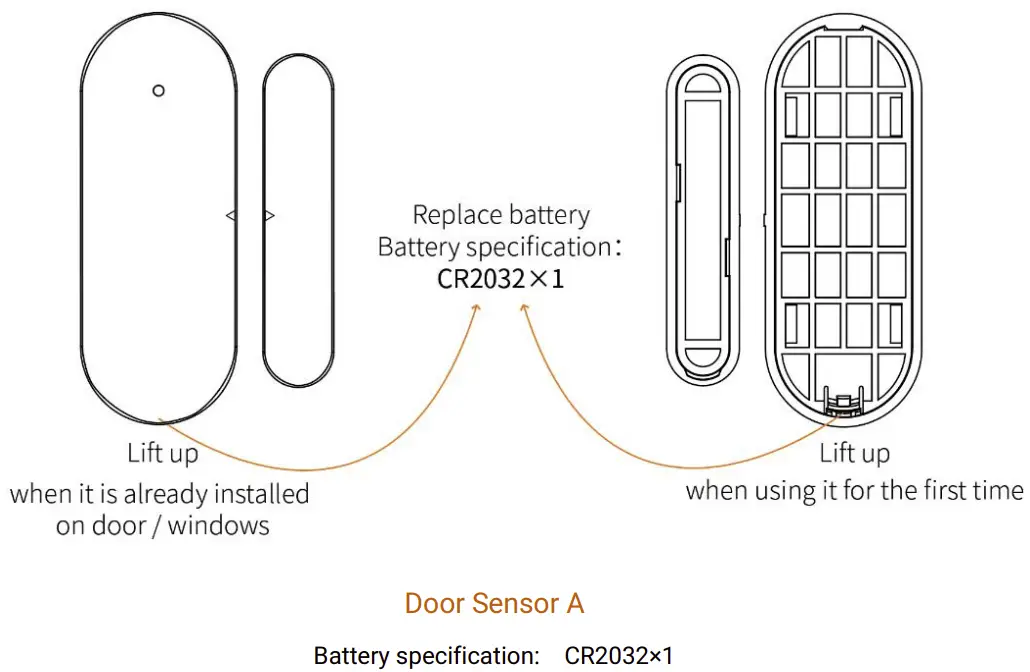
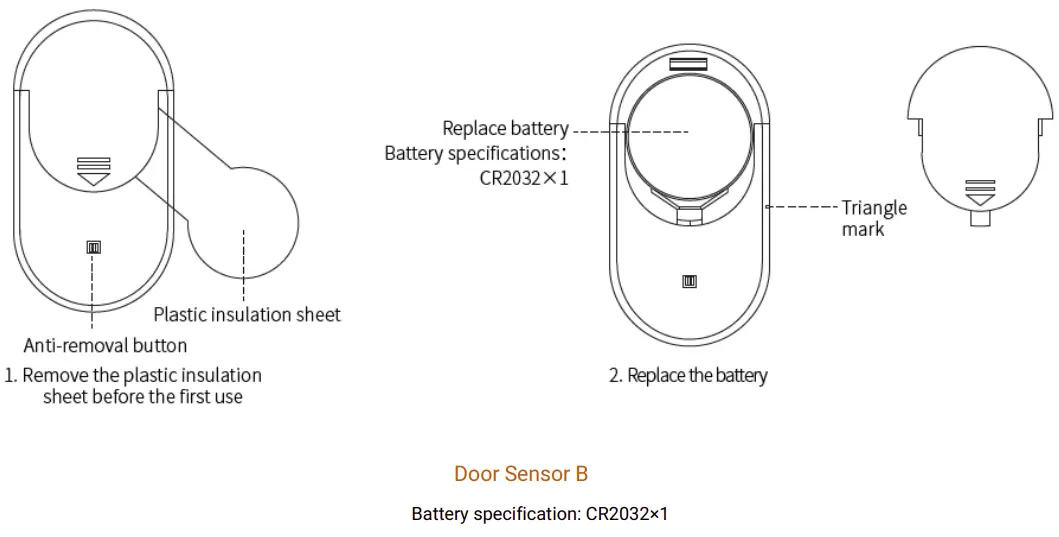
Motion Sensor
Configure
On the Security Panel:
A. Go to Menu—Accessories—Enter User Code (Default: 1234).
B. Press Sensor—“+” —-Motion, then set the Mode, Delay, and Advanced settings.
C. Press “+ Pair”, then trigger the Motion sensor (Just wave your hands until the light is on).
D. Paired successfully, rename the sensors on the APP.
Installation
The entry sensor should be installed on the door or window (see image).
A. First, wipe the area on the door or window clean and apply double-sided tape to the bottom.
B. The door sensor transmitter (large) and the door sensor magnet (small) should be installed separately. The triangle marks on the transmitter and the magnet should be facing each other, and the distance between the two is less than 0.6”.
C. When the door or window is opened after installation, the indicator light will be on for 2 seconds to indicate that the installation is complete.
Battery Replacement
Motion Sensor
Configure
On the Security Panel:
A. Go to Menu—Accessories—Enter User Code (Default: 1234).
B. Press Sensor—“+” —-Motion, then set the Mode, Delay, and Advanced settings.
C. Press “+ Pair”, then trigger the Motion sensor (Just wave your hands until the light is on).
D. Paired successfully, rename the sensors on the APP.
Installation
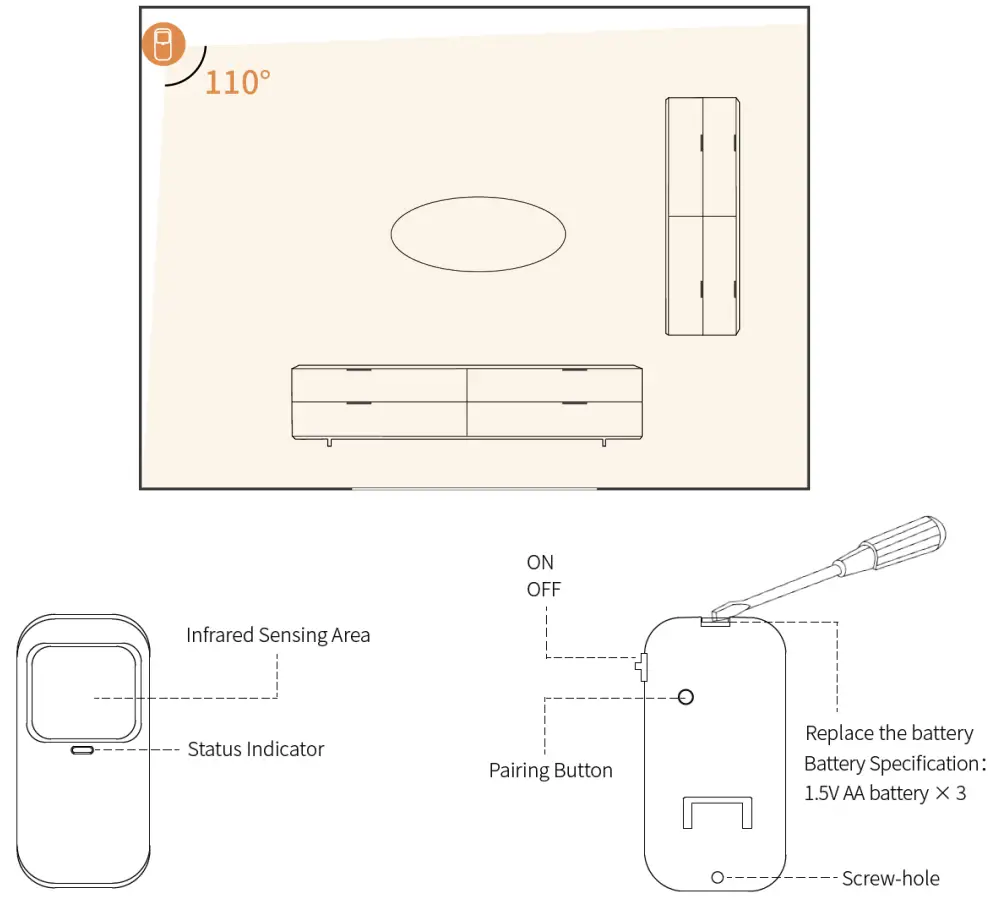
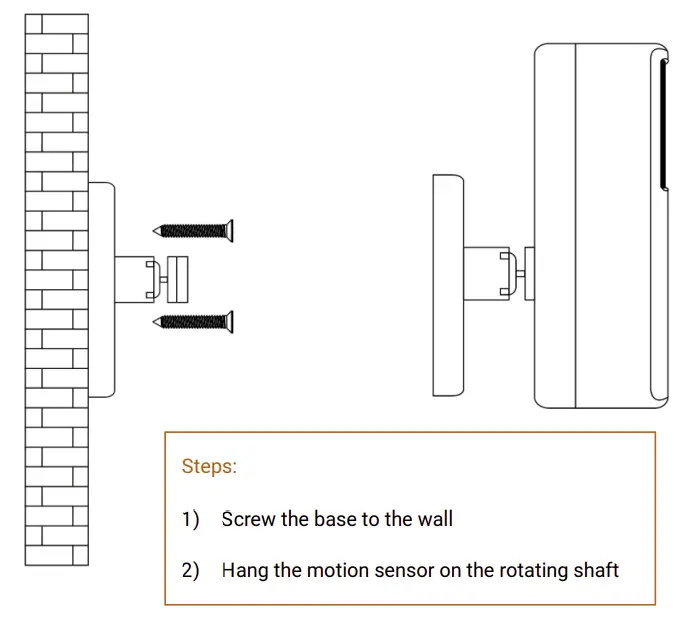
A. The recommended installation height is 79”-87” (2.0~2.2m) above the ground.
B. Install it in a corner or on a flat wall, with no obstacles or blind spots.
C. It should not be directly facing the cold and hot vents or cold and hot sources.
D. To avoid false alarms, make sure your pets can’t get close to it.
Controller
Configure
On the Security Panel:
A. Go to Menu—Accessories—Enter User Code (Default: 1234).
B. Press Controller
C. Press “ + ”, then trigger the controller (Press any key).
D. Paired successfully, rename the controller on the APP.
Appearance Introduction
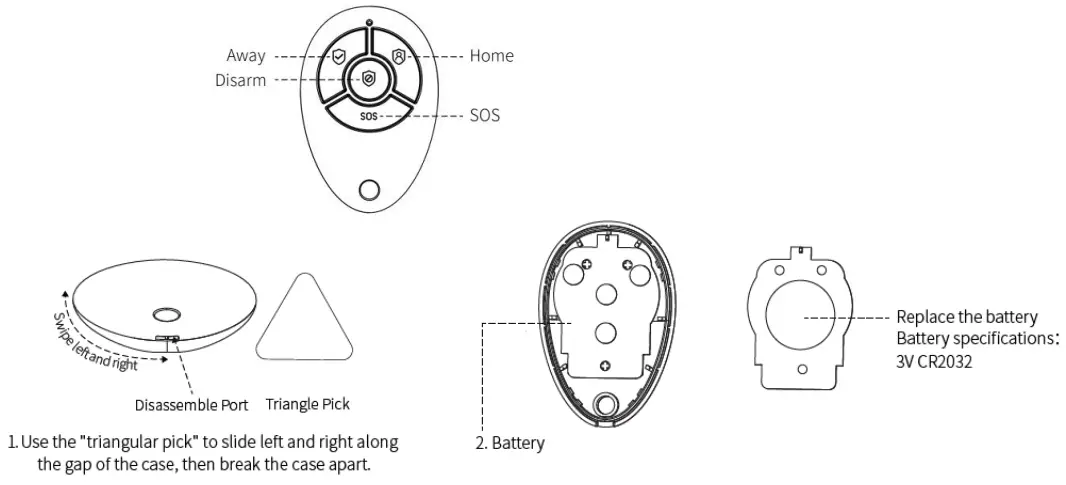
Configure—-Doorbell Button
On the Security Panel:
A. Go to Menu—Accessories—Enter User Code (Default: 1234).
B. Press Doorbell.
C. Press “+”, then press the doorbell button.
D. Paired successfully, rename the sensors on the APP.
Configure—-SOS Button
On the Security Panel:
A. Go to Menu—Accessories—Enter User Code (Default: 1234).
B. Press Sensor—“+” —-Urgent, then set the Advanced setting.
C. Press “+ Pair”, then trigger the SOS button.
D. Paired successfully, rename the SOS button on the APP.
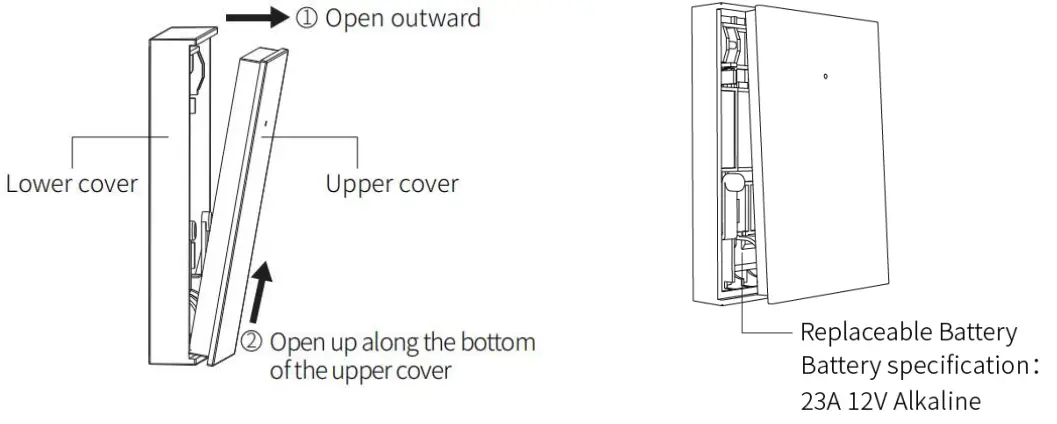
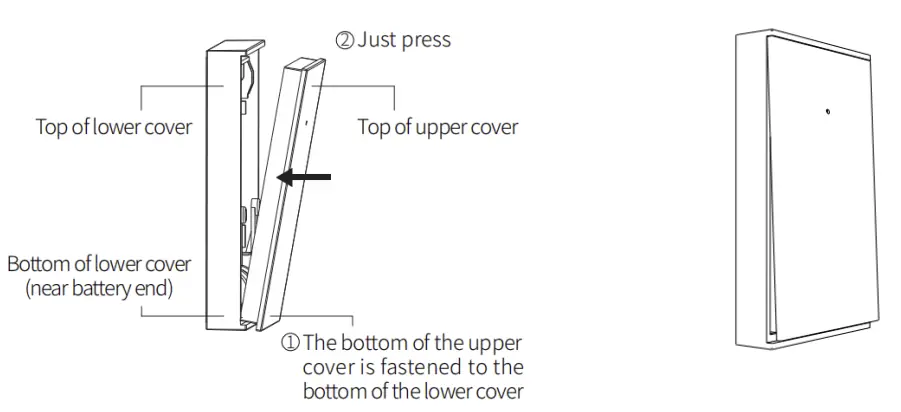
Install/Replace Battery
a. Open the cover:
b. Close the cover:
Learn to Use the Security Panel
Main Interface
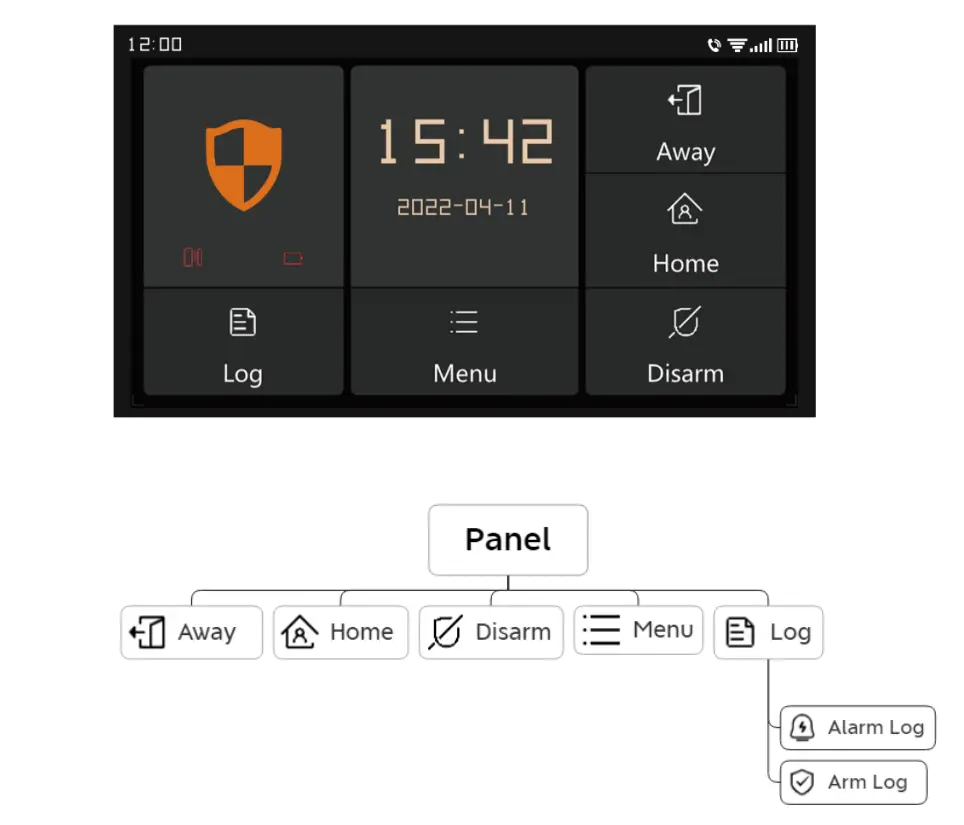
System Status
| Icon |  |  |  |  |  |
| Status | The system is in alarm state | System is armed | System is disarmed | Accessories low batter | Door/Window opened |
Log
Alarm Log: View all alarm records, including Cause, Source, and Time.
Arm Log: View all arm/disarm records, including Action, Source Device, and Time.
| Note: Support up to 160 Alarm records, and 80 Arm and disarm records. |
Accessory
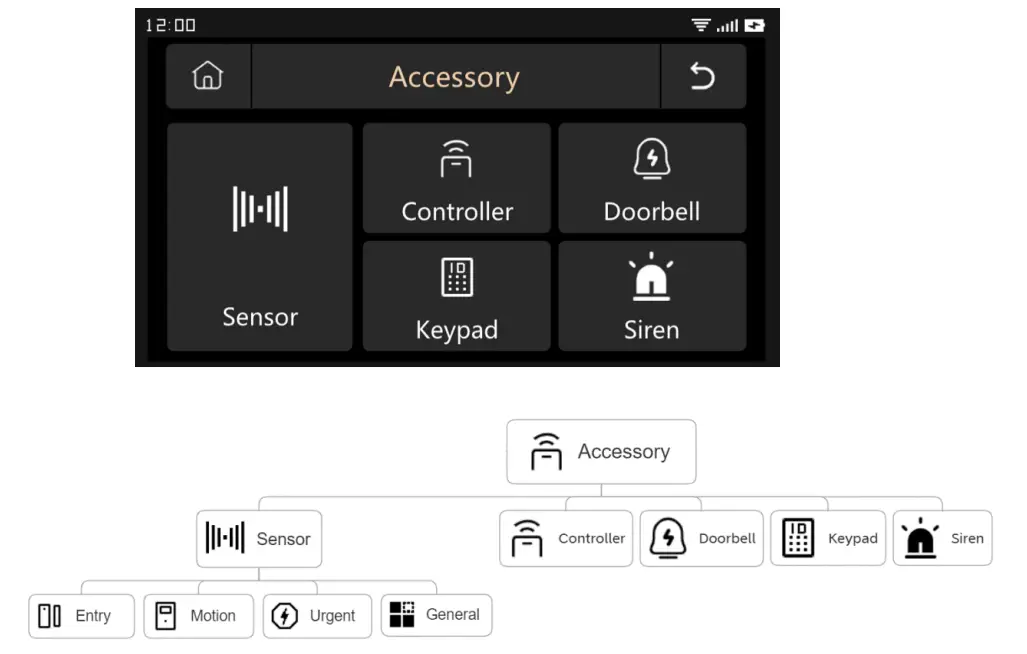
B. Sensor.
Entry: Manage all the Entry sensors.
Motion: Manage all the Motion sensors.
Urgent: Emergency detectors such as SOS buttons, gas detectors, and smoke detectors, please add them here.
General: Other sensors or detectors, please add them here.
Note:
|
Phone
(1) Frame Diagram
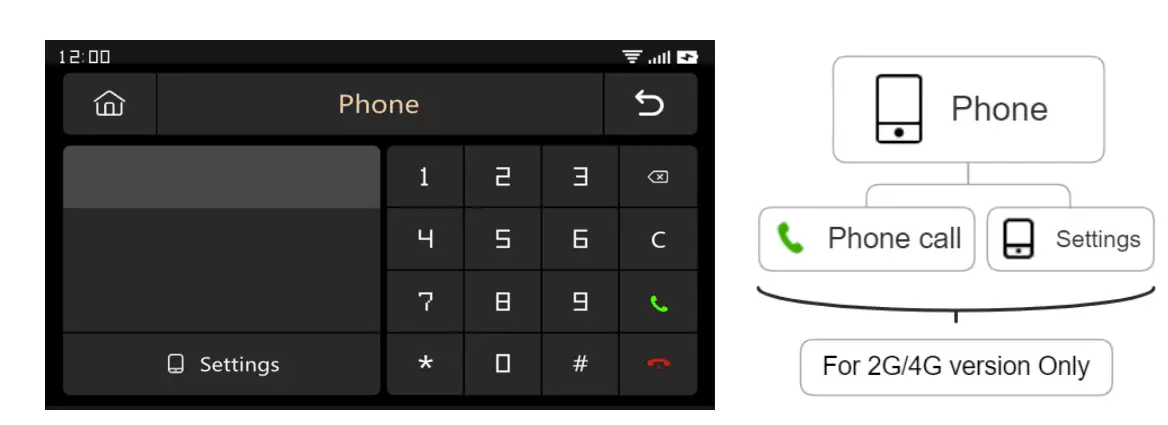
(2) Emergency Number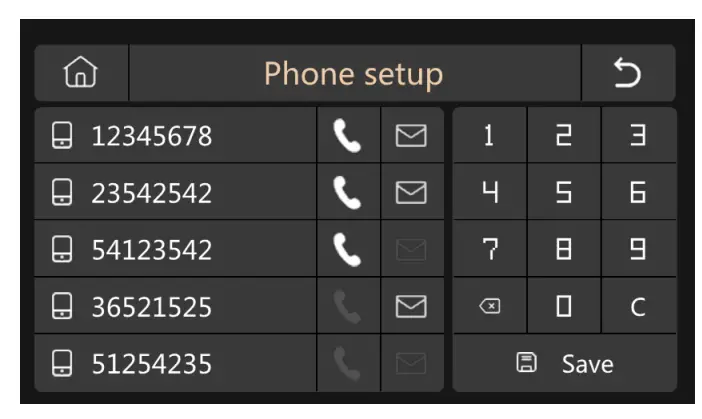
Setup Example
Please light up the corresponding Phone/SMS icon according to your needs
- Phone Number Format: If the phone number cannot be successfully dialed or sent a text message, please try adding the area code before the number: For example: 00XX, 0XX.
- SMS/Phone Alarm Rules: After the alarm is triggered, the security panel will firstly send SMS messages in the order of the set numbers. After the text message is sent, the call will start from the first phone number. When the first number is dialed three times in a row and no answer, the second phone number will be dialed, and so on. If one of the phone numbers is answered, subsequent phone numbers will not be dialed.
- Arm/Disarm Panel by SMS Command.
(Firmware version should be 1.0.20 or above)
The SMS commands and panel actions were taken are as below:
| No | SMS Command | d Action Taken by the Panel | Replied SMS |
| 1 | away arm | The panel will be in “Away” mode | System armed |
| 2 | stay arm | The panel will be in “Home” mode | System armed! |
| 3 | disarm | The panel will be in “Disarm” mode | System disarmed! |
The panel will reply message to confirm the command is executed successfully.
| NOTE: The panel only accepts SMS commands from the phone number set in the panel. (Menu- ->Phone–>Settings), the SMS commands sent by other mobile numbers will be not recognized and no action will be taken. |
Security
(1) Frame Diagram
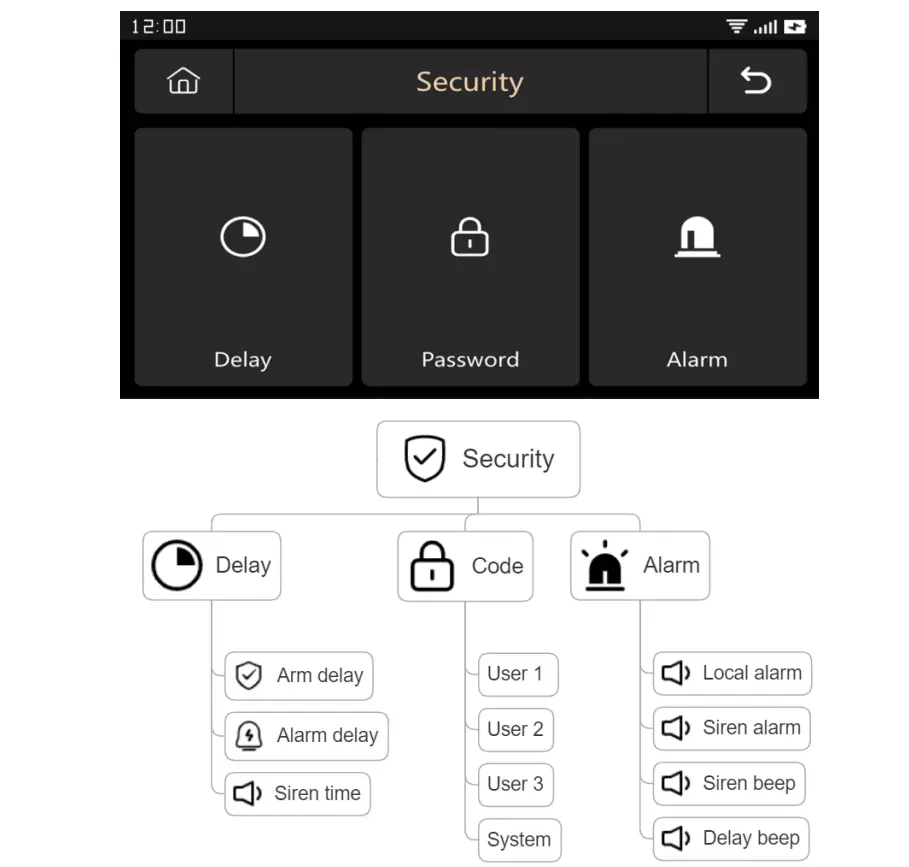
(2) Delay: Customize the countdown time when Alarm or Arm.
(3) Code:
- User Code: Default user code is 1234.
- System Code: Default system code is 9876.
- Obfuscated Code: When entering the code, you can enter 5 to 8 digits of the obfuscated code, as long as it contains the correct 4 digits in succession, it can be recognized as the correct code.
- Password Validity Period: After selecting, you do not need to enter the password again within 2 minutes when the screen is on.
(4) Alarm:
Local Alarm: Select whether the panel emits an alarm sound.
Siren Alarm: Select whether the external signal emits an alarm sound.
Siren Beep: Select whether the siren will beep when Arm/Disarm the panel.
Delay Beep: Choose whether to sound a beep when Arm or Alarm countdown.
Settings
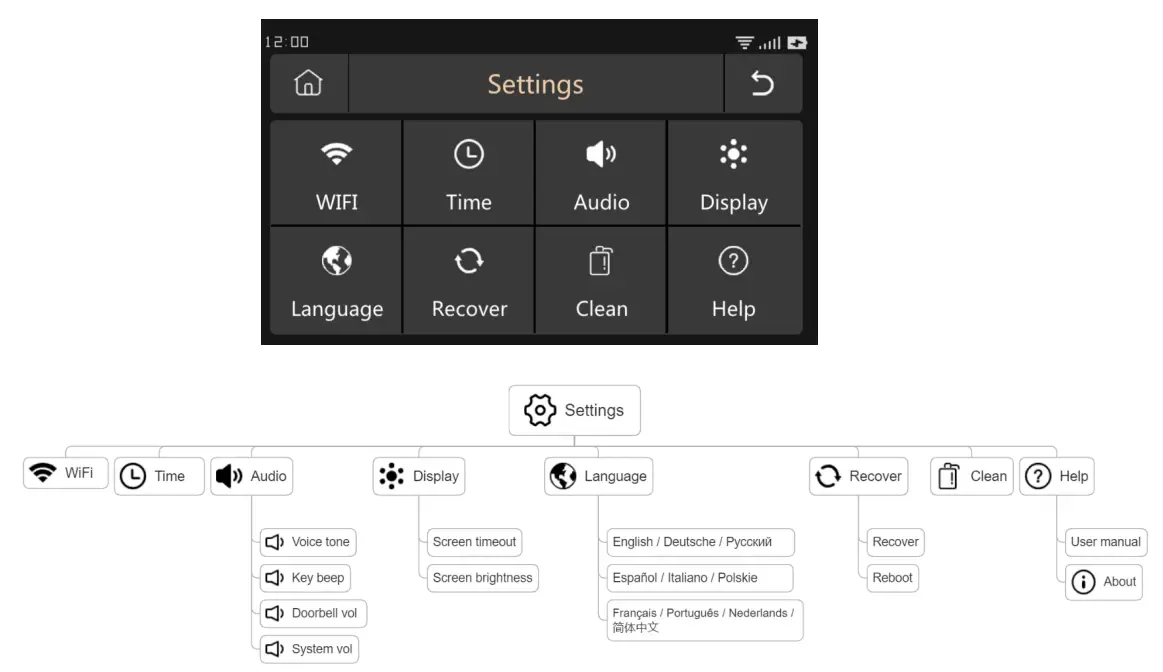
- Frame Diagram

- WiFi: Connect the APP to configure the network or change the APP user.
- Time: Set the time and adjust the date display format.
- Audio: Adjust volume, turn on/off Key beep, Voice tone.
- Display: Set screen time and brightness.
- Language: English / Deutsche / P / Español / Italiano Polskie/ Français / Portugu s / Nederlands /
- Recover: Restart or reset the device.
- Clean: The screen will be black for 1 minute, easy to clean the screen.
- Help: User Manual, Device parameter information: Model, Version, IMEI, etc.
Troubleshooting and Maintenance
| Failure | The Reason | The Solution |
| Remote control malfunction |
|
|
| Door sensor failure |
|
|
| Motion Detector failure |
|
|
| Security panel does not alarm |
|
|
| The signal distance of the panel receiving accessories becomes shorter |
|
|
| No emergency call was made when the alarm was triggered |
|
|
| WiFi network configuration failed |
|
|
| Entry opened warning is invalid |
|
|
| Component Name | Harmful substance | |||||
| Lead Pb | Mercury Hg | Cadmium Cd | Hexavalent chromium Cr(VI) | Polybrominated biphenyls PBB | Polybrominated biphenyls PBB | |
| Metal parts | O | O | O | O | O | O |
| Plastic parts | O | O | O | O | O | O |
Warranty Rules
- Please contact our after-sales service for any failure caused by the product itself during the warranty period.
- The goods are guaranteed for one year from the date of sale, and the warranty service is only valid under normal use.
- Damage caused by the use environment not meeting the requirements of this product is not covered by the warranty.
- Product damage caused by man-made and force majeure is not covered by the warranty.