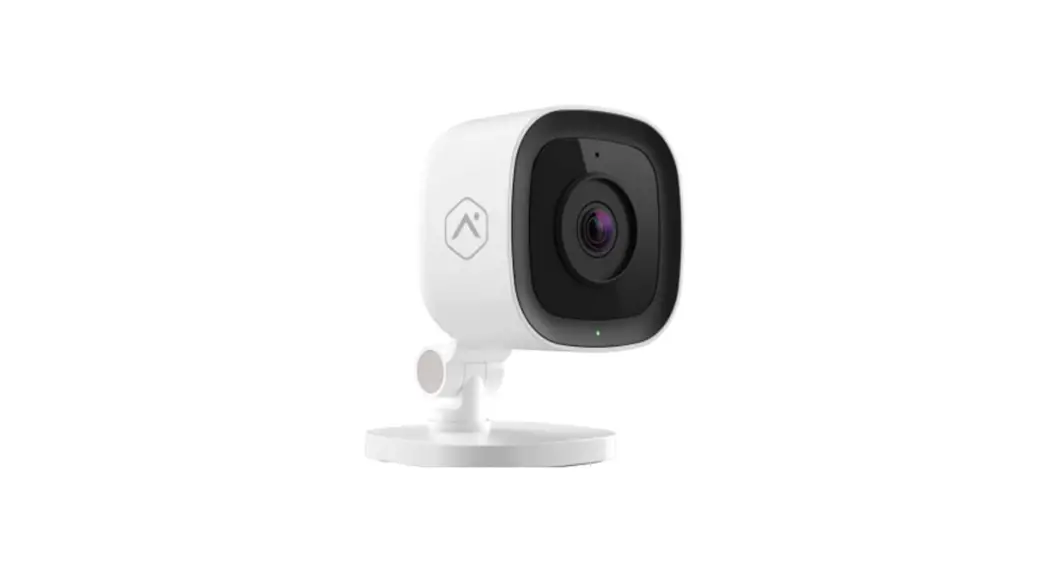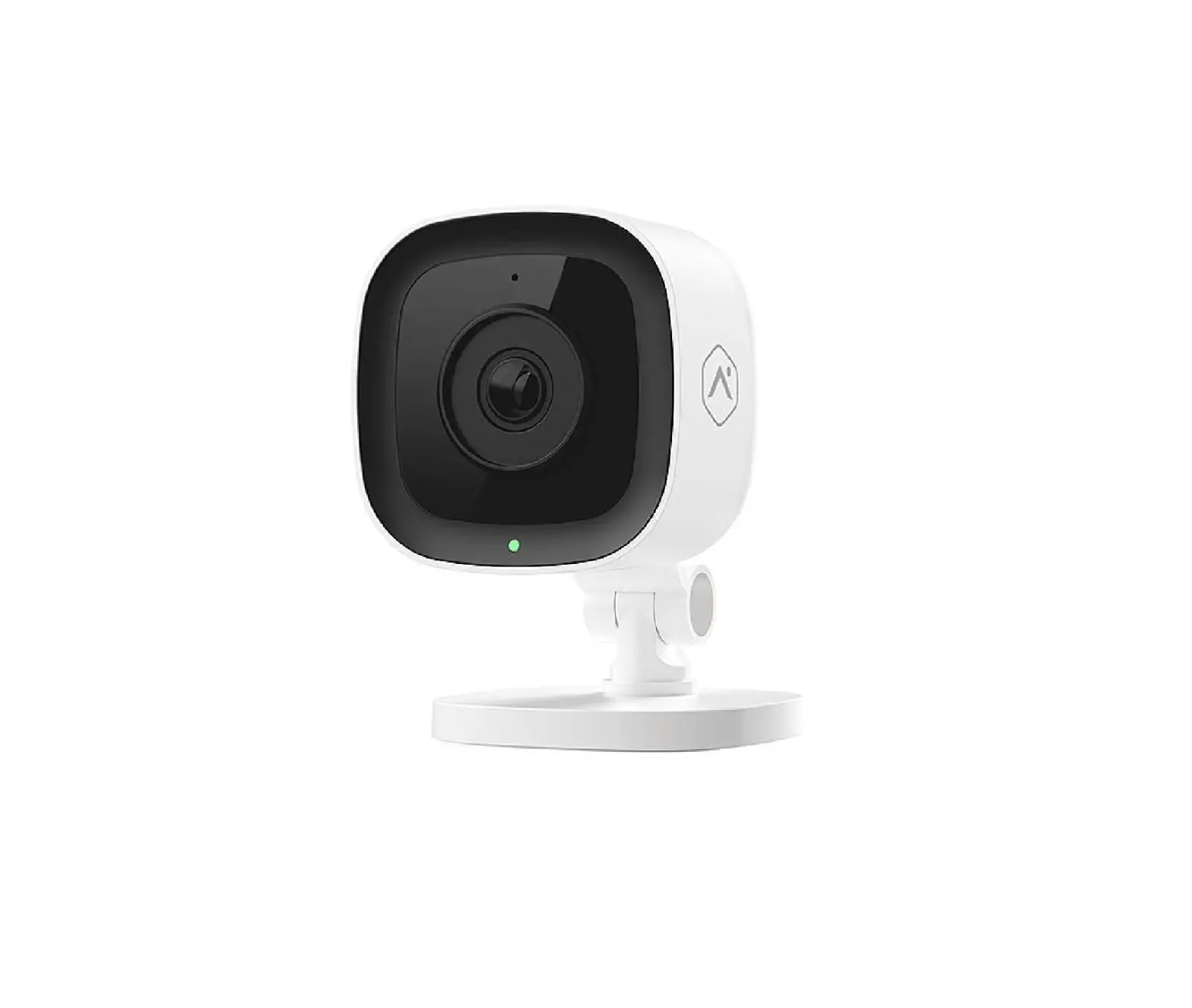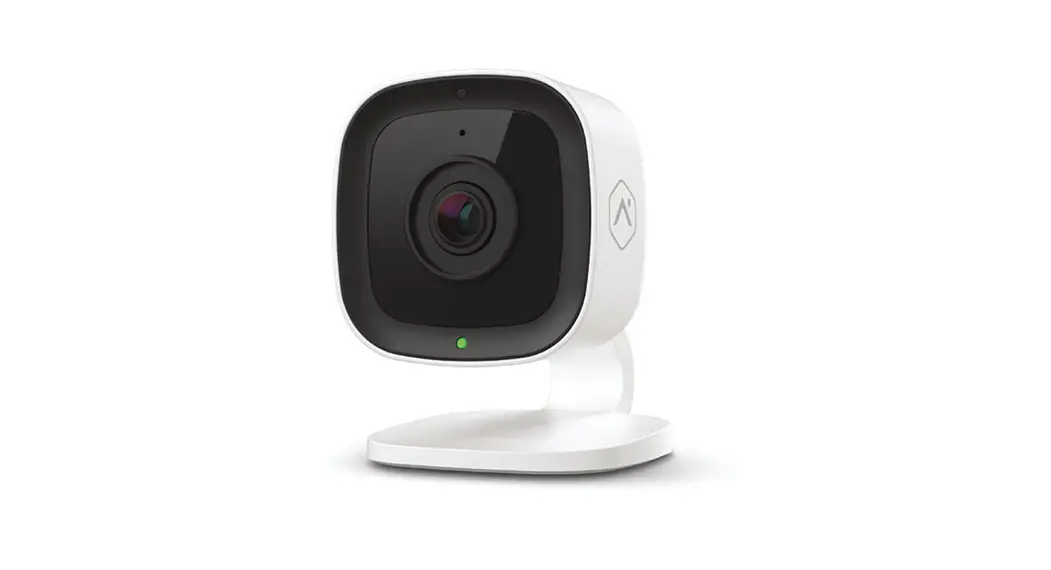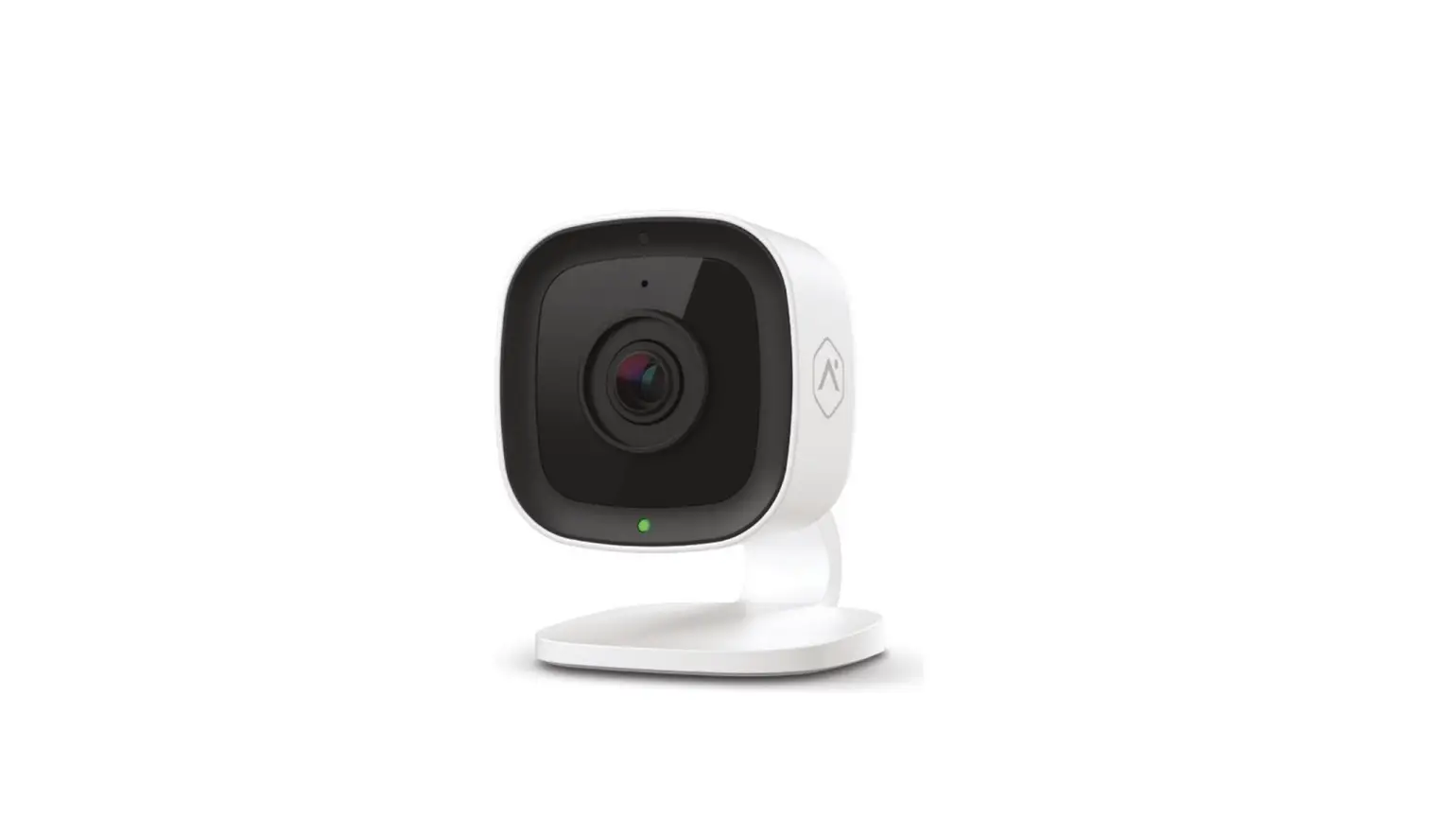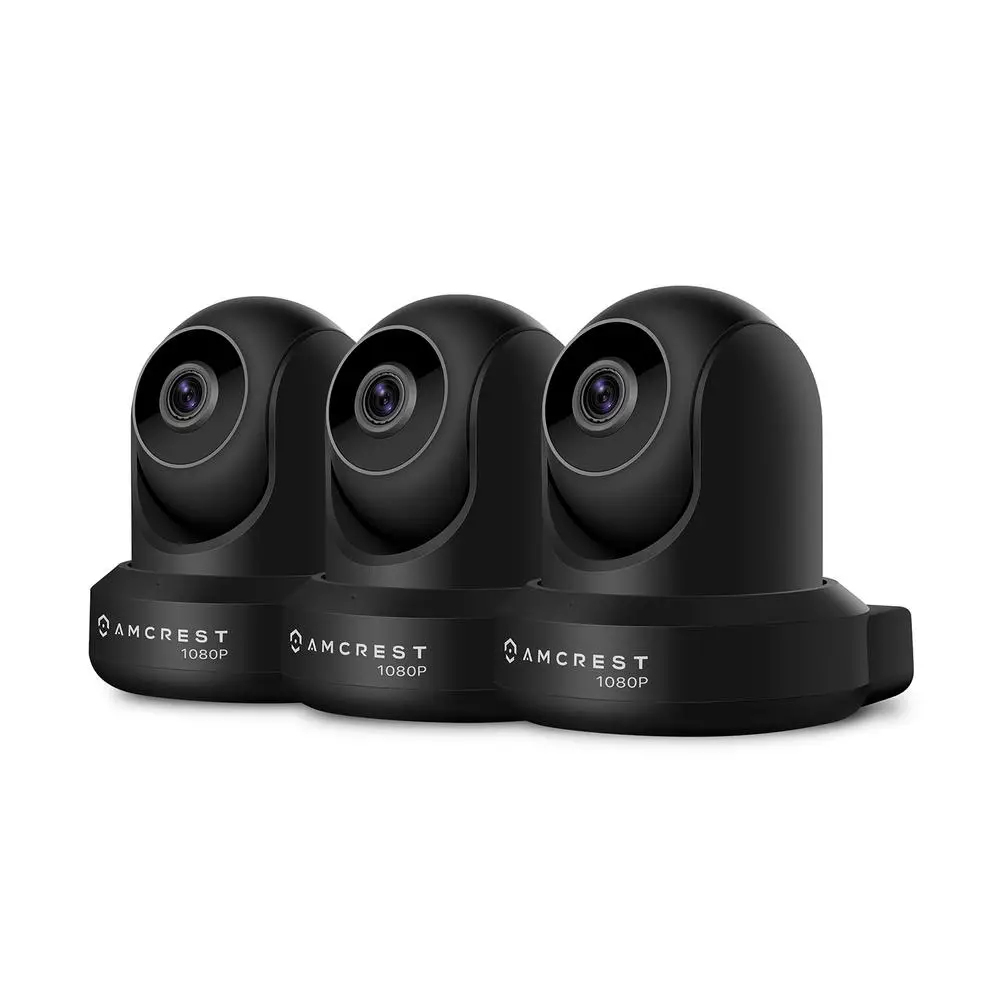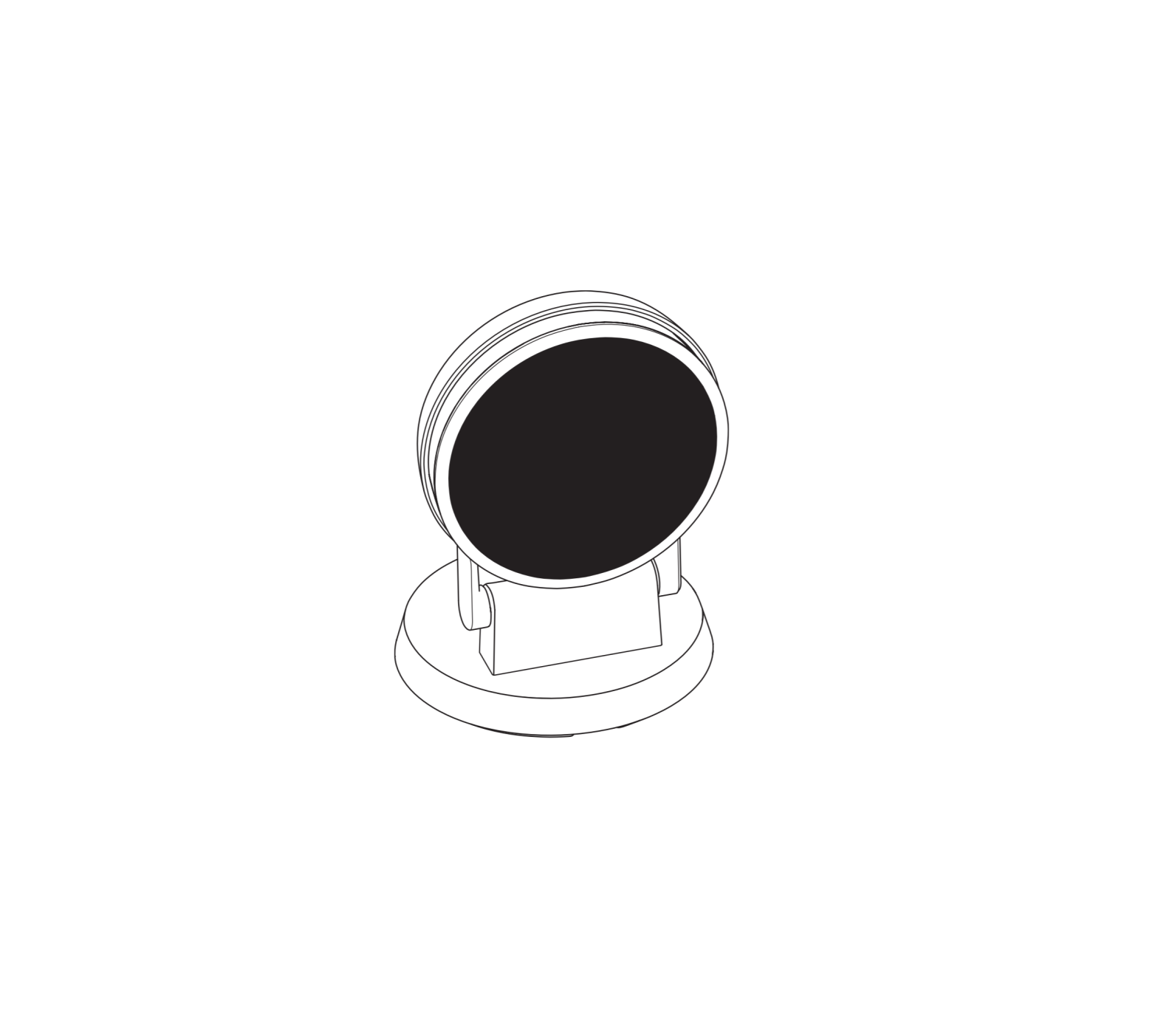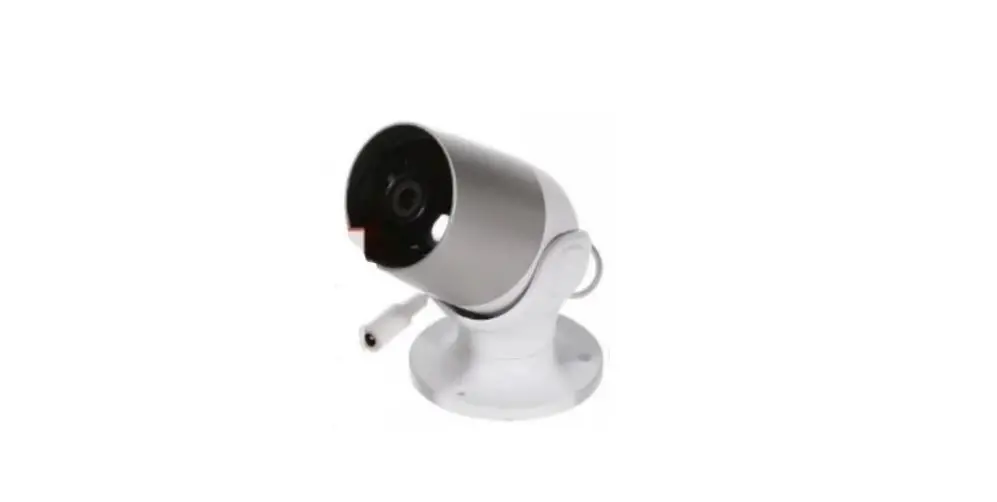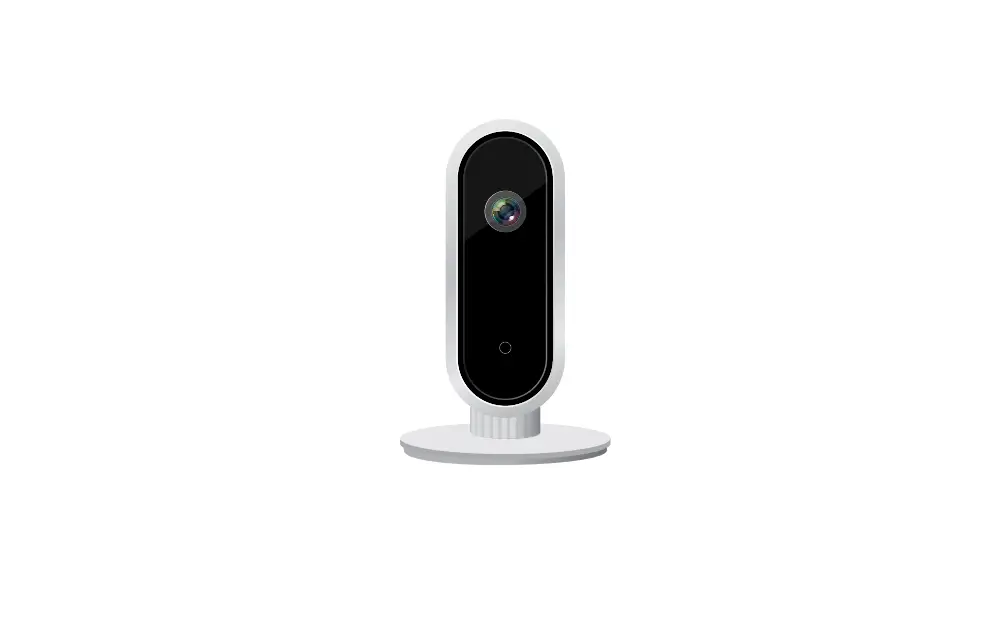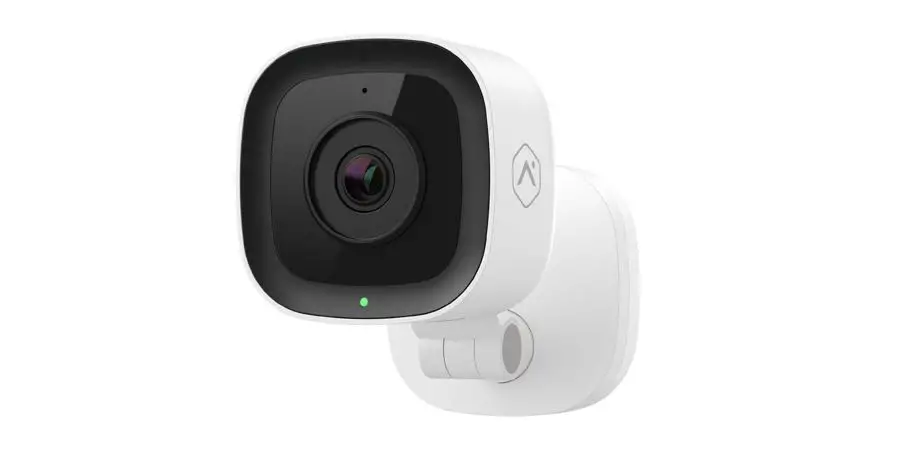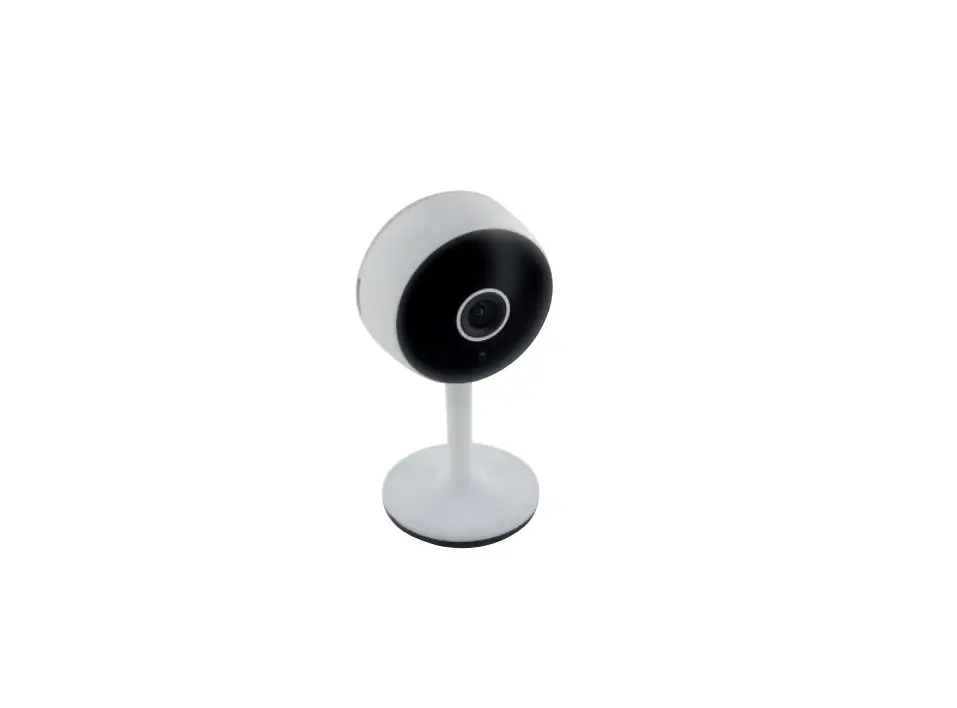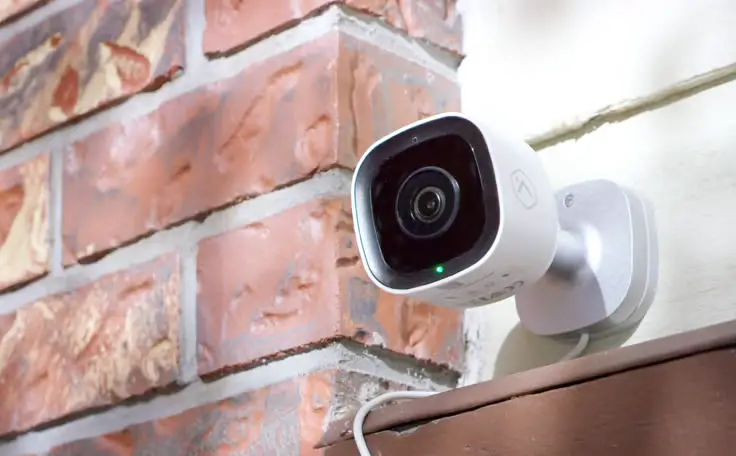

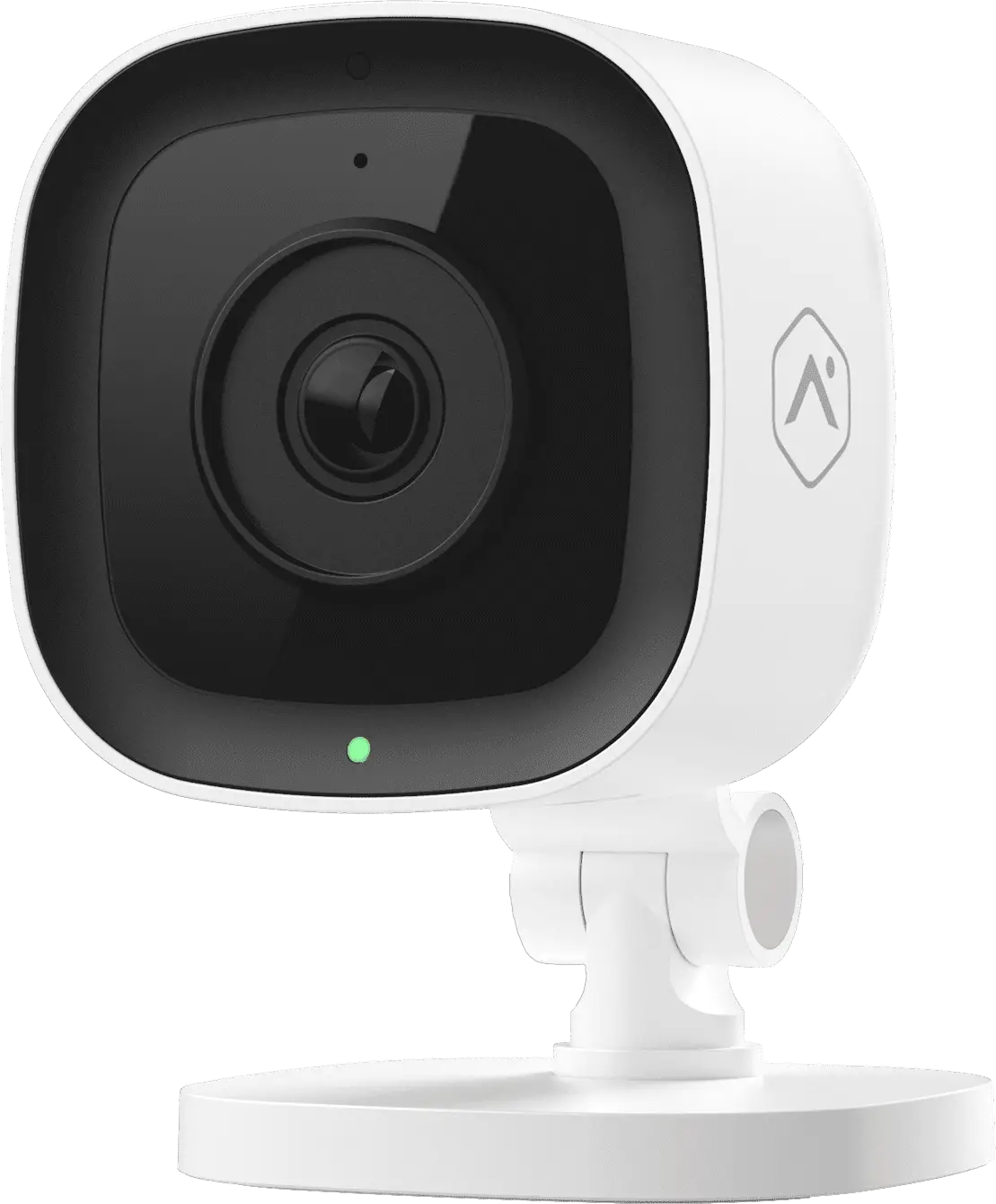
TELUS ADC-V523 Indoor Wi-Fi Security Camera
Before You Start
For additional instructions and tips, visit telus.com/IndoorCamera or scan the QR code.

What’s in the box?
- Indoor Camera ADC-V523

- Mounting Plate

- Power Supply

- Wall Anchors

- Wall Screws


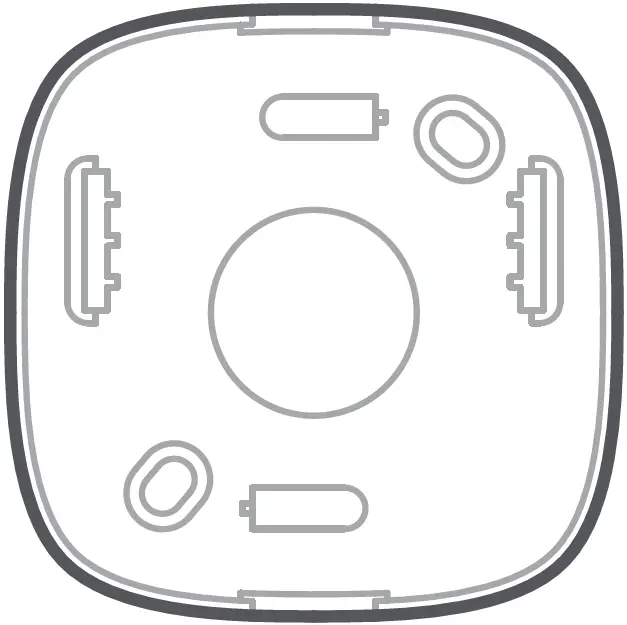
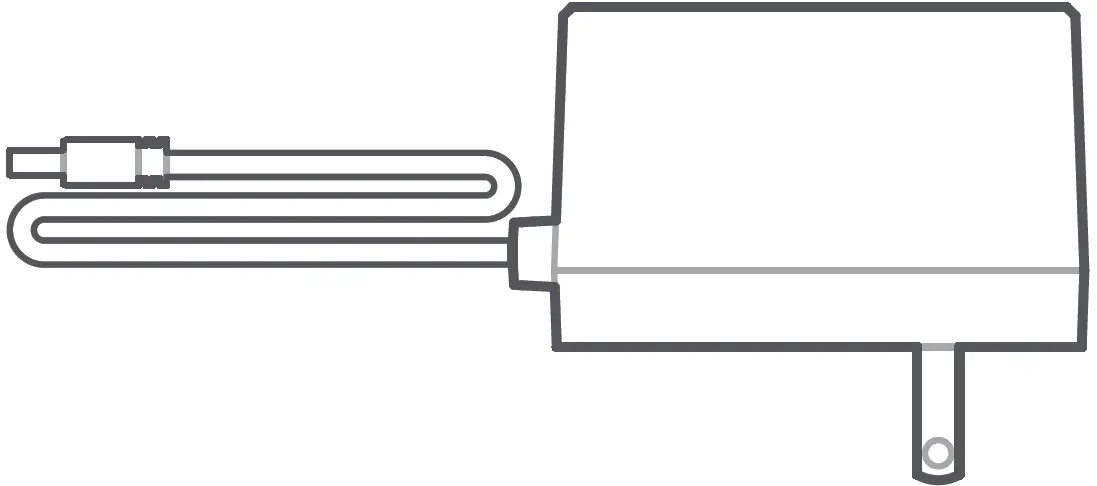
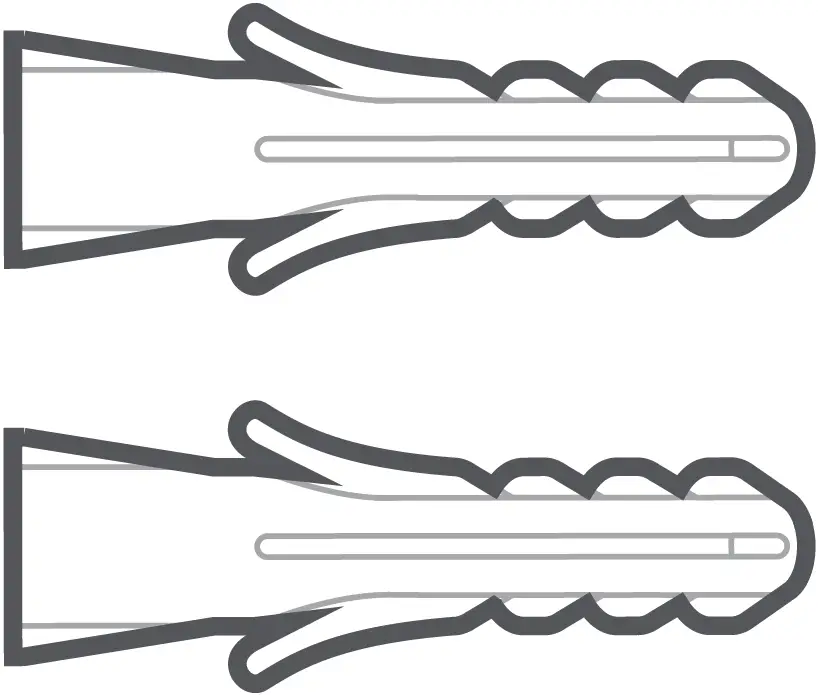
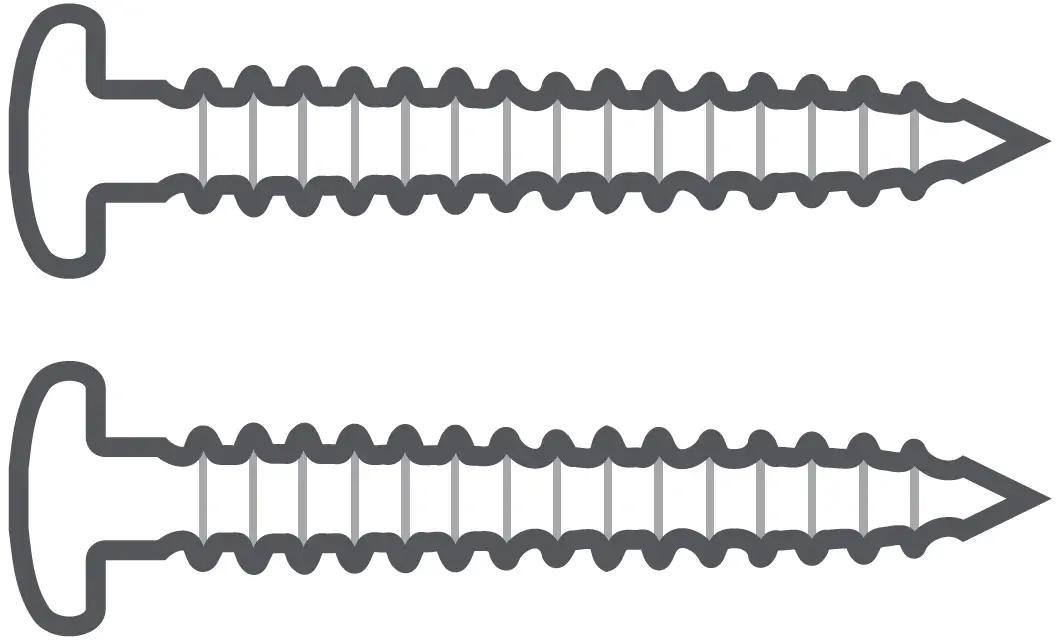
You’ll Need
- Smartphone or Tablet

- 2.5 Mbps Upload Wi-Fi

- Drill

- Screwdriver

- Pencil

- 6mm (1/4 inch) Drill Bit



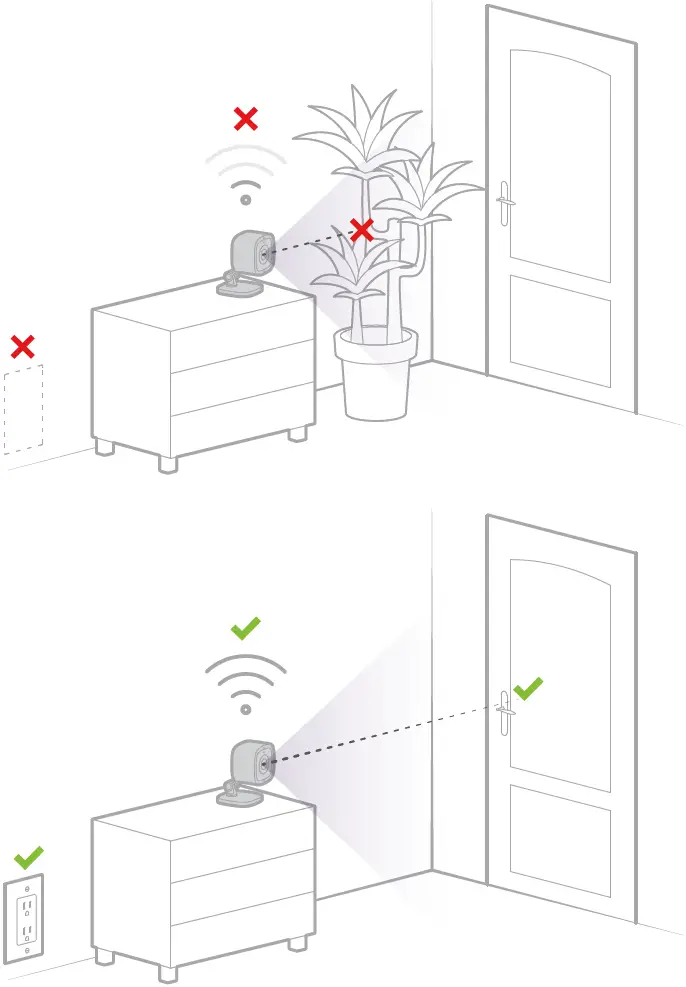
- Select a Location

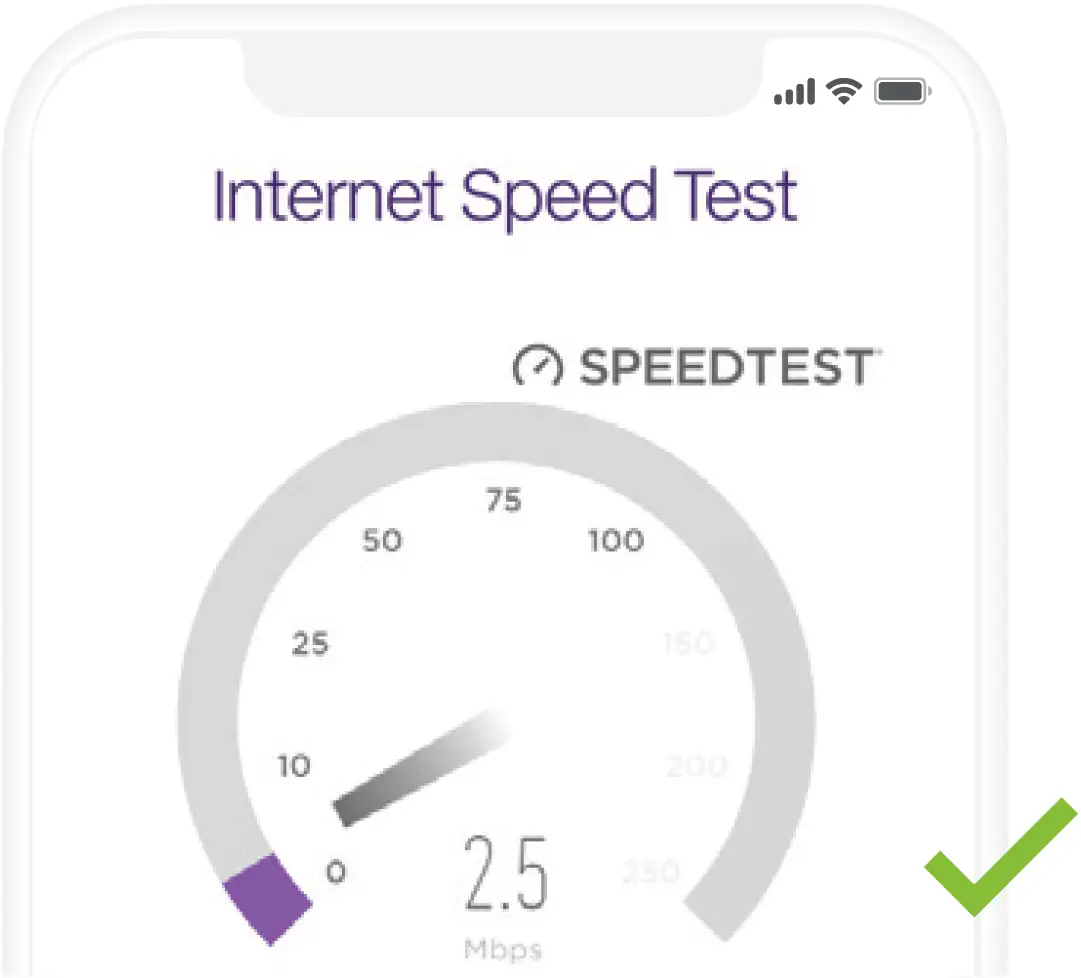
- Check Your Wi-Fi Speed at Location
 The Indoor Camera requires a minimum of 2.5 Mbps upload speed to operate. In a browser on your smartphone visit telus.com/speedtest to determine the Internet speed at your chosen location.
No Wi-Fi?
If you are unable to find a location with adequate Wi-Fi coverage, please contact TELUS for assistance. - Turn on Camera

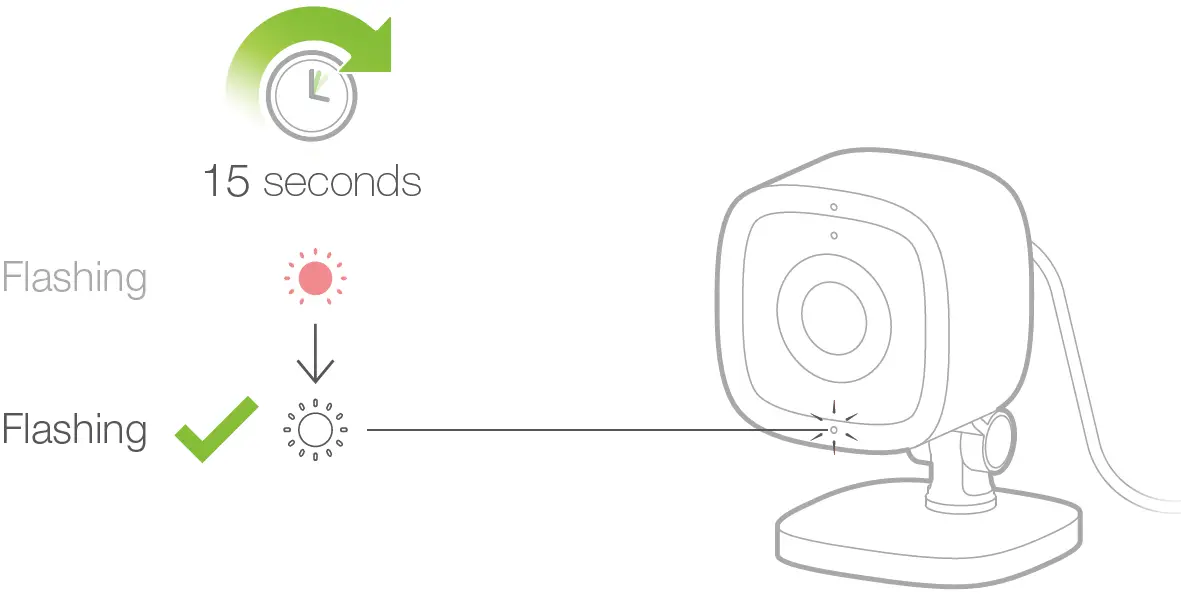
 LED not flashing white?
Press and hold the WPS/RESET button on the bottom of the device until the light starts flashing white.
- Get the TELUS SmartHome App

 Download the TELUS SmartHome app, then log in with your My TELUS credentials.
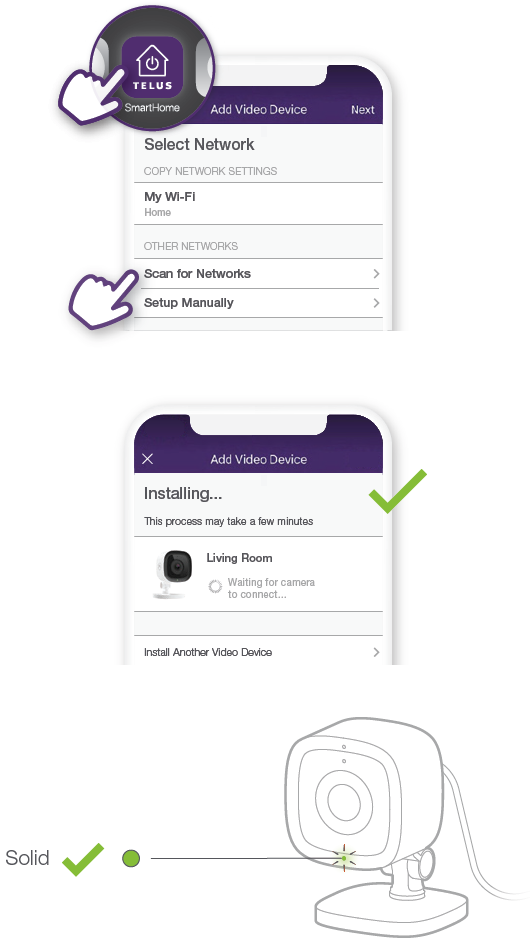
 - Add Camera to Your Account

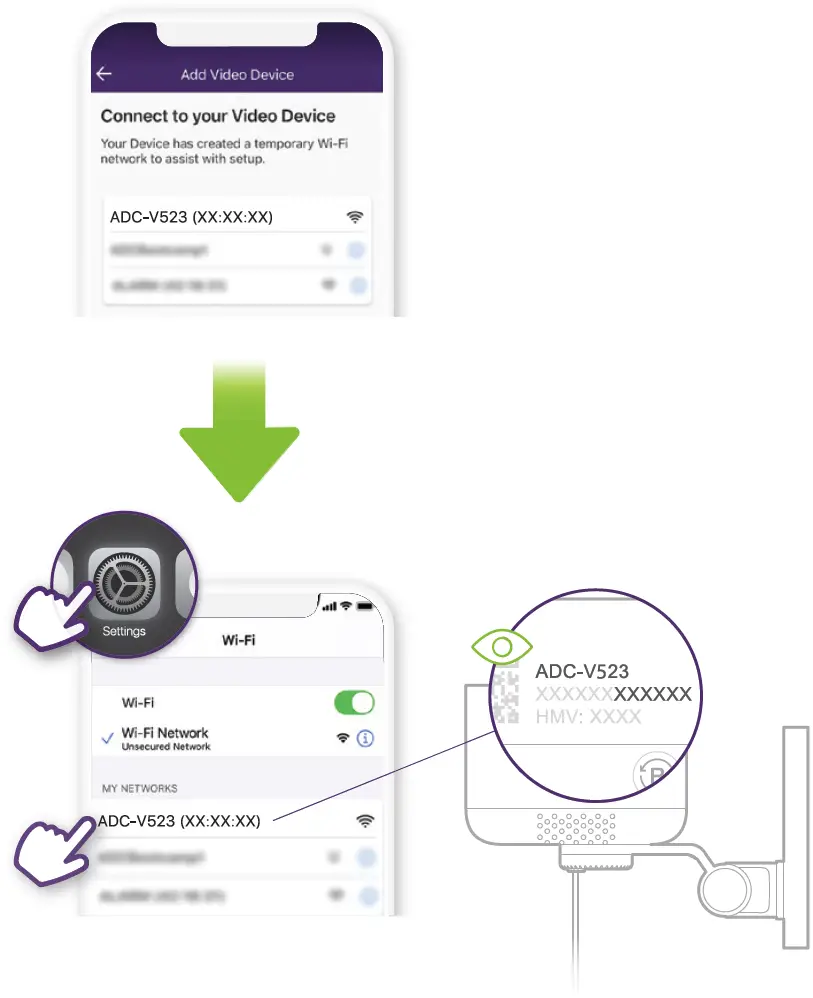
- Connect to Camera’s Temporary Wi-Fi Network

- Follow Steps in App

- Optional: Wall Mount Installation
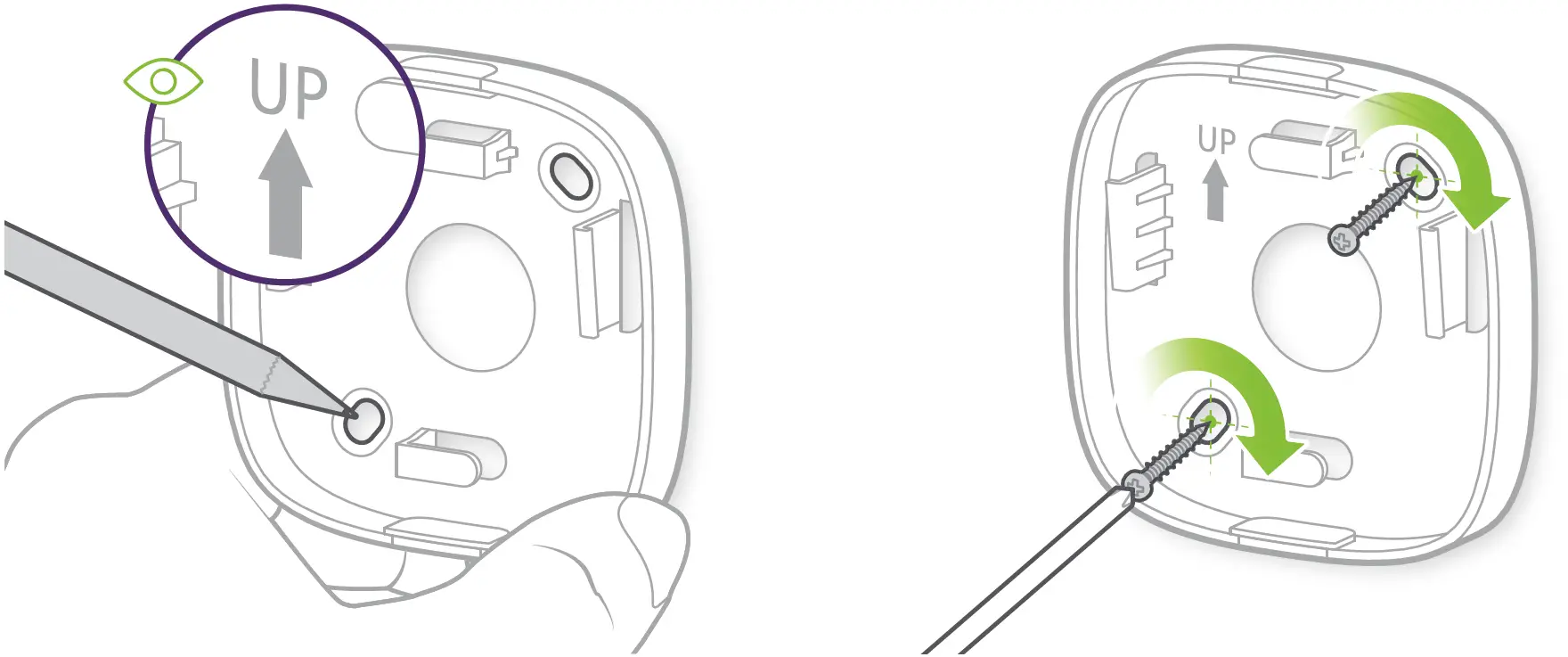
- Attach Mounting Bracket
 TIP
TIP
You can also attach the mounting bracket by drilling holes and using the drywall anchors provided. - Adjust Camera

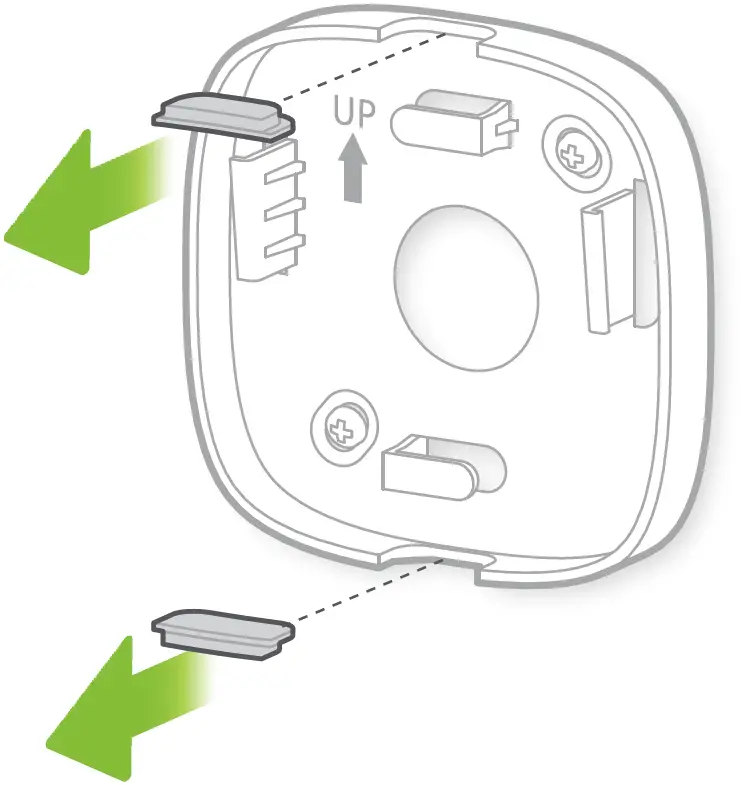
- Remove Inserts

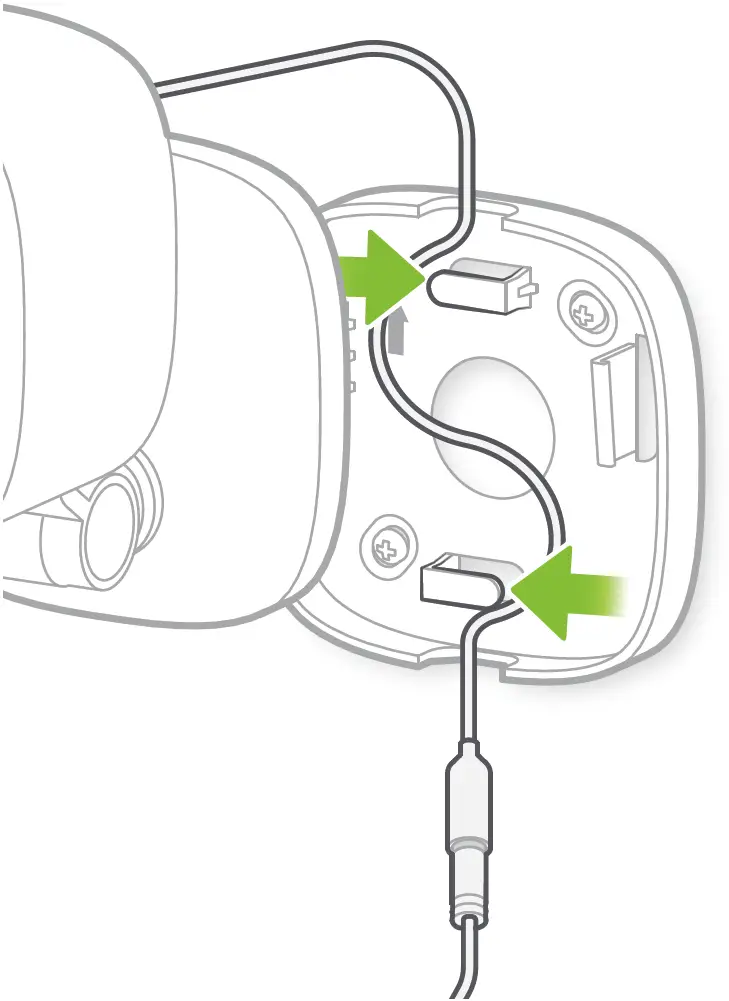
- Route Cable

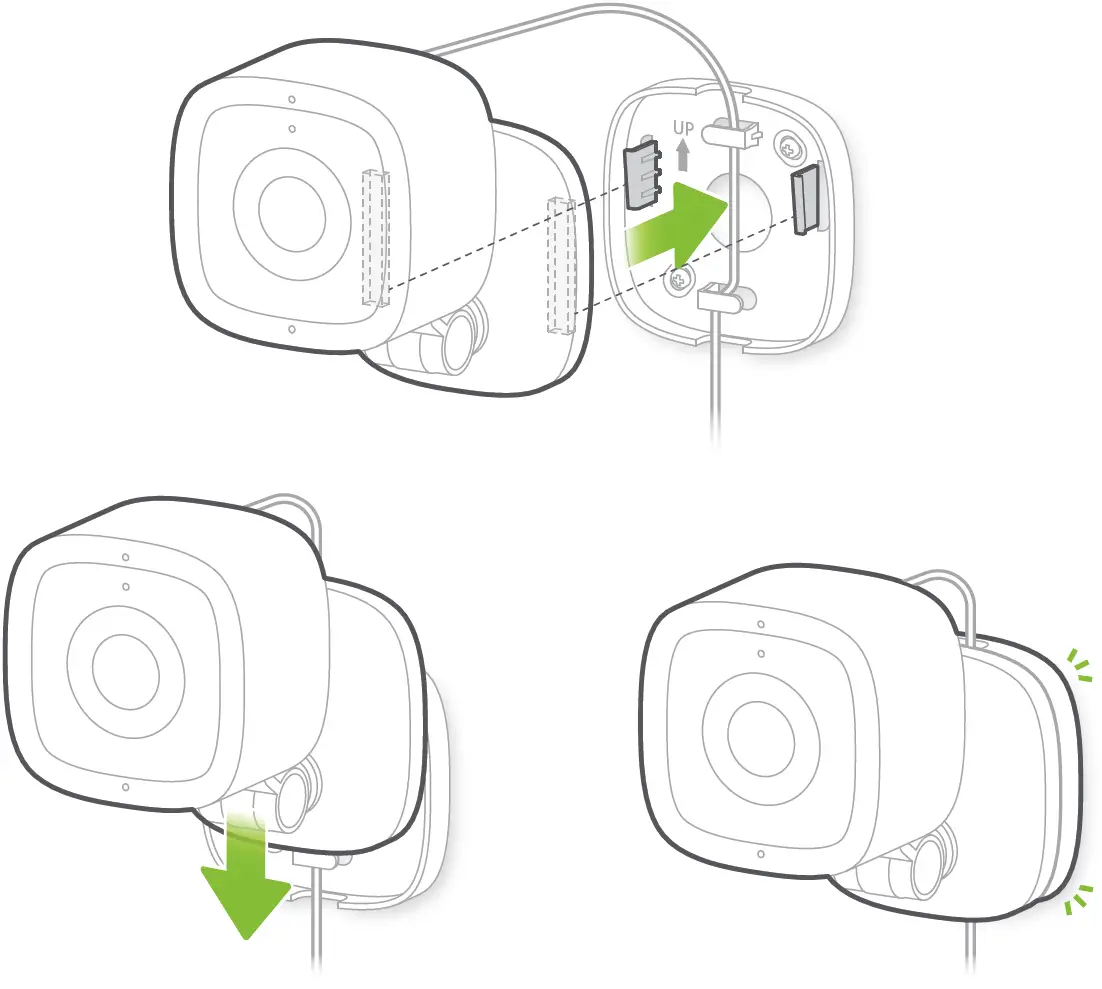
- Attach Camera

- Attach Mounting Bracket
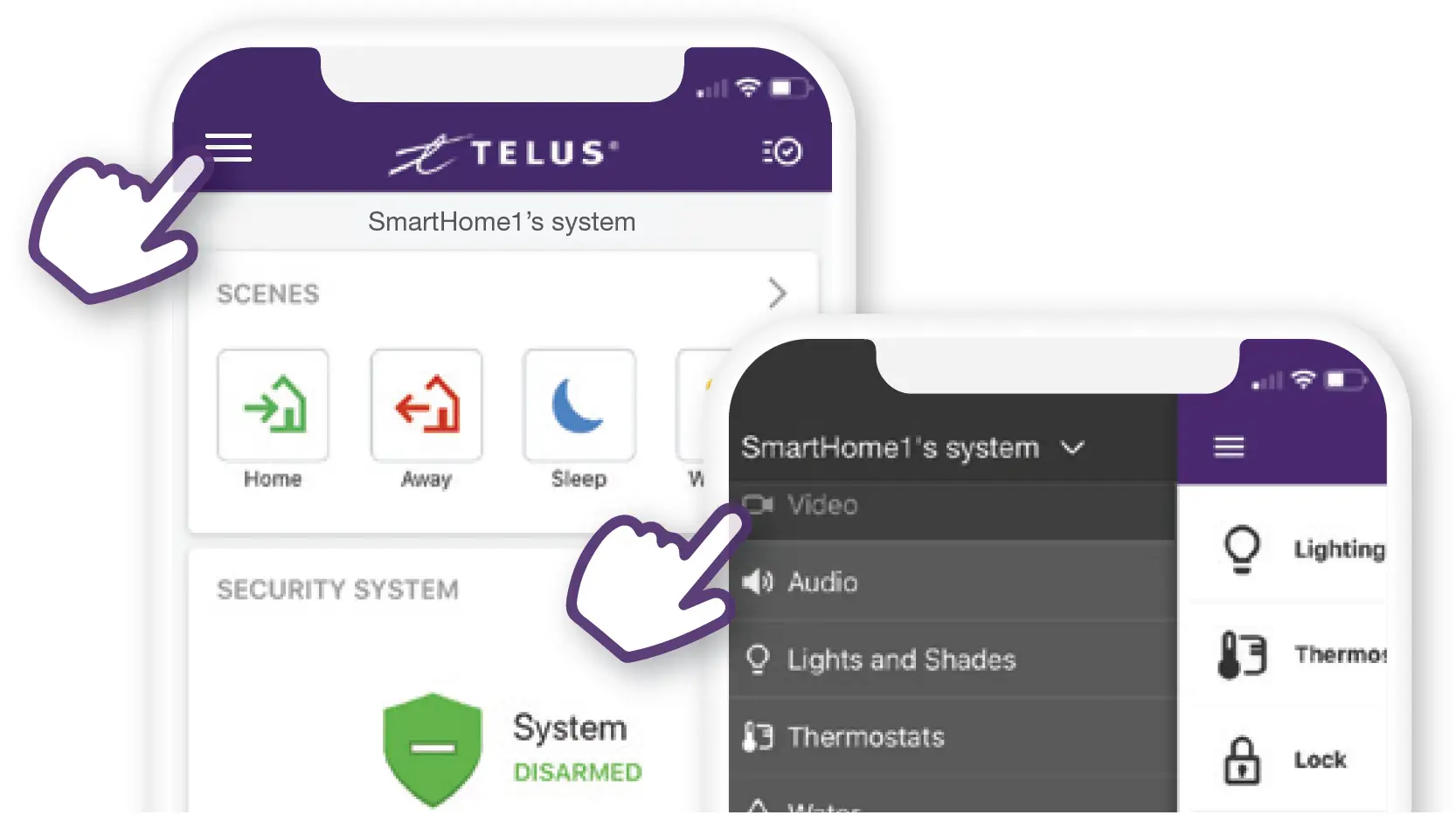
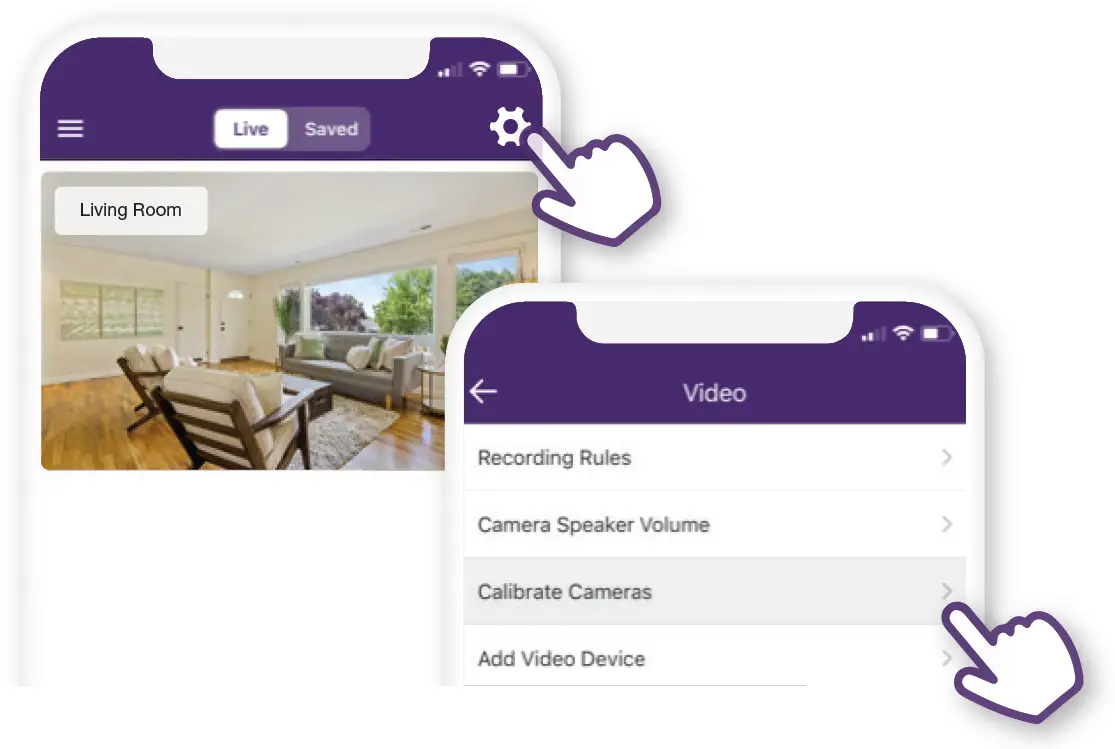
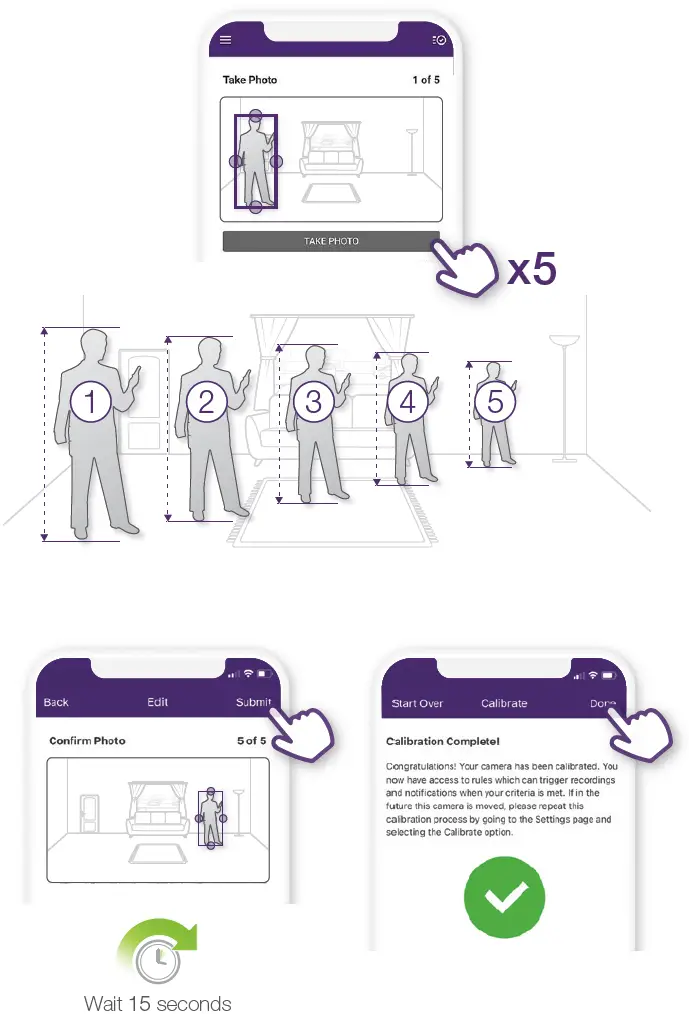
- Calibrate Camera
IMPORTANT
Without completing this step, the Indoor Camera will not function properly.


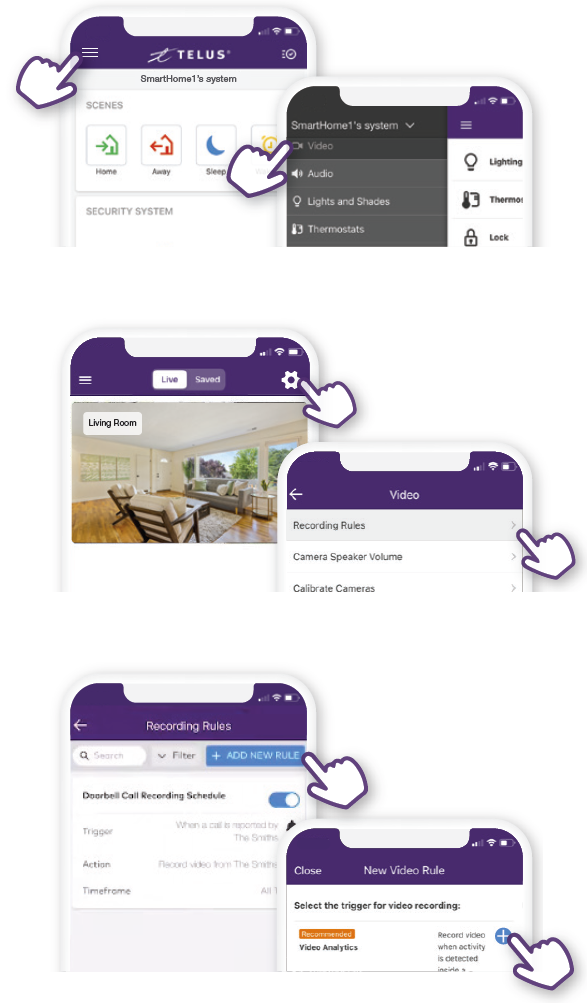
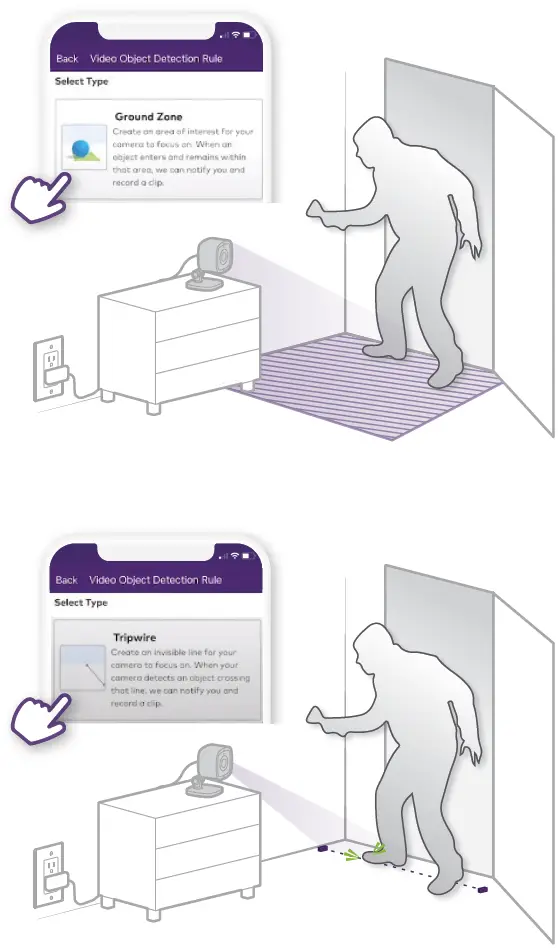
- Customize Smart Video Alerts and Recording Rules


 The Indoor Camera requires a minimum of 2.5 Mbps upload speed to operate. In a browser on your smartphone visit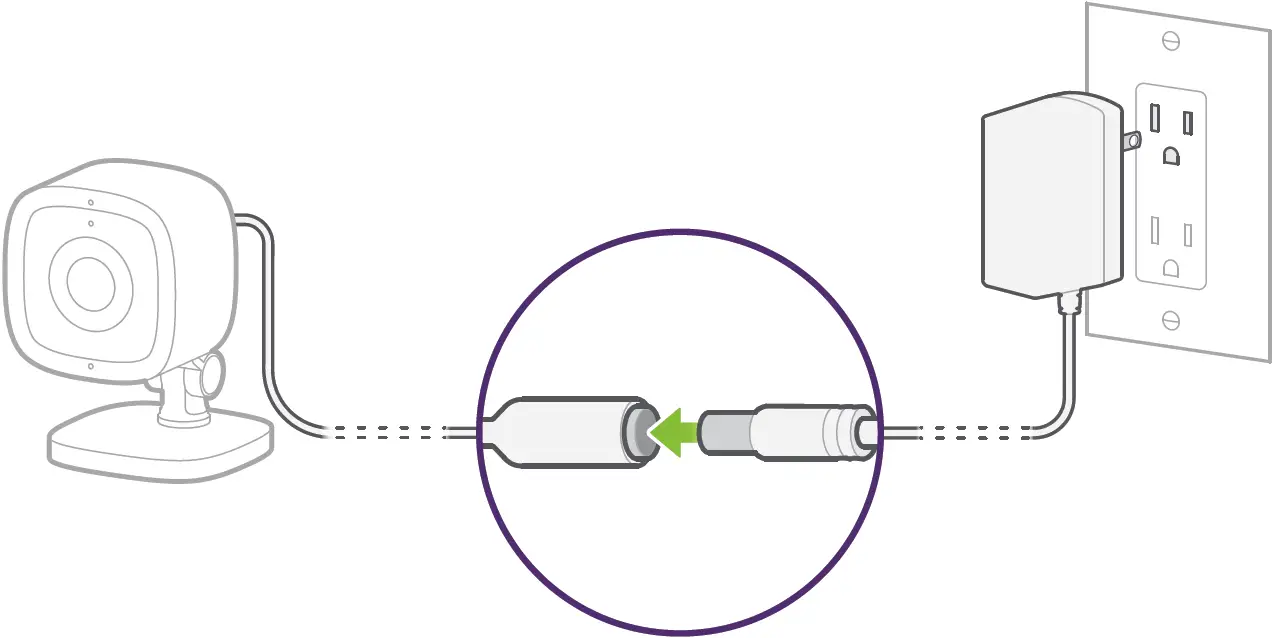
 LED not flashing white?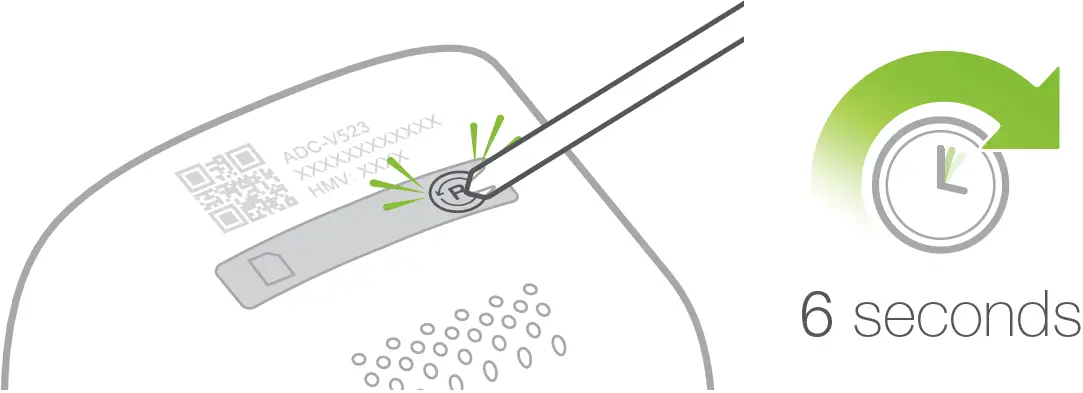
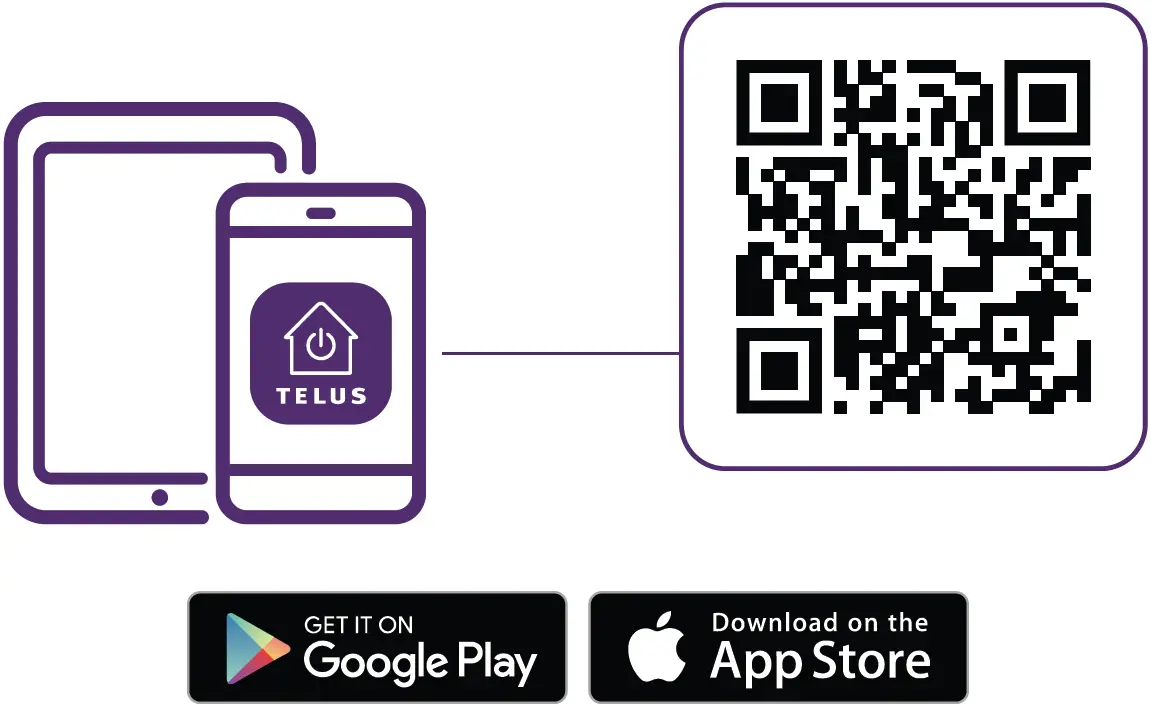
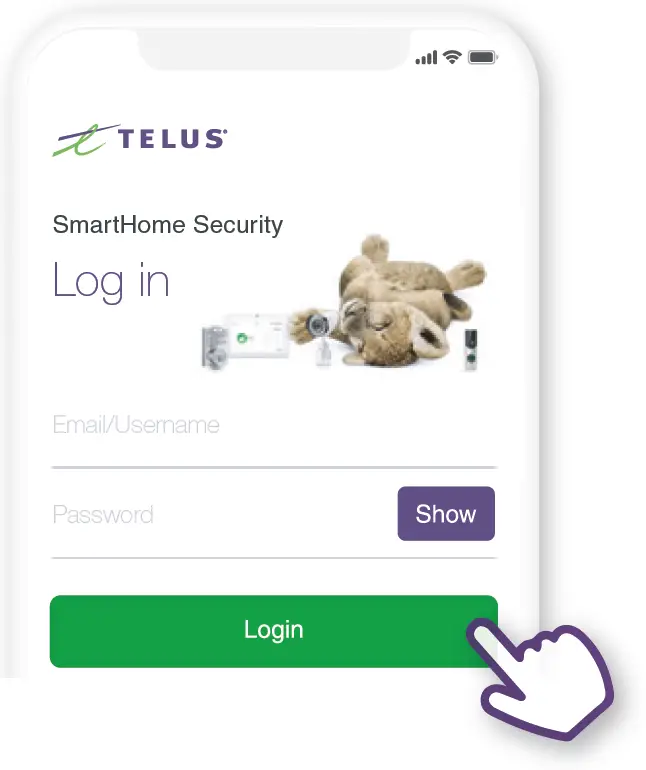 Download the TELUS SmartHome app, then log in with your My TELUS credentials.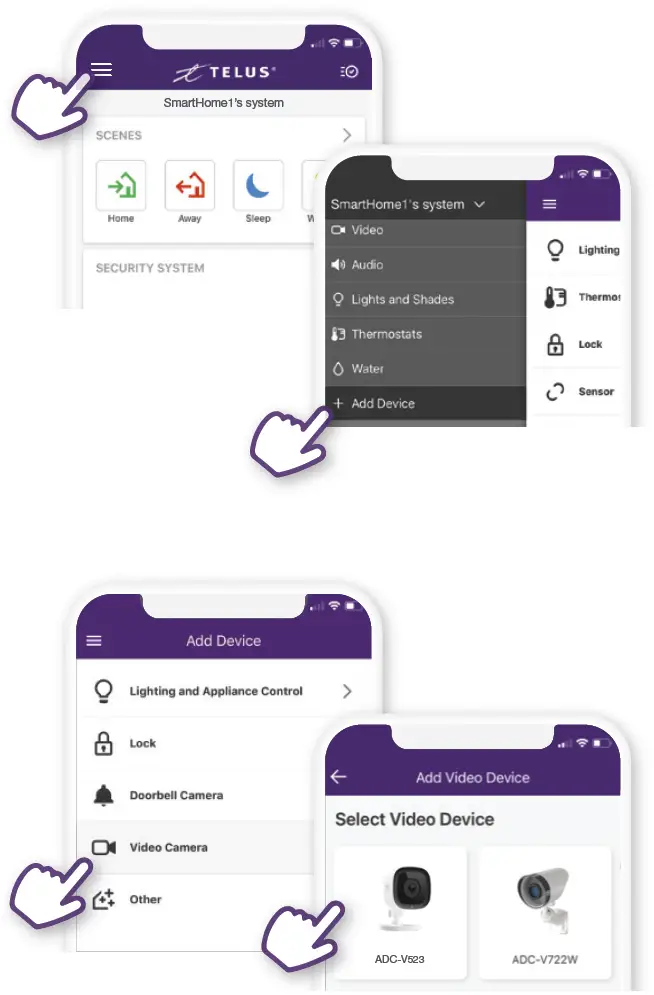
 TIP
TIP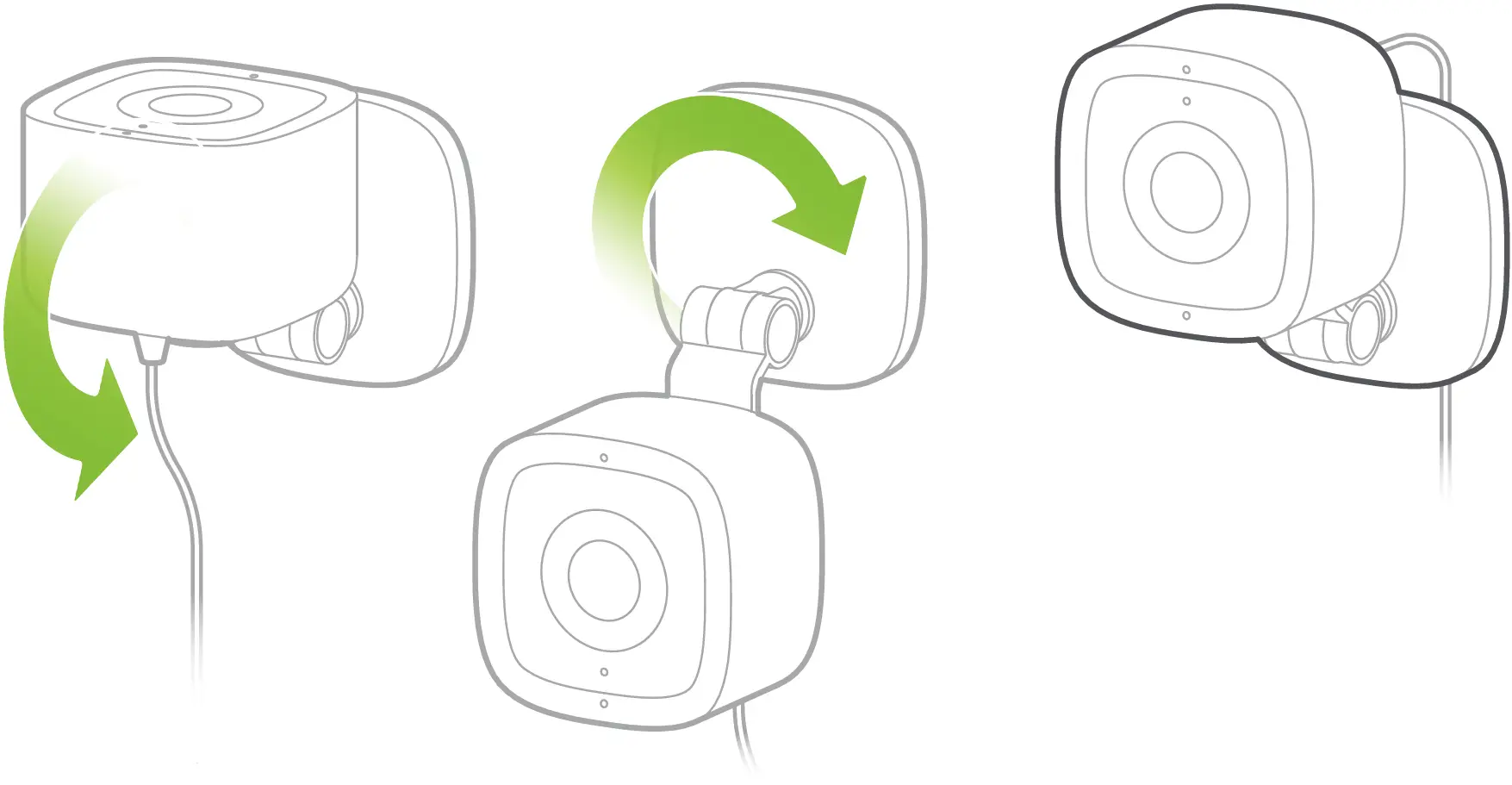
Nice Work, You’re All Done!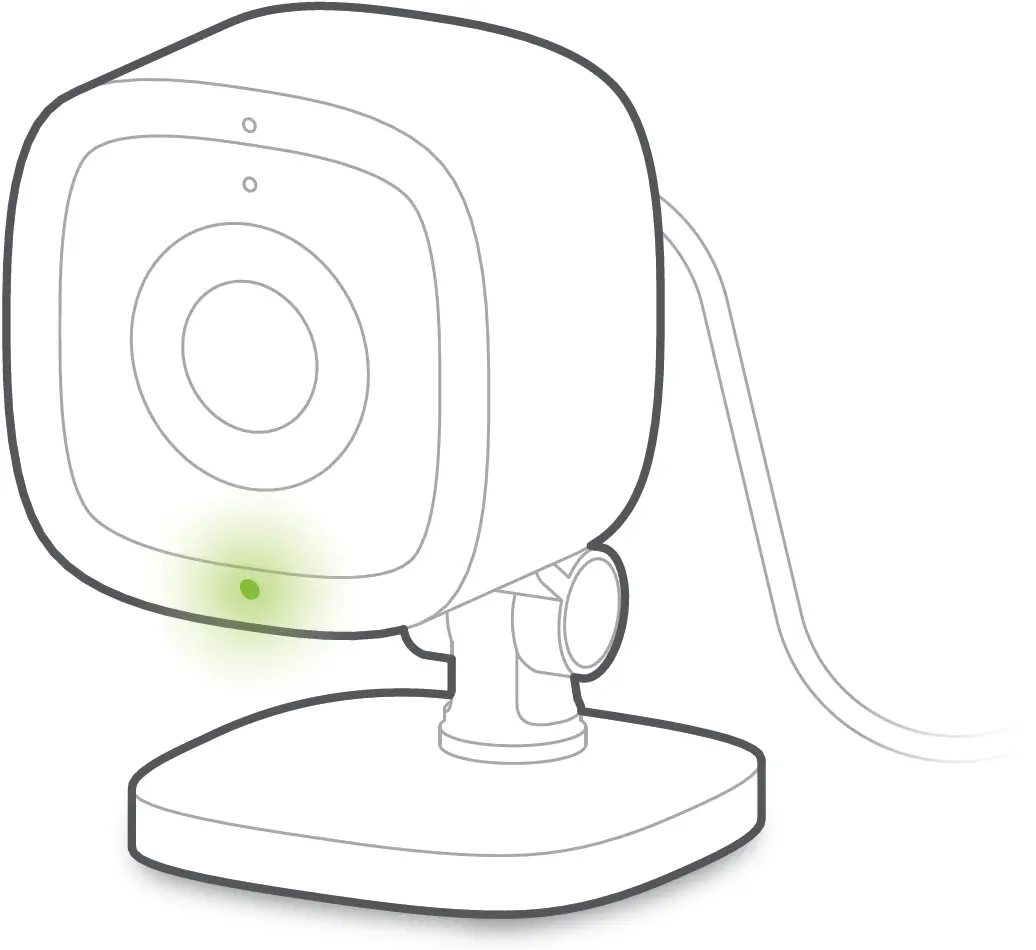
Additional Support
Our customer support agents are available 24/7 at
1-855-255-8828.
For additional installation instructions, videos and troubleshooting, please visit telus.com/IndoorCamera or scan the QR code below.
LED Reference Guide
- Off: Power off
- Solid Green: Connected to TELUS SmartHome
- Flashing Green: Local network connection
- Flashing Red / Green: Factory reset
- Solid Red: No local or Internet connection
- Flashing Red: Power on, camera booting
- Flashing Blue: WPS mode
- Flashing White: Wi-Fi access point mode
Troubleshooting
- If you have issues connecting the camera to a TELUS account, unplug the power cable from the camera and plug it back in.
- If issues persist, reset the camera to factory defaults and try again.
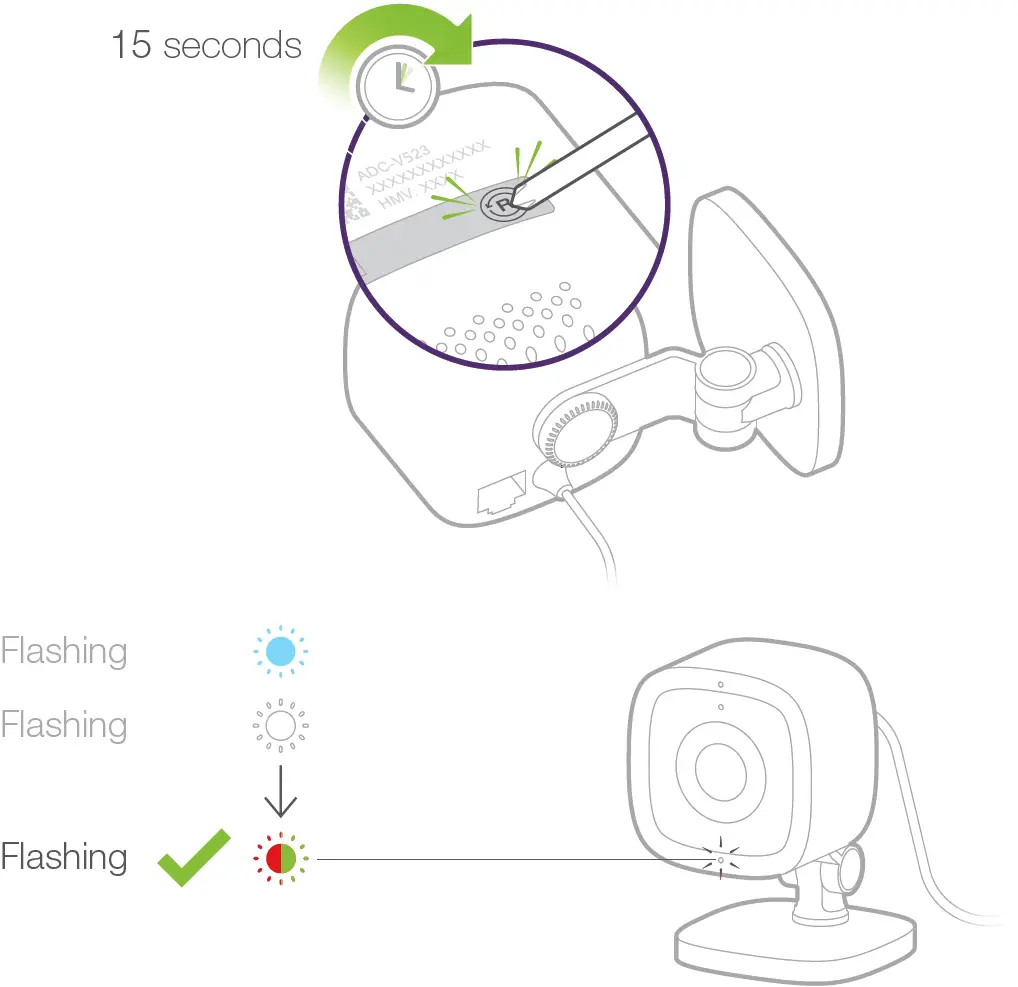
IMPORTANT
If the camera was previously installed on a TELUS account, it will need to be deleted before it can be installed again.