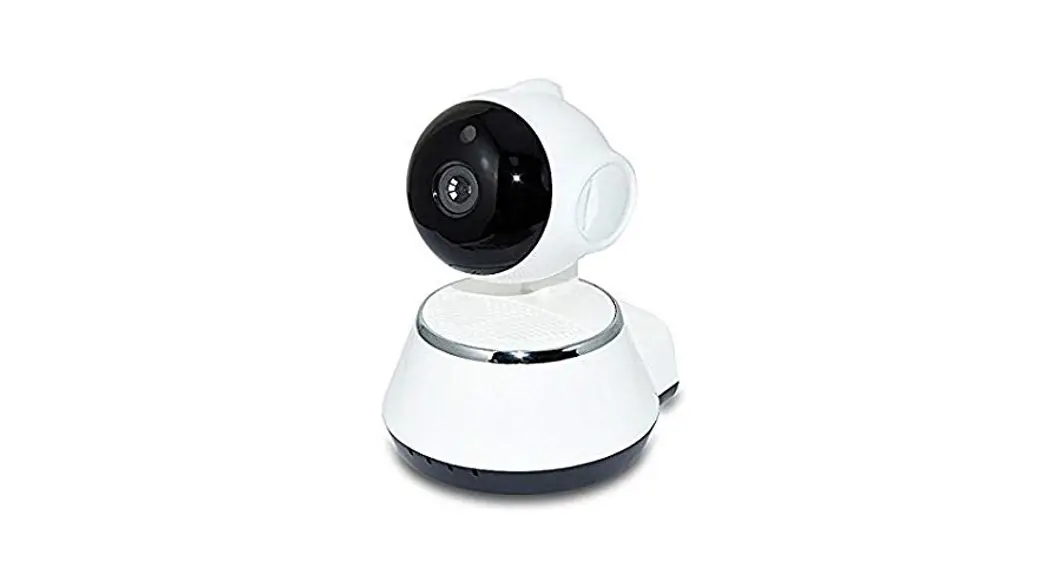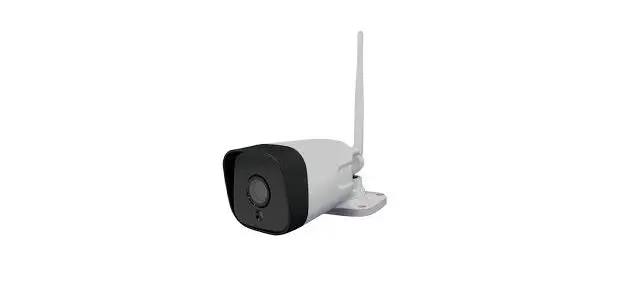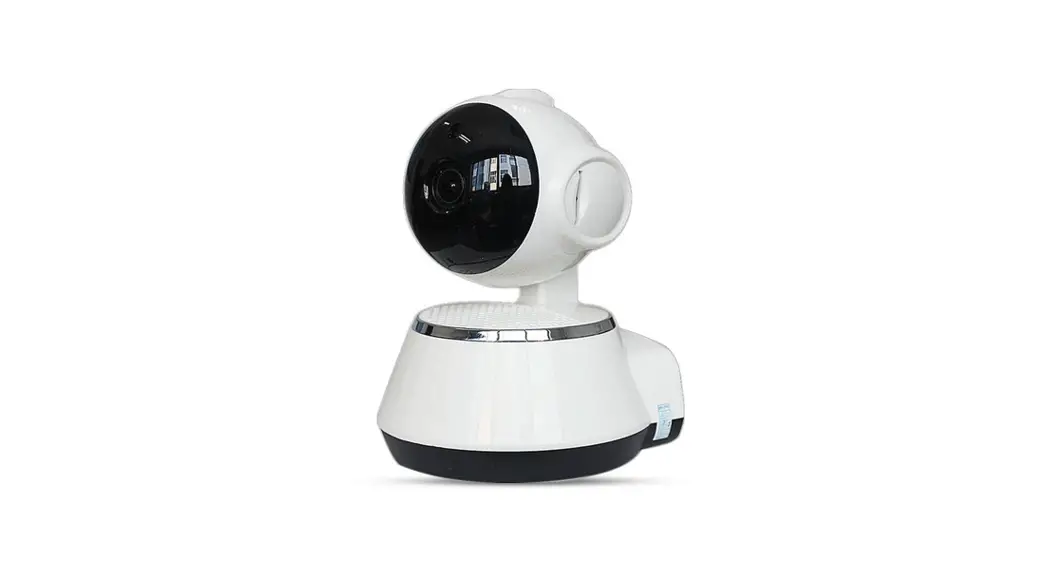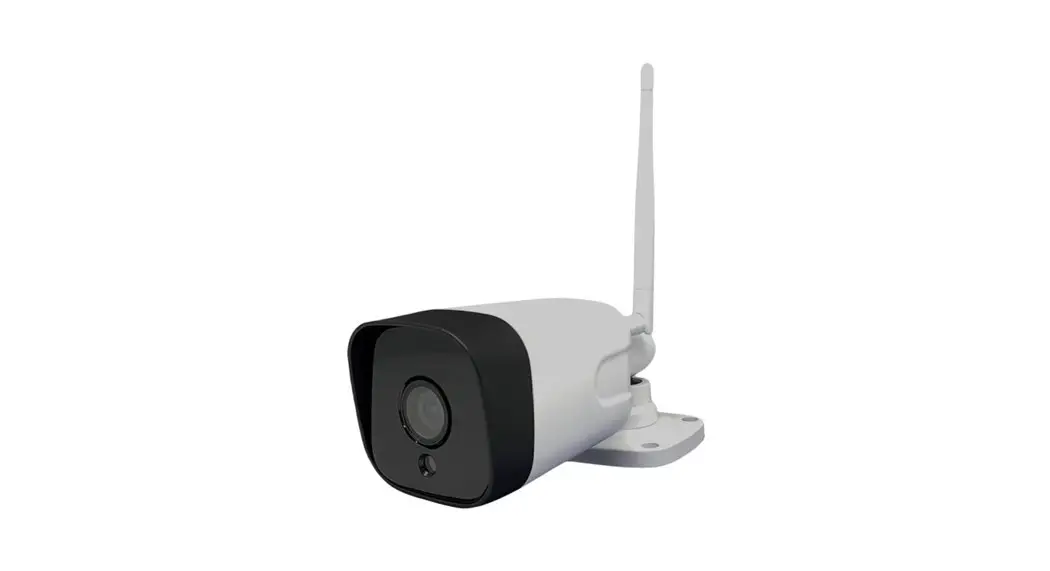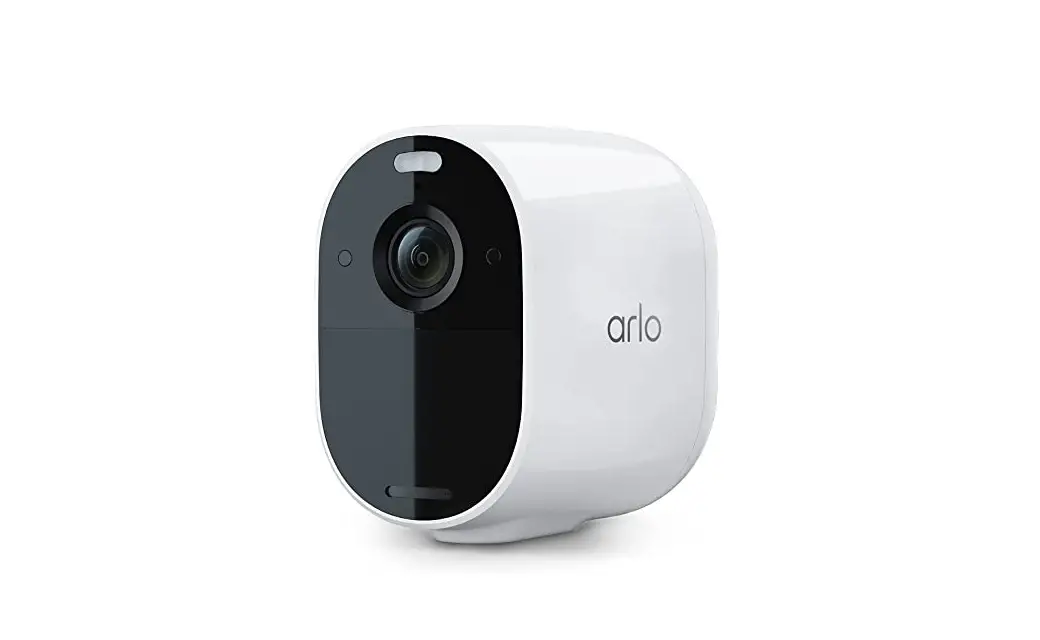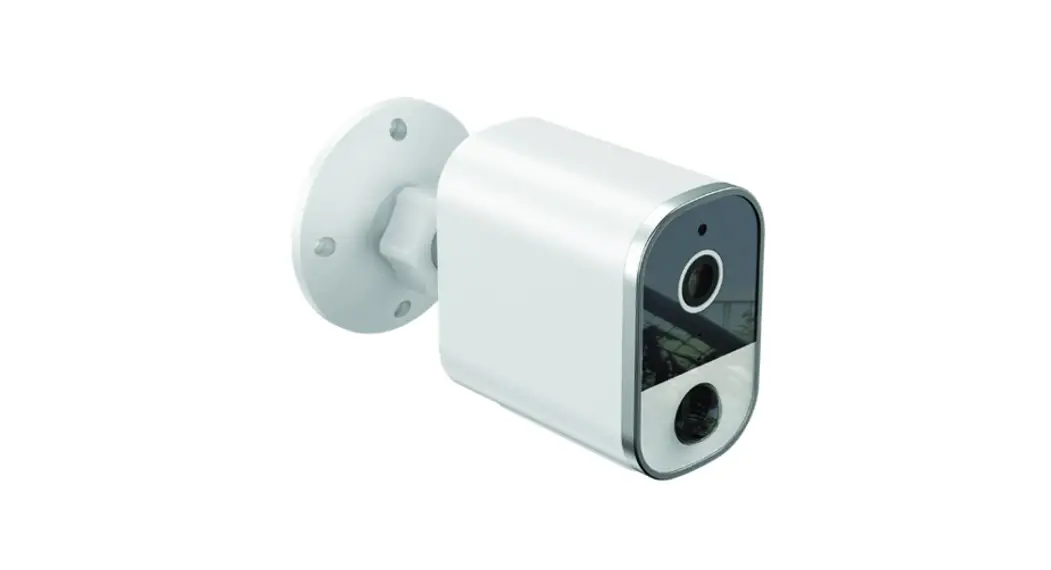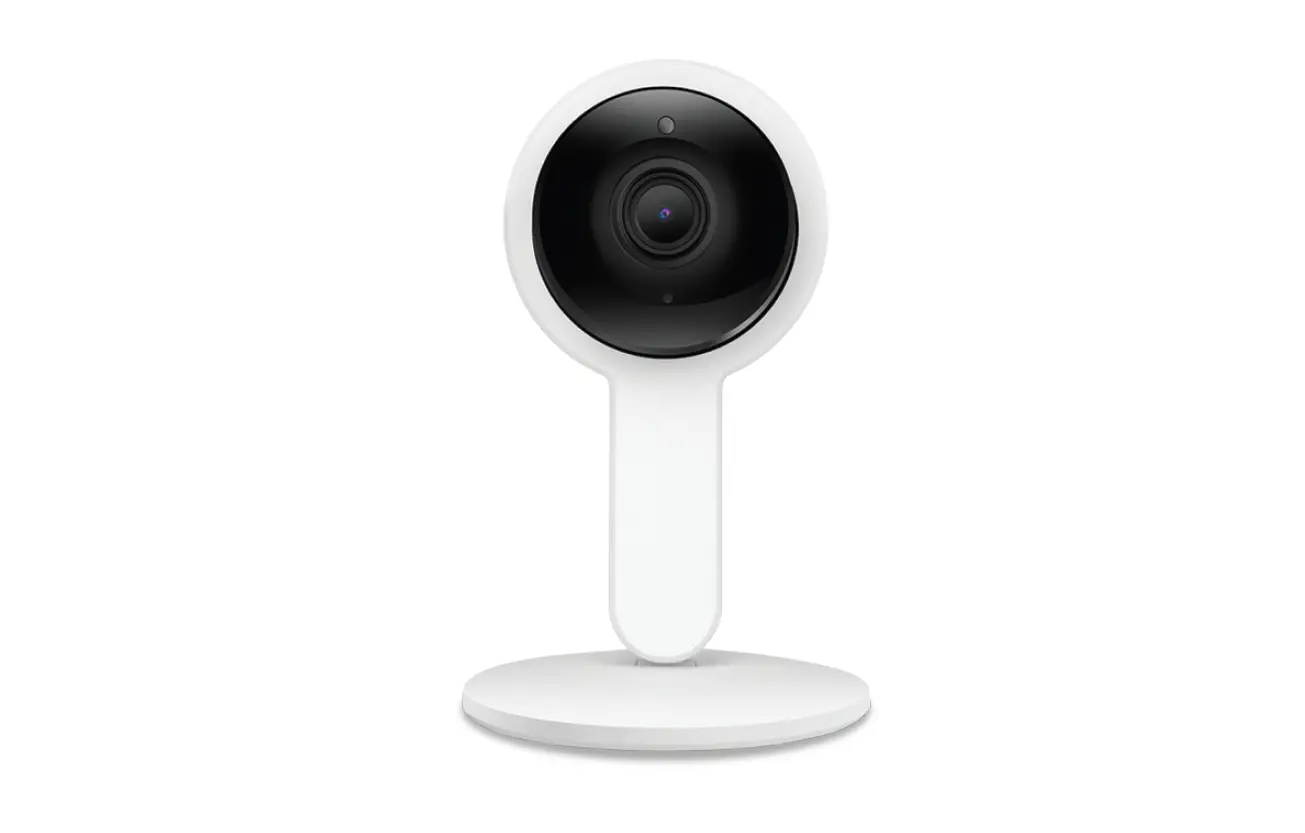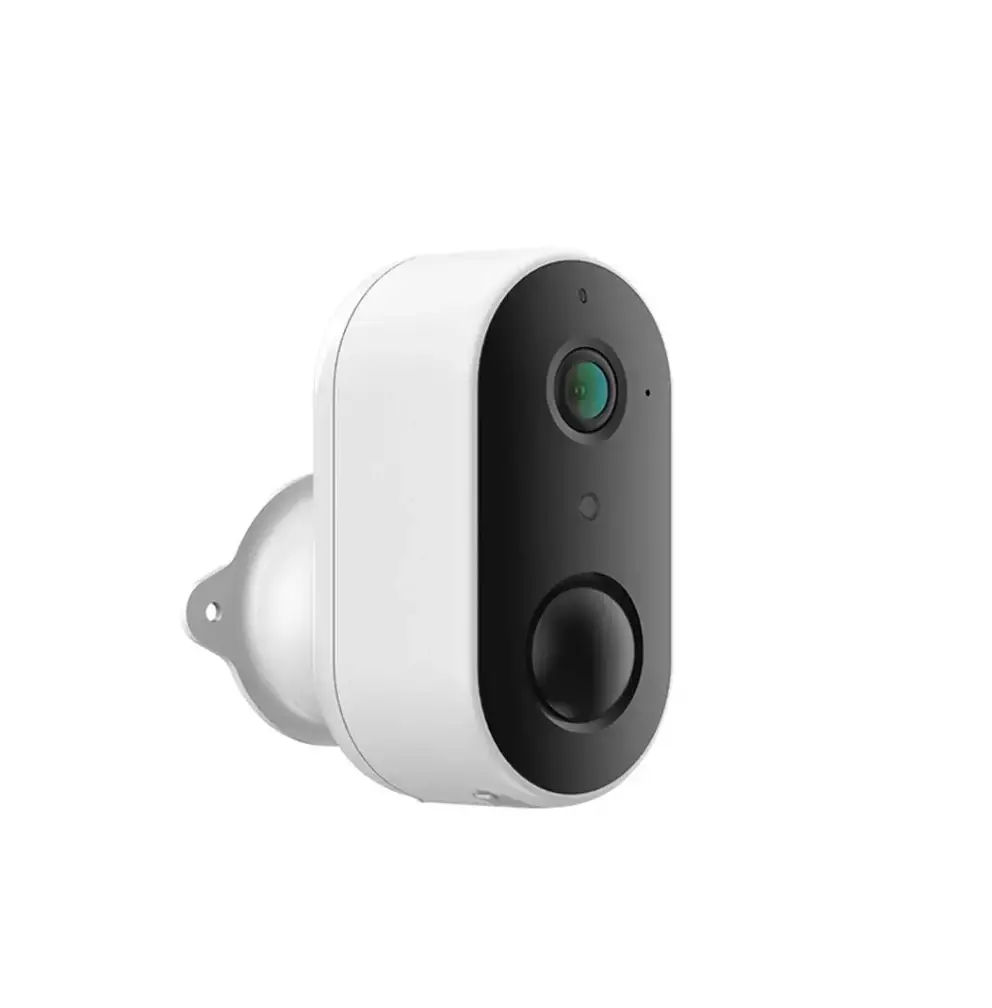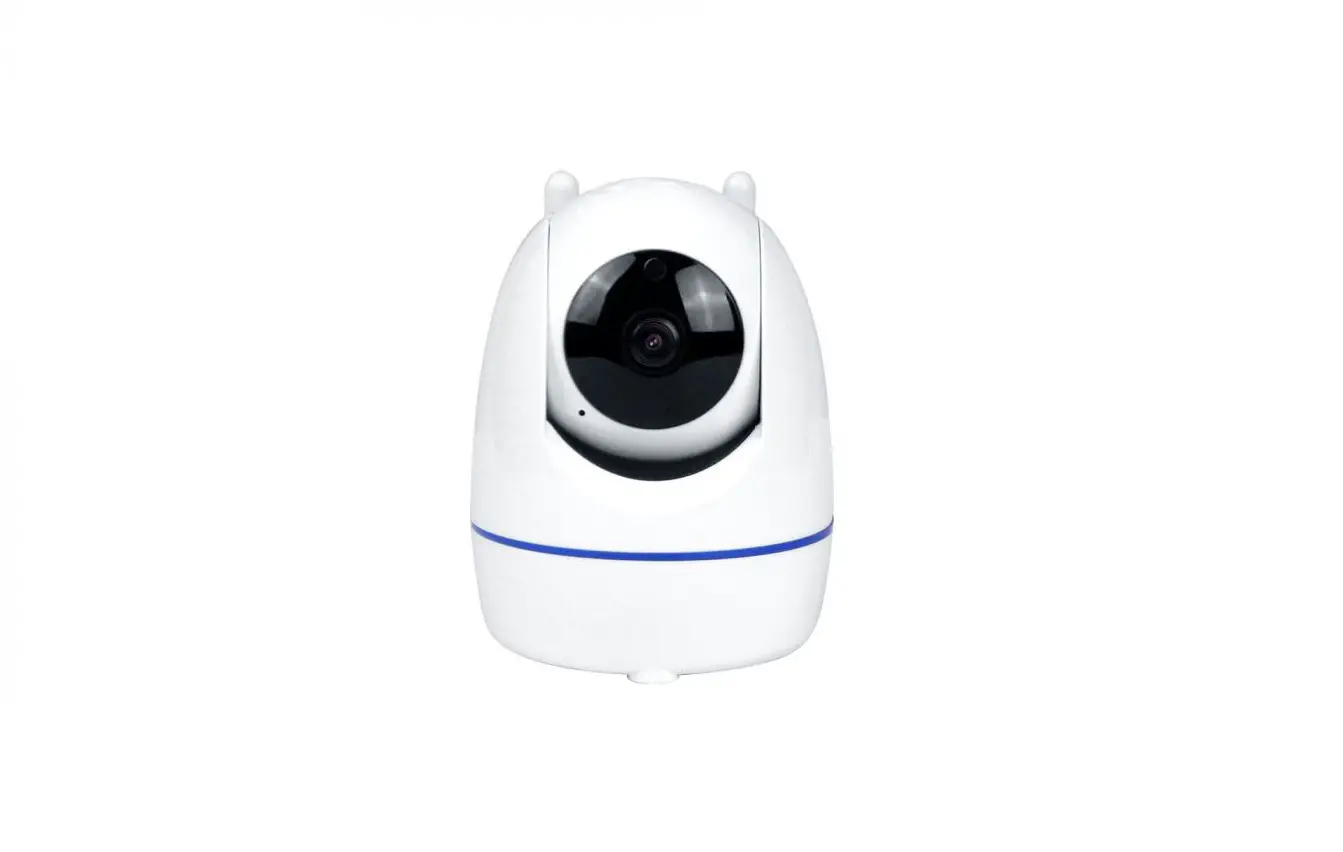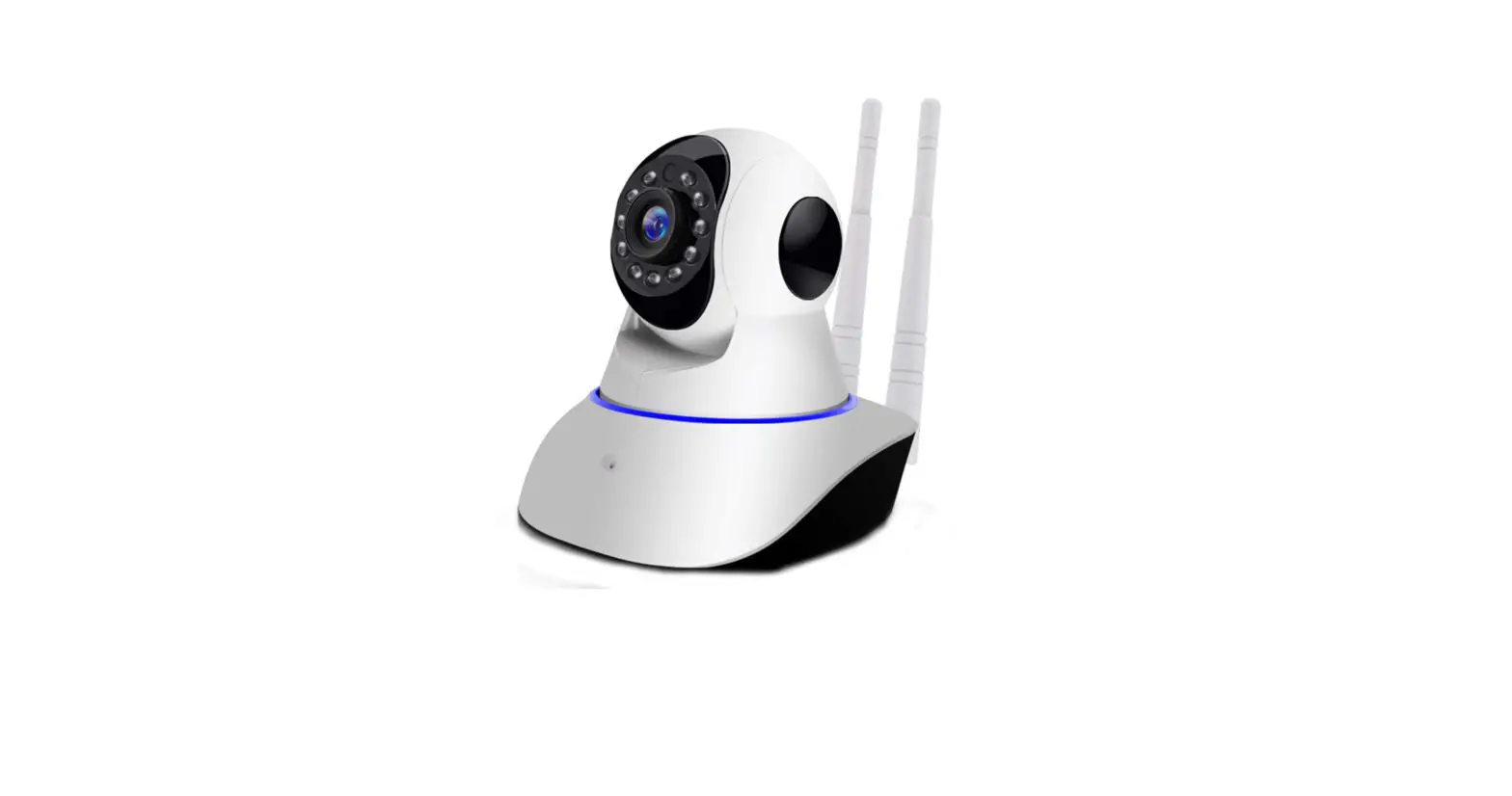

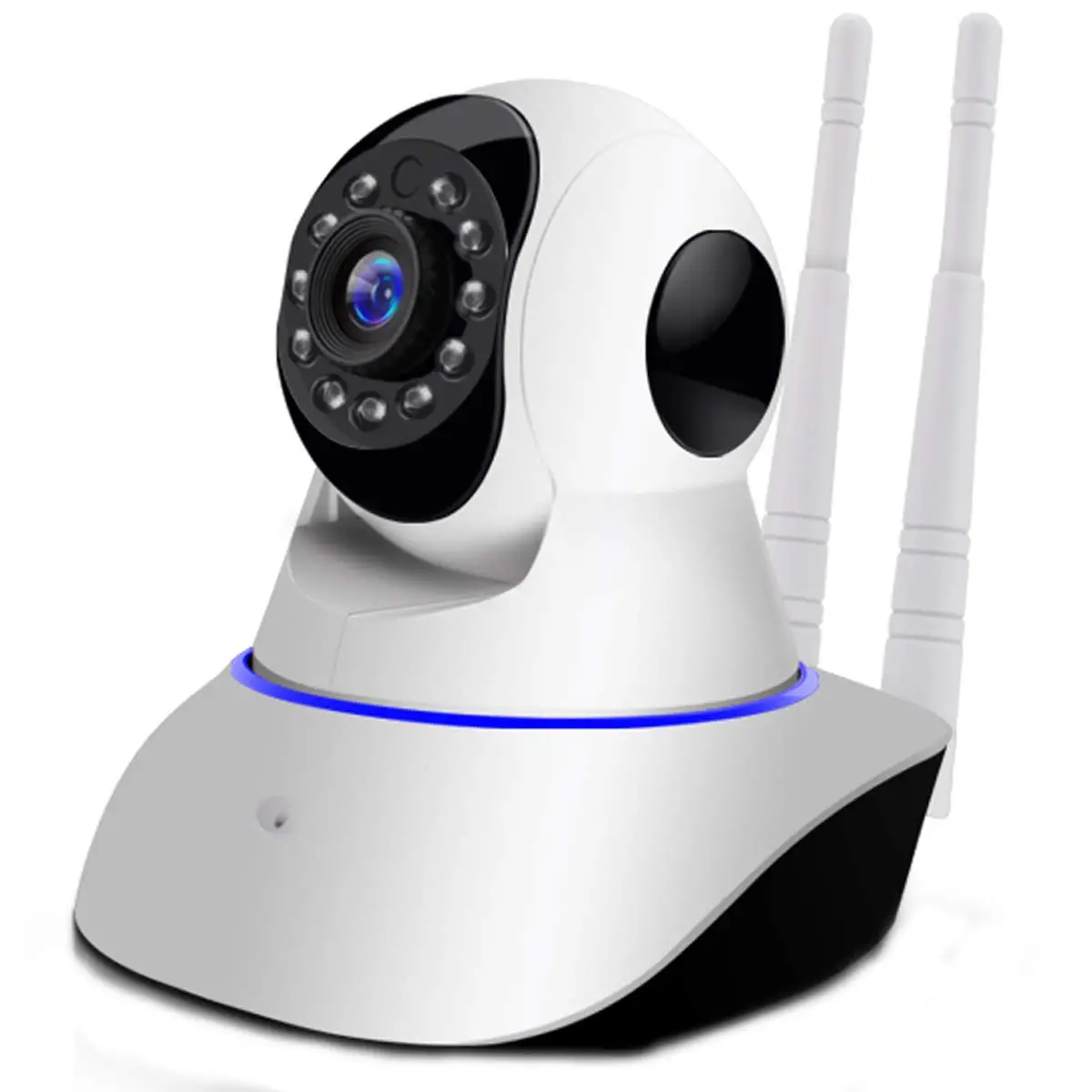
WiFi Camera (V380)
WiFi smart link installation
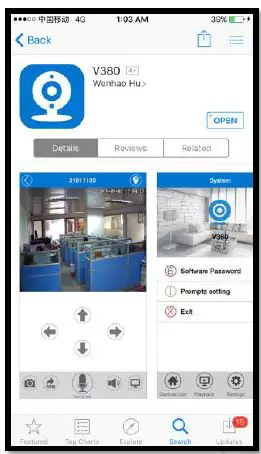
- Open Apple App Store, search, download, and install V380

- Connect the power plug to the camera and place the camera camera“right next” to your WiFi router.
- Camera sound: “System is starting”
- Camera sound: “System startup completed”
- Press and hold the reset button on the back of the camera until you hear the following sound:
- Camera sound: “Restore factory default setting”
- Camera sound: “Waiting for WiFi smart link configuration”
- Open the app V380

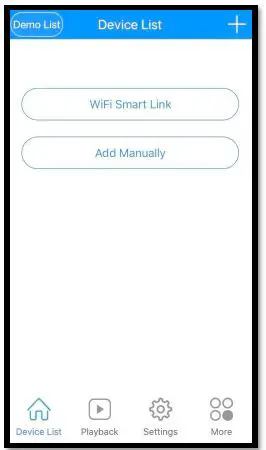
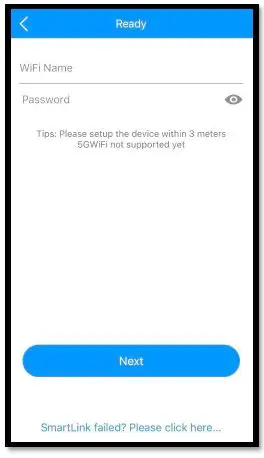
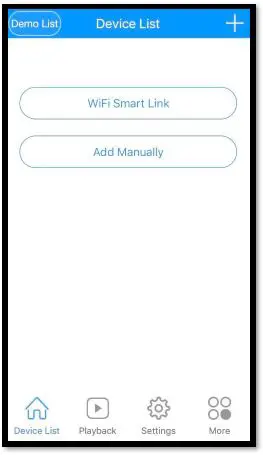
Click on “WiFi Smart Link” - Your phone has to be connected to your WiFi network. You should then see your network name under WiFi Name. Enter your WiFi password and press next on the following screen:

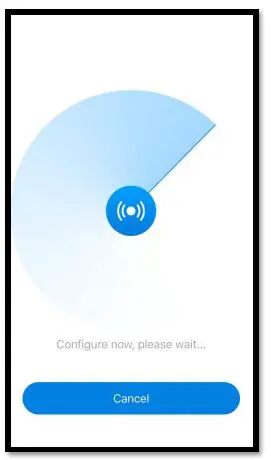
- You will see the following screen, searching for the camera camera through your WiFi connection

- Camera sound: “Configuration received”
- Camera sound: “WiFiconnecting”
- Camera sound: “WiFiconnected”
- Successfully installed

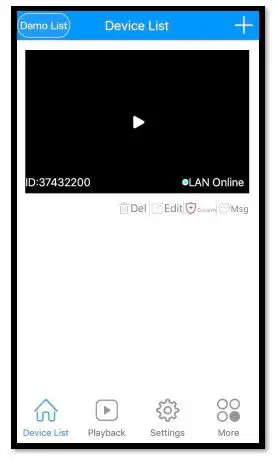
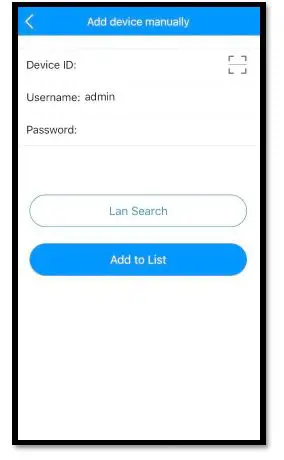
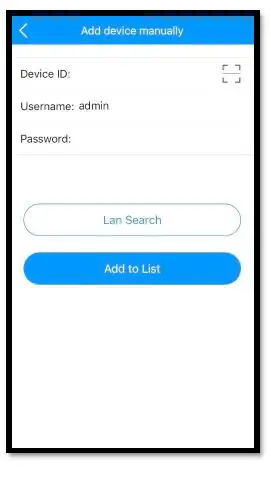
Note: “Add manually manually” option is for when a camera is already connected to your home network and you would like add the camera to another phone. You can simply press “Lan Search” or Type in the Device ID (located on the bottom of the camera) and click “Add to list list” on the follo wing page to add a an already configured camera to your phone.
AP installation
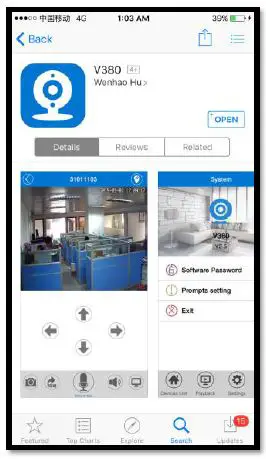
- Open Apple App Store, search, download, and install V380

- Connect the power cable to the camera
- Camera sound: “System is starting”
- Camera sound: “System startup completed”
- Press and hold the reset button on the back of the camera to until you hear the following sound:.
- Camera sound: “Restore factory default setting”
- Camera sound: “Waiting for WiFi smart link configuration”
- Press and hold the reset button again on the back of the camera for 1 1-2 seconds
- Camera sound: “ Access point establishing establishing”
- Camera sound: “ Access point established established”
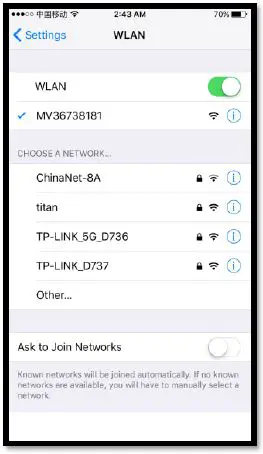
- On your phone, go to Settings -> WLAN and connect to the WiFi network that starts with MV and ends with 8 digits digits. For example MV12345678. This is your camera access point.

- Open the app V380

Click on “Add Manually” - Your phone has to be connected to the camera access point point. On the following screen, you can simply press “Lan Search” or Type in the Device ID (located on the bottom of the camera) and click Add to list on the following screen to add the camera to your device list list:

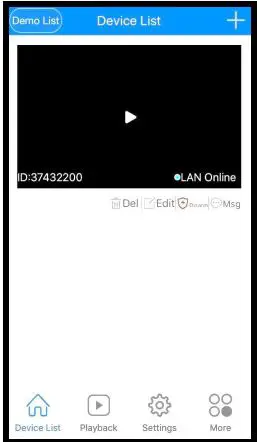
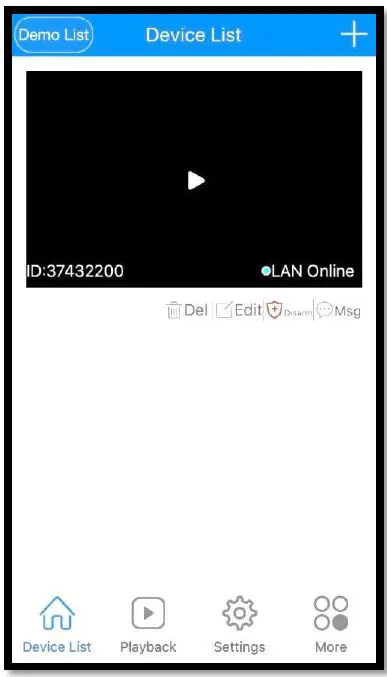
- When your phone successfully connects to the camera, you will see your camera on the Device List.

- Now your camera is setup to connect directly to your phone and can only be accessed when your phone is near the camera access point signal. To configure your camera to your WiFi network, please place the camera next to your WiFi route r and continue the following steps.
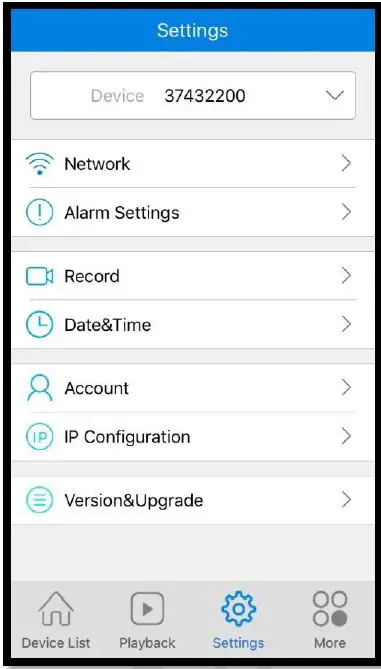
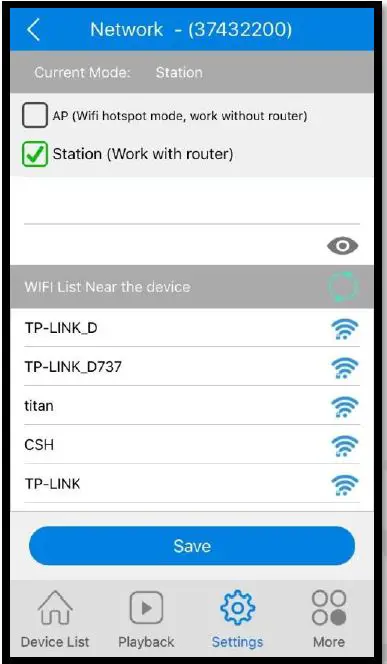
- Click “Settings” on the bottom menu will bring you to this screen.
You will see your device ID at the top. Click “Network.”
- Check “Station (Work with router) router). The WIFI List Near the device will populate with nearby networks. Choose your WiFi network and type in your WiFi password and press return.
Then click “Save” at the very top.
- Camera sound: “WiFi Connecting”
- Camera sound: “WiFi Connected”
- On your phone, go to Settings WLAN and connect to your WiFi network. Reopen the V380 app and click Device List at the bottom. You should see the camera on the device list.
- Successfully Installed

WiFi smart link installation (with
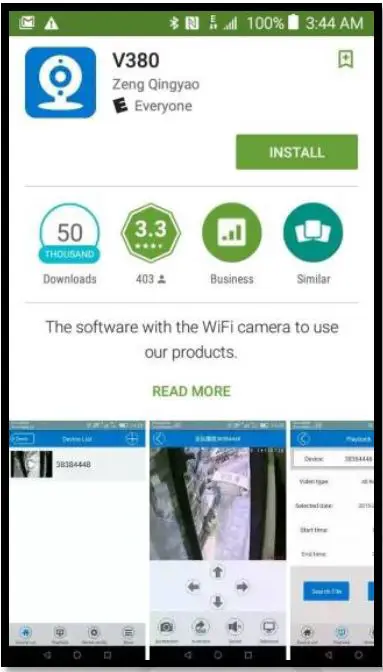
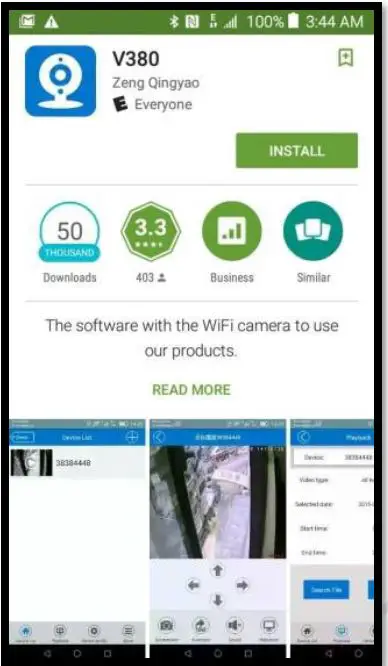
- Open Google Play Store , search, download, and install V380

- Connect the power plug to the camera and place the camera “right next” to your WiFi router.
- Camera sound: “System is starting”
- Camera sound: “System startup completed”
- Press and hold the reset button on the back of the camera until you hear the following sound:
- Camera sound: “Restore factory default setting”
- Camera sound: “Waiting for WiFi smart link configuration”
- Open the app V380

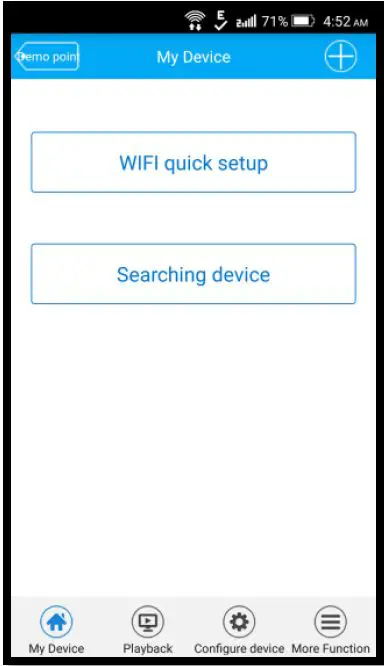
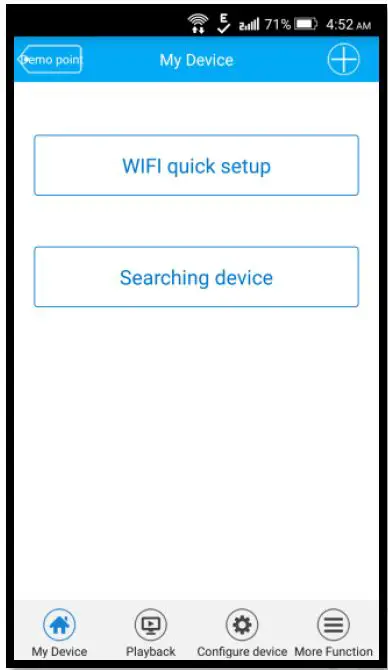
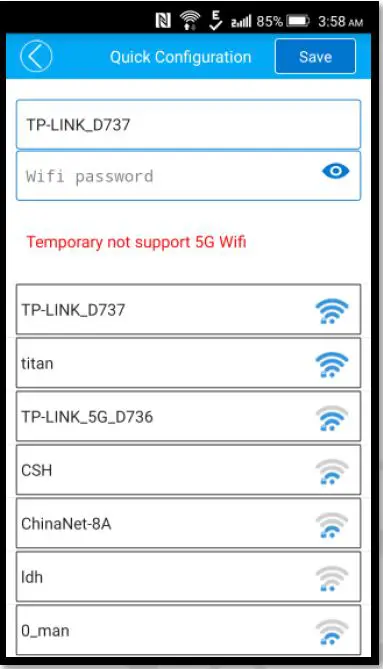
Click on “W IFI quick setup - Your phone ha s to be connected to your WiFi network.
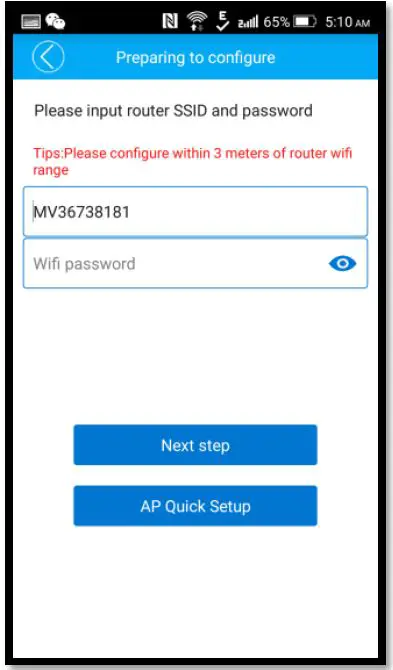
- You should then see your network name under WiFi name. Enter your WiFi password and press “ Next step on the following screen:

- You should then see your network name under WiFi name. Enter your WiFi password and press “ Next step on the following screen:
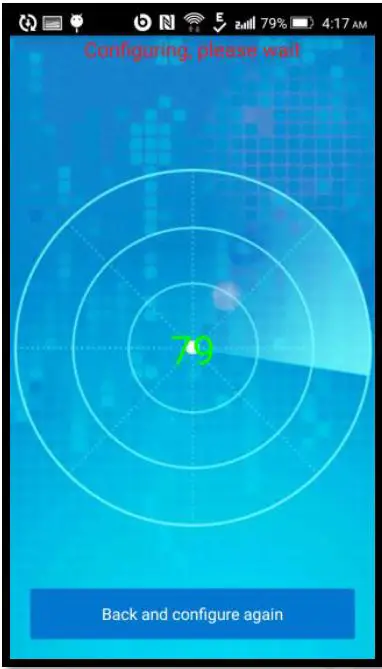
- You will see the following screen, searching for the camera through your WiFi connection

- Camera sound: “Configuration received”
- Camera sound: “WiFi connecting”
- Camera sound: “WiFi connected”
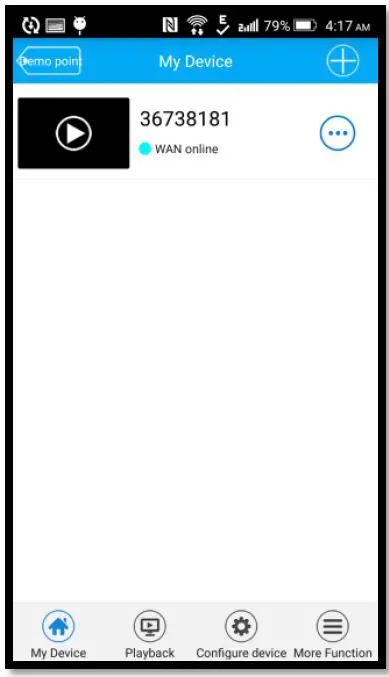
- Successfully installed

Note
Searching device and Device Linked option is for when a camera is already connected to your home n etwork and you would like add the camera to another phone. Simply clicking Searching device will add a n already configured camera to your phone. Or y ou can click the + icon on the top right and click Device Linked, then click “Lan Search” or Type in the Device ID (located on the bottom of the camera) and click Confirm Add ” on the following screen to add a n already configured camera to your phone.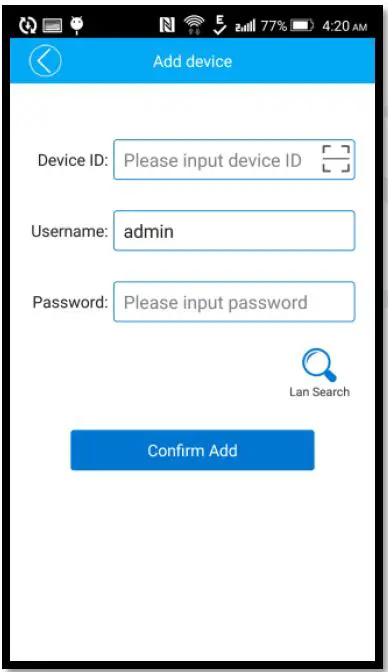
AP installation (with or without WiFi Network)
- Open Google Play Store , search, download, and install V380

- Connect the power cable to the camera and place the camera next to your WiFi router.
- Camera sound: “System is starting”
- Camera sound: “System startup completed”
- Press and hold the reset button on the back of the camera to until you hear the following sound:.
- Camera sound: “Restore factory default setting”
- Camera sound: “Waiting for WiFi smart link configuration”
- Press and hold the reset button again on the back of the camera for 1 2 seconds
- Camera sound: “ Access point establis hing
- Camera sound: “ Access point established
- On your phone, go to Settings –> WLAN and connect to the WiFi network that starts with MV and ends with 8 digits F or example MV12345678. This is your camera access point.
- Open the app V380

Click on “ WIFI quick setup
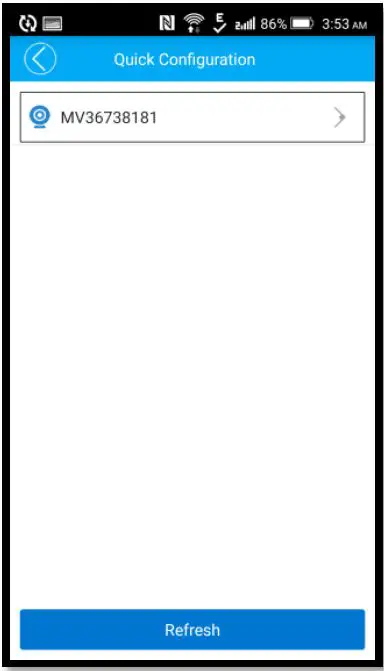
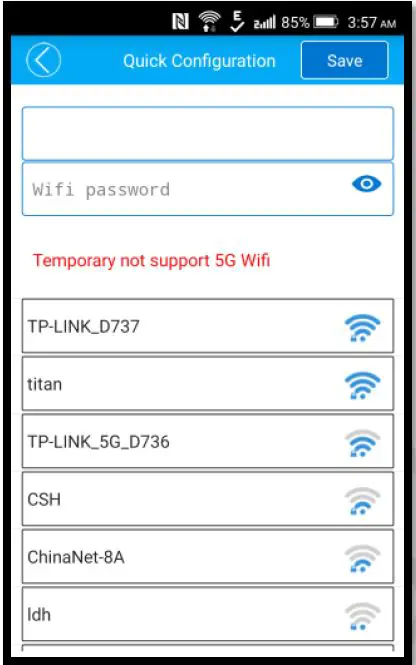
Click on AP Quick Setup will bring you to the Quick Configuration screen. - You will see the camera access point name under Quick Configuration. Click on the name to connect to the camera.

- You should see a list of nearby WiF i networks. Choose your WiFi network and type in your WiFi password and press return. Then click “Save” at the very top. If you don t see your network, press the back arrow and repeat step7

- Camera sound: “WiFi Connecting”
- Camera sound: “WiFiConnected”
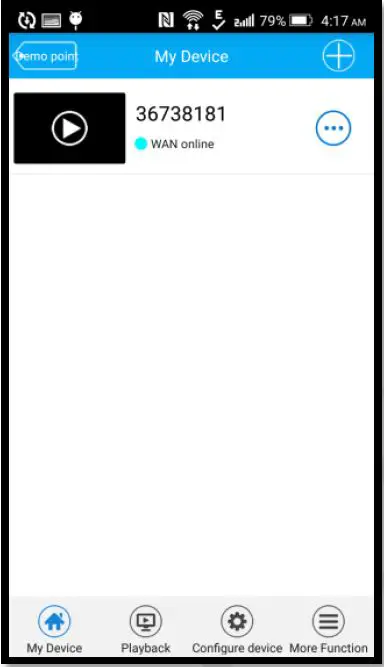
- On your phone, go to Settings –> WLAN and connect to your WiFi network. Reopen the V380 app and click “ My Device ” atthe bottom. You should see the camera on the there.
- Successfully Installed