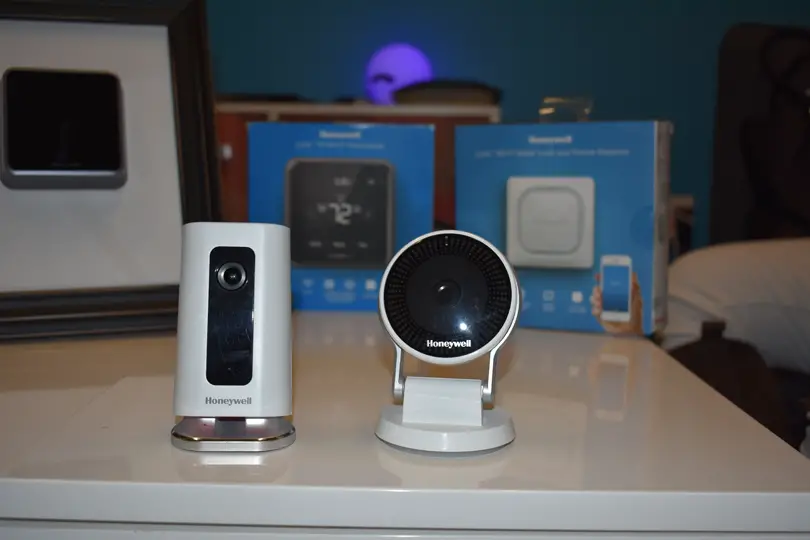
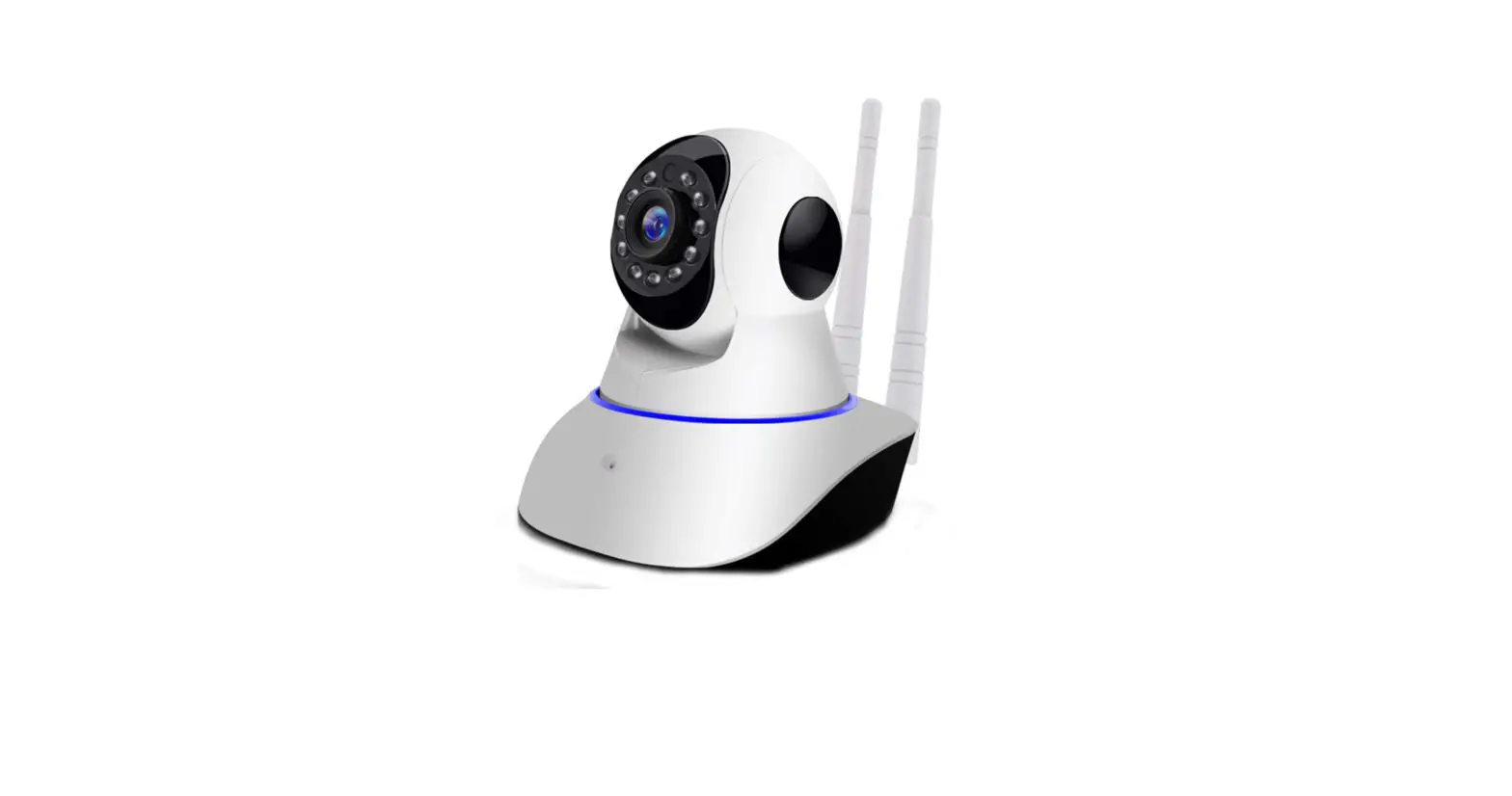
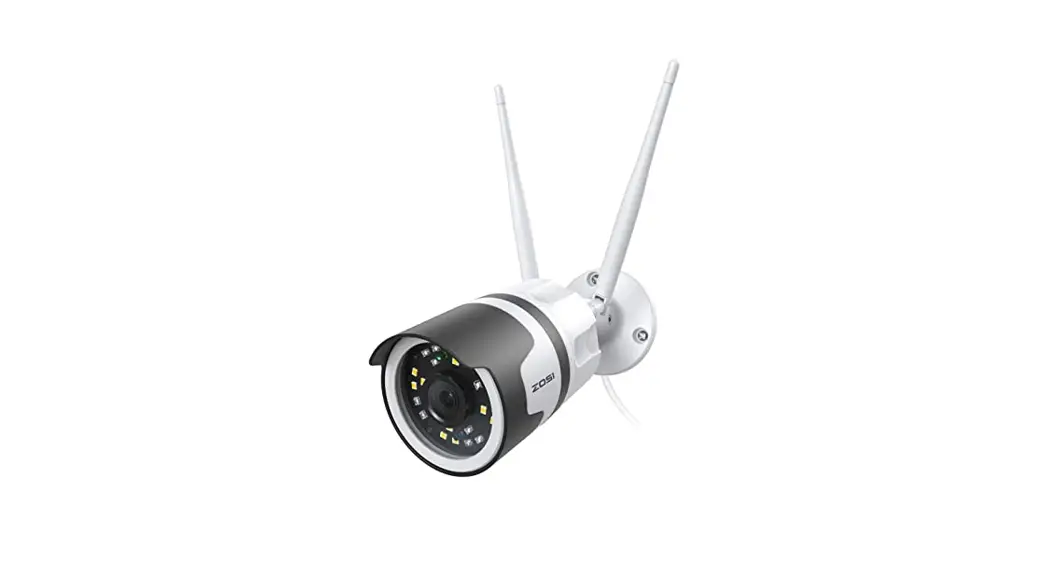
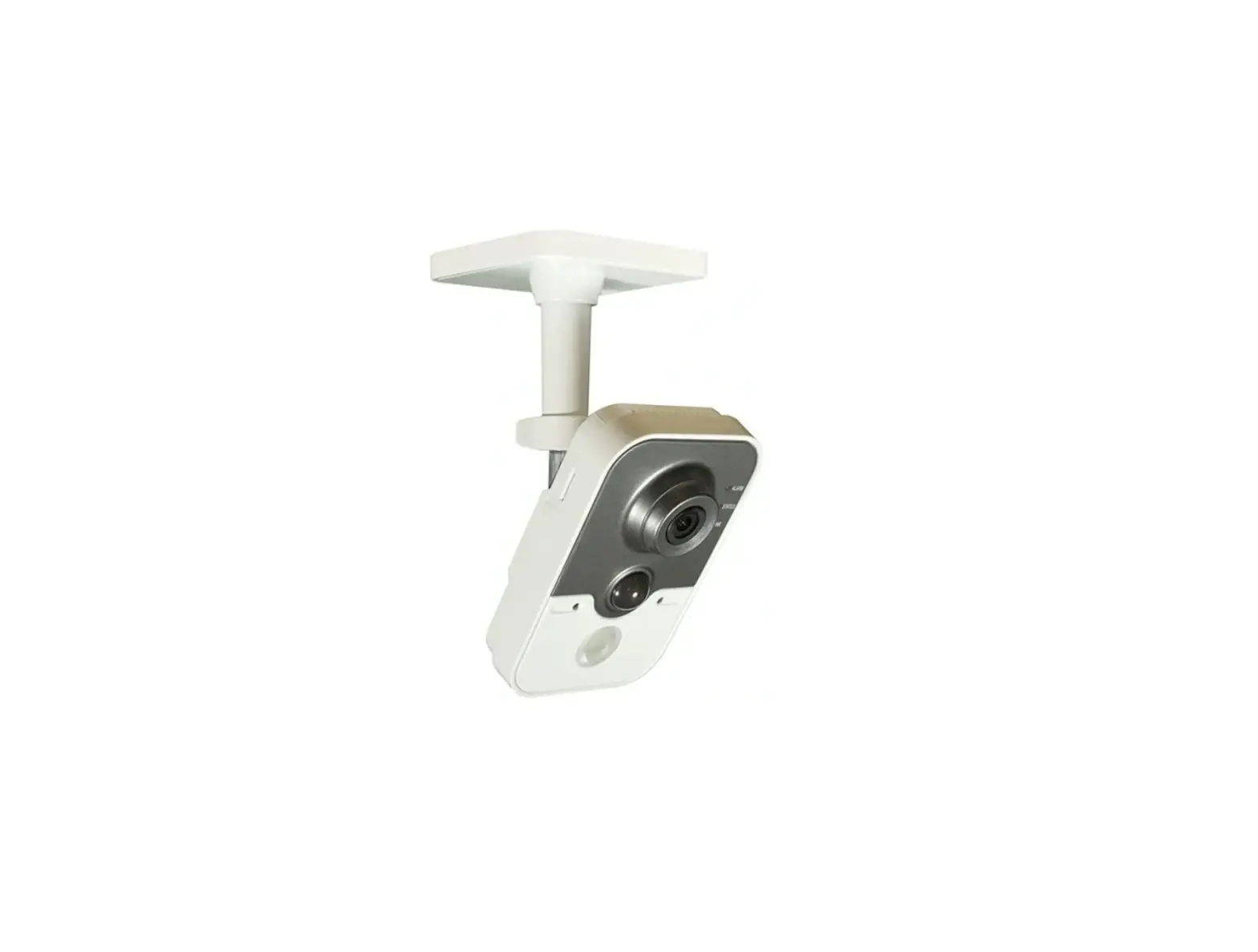
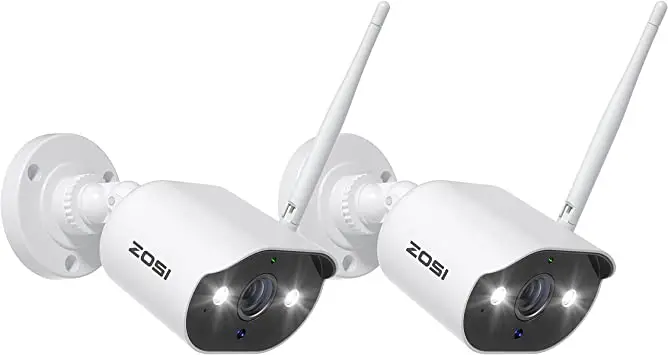
RCHC4400WF1004 C2 Wi-Fi Security Camera
C2 Wi-Fi Security Camera
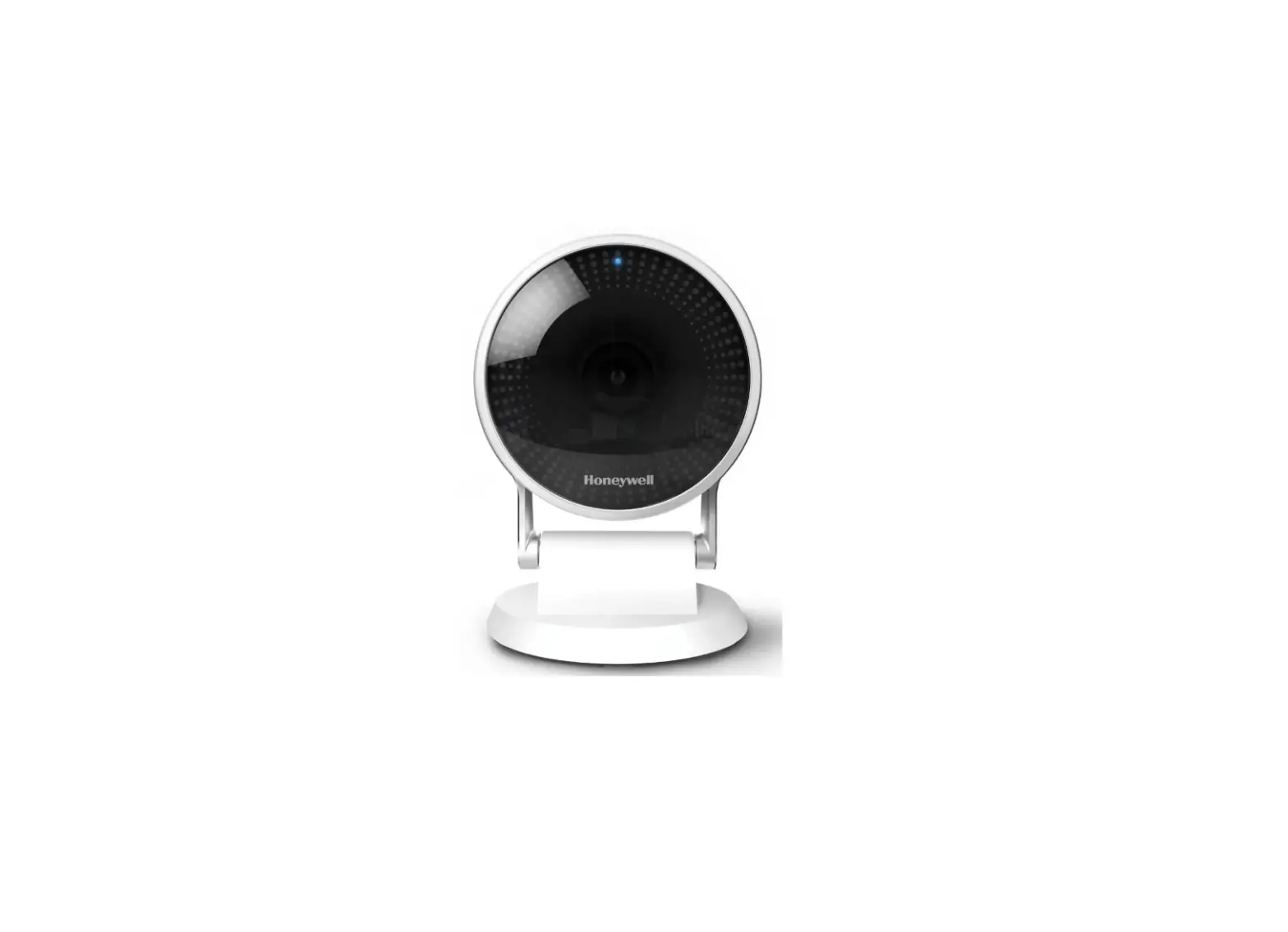
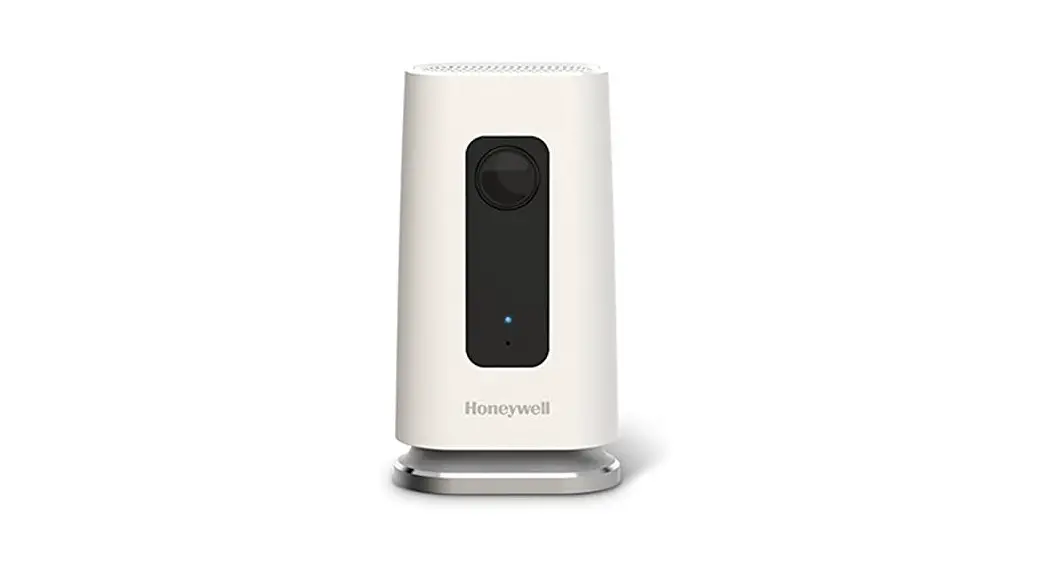
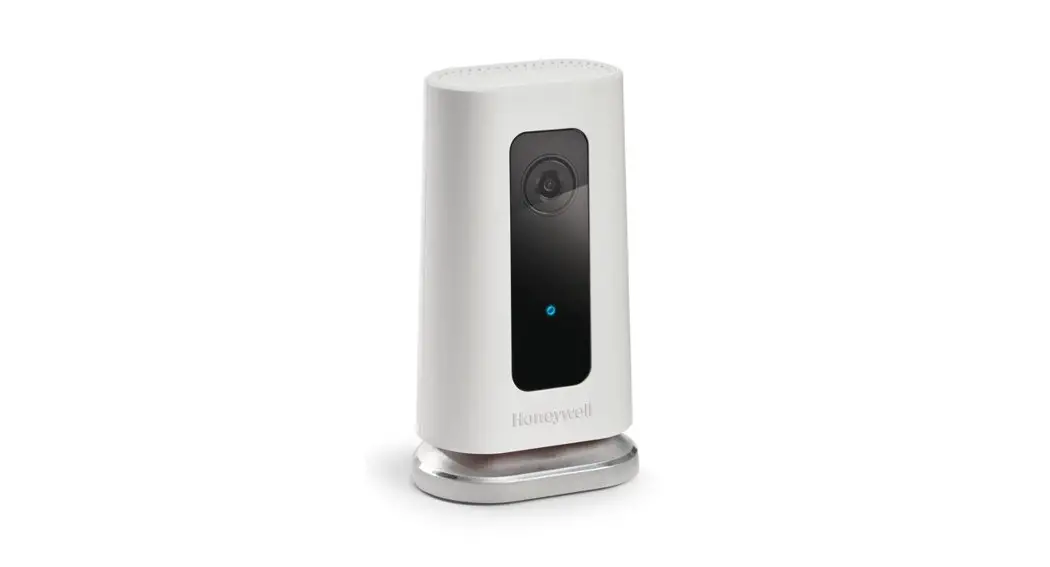
The C2 Wi-Fi Security Camera is a state-of-the-art security
device that allows you to monitor your home or office remotely.
With its easy installation process and user-friendly app, you can
quickly set up and start using the camera to ensure the safety of
your property.
Product Information:
- Model: M35532
- Compatible with Honeywell Home app
- Input: 5 V 2 A
- LED indicator for status updates
- Supports Wi-Fi connectivity
- Can be placed on a stand or mounted on a wall
Installation Instructions:
Step 1: Download the Honeywell Home app
Before starting the installation process, make sure you have
your Wi-Fi password available. Follow these steps to download the
Honeywell Home app:
- Ensure that Bluetooth is enabled on your mobile device.
- Search for “Honeywell Home” in the App Store or Google
Play. - Download and install the Honeywell Home app.
Step 2: Launch the Honeywell Home app
After installing the app, follow these steps to set up your C2
Wi-Fi Security Camera:
- Launch the Honeywell Home app.
- Create a new account or sign in to your existing Honeywell Home
account. - Tap on “ADD DEVICE” or the plus sign.
- Select the C2 Wi-Fi Camera from the list of available
devices. - Follow the instructions in the app to name the camera and
specify its location.
Step 3: Connect the power cord
Now it’s time to connect the power cord to your C2 Wi-Fi
Camera:
- Plug the micro USB end of the power cord into the camera.
- Connect the USB end of the power cord to the wall outlet
adapter. - Plug the adapter into a power outlet.
- Wait for the LED on the camera to blink blue (approximately 1
minute). - If the LED turns solid red, unplug the camera and plug it back
in.
Step 4: Connect to your mobile device
Follow these steps to connect your C2 Wi-Fi Camera to your
mobile device:
- Enable Bluetooth on your mobile device.
- The app will search for the camera and display a QR code.
- Hold the QR code approximately 3-6 inches (7-15 cm) from the
camera lens to establish the connection. - The camera LED will turn purple, and you will hear a beep
indicating successful connection.
Step 5: Connect to Wi-Fi
To connect your C2 Wi-Fi Camera to your Wi-Fi network, follow
these steps:
- Make sure you are connected to the desired Wi-Fi network on
your mobile device. - Select your Wi-Fi network from the list in the app and tap
“NEXT”. - If required, enter your Wi-Fi password and tap “DONE”.
Wi-Fi Connection LEDs:
The LED on the camera indicates different states during the
Wi-Fi connection process:
- Blinking Green: Connecting to Wi-Fi network.
- Solid Green: Connected to Wi-Fi network.
- Solid Red (for 2 seconds): Connection failed. LED will then
turn solid purple. - Blinking Blue: QR Code scan complete. Proceed to “Connect to
Wi-Fi” on page 3.
Options:
After the initial setup, you can choose your Geofencing and
Honeywell Home Membership options. These can be easily changed
later.
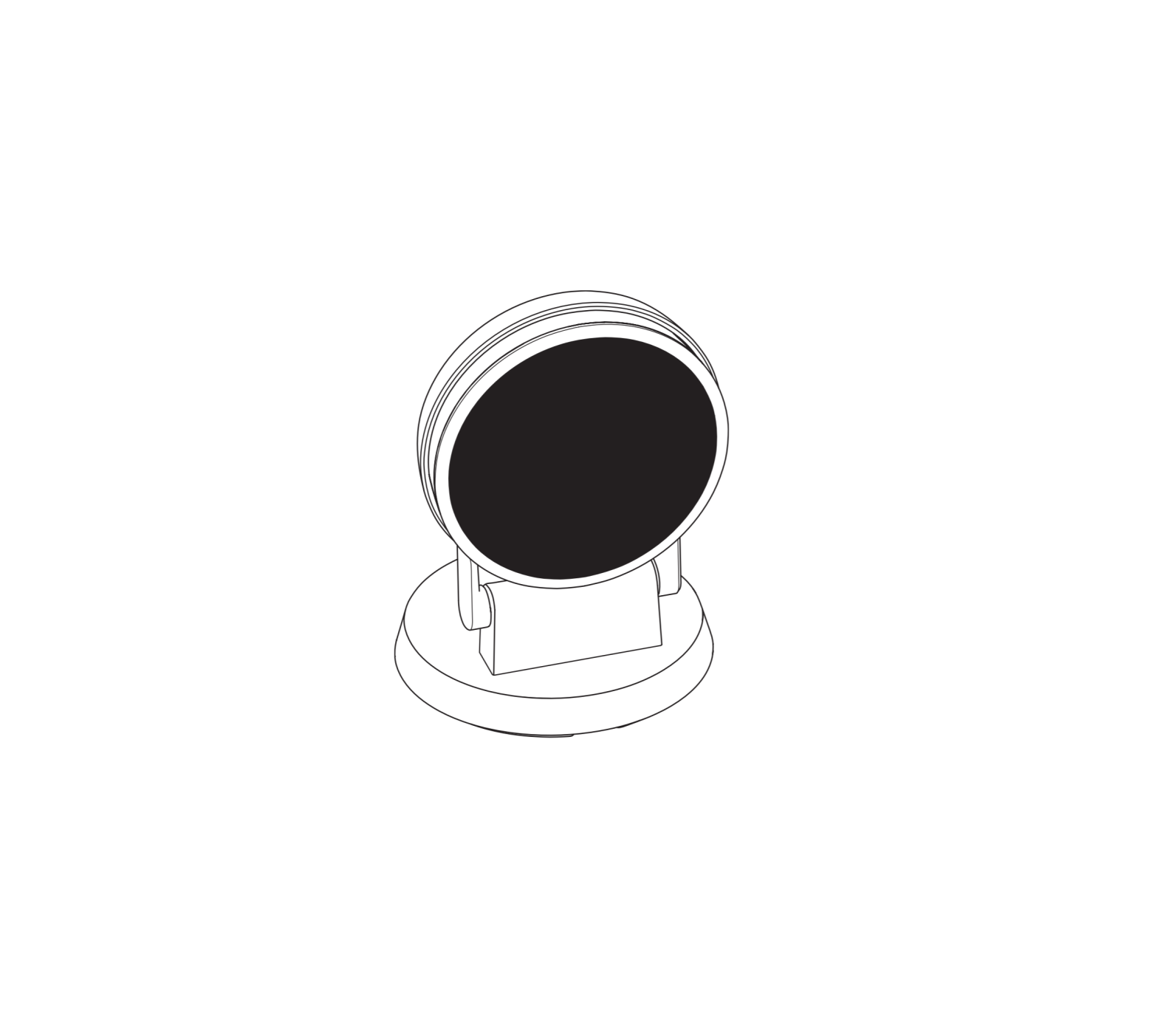
Placement:
The C2 Wi-Fi Security Camera can be placed in two ways:
- With Stand: Place the camera in a desired location for optimal
viewing and recording. - On the Wall: Mount the camera directly on the wall without
using the stand.
Operation:
Using the Honeywell Home app, you can conveniently access and
control your C2 Wi-Fi Security Camera. The app provides a Home
screen where all your connected devices are displayed. To view live
video from the camera, simply select it from the list.
Testing smoke/CO alarm detection:
If your smoke or carbon monoxide alarm goes off while the camera
is on, you will receive an alert. To test this feature, press and
hold the Test button on your smoke/CO detector for at least 5
seconds or 3 cycles of the alarm. Note that a shorter test might
not trigger a sound event. For a list of compatible alarms, visit
Resideo.com.
Camera Overview:
- LED indicator: Displays status updates.
- Camera lens: Captures video footage.
- Power cord: Connects the camera to a power source.
- Stand/wall mount: Provides options for camera placement.
C2 Wi-Fi Security Camera
Quick Installation Guide
M35532
RCHC4400WF1004, RCHC4400WF1013 Read before installing.
Input: 5 V 2 A
Installation
Download the Honeywell Home app
Note: Have your Wi-Fi password available before installation. 1 Make sure bluetooth is enabled on your mobile
device. 2 Search for Honeywell Home in the App Store or
Google Play. 3 Download the Honeywell Home app.
Launch the Honeywell Home app
4 Launch the Honeywell Home app. 5 Create an account (if necessary), or sign in to your
Honeywell Home account. Tap ADD DEVICE or the plus sign. 6 Select the C2 Wi-Fi Camera to install, then follow the instructions in the Honeywell Home app to name the camera and its location.
Connect the power cord
7 Plug the power cord’s micro USB end into the camera.
8 Plug the power cord’s USB end into the wall outlet adapter, and plug your camera into a power outlet.
9 Wait until the LED on the camera blinks blue (about 1 minute), then tap NEXT.
Note: If the LED turns solid red, it means the connection mode timed out. Unplug the camera and plug it back in.
2
Connect
Connect to mobile device
1 Enable bluetooth on your mobile device. 2 The app will look for the camera.
· For one camera, it will connect automatically.
· For more than one camera, the app will prompt you to select one camera at a time. Each camera has a unique MAC ID printed on the back. Use that ID to select the camera you want to connect.
3 A QR code will display in the app. To connect your camera to the app, hold the QR code approximately 3-6 inches (7-15 cm) from the camera lens.
4 The camera LED turns purple and the camera beeps.
Connect to Wi-Fi
Be sure you are on the same Wi-Fi network you wish to connect your camera to. 1 Choose your Wi-Fi network from the list.
Tap NEXT. 2 Enter your Wi-Fi password, if necessary.
Tap DONE. Note: The camera will beep during some steps in this process.
3
Wi-Fi Connection LEDs
During Wi-Fi connection, the LED indicates the following.
LED Blinking Green Solid Green Solid Red (for 2 seconds) Solid Purple
Blinking Blue
Camera state Connecting to Wi-Fi network.
Connected to Wi-Fi network. Connection failed. LED will then turn solid purple.
QR Code scan complete. Go to “Connect to Wi-Fi” on page 3. Camera has lost bluetooth connection. Unplug camera and plug it back in. See “Connect the power cord” on page 2 for instructions.
Options
Choose your Geofencing and Honeywell Home Membership options (if you skip them you can change them easily later).
Placement
With Stand
Place the camera in a desired location for viewing and recording.
On the Wall
You can also mount the camera directly to the wall without the stand.
4
Operation
Honeywell Home app experience
When you launch the application, your Home screen is displayed. All of your devices (cameras, thermostats, water leak detectors, etc.) are displayed. Select a camera from the list to view live video from that camera.
Testing smoke/CO alarm detection
If your smoke or carbon monoxide alarm goes off and your camera is on, it will send you an alert that a smoke or CO alarm has been detected. To test this feature, press and hold the Test button on your smoke/CO detector for at least 5 seconds or 3 cycles of the detector’s alarm. A shorter test might not trigger a sound event. For a list of compatible alarms see Resideo.com.
5
Camera Overview
LED indicator
Camera lens
Power cord
Stand/wall mount
Backplate and rubber
feet
Reset hole
SD card and slot
Reset
If your Wi-Fi connection fails or you need to connect to a different Wi-Fi network, insert one end of a paperclip into the reset hole. Press and hold it for 10 seconds until you hear a chirp.
SD card
The camera comes with an encrypted 16GB SD card installed. It stores images if the camera’s connection to the cloud is lost. You can replace it with any compatible SD card.
6
Status LED
The camera has an LED that gives device status.
LED
Camera state
During installation
Blinking Blue Powered up. Ready to begin setup.
Solid Blue Solid Purple Blinking Green Solid Green Solid Red
Connected to app. Ready to complete setup. QR Code scan complete. Go to Connect to Wi-Fi process. Connecting to Wi-Fi network. Connected to Wifi network. Setup timed out. Unplug camera, plug it back in, and restart the process.
During operation
Blinking Green Solid Green Blinking Red
Connecting to Wi-Fi network. Connected to Wi-Fi and operating. Not connected to Wi-Fi.
7
FCC Regulations
§ 15.19 (a)(3) This device complies with part 15 of the FCC Rules. Operation is subject to the following two conditions: (1) This device may not cause harmful interference, and (2) this device must accept any interference received, including interference that may cause undesired operation. § 15.21 Changes or modifications not expressly approved by the party responsible for compliance could void the user`s authority to operate the equipment. § 15.105(b) This equipment has been tested and found to comply with the limits for a Class B digital device, pursuant to part 15 of the FCC Rules. These limits are designed to provide reasonable protection against harmful interference in a residential installation. This equipment generates, uses and can radiate radio frequency energy and, if not installed and used in accordance with the instructions, may cause harmful interference to radio communications. However, there is no guarantee that interference will not occur in a particular installation. If this equipment does cause harmful interference to radio or television reception, which can be determined by turning the equipment off and on, the user is encouraged to try to correct the interference by one or more of the following measures: · Reorient or relocate the receiving antenna. · Increase the separation between the equipment and receiver. · Connect the equipment into an outlet on a circuit different from that to which the
receiver is connected. · Consult the dealer or an experienced radio/TV technician for help. For product available in the USA/Canada market, only channel 111 can be operated. Selection of other channels is not possible. This device is restricted to indoor use.
8
FCC Radiation Exposure Statement: This equipment complies with FCC radiation exposure limits set forth for an uncontrolled environment. This equipment should be installed and operated with minimum distance 20cm between the radiator and your body. This device and its antenna(s) must not be co-located or operating in conjunction with any other antenna or transmitter.
IC Regulations
This device contains license-exempt transmitter(s)/receiver(s) that comply with Innovation, Science and Economic Development Canada’s license-exempt RSS(s). Operation is subject to the following two conditions: 1. This device may not cause interference. 2. This device must accept any interference, including interference that may cause undesired operation of the device. This device is restricted to indoor use. IC Radiation Exposure Statement: This device complies with IC radiation exposure limits set forth for an uncontrolled environment. This device should be installed and operated with minimum distance of 20cm between the radiator and your body. This device and its antenna(s) must not be co-located or operating in conjunction with any other antenna or transmitter.
9
Need help?
· Web: resideo.com · Phone: 1-800-633-3991 The operation of this equipment is subject to the following two conditions: (1) this equipment or device may not cause harmful interference, and (2) this equipment or device must accept any interference, including interference that may cause undesired operation.
10
The product should not be disposed of with other household waste. Check for the nearest authorized collection centers or authorized recyclers. The correct disposal of end-of-life equipment will help prevent potential negative consequences for the environment and human health.
11
www.resideo.com
Resideo Technologies, Inc. 1985 Douglas Drive North, Golden Valley, MN 55422 1-800-633-3991 33-00365EFS–09 M.S. Rev. 04-21 | Printed in United States
©2021 Resideo Technologies, Inc. All rights reserved. The Honeywell Home trademark is used under license from Honeywell International, Inc. This product is manufactured by Resideo Technologies, Inc. and its affiliates. Tous droits réservés. La marque de commerce Honeywell Home est utilisée avec l’autorisation d’Honeywell International, Inc. Ce produit est fabriqué par Resideo Technologies, Inc. et ses sociétés affiliées. Todos los derechos reservados. La marca comercial Honeywell Home se utiliza bajo licencia de Honeywell International, Inc. Este producto es fabricado por Resideo Technologies, Inc. y sus afiliados.
33-00365EFS-09
Caméra de sécurité Wi-Fi C2
Guide d’installation rapide
M35532
RCHC4400WF1004, RCHC4400WF1013 Lire avant l’installation.
ENTRÉE: 5 V 2 A
Installation
Téléchargement de l’application Honeywell Home
Remarque : Avant l’installation, ayez en main le mot de passe du réseau Wi-Fi. 1 Assurez-vous que Bluetooth est activé sur votre
appareil mobile. 2 Cherchez Honeywell Home dans l’App Store ou
sur Google Play. 3 Téléchargez l’application Honeywell Home.
Lancement de l’application Honeywell Home
4 Lancez l’application Honeywell Home. 5 Créez un compte (si nécessaire) ou connectez-vous à votre
compte Honeywell Home. Appuyez sur AJOUTER UN APPAREIL ou sur le signe plus (+). 6 Sélectionnez la caméra Wi-Fi C2 à installer, puis suivez les instructions de l’application Honeywell Home pour nommer la caméra et son emplacement.
Branchement du cordon d’alimentation
7 Branchez l’extrémité micro USB du cordon d’alimentation dans la caméra.
8 Branchez l’extrémité USB du cordon d’alimentation dans l’adaptateur et branchez votre caméra dans une prise électrique.
9 Attendez environ 1 minute que le voyant DEL devienne bleu et clignote, puis touchez SUIVANT.
Remarque : Si le voyant DEL devient rouge fixe, cela signifie que le mode de connexion est expiré. Débranchez et rebranchez la caméra.
2
Connexion
Connexion à un appareil mobile
1 Activez Bluetooth sur votre appareil mobile.
2 L’application recherche la caméra. · Pour une seule caméra, la connexion se fait automatiquement. · Lorsqu’il y a plusieurs caméras, l’application vous demande de sélectionner une caméra à la fois. Chaque caméra possède une adresse MAC unique imprimée au dos. Utilisez cette adresse pour sélectionner la caméra que vous désirez connecter.
3 L’application affiche un code QR. Pour connecter la caméra à l’application, maintenez le code QR à une distance de 7 à 15 cm (de 3 à 6 pouces) devant l’objectif de la caméra.
4 Lorsque la connexion est réussie, le voyant DEL devient mauve et la caméra émet un signal sonore.
Connexion à un réseau Wi-Fi
Assurez-vous d’être connecté au même réseau Wi-Fi que celui auquel vous souhaitez connecter votre caméra. 1 Sélectionnez votre réseau Wi-Fi à partir
de la liste. Touchez SUIVANT. 2 Entrez le mot de passe du réseau Wi-Fi,
au besoin. Touchez TERMINÉ. Remarque : La caméra émet des signaux sonores à certaines étapes de la procédure.
3
Voyant DEL lors de la connexion Wi-Fi
Lors de la connexion au réseau Wi-Fi, le voyant DEL indique l’état de la caméra.
DEL Vert clignotant Vert fixe Rouge fixe (pendant 2 secondes) Mauve fixe
Bleu clignotant
État de la caméra
Connexion au réseau Wi-Fi.
Connectée au réseau Wi-Fi.
Échec de la connexion. Le voyant DEL devient ensuite mauve fixe.
Balayage du code QR terminé. Aller « Connexion à un réseau Wi-Fi », à la page 3.
La connexion Bluetooth a été perdue. Débranchez et rebranchez la caméra. Reportez-vous aux instructions de la section « Branchement du cordon d’alimentation », à la page 2.
Options
Choisissez les options Geofence et les options d’adhésion Honeywell Home (si vous sautez cette étape, vous pouvez facilement modifier ces options plus tard).
Positionnement
Avec le socle
Placez la caméra à l’endroit souhaité.
Sur le mur
Vous pouvez également fixer la caméra directement sur un mur, sans le socle.
4
Fonctionnement
Fonctionnement de l’application Honeywell Home
Lorsque vous lancez l’application, la page d’accueil s’affiche. Tous vos appareils (caméras, thermostats, détecteurs de fuites d’eau, etc.) sont affichés. Sélectionnez une caméra pour visionner son signal vidéo en direct.
Test de détection de l’alarme du détecteur de fumée ou de monoxyde de carbone
Si l’alarme de votre détecteur de fumée ou de monoxyde de carbone se déclenche, et que votre caméra est activée, vous recevrez une alerte vous avisant qu’une alarme du détecteur de fumée ou de monoxyde de carbone a été détectée. Pour tester cette fonction, maintenez enfoncé le bouton de test de votre détecteur de fumée ou de monoxyde de carbone pendant au moins cinq secondes ou trois cycles d’alarme du détecteur. Un test plus court pourrait ne pas être détecté par la caméra. Pour voir la liste d’alarmes compatibles, visitez le site Resideo.com.
5
Aperçu de la caméra
Voyant DEL
Objectif de la caméra
Cordon d’alimentation
Socle/montage mural
Plaque arrière et pied en caou-
tchouc
Bouton de réinitialisation
Fente et carte SD
Réinitialisation
Si la connexion Wi-Fi est interrompue ou si vous devez vous connecter à un réseau différent, appuyez sur le bouton de réinitialisation en insérant l’extrémité d’un trombone dans l’ouverture. Maintenez-le enfoncé pendant 10 secondes jusqu’à ce que vous entendiez un signal sonore.
Carte SD
Une carte SD chiffrée de 16 Go est préinstallée dans la caméra. Celle-ci enregistre les images si la connexion au nuage est interrompue. Vous pouvez la remplacer avec n’importe quelle autre carte SD compatible.
6
Voyant DEL d’état
La caméra est munie d’un voyant DEL indiquant son état.
DEL
État de la caméra
Pendant l’installation
Bleu clignotant Allumée. Prête à commencer l’installation.
Bleu fixe Mauve fixe
Vert clignotant Vert fixe Rouge fixe
Connectée à l’application. Prête à terminer la configuration. Balayage du code QR terminé. Aller « Connexion à un réseau Wi-Fi ». Connexion au réseau Wi-Fi. Connectée au réseau Wi-Fi. Délai de configuration expiré. Débranchez et rebranchez la caméra, puis recommencez la procédure.
En fonctionnement
Vert clignotant Vert fixe Rouge clignotant
Connexion au réseau Wi-Fi. Connectée au réseau Wi-Fi et en état de marche. Non connectée au réseau Wi-Fi.
7
Règlements de la FCC
§ 15.19 (a)(3) Cet appareil est conforme à la partie 15 des règlements de la FCC. Son fonctionnement est soumis aux deux conditions suivantes : (1) cet appareil ne doit pas causer d’interférences nuisibles et (2) doit accepter toutes les interférences reçues, notamment celles à l’origine d’un fonctionnement indésirable. § 15.21 Les modifications qui ne sont pas expressément autorisées par la partie responsable de la conformité peuvent annuler le droit de l’utilisateur à utiliser l’appareil. § 15.105(b) Cet équipement a subi des tests prouvant sa conformité aux limites prescrites pour les appareils numériques de classe B, selon la partie 15 des règlements de la FCC. Ces limites ont été conçues pour fournir une protection raisonnable contre les interférences nuisibles lorsque l’appareil est utilisé dans un environnement résidentiel. Cet équipement génère, utilise et peut émettre de l’énergie radiofréquence et, s’il n’est pas installé et utilisé conformément aux instructions, peut causer des interférences nuisibles aux communications radio. Toutefois, il n’y a aucune garantie que ces interférences ne puissent survenir dans une installation donnée. Si cet équipement cause des interférences nuisibles à la réception de signaux de radio ou de télévision, ce qui peut être déterminé en l’éteignant et en l’allumant, l’utilisateur peut essayer de corriger ces interférences par les mesures suivantes : · Réorienter ou déplacer l’antenne réceptrice. · Augmenter la distance entre l’équipement et le récepteur. · Brancher l’équipement sur un circuit différent de celui sur lequel le récepteur est
branché. · Consulter le détaillant ou un technicien expérimenté en radio/télévision. Pour les produit disponible sur le marché des États-Unis et le Canada, seul les canaux 111 peuvent être utilisés. La sélection des autres canaux est impossible. Cet appareil est destiné à un usage intérieur seulement.
8
Déclaration de la FCC sur l’exposition aux rayonnements : Cet équipement est conforme aux limites d’exposition aux rayonnements établies par la FCC pour un environnement non contrôlé. Celui-ci doit être installé et utilisé avec un minimum de 20 cm de distance entre la source de rayonnement et votre corps. Cet appareil et ses antennes ne doivent pas être placés à côté de ou fonctionner en conjonction avec toute autre antenne ou transmetteur.
Règlements d’IC
L’émetteur/récepteur exempt de licence contenu dans le présent appareil est conforme aux CNR d’Innovation, Sciences et Développement économique Canada applicables aux appareils radio exempts de licence. L’exploitation est autorisée aux deux conditions suivantes : 1.L’appareil ne doit pas produire de brouillage; 2.L’appareil doit accepter tout brouillage radioélectrique subi, même si le brouillage est susceptible d’en compromettre le fonctionnement. Cet appareil est destiné à un usage intérieur seulement. Déclaration d’IC sur l’exposition aux rayonnements : Cet équipement est conforme aux limites d’exposition aux rayonnements IC établies pour un environnement non contrôlé. Cet équipement doit être installé et utilisé avec un minimum de 20cm de distance entre la source de rayonnement et votre corps. Cet appareil et ses antennes ne doivent pas être placés à côté de ou fonctionner en conjonction avec toute autre antenne ou transmetteur.
9
Besoin d’aide?
· Site Web : resideo.com · Téléphone : 1-800-633-3991 L’utilisation de cet équipement est soumise aux deux conditions suivantes : (1) cet équipement ou cet appareil ne peut pas causer d’interférences dangereuses, et (2) cet équipement ou cet appareil doit accepter toute interférence reçue, notamment les interférences à l’origine d’un fonctionnement indésirable.
10
Ce produit ne doit pas être jeté avec les autres ordures ménagères. Trouvez le centre de collecte ou de recyclage autorisé de votre région. La mise au rebut appropriée de l’équipement ayant atteint la fin de sa vie utile aide à réduire les impacts négatifs sur l’environnement et la santé.
11
www.resideo.com
Resideo Technologies, Inc. 1985 Douglas Drive North, Golden Valley, MN 55422 1-800-633-3991 33-00365EFS–09 M.S. Rev. 04-21 | Imprimé aux États-Unis
©2021 Resideo Technologies, Inc. All rights reserved. The Honeywell Home trademark is used under license from Honeywell International, Inc. This product is manufactured by Resideo Technologies, Inc. and its affiliates. Tous droits réservés. La marque de commerce Honeywell Home est utilisée avec l’autorisation d’Honeywell International, Inc. Ce produit est fabriqué par Resideo Technologies, Inc. et ses sociétés affiliées. Todos los derechos reservados. La marca comercial Honeywell Home se utiliza bajo licencia de Honeywell International, Inc. Este producto es fabricado por Resideo Technologies, Inc. y sus afiliados.
33-00365EFS-09
Cámara de seguridad Wi-Fi C2
Guía de instalación rápida
M35532
RCHC4400WF1004, RCHC4400WF1013 Leer antes de instalar.
Entrada: 5 V 2 A
Instalación
Descargar la aplicación Honeywell Home
Nota: Tenga a la mano la contraseña de su wifi antes de la instalación. 1 Asegúrese de que la conectividad Bluetooth esté
habilitada en el dispositivo móvil. 2 Busque Honeywell Home en la tienda App Store o en
Google Play. 3 Descargue la aplicación Honeywell Home.
Iniciar la aplicación Honeywell Home
4 Inicie la aplicación Honeywell Home. 5 Cree una cuenta (si es necesario), o bien acceda a su
cuenta de Honeywell Home. Toque ADD DEVICE (Agregar dispositivo) o el signo de más. 6 Seleccione la cámara wifi C2 que desea instalar y, luego, siga las instrucciones en la aplicación Honeywell Home para asignarle un nombre a su cámara y a la ubicación.
Conectar el cable de alimentación
7 Conecte el extremo micro USB del cable a la cámara. 8 Conecte el extremo USB del cable en el
adaptador de toma de corriente y conecte la cámara a una toma de corriente. 9 Espere hasta que el indicador LED de la cámara parpadee en color azul (aproximadamente, 1 minuto); luego, presione Siguiente. Nota: Si el indicador LED enciende de color rojo y está fijo, significa que el modo de conexión superó el tiempo de espera. Desconecte la cámara y vuelva a conectarla.
2
Conectar
Conexión al dispositivo móvil
1 Habilite la conectividad Bluetooth en el dispositivo móvil.
2 La aplicación buscará la cámara. · Si hay solo una cámara, se conectará automáticamente. · Si hay más de una cámara, la aplicación le pedirá seleccionar una cámara por vez. Cada cámara tiene un identificador MAC único impreso en la parte posterior de la cámara. Use ese identificador para seleccionar la cámara que desea conectar.
3 En la aplicación, se mostrará un código QR. Para conectar la cámara a la aplicación, enfrente el código QR entre unas 3 y 6 pulgadas (de 7 cm a 15 cm) de la lente de la cámara.
4 El indicador LED de la cámara enciende de color violeta y la cámara emite un pitido.
Conexión wifi
Asegúrese de estar en la misma red wifi a la que desea conectar la cámara. 1 Elija la red wifi de la lista. Presione
Siguiente. 2 Ingrese la contraseña de su wifi, si es
necesario. Presione Listo.
Nota: La cámara emitirá pitidos en algunos pasos del proceso.
3
Indicadores LED de conexión wifi
Durante una conexión wifi, el indicador LED señala los siguientes estados:
Indicador LED Verde intermitente Verde fijo Rojo fijo (durante 2 segundos) Violeta fijo
Azul intermitente
Estado de la cámara
Conectando a una red wifi.
Conectada a una red wifi.
La conexión falló. Luego el indicador LED encenderá en color violeta y estará fijo.
Escaneo de código QR completo. Vaya “Conexión wifi” en la página 3.
La cámara perdió la conexión Bluetooth. Desconecte la cámara y vuelva a conectarla. Consulte “Conectar el cable de alimentación” en la página 2 para leer las instrucciones.
Opciones
Seleccione sus opciones de Membresía de Honeywell Home y geovalla (si decide saltar este paso, puede cambiar las opciones fácilmente más adelante).
Colocación
Con soporte de pie
Coloque la cámara en la ubicación deseada para ver y grabar.
En la pared
También puede montar la cámara directamente a la pared sin el soporte de pie.
4
Funcionamiento
Experiencia de la aplicación Honeywell Home
Cuando inicia la aplicación, se muestra la pantalla de inicio. Se muestran todos sus dispositivos (cámaras, termostatos, detectores de fugas de agua, etcétera). Seleccione una cámara de la lista para ver un video en directo de esa cámara.
Prueba de detección de alarma de humo/CO
Si su alarma de humo o monóxido de carbono se activa y su cámara está encendida, le enviará una alerta de que se ha detectado humo o CO. Para probar esta función, mantenga presionado el botón Test (Probar) de su detector de humo/CO durante al menos 5 segundos o 3 ciclos de la alarma del detector. Una prueba más breve no provocaría un sonido. Para obtener una lista de las alarmas compatibles, visite Resideo.com.
5
Descripción general de la cámara
Indicador LED
Lente de la cámara
Cable de alimentación
Montaje en pared/ con soporte de pie
Espaldera y pie
de goma
Orificio de reinicio
Tarjeta SD y ranura
Reinicio
Si la conexión wifi falla o si debe conectarse a una red wifi diferente, inserte el extremo de un clip para papeles en el orificio de reinicio. Mantenga presionado el botón por 10 segundos hasta que oiga un sonido.
Tarjeta SD
La cámara cuenta con una tarjeta SD encriptada de 16 GB instalada. Esta tarjeta almacena imágenes si se pierde la conexión de la cámara a la nube. Puede reemplazarla con cualquier tarjeta SD compatible.
6
Indicador LED de estado
La cámara cuenta con un indicador LED que señala el estado del dispositivo.
Indicador LED Estado de la cámara
Durante la instalación
Azul intermitente Encendida. Lista para iniciar la instalación.
Azul fijo
Violeta fijo
Verde intermitente Verde fijo Rojo fijo
Conectada a la aplicación. Lista para completar la instalación. Escaneo de código QR completo. Vaya “Conexión wifi” en la página 3. Conectando a una red wifi.
Conectada a una red wifi. El programa de instalación superó el tiempo de espera. Desconecte la cámara, vuelva a conectarla y reinicie el proceso.
Durante el funcionamiento
Verde intermitente Verde fijo Rojo intermitente
Conectando a una red wifi.
Conectada a una red wifi y en funcionamiento. No conectada a wifi.
7
Normas de la FCC
§ 15.19 (a)(3) Este dispositivo cumple la parte 15 de las normas de la Comisión Federal de Comunicaciones (Federal Communications Commission, FCC). El funcionamiento está sujeto a las siguientes dos condiciones: (1) Este dispositivo no puede ocasionar interferencias perjudiciales y (2) este dispositivo debe aceptar cualquier interferencia recibida, incluidas las interferencias que pudieran causar un funcionamiento incorrecto. § 15.21 Cualquier modificación realizada sin la aprobación expresa de la parte responsable del cumplimiento de las normas podría anular el derecho del usuario a usar el equipo. § 15.105(b) Este equipo se probó y cumple con los límites de un dispositivo digital Clase B, conforme a la parte 15 de las normas de la FCC. Estos límites se designaron para proporcionar una protección razonable contra la interferencia perjudicial en una instalación residencial. Este equipo genera, usa y puede irradiar energía de radiofrecuencia y, si no se instala y usa de acuerdo con las instrucciones, puede causar interferencia perjudicial a las comunicaciones radioeléctricas. No obstante, no hay garantía de que no se producirá interferencia en una instalación en especial. Si este equipo causa interferencia perjudicial a la recepción de radio o televisión, lo cual se puede determinar al apagar y encender el equipo, se insta al usuario a que intente corregir la interferencia mediante la aplicación de una o más de las siguientes medidas: · Reoriente o reubique la antena de recepción. · Aumente la separación entre el equipo y el receptor. · Conecte el equipo a un tomacorriente en un circuito diferente al cual está
conectado el receptor. · Consulte al distribuidor o a un técnico en radio/TV con experiencia para obtener
ayuda. Para productos disponibles en EUA/Canadá, solo el canal 1~11 puede ser operado. La selección de otros canales no es posible.
8
Declaración de exposición a radiación de la FCC: Este equipo cumple con los límites de exposición a radiación de la FCC establecidos para un entorno no controlado. El equipo debe instalarse y funcionar a una distancia mínima de 20 cm entre el radiador y su cuerpo. Este dispositivo y sus antenas no deben colocarse en el mismo lugar ni deben funcionar junto con otra antena o transmisor.
Normas de IC
Este dispositivo tiene transmisores/receptores exentos de licencia que cumplen con las Especificaciones de los Estándares Radioeléctricos (Radio Standard Specifications, RSS) exentas de licencia de la industria Canadiense. El funcionamiento está sujeto a las siguientes condiciones: 1. Es posible que este dispositivo no cause interferencia. 2. Este dispositivo debe aceptar cualquier interferencia, incluida la que puede causar un funcionamiento no deseado del dispositivo. El uso en interiores de este dispositivo está prohibido. Declaración de exposición a radiación de IC: Este dispositivo cumple con los límites de exposición de radiación IC establecidos para un entorno no controlado. Este dispositivo tiene que ser instalado y operado con una distancia de 20cm entre el radiador y su cuerpo. Este dispositivo y su antena no deben ser colocados u operados en conjunto con cualquier otra antena y transmisor.
9
¿Necesita ayuda?
· Sitio web: resideo.com · Teléfono: 1-800-633-3991 La operación de este equipo está sujeta a las siguientes dos condiciones: (1) es posible que este equipo o dispositivo no cause interferencia perjudicial y (2) este equipo o dispositivo debe aceptar cualquier interferencia, incluyendo la que pueda causar su operación no deseada.
10
El producto no se debe desechar con otros residuos domésticos. Busque los centros de recolección autorizados o las empresas de reciclado autorizadas más cercanas. Si desecha los equipos de manera correcta al final de su vida útil, ayudará a prevenir posibles consecuencias negativas para el medio ambiente y la salud del ser humano.
11
www.resideo.com
Resideo Technologies, Inc. 1985 Douglas Drive North, Golden Valley, MN 55422 1-800-633-3991 33-00365EFS–09 M.S. Rev. 04-21 | Impreso en EE. UU.
©2021 Resideo Technologies, Inc. All rights reserved. The Honeywell Home trademark is used under license from Honeywell International, Inc. This product is manufactured by Resideo Technologies, Inc. and its affiliates. Tous droits réservés. La marque de commerce Honeywell Home est utilisée avec l’autorisation d’Honeywell International, Inc. Ce produit est fabriqué par Resideo Technologies, Inc. et ses sociétés affiliées. Todos los derechos reservados. La marca comercial Honeywell Home se utiliza bajo licencia de Honeywell International, Inc. Este producto es fabricado por Resideo Technologies, Inc. y sus afiliados.
33-00365EFS-09
 Smart Home Products and Systems | Resideo
 Smart Home Products and Systems | Resideo