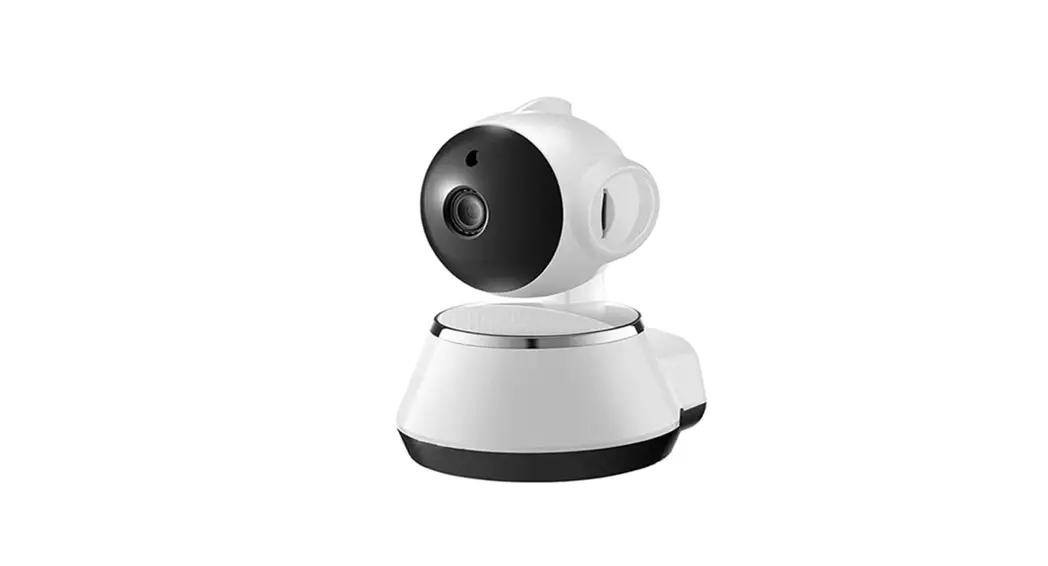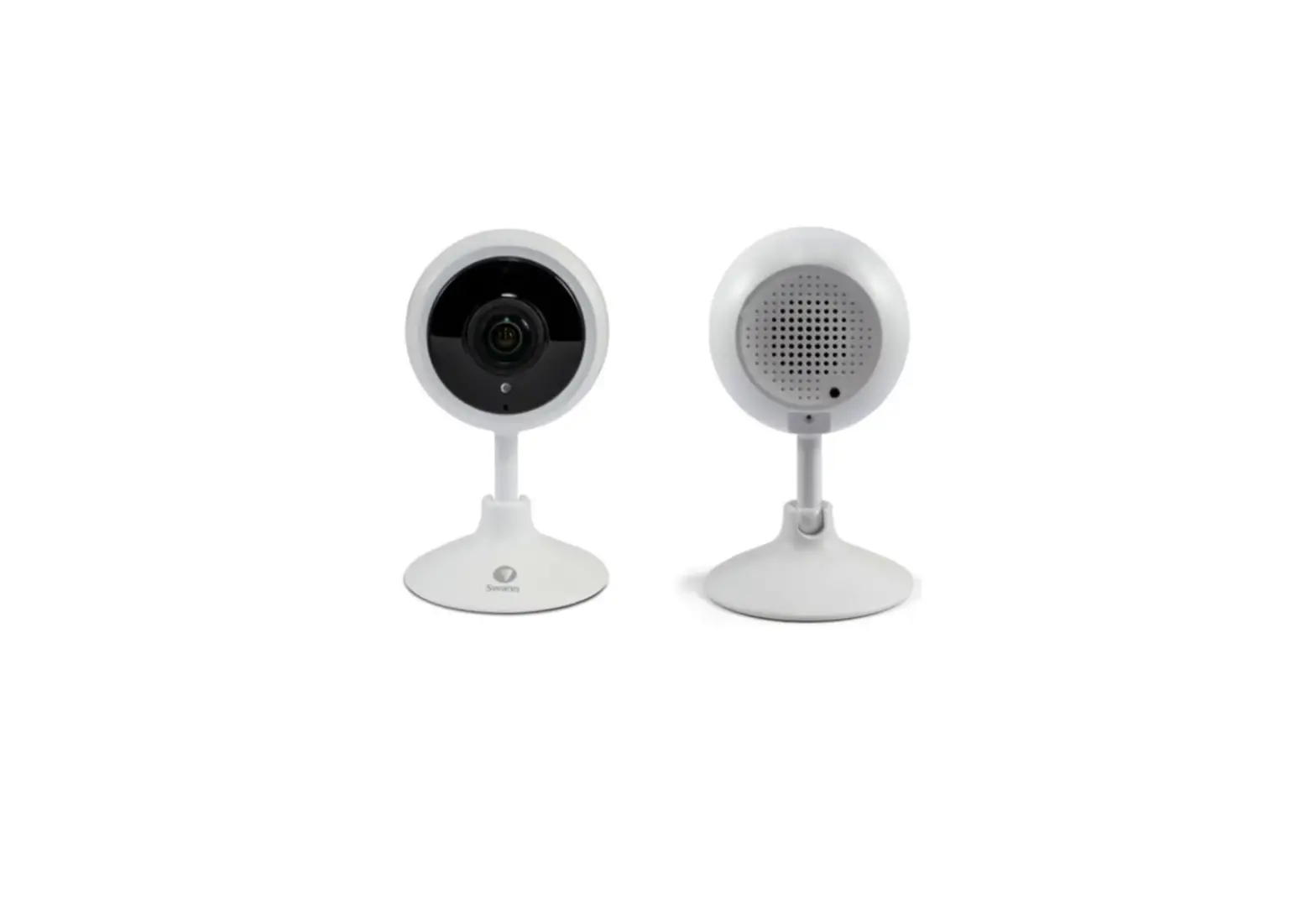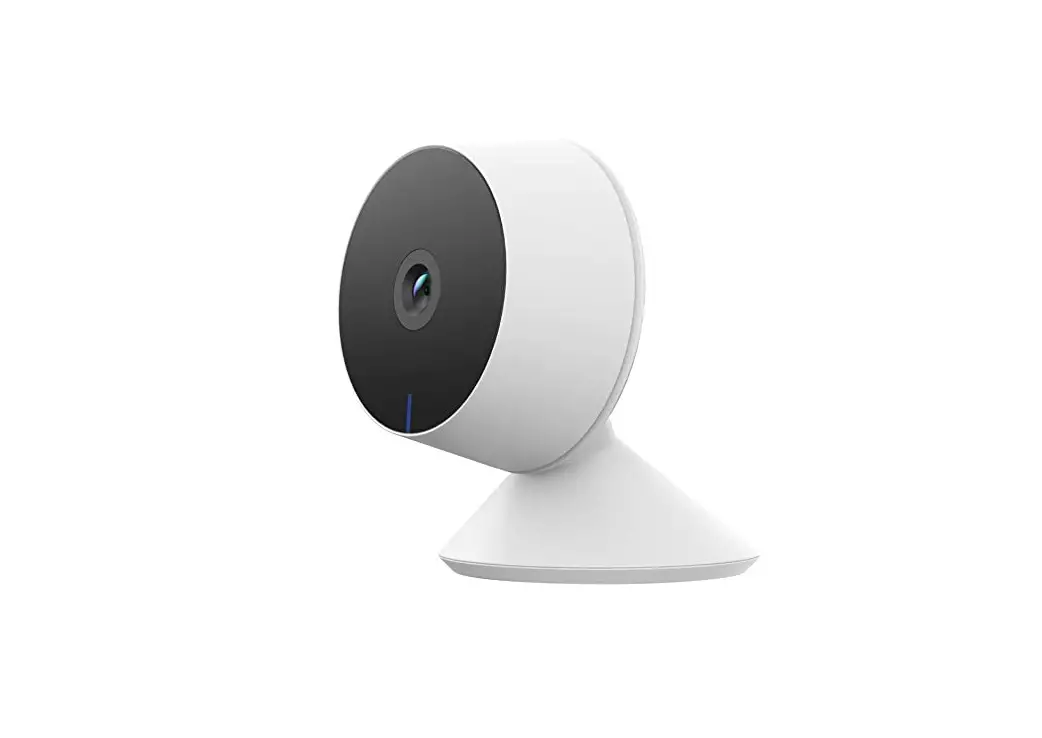
Goowls Indoor WiFi Security Camera User Manual
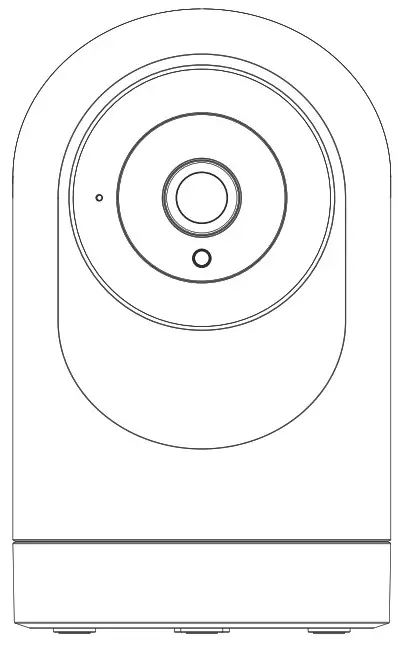
Goowls Indoor WiFi Security Camera User Manual
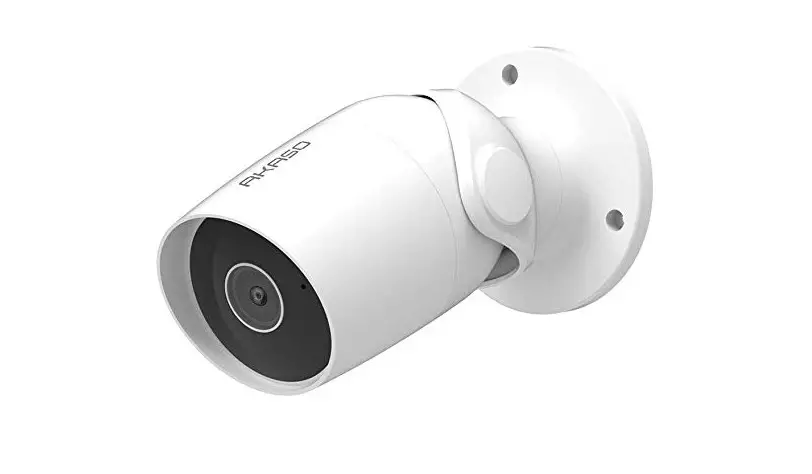
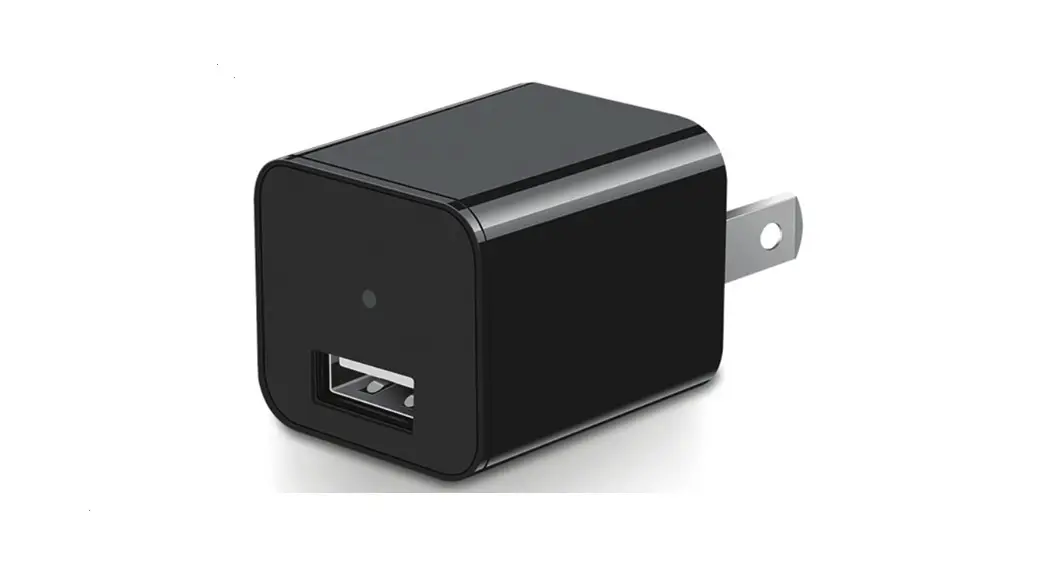
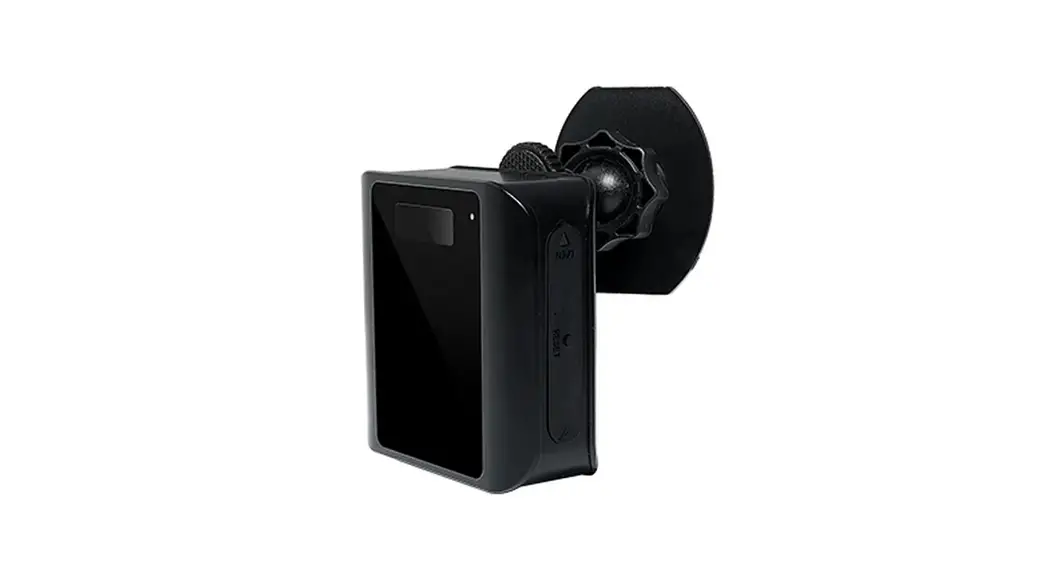
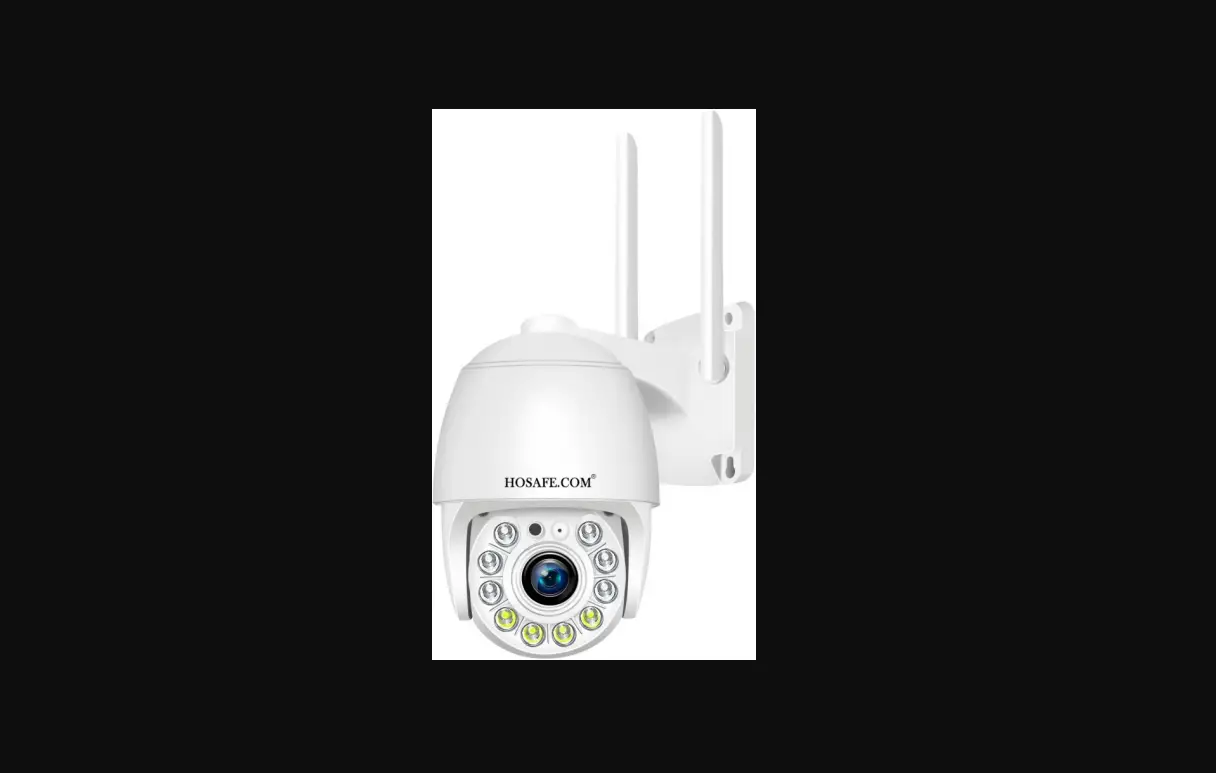
Packing list
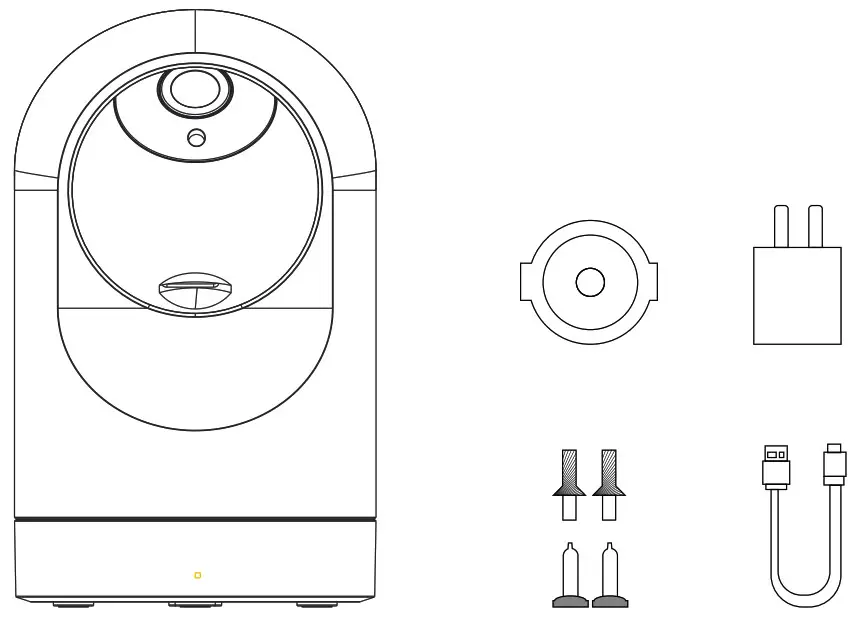
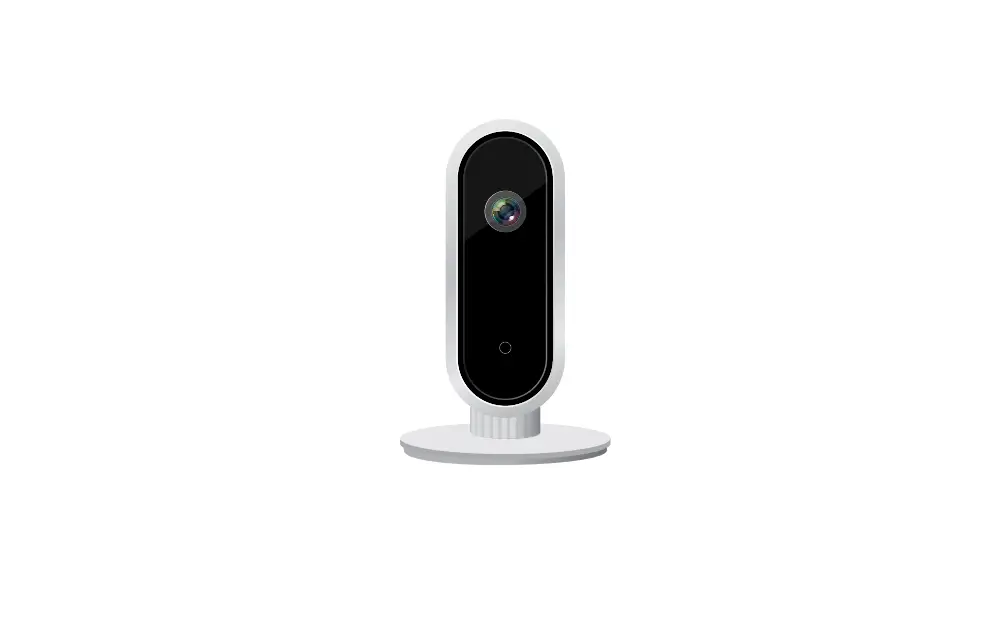
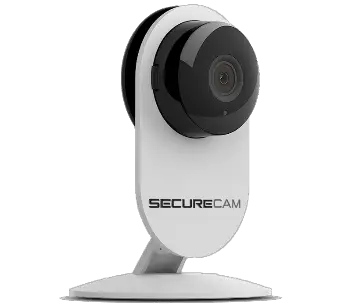
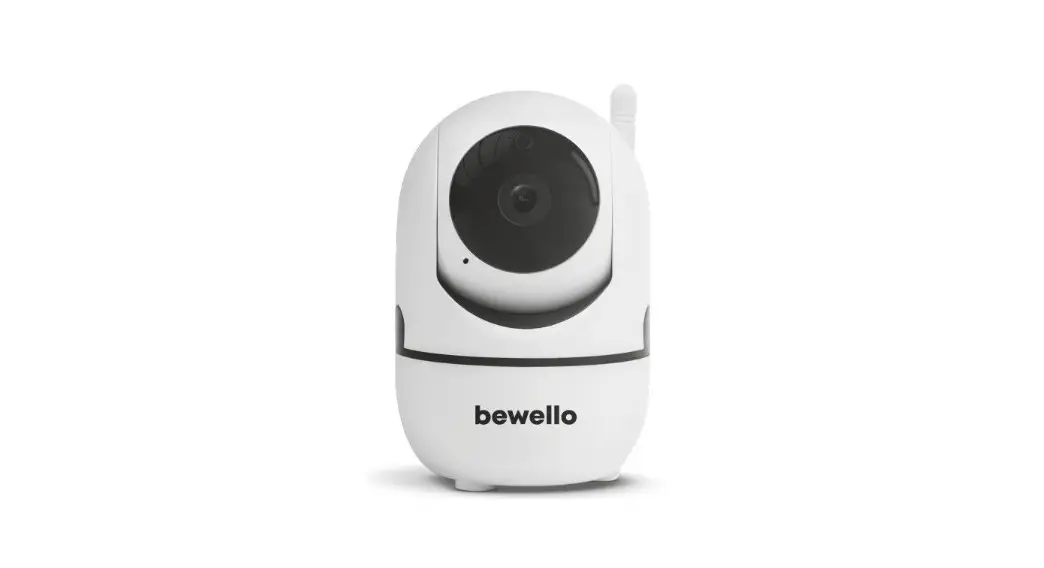
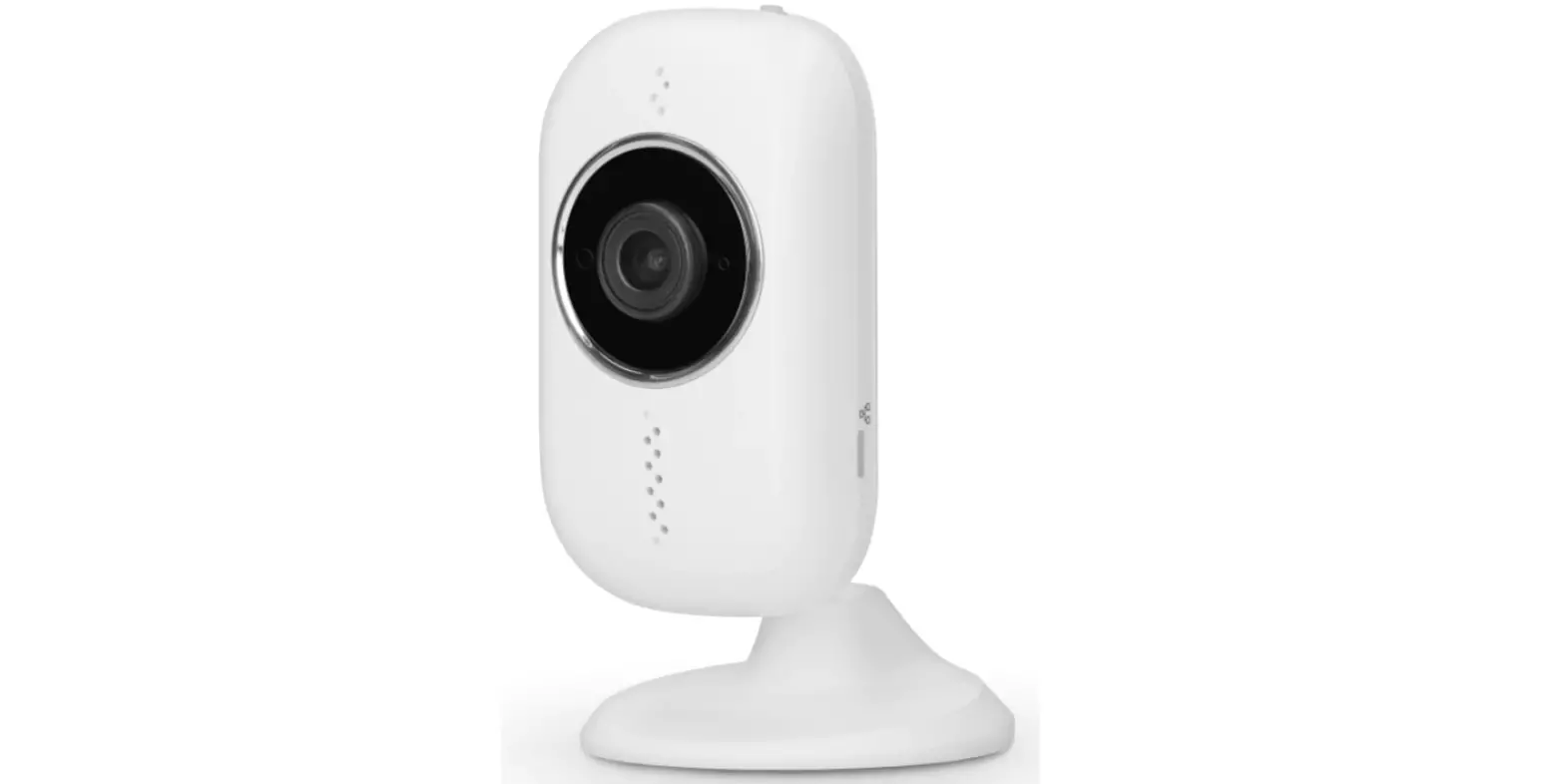
Front
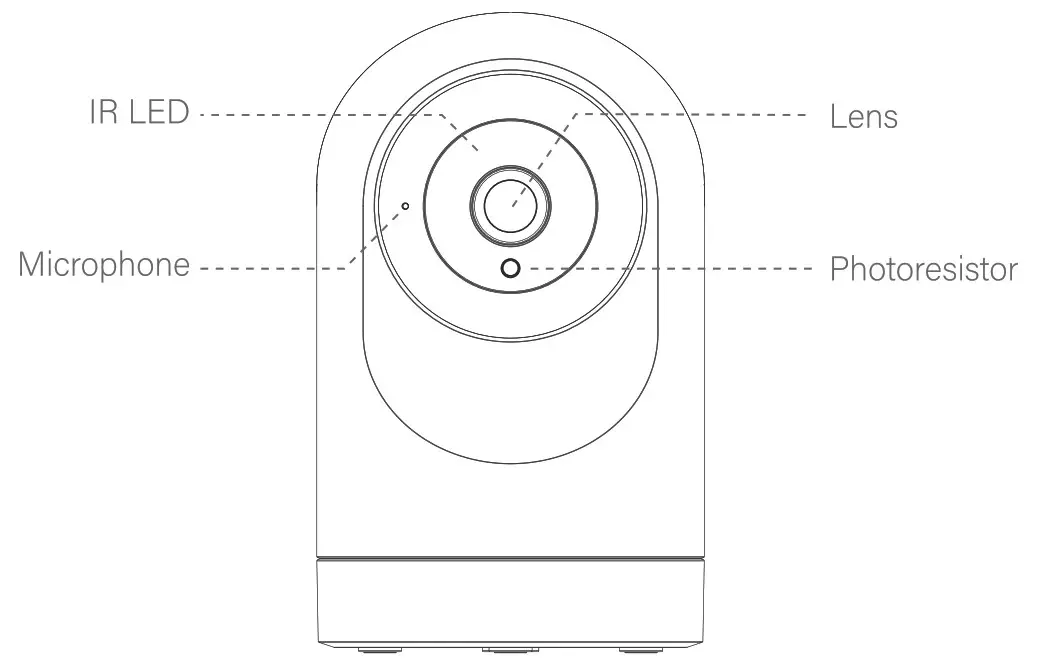
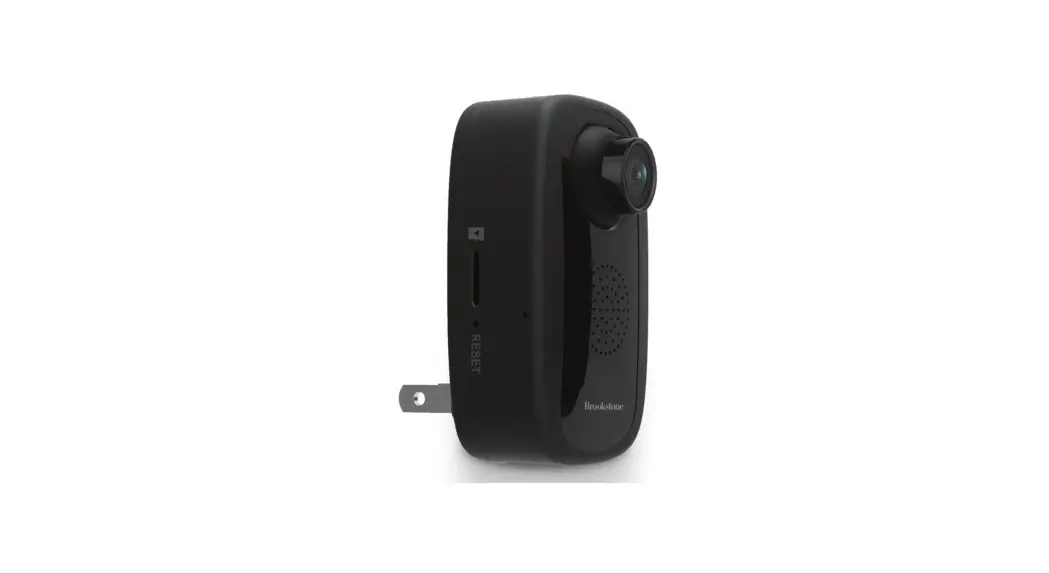
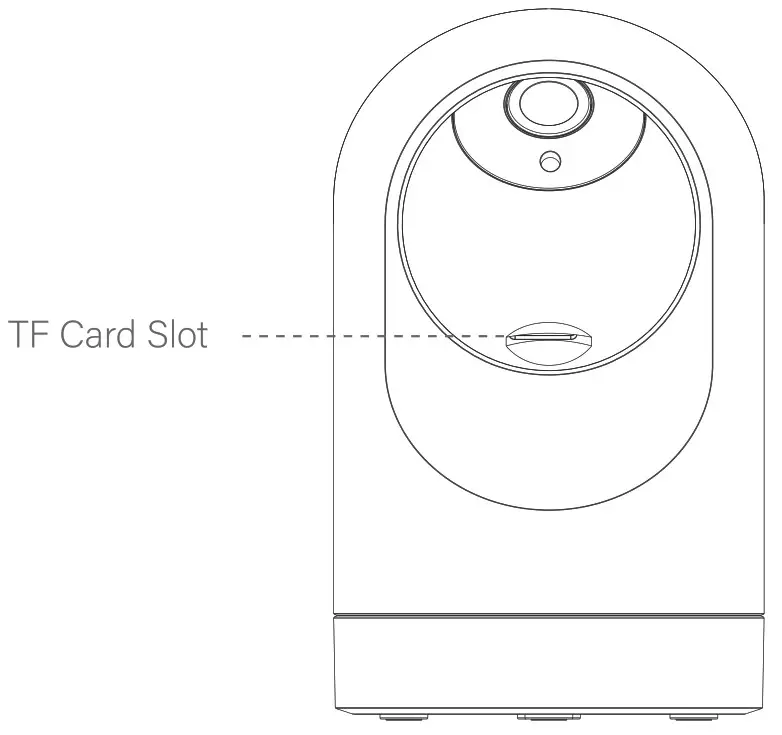
TF Card Storage
The TF card slot sits below the camera lens, push the camera lens upwards to insert or remove TF card.
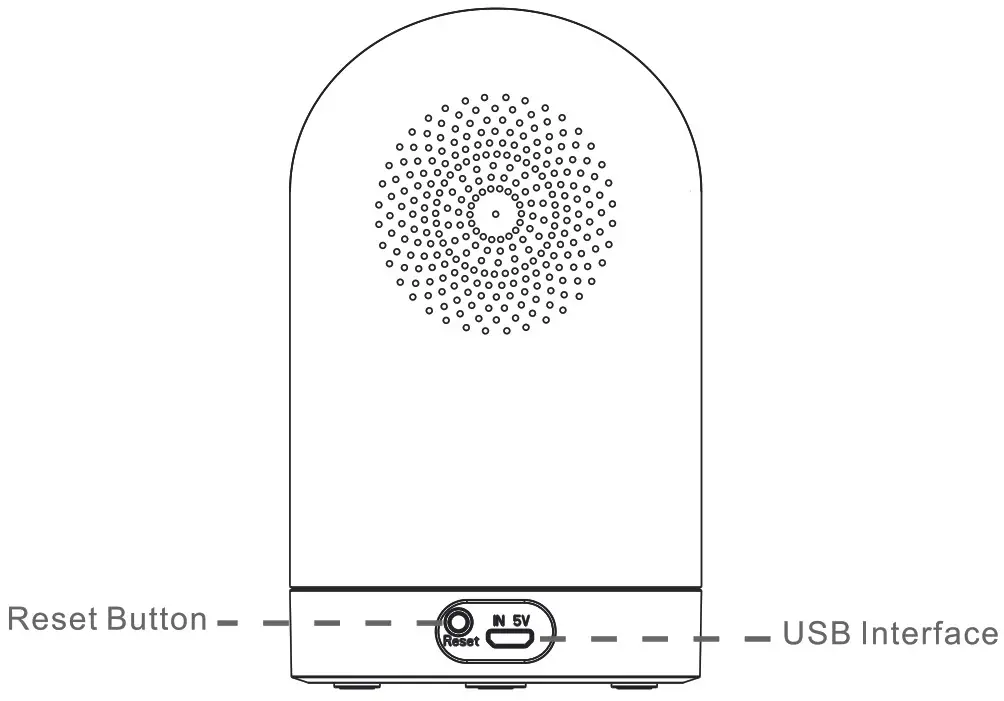
Back
Specification
| Model | IPC2-1 |
| Smart APP | VI loT |
| Storage | 4-64G/Class10 TF card, cloud storage |
| Wi-Fi | Frequency: 2.4GHz |
| Image Sensor | 1/2.7-inch CMOS |
| Resolution | 1920x1080P/ 200 Mega Pixels |
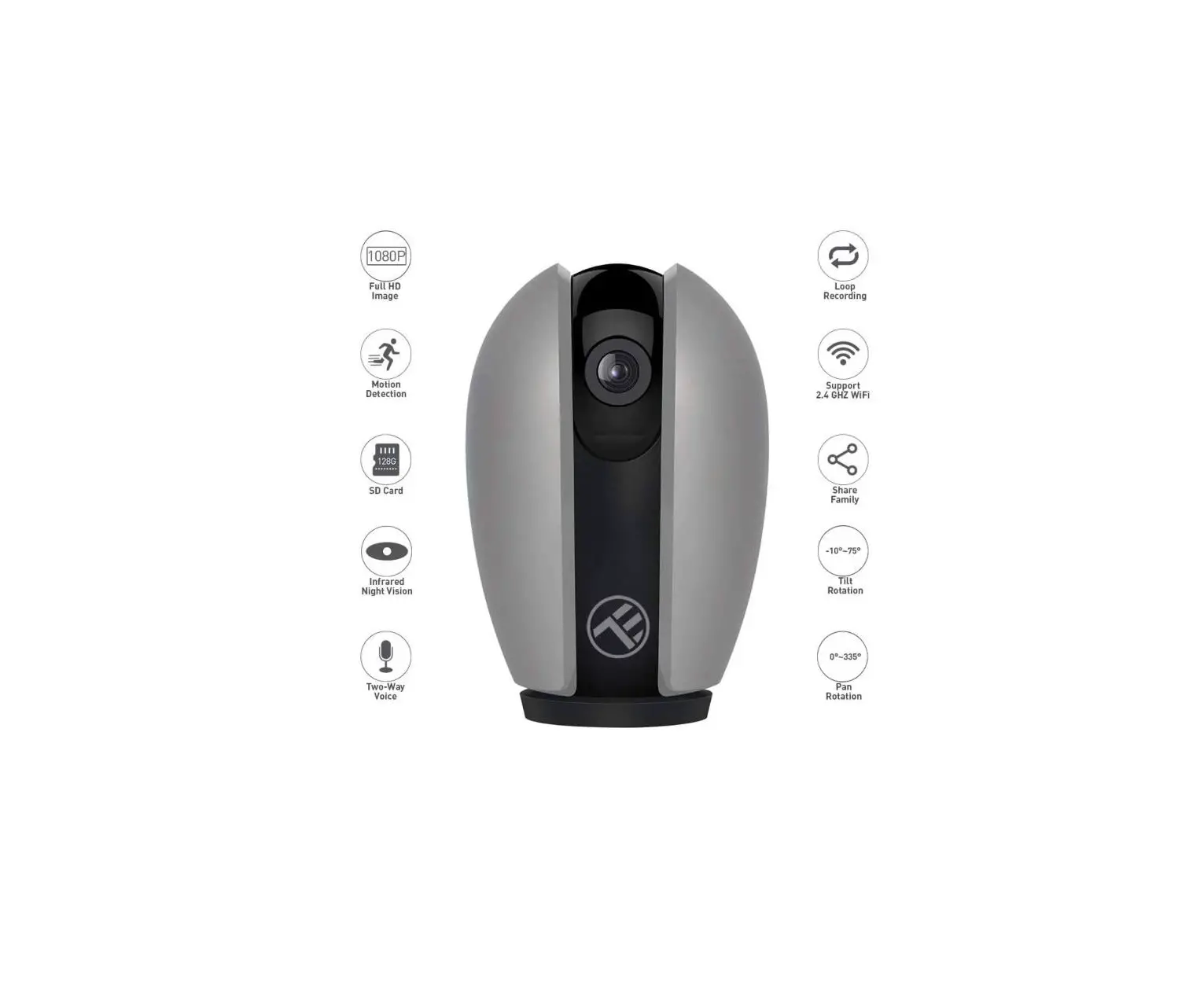
| Pan/Tilt | Horizontal: 355 degree Vertical: 110 degree |
| Lens | 110° |
| Compatible | Android / iOS / Windows |
| Wireless Encryption | WEP, WPA, WPA2 |
| Power | 5V / 1 A |
| Communication | Two-Way Audio/ Intercom |
Component description
Reset Button Press and hold Reset for about 5 seconds. When the horn sounds short voice, the reset is successful.
It is recommended to insert a 4-64GB high-speed Micro TF card, otherwise, it will not be able to store, view historical video, and support Important functions such as firmware upgrading. 1 install YI loT APP
Download APP: scan the QR code below to download and install. Register and log in: open the YI IOT APP to register and log in according to the prompts.

http://www.yunyiiot.com/yunyiapp
YI IOT service supports PC downloads (Only support Windows, Mac cannot be supported) Please download from this
Website: http://yunyiiot.corn/html/download.html
Add The Device
Please make sure that there is a available Wi-Fi and the Internet is connected.
Find the USB port on the bottom of the device and plug in the power cord to power it on, please wait 20 seconds until you hear “DiDiDi”.
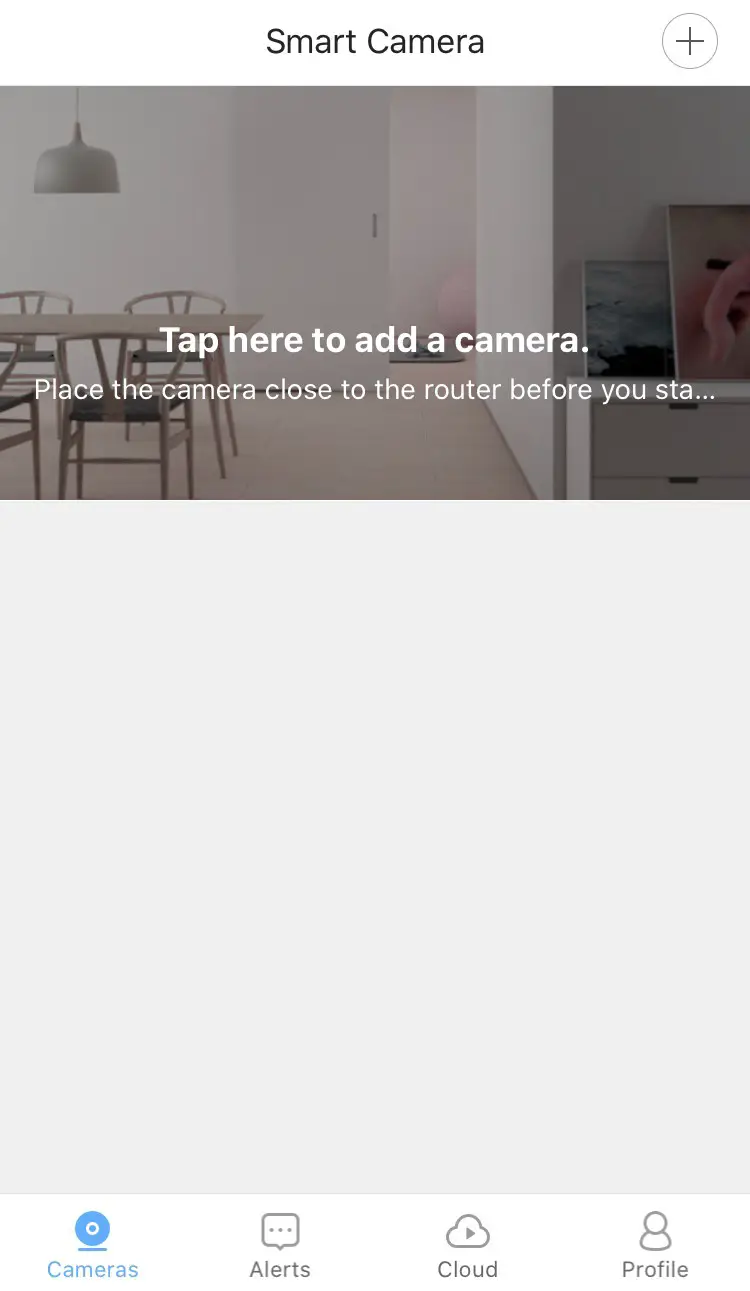
Then go to APP home page, click the “+” on the main screen, configure according to the instructions in the APP.
APP Video Browsing Details
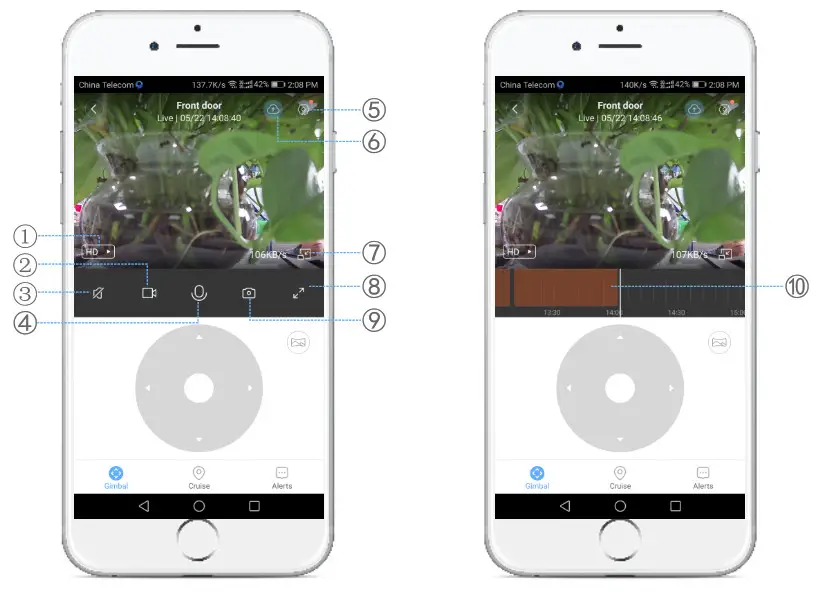
| Preview Mode | Cloud Storage |
| Recording | Floating window |
| Mute button | Fullscreen preview |
| Intercom button | Snapshot |
| More settings | History file (Make sure insert Micro TF card ) |
How to connect with Amazon Alexa
How to connect with Amazon Alexa
Requirement:
- Amazon Alexa device and Alexa app.
- the smart Wi-Fi camera connected with VI loT App.
- YI loT App user ID and password.
- Please make sure your Alexa device has been added in the “Add Device” of the Alexa app
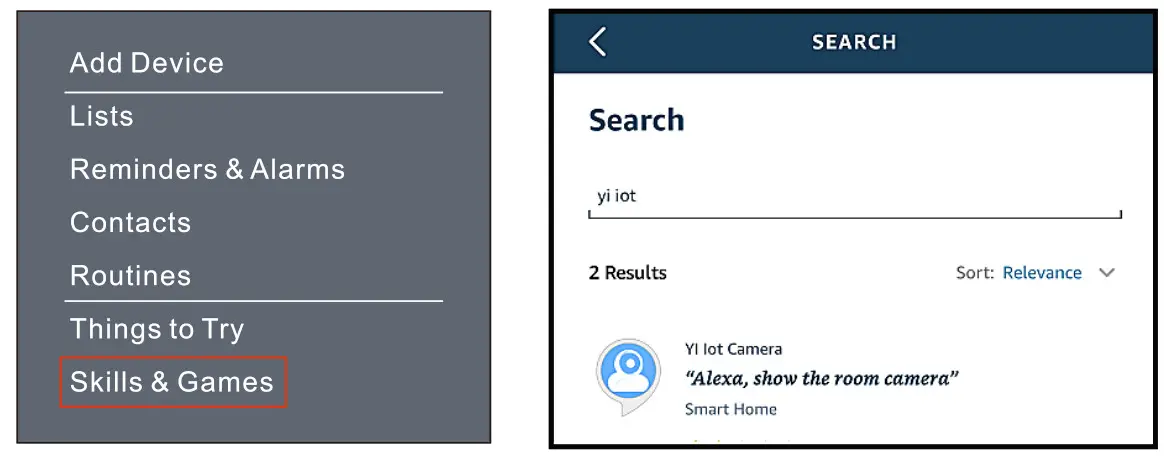
Add YI loT as a Skill for Alexa
Open Alexa app and choose Skill & Games
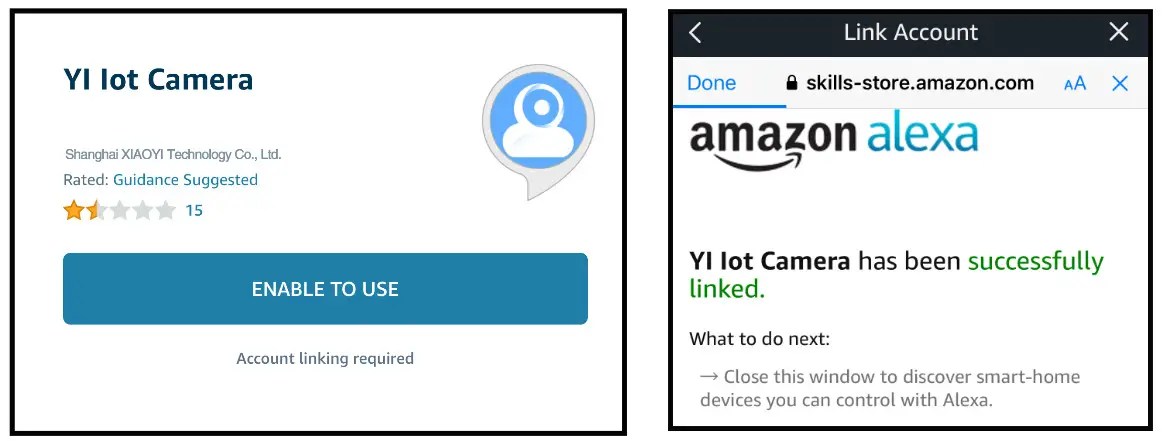
-> Search for VI loT -> ENABLE TO USE -> Enter the VI loT account -> Authorize to use
-> And then, the device you added on VI loT App will sync to Alexa App.
Also, you can ask Alexa to discover new devices for you in this moment.
Note: you need to set exact name for the smart camera on YI loT App, if not, Alexa may tell you:” Sorry, I can’t find the device named xxx…”
Warm tips
*To avoid the risk of electric shock, do not disassemble or attempt to repair the unit.
*Please make sure the camera is turned off before plugging in/out a TF card to avoid TF card damage or data loss.
*Never dispose of the product in fire or water, which may result in an explosion and/or injury.
*Unplug this unit during lightning storms or when unused for long periods of time.
*Protect the adapter cord from being walked on or pinched, particularly at plug outlets, convenience receptacles, and the point where it exits the unit. *The unit should be situated away from direct sunlight or heat sources such as radiators, electronic heats, stoves, or other units that produce heat. Avoid placing on top of stereo equipment that radio heat.
Warranty
60 days money-back guarantee:
If you are not satisfied with this purchase, you can choose to refund this order within 60 days.
12 months limited warranty: The device was used in proper technical working conditions.
Contact Us
For any inquiries or comments concerning our product, please send
Email to: [email protected]
Your advice is very much appreciated.
Tel: 1-844-394-5218

FAQS
Find the USB port on the bottom of the device and plug in the power cord to power it on, please wait 20 seconds until you hear “DiDiDi”. Then go to APP home page, click the “+” on the main screen, configure according to the instructions in the APP.
Goowls Security Camera Outdoor 1080P WiFi Wired IP Camera for Home Security Surveillance 2-Way Audio Night Vision Motion Detection Compatible with Alexa Cloud Storage and MicroSD.
Please download the latest version of the YI Action Camera app. Check that the camera’s Wi-Fi is turned on. Once the camera is on, swipe down to open the shortcut menu and check that the Wi-Fi option is lit. Check that the app is not connected to a different camera’s Wi-Fi hotspot.
The reset button is located on the upper left side of the QR code on the back side of the camera. Please hold down on the reset button until the yellow light turns on. The reset is successful when the yellow light is on or you hear the voice “Reset is successful”.
During the camera pairing process, if you hear an error message that says, “Pairing has timed out”, the camera didn’t complete the process of pairing with the app. This error occurs when there is a weak Wi-Fi connection to the camera.
During the move, please continue to keep the center of the QR code facing the center of the lens of the YI cameras directly. Depending on the size of your smartphone, you will hear YI camera saying ‘QR code scan is successful’ and the color of the LED light on the YI camera turns to blue.
If you are only seeing the error “Camera Offline”, this issue is related to a power connection issue or network connection issue between the camera and the Wi-Fi device (router, extender).
Remove the battery and the memory card from the camera, and then reinsert them. If you didn’t properly insert a recordable memory card into the camera, it may not be able to connect through Wi-Fi. Make sure to insert the memory card correctly after confirming the direction and front/back of the memory card.
If you have Android 10 or anything newer, you can find the wifi password directly on your phone following these steps: Go to “settings” on your phone, then “wifi”. Select “saved networks” and click on your home network. Choose the share option and enter your password.
If you receive the error, “Video download failed. Switch to the camera automatically”, “Downloading video via encrypted channel” or “Fail to load video”, this means the Alert didn’t get uploaded to the cloud properly. This is caused by a network connection issue.
Remove the battery and the memory card from the camera, and then reinsert them. If you didn’t properly insert a recordable memory card into the camera, it may not be able to connect through Wi-Fi. Make sure to insert the memory card correctly after confirming the direction and front/back of the memory card.
If you have Android 10 or anything newer, you can find the wifi password directly on your phone following these steps: Go to “settings” on your phone, then “wifi”. Select “saved networks” and click on your home network. Choose the share option and enter your password.
The YI Home Camera App sends instant activity alerts to your phone with our motion detection technology. See if your pet is sleeping on the couch or scratching furniture while you’re away. Use the app to monitor your pet’s activity and send audio commands to him.
Reset Button Press and hold Reset for about 5 seconds. When the horn sounds short voice, the reset is successful. Download APP: scan the QR code below to download and install.
Left-click the wireless signal icon (most often located in bottom right corner of the desktop). Within the list of networks, look for the network name listed next to Connected. This is your network’s SSID.
You can safely remove SD card.” You can now pull it out of your phone or tablet and not risk losing any data. The device also will stop scanning the SD card, and you won’t need to worry about the system accessing it, even though you haven’t unplugged it yet.
Do not delete photo files from your memory card in-camera. In other words, do not go through your photos and delete them one by one using the delete button on your camera.
VIDEO