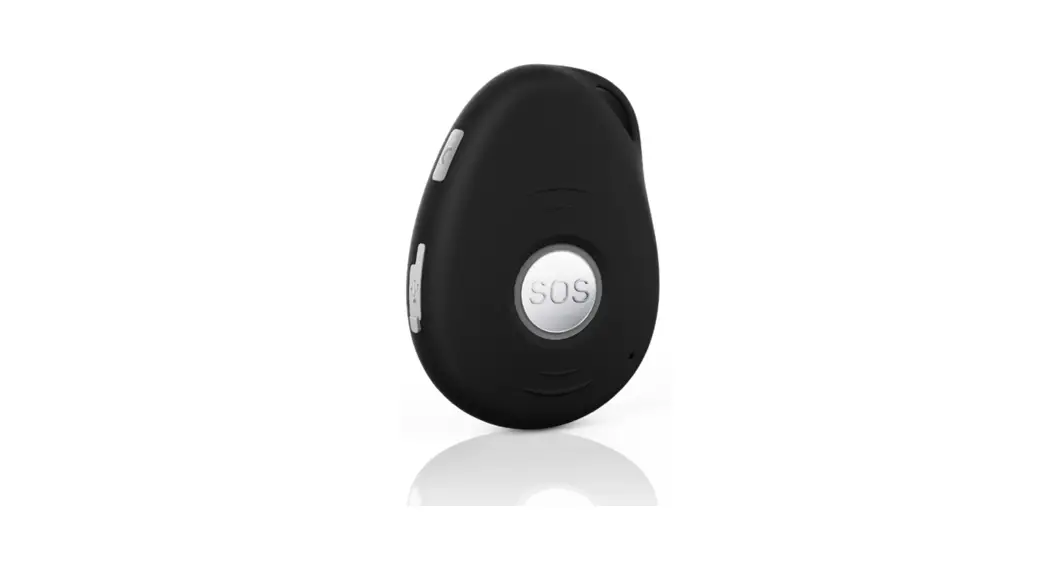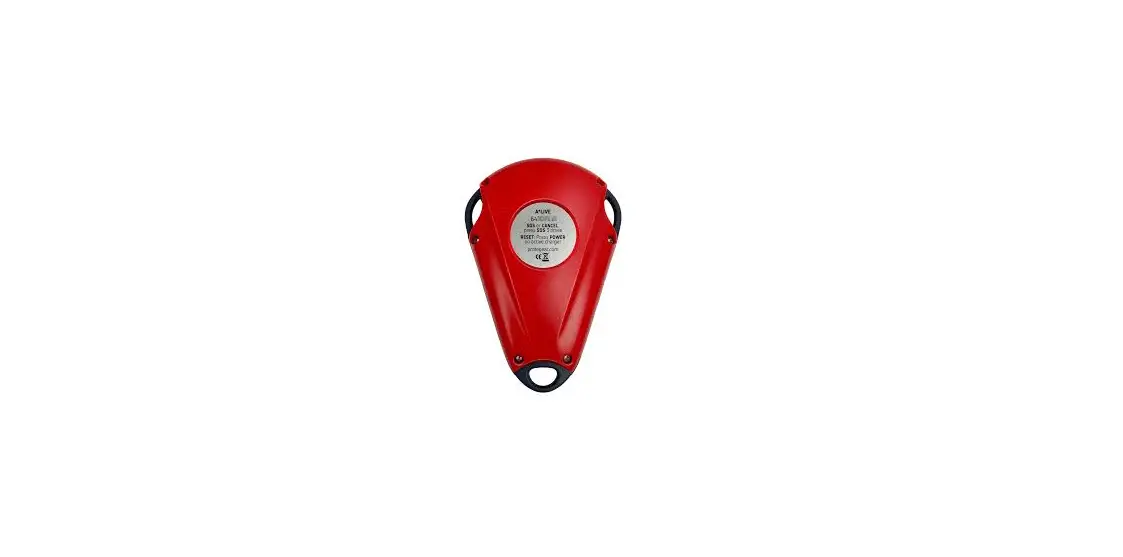

ProteGear A*LIVE LiveTracker Smart Safety Tool
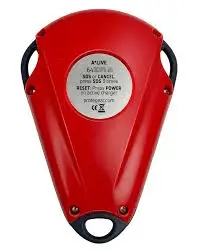
Before the first start-up
- select data plan at alive.protegear.com
- forward LiveTracking link to friends
- adapt SmartSafety and TripShare
Before each use
- charge (see last page)
- switch on outdoors: 5 sec. press
- If TRACK and GSM/SAT are green: see position in LiveTracking?
GO! (if needed change activity profile)
Please use A*LIVE as an additional communication tool, which should never replace other security measures or encourage a higher risk tolerance.
The A*LIVE is splashproof. For continuous use in water (sports) a protective cover must be used.
Power

Battery 25 – 100 %
Battery < 25%
Shutdown procedure
On charging pad powered on
100% charged
charging
Press 1x long to start device & tracking
Press 3x quickly to switch off
RESET: place on active charging pad, press POWER once, remove from charging pad, wait 10 seconds, switch on
Sleep mode: After 15 minutes of absolute motionless-ness the A*LIVE falls asleep. It wakes up automatically when movement is detected.
No sleep mode during SOS/alarm mode, when messages are received and while charging.
Message
 Message received
Outgoing PRESET-message
External sensors connected via Bluetooth
Press 1x long send PRESET #1
Press 2x quickly send PRESET #2
Press 3x quickly send PRESET #3
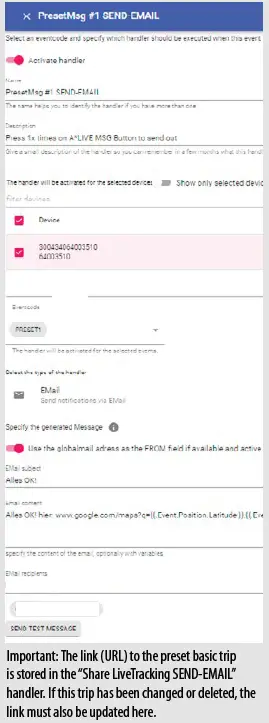
Set PRESETs: protegear.io Tripshare Handler
Power reserve: Below 10% battery charge, the device switches itself off after every 10 minutes.
To avoid unwanted self-triggering (e.g. actu-ation by objects in the backpack) “Press 1x short“ is not used.
Tracking
 Tracking off & automatic alarms suspended
Tracking active
Tracking active, bad GPS
PAUSE or REST ZONE
Press 1x long to start/stop LiveTracking In SmartSafety this stops & starts also the automatic trace
Press 2x quickly to set PAUSE on-site (SmartSafety)
Active manual SOS
Active automatic alarm (e.g. ZONE, HALT, CRASH, …)
Update in progress
Flashlight flickering Finish update via App
GSM/SAT Network indicator
GSM/4G (flashing)
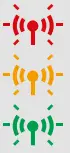 Search
Registration
Connection
Iridium-Satellite (steady)
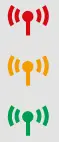 Search
Medium connection
Good connection
Press 2x quickly to switch the flashlight ON/OFF (requires a lot of energy and switches off automatically after 2 minutes)
Automatic alarms: These alarm scenarios are available at protegear.io SmartSafety:
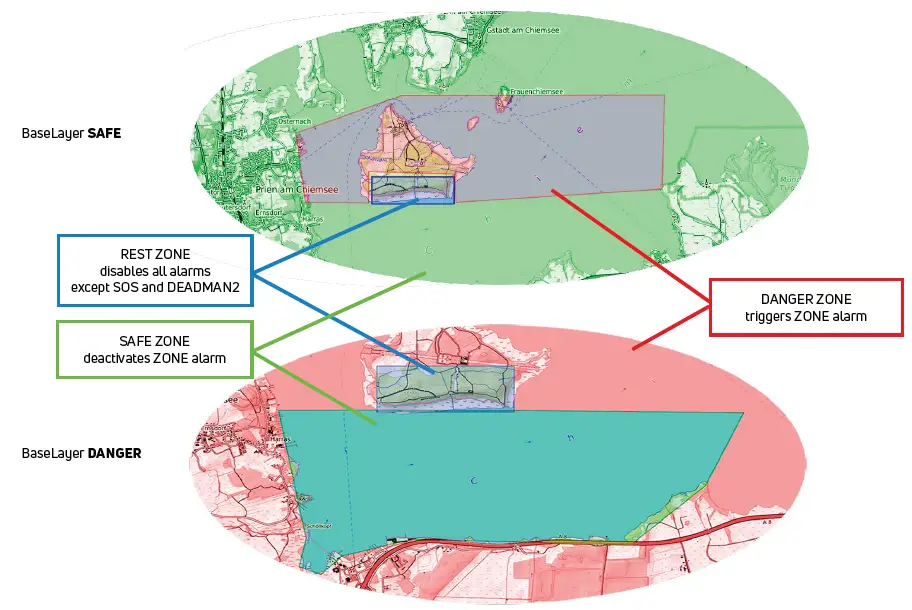
CRASH, HALT (standstill), ALTITUDE/HEIGHT (height limits above sea / ground level), ZONE (geofences), EXTERNAL (external sensors), SPEED / VSPEED (horiz. / vertical speed), DEADMAN (active and passive dead man’s switch, bad GPS, signal loss).
Charging
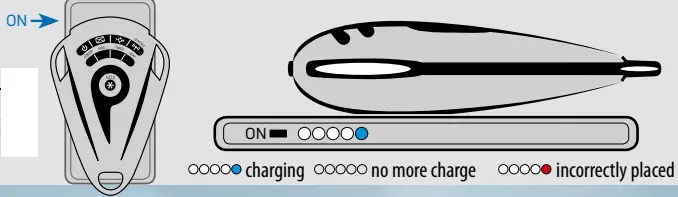
- Place A*LIVE with its silver label in the centre of the charging pad
- Activate charging pad „ON“ (PowerBank without power connection)
- Charging is in progress as long as the blue LED on the charging pad is lit
- Switching on possible 10 sec. after removal from the charging pad
Tips for the best connection
Always carry the A*LIVE high up, e.g. in the top backpack pocket, without metallic or moisture shielding.
In satellite mode – GSM/SAT is steady – ensure visual contact with the sky/horizon, control panel facing the sky. Latency approx. 30-90 seconds with 180° of horizon in sight, the transmission interval is longer than in GSM mode.
A*LIVE App for smartphones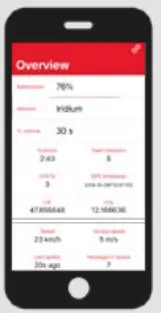
- Download ProteGear A*LIVE
- Activate Bluetooth on your smartphone
- Switch on A*LIVE
- Start app and follow instructions

TRIP TRIP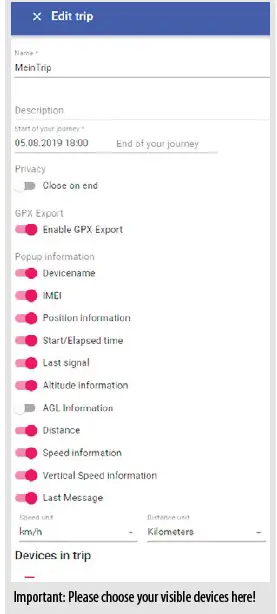
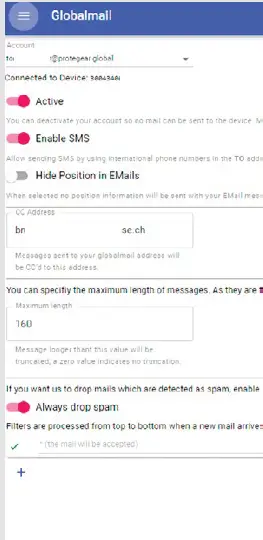
DEVICES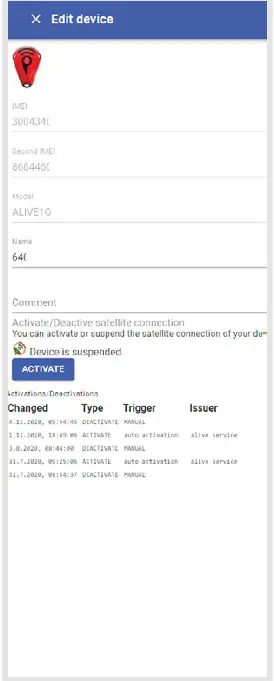 GLOBAL MAIL
 HANDLER
 ProteGear.io → TRIPSHARE : Possible parameters for TRIPVIEWS
Open the TripView on the page https://protegear.io/tripshare/#/trips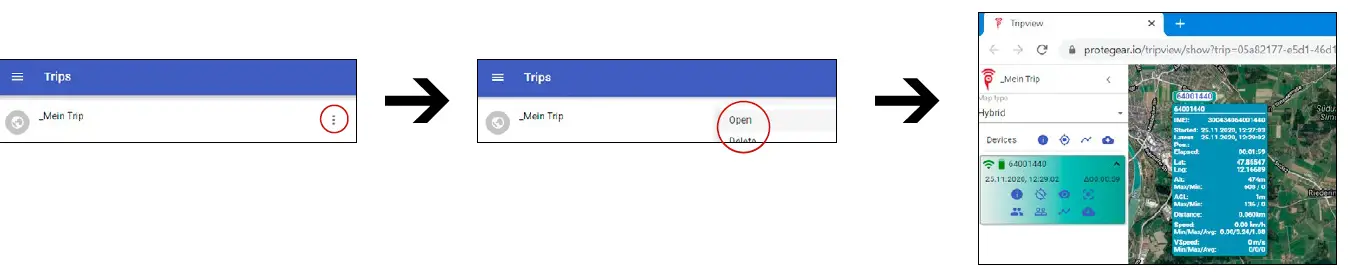
You can pass on the link of the then opened website to your friends and family.
Options in TripView: Map types Satellite, Hybrid, Terrain, Roadmap, Tracking track
GPX Export: Export all or single tracks via GPX or link to other websites via URL (e.g. https://umap.openstreetmap.de/en/map/new). GPX export must be unlocked/locked under TripShare -> EditYourTrips.
For integration into your website as iFrame:
<iframe src=“https://protegear.io/tripview……“></iframe>
Additional parameters when calling a TripView URL
(at the end of https://protegear.io/tripview/show?trip=……..):
- Parameter/example Function
- &track=all shows all tracks since start time of TripView
- &track=IMEI1,IMEI2,… shows only the tracks of the specified IMEI numbers
- &info=all starts the TripView web page with all info pop-ups displayed
- &info=IMEI1,IMEI2,… starts the TripView website with the info popups for the IMEIs
- &zoom=6 opens a certain zoom level around a virtual polygon of all last coordinates
- &devices=1 display the left devices panel or =0 (default)
- &timeline=1 display the global timeline= or =0 (default)
- &hidetitle=1 do not show the title, only the menu icon) or =0 (default)
- &since=PTxxH shows past data only for xx hours before the page is called
Difference Last Contact vs. Latest Position
Last Contact shows the actual last connection, even when it had only poor GPS signal (e.g. indoor). Latest Position is the last valid position signal (because good GPS signal available).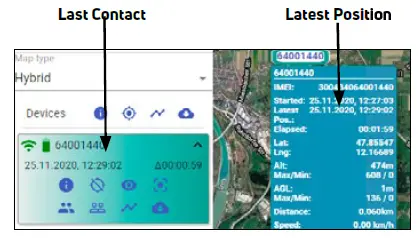
ProteGear.io → SMARTSAFETY : Calls for help even if you can’t
SmartSafety iis an automatic monitoring & emergency call system for early detection of critical situations. Reduces rescue response times by up to 90%. With comrade rescue navigation.
SmartSafety makes sure that critical situations do not go unnoticed, even if you can no longer react yourself, e.g. … Abtreiben (zB am offenen Meer)
- Treeholes (pits in the snow around tree roots)
- Falls of any kind
- unconsciousness e.g. due to fall, heart attack, lack of oxygen
- Allergic shocksLawinen
- Severe injuries
- Crash … and many more
The possible alarm scenarios, their triggering and termination can be found on the next page.
The DEADMAN is the “ultimate” last safety line, which triggers even if there is no more connection, e.g. because the device has been destroyed, no radio connection can be established or the battery is empty.
For CRASH recognition it is also possible to set the axes to be measured, which are arranged as follows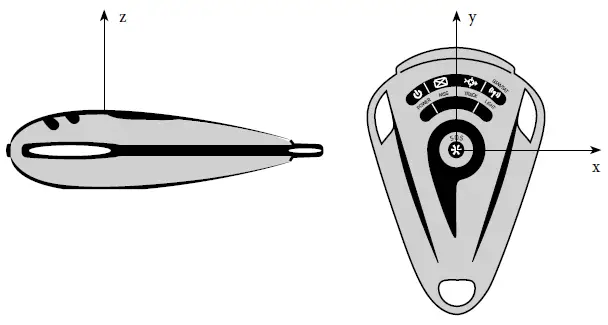
ProteGear.io → SMARTSAFETY : Manual and automatic alarm detections, notifications and escalations
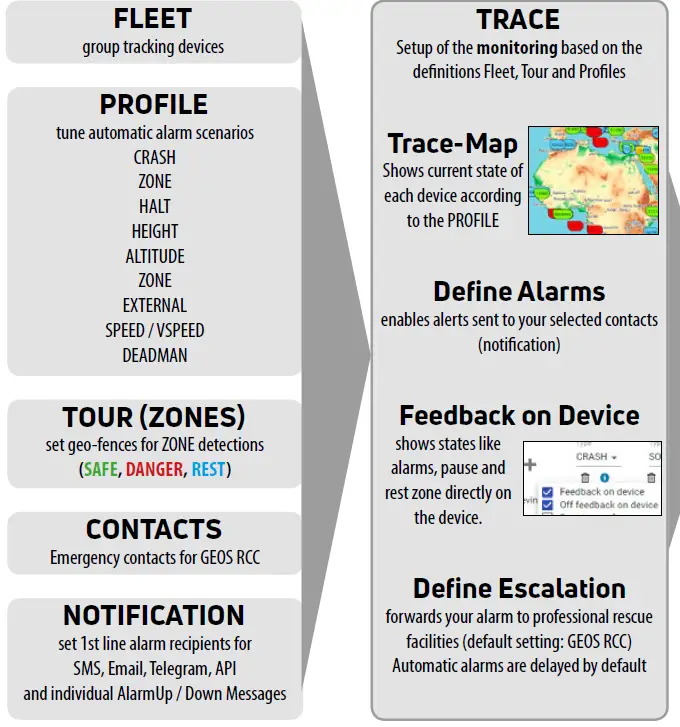
Important to know:
All actions on the device (POWER OFF / PAUSE / Automatic Alarm) must be confirmed by the server before they are visible on the device. Therefore some time may pass between action and reaction, especially in satellite mode.
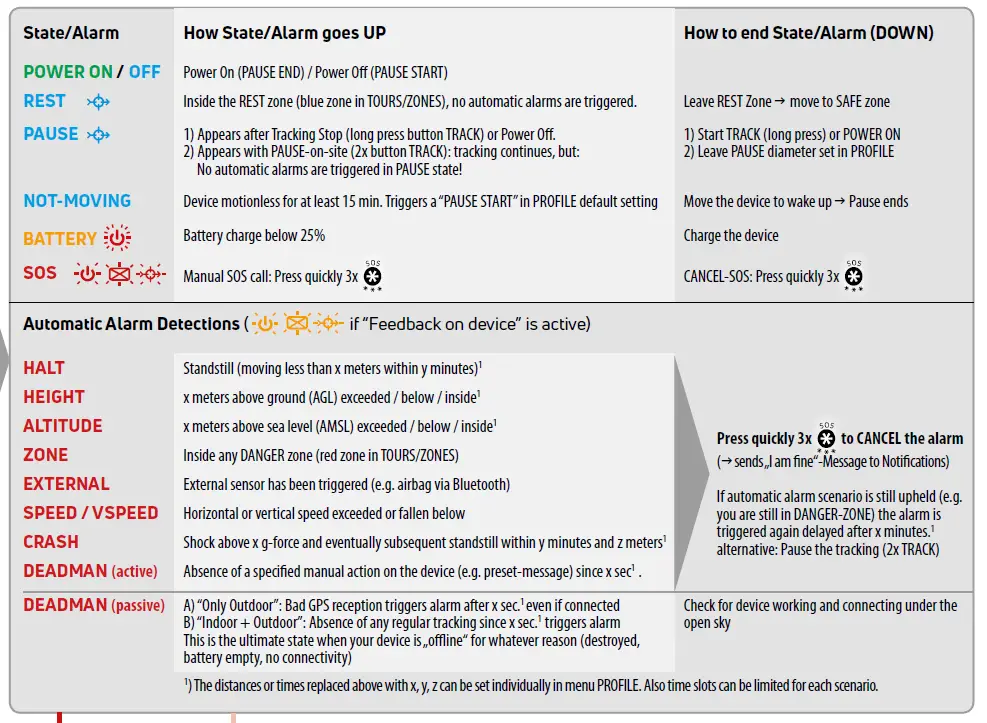
Instant notification of manual and automatic alarms to selected Notifications/Contacts
ALARMS → Notifications
Manual SOS or automatic alarms can be notified to your contacts
Escalation after specified timeout or immediate confirmation by notified contacts
ESCALATION → GEOS RCC
GEOS will be notified, forwards to the nearest rescue facility and tries to contact you and your emergency CONTACTS
 Satellite | ALIVE SmartSafety Tool | Germany
 The InReach Experts since 2013. - ProteGear.com - Global Safety Tracking Solutions by Iridium
 Globalsafetrack
 - uMap