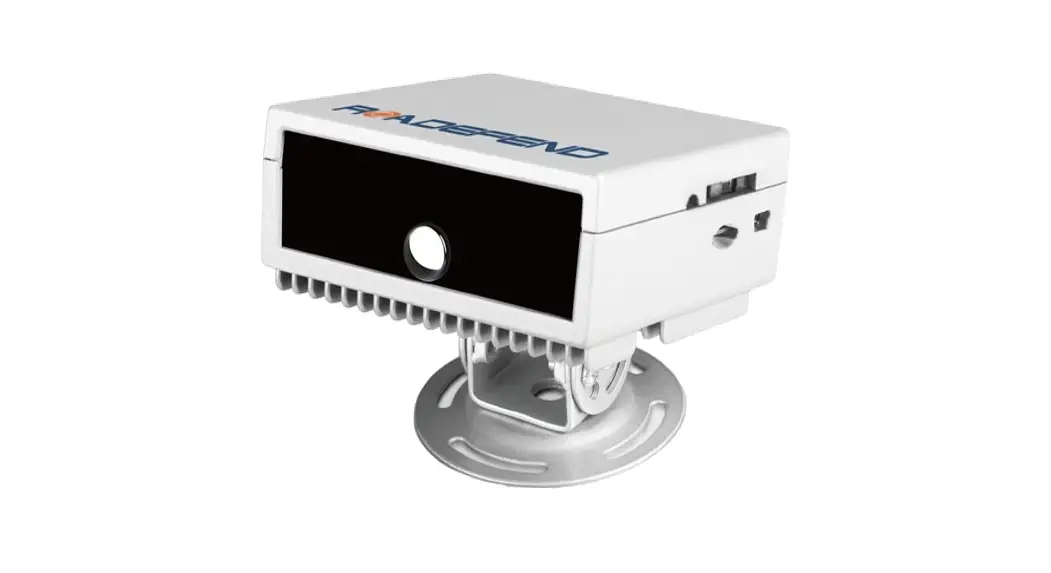
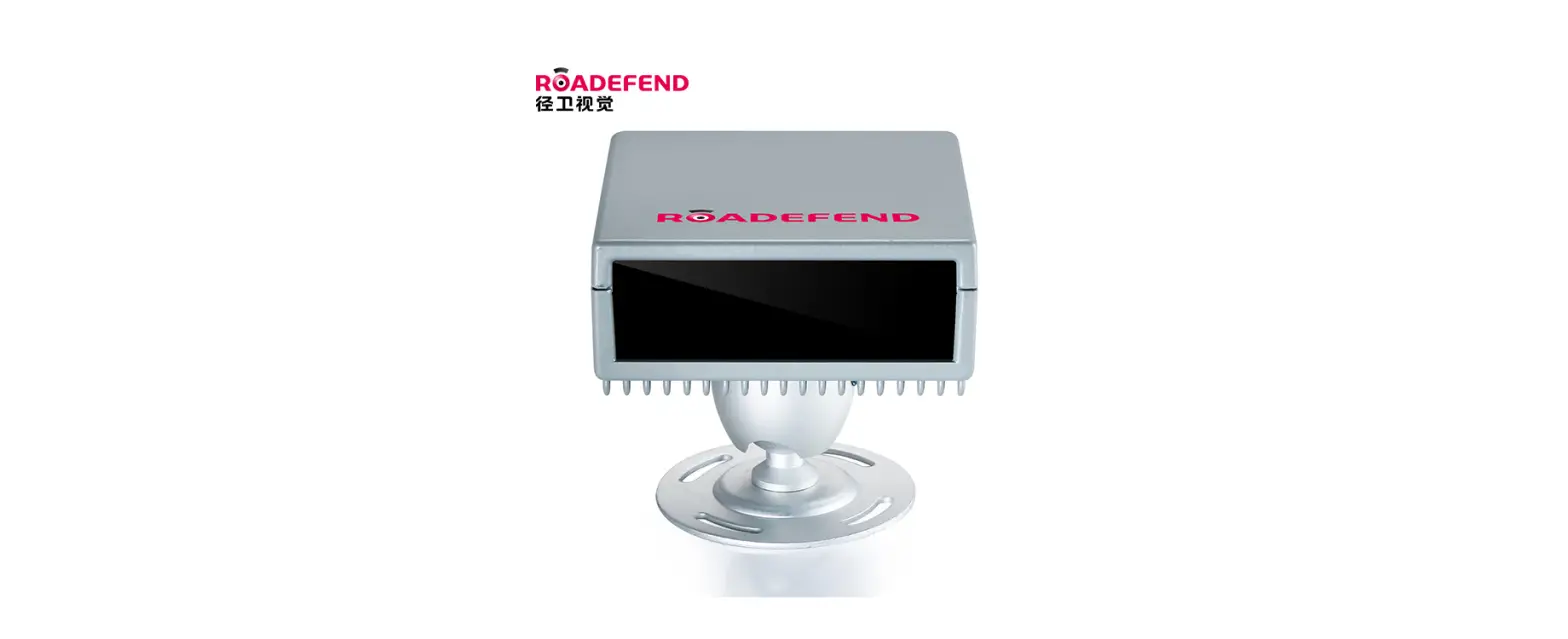
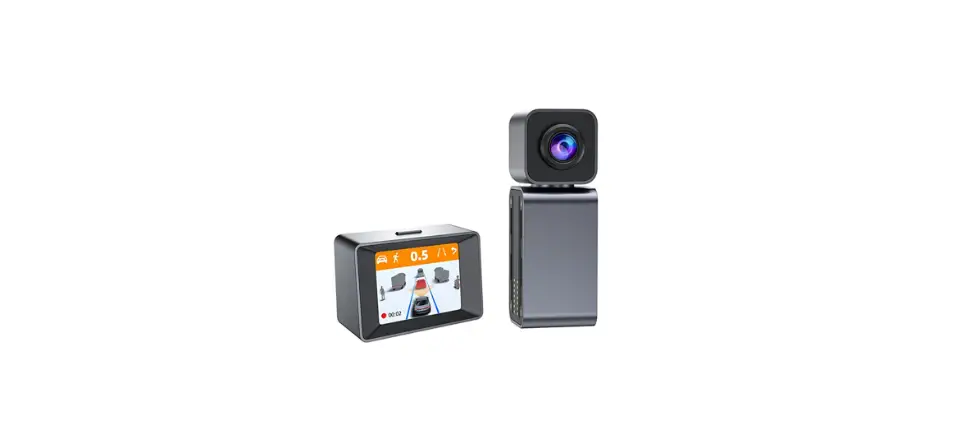
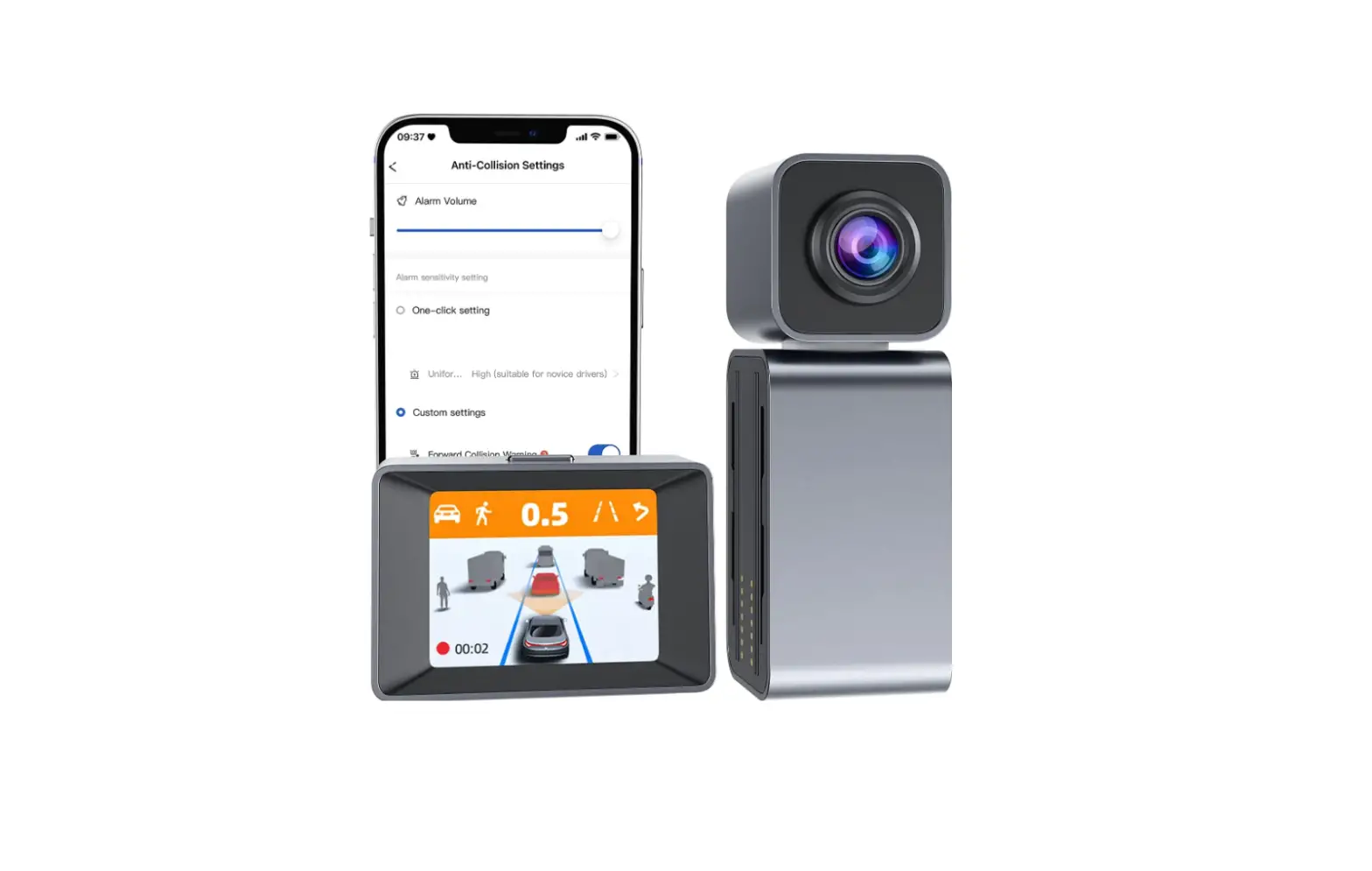
RDT600 Proactive AI Safety System
Product Information
Product Name: RDT600 Proactive AI Safety
System
Revision History:
- Version Number: V1.0
- Revised By: Xu Zhiwu
- Revision Date: 2023.04.24
- Revision Description: First draft of integrated release
Product Usage Instructions
1. Overview
The RDT600 Proactive AI Safety System is an active safety
intelligent prevention and control system. This section provides
detailed information about the system’s composition, installation
standards, and precautions for the host and its accessories. It
serves as a reference and guidance for on-site installation
personnel, providing installation operation requirements for
construction personnel, standardizing the installation and
commissioning process, and improving construction efficiency to
ensure proper equipment functionality.
2. Product Configuration
2.1 Product Standard Packing List
The standard package includes the following items:
| Serial Number | Name | Quantity | Unit |
|---|---|---|---|
| 1 | RDT600 host | 1 | tower |
| 2 | Power Cable | 1 | root |
| 3 | G-mouse | 1 | indivua |
| 4 | Triangle certificate | 1 | pieces |
2.2 Product Optional Accessories List
The optional accessories for the RDT600 Proactive AI Safety
System include:
| Serial Number | Name | Quantity | Unit | Remark |
|---|---|---|---|---|
| 1 | DMS Camera | 1 | indivual | Optional according to project requirements |
| 2 | OMS Camera | 1 | indivual | Optional according to project requirements |
| 3 | Aviation head interface camera adapter cable | 1-4 | root | This adapter cable is required when the camera interface is a 4-pin aviation head. Optional according to project requirements |
| 4 | BSD Camera | 1-2 | indivual | Optional according to project requirements |
| 5 | 4-core IO cable | 1 | root | Optional according to project requirements |
| 6 | 8-core IO cable | 1 | root | Optional according to project requirements |
| 7 | TF card | 1-2 | open | Single card supports up to 512G |
| 8 | IoT card | 1 | open | Middle card |
Please refer to the product manual for detailed instructions on
parameter setting and other relevant information.
Installation Instruction
RDT600 Proactive AI Safety System
Revision History:
RDT600 Installation Instruction Ver.1.1
Version Number V1.0
V1.1
Revised By Revision Date Revision Description
Xu Zhiwu Xu Zhiwu
2023.04.24 2023.06.25
<1> First draft of integrated
release <1> Update some images in the instructions section of the web side configuration tool
1
RDT600 Installation Instruction Ver.1.1
Table of contents
1. Overview ……………………………………………………………………………………………………………………………………………………… 4 2. Product Configuration……………………………………………………………………………………………………………………………………. 4
2.1 Product standard packing list ………………………………………………………………………………………………………………. 4 2.1.1 The standard package is as follows:…………………………………………………………………………………………… 4
2.2 Product optional accessories list ………………………………………………………………………………………………………….. 5 2.3 Equipment Harness…………………………………………………………………………………………………………………………….. 5
2.3.1 Power harness ………………………………………………………………………………………………………………………… 5 2.3.2 4- core IO communication harness ( optional)…………………………………………………………………………….. 6 2.3.3 8- core IO communication harness (optional)……………………………………………………………………………… 7 2.3.4 Aviation head interface camera adapter cable …………………………………………………………………………….. 7 3. Preliminary preparation…………………………………………………………………………………………………………………………………. 8 3.1 Site condition preparation …………………………………………………………………………………………………………………… 8 3.1.1 Site terrain requirements ………………………………………………………………………………………………………….. 8 3.1.2 Installer Requirements …………………………………………………………………………………………………………….. 9 3.1.3 Vehicle information confirmation……………………………………………………………………………………………… 9 3.2 Installation Tool List ……………………………………………………………………………………………………………………………. 9 3.3 Device information confirmation………………………………………………………………………………………………………… 10 3.3.1 Hardware information confirmation ………………………………………………………………………………………… 10 3.3.2 Software information confirmation………………………………………………………………………………………….. 11 4. Installation Notes………………………………………………………………………………………………………………………………………… 11 4.1 Equipment and wiring harness docking ……………………………………………………………………………………………….. 11 4.1.1 Host front and back view ……………………………………………………………………………………………………….. 11 4.1.2 Host side view………………………………………………………………………………………………………………………. 11 4.1.3 System connection diagram ……………………………………………………………………………………………………. 12 4.2 Equipment and wiring harness docking ……………………………………………………………………………………………….. 12 4.2.1 Installation location requirements……………………………………………………………………………………………. 13 4.2.2 Host wiring ………………………………………………………………………………………………………………………….. 13 4.2.3 ADAS camera debugging ………………………………………………………………………………………………………. 14 4.3 DMS camera installation and debugging ……………………………………………………………………………………………… 15 4.3.1 Installation location requirements ……………………………………………………………………………………………. 15 4.3.2 Installation steps …………………………………………………………………………………………………………………… 15 4.3.3 Routing and precautions ………………………………………………………………………………………………………… 16 4.4 GPS antenna installation ……………………………………………………………………………………………………………………. 16 4.5 Storage media and IoT card installation ( picture) ……………………………………………………………………………….. 17 5. Use of web-side configuration tools ………………………………………………………………………………………………………………. 17 5.1 Login……………………………………………………………………………………………………………………………………………….. 17 5.1.1 Connect to WIFI hotspot………………………………………………………………………………………………………… 17 5.1.2 Log in to the web tool ……………………………………………………………………………………………………………. 18 5.2 Status query …………………………………………………………………………………………………………………………………….. 18
2
RDT600 Installation Instruction Ver.1.1 5.3 Parameter setting …………………………………………………………………………………………………………………………….. 19
5.3.1 Set vehicle information ………………………………………………………………………………………………………….. 19 5.3.2 Set switch value ……………………………………………………………………………………………………………………. 19 5.3.3 Mirror/Flip Settings ………………………………………………………………………………………………………………. 19 5.3.4 Test mode…………………………………………………………………………………………………………………………….. 19 5.4 ADAS calibration ………………………………………………………………………………………………………………………………. 20 5.5 Live image ……………………………………………………………………………………………………………………………………….. 21 6. Notice to users ……………………………………………………………………………………………………………………………………………. 22
3
RDT600 Installation Instruction Ver.1.1
1. Overview
This article introduces in detail the composition of the RDT600 active safety intelligent prevention and control system , the installation standards and precautions of the host and its accessories . Provide reference and guidance for on-site installation personnel , provide construction personnel with installation operation requirements , standardize the installation and commissioning process , Improve construction efficiency , Make sure the equipment is working properly .
2. Product Configuration
2.1 Product standard packing list
Serial Number
1
Name RDT600 host
Quantity Unit 1 tower
2
Power Cable
1
root
3
G-mouse
1 indivua
4
Triangle certificate
1 pieces
Table 1: Standard product packing list
2.1.1 The standard package is as follows:
Remark
Figure 1 : Product standard packaging diagram 4
RDT600 Installation Instruction Ver.1.1
2.2 Product optional accessories list
Serial
Name
Quantity Unit
Remark
Number
Optional according to project
1
DMS Camera
1 indivual
requirements
Optional according to project
2
OMS Camera
1 indivual
requirements
3
Aviation head interface 1-4
root This adapter cable is required when
camera adapter cable
the camera interface is a 4-pin
aviation head
Optional according to project
4
BSD camera
1-2 indivual
requirements
5
4-core IO cable
1
root Optional according to project
requirements
Optional according to project
6
8 core IO cable
1
root
requirements
7
TF card
1-2 open Single card supports up to 512G
8
IoT card
1 open Middle card
Table 2: Product selection list
2.3 Equipment Harness
The wiring harness has a variety of function combination options , please consult sales or technical support for details.
2.3.1 Power harness
5
RDT600 Installation Instruction Ver.1.1 Figure 2: Diagram of power harness
Table 3: Definition of harness pins
2.3.2 4- core IO communication harness ( optional)
Used to connect the body hardware line signal , Such as brakes , left/right turn signals , high/low beams , CAN communication, etc. , for details, refer to the wiring harness definition.
Figure 3 4 -core IO communication line
Table 4 Pin definition of 4- core IO communication line 6
RDT600 Installation Instruction Ver.1.1
2.3.3 8- core IO communication harness (optional)
Figure 4 8- core IO communication line
Table 5: Pin definition of 8- core IO communication line
2.3.4 Aviation head interface camera adapter cable
For host and 4- core aerial camera
7
RDT600 Installation Instruction Ver.1.1
Picture 6 Aviation head interface camera adapter cable
3. Preliminary preparation 3.1 Site condition preparation
3.1.1 Site terrain requirements
Find an open area before installation . In principle, it is required to be on a flat road with a wide view (you can see the skyline ) , Areas with lane lines for installation and calibration . Considering the actual situation , At least install and calibrate on level ground . Stop the vehicle horizontally , and it is forbidden to tilt the vehicle when the equipment is installed and calibrated . There are two methods for specific site requirements : Method 1 : Find a straight lane to ensure that the front view is wide and you can see the distant skyline . Park the vehicle in the center of the long straight horizontal lane , and ensure that the vehicle stops straight , as shown in the left picture below :
Method two : Find a flat open space , Make sure that the ground where the vehicle is parked is not sloped .There is no less than 5 meters of open space in front of the installation site vehicle , which is convenient for the installation personnel to calibrate , as shown in the right picture above :
8
RDT600 Installation Instruction Ver.1.1
3.1.2 Installer Requirements
On-site construction personnel should be familiar with the functions and applications of the product , understand the composition and working principle of the entire system , and be familiar with the internal structure and electrical circuits of motor vehicles , etc. Have experience in the installation and construction of common in-vehicle equipment . Need to know the installation location in advance , Know the vehicle model where the device is installed , Host and camera installation location selection, Various cable lengths required for installation, Prepare the necessary auxiliary materials in advance, Ensure the smooth completion of equipment installation and commissioning .
3.1.3 Vehicle information confirmation
Before the equipment is installed , On-site construction personnel must confirm the electrical
information of the vehicle . The step is vehicle damage (in case of occurrence ) .The basis for the
division of responsibilities involved , the following operations must be checked and correct before
proceeding to the next step of installation : Whether the vehicle can ignite normally . Whether the vehicle power system is intact , the vehicle has any external damage .
Whether there are other electrical faults, etc.
3.2 Installation Tool List
Serial
Name
Real
Number
1 Wire Stripper
Tape 2
Measure
Specification Universal type for stripping and cutting lines
Exceed 5M
9
3 Electric Pen Screwdriver
4 Set
5 Multimeter
6
Bellows
7 Utility Knife Insulation
8 Black Tape
9 Cable Ties
10
3M Glue
11 Electrical tools
12
R v wire
13 IoT card
Storage 14
medium
RDT600 Installation Instruction Ver.1.1
Universal
Length greater than 20cm , with a cross and a cape
General purpose , for measuring voltage , left and right turn signals , brake signal etc.
2cm straight , Beautiful packaging for wiring , Prevent leakage line damage
Used for cutting corrugated pipes , rolling strips and other items
Universal type, for wrapping wire ends
7cm long for fixing the harness
Universal type , used to fix the DMS base when drilling is not possible
For fixing screws , And opening holes when walking dark lines
Used to connect vehicle power lines , signal power lines , and signals to equipment to extend the
function; Power wire diameter 1.5mm², Signal wire diameter 0 . 5 mm ²
IoT card – medium card (China Mobile , China Unicom or China Telecom ) is used for communication between devices and platforms
Support 2 TF cards . It is used to store videos and needs to be purchased in advance .
3.3 Device information confirmation 3.3.1 Hardware information confirmation
10
RDT600 Installation Instruction Ver.1.1
Before installation, check whether the equipment is complete and whether there is any damage , etc. The specific equipment list is subject to the project plan .
3.3.2 Software information confirmation
Check the shipping information sheet before installation to confirm the correctness of the factory version of the device software.If you find that the device software version is inconsistent with the required version , you need to contact the person in charge immediately to check and deal with it . Perform upgrade operations when necessary.Confirmation method : After the device is powered on, check whether the firmware version information and patch number are consistent with the factory shipment information through the web page .
4. Installation Notes 4.1 Equipment and wiring harness docking
4.1.1 Host front and back view
4.1.2 Host side view
11
RDT600 Installation Instruction Ver.1.1
4.1.3 System connection diagram
4.2 Equipment and wiring harness docking
12
RDT600 Installation Instruction Ver.1.1
4.2.1 Installation location requirements
1). The host is fixed near the rearview mirror of the front windshield (the top function line is hidden in the roof compartment), and it is as close as possible to the middle of the entire width of the windshield. 2). Before installing and fixing, ensure that the ADAS camera is horizontally illuminated on the road surface and does not deviate from the straight line of the road. It is required to check whether there is any potential risk of line damage or equipment failure on the vehicle at the selected location. 3). If there is a lens from another manufacturer occupying the position, use the “overlay method” to install and fix it, and try to ensure that the lens is centered. 4). After determining the installation location of the host, wipe the windshield of the installation area with cleaning paper to ensure that the relevant area is clean. 5). Take off the ADAS camera lens sticker, tear off the 3M adhesive sticker of the main unit and stick it well. 6). After pasting the main unit, press it hard to make the main unit firmly stick to the glass, so as to prevent the main unit from loosening or falling off.
4.2.2 Host wiring
The wiring of the equipment should be as dark as possible . Ensure that the operating table is clean and beautiful ; The wiring harness exposed outside the cab ( if any) needs to be protected by corrugated tubes , And need to avoid frequently moving parts , Prevent damage to the wire harness due to vibration and pulling during use . First find the body’s constant power line (Vin) , car ignition switch line (ACC) , ground line (GND) , left and right steering and brake signal lines . Usually available
13
RDT600 Installation Instruction Ver.1.1
Find the corresponding wiring position through the instructions of the body fuse box , As shown below :
If the description of the fuse box is vague and cannot be judged , The corresponding wiring harness can be found through the electric pen measurement method . The judgment method is as follows : Normal power line (Vin ) : When the vehicle is turned off, use an electric pen to measure whether the line has electricity . If there is electricity, it can be judged that the line is a normal power line , and then measure the voltage , Make sure it is within the range of use of the device . Ignition signal wire (ACC ) : Through electric pen measurement , if the line voltage is 0V , the line is charged after the vehicle is ignited , then it can be judged that the line is the ignition signal line . Then make a voltage measurement , Make sure the voltage is working properly . Brake and left and right turn signal lines : Measured by electric pen , When the vehicle does not turn on the left and right turn signals, the line has no voltage , There is voltage on the line when the vehicle turns left and right . It means that the line is the left and right steering signal line ; The same goes for the brakes . If the signal line cannot be determined through the above methods , Please contact the team or other professional auto repair shop for assistance . According to different customer needs , other unused wiring harnesses such as 485 communication wires , etc. , can not be connected if there is no requirement , but must be wrapped with insulating tape to ensure that the exposed part of the wire does not contact any part of the vehicle body .
4.2.3 ADAS camera debugging
Open and log in the mobile APP , preview the real-time video of the ADAS channel, adjust the camera angle so that the horizontal line of the cross star in the image is flush with the skyline of the road, and the vertical line is flush with the center of the lane.
14
RDT600 Installation Instruction Ver.1.1
4.3 DMS camera installation and debugging 4.3.1 Installation location requirements
DMS The camera is installed in front of the driver , distance from driver’s face 60cm~ 120cm range , The angle between the normal line of the face and the driver is required to be less than ±30° when looking straight ahead ; the angle between the normal line of the face and the face in the vertical direction is less than 30° , as shown in the figure below .
4.3.2 Installation steps
Step 1: According to the installation location requirements, find a suitable installation location on the
15
RDT600 Installation Instruction Ver.1.1
front windshield near the left A- pillar (you can power on the device first, and check the DMS video screen through the mobile APP real-time video to confirm whether the installation location is suitable) , and use a paper towel Or clean the installation position with a dry towel, tear off the 3M adhesive sticker on the base of the DMS camera , stick the base to the installation position on the windshield and use a little force to make it stick firmly .
Step 2: When adjusting the angle, the installer needs to fasten the seat belt, open and log in the mobile APP, preview the real-time video of the DMS channel, and adjust the camera angle so that the driver’s face is in the center of the screen as much as possible, as shown in the figure below (the position inside the red dotted line box in the figure ):
4.3.3 Routing and
precautions
Since the camera is installed in
front of the drive, it must be
ensured that it will not block the driver’s vision after installation .
In the camera image, it should be ensured that the steering wheel does not block the driver’s face. If
there is a need for occlusion, the installation location needs to be changed .
The wiring of the equipment should try to ensure that the dark line is used.Ensure that the operating table is clean and beautifulExposed wiring harnesses need to be protected by bellowsPrevent breakage
during later use .
4.4 GPS antenna installation
The installation position of the GPS antenna is preferably on the roof, and the wiring can be drilled into the car through holes or along the door gap. If it cannot be installed on the roof, it is recommended to
16
RDT600 Installation Instruction Ver.1.1
install it on the console in front of the passenger seat, as close to the window as possible. The distance from the electronic equipment is more than 50cm, pay attention to the receiving side of the antenna facing up, and tear off the 3M adhesive protective film and stick it on the table to ensure that the antenna is stable during driving. It is strictly forbidden to stick the GPS antenna on the equipment.
4.5 Storage media and IoT card installation ( picture)
5. Use of
web-side
configuration tools
5.1 Login 5.1.1 Connect to WIFI hotspot
Open the WiFi connection interface on the mobile phone, and you can see the hotspot with the WiFi name “RDT600-the last six digits of the device number”, such as RDT600-000949, Connect to this WiFi hotspot, the WiFi hotspot password of all RDT600 is uniform: 12345678, after the
17
connection is successful, go to the next step.
RDT600 Installation Instruction Ver.1.1
5.1.2 Log in to the web tool
Open the mobile browser, enter ” 192.168.1.1 ” in the URL bar , click Go, and enter the login page; After verifying the consistency between the device number and the actual device number, enter the username and password (please request from the manufacturer), click Login to enter the home page of the web tool .
5.2 Status query
Click “Status Query” to enter the status query page. The status query includes: version information , vehicle information , storage , GPS , protocol , switching value status , networking status , etc.
18
RDT600 Installation Instruction Ver.1.1
5.3 Parameter setting 5.3.1 Set vehicle information
Click “Parameter Settings-General-Vehicle Information” to set the license plate number, license plate color , etc. The online number can be clicked on the right ” +” Select “Freight” or “Default” (recommended to choose “Freight”) or fill in according to your needs .
5.3.2 Set switch value
Click “Parameter Settings-General-Switch Volume”, and set each switch volume to be active at high level or low level according to the actual situation
5.3.3 Mirror/Flip Settings
According to actual project needs, click on “Parameter Settings-Video-Mirror Flip” to set the mirror/flip settings for a certain channel screen.
5.3.4 Test mode
Click “Parameter Settings-Active Safety-Test Mode”, the device enters the test mode, and can perform
19
RDT600 Installation Instruction Ver.1.1
simulated actions to trigger alarms. This page can be set at the same time speed value for test mode.
5.4 ADAS calibration
Click “Algorithm Configuration” to enter the algorithm configuration page for ADAS calibration. a . Distant skyline calibration Drive the vehicle to the center of the long straight horizontal lane, and ensure that the vehicle stops straight. Adjust the side adjustment lever of the ADAS camera so that the horizontal line of the picture and the distance The horizon coincides with the ground and the sky in the picture, as shown in the figure below; use a tape measure to measure the height of the camera from the ground, the distance from the camera to the center line,Vehicle width, the distance from the camera to the front bumper, and modify the parameters according to the actual situation, click the save button, and exit after hearing the “calibration complete” language prompt.
20
RDT600 Installation Instruction Ver.1.1
b. Calibration bar calibration When the on-site conditions are limited, there are obstacles in front of the vehicle, and the lane line and distant skyline cannot be seen, the on-site installer can also use the calibration rod for calibration. Step 1: Prepare a calibration rod whose length exceeds the installation height of the camera, and place it 1.5 meters in front of the camera; Step 2: Use a tape measure to measure the installation height of the camera, and mark it with an obvious color at the same position of the calibration rod; Step 3: Enter the ADAS calibration interface, adjust the up and down angle of the camera through the real-time video screen until the mark on the calibration rod coincides with the horizontal line of the screen , As shown below:
Step 4: Use a tape measure to measure the height of the camera from the ground, the distance from the center line of the camera, the width of the vehicle, and the distance from the camera to the front bumper, and measure the distance from the camera to the front bumper according to the actual situation.Modify the parameters according to the situation, click the save button, and exit after hearing the “calibration complete” language prompt.
5.5 Live image
Real-time image: Click “Real-time image” to enter the real-time image page, and you can view the
21
RDT600 Installation Instruction Ver.1.1
images of each channel. After checking “Large image preview automatically refreshes”, you can click A channel to view the real-time video screen of the channel.
6. Notice to users
1). This product is a full HD on-board intelligent analysis system, which can help companies manage fleets and understand the status of vehicles in real time. 2). The use of this product by the driver can reduce the possibility of traffic accidents caused by manual driving, but it cannot replace safe driving. The driver must remain awake at all times.Follow traffic laws for safe driving. 3). Installation and calibration will affect the identification and response of the system, so the installation and calibration must be done by the company ‘s authorized dealer or professional installer. 4). The road surface and weather conditions will affect the recognition and response of ADAS and BSD functions. The accuracy rate of System identification will decline in case of unclear road markings, bad weatherand other conditions. 5). This product is designed to improve driving safety and reduce the incidence of accidents. During use, it is necessary to ensure that the camera has a clear view and avoid damage to the device.
22
RDT600 Installation Instruction Ver.1.1
FCC Warning:
This equipment has been tested and found to comply with the limits for a Class B digital device, pursuant to part 15 of the FCC Rules. These limits are designed to provide reasonable protection against harmful interference in a residential installation. This equipment generates, uses and can radiate radio frequency energy and, if not installed and used in accordance with the instructions, may cause harmful interference to radio communications. However, there is no guarantee that interference will not occur in a particular installation. If this equipment does cause harmful interference to radio or television reception, which can be determined by turning the equipment off and on, the user is encouraged to try to correct the interference by one or more of the following measures: · Reorient or relocate the receiving antenna. · Increase the separation between the equipment and receiver. · Connect the equipment into an outlet on a circuit different from that to which the receiver is connected. · Consult the dealer or an experienced radio/TV technician for help. Caution: Any changes or modifications to this device not explicitly approved by manufacturer could void your authority to operate this equipment. This device complies with part 15 of the FCC Rules. Operation is subject to the following two conditions: (1) This device may not cause harmful interference, and (2) this device must accept any interference received, including interference that may cause undesired operation. The device has been evaluated to meet general RF exposure requirement This equipment complies with FCC radiation exposure limits set forth for an uncontrolled environment. This equipment should be installed and operated with minimum distance 20cm between the radiator & your body.
23