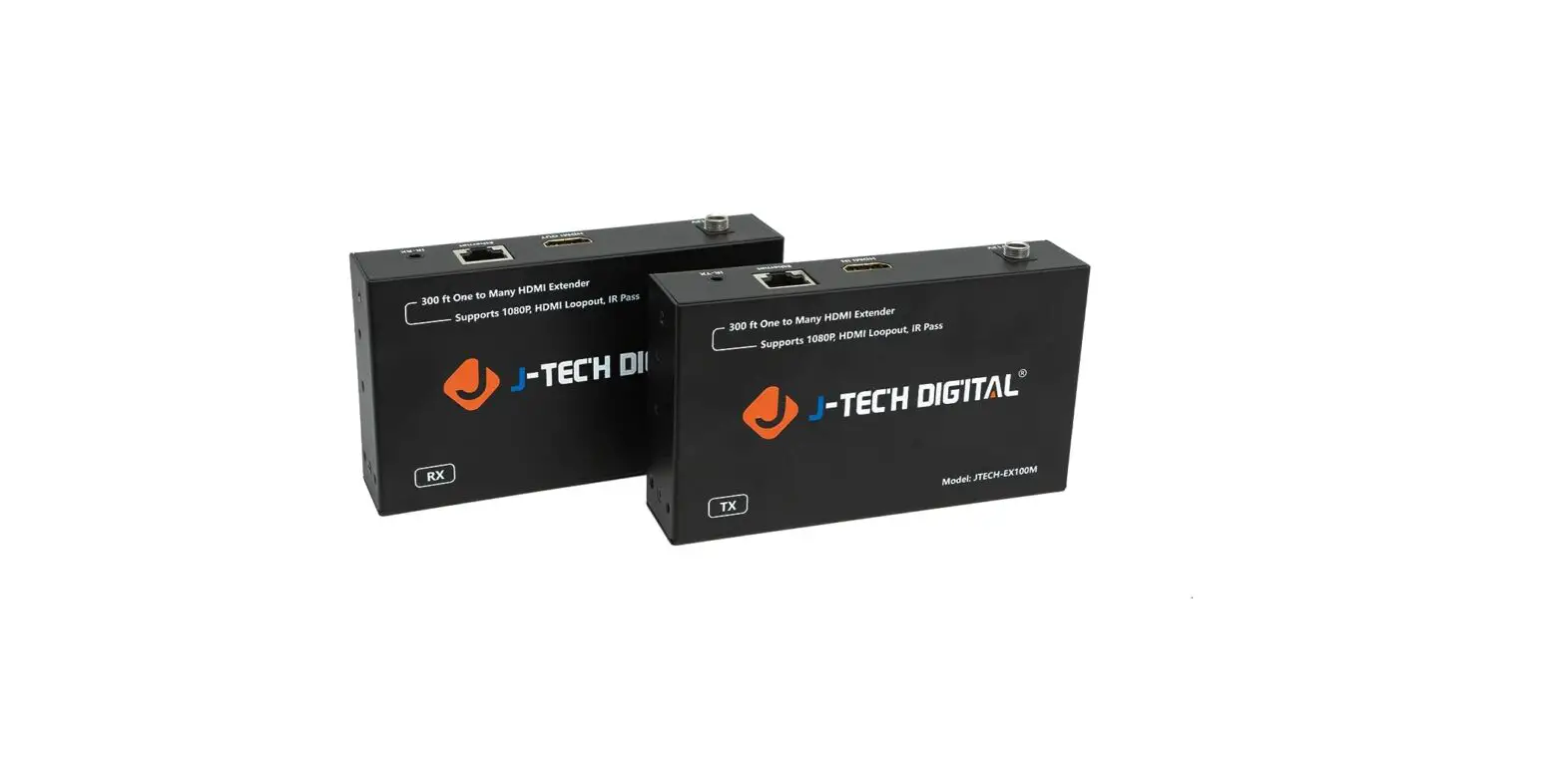
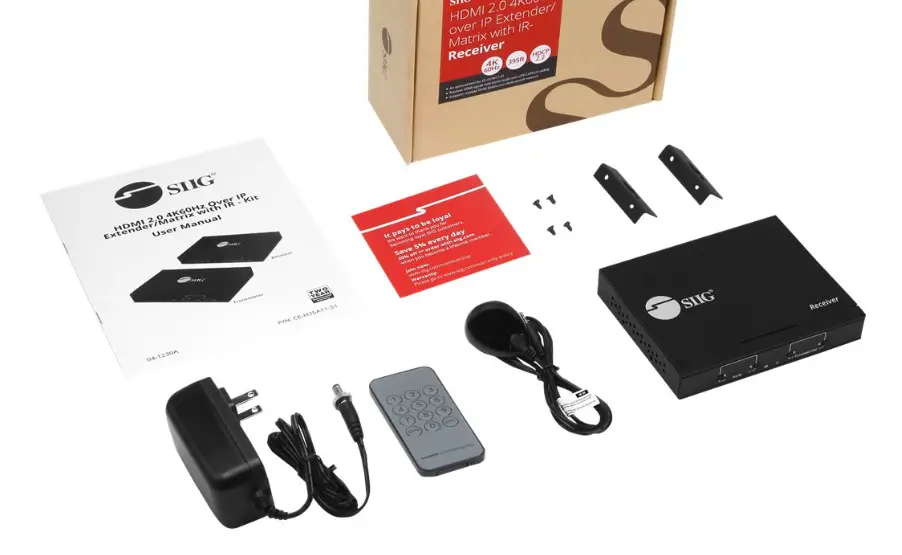
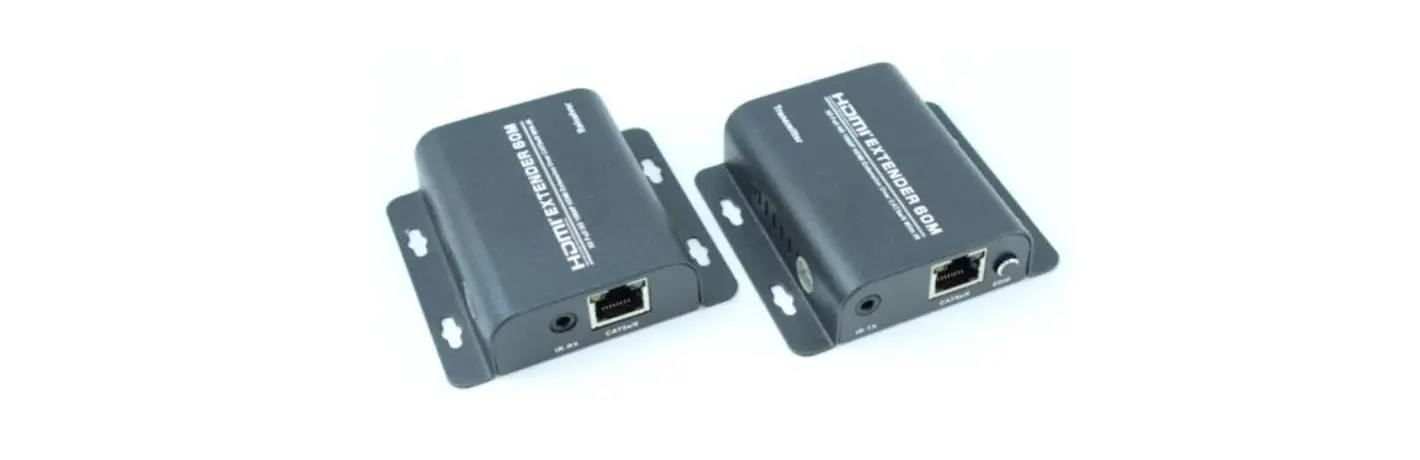
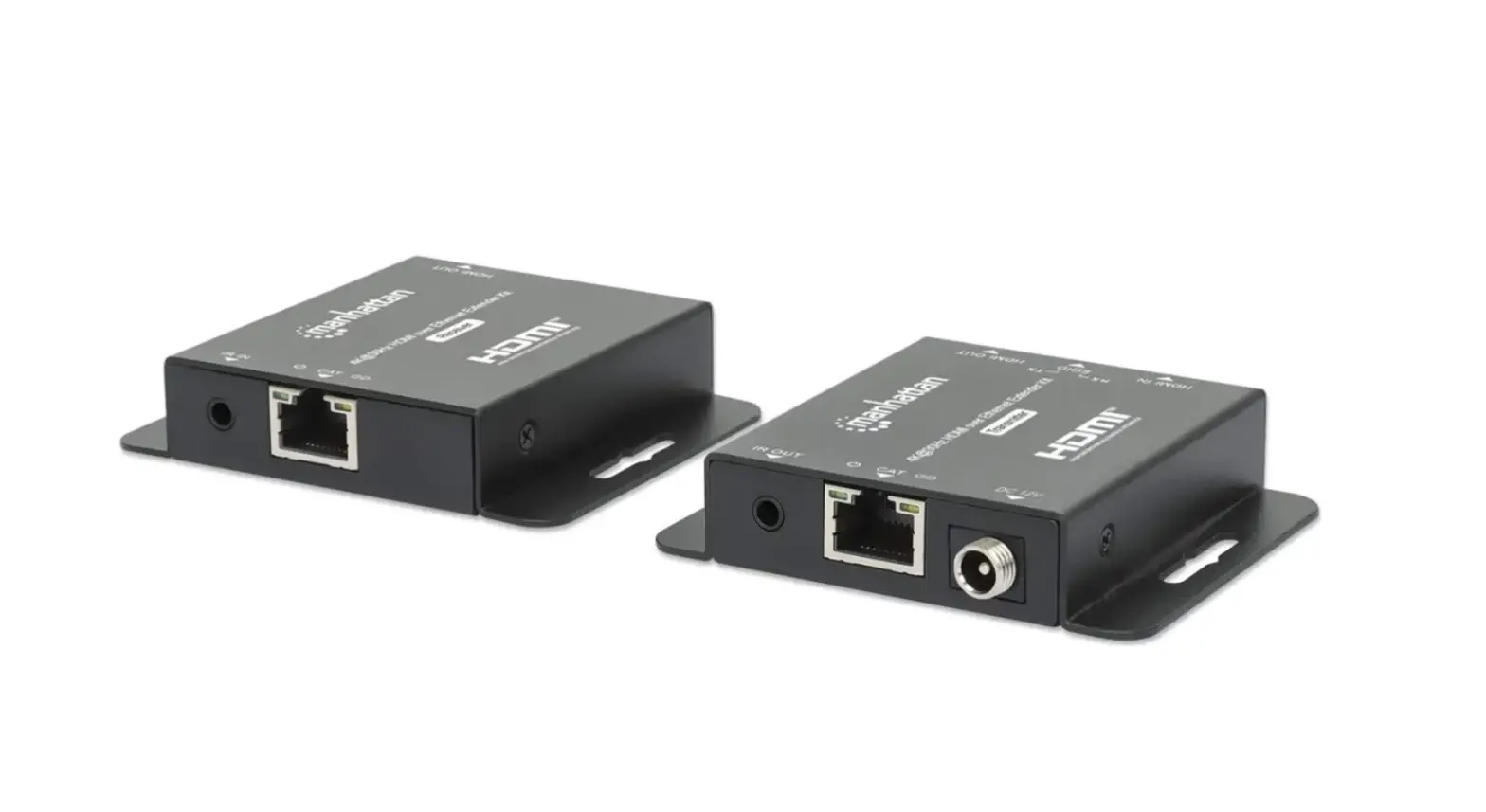
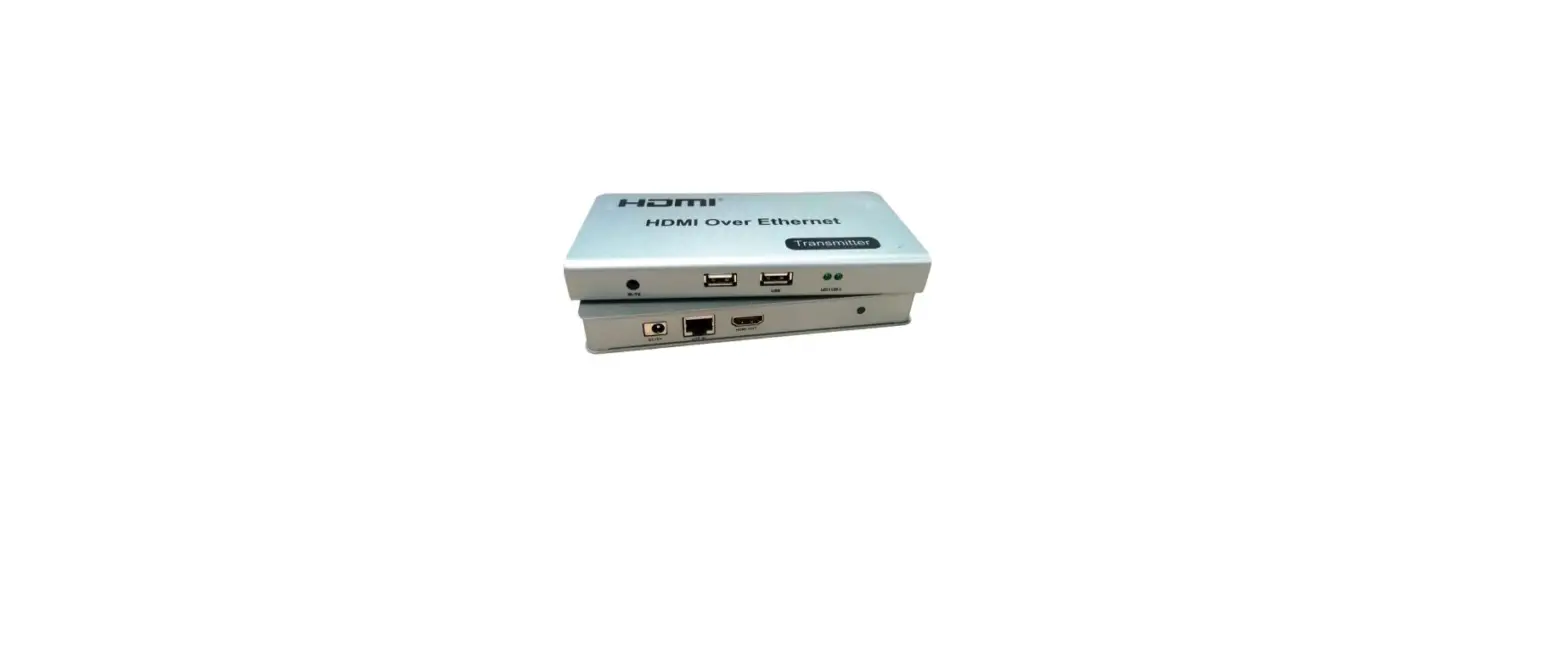
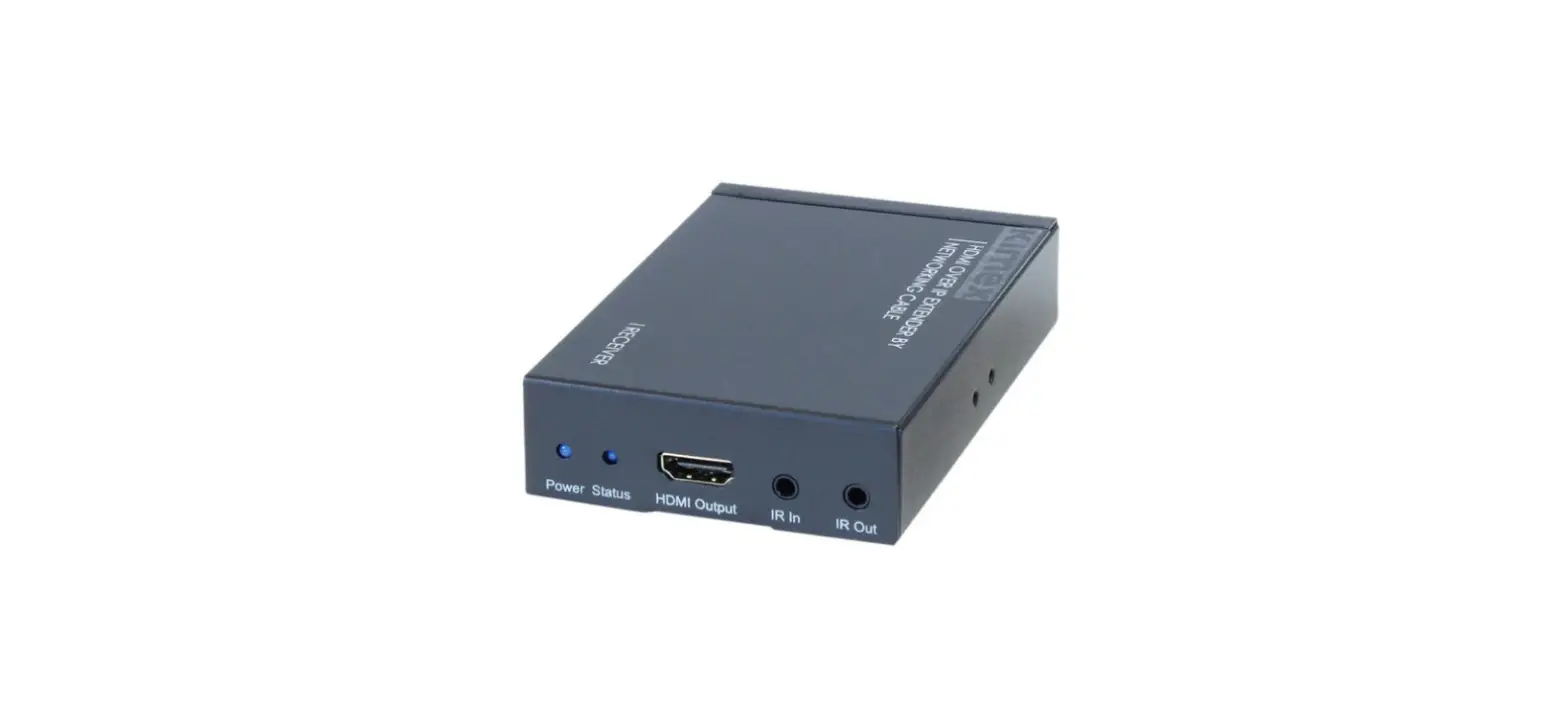
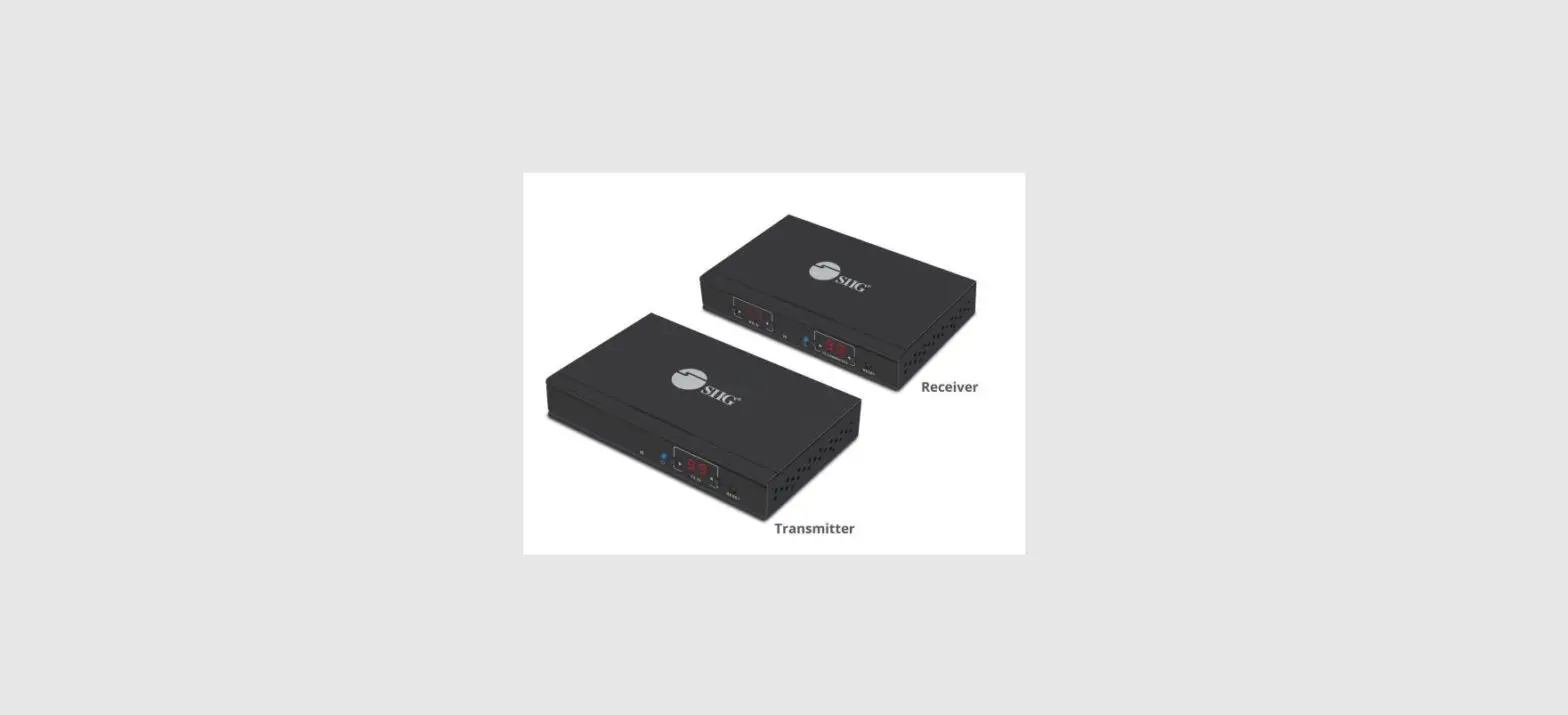
ZT-100-101 1080P 60Hz HDMI Over Ethernet Extender
Product Information
Zenty is a professional A/V solution provider that offers a
range of products for audio and video transmission. The product
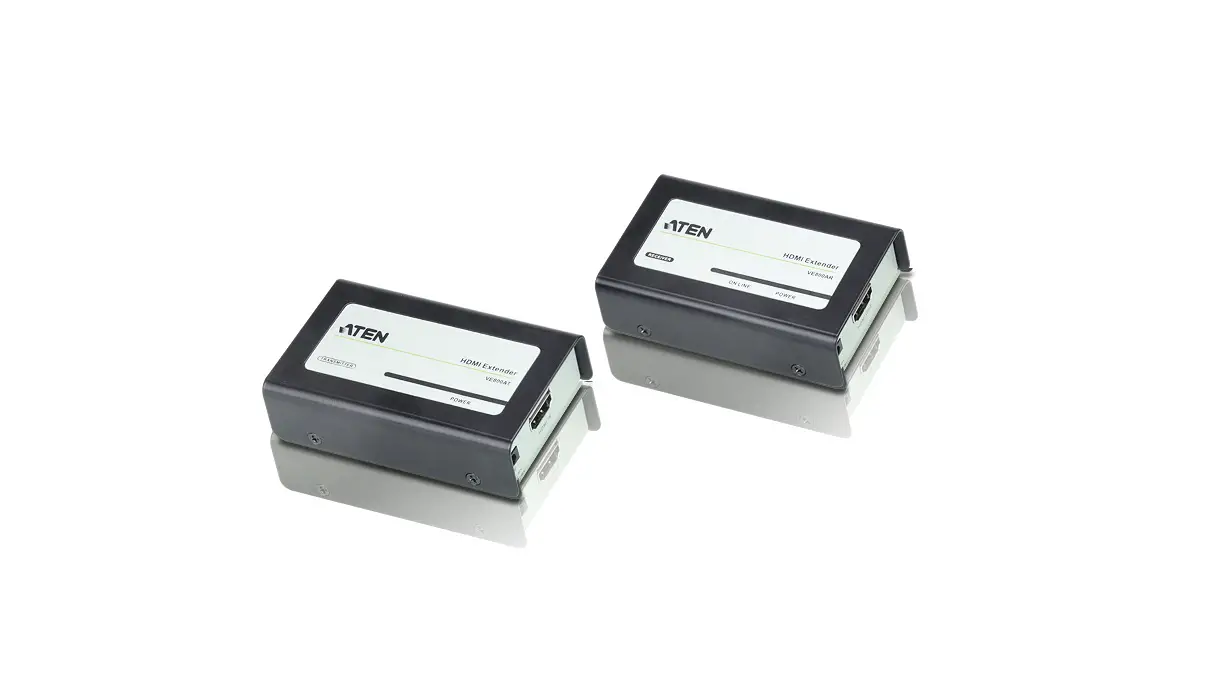
mentioned in the user manual is an HDMI extender, consisting of an
encoder and a decoder. These extenders allow you to transmit
high-definition video and audio signals over long distances using
standard Ethernet cables. The encoder takes an HDMI input and
converts it into a digital signal that can be transmitted over
Ethernet. The decoder receives the transmitted signal and converts
it back into HDMI output for display on a monitor or TV.
The Zenty HDMI extender supports various video resolutions and
can be used in professional A/V setups, home theaters, conference
rooms, and other audio and video applications. The extender also
features infrared (IR) transmitter and receiver ports for
controlling connected devices using IR signals.
Product Usage Instructions
- Step 1: Set up the IP address for the encoder and decoder.
- Assign your PC or laptop a static IP address by going to
Control Panel → Network Connections → Local Area Connection Status
→ Properties → Internet Protocol (TCP/IP). Enter IP address
192.168.168.11 and subnet mask 255.255.255.0.
Ethernet cable.
- Connect one end of the Ethernet cable to your PC or laptop, and
the other end to the HDMI extender. - The status light on the extender should turn green, indicating
a successful connection.
encoder/decoder.
- Open the command prompt by going to Start → Run → Type CMD and
hit enter. - Type “ping 192.168.168.55” if you are connecting to an encoder
or “ping 192.168.168.56” if you are connecting to a decoder. - If you receive a reply, it means the connection is
established.
configure the IP address and other settings.
- Open a browser and enter “192.168.168.55” for the encoder or
“192.168.168.56” for the decoder. - In the WebGUI, you can set up the IP address, MAC address,
subnet mask, gateway, etc. - If you are using multiple encoders or decoders, make sure to
assign different IP addresses (e.g., 192.168.168.XX) and unique MAC
addresses (e.g., 00:0b:78:XX:XX:XX) to each device.
configuration.
- Click the “Apply” button in the WebGUI to save the
settings. - The green LED on the device will turn off, indicating that the
IP address has been successfully set up.
Note: To reset the device to its factory settings, power on the
device, wait for the status light to turn green, and then press and
hold the reset button for 10 seconds. The green light will turn
off, indicating that the device has been restored to its factory
settings.
Zenty | Professional A/V Solution Provider
(844) 200-1945 | [email protected]
Page 1 of 10
ZENTY ®
9807 EMILY LANE STAFFORD, TX 77477
(844) 200-1945 [email protected]
Copyright © Zenty AV
(844) 200-1945 | [email protected]
Page 2 of 10
Copyright © Zenty AV
The Zenty IP250 AV over IP series is designed to extend 1080P HDMI signals up to 400ft. via single Cat5e/6 cable. Customers can use the IP250 series in one of three ways: Point Point: Connect an IP250 encoder directly to an IP250 decoder via single ethernet cable, and extend a 1080P HDMI signal up to 400ft. One Many: Connect an IP250 encoder to our Zenty AV over IP switch, and connect multiple decoders to that same switch in order to send an HDMI signal from one source to multiple displays with ease. Many Many: Connect multiple IP250 encoders to our Zenty AV over IP switch, along with multiple decoders to the same switch. Use the switch’s custom web interface in order to route different encoders to different decoders, thus creating an AV over IP matrix system.
· Extend 1080P 60Hz signals up to 400ft. over a single UTP Cat5e/6 cable · TCP/IP protocol allows usage with Zenty AV over IP switch in order to create an AV over IP
Matrix system · Multi-cast and broadcast architecture allows for adding more displays without adding LAN
bandwidth loading · Supports point point, one many, and many many configurations · Wideband IR (38-56kHz) to control the source · Can be cascaded for many layers by adding Zenty ethernet switches
Operating Temperature Range Operating Humidity Range Input Video Signal
(844) 200-1945 | [email protected]
-5°C ~ 35°C | 5 90% RH (No Condensation) 0.5 1.0 Volts P-P
Page 3 of 10
Copyright © Zenty AV
Input DDC Signal Video Resolutions Video Output Transmission Distance Power Consumption
IR Frequency Dimensions (L x W x H)
Net Weight Encoder Default IP Address
Decoder Default IP Address
5 Volts p-p (TTL) Up to 1080P 60Hz HDMI 1080P 8-bit 400ft. over single Cat5e/6 Encoder: 3W Decoder: 3W 38 56kHz 103.5mm x 93.5mm x 24.6mm 4.07″ x 3.68″ x 0.97 Encoder / Decoder: 220g | 0.49lbs. IP: 192.168.168.55 MAC: 00:0b:78:00:60:01 IP: 192.168.168.56 MAC: 00:0b:89:00:60:02
Encoder
(844) 200-1945 | [email protected]
Page 4 of 10
Copyright © Zenty AV
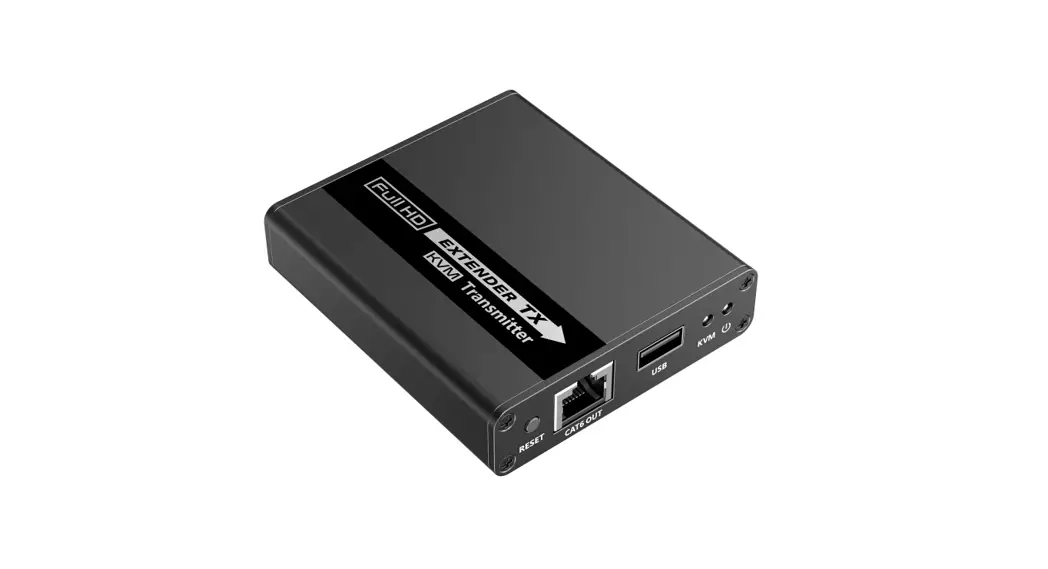
Status: Connection status indicator Power: Power light indicator DC/5V: Power adapter port Ethernet: RJ45 output port to connect to decoder or Zenty switch IR TX: IR transmitter cable port HDMI Input: Connect a source via HDMI cable Reset: Press and hold the reset button to factory reset encoder settings
Decoder
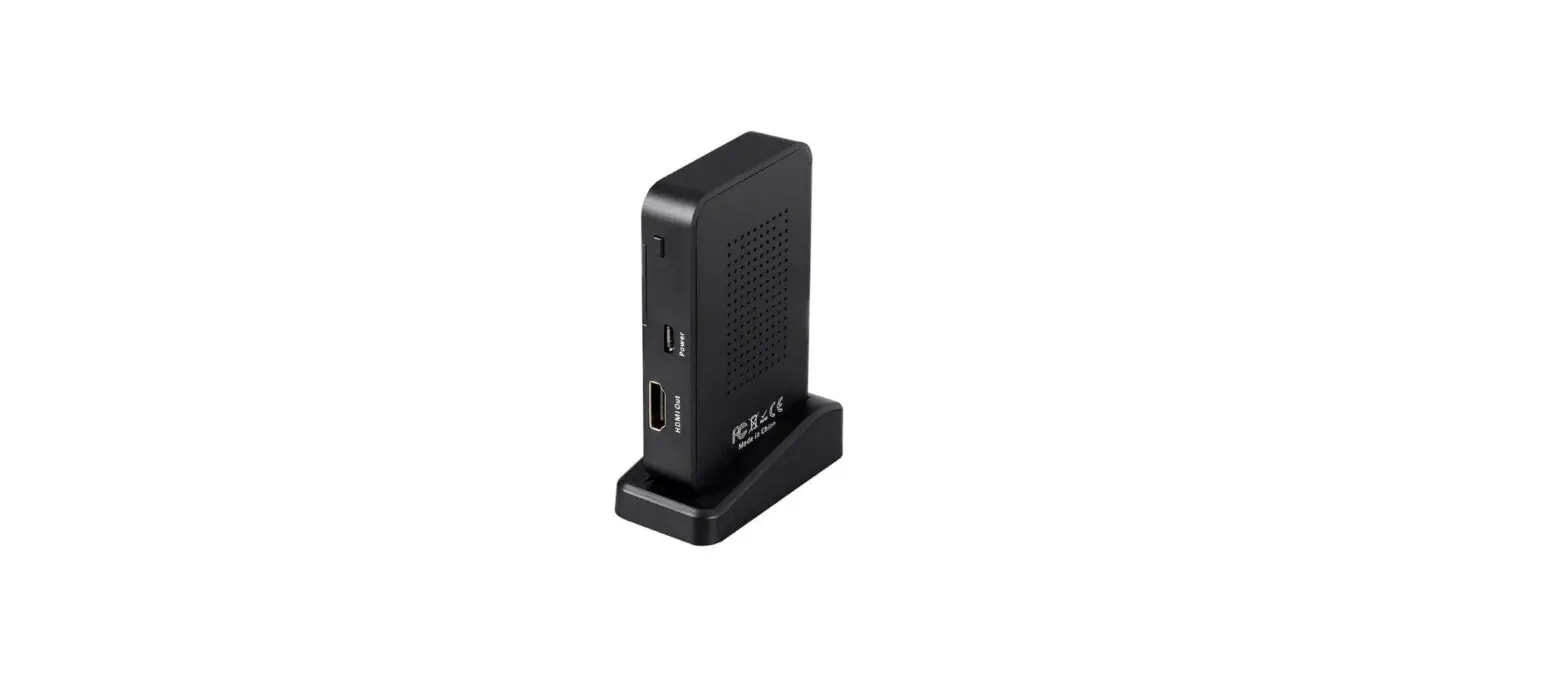
Status: Connection status indicator Power: Power light indicator DC/5V: Power adapter port Ethernet: RJ45 input port to connect to encoder or Zenty switch IR RX: IR receiver cable port HDMI Output: Connect a display via HDMI cable Reset: Press and hold the reset button to factory reset encoder
(844) 200-1945 | [email protected]
Page 5 of 10
Copyright © Zenty AV
Point Point: One Many:
(844) 200-1945 | [email protected]
Page 6 of 10
Copyright © Zenty AV
Many Many:
An HTTP server is embedded in each encoder and decoder. You can set up the IP address for these extenders via web browser. Default IP and MAC address for the encoder: 192.168.168.55 | 00:0b:78:00:60:01
Default IP and MAC address for the decoder: 192.168.168.56 | 00:0b:78:00:60:02
Step 1: Assign your PC (or laptop) a static IP address: Control Panel Network Connections Local Area Connection Status Properties Internet Protocol (TCP/IP). In the IP field, type 192.168.168.11 (0-255), and subnet mask with 255.255.255.0. Press “Ok” to save the changes.
(844) 200-1945 | [email protected]
Page 7 of 10
Copyright © Zenty AV
Step 2: Use an ethernet cable to connect the PC or laptop to the HDMI extender. The status light on the extender will turn green.
Step 3: Ping the connected device through the sequence on the computer. Start Run Type “CMD” and hit enter Type “ping 192.168.168.55” for Encoder or “ping 192.168.168.56” for decoder. You will receive a reply if the connection is established.
Step 4: Open a browser, and type 192.168.168.55 for encoder or 192.168.168.56 for decoder. Within the WebGUI of the extender, you can set up the IP address, MAC address, subnet mask, gateway etc. If using multiple encoders and decoders, please make sure to set each encoder or decoders IP address differently, such as 192.168.168.XX (XX: 1-255). Also, set MAC address for encoder and decoders 00:0b:78:XX:XX:XX (XX: 01-FF). The MAC address for each encoder and decoder must be different.
Step 5: Click the “Apply” button, and the green LED on the device with go off. This ensures that you have successfully set up the IP address for encoder and decoder.
Note: If you need to reset the device to factory settings, please power on the device, wait for the status light to turn green, and then press and hold the reset button for 10 seconds. The green light will turn off indicating that the device has been restored to its factory settings.
Clean this unit with a soft, dry cloth. Never use alcohol, paint thinner, or benzine to clean.
If your product does not work properly because of a defect in materials of workmanship, our company (referred to as “the warrantor”) will, for the length of the period indicated as below, “Parts and Labor (5) Years”, which starts with the date of original purchase (“Limited Warranty period”), at its option either (a) repair your product with new or refurbished parts, or (b) replace it with a new or a refurbished product. The decision to repair or replace will be made by the warrantor.
During the “Labor” limited warranty period, there will be no charge for labor. During the “Parts” warranty period, there will be no charge for parts. You must mail-in your product during the warranty period. This Limited Warranty is extended only to the original purchaser and only covers products purchased as new. A purchase receipt or other proof of original purchase date is required for Limited Warranty service.
(844) 200-1945 | [email protected]
Page 8 of 10
Copyright © Zenty AV
When shipping the unit, carefully pack and send it prepaid, adequately insured, and preferably in the original carton. Include a letter detailing the complaint and provide a day time phone and/or email address where you can be reached.
This Limited Warranty ONLY COVERS failures due to defects in material or workmanship, and DOES NOT COVER normal wear and tear or cosmetic damage. The Limited Warranty ALSO DOES NOT COVER damages which occurred in shipment, or failures which are caused by products not supplied by warrantor, or failures which result from accidents, misuse, abuse, neglect, mishandling, misapplication, alteration, faulty installation, set-up adjustments, mis-adjustment of consumer controls, improper maintenance, power line surge, lightning damage, modification, or service by anyone other than a Factory Service center or other Authorized Servicer, or damage that is attributed to acts of God.
THERE ARE NO EXPRESS WARRANTIES EXCEPT AS LISTED UNDER “LIMITED WARRANTY COVERAGE”. THE WARRANTOR IS NOT LIABLE FOR INCIDENTAL OR CONSEQUENTAIL DAMAGES RESULTING FROM THE USE OF THIS PRODUCT, OR ARISING OUT OF ANY BREACH OF THIS WARRANTY. (As examples, this excludes damages for lost time, cost of having someone remove or re-install an installed unit if applicable, travel to and from the service, loss of or damage to media or images, data or other recorded content. The items listed are not exclusive, but are for illustration only.) PARTS AND SERVICE, WHICH ARE NOT COVERED BY THIS LIMITED WARRANTY, ARE YOUR RESPONSIBILITY.
(844) 200-1945 | [email protected]
Page 9 of 10
Copyright © Zenty AV
WWW.ZENTY.COM 9807 EMILY LANE STAFFORD, TX 77477
(844) 200-1945 [email protected]
[email protected]
(844) 200-1945 | [email protected]
Page 10 of 10
Copyright © Zenty AV
 Zenty - The AV Technology Leader