
User Manual
4K 60Hz HDMI Wireless Extender

Important Safety Instructions
- Do not expose this device to rain or place it near water. Any liquid that goes into the device may cause a failure, fire, or electric shock.
- Never insert anything metallic into the open parts of this device. This may cause a danger of electric shock.
- Do not place this device near or over a radiator or heat register, or where it is exposed to direct sunlight.
- The device should be repaired only by a qualified technician.
- If a third-party power supply is used, please ensure that the power supply specifications meet the product requirements.
Introduction
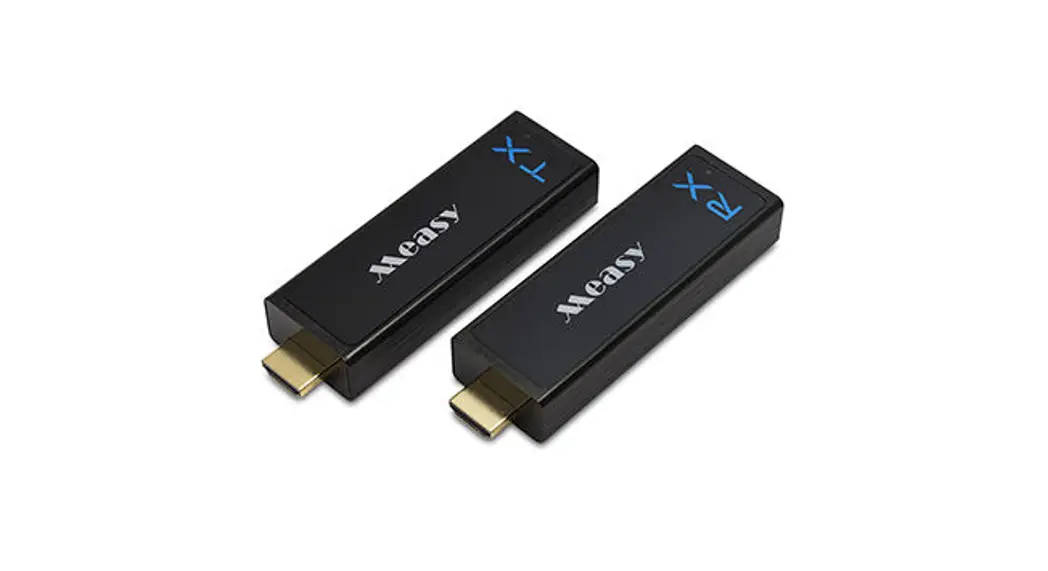
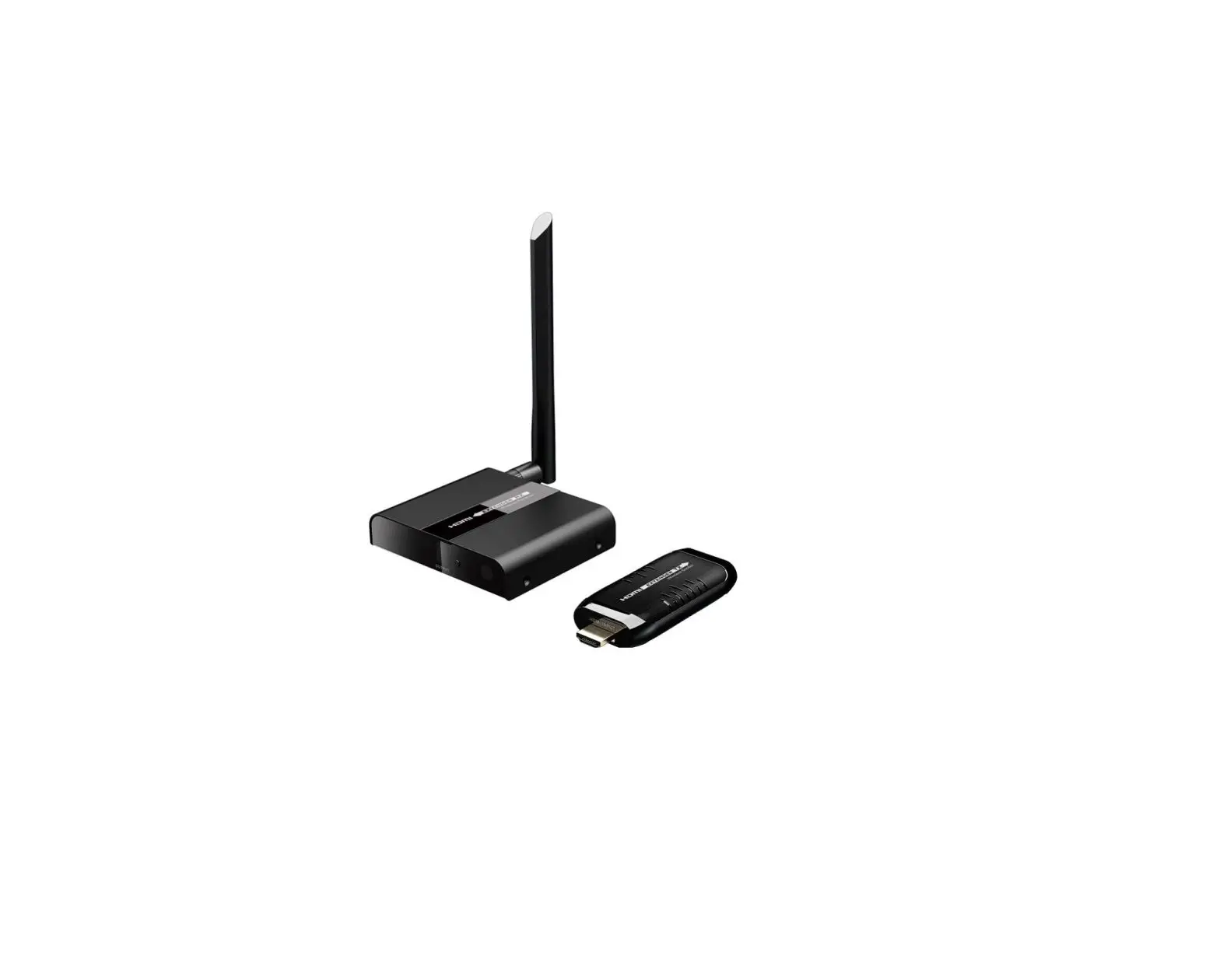
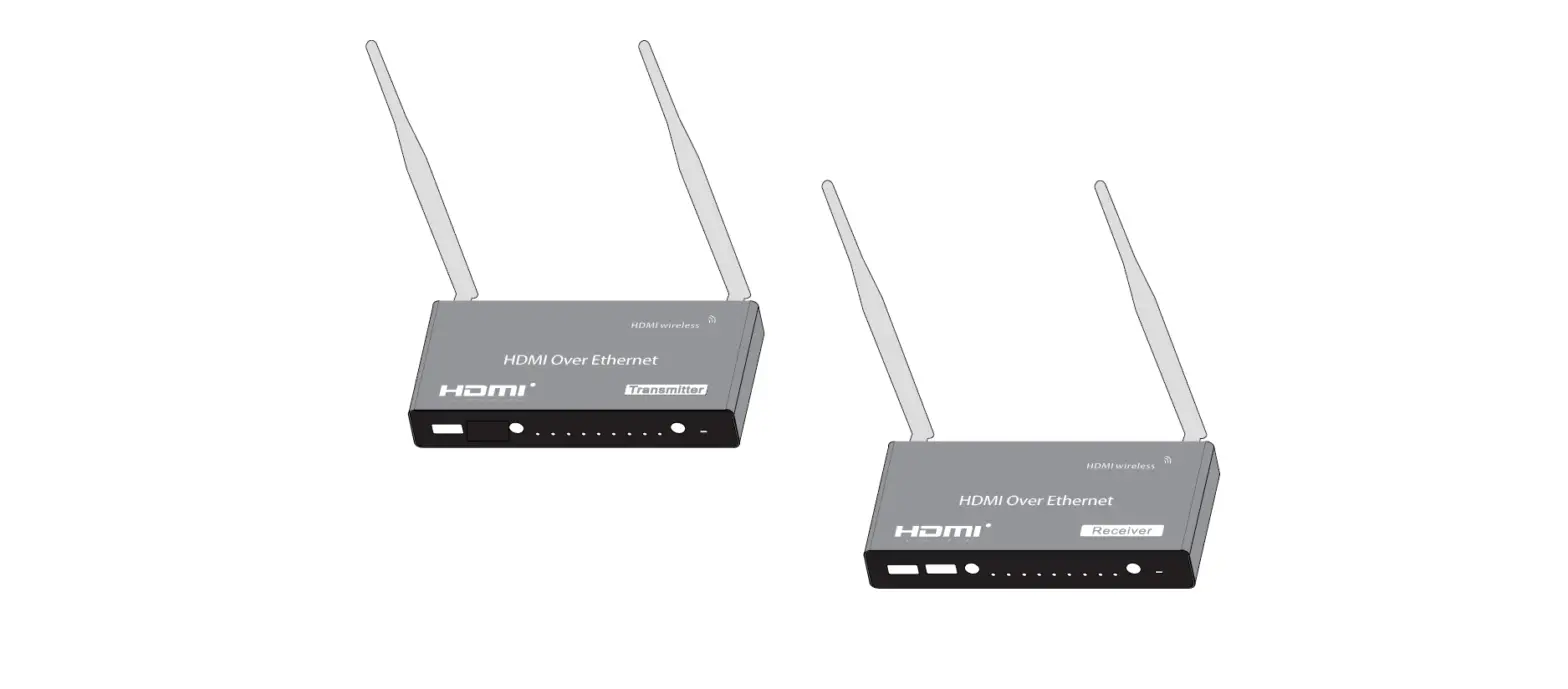
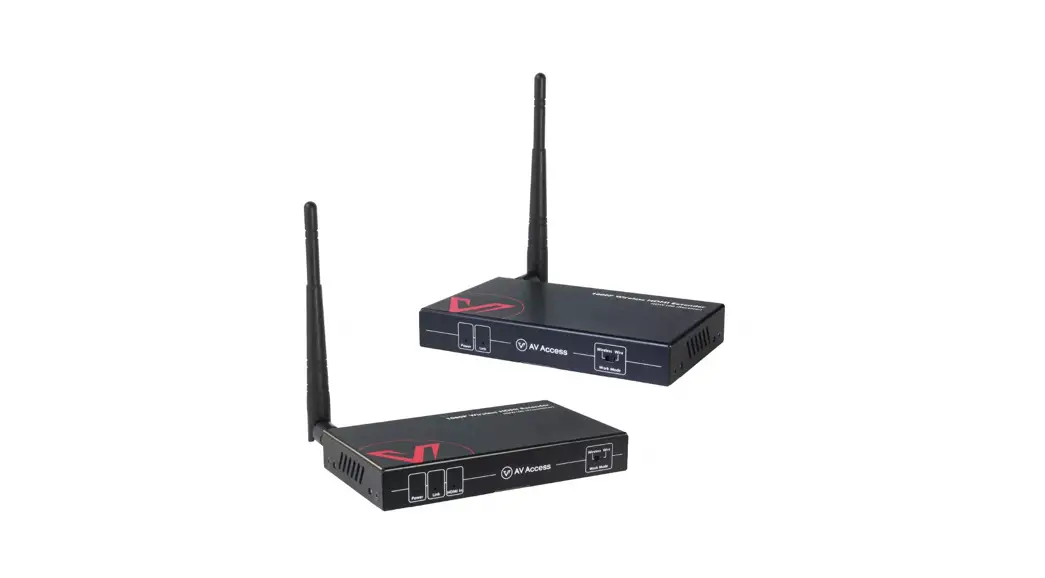
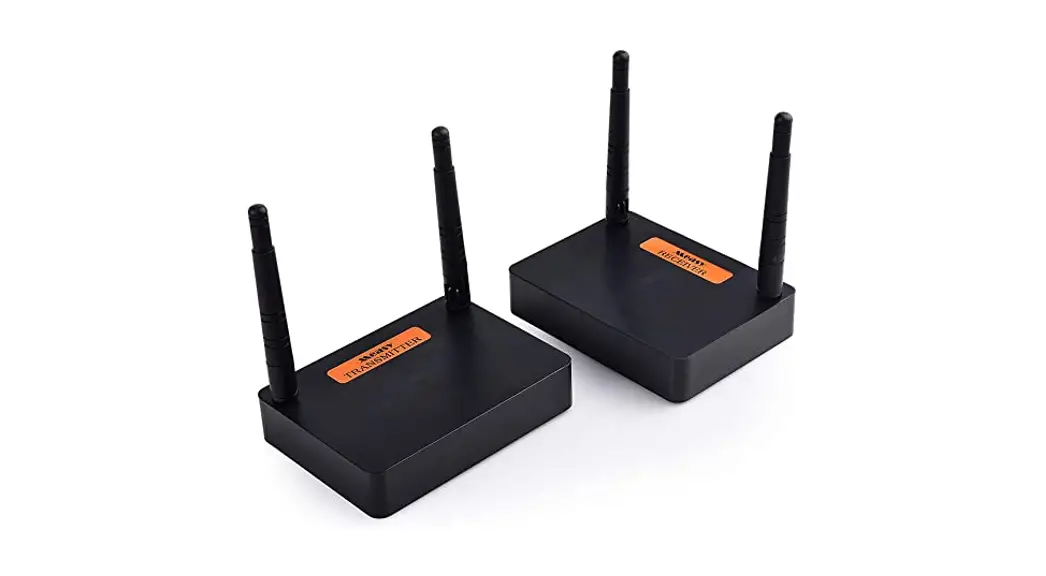
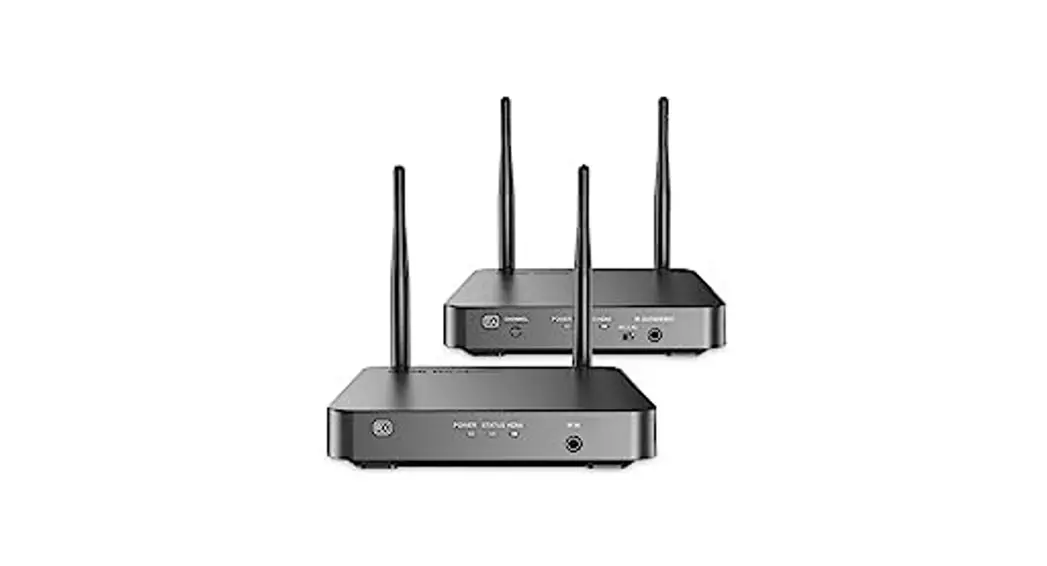
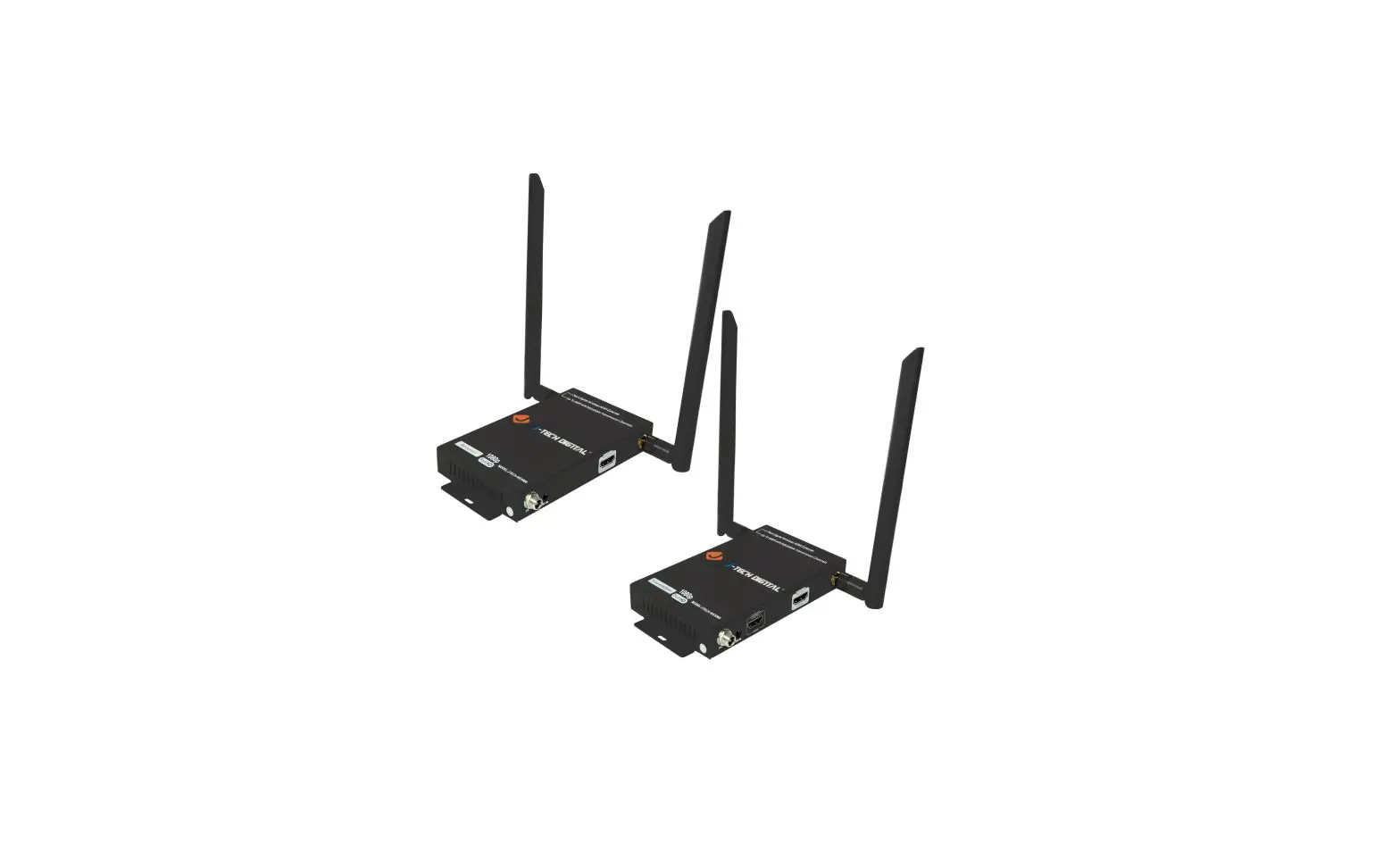
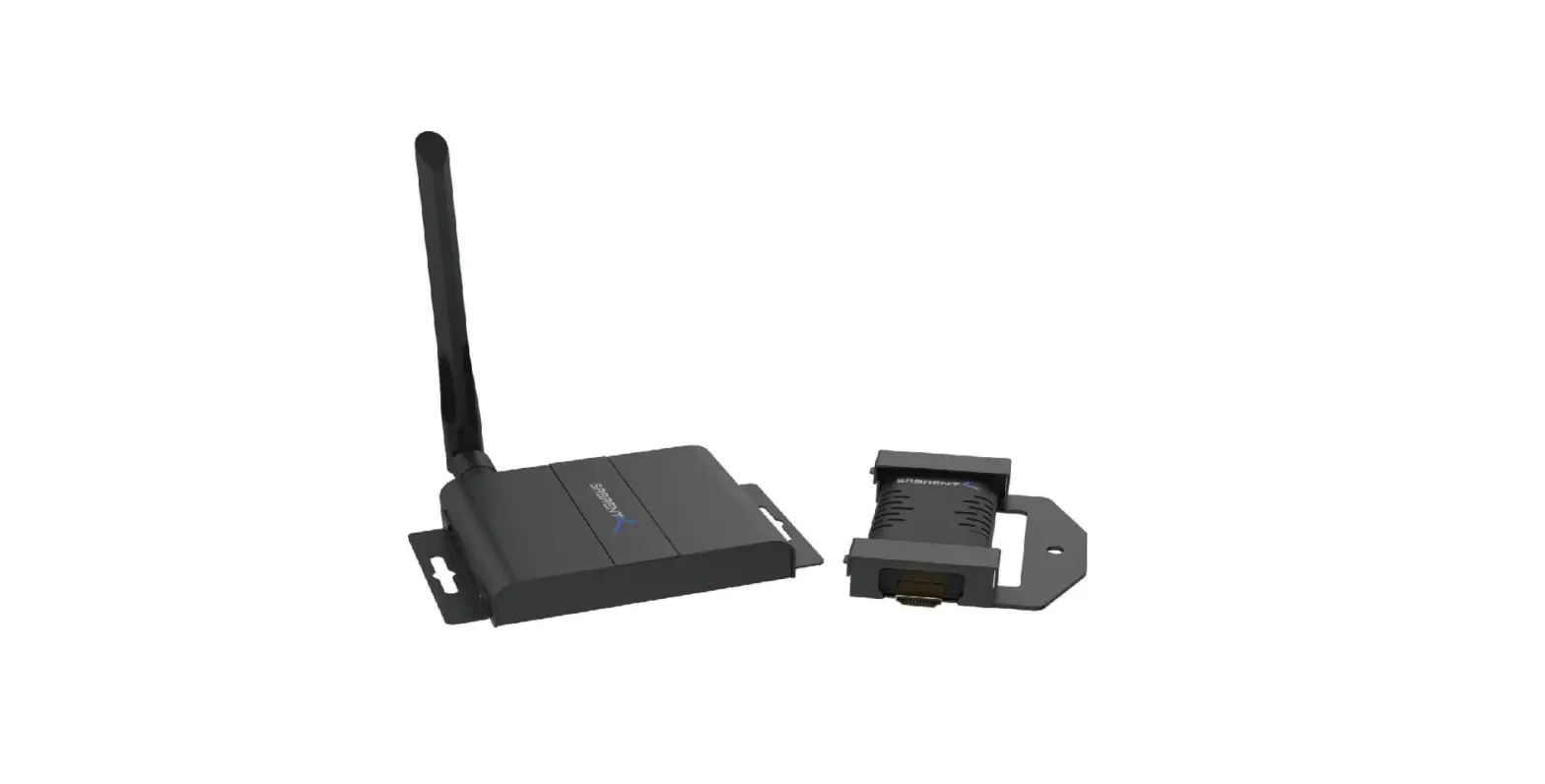
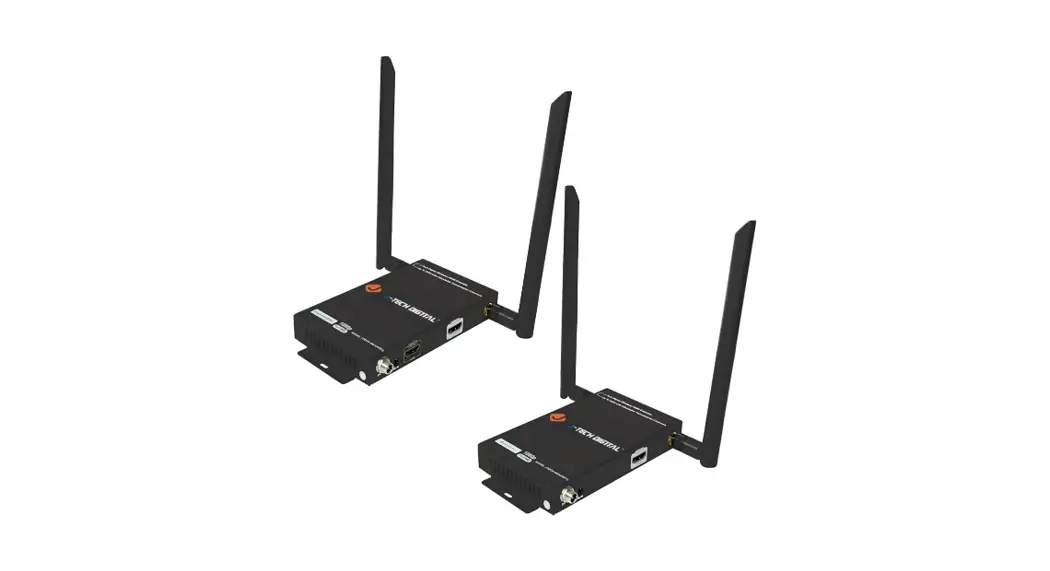
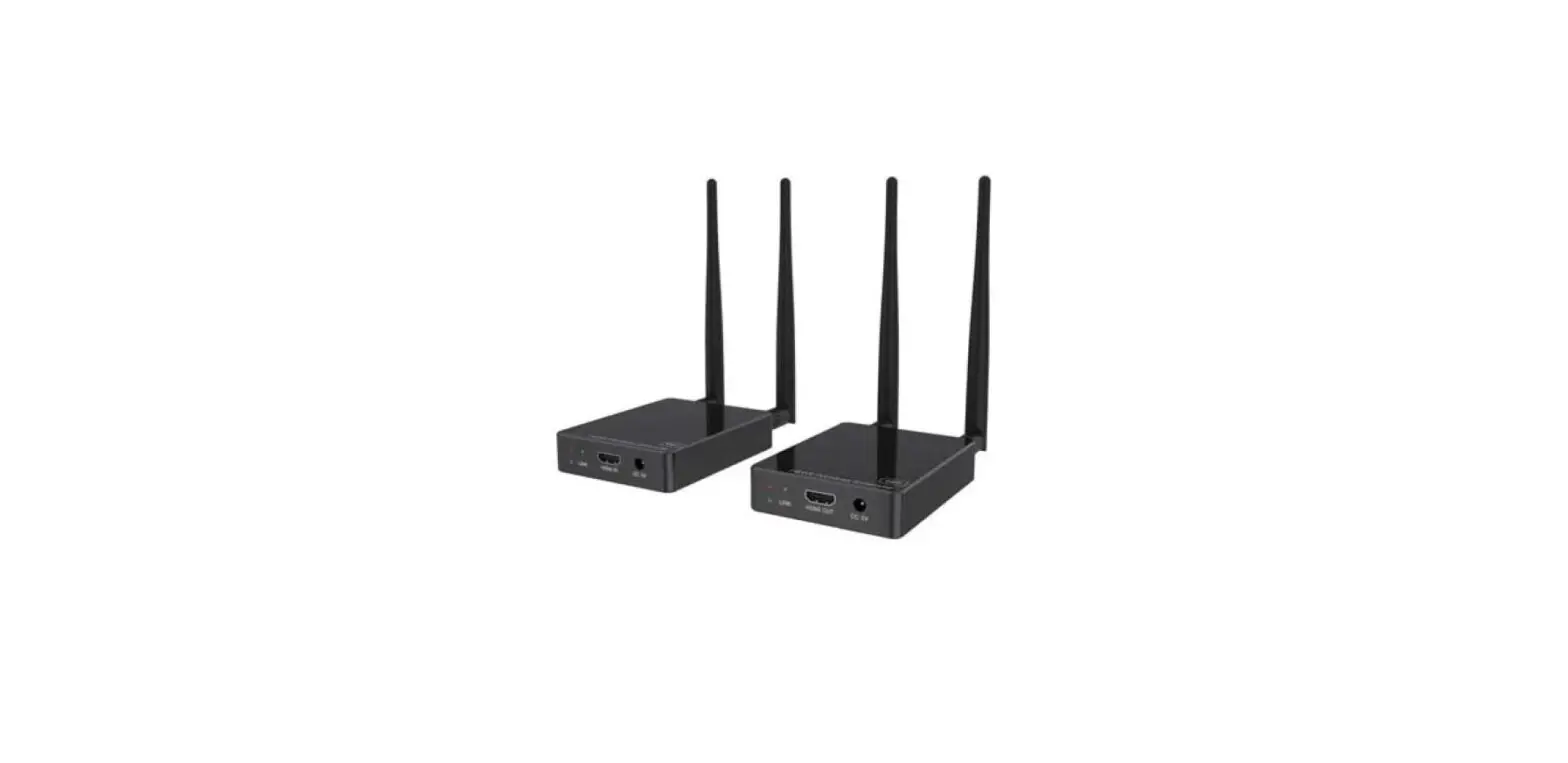
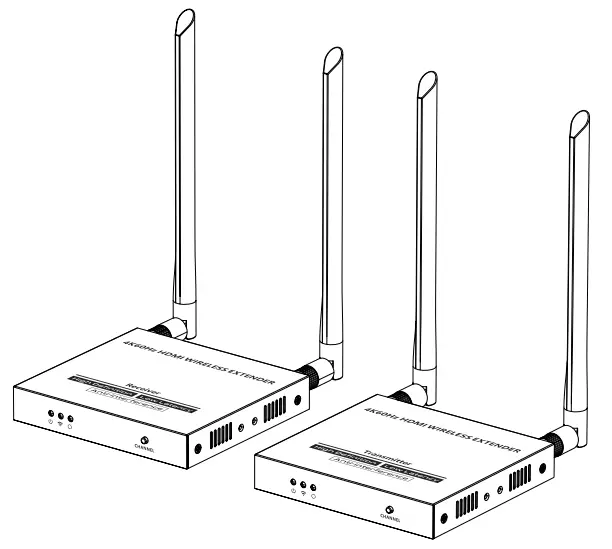
This is a 4K@60Hz HDMI wireless extender, including a transmitter and a receiver. Adopting ipcolor STREAM technology can realize high definition and low-latency transmission. Based on the 5G wireless frequency band, with stable anti-interference and safety performance. It supports 1-to-1 wireless transmission, and the transmission distance can reach 50 meters, effectively solving problems caused by complicated wiring. It’s an ideal wireless video transmission solution for video conferences, home entertainment, multimedia education, etc.
Note:
- Transmission distances may vary depending on the environment.
- Signals may be reduced or completely lost by solid structures such as walls, bricks, and glass.
- The surrounding wireless signal may cause certain interference to the transmission, and the channel can be switched to reduce the interference.
Features
- Adopting ipcolor STREAM technology can realize high definition and low-latency transmission.
- Support up to 3840×2160@60Hz resolution, backward compatible.
- Support wireless transmission up to 50 meters (line of sight).
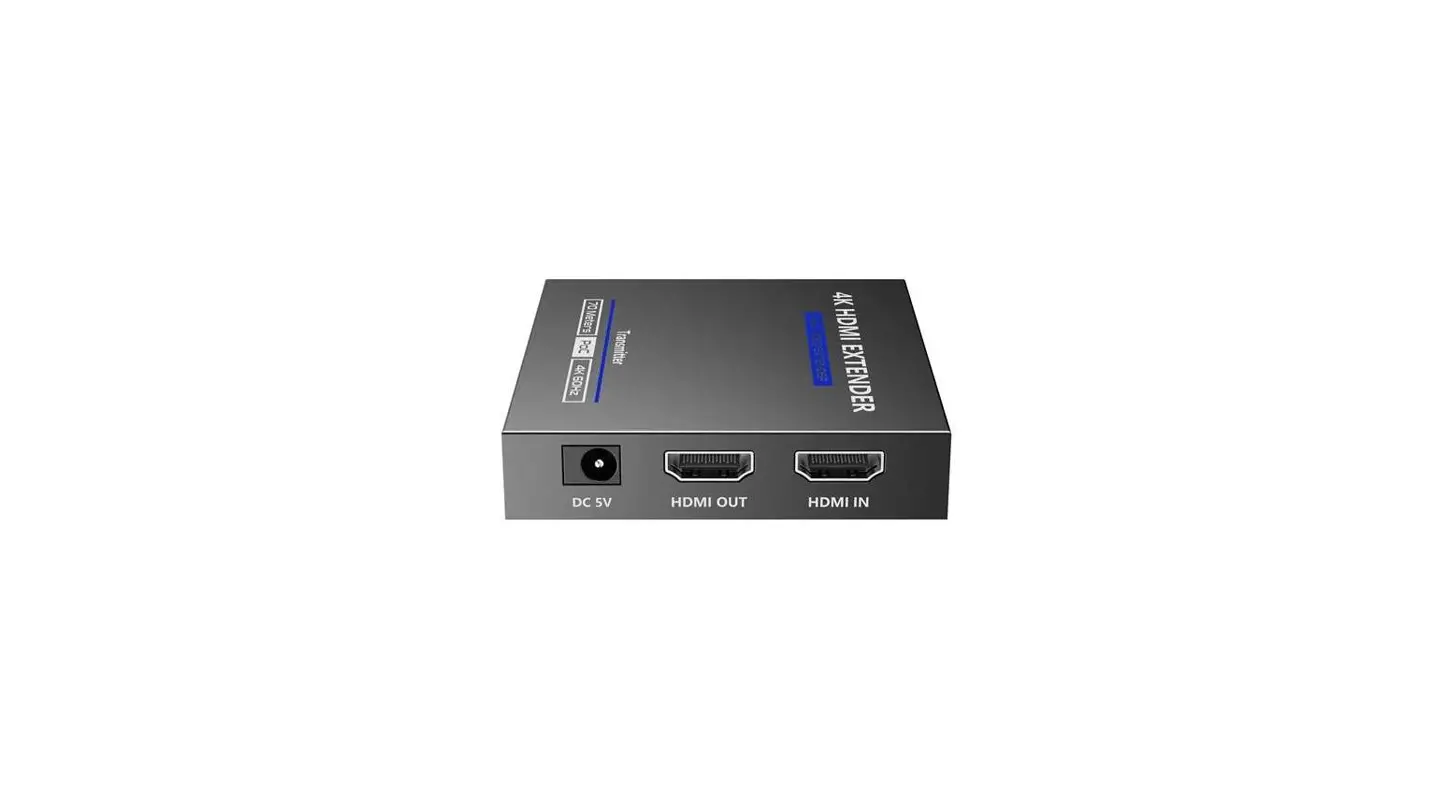
- The transmitter supports HDMI loop out.
- In case of multiple sets of products in the same area, support SSID pairing and channel switching to avoid interference.
- Support IR passback.
- Support 5G wireless frequency bands, strong anti-interference.
- Support firmware upgrade via Micro USB port.
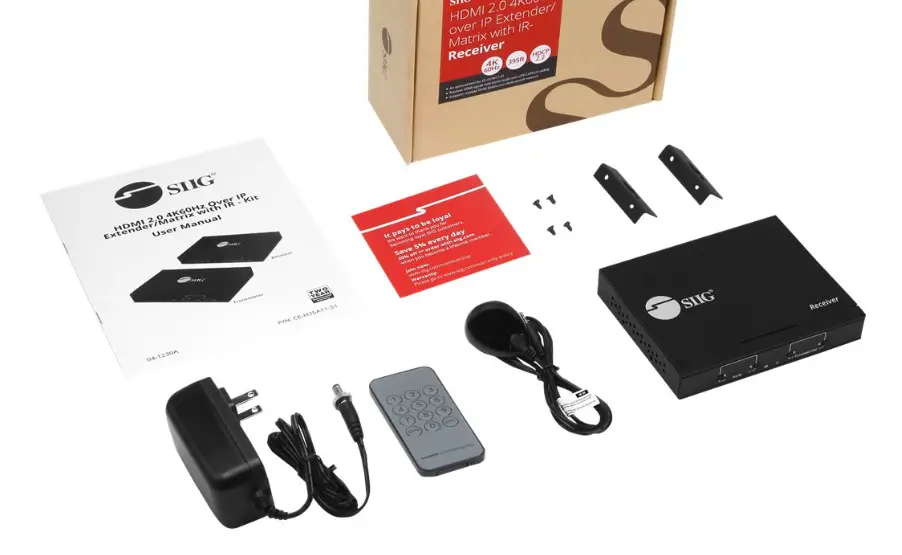
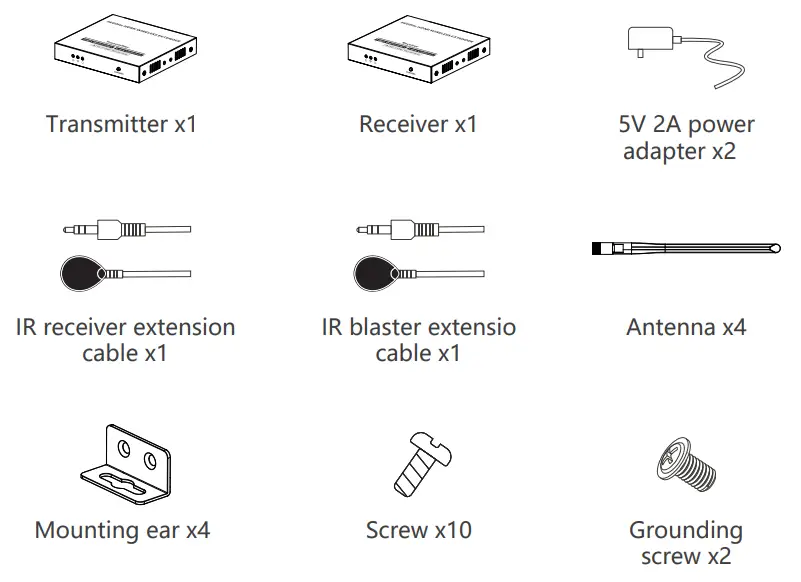
Package Contents

Installation Requirements
- HDMI source device (DVD, game console, PC, etc.)
- HDMI display device (TV, projector, LED screen, etc.)
Panel Description
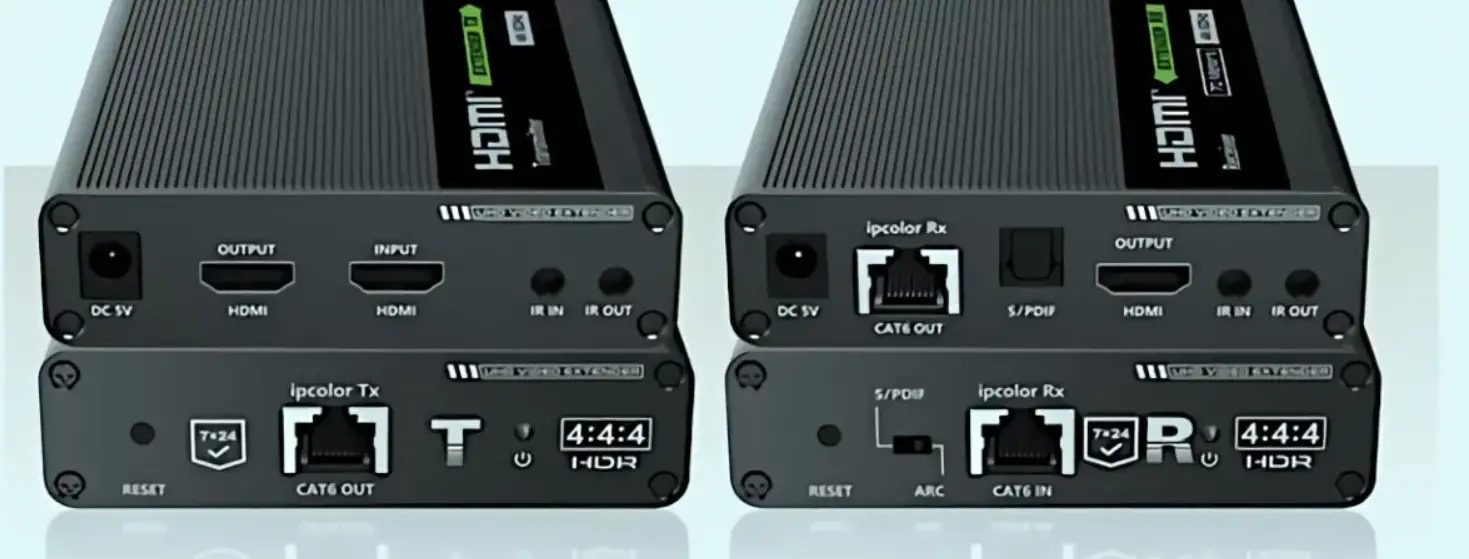
1. Transmitter (TX)
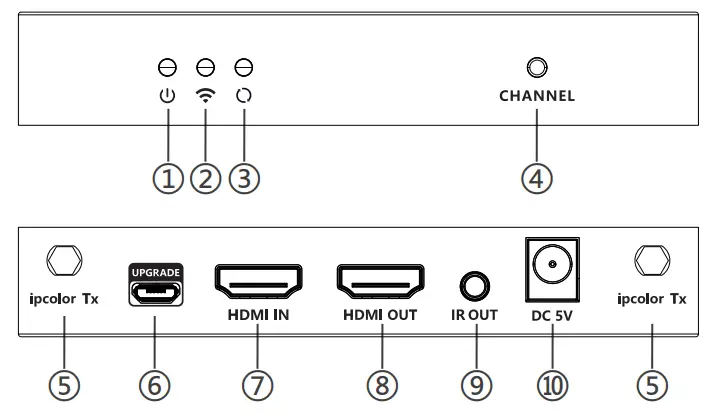
| 1 | Power indicator | The indicator will turn blue when the power is turned on |
| 2 | WiFi indicator | a) Slow flash: waiting for connection b) Steady on: connection succeeded c) Quick flash: SSID Pairing mode |
| 3 | Signal indicator | a) Light off: no HDMI signal b) Steady on: HDMI signal is transmitting c) Quick flash: restore factory settings |
| 4 | Channel switch button | a) press to switch channels b) Press and hold 5s for SSID pairing c) Press and hold 10s for restore factory settings |
| 5 | Antenna connectors | Connect with antennas |
| 6 | HDMI output | Used for firmware upgrade |
| 7 | Micro USB port | Connect with HDMI source device with HDMI cable |
| 8 | HDMI input | Connect with local HDMI display device with HDMI cable |
| 9 | IR out | Connect with IR blaster extension cable |
| 10 | Power input | Connect with DC 5V/2A power adapter |
2. Receiver (RX)
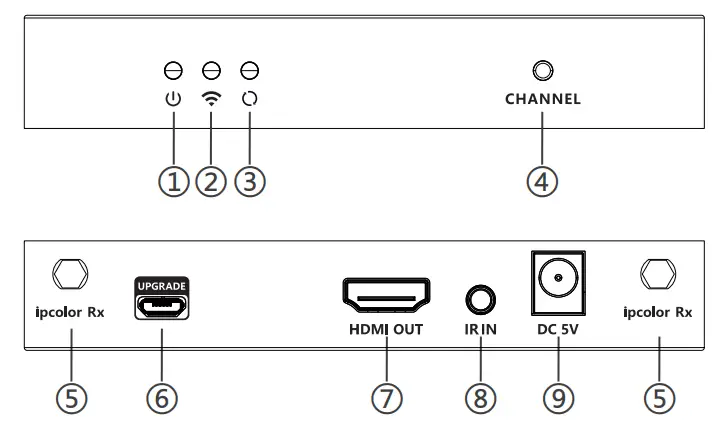
| 1 | Power indicator | The indicator will turn blue when the power is turned on |
| 2 | WiFi indicator | a) Slow flash: waiting for connection b) Steady on: connection succeeded c) Quick flash: SSID Pairing mode |
| 3 | Signal indicator | a) Light off: no HDMI signal b) Steady on: HDMI signal is transmitting c) Quick flash: restore factory settings |
| 4 | Channel switch button | a) After connecting with TX, press to switch channels b) Press and hold 5s for SSID pairing c) Press and hold 10s for restore factory settings |
| 5 | Antenna connectors | Connect with antennas |
| 6 | Micro USB port | Used for firmware upgrade |
| 7 | HDMI output | Connect with HDMI display device with HDMI cable |
| 8 | IR in | Connect with IR receiver extension cable |
| 9 | Power input | Connect with DC 5V/2A power adapter |
Installation Procedures
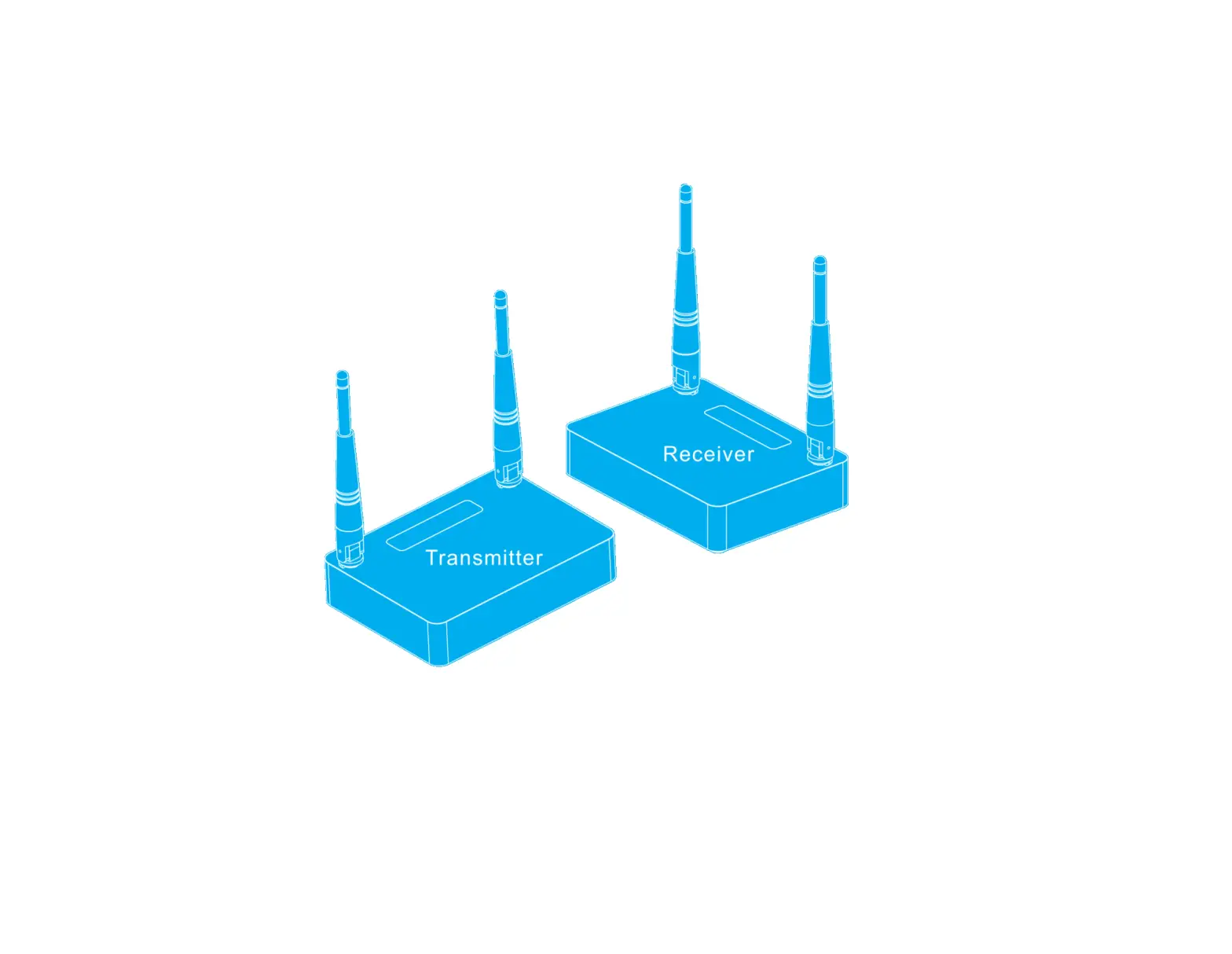
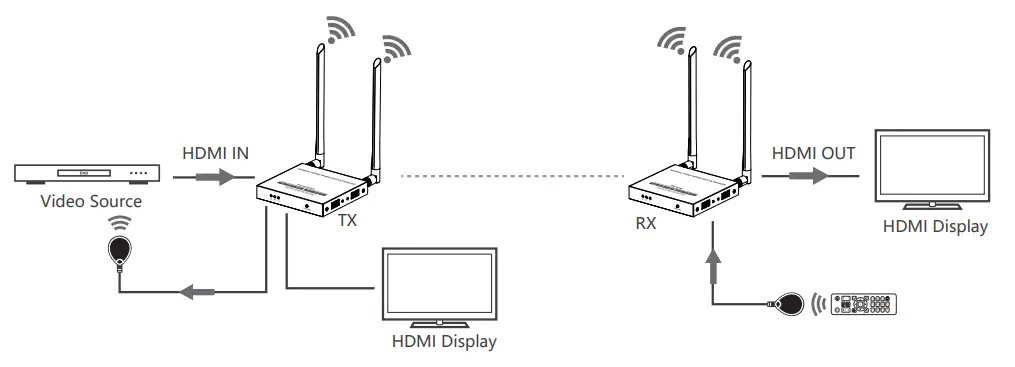
1. Connection Diagrams
One to one connection
2. Connection Instructions
- Connect the source device to the HDMI IN port of the transmitter with an HDMI cable, and connect the HDMI OUT port of the receiver to the display device with another HDMI cable.
- If using the IR passback function, connect the IR blaster extension cable into the IR OUT port of the transmitter, and connect the IR receiver extension cable into the IR IN port of the receiver.
a: The emitter of the IR blaster extension cable should be as close as possible to the IR receiving window of the source device.
b: Point the remote control at the receiving head of the IR receiver extension cable to operate. - Plug the power supply into the devices to get started.
- In the case of multiple sets being used at the same time in the same area.
In order to prevent mutual interference, switch each set of transmitters and receivers to a different channel after they have been manually paired with the SSID.
3. SSID Pairing
- Enter the SSID pairing mode by holding the transmitter and receiver’s channel switch buttons for five seconds. Both WiFi connection indicators will flash quickly in yellow.
- When the SSID pairing is successful, the WiFi indicators on the transmitter and receiver will change from quick flashing to slow flashing or steady on.
| NO. | Frequency |
| Channel 1 | 5.180 GHz |
| Channel 2 | 5.200 GHz |
| Channel 3 | 5.220 GHz |
| Channel 4 | 5.240 GHz |
FAQ
A: 1) Move transmitter and receiver closer. 2) Re-power the transmitter or receiver. 3) Re-pair the transmitter and receiver.
A: 1) Make sure the TX has HDMI input and that the resolution is within the specified range. 2) Try to connect the signal source directly to the display device, or change the signal source and HDMI cable and test again.
Q: Why is the display stuttering or unstable?
A: 1) Place the transmitter or receiver within the signal coverage and minimize obstructions between the transmitter and receiver. 2) Switch to a different channel to avoid interference from other wireless signals. 3) Re-power the receiver or transmitter.
Specification
| Items | Specifications | |
| Power Supply | Voltage/Current | DC 5V/2A |
| Power consumption | TX s 6W, RX s 4W | |
| HDMI Performance and Interface | HDMI version | HDMI 2.0 |
| HDCP version | HDCP 1.4/HDCP 2.2 | |
| Maximum transfer rate | 18Gbps | |
| Resolution supported | 3840×2160@24/30/50/60Hz, 1080P@50/60Hz, 720P@50/60Hz, 1920×1200, 2560×1440, 2560×1600 | |
| Input and output TMDS signal | 0.7-1.2Vp-p (TMDS) | |
| Input and output DDC signal | SVp-p (TTL) | |
| Transmission | Wi-Fi Frequency bands | 5.18-5.24 GHz |
| Transmission distance | s 50m | |
| Latency | 130-180ms | |
| Connection types | One-to-one | |
| SSID pairing | Supported | |
| Protection Level | ESD protection | la Contact discharge level 3 1 b Air discharge level 3 Standard: IEC61000-4-2 |
| IR Performance | Infrared frequency | 20-60kHz |
| Receiving range | s 5m | |
| Operating Environment | Working temperature | -20-60°C |
| Storage temperature | -30-70°C | |
| Humidity (no condensation) | 0-90% RH | |
| Physical Properties | Dimension | TX: 115(W) x 125(L) x 20.6(H) mm RX: 115(W) x 125(L) x 20.6(H) mm |
| Color | Black | |
| Material | Iron | |
| Net weight | TX: 353g; RX: 346g | |
Disclaimer
The product name and brand name may be registered trademark of related manufacturers. ™ and ® may be omitted on the user manual. The pictures on the user manual are just for reference, The terms HDMI, HDMI High-Definition
Multimedia Interface, and the HDMI Logo are trademarks or registered trademarks of HDMI Licensing Administrator, Inc.
We reserve the rights to make changes without further notice to a product or system described herein to improve reliability, function or design.