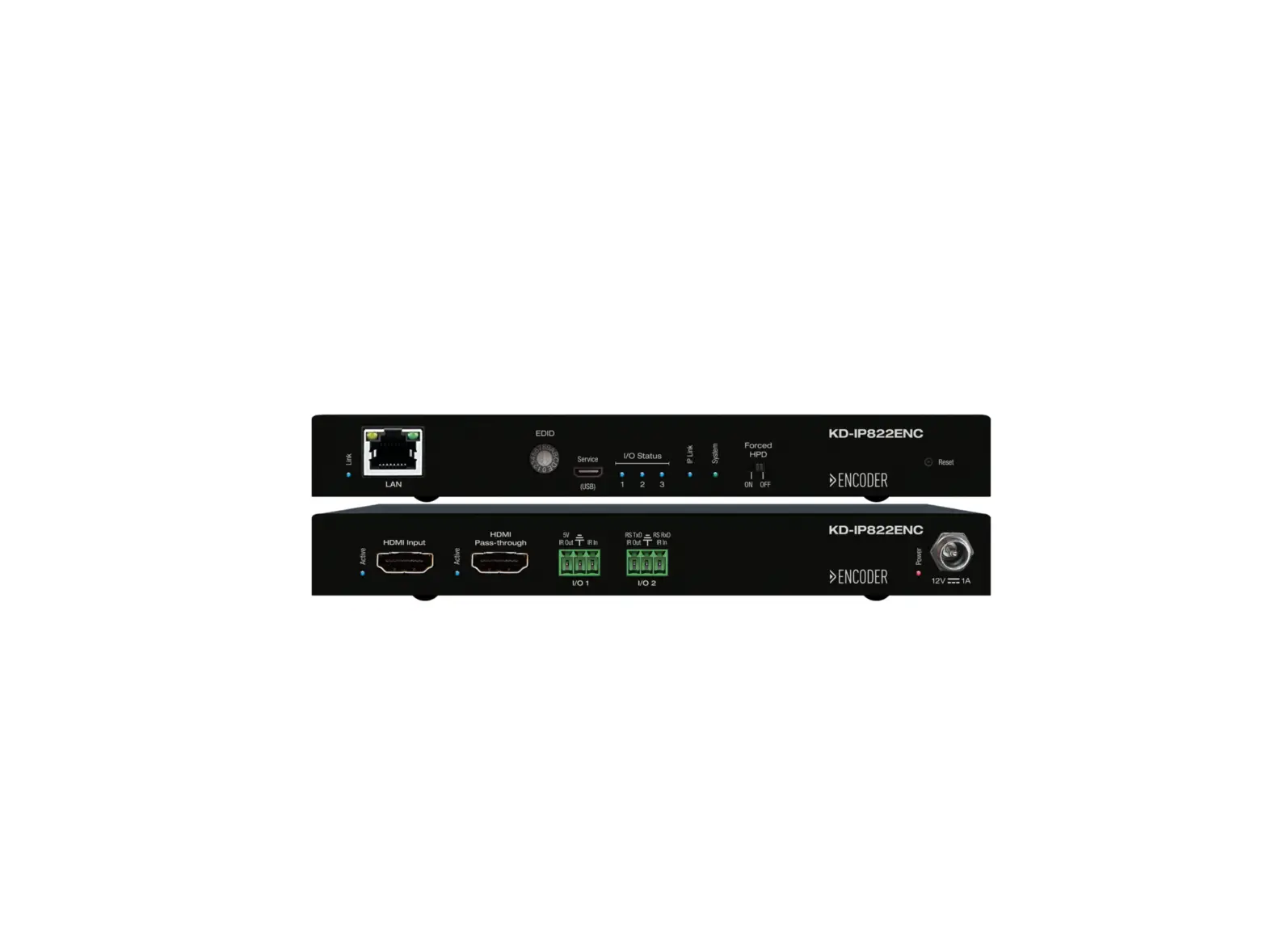
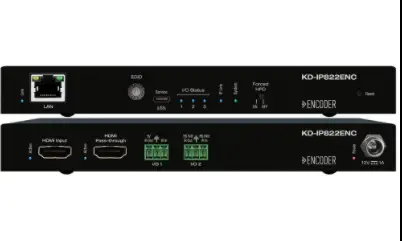
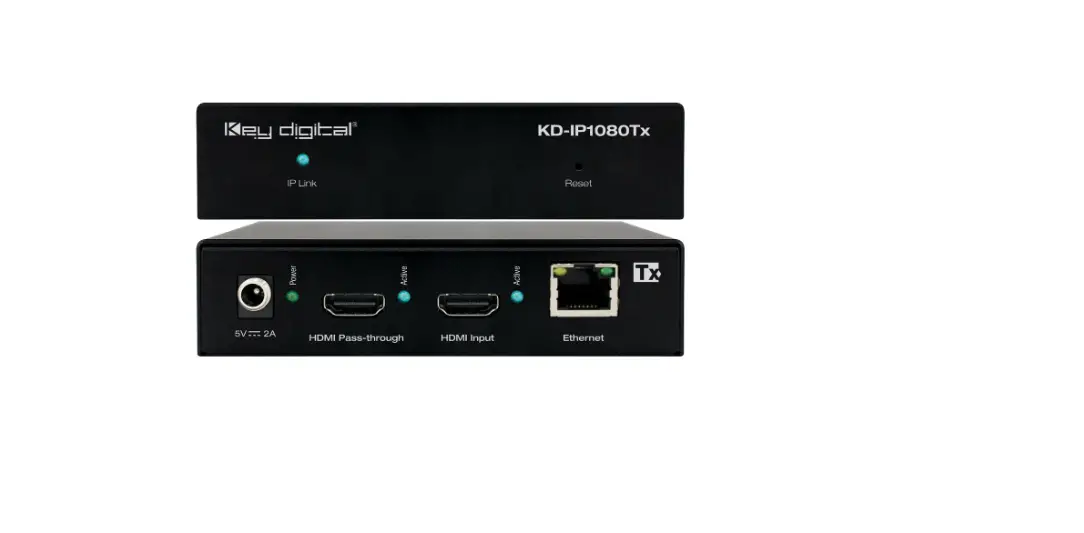
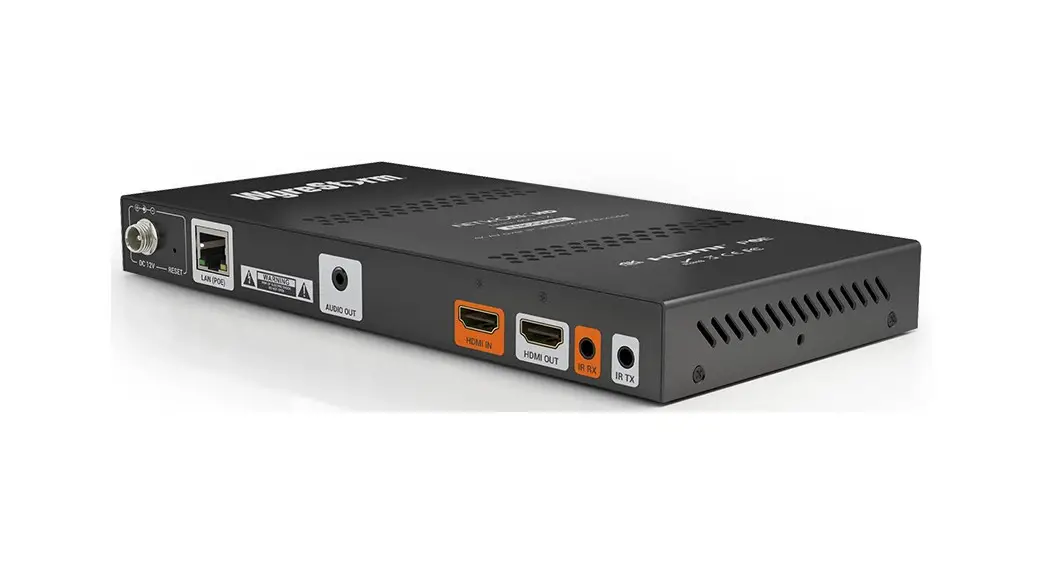
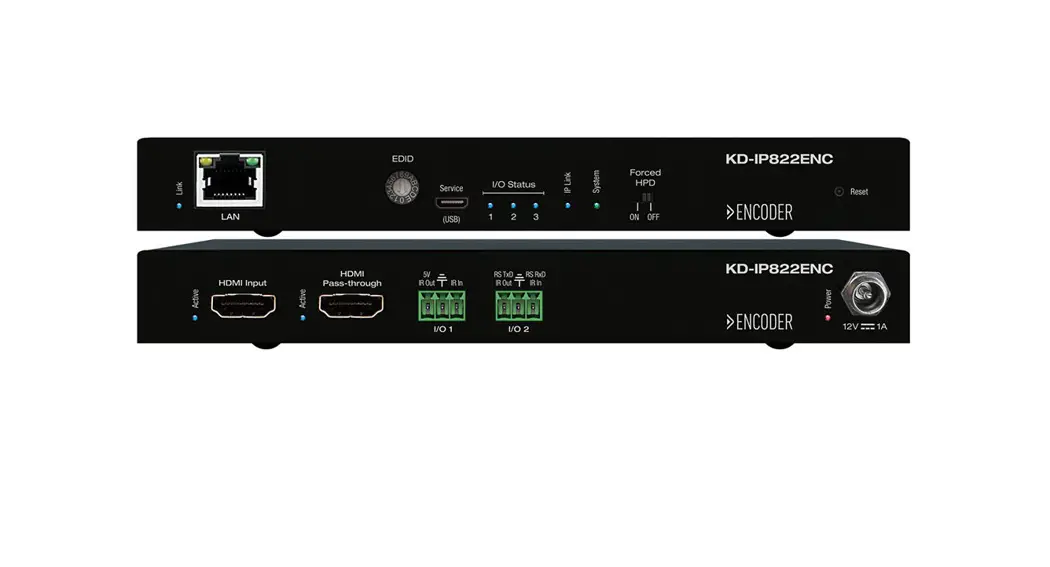
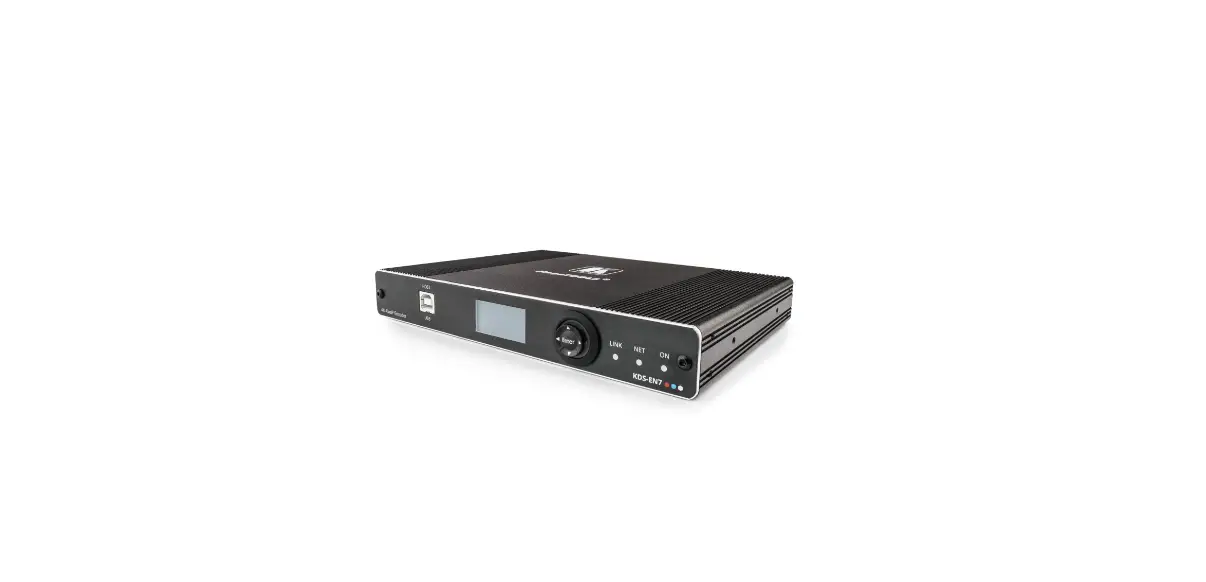
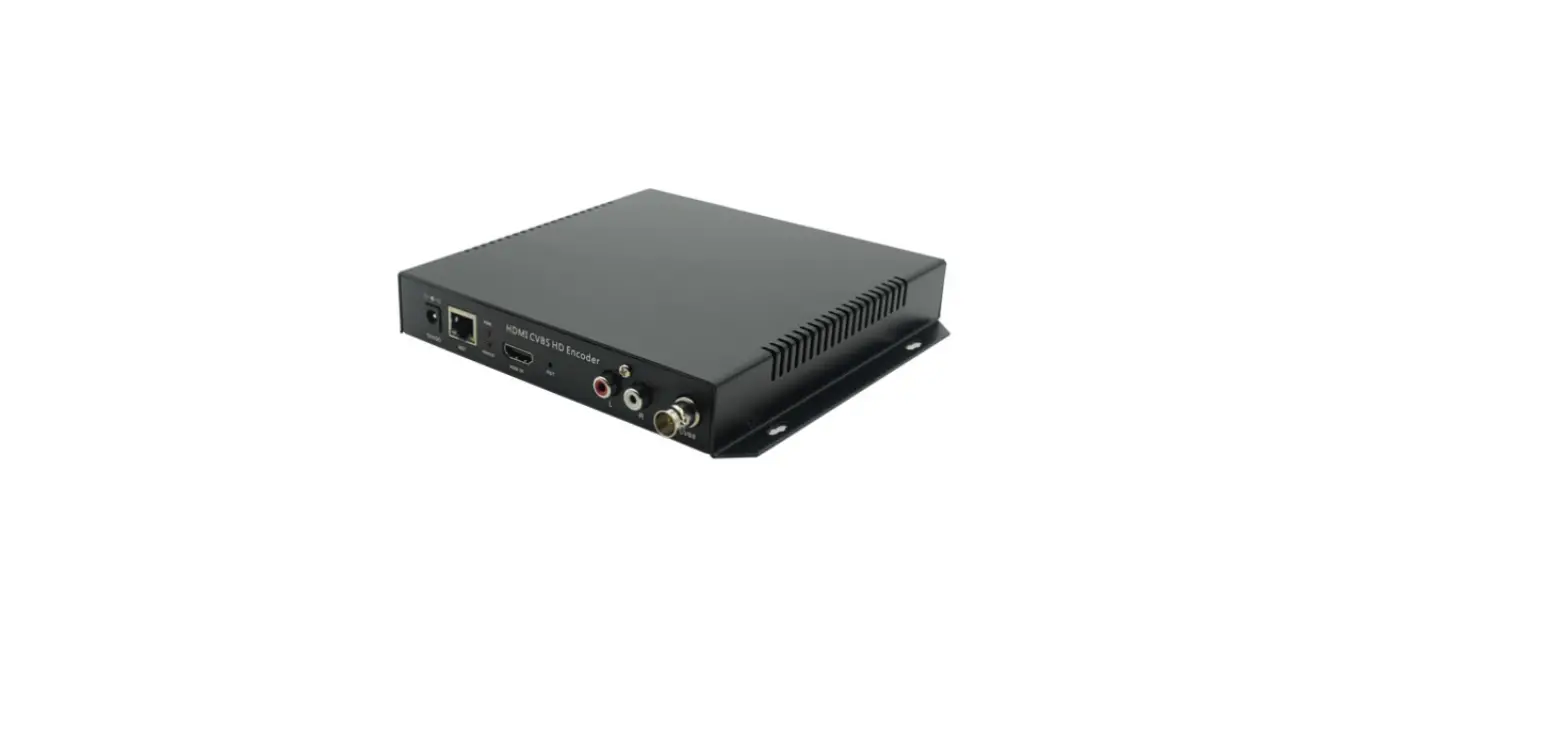
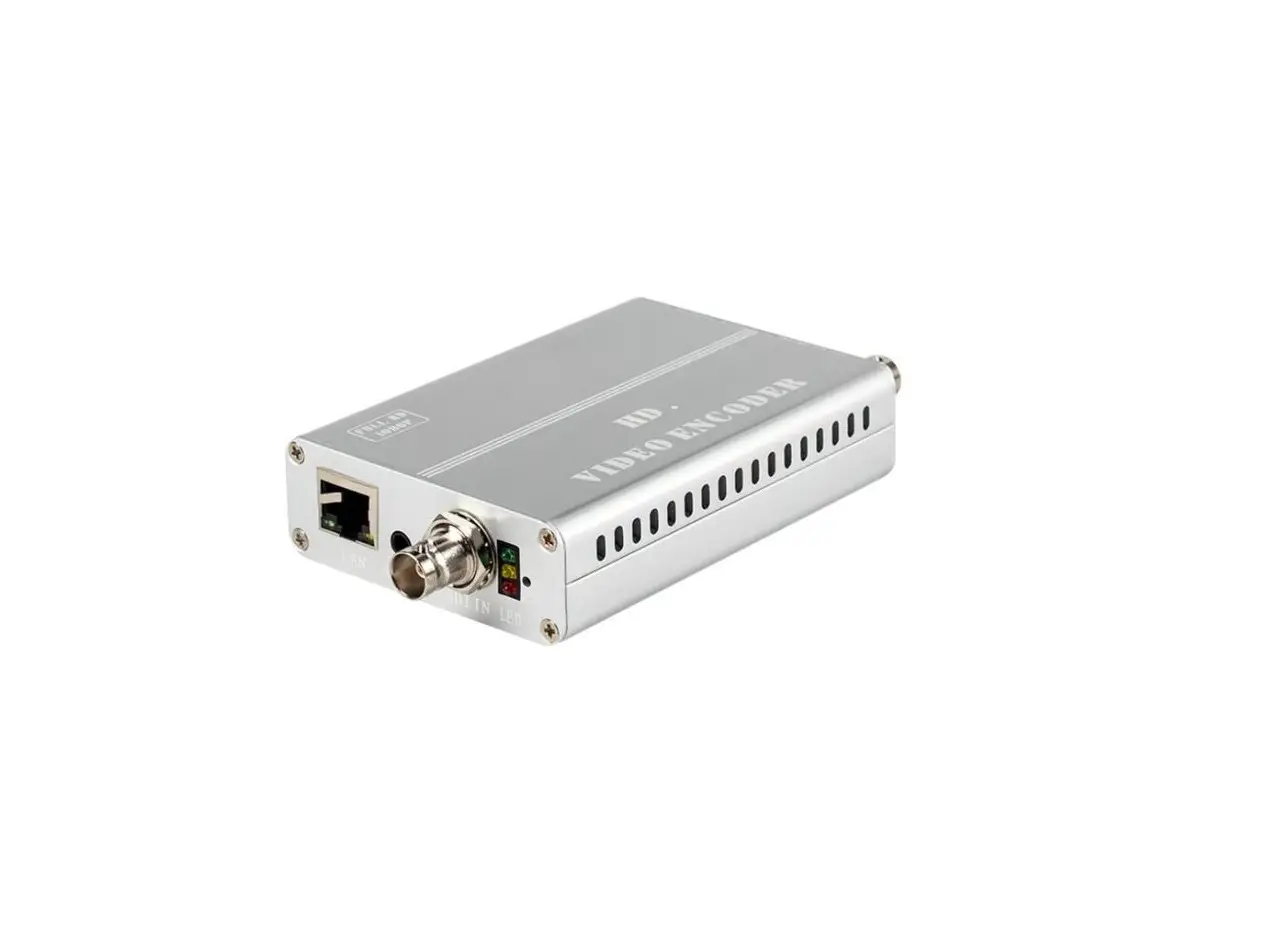
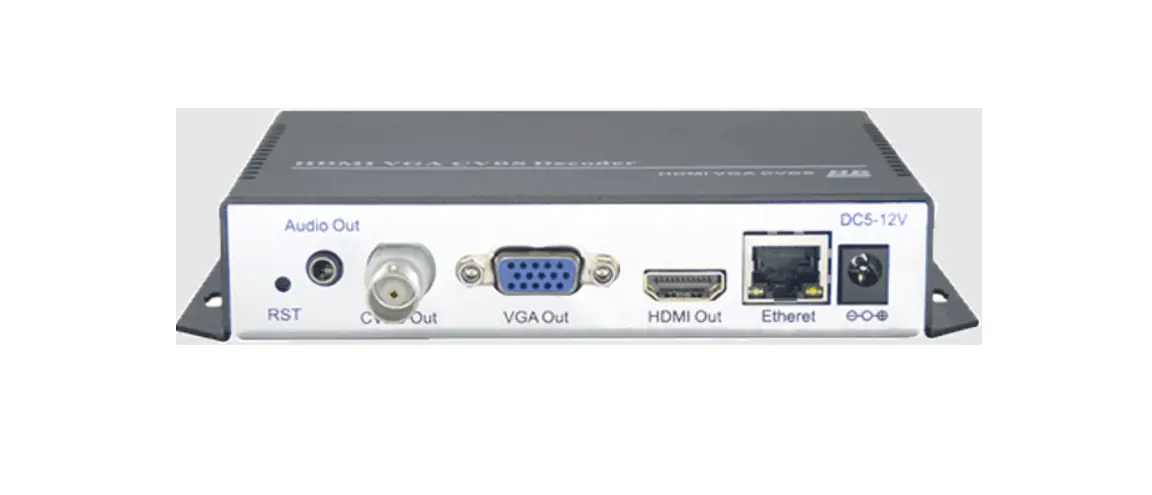
KD-IP922DEC-II 4K AV Over IP Encoder
Product Information: Key Digital 4K AV over IP Encoder /
Decoder System
The Key Digital 4K AV over IP Encoder / Decoder System is a
high-quality audiovisual system that allows for the transmission
and distribution of 4K video and audio signals over an IP network.
The system consists of Encoders (ENCs) and Decoders (DECs) that are
pre-configured to your specifications.
Product Usage Instructions:
- Connect all new ENCs and DECs to the network. Ensure that the
pre-existing ENCs and DECs are not shut down. Wait for
approximately 2 minutes for the equipment to boot up. - Connect your Windows PC to the network using an Ethernet cable.
Set a unique static IP address for your PC, matching the first 3
octets of the ENCs and DECs’ IP addresses. Download KDMS Pro (QR
1), extract the zip file, and open the KDMS_Pro application.
Important: Do not remove the application from the
folder. Choose SCAN > NETWORK SCAN in KDMS Pro. The application
will automatically detect your system, and the new equipment should
appear at the bottom of the scan as “OTHER 4K AVOIP DEVICES”. - In the AVOIP SYSTEM tab of KDMS Pro, click on “BUILD FROM
SCAN”. Provide a name for the new system, then click “OK”. Wait for
5-20 seconds as the system file populates. Verify that all devices
are present in the IP SYSTEM window. - To save a copy of the switch file to your PC, click on the
“SAVE AS” button. Then, click on “LOAD TO UNITS” and select “START
LOAD”.
Optional Settings:
A. Source & Display Control: You may set
the Source & Display Control settings as desired (QR 2).
B. Video Wall: If using a video wall, the Video
Wall settings must be re-applied with each system load (QR 3).
Key Digital 4K AV over IP Encoder / Decoder System Addition Guide Your Encoders (ENCs) and Decoders (DECs) are pre-configured to your specification (see attached). Follow these instructions for a 1, 2, 3 AV over IP experience:
1. Connect all new ENCs and DECs to the network. Do not shut down the pre-existing ENCs and DECs a. Wait 2 minutes for the equipment to bootup
2. Connect Window’s PC into Network with ethernet cable a. Set a unique static IP address to your PC. Match the first 3 octets of the ENCs and DECs b. Download KDMS Pro (QR 1). Extract zip file. Open KDMS_Pro application. i. IMPORTANT: Do not remove the application from the folder c. Choose SCAN > NETWORK SCAN and KDMS Pro will find your system d. The new equipment should appear at the bottom of the scan as OTHER 4K AVOIP DEVICES
3. In the AVOIP SYSTEM tab, click BUILD FROM SCAN a. Name the new system, then click OK. Wait 5-20s as system file populates b. Verify all devices are present in IP SYSETM window
KDMS Pro
4. Click the SAVE AS button to save a copy of the switch file to the PC. 5. Click LOAD TO UNITS, then START LOAD
OPTIONAL SETTINGS: A. Source & Display Control may be set as desired (QR 2)
Source & Display
B. Video Wall settings must be re-applied with each system load (QR 3)
Control
521 East 3rd Street Mt. Vernon, NY 10553 · www.keydigital.com
Video Wall 1
 keydigital.com